Loading…


KnowledgeBase
Field Masking: Hide Phone Numbers, Emails and Other Sensitive Data on Web & Mobile (Step-by-Step)
Introduction#
Field masking hides the value of a sensitive field — such as a customer’s phone number or email address — from team members who should not see it in full. Instead of +919822012345 they see *********2345, and instead of rohan.mehta@example.com they see ro*********@example.com. People you trust (admins, managers, or any profile you choose) keep seeing the real value.
Masking is applied by the CRM server before the data reaches the person, so it works the same way everywhere: in the web app, in the AiEngage mobile app, in exports and in API responses. The real value is never deleted or changed — it stays safely stored, so search, automations, campaigns and calls keep working.
What you control | Where you set it |
|---|---|
Which fields are masked, and how (full or partial) | Settings → Customization → Modules and Fields → choose the module → click the field → Field Masking |
Who sees the original value of every masked field | Settings → Security Control → Profiles → a profile → Data Privacy → Field Masking → View Original |
Extra people who always see one field’s original value | The field’s Always allow originals for list (Profiles / Users) |
What happens when data leaves the CRM (exports, API) | The field’s When data leaves the CRM setting |
ℹ️
Good to know: the Owner and Admins always see original values. If you test masking while signed in as an admin, you will not see any masked values — sign in as a member on a profile without View Original to see what they see.
Before You Begin#
You need permission to customise modules (normally an Admin) to change field settings, and permission to edit profiles to change View Original.
Field masking must be included in your subscription plan. Your plan may also limit how many fields can be masked. If Save shows a plan message, contact your account owner or AiEngage support.
Only these field types can be masked: Single Line, Multi-Line, Email, Phone, URL, Number, Currency, Decimal, Long Integer, Date and Date/Time. Pick lists, multi-selects, checkboxes, lookups, user fields, files and images, formulas, rollups, subforms and country/state fields cannot be masked, so the Field Masking section does not appear for them.
Decide which profiles really need full numbers and emails (for example, Managers) before you start — you will turn on View Original only for them.
Step 1: Open the Field You Want to Mask#
Click the Settings (gear) icon at the bottom of the left icon bar.
Under Customization, click Modules and Fields.
Open the module that holds the data — in this example, Contacts. The layout builder opens.
In the middle of the screen, click the field you want to mask — here, Phone. The Field Configuration panel opens on the right.
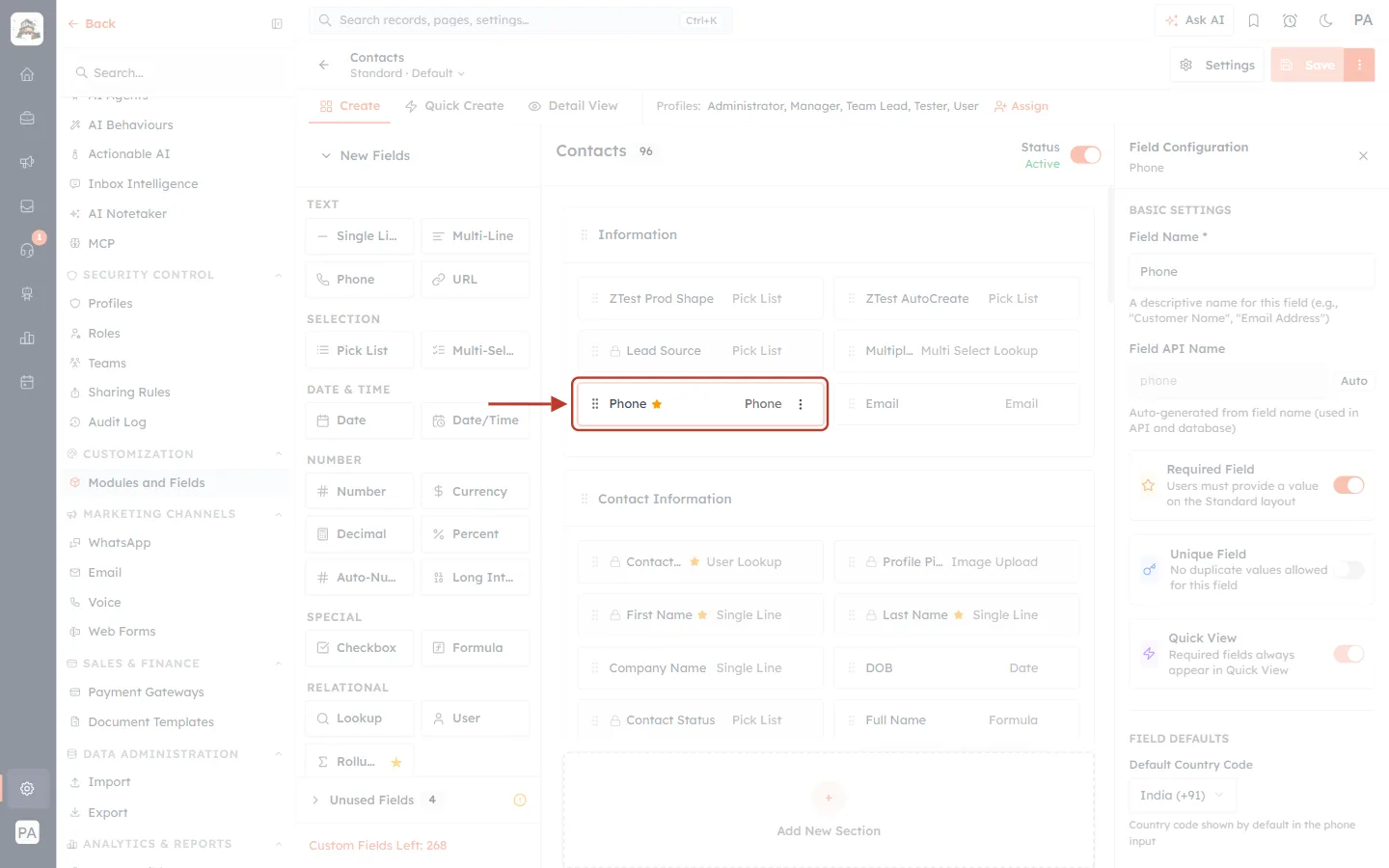
What this screenshot shows. The Contacts layout builder after clicking the Phone field. The red box marks the selected field card.
Phone ★ / Phone — the selected field card. The first word is the field name; the second is its type. The star means the field is required.
Field Configuration · Phone (top right) — the settings panel for the field you clicked. Field Masking is one of the sections in this panel.
Contacts · Standard · Default (top left) — the module and the layout you are editing. Masking is set on the field itself, so it applies to every layout of the module, not just this one.
The left column lists field types you can add; you do not need it for masking.
Step 2: Turn On “Mask this field”#
Scroll down the Field Configuration panel, past Show this field on… and Field access, to the FIELD MASKING section. Turn on the Mask this field switch.
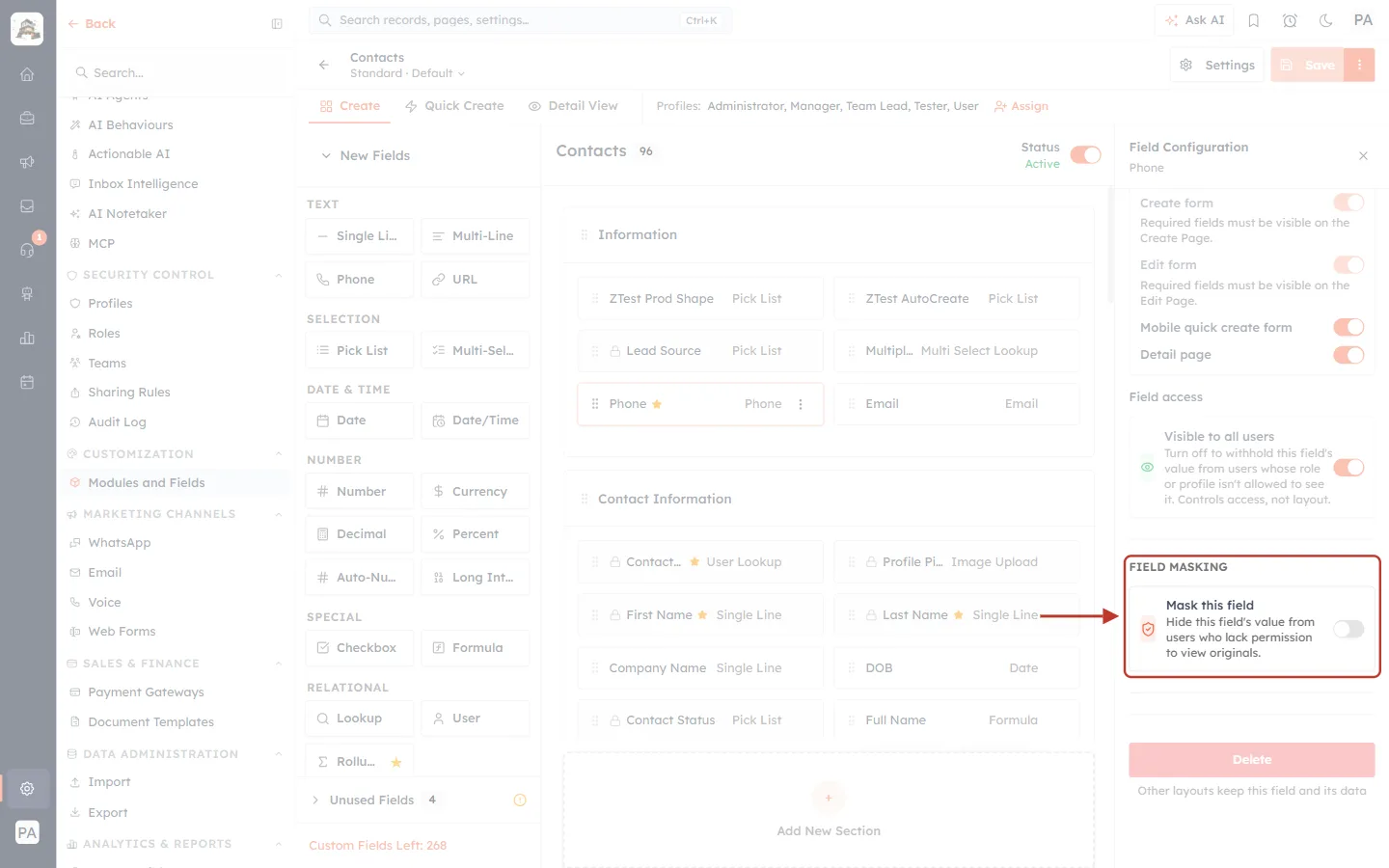
What this screenshot shows. The FIELD MASKING section before masking is switched on.
Mask this field — the main switch. Its note reads “Hide this field’s value from users who lack permission to view originals.”
While the switch is off (grey), the field behaves exactly as before and everyone who can see the field sees its full value.
When you turn it on, the masking options appear underneath (see the next step).
If you do not see this section, the field type cannot be masked (for example, a pick list or lookup).
ℹ️
Field access vs. Field masking. The Visible to all users switch under Field access hides the field completely from people who aren’t allowed to see it. Mask this field keeps the field visible but hides part or all of its value — useful when the team needs to know a phone number exists, and maybe its last digits, without seeing the whole number.
Step 3: Choose Full or Partial Masking#
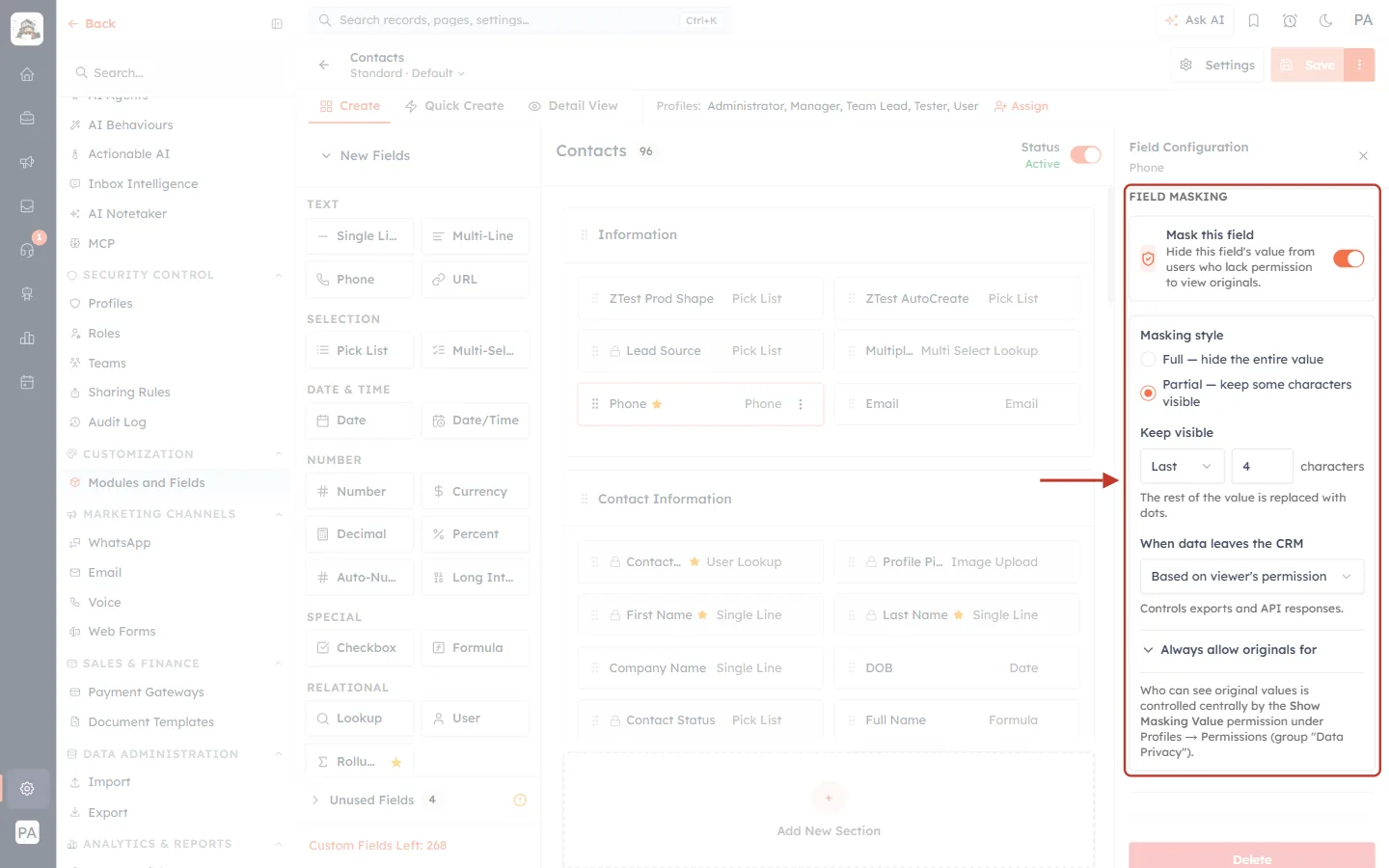
What this screenshot shows. The masking options for the Phone field once Mask this field is on, set to Partial — keep the last 4 characters.
Masking style — Full — hide the entire value replaces the whole value with
********(always 8 asterisks, so even the length is hidden). Partial — keep some characters visible shows a few characters and hides the rest.Keep visible (Partial only) — choose First or Last and how many characters to keep (1–64). Last 4 is the default and suits phone numbers:
+919822012345becomes*********2345.“The rest of the value is replaced with dots.” — hidden characters are shown as asterisks (
*).When data leaves the CRM — how exports and API responses treat this field (Step 4).
Always allow originals for — optional extra people who always see this field in full (Step 5).
The note at the bottom reminds you that most access is controlled by the Show Masking Value (View Original) permission in Profiles (Step 7).
How the same values look with different settings:
Field type | Original value | Setting | What a masked user sees |
|---|---|---|---|
Phone | +919822012345 | Partial · Last 4 | *********2345 |
rohan.mehta@example.com | Partial · First 2 | ro*********@example.com | |
rohan.mehta@example.com | Full | ******** | |
Single Line (e.g. ID number) | ABCD1234567 | Partial · First 4 | ABCD******* |
URL | https://example.com/profile/42 | Partial | ****://example.com/**** |
Number / Currency | 250000 | Full | ******** |
Date / Date-Time | 14 Feb 1990 | Always full | ******** |
Emails: partial masking applies to the part before the
@. The domain stays visible so people can still tell Gmail from a company address. Choose Full to hide the domain too.At least one character is always hidden. If you ask to keep more characters than the value has, the CRM still hides at least one.
Step 4: Decide What Happens When Data Leaves the CRM#
Click the When data leaves the CRM drop-down. This setting controls exports and API responses only — inside the CRM (web and mobile), masking always follows the viewer’s permission.
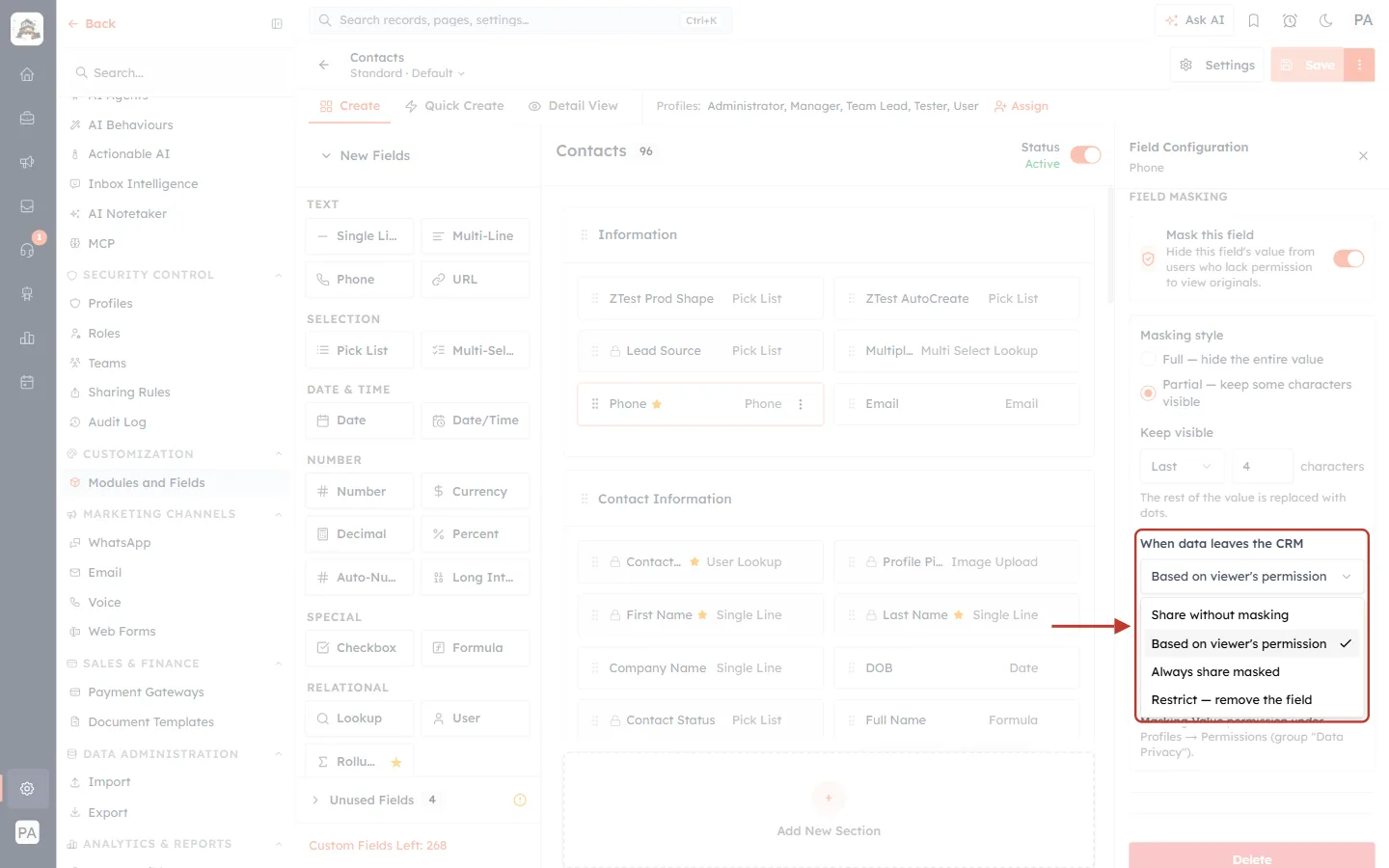
What this screenshot shows. The When data leaves the CRM drop-down open, with Based on viewer’s permission selected (the default).
Share without masking — exports and the API get the real value, even though the field is masked on screen. Use only when the systems you send data to are trusted.
Based on viewer’s permission (default) — a person who can see originals exports real values; a person who can’t exports masked values. An API key is not tied to a person, so API responses get the masked value.
Always share masked — exports and the API always get the masked value, even for admins.
Restrict — remove the field — the field is left out of exports and API responses completely.
Option | Export by someone with View Original | Export by someone without it | API response (API key) |
|---|---|---|---|
Share without masking | Real value | Real value | Real value |
Based on viewer’s permission | Real value | Masked | Masked |
Always share masked | Masked | Masked | Masked |
Restrict — remove the field | Field removed | Field removed | Field removed |
Step 5 (Optional): Always Allow Originals for Specific Profiles or Users#
Click Always allow originals for to open it. Use it when someone should see this one field in full, without giving them View Original for every masked field.
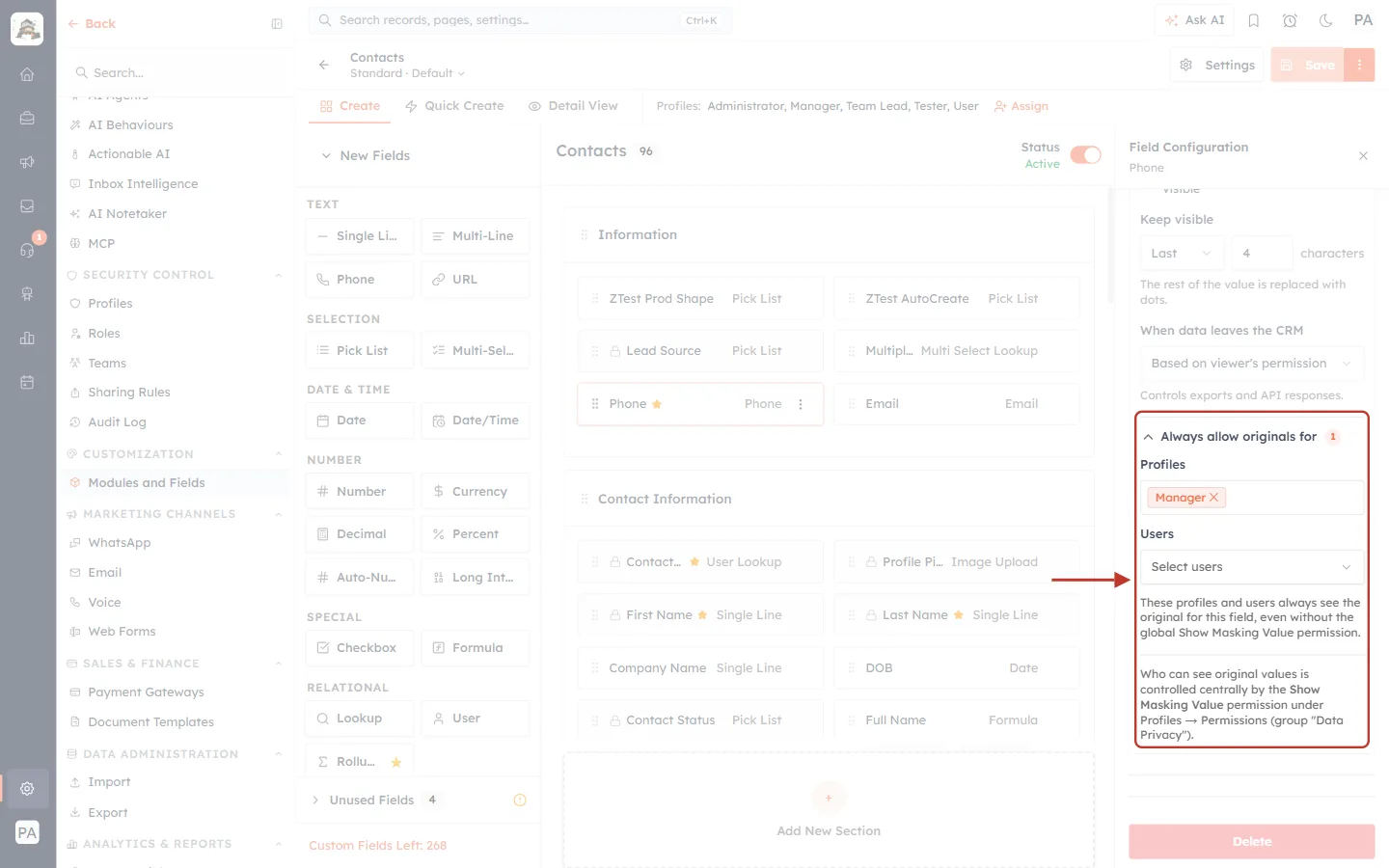
What this screenshot shows. The Always allow originals for list opened, with the Manager profile added.
Profiles — pick one or more profiles. Everyone on those profiles sees this field’s original value. Here, Manager is selected; the small 1 badge next to the heading counts how many profiles and users are on the list.
Users — pick individual people who should see this field in full.
The note explains that these people “always see the original for this field, even without the global Show Masking Value permission.”
Leave both lists empty if the Profiles permission (Step 7) is enough.
Step 6: Save the Layout#
Click the orange Save button at the top right of the layout builder. Masking starts working as soon as the save finishes.
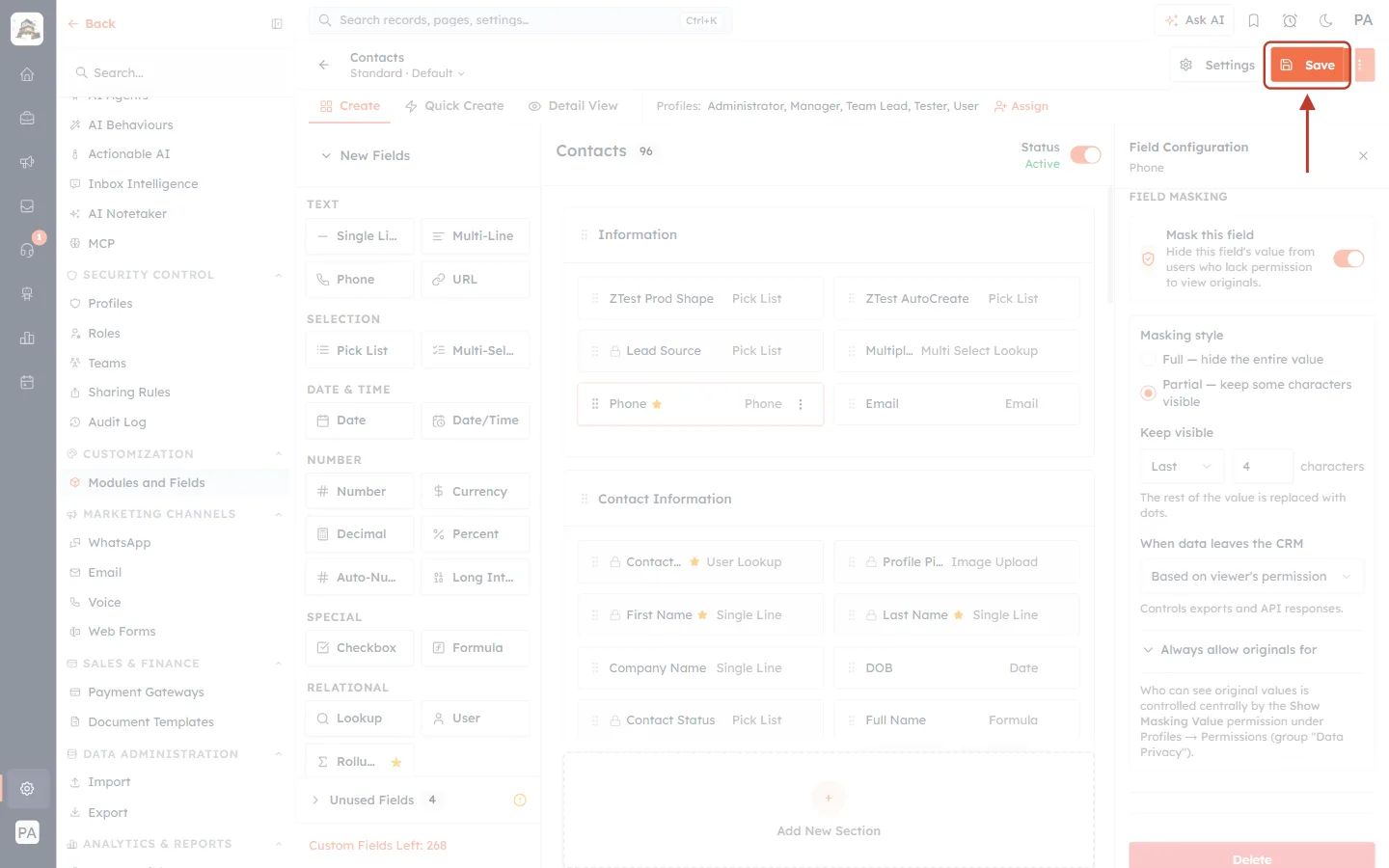
What this screenshot shows. The Save button after the Phone field’s masking settings were changed.
Save becomes active once you change something in the builder. Click it to store the masking settings.
If your plan does not include field masking, or you have reached your plan’s limit of masked fields, a message appears and the setting is not saved.
Repeat Steps 1–6 for every field you want to mask — for example, Email and any other personal-data field.
Masking a Date or Date/Time Field#
A date cannot be partly hidden in a useful way (even the year gives information away), so date fields are always fully masked.
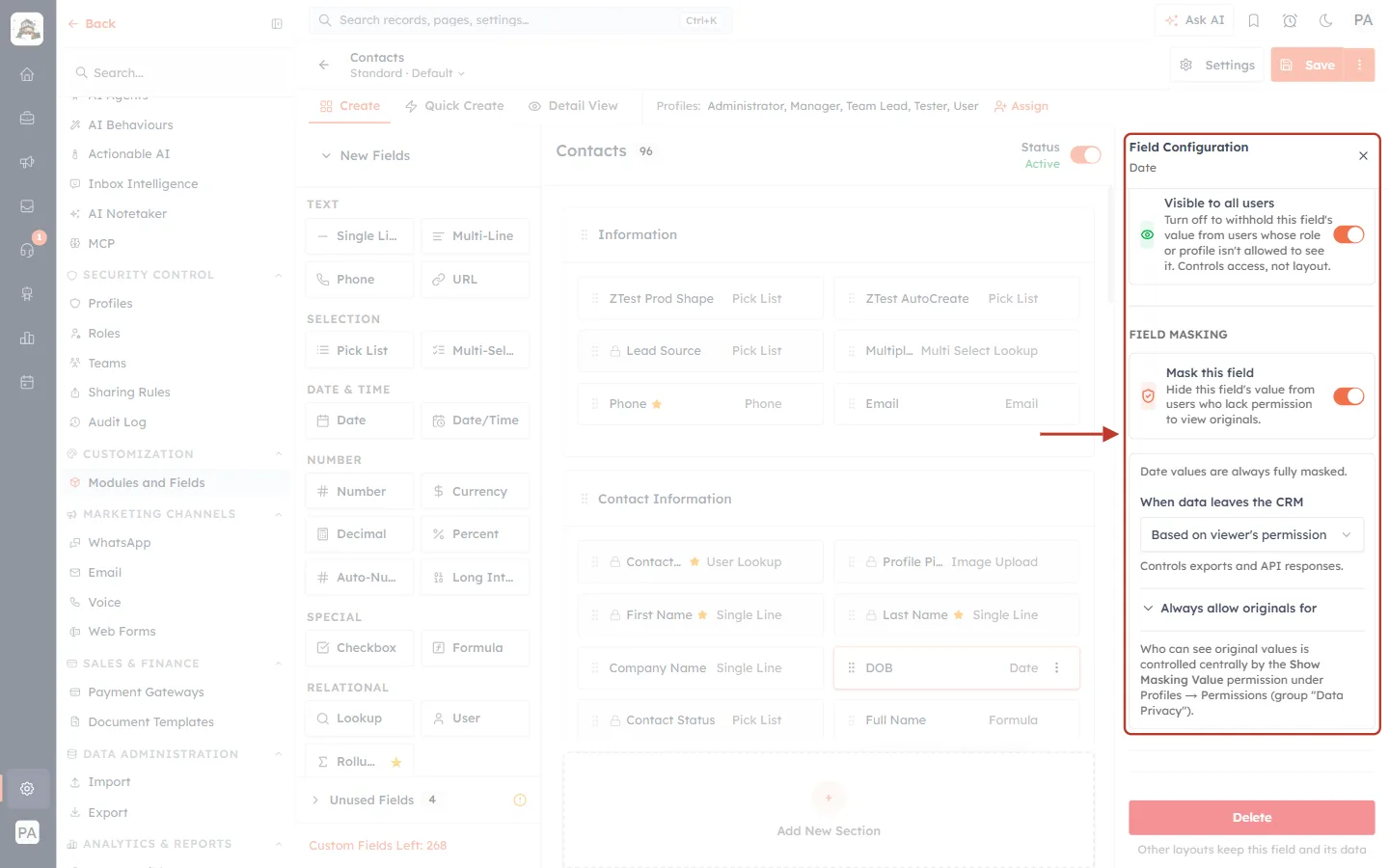
What this screenshot shows. The DOB (date of birth) field with masking turned on.
Field Configuration · Date — the selected field is a Date field.
Instead of Full/Partial choices, the panel says “Date values are always fully masked.” Masked users see
********.When data leaves the CRM and Always allow originals for work the same way as for other fields.
Step 7: Choose Who Can See Original Values (Profiles)#
The View Original permission decides who sees the real value of every masked field. It is off for member profiles until you turn it on.
Go to Settings → Security Control → Profiles.
Click the profile you want to change (for example, User or Manager).
In the left list, under Feature Permissions, click Data Privacy.
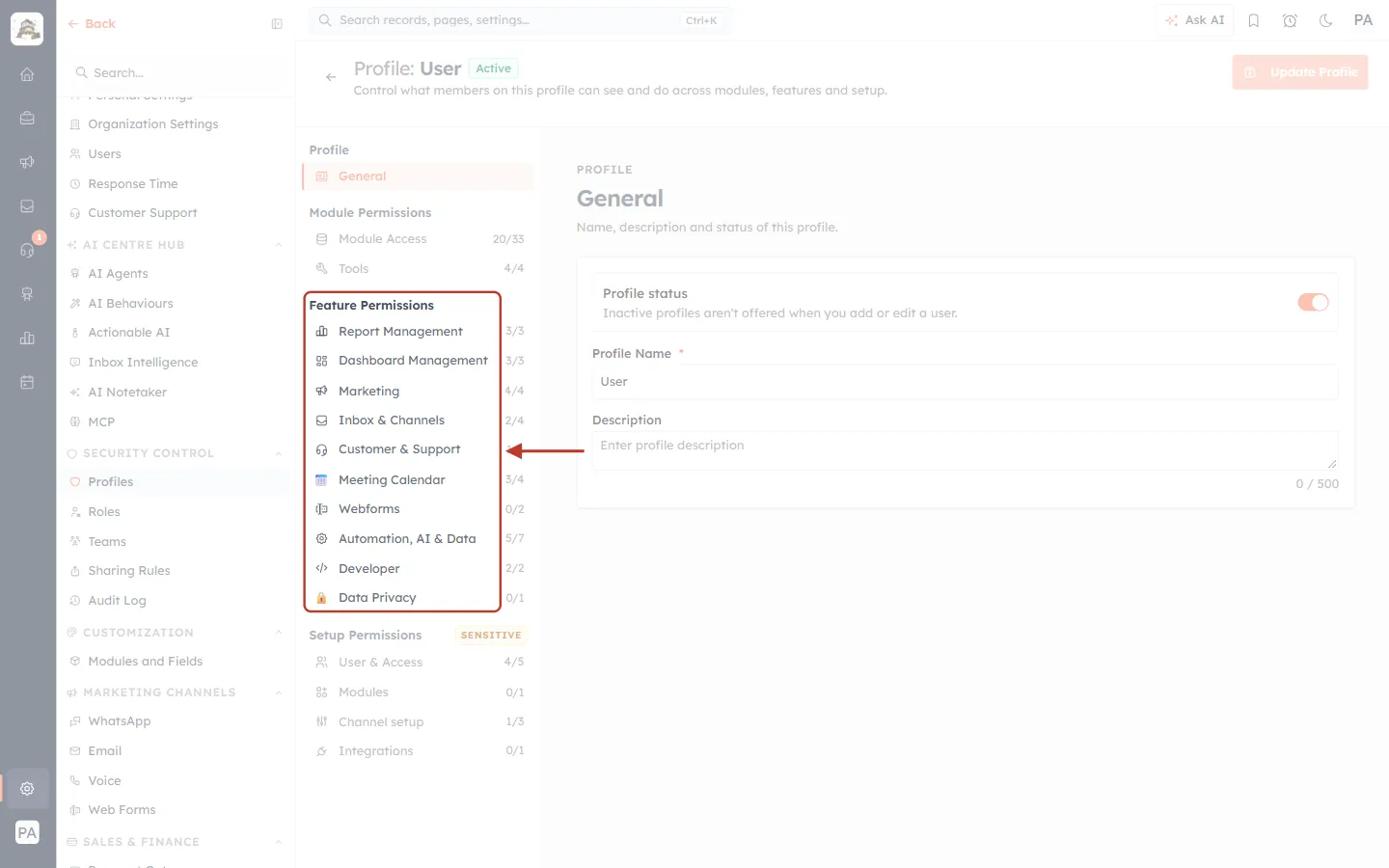
What this screenshot shows. A profile’s permission menu. Data Privacy is the last group under Feature Permissions.
Feature Permissions — groups of feature switches for this profile (Report Management, Marketing, Developer and so on).
Data Privacy — the group that holds the field masking permission. The counter on the right (for example 0/1) shows how many of its permissions are on.
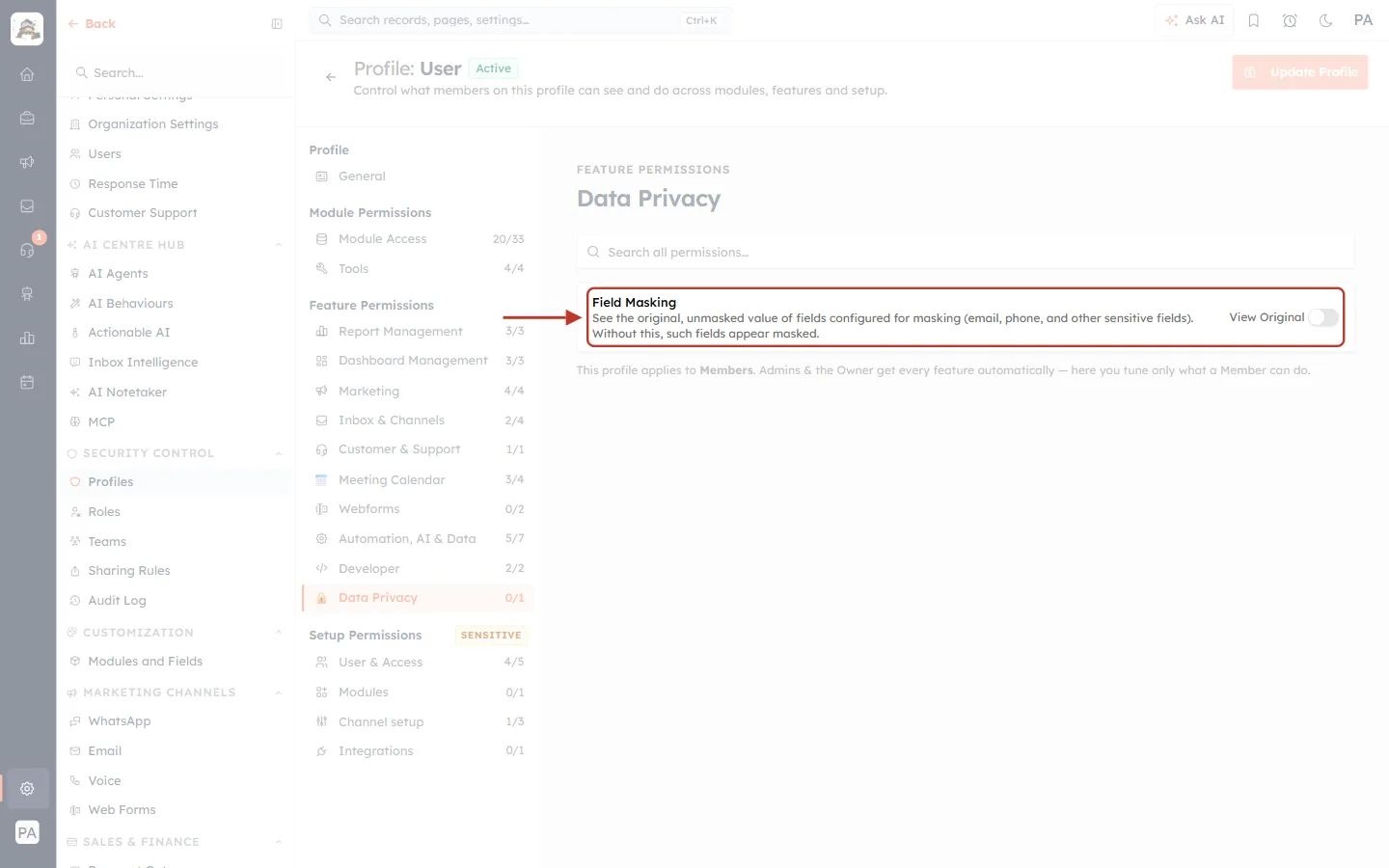
What this screenshot shows. The Data Privacy page of the User profile.
Field Masking — the permission. Its description: “See the original, unmasked value of fields configured for masking (email, phone, and other sensitive fields). Without this, such fields appear masked.”
View Original switch — turn it on to let everyone on this profile see original values; leave it off so they see masked values. (The field builder calls this permission Show Masking Value — it is the same switch.)
The line underneath reminds you that the profile applies to Members: Admins and the Owner get every feature automatically, including original values.
After changing the switch, click Update Profile at the top right to save.
✅
Tip: check which profile each person uses in Assign a Profile to a User Step by Step. Changing a profile affects everyone on it.
Step 8: What Your Team Sees in the Web App#
Open Contacts from the left menu. Here is the same list seen by two different people.
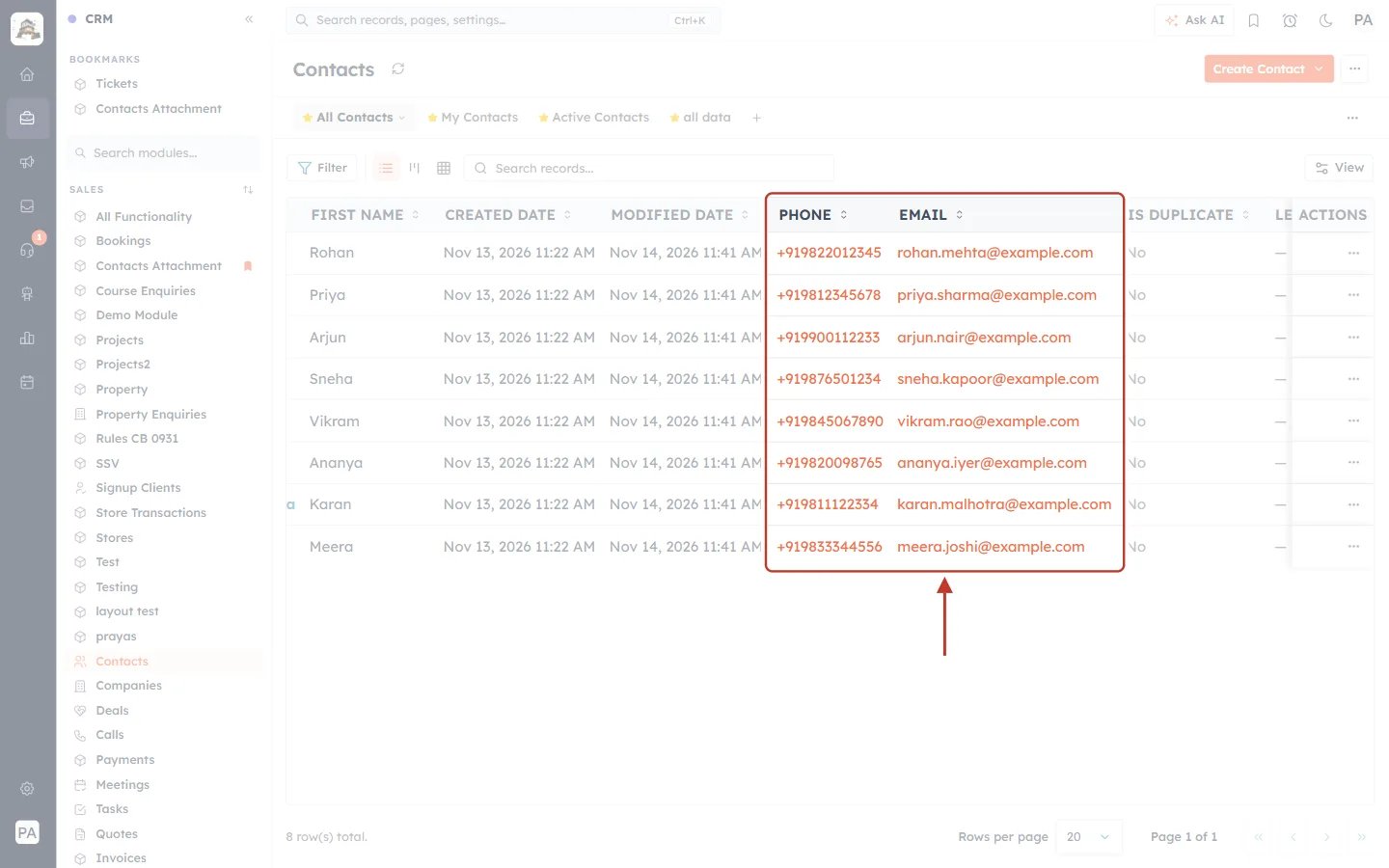
What this screenshot shows. The Contacts list for someone who can see originals (an admin, or a profile with View Original on).
PHONE and EMAIL columns show the full values, for example
+919822012345androhan.mehta@example.com.Nothing changes for these users after you turn masking on.
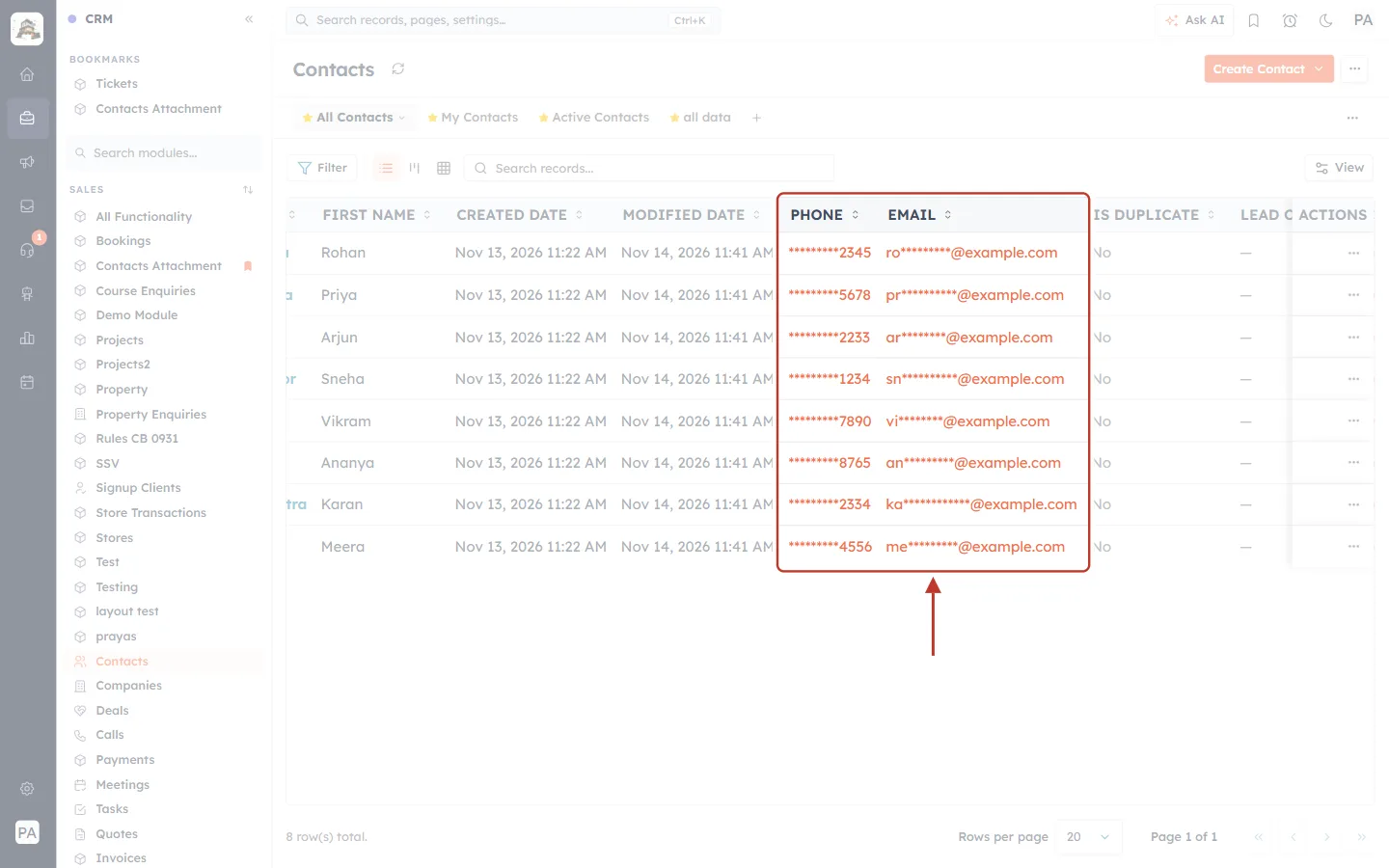
What this screenshot shows. The same Contacts list for a member without View Original, after masking Phone (Partial · Last 4) and Email (Partial · First 2).
PHONE — only the last 4 digits are visible:
*********2345.EMAIL — only the first 2 letters and the domain are visible:
ro*********@example.com.Every other column (names, dates, status) is unchanged. Sorting and the record count work as usual.
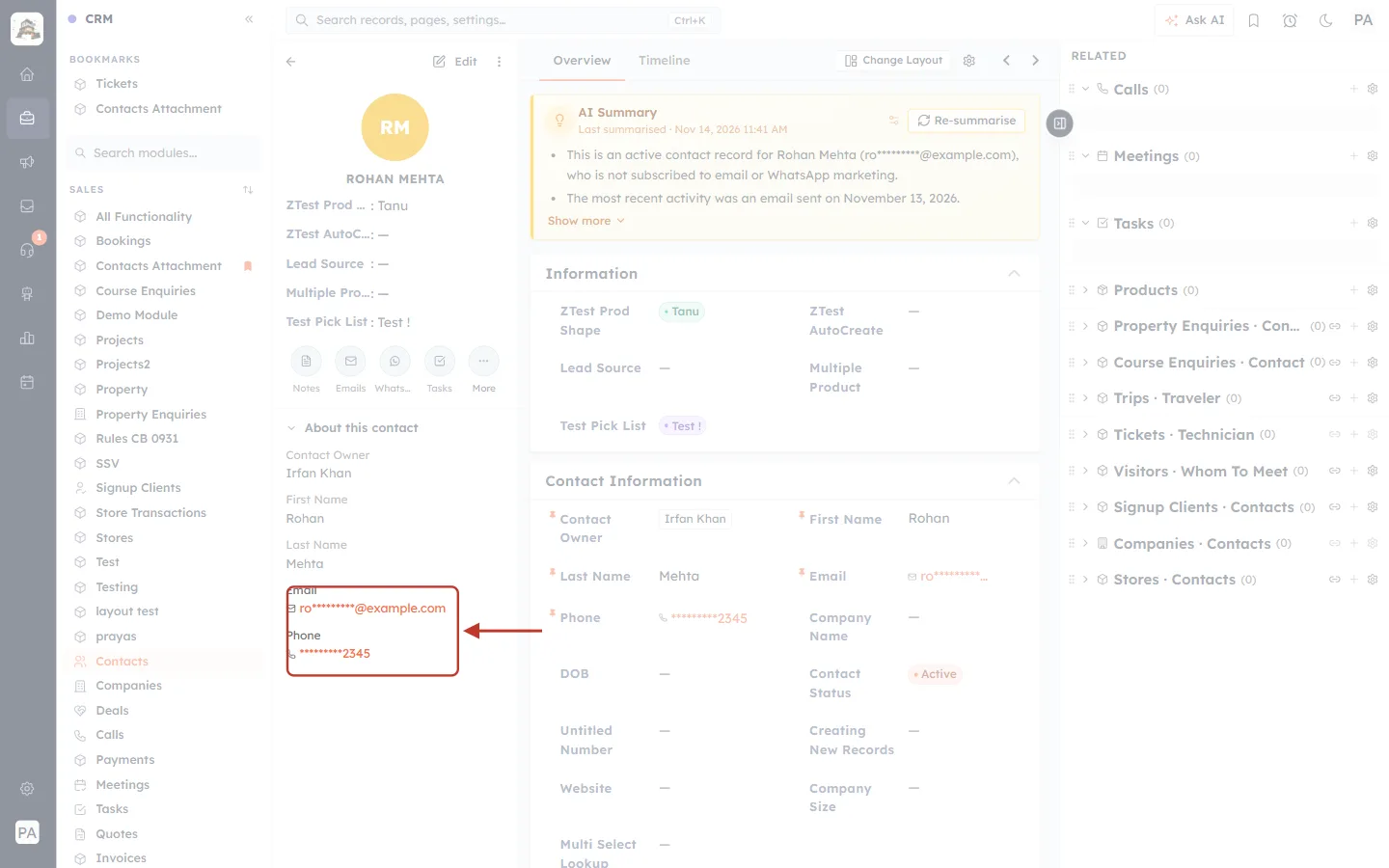
What this screenshot shows. A contact’s record page for the same member.
About this contact (left) — Email and Phone show the masked values.
The Contact Information section and even the AI Summary text show the masked values too, because the record data reaches the page already masked.
Masked fields cannot be edited inline — the pencil that normally appears when you hover over a value is not shown, because you cannot correct a value you cannot see. Ask someone who can see originals to update it.
Call, Email and WhatsApp buttons still work: the CRM looks up the real number or address on the server when you call or send, so the member can contact the customer without ever seeing the full value.
Place in the web app | What a masked user sees |
|---|---|
List views, Kanban, record pages, related lists | Masked value |
Global search (Ctrl/Cmd + K) | Search still finds the record by the real value, but the result shows the masked value |
Reports and dashboards | Masked values in record rows; filters on a masked field are ignored for masked users |
Email / WhatsApp composer and previews | Recipient and merge fields shown masked; the message is sent to the real address or number |
Call button / softphone | Number shown masked; the call connects to the real number |
Automations, campaigns, workflows | Not affected — they always use the real value |
Step 9: What Your Team Sees in the Mobile App#
You don’t need to set anything up separately for mobile. The AiEngage mobile app gets its records from the same CRM server, and the server masks the data for the person who is signed in. So:
A member without View Original sees
*********2345andro*********@example.comin the app’s contact list and contact details — exactly like on the web.A person with View Original (or on a field’s Always allow originals for list), an Admin or the Owner sees the full values in the app.
Turning masking on or off, or changing someone’s profile, takes effect in the app the next time it loads the record — pull down to refresh, or close and reopen the record.
The Mobile quick create form switch in the field settings only decides whether the field appears on the app’s quick-create form. It does not turn masking on or off.
ℹ️
For calling customers from the app, see Call Contacts from the AiEngage Mobile App.
Step 10: Exports and the API#
Exports (Settings → Data Administration → Export, and report exports) follow each field’s When data leaves the CRM setting from Step 4. See Export Your Data.
API responses made with an API key follow the same setting. Because an API key belongs to the organisation, not to a person, Based on viewer’s permission returns the masked value. Choose Share without masking only for a field your integration really needs in full. See API Keys Step by Step: Generate, Use and Revoke a Personal Access Token.
Restrict — remove the field is the safest choice for data that must never leave the CRM.
Troubleshooting#
Problem | Likely cause | What to do |
|---|---|---|
There is no Field Masking section for a field. | The field type cannot be masked (pick list, lookup, formula, etc.), or your plan doesn’t include field masking. | Check the field type in the panel header. For plan questions, contact your account owner or AiEngage support. |
Save shows a plan or limit message. | Field masking isn’t in your plan, or you have reached your plan’s limit of masked fields. | Turn off masking on a field you no longer need, or upgrade your plan. |
I turned masking on but I still see full values. | You are an Admin or the Owner, your profile has View Original on, or you are on the field’s Always allow originals list. | Test with a member account whose profile has View Original off. |
A teammate should see full values but sees asterisks. | View Original is off on their profile. | Turn on Data Privacy → Field Masking → View Original for their profile, or add them to the field’s Always allow originals list, then save. |
The mobile app still shows the old value or mask. | The app is showing data it loaded earlier. | Pull down to refresh or reopen the record. |
A masked user can’t edit the phone number. | Inline editing is turned off for masked fields. | Ask someone who can see originals to update the value. |
My filter on a masked field returns nothing in a report. | Filters on a masked field are ignored for masked users, so the field can’t be used to guess values. | Ask a user with View Original to run the report, or filter on another field. |
Our integration receives asterisks from the API. | The field uses Based on viewer’s permission or Always share masked; API keys get masked values. | Change When data leaves the CRM to Share without masking for that field, if the integration is trusted. |
Best Practices#
Mask what is personal or sensitive — phone, email, ID numbers, date of birth, bank or tax numbers — and leave everyday business fields unmasked.
Use Partial for phone and email so your team can still tell customers apart (last 4 digits, first 2 letters), and Full for ID numbers and amounts.
Give View Original to as few profiles as possible. Use Always allow originals for when only one field needs to be shared with someone.
Keep exports safe: leave Based on viewer’s permission or choose Always share masked / Restrict unless a trusted system needs the real value.
Test as a member on both the web and the mobile app before telling the team masking is live.
Frequently Asked Questions#
Does masking change or delete the data?
No. The real value stays stored. Masking only changes what is shown to people who aren’t allowed to see it.
Will calls, emails, WhatsApp messages and automations still work?
Yes. Sending and calling use the real value on the server, and automations and campaigns always use the real value.
Can a masked user still search for a contact by phone number?
Yes. Global search matches the real value, but the result shows the masked value.
Is masking set per layout?
No. It is set on the field, so it applies to every layout of the module, on web and mobile.
Do admins see masked values?
No. The Owner and Admins always see original values.
What is the difference between “Show Masking Value” and “View Original”?
They are the same permission. The field builder calls it Show Masking Value; the profile page shows it as Data Privacy → Field Masking → View Original.
Can I mask a pick list or a lookup?
No. Only text, email, phone, URL, number, currency, decimal, long integer, date and date/time fields can be masked. To hide another field completely, use Field access (Visible to all users).
Previous and Next Articles#
Previous: Field Layouts and Required Fields: Organise Your CRM Forms
Next: Advanced Field Types: Formula, Rollup, Auto-Number, Lookup & Subforms
Related Articles#
Was this article helpful?
Ready to implement this?
OpenAI Engage and apply what you just learned to your own workspace.
Open AI Engage CRM