Loading…


KnowledgeBase
Activate or Deactivate a Layout: Switch a Form Off Without Losing It (Step-by-Step)
What does activating or deactivating a layout do?#
Every layout on a module’s Layouts page has a Status switch. When it is on (orange), the layout is active: the profiles it is shared with use it, and people can pick it when they create a record. When it is off (grey), the layout is inactive: nobody is offered it any more — but it is not deleted. Its fields, sections and settings stay exactly as they were, so you can switch it back on whenever you need it.
Deactivating is useful when, for example:
a seasonal team or campaign is over, and you don’t want its form in the way until next time;
a layout needs a bigger rework, and you want people on another layout while you change it;
you are not sure you will need a layout again, and don’t want to delete it yet.
Example used in this guide. The Contacts module has three active layouts: Standard (the default), Sales and Support (shared with Administrator and Tester). You switch Support off and move its profiles to Standard, see what changes for your team, then switch Support back on and share it again.
Before you begin#
You need permission to customise modules (the Administrator profile has it).
Decide which active layout the layout’s profiles should move to while it is off.
Two layouts can’t be switched off: Standard (always active) and the module default layout. To switch off the default, first make another layout the default — see Set the Module Default Layout.
Part 1: Open the module’s Layouts page#
Step 1: Go to Setup → Modules and Fields → Configure#
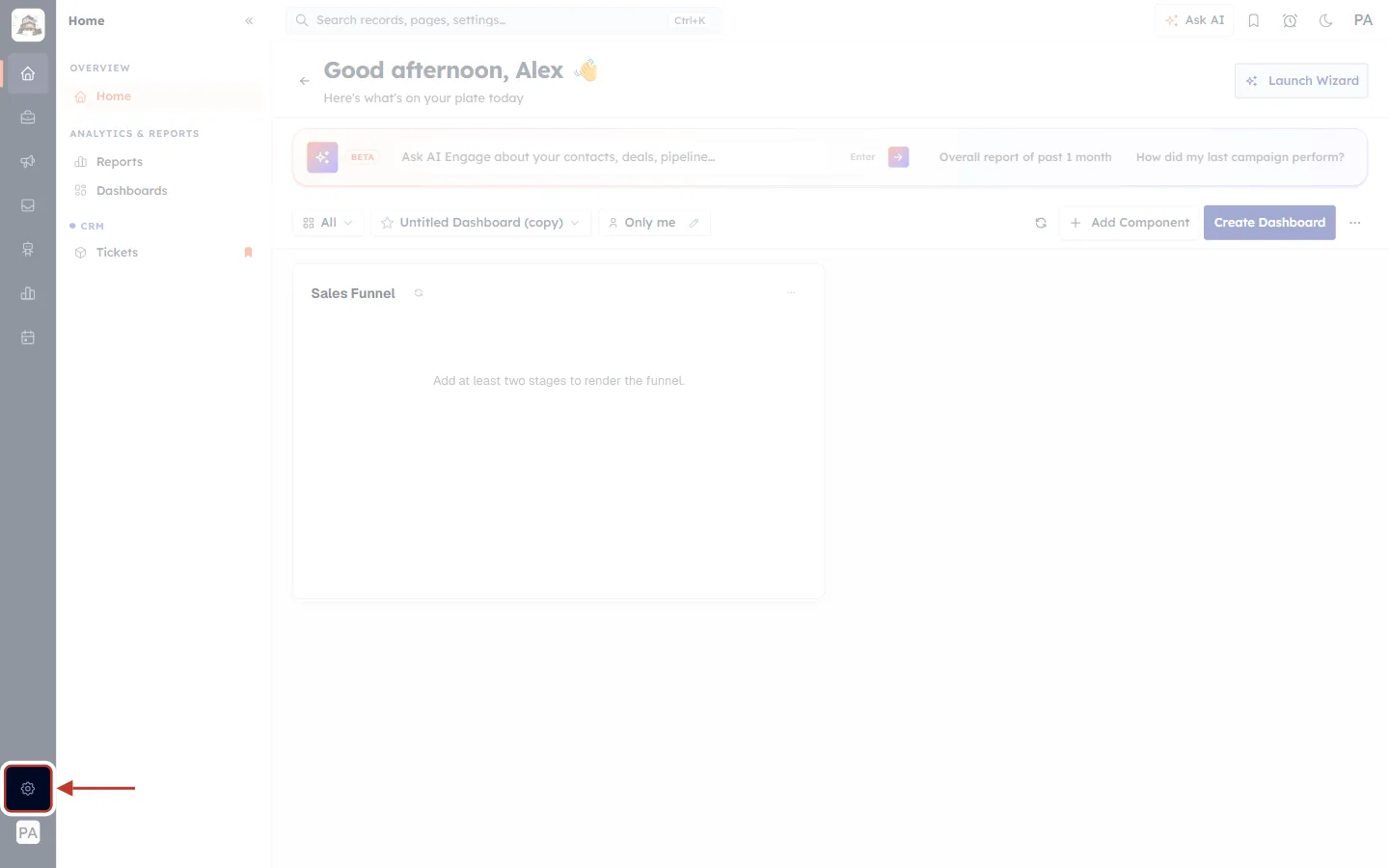
What this screenshot shows. The CRM home page with the gear icon ringed at the bottom of the narrow dark menu bar.
It opens Setup.
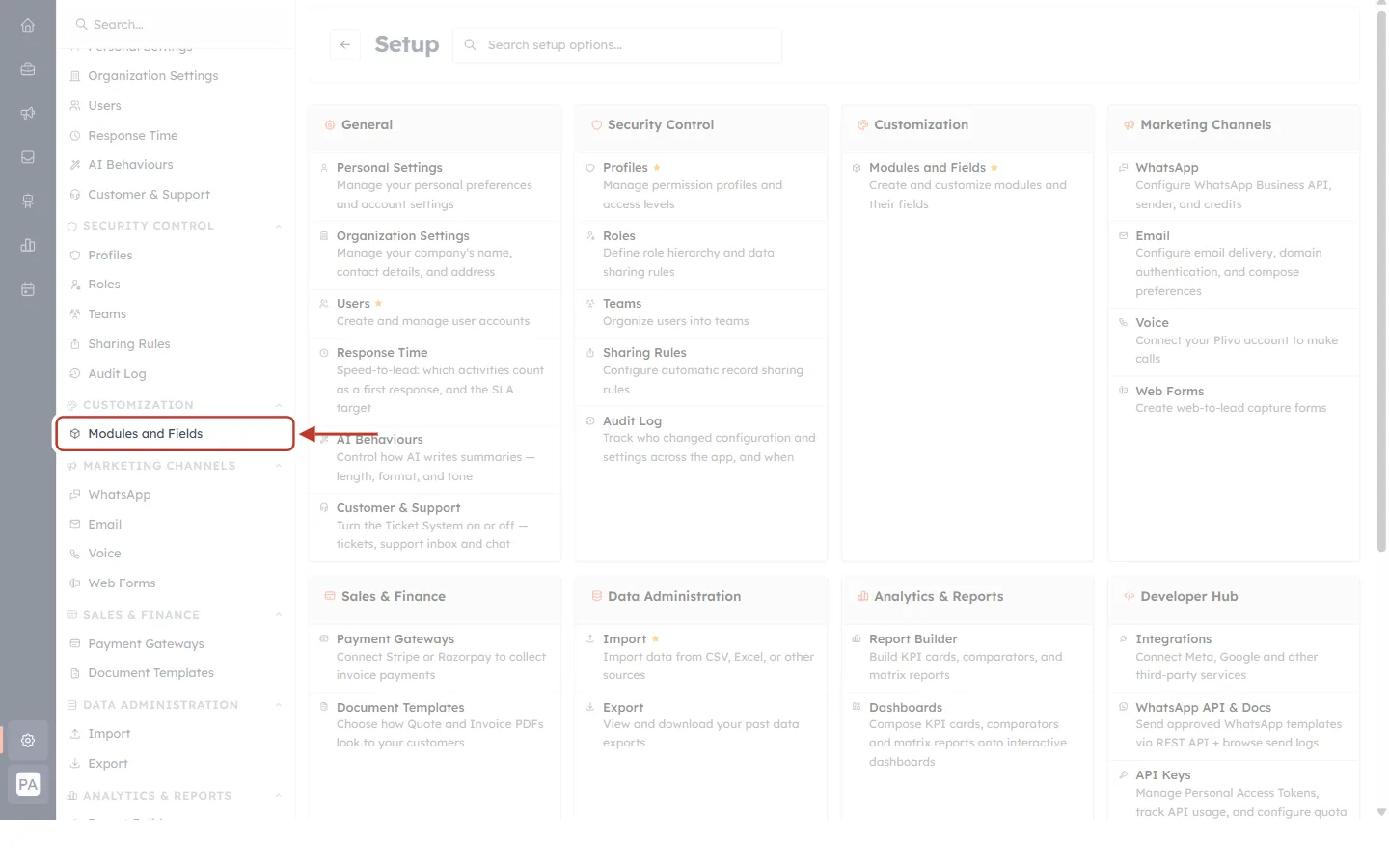
What this screenshot shows. The Setup page with Modules and Fields ringed under CUSTOMIZATION.
The cards in the middle of the page link to the same place.
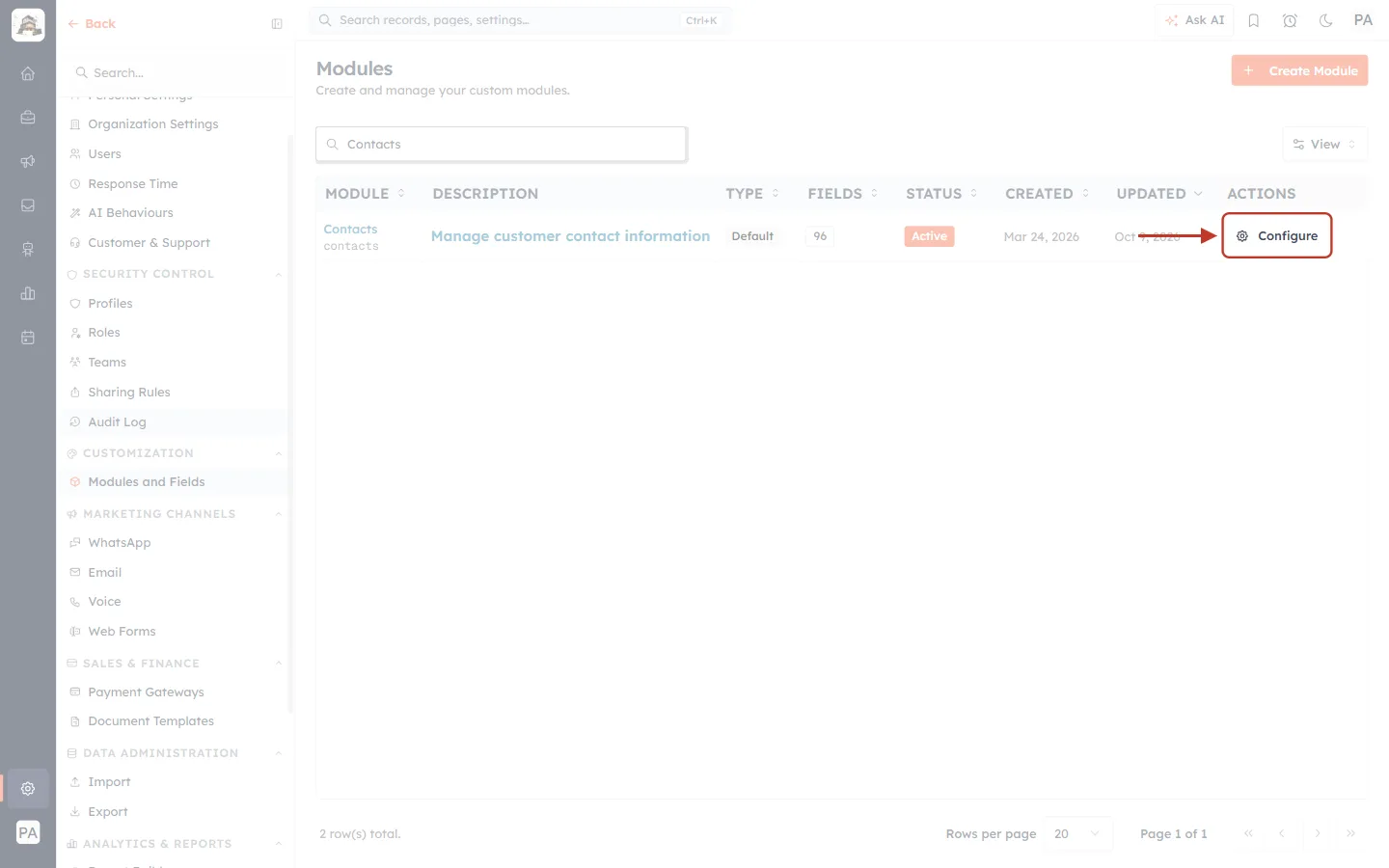
What this screenshot shows. The Modules page filtered to “Contacts”, with Configure ringed.
Clicking it opens the module’s Layouts page.
Step 2: Find the layout’s Status switch#
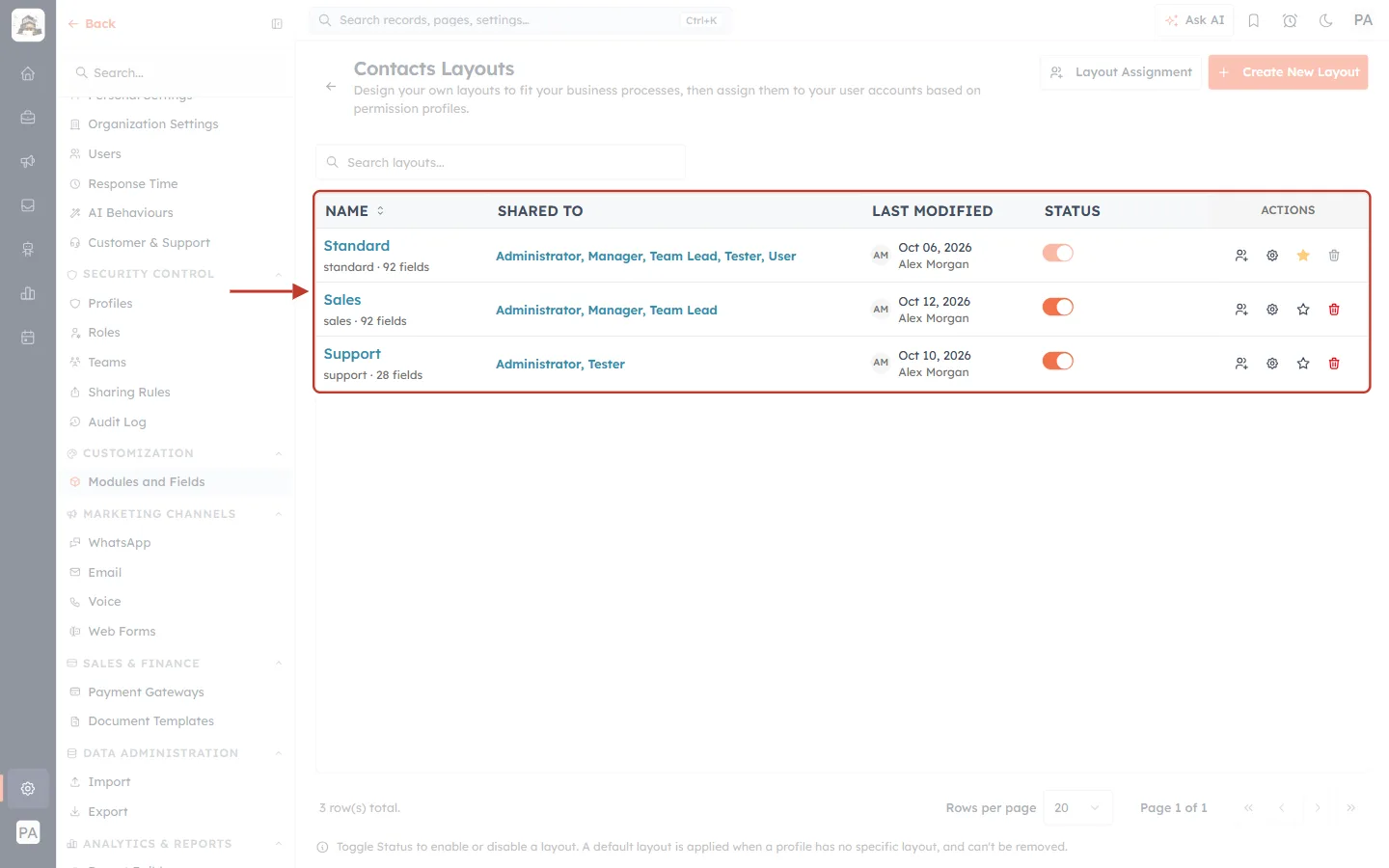
What this screenshot shows. The Contacts Layouts table, ringed. All three layouts are active.
Standard — the module default (filled star). Its Status switch is faded because Standard is always active (tooltip: System-Defined Layout).
Sales — shared with Administrator, Manager and Team Lead.
Support — shared with Administrator and Tester.
The note under the table reads: “Toggle Status to enable or disable a layout. A default layout is applied when a profile has no specific layout, and can’t be removed.”
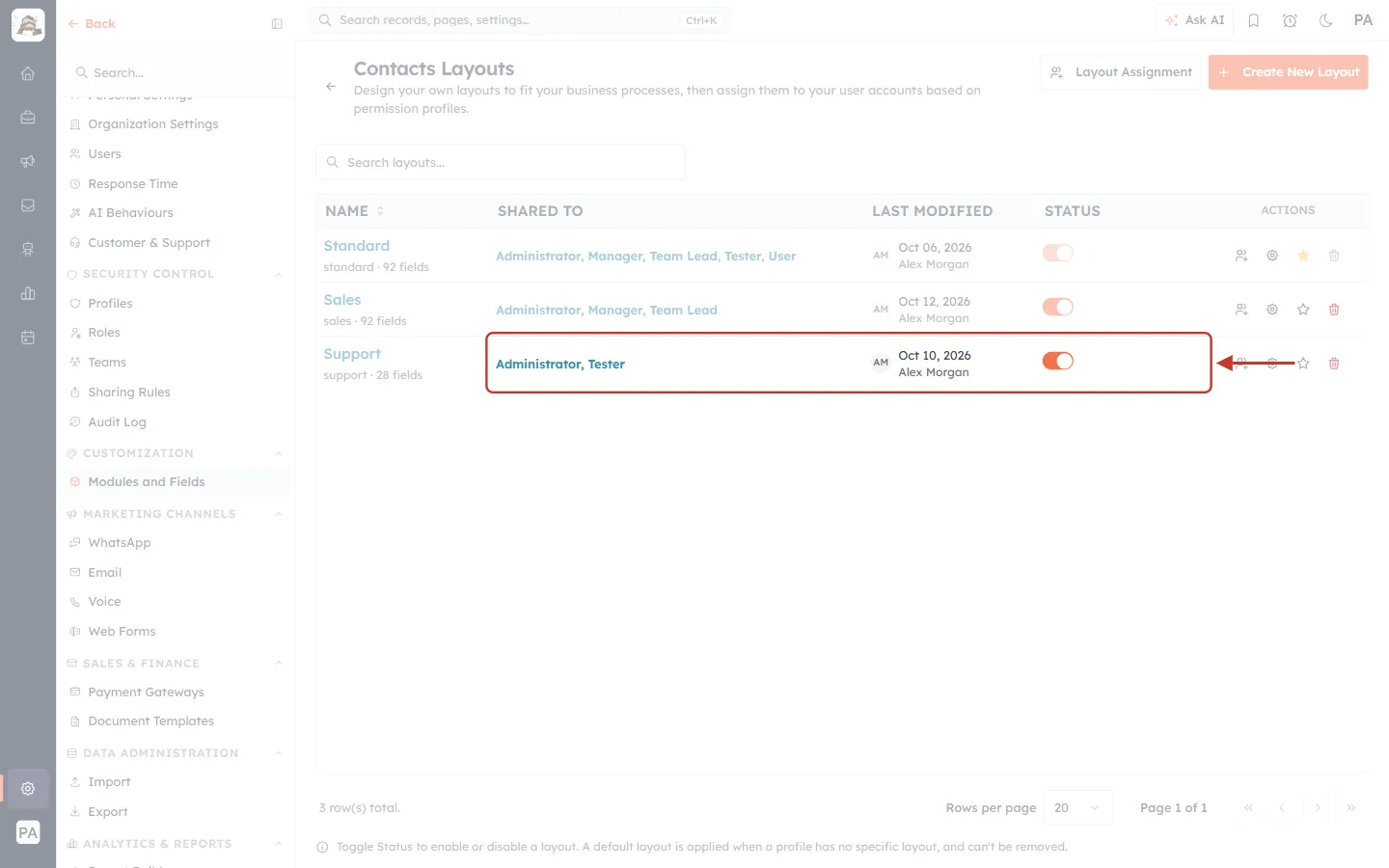
What this screenshot shows. The SHARED TO, LAST MODIFIED and STATUS cells of the Support row, ringed.
SHARED TO lists the profiles that use Support: Administrator, Tester.
The Status switch is on (orange): Support is active.
Part 2: Deactivate the layout#
Step 3: Click the Status switch#
Click the orange Status switch on the Support row. Because switching a layout off changes what real people see, the CRM asks first where its profiles should go.
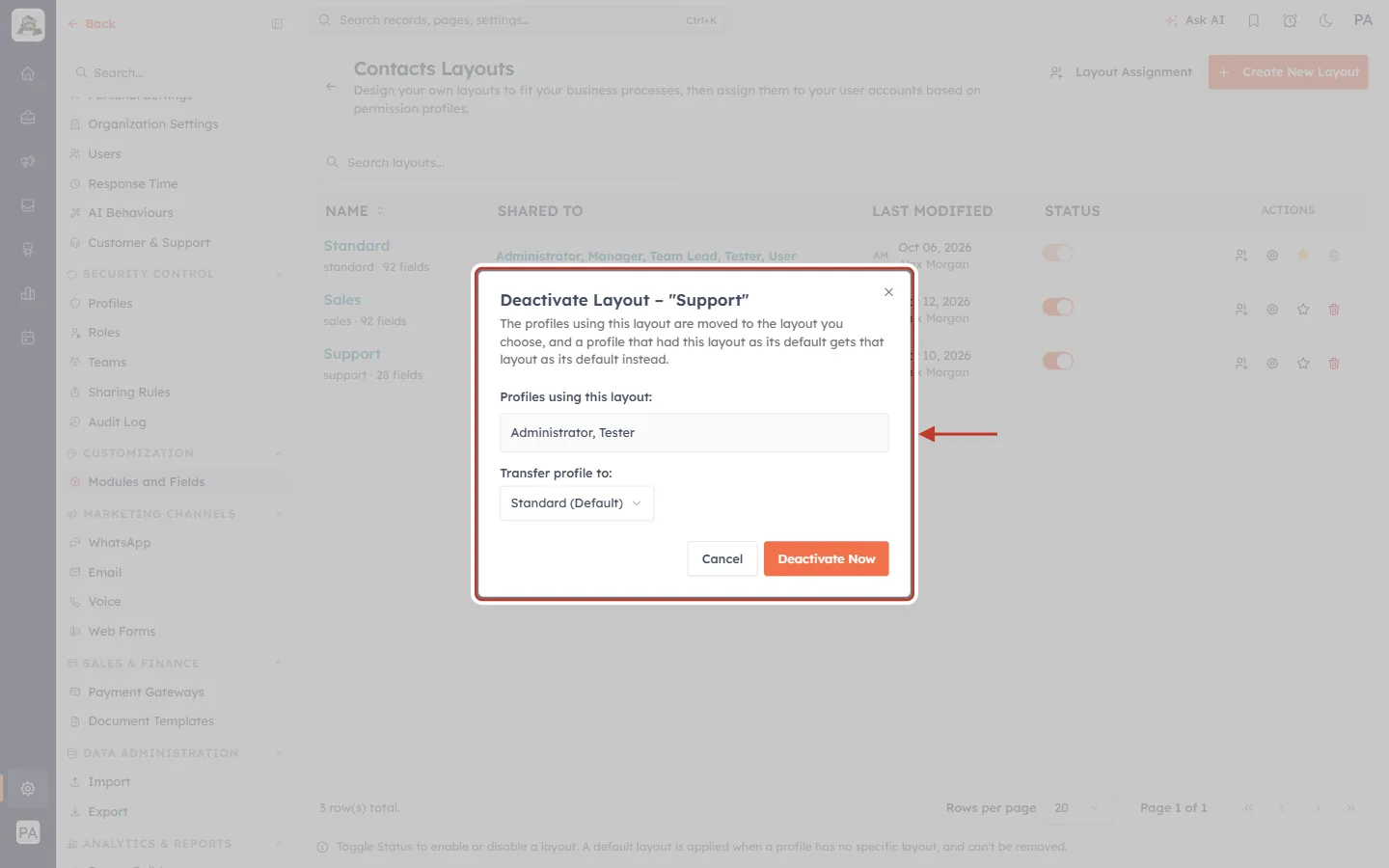
What this screenshot shows. The Deactivate Layout – “Support” window, ringed.
The line under the title explains: “The profiles using this layout are moved to the layout you choose, and a profile that had this layout as its default gets that layout as its default instead.”
Profiles using this layout — who is affected.
Transfer profile to — where they go.
Cancel closes the window and leaves the layout on. Clicking outside the window does not close it.
Step 4: Check who is affected#
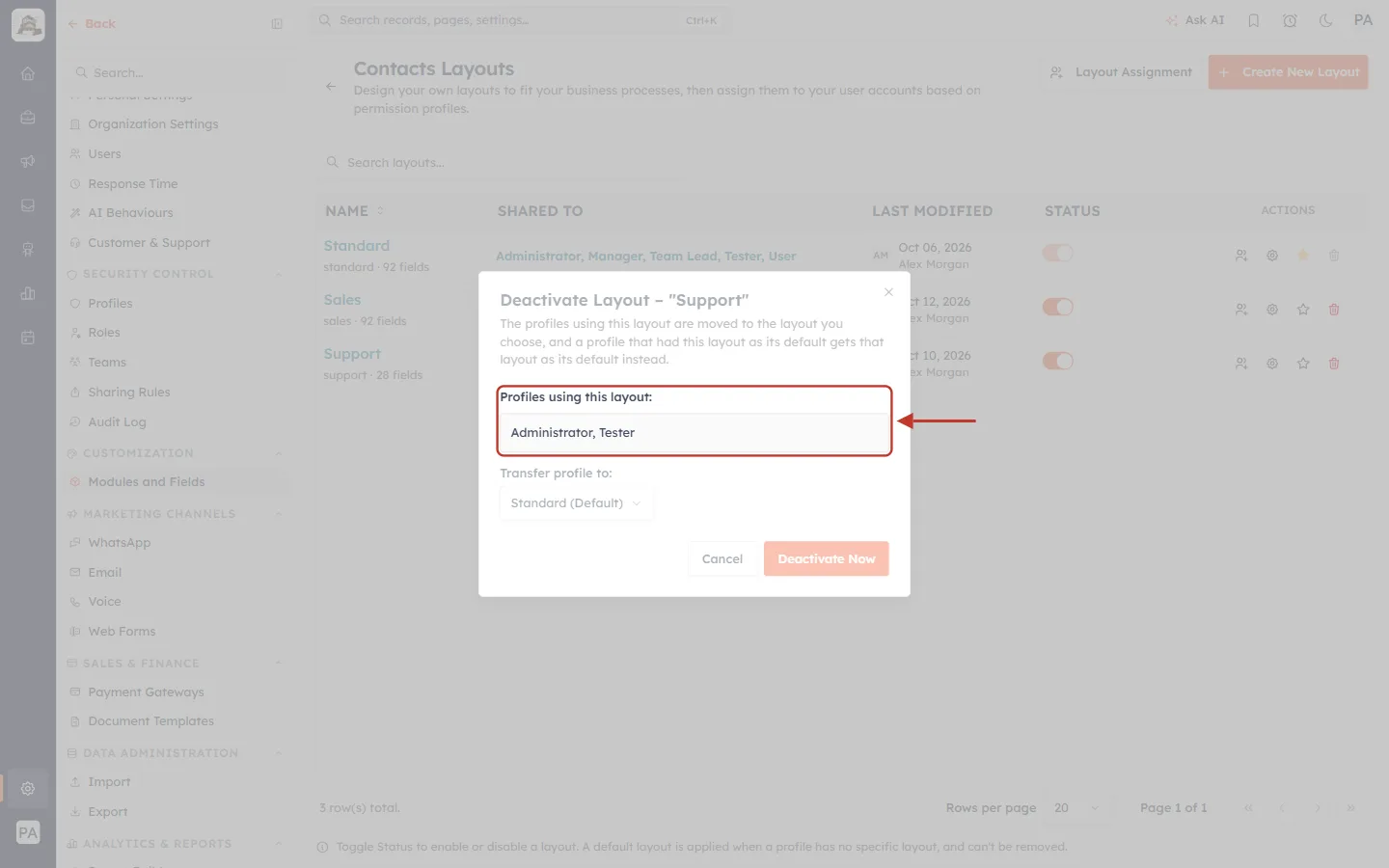
What this screenshot shows. The Profiles using this layout box, ringed: Administrator, Tester.
These are the profiles in the layout’s SHARED TO column.
If no profile uses the layout, the box reads “No profile uses this layout.”
Step 5: Choose where the profiles move#
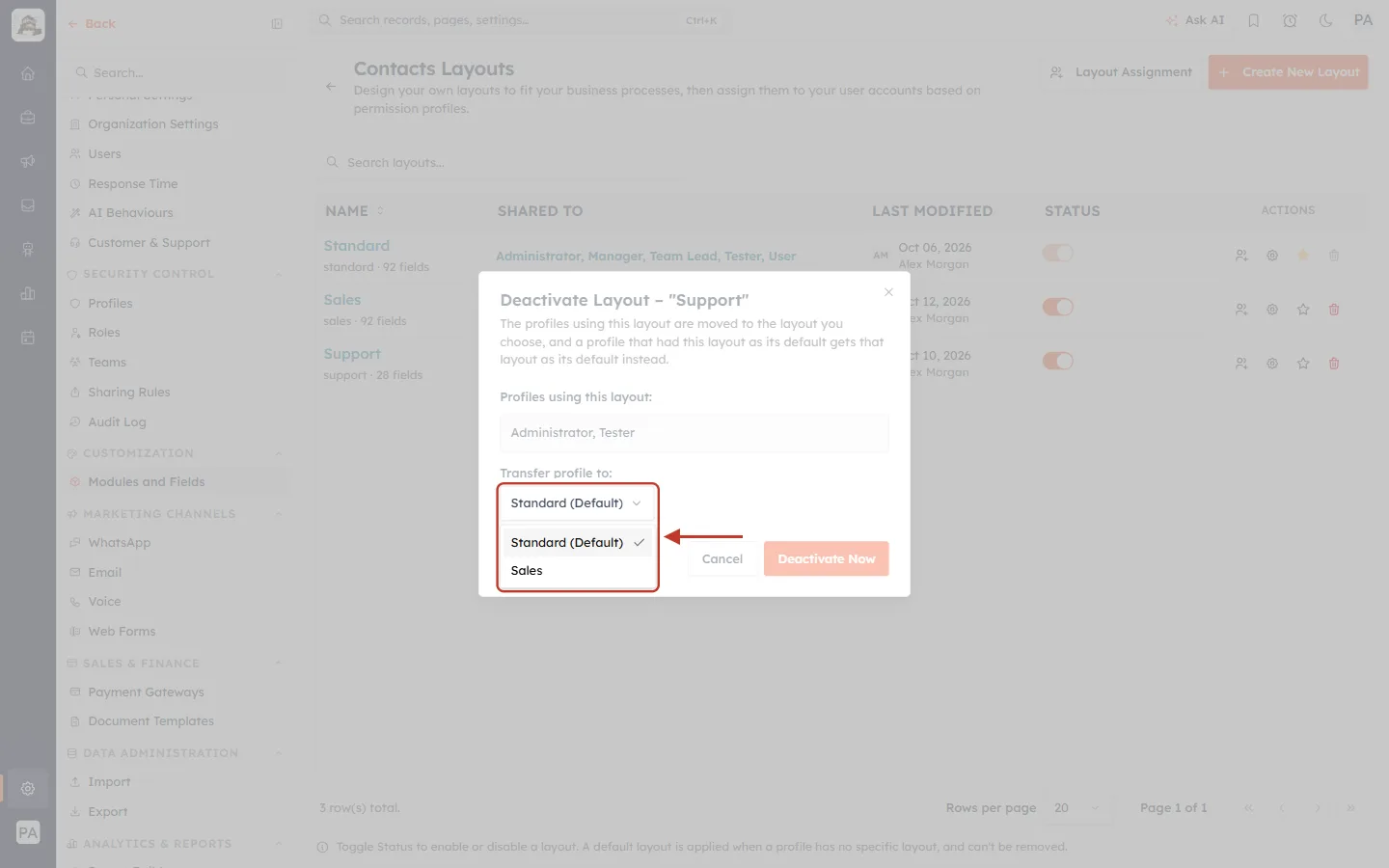
What this screenshot shows. The Transfer profile to list, opened and ringed.
It lists every other active layout: here Standard (Default) and Sales. Switched-off layouts and the layout you are switching off are never offered.
Standard is selected for you; pick another layout if that suits the profiles better.
The chosen layout is added to each profile’s layouts. If a profile had Support as its Default Layout, the chosen layout becomes its default instead.
Step 6: Click Deactivate Now#
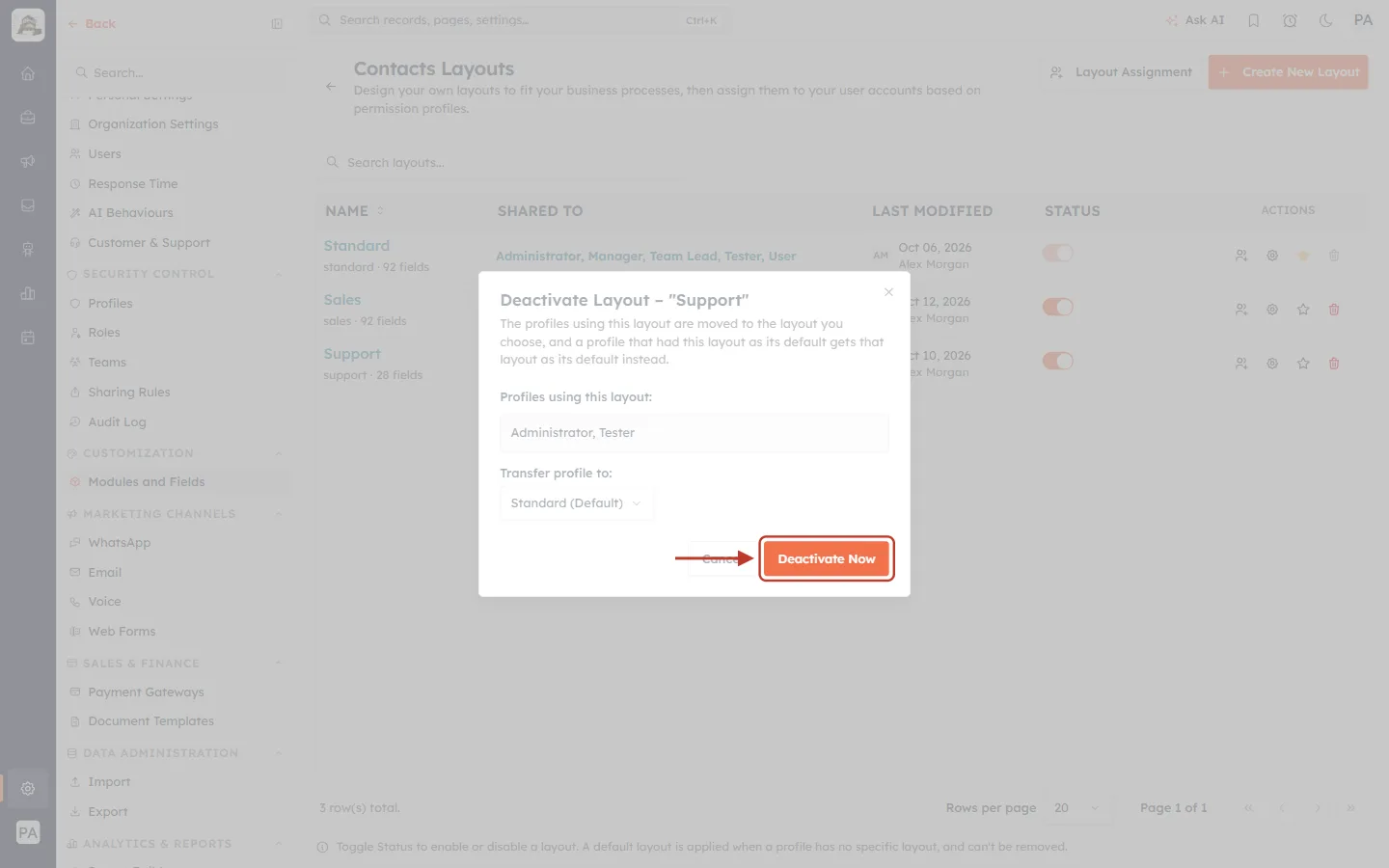
What this screenshot shows. The orange Deactivate Now button at the bottom of the window, ringed.
While it works, the button reads Deactivating... and the window can’t be closed.
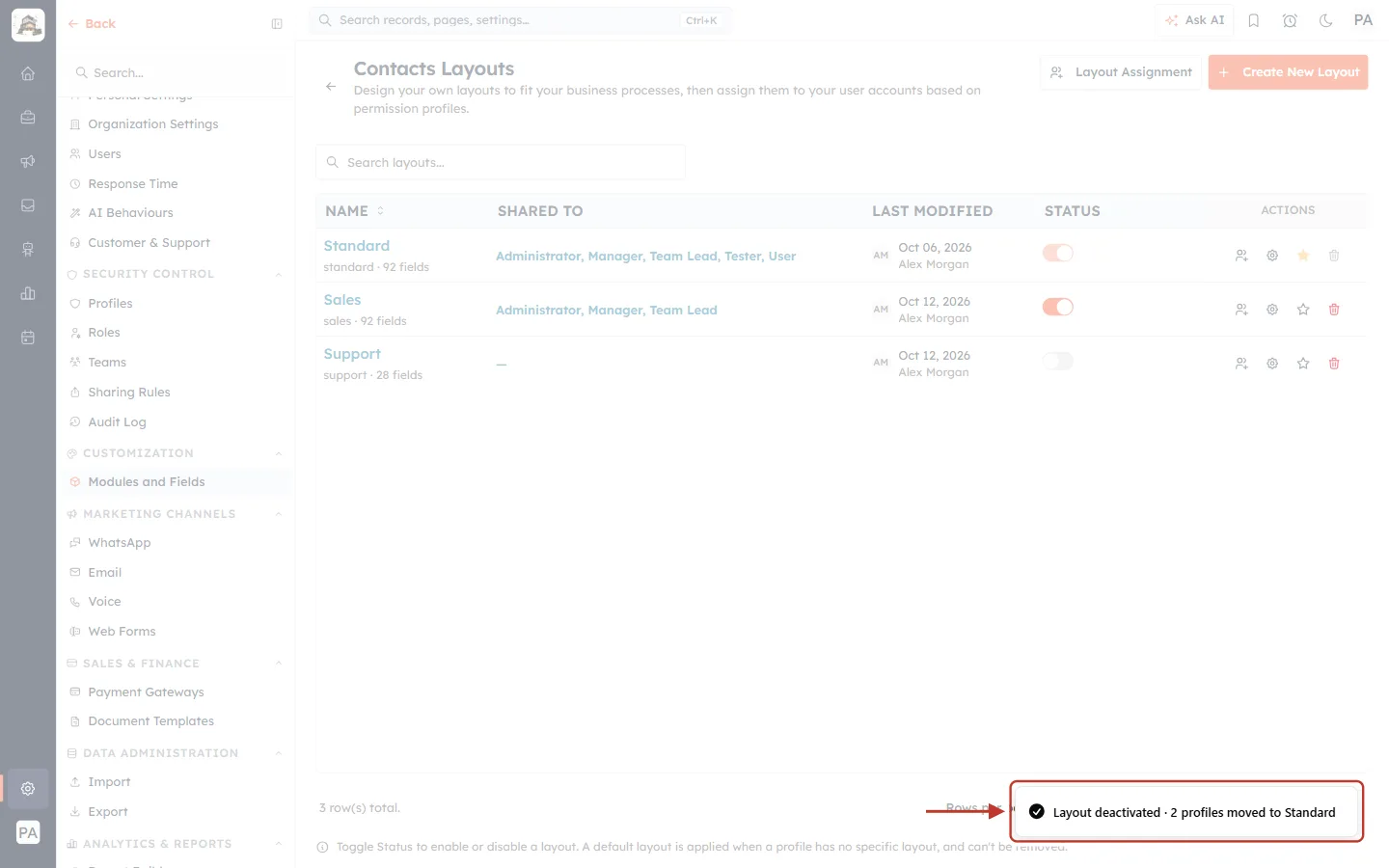
What this screenshot shows. The confirmation at the bottom right of the screen, ringed: Layout deactivated · 2 profiles moved to Standard.
The message tells you how many profiles moved, and where.
Step 7: Check the result#
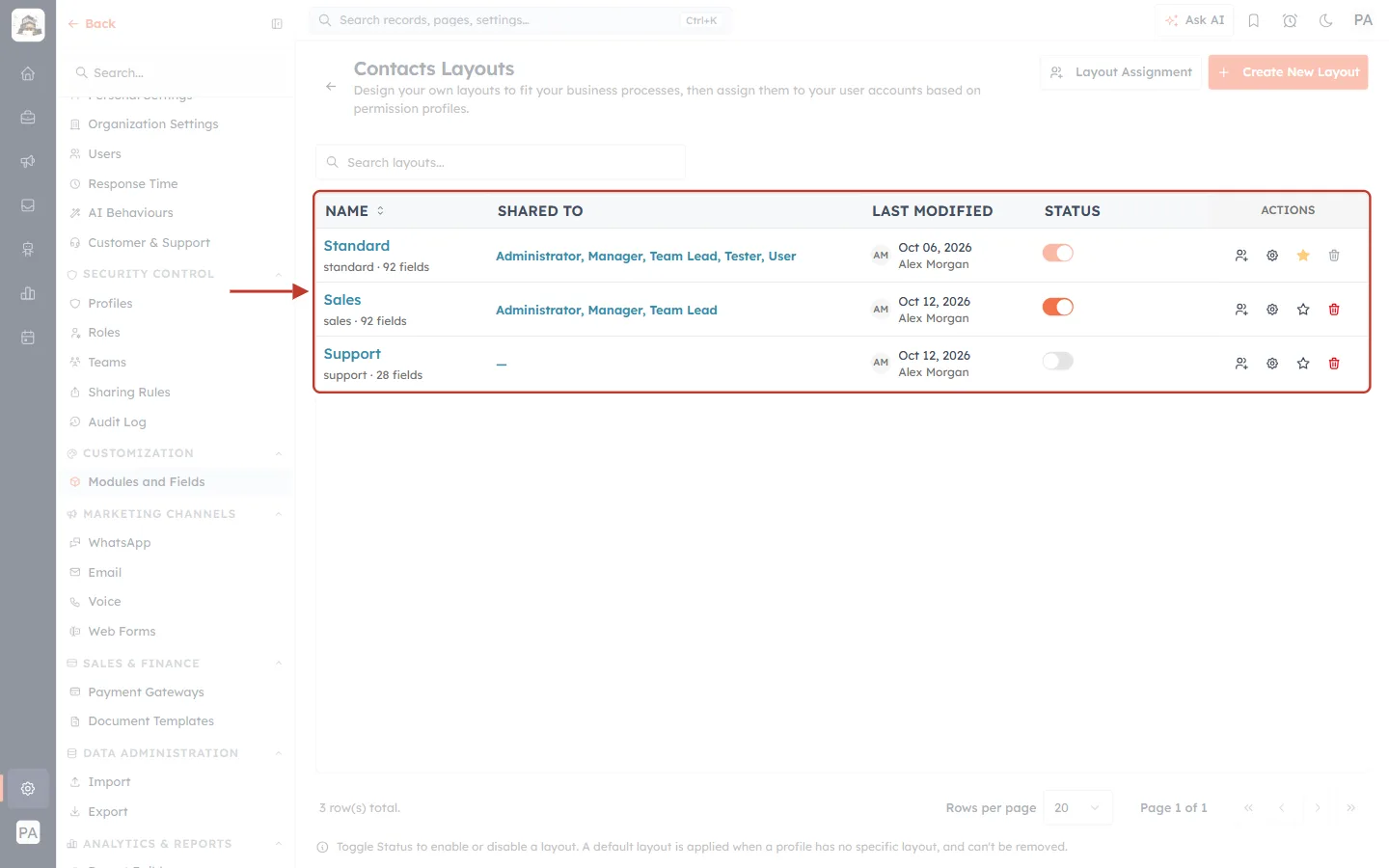
What this screenshot shows. The Contacts Layouts table after the change, ringed.
Support’s Status switch is now grey (off), and its SHARED TO shows “—”: a switched-off layout is shared with nobody.
Standard and Sales are unchanged.
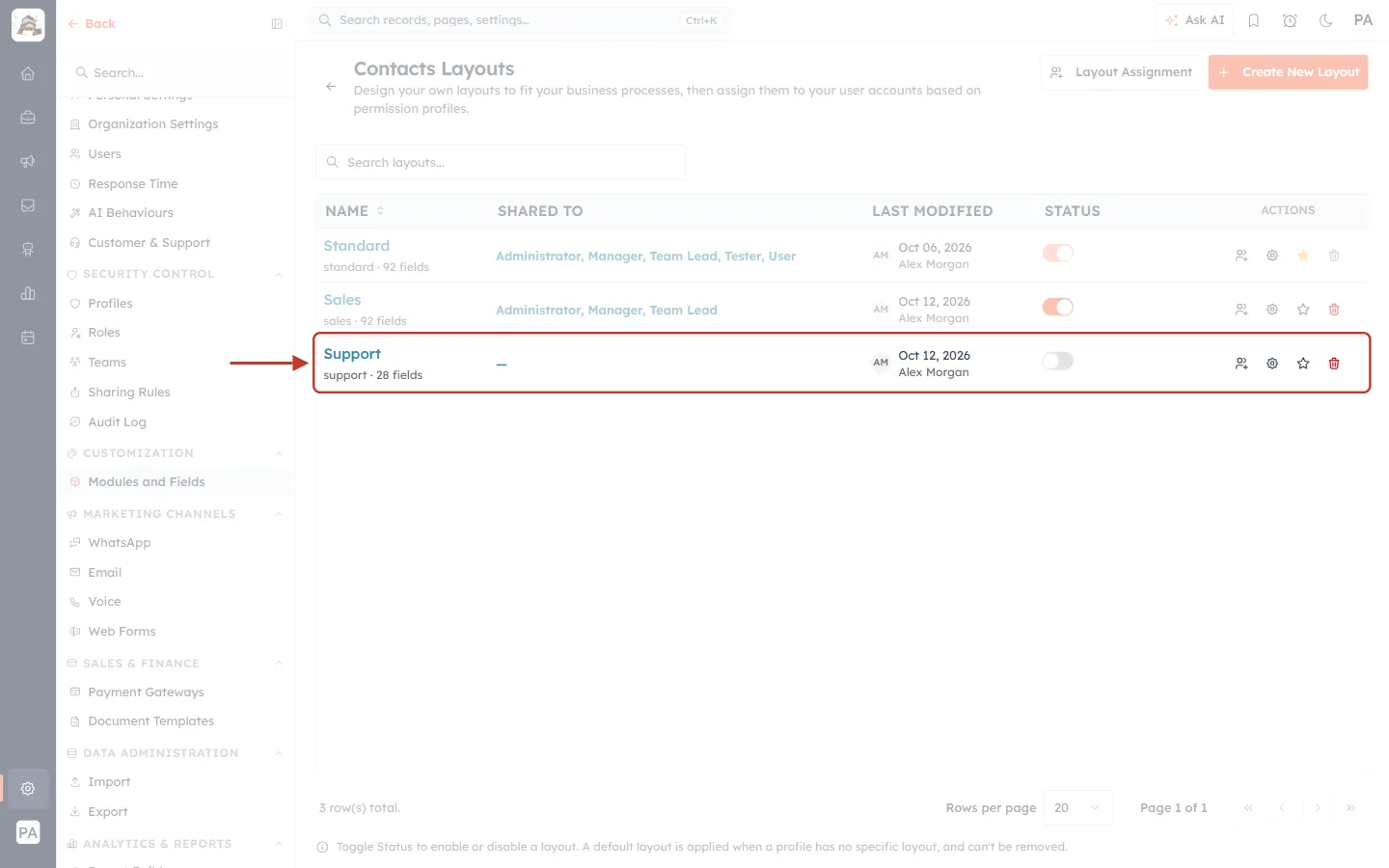
What this screenshot shows. The Support row, ringed.
The name, field count (support · 28 fields) and all the action icons are still there: the layout itself is untouched.
You can still open it with the gear icon to work on it while it is off.
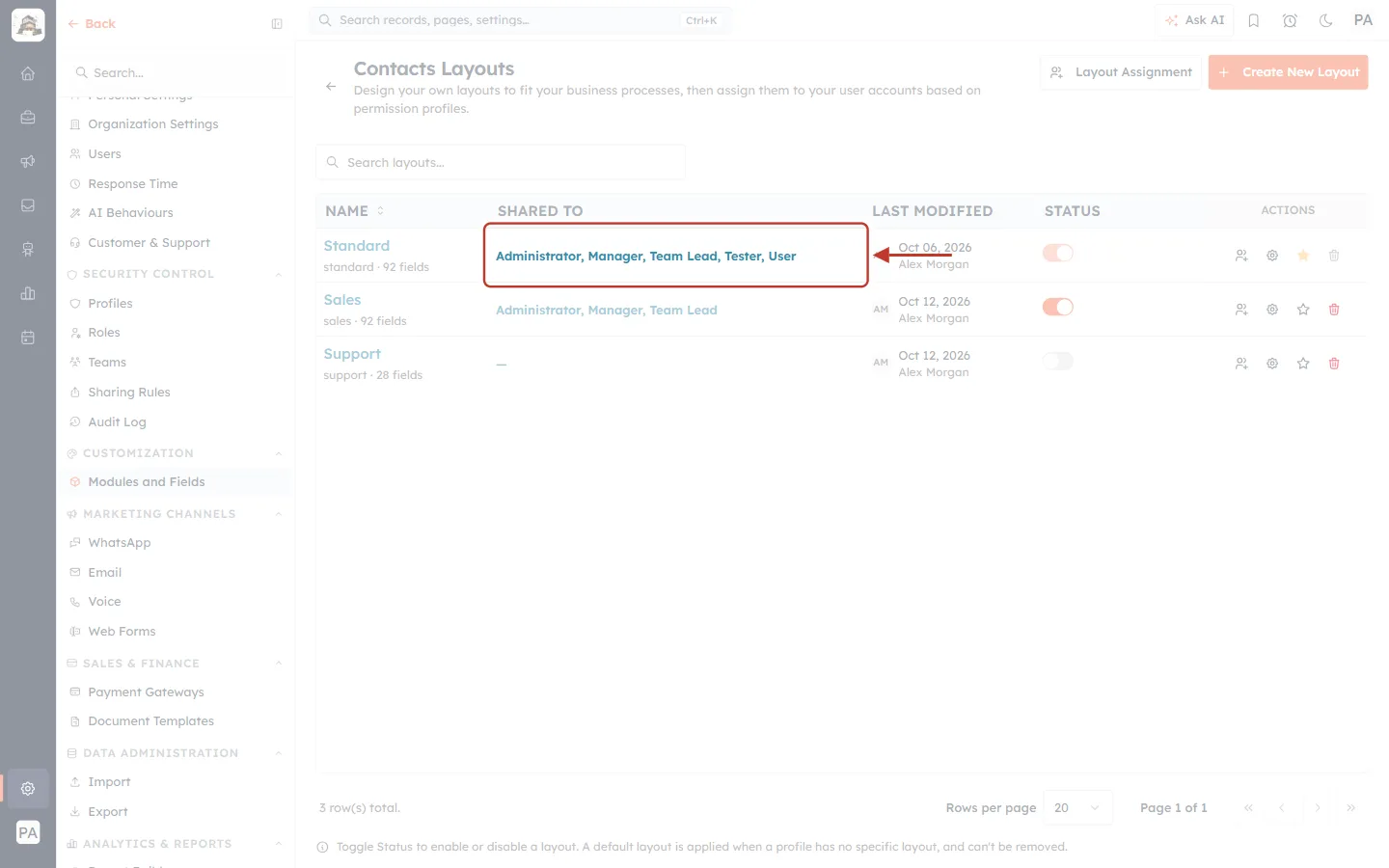
What this screenshot shows. The SHARED TO cell of the Standard row, ringed: Administrator, Manager, Team Lead, Tester, User.
Administrator and Tester — the two profiles that moved — now get Standard. (In this example they already had it, so the list looks the same.)
Part 3: What changes for your team#
| Where | While the layout is off |
|---|---|
| Create form | The layout is no longer offered in the layout picker. |
| Change Layout on a record | The layout is not listed. |
| Layout Assignment | The layout can’t be given to profiles. |
| Create New Layout → Clone From | The layout can’t be copied. |
| Records created on it | Nothing is deleted and they still open; they are shown with the viewer’s own layout until the layout is switched back on. |
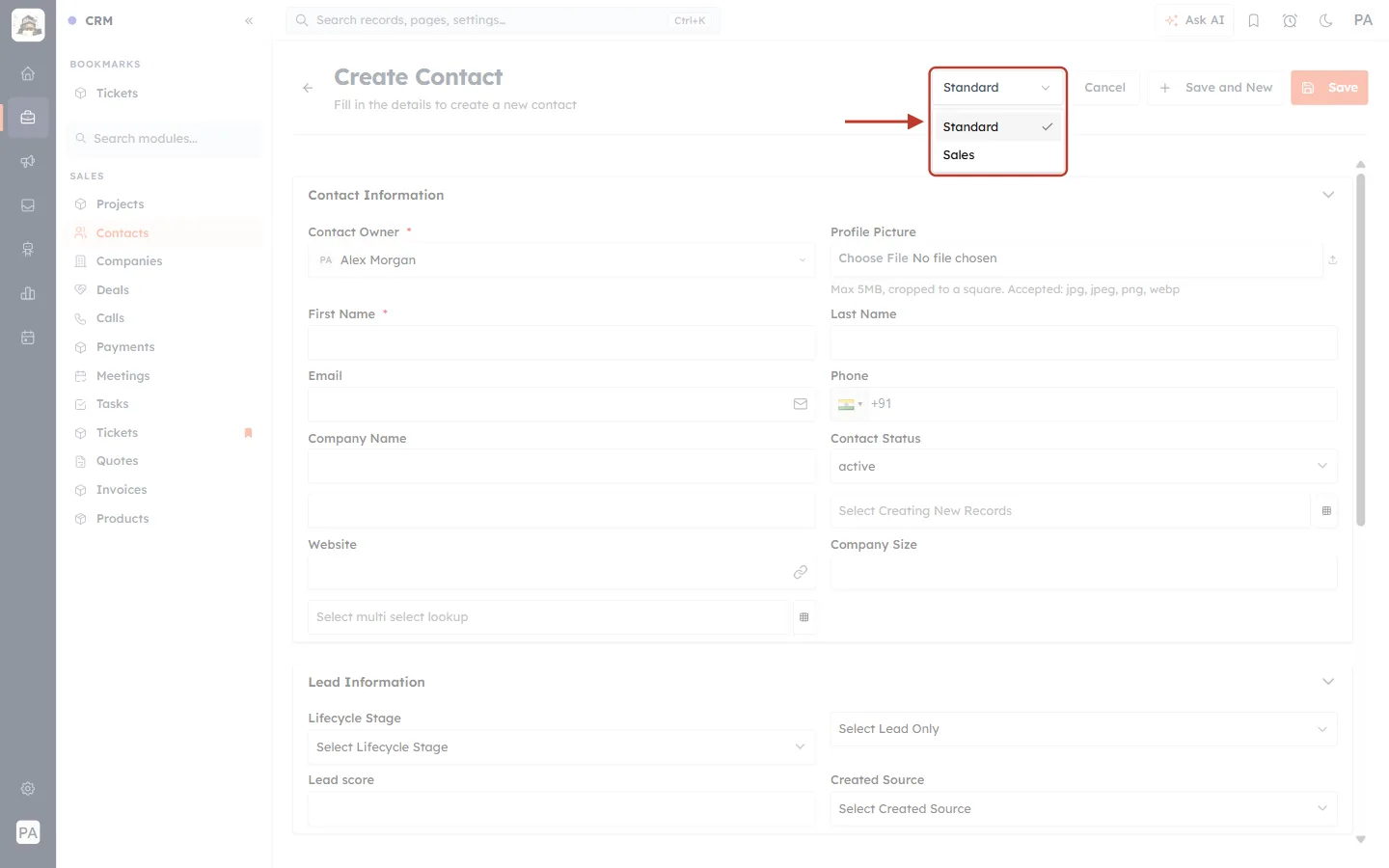
What this screenshot shows. The layout picker on the Create Contact form, opened and ringed. It lists only Standard and Sales.
Support has disappeared from the list because it is switched off.
The picker only appears for people who can use more than one active layout.
Part 4: Activate the layout again#
Step 8: Click the grey Status switch#
Click Support’s grey Status switch. Switching a layout on only adds an option back, so it happens straight away, with no window.
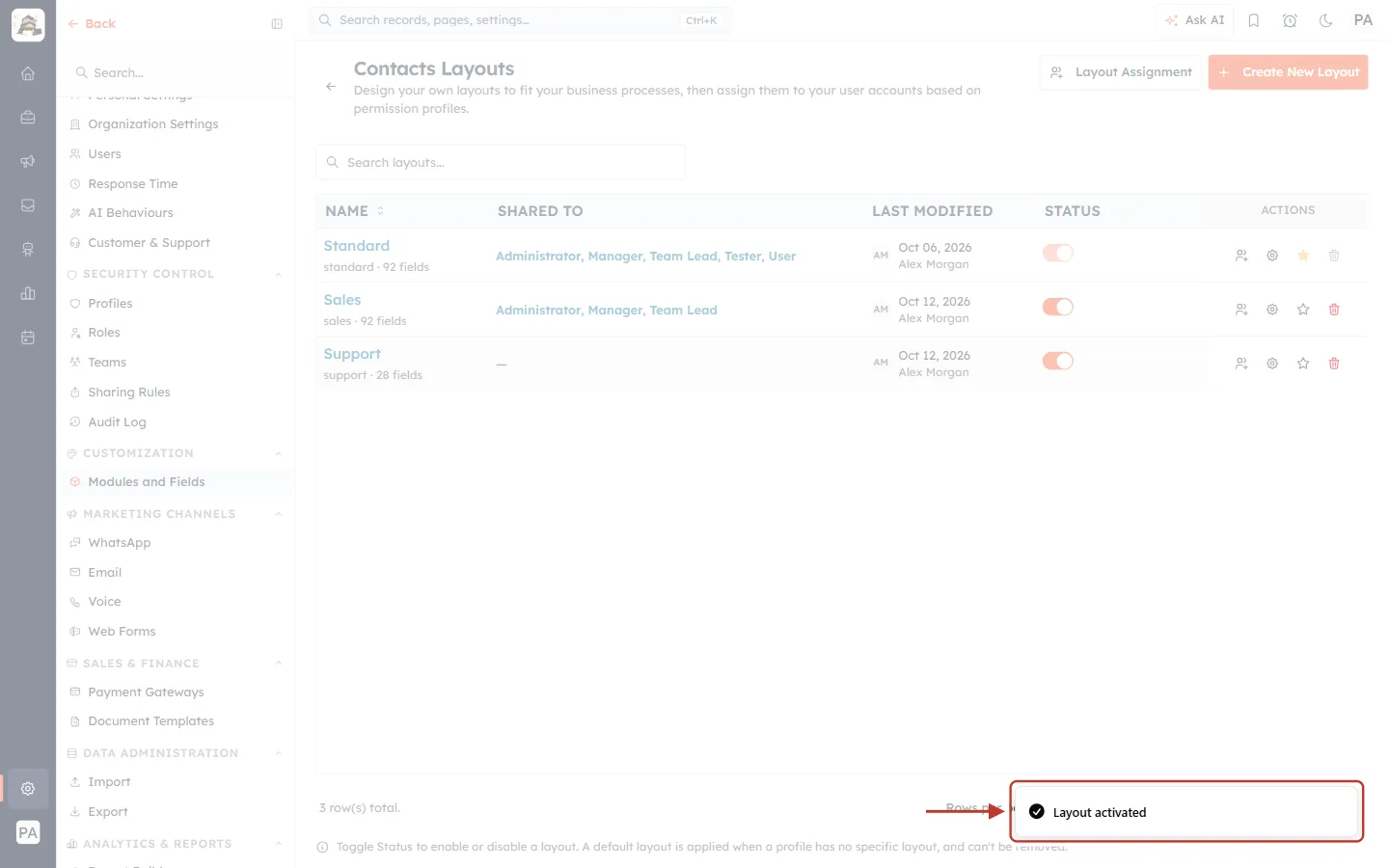
What this screenshot shows. The confirmation at the bottom right, ringed: Layout activated.
The switch turns orange again.
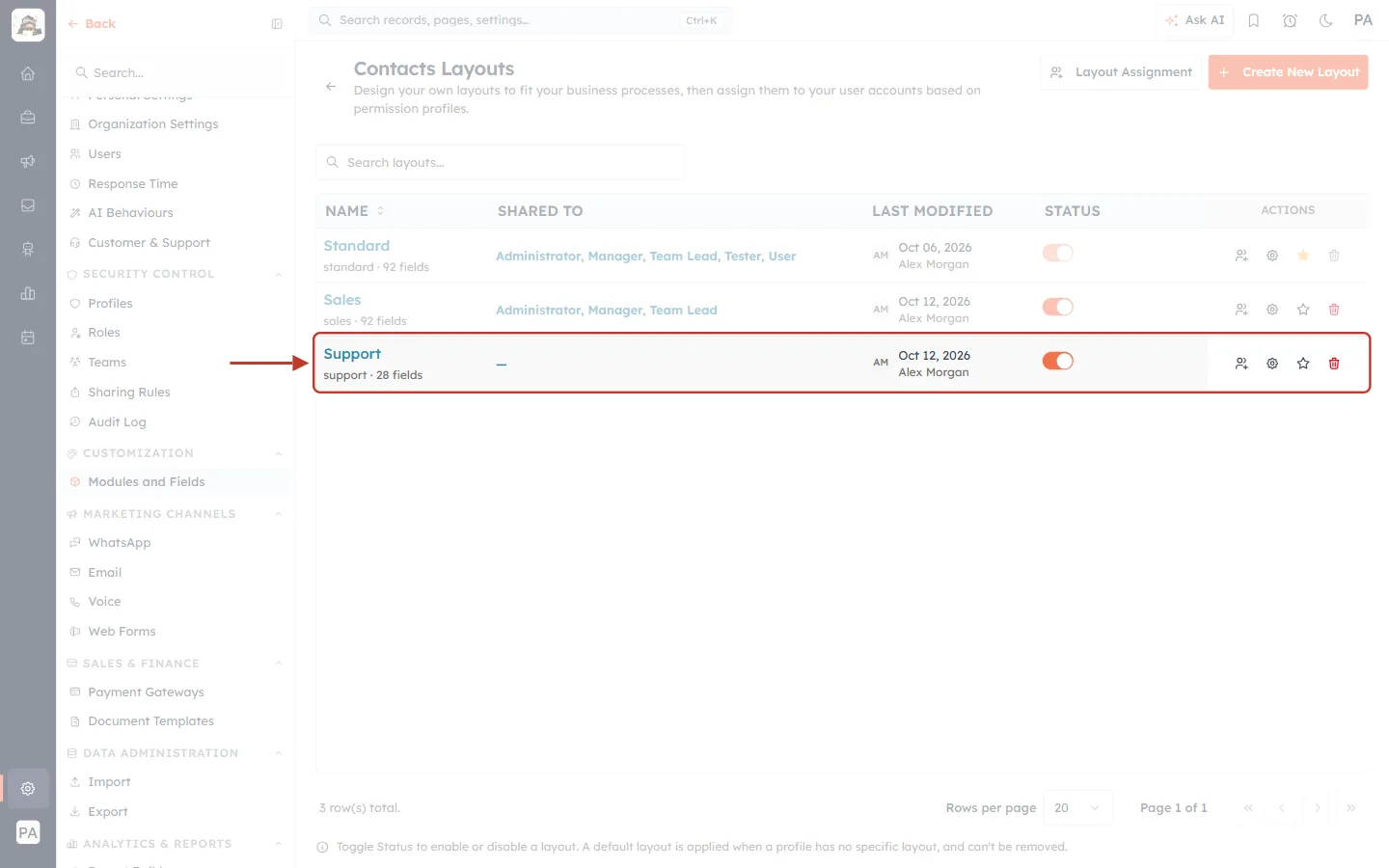
What this screenshot shows. The Support row, ringed. The Status switch is on — but SHARED TO still shows “—”.
The profiles that moved away when you switched the layout off do not come back by themselves. They stay on the layout you moved them to.
Until you share it again, no profile is assigned Support.
Step 9: Share the layout again#
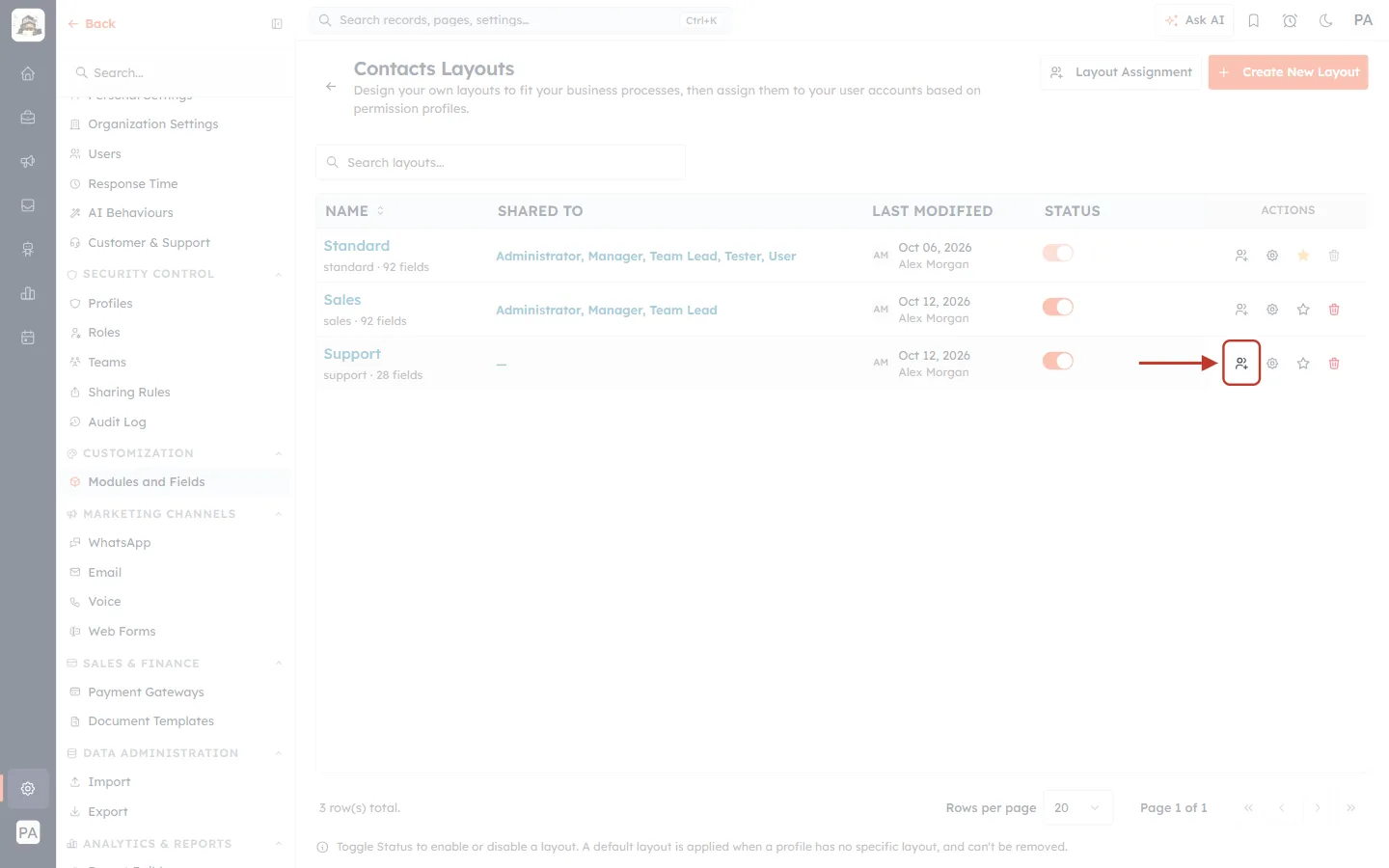
What this screenshot shows. The Assign profiles icon (a person with a plus) on the Support row, ringed.
Click it to choose which profiles use Support.
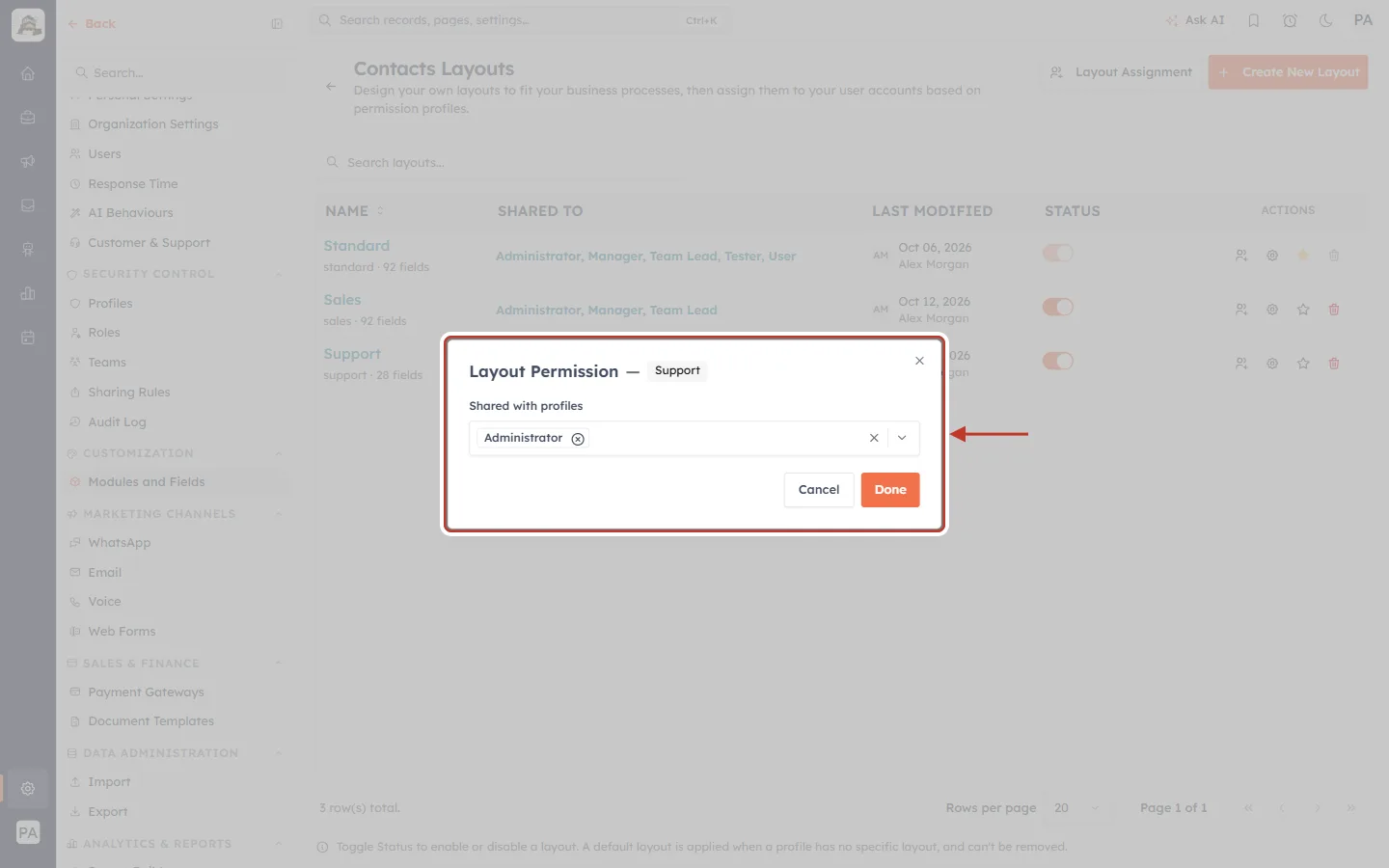
What this screenshot shows. The Layout Permission — Support window, ringed.
Shared with profiles already holds Administrator: administrators are always included on every layout and can’t be removed.
Click the box to add more profiles (here you would add Tester back), then click Done.
To set the layouts — and each profile’s Default Layout — for all profiles at once, use Layout Assignment at the top of the Layouts page instead.
✅
If a profile should open Support first when creating records again, set Support as that profile’s Default Layout in Layout Assignment.
Rules at a glance#
| Rule | What you see |
|---|---|
| Standard is always active. | Its Status switch is faded: “System-Defined Layout”. |
| The module default layout can’t be switched off. | Its switch is locked: “The default layout is always active. Make another layout the default first.” |
| An inactive layout can’t become the default. | “An inactive layout cannot be made the default. Activate it first.” |
| Switching off moves the layout’s profiles. | The Deactivate Layout window asks where; Shared To becomes “—”. |
| Switching on does not bring profiles back. | Share the layout again with Assign profiles or Layout Assignment. |
⚠️
Deactivate or delete? Deactivating keeps everything and can be undone with one click. Deleting a layout (the red bin) is permanent: it asks which layout its records move to, and the layout is gone. If you might need the layout again, deactivate it.
Common questions#
Is any data lost when I deactivate a layout?#
No. Records, field values, the layout’s fields and sections, and its settings (such as per-layout Required fields) are all kept. Only who is offered the layout changes.
Why is the Status switch greyed out on one row?#
That row is Standard (always active) or the module default layout. Make another layout the default first if you want to switch the current default off.
Can I edit a layout while it is switched off?#
Yes. Open it with the gear icon, make your changes and save. Nobody sees them until you switch the layout back on and share it.
I switched a layout back on, but my team still doesn’t see it. Why?#
Switching a layout off moved its profiles away, and switching it on doesn’t move them back. Share it again with Assign profiles or Layout Assignment.
Previous and next#
Previous: Set the Module Default Layout: Choose the Form Everyone Falls Back On
Next: Delete a Layout and Move Its Records: Remove a Form Without Losing Any Data
Related articles#
Was this article helpful?
Ready to implement this?
OpenAI Engage and apply what you just learned to your own workspace.
Open AI Engage CRM