Loading…


KnowledgeBase
Work in More Than One Organization: Check Which One You’re In and Move Between Them (Step-by-Step)
Introduction#
An organization (sometimes called a workspace or account) is your company’s own space in AiEngage CRM. It holds your contacts, deals, campaigns, settings, users and billing, and nobody outside it can see them.
Some people work for more than one organization: an agency looking after several clients, a consultant, or a business owner with two separate companies. This guide explains how that works in AiEngage.
ℹ️
The short answer: AiEngage has no organization switcher. Each login (email address) belongs to exactly one organization. To work in a second organization you use a second login with a different email address, and you move between them by signing out and in, or by keeping each one in its own browser window.
This guide has five parts:
Part | What you’ll learn |
|---|---|
Part 1 | How organizations and logins fit together |
Part 2 | Check which organization you are signed in to |
Part 3 | Move to another organization by signing out and in |
Part 4 | Keep two organizations open at the same time |
Part 5 | Get access to another organization, and fix the “email already used” messages |
The screenshots use a sample person, Neha Verma, who works for two sample organizations: Brightline Studio (login neha@brightline.example) and Brightline Wholesale (login neha@brightlinewholesale.example).
Part 1: How organizations and logins fit together#
Rule | What it means for you |
|---|---|
One email = one organization | When you sign in, AiEngage looks up your email address and opens the one organization it belongs to. There is no list of organizations to choose from. |
Each login is separate | Each login has its own password, profile, permissions and notifications. Changing one does not change the other. |
Data never mixes | Records, templates, users and settings stay inside their own organization. You cannot move or see records across organizations. |
One signed-in account per browser | A browser window remembers one AiEngage login at a time. Signing in with another email in the same browser replaces the first. |
If you need… | Do this |
|---|---|
To work in a client’s or partner’s organization | Ask their admin to invite you with an email address that is not already used in AiEngage (Part 5). |
A second organization of your own | Sign up again with a different email address. Each sign-up creates a new organization. |
Both organizations open at once | Use a second browser profile or a private window (Part 4). |
Part 2: Check which organization you are signed in to#
Before you add records or send a campaign, make sure you are in the right organization. There are three quick ways to tell.
Step 1: Look at the logo at the top left#
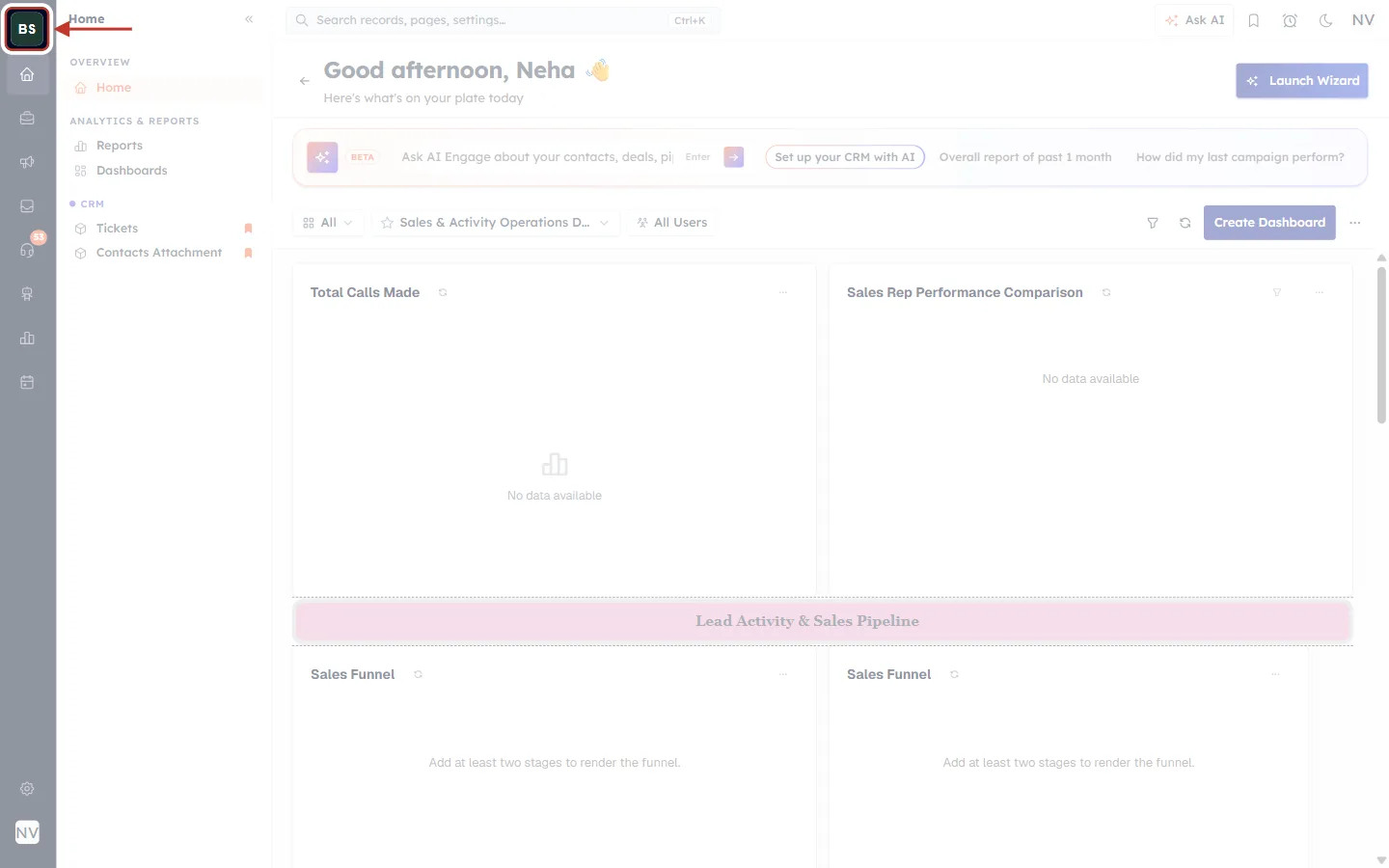
What this screenshot shows. The top-left corner of the CRM. The organization’s logo, BS for Brightline Studio, is ringed.
The square at the very top of the dark rail on the left always shows the logo of the organization you are in.
Give each of your organizations a clearly different logo, so you can tell them apart at a glance (Step 3 shows where to change it).
The home page also greets you by name: Good afternoon, Neha.
Step 2: Check the email address in your profile menu#
Click your initials at the top right of the screen. The menu shows the login you are using.
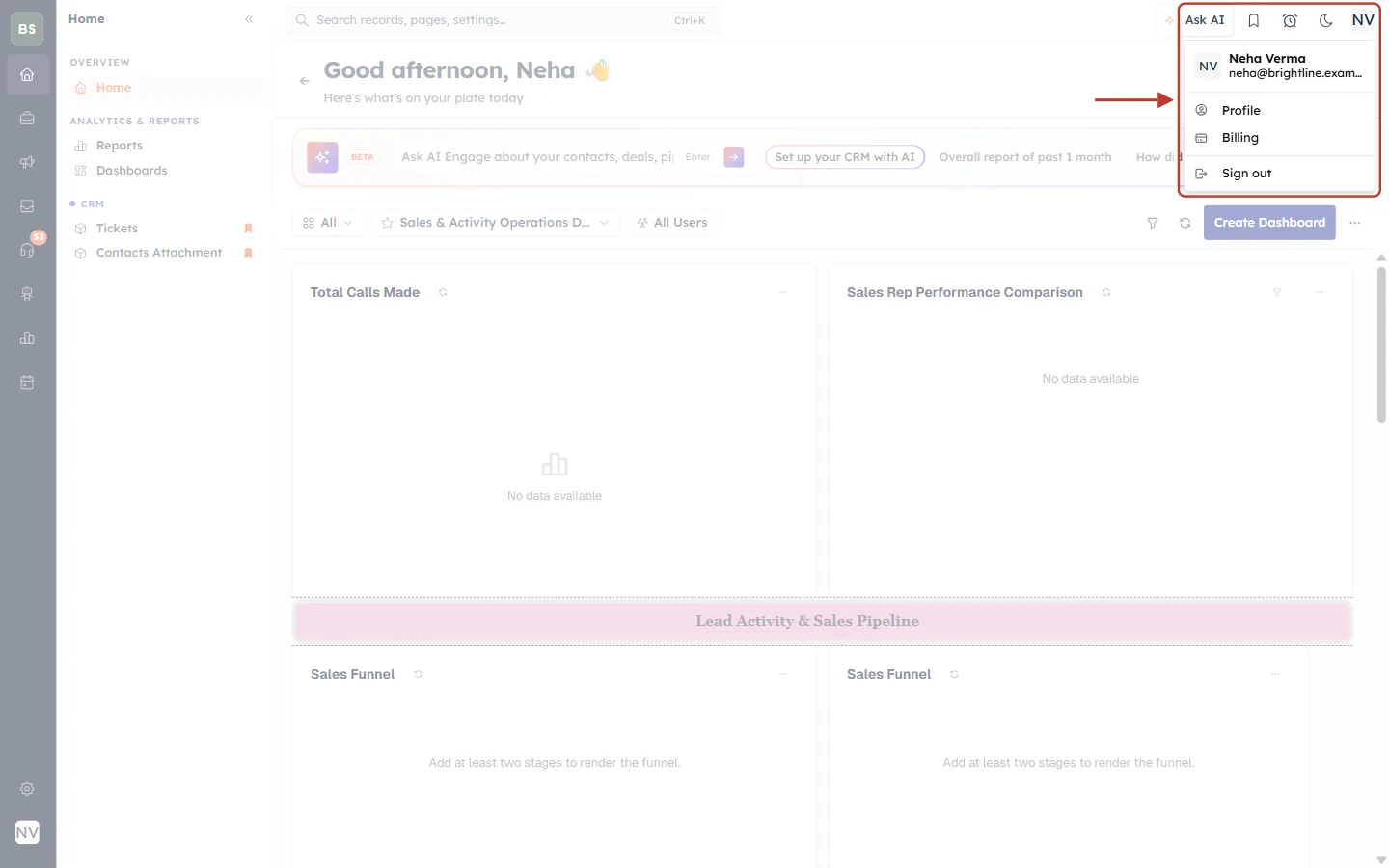
What this screenshot shows. The profile menu, opened from the initials NV at the top right, ringed.
The top line shows your name (Neha Verma) and the email address you signed in with (neha@brightline.example).
Because each email belongs to one organization, the email tells you which organization you are in.
The menu has Profile, Billing and Sign out. There is no option to switch organization.
Step 3: Open Organization Settings#
Click the gear icon (Settings) at the bottom of the left-hand rail, then Organization Settings under GENERAL.
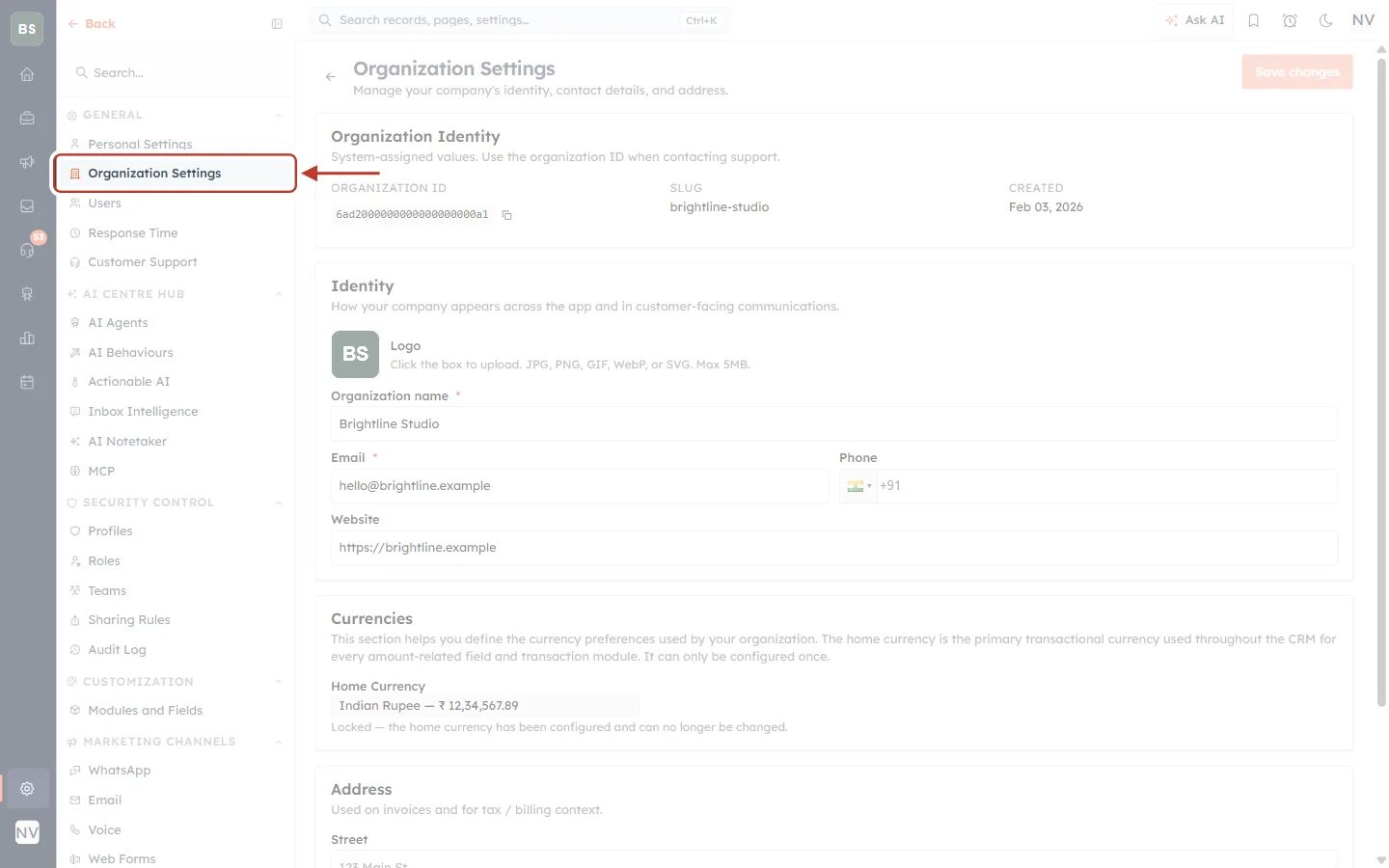
What this screenshot shows. The settings menu, with Organization Settings ringed.
It is the second item under GENERAL, below Personal Settings.
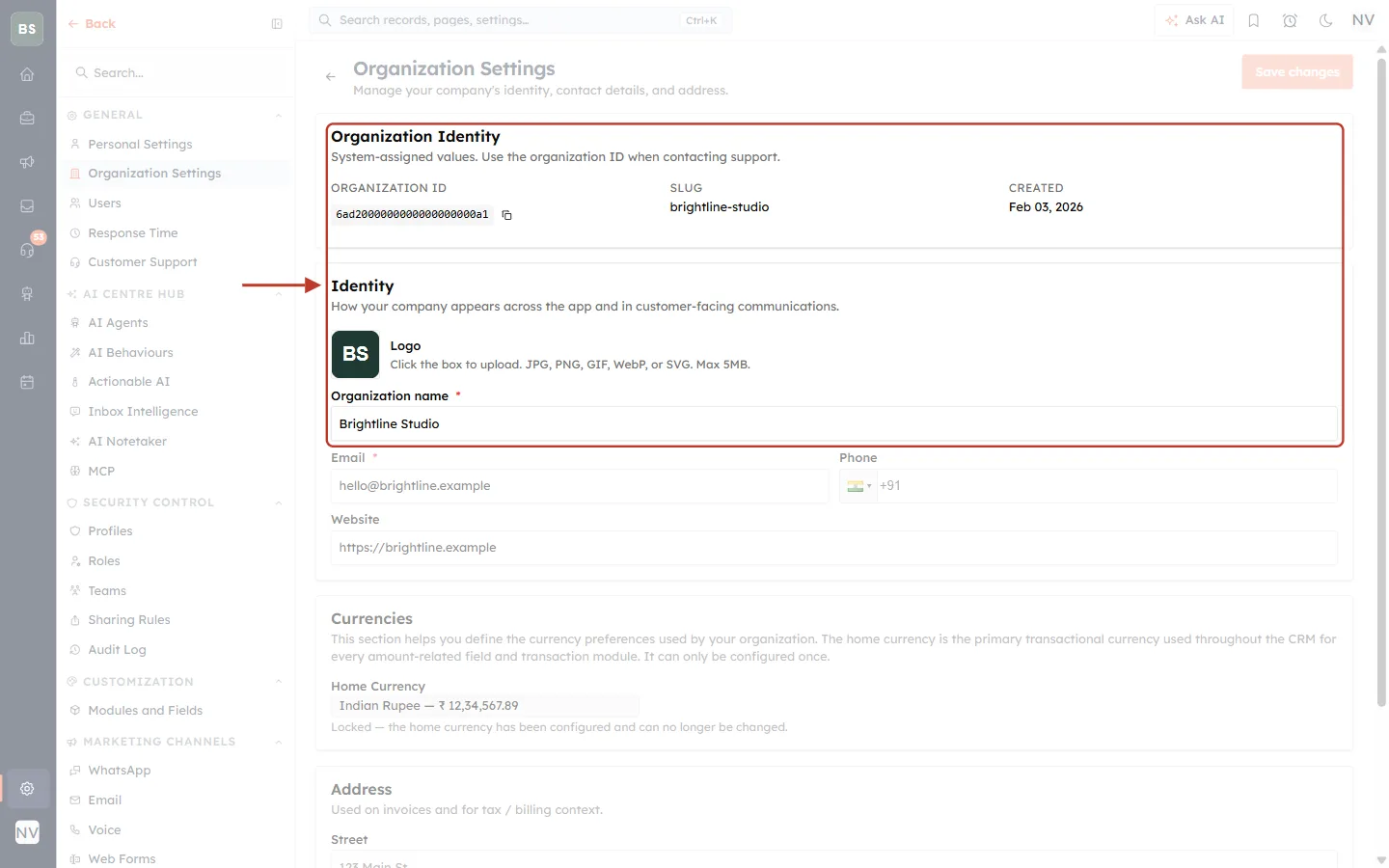
What this screenshot shows. The top of the Organization Settings page for Brightline Studio, ringed.
Organization Identity shows values set by the system: the ORGANIZATION ID (with a copy button), the SLUG (brightline-studio) and the date it was CREATED.
Quote the organization ID when you contact support, so they look at the right organization.
Identity shows the Logo and the Organization name. Admins can change both here and click Save changes.
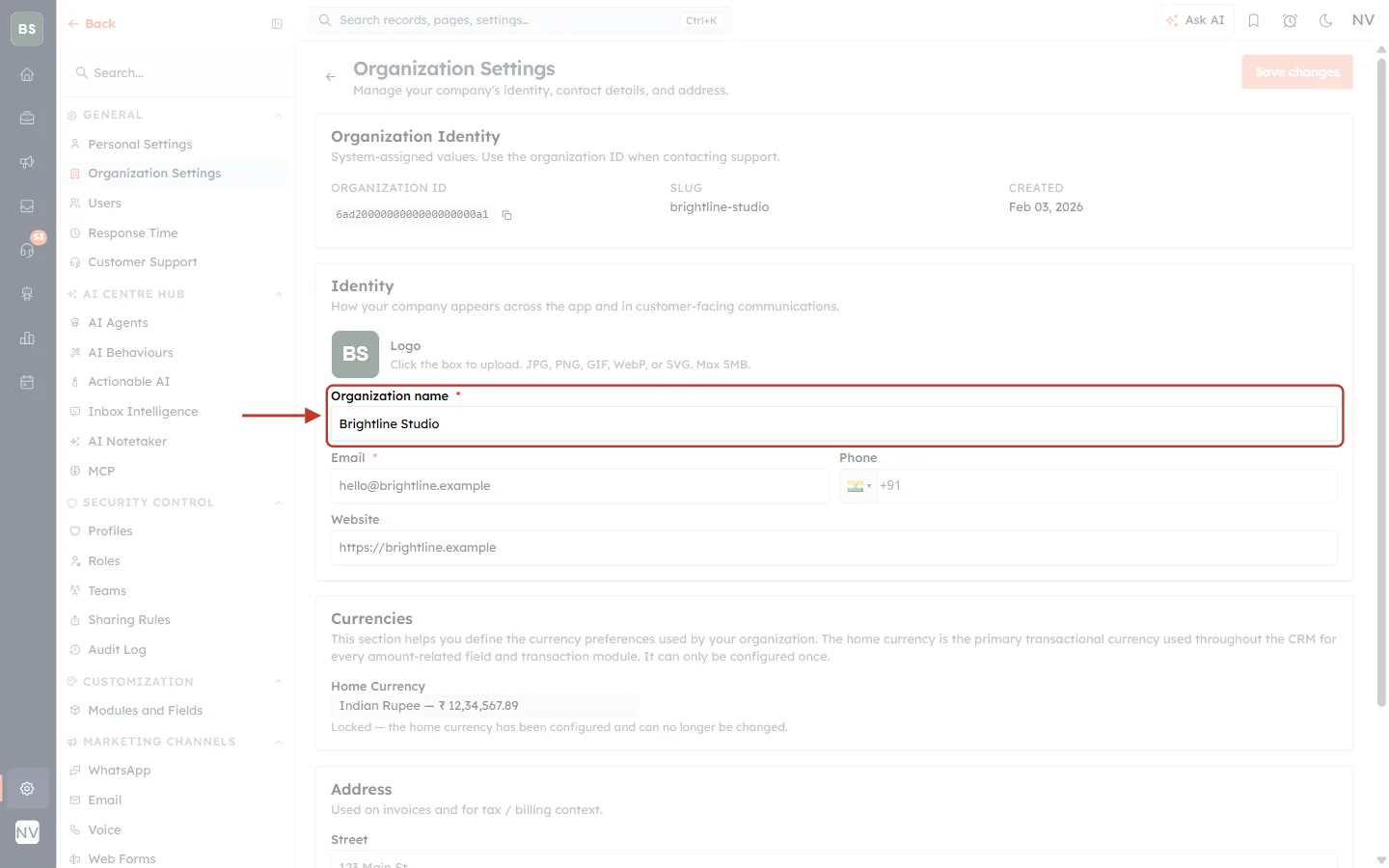
What this screenshot shows. The Organization name field, ringed.
This is the name of the organization you are signed in to: Brightline Studio.
Signed in with the other login, the same page looks like this:
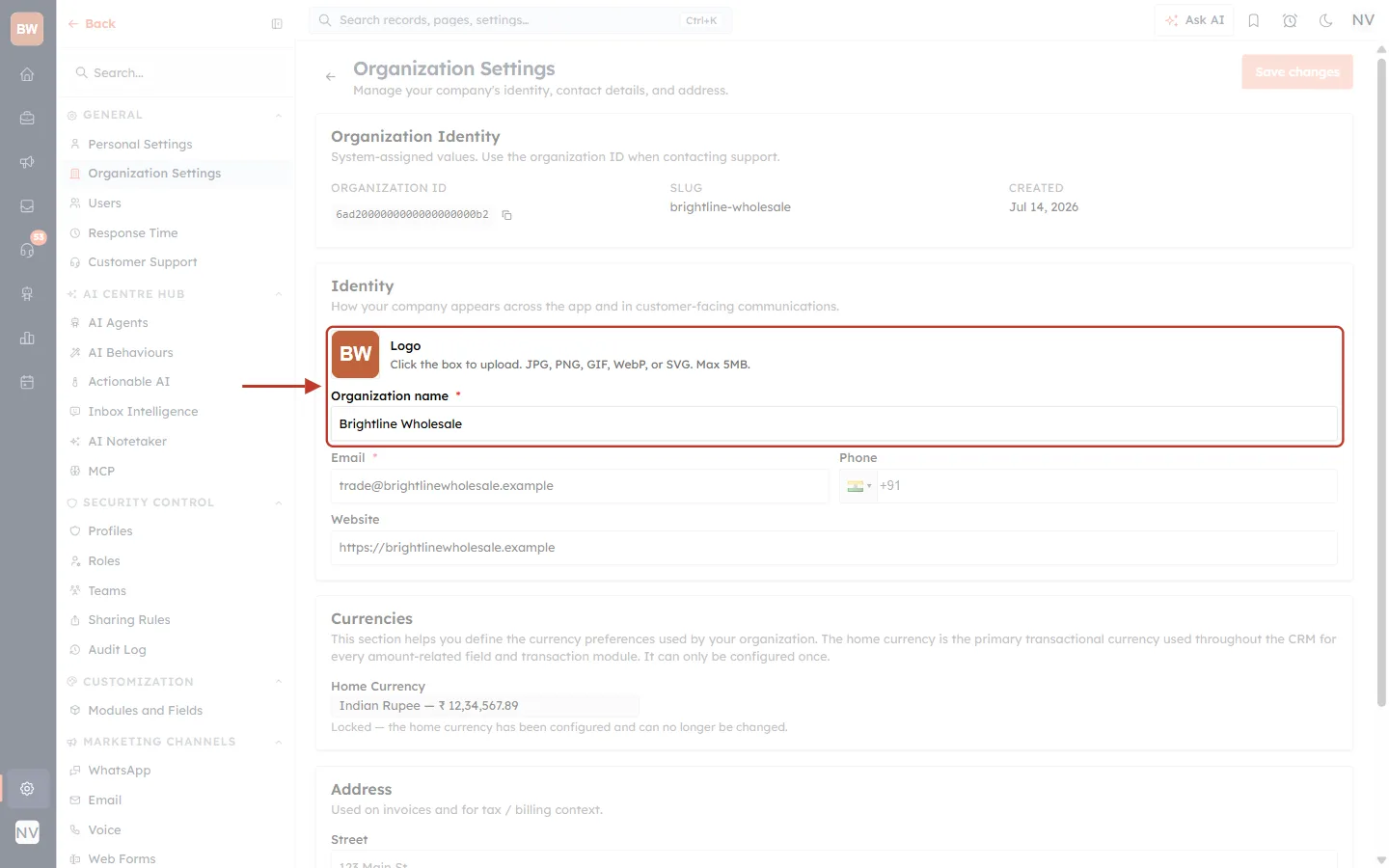
What this screenshot shows. The same section when Neha is signed in to Brightline Wholesale, ringed.
The logo is different (BW on orange), and so is the top-left logo in the rail.
The Organization name reads Brightline Wholesale.
Everything else in the CRM (contacts, deals, users and so on) belongs to this organization while you are signed in with this login.
Part 3: Move to another organization#
Step 4: Sign out#
Open the profile menu again (Step 2) and click Sign out.
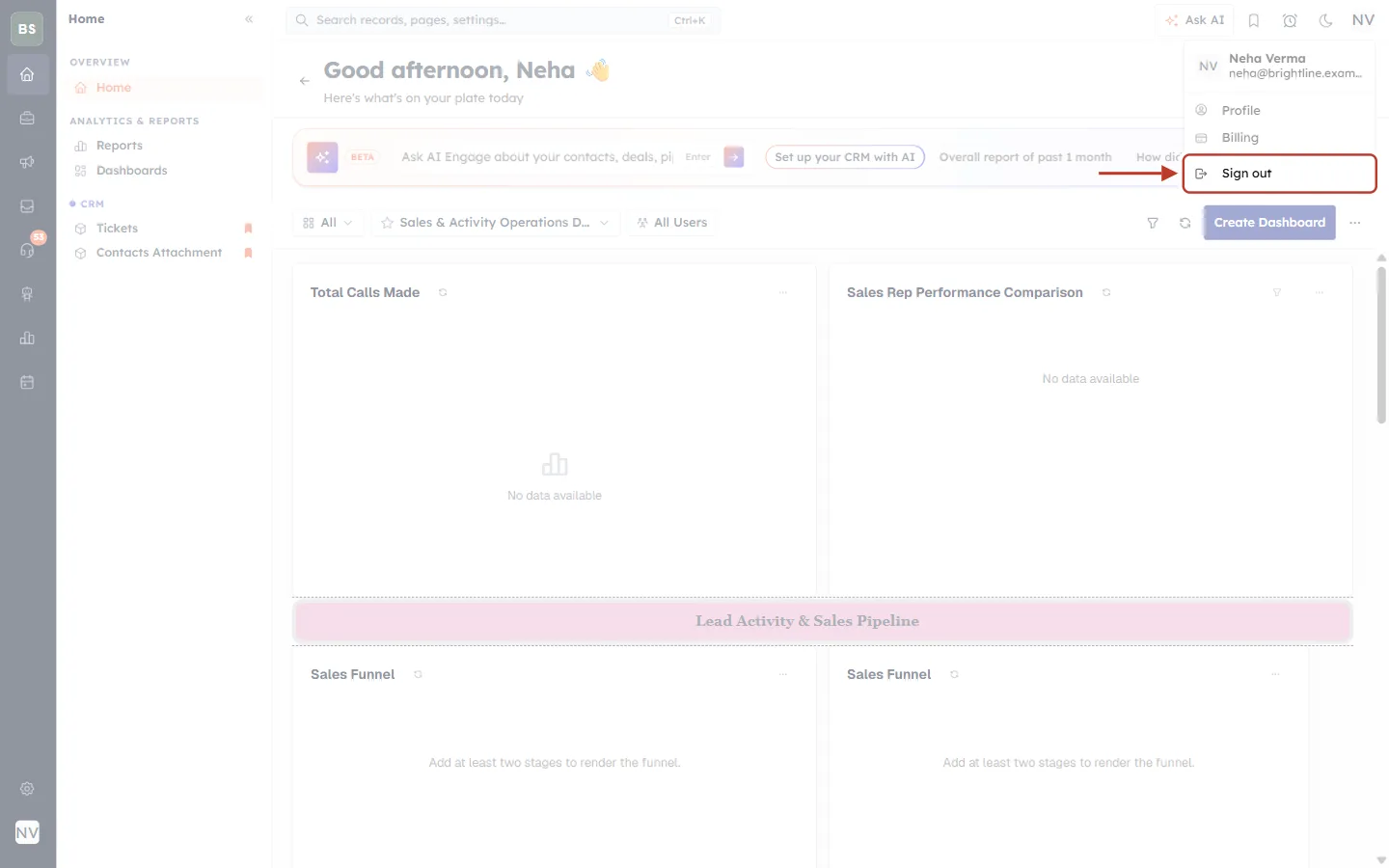
What this screenshot shows. Sign out at the bottom of the profile menu, ringed.
This ends your session in this browser and takes you to the sign-in page.
Nothing in the organization changes when you sign out.
Step 5: Sign in with the other organization’s login#
On the sign-in page, enter the email address and password that belong to the other organization, then click Sign in.
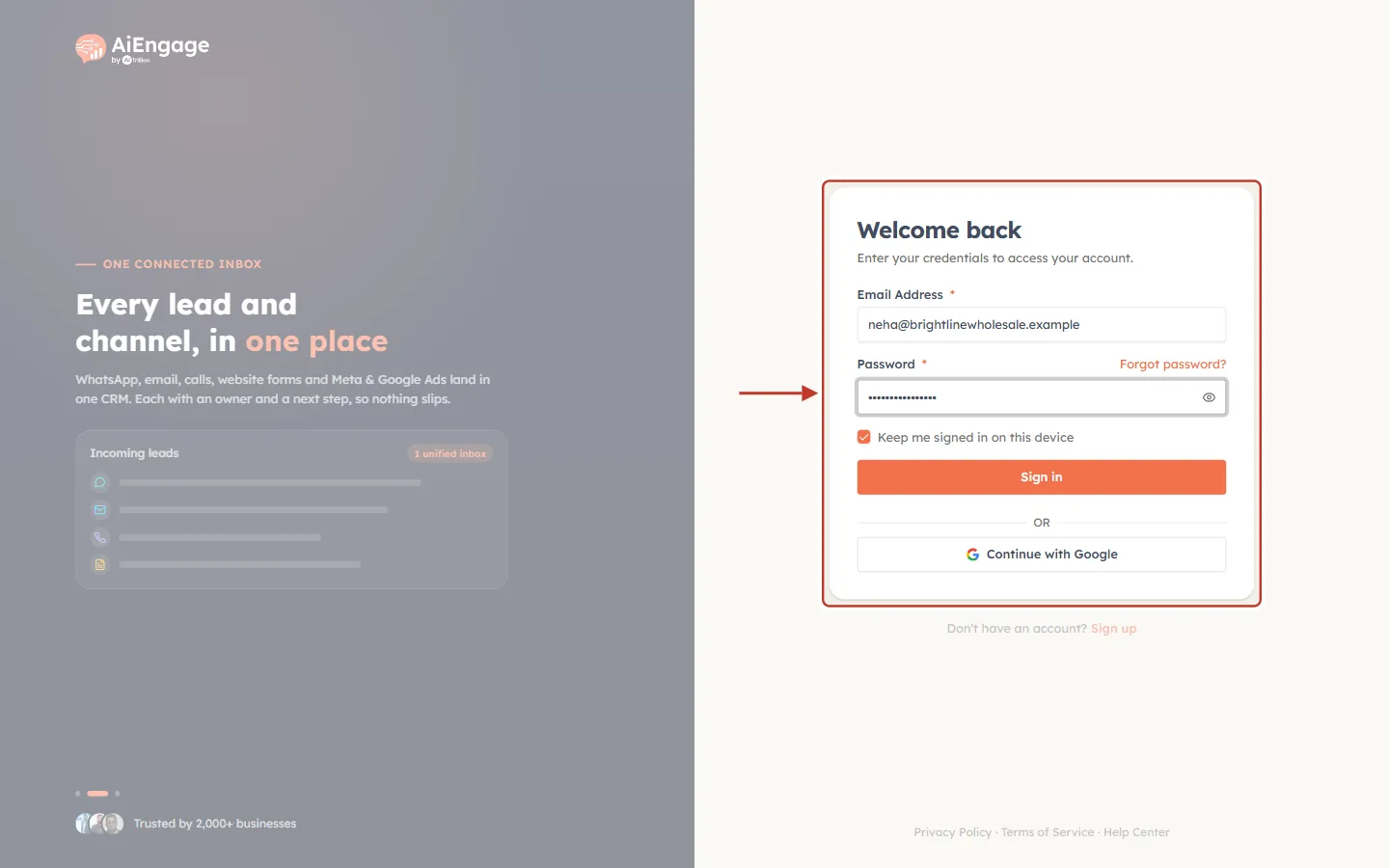
What this screenshot shows. The Welcome back sign-in box, ringed.
Email Address: enter the login for the organization you want, here neha@brightlinewholesale.example.
Password: the password for that login. Each login has its own password. Use Forgot password? if you don’t know it.
Keep me signed in on this device keeps you signed in for longer on this computer.
Continue with Google signs you in with a Google account. It opens the organization linked to that Google email address.
If two-step verification is turned on, you may be asked for a code sent to that login’s email. See Two-Step Verification: Add an Email Code to Every Sign-In.
After signing in, check the logo and Organization Settings (Part 2) to make sure you are in the right place.
Part 4: Keep two organizations open at the same time#
Signing out and in every time is slow if you move between organizations all day. Instead, give each login its own browser window that keeps its own sign-in:
Option | How | Good for |
|---|---|---|
Separate browser profiles (recommended) | In Chrome or Edge, click your profile picture at the top right of the browser and choose Add to create a second profile. Sign in to one organization in each profile. | Every day use. Both stay signed in, and each profile remembers its own login. |
Private or incognito window | Open a private window (Ctrl + Shift + N in Chrome or Edge, Ctrl + Shift + P in Firefox) and sign in to the second organization there. | Quick, occasional checks. You are signed out when you close the window. |
Two different browsers | For example, one organization in Chrome and the other in Edge. | Simple and easy to tell apart. |
⚠️
Don’t use two tabs in the same browser window for two organizations. Tabs in the same browser profile share one sign-in. Signing in with the second login replaces the first in every tab, and the first tab may show errors or the wrong organization until you reload it.
✅
Make them easy to tell apart. Give each organization its own logo (Step 3) and give each browser profile its own colour and name, for example “Studio” and “Wholesale”.
Part 5: Get access to another organization#
Joining someone else’s organization#
An admin of the other organization invites you from Settings → Users → Add User (see Invite Your Team: How to Add and Manage Users). The invitation must go to an email address that is not already used by any AiEngage organization, for example a separate work address for that client.
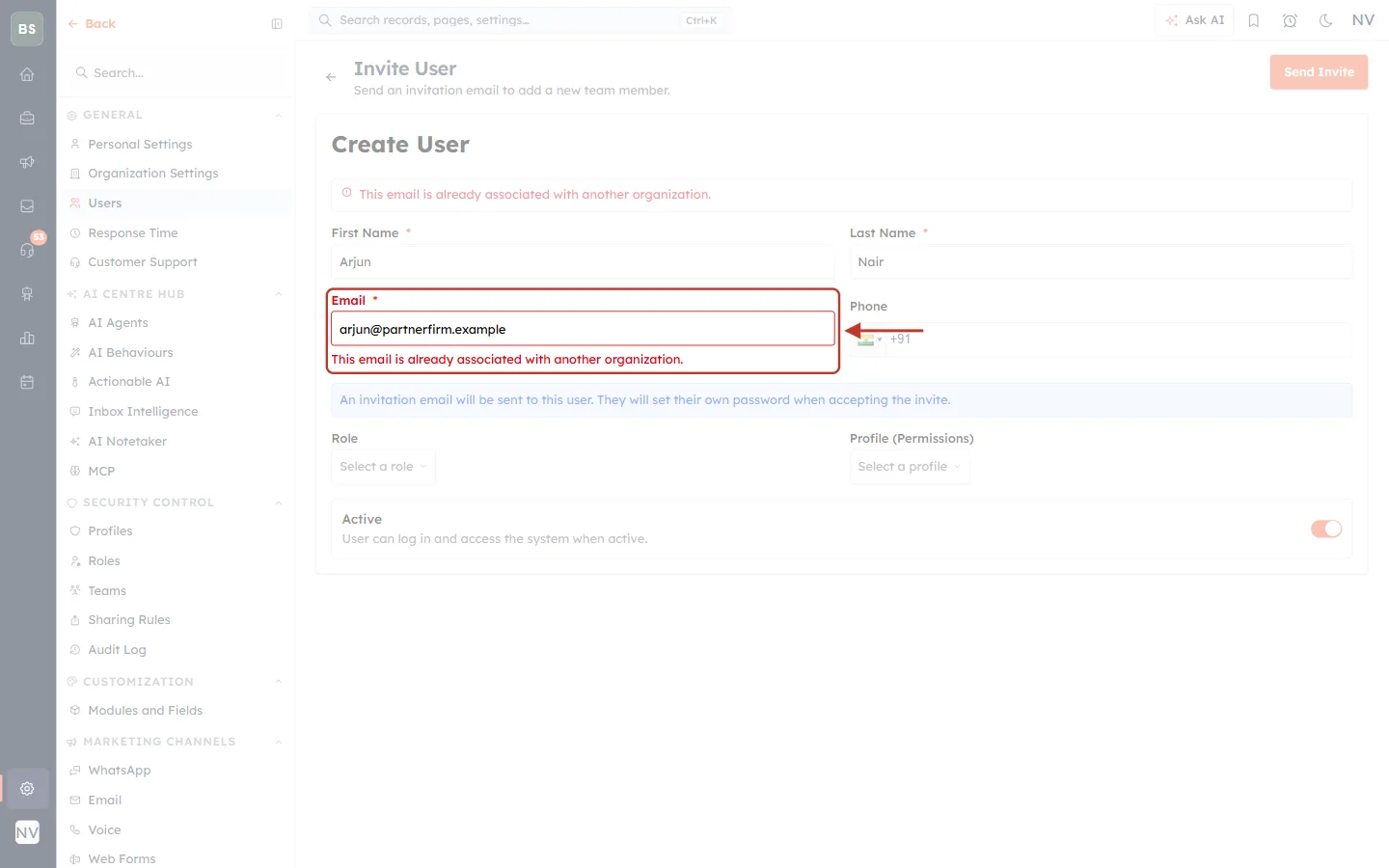
What this screenshot shows. The Invite User form after clicking Send Invite with an email address that already belongs to another organization. The Email field and its error are ringed.
The Email field turns red and reads This email is already associated with another organization.
The same message appears in a red bar at the top of the form, and the invitation is not sent.
Fix: invite a different email address for that person, such as an alias or a separate mailbox.
Creating a second organization of your own#
Each new sign-up creates a new organization. Open the sign-up page (Sign up under the sign-in box) and use a new email address.
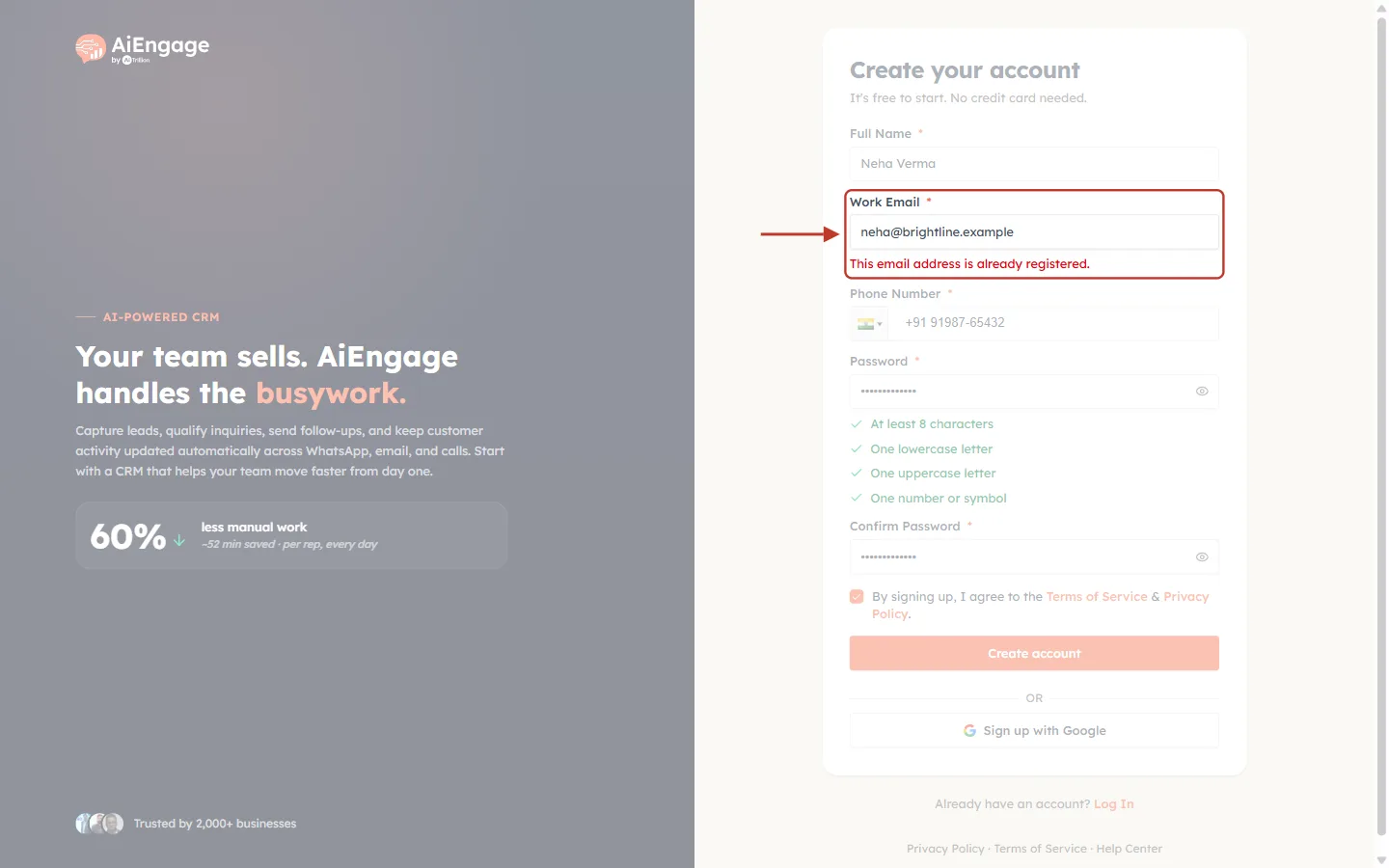
What this screenshot shows. The Create your account form after clicking Create account with an email address that is already in use. The Work Email field and its error are ringed.
Under Work Email it says This email address is already registered.
This happens because that email already has its own organization. Sign in with it instead, or use a different email address to create the new organization.
✅
Use email aliases. Many email services let you add an alias or a “plus” address that arrives in the same inbox, for example neha+wholesale@yourcompany.com. Check that your email provider delivers these before using one as a login.
ℹ️
Leaving an organization? An admin of that organization can deactivate or delete your login there and hand your records to a teammate. See Deactivate or Delete a User and Transfer Their Records.
Frequently asked questions#
Is there a button to switch organizations?
No. Each login opens one organization. Use a separate login for each organization, and a separate browser profile if you want both open at once.
Can I use the same email address in two organizations?
No. An email address can belong to only one organization. You will see “This email is already associated with another organization.” when someone invites it, or “This email address is already registered.” when you try to sign up with it.
Can I copy records or settings from one organization to another?
Not directly. Export what you need from one organization (for example, contacts to CSV) and import it into the other.
Do both organizations share one bill?
No. Plans, seats and credits belong to each organization. Check Billing in the profile menu of each login.
I signed in but see the wrong data.
Check the logo and the email in your profile menu (Part 2). You are probably signed in with the other login. Sign out and sign in with the right email.
I forgot which email I used for an organization.
Ask an admin of that organization to look you up in Settings → Users. If you are the only admin, contact AiEngage support with the organization name or ID.
Previous and next#
Related articles#
Was this article helpful?
Ready to implement this?
OpenAI Engage and apply what you just learned to your own workspace.
Open AI Engage CRM