Loading…


KnowledgeBase
Profile Permissions Explained: What Every Module, Feature & Setup Setting Controls
Introduction#
Every user in AiEngage CRM holds one profile. The profile is a set of permissions that decides what that person can see and do: which modules they can open, whose records they can edit or delete, whether they can export data, run campaigns, answer Team Inbox chats, build workflows or change how your organisation is set up.
The profile screen is split into four groups of sections, and each group controls a different kind of access:
Group | Sections | What it controls |
|---|---|---|
Profile | General | The profile’s name, description and whether it is active. |
Module Permissions | Module Access, Tools | Which records a user can view, create, edit, delete, export and import in each module, and where they can use the bulk tools (Mass Update, Mass Delete, Change Owner, Mass Merge). |
Feature Permissions | Report Management, Dashboard Management, Marketing, Inbox & Channels, Meeting Calendar, Webforms, Automation, AI & Data, Developer | Which features a user can use: reports, dashboards, templates and campaigns, the Team Inbox, meeting recordings and booking links, web forms, workflows, AI and API keys. |
Setup Permissions (SENSITIVE) | User & Access, Modules, Channel setup, Integrations | Who can change how the organisation itself is set up: users, roles, teams, sharing rules, the audit log, module customisation, channel setup and webhook integrations. |
This guide opens the profile screen and goes through it section by section. For every setting you will see what it controls, what happens when you switch it off, and a sensible choice for everyday staff. Every screenshot is followed by a description of the whole screen, so you can match it against your own.
ℹ️
This article explains the settings. To build a complete profile from start to finish and then clone, deactivate or delete it, follow Control Permissions with Profiles: Create a Profile Step by Step.
Before You Begin#
You need access to Settings → Security Control → Profiles. The account owner and administrators have it. A member needs it granted through the User Management setup permission described below.
Profiles decide what a user can do. Roles decide whose records they reach. “Team” in a profile means the records of the user’s team, so set up teams and roles as well. See Understanding the Role Hierarchy: How Data Visibility Works.
Feature and Setup permissions only limit Members. The Owner and Admins always get every feature, whatever their profile says.
A change applies to everyone on the profile as soon as you save it. To try something out first, clone the profile and assign the copy to a test user.
Key Terms#
Term | What it means |
|---|---|
All | The permission covers every record in the module, whoever owns it. |
Team | The permission covers records owned by the user’s team. |
Own | The permission covers only records the user owns. |
None | The permission is not given at all. With View set to None, the module is hidden from the user. |
Switch (toggle) | An on/off control. Orange means on. Grey means off. |
Section counter | The numbers next to each section in the section list, for example 3/4: how many of that section’s permissions are switched on, out of the total. |
Member | A user who is not the Owner or an Admin. Feature and Setup permissions apply to Members only. |
Step 1: Open the Profiles Page#
Profiles live in Settings. Click the gear icon at the bottom of the left-hand icon bar.
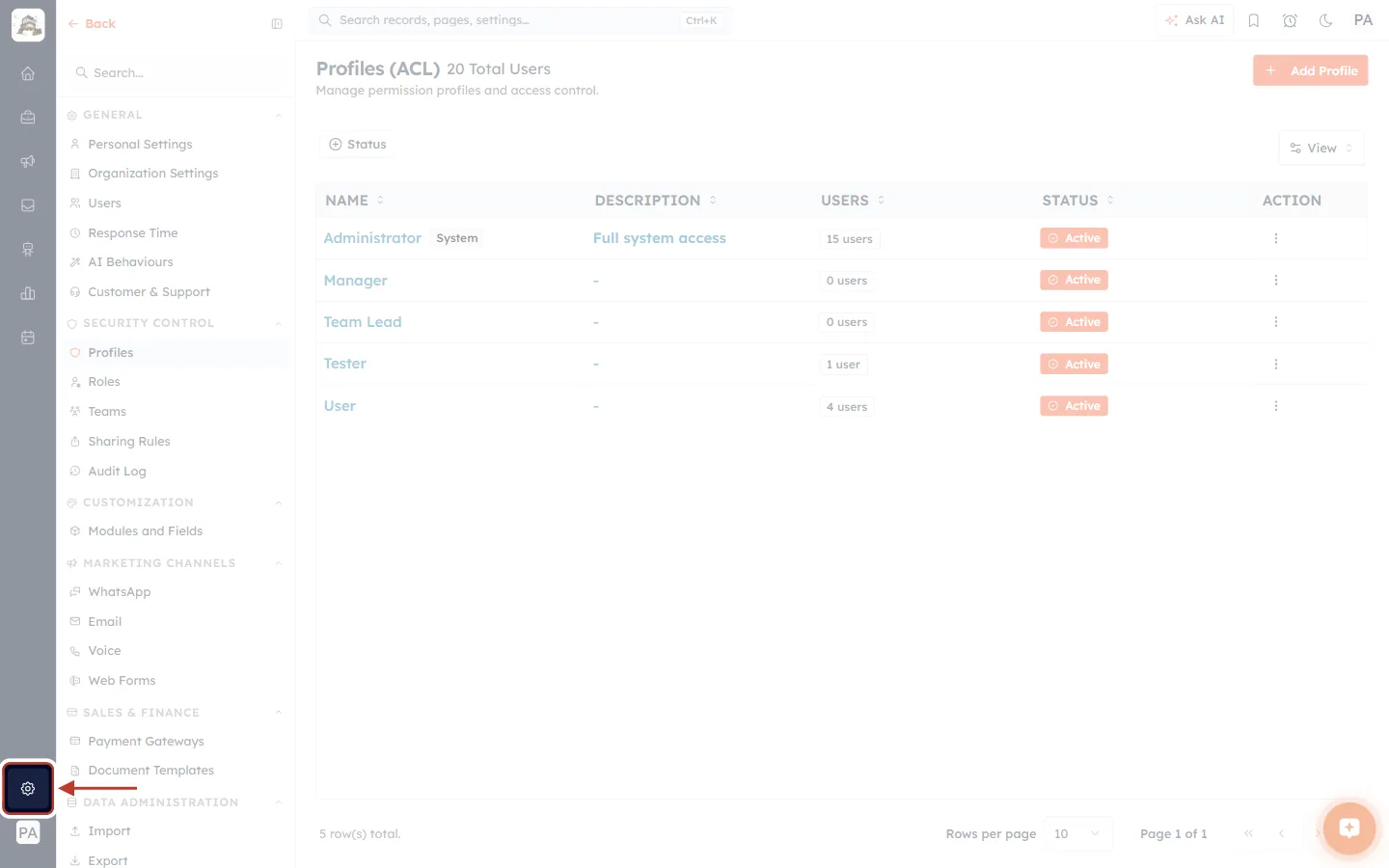
What this screenshot shows. The ringed gear icon near the bottom of the dark icon bar on the far left opens Settings.
The dark bar on the far left holds the main app icons: home, Sales, Marketing, the inbox and the other modules.
The gear sits just above your initials (here PA) at the bottom of the bar.
In this screenshot Settings is already open: the Settings menu fills the second column, and the Profiles page fills the rest of the screen.
In the Settings menu, under SECURITY CONTROL, click Profiles.
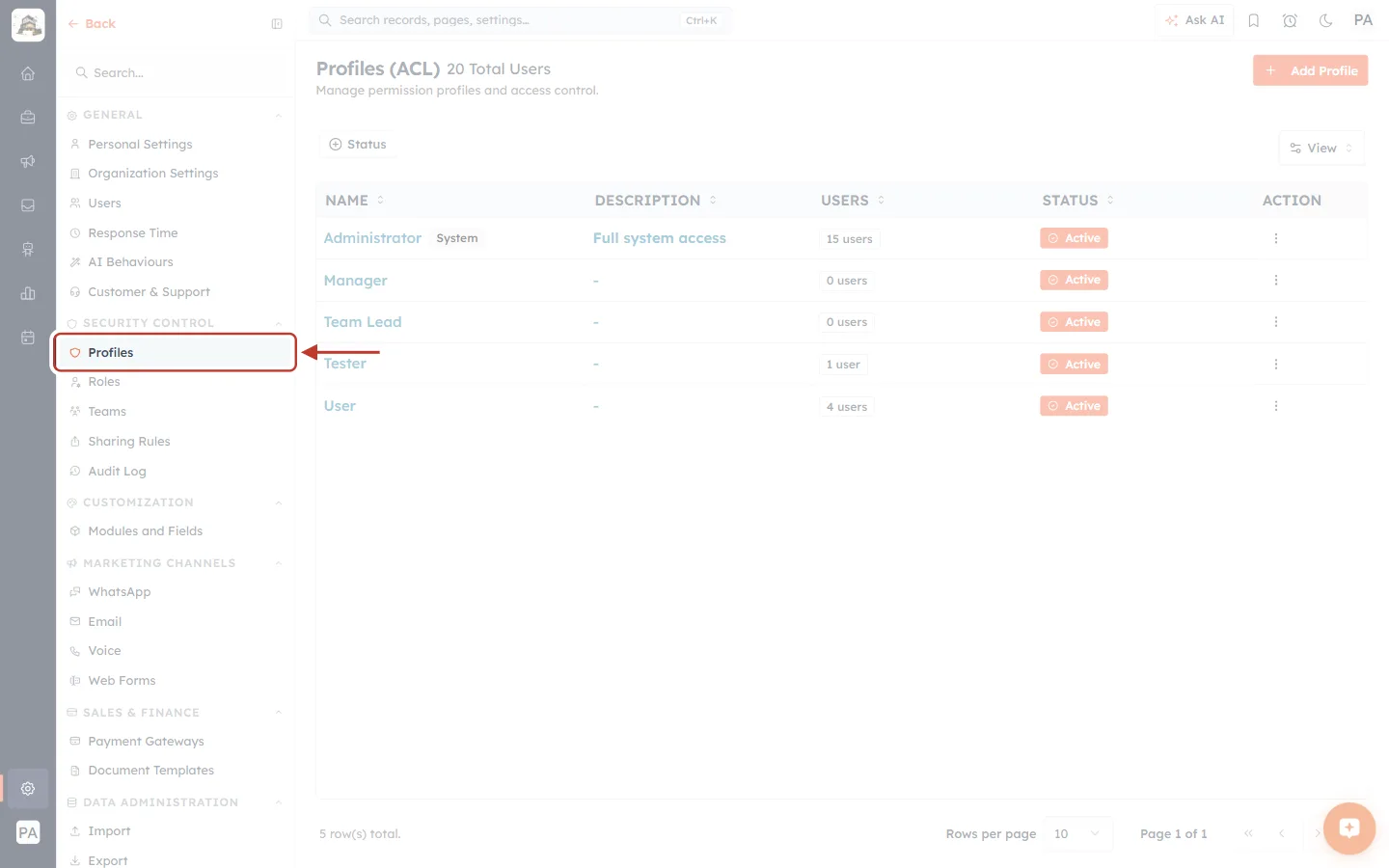
What this screenshot shows. Profiles is ringed in the Settings menu, inside the SECURITY CONTROL group.
The Settings menu is grouped: GENERAL, SECURITY CONTROL, CUSTOMIZATION, MARKETING CHANNELS, SALES & FINANCE, DATA ADMINISTRATION and more further down.
SECURITY CONTROL holds Profiles, Roles, Teams, Sharing Rules and Audit Log. These five pages decide who can see and do what.
The Search… box at the top of the menu finds a settings page by name.
Step 2: Read the Profiles List#
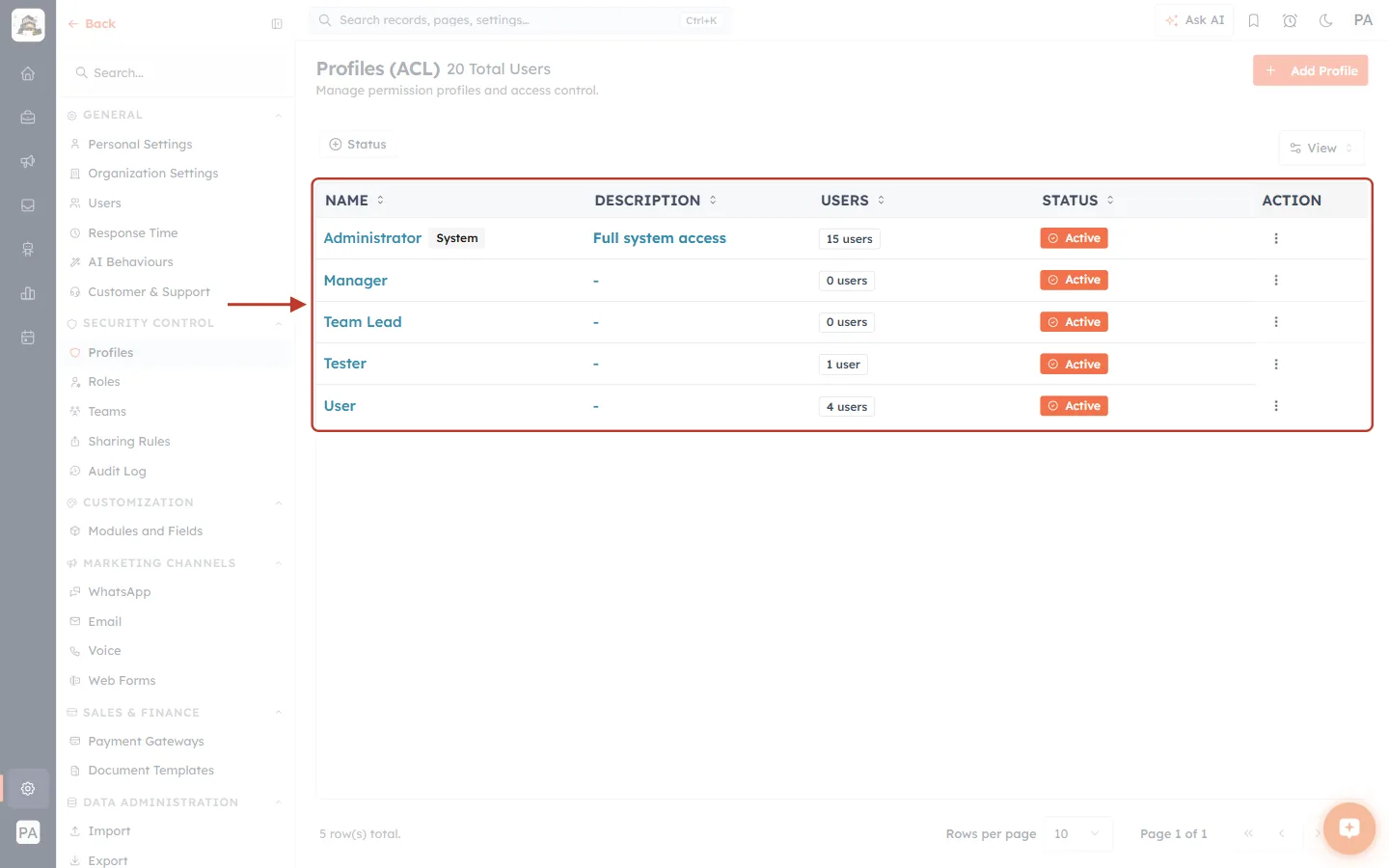
What this screenshot shows. The ringed table lists every profile in your organisation.
The page title reads Profiles (ACL), followed by the total number of users in your organisation (here 20 Total Users).
NAME: the profile’s name. The built-in Administrator profile carries a System badge.
DESCRIPTION: the text entered on the profile. A dash means none was entered.
USERS: how many users hold this profile right now (for example 15 users, 0 users). Any change you make affects all of them.
STATUS: Active or Inactive. Only active profiles can be given to users.
ACTION: the ⋮ menu for each profile.
Above the table, Status filters the list, View changes the columns, and + Add Profile (top right) creates a new profile.
To look at an existing profile’s settings, click the ⋮ in its ACTION column.
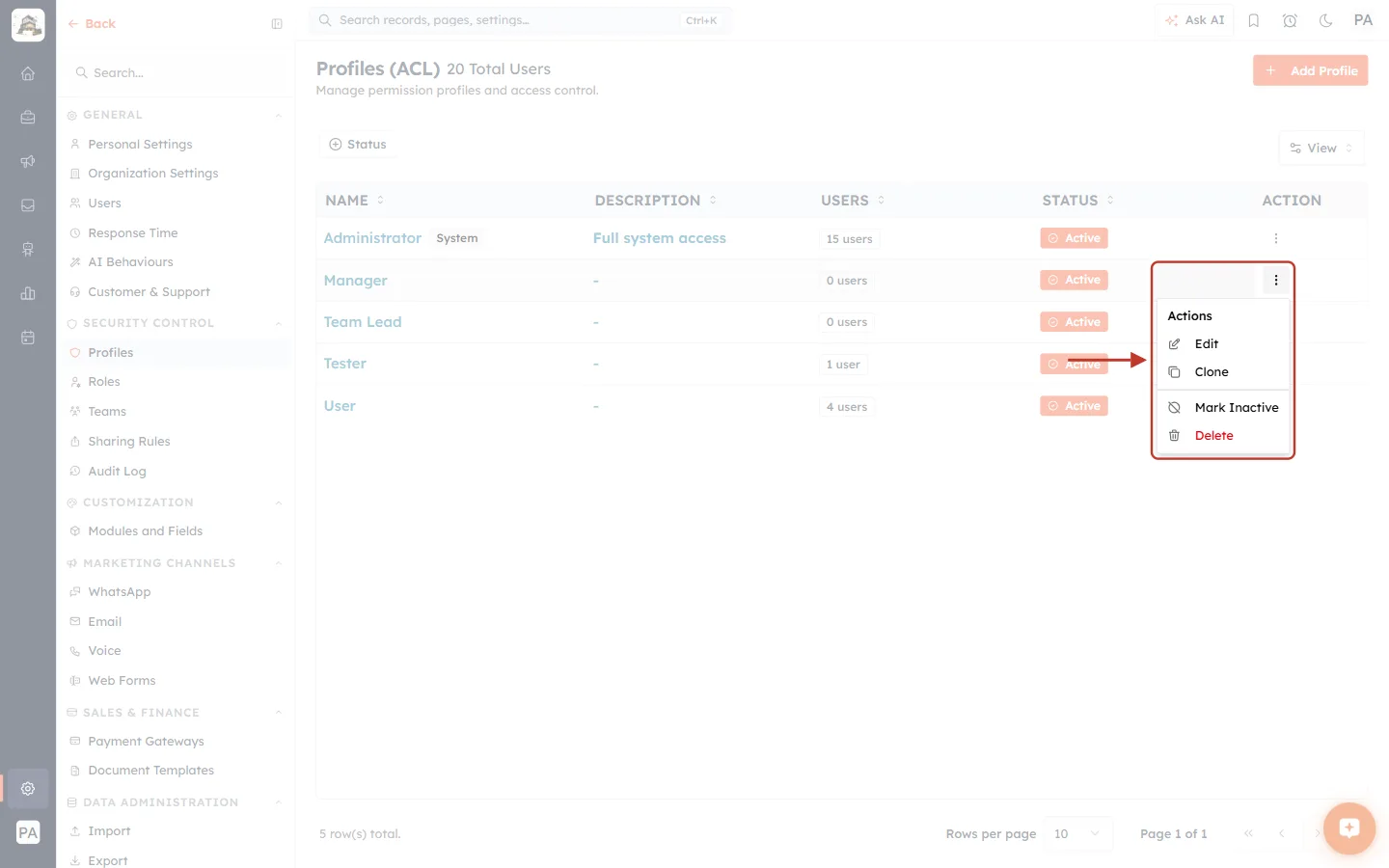
What this screenshot shows. The ⋮ menu of the Manager profile is open and ringed.
Edit opens the profile so you can read or change every setting described in this article.
Clone makes a copy with the same settings. Use it to build a similar profile quickly.
Mark Inactive stops the profile being offered when you add or edit a user. Its settings are kept.
Delete (in red) removes the profile.
The built-in Administrator profile offers fewer actions, so your organisation always keeps a full-access profile.
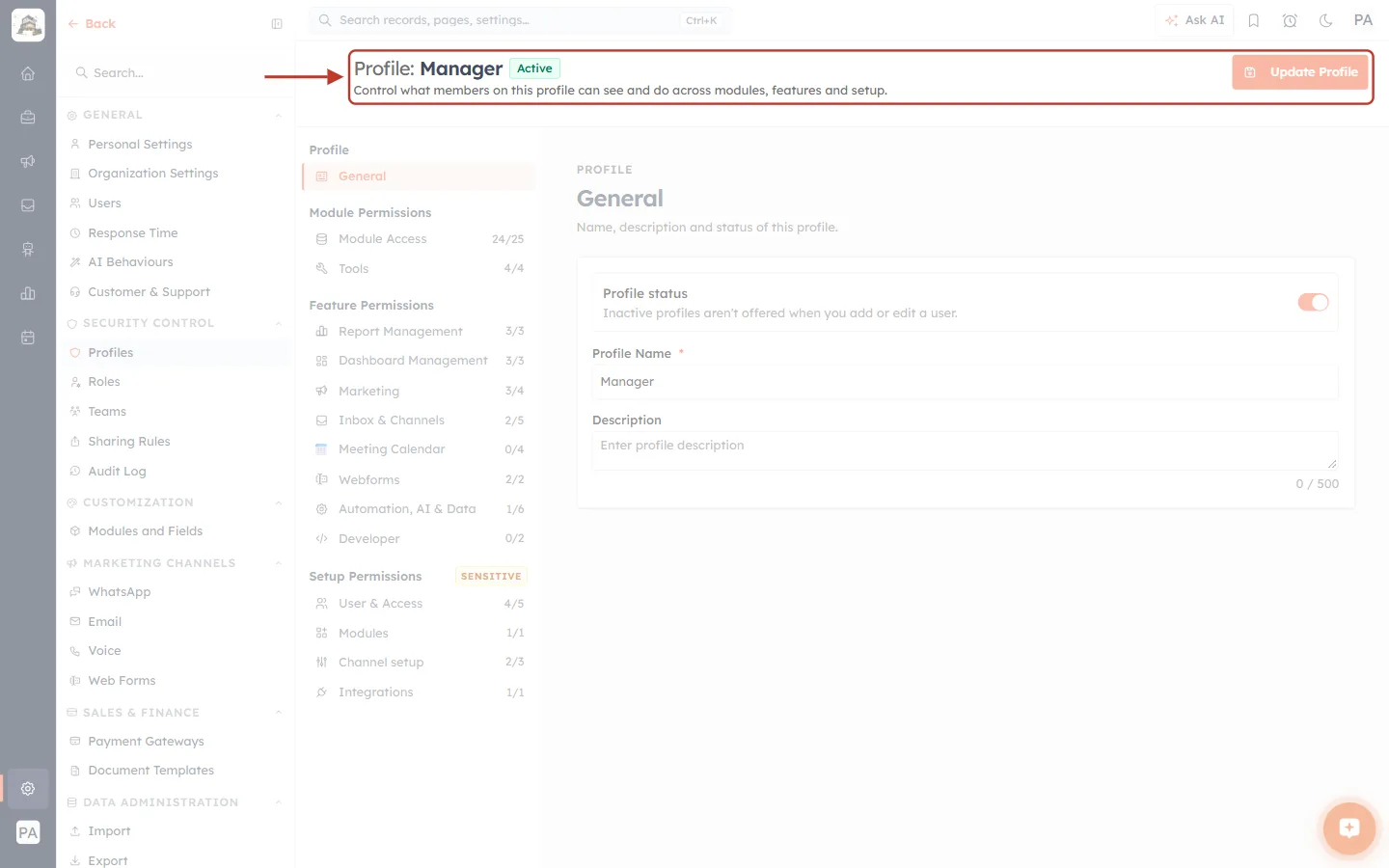
What this screenshot shows. The ringed header shows the profile you are editing and its save button.
Profile: Manager is the profile’s name. The green Active badge shows its status.
The line underneath reads Control what members on this profile can see and do across modules, features and setup.
Update Profile (top right) saves your changes. It stays faded until you change something.
Below the header is the same section list and settings you see when creating a profile. The rest of this article walks through them.
To look at the settings on a blank profile instead, click + Add Profile.
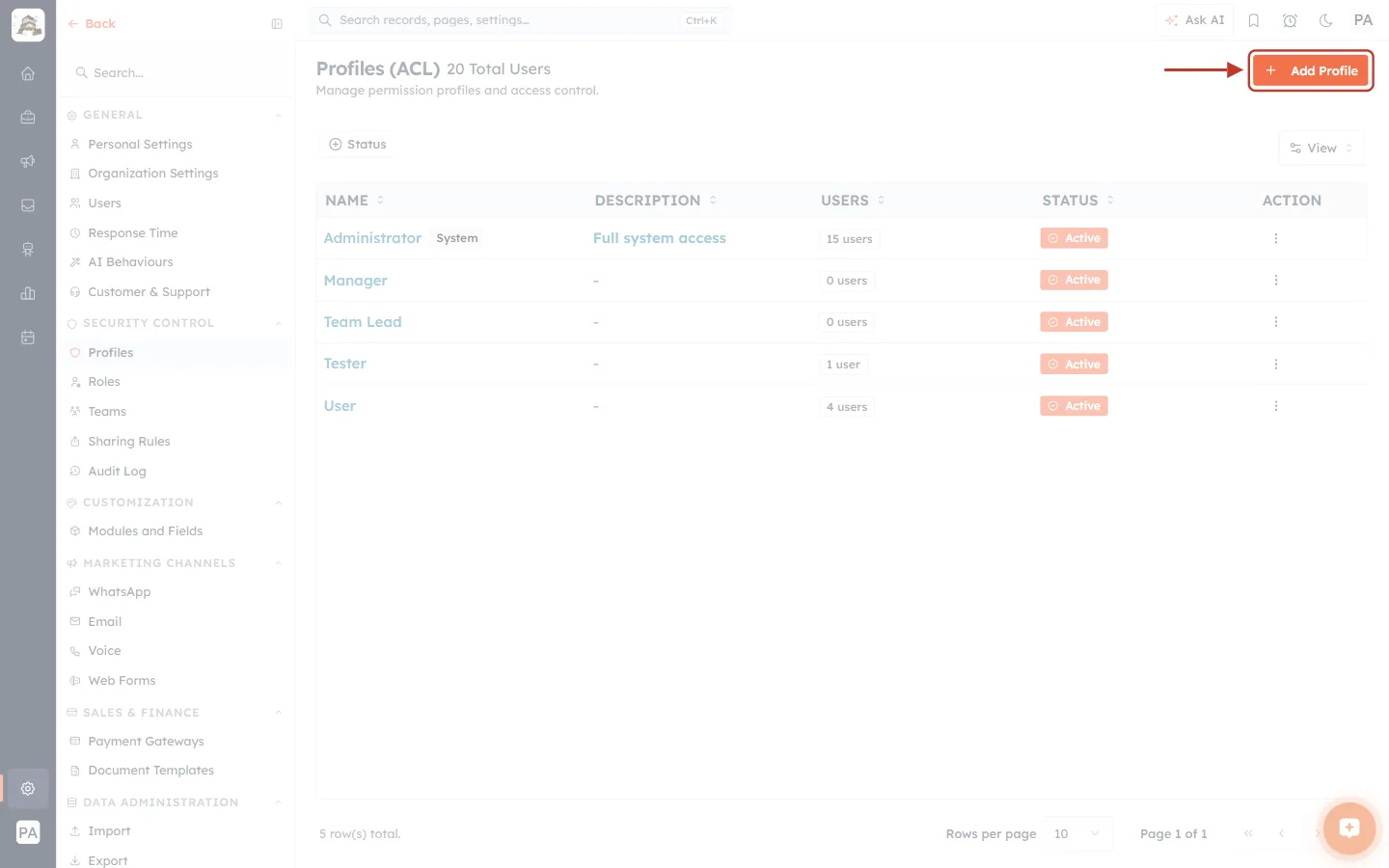
What this screenshot shows. The orange + Add Profile button at the top right of the Profiles page is ringed.
It opens the Create Profile page with every setting.
Nothing is saved until you click Create Profile on that page, so you can look around safely and leave with Back.
Step 3: Find Your Way Around the Profile Screen#
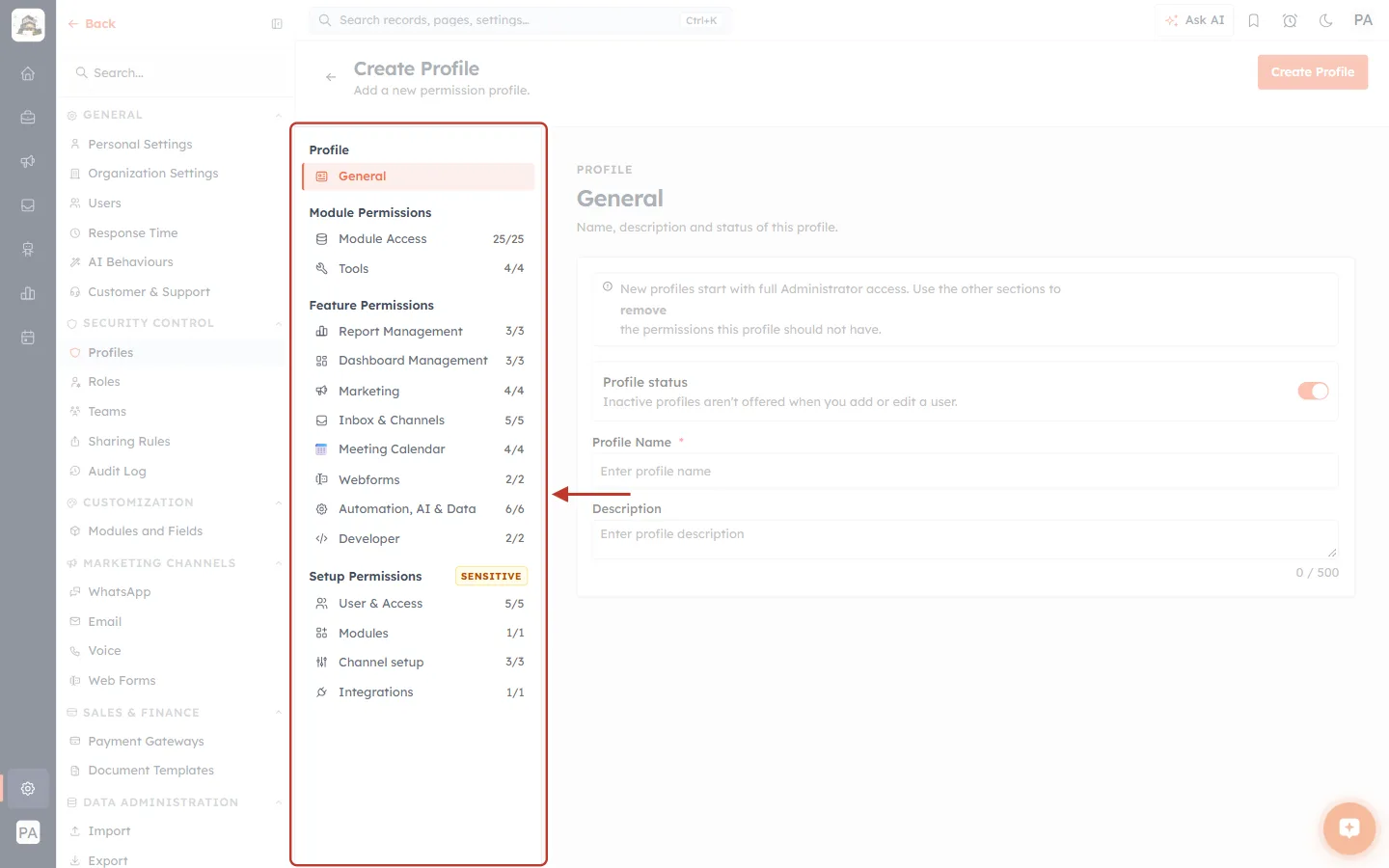
What this screenshot shows. The ringed column is the section list. Click a section to show its settings on the right.
Profile → General: name, description and status.
Module Permissions: Module Access (25/25: the profile can see all 25 modules) and Tools (4/4 bulk tools allowed).
Feature Permissions: eight sections, each with its own counter, such as Report Management 3/3 and Automation, AI & Data 6/6.
Setup Permissions carries a yellow SENSITIVE badge. It has four sections: User & Access, Modules, Channel setup and Integrations.
Every counter is full here because a new profile starts with full Administrator access. You build a profile by switching off what it should not have.
The section you are on is highlighted in orange (here General).
Step 4: General — Name, Description and Status#
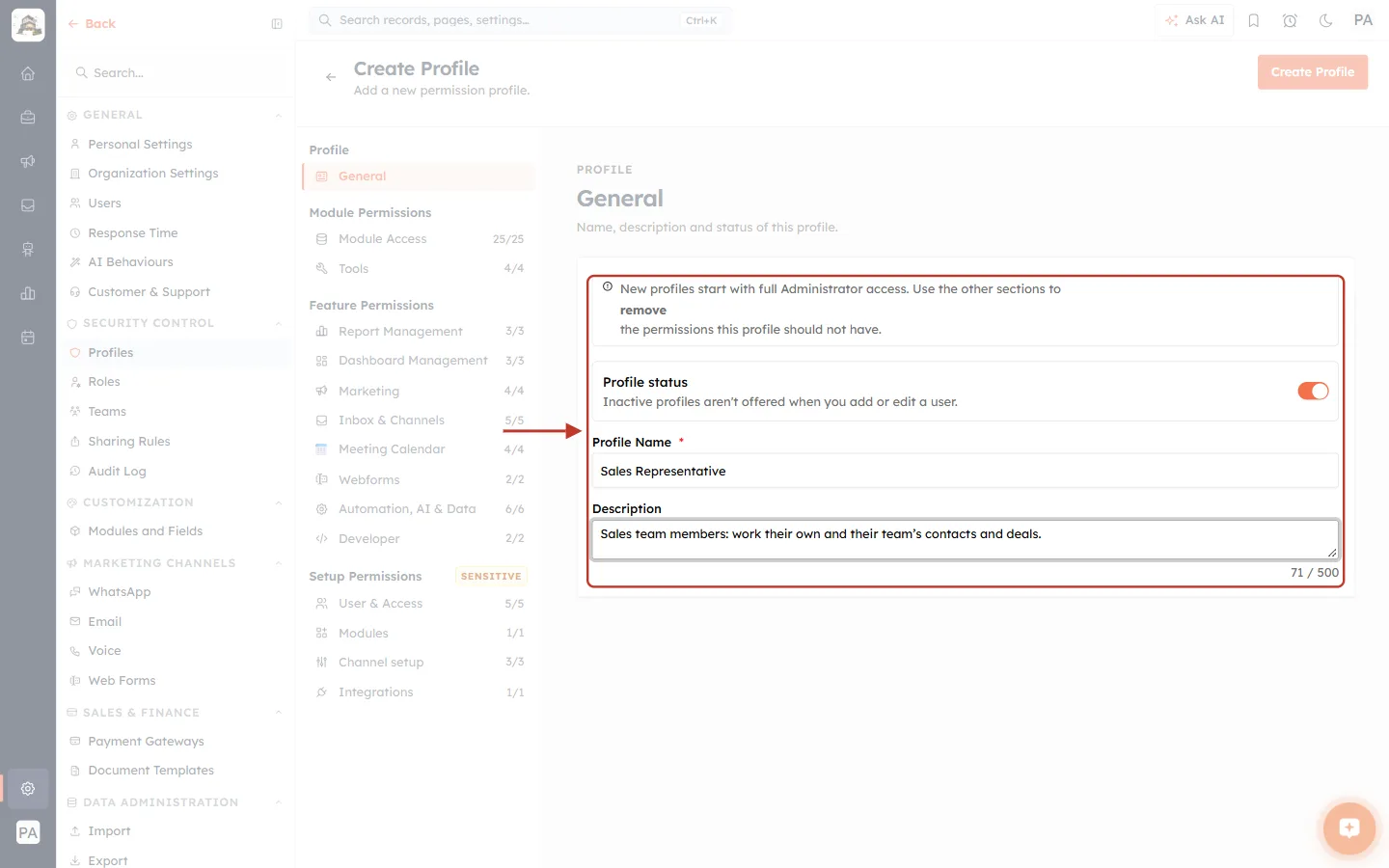
What this screenshot shows. The ringed card holds the profile’s basic details.
The note at the top reads New profiles start with full Administrator access. Use the other sections to remove the permissions this profile should not have.
Profile status (the orange switch): on means Active. Switch it off to make the profile inactive. As the text says, Inactive profiles aren’t offered when you add or edit a user.
Profile Name * is required. Name the profile after a job, such as Sales Representative.
Description is optional, up to 500 characters (the counter shows 71 / 500). Write who the profile is for so the next admin understands it.
Step 5: Module Access — What Users Can Do With Records#
Click Module Access. This is the most important section: one row for every module in your CRM, with six permissions on each row.
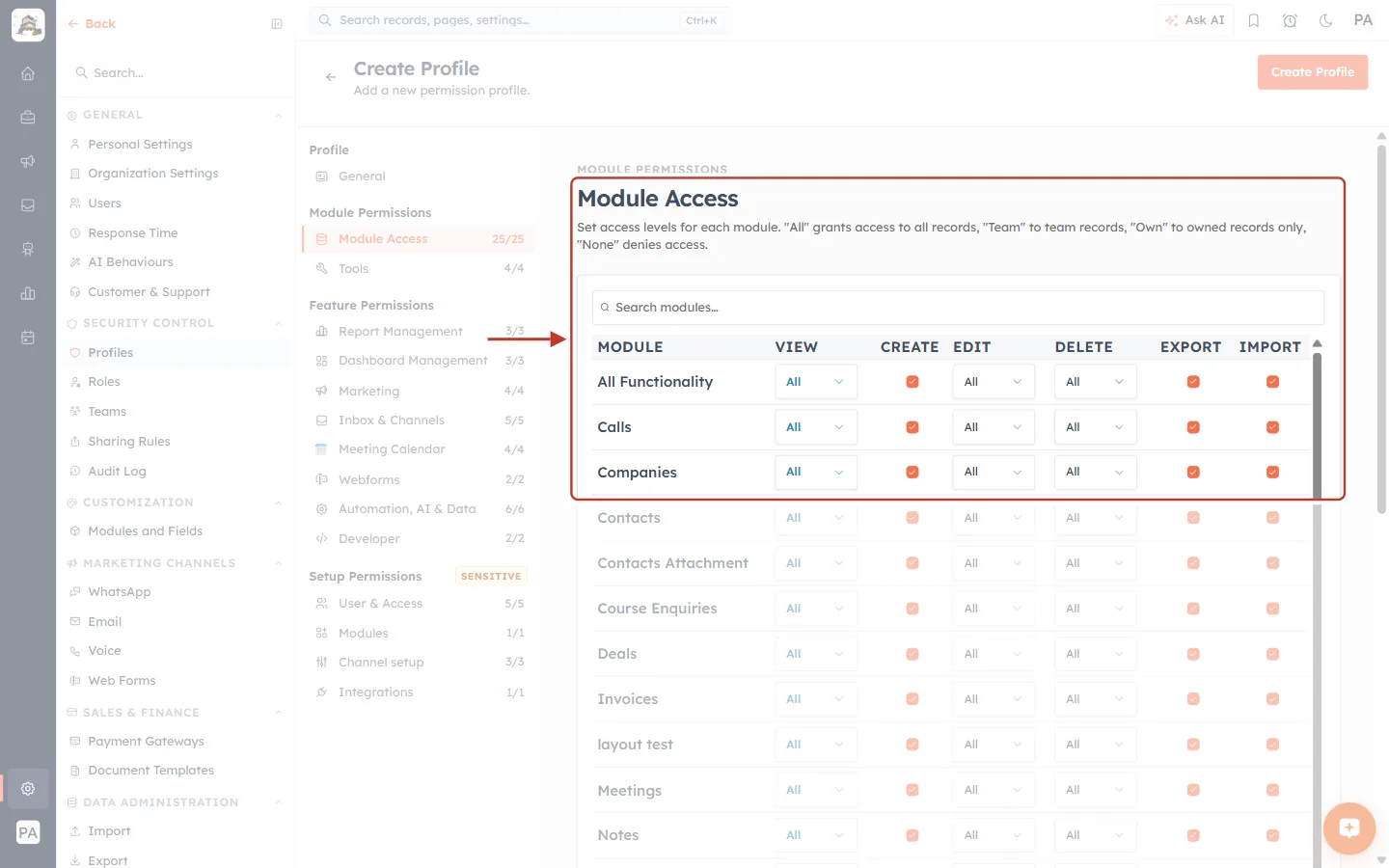
What this screenshot shows. The ringed area is the top of the Module Access table.
The intro line explains the levels: “All” grants access to all records, “Team” to team records, “Own” to owned records only, “None” denies access.
Search modules… filters the rows. This is useful when you have many custom modules.
MODULE: each row is one module, such as All Functionality, Calls, Companies, Contacts, Deals, Invoices, Tickets and any custom modules you created.
VIEW, EDIT and DELETE are drop-downs with four levels: All, Team, Own, None.
CREATE, EXPORT and IMPORT are tick boxes: ticked (orange) allows it, empty does not.
The table scrolls on its own. Scroll inside it to reach the rest of the modules.
The six permissions on each row#
Permission | Type | What it controls |
|---|---|---|
View | All / Team / Own / None | Which records of this module the user can see in lists, searches and record pages. None hides the module completely. |
Create | Tick box | Whether the user can add new records (the + New button and quick create). |
Edit | All / Team / Own / None | Which records the user can change. With None, records open read-only. |
Delete | All / Team / Own / None | Which records the user can delete. Deleted data is hard to get back, so keep this tight. |
Export | Tick box | Whether the user can download this module’s records to a file. Turn it off for anyone who should not take data out of the CRM. |
Import | Tick box | Whether the user can bring records into this module in bulk from a spreadsheet. |
To change a level, click the drop-down in the right column.
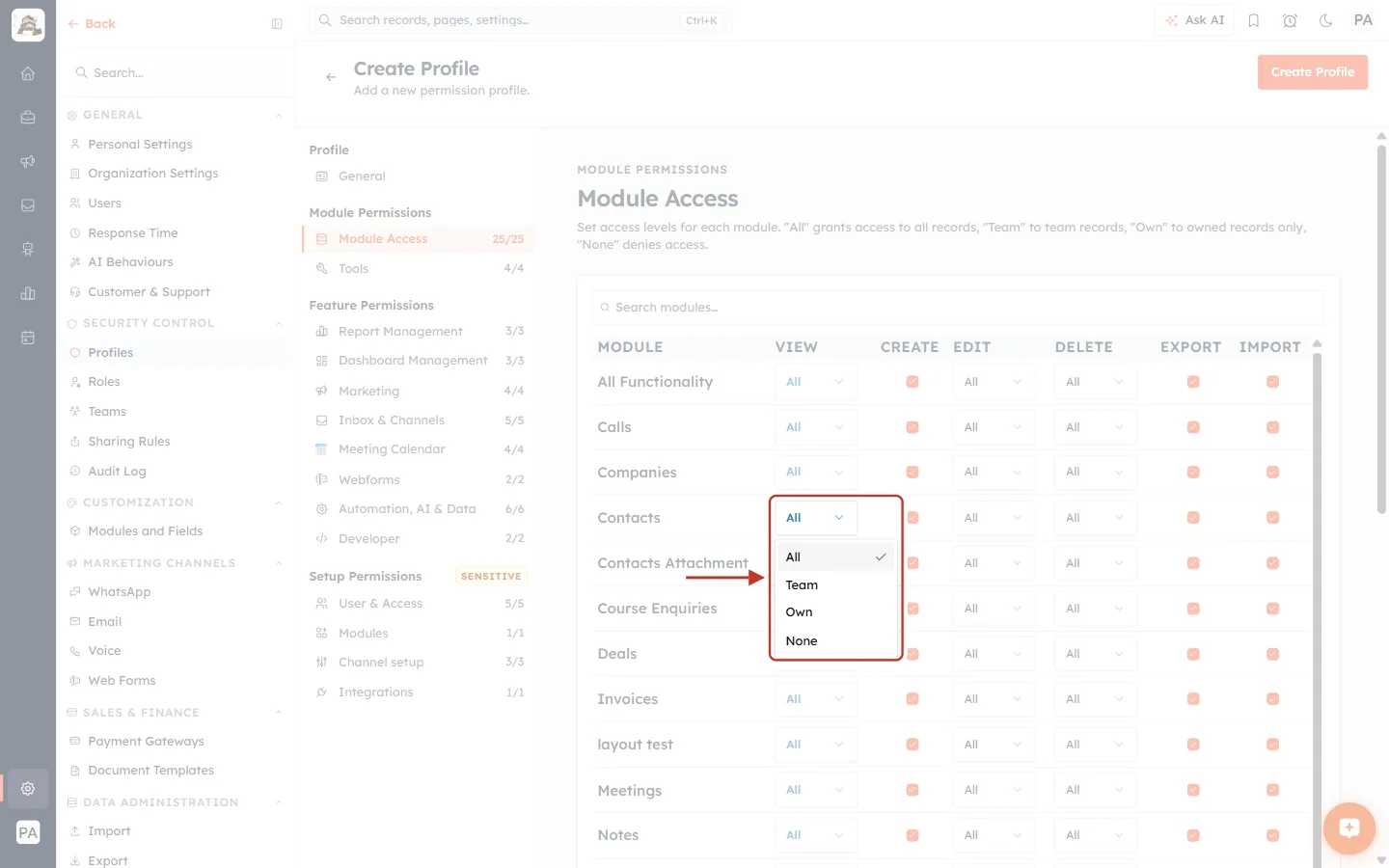
What this screenshot shows. The VIEW drop-down on the Contacts row is open and ringed.
The four choices are All (ticked, the current value), Team, Own and None.
The EDIT and DELETE drop-downs offer the same four choices.
The other rows are unchanged. Every row is set separately.
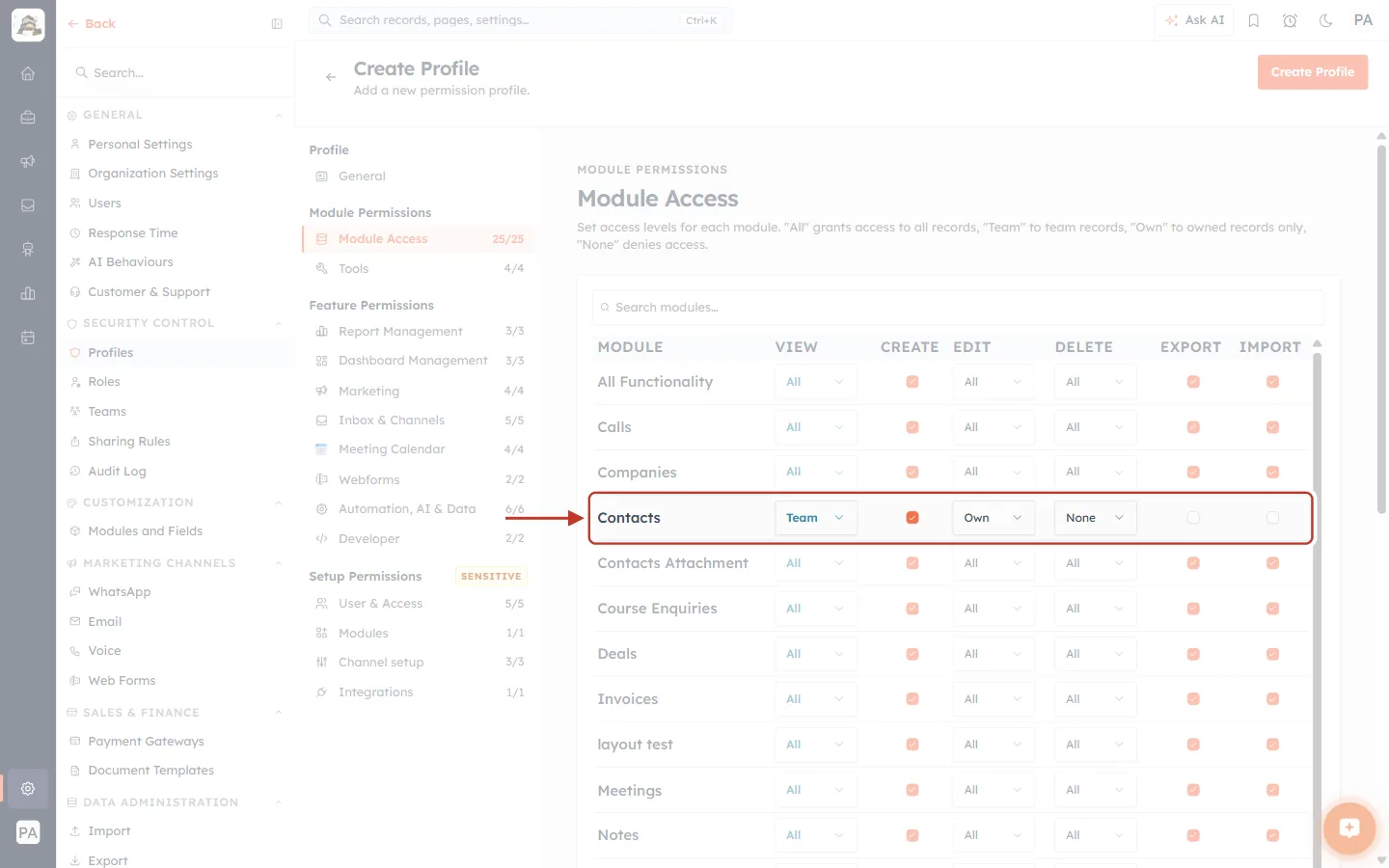
What this screenshot shows. The ringed Contacts row shows a typical setup for a sales representative.
VIEW = Team: they see every contact owned by their team, so they can cover for colleagues.
CREATE ticked: they can add new contacts.
EDIT = Own: they can only change contacts they own.
DELETE = None: they cannot delete contacts.
EXPORT and IMPORT unticked: they cannot download contacts or bulk-import them.
The rows above and below still have full access. Each module needs its own decision.
✅
Keep Edit and Delete no wider than View. A user can only work on records they can see. The form lets you pick any combination, so check each row before saving.
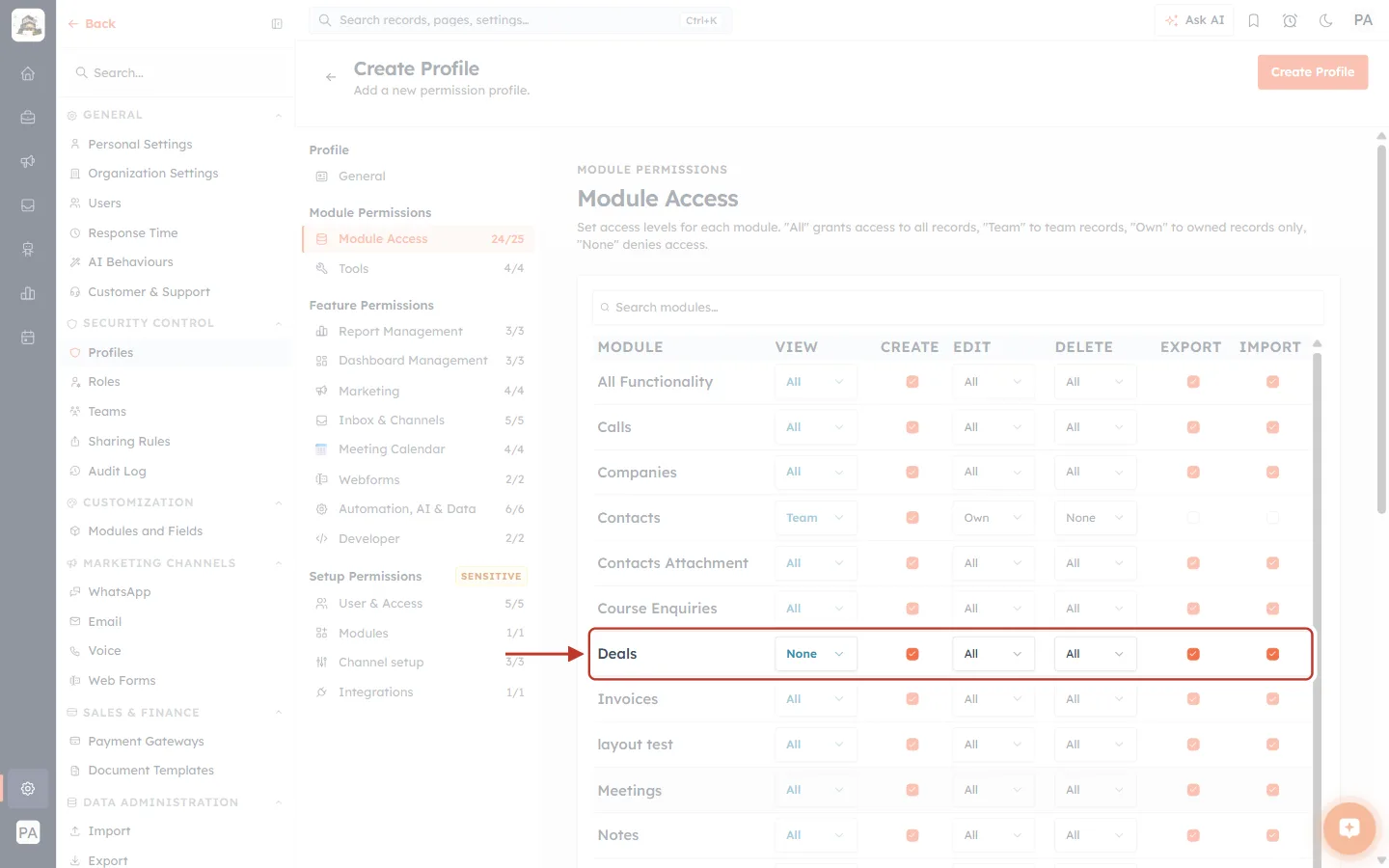
What this screenshot shows. The ringed Deals row has VIEW = None.
With View set to None, the Deals module is hidden from everyone on this profile. Its Create, Edit, Delete, Export and Import settings no longer matter.
Look at the section list on the left: the Module Access counter has dropped from 25/25 to 24/25. The counter shows how many modules the profile can see.
Use None for modules a job type never needs, such as Invoices for a support agent.
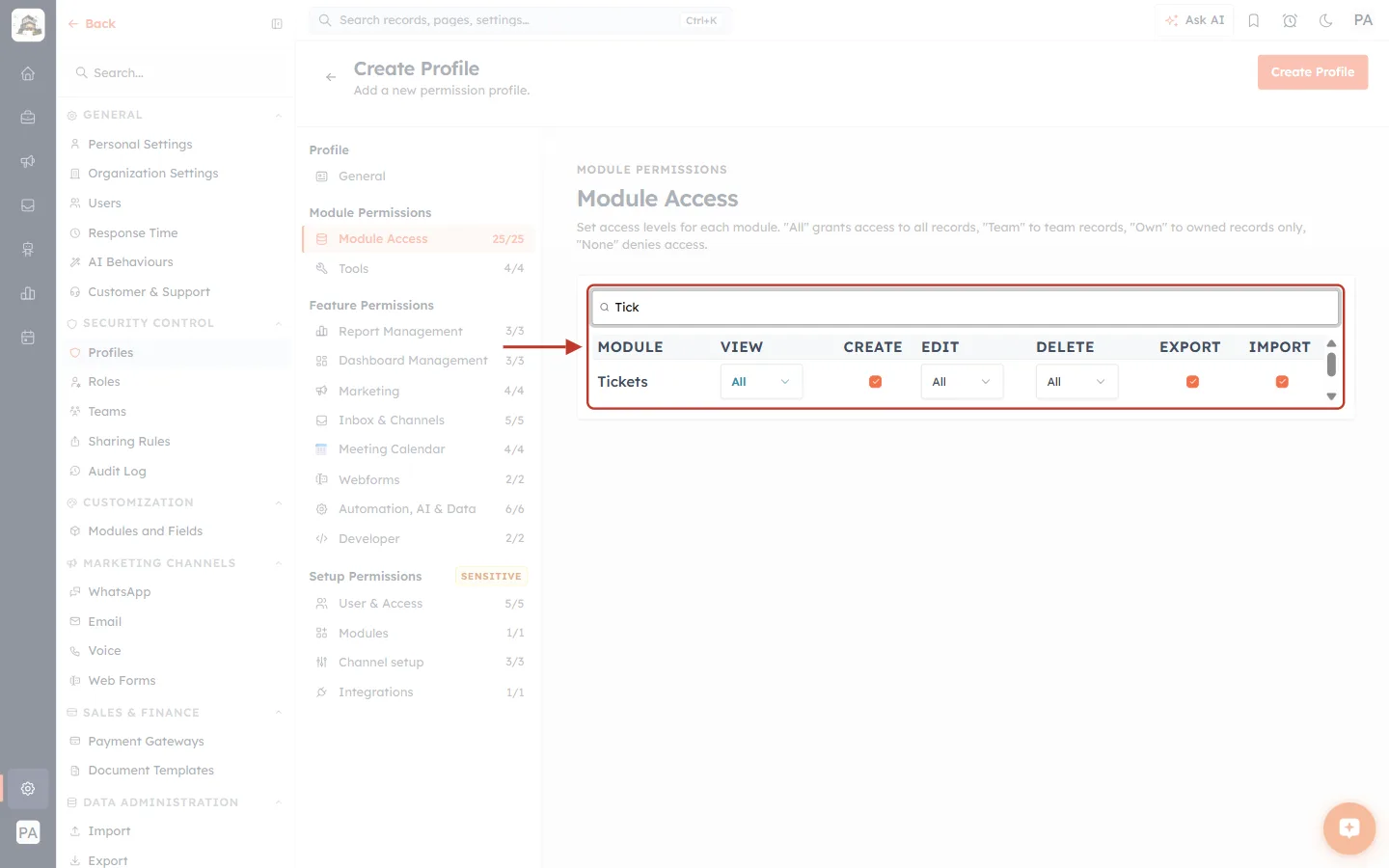
What this screenshot shows. Search modules… and the table are ringed, filtered to one module.
Typing Tick in the search box leaves only the Tickets row.
Changes you make on a filtered row are kept when you clear the search.
Ticket access has a full guide of its own: Ticket Permissions: Control Who Can See, Edit and Reply to Support Tickets (Step-by-Step).
Step 6: Tools — Bulk Actions on Many Records#
Click Tools. Bulk tools act on many records at once, so they get their own permissions.
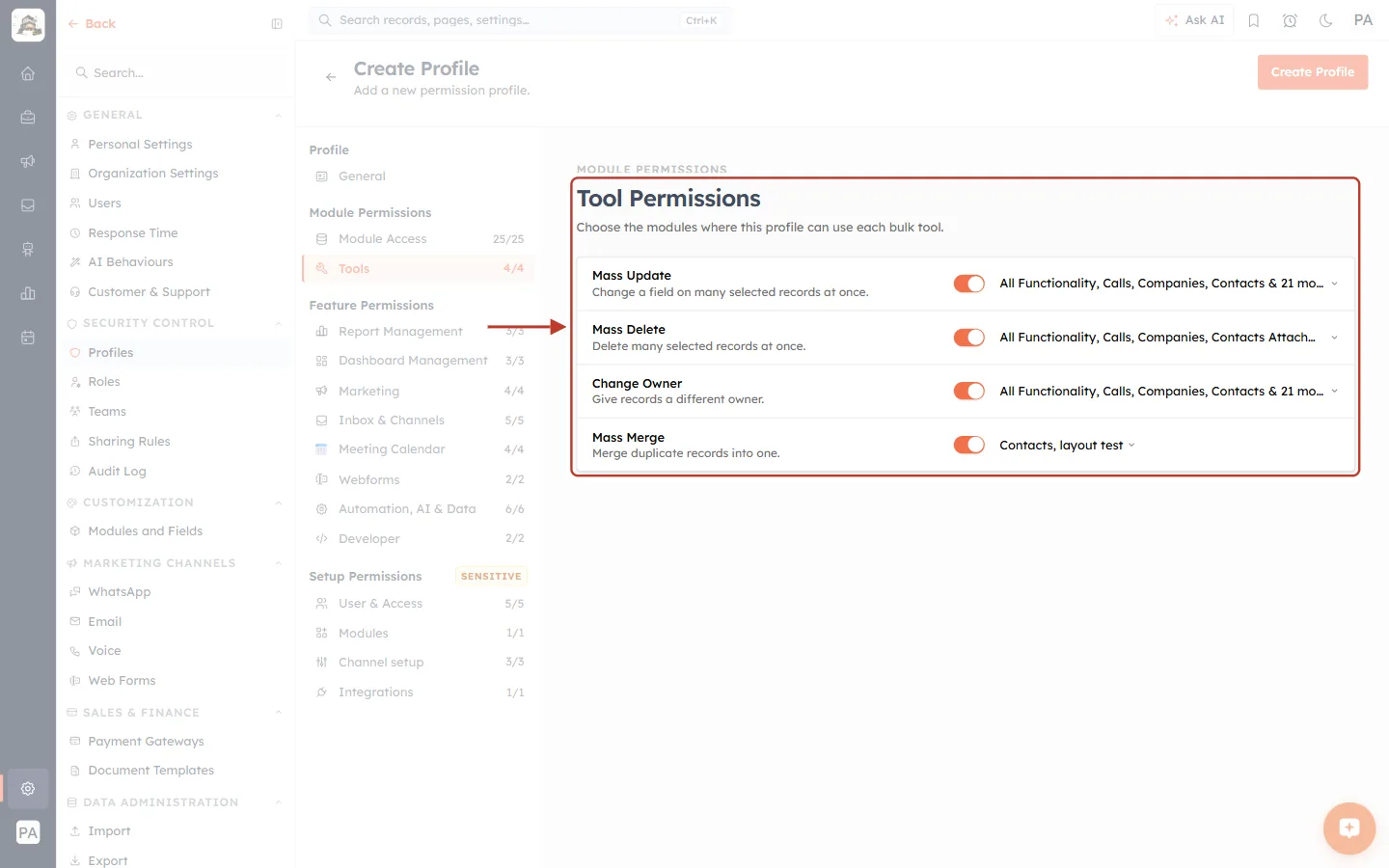
What this screenshot shows. The ringed Tool Permissions card lists the four bulk tools. The intro reads Choose the modules where this profile can use each bulk tool.
Mass Update: Change a field on many selected records at once.
Mass Delete: Delete many selected records at once.
Change Owner: Give records a different owner.
Mass Merge: Merge duplicate records into one.
Each tool has a switch that turns it on or off, and a module picker on the right (for example All Functionality, Calls, Companies, Contacts & 21 more) that sets the modules where it can be used.
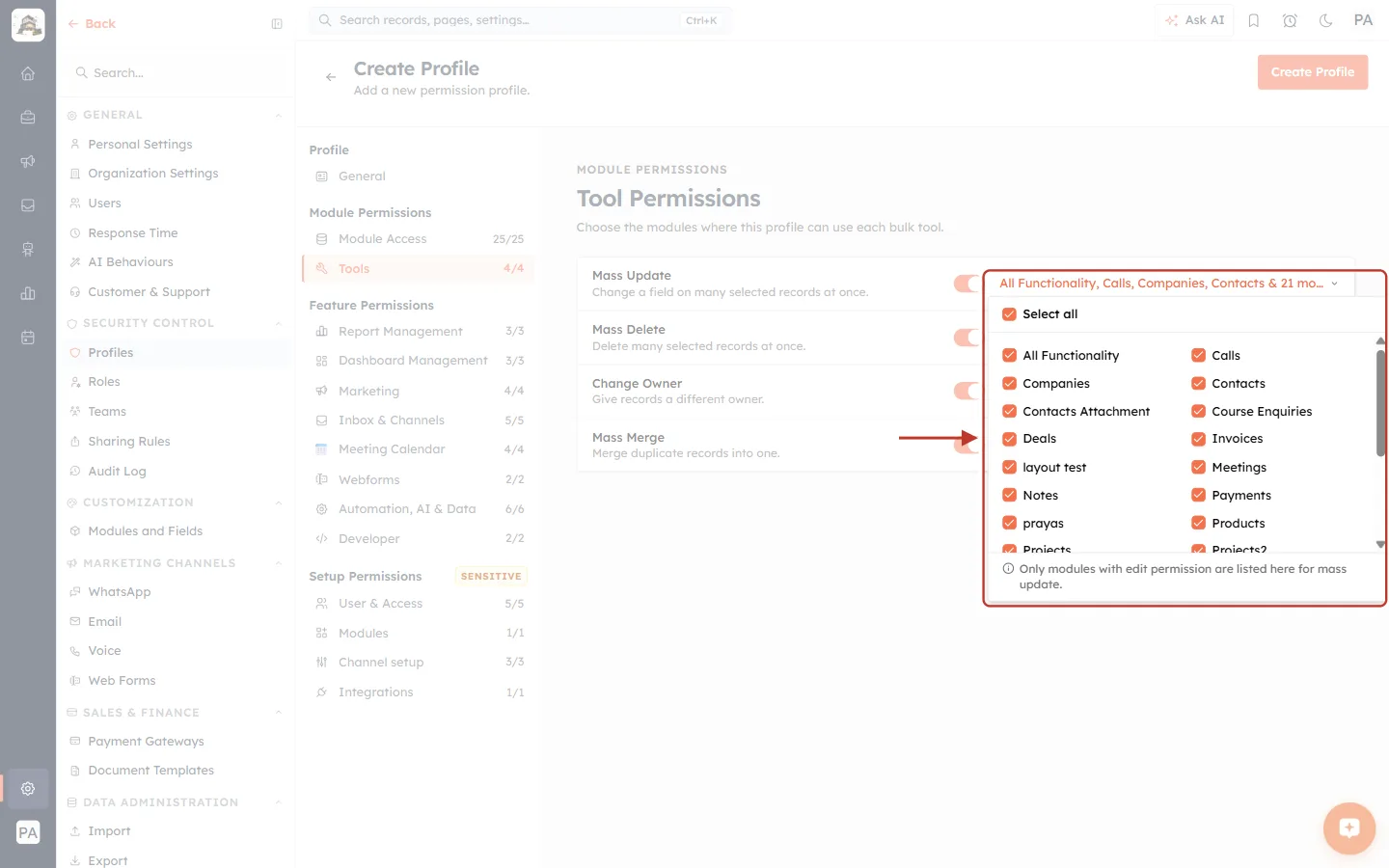
What this screenshot shows. The module picker for Mass Update is open and ringed.
Select all at the top ticks or clears every module in one click.
Below it, each module has its own tick box. Untick a module to block the tool there.
The note at the bottom says Only modules with edit permission are listed here for mass update. If the profile’s Edit is None on a module in Module Access, that module is not offered here.
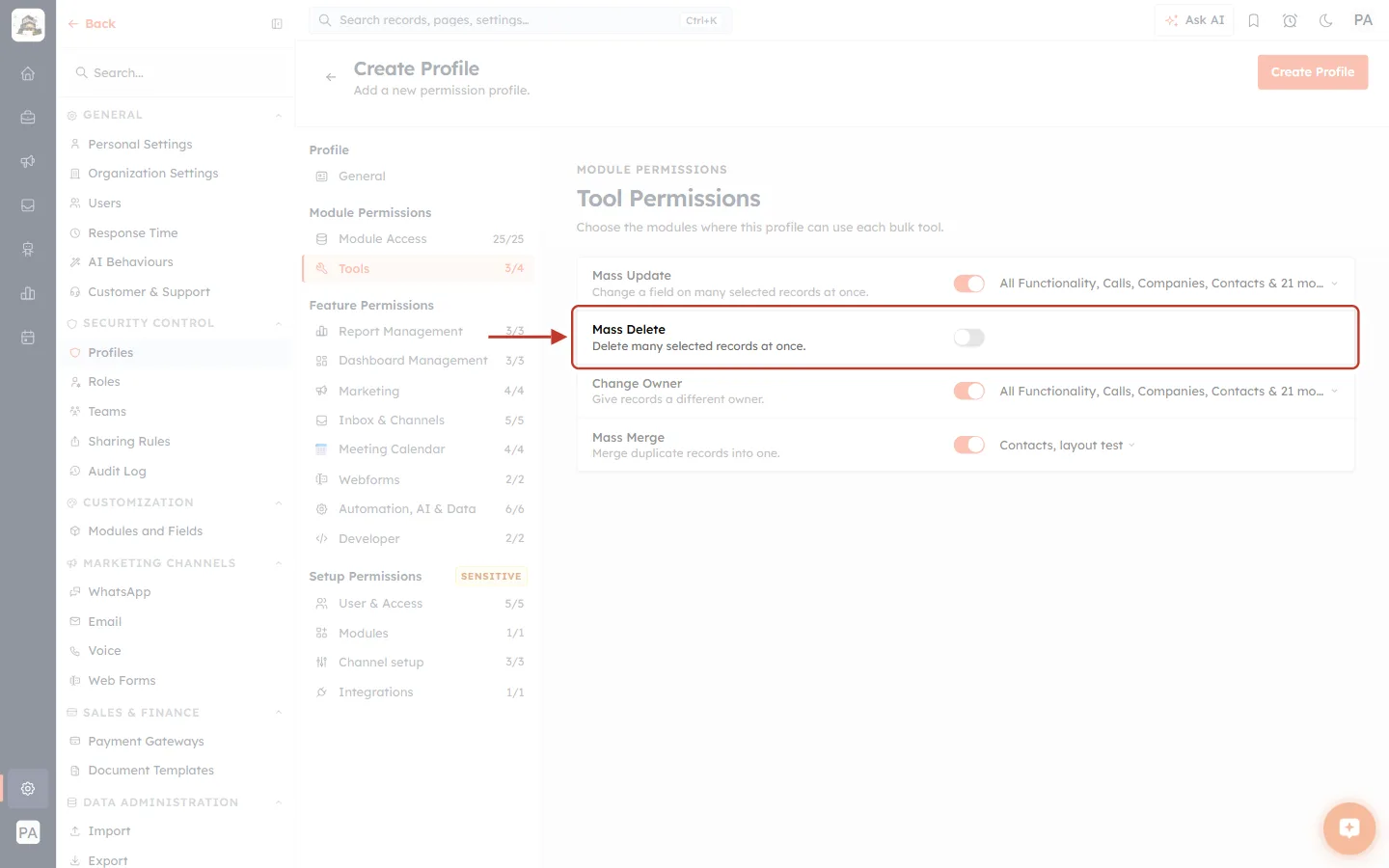
What this screenshot shows. The ringed Mass Delete row has its switch turned off (grey).
With the switch off, the module picker disappears and users on this profile cannot delete records in bulk.
The Tools counter in the section list drops from 4/4 to 3/4.
For most staff, switching off Mass Delete is a sensible safety step. See Mass Update: Change a Field on Many Records at Once (Up to 500 at a Time) for how the bulk tools work.
Step 7: Feature Permissions — Section by Section#
The eight Feature Permissions sections control features that are not tied to one module. Each one has a Search all permissions… box at the top and ends with the same reminder: This profile applies to Members. Admins & the Owner get every feature automatically — here you tune only what a Member can do.
Report Management#
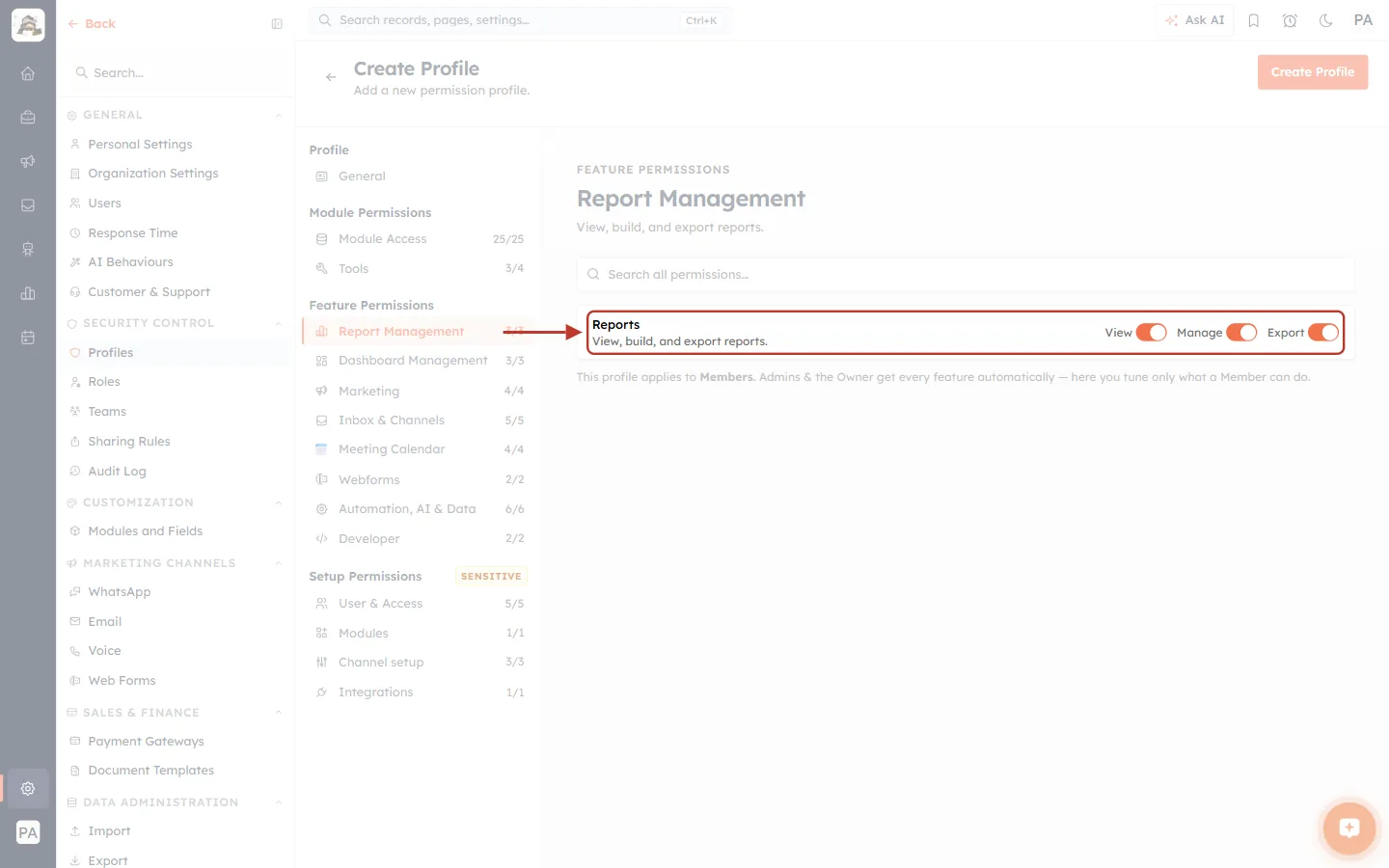
What this screenshot shows. The ringed Reports row (View, build, and export reports.) has three switches.
View: open and run saved reports.
Manage: create, edit, delete and share reports.
Export: download report results to a file.
Each switch works on its own. Give most staff View only, and keep Manage for the person who looks after your reports.
Dashboard Management#
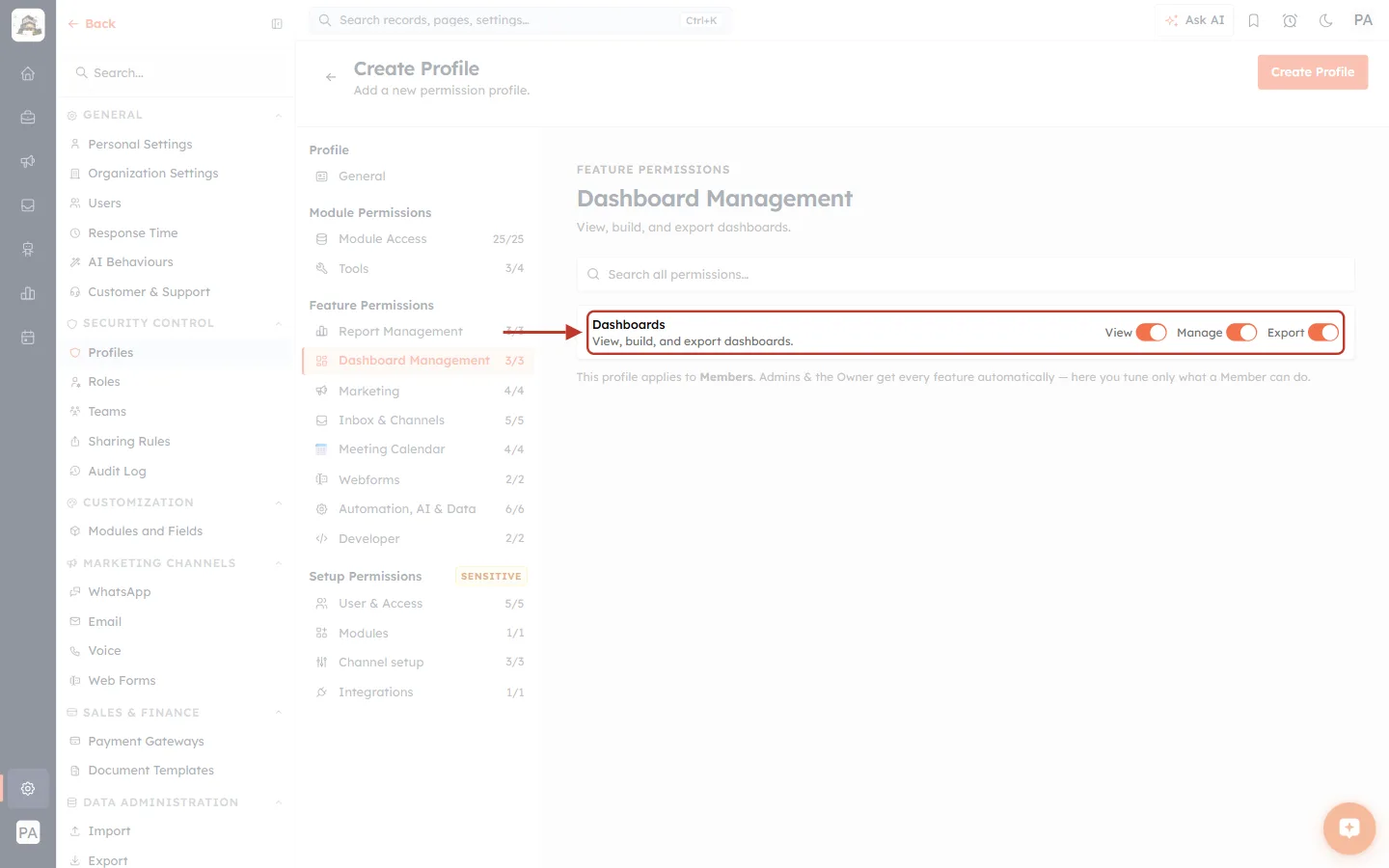
What this screenshot shows. The ringed Dashboards row (View, build, and export dashboards.) has the same three switches.
View: open dashboards and their charts.
Manage: create, edit, delete and share dashboards and their components.
Export: export dashboard data.
Marketing#
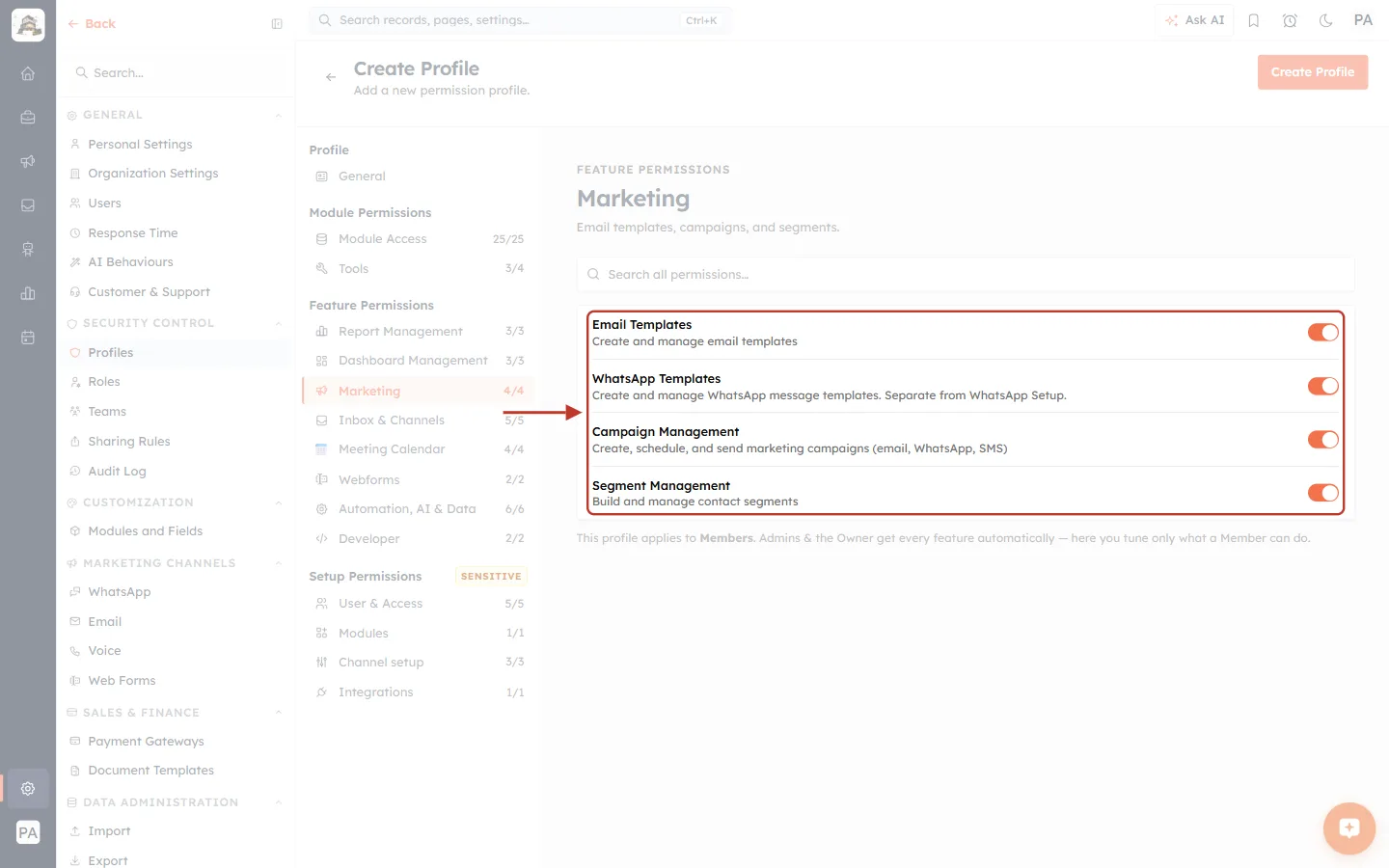
What this screenshot shows. The ringed card holds the four Marketing permissions (Email templates, campaigns, and segments).
Email Templates: Create and manage email templates.
WhatsApp Templates: Create and manage WhatsApp message templates. Separate from WhatsApp Setup.
Campaign Management: Create, schedule, and send marketing campaigns (email, WhatsApp, SMS). Switch this off for anyone who should not message your customer list.
Segment Management: Build and manage contact segments.
Inbox & Channels#
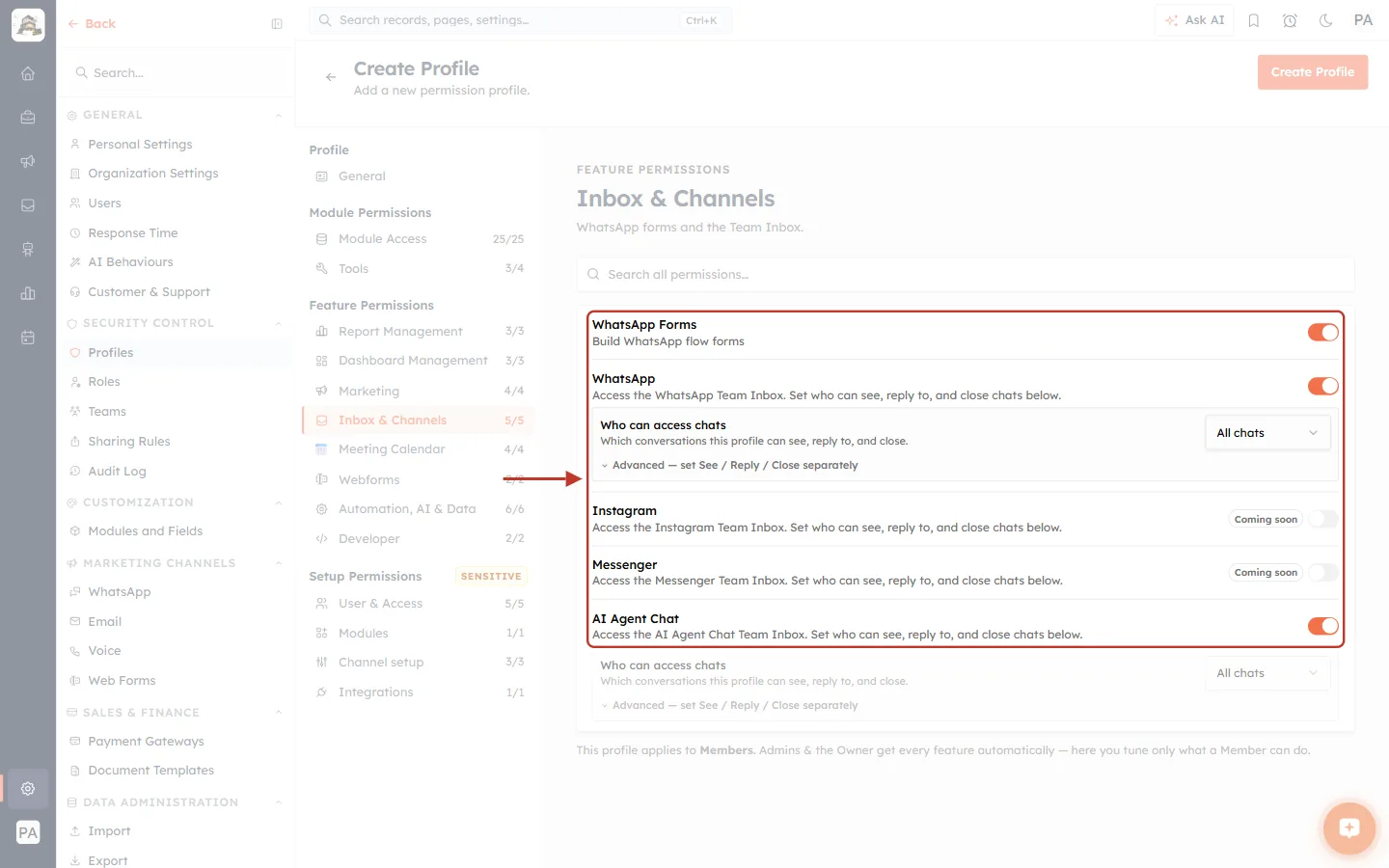
What this screenshot shows. The ringed card holds the Team Inbox permissions (WhatsApp forms and the Team Inbox).
WhatsApp Forms: Build WhatsApp flow forms.
WhatsApp: access to the WhatsApp Team Inbox. When it is on, a Who can access chats box appears underneath.
Instagram and Messenger show Coming soon and cannot be switched on yet.
AI Agent Chat: access to the AI Agent Chat Team Inbox, with its own Who can access chats box.
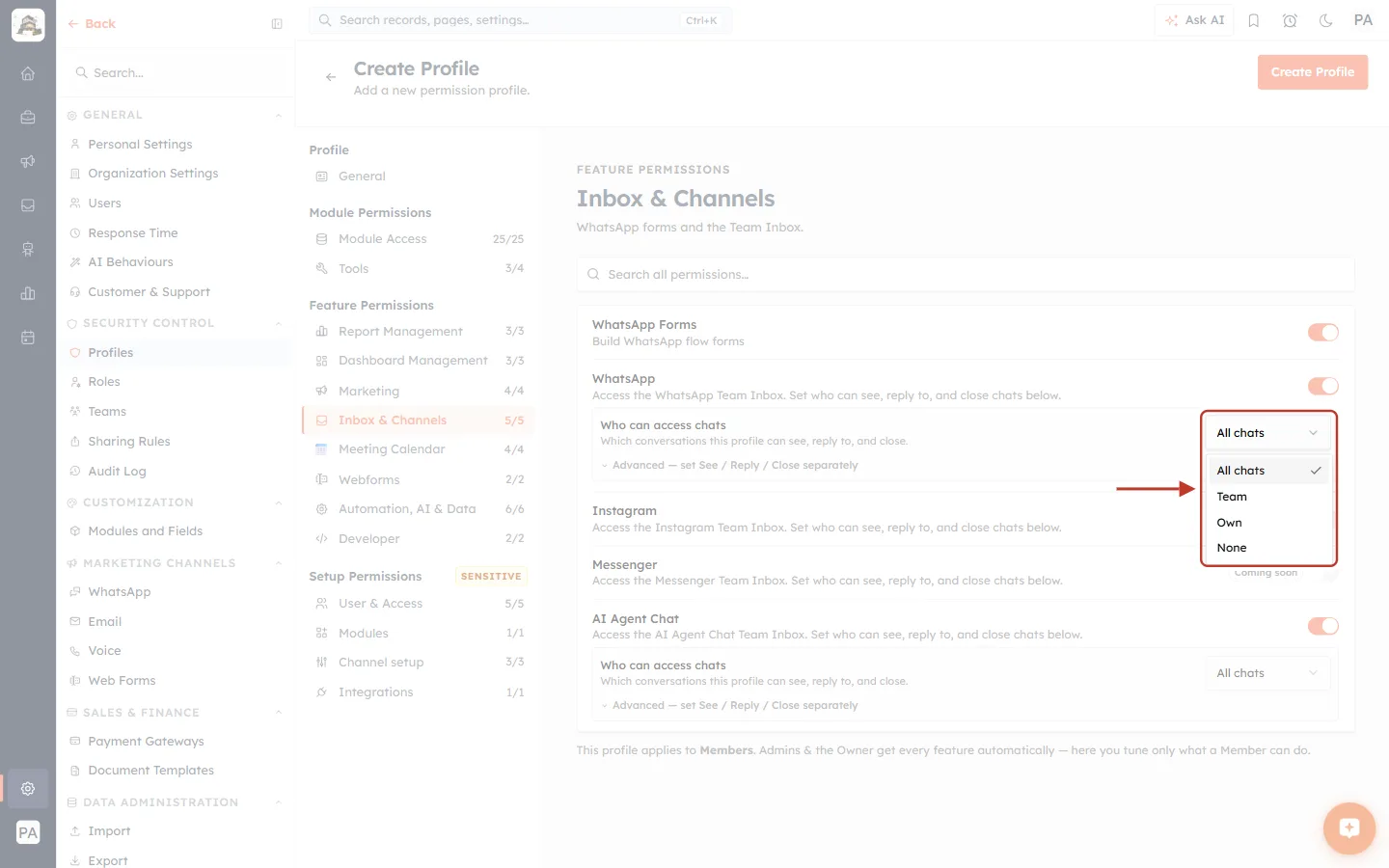
What this screenshot shows. The Who can access chats drop-down for WhatsApp is open and ringed.
All chats: every conversation in the inbox.
Team: conversations belonging to the user’s team.
Own: only conversations assigned to the user.
None: no conversations.
This single choice sets who they can see, reply to and close all at once.
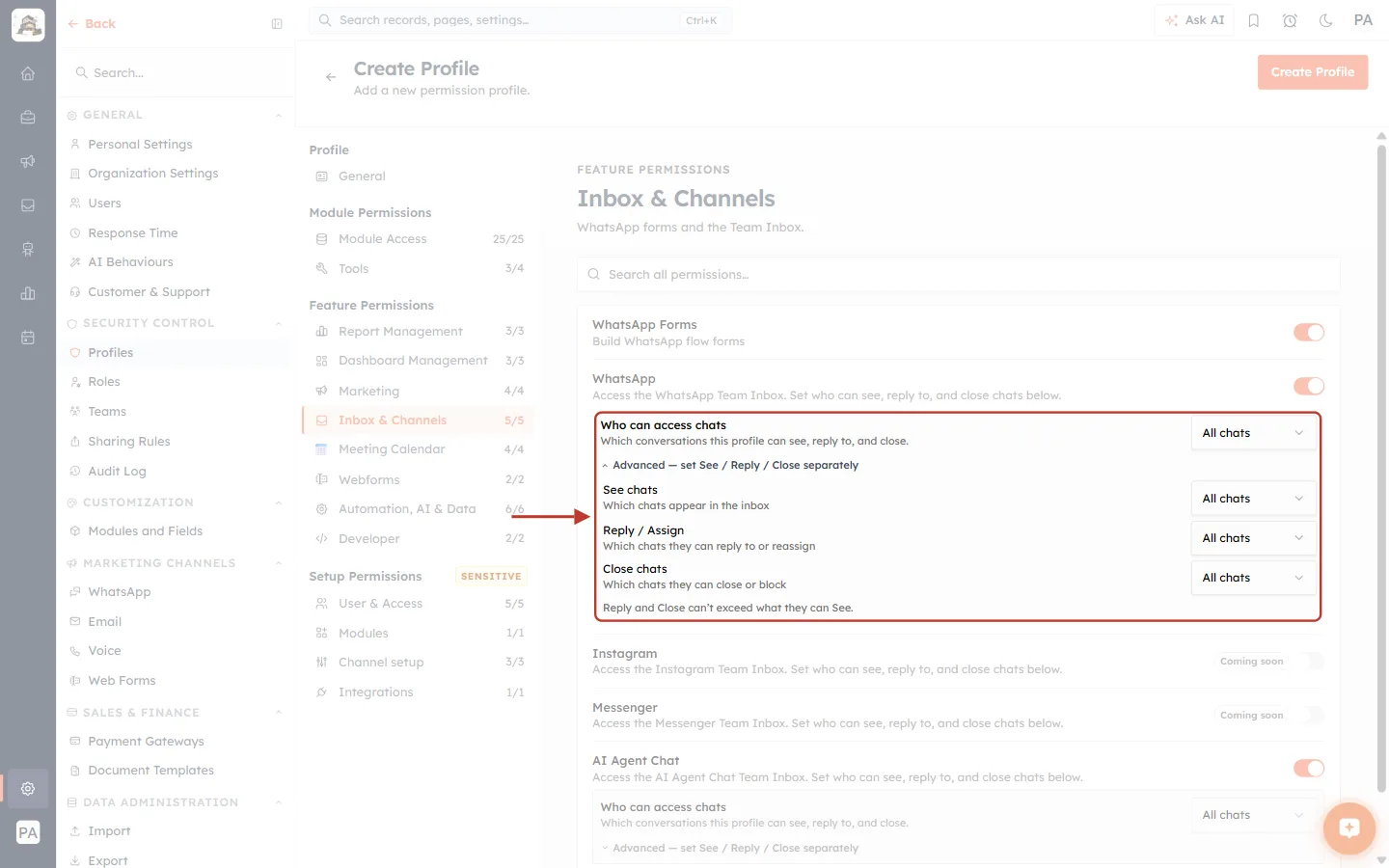
What this screenshot shows. After clicking Advanced — set See / Reply / Close separately, the ringed area shows three separate drop-downs.
See chats: Which chats appear in the inbox.
Reply / Assign: Which chats they can reply to or reassign.
Close chats: Which chats they can close or block.
The rule underneath reads Reply and Close can’t exceed what they can See. For example, a trainee could See All chats but Reply and Close only their Own.
Webforms#
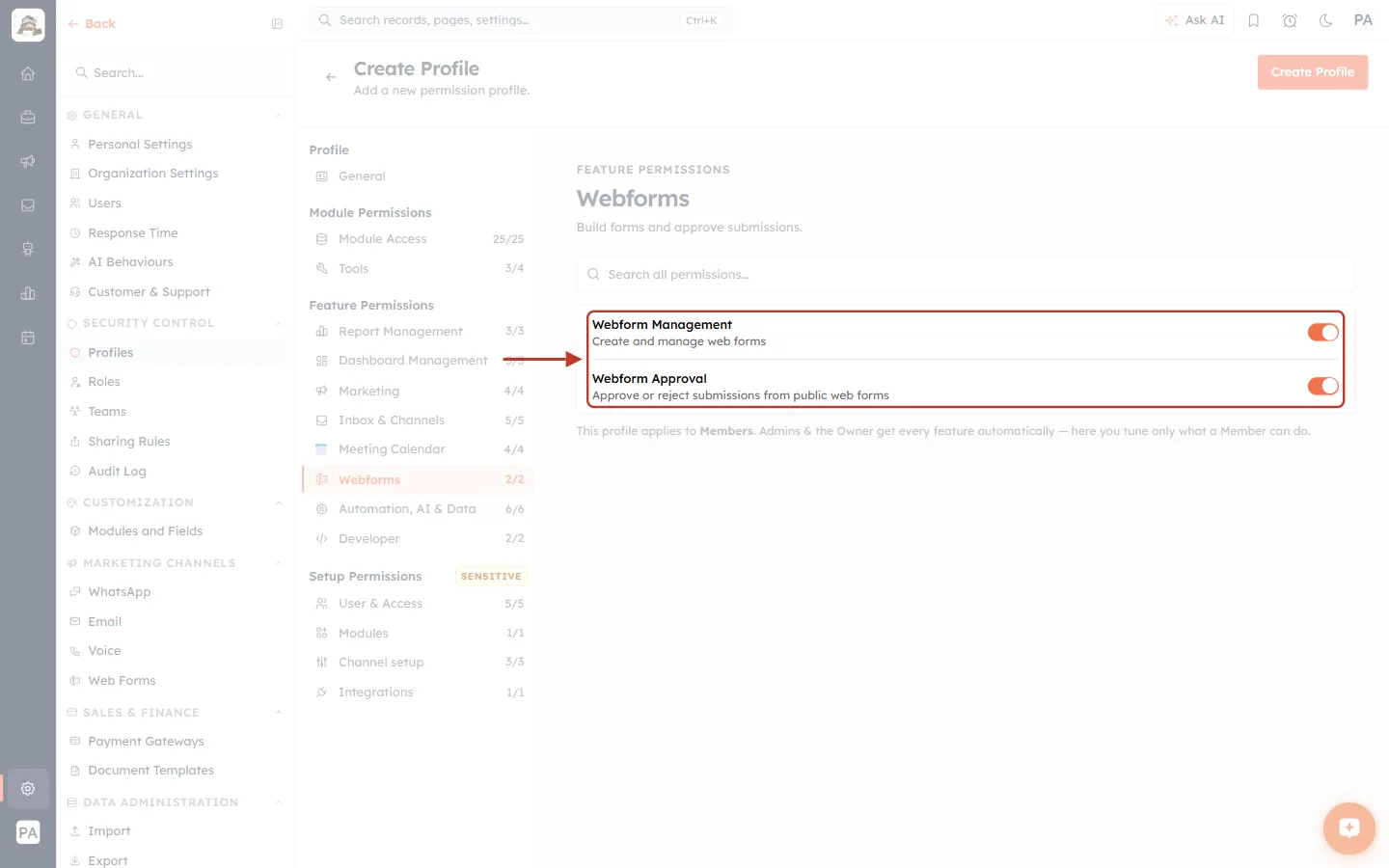
What this screenshot shows. The ringed card holds the two Webforms permissions (Build forms and approve submissions).
Webform Management: Create and manage web forms.
Webform Approval: Approve or reject submissions from public web forms. Give this to the person who checks incoming leads before they enter the CRM.
Automation, AI & Data#
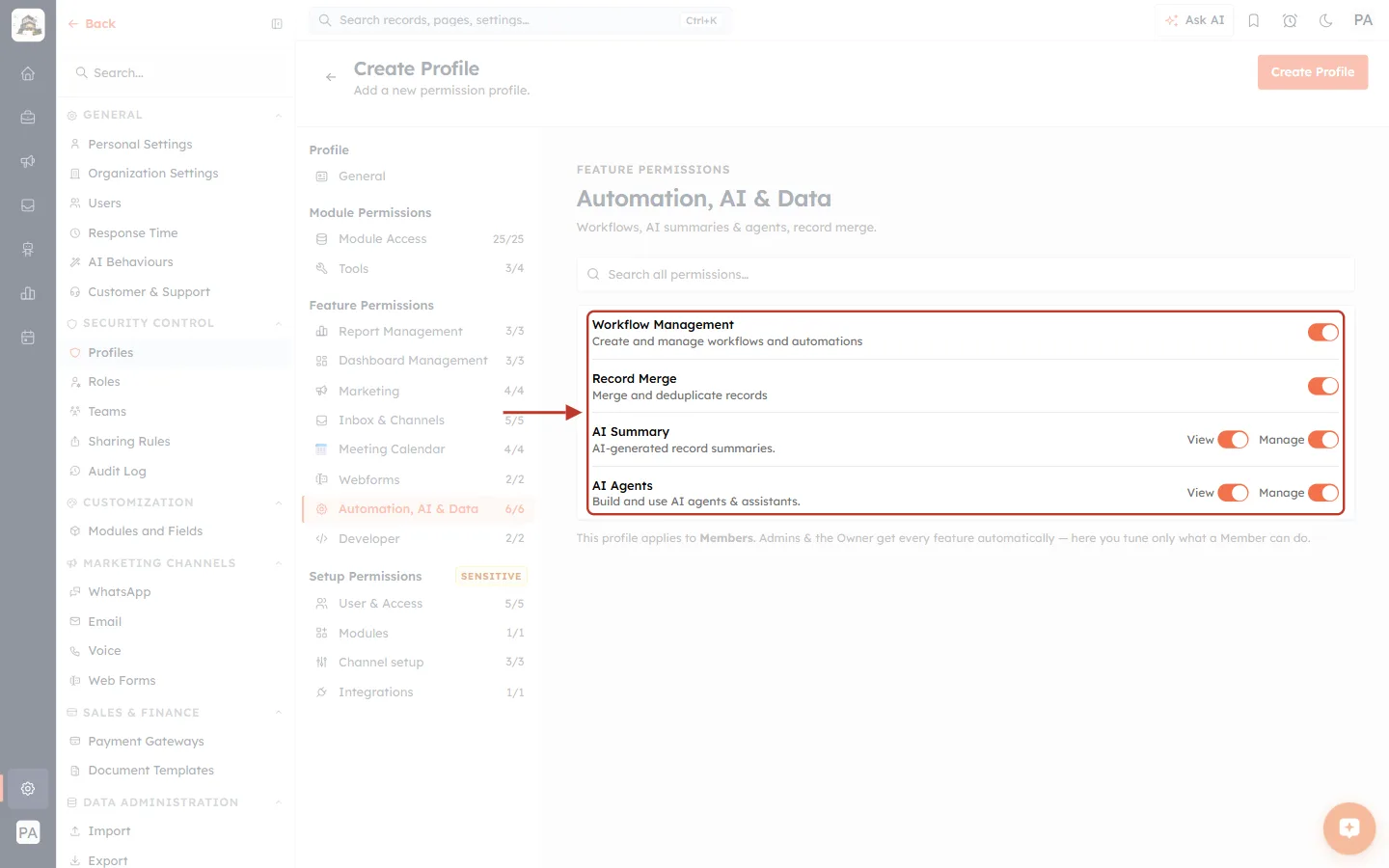
What this screenshot shows. The ringed card holds the automation and AI permissions (Workflows, AI summaries & agents, record merge).
Workflow Management: Create and manage workflows and automations. A workflow can change many records automatically, so grant this with care.
Record Merge: Merge and deduplicate records.
AI Summary: AI-generated record summaries, with View (read summaries) and Manage (set them up) switches.
AI Agents: Build and use AI agents & assistants, with View and Manage switches.
Developer#
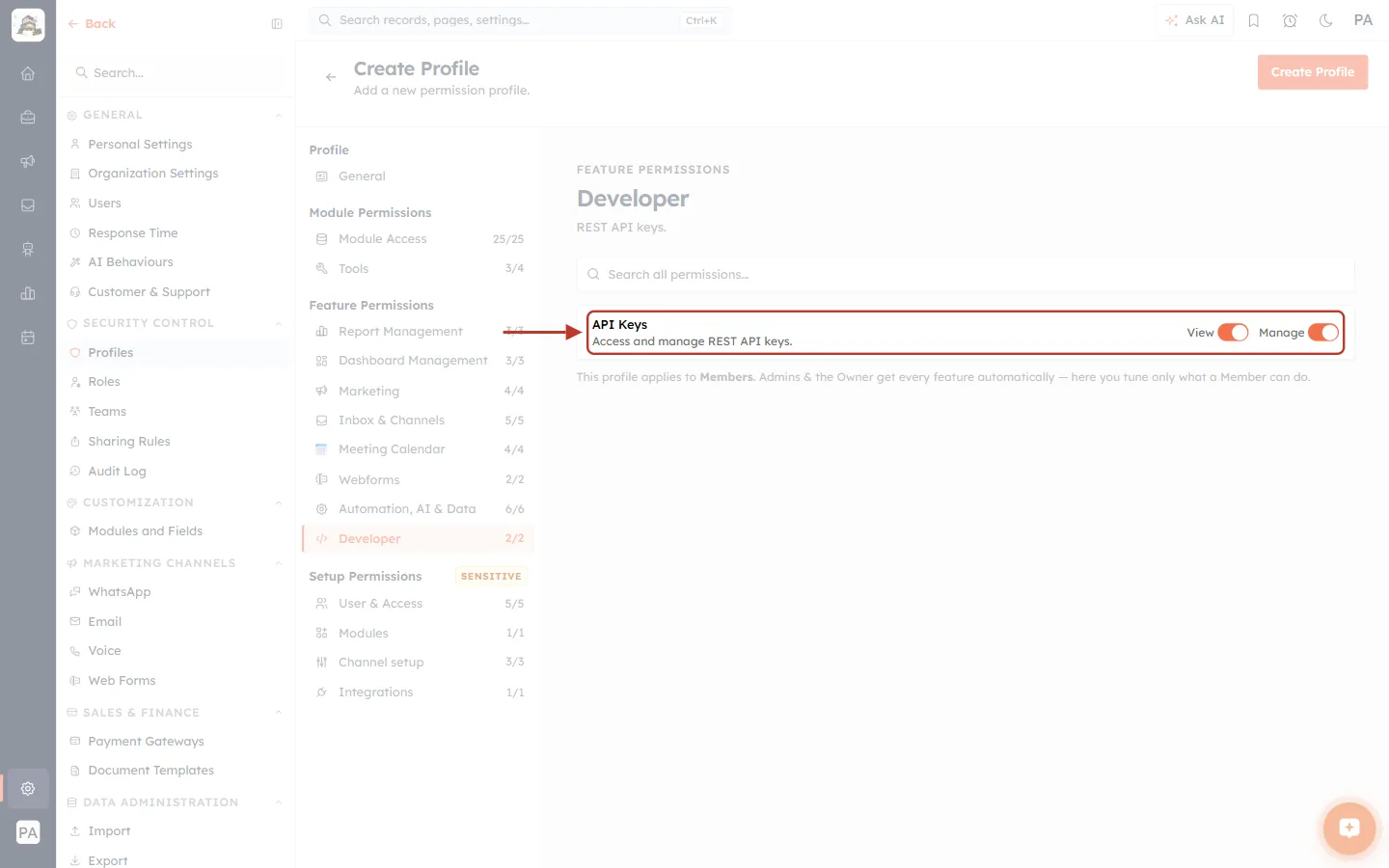
What this screenshot shows. The ringed API Keys row (Access and manage REST API keys.) has two switches.
View: see the organisation’s API keys.
Manage: create and revoke keys.
An API key lets another system read and write your CRM data, so most profiles should have both switches off.
Meeting Calendar#
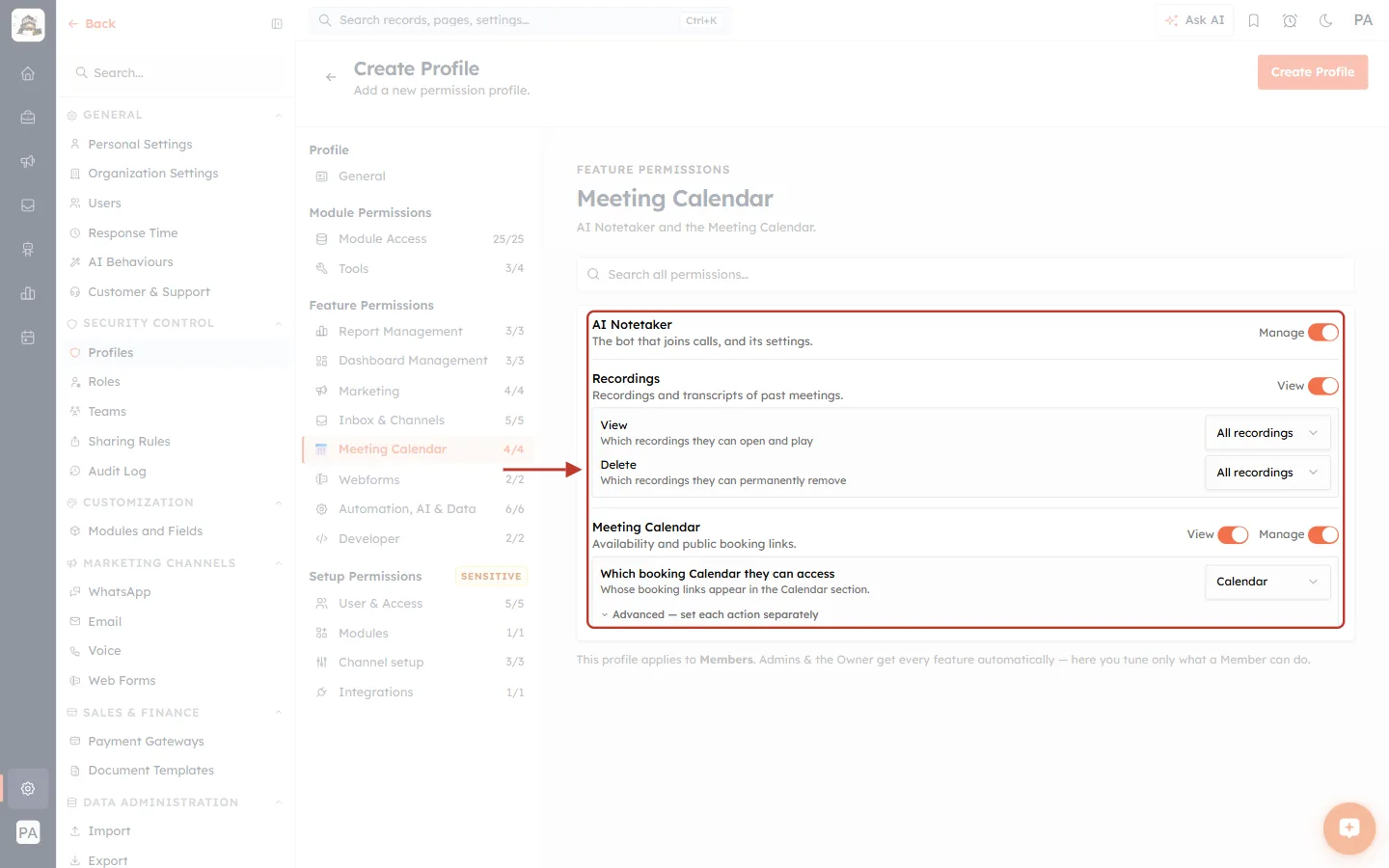
What this screenshot shows. The ringed card holds the meeting permissions (AI Notetaker and the Meeting Calendar).
AI Notetaker → Manage: The bot that joins calls, and its settings.
Recordings → View: Recordings and transcripts of past meetings. When it is on, two drop-downs set the reach. View: Which recordings they can open and play. Delete: Which recordings they can permanently remove. Each offers All recordings, Team, Own or None.
Meeting Calendar → View / Manage: Availability and public booking links.
Which booking Calendar they can access: Whose booking links appear in the Calendar section, chosen from the drop-down (Calendar, Team, Own or None).
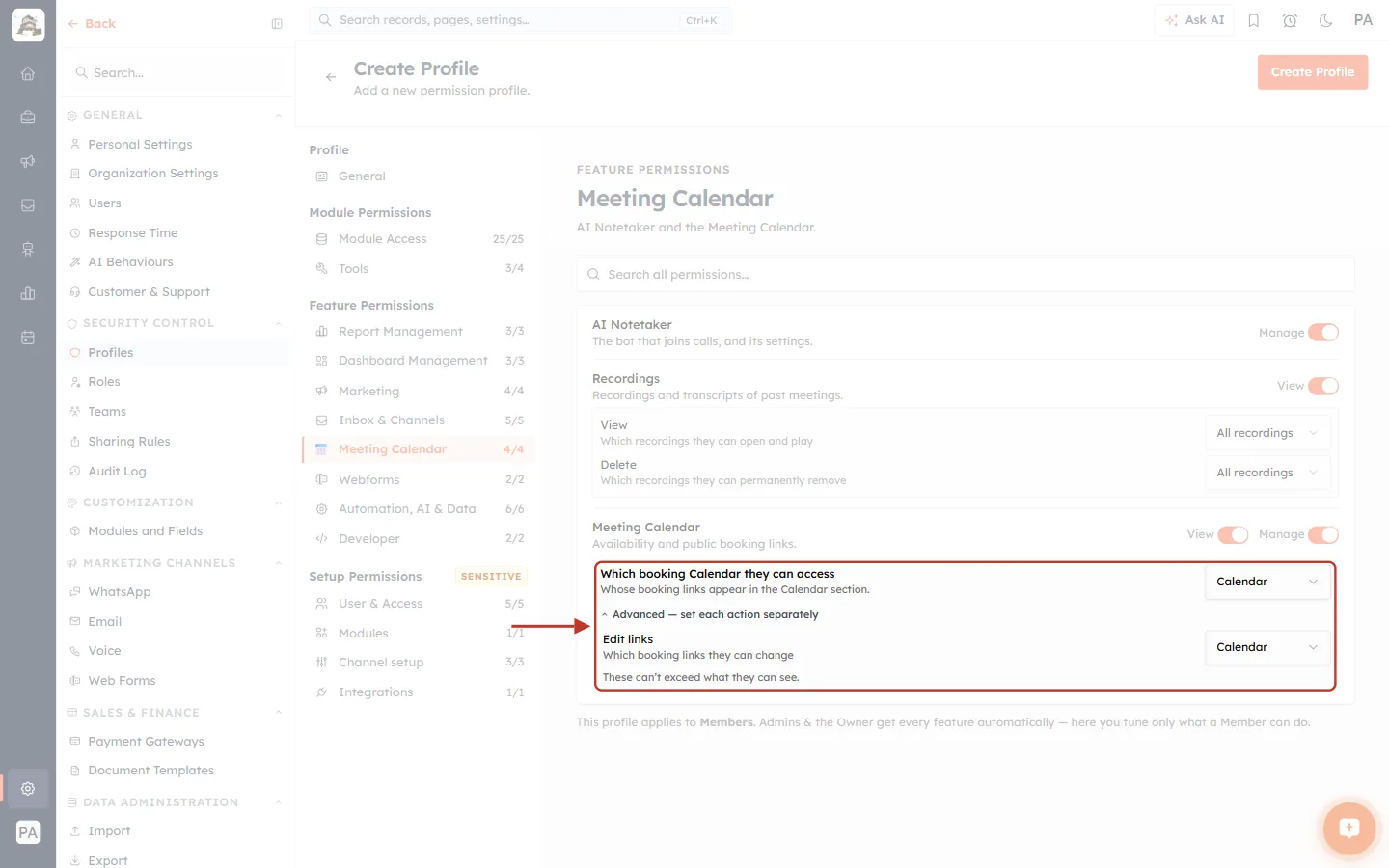
What this screenshot shows. After clicking Advanced — set each action separately, the ringed area adds a second drop-down.
Edit links: Which booking links they can change.
The rule underneath reads These can’t exceed what they can see. Someone who can only see their Own booking links cannot edit a colleague’s.
Step 8: Setup Permissions — Sensitive, Organisation-wide Settings#
The four Setup Permissions sections carry a SENSITIVE badge. They let a member change how the whole organisation works, so grant them only to people you trust.
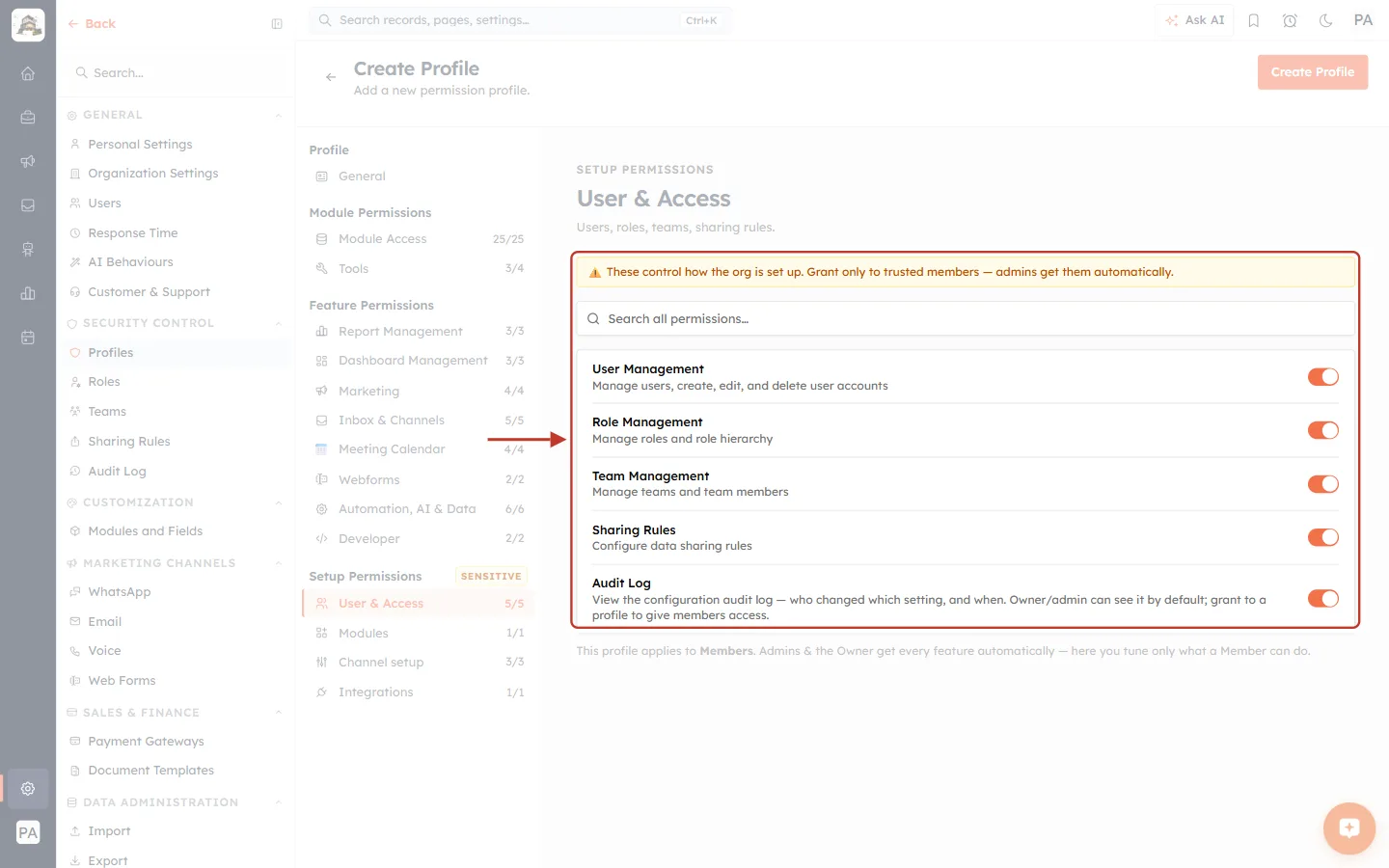
What this screenshot shows. The ringed area shows the yellow warning and the five User & Access permissions.
The warning reads These control how the org is set up. Grant only to trusted members — admins get them automatically.
User Management: Manage users, create, edit, and delete user accounts.
Role Management: Manage roles and role hierarchy.
Team Management: Manage teams and team members.
Sharing Rules: Configure data sharing rules.
Audit Log: View the configuration audit log — who changed which setting, and when. The Owner and Admins can see it by default. Switch it on to let members on this profile see it too (see Audit Log: See Who Changed Which Setting in Your CRM, and When).
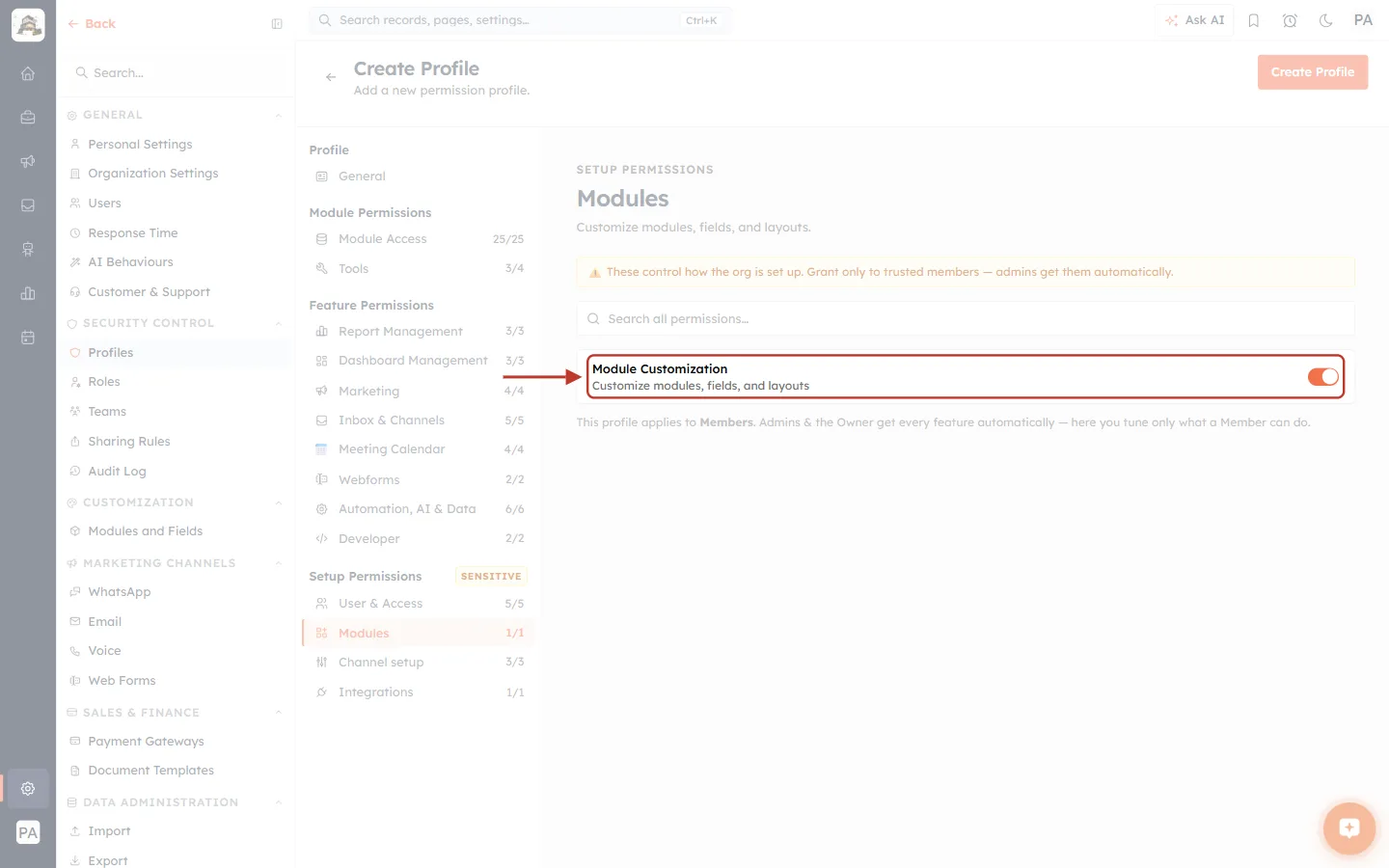
What this screenshot shows. The ringed Module Customization row is the only permission in the Modules section.
Customize modules, fields, and layouts. This one switch controls everything under Settings → Modules and Fields: creating and deleting modules, adding fields and building layouts.
Grant it only to the person who designs your CRM.
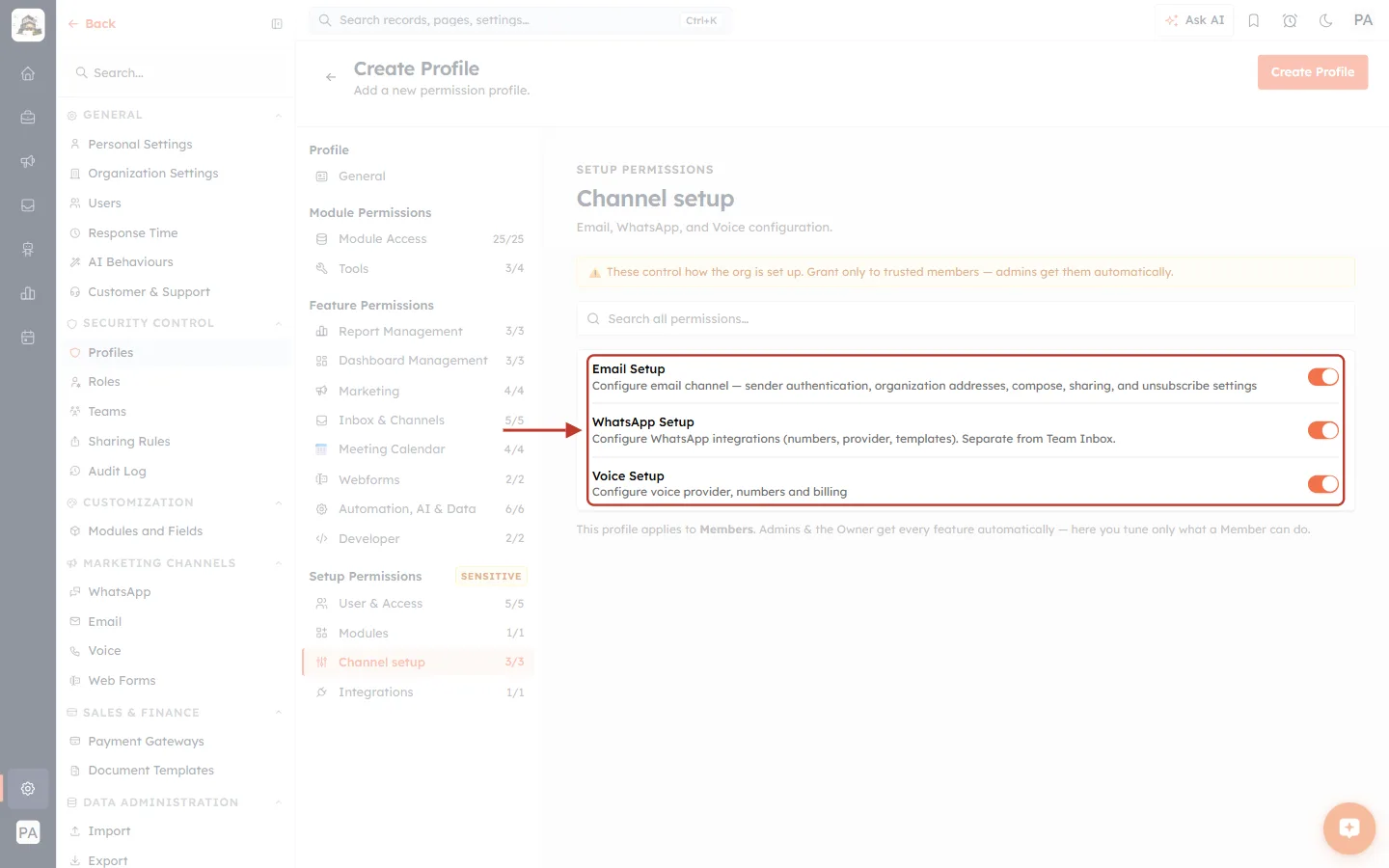
What this screenshot shows. The ringed card holds the three Channel setup permissions (Email, WhatsApp, and Voice configuration).
Email Setup: Configure email channel — sender authentication, organization addresses, compose, sharing, and unsubscribe settings.
WhatsApp Setup: Configure WhatsApp integrations (numbers, provider, templates). Separate from Team Inbox. Switching this off does not stop someone answering WhatsApp chats. That is controlled in Inbox & Channels.
Voice Setup: Configure voice provider, numbers and billing.
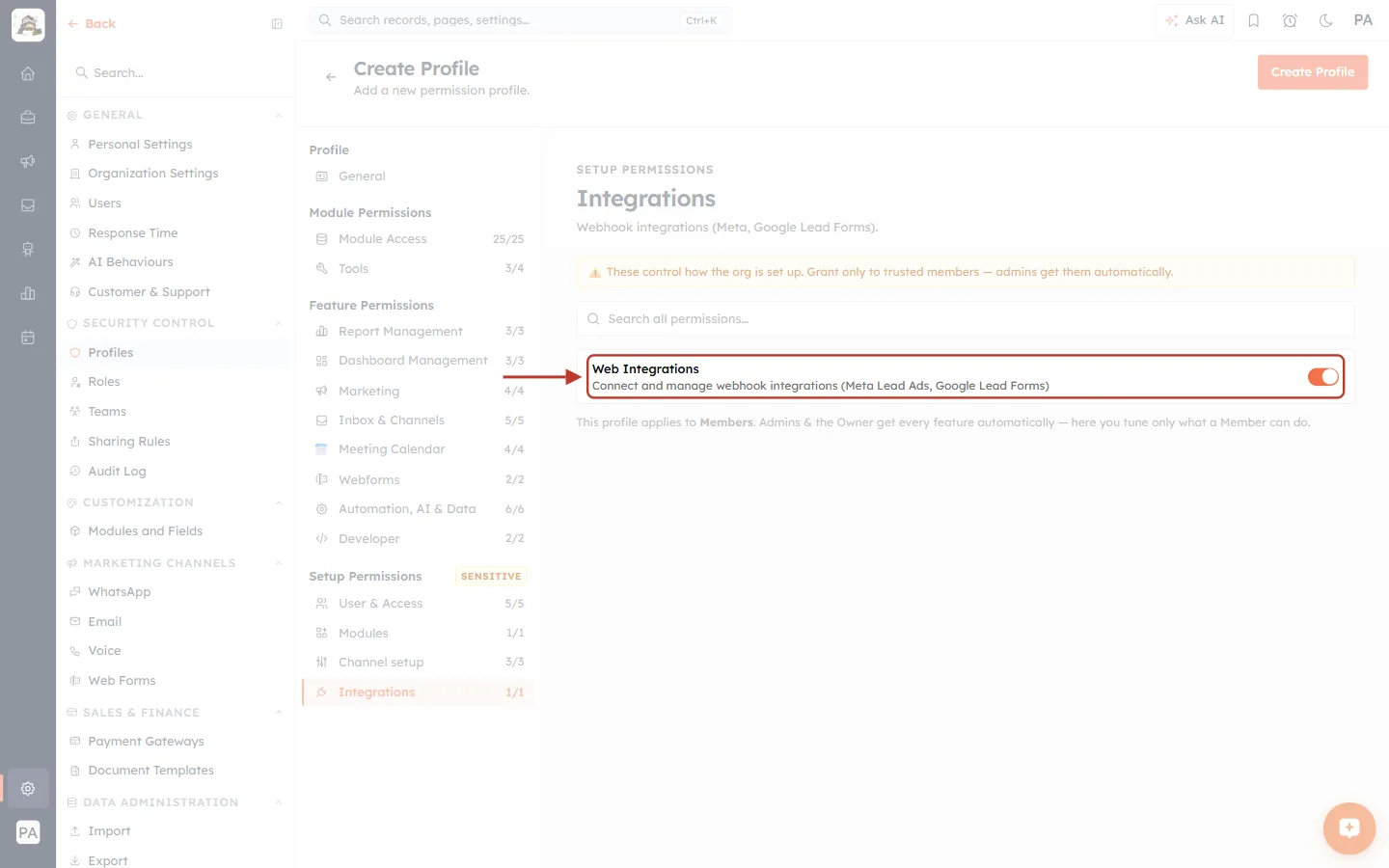
What this screenshot shows. The ringed Web Integrations row is the only permission in the Integrations section.
Connect and manage webhook integrations (Meta Lead Ads, Google Lead Forms).
These integrations bring leads into the CRM automatically. Keep this with the person who manages your ad accounts.
Step 9: Find Any Permission Quickly#
You don’t need to remember which section a permission is in. Type in Search all permissions… from any Feature or Setup section.
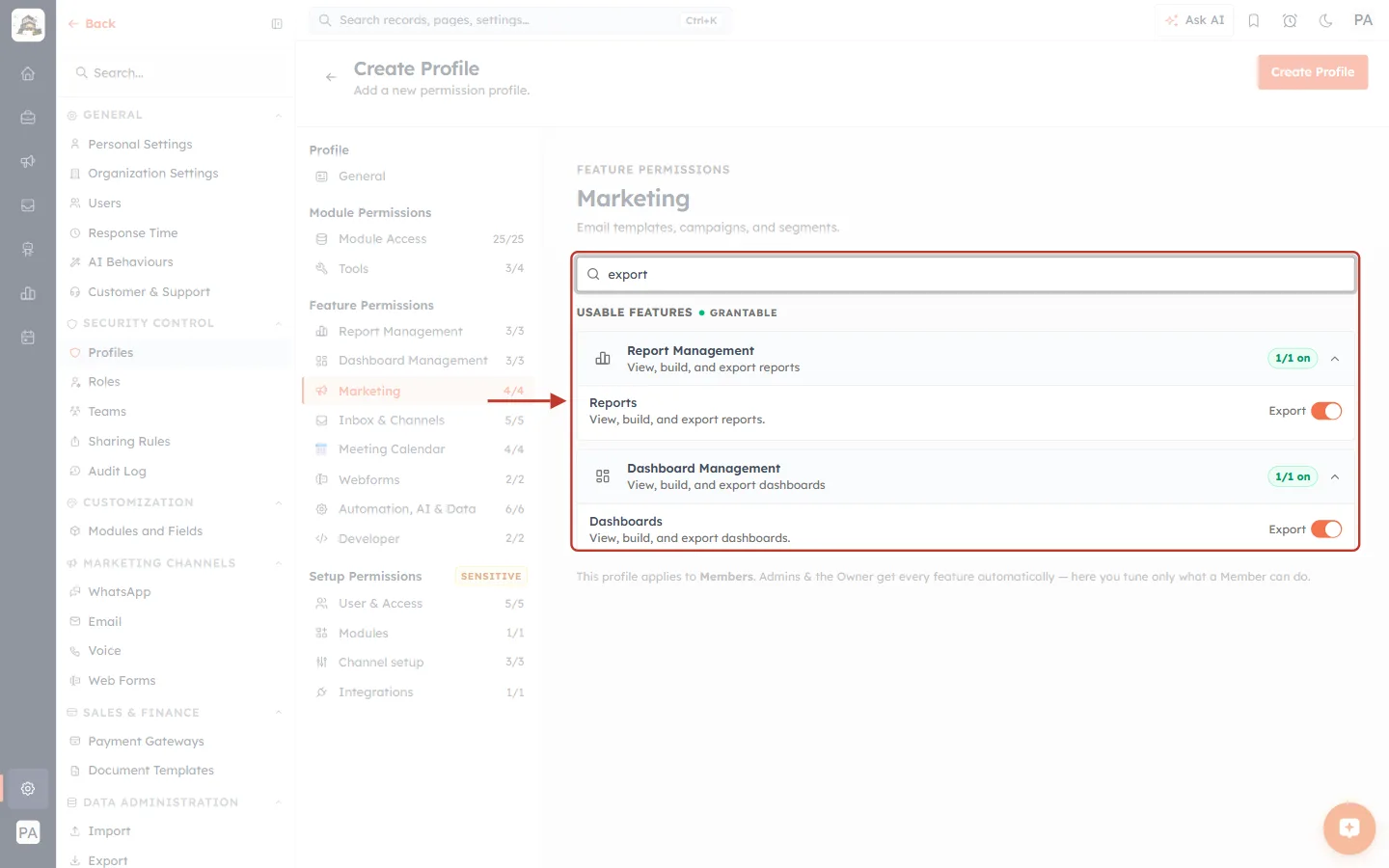
What this screenshot shows. The search box and its results are ringed. The search covers every section, not just the one you are on.
Searching export lists matches under USABLE FEATURES • GRANTABLE, grouped by section.
Report Management shows the Reports → Export switch, and Dashboard Management shows Dashboards → Export.
The green 1/1 on chip shows how many of the matching switches in that group are on.
You can switch permissions on or off straight from the results.
Step 10: Check the Counters, Then Save#
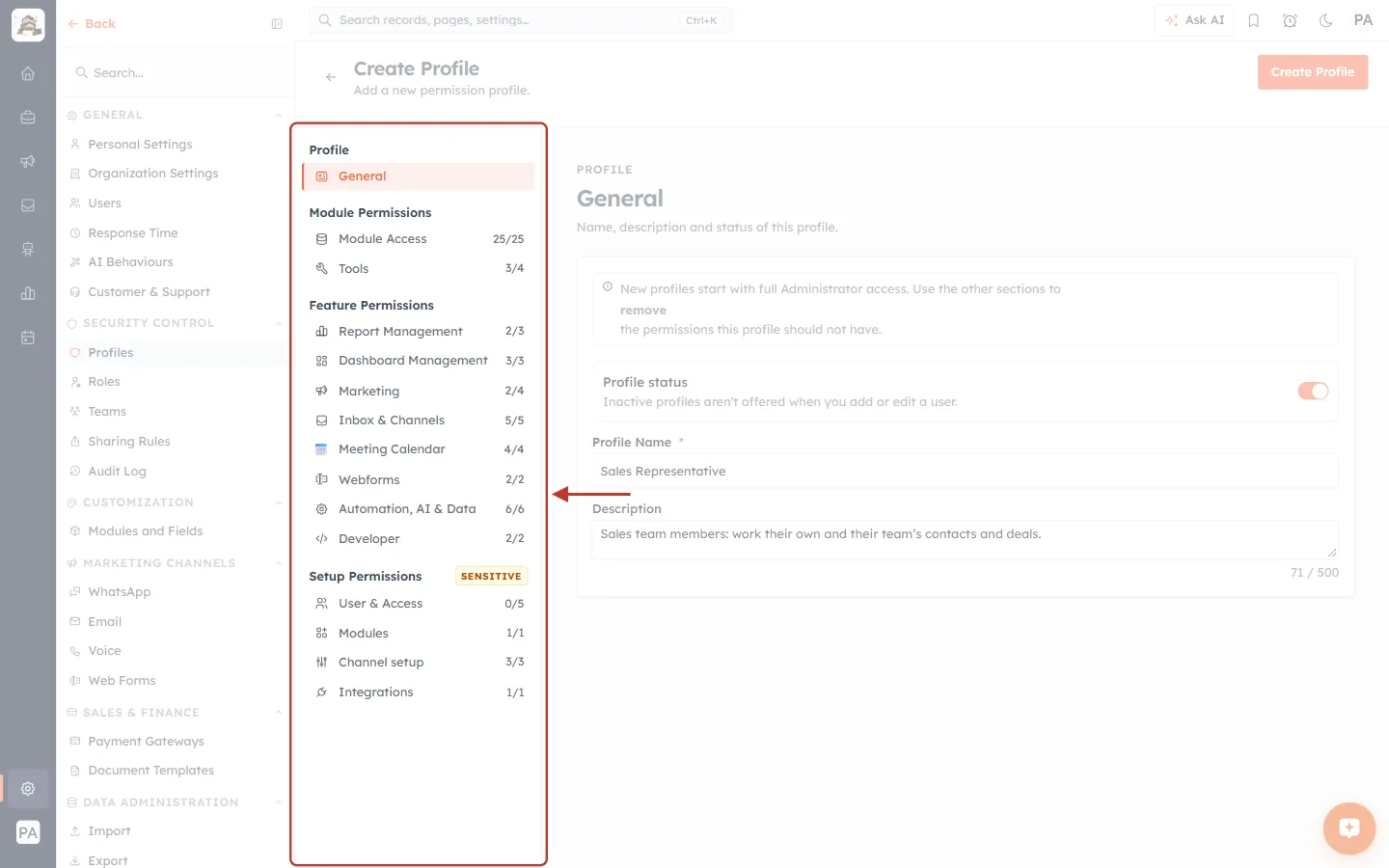
What this screenshot shows. The ringed section list shows the counters after some permissions were switched off.
Tools 3/4: Mass Delete was switched off.
Report Management 2/3: Reports → Manage was switched off.
Marketing 2/4: Campaign Management and Segment Management were switched off.
User & Access 0/5: every user, role, team, sharing-rule and audit-log permission was switched off.
A full counter (such as Channel setup 3/3) means that section still has full access. Check every full counter before you save, because a new profile starts with everything on.
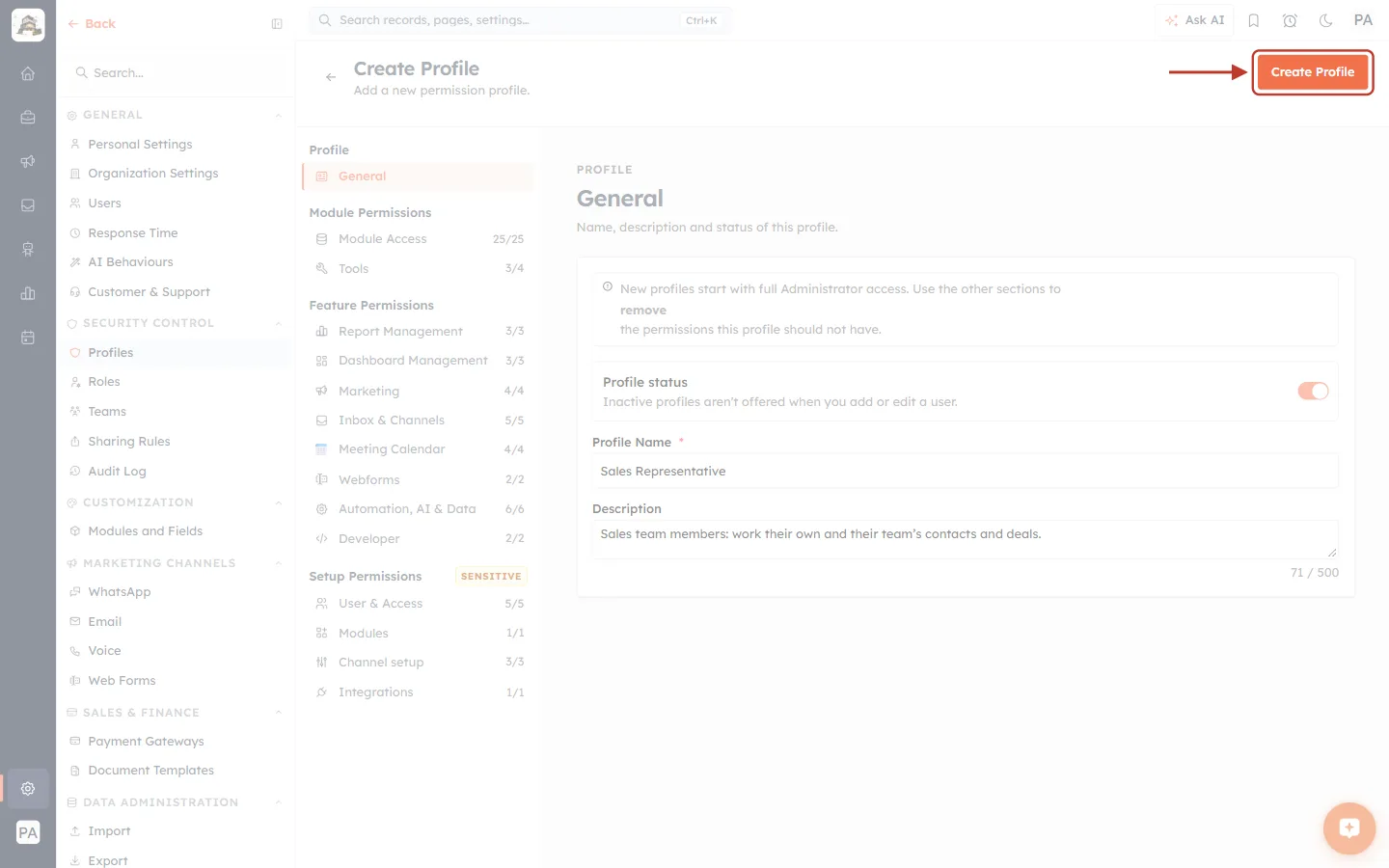
What this screenshot shows. The orange Create Profile button at the top right is ringed.
Click it to save a new profile. When you are editing an existing profile, the same button reads Update Profile.
Saved changes apply to every user who holds the profile. Ask them to refresh their browser to pick up the change.
Nothing is saved until you click this button.
Quick Reference: Suggested Settings by Job Type#
These are starting points. Adjust them to how your team works.
Setting | Sales Representative | Marketing Executive | Support Agent |
|---|---|---|---|
Contacts / Deals: View · Edit · Delete | Team · Own · None | All · None · None | Team · Own · None |
Create · Export · Import | Create only | Export only, if needed | Create only |
Tools | Change Owner only | Mass Update on Contacts | None |
Reports / Dashboards | View | View + Manage | View |
Marketing | Off | All on | Off |
Inbox & Channels | WhatsApp: Own | Off | WhatsApp + AI Agent Chat: Team |
Automation, AI & Data | AI Summary: View | Workflow Management | AI Summary: View |
Developer / Setup Permissions | All off | All off | All off |
How the Layers Work Together#
Module Access is the data gate. With View set to None on Contacts, a user sees no contacts, whatever their feature permissions say.
Feature permissions are the tool gate. With Reports → Manage off, a user cannot build reports, even with full access to every module.
Roles and teams decide what “Team” means. Team covers the records of the user’s team. The role hierarchy decides which records flow up to managers. See Understanding the Role Hierarchy: How Data Visibility Works.
Sharing rules add access on top. A sharing rule can open extra records to a user beyond their profile. See Understanding Sharing Rules: When and Why to Use Them.
Owner and Admins bypass Feature and Setup permissions. These settings only limit Members.
Best Practices#
Remove, then save. New profiles start with full access, so go through every section before you click Create Profile.
Make one profile per job type, not one per person, and name it after the job.
Start narrow. It is easier to add a permission later than to take one away from people who are used to it.
Keep Delete, Export, Import, Mass Delete and every Setup permission tight. This is where data can be lost or leave the company.
Test on a clone. Clone the profile, assign it to a test user, check the result, and then change the real profile.
Review profiles when you add a module. A new module appears in every profile’s Module Access table and needs a decision.
Troubleshooting#
A user can’t see a module at all#
Open their profile → Module Access and check that module’s VIEW. None hides the module completely.
A user can see records but can’t change them#
Check EDIT on that module’s row. With Own they can only change records they own. With None every record opens read-only.
Mass Update doesn’t offer a module#
The Tools module picker only lists modules where the profile has edit permission. Give the module an Edit level in Module Access first, then tick it in Tools.
A user still has a feature I switched off#
Check the user’s profile in Settings → Users. They may hold a different profile from the one you changed.
Check whether they are an Admin or the Owner. Feature and Setup permissions don’t limit them.
Make sure you clicked Update Profile, then ask the user to refresh their browser.
A user sees chats they shouldn’t in the Team Inbox#
Open Inbox & Channels, check Who can access chats for that channel, and use Advanced to narrow See, Reply / Assign and Close separately.
Frequently Asked Questions#
What do the numbers next to each section mean?
How many of that section’s permissions are on, out of the total. For Module Access, it is how many modules the profile can see.
Can a user have more than one profile?
No. Each user holds one profile. If someone needs a mix, clone the closest profile and adjust it.
Does changing a profile affect users who already have it?
Yes. Every user on the profile gets the new settings when you click Update Profile.
Why can’t I switch on Instagram or Messenger?
They are marked Coming soon and will become available in a later release.
Is WhatsApp Setup the same as WhatsApp in Inbox & Channels?
No. WhatsApp Setup (Setup Permissions) configures numbers, provider and templates. WhatsApp in Inbox & Channels lets the user answer chats in the Team Inbox.
Previous and Next#
Previous: Accepting Your Invitation
Next: Control Permissions with Profiles: Create a Profile Step by Step
Related Articles#
Control Permissions with Profiles: Create a Profile Step by Step
Create Teams: Group Users for Lead Routing, Reporting & Sharing
Sharing Rules: Share Records Across Teams, Roles & Users (Step-by-Step Guide)
Invite Your Team: How to Add and Manage Users in AI Engage CRM
Ticket Permissions: Control Who Can See, Edit and Reply to Support Tickets (Step-by-Step)
Audit Log: See Who Changed Which Setting in Your CRM, and When
Was this article helpful?
Ready to implement this?
OpenAI Engage and apply what you just learned to your own workspace.
Open AI Engage CRM