Loading…


KnowledgeBase
Set Up Your Personal Profile: Name, Photo, Timezone, Formats & Social Links
What are Personal Settings?#
Personal Settings control your individual account inside AI Engage CRM. They affect only you. Every teammate should complete their own Personal Settings the first time they log in.
💡
Set your Timezone before scheduling any campaigns. A wrong timezone will send campaigns at the wrong local time and display incorrect timestamps on every record.
Step 1 — Open Settings#
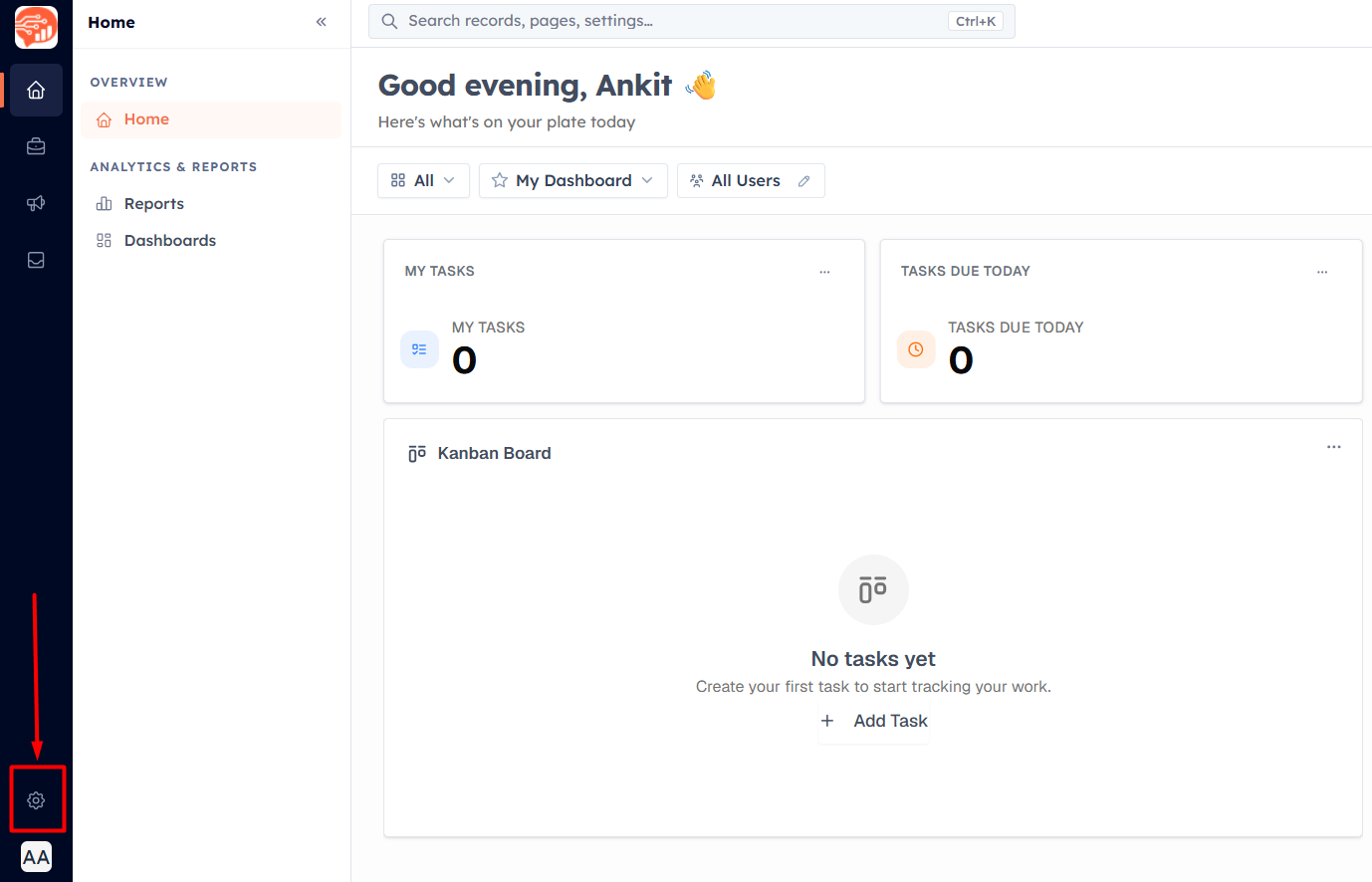
Click the Settings icon in the left sidebar to open the Settings panel.
Step 2 — Click Personal Settings#
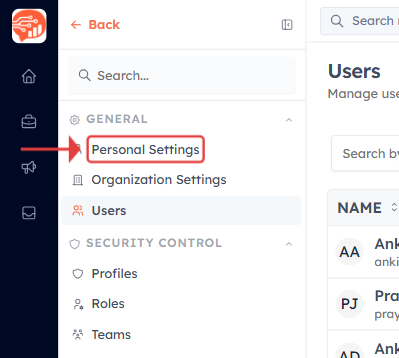
Under General, click Personal Settings.
Step 3 — Enter your name and upload a photo#
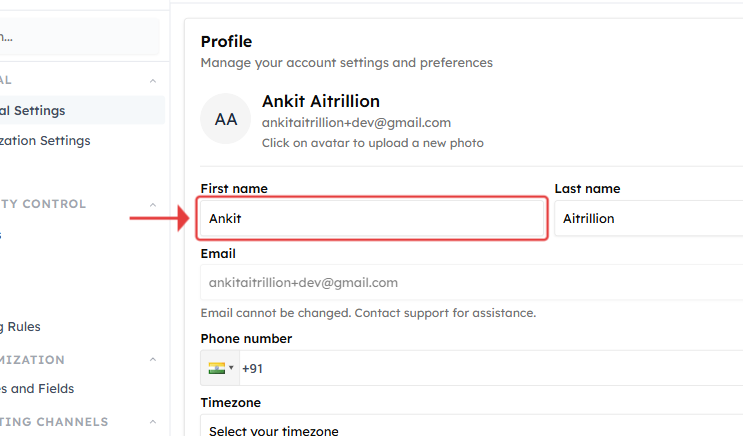
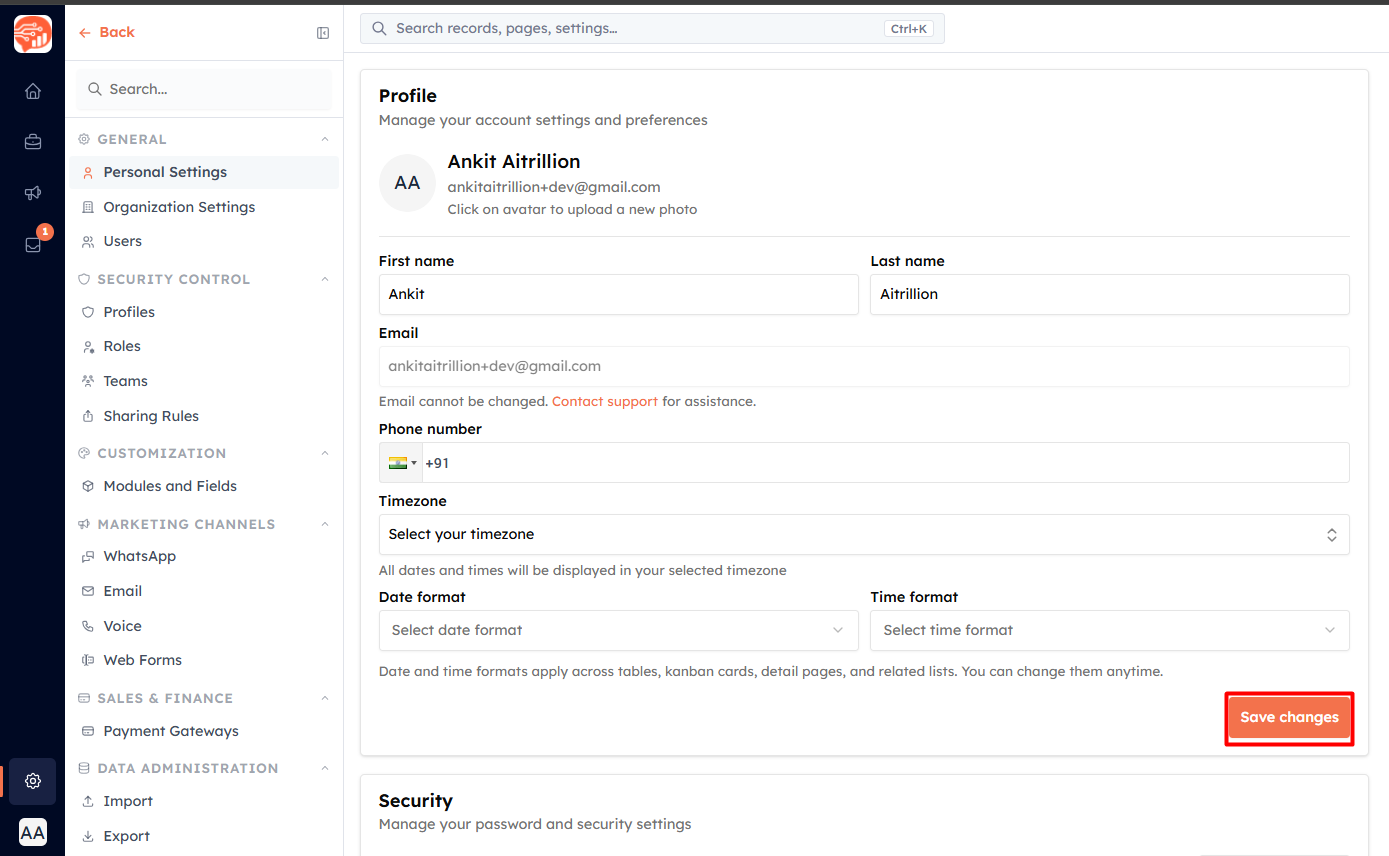
Fill in First Name and Last Name. Click the avatar circle to upload a profile photo. Your name appears on every record you own, in activity feeds, and in CRM emails.
Step 4 — Set your Timezone#
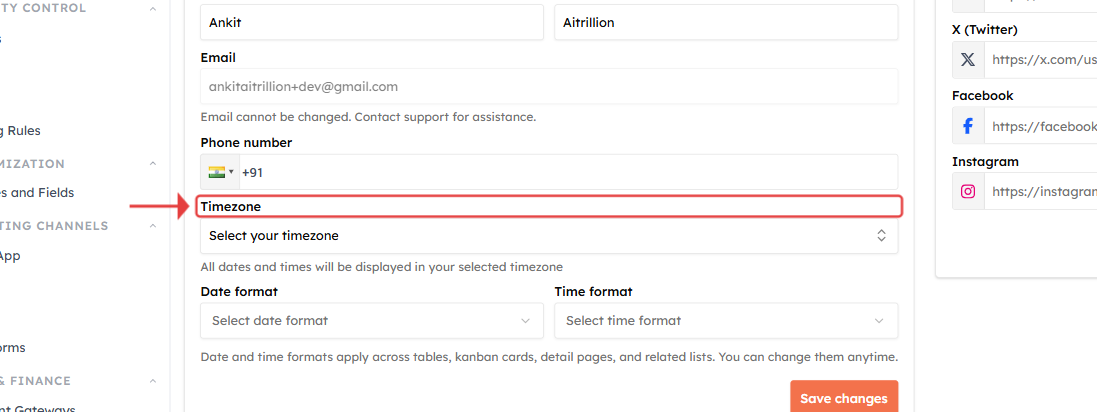
Click the Timezone dropdown and choose your local timezone (e.g. Asia/Kolkata). This controls when campaigns are delivered and how all timestamps display.
Step 5 — Save#
Click Save. Your profile updates across the entire CRM immediately.
Set your date & time format#
Still on Personal Settings, choose how dates and times display for you:
- Date format — e.g. Mar 21, 2026, 03/21/2026, 21/03/2026, 2026-03-21, or 21-Mar-2026.
- Time format — 12-hour (1:30 PM) or 24-hour (13:30).
These apply everywhere you see dates — tables, kanban cards, detail pages, and related lists — and you can change them anytime. Click Save changes.
Add your social links#
In the Social Links card, add any of your profiles — YouTube, LinkedIn, X (Twitter), Facebook, and Instagram — then click Save Social Links.
Change your password#
In the Security card, click Change password. Enter your current password, then a new password (at least 8 characters with an uppercase letter, a lowercase letter, and a number) and confirm it. Click Change Password.
💡
Your email address is fixed and can’t be edited here — contact support if it must change.
💡
Personal Settings done. Next: invite your teammates.
Was this article helpful?
Ready to implement this?
OpenAI Engage and apply what you just learned to your own workspace.
Open AI Engage CRM