Loading…


KnowledgeBase
Call Contacts from the AiEngage Mobile App: Use Your Own Number or an AiEngage Number, Log the Call & Play the Recording
Overview#
The AiEngage mobile app lets you call a contact straight from their record, and makes sure every call ends up on the contact’s timeline in the CRM, so your whole team can see who spoke to whom, when and for how long.
When you tap Call on a contact, the app gives you four choices:
Option | What it does | Which number the customer sees | Best for |
|---|---|---|---|
Via Phone | Opens your phone’s own dialer and calls through your SIM card. The app tracks the call and then asks you to log it. The recording isn’t available on phones with the Google Phone app (Pixel, Nothing, Motorola…). | Your personal mobile number | Quick calls when you’re out and about |
Via AiEngage | Calls through the AiEngage CRM phone system (your company’s Twilio or Plivo numbers), right inside the app. | Your company’s AiEngage CRM number — you choose which one | Keeping your personal number private; automatic logging and recording |
Log Call-Manually | Opens an empty call form so you can record a call that already happened. | — (no call is made) | Calls made from another phone or landline |
Log Call-Mobile | Shows your phone’s recent call history; tap a call to log it with its exact time and duration. | — (no call is made) | A call you made earlier and forgot to log |
This article walks through all four, using a contact called navneet t, and then shows where to listen to the call recording.
Before you begin#
Install the AiEngage app on your phone and sign in with your CRM account.
For Via Phone and Log Call-Mobile, allow the app to use your phone’s dialer and call log when it asks. Without that permission it can’t read the call’s time and duration.
For Via AiEngage, your administrator must have connected a call provider (Twilio or Plivo) and assigned you at least one caller-ID number. See Connect a Call Provider and Assign Caller IDs & Outbound Routing.
To keep recordings of AiEngage calls, Record outgoing calls must be switched on for the account (Part 6).
Check which phone app you use. On phones that use the Google Phone (Google dialer) app — such as Google Pixel, Nothing and Motorola — recordings of Via Phone calls don’t reach the CRM (see the note in Part 2).
ℹ️
Personal details of the sample contact — phone number, email and other contacts — are blurred in the screenshots.
Part 1: Find the contact and open Call Options#
Step 1: Search for the contact#
Open Contacts from the bar at the bottom of the app, then type the person’s name in the search box.
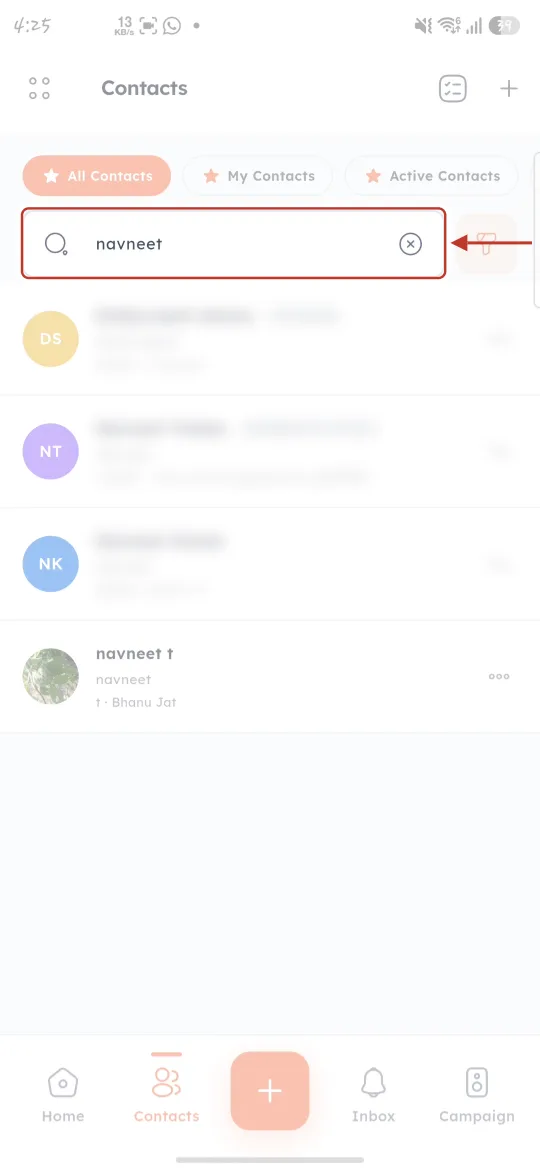
What this screenshot shows. The Contacts screen of the mobile app, with the search box ringed.
Search box (ringed): “navneet” has been typed; the list below shows only matching contacts.
Tabs above it: All Contacts, My Contacts and Active Contacts — quick filters for the list.
Each row: the contact’s initials or photo, name, a status badge (for example “Connected”) and a ⋯ menu.
Bottom bar: Home, Contacts (selected), the orange + to create a record, Inbox and Campaign.
Step 2: Swipe the contact and tap Call#
Swipe the contact’s row to the left. A green Call button appears — tap it. (You can also open the contact and tap the Call icon under their name, or the green phone button next to their Phone field.)
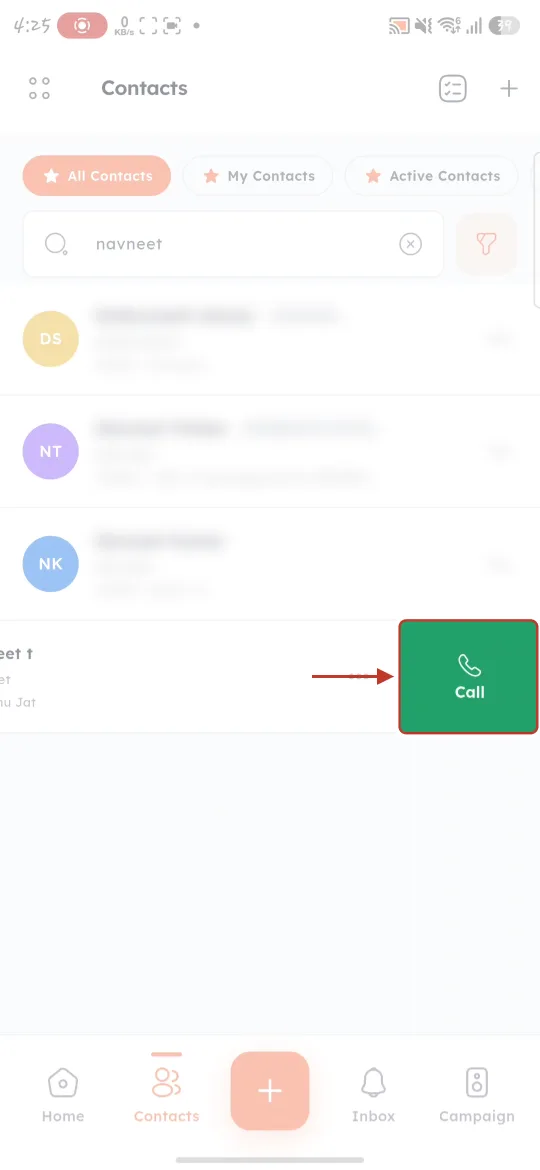
What this screenshot shows. The contact row swiped left, with the green Call button ringed.
Call (ringed): starts a call to this contact.
The row slides back if you swipe the other way or tap elsewhere.
Step 3: Choose how to call#
The contact opens with the Call Options sheet at the bottom of the screen.
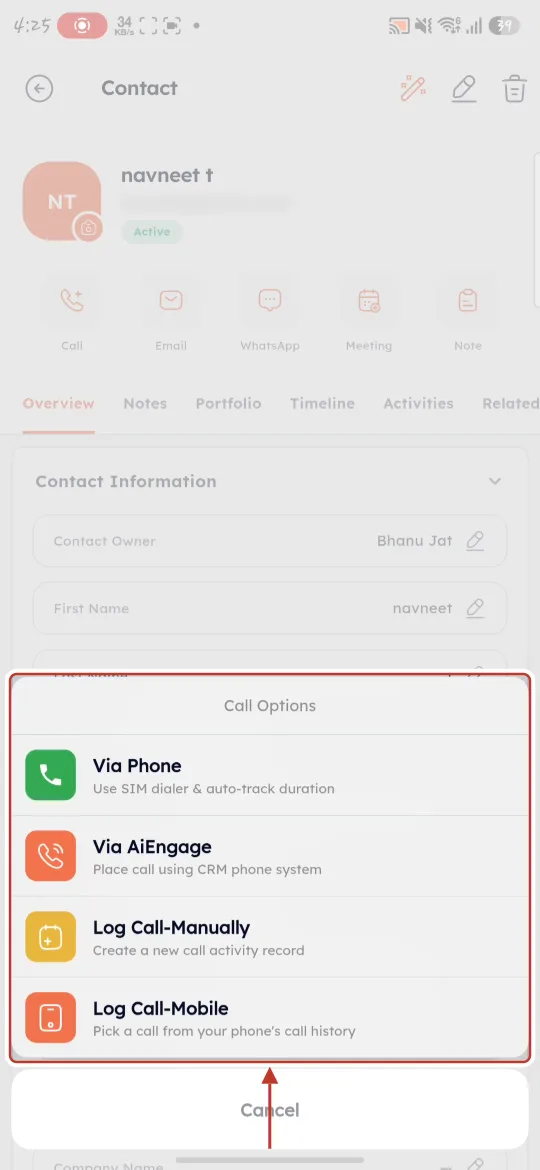
What this screenshot shows. The contact’s record with the Call Options sheet ringed.
Via Phone (green): “Use SIM dialer & auto-track duration”.
Via AiEngage (orange): “Place call using CRM phone system”.
Log Call-Manually (yellow): “Create a new call activity record”.
Log Call-Mobile (red): “Pick a call from your phone’s call history”.
Cancel: closes the sheet without doing anything.
Behind the sheet: the contact record — name, email, status, quick actions (Call, Email, WhatsApp, Meeting, Note) and tabs (Overview, Notes, Portfolio, Timeline, Activities, Related).
Part 2: Call through your phone (Via Phone)#
Use this when you want to call from your own mobile number. The call goes through your SIM card like any normal call; the app keeps track of it so you can log it afterwards.
⚠️
Using a Google Pixel, Nothing, Motorola or another phone with the Google dialer app? Recordings of Via Phone calls will not come into AiEngage CRM. The Google Phone app keeps its call recordings private inside the Google Phone app, so the AiEngage app can’t read them. The call itself is still tracked and logged — only the recording is missing. If you need the recording in the CRM, call with Via AiEngage instead (Part 4): those calls are recorded by AiEngage and work on every phone.
Step 4: Tap Via Phone#
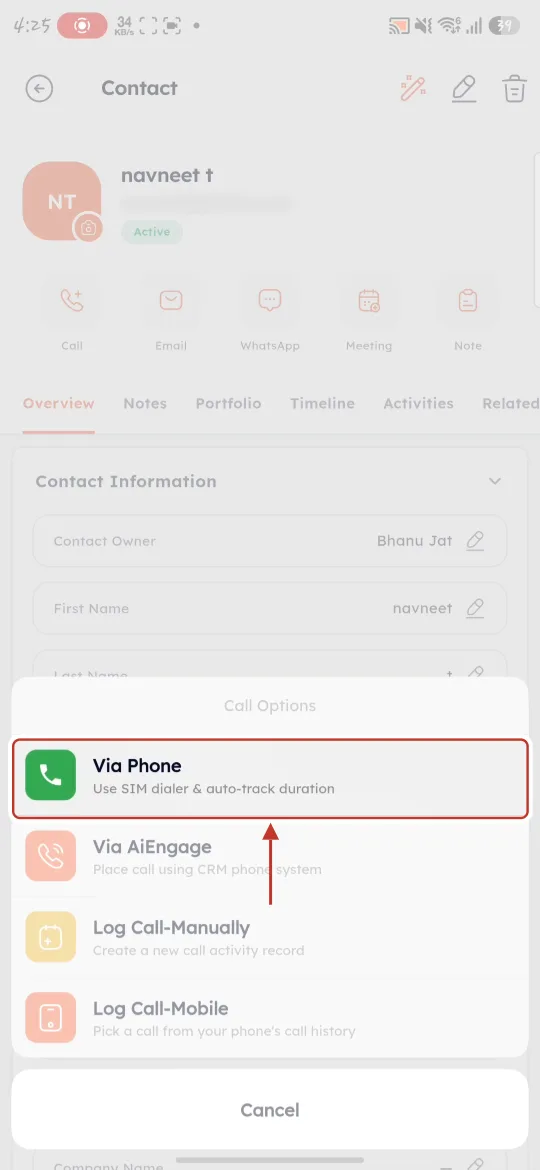
What this screenshot shows. The Via Phone option, ringed.
Via Phone: hands the number to your phone’s dialer. The customer sees your personal number.
Step 5: Place the call in your phone’s dialer#
Your phone’s own dialer opens with the contact’s number already filled in. Tap the green call button.
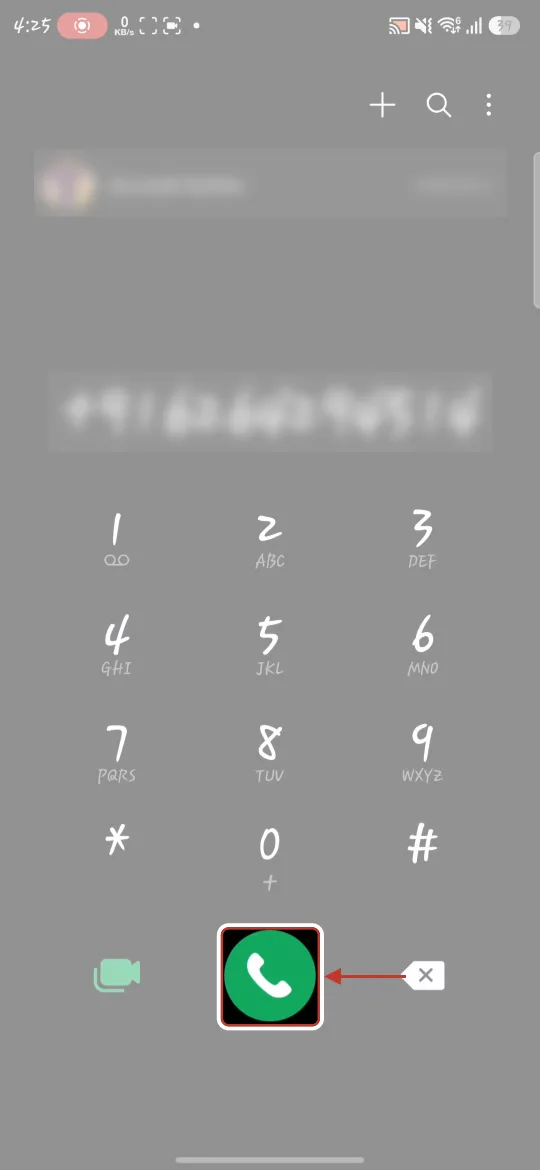
What this screenshot shows. Your phone’s dialer, with the green call button ringed.
Number (blurred): filled in automatically from the contact’s Phone field — no typing needed.
Green button (ringed): places the call through your SIM card.
The dialer looks different on each phone brand, but always has a call button.
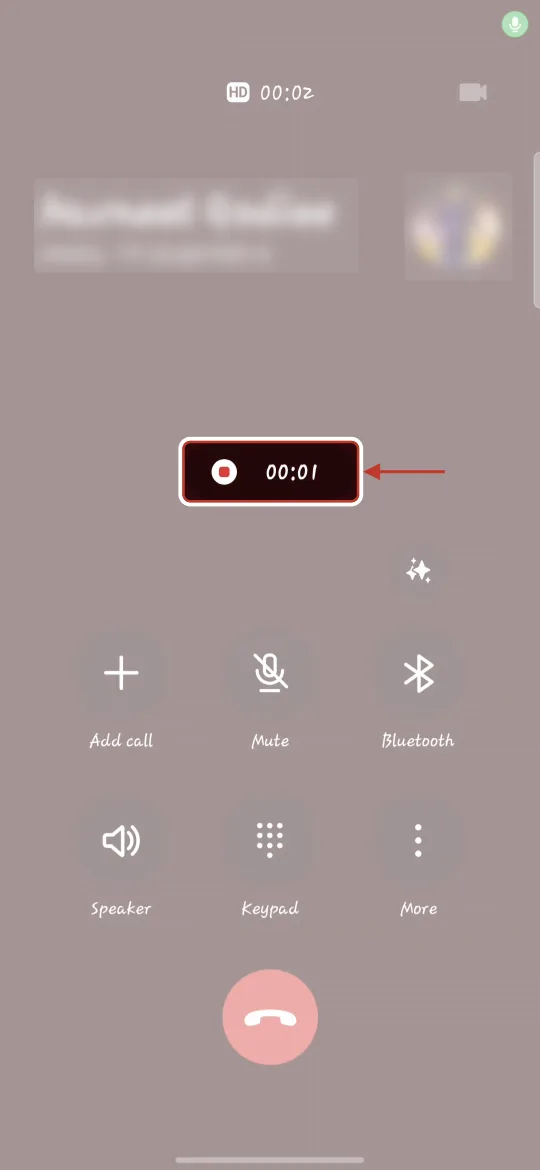
What this screenshot shows. The phone’s normal in-call screen, with the call timer ringed.
Timer (ringed): how long the call has been running.
Name and number (blurred, top): the person you’re speaking to.
Buttons: your phone’s usual controls — Add call, Mute, Bluetooth, Speaker, Keypad, More — and the red button to hang up.
Talk as normal. Hang up with the red button when you’re done.
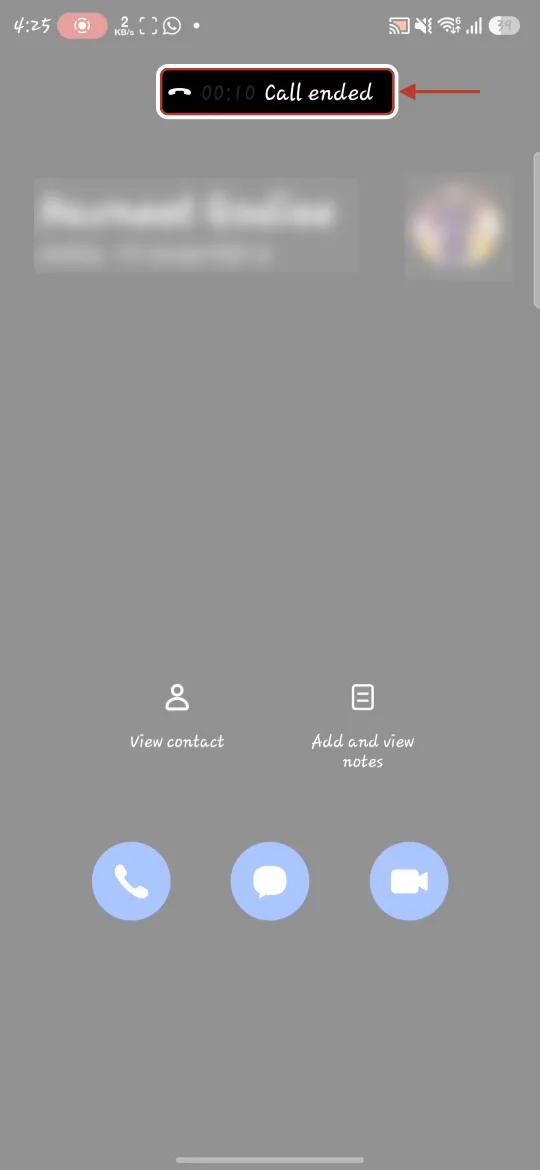
What this screenshot shows. The phone’s screen after hanging up, with Call ended ringed.
“00:10 Call ended”: the call lasted 10 seconds.
Switch back to the AiEngage app (it is usually still open in your recent apps).
Step 6: Log the call when the app asks#
When you return to the AiEngage app, it notices the call and asks whether to log it.
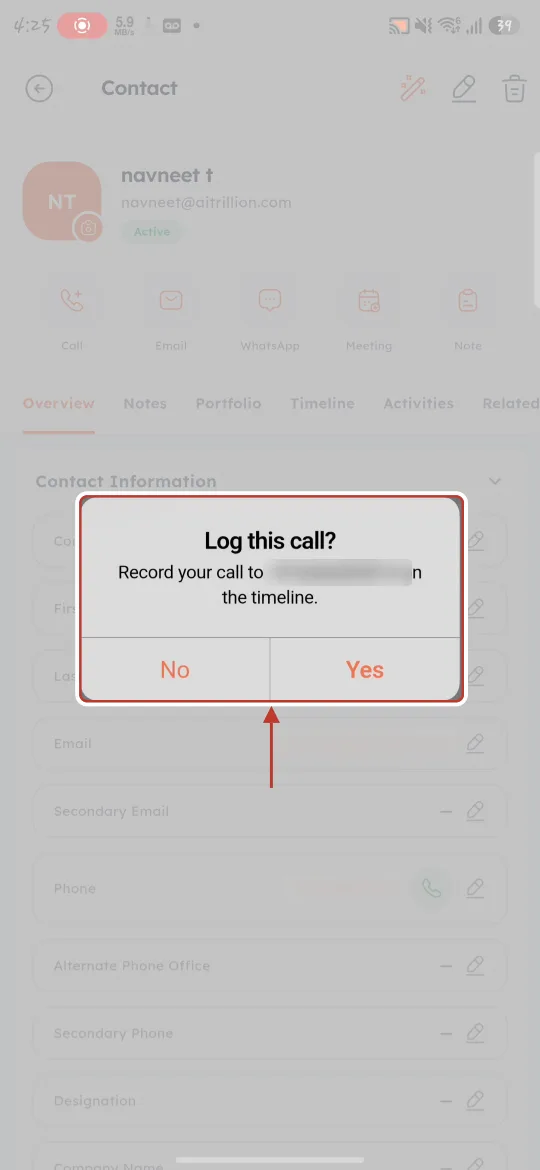
What this screenshot shows. The Log this call? pop-up, ringed.
“Record your call to … on the timeline.” — the number you just called (blurred).
No: nothing is saved. Choose this for personal calls.
Yes: opens the Add Call form with the call’s details already filled in.
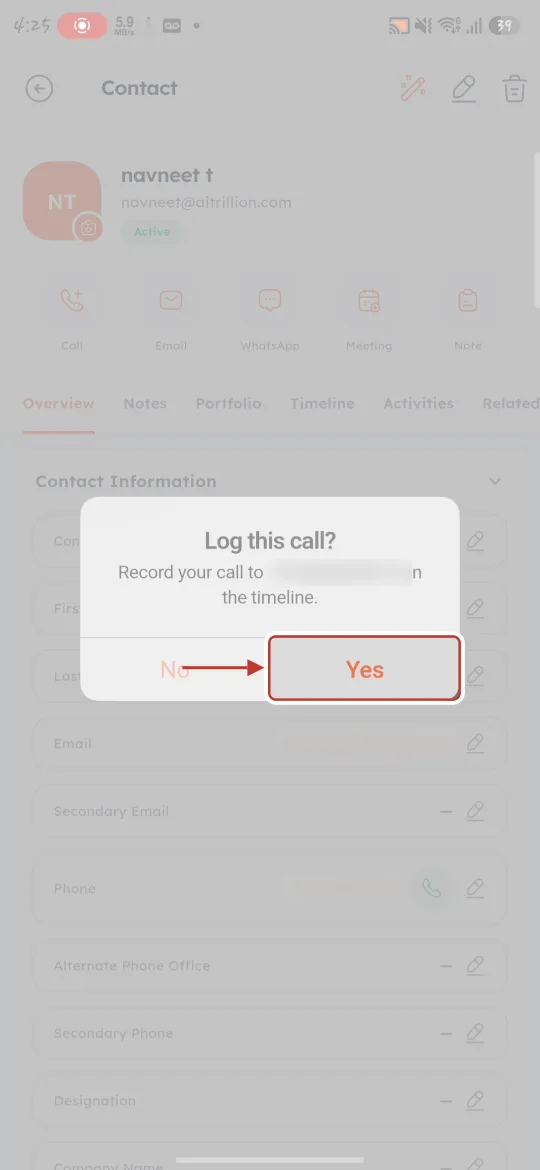
What this screenshot shows. The Yes button, ringed.
Tap Yes to log the call.
Step 7: Check the call details (step 1 of 4)#
The Add Call form opens. It has four short steps, shown by the counter at the top right (1/4) and the orange progress bar. Step 1 is filled in for you from your phone.
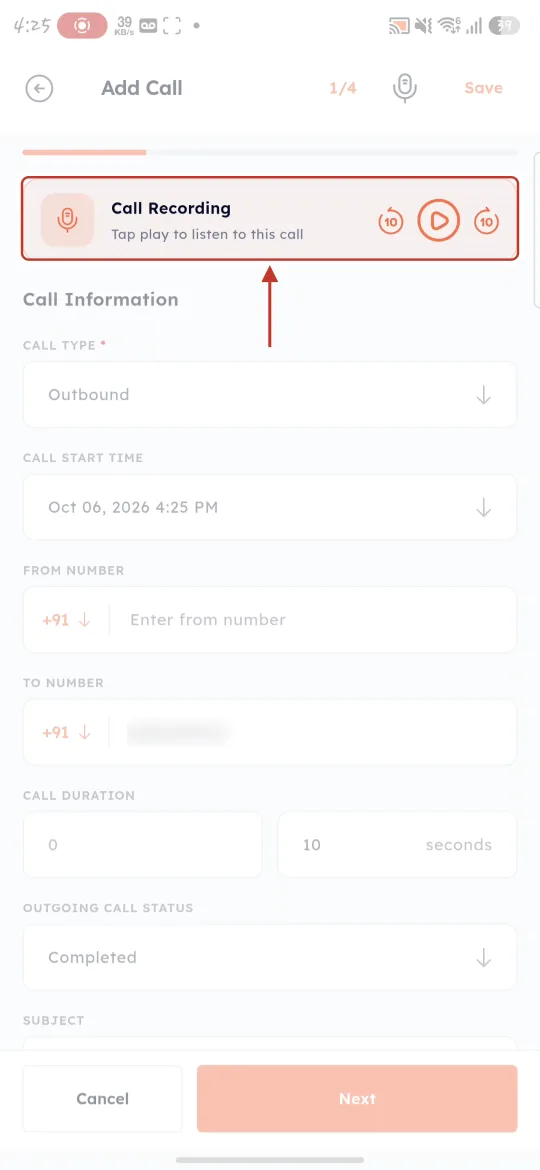
What this screenshot shows. The top of Add Call step 1, with the Call Recording card ringed.
Call Recording: “Tap play to listen to this call”. If your phone saved a recording of the call, the app attaches it here.
No recording on Google Phone devices: on Google Pixel, Nothing, Motorola and other phones that use the Google Phone (Google dialer) app, there is no recording to attach, so this card won’t play anything. The rest of the form still works.
Header: back arrow, “Add Call”, the step counter 1/4, a microphone (to dictate) and Save.
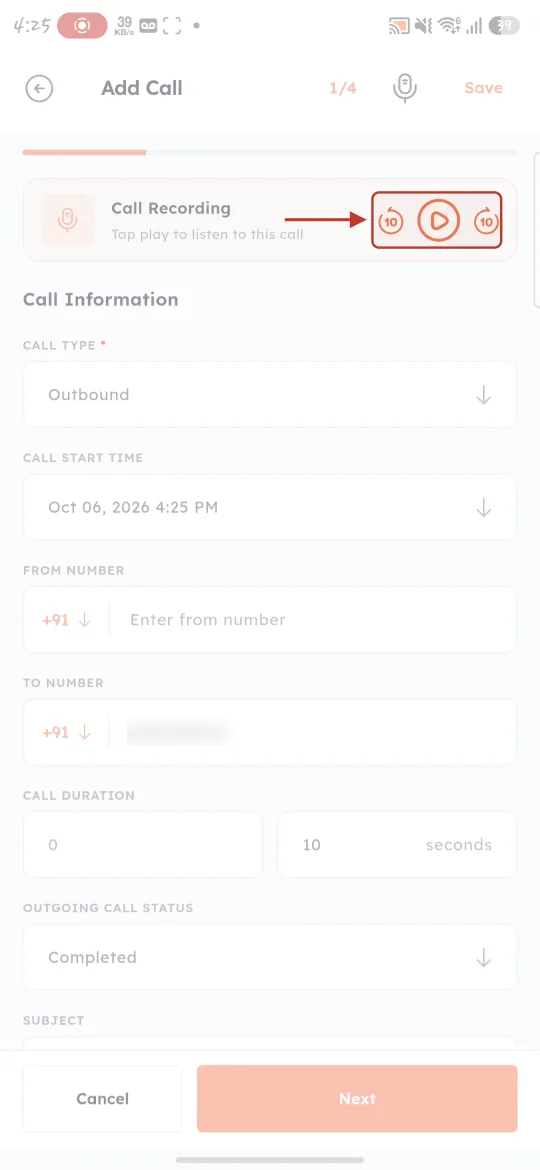
What this screenshot shows. The playback controls on the Call Recording card, ringed.
▶ (middle): plays the recording so you can check it before saving.
10 ⟲ / ⟳ 10: jump back or forward 10 seconds.
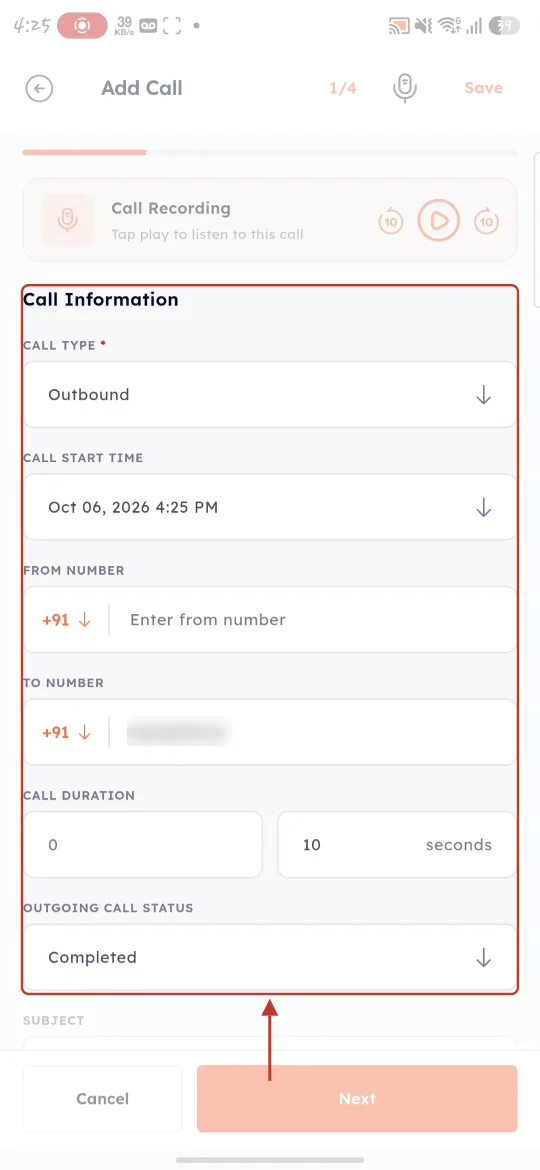
What this screenshot shows. The Call Information section of step 1, ringed.
Call Type *: Outbound (you made the call).
Call Start Time: Oct 06, 2026 4:25 PM — taken from your phone.
From Number: your number (optional). To Number: the customer’s number (blurred), with the +91 country code.
Call Duration: 0 minutes 10 seconds — the real length of the call.
Outgoing Call Status: Completed (the call connected).
Subject (below): a short title for the call.
Change anything that isn’t right, then tap Next at the bottom.
Step 8: Write what happened (step 2 of 4)#
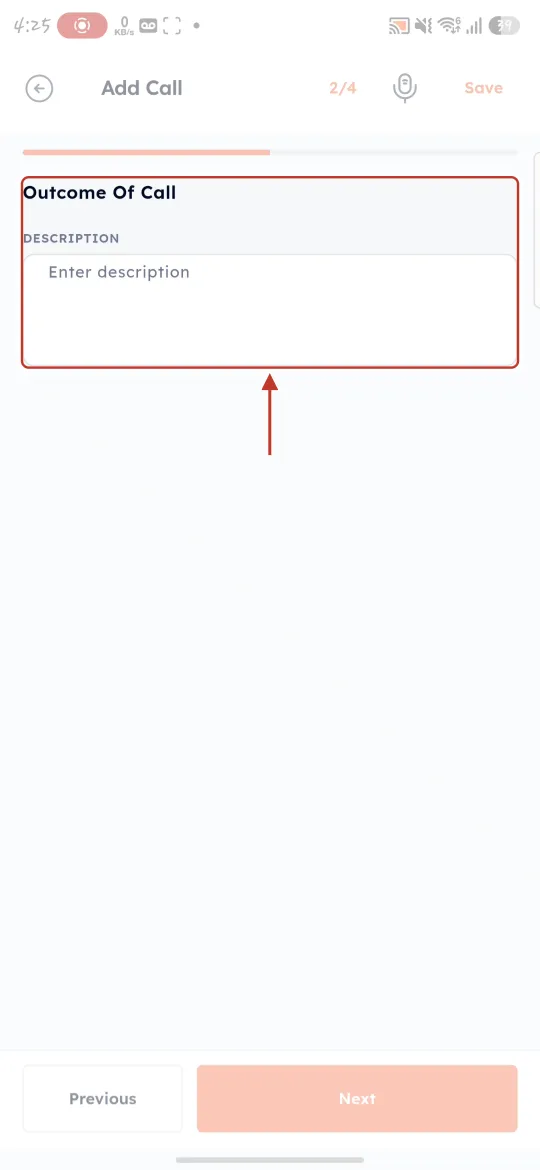
What this screenshot shows. Add Call step 2/4, with Outcome Of Call ringed.
Description: type a short summary — for example “Interested in the annual plan, wants a quote by Friday”.
Previous / Next at the bottom move between steps.
Step 9: Set a reminder (step 3 of 4, optional)#
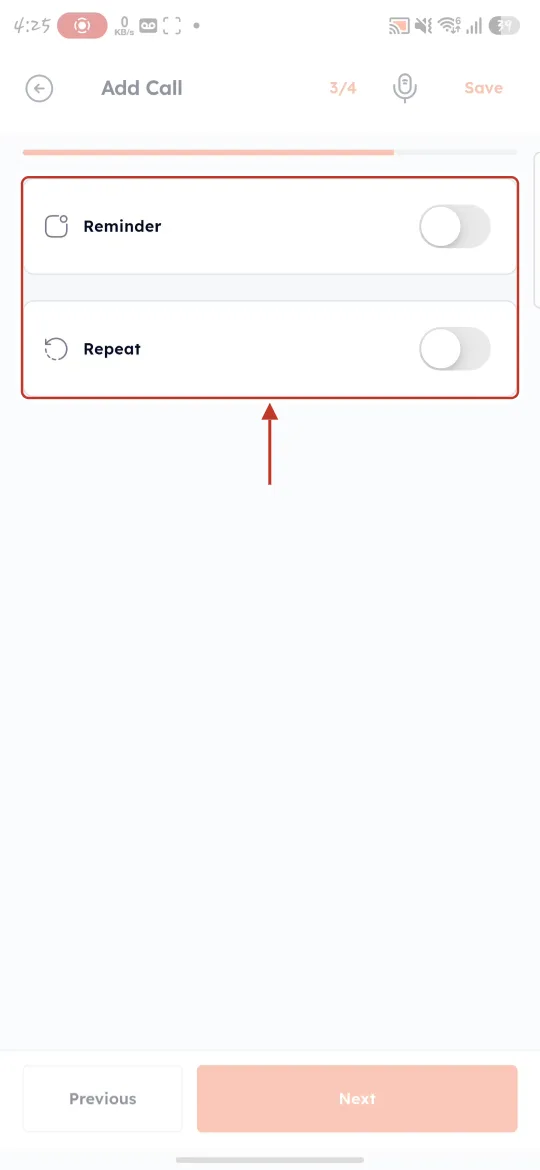
What this screenshot shows. Add Call step 3/4, with the Reminder and Repeat switches ringed.
Reminder: turn on to be reminded about this call (for example to call back).
Repeat: turn on to repeat the reminder.
Leave both off if you don’t need a reminder.
Step 10: Add more information and save (step 4 of 4)#
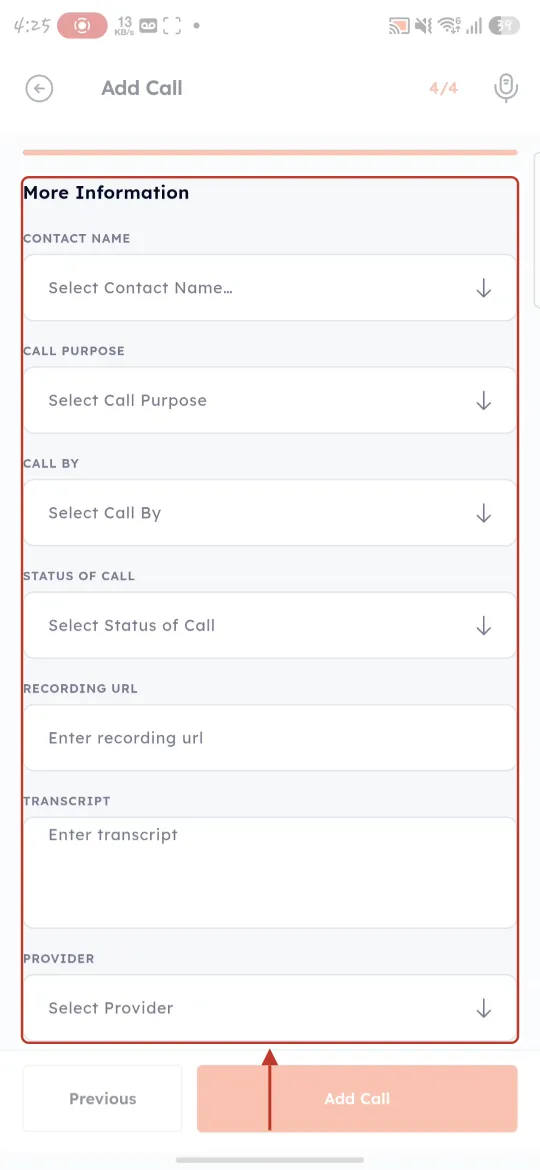
What this screenshot shows. Add Call step 4/4, with the More Information fields ringed.
Contact Name: the contact the call is linked to.
Call Purpose: for example Prospecting, Follow-up or Support.
Call By: who made the call.
Status of Call: the outcome status.
Recording URL: a link to a recording, if you have one stored elsewhere.
Transcript: paste a transcript, if you have one.
Provider: the calling service used.
All of these are optional.
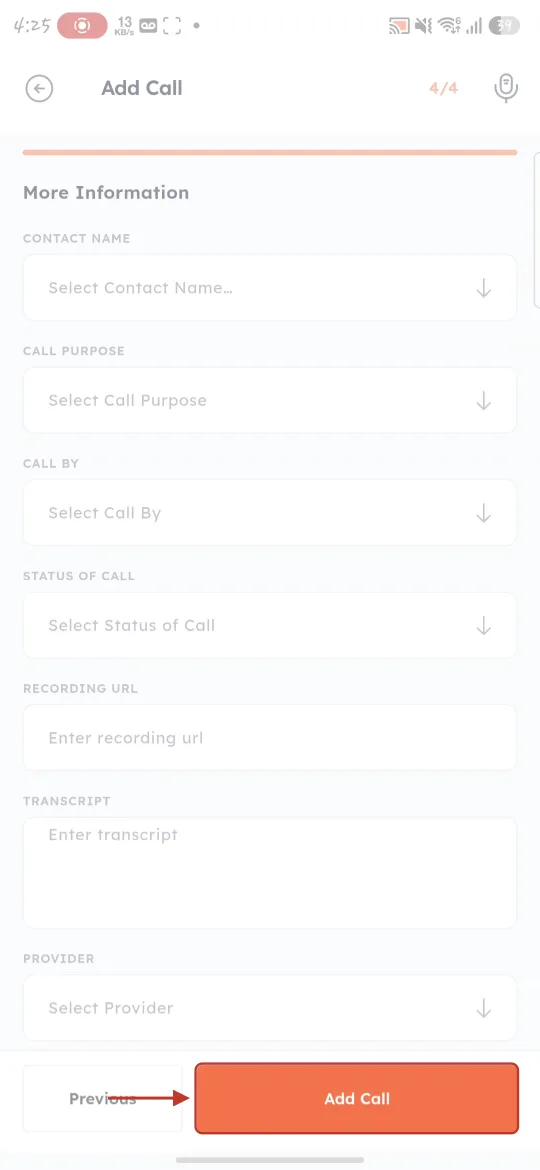
What this screenshot shows. The orange Add Call button, ringed.
Add Call: saves the call. Previous goes back a step.
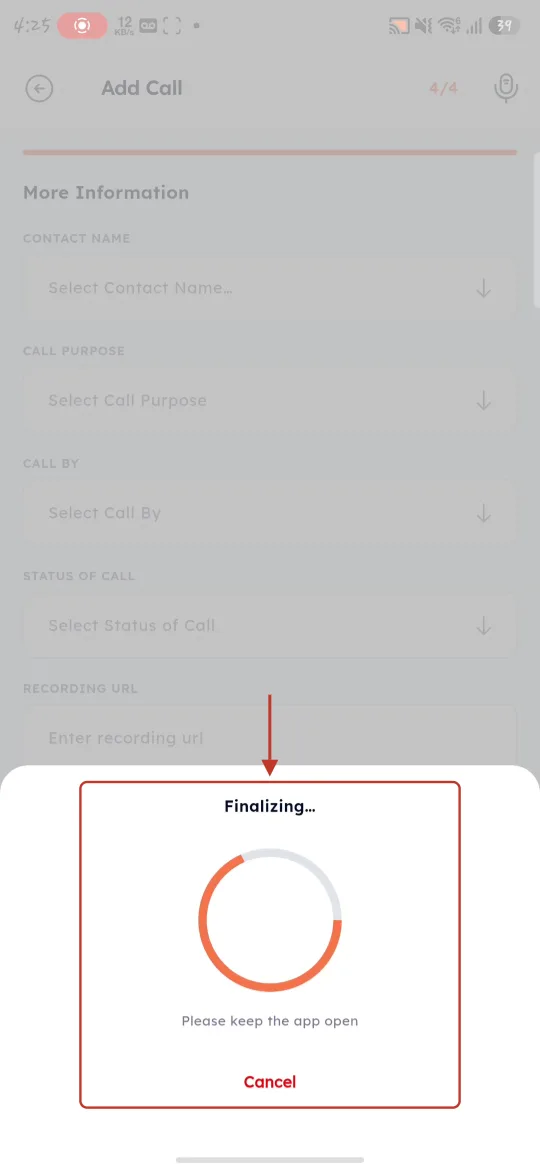
What this screenshot shows. The Finalizing… panel, ringed.
“Please keep the app open” — the app is uploading the call (and its recording, if there is one). Don’t close the app until it finishes.
Cancel: stops saving.
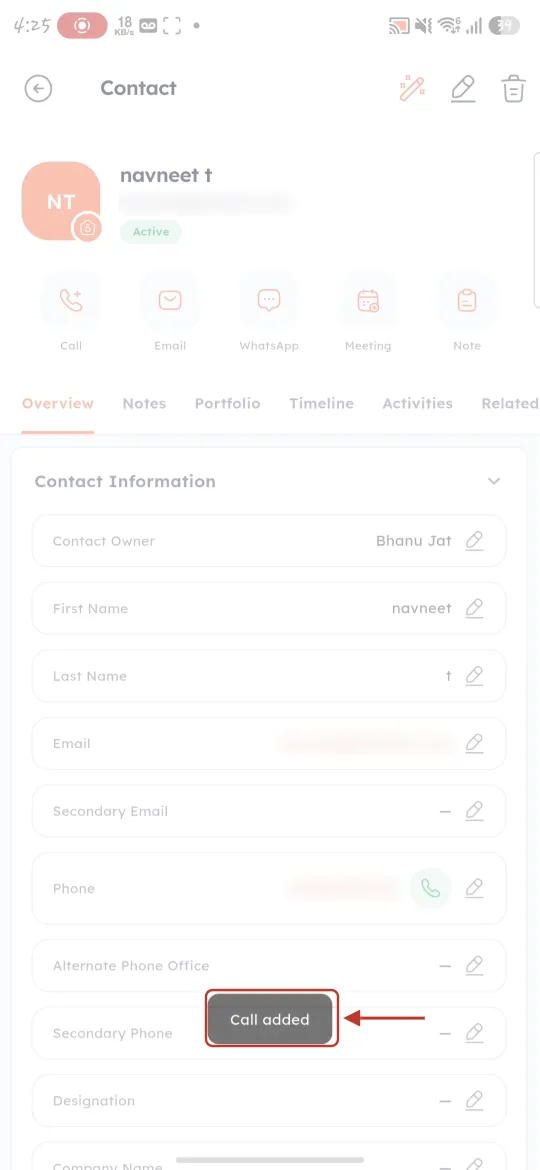
What this screenshot shows. The contact’s record, with the Call added message ringed.
“Call added” — the call is saved and now appears on the contact’s Timeline and in the CRM’s Calls list.
Part 3: Log a call you already made#
Forgot to log a call, or made it from another device? Use one of the two logging options in Call Options — no new call is placed.
Step 11: Log Call-Mobile — pick it from your call history#
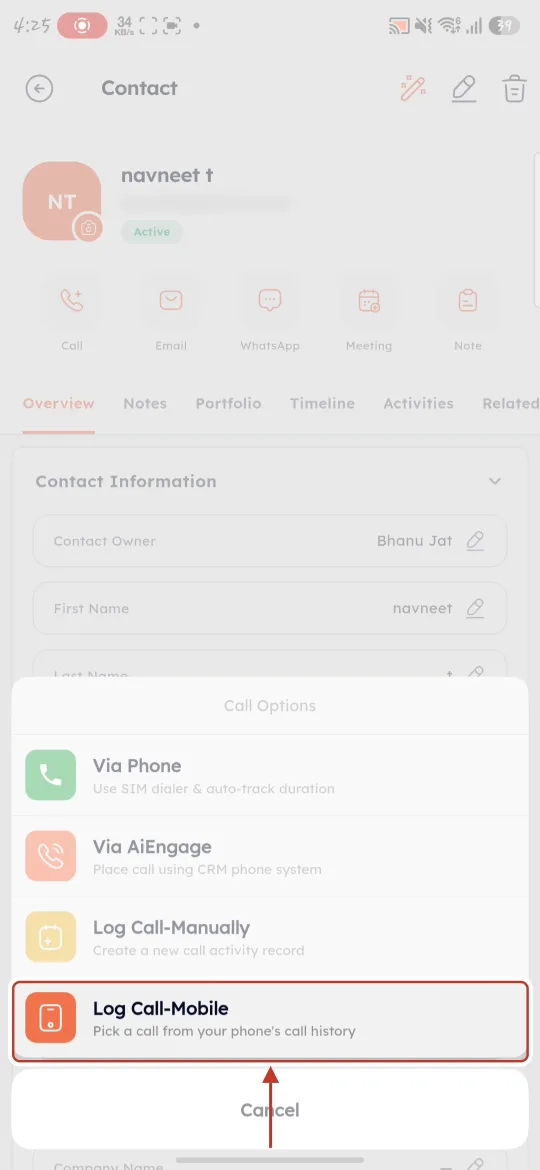
What this screenshot shows. The Log Call-Mobile option, ringed.
Log Call-Mobile: “Pick a call from your phone’s call history”.
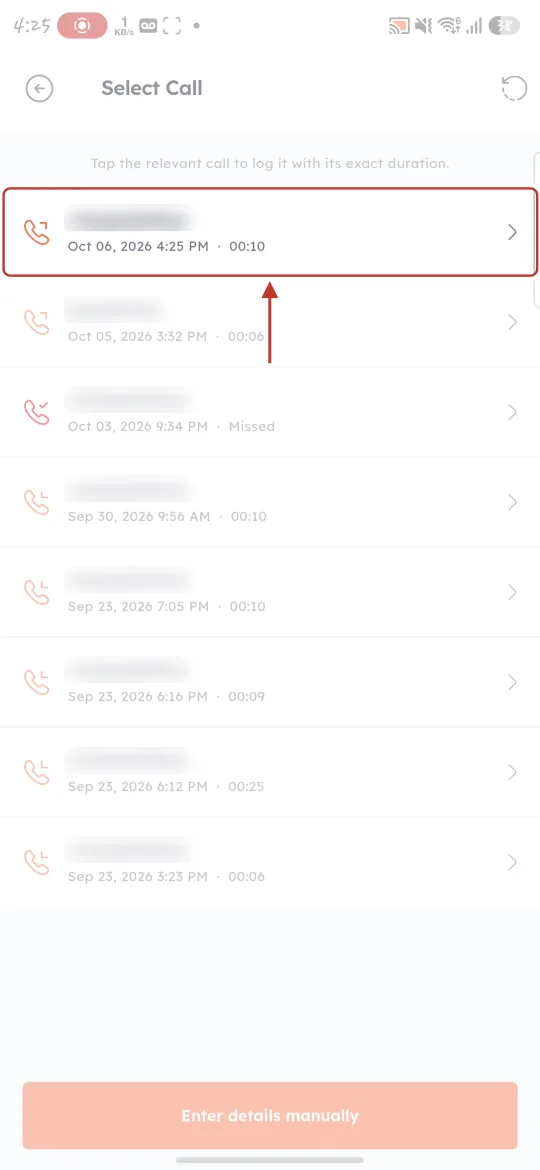
What this screenshot shows. The Select Call screen, with the most recent call ringed.
“Tap the relevant call to log it with its exact duration.”
Each row: the number (blurred), the date and time, and the duration — for example “Oct 06, 2026 4:25 PM · 00:10”. Missed calls are marked Missed.
Phone icons: show whether the call was outgoing, incoming or missed.
⟳ (top right): reloads the call history.
Tap a call to open the Add Call form, already filled in with that call’s time and duration.
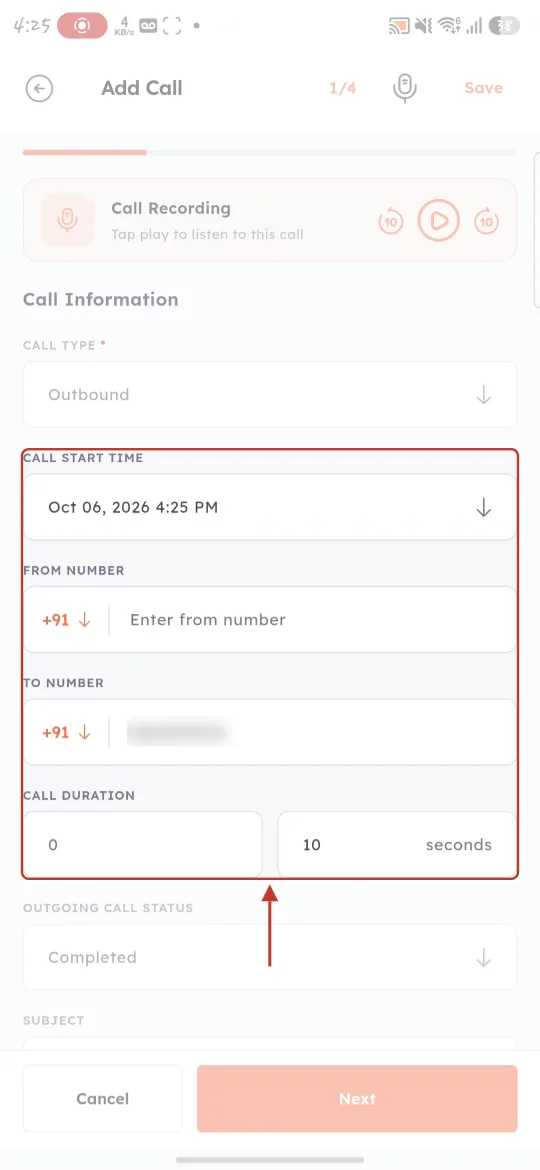
What this screenshot shows. Step 1 of Add Call after picking a call, with the filled-in fields ringed.
Call Start Time, To Number and Call Duration come straight from your phone’s call history.
Continue through steps 2–4 exactly as in Part 2 (Steps 8–10).
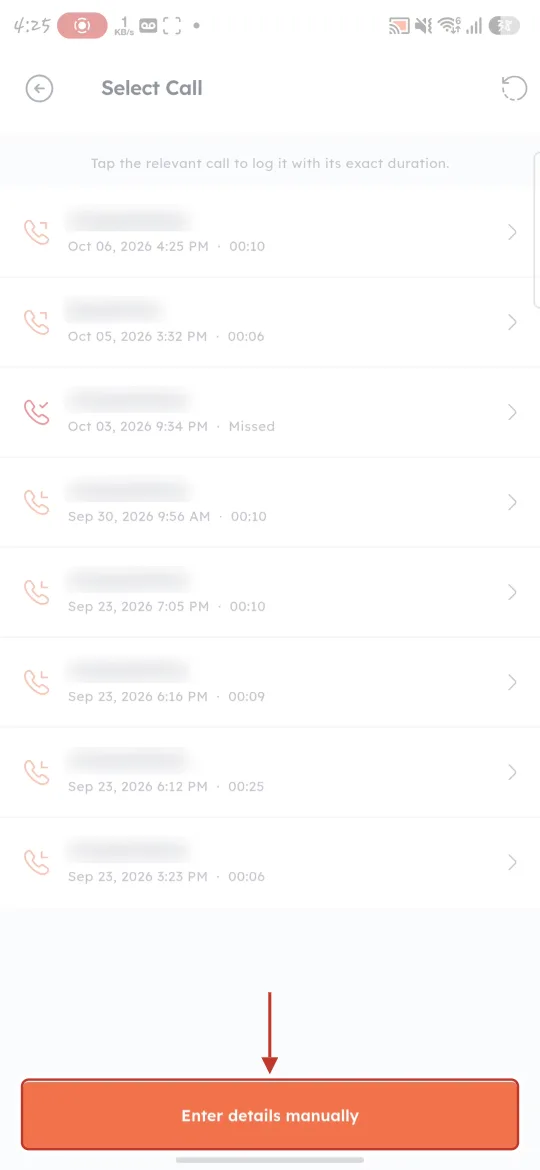
What this screenshot shows. The Enter details manually button at the bottom of Select Call, ringed.
If the call isn’t in your phone’s history (for example, you used a landline), tap this to fill in the form yourself.
Step 12: Log Call-Manually — fill in the form yourself#
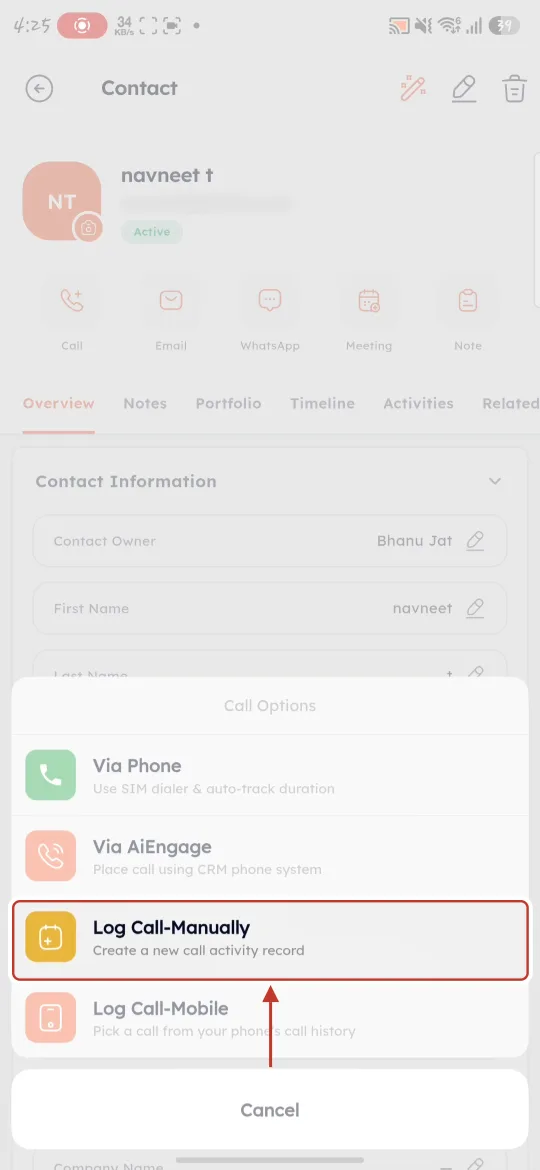
What this screenshot shows. The Log Call-Manually option, ringed.
Log Call-Manually: “Create a new call activity record”. It opens the same four-step Add Call form, but empty — enter the call type, start time, duration and status yourself.
Part 4: Call through an AiEngage CRM number (Via AiEngage)#
Use this to call from your company’s AiEngage number instead of your personal one. The call runs inside the app, and it is logged automatically — no form to fill in.
Step 13: Tap Via AiEngage#
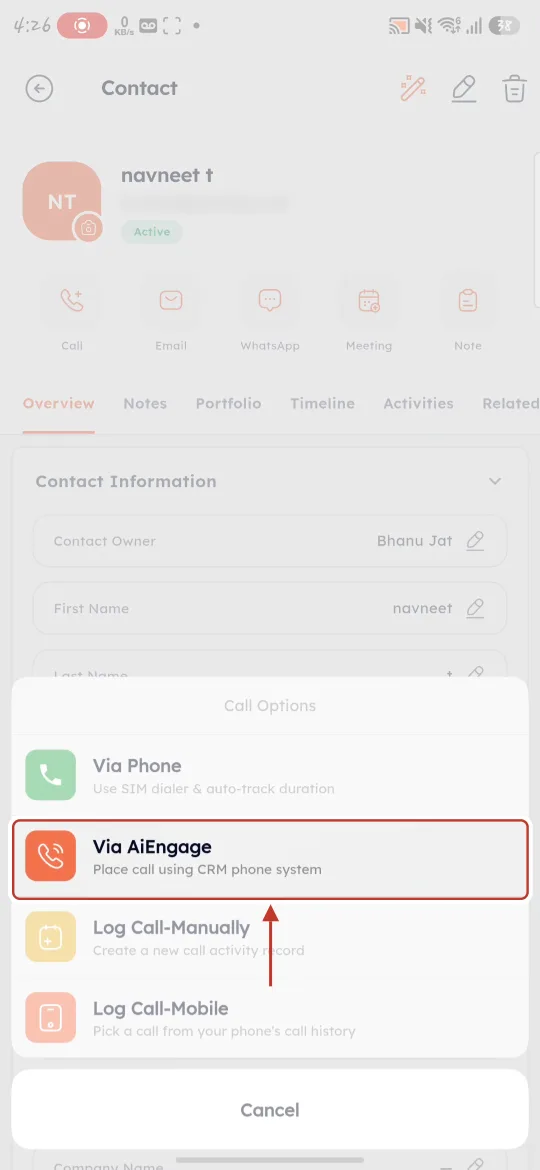
What this screenshot shows. The Via AiEngage option, ringed.
Via AiEngage: “Place call using CRM phone system”.
Step 14: Choose the number to call from#
If you have more than one AiEngage number, the app asks which one to use.
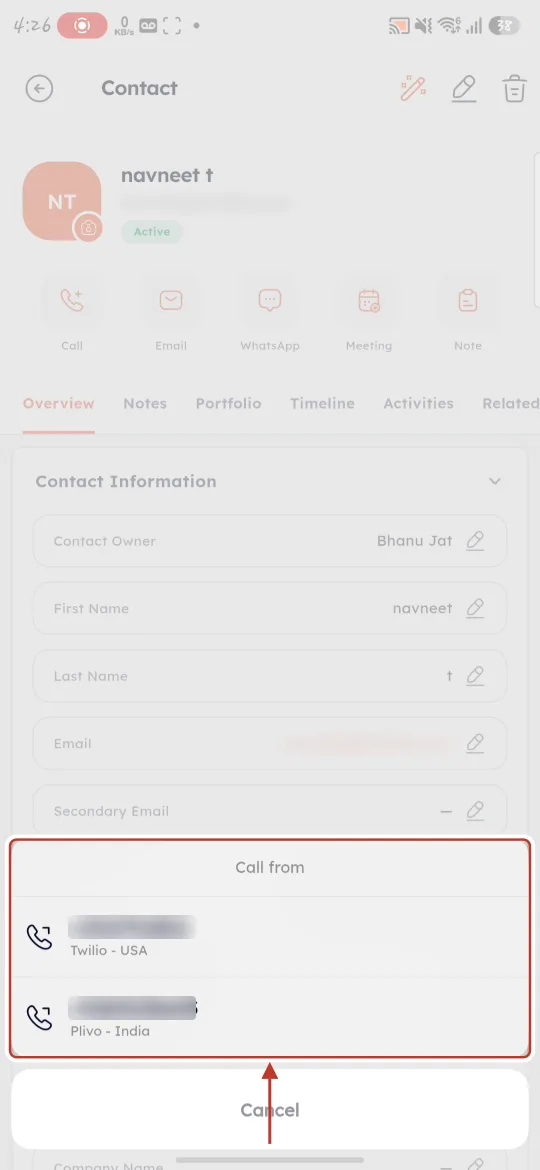
What this screenshot shows. The Call from sheet, ringed.
Each line: one of your company’s numbers (blurred) with its provider and country — here Twilio - USA and Plivo - India.
Pick the number the customer should see. Tip: choose one from the customer’s country — local numbers are answered more often and cost less.
Cancel: goes back without calling.
Which numbers appear is set by your administrator under caller IDs.
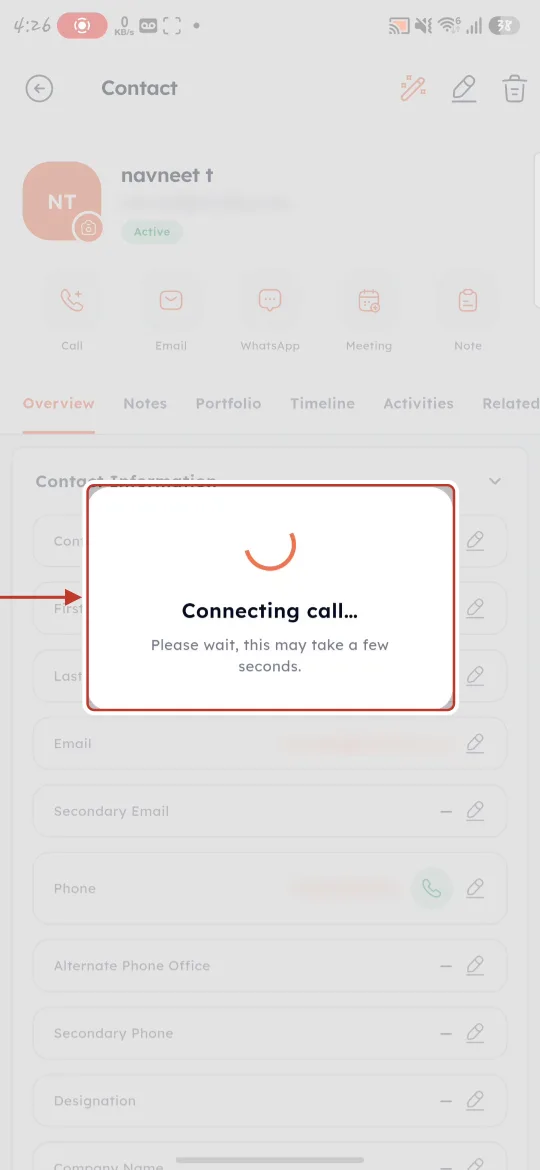
What this screenshot shows. The Connecting call… message, ringed.
“Please wait, this may take a few seconds.” — the app is setting up the call through AiEngage.
Step 15: Talk to the customer#
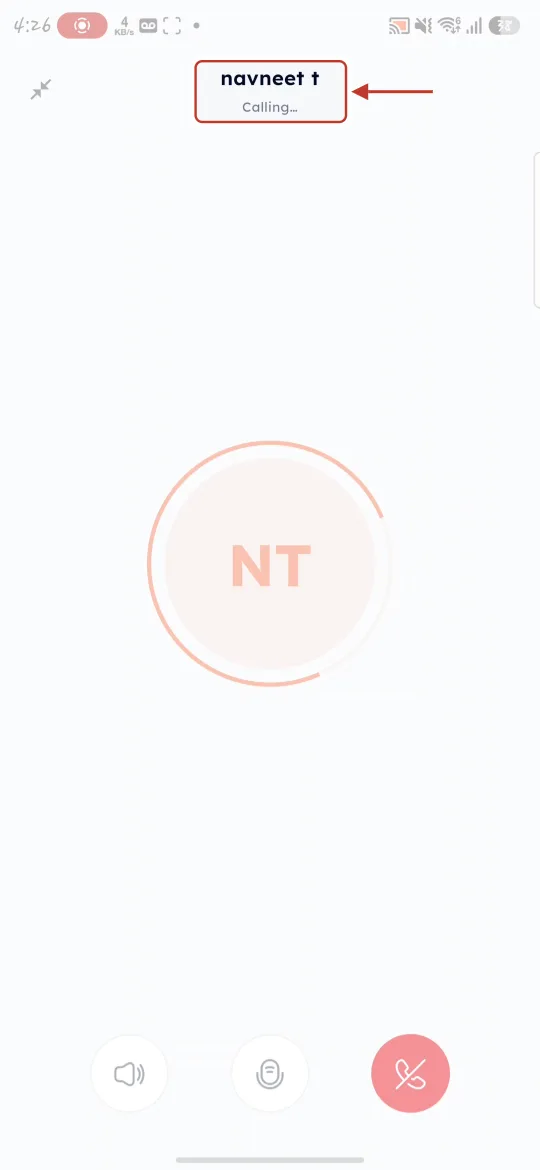
What this screenshot shows. The AiEngage call screen while the phone is ringing, with the name and Calling… ringed.
“navneet t — Calling…” — the customer’s phone is ringing. The ring around the initials animates while it rings.
↙ (top left): shrinks the call screen so you can use the rest of the app during the call.
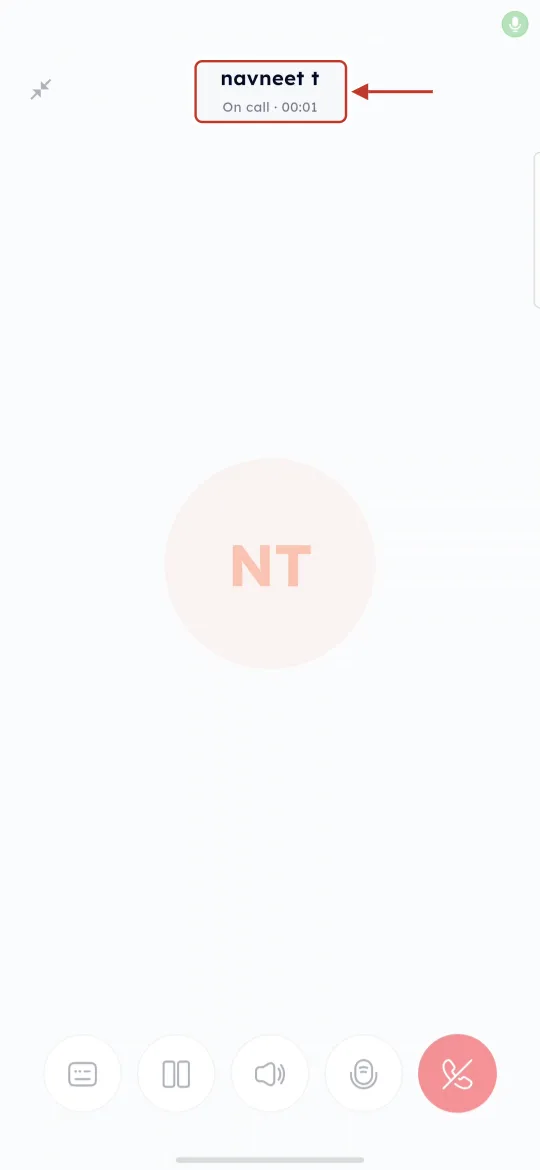
What this screenshot shows. The call screen once answered, with On call · 00:01 ringed.
On call · 00:01 — the customer has answered; the timer counts the call length.
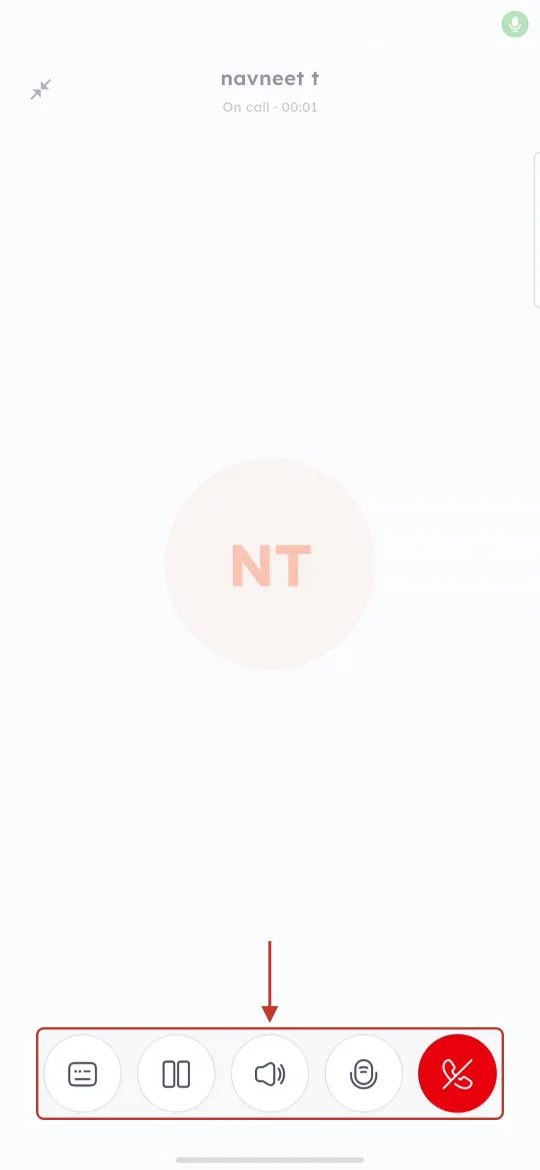
What this screenshot shows. The row of call buttons, ringed.
From left: keypad (to press numbers, for example in a phone menu), hold, speaker, mute, and the red end call button.
Tap the red button to hang up.
Step 16: Wrap up the call#
When the call ends, the wrap-up screen appears. The call itself is already logged — this is where you add your notes and next steps.
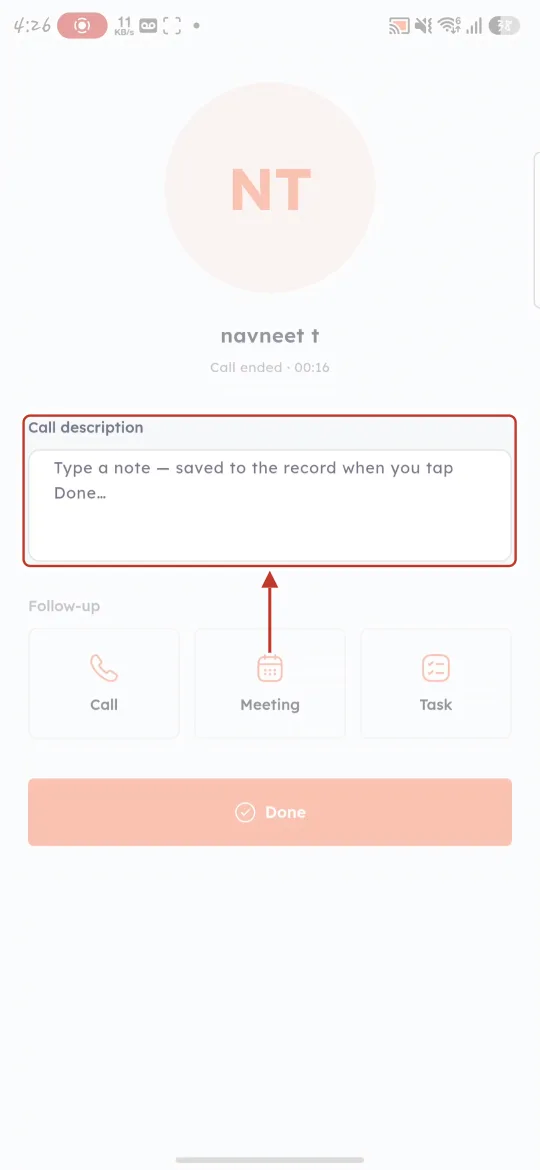
What this screenshot shows. The wrap-up screen, with the Call description box ringed.
Top: the contact’s name and “Call ended · 00:16” (the call length).
Call description: “Type a note — saved to the record when you tap Done…”
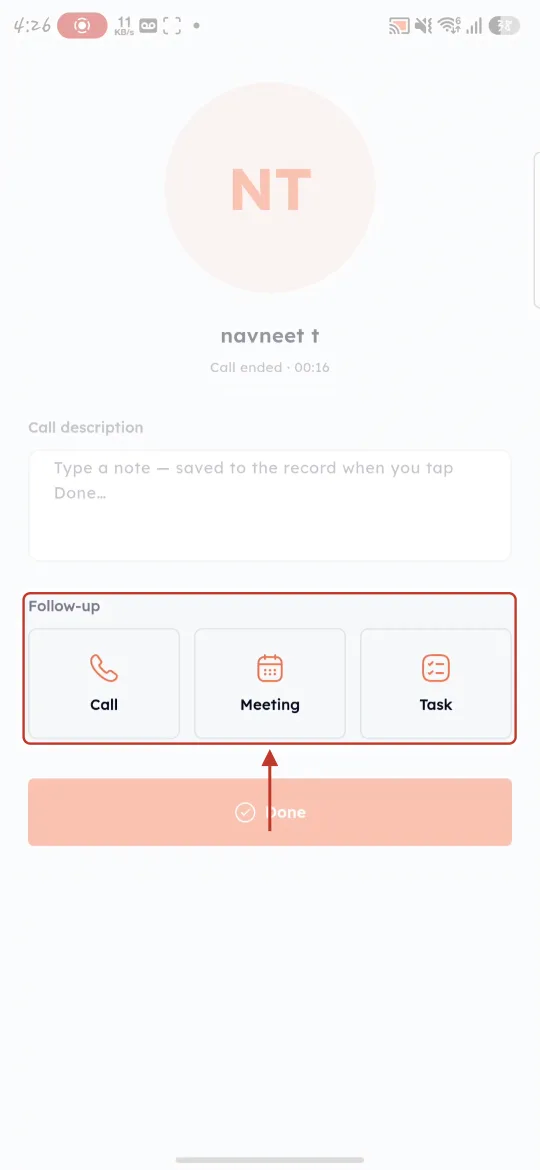
What this screenshot shows. The Follow-up buttons, ringed.
Call: schedule a follow-up call.
Meeting: book a meeting with the contact.
Task: create a to-do, for example “Send quote”.
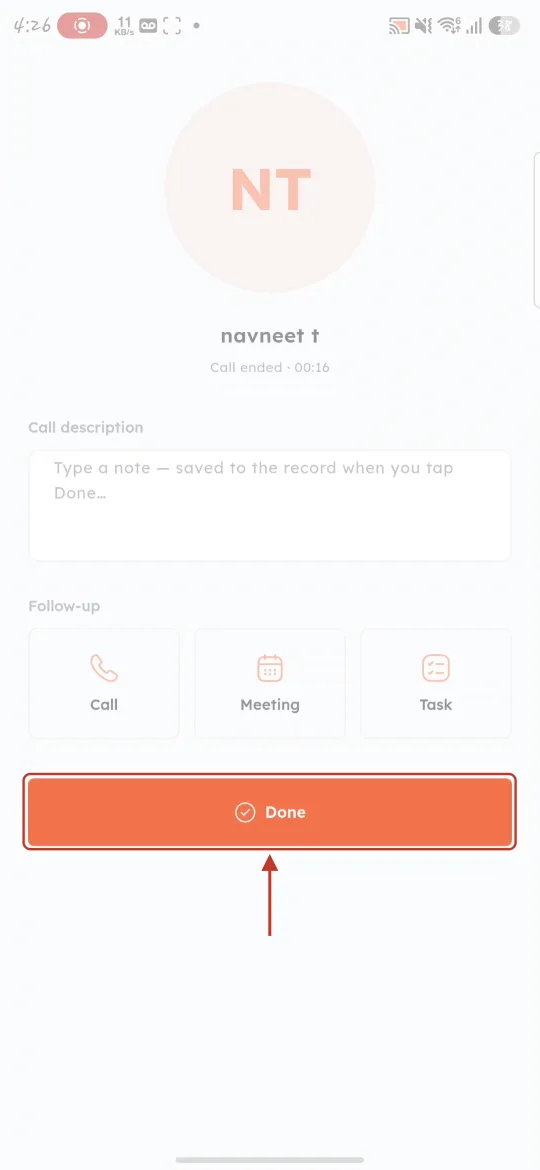
What this screenshot shows. The orange Done button, ringed.
Done: saves your note on the call record and returns you to the contact.
Part 5: See the call and listen to the recording#
In the app: for calls made Via Phone, the recording (if your phone saved one) appears on the Call Recording card at the top of the Add Call form (Step 7) — tap ▶ to listen before you save. This doesn’t work on phones with the Google Phone app (Google Pixel, Nothing, Motorola and others) — use Via AiEngage when you need a recording.
In the CRM on your computer: every logged call — from the app or the web — is in the Calls module and on the contact’s Calls list and Timeline. Calls made Via AiEngage are recorded automatically when recording is on (Part 6).
Step 17: Open Calls in the CRM#
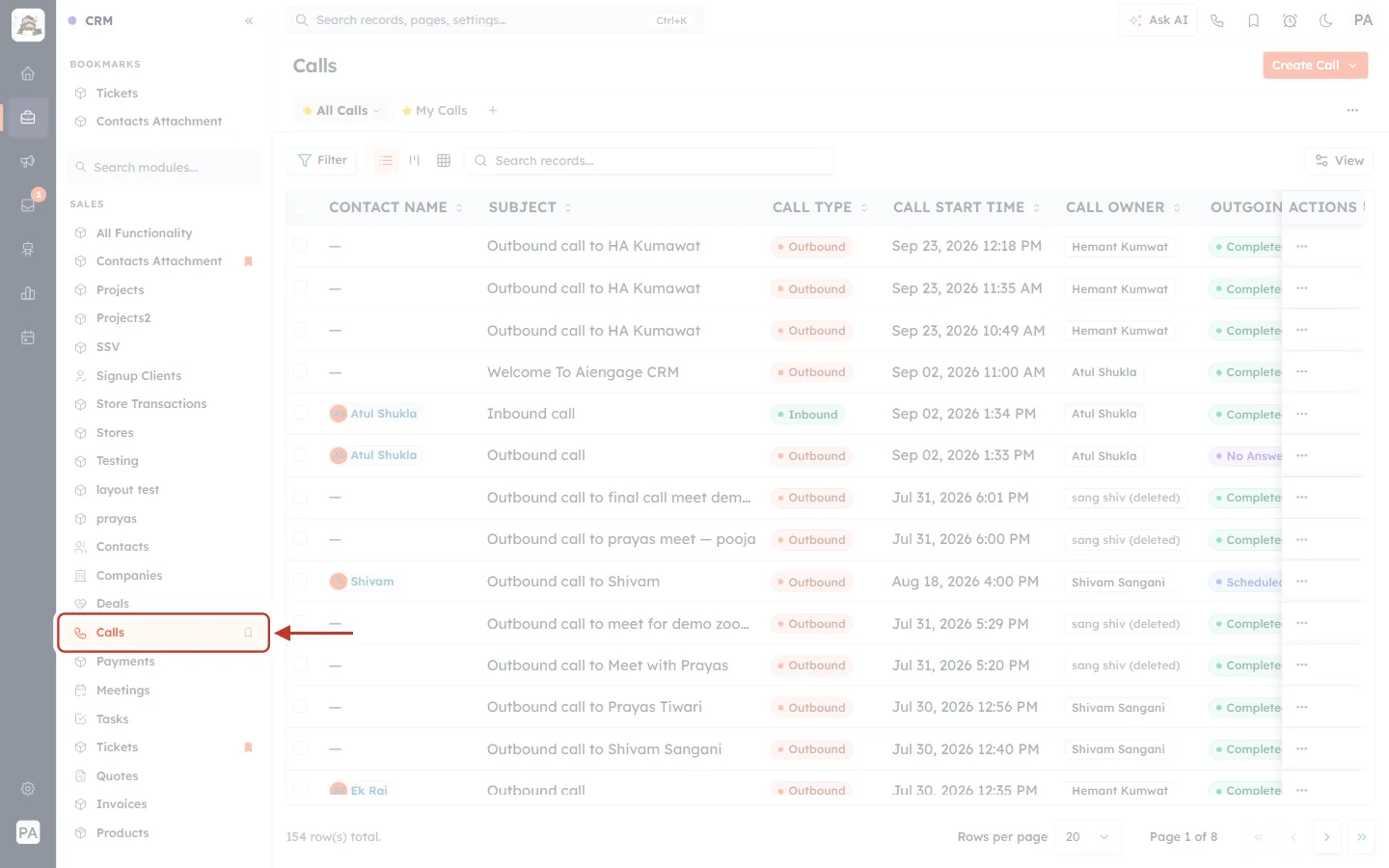
What this screenshot shows. The CRM’s left menu under SALES, with Calls ringed.
Calls (ringed): the call log for the whole team, including calls logged from the mobile app.
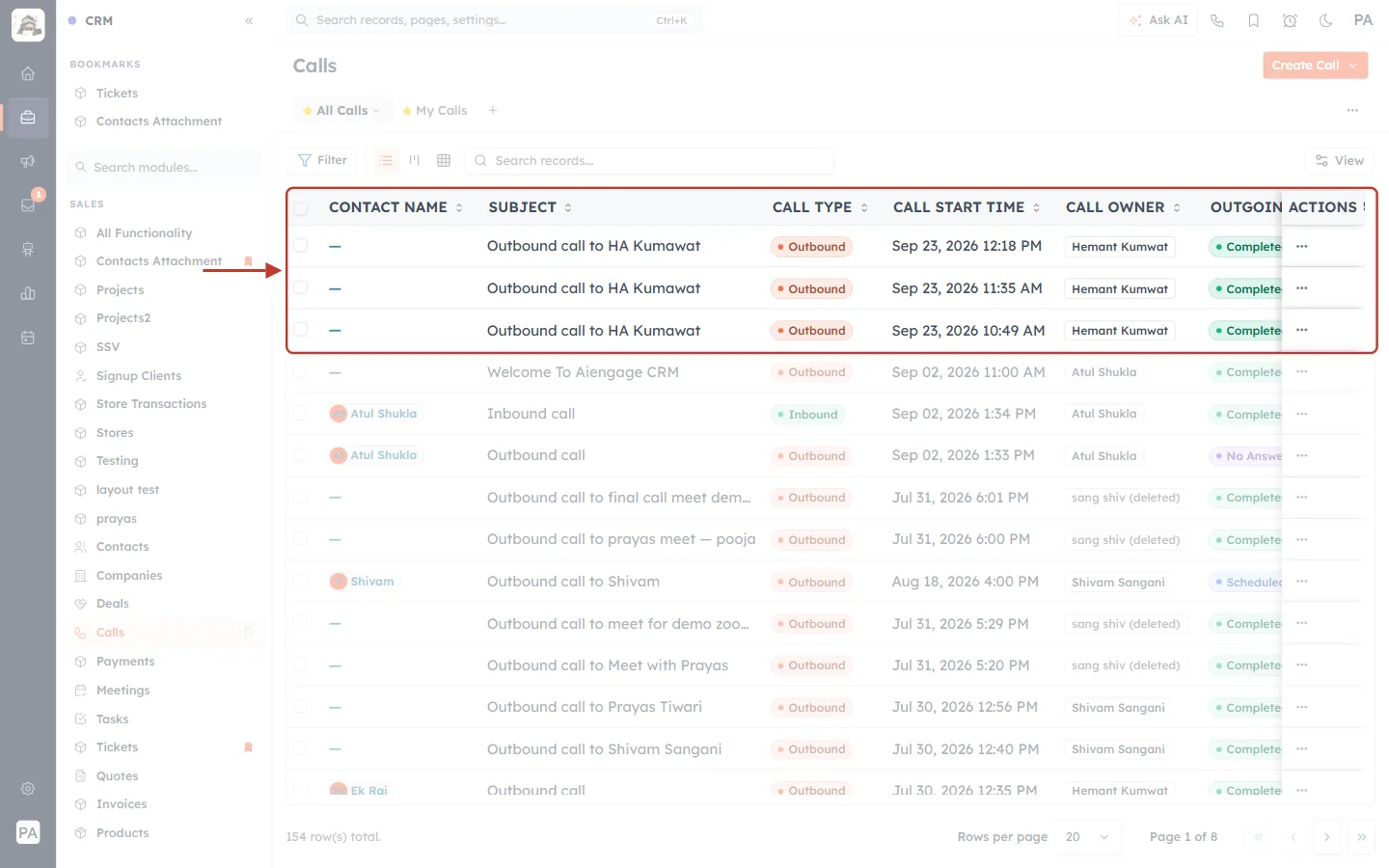
What this screenshot shows. The Calls list page, with the newest calls ringed.
All Calls / My Calls: the whole team’s calls, or only yours.
Columns: Contact Name, Subject, Call Type, Call Start Time, Call Owner, Outgoing Call Status, Call Duration.
Filter and Search records… help you find a call, for example today’s calls to one contact.
Step 18: Open the call and play the recording#
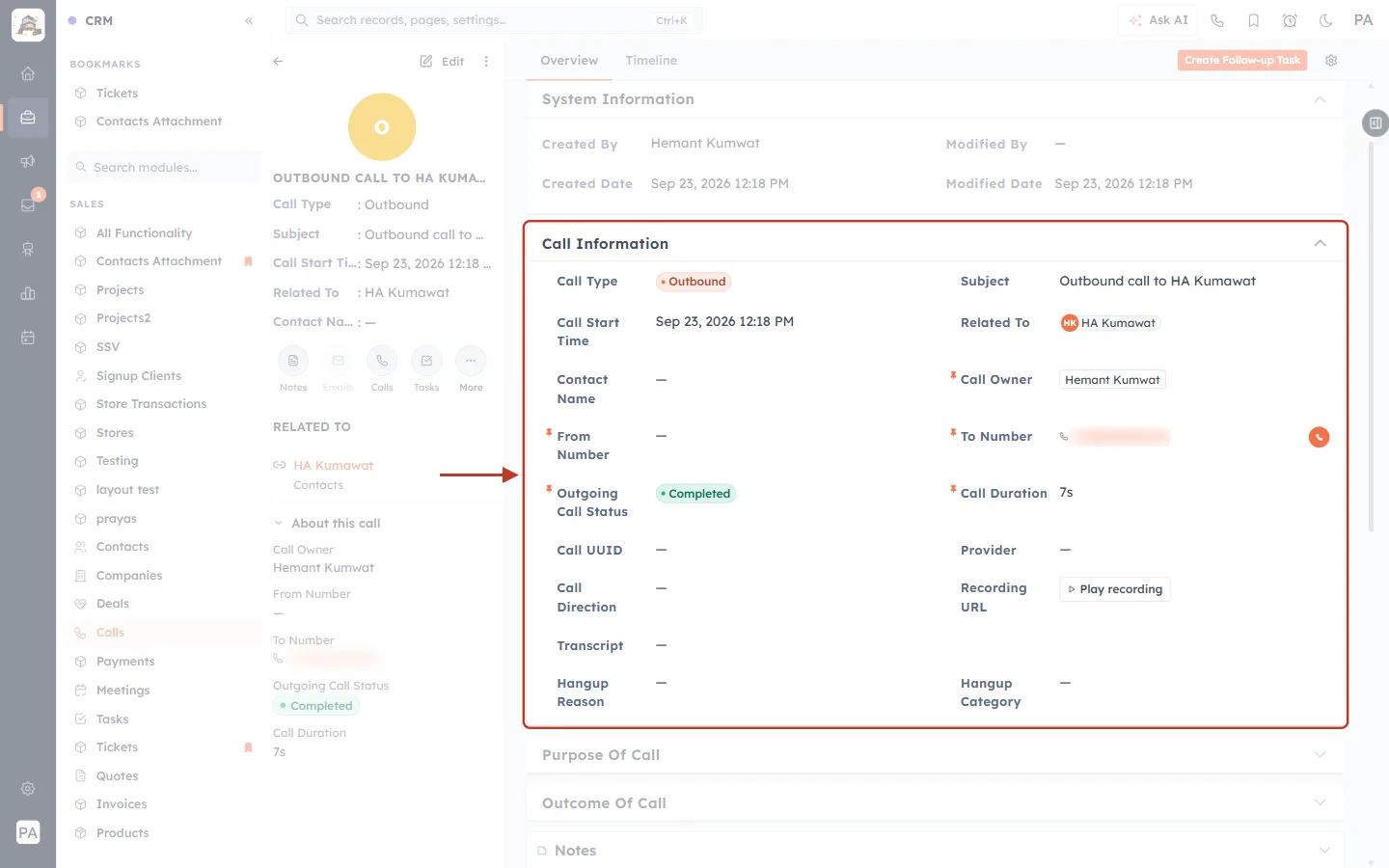
What this screenshot shows. The Call Information section of a saved call, ringed.
Call Type, Subject, Call Start Time, Related To (the contact) and Call Owner.
To Number (blurred), Outgoing Call Status and Call Duration.
Recording URL: the saved recording, with a Play recording button.
Transcript: the text of the call, if transcription is turned on.
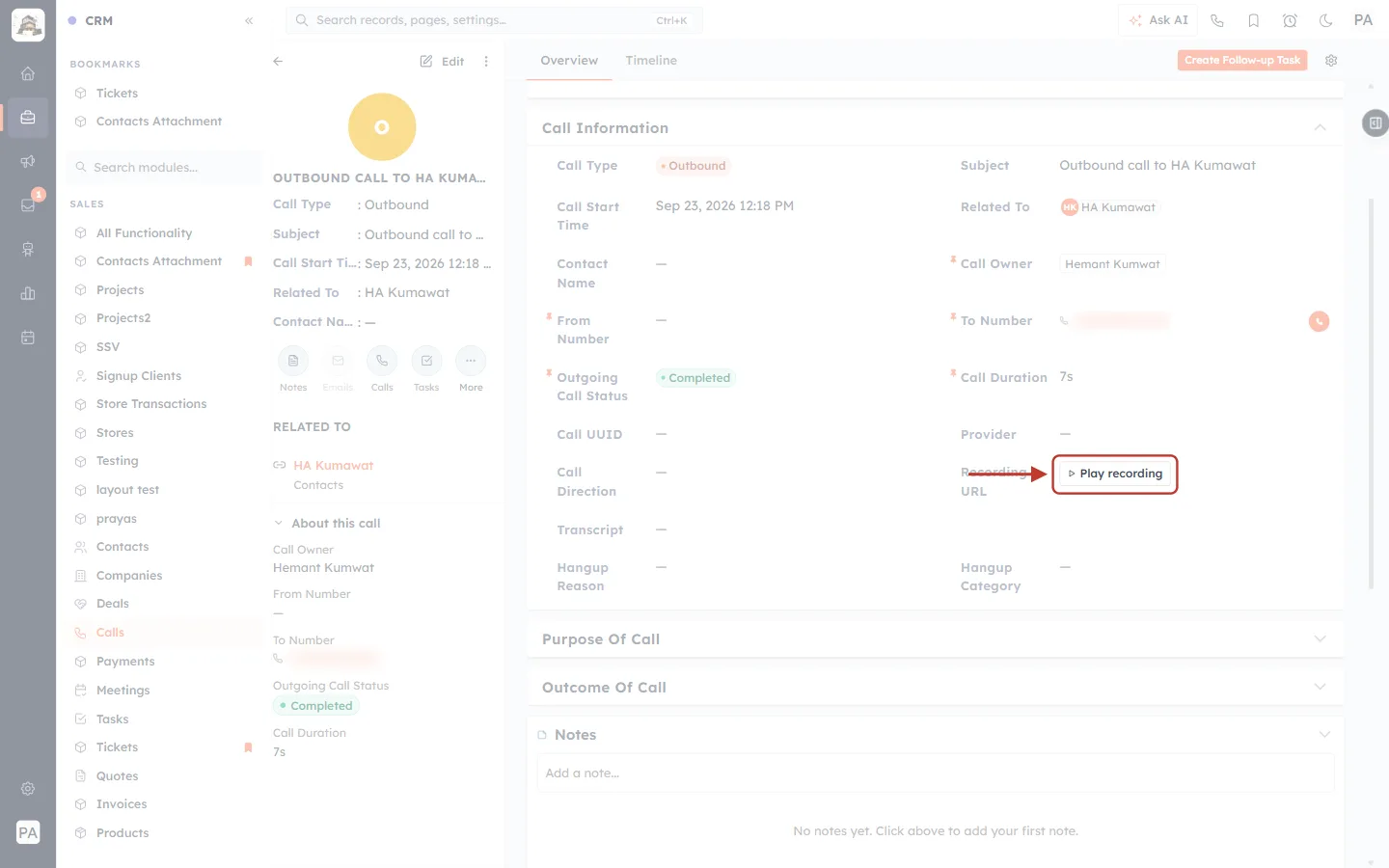
What this screenshot shows. The Play recording button, ringed.
Click it to load the recording. A dash (—) instead of the button means the call has no recording.
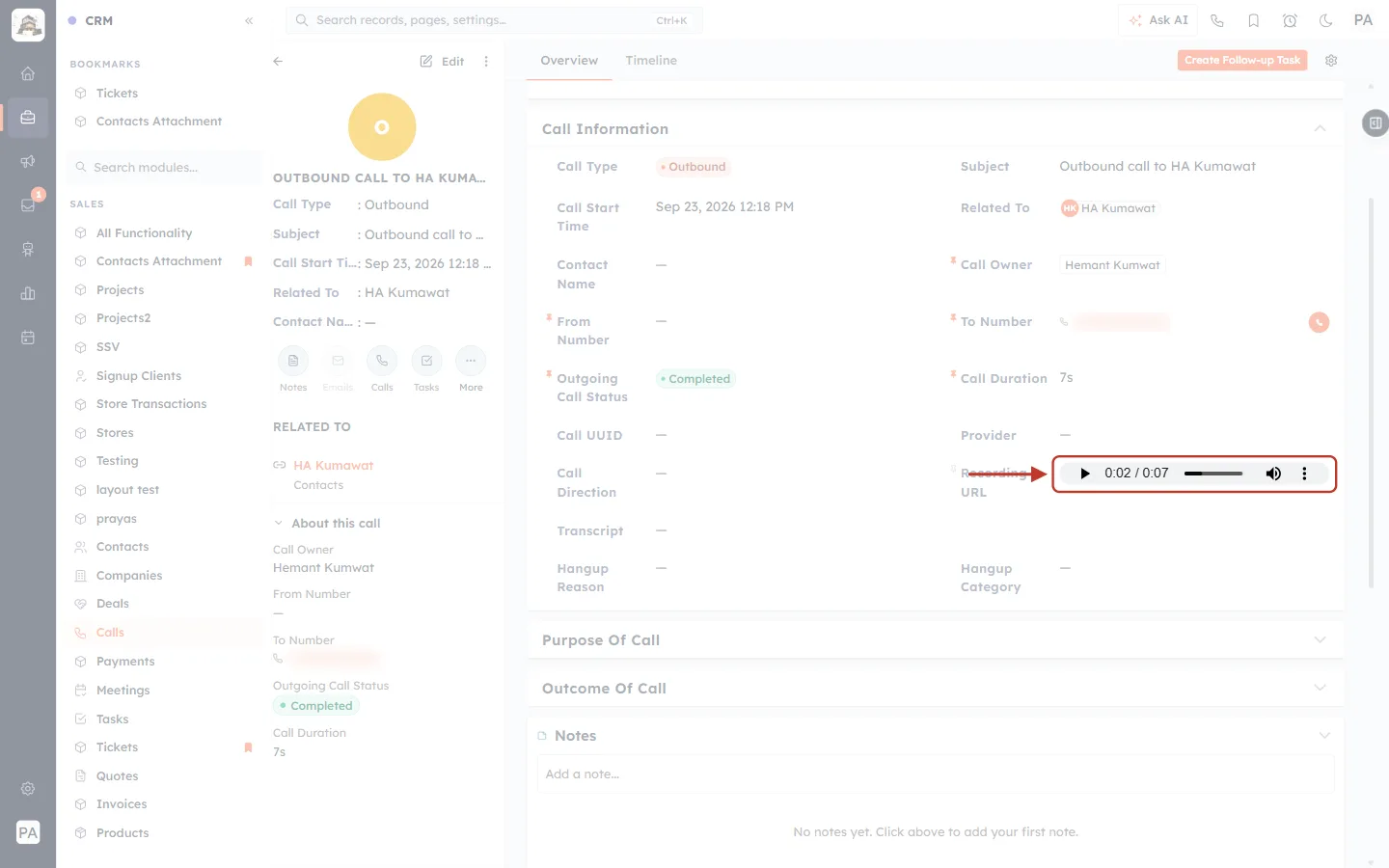
What this screenshot shows. The audio player, ringed, playing the recording.
▶ / ❚❚ play and pause; 0:02 / 0:07 the position and length; drag the bar to jump.
⋮: playback speed and Download to save the recording.
Part 6 (admins): Turn on recording for AiEngage calls#
Recordings of Via AiEngage calls are kept only if recording is on for the call provider account. An administrator sets this once in the CRM: Setup → Voice → Configure on the account.
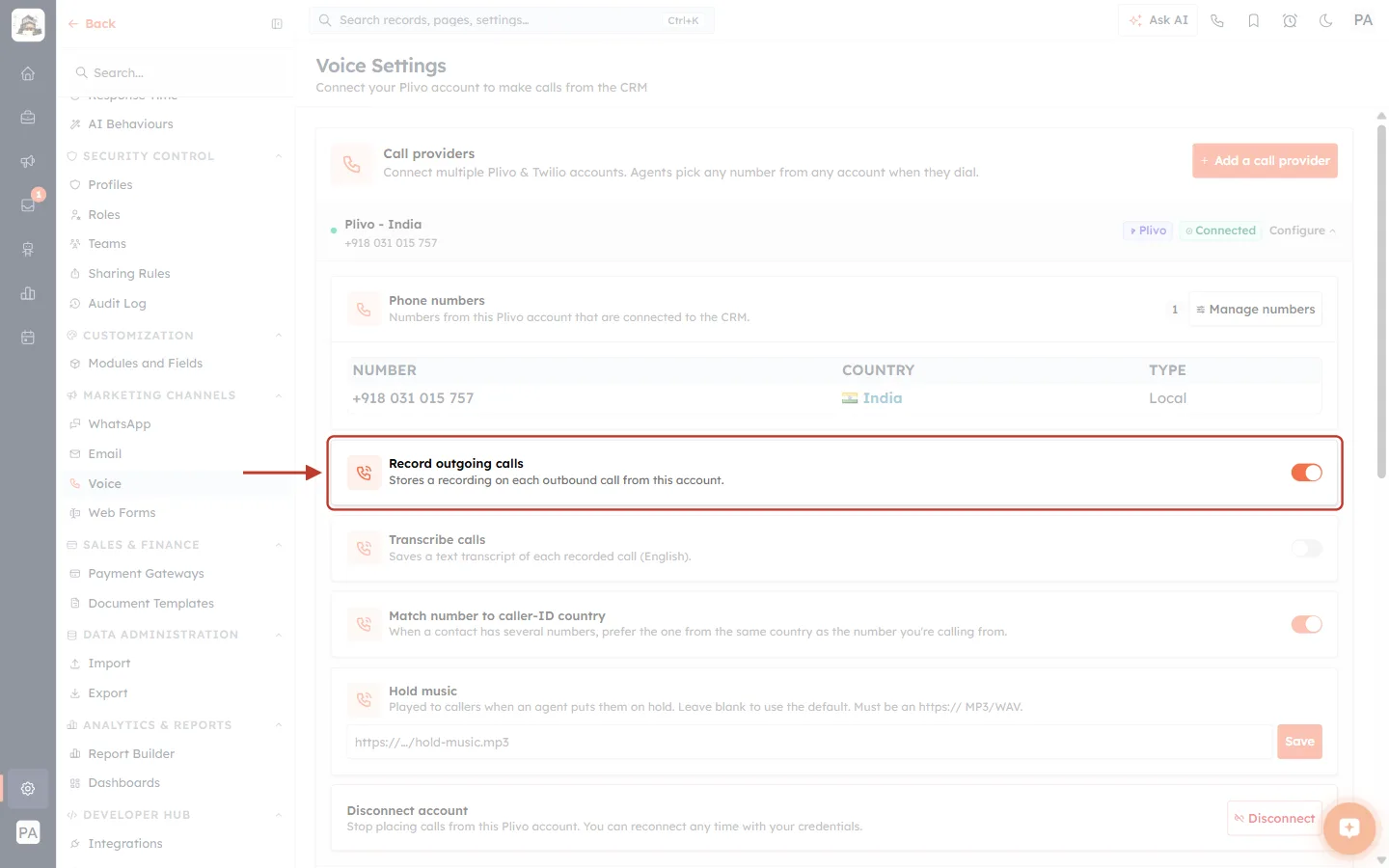
What this screenshot shows. The account’s configuration, with Record outgoing calls ringed.
Record outgoing calls (on): “Stores a recording on each outbound call from this account.”
Transcribe calls (below): optional text transcripts of recorded calls.
⚠️
Recording calls may require telling the other person, depending on your country’s laws. Check the rules that apply to you before switching recording on.
Your number or an AiEngage number?#
Via Phone (your SIM) | Via AiEngage (CRM number) | |
|---|---|---|
Customer sees | Your personal mobile number | Your company’s AiEngage number |
Logging | The app asks “Log this call?” — tap Yes and complete the form | Automatic — just add a note and tap Done |
Recording | Only if your phone records calls; attached in the Add Call form. Not available on phones with the Google Phone app (Pixel, Nothing, Motorola…) | Automatic when Record outgoing calls is on — works on every phone |
Call cost | Your mobile plan | Your company’s call provider account |
Needs | Dialer and call-log permission for the app | A connected provider and a caller-ID number assigned to you |
Troubleshooting#
The app didn’t ask “Log this call?”. Make sure the app has permission to read your call log, then use Log Call-Mobile to log the call from your history.
Via AiEngage isn’t offered, or Call from is empty. You have no AiEngage number assigned. Ask your administrator to assign you a caller ID.
“Connecting call…” never finishes. Check your internet connection and try again. If it keeps happening, your administrator should check that the call provider account is connected.
No recording for my Via Phone call. Check which phone app you use:
Google Pixel, Nothing, Motorola or any phone with the Google Phone (Google dialer) app: recordings never come into AiEngage CRM, because Google Phone keeps them private. This is a limit of the Google Phone app, not a setting you can change in AiEngage. Use Via AiEngage for calls you need recorded.
Other phones: the phone didn’t save a recording. Many phones only record when call recording is switched on in the phone’s own dialer settings.
The call has no Play recording button in the CRM. Recording was off for the provider account, the call didn’t connect, or (for Via Phone) no recording was attached.
“Finalizing…” takes a long time. Keep the app open — it is uploading the call and recording. On a slow connection this can take a little while.
Frequently asked questions#
Does the customer see my personal number with Via AiEngage? No. They see the AiEngage number you chose under Call from.
Can I log a call after the fact? Yes — use Log Call-Mobile to pick it from your phone’s history, or Log Call-Manually to enter it yourself.
I use a Google Pixel (or Nothing / Motorola). Why are my Via Phone calls never recorded in the CRM? These phones use the Google Phone (Google dialer) app, which doesn’t share call recordings with other apps. Your calls are still logged with their time and duration. For a recording, call with Via AiEngage — AiEngage records those calls itself, on any phone.
Who can listen to the recording? Anyone who can open that call record in the CRM, according to their profile and sharing rules.
Can I call from my computer instead? Yes — see Click-to-Call from Records and Make Calls with the Softphone Dialer.
Previous and next#
Previous: Click-to-Call from Records
Next: Calls Log & Reporting
Related#
Was this article helpful?
Ready to implement this?
OpenAI Engage and apply what you just learned to your own workspace.
Open AI Engage CRM