Loading…


KnowledgeBase
Move Between Records with the Previous and Next Arrows: Step Through Your List Without Going Back (Step-by-Step)
Introduction#
When you work through a list of records (calling new leads one by one, checking every deal in a stage, or tidying up contacts from one company) you no longer need to go back to the list after each record. Every record page has two small arrows, Previous ( ‹ ) and Next ( › ), at the top right. Click Next and the record that comes after it in your list opens straight away. Click Previous and you go back one.
The arrows always follow the list you opened the record from: the same view, search, filters and sort order. They also carry on past the end of a page, so you can step through every record in the list without touching the page buttons.
What you want to do | What to click | Where |
|---|---|---|
Open the record after this one in your list | Next record ( › ) | Top right of the record page, next to Change Layout |
Open the record before this one | Previous record ( ‹ ) | Just left of the Next arrow |
Return to the list, exactly as you left it | The ← back arrow | Top left of the record page |
This guide walks through every part of the feature with screenshots. It uses a sample Contacts list of 30 people, so you can follow along. Each screenshot is followed by a description of the whole screen, so you can match it against your own.
ℹ️
The arrows work the same way on records in every module: Contacts, Companies, Deals and your own custom modules. Only the module name and fields change.
Before You Begin#
You can use the arrows on any module you can view. They need no setup, and there is nothing to switch on.
Open the record from the module’s list. The arrows rely on that list, so they don’t appear if you open a record from a link in a new browser tab (see Part 7 below).
The arrows step only through records that are in your list. If you can’t see a record in the list, the arrows won’t take you to it.
Part 1: Open a Record from Your List#
Step 1: Open the module’s list#
In the left menu, under Sales, click the module you want to work through. In this example that is Contacts.
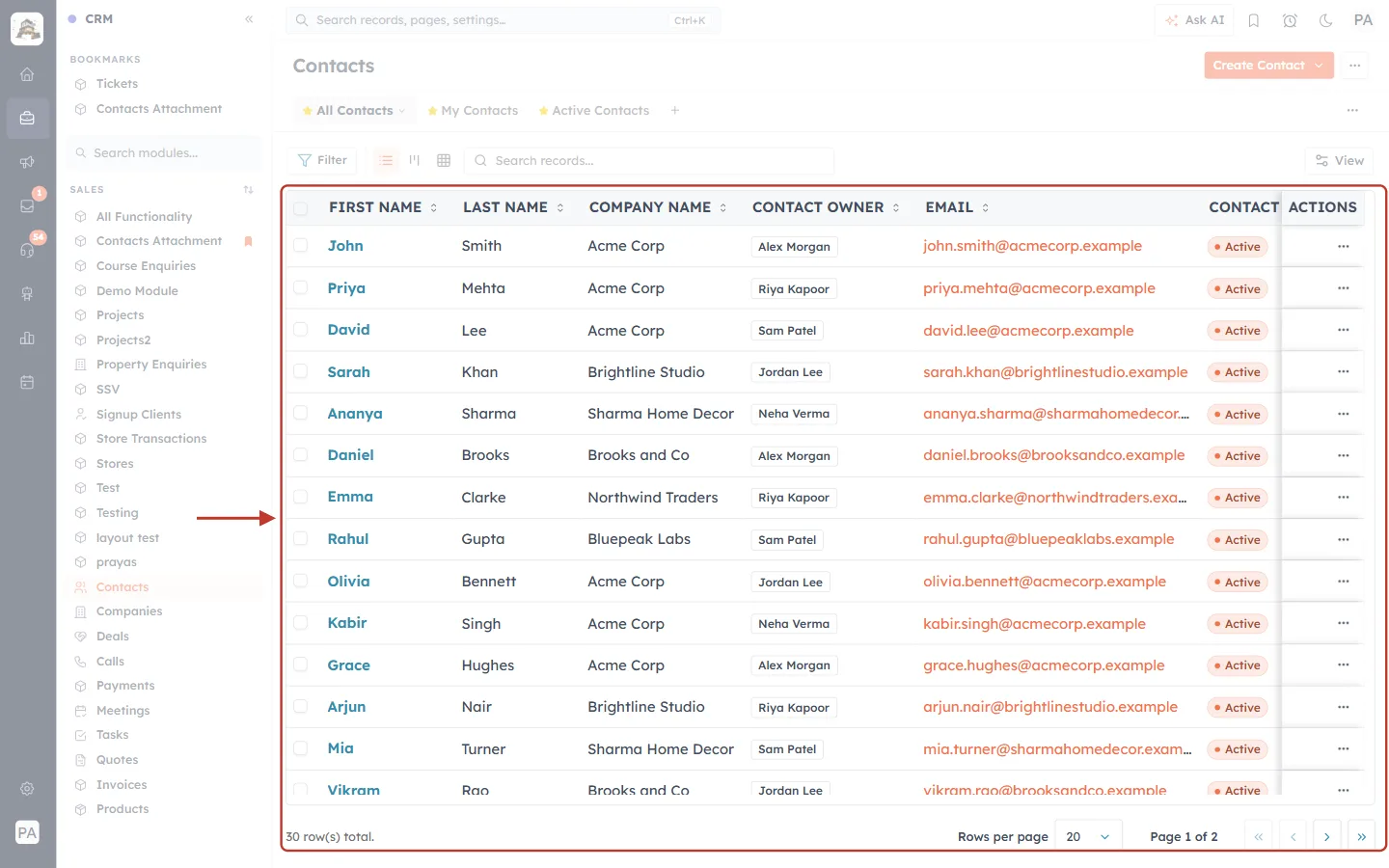
What this screenshot shows. The ringed area is the list of records. This is the list the arrows will step through.
Across the top: the views (All Contacts, My Contacts, Active Contacts). The view you pick decides which records are in the list.
Under them: Filter, the list / kanban / table layout buttons, and the Search records... box.
The table columns here are FIRST NAME, LAST NAME, COMPANY NAME, CONTACT OWNER, EMAIL and CONTACT STATUS. Each first name is a link that opens the record.
At the bottom: 30 row(s) total, Rows per page (20) and Page 1 of 2. The list has 30 records on two pages.
Step 2 (optional): Put the list in the order you want to work in#
The arrows move through the records in the same order as the list. If you want to work alphabetically, by newest first, or only through some records, set that up now. Here the list is sorted by first name, A to Z. Click the FIRST NAME column heading to open its sort menu.
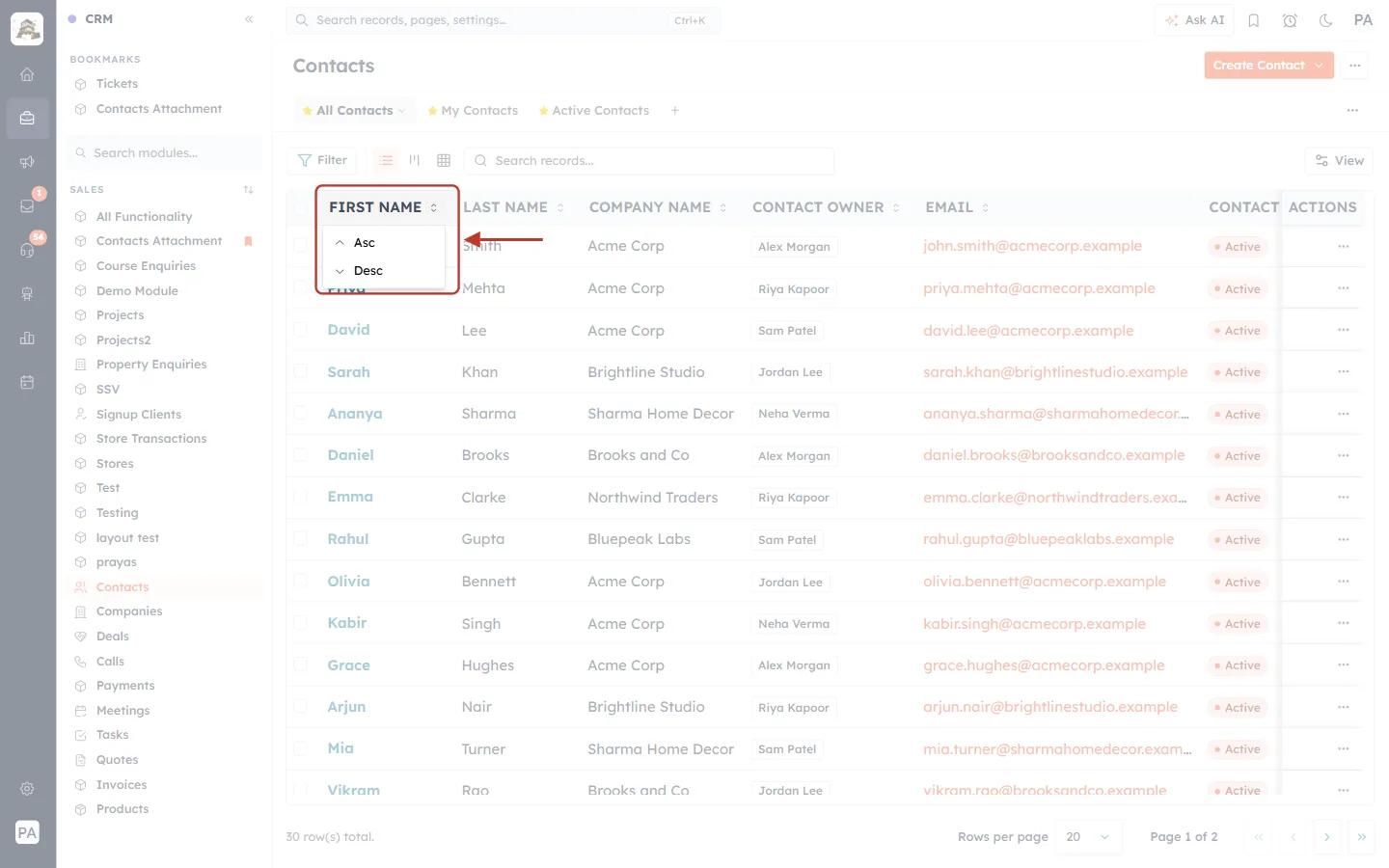
What this screenshot shows. The ringed FIRST NAME heading has opened a small menu with two choices.
Asc: sort A to Z (or smallest to largest, or oldest to newest).
Desc: sort Z to A (or largest to smallest, or newest to oldest).
Every column heading with the small ⇅ icon can be sorted the same way.
Click Asc. The list re-orders itself.
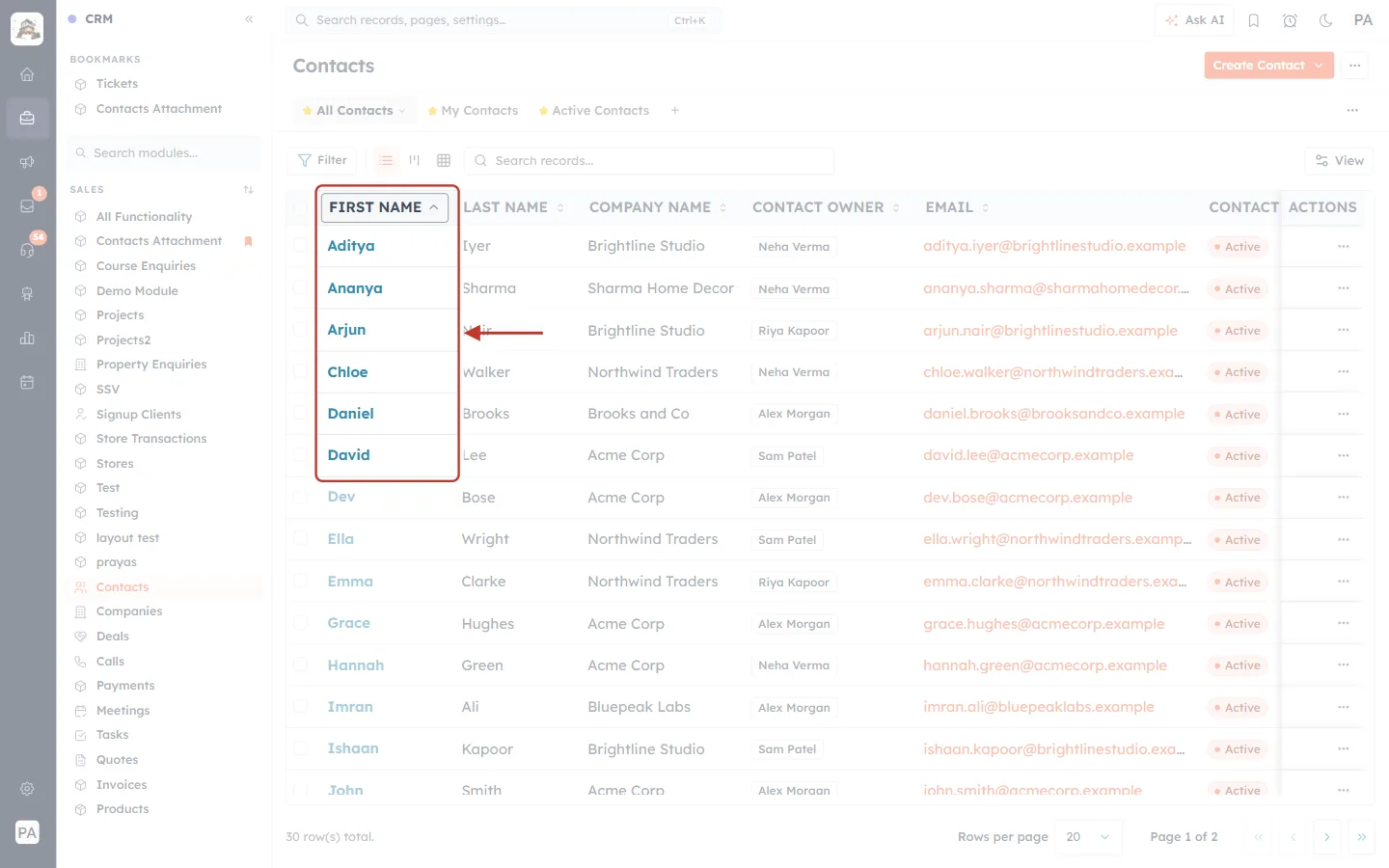
What this screenshot shows. The ringed FIRST NAME column now runs alphabetically: Aditya, Ananya, Arjun, Chloe, Daniel, David…
The heading shows an up-arrow ( ^ ) to tell you the column is sorted A to Z.
The arrows on the record page will follow this exact order. After Chloe comes Daniel, and before her is Arjun.
You can also narrow the list with a view, Filter or Search first. The arrows respect all of them (see Part 5 below).
Step 3: Click a record to open it#
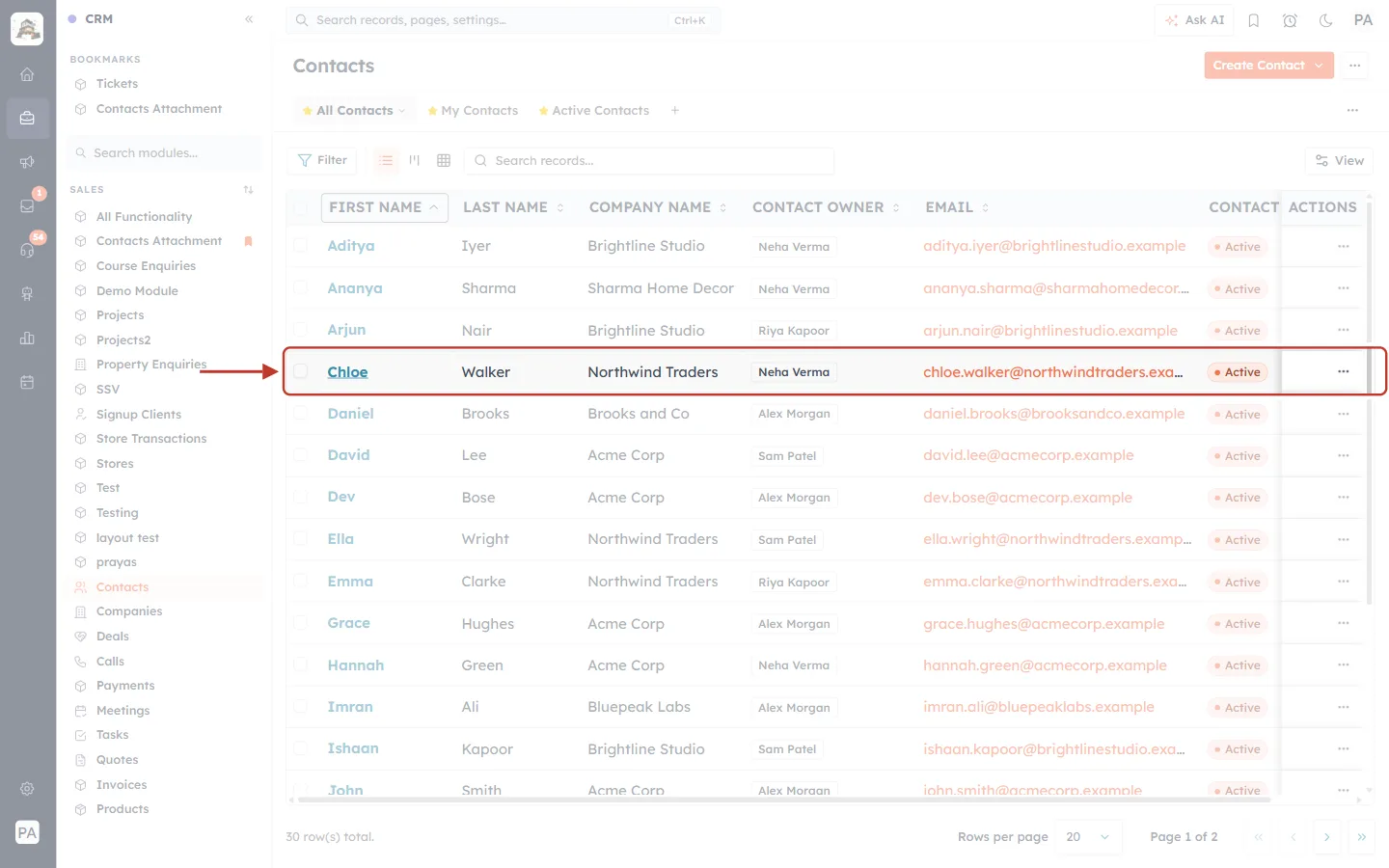
What this screenshot shows. The ringed row is Chloe Walker, the fourth contact in the sorted list. Her first name is a link.
Click the name link (Chloe) to open her record page.
At the moment you open the record, the CRM remembers this list (its view, search, filters and sort) so the arrows know what comes before and after.
Part 2: Use the Previous and Next Arrows#
Step 4: Find the arrows on the record page#
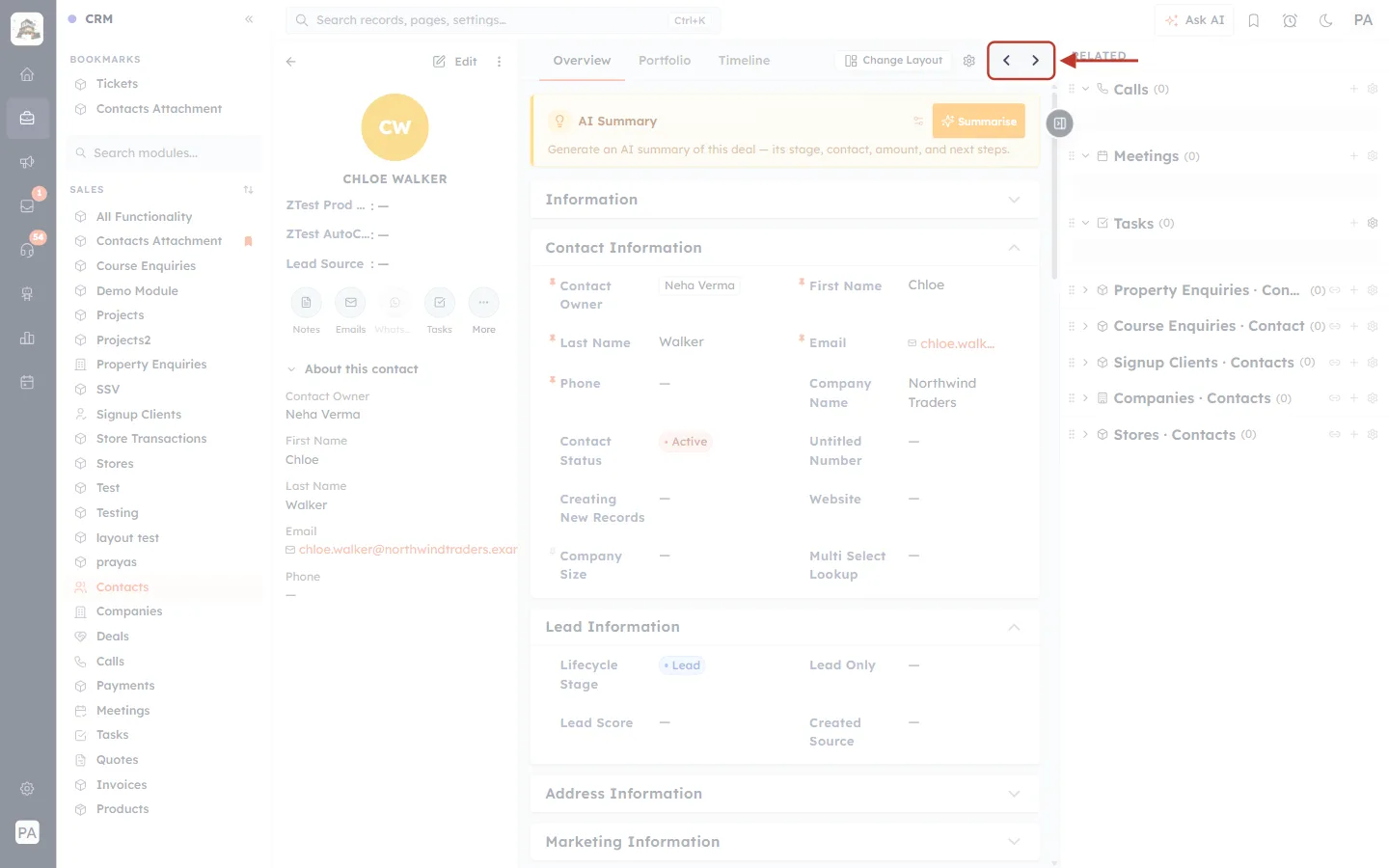
What this screenshot shows. Chloe Walker’s record is open. The two ringed arrows at the top right are Previous record ( ‹ ) and Next record ( › ).
They sit at the right end of the bar with the Overview, Portfolio and Timeline tabs, just after Change Layout and the gear icon.
On the left is the record summary: the CW avatar, the name CHLOE WALKER, the quick-action buttons (Notes, Emails, WhatsApp, Tasks, More) and About this contact.
In the middle is the Overview: the AI Summary box and the record’s field sections, such as Contact Information (Contact Owner Neha Verma, Company Name Northwind Traders).
On the right is the Related panel (Calls, Meetings, Tasks and other linked records).
Both arrows are dark, so both can be clicked: Chloe has a record before her and a record after her in the list.
Not sure which arrow is which? Hold your mouse over one and a label appears.
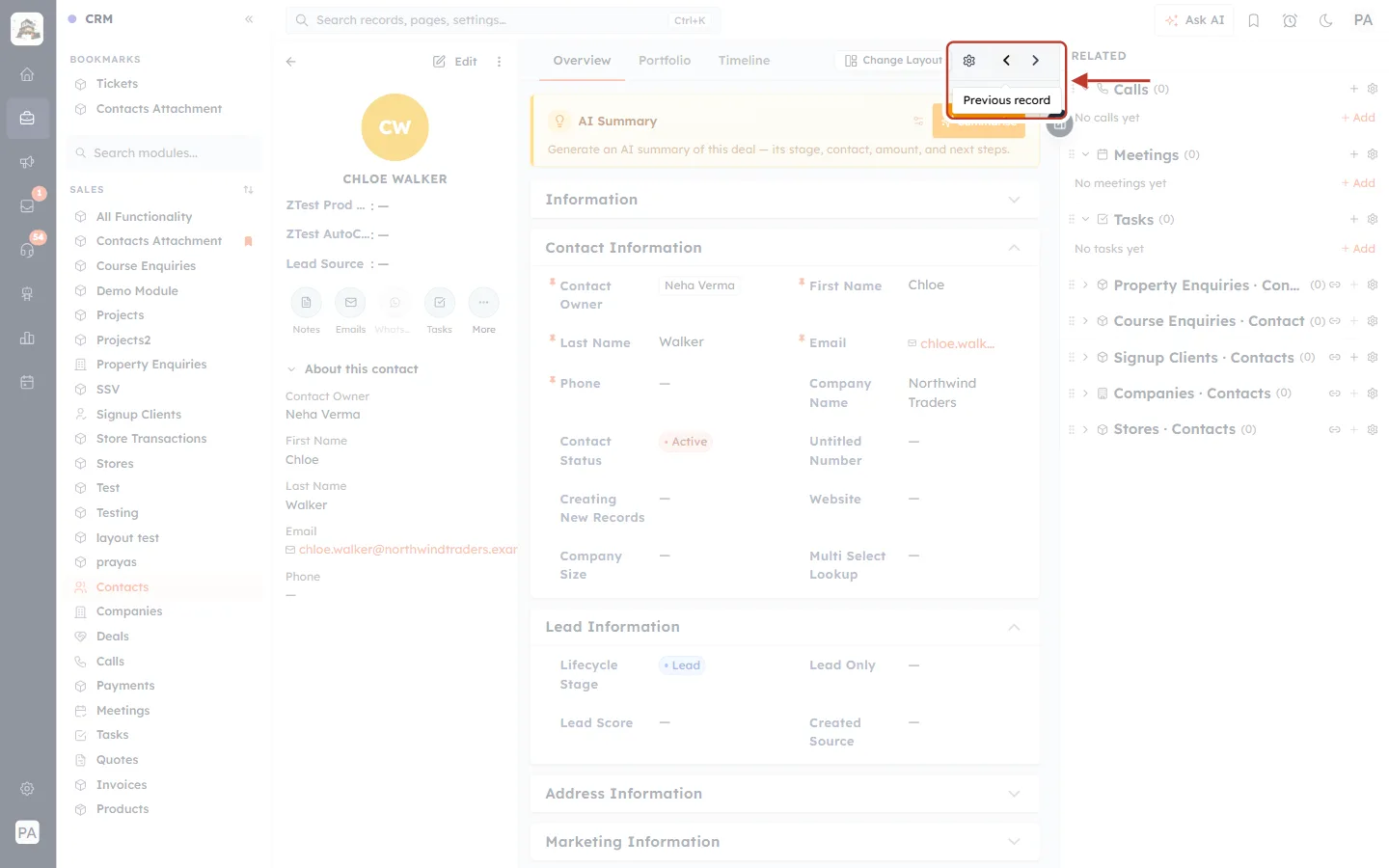
What this screenshot shows. With the mouse over the left arrow, the ringed label reads Previous record.
Clicking it opens the record before this one in your list. Here that is Arjun Nair.
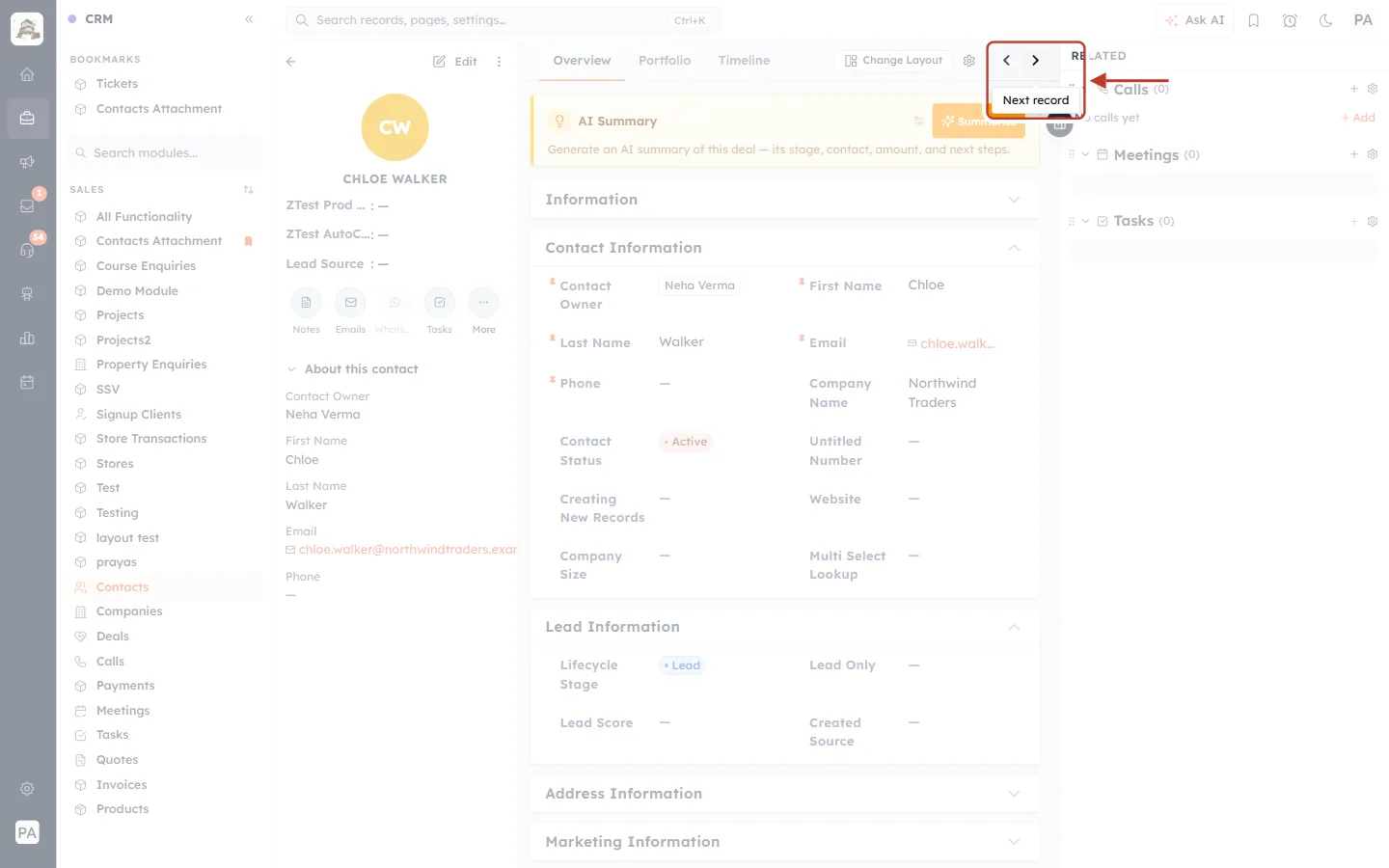
What this screenshot shows. With the mouse over the right arrow, the ringed label reads Next record.
Clicking it opens the record after this one in your list. Here that is Daniel Brooks.
Step 5: Click Next to open the next record#
Click Next record ( › ). The page changes to the next record in the list. You stay on the record page, and there is no need to go back to the list.
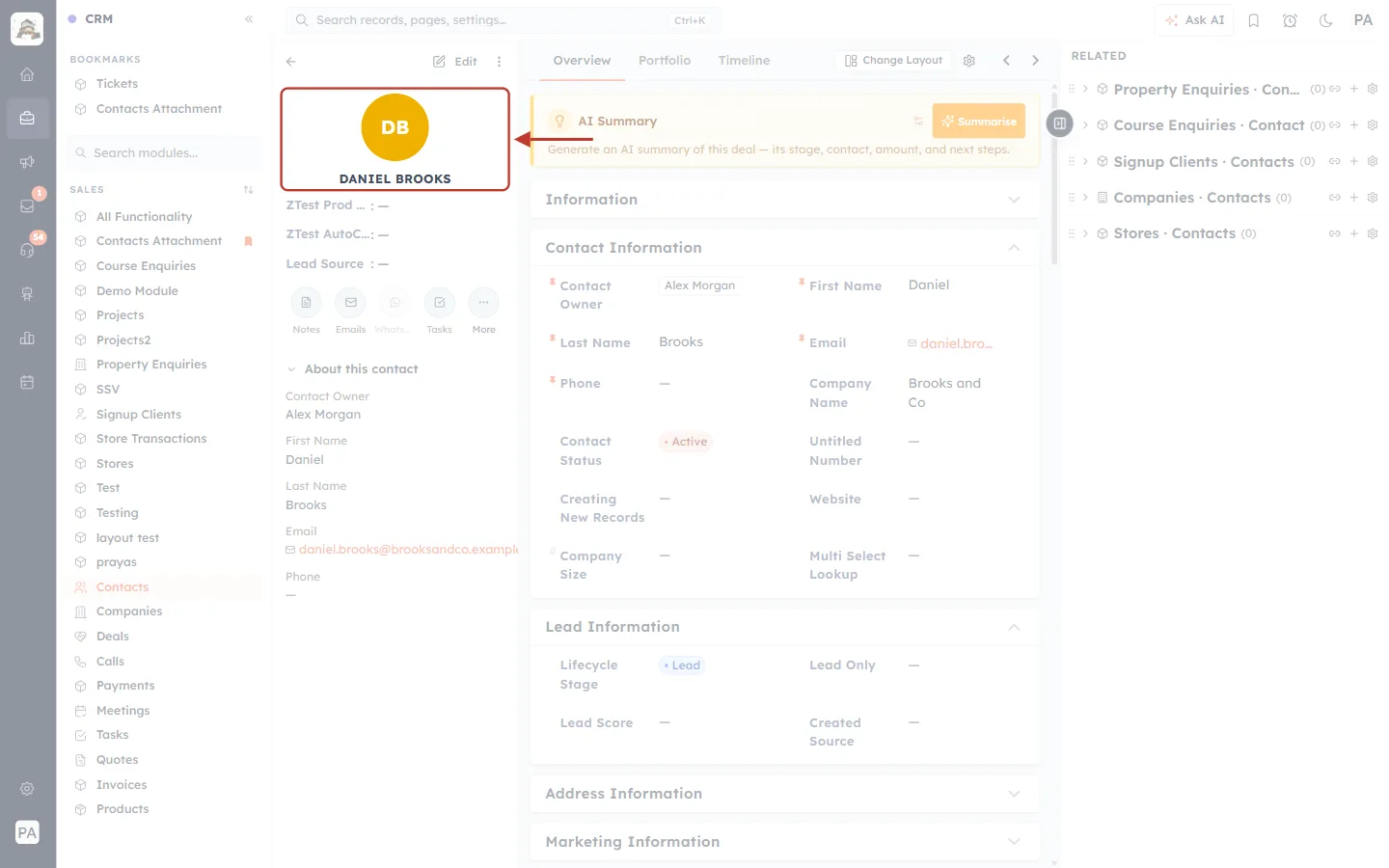
What this screenshot shows. The ringed summary now shows DB and DANIEL BROOKS, the contact that comes after Chloe in the A–Z list.
All of the page has changed to Daniel: About this contact shows Contact Owner Alex Morgan, and Contact Information shows Company Name Brooks and Co.
The Previous and Next arrows are still at the top right, ready for the next click.
The web address changes to Daniel’s record too, so you can copy it and share it as usual.
✅
Work through a whole list with one hand: read or update the record, then click Next. Any change you save is kept, exactly as if you had gone back to the list and opened the next record yourself.
Step 6: Click Previous to go back one record#
Click Previous record ( ‹ ) to go back to the record before. From Daniel, Previous opens Chloe again, then Arjun, then Ananya, and so on.
ℹ️
While the next record is loading, both arrows turn grey for a moment. Wait until they are dark again before clicking.
Part 3: The Start and End of the List#
The arrows stop at the ends of your list. They don’t loop round from the last record back to the first.
On the first record, Previous is greyed out#
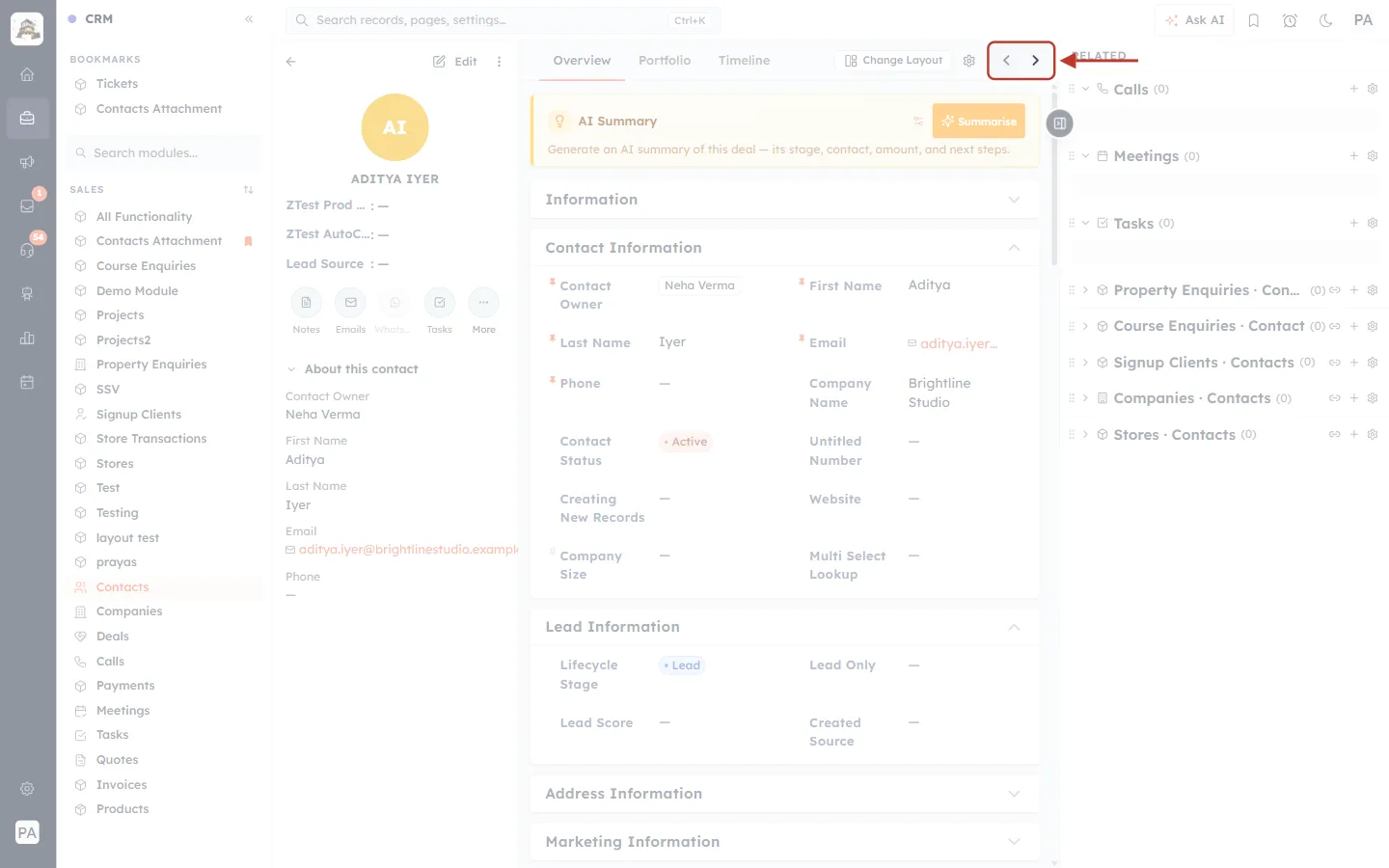
What this screenshot shows. This is Aditya Iyer, the first contact in the A–Z list. In the ringed arrows, Previous ( ‹ ) is pale grey and can’t be clicked.
There is no record before the first one, so Previous is switched off.
Next ( › ) is still dark. Click it to move on to Ananya Sharma.
On the last record, Next is greyed out#
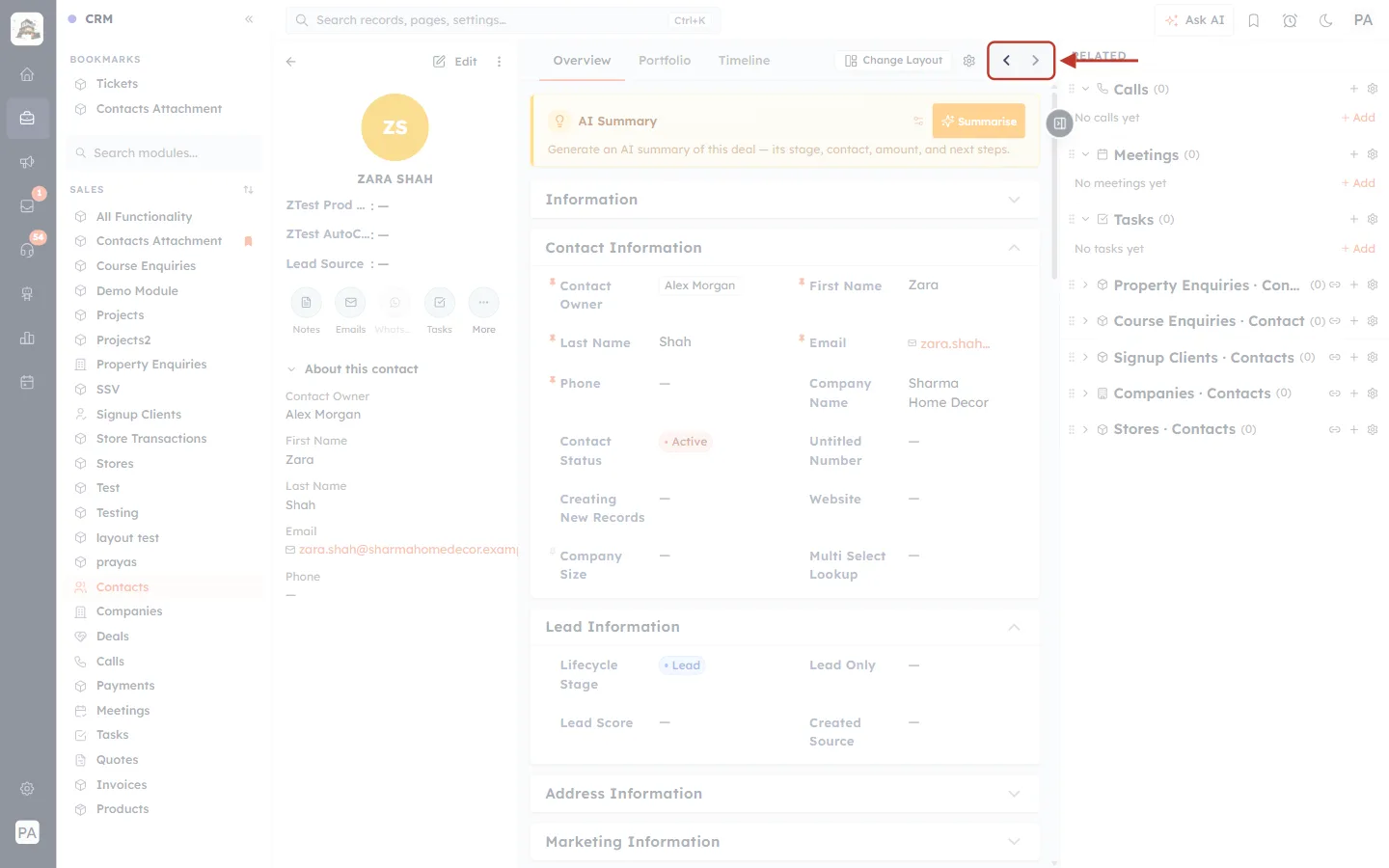
What this screenshot shows. This is Zara Shah, the 30th and last contact. In the ringed arrows, Next ( › ) is pale grey and can’t be clicked.
There is no record after the last one, so Next is switched off.
Previous ( ‹ ) is still dark. Click it to go back to Vikram Rao.
To start again from the top, go back to the list (Part 6) and open the first record.
Part 4: The Arrows Carry On onto the Next Page#
Your list may be split over several pages, but the arrows step through the whole list, not just the page you were on. When you reach the last record of page 1, Next takes you to the first record of page 2.
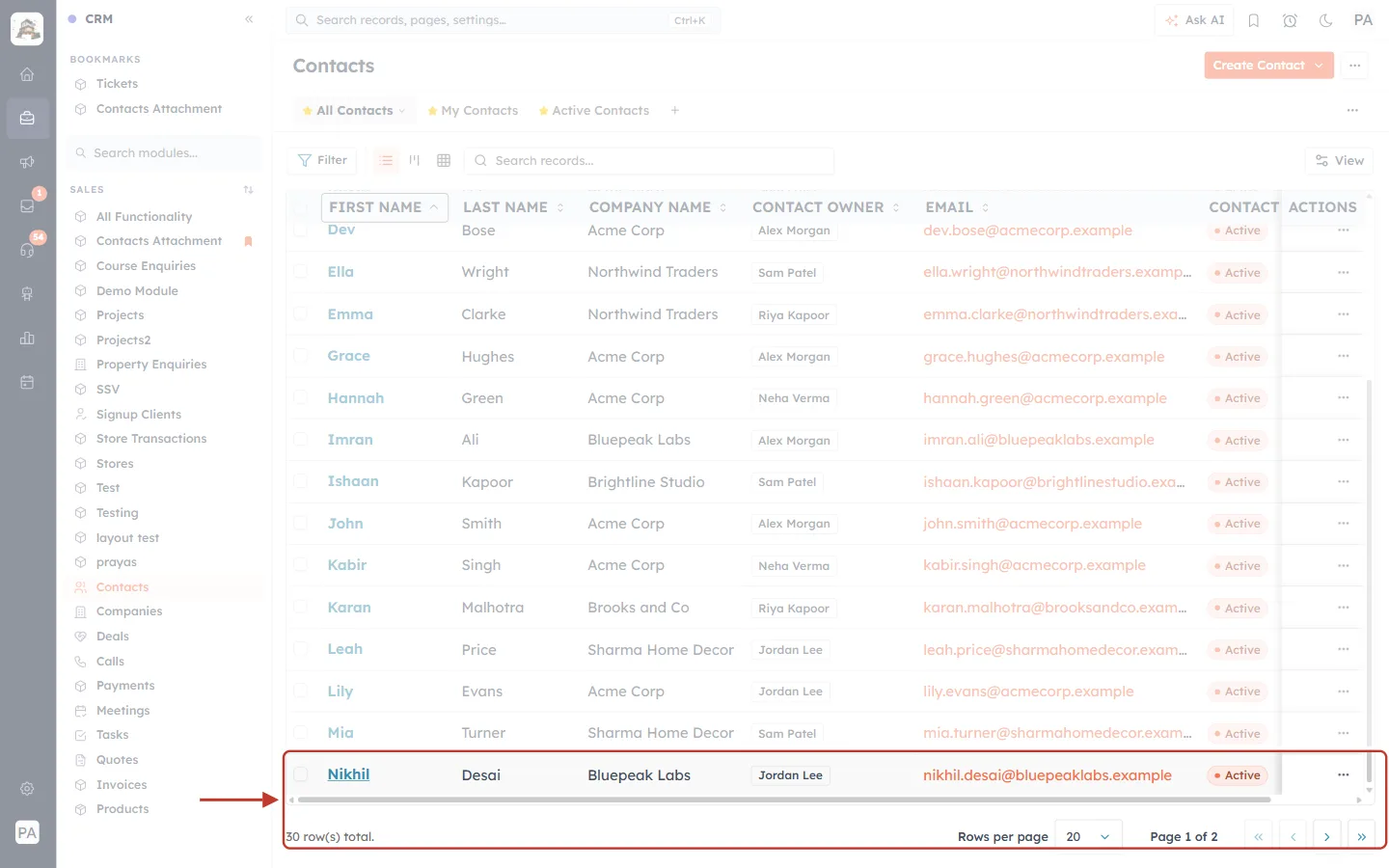
What this screenshot shows. The ringed row at the bottom of page 1 is Nikhil Desai, the 20th contact in the A–Z list. The footer reads 30 row(s) total and Page 1 of 2.
Nikhil is the last record you can see on this page. The other 10 contacts are on page 2.
Open Nikhil’s record by clicking his name.
On Nikhil’s record, click Next.
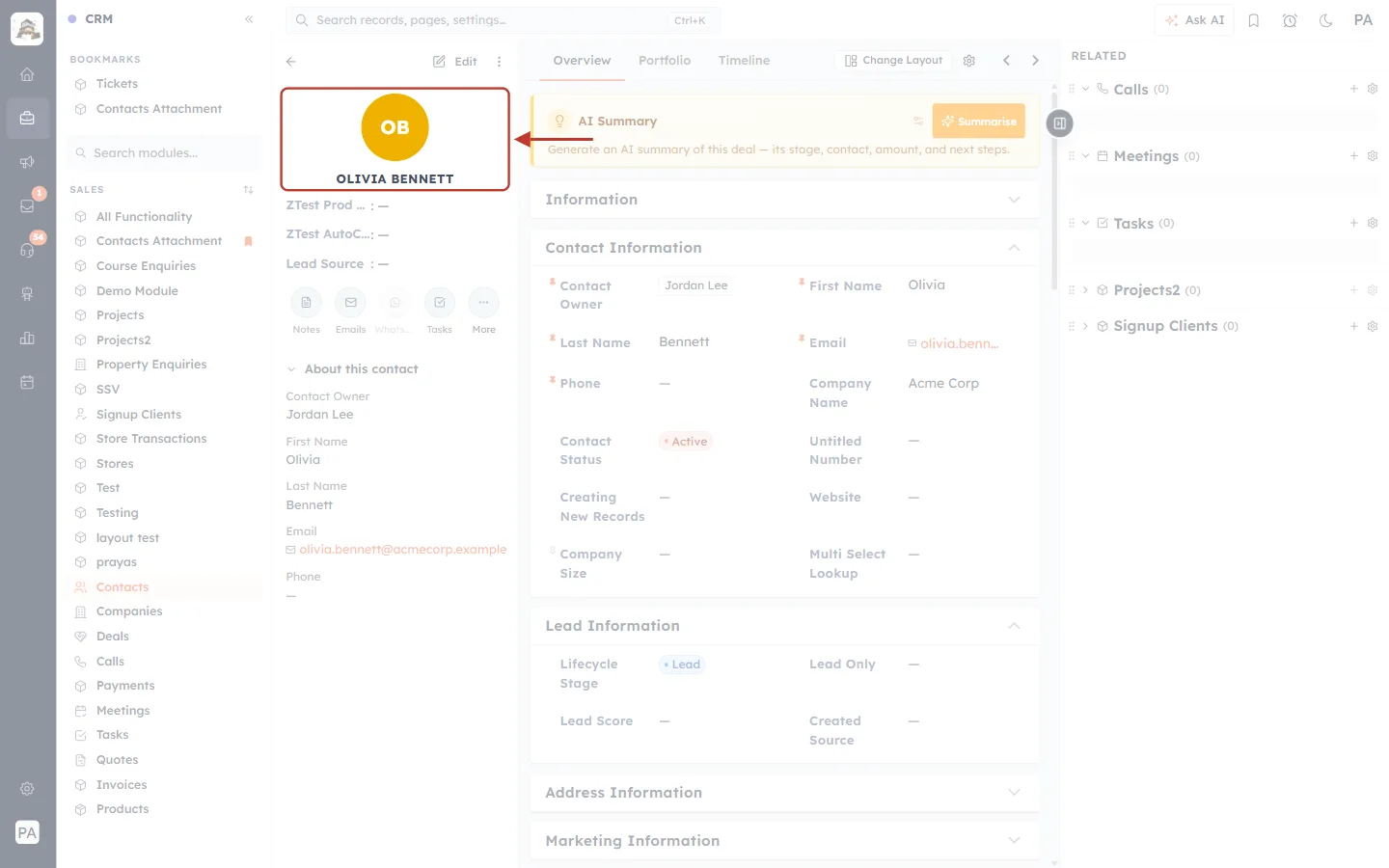
What this screenshot shows. The ringed summary shows OB and OLIVIA BENNETT, the 21st contact. She is the first record on page 2 of the list.
You didn’t have to go back and click the page buttons. The arrows keep going until the very last record in the list.
Olivia’s Contact Information shows Contact Owner Jordan Lee and Company Name Acme Corp.
Part 5: The Arrows Follow Your Search, Filters and Sort#
If you narrow the list before opening a record, the arrows only move between the records that are left. This is the easiest way to work through one group of records, for example every contact from one company.
Step 7: Search or filter the list#
Type in the Search records... box, apply a Filter, or pick a different view. Here we searched for Acme.
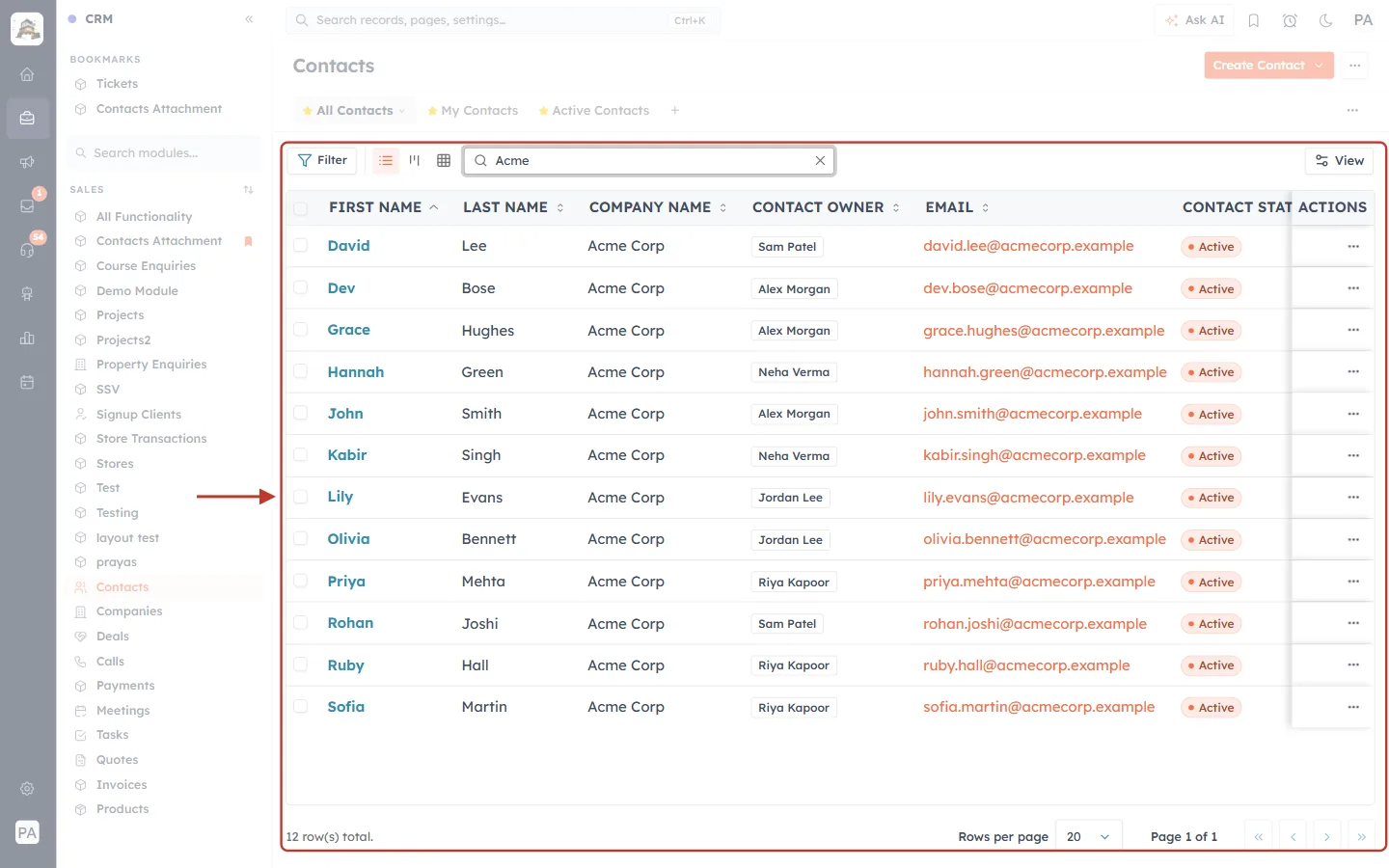
What this screenshot shows. The ringed list now shows only the contacts that match Acme. The footer reads 12 row(s) total and Page 1 of 1.
The Search records... box contains Acme. Click the × in the box to clear it.
Every row has Acme Corp in COMPANY NAME.
The A–Z sort on FIRST NAME is still on, so the list starts with David, Dev, Grace, Hannah…
Step 8: Open a record and step through the results#
Open the first result, David Lee, then click Next.
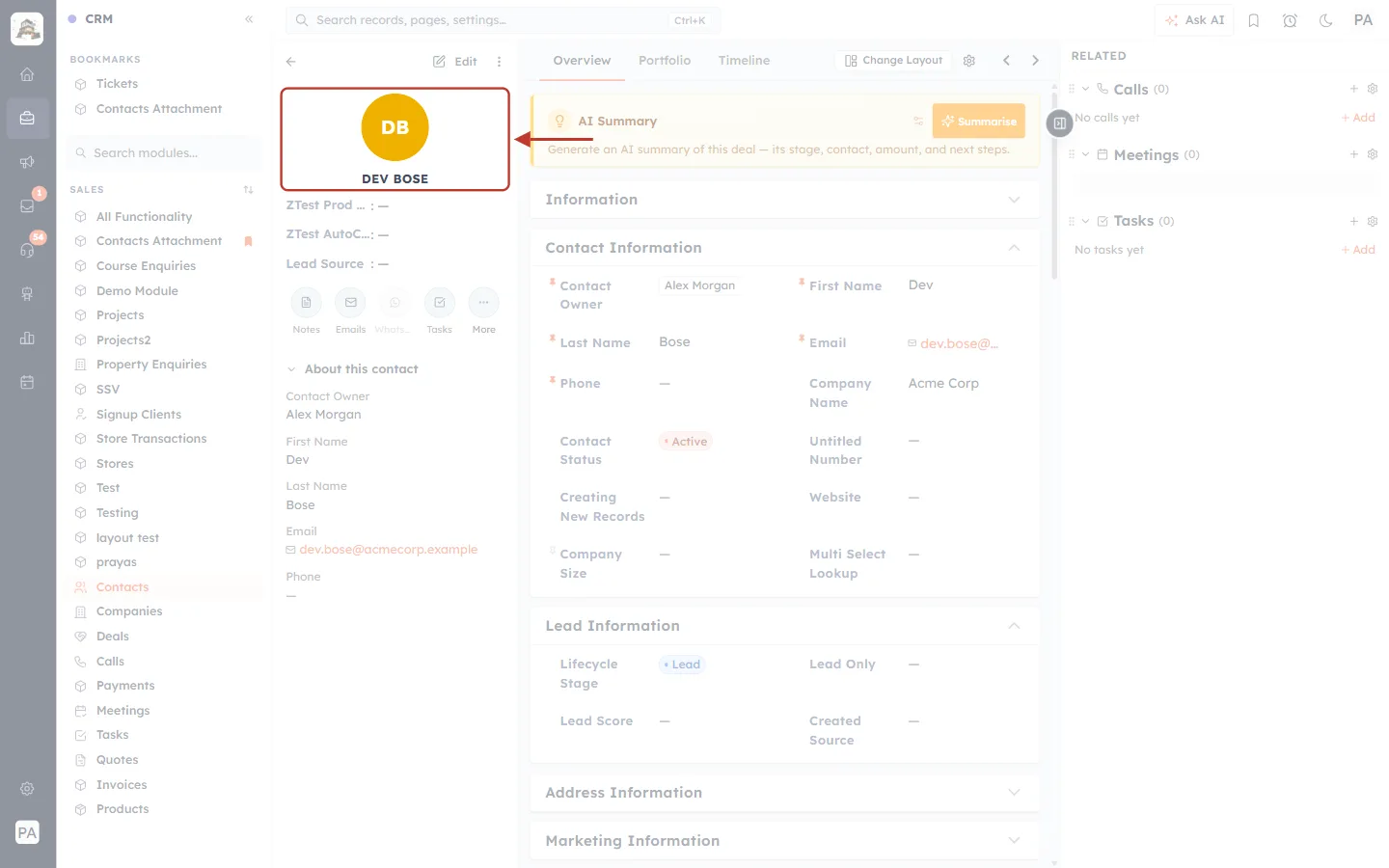
What this screenshot shows. The ringed summary shows DEV BOSE, the second contact in the Acme results.
In the full A–Z list, the contact after David would be Ella Wright. Ella works at Northwind Traders, so she isn’t in the search results, and Next skips her.
The arrows only move between the 12 Acme contacts, in A–Z order.
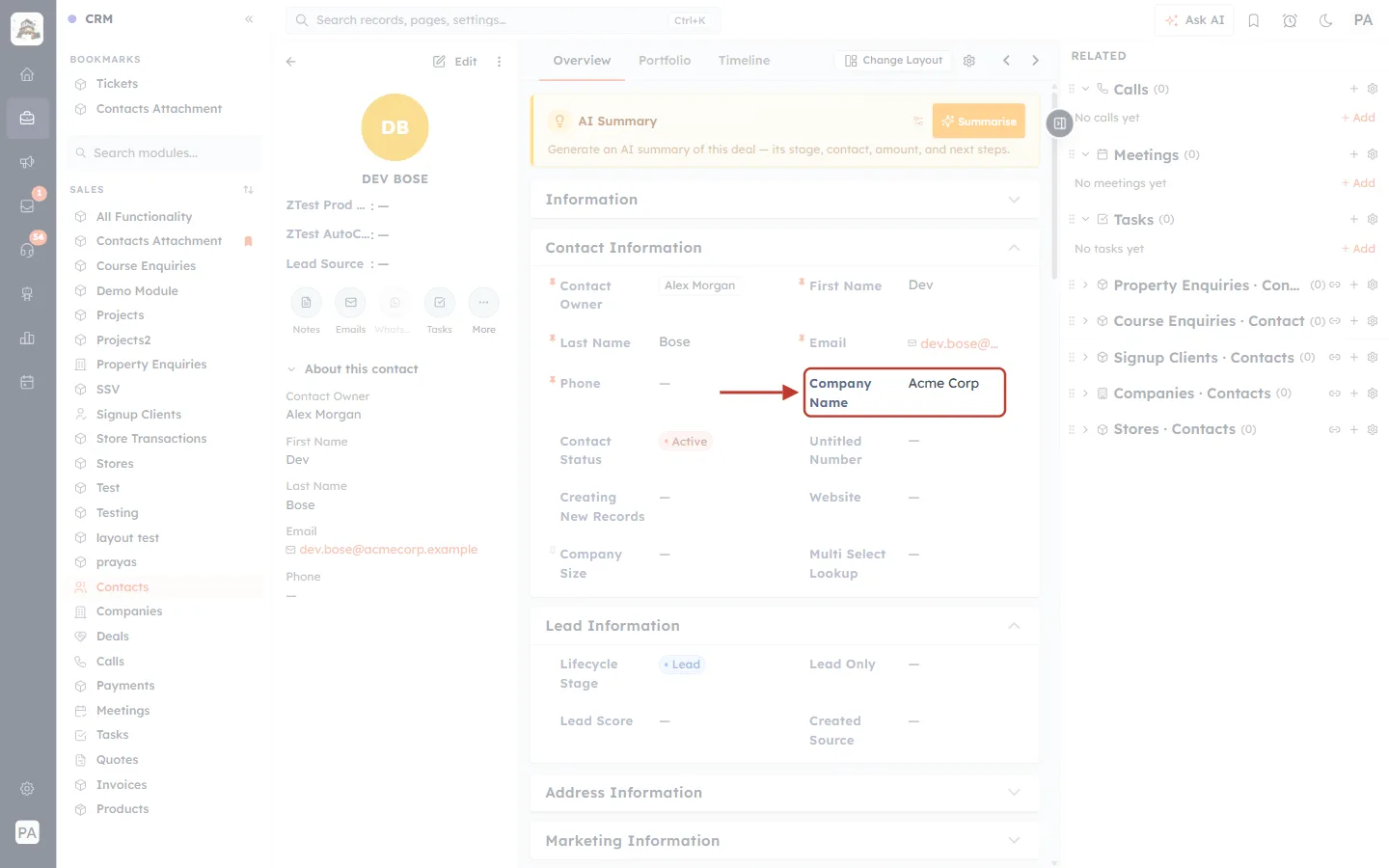
What this screenshot shows. Further down the same page, the ringed field is Company Name: Acme Corp.
This confirms that Next stayed inside the search results.
The same is true for filters, views and sorting: the arrows use exactly the list you saw when you opened the record.
⚠️
The arrows remember the list as it was when you opened the record. If you change a record so that it no longer matches your search or filter (for example you change its company), it drops out of the list. Next then takes you to the first record of the list. Go back to the list (←) and open the record you want to carry on from.
Part 6: Go Back to Your List#
Step 9: Click the back arrow#
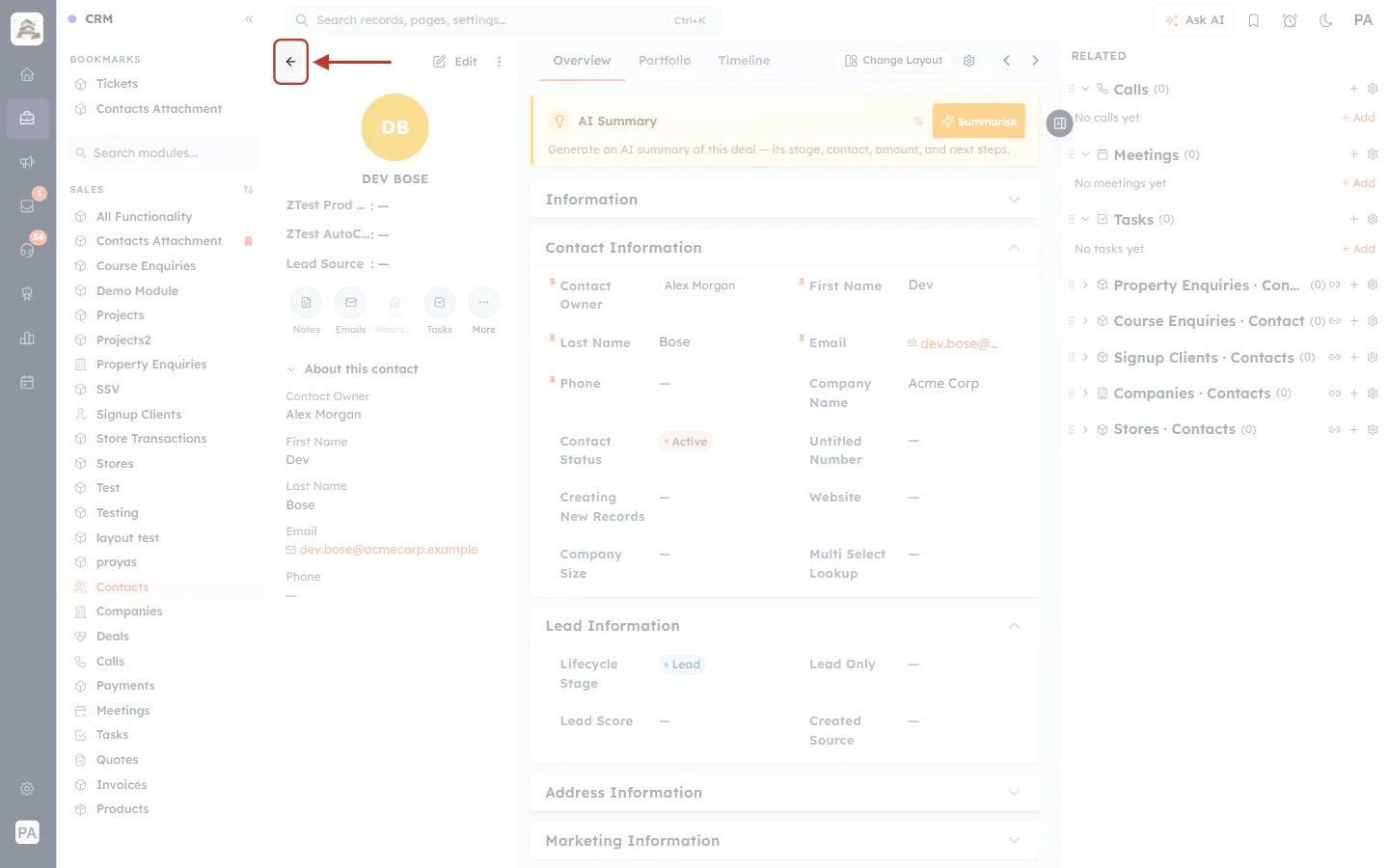
What this screenshot shows. The ringed ← arrow sits at the top left of the record page, above the avatar.
Click it to close the record and return to the list you came from.
It doesn’t matter how many times you clicked Previous or Next. One click takes you back to the list.
The Edit button and the ⋮ menu next to it are for changing the record itself.
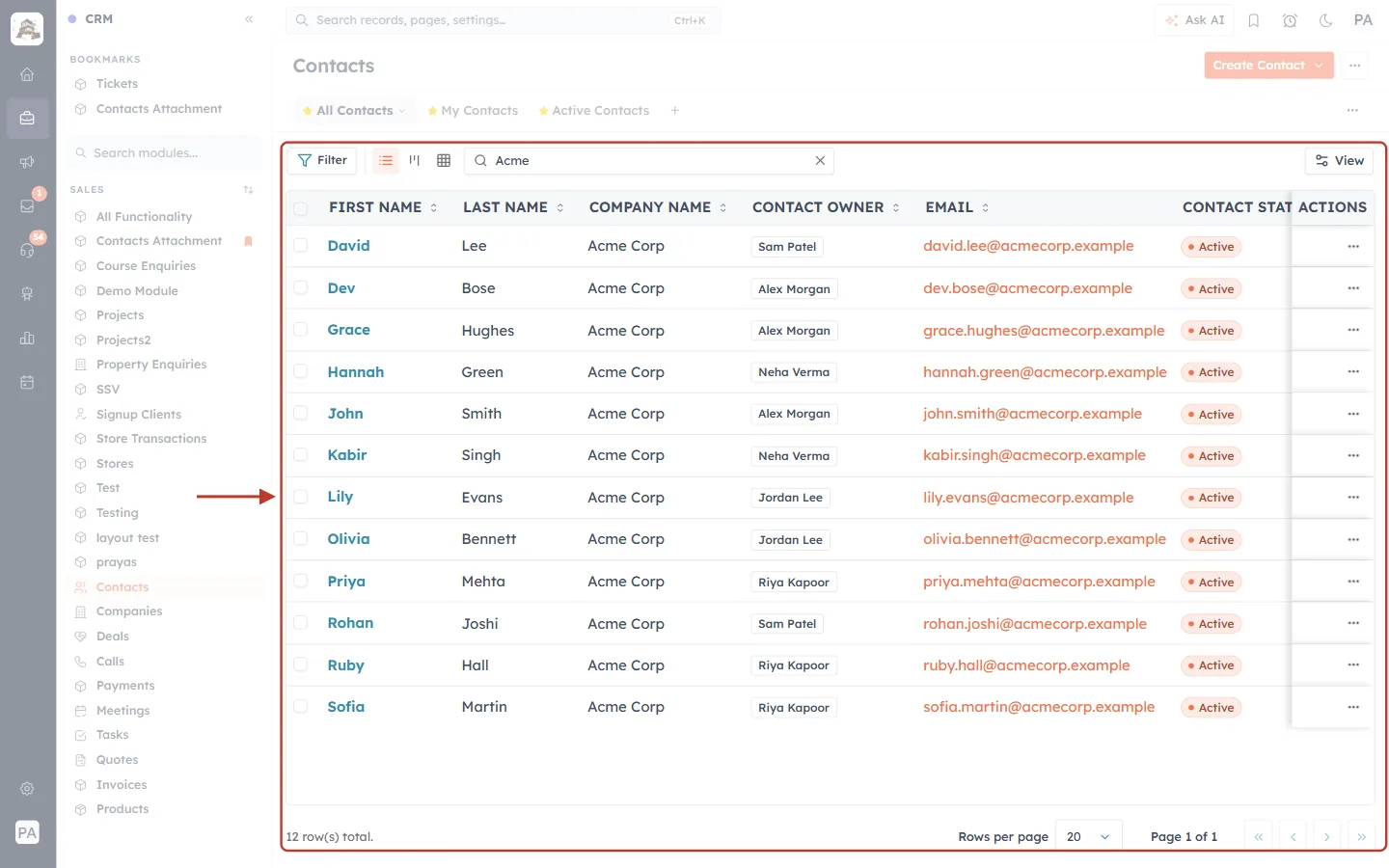
What this screenshot shows. You are back on the list, and it is exactly as you left it.
The Search records... box still contains Acme, and the list still shows the 12 Acme contacts.
The FIRST NAME A–Z sort is still on.
The view (All Contacts) and the page you were on are kept as well, so you can carry on where you stopped.
ℹ️
Your browser’s Back button also takes you back to the list. The Previous and Next arrows don’t add each record to your browser history, so you don’t have to press Back once for every record you stepped through.
Part 7: When the Arrows Don’t Appear#
The arrows need a list to step through. Each browser tab remembers the last list you opened in each module. If a tab has no list for that module yet, the record page has no arrows.
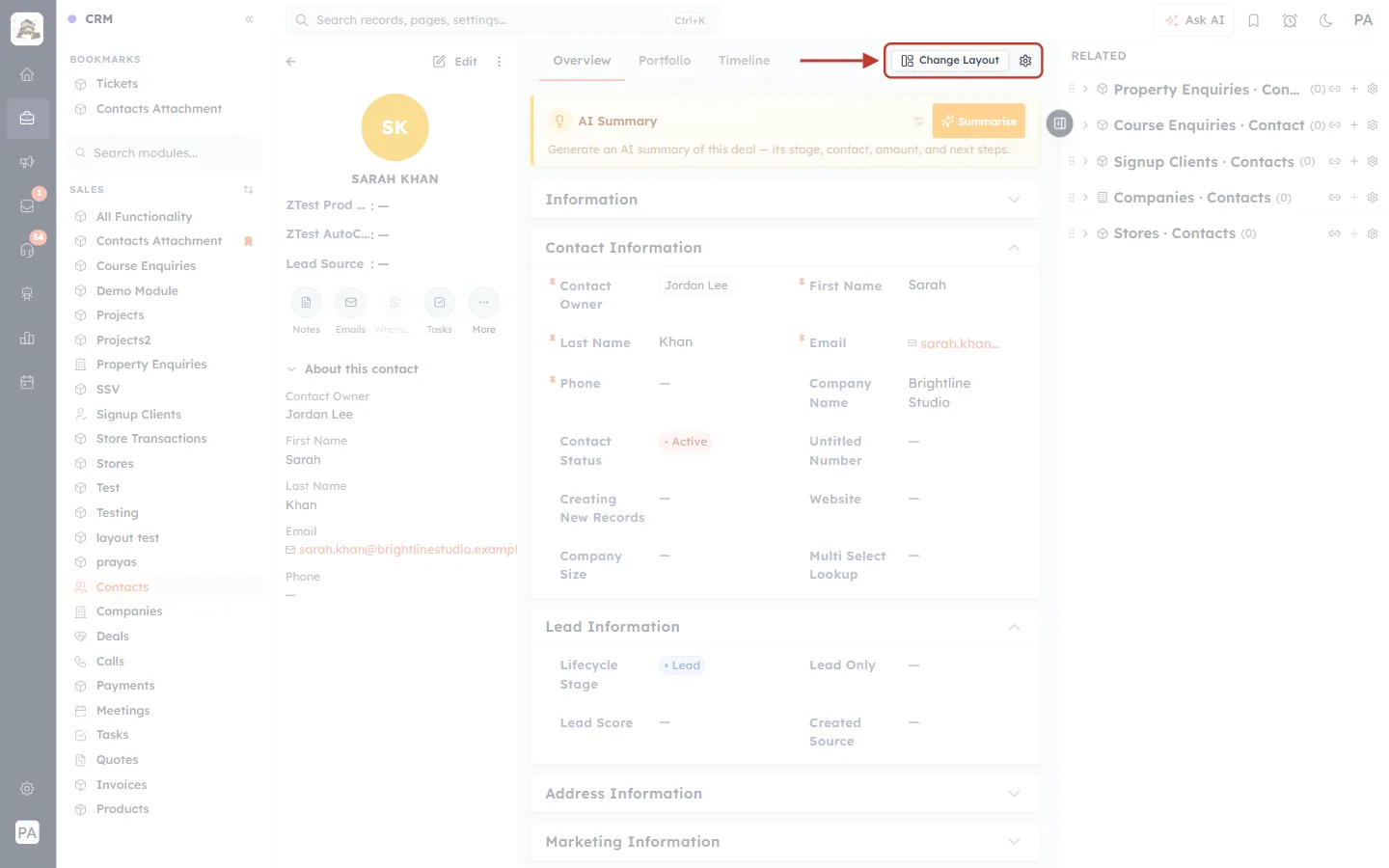
What this screenshot shows. This record (Sarah Khan) was opened by pasting its web address into a new browser tab. The ringed end of the tab bar shows only Change Layout and the gear icon. There are no Previous or Next arrows.
The new tab has never shown the Contacts list, so there is no list to step through.
Everything else on the record works normally.
To get the arrows, open Contacts from the left menu in this tab, then open the record from the list.
The arrows are also missing in these cases, for the same reason:
You opened the record from a bookmark or a link in an email or chat, in a new tab.
You opened the record in a new tab (for example with Ctrl + click or the middle mouse button). A new tab may not have your list. Open the list in that tab first.
You closed the browser tab and opened the CRM again in a new one.
If you open a record from somewhere else (for example the search bar at the top of the CRM) in a tab where you have already opened that module’s list, the arrows still appear. They step through that last list. If the record isn’t part of it, Next takes you to the list’s first record. Open the record from the list itself to step from the right place.
Quick Reference#
I want to… | Do this |
|---|---|
Open the record after this one | Click Next record ( › ), top right |
Open the record before this one | Click Previous record ( ‹ ), top right |
Work through records in a particular order | Sort the list first, then open the first record |
Work through only some records | Search, filter or pick a view first, then open a record |
Carry on to the next page of the list | Just keep clicking Next |
Go back to the list as I left it | Click ← at the top left, or your browser’s Back button |
Get the arrows on a record opened from a link | Open the module’s list in that tab, then open the record from it |
Best Practices#
Sort and filter first. Set up the list before you open the first record, so every click on Next brings up the right record.
Save your usual list as a view. A custom view (for example “New leads this week”) gives you the same list to step through every day. See Create, Share & Manage Custom Views (List & Kanban).
Start from the first record when you want to cover the whole list, then use Next until it greys out.
Save before you move on. If you are editing a record, save your change before clicking Next.
Use one tab per list. Each tab remembers its own list, so you can step through two different lists in two tabs at the same time.
Troubleshooting#
I can’t see the Previous and Next arrows#
The record wasn’t opened from the module’s list in this browser tab. Open the module from the left menu, then click the record in the list. See Part 7.
Next skipped a record I expected#
That record isn’t in your list. Check the view, the Search records... box and any Filter: the arrows only move between records the list shows.
The records come up in a different order than I expected#
The arrows use the list’s sort. Go back to the list (←), check which column is sorted and whether it is Asc or Desc, change it if needed, and open the record again.
An arrow is grey and won’t click#
You are on the first record (Previous is grey) or the last record (Next is grey) of the list. If both are grey for a moment, the next record is still loading.
Frequently Asked Questions#
Does this work in every module?
Yes. Contacts, Companies, Deals and custom modules all have the arrows, as long as you open the record from the module’s list.
Do the arrows only move through the page I was looking at?
No. They move through the whole list, page after page, until the last record.
Can I use the arrows after searching or filtering?
Yes. The arrows only move between the records that match your search, filters and view, in the list’s sort order.
Does going back with the ← arrow lose my search or page?
No. You return to the list exactly as you left it.
Does Next change or save anything?
No. The arrows only open another record. Nothing is changed on the record you leave.
Previous and Next#
Related Articles#
Was this article helpful?
Ready to implement this?
OpenAI Engage and apply what you just learned to your own workspace.
Open AI Engage CRM