Loading…


KnowledgeBase
Delete a Layout and Move Its Records: Remove a Form Without Losing Any Data (Step-by-Step)
What happens when you delete a layout?#
When a layout is no longer needed — a team has merged into another, or a trial form never took off — you can delete it. Records are never deleted with it. Instead, the CRM asks you to pick another layout, and then moves everything that depended on the deleted one:
Records — every record created on the deleted layout (including archived ones) is moved to the layout you pick.
Profiles — the profiles that used the layout, and any profile that had it as its Default Layout, now use the layout you pick.
Fields only on that layout — fields that the deleted layout shows but the layout you pick doesn’t are added to the layout you pick, with their data, so no value disappears from view.
Moving the records does not change them in any other way: their field values stay the same, and it doesn’t count as an edit (no workflows run and the records’ “modified” dates don’t change).
Example used in this guide. The Contacts module has three layouts: Standard (the default), Sales and Support. Support is shared with Administrator and Tester, has 14 contacts on it, and has two fields no other layout uses — Support Plan and Preferred Contact Time. You delete Support and move everything to Standard.
Delete or deactivate?#
| Deactivate | Delete | |
|---|---|---|
| Can be undone | Yes — switch it back on | No |
| The layout and its form | Kept | Removed |
| Its records | Stay on it and still open | Moved to the layout you pick |
| Its profiles | Moved to the layout you pick | Moved to the layout you pick |
ℹ️
If you might need the layout again, deactivate it instead — see Activate or Deactivate a Layout.
Before you begin#
You need permission to customise modules (the Administrator profile has it).
Standard and the module default layout can’t be deleted. To delete the current default, first make another layout the default — see Set the Module Default Layout.
Decide which active layout should receive the records. Pick the one whose fields are closest to the layout you are deleting.
Both active and switched-off layouts can be deleted.
Part 1: Open the module’s Layouts page#
Step 1: Go to Setup → Modules and Fields → Configure#
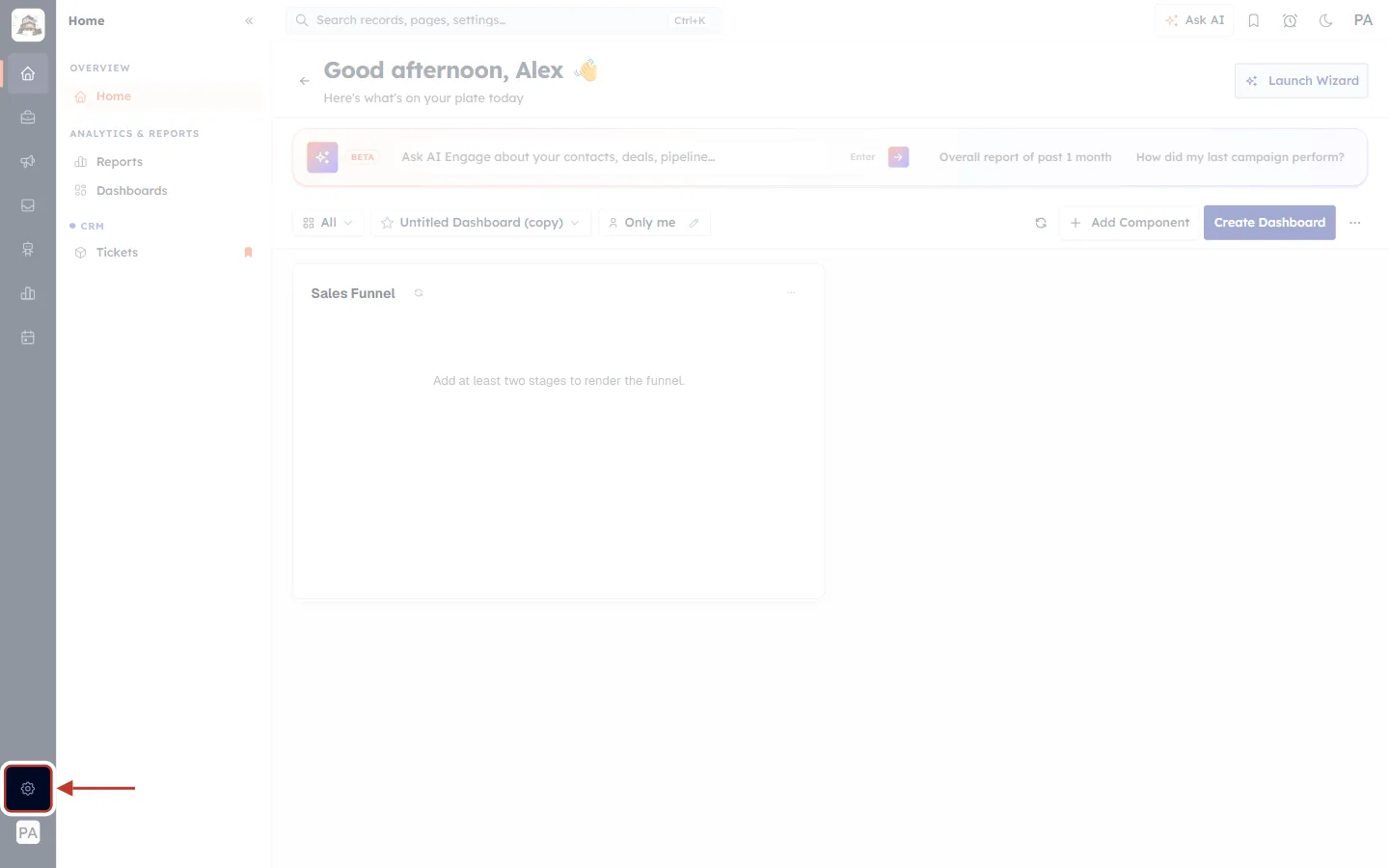
What this screenshot shows. The CRM home page with the gear icon ringed at the bottom of the narrow dark menu bar.
It opens Setup.
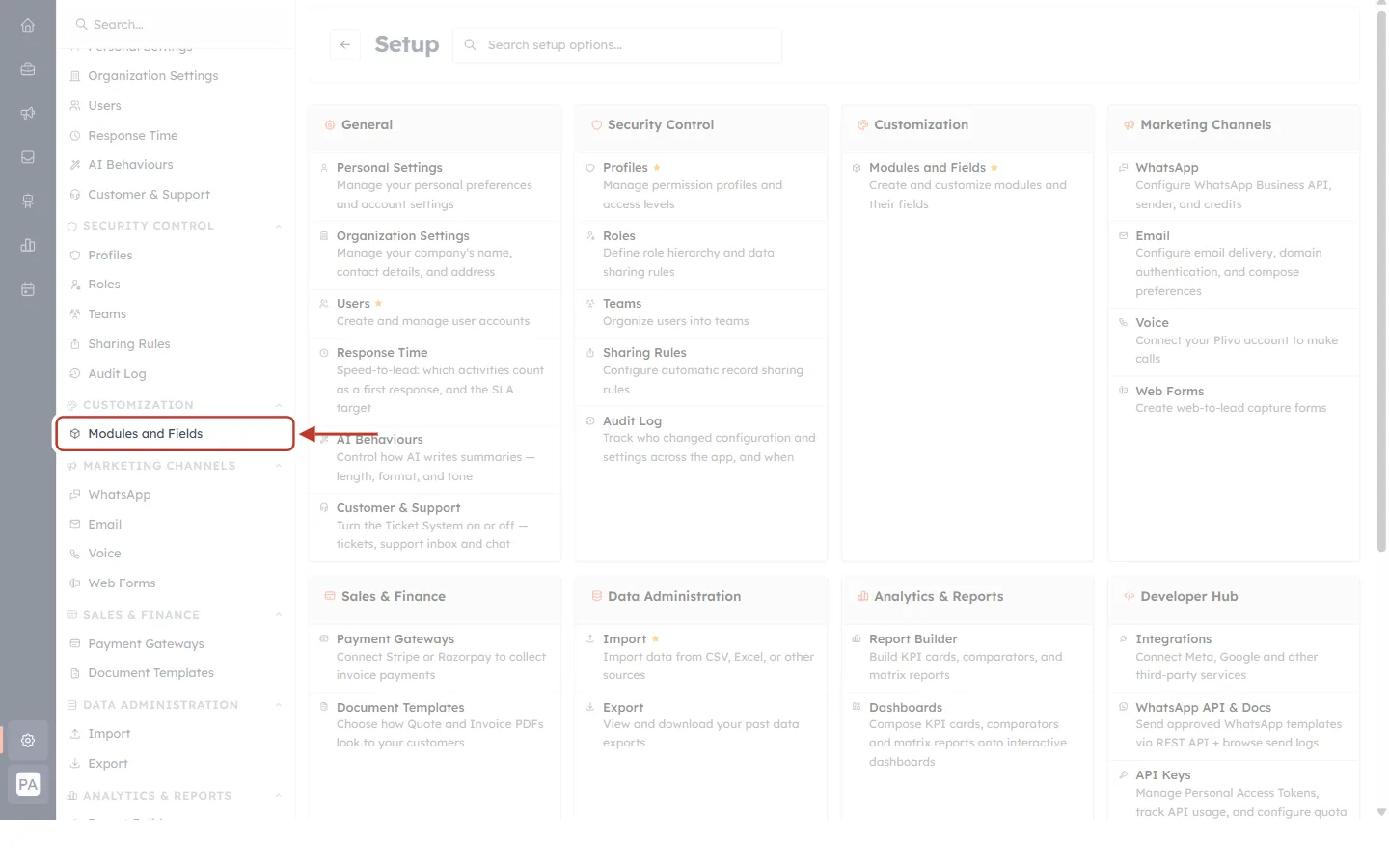
What this screenshot shows. The Setup page with Modules and Fields ringed under CUSTOMIZATION.
The cards in the middle of the page link to the same place.
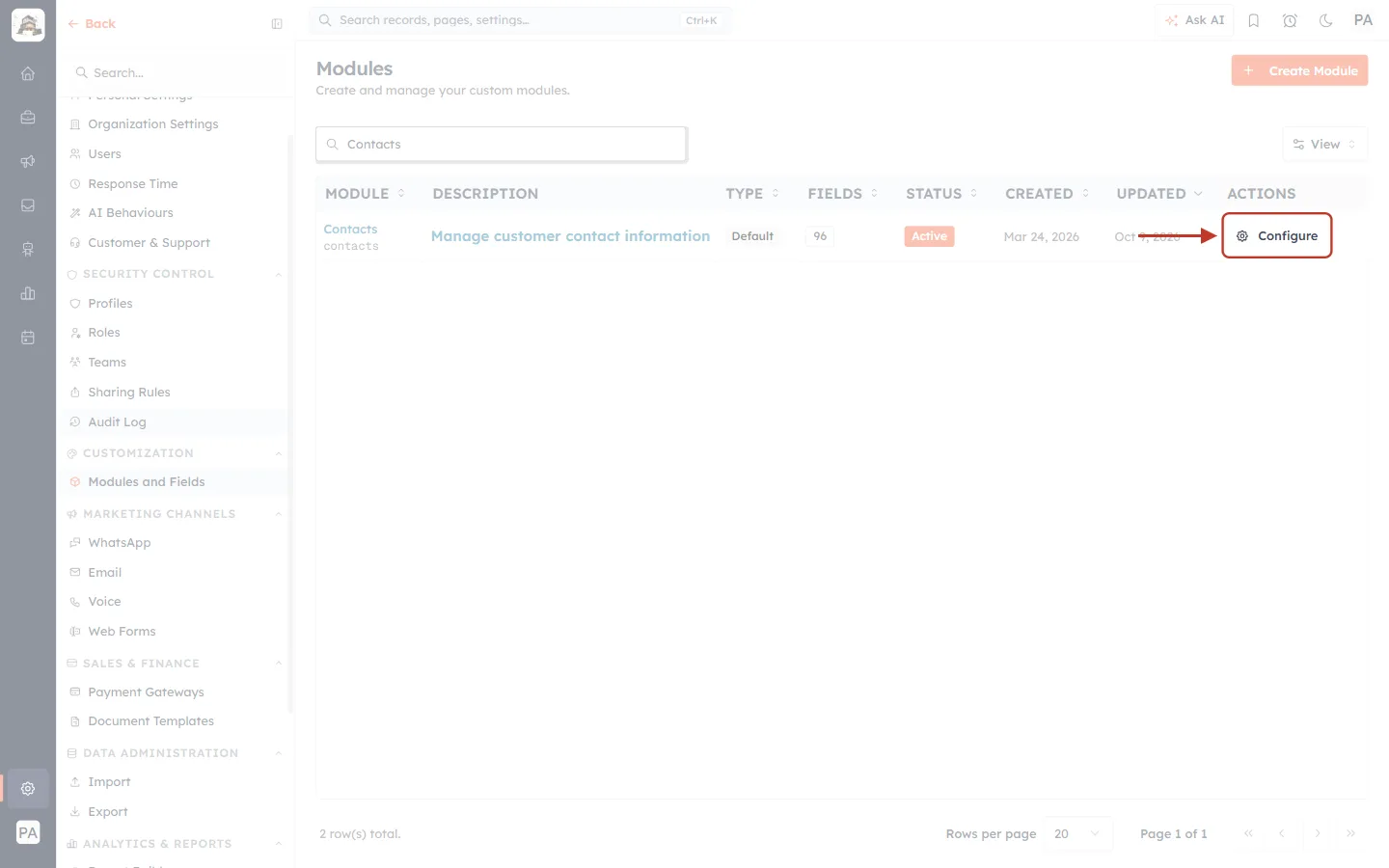
What this screenshot shows. The Modules page filtered to “Contacts”, with Configure ringed.
Clicking it opens the module’s Layouts page.
Step 2: Find the layout to delete#
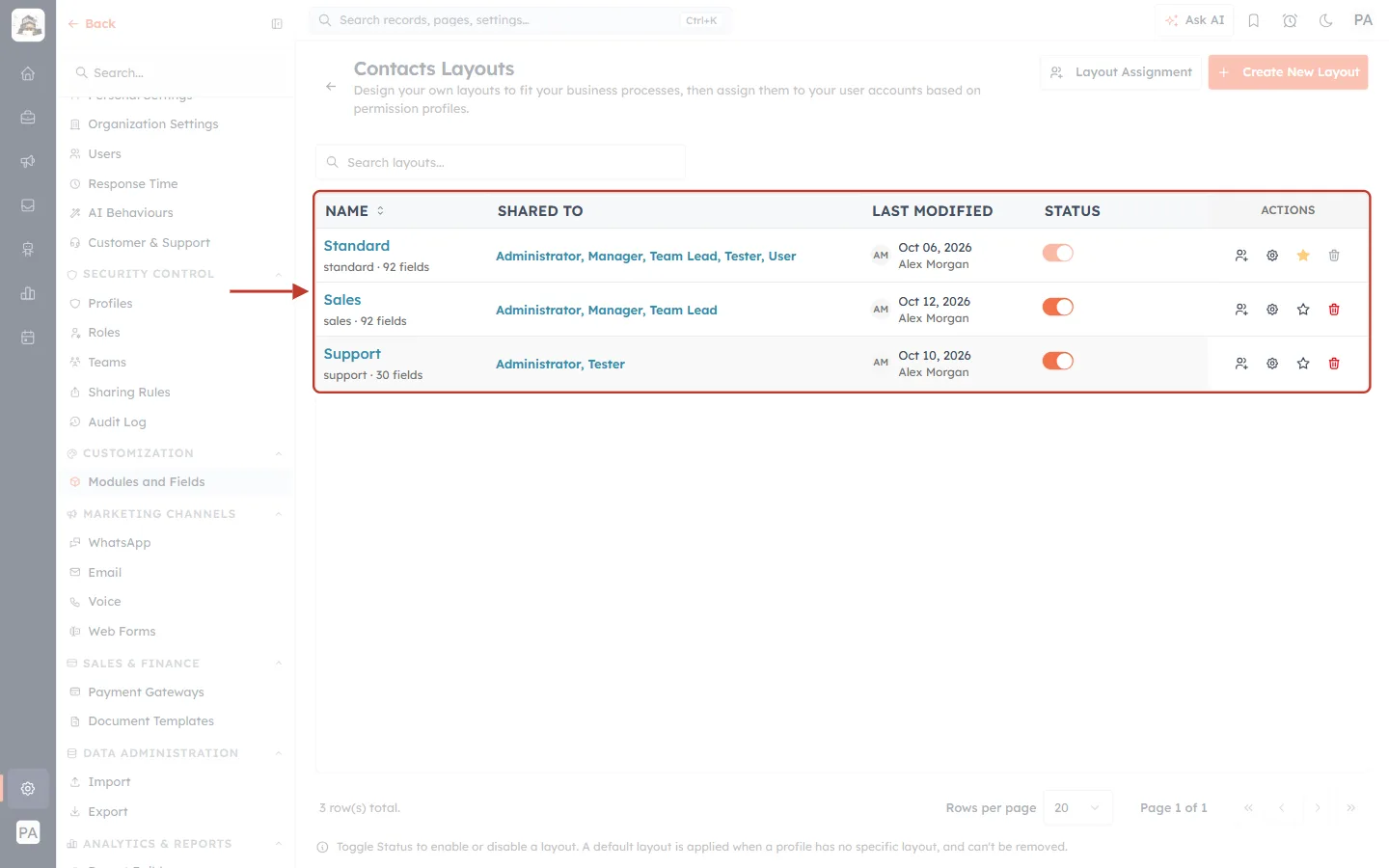
What this screenshot shows. The Contacts Layouts table, ringed, with three layouts.
Standard — the module default (filled star). Its bin is greyed out.
Sales and Support — their bins are red, which means they can be deleted.
Support is shared with Administrator, Tester and has 30 fields.
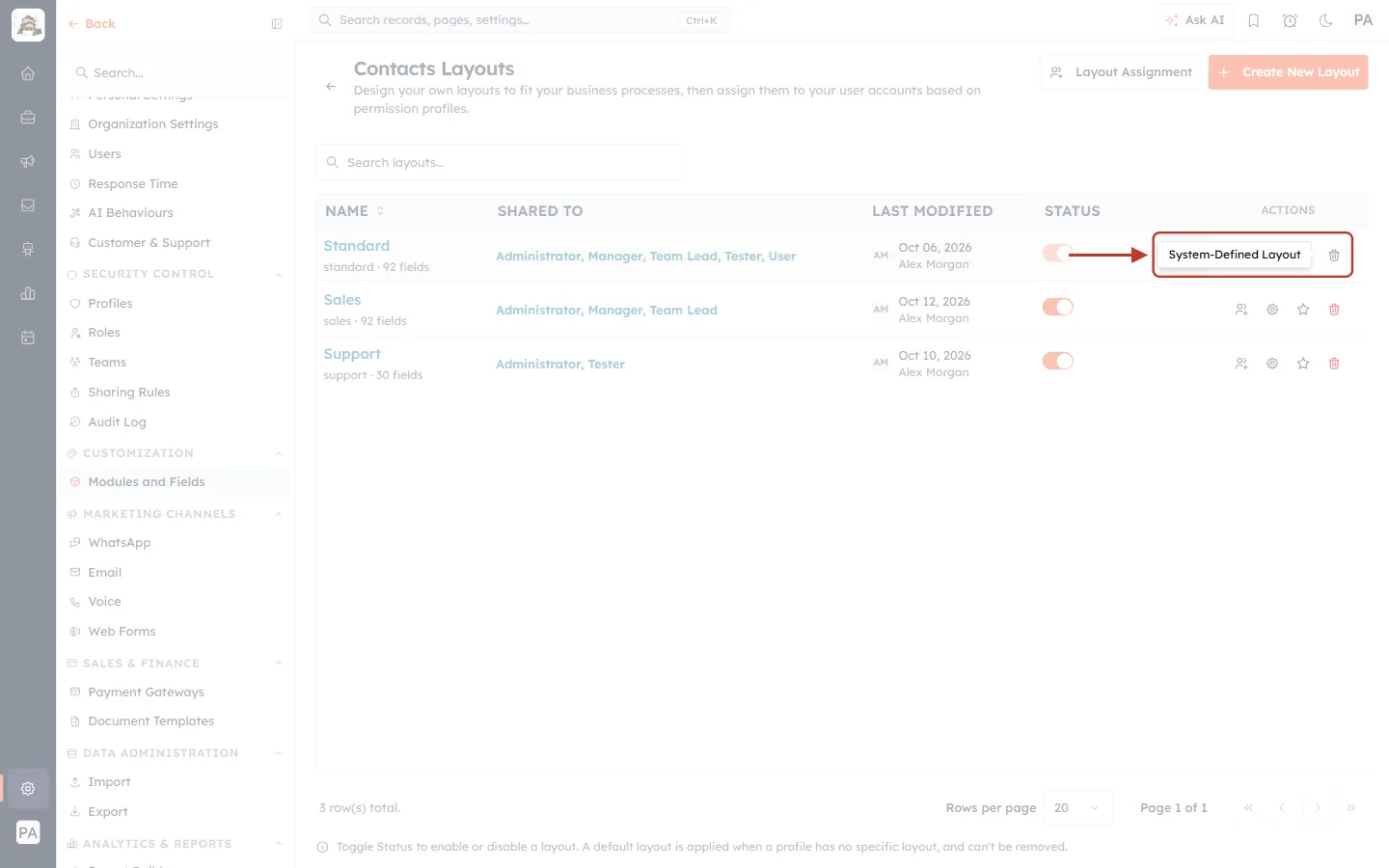
What this screenshot shows. Standard’s greyed-out bin, ringed, with its tooltip: System-Defined Layout.
Standard can never be deleted.
On the module default layout (if it isn’t Standard) the tooltip reads The default layout cannot be deleted.
Part 2: Delete the layout#
Step 3: Click the bin#
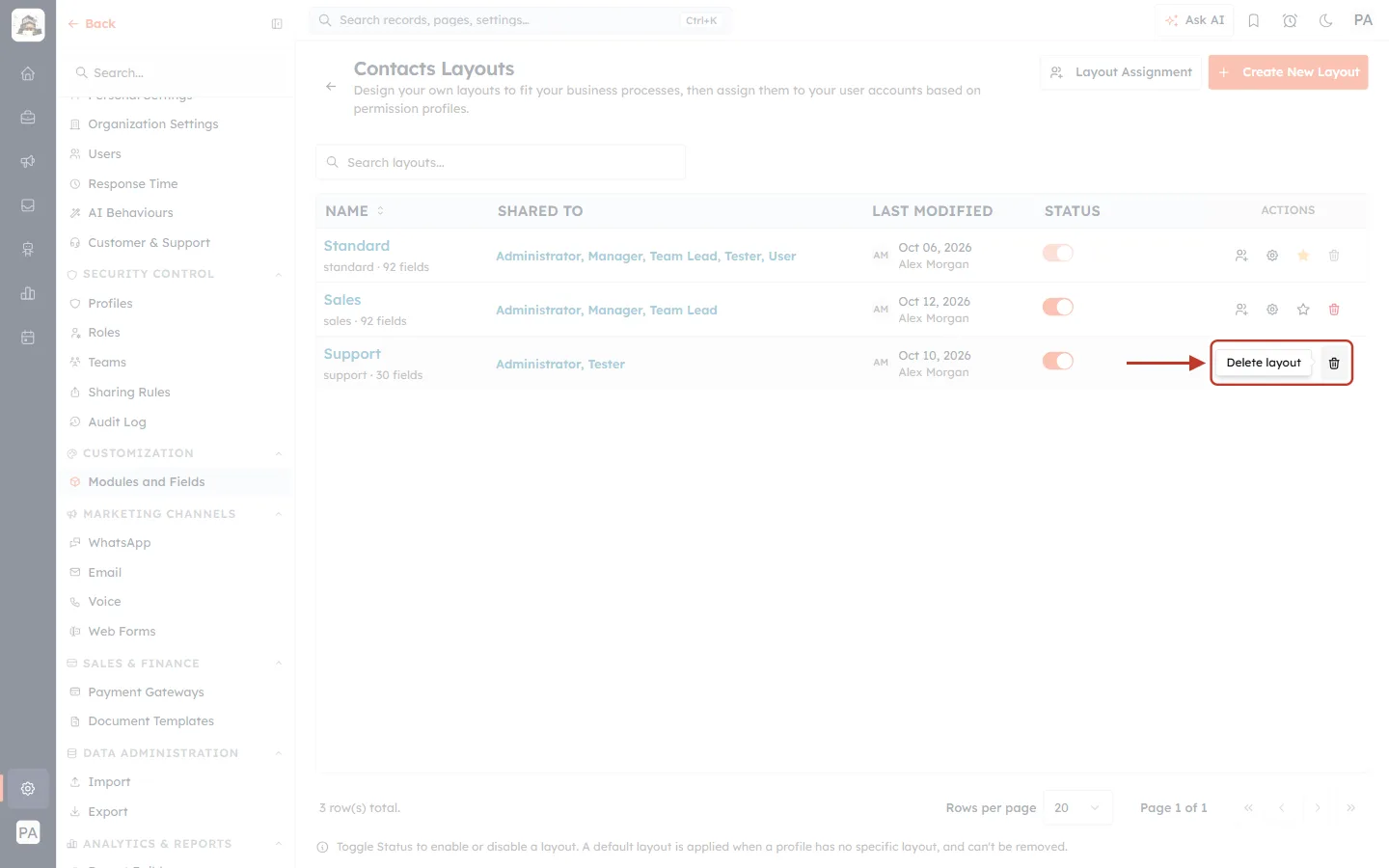
What this screenshot shows. The red bin on the Support row, ringed, with its tooltip: Delete layout.
Clicking it does not delete anything yet: it opens a window where you choose where everything goes.
Step 4: Read the Delete Layout window#
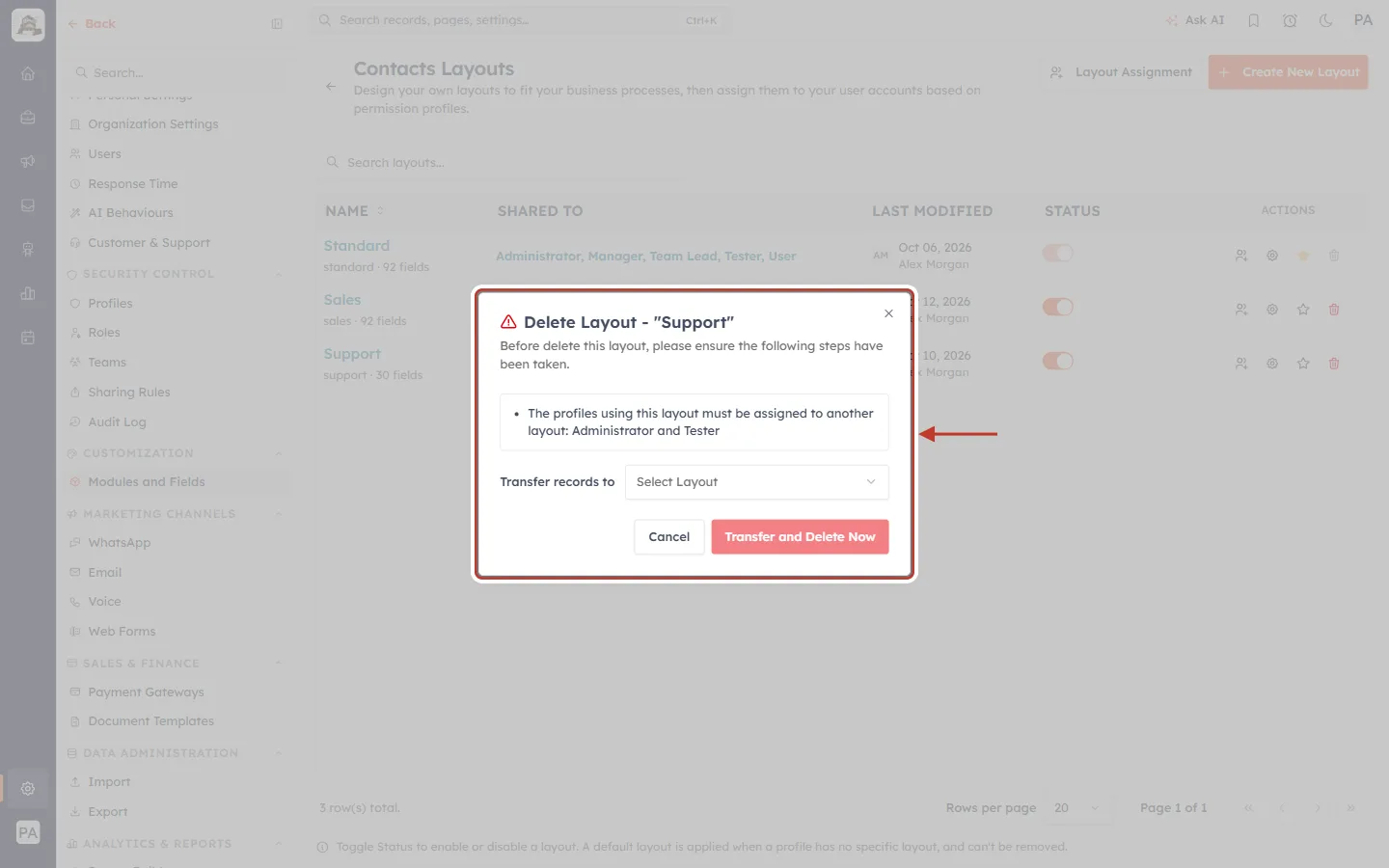
What this screenshot shows. The Delete Layout - “Support” window, ringed. A red warning triangle sits before the title.
The line under the title reads: “Before delete this layout, please ensure the following steps have been taken.”
The box below lists the profiles that will move (next figure).
Transfer records to — where the records go. Nothing is selected yet: it reads Select Layout.
Cancel closes the window without deleting anything. Clicking outside the window doesn’t close it.
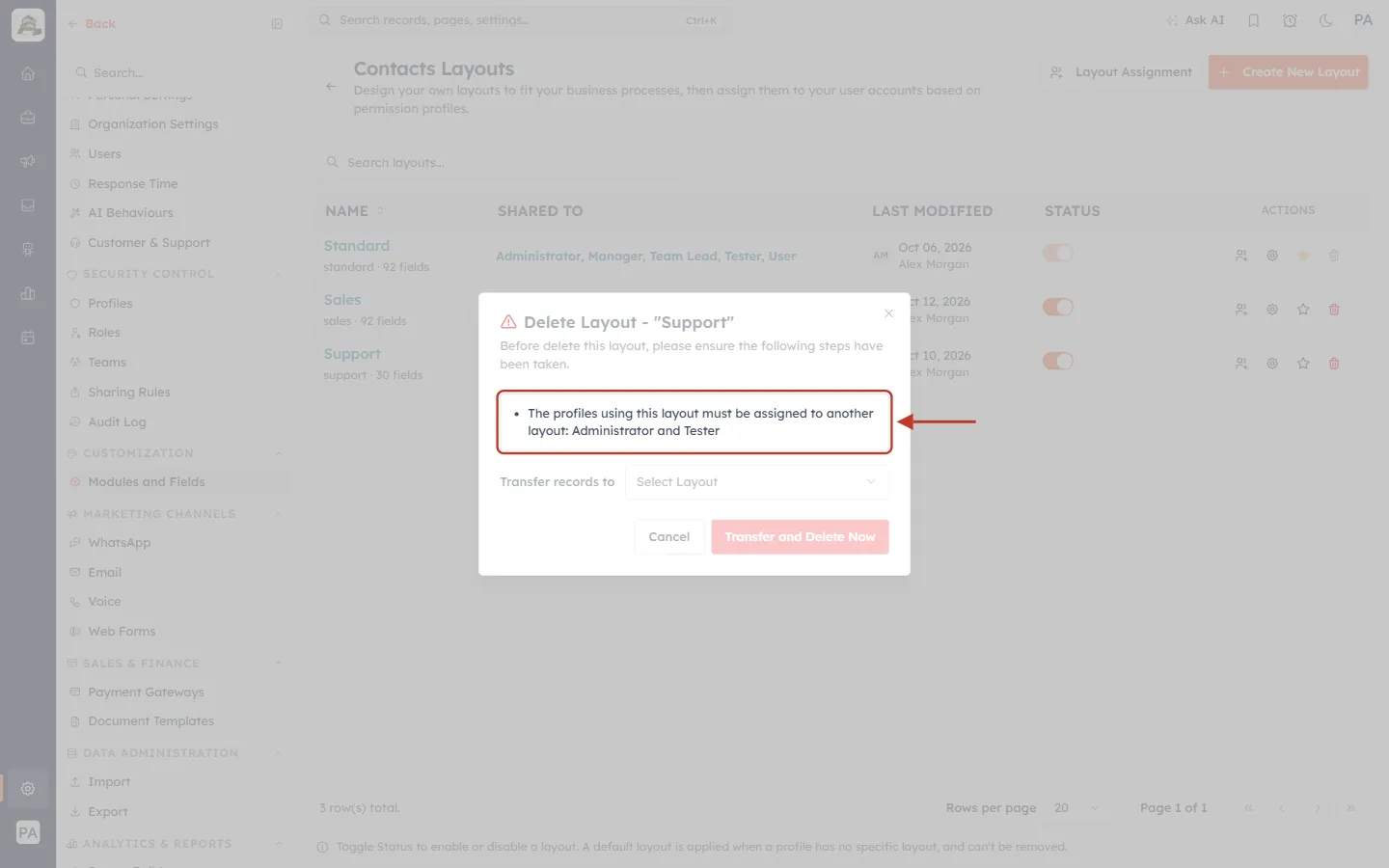
What this screenshot shows. The box in the middle of the window, ringed: “The profiles using this layout must be assigned to another layout: Administrator and Tester.”
These profiles will be moved to the layout you pick in Transfer records to.
If no profile uses the layout, this box is not shown.
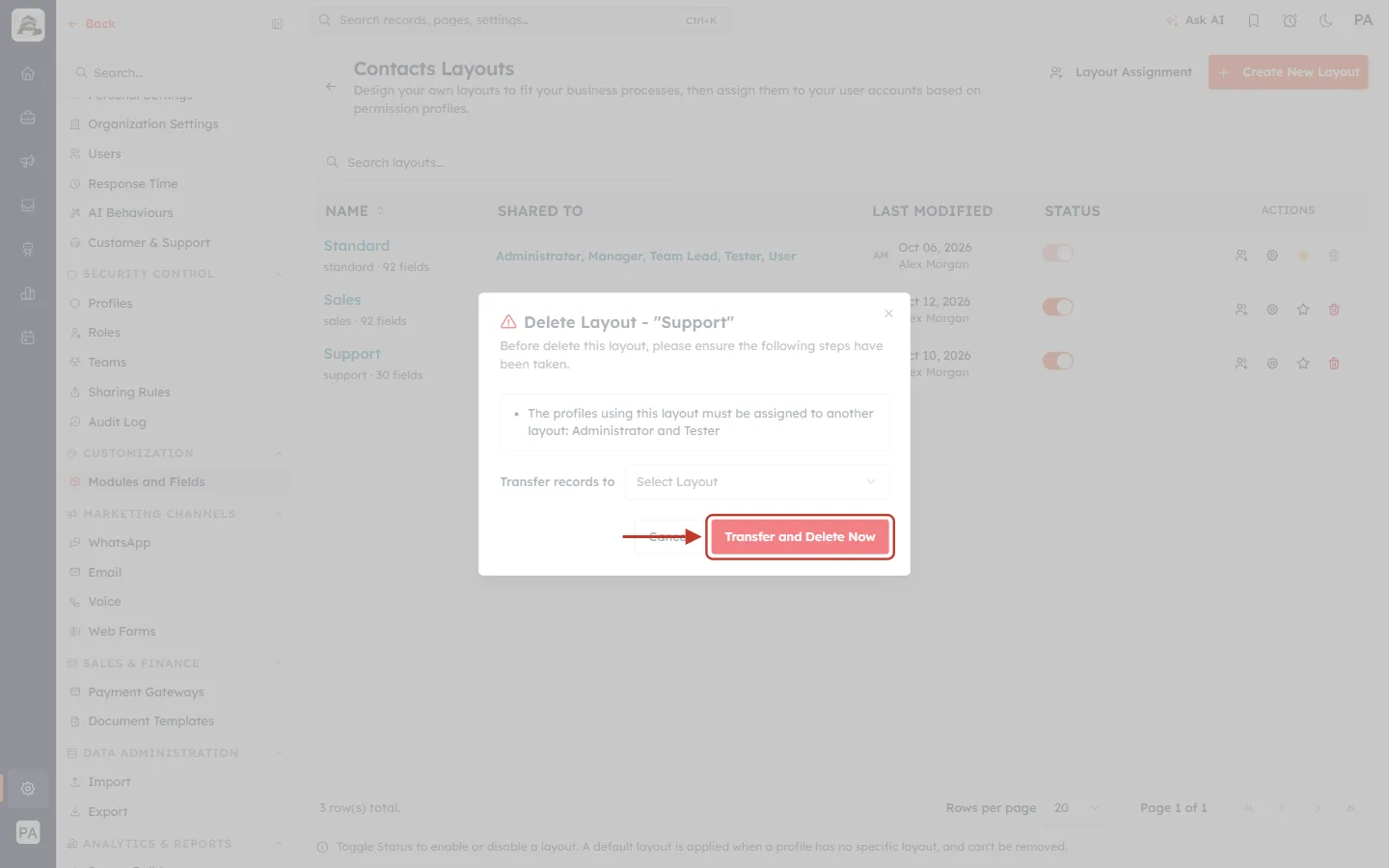
What this screenshot shows. The red Transfer and Delete Now button, ringed. It is faded and can’t be clicked yet.
It becomes clickable once you have picked a layout and the CRM has checked which fields will move.
Step 5: Choose where the records go#
Click Select Layout next to Transfer records to.
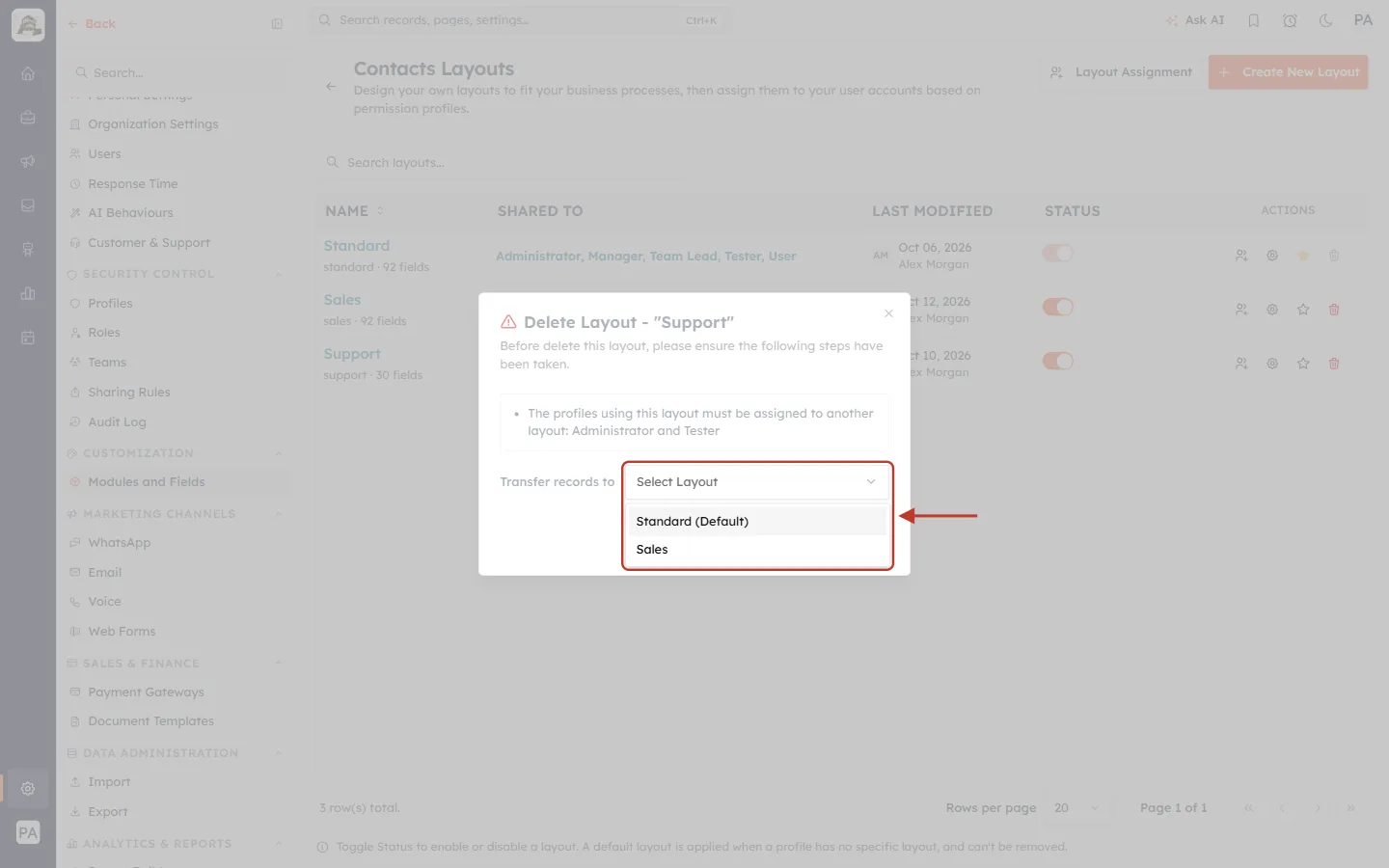
What this screenshot shows. The Transfer records to list, opened and ringed.
It lists every other active layout: Standard (Default) first, then Sales. Switched-off layouts can’t receive records.
Pick Standard (Default) in this example.
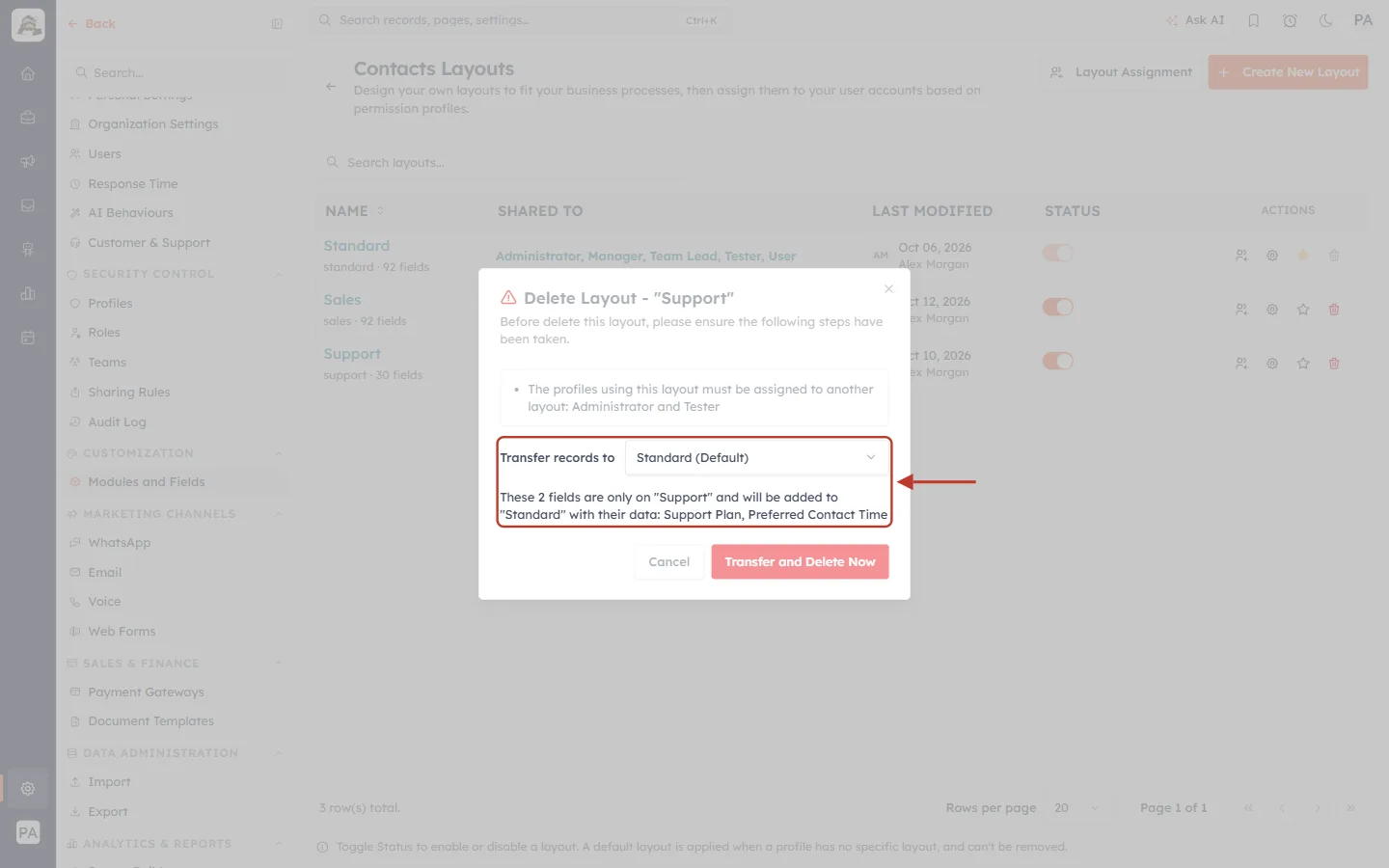
What this screenshot shows. The chosen layout and the line that appears under it, ringed.
Transfer records to now shows Standard (Default).
The line reads: “These 2 fields are only on “Support” and will be added to “Standard” with their data: Support Plan, Preferred Contact Time.”
While the CRM is checking, the line reads Checking which fields are only on “Support”…. If every field of Support is already on Standard, no line is shown at all.
The list changes if you pick another layout — each layout lacks different fields.
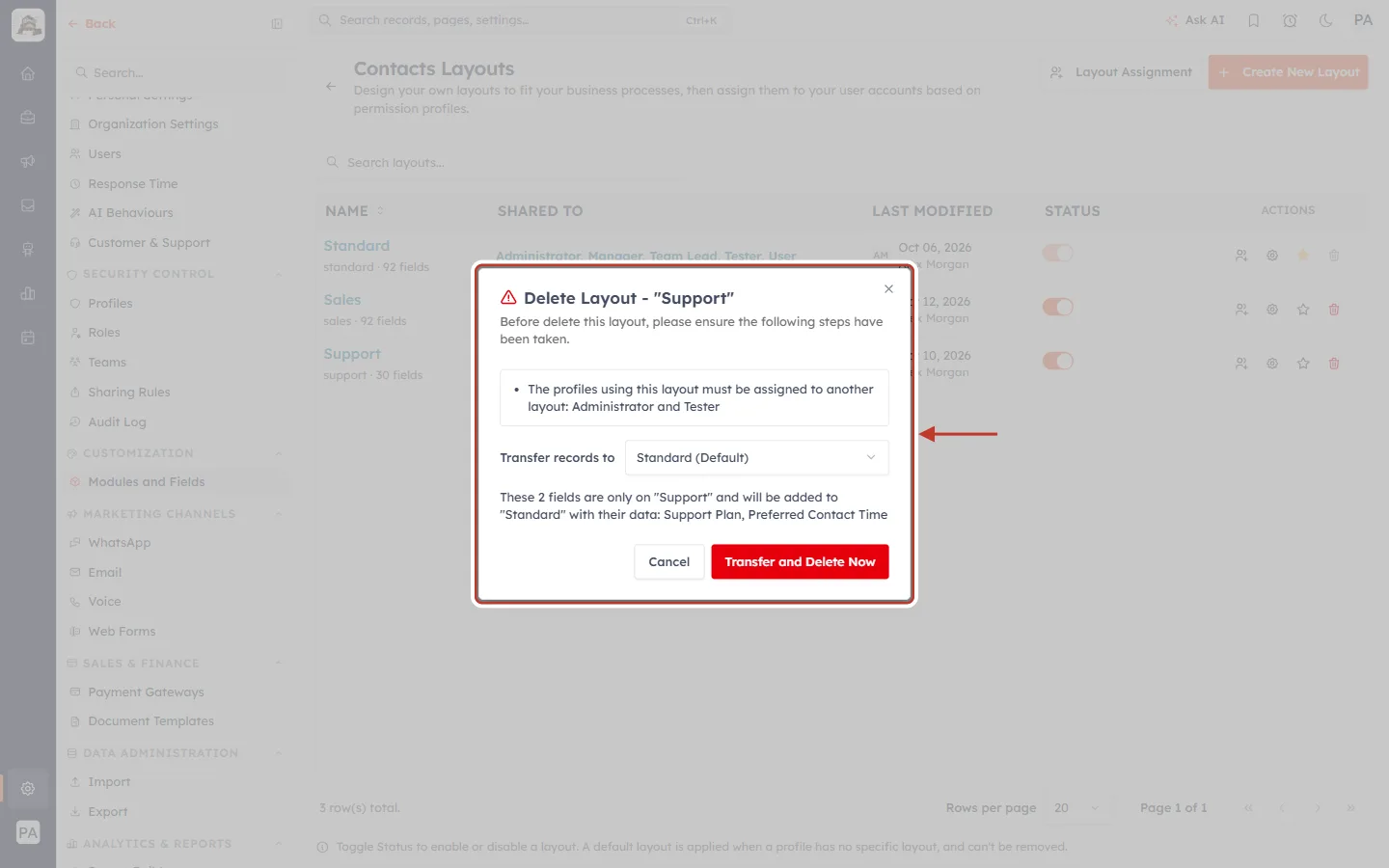
What this screenshot shows. The whole window, ready, ringed: the profiles that will move, the chosen layout, the fields that will be added, and the bright red Transfer and Delete Now button.
Read it once more before you continue: this is the last step before the layout is deleted.
Step 6: Click Transfer and Delete Now#
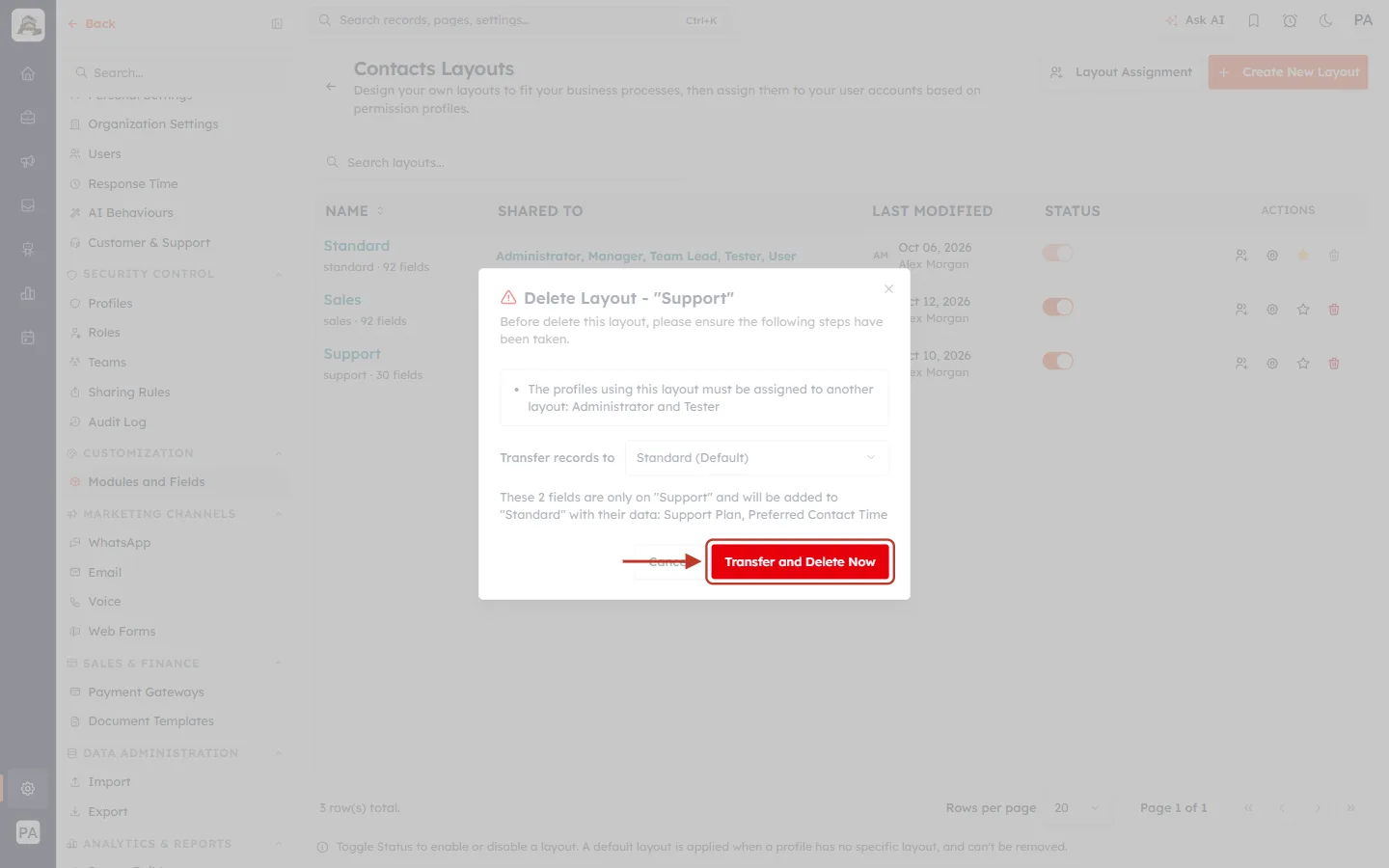
What this screenshot shows. The red Transfer and Delete Now button, ringed.
While it works, the button reads Deleting... and the window can’t be closed.
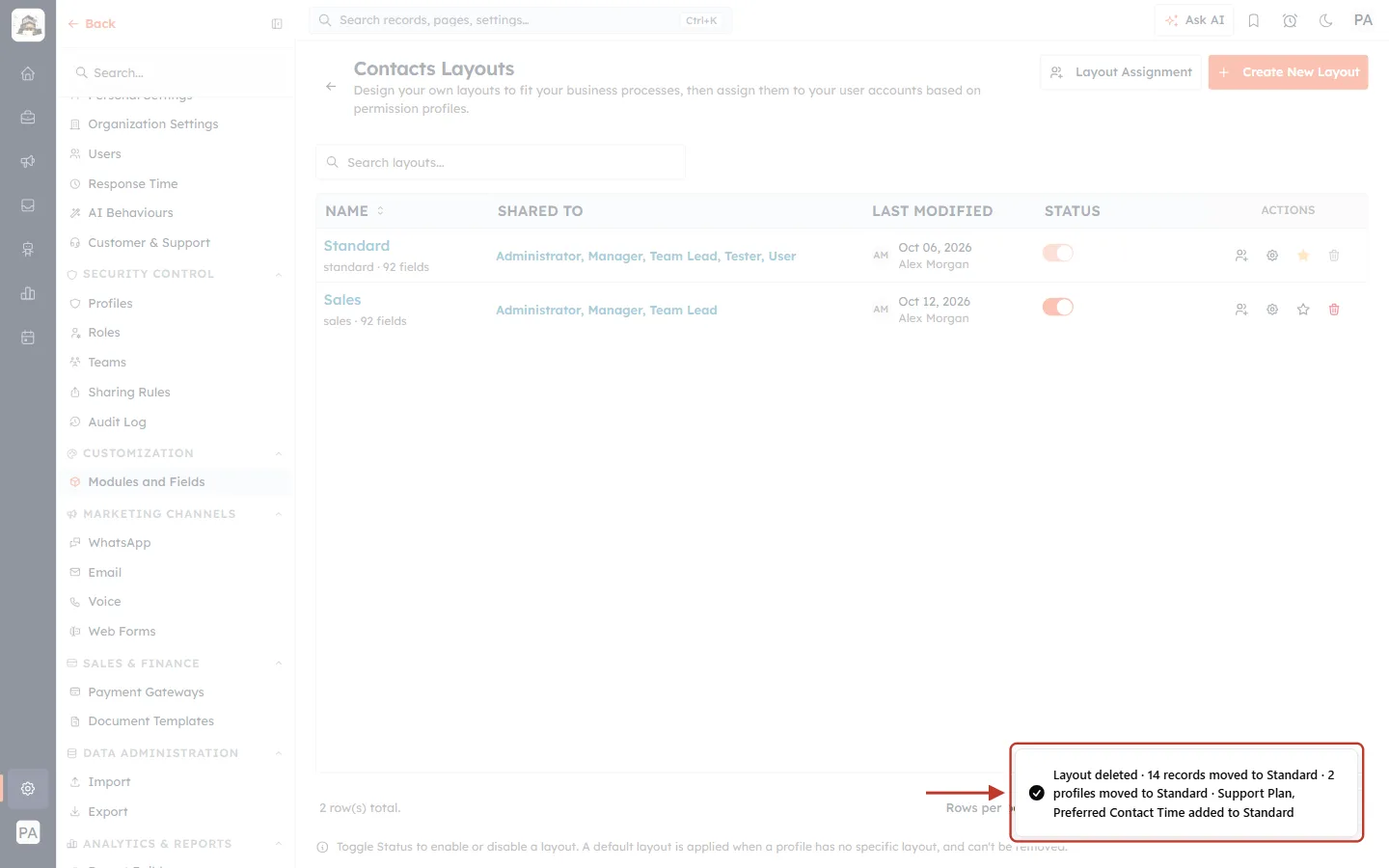
What this screenshot shows. The confirmation at the bottom right of the screen, ringed.
“Layout deleted · 14 records moved to Standard · 2 profiles moved to Standard · Support Plan, Preferred Contact Time added to Standard”.
Each part appears only when something moved: a layout with no records, for example, shows no “records moved” part.
Step 7: Check the result#
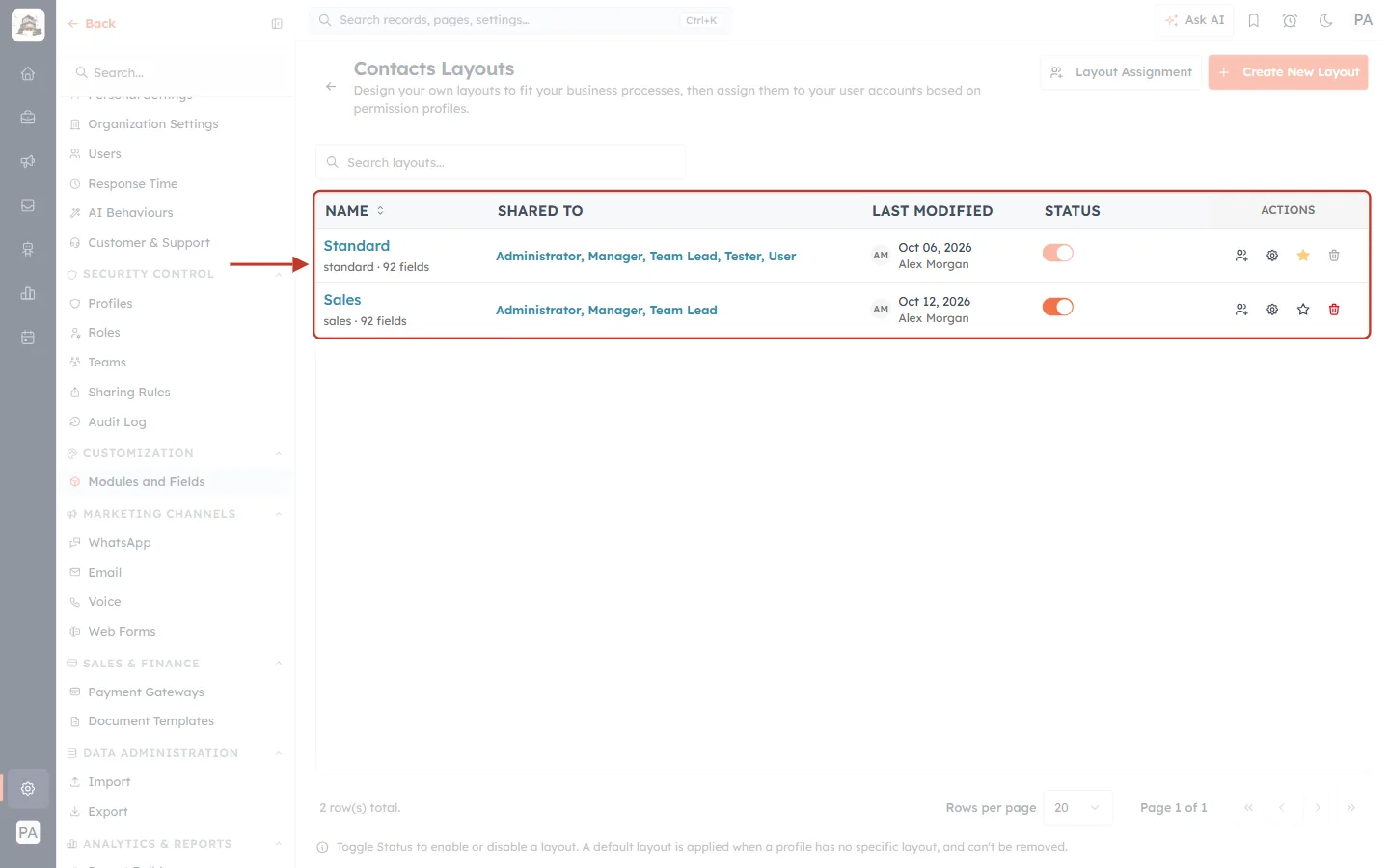
What this screenshot shows. The Contacts Layouts table, ringed. Only Standard and Sales are left; the footer reads 2 row(s) total.
Support is gone from every list in the CRM: the layout picker, Layout Assignment, Change Layout and Clone From.
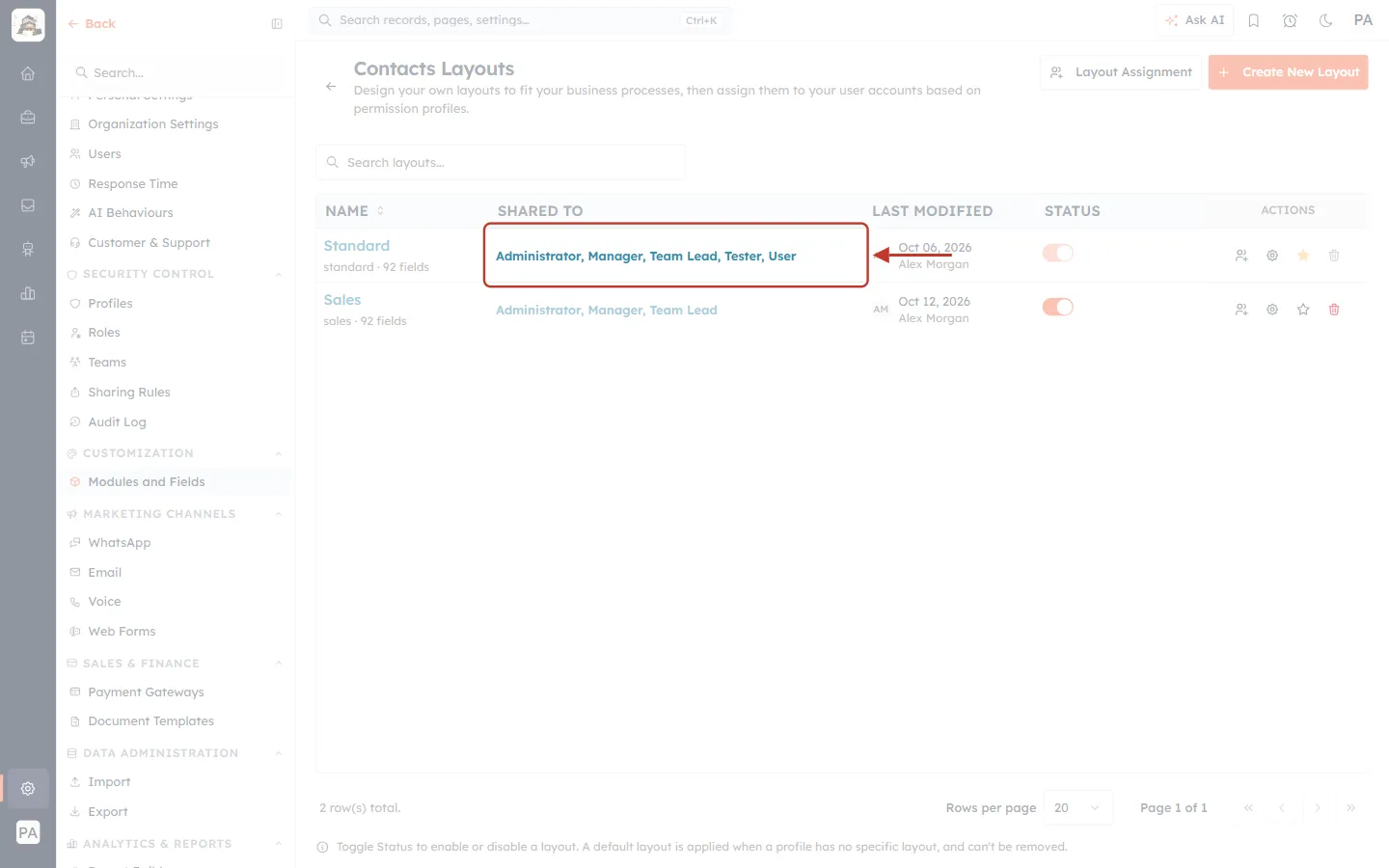
What this screenshot shows. The SHARED TO cell of the Standard row, ringed: Administrator, Manager, Team Lead, Tester, User.
Administrator and Tester — the profiles that used Support — now get Standard. (In this example they already had it.)
✅
Open one of the moved records to check it: it now opens on Standard, and the Support Plan and Preferred Contact Time values are still there. Then open Standard in the Layout Builder and move the two added fields to the section where they belong.
Rules at a glance#
| Rule | What you see |
|---|---|
| Standard can’t be deleted. | Its bin is greyed out: “System-Defined Layout”. |
| The module default layout can’t be deleted. | Its bin is greyed out: “The default layout cannot be deleted”. |
| You must pick where the records go. | Transfer and Delete Now stays faded until a layout is picked. |
| Records can only move to an active layout. | Switched-off layouts are not in the Transfer records to list. |
| Fields only on the deleted layout are kept. | They are added to the chosen layout with their data, and named in the window before you delete. |
| Deleting can’t be undone. | There is no way to bring a deleted layout back. |
⚠️
If another admin changes this module’s layouts while your window is open, the CRM shows their change in a message and reloads the page instead of deleting. Open the bin again and check the window before you try again.
Common questions#
Are any records or values deleted?#
No. Every record moves to the layout you pick, with all its values. Fields only the deleted layout used are added to that layout so their values stay visible.
Do moved records trigger workflows or change their “modified” date?#
No. Moving records to another layout is not an edit: no workflow runs, nothing is added to their timeline and their modified date stays the same.
The window says it couldn’t list the fields. Can I still delete?#
Yes. If the check fails, the line reads “We couldn’t list the fields; fields only on layout will still be added to target.” The fields are still carried over when you delete.
Can I delete a layout that is switched off?#
Yes. Active and switched-off layouts can both be deleted, and the same window asks where their records go.
Can I get a deleted layout back?#
No. If you need a similar layout later, create a new one with Create New Layout and clone it from the layout that received the records. See Create a New Layout for a Module.
Previous and next#
Previous: Activate or Deactivate a Layout: Switch a Form Off Without Losing It
Next: Choose Which Related Lists Each Layout Shows: Show, Rename and Pick Columns per Layout
Related articles#
Was this article helpful?
Ready to implement this?
OpenAI Engage and apply what you just learned to your own workspace.
Open AI Engage CRM