Loading…


KnowledgeBase
Change the Owner of Records and Move Their Related Records (Up to 20 at a Time)
What does Change Owner do?#
Every contact, company, deal and most other records have an owner: the teammate responsible for it. Change Owner hands one or more records to a different teammate in a single step.
A record rarely stands alone. A contact usually has deals, tasks, meetings, calls and notes linked to it, and those belong to the same salesperson. Change Owner can move those related records too, so the new owner gets the whole picture instead of a contact whose deals still sit with someone else.
Example. Alex Morgan is moving to a new territory, and Riya Kapoor takes over the contact John Smith. Alex also owns 3 deals, 2 tasks, 1 meeting and 1 call linked to John. With Change Owner you make Riya the owner of John and of those 7 related records, in one go.
How many records can I change at one time?#
| Records selected | Owner changed? | Related records moved? |
|---|---|---|
| 1 | Yes | Yes — you choose which kinds (Deals, Tasks, Meetings, Calls, Notes…) |
| 2 to 20 | Yes, for all of them | Yes — the counts are added up across all selected records |
| 21 or more | Yes, for all of them | No — only the owner of the selected records changes |
| Most in one action | 500 — using Select all … records matching this view (the header tick box alone selects one page, up to 100) | — |
ℹ️
The short version: you can move related records for up to 20 records at a time. You can change just the owner for up to 500 records at a time, using Select all … records matching this view. For more than that, repeat in batches.
Which related records are moved?#
Only the previous owner’s. The option is called “Also move the previous owner’s related records”. A deal or task linked to John that already belongs to someone else stays with that person.
Only the kinds you tick. The dialog lists each kind with a count, for example Deals (3) or Tasks (2). Nothing is moved unless you tick it.
Only kinds that actually exist. If there is nothing to move, the list doesn’t appear and only the owner changes.
Before you begin#
You need permission to change owners. The Change Owner button appears only if your profile allows it for that module. See Control Permissions with Profiles.
Your edit access still applies. If your profile only lets you edit your own or your team’s records, records outside that are skipped. The dialog tells you before you start.
The new owner must be an active user in your CRM.
ℹ️
This article uses Contacts. Change Owner works the same way in Companies, Deals and any other module that has an owner field. Only the names in the screenshots change.
Part 1: Open the list and check the current owners#
Step 1: Open the Contacts list#
Click the Sales icon (the briefcase) in the dark icon bar on the left.
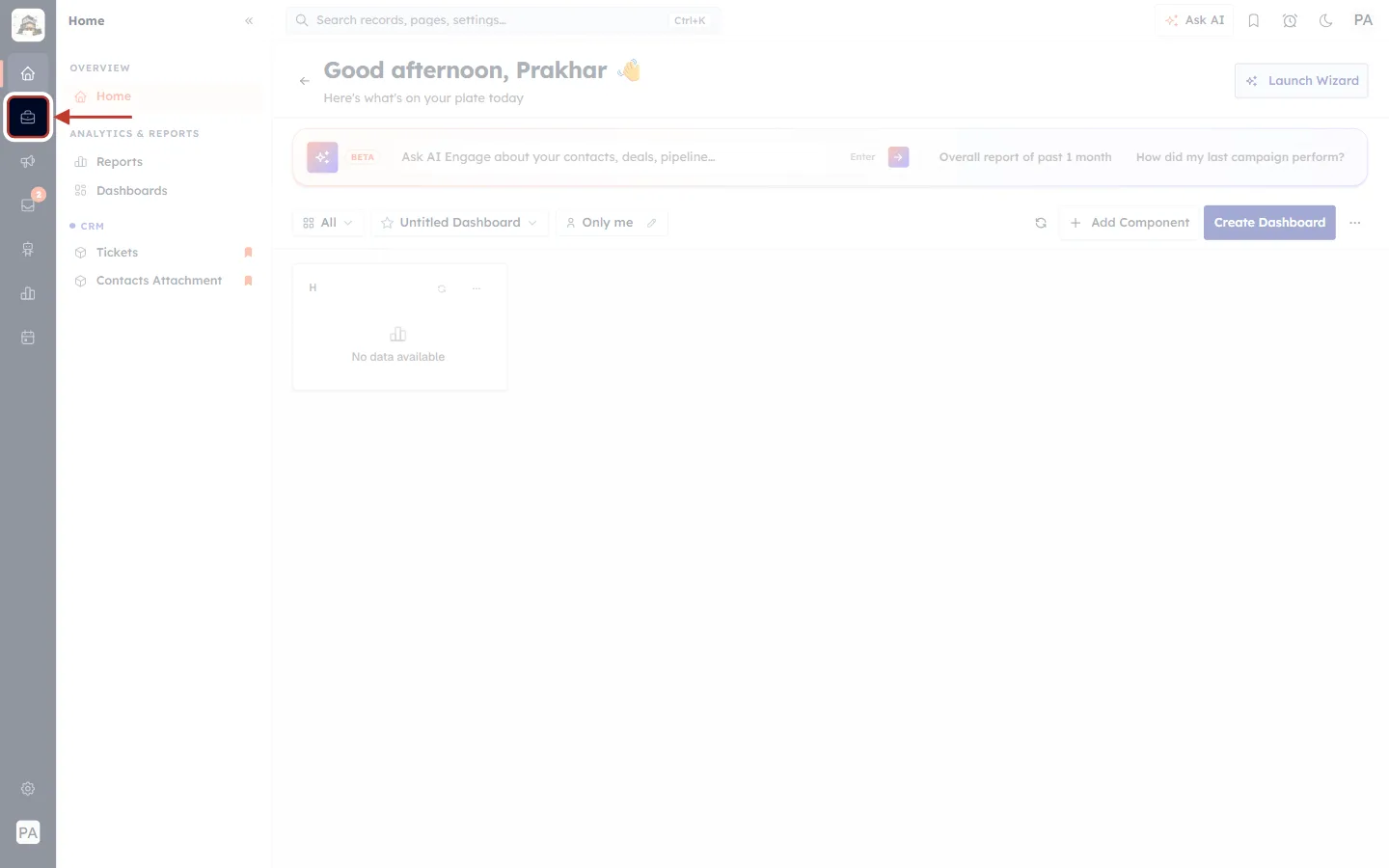
What this screenshot shows. The CRM home page, with the Sales icon ringed in the left icon bar.
Sales icon (ringed): opens the menu of your sales modules — Contacts, Companies, Deals and more.
Home menu (currently open): Home, Reports and Dashboards. It switches to the Sales menu when you click the icon.
In the Sales menu, click Contacts.
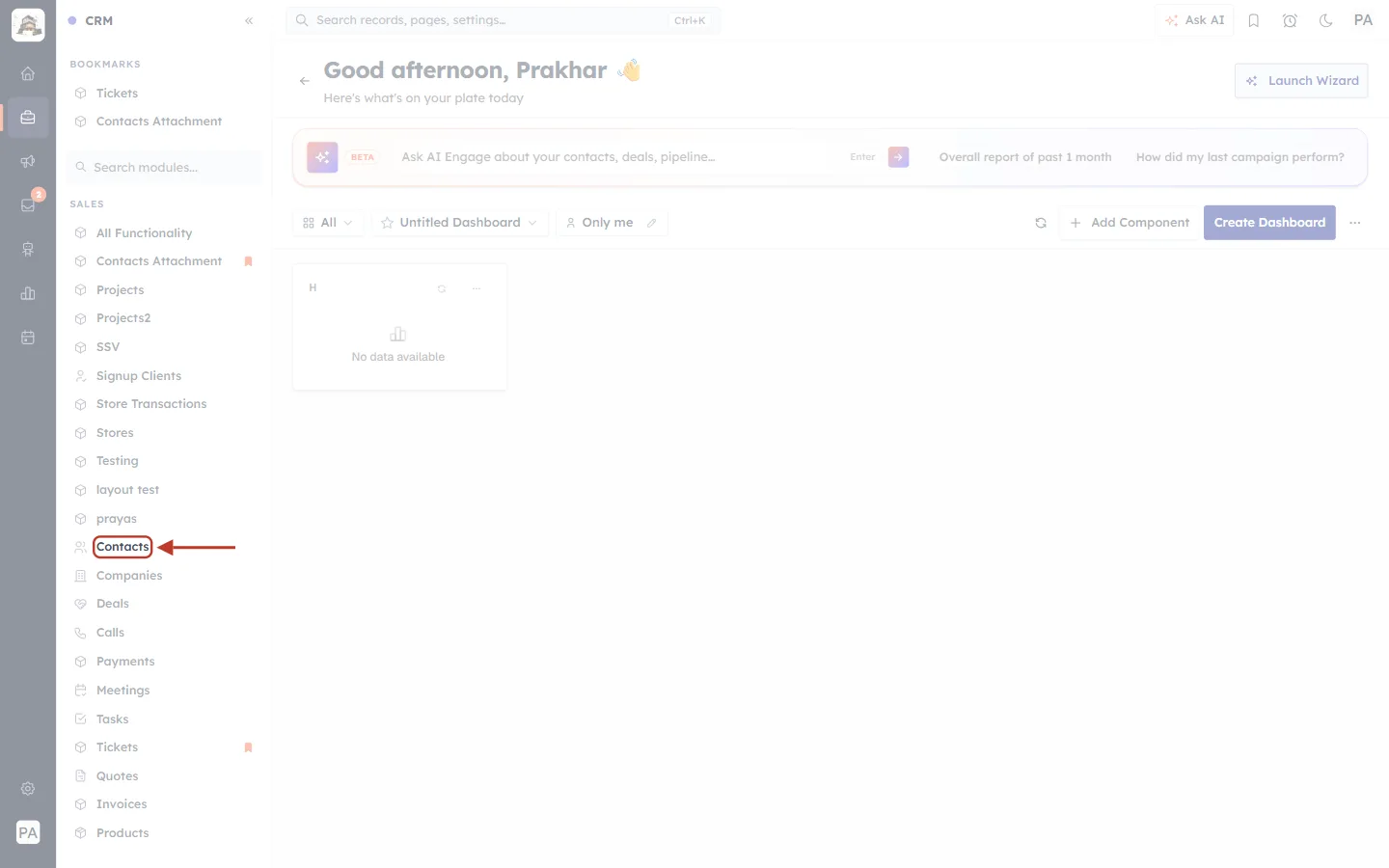
What this screenshot shows. The Sales menu, with Contacts ringed.
Contacts (ringed): opens the Contacts list.
Other entries: Companies, Deals, Calls, Meetings, Tasks and your other modules. To change owners in another module, open that one instead.
Step 2: Check the Contact Owner column#
The Contact Owner column shows who owns each contact today. In our example, Alex Morgan owns them all.
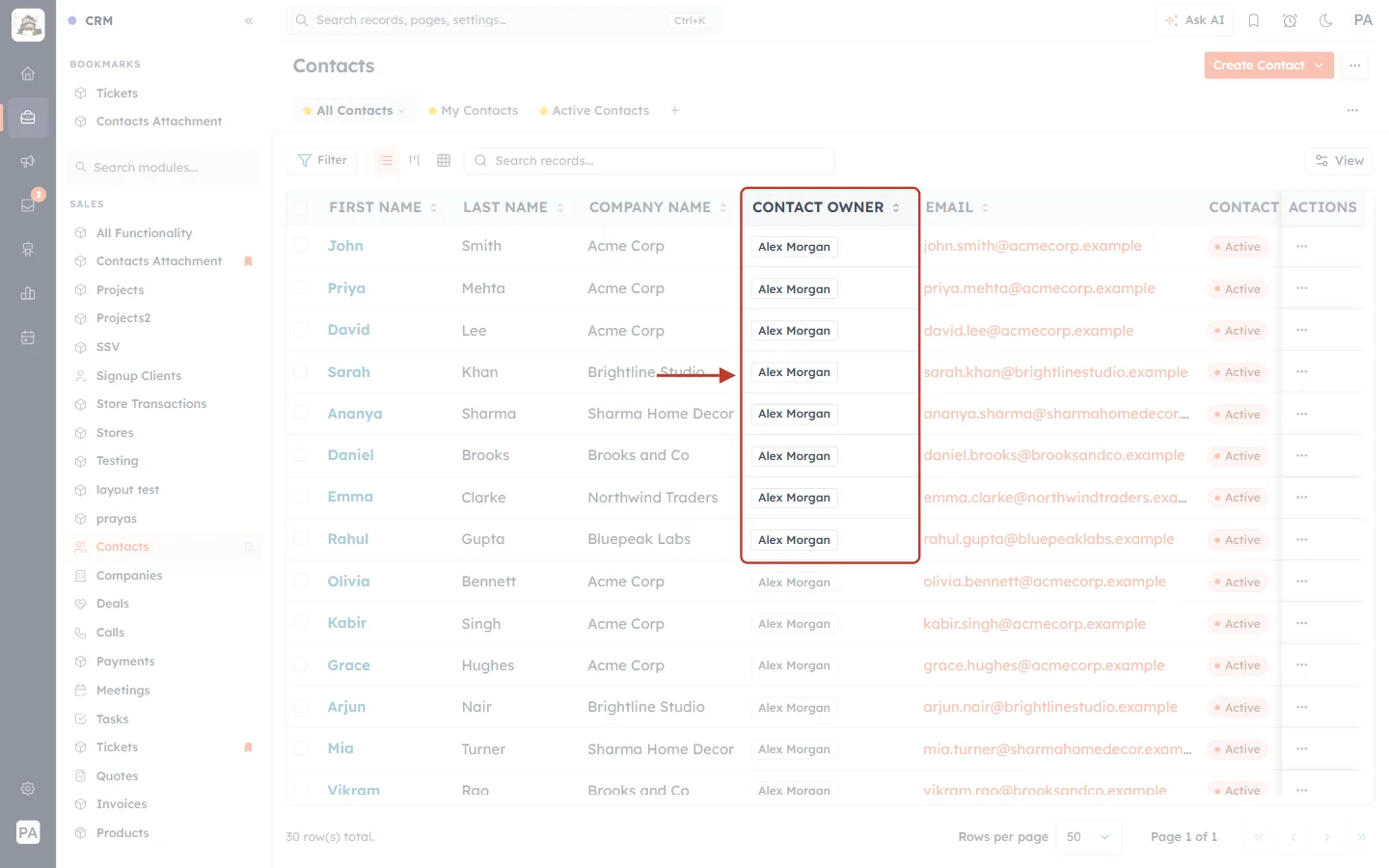
What this screenshot shows. The Contacts list, with the Contact Owner column ringed.
Contact Owner (ringed): the current owner of each row — here “Alex Morgan” for every contact.
Other columns: First Name, Last Name, Company Name, Email and Contact Status.
Tick boxes (far left of each row): select the records you want to reassign.
✅
If you don’t see an owner column, click View at the top right of the list and tick it. See Choose & Reorder Your List Columns.
Part 2: Change the owner of one record and move its related records#
Step 3: Tick the record#
Tick the box at the start of the contact’s row. We ticked John Smith.
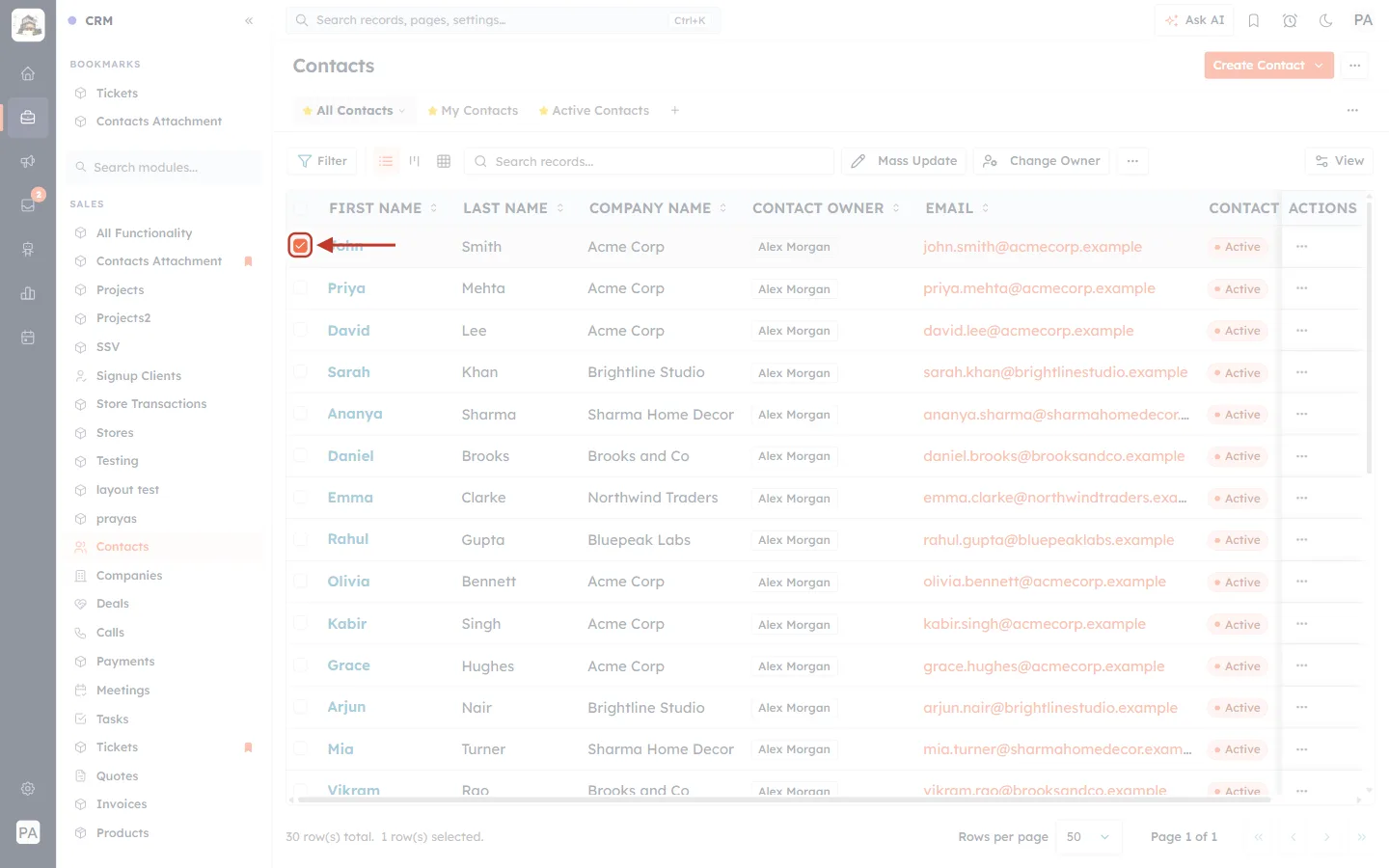
What this screenshot shows. The tick box on John Smith’s row, ringed.
Tick box (ringed): now ticked in orange, and the row is highlighted.
Toolbar above the list: new buttons have appeared, because a record is selected (next step).
Step 4: Click Change Owner#
As soon as at least one record is ticked, the toolbar above the list shows Mass Update and Change Owner.
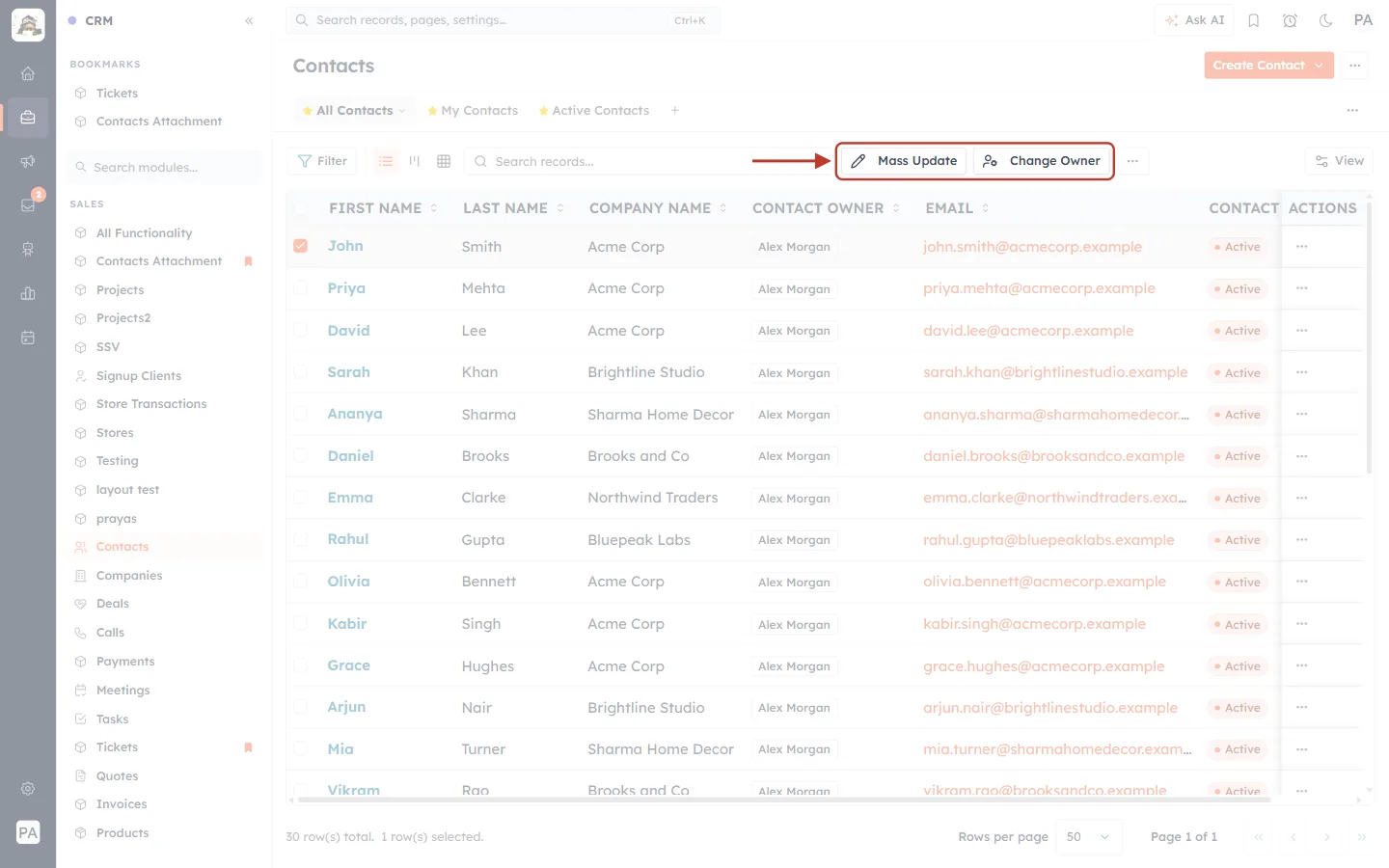
What this screenshot shows. The list toolbar, with Mass Update and Change Owner ringed.
Change Owner: the button we use. It reassigns the selected records and can move their related records.
Mass Update: changes other fields on the selected records. It doesn’t move related records — see Mass Update.
⋯ (next to them): more bulk actions, such as export and delete.
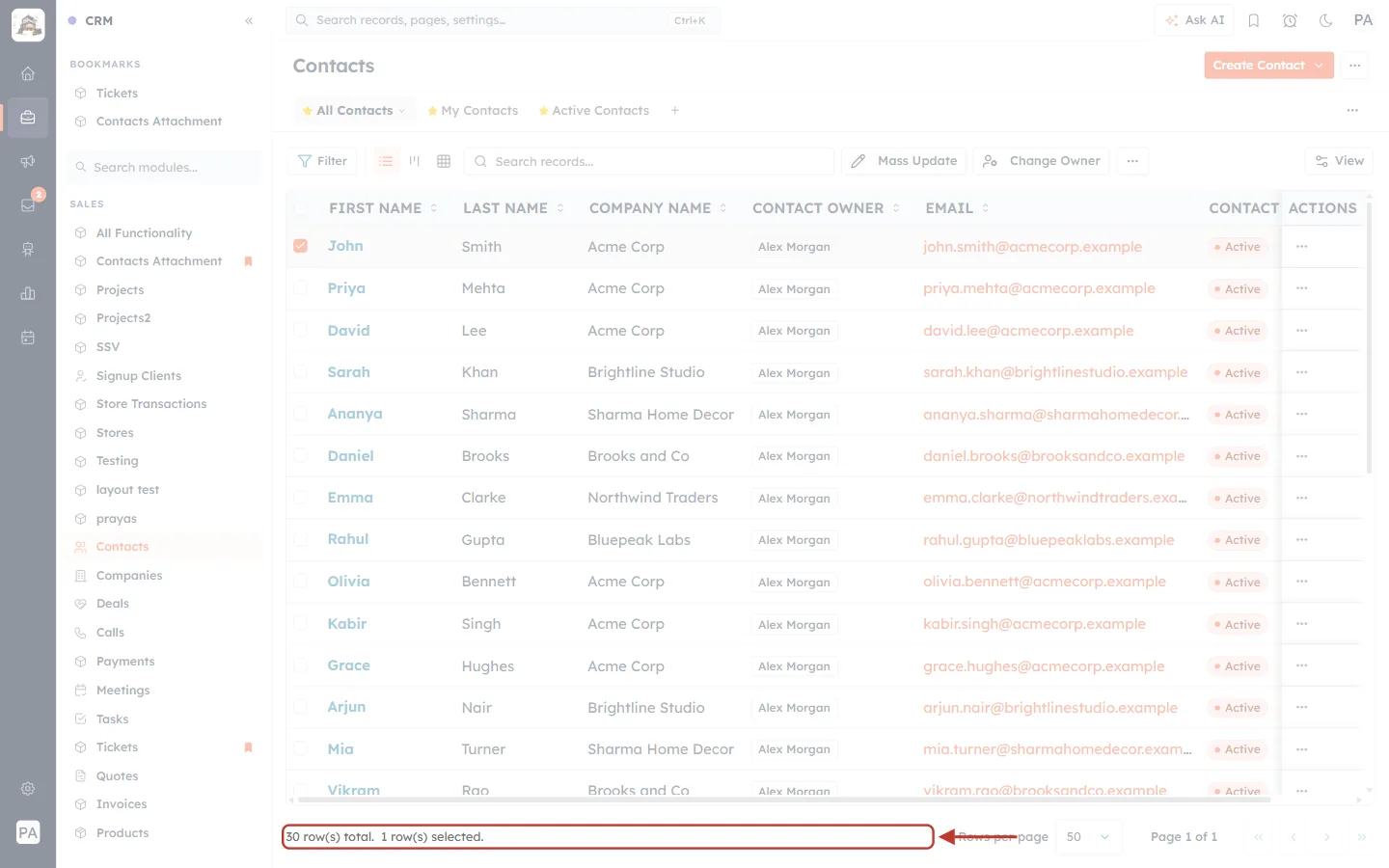
What this screenshot shows. The bottom of the list, with the selection count ringed.
“30 row(s) total. 1 row(s) selected.” — how many records are in the list and how many you have ticked. Check this before you continue.
Click Change Owner. The Change Owner window opens. While it says “Checking related records…”, it is counting what the current owner holds on this record.
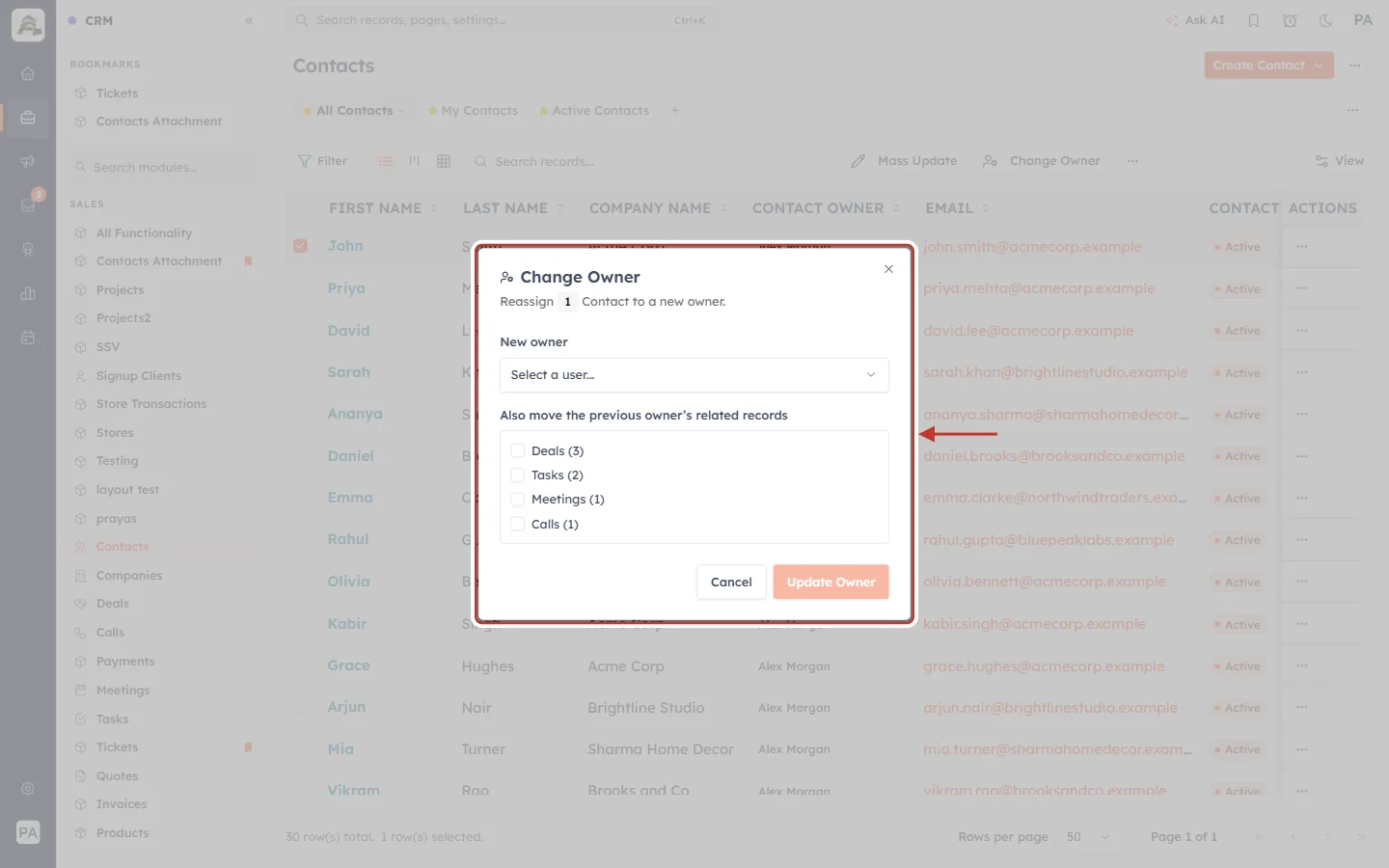
What this screenshot shows. The Change Owner window, ringed, for one contact.
Title: “Change Owner”.
“Reassign 1 Contact to a new owner.” — how many records will be changed.
New owner: the teammate who will take over. Empty for now (“Select a user…”).
Also move the previous owner’s related records: one tick box per kind of related record, each with a count — Deals (3), Tasks (2), Meetings (1), Calls (1). All are unticked to start with.
Cancel and Update Owner at the bottom.
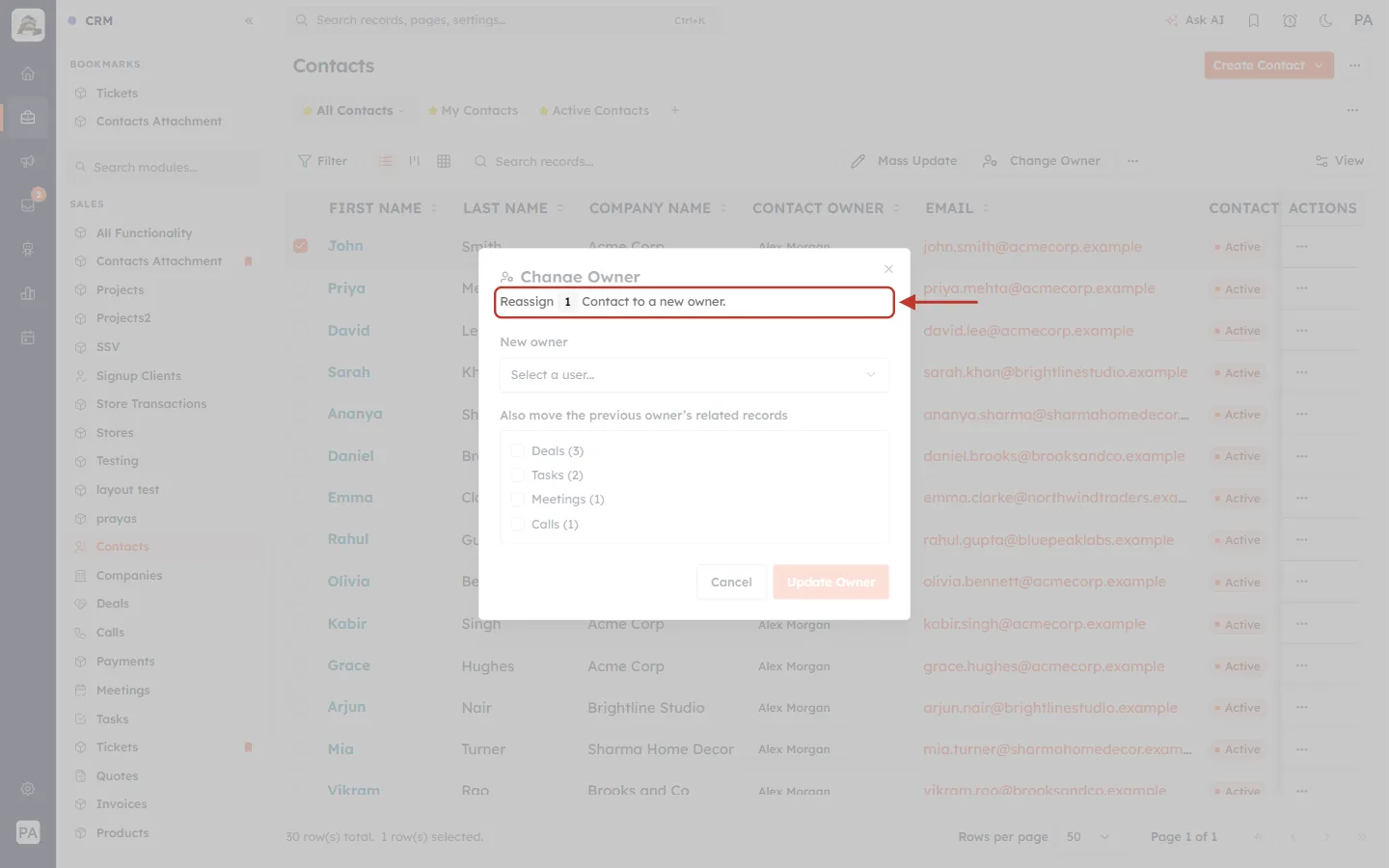
What this screenshot shows. The line under the title, ringed.
The number in the grey box is how many records you selected — here 1. It is a quick check that you ticked the right ones.
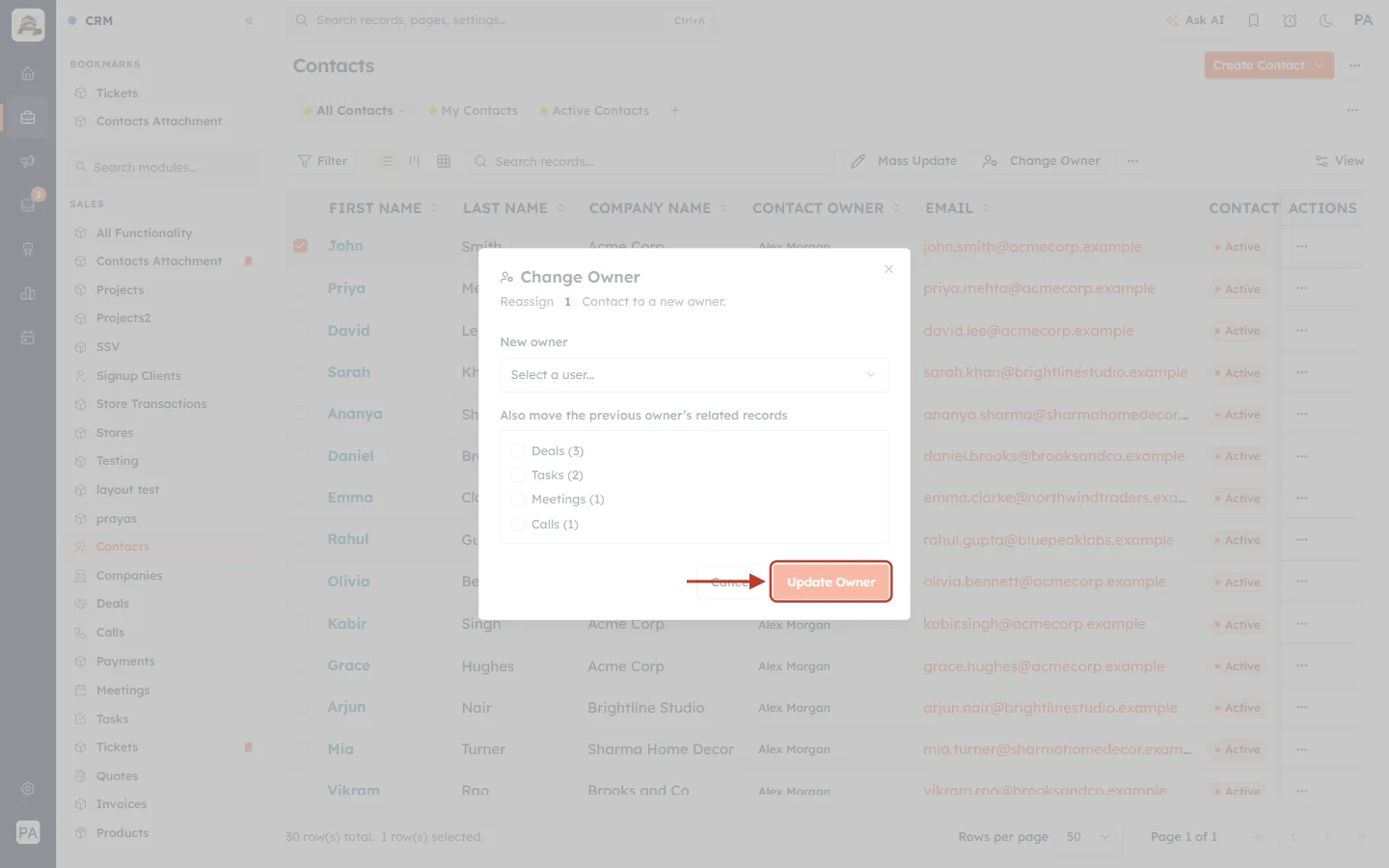
What this screenshot shows. The Update Owner button, ringed, still greyed out.
Update Owner stays greyed out until you pick a new owner — you can’t save by accident.
Step 5: Choose the new owner#
Click Select a user…. A list of your active teammates opens, with a search box. Type part of a name to find someone quickly, then click them. We chose Riya Kapoor.
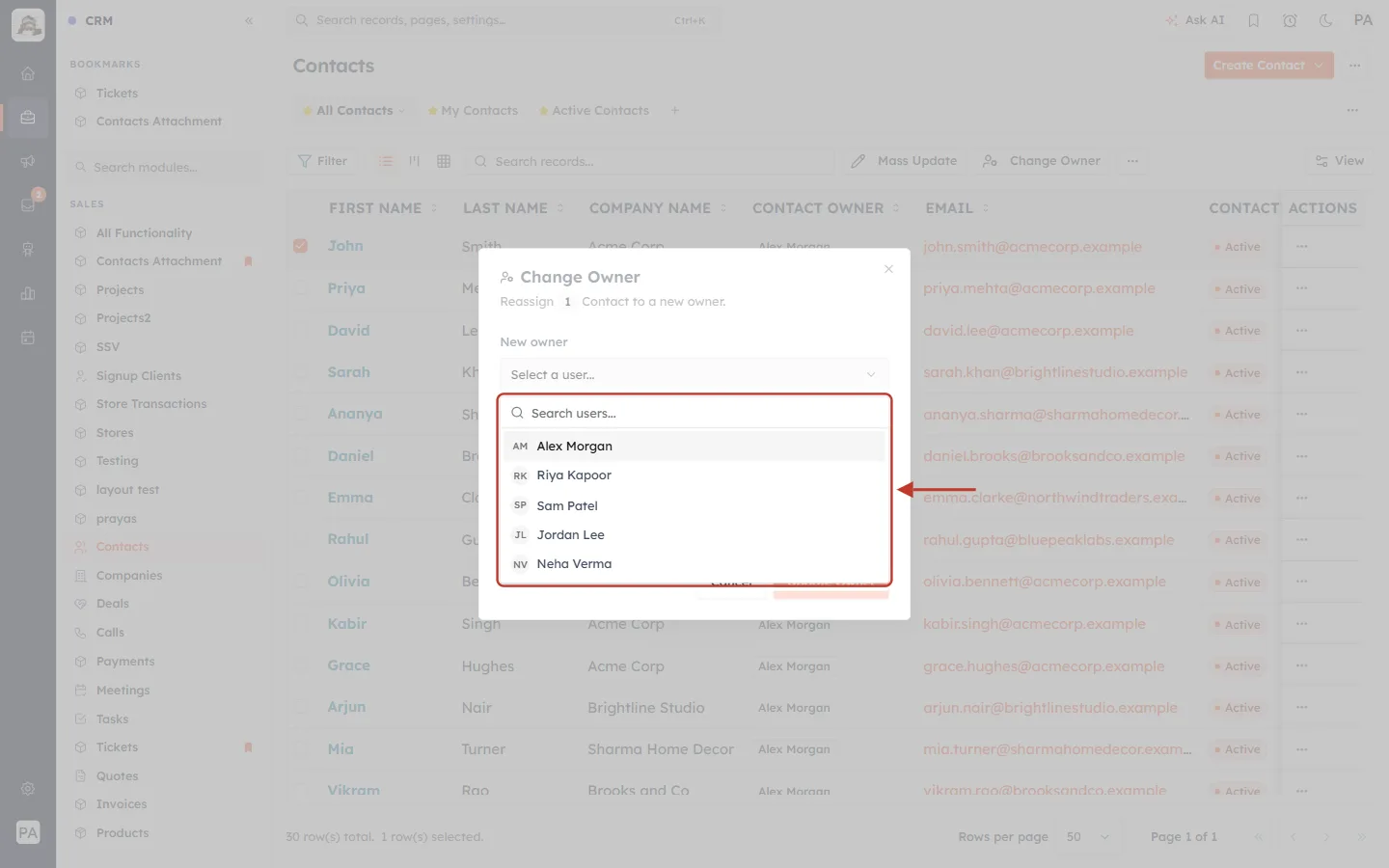
What this screenshot shows. The list of teammates, ringed, under New owner.
Search users…: type a name to narrow the list.
Each entry: the user’s initials and name — Alex Morgan, Riya Kapoor, Sam Patel, Jordan Lee and Neha Verma.
Only active users can become owners.
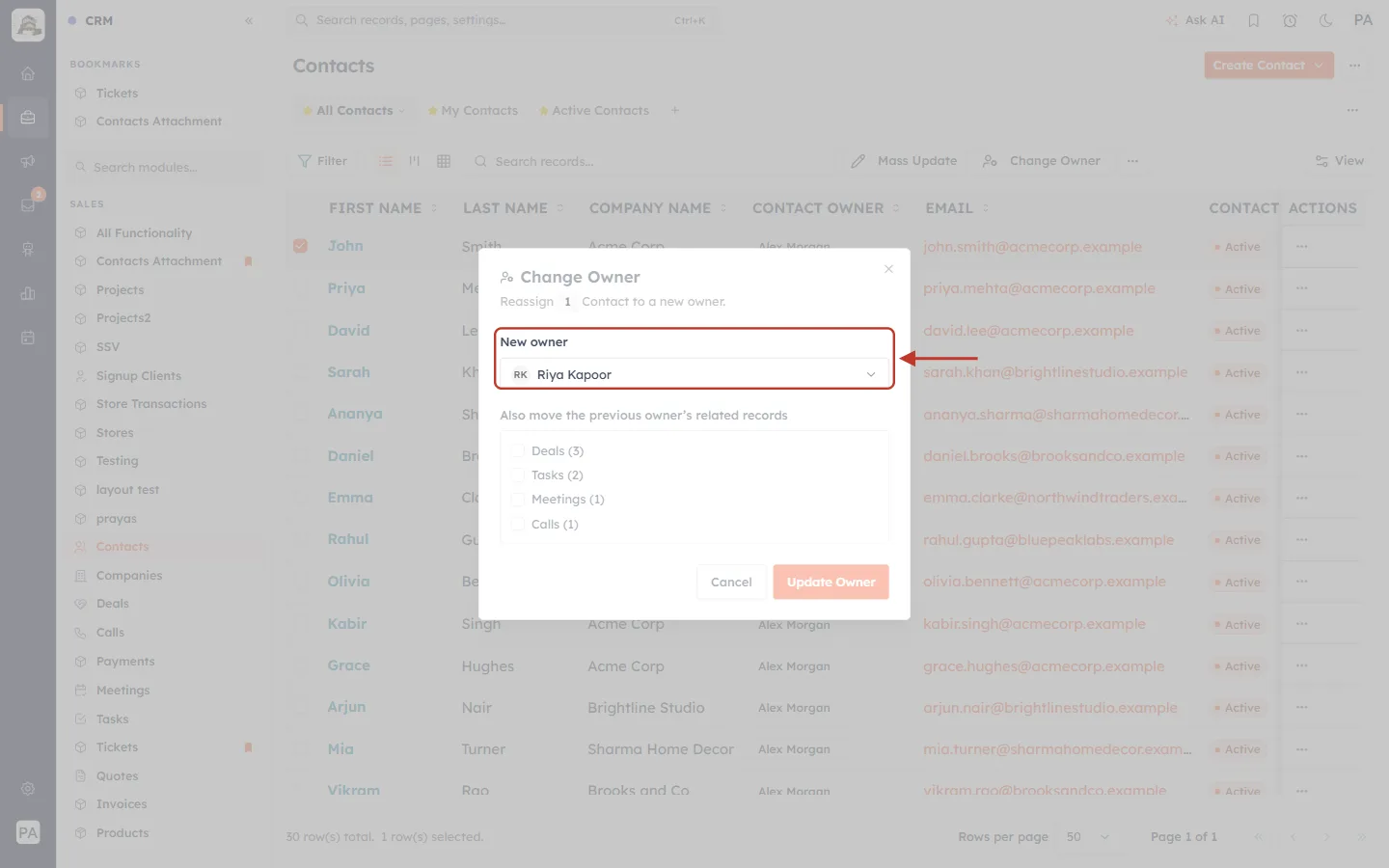
What this screenshot shows. The New owner box, ringed, now showing Riya Kapoor.
New owner: “Riya Kapoor”. Click the box again to choose someone else.
Step 6: Choose which related records to move#
Look at Also move the previous owner’s related records. Each line is one kind of related record, with how many the previous owner holds on this contact.
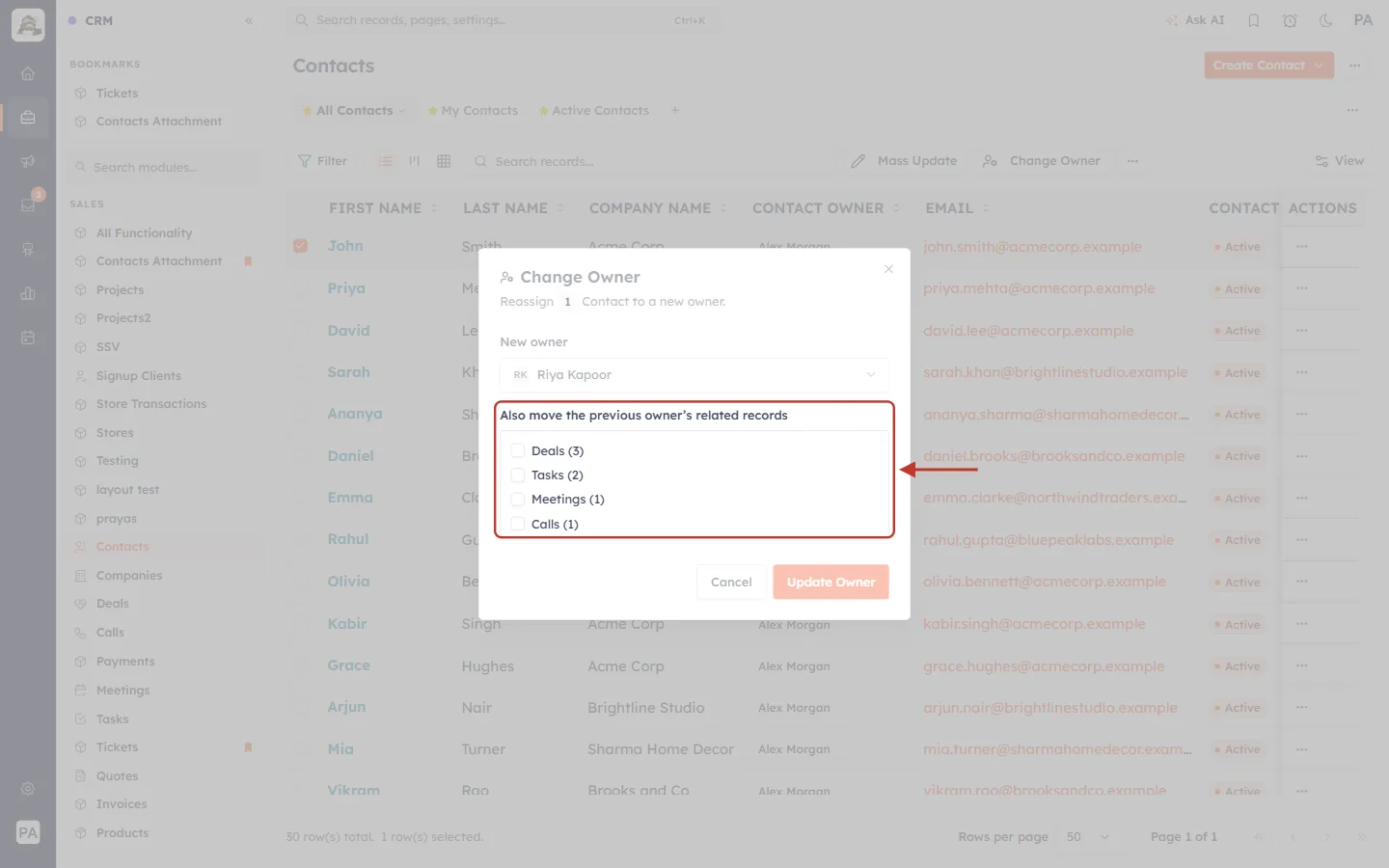
What this screenshot shows. The related-records section, ringed, before anything is ticked.
Deals (3): three deals linked to John Smith and owned by Alex Morgan.
Tasks (2), Meetings (1), Calls (1): the same for tasks, meetings and calls.
Unticked: if you leave a box empty, those records stay with Alex.
Tick every kind you want the new owner to take over. Usually that is all of them. We ticked all four.
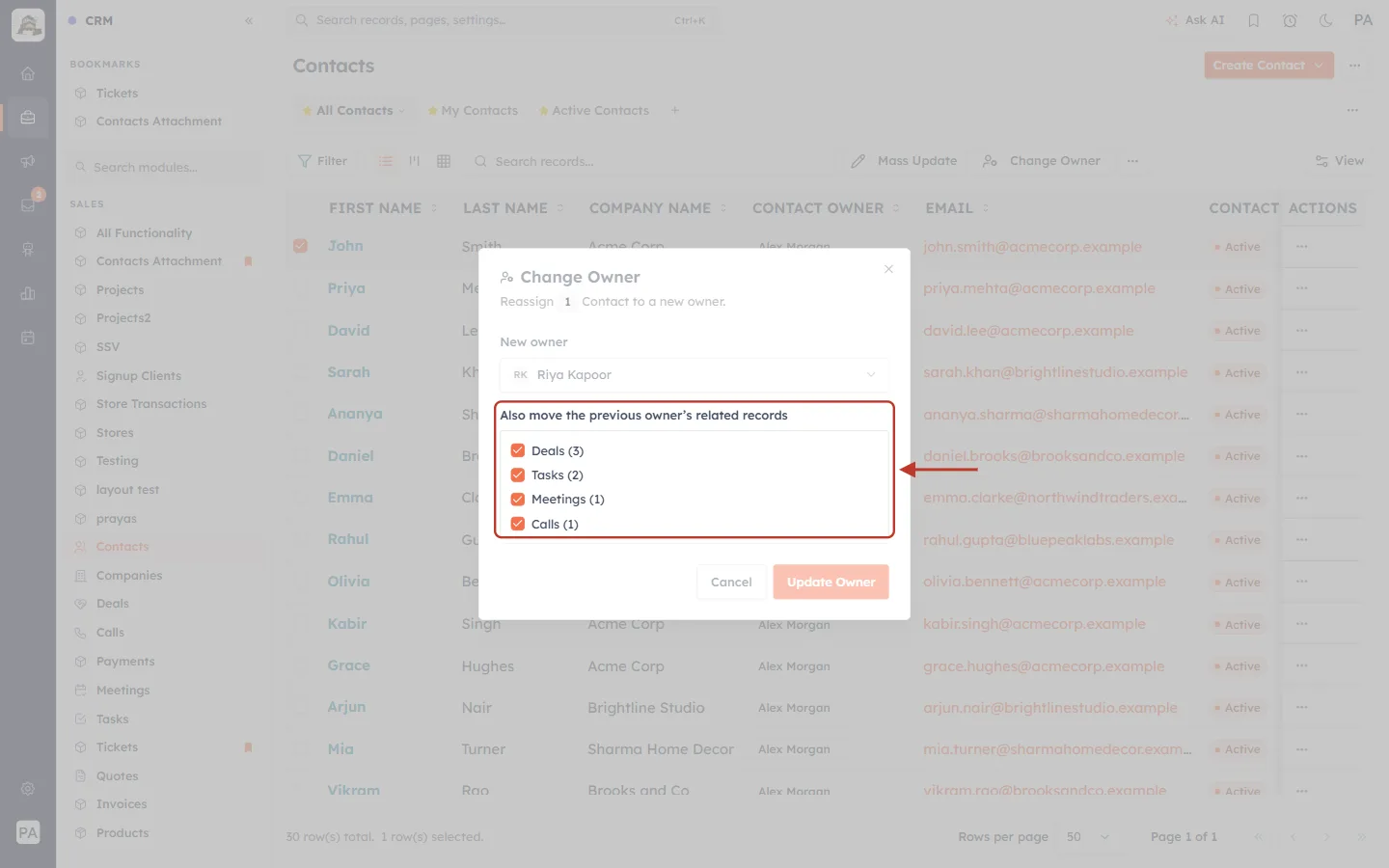
What this screenshot shows. The same section, ringed, with all four kinds ticked.
Deals, Tasks, Meetings and Calls are all ticked. All 7 records will move to Riya Kapoor along with the contact.
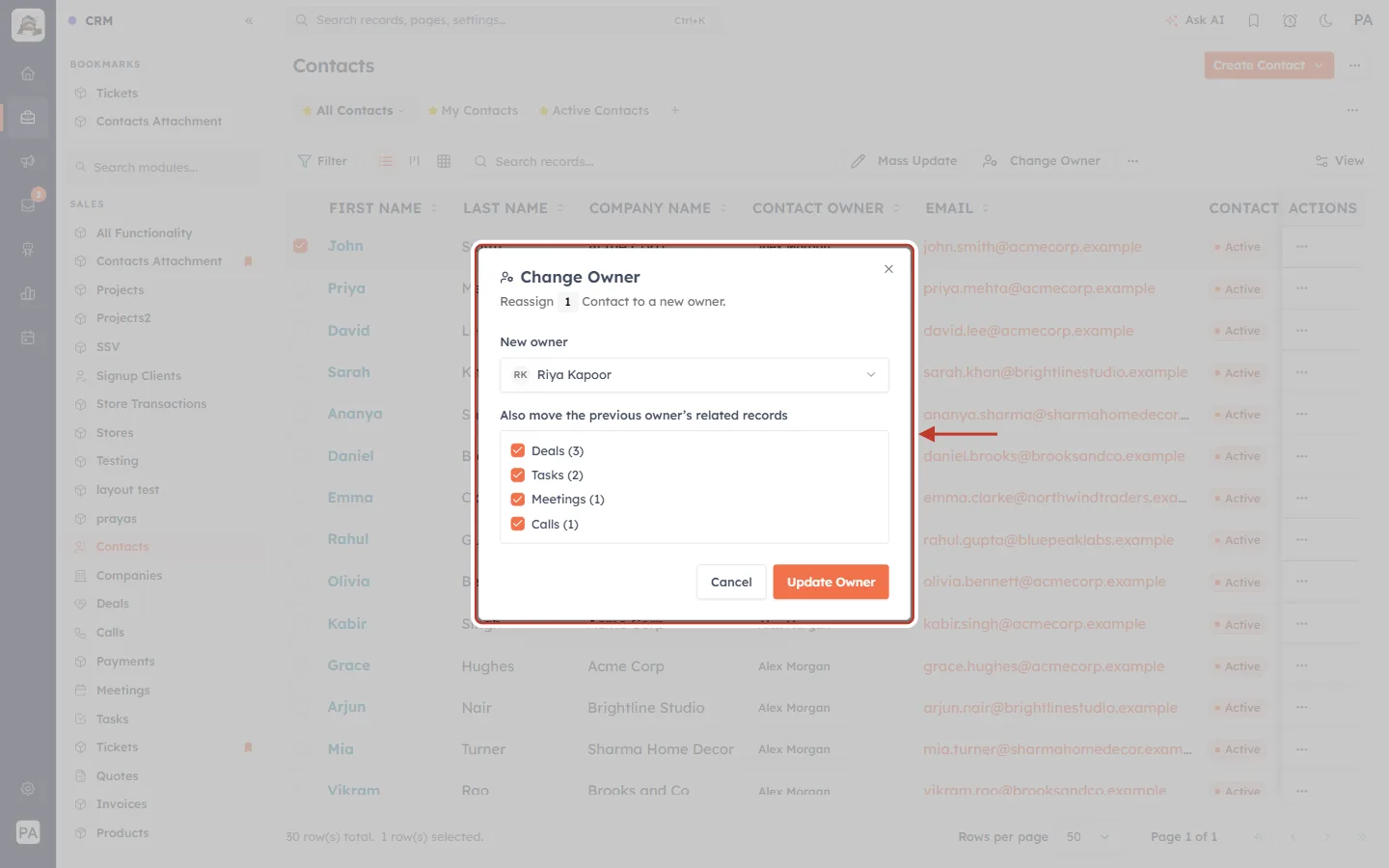
What this screenshot shows. The whole window, ringed, ready to save.
New owner: Riya Kapoor.
Related records: all four kinds ticked.
Update Owner: now orange and clickable.
Step 7: Click Update Owner#
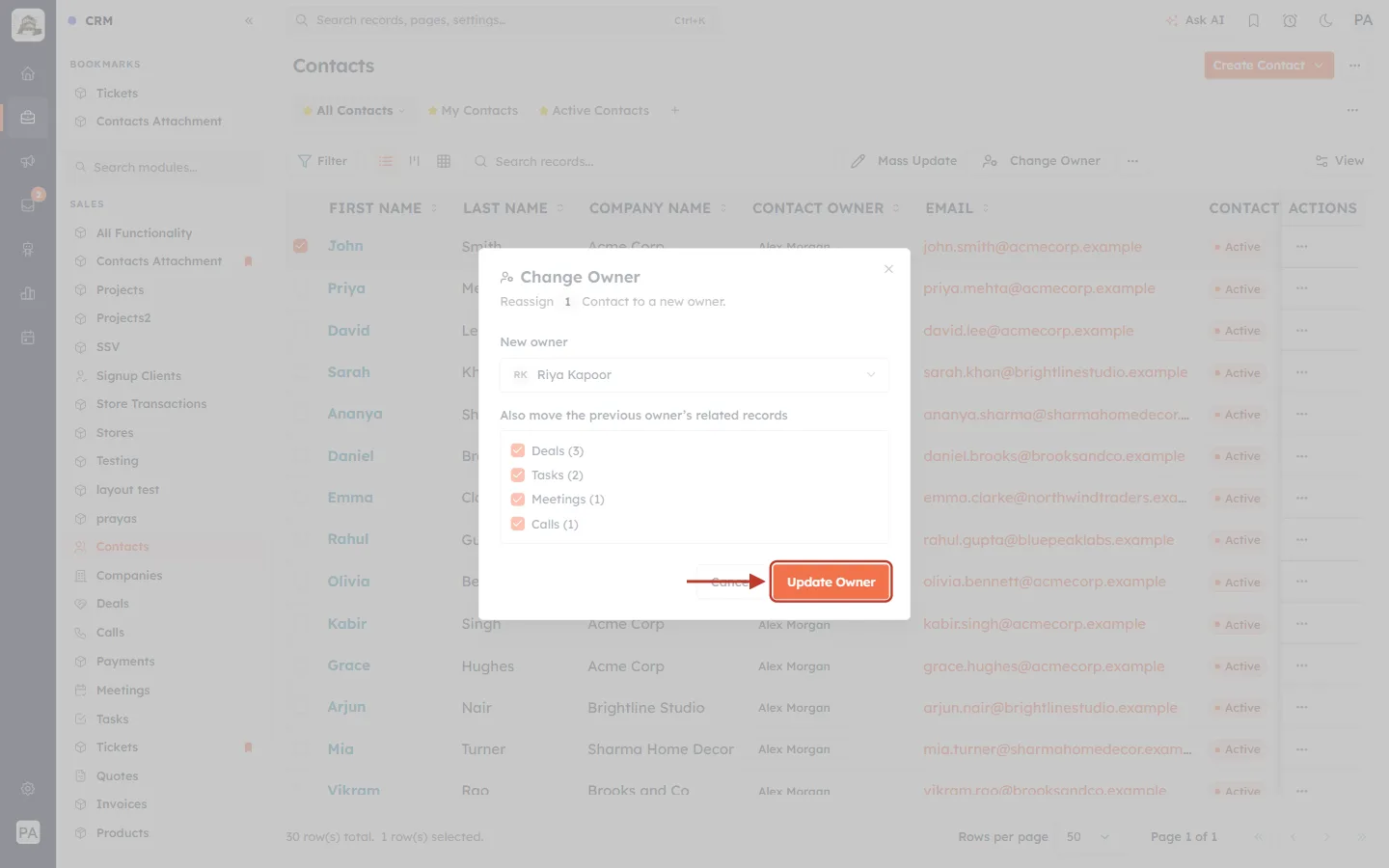
What this screenshot shows. The Update Owner button, ringed.
Update Owner: makes the change. While it works the button reads “Updating…”.
Cancel: closes the window without changing anything.
A confirmation message appears at the bottom right of the screen.
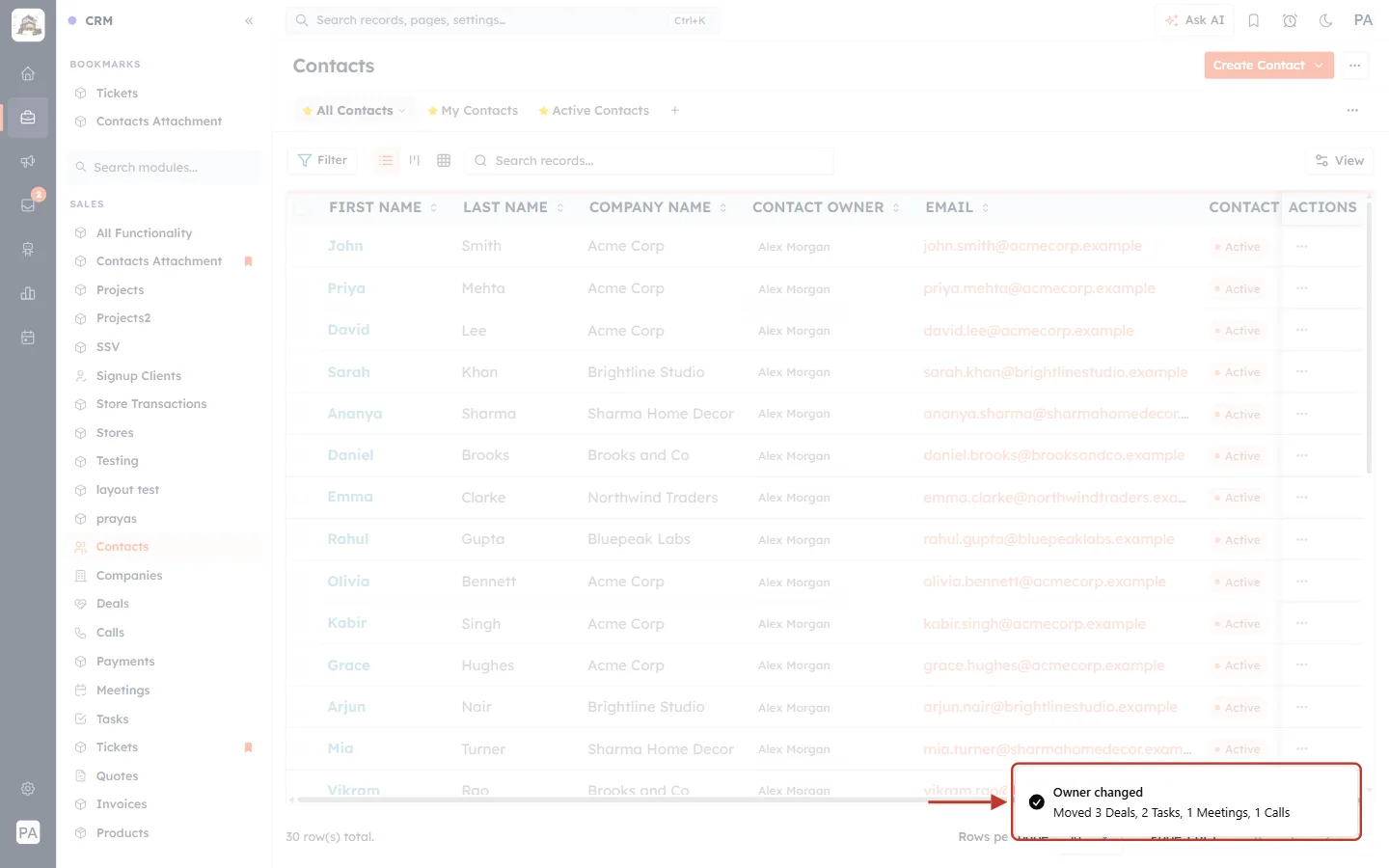
What this screenshot shows. The confirmation message, ringed.
“Owner changed” — the contact now belongs to Riya Kapoor.
“Moved 3 Deals, 2 Tasks, 1 Meetings, 1 Calls” — exactly which related records went with it.
If some related records couldn’t be moved because you don’t have edit access to them, the message adds “N record(s) skipped — no edit access”.
Step 8: Check the result#
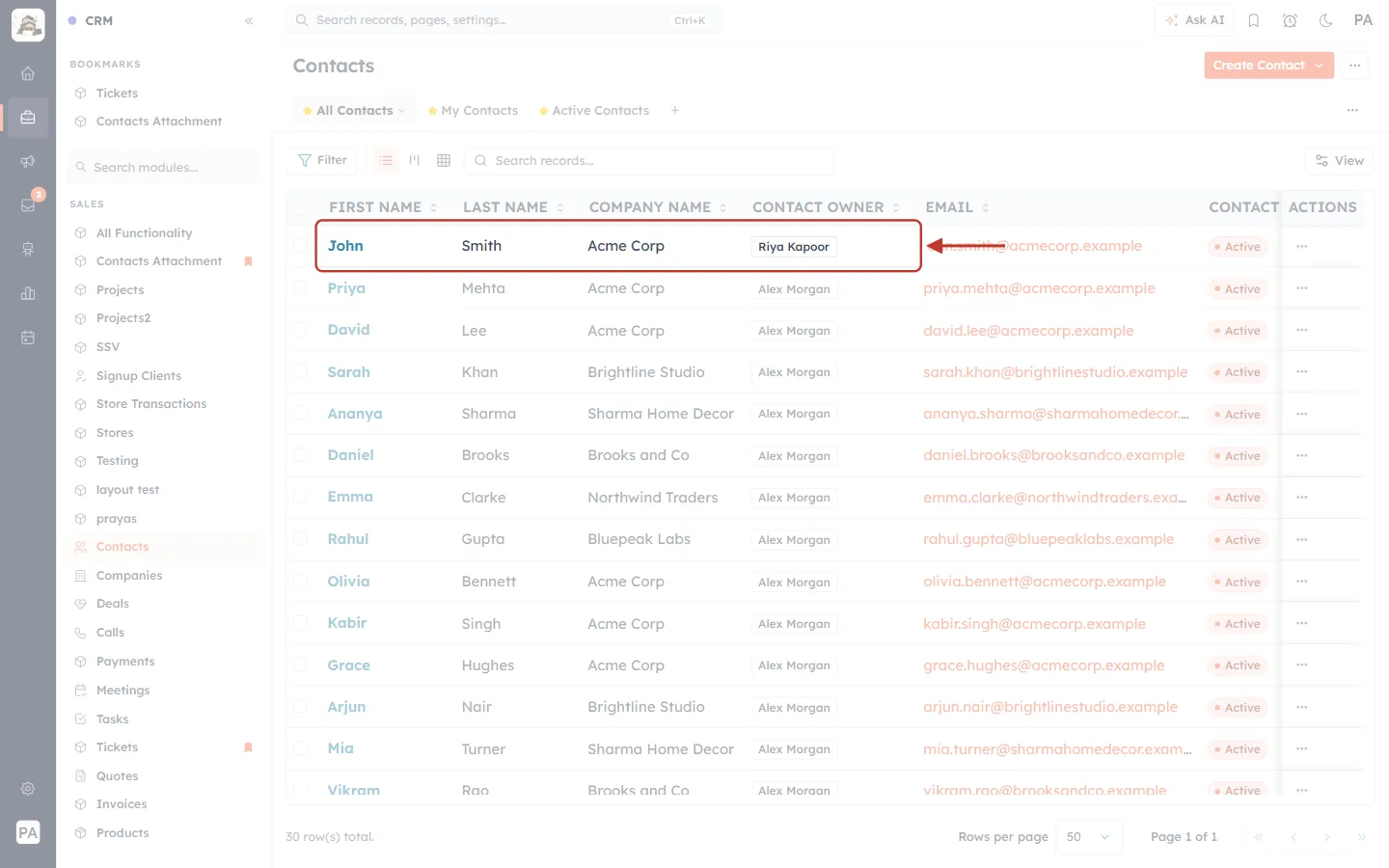
What this screenshot shows. John Smith’s row in the list, ringed, after the change.
Contact Owner: now “Riya Kapoor”.
Other rows: still owned by Alex Morgan — only the ticked record changed.
Open the contact’s Deals, Tasks, Meetings or Calls to confirm they now show Riya as their owner too.
Part 3: Change several records at once (up to 20 with related records)#
Step 9: Tick up to 20 records#
Tick each record you want to reassign. We ticked John Smith, Priya Mehta and David Lee.
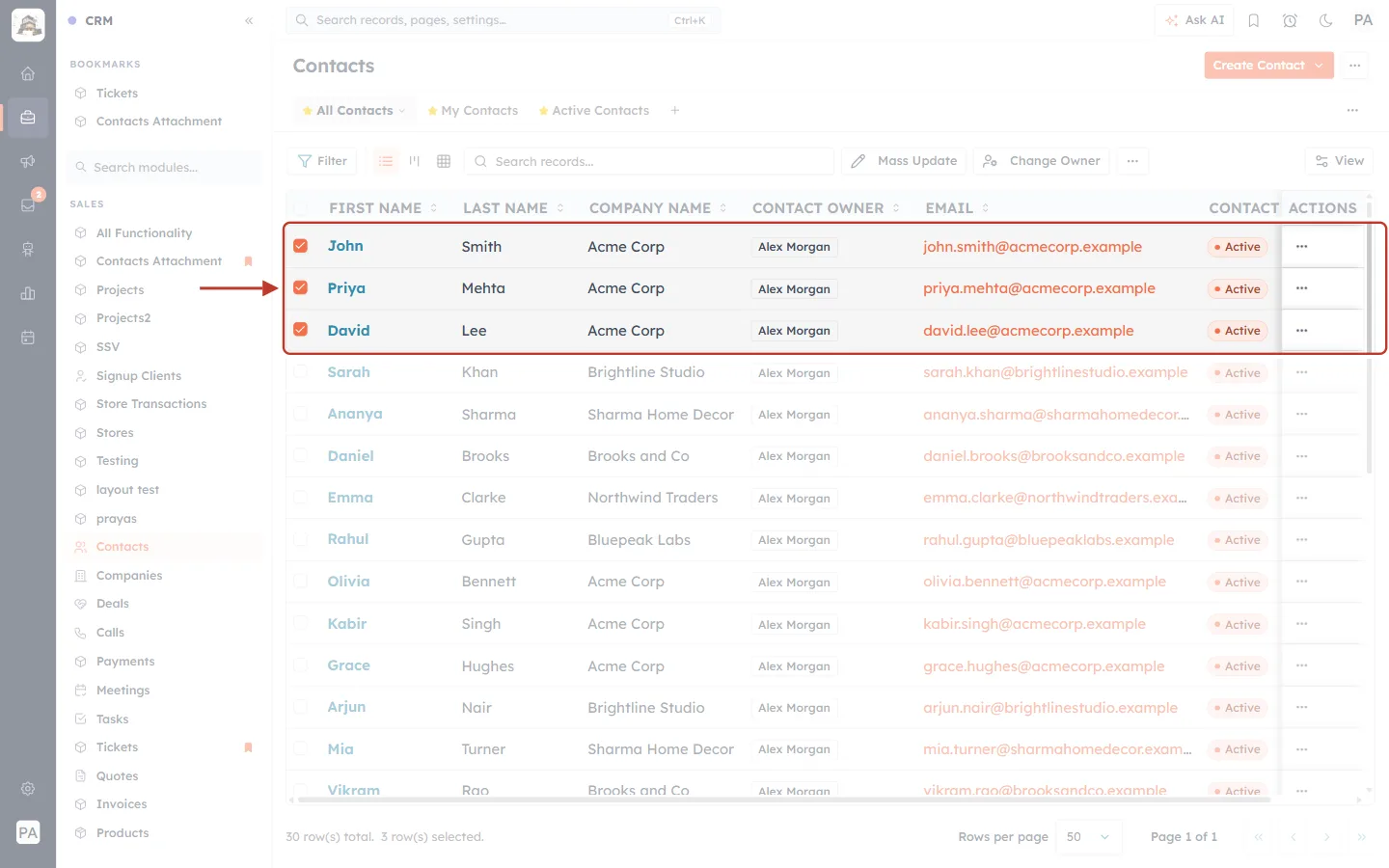
What this screenshot shows. Three ticked rows, ringed.
John Smith, Priya Mehta and David Lee are ticked and highlighted.
Up to 20: you can tick as many as 20 records and still move their related records.
Step 10: Pick the new owner and the related records, then update#
Click Change Owner, choose the new owner and tick the kinds of related records to move. The counts now cover all the selected records together.
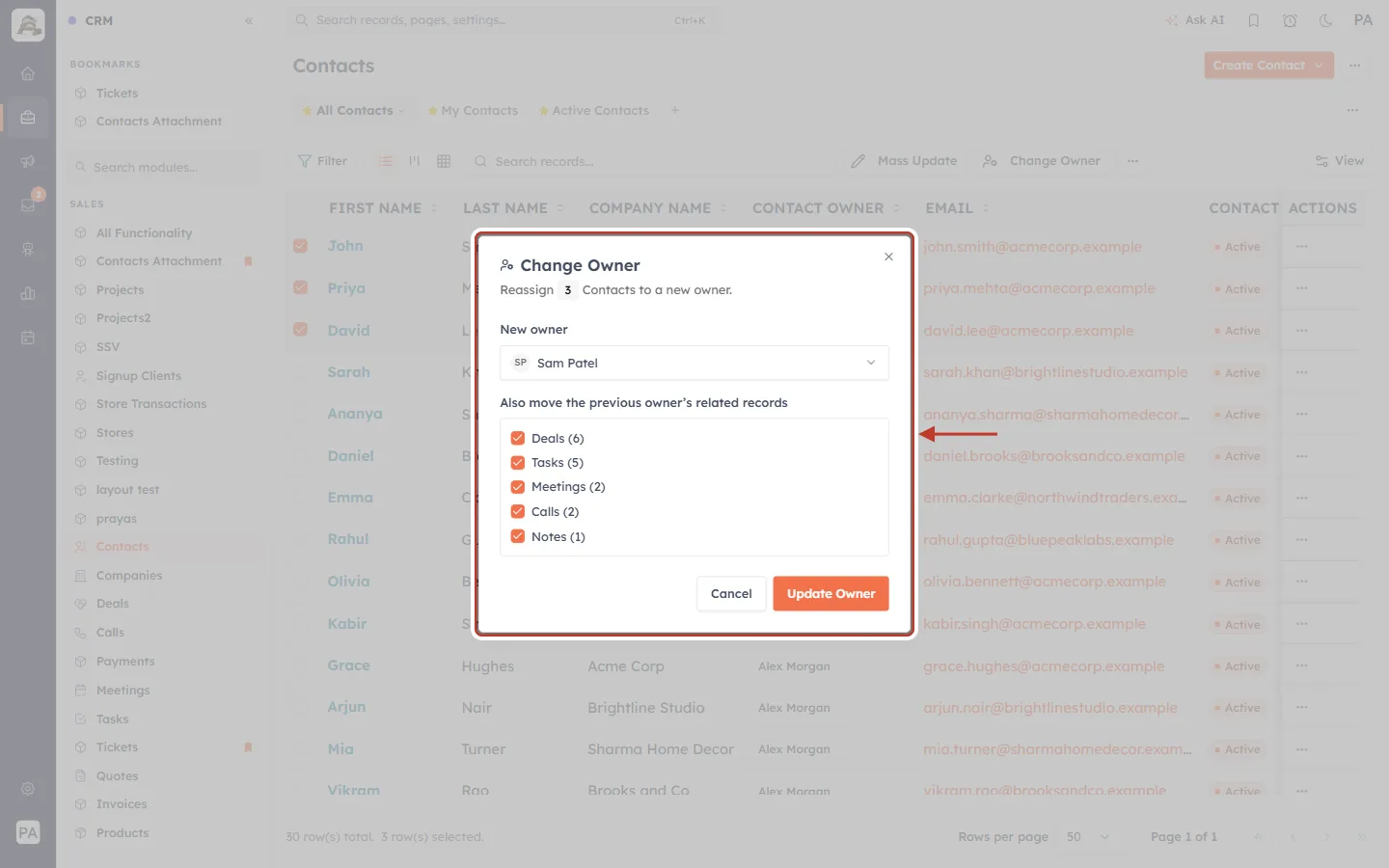
What this screenshot shows. The Change Owner window, ringed, for three contacts.
“Reassign 3 Contacts to a new owner.”
New owner: Sam Patel.
Related records (totals for all three contacts): Deals (6), Tasks (5), Meetings (2), Calls (2), Notes (1) — all ticked.
Update Owner: click to apply.
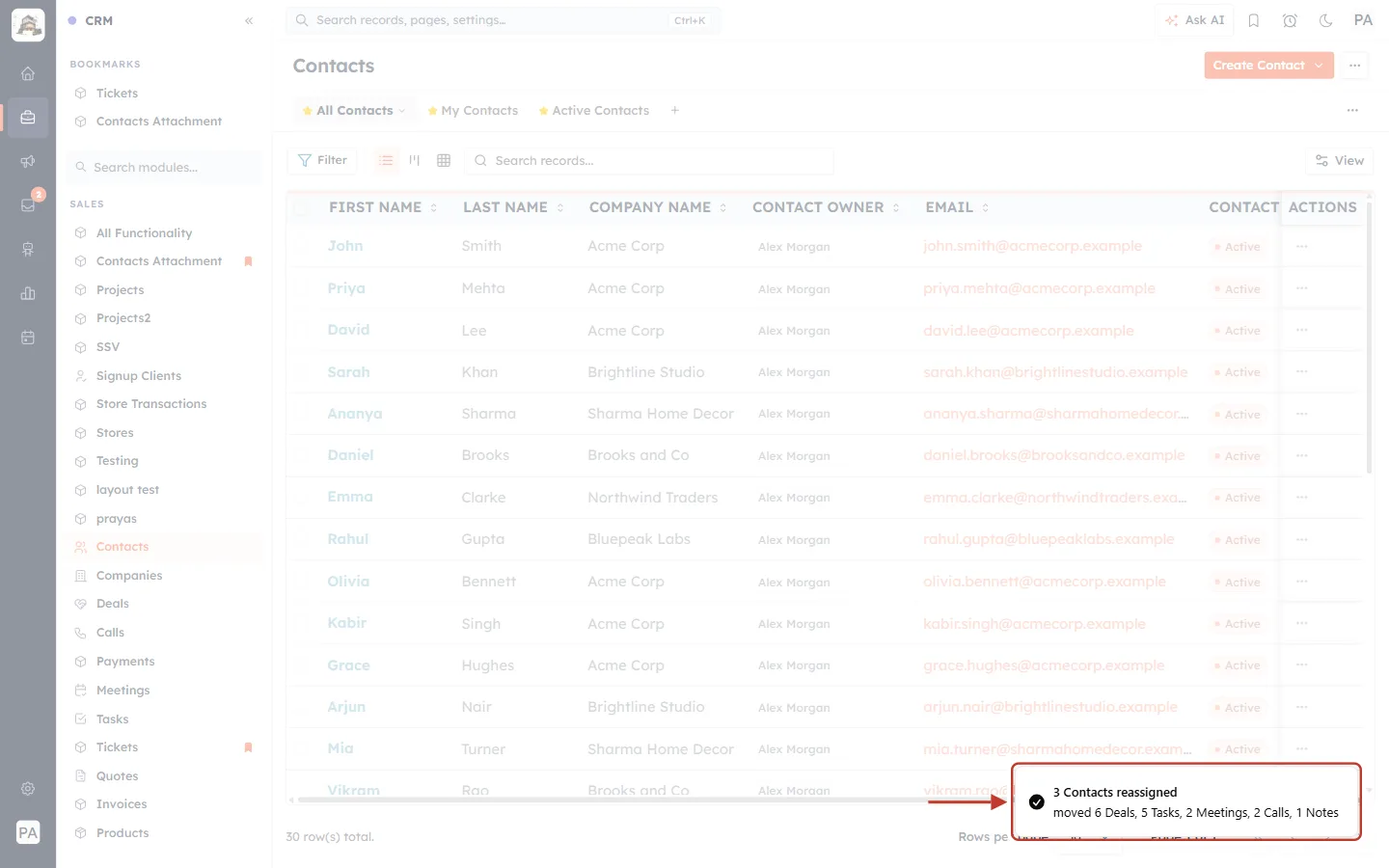
What this screenshot shows. The confirmation message, ringed.
“3 Contacts reassigned” — all three now belong to Sam Patel.
“moved 6 Deals, 5 Tasks, 2 Meetings, 2 Calls, 1 Notes” — the related records that went with them.
Records you don’t have edit access to are reported as “N record(s) skipped — no edit access”.
Part 4: More than 20 records — owner only#
For a big handover, such as a whole page of contacts, you can change the owner of many records at once. Above 20 records, though, related records are not moved.
Step 11: Show more rows per page#
The tick box in the header selects every record on the current page. To select more at once, open Rows per page at the bottom of the list and choose a bigger number.
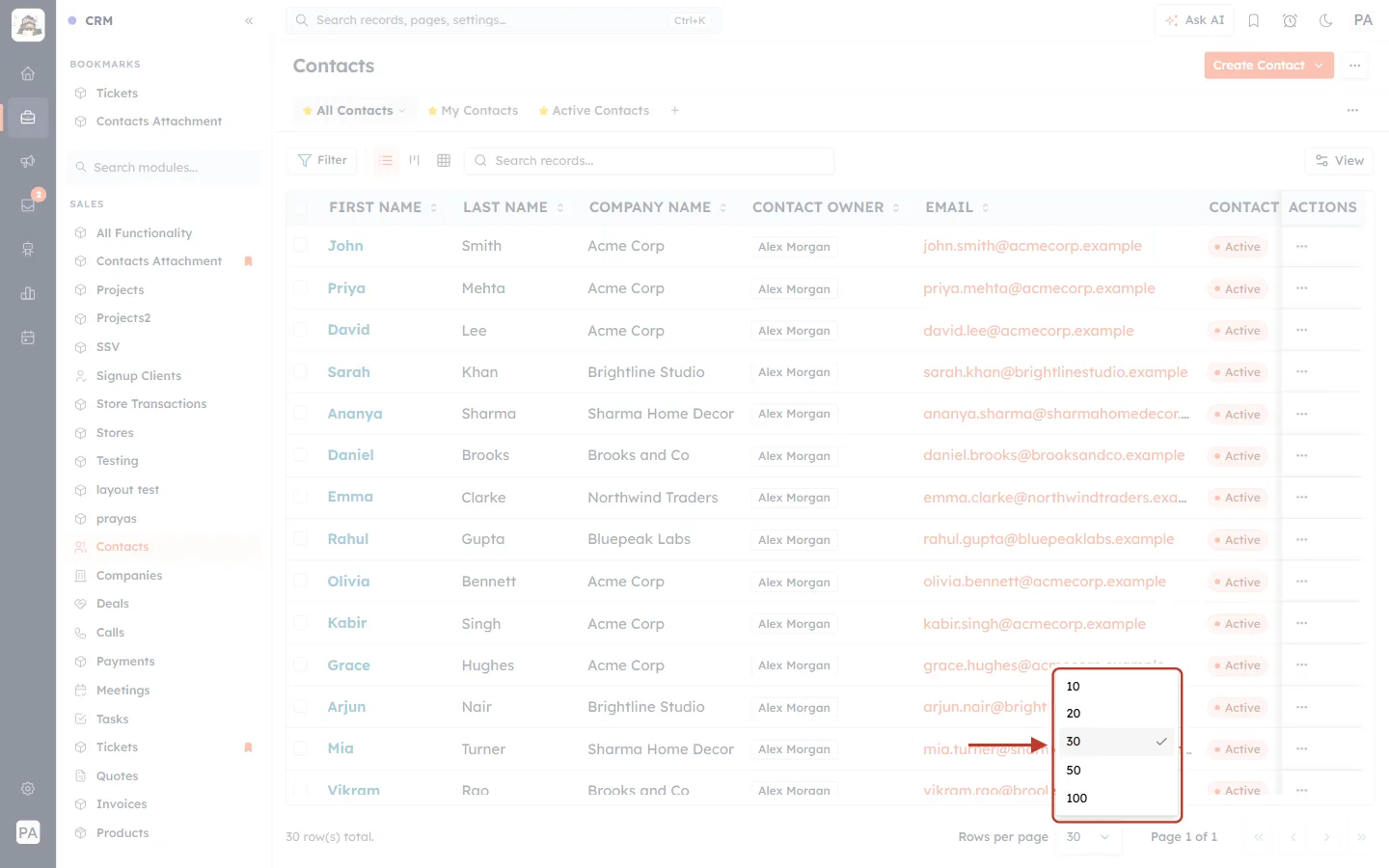
What this screenshot shows. The Rows per page list, ringed.
Options: 10, 20, 30, 50 or 100 rows per page.
100 is the most per page. To go beyond one page, use the Select all … records matching this view link in the next step (up to 500).
Step 12: Select the whole page#
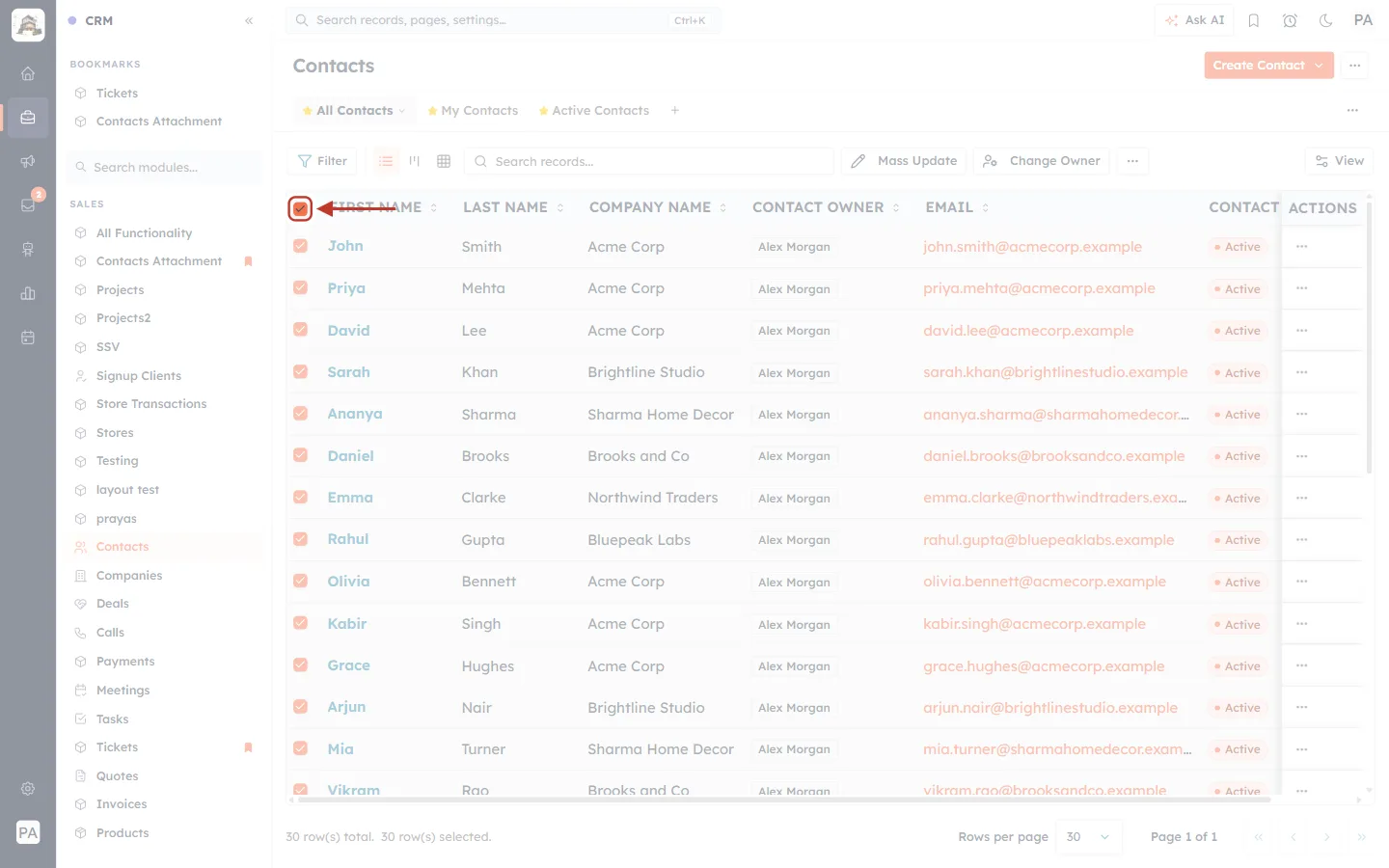
What this screenshot shows. The tick box in the column header, ringed.
Header tick box (ringed): ticks every row on the current page at once.
Click it again to clear the selection.
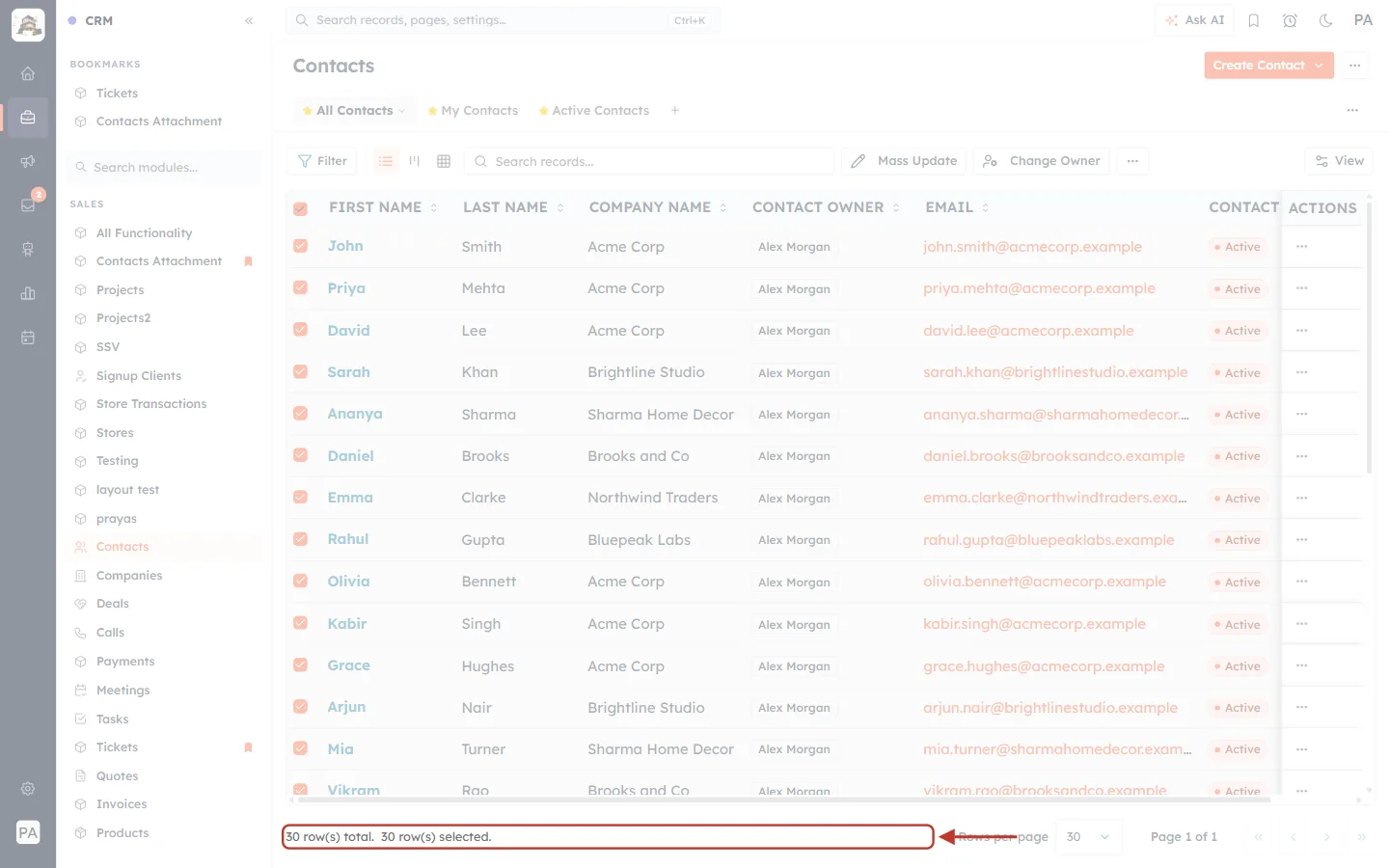
What this screenshot shows. The count under the list, ringed.
“30 row(s) total. 30 row(s) selected.” — every contact on this page is selected.
To select more than one page, use the link in the bar that appears above the list after you tick the header box. Filter or search the list first so the view contains only the records you want.
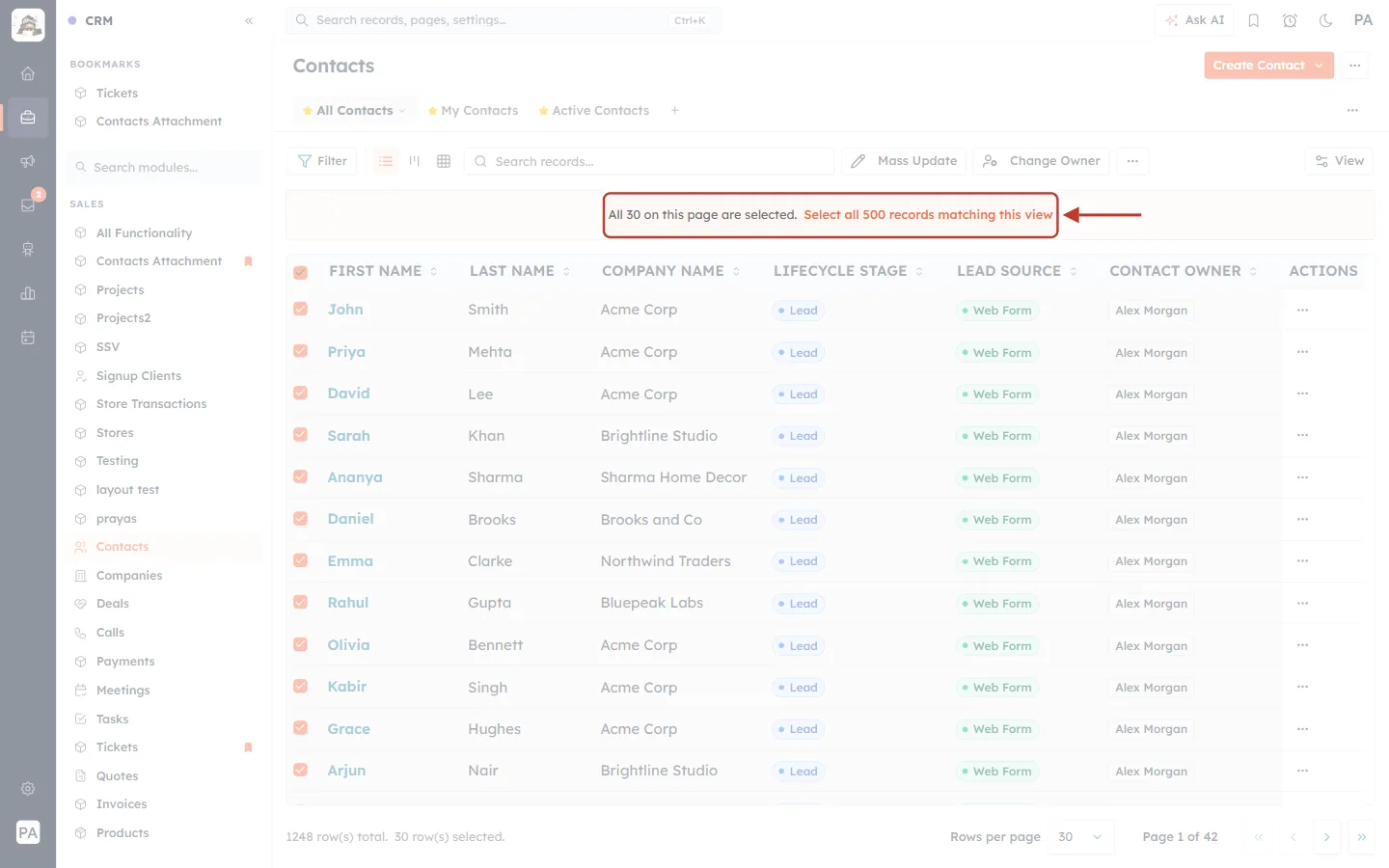
What this screenshot shows. The bar above the list, ringed, after ticking the header box in a view of 1,248 contacts.
“All 30 on this page are selected.” — the header box selects only this page.
“Select all 500 records matching this view” — selects every record that matches the current view, filter and search, up to 500.
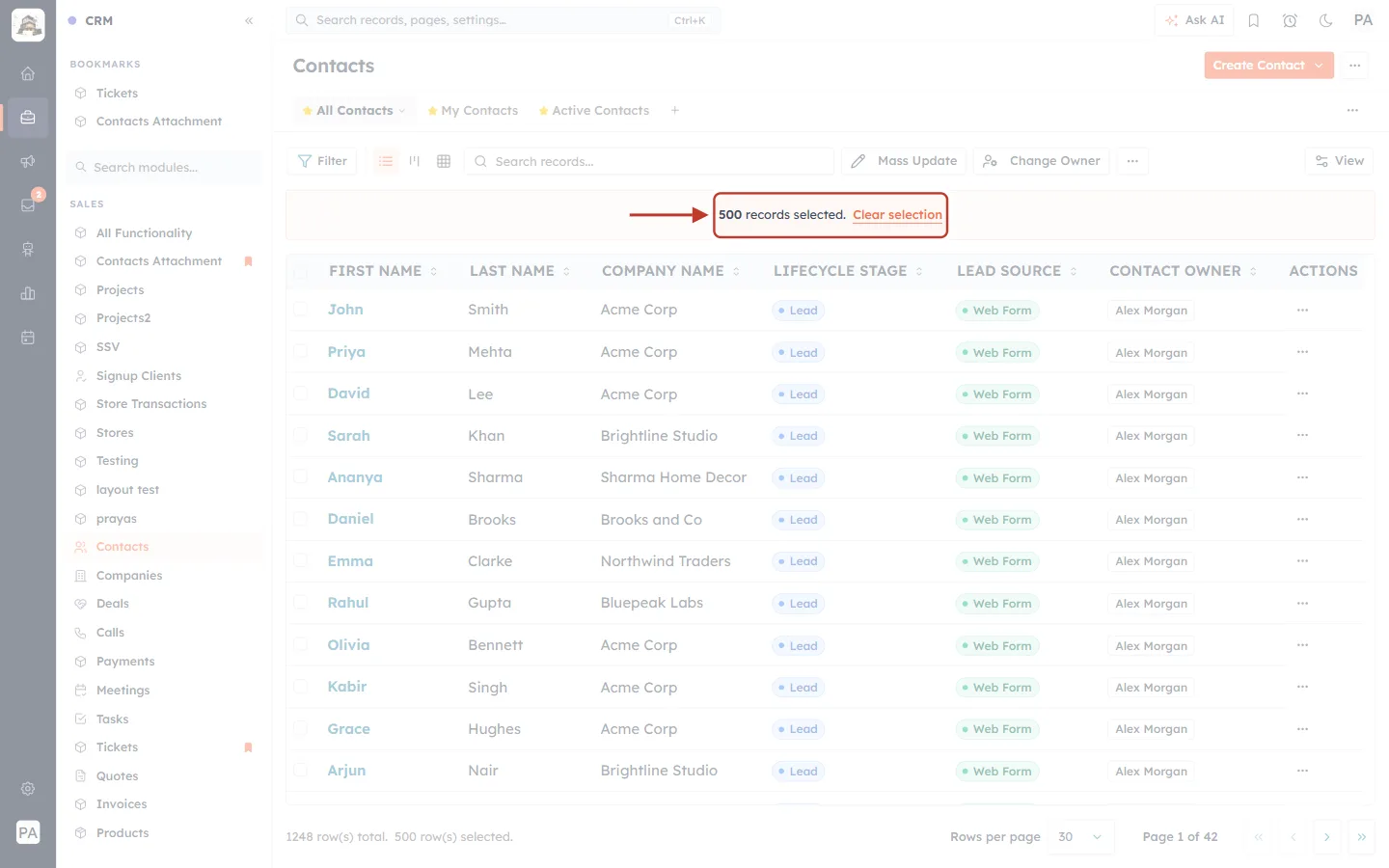
What this screenshot shows. The bar, ringed, after clicking the link.
“500 records selected.” — the most you can select for one action. Clear selection unticks everything.
With this many selected, Change Owner changes only the owner (next step).
Step 13: Change the owner — related records stay put#
Click Change Owner. Because more than 20 records are selected, the window explains that only the owner will change.
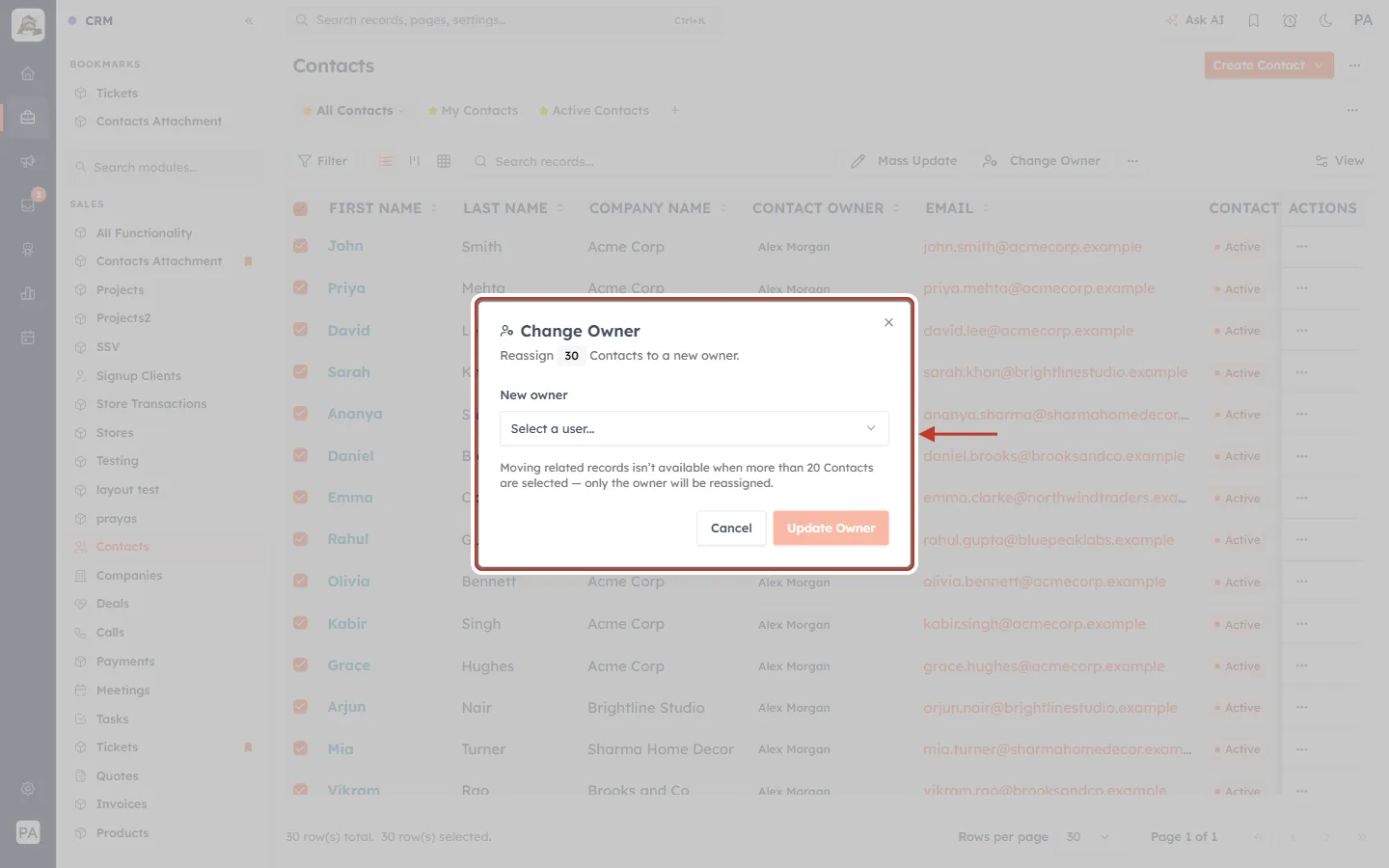
What this screenshot shows. The Change Owner window, ringed, for 30 contacts.
“Reassign 30 Contacts to a new owner.”
New owner: choose the teammate as usual.
No related-records list: it is replaced by a note (next screenshot).
Update Owner: changes the owner of all 30 contacts.
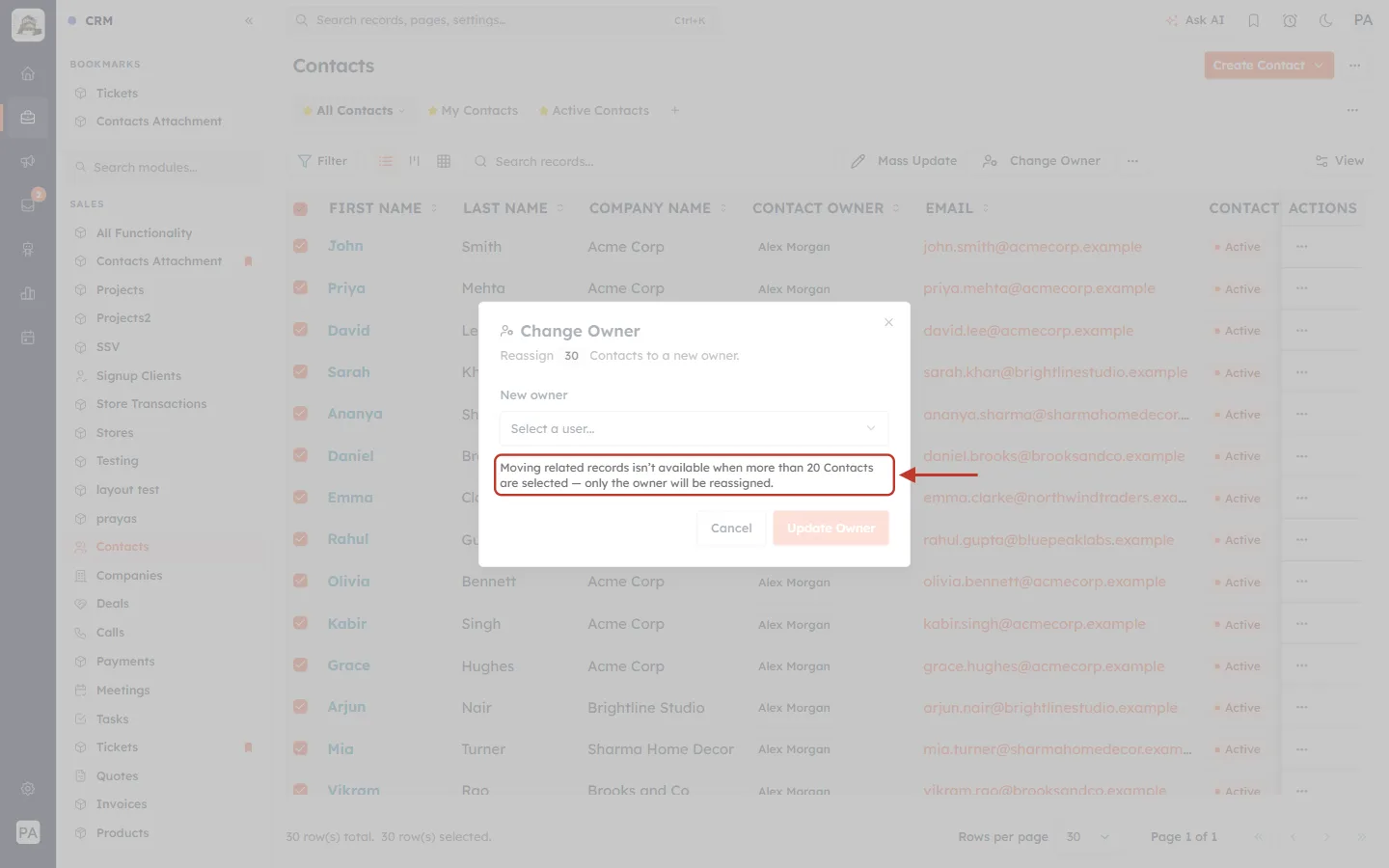
What this screenshot shows. The note in the window, ringed.
“Moving related records isn’t available when more than 20 Contacts are selected — only the owner will be reassigned.”
The contacts change owner. Their deals, tasks, meetings, calls and notes stay with the previous owner.
✅
Need the related records too? Work in batches of 20. Set Rows per page to 20, tick the header box, change the owner with the related records ticked, then move to the next page and repeat.
Messages you may see#
| Message | What it means |
|---|---|
| Owner changed · Moved 3 Deals, 2 Tasks… | One record was reassigned, along with the related records listed. |
| 3 Contacts reassigned · moved … | Several records were reassigned, along with the related records listed. |
| N Contacts reassigned successfully | Several records were reassigned and no related records were moved (none ticked). |
| N record(s) skipped — no edit access | You don’t have edit access to some records, so they kept their owner. |
| Checking related records… | The window is still counting the related records. Wait a moment. |
| Moving related records isn’t available when more than 20 … are selected | More than 20 records are selected. Only their owner will change. |
| You can change the owner of only your own (or your team’s) contacts. | Your profile limits you to your own or your team’s records. Others in your selection are skipped. |
| This module has no owner field, so ownership can’t be changed here. | The module has no owner field (for example a module built without one). |
| Select a new owner | You clicked Update Owner without choosing a user. |
| Change owner failed | Something went wrong. Nothing was changed. Try again, and contact support if it keeps happening. |
Good to know#
Up to 20 with related records, up to 500 without. These limits apply to each action. Repeat in batches for bigger handovers.
Only the previous owner’s related records move. Related records already owned by someone else are left alone.
Nothing else changes. The records keep all their other details. Created By and the record history stay as they were.
The new owner gets access. Owning a record usually means they can see and edit it. Who else can see it still follows your roles and sharing rules — see Understanding Sharing Rules.
For new records, use automatic assignment. To route new leads to the right person as they arrive, see Assign Owner: Automatically Route Leads to Your Team.
Troubleshooting#
I don’t see the Change Owner button. Tick at least one record first — the button only appears when something is selected. If it still isn’t there, your profile doesn’t allow changing owners in this module. Ask your administrator.
There is no “Also move the previous owner’s related records” section. Either more than 20 records are selected (you’ll see the note instead), or the previous owner holds no related records on them. In that case only the owner changes.
A kind of related record I expected isn’t listed. Only related records owned by the current owner are offered. If those deals or tasks already belong to someone else, they aren’t listed and won’t move.
Update Owner is greyed out. Choose a new owner first, and wait for “Checking related records…” to finish.
The new teammate isn’t in the list. Only active users appear. Make sure the person has accepted their invitation and hasn’t been deactivated — see Invite Your Team.
Some records were skipped. You don’t have edit access to them. Ask an administrator, or someone who can edit those records, to change their owner.
I selected 100 (or 500) contacts but their deals didn’t move. Related records only move when 20 or fewer records are selected. Change those contacts in batches of 20 with the related records ticked.
Frequently asked questions#
What is the most I can change in one go? 20 records if you also want to move their related records. 500 records (with Select all … records matching this view) if you only need to change the owner.
Can I undo a change? There is no undo button. Run Change Owner again with the original owner, ticking the same kinds of related records.
Can I move only some deals, not all of them? The tick boxes work per kind (all Deals, all Tasks and so on). To move just one deal, open that deal and change its owner there.
Does it work in modules other than Contacts? Yes — any module with an owner field, such as Companies, Deals or your custom modules. The related records offered depend on what is linked to those records.
What is the difference between Change Owner and Mass Update? Mass Update edits ordinary fields on many records. Change Owner is made for reassigning: it checks your access to each record and can bring the related records along.
Previous and next#
Previous: Mass Update: Change a Field on Many Records at Once (Up to 500 at a Time)
Next: Find & Merge Duplicates Across Any Module (Deduplication & Merge History)
Related#
Was this article helpful?
Ready to implement this?
OpenAI Engage and apply what you just learned to your own workspace.
Open AI Engage CRM