Loading…


KnowledgeBase
Find & Merge Duplicates Across Any Module (Deduplication & Merge History)
Duplicate records creep into any CRM. The deduplication tool scans a module for duplicates, auto-merges the ones that are identical, and walks you through resolving the rest — group by group — with a full merge history you can restore from. It works on any standard CRM module (Contacts, Leads, and custom modules).
Before you start#
The Deduplicate and Merge History actions only appear when all of these are true:
Your plan includes the record_merge feature.
You have Edit and Delete permission on the module (dedup edits a master record then removes the duplicates).
The module's Duplicate Check & Merge setting is enabled in Module Settings → Features. This master switch also constrains which fields you can match on.
Transactional modules (Quotes, Invoices, Payments) never show these actions — each is a distinct numbered document, not a duplicate to merge.
💡
The manual Deduplicate uses the same duplicate definition as your automatic create/update check. If an admin configured matching fields in Module Settings, the field picker is pre-filled with them.
Run a deduplication scan#
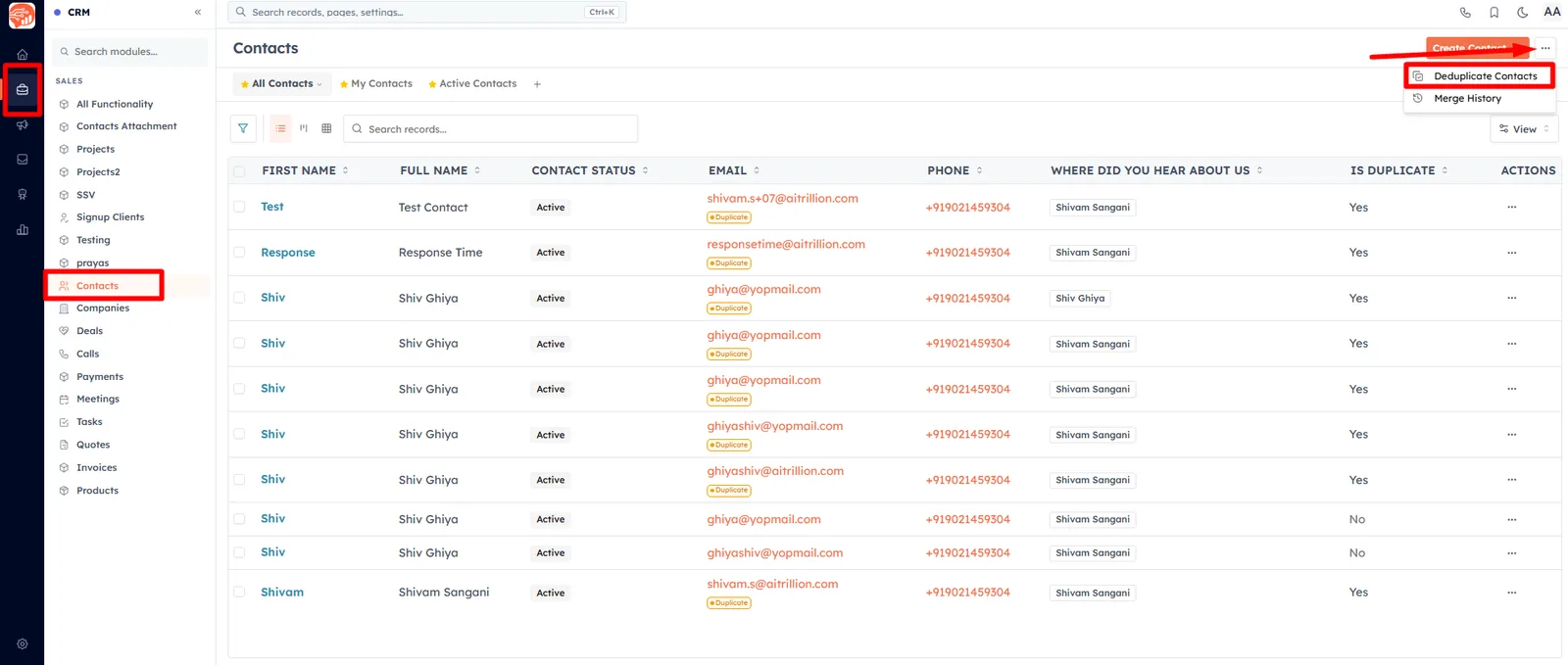
On the module records page, open the actions menu and choose Deduplicate <Module>.
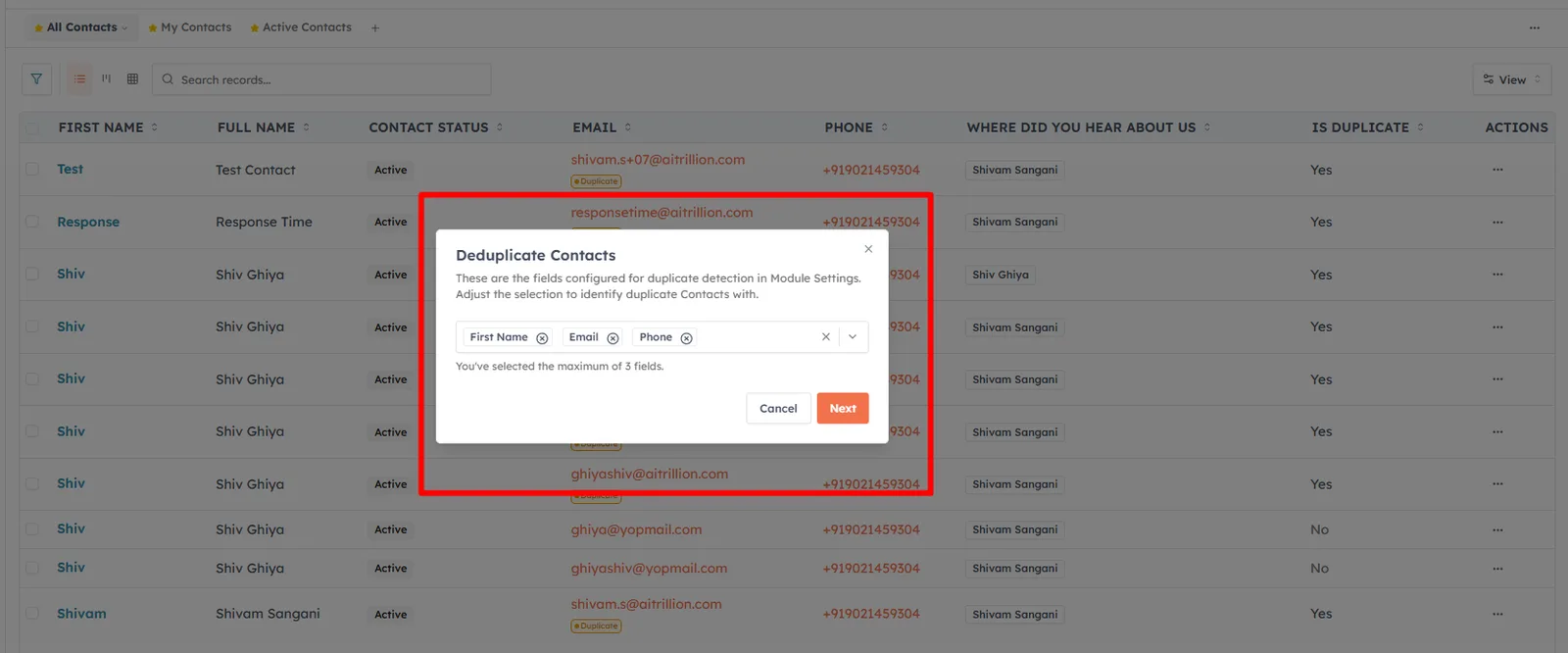
Pick match fields — select 1 to 3 fields that identify a duplicate (for example, Email and Phone). Only value-bearing, text-like fields are offered. Click Next.
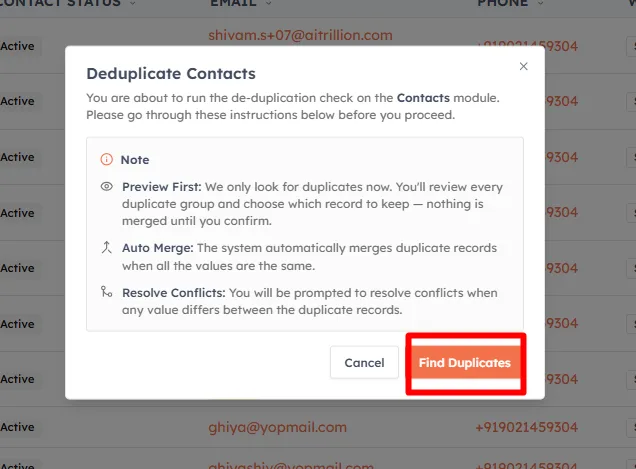
Review the instructions — the confirmation step explains that it previews first (nothing is merged yet), auto-merges records whose values are all identical, and prompts you to resolve conflicts when any value differs. Click Find Duplicates.
The scan runs asynchronously — a spinner shows Finding duplicate records… and the page updates when it is ready. Nothing is merged during the scan.
Review and merge the planned groups#
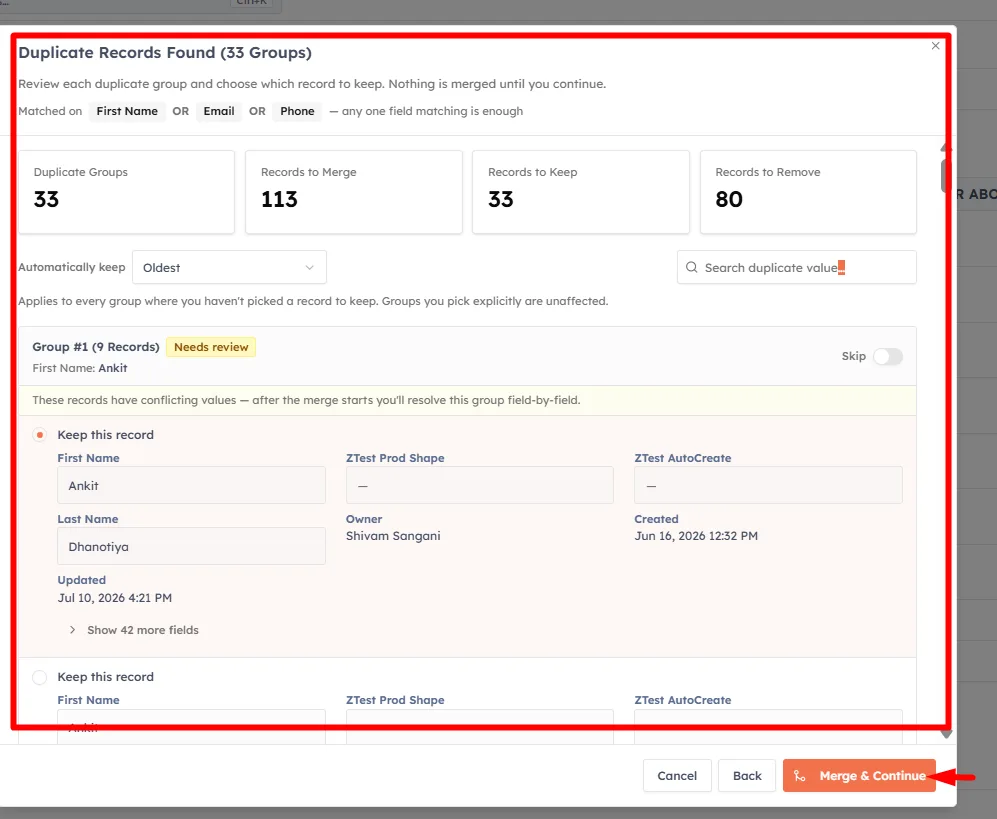
When the preview is ready, you see the duplicate groups with summary cards — Duplicate Groups, Records to Merge, Records to Keep, and Records to Remove. For each group:
Auto-merge badge — every value matches, so the group merges cleanly.
Needs review badge — values differ; you will resolve them field-by-field after the merge starts.
Keep this record — choose which record survives as the master.
Skip — toggle to leave a group untouched.
Set Automatically keep — Oldest, Newest, or Most Recently Updated — to decide the master for any group you do not pick explicitly. Use the search box to find a specific duplicate value. Click Merge & Continue to release the merge; a progress bar tracks it. When it finishes, you can Download Merge Report (CSV) and, if any conflicts remain, View Remaining Records.
Resolve remaining conflicts#
Conflicts that need manual attention open on the standalone deduplication conflicts page. You also reach it from the completion email — the org super-admin's email links here with a secure token, so a recipient can resolve conflicts even without module edit/delete permission.
Summary cards — Total Processed, Resolved (auto-merged), and Remaining conflicts.
Tabs — one per match field, each badged with its remaining count.
Conflict list — paginated groups; click a row or View to open the side-by-side merge dialog, choose the master and per-field values, and resolve it. Resolved groups drop off the list.
💡
Deduplication links expire. If you see This deduplication link has expired, run the Deduplicate action again from the module to start a fresh check.
Merge History & restore#
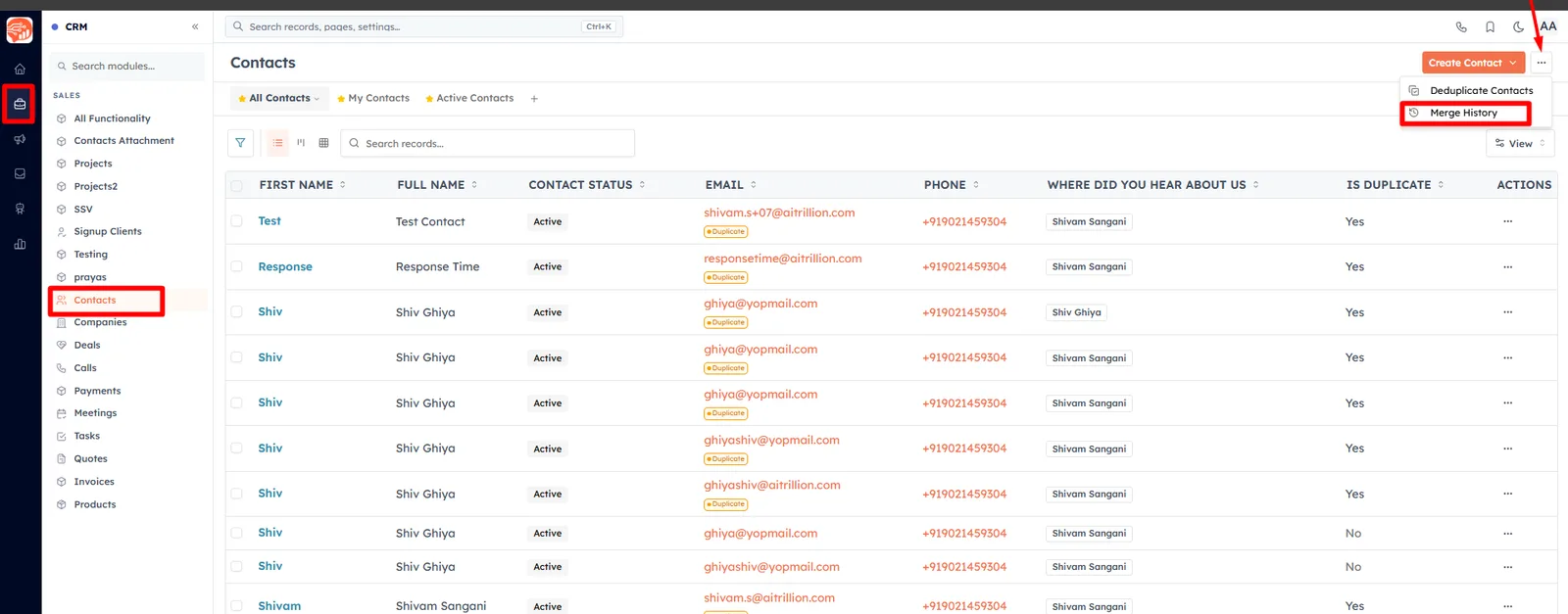
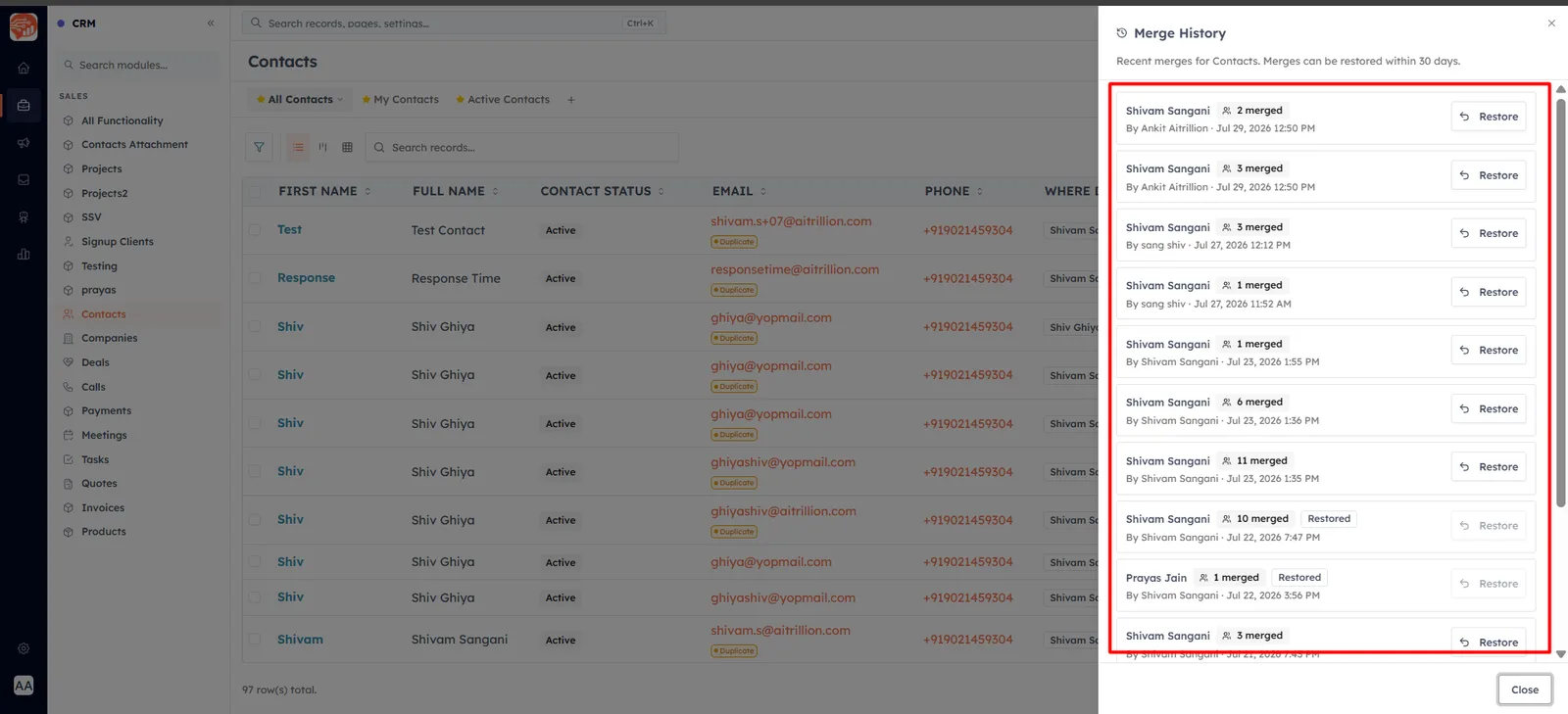
Choose Merge History from the module actions to review recent merges. Each entry shows the master record, how many records were merged in, who performed it, and when. Within the restore window you can click Restore to undo a merge — it recreates the merged-away records and reverts the master's field values, while keeping any edits you made to the master after the merge. Related records (deals, tasks, notes, activities) that were moved onto the master during the merge stay on the master — re-link them manually if needed.
Restore — available while the merge is inside the restore window (the number of days is shown in the panel).
Already restored / Outside the window — the Restore button is disabled, with the reason shown on hover.
💡
Because merges are restorable, deduplication is safe to run — if a merge was wrong, undo it from Merge History and your records come back intact.
Looking to clean up Contacts specifically? See Find & Merge Duplicate Contacts.
Was this article helpful?
Ready to implement this?
OpenAI Engage and apply what you just learned to your own workspace.
Open AI Engage CRM