Loading…


KnowledgeBase
Understanding the Role Hierarchy: How Roles Decide Whose Records Each User Can See
Introduction#
Every user in AiEngage CRM holds a role. Roles are arranged in a hierarchy that mirrors your organisation’s reporting lines: directors at the top, managers under them, and the people who report to those managers below. A user’s place in the hierarchy decides whose records they can see. A manager can see the records owned by the people who report to them.
This article explains how the hierarchy works using a real example built in the CRM, Sales Director → Sales Manager → Sales Representative. Each screenshot is followed by a description of the whole screen. To build your own hierarchy step by step, read Create Roles Step by Step: Build, Edit and Delete Your Role Hierarchy next.
ℹ️
Role vs Profile. A role answers “whose records can this person reach?” A profile answers “what can they do with them?” (create, edit, delete, export and so on). Every user has one of each. See Profile Permissions Explained: What Every Module, Feature & Setup Setting Controls.
Key Terms#
Term | What it means |
|---|---|
Role | A position in your organisation, such as Sales Manager. Each user holds one role. |
Parent Role | The role directly above a role. It places the role in the tree. |
Top-level role | A role with No Parent (Top Level). It sits at the top of its branch. |
Hierarchy Level | A number showing how deep a role sits. Lower numbers indicate higher authority in the hierarchy. |
Branch | A role and every role beneath it. |
Super Admin | The built-in System role. It can be edited but not deleted. |
How the Hierarchy Works#
Picture your org chart. Each position becomes a role, and each role points to its manager’s role as its parent:
Role | Parent Role | Level | Can see records owned by |
|---|---|---|---|
Sales Director | No Parent (Top Level) | 0 | Themselves, the Sales Managers and the Sales Representatives |
Sales Manager | Sales Director | 1 | Themselves and the Sales Representatives below them |
Sales Representative | Sales Manager | 2 | Their own records |
Visibility flows down a branch. People higher up see the records of everyone below them, never the other way round. It also doesn’t cross branches: a Marketing Manager in a separate branch doesn’t see the Sales Manager’s records. To open records across branches, use sharing rules (see the last section).
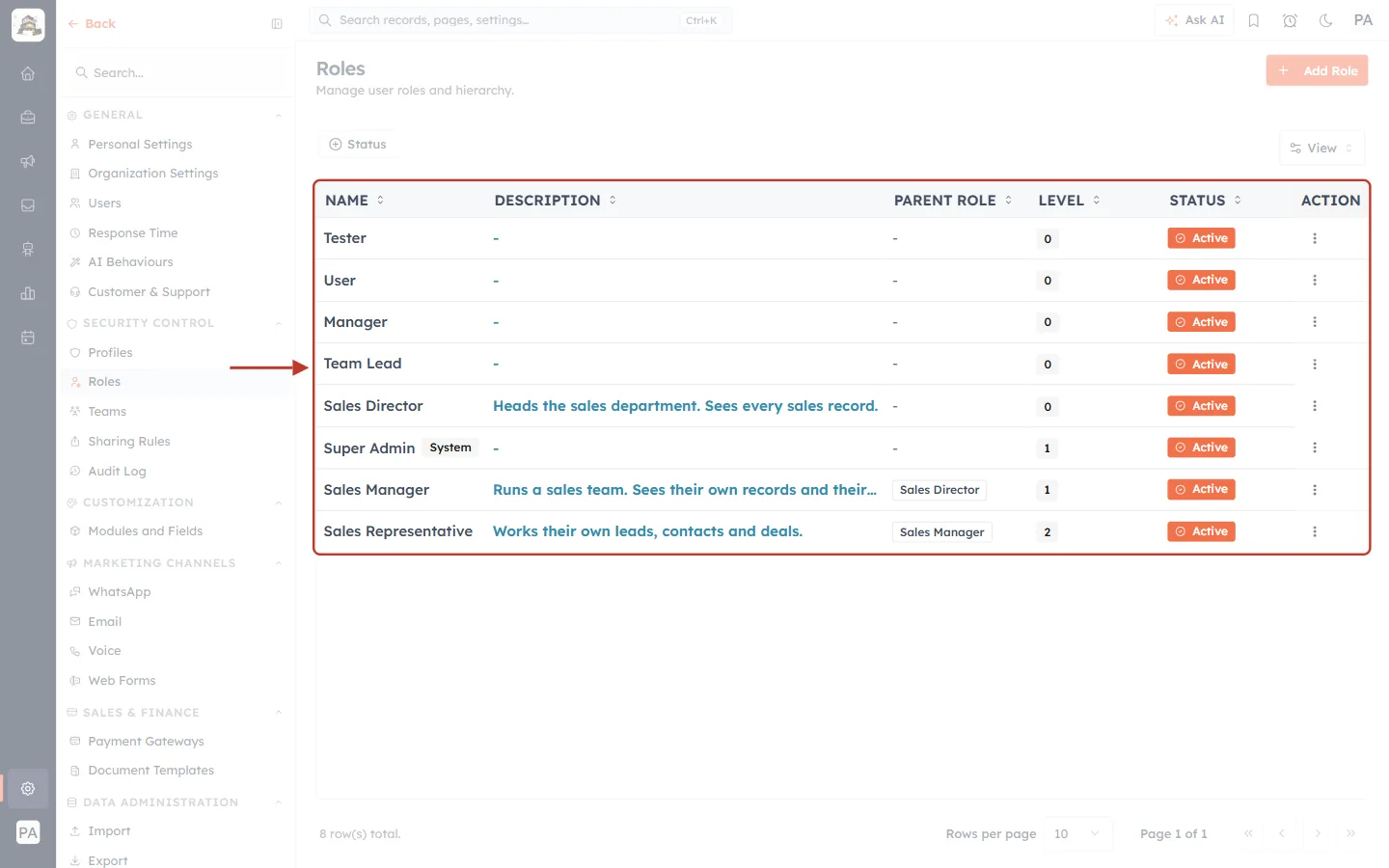
What this screenshot shows. The Roles list (Settings → Security Control → Roles) is ringed, after the example hierarchy was created.
NAME and DESCRIPTION: each role and what it is for.
PARENT ROLE: Sales Manager has the parent Sales Director, and Sales Representative has the parent Sales Manager. A dash means a top-level role.
LEVEL: 0 for Sales Director, 1 for Sales Manager and 2 for Sales Representative. Each step down adds one.
STATUS: Active. Only active roles can be given to users.
The other rows (Tester, User, Manager, Team Lead) are separate top-level roles at level 0, and Super Admin carries a System badge.
Parent Roles and Hierarchy Levels#
When you create or edit a role, the Parent Role drop-down is the only choice that places it in the tree:
For a top-level role, keep No Parent (Top Level).
For any other role, pick the role directly above it.
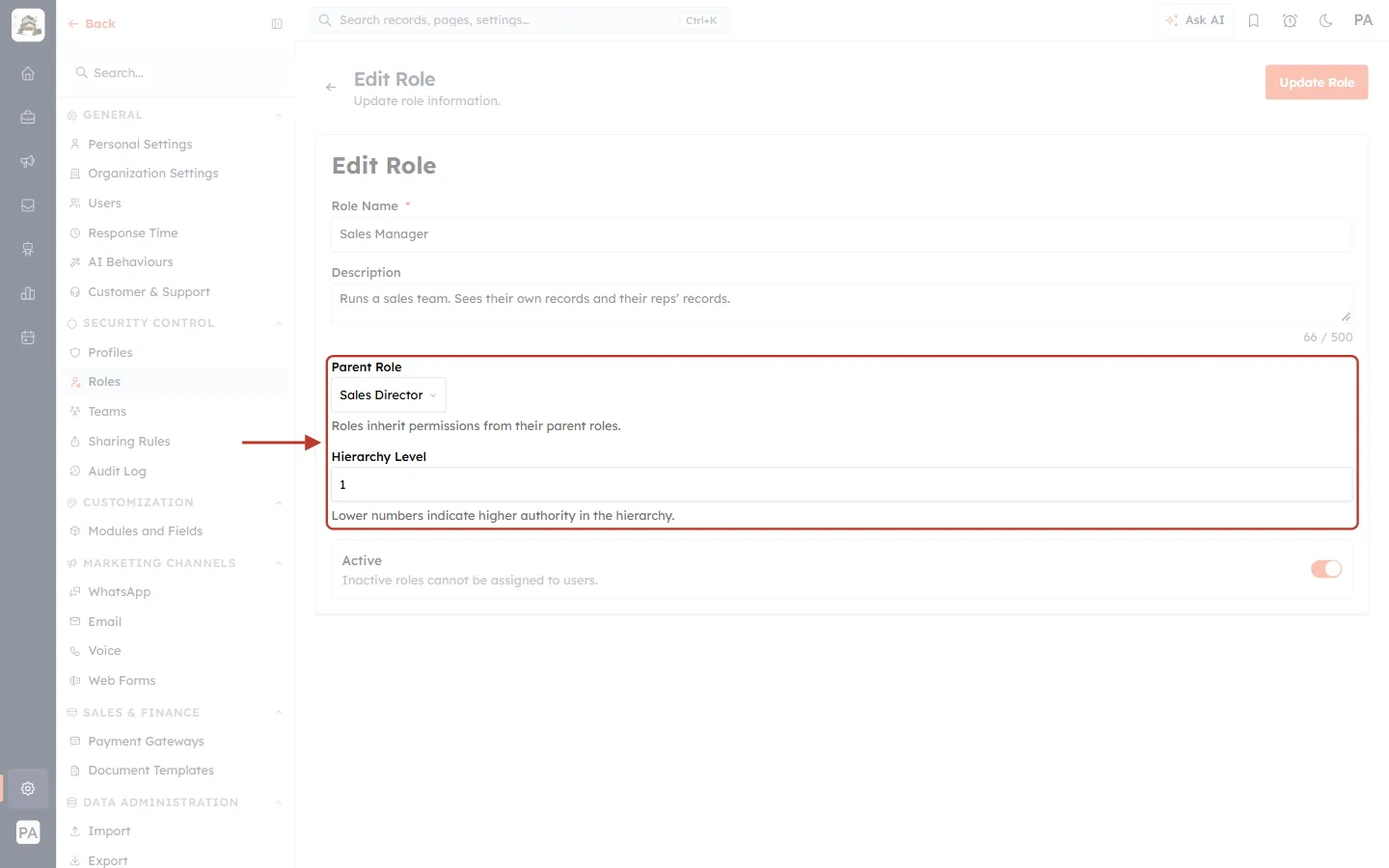
What this screenshot shows. The ringed fields show where Sales Manager sits, opened with Edit.
Parent Role: Sales Director. The hint underneath reads Roles inherit permissions from their parent roles.
Hierarchy Level: 1. The hint reads Lower numbers indicate higher authority in the hierarchy.
How the level is set#
A role with a parent gets its parent’s level plus one, worked out when you save. In the example, Sales Manager and Sales Representative were saved with the level box left at 0, and the CRM stored them as levels 1 and 2.
A top-level role keeps the number in the Hierarchy Level box (0 by default).
Change a role’s parent and its level follows. You don’t need to keep the numbers in sync yourself.
✅
Build top-down. A parent must exist before you can pick it, so create the top role first, then the roles under it, then the roles under those.
The Super Admin System Role#
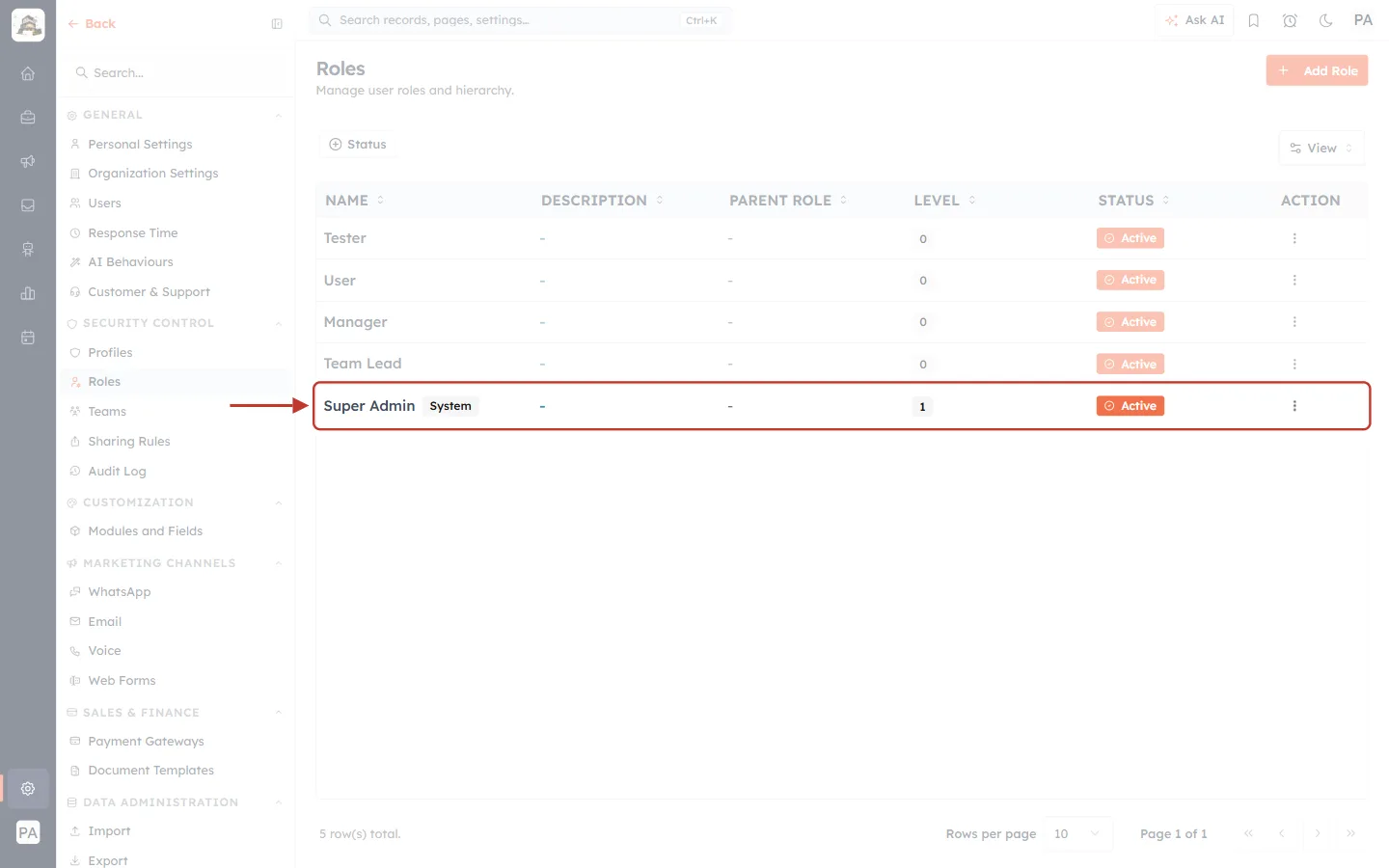
What this screenshot shows. The Super Admin row on the Roles list is ringed.
The grey System badge marks the role the CRM creates for every organisation.
It has no parent and is Active. It is the role held by the account owner and administrators.
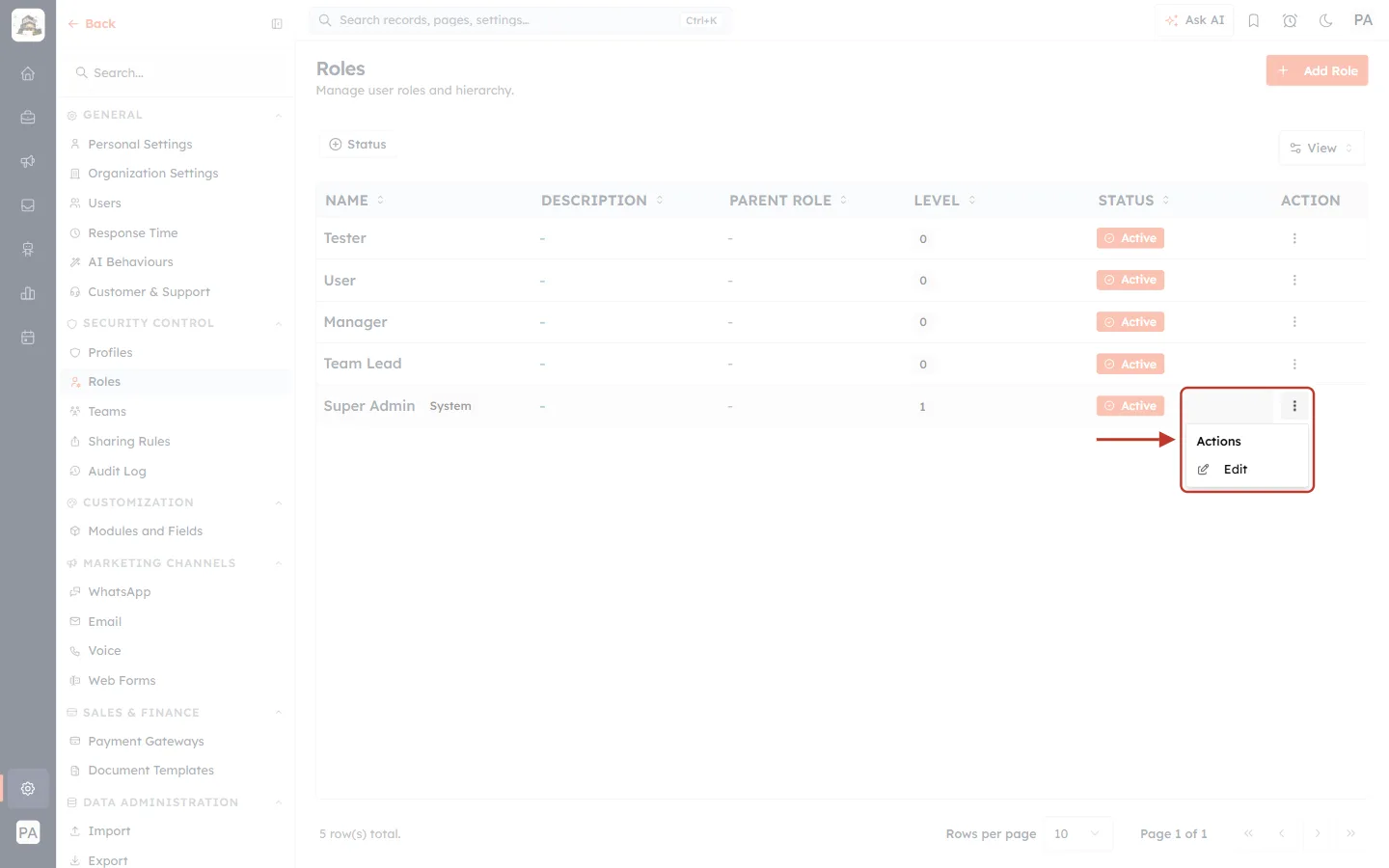
What this screenshot shows. The ⋮ menu of Super Admin is open and ringed.
It offers only Edit. There is no Delete, so the system role can’t be removed.
Roles you create offer both Edit and Delete.
Rules When Deleting Roles#
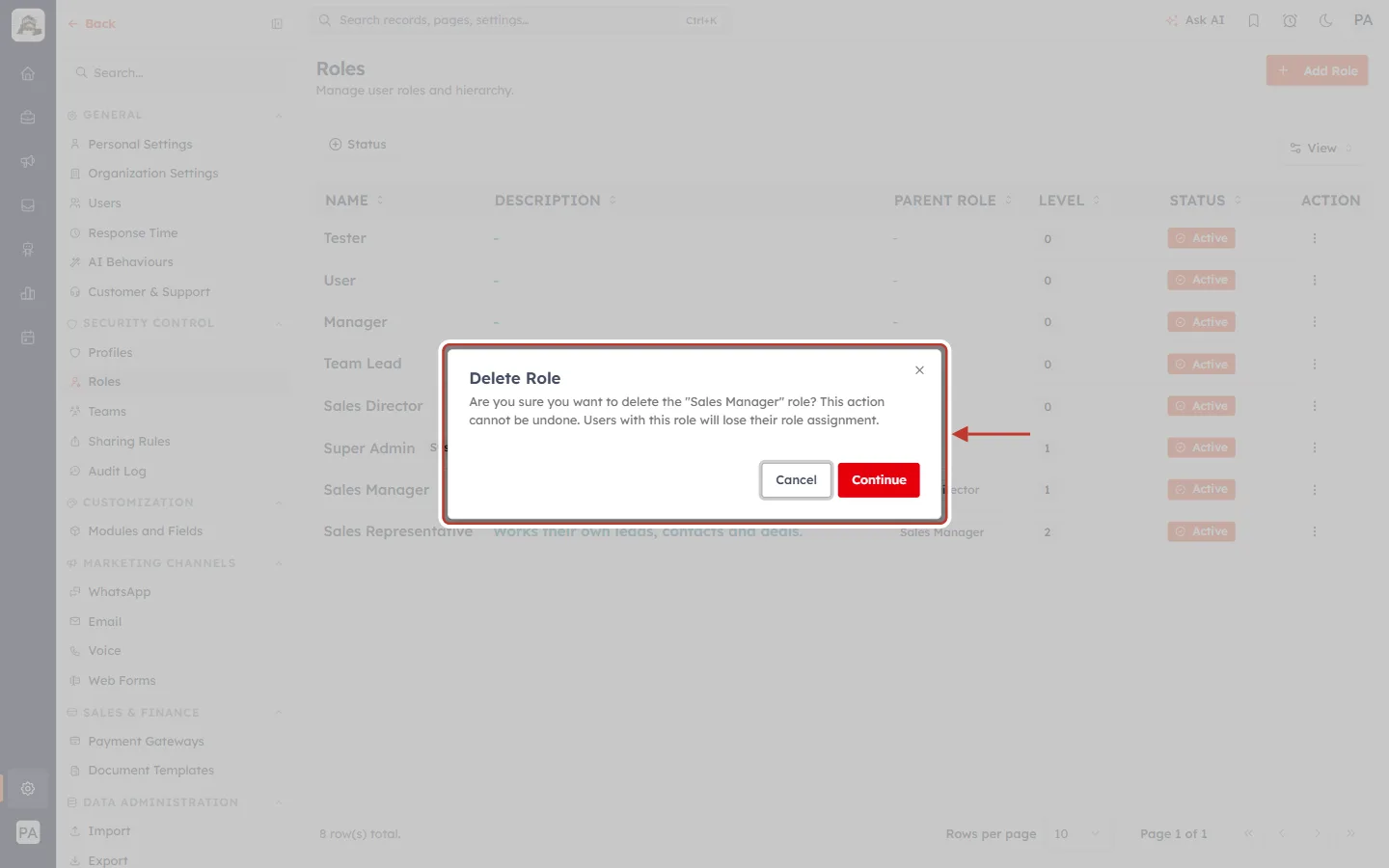
What this screenshot shows. Clicking Delete on a role opens the ringed confirmation.
It reads Are you sure you want to delete the “Sales Manager” role? This action cannot be undone. Users with this role will lose their role assignment.
Continue deletes. Cancel keeps the role.
Users holding the role are left without one, so move them to another role in Settings → Users first.
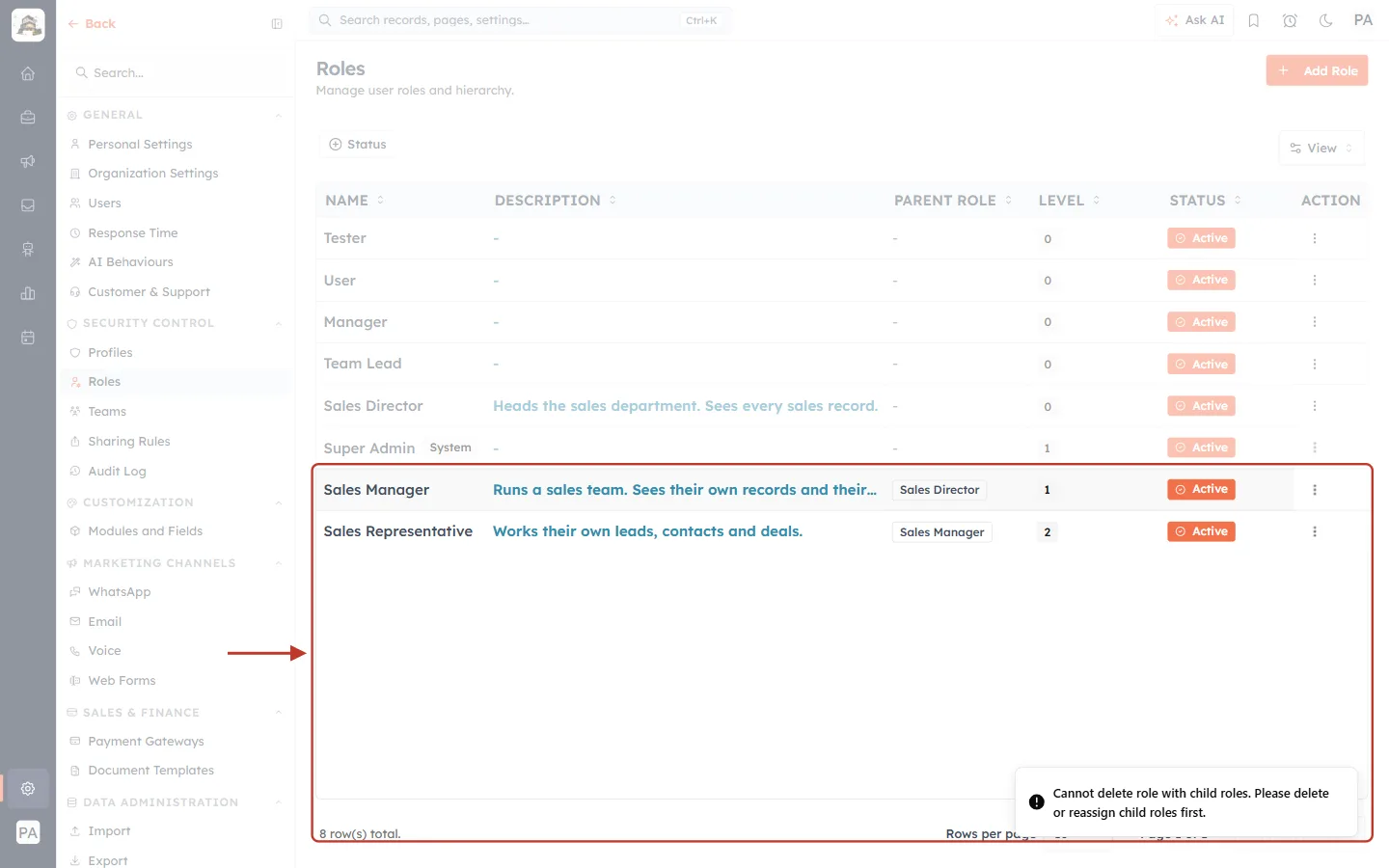
What this screenshot shows. Trying to delete Sales Manager while Sales Representative still reports to it. The ringed area shows both rows still listed and the error at the bottom right.
The message reads Cannot delete role with child roles. Please delete or reassign child roles first.
Nothing is deleted. To remove a role in the middle of the tree, first give its child roles a new parent (Edit → Parent Role), or delete them.
Rule | What to do |
|---|---|
A role with child roles can’t be deleted | Reassign or delete the child roles first. |
Users with a deleted role lose their role | Move them to another role before deleting. |
The Super Admin system role can’t be deleted | Edit it if needed. It always stays. |
Inactive roles can’t be assigned to users | Switch Active back on to use the role again. |
Giving Users Their Roles#
A hierarchy only works once users hold the right roles. Roles are assigned in Settings → Users.
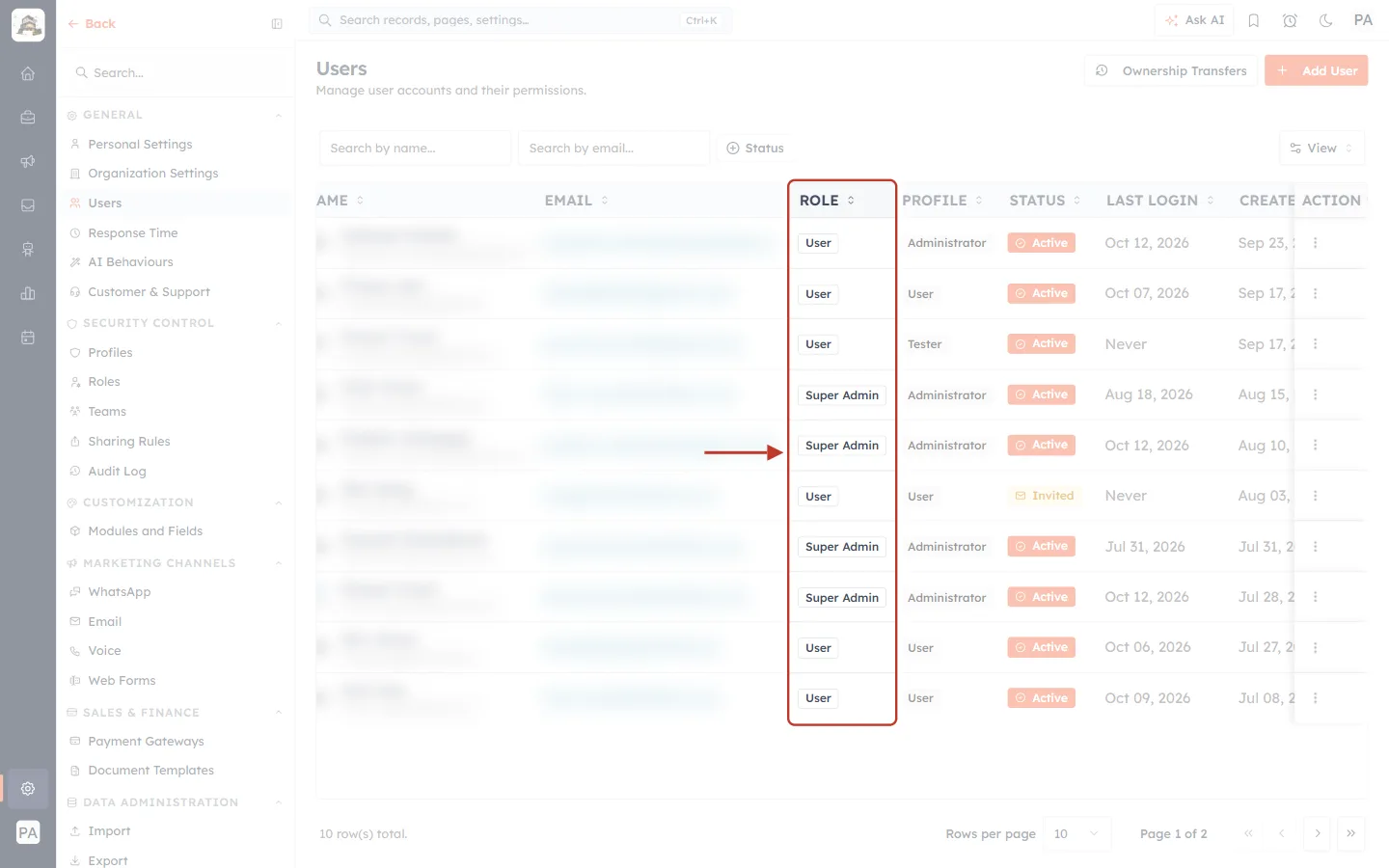
What this screenshot shows. The ROLE column of the Users list is ringed. Names and email addresses are blurred.
Each user shows one role, such as User or Super Admin.
The PROFILE column beside it is the separate permission profile.
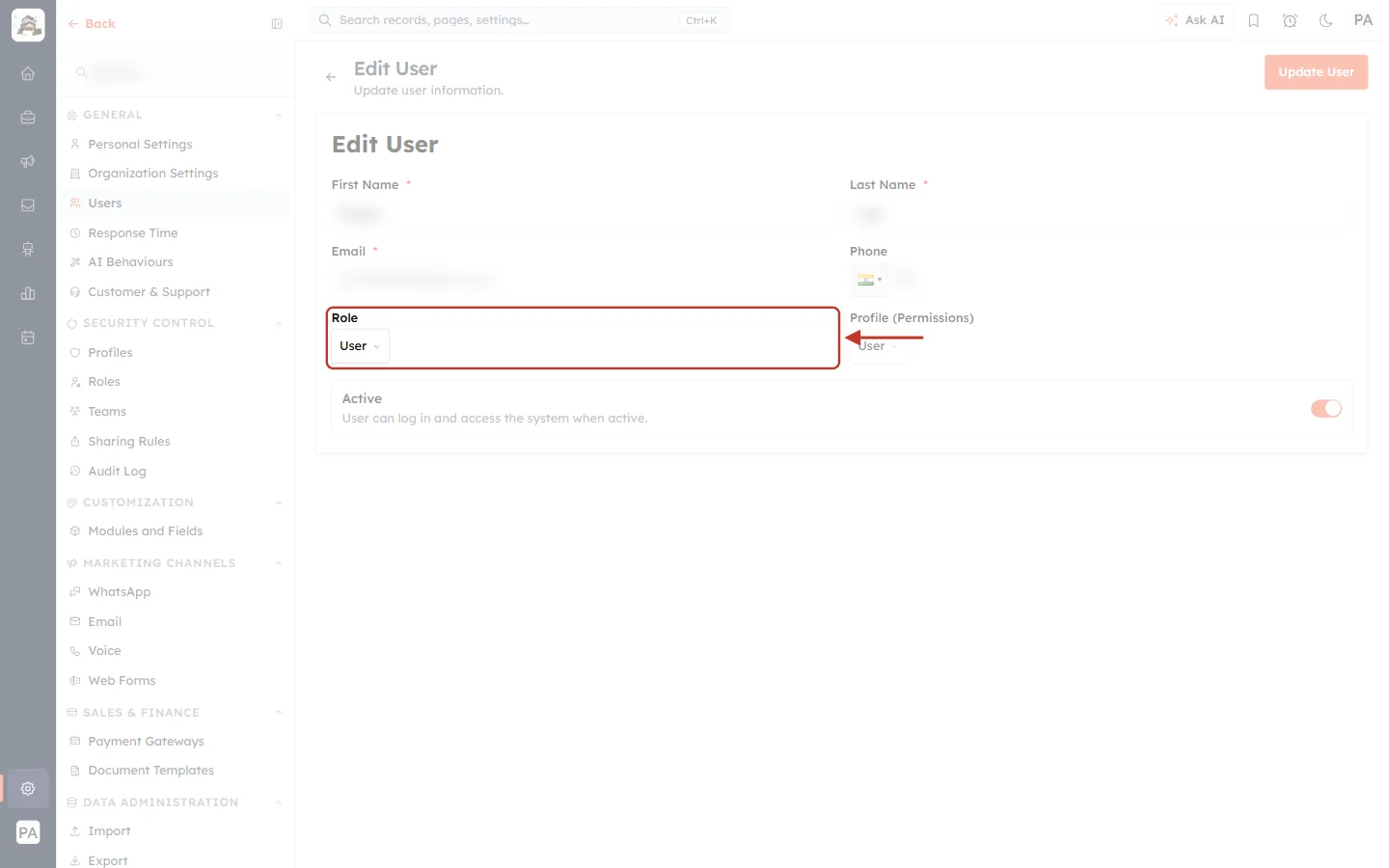
What this screenshot shows. Editing a user (⋮ → Edit), the Role field is ringed.
Pick the user’s role from the drop-down, which lists every active role, then click Update User.
Profile (Permissions) beside it is chosen separately.
A user holds one role at a time. Change it here when their position changes.
Roles and Sharing Rules#
The hierarchy never crosses branches on its own. When one group needs another group’s records, a sharing rule opens them up. One setting on every sharing rule uses the hierarchy:
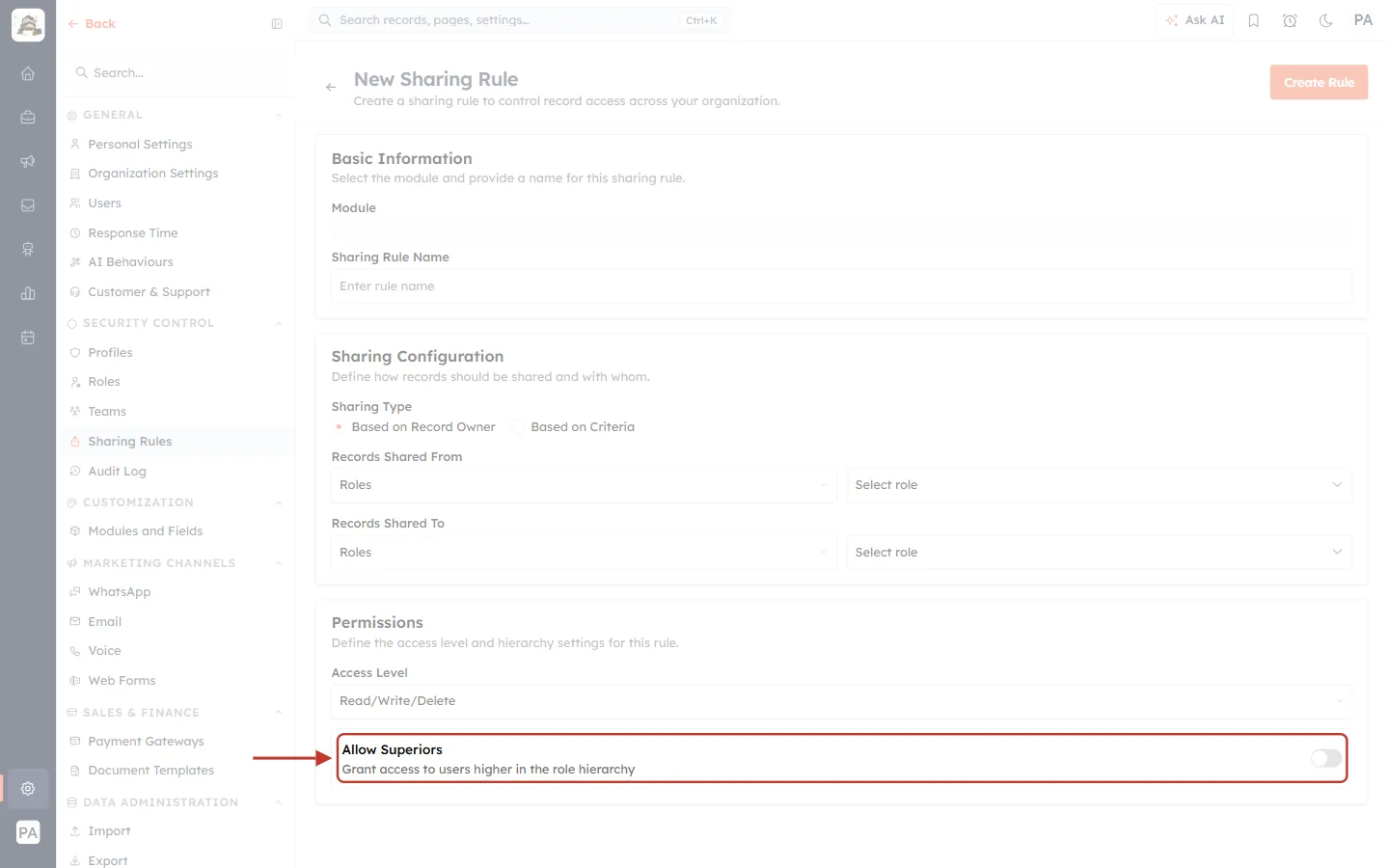
What this screenshot shows. The Allow Superiors switch at the bottom of a new sharing rule is ringed.
The description reads Grant access to users higher in the role hierarchy.
With it on, the managers above the people who receive the shared records get access too, without being listed in the rule.
See Sharing Rules: Share Records Across Teams, Roles & Users (Step-by-Step Guide) for the full rule form.
✅
Once roles are created and users hold them, visibility is enforced automatically. Each user sees the records their place in the tree allows.
Frequently Asked Questions#
Can a user have two roles?
No. Each user holds one role. Use a sharing rule if they need records from another branch.
Does a higher role see records from another branch?
No. Visibility only flows down the same branch. Two top-level roles don’t see each other’s records.
Do I have to set the Hierarchy Level myself?
Only for a top-level role. Roles with a parent are set to the parent’s level plus one.
What is the difference between a role and a team?
A role is a position in the reporting tree. A team is a group of people who work together, used by the Team access level in profiles. See Create Teams: Group Users for Lead Routing, Reporting & Sharing.
Previous and Next#
Previous: Create a Permission Profile Step by Step: Build, Edit, Clone, Deactivate & Delete
Next: Create Roles Step by Step: Build, Edit and Delete Your Role Hierarchy
Related Articles#
Create Roles Step by Step: Build, Edit and Delete Your Role Hierarchy
Profile Permissions Explained: What Every Module, Feature & Setup Setting Controls
Create a Permission Profile Step by Step: Build, Edit, Clone, Deactivate & Delete
Create Teams: Group Users for Lead Routing, Reporting & Sharing
Sharing Rules: Share Records Across Teams, Roles & Users (Step-by-Step Guide)
Invite Your Team: How to Add and Manage Users in AI Engage CRM
Was this article helpful?
Ready to implement this?
OpenAI Engage and apply what you just learned to your own workspace.
Open AI Engage CRM