Loading…


KnowledgeBase
Advanced Field Types: Formula, Rollup, Auto-Number, Lookup & Subforms
Beyond simple text and number fields, the module builder offers advanced field types that calculate values, roll up data from related records, generate sequential IDs, link modules together, and embed structured tables. This guide covers each advanced type and its real configuration options so you can choose the right one.
Before you start#
Advanced fields are added in the module builder. Open a module's builder, then from the New Fields palette on the left, drag a field type onto a section (or click it to drop it into the current section) and open its configuration panel on the right. The palette groups types into Text, Selection, Date & Time, Number, Special, Relational, File, Advanced, and Location. A counter at the bottom shows Custom Fields Left (out of 300).
Feature modules (Tasks, Notes, Calls, Meetings) hide the relational and advanced types — Lookup, Formula, Rollup Summary, Multi-Select Lookup, Subform, and Line Items.
Line Items only appears on transactional modules (Quotes, Invoices, Payments).
💡
Formula and Rollup fields are read-only computed values — you cannot type into them. Use Formula for math on the same record, and Rollup to summarise related records.
Formula#
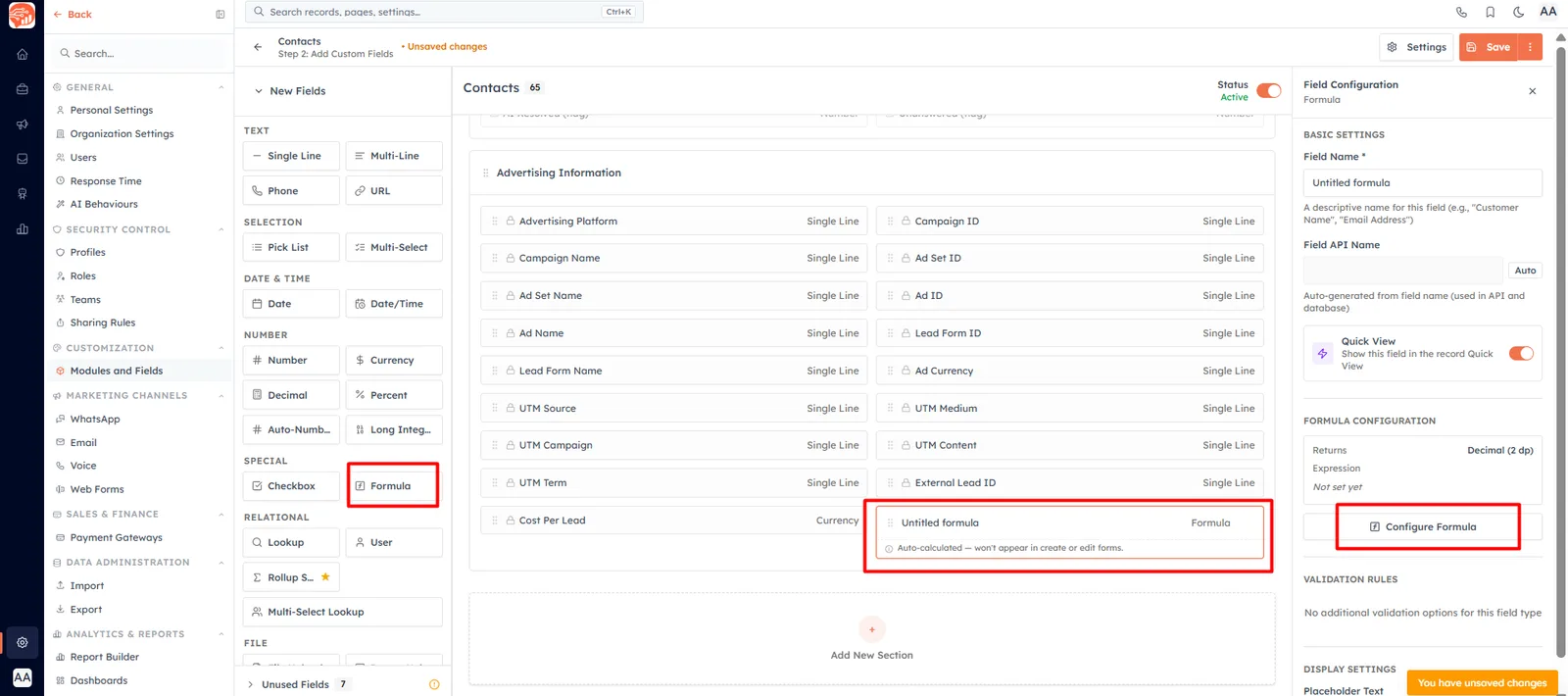
A Formula field computes a value from other fields on the same record. The config panel shows a summary, click Configure Formula to open the builder and set:
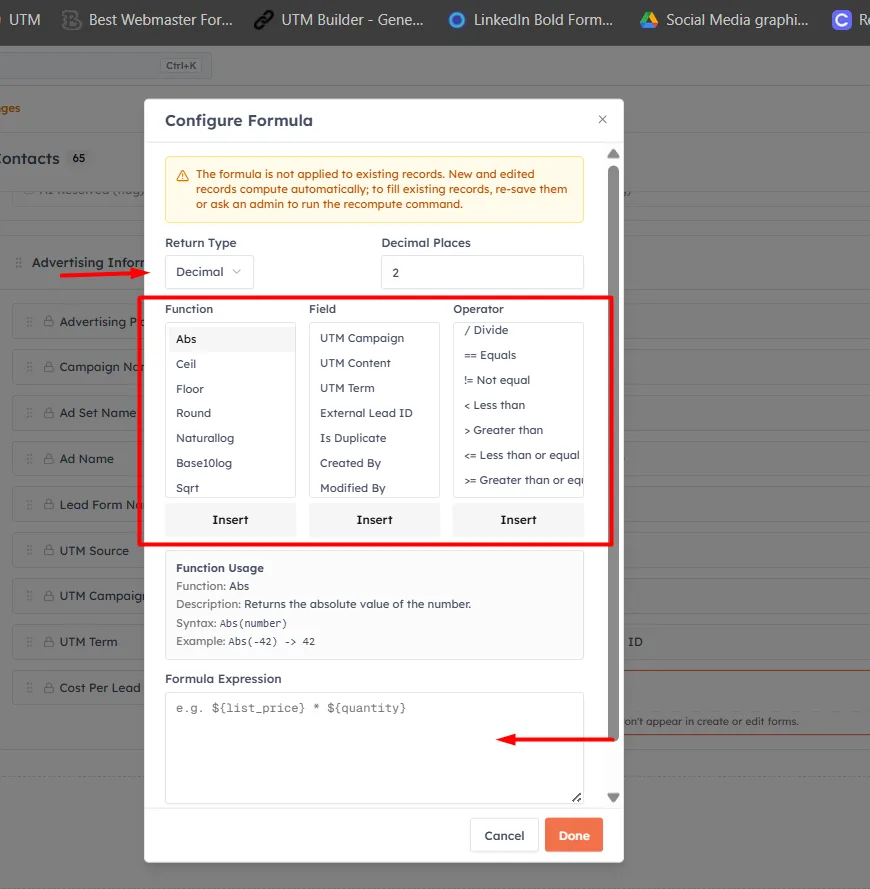
Return Type — Decimal, Currency, Percent, Text (String), Date, Date/Time, or Boolean.
Decimal Places — 0 to 10, shown only for numeric return types.
Function / Field / Operator pickers — insert functions (Abs, Round, Concat, If, Now, Datecomp, and many more), reference another field as ${slug}, or insert operators (+ - * / == != and parentheses).
Formula Expression — for example, ${list_price} * ${quantity}. Use Check Syntax to validate against the server; Done refuses to save an invalid expression.
💡
A formula is not applied to existing records automatically. New and edited records compute on save; to backfill old records, re-save them or ask an admin to run the recompute command.
Rollup Summary#
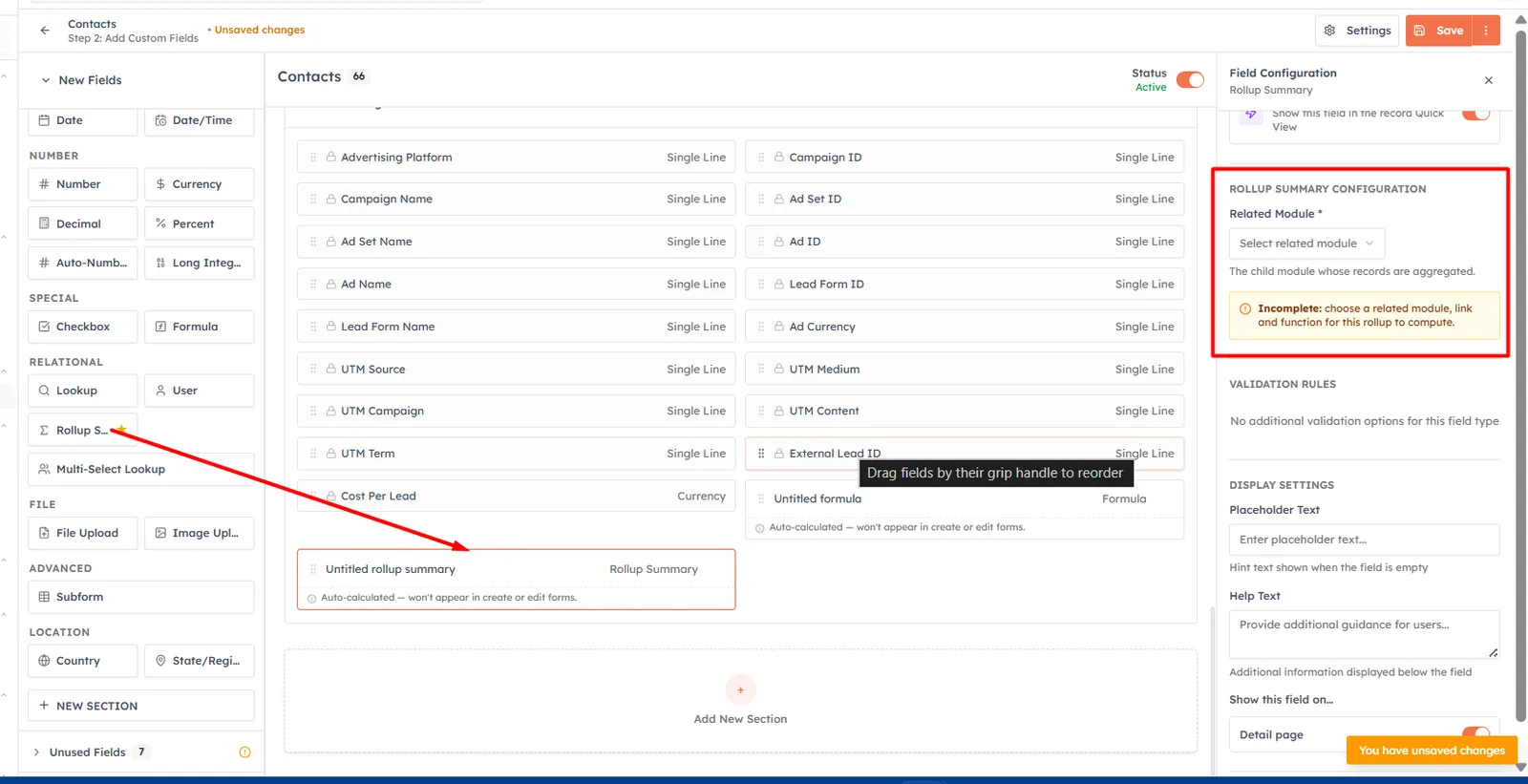
A Rollup Summary aggregates data from a related child module up onto this record. Configure:
Related Module — the child module whose records are aggregated.
Link — the relationship connecting the child to this module (a Lookup field on the child, or a Related To activity link). If only one link exists, it is selected for you.
Function — Count, Sum, Average, Minimum, Maximum, Earliest, or Furthest (latest).
Field to aggregate/compare — required for every function except Count; numeric functions list numeric child fields, while Earliest / Furthest list date fields.
Filters (optional) — only child records matching ALL conditions are counted.
Auto-Number#
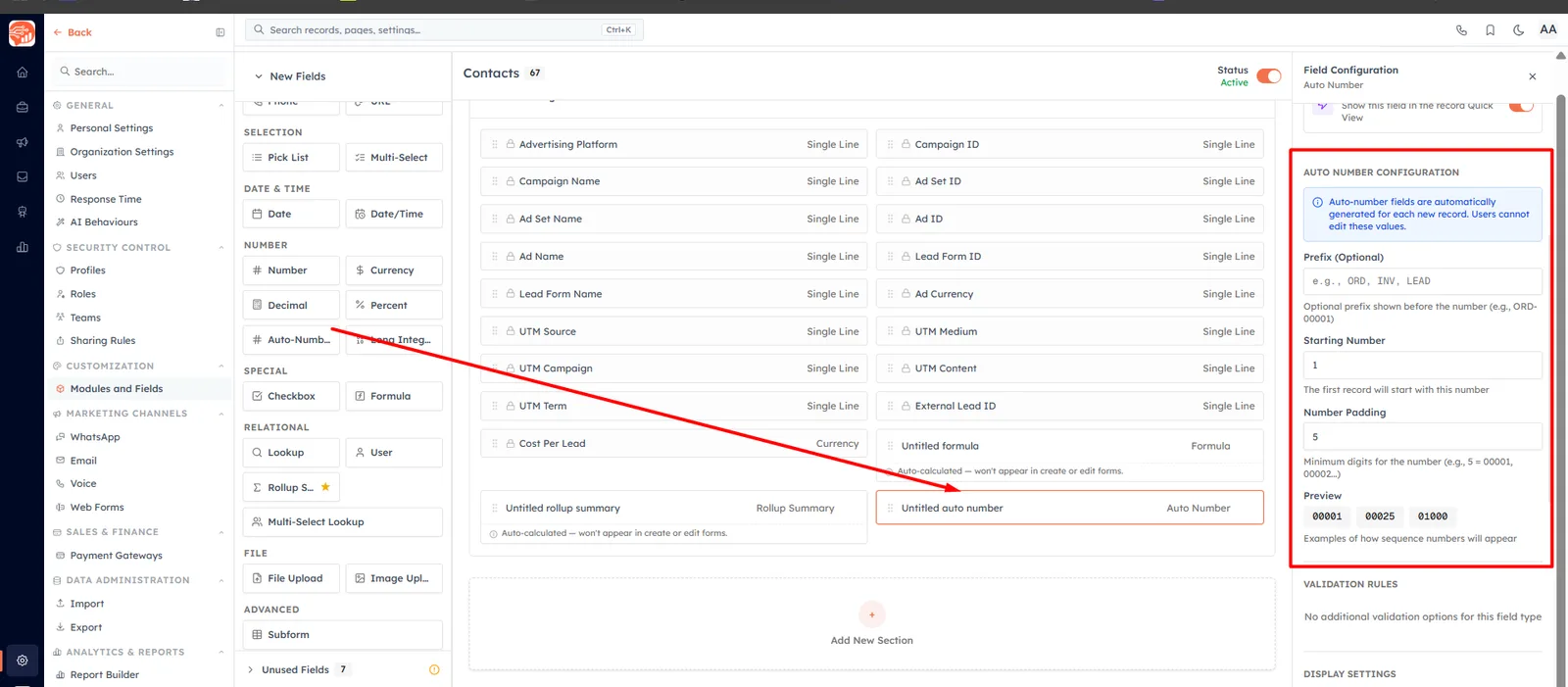
An Auto-Number field assigns a unique, sequential, read-only number to every new record. Set:
Prefix (Optional) — up to 10 characters, e.g. ORD, INV, LEAD.
Starting Number — the first record's number (minimum 1).
Number Padding — the minimum number of digits, 3 to 10 (5 gives 00001). A live preview shows examples like ORD-00001.
💡
Auto-number values are generated by the system and cannot be edited by users — ideal for order numbers, ticket IDs, or member codes.
Lookup & Multi-Select Lookup#
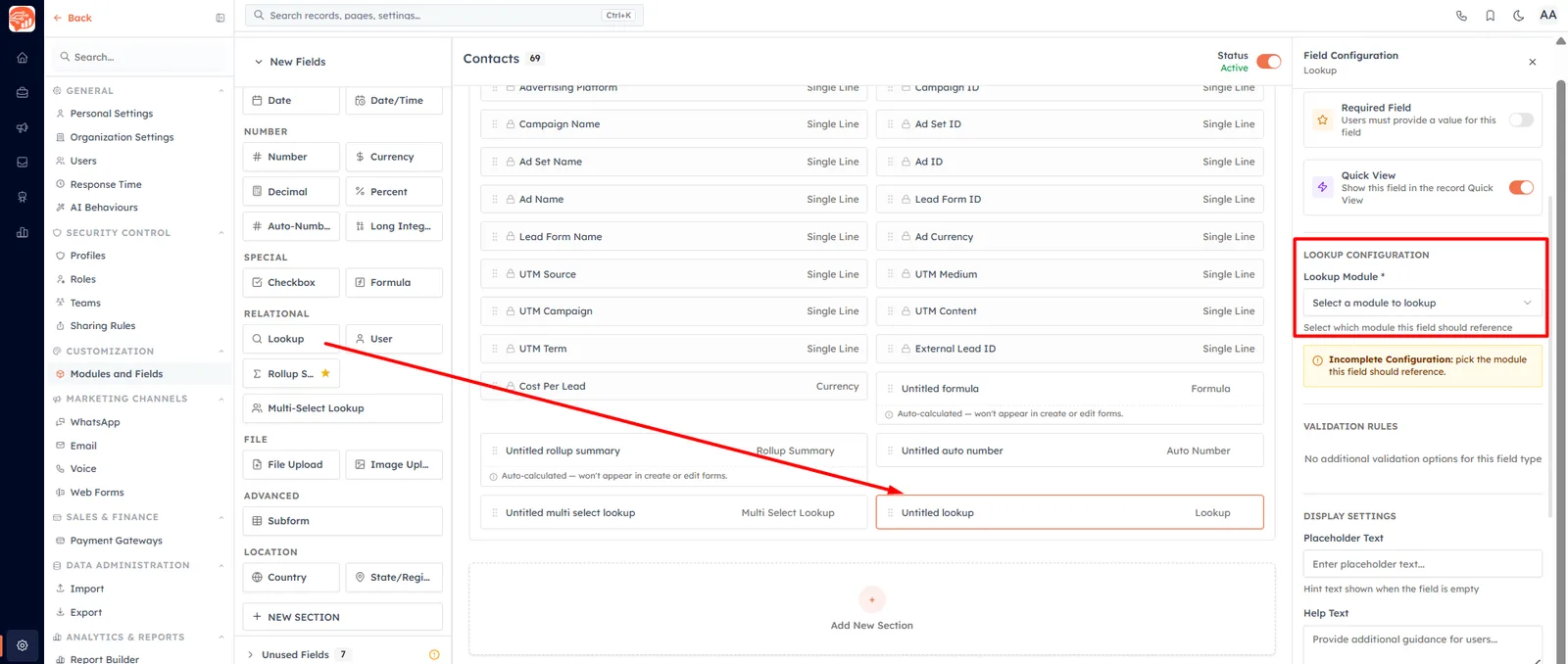
A Lookup links this record to a single record in another module; Multi-Select Lookup links to several. Configure:
Lookup Module — the module this field references.
Display Field — which field of the target record is shown (files, images, multi-select, multi-line, formula, and rollup fields are not offered).
Allow Creating New Records — lets users create a new target record inline when none is found.
Country & State/Region#
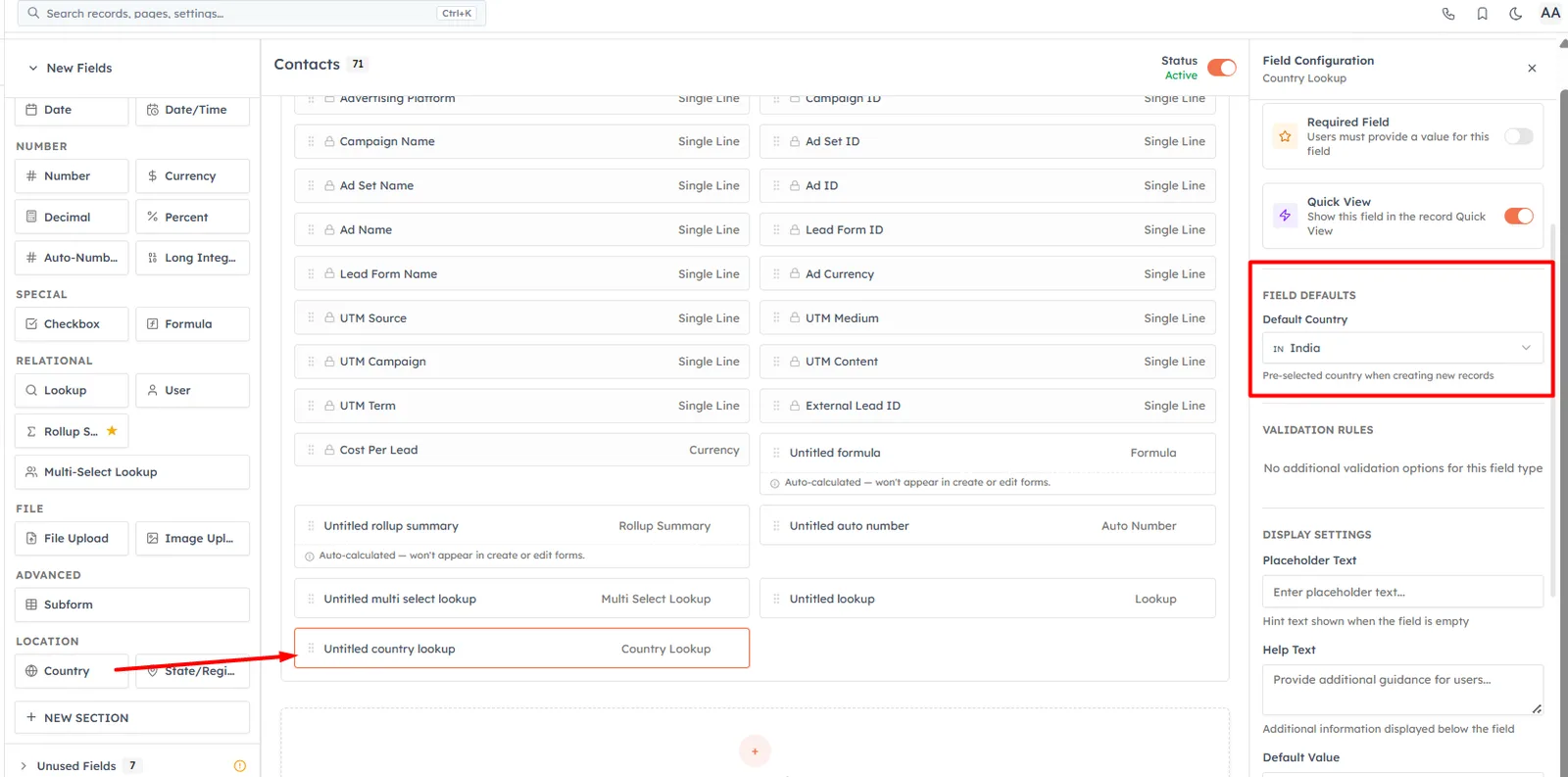
Country is a searchable dropdown backed by world data. State/Region is a searchable state dropdown that cascades from a country field — in its config, set the Parent country field so the state list filters by the chosen country. Add a Country field to the module first, or the cascade has nothing to filter from.
Subform#
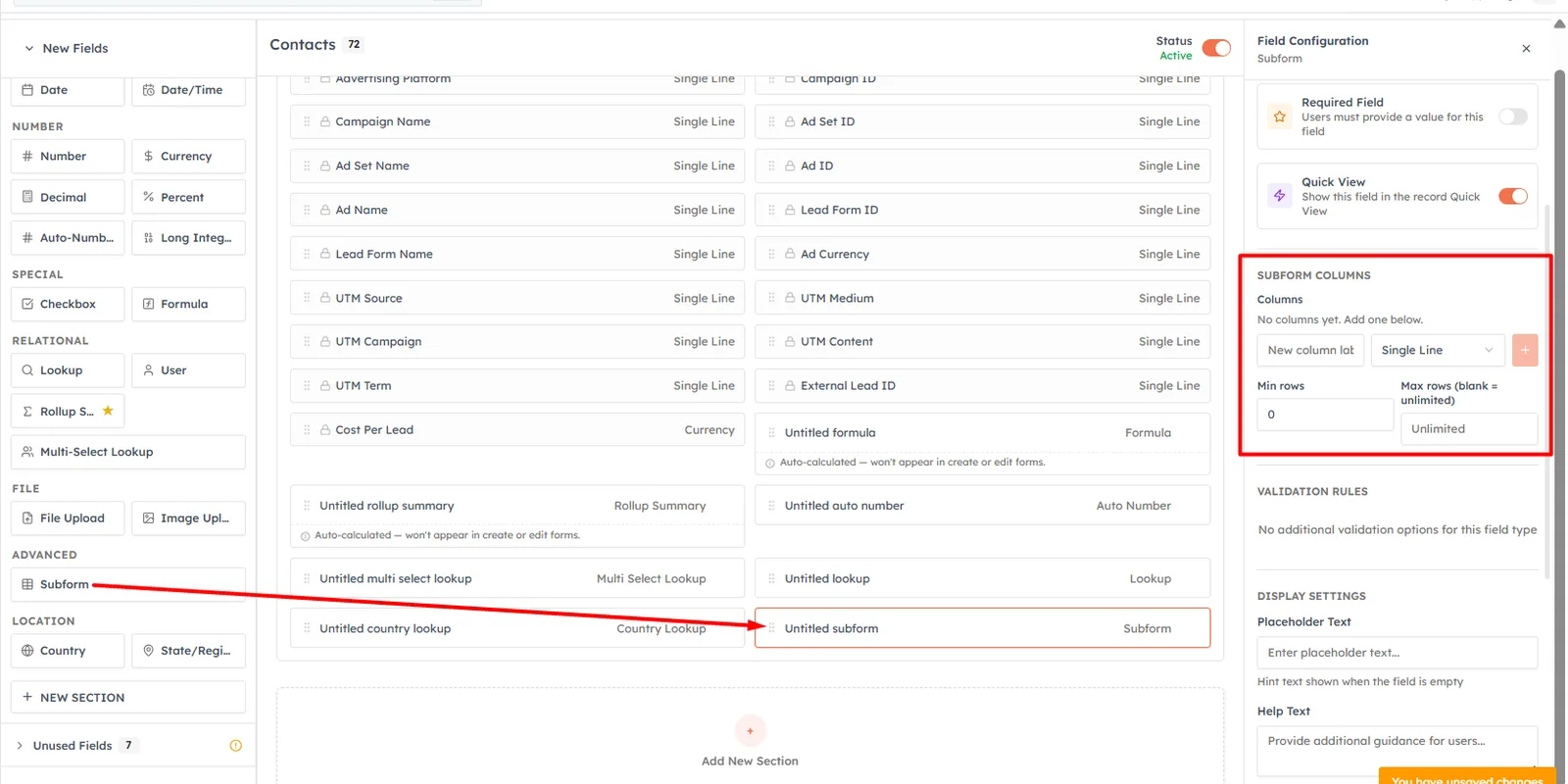
A Subform embeds a small table of structured rows inside a record (users add the rows on the record itself). In the builder you define the columns:
Column label + type — up to 25 columns; types include Single Line, Multi-Line, Number, Long Integer, Decimal, Currency, Percent, Date, Checkbox, Picklist, Multi-Select, Email, Phone, and URL.
Required — mark a column mandatory.
Options — for Picklist / Multi-Select columns, add the choice values.
Min rows / Max rows — leave Max blank for unlimited.
Line Items#
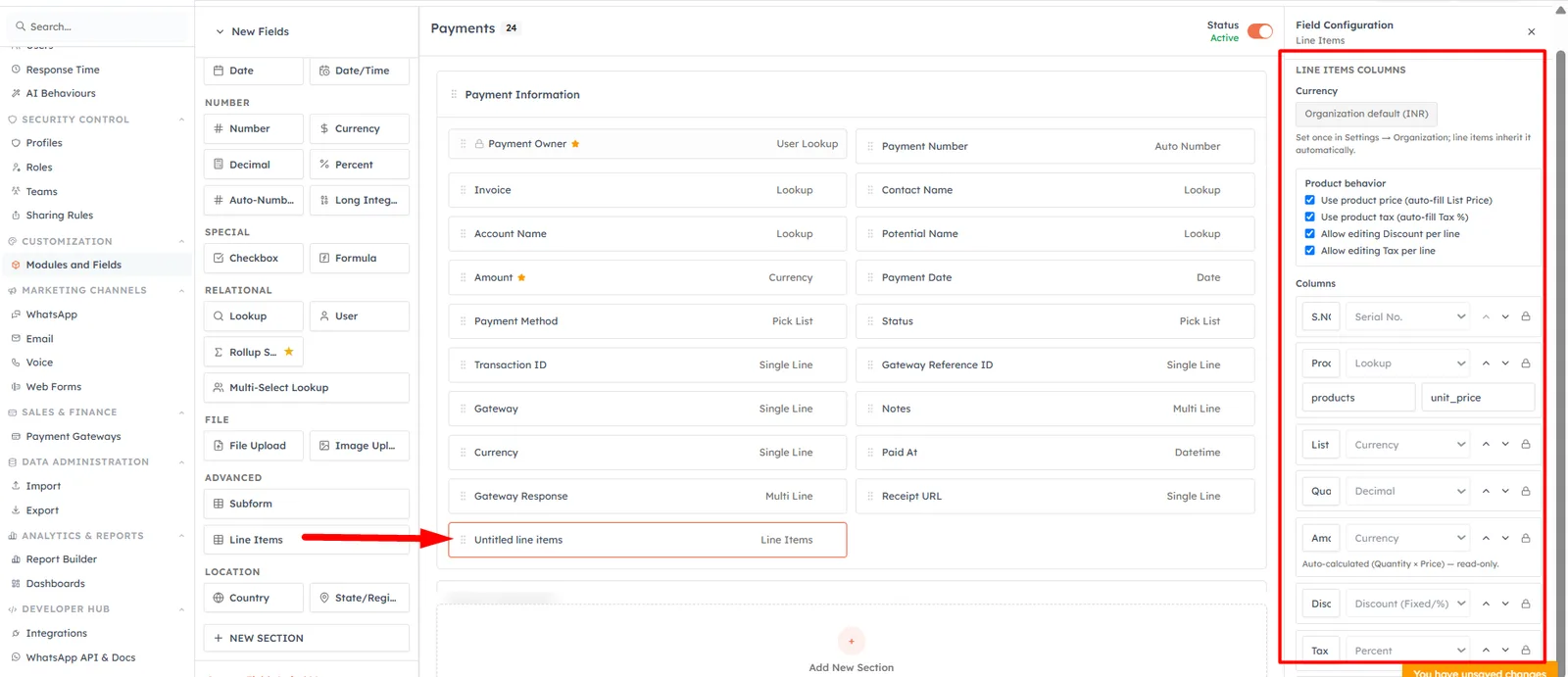
Line Items (transactional modules only) is a priced table with protected core columns — Product, List Price, Quantity, Amount, Discount, Tax %, and Total — where Amount and Total are computed automatically (Amount = List Price × Quantity; Total = Amount − Discount + Tax). It ties into your Products catalogue and the document's header totals.
To place and arrange these fields on the record form after adding them, see Field Layouts and Required Fields. For the basics of adding standard fields, see Customize Your CRM.
Was this article helpful?
Ready to implement this?
OpenAI Engage and apply what you just learned to your own workspace.
Open AI Engage CRM