Loading…


KnowledgeBase
Change Your Password & Account Security
Keeping a strong, private password is the simplest way to protect your AI Engage CRM account. You can change your password at any time from your Profile page — you don't need an administrator to do it for you. This article shows where the Security settings live, walks through the Change Password dialog field by field, and lists the password rules the CRM enforces so your new password is accepted on the first try.
💡
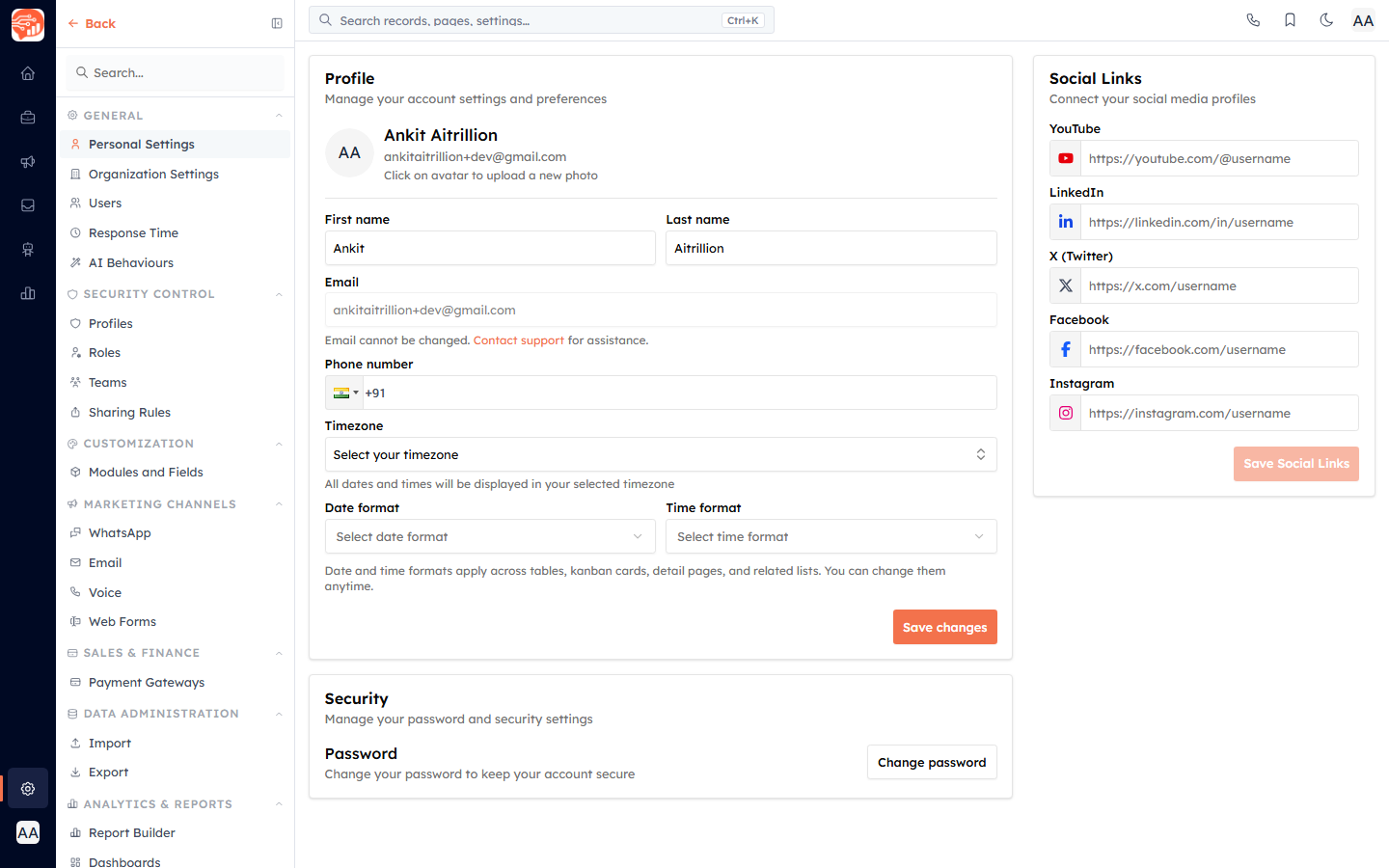
The Security card sits on the same page as the rest of your personal settings — name, photo, timezone, and date/time formats. For those, see Set Up Your Personal Profile.
Open the Change Password dialog#
In the Security card, find the Password row — labelled "Change your password to keep your account secure."
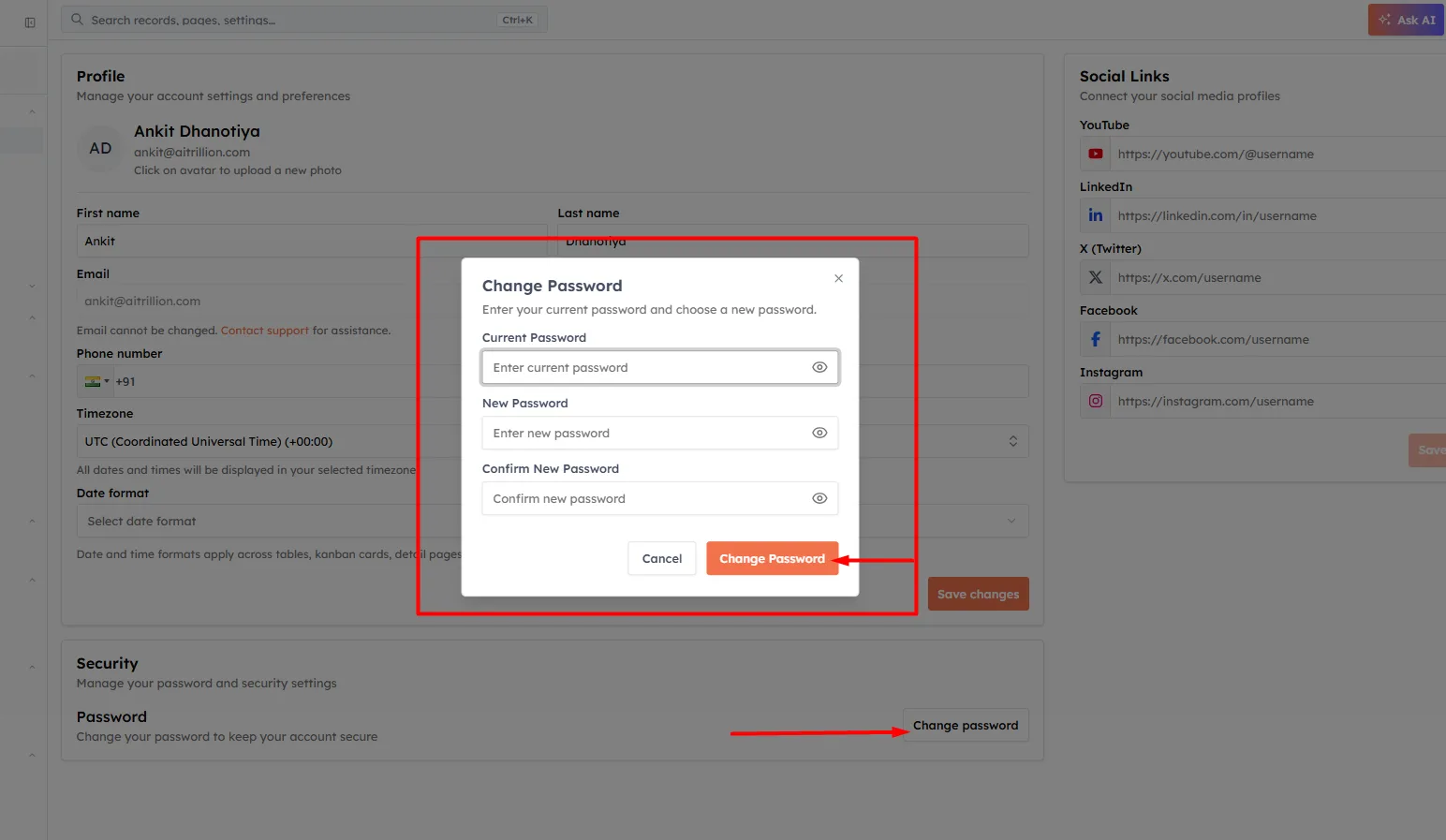
Click the Change password button on the right. A dialog titled Change Password opens with the prompt "Enter your current password and choose a new password."
Fill in the three fields#
The dialog has three password fields, each with an eye icon on the right that toggles between hiding and showing what you've typed:
Current Password — your existing password. This is required; leaving it blank shows "Current password is required."
New Password — the password you want to switch to. It must meet the strength rules below.
Confirm New Password — re-type the new password exactly. If it doesn't match, you'll see "Passwords don't match."
Password requirements#
Your new password must satisfy every one of these rules, each of which has its own on-screen message if unmet:
At least 8 characters — "Password must be at least 8 characters."
No more than 128 characters — "Password must be less than 128 characters."
At least one uppercase letter — "Password must contain at least one uppercase letter."
At least one lowercase letter — "Password must contain at least one lowercase letter."
At least one number — "Password must contain at least one number."
✅
A password like a memorable phrase mixing upper- and lower-case letters with a number — for example BlueRiver2026 — comfortably meets all the rules. A longer passphrase is both stronger and easier to remember.
Save the change#
Click Change Password. While it processes, the button shows Changing….
On success you'll see the toast "Password changed successfully", the dialog closes, and the form clears.
Click Cancel at any point to close the dialog without changing anything; your entries are discarded.
If it doesn't go through#
Wrong current password — if the current password you entered is incorrect, the change is rejected and the error appears beneath the relevant field, along with an error toast. Re-enter it and try again.
New password too weak — the field-level message tells you exactly which rule failed (length, uppercase, lowercase, or number). Adjust and resubmit.
Passwords don't match — make sure New Password and Confirm New Password are identical; use the eye icons to reveal and compare them.
⚠️
Your email address can't be changed from the profile page — it's read-only, with a note to contact support if you need it updated. Password is the one credential you manage yourself here.
Was this article helpful?
Ready to implement this?
OpenAI Engage and apply what you just learned to your own workspace.
Open AI Engage CRM