Loading…


KnowledgeBase
Create a Rollup Summary Field: Show Deal Totals, Counts & Latest Dates on a Record (Step-by-Step)
What is a Rollup Summary field?#
A Rollup Summary field shows a number or date on a record that is calculated from that record’s related records. You never type into it — the CRM works it out for you and keeps it up to date whenever the related records change.
Think of a contact who has several deals. Without a rollup, you would open the contact, scroll to their deals and add up the amounts yourself. With a rollup field called Total Won Deal Value, the contact simply shows $6,800.00 — the sum of every deal they have won — and that figure updates on its own when a deal is won, changed or deleted.
Every rollup is built from four choices:
| Setting | What it means | In our example |
|---|---|---|
| Related Module | The “child” records you want to summarise. | Deals |
| Link | How those child records are connected to this record — a Lookup field on the child, or the Related To link used by Tasks, Calls, Meetings and Notes. | Lookup: Contact Name (each deal’s Contact Name points to the contact) |
| Function | The calculation: Count, Sum, Average, Minimum, Maximum, Earliest or Furthest (latest). | Sum |
| Field to aggregate | The child field the calculation uses. Not needed for Count. | Amount |
You can also add Filters so only some child records are included — for example, only deals whose Stage is Closed Won.
When would I use one?#
| On this record… | Rollup field | Settings |
|---|---|---|
| Contact | Total Won Deal Value | Deals · Sum of Amount · Stage is Closed Won |
| Contact | Open Deals | Deals · Count · Stage is not Closed Won and is not Closed Lost |
| Contact | Average Deal Size | Deals · Average of Amount |
| Contact | Biggest Deal | Deals · Maximum of Amount |
| Contact | Next Closing Date | Deals · Earliest of Closing Date · Stage is not Closed Won / Closed Lost |
| Contact | Number of Tasks | Tasks (Related To) · Count |
| Company | Number of Contacts | Contacts (Lookup to the company) · Count |
| Company | Last Meeting Date | Meetings (Related To) · Furthest (latest) of the meeting date |
This article builds the first two — Total Won Deal Value and Open Deals on Contacts — step by step, and then shows where to see the results.
Before you begin#
You need permission to customise modules. Only users whose profile allows module customisation can open Modules and Fields. See Control Permissions with Profiles.
The two modules must be linked. The child module needs a Lookup field pointing to your module (for example, the Contact Name lookup on Deals), or it must be an activity module (Tasks, Calls, Meetings, Notes) that uses Related To. To add a lookup, see Advanced Field Types.
Know the basics of the Module Builder. If you have never added a field, read Customize Your CRM: Add Custom Fields first.
ℹ️
A rollup field counts toward the module’s custom field limit, shown as Custom Fields Left at the bottom of the field palette.
Part 1 — Open the Module Builder for Contacts#
Step 1: Open Settings#
Click the Settings (gear) icon at the bottom of the dark left-hand rail.
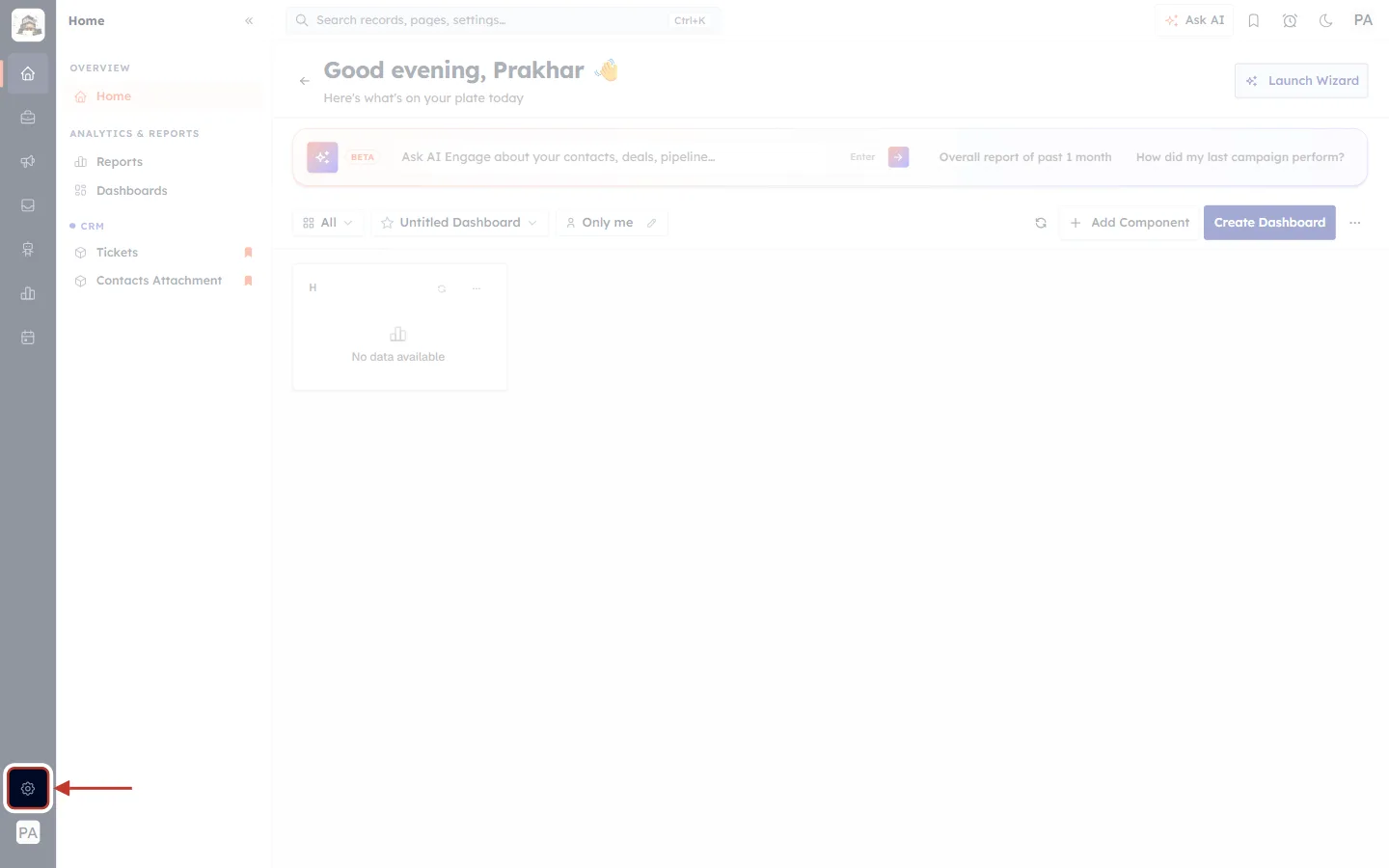
What this screenshot shows. Your Home page, with the Settings gear icon at the bottom of the left rail ringed.
The dark strip on the far left is the main menu rail. Its icons open Home, CRM, Marketing, Inbox and so on.
The gear icon near the bottom (just above your initials) opens Settings, where all account-wide setup lives.
The rest of the screen is your Home dashboard. Nothing on it changes when you open Settings.
Step 2: Go to Modules and Fields#
In the Settings menu, under CUSTOMIZATION, click Modules and Fields.
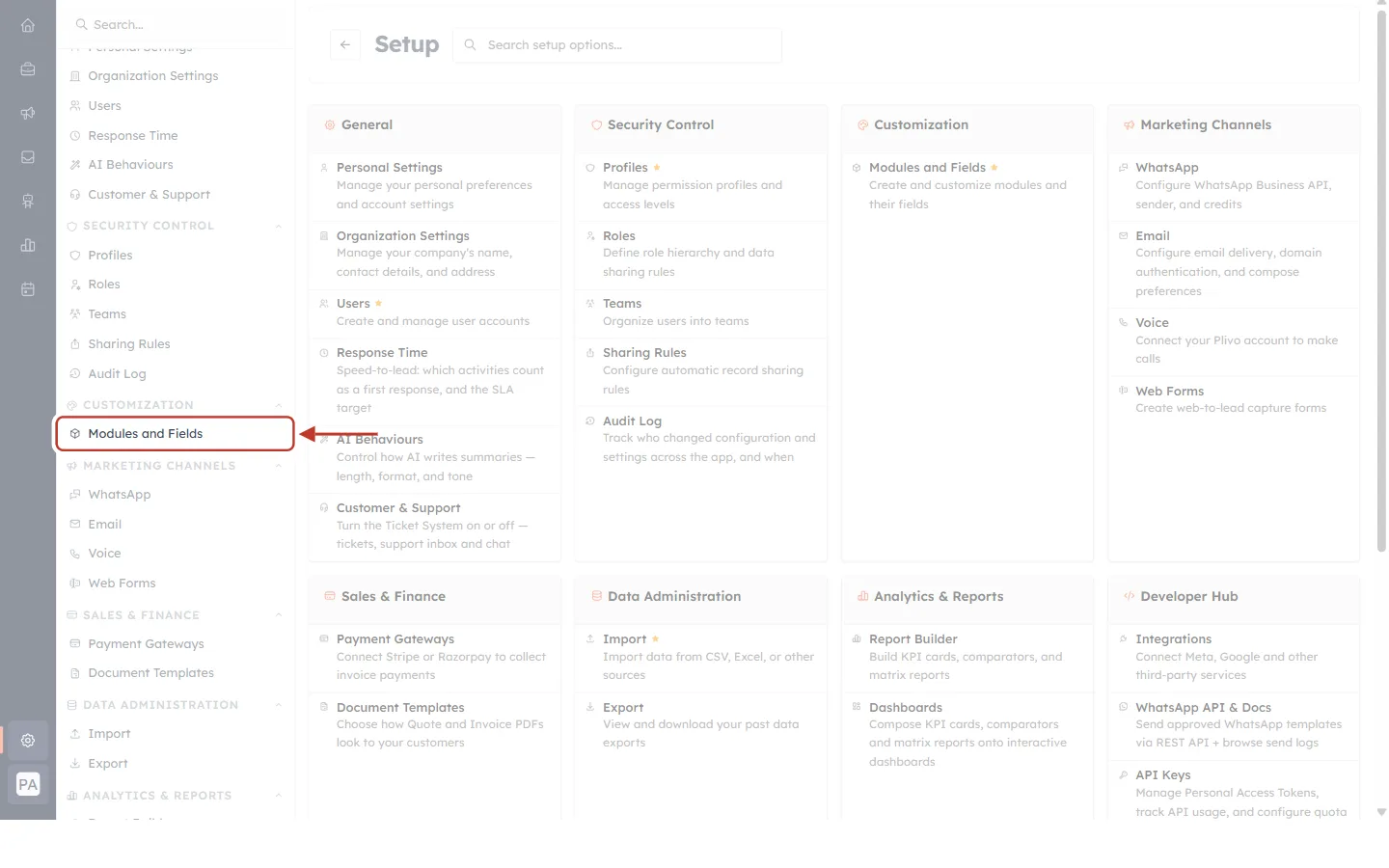
What this screenshot shows. The Settings page. In the menu on the left, Modules and Fields is ringed.
The left menu lists every settings area, grouped under headings such as GENERAL, SECURITY CONTROL and CUSTOMIZATION.
Modules and Fields sits under CUSTOMIZATION. It is where you add and change fields for any module.
The cards in the middle are shortcuts to the same areas — the Customization card has a Modules and Fields link too.
Step 3: Click Configure on the Contacts module#
The Modules page lists every module in your CRM. Find Contacts and click Configure at the end of its row.
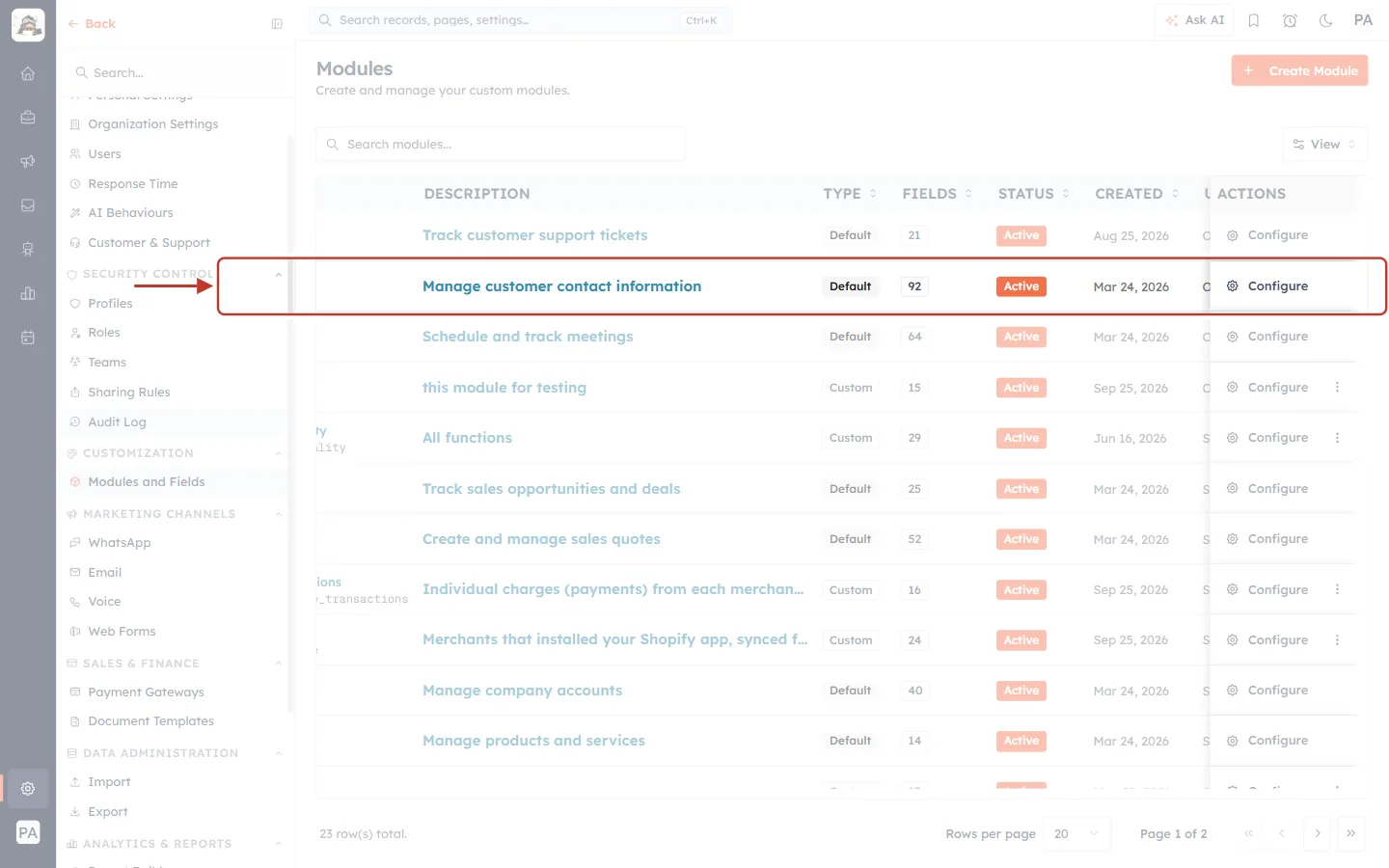
What this screenshot shows. The Modules list, with the Contacts row ringed.
MODULE / DESCRIPTION — Contacts is described as “Manage customer contact information”.
TYPE — Default modules come with the CRM; Custom modules are ones your team created.
FIELDS — how many fields the module has (92 here).
STATUS, CREATED and UPDATED — whether the module is active and when it was created and last changed.
ACTIONS — the Configure button opens the module’s layouts and fields (next figure).
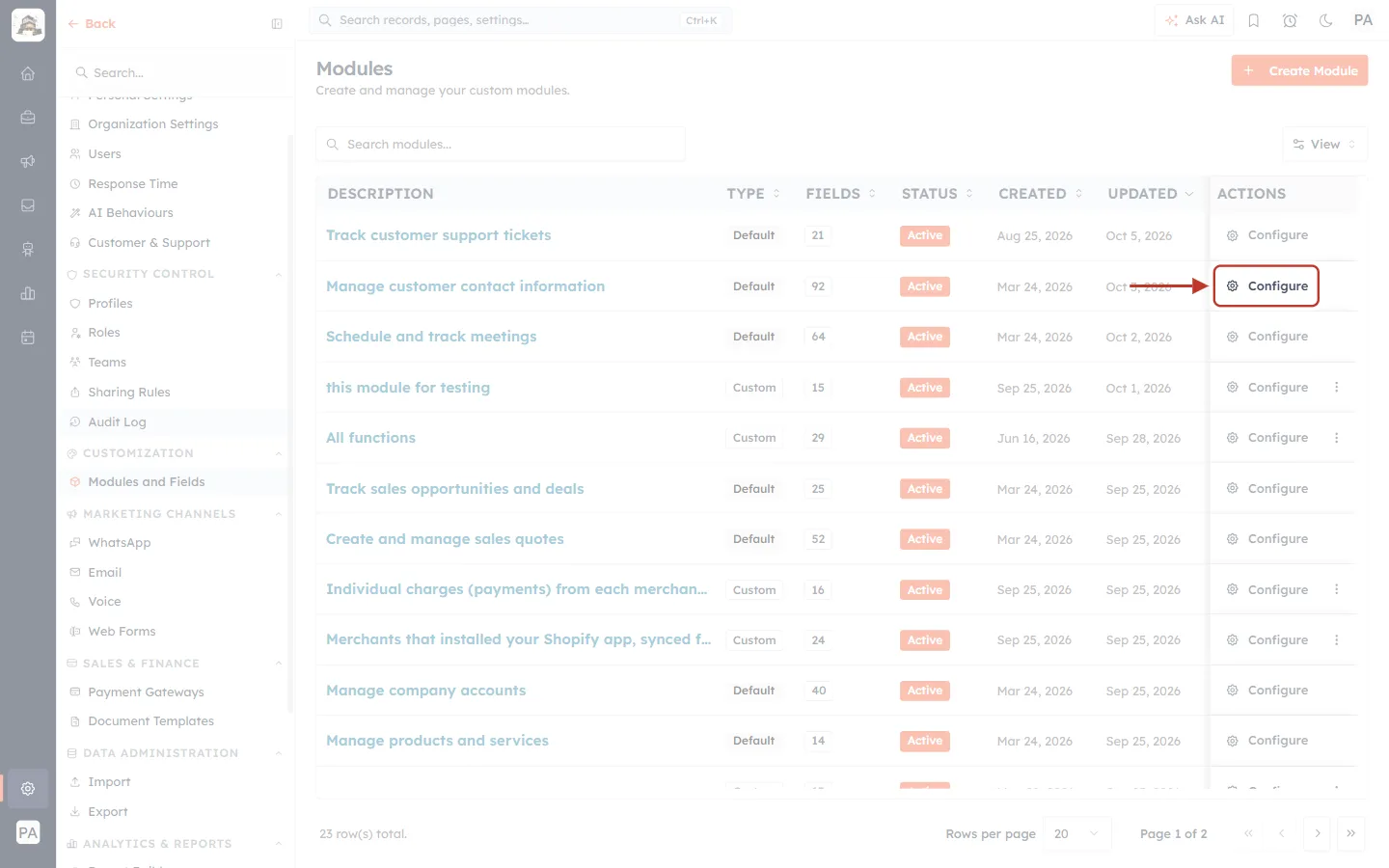
What this screenshot shows. The same list with the Configure button on the Contacts row ringed.
Click Configure to set up the Contacts module.
Every module has its own Configure button, so you can add a rollup to Companies, Deals or a custom module in exactly the same way.
Step 4: Open the Standard layout#
Configure opens the module’s Layouts page. Click the layout you want to add the field to — usually Standard.
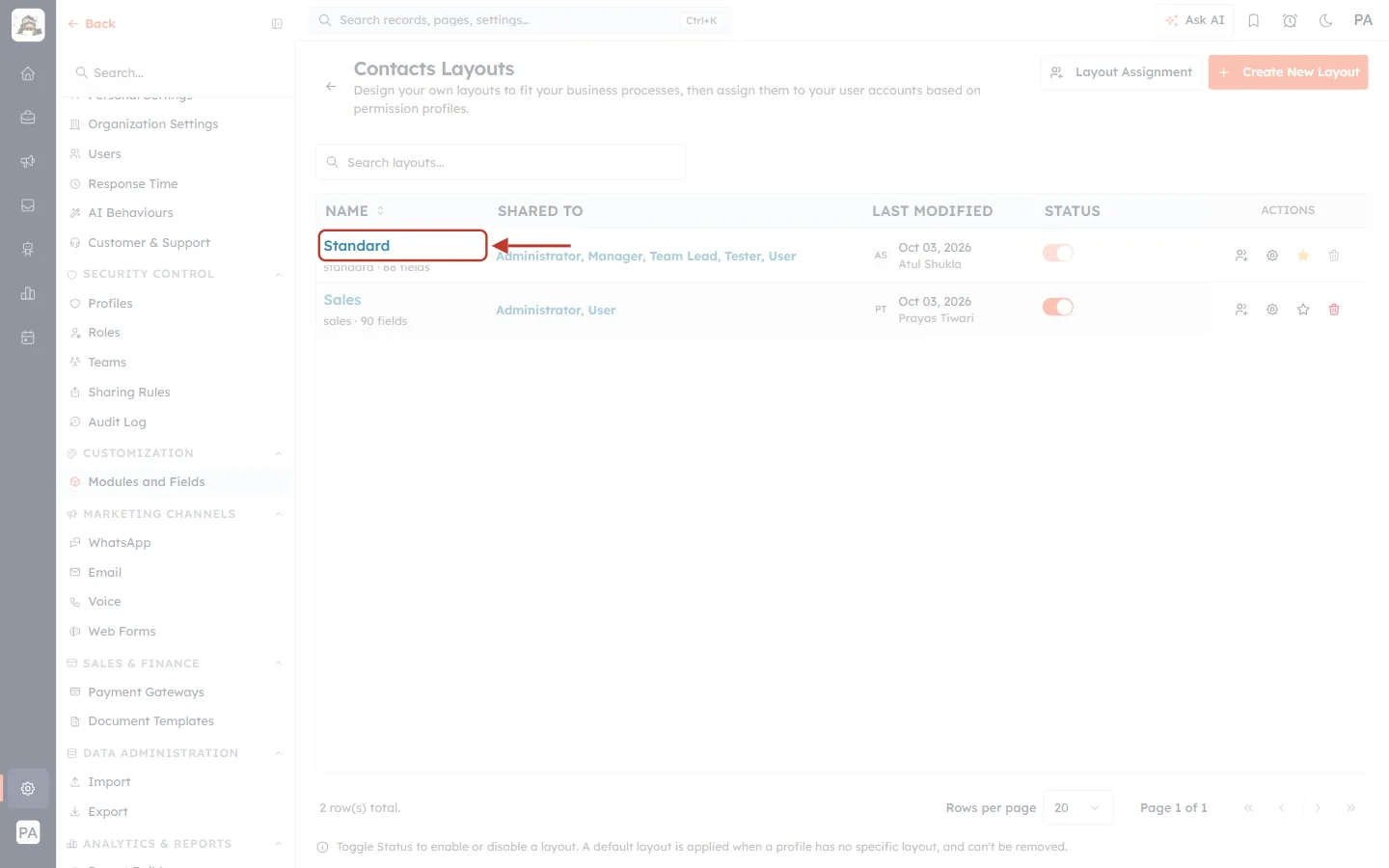
What this screenshot shows. The Contacts Layouts page, with the Standard layout ringed.
NAME — each layout is a different version of the Contacts form. Standard is the default; this account also has a Sales layout.
SHARED TO — which profiles use the layout (here Administrator, Manager, Team Lead, Tester and User).
LAST MODIFIED and STATUS — when it was last changed and whether it is switched on.
Click Standard to open the Module Builder for that layout.
ℹ️
A field added to one layout is part of the module, so its value is calculated for every contact. The layout only decides where the field is placed on that layout’s pages.
Part 2 — Example 1: Total Won Deal Value (Sum with a filter)#
Goal: on every contact, show the total Amount of the deals that contact has won.
Step 5: Find Rollup Summary in the field palette#
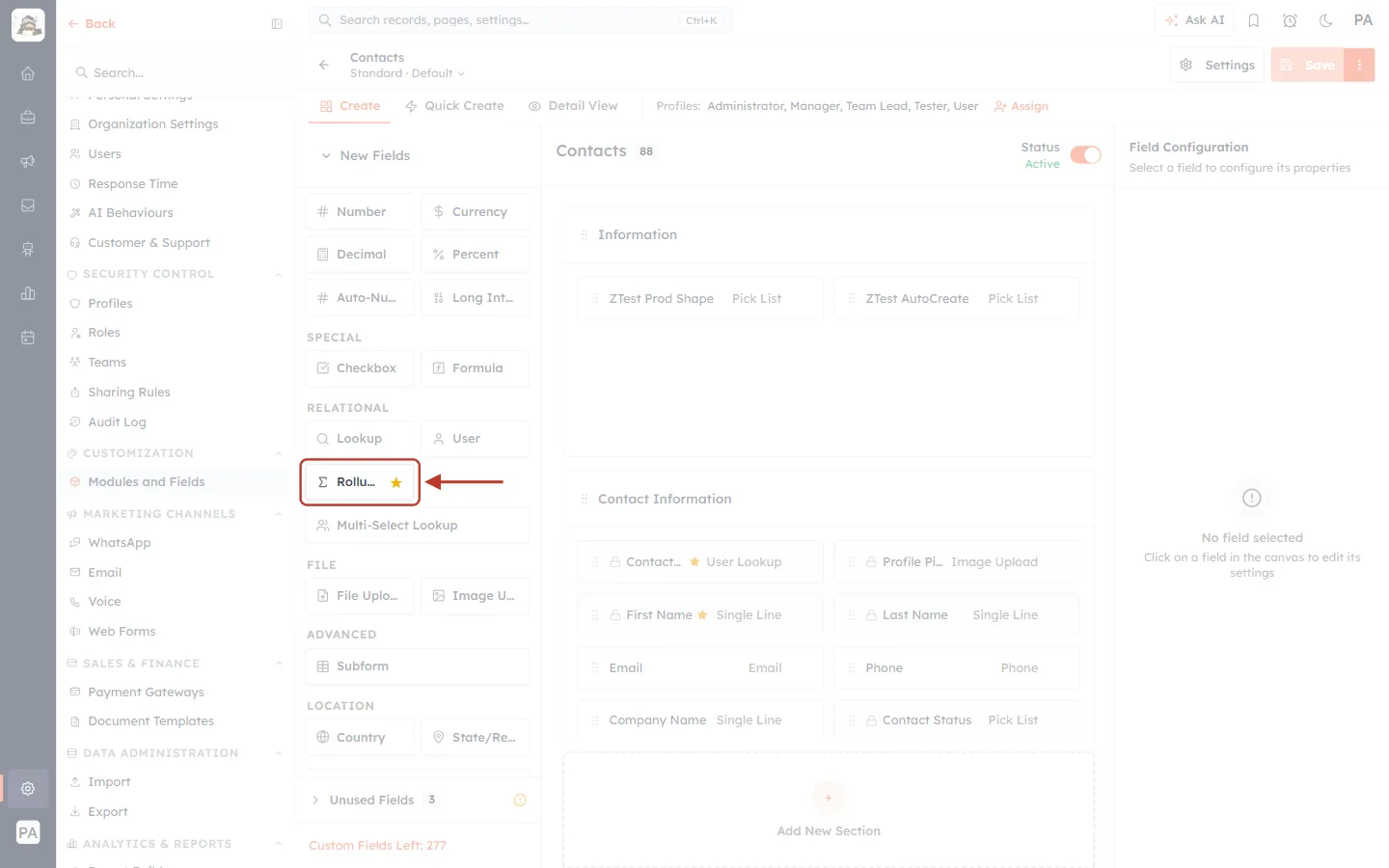
What this screenshot shows. The Module Builder for Contacts. In the field palette on the left, the Rollup Summary tile (Σ “Rollu…”, with a gold star) is ringed.
Left — field palette: every field type you can add, grouped as TEXT, SELECTION, DATE & TIME, NUMBER, SPECIAL, RELATIONAL, FILE, ADVANCED and LOCATION.
Rollup Summary is in the RELATIONAL group, next to Lookup and User, because it works across related records.
Middle — canvas: the Contacts form, split into sections (Information, Contact Information, and so on).
Right — Field Configuration: says “No field selected” until you add or click a field.
At the top: the Create, Quick Create and Detail View tabs, the profiles using this layout, and the Save button (greyed out until you change something).
Step 6: Drag the tile onto the form#
Drag Rollup Summary from the palette and drop it into the section where you want the field. You can also click the tile to add it to the first section.
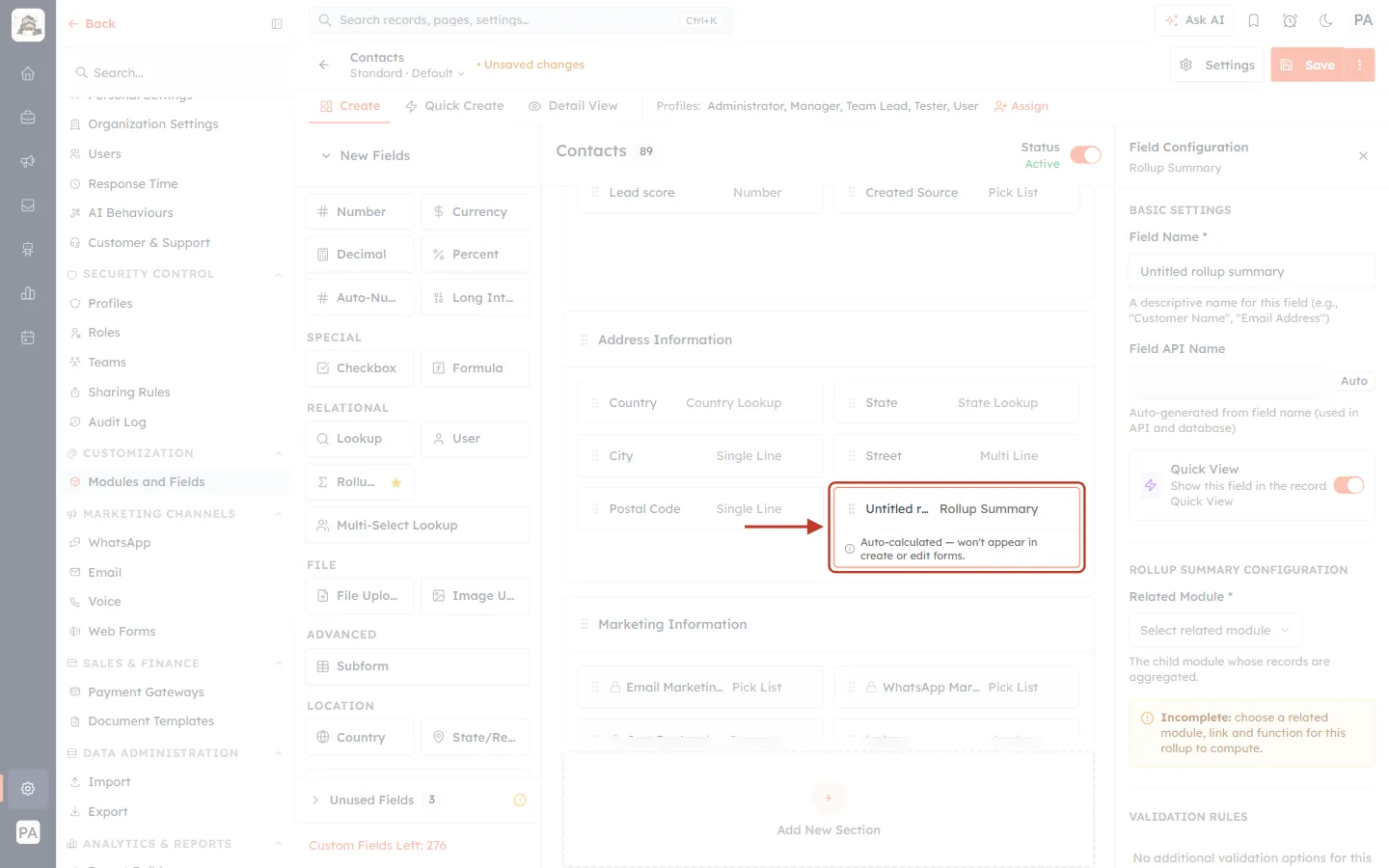
What this screenshot shows. The new field has been dropped onto the form. Its card, Untitled rollup summary, is ringed.
The card shows the field’s name (Untitled r… for now) and its type, Rollup Summary.
The note “Auto-calculated — won’t appear in create or edit forms.” reminds you that nobody types into this field.
At the top, • Unsaved changes appears next to the layout name and the Save button turns orange. Nothing is stored until you click Save.
The field count next to Contacts goes up by one, and Custom Fields Left goes down by one.
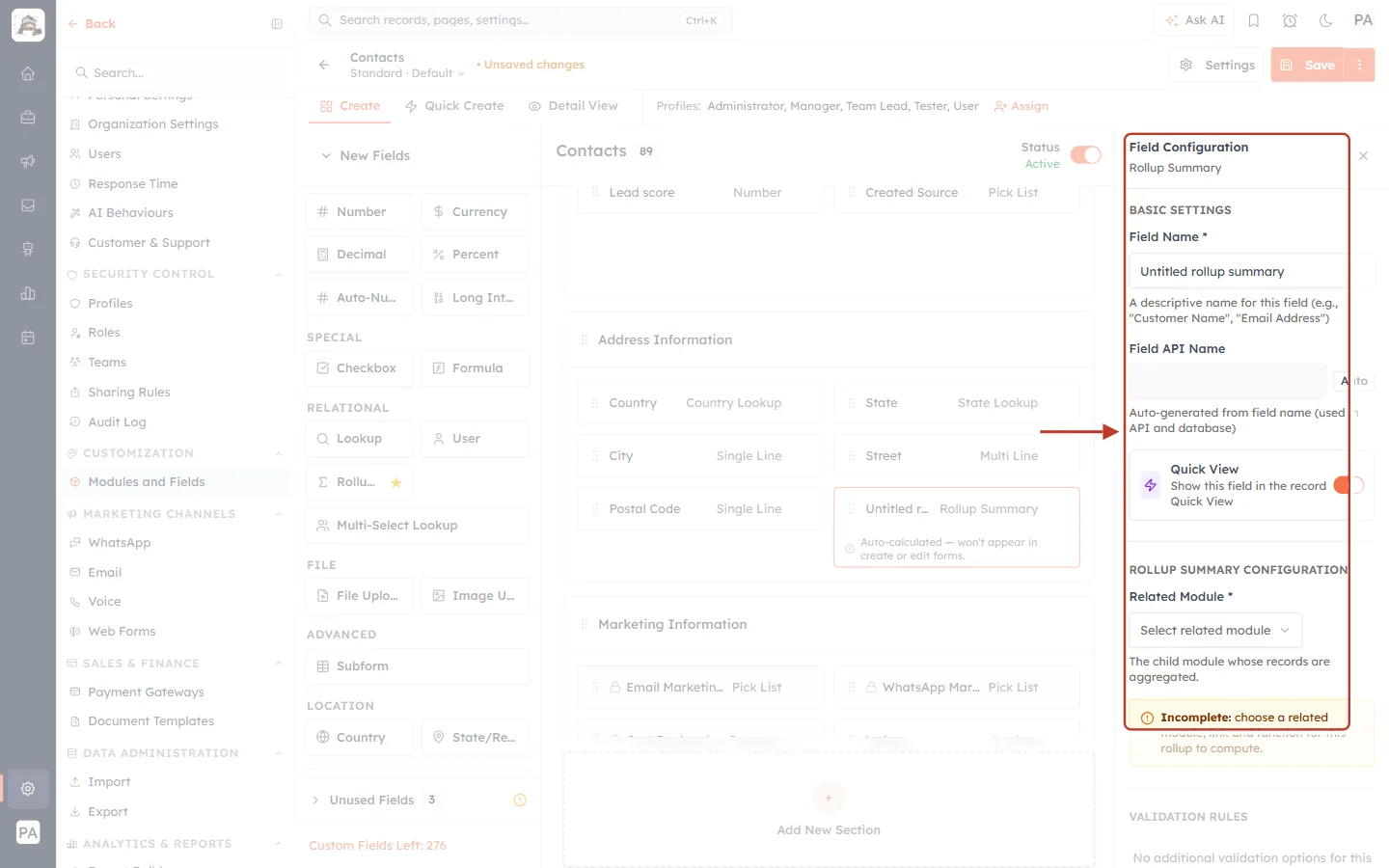
What this screenshot shows. The Field Configuration panel on the right (ringed) now shows the new field’s settings.
BASIC SETTINGS — Field Name (required), Field API Name (filled in automatically) and the Quick View switch.
ROLLUP SUMMARY CONFIGURATION — where you choose what to calculate, starting with Related Module.
The yellow box says “Incomplete: choose a related module, link and function for this rollup to compute.” It disappears once the required settings are filled in.
Step 7: Name the field#
Replace Untitled rollup summary with a clear name. We use Total Won Deal Value.
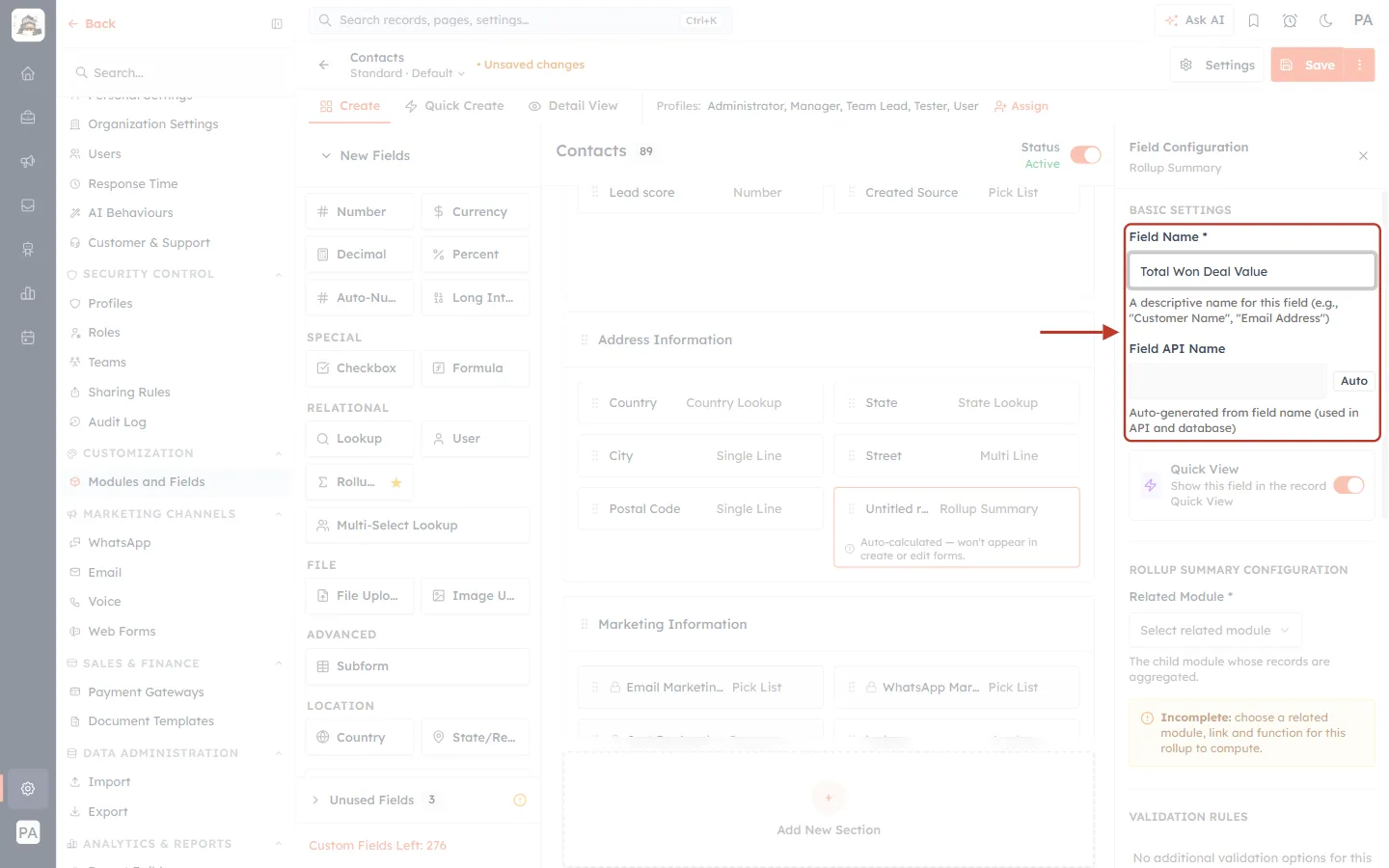
What this screenshot shows. The Field Name and Field API Name settings (ringed).
Field Name * — Total Won Deal Value. This is the label people see in lists, filters and reports.
Field API Name — filled in for you from the name (total_won_deal_value) and marked Auto. It is the name used by the API and integrations.
Choose a name that says exactly what is counted — “Total Won Deal Value” is clearer than “Deal Total”, because it tells people only won deals are included.
Step 8: Choose the Related Module#
Click Select related module and choose the module whose records you want to summarise.
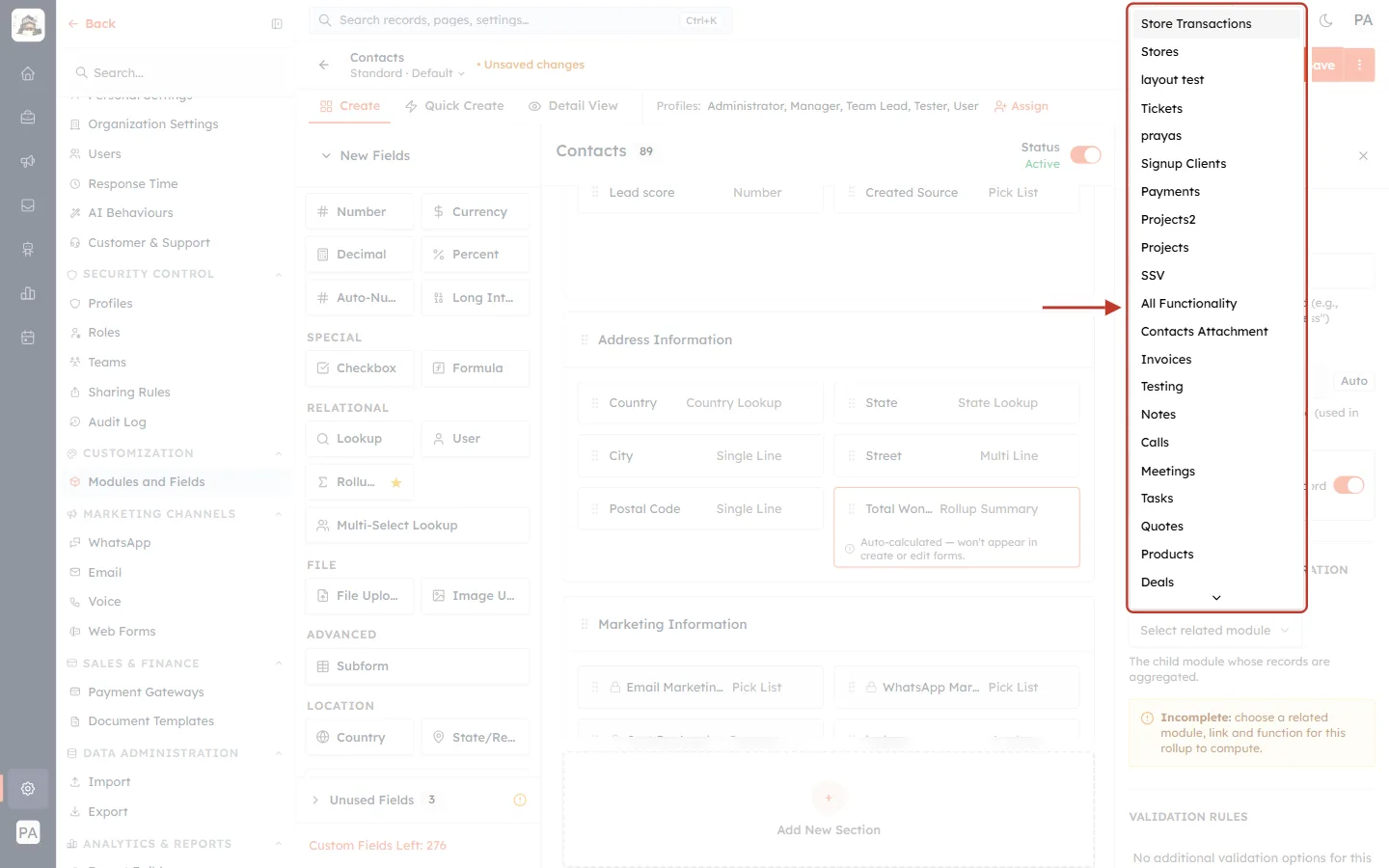
What this screenshot shows. The Related Module list is open (ringed).
It lists the modules you can roll up from — modules that link to Contacts, plus activity modules such as Notes, Calls, Meetings and Tasks.
Your list depends on your own modules; custom modules appear here too if they have a lookup to Contacts.
Scroll down and choose Deals.
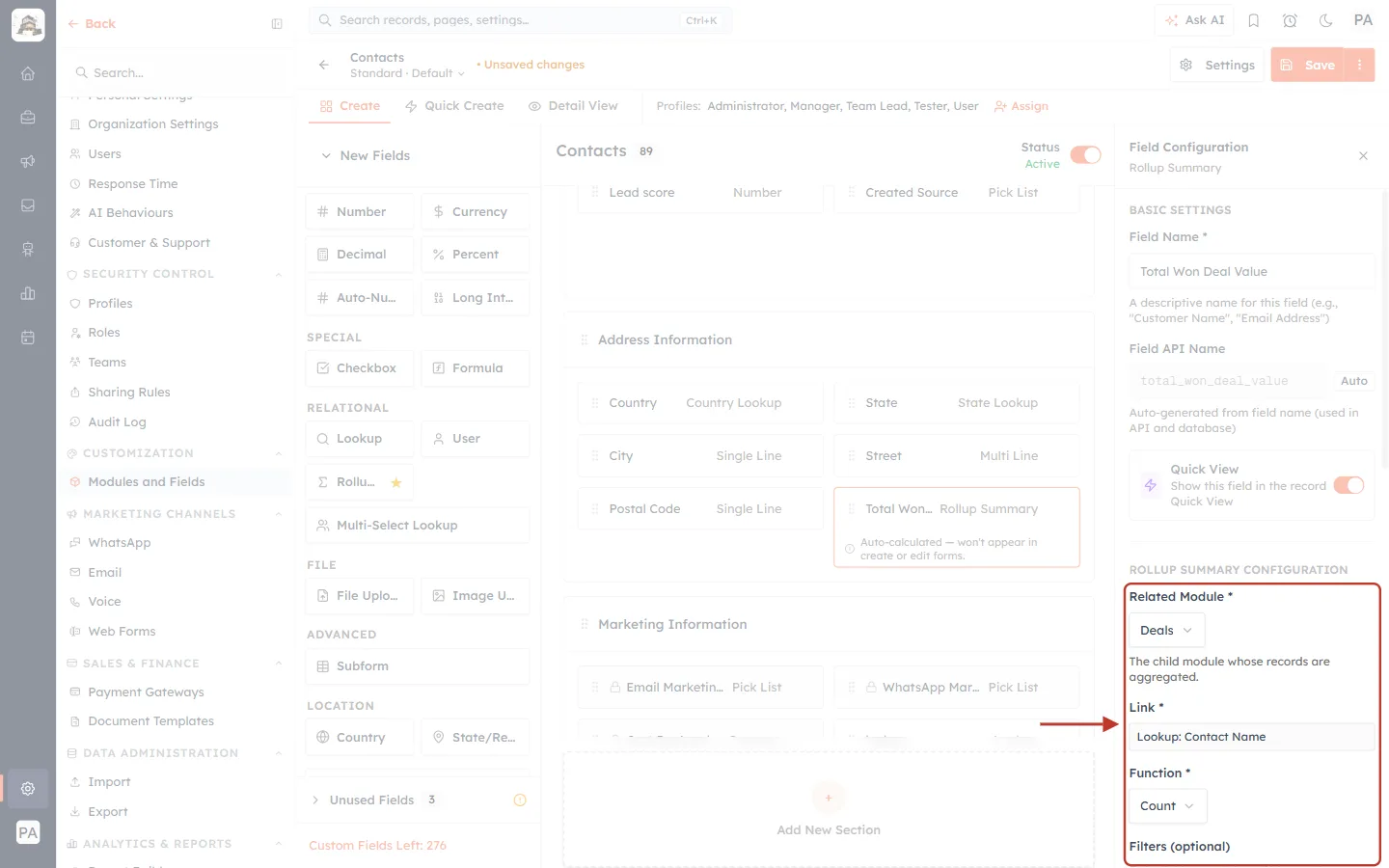
What this screenshot shows. Related Module is now Deals, and the Link has been filled in (ringed).
Related Module * — Deals: “The child module whose records are aggregated.”
Link * — Lookup: Contact Name. Each deal has a Contact Name lookup, and that is how the CRM knows which deals belong to which contact.
When there is only one link between the two modules it is picked for you. If a module has several lookups to Contacts, choose the one you mean.
Function * starts as Count (next step).
⚠️
If you see “No lookup or “Related To” link found from that module to this module.”, the module you picked has no way to point to this record. Add a Lookup field to the child module first, or choose another module.
Step 9: Choose the Function#
Open the Function list and choose the calculation. For a total, choose Sum.
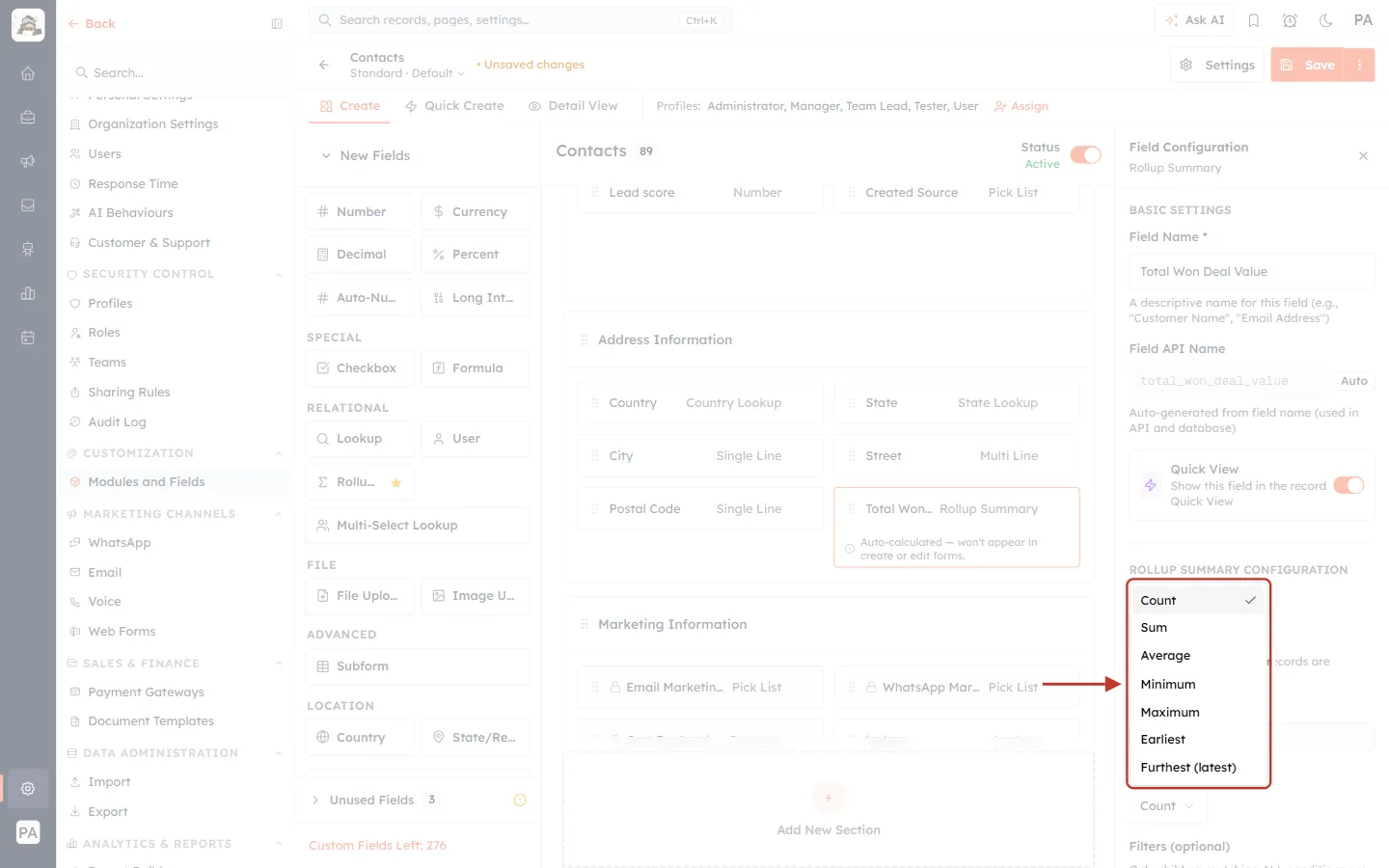
What this screenshot shows. The Function list is open (ringed), with the current choice, Count, ticked.
Count — how many related records there are.
Sum — adds up a number field.
Average — the average of a number field.
Minimum / Maximum — the smallest / largest value of a number field.
Earliest / Furthest (latest) — the earliest / latest date in a date field.
See the Functions reference below for what each one returns.
Step 10: Choose the Field to aggregate#
After you choose Sum, a Field to aggregate setting appears. Open it and pick the deal field to add up.
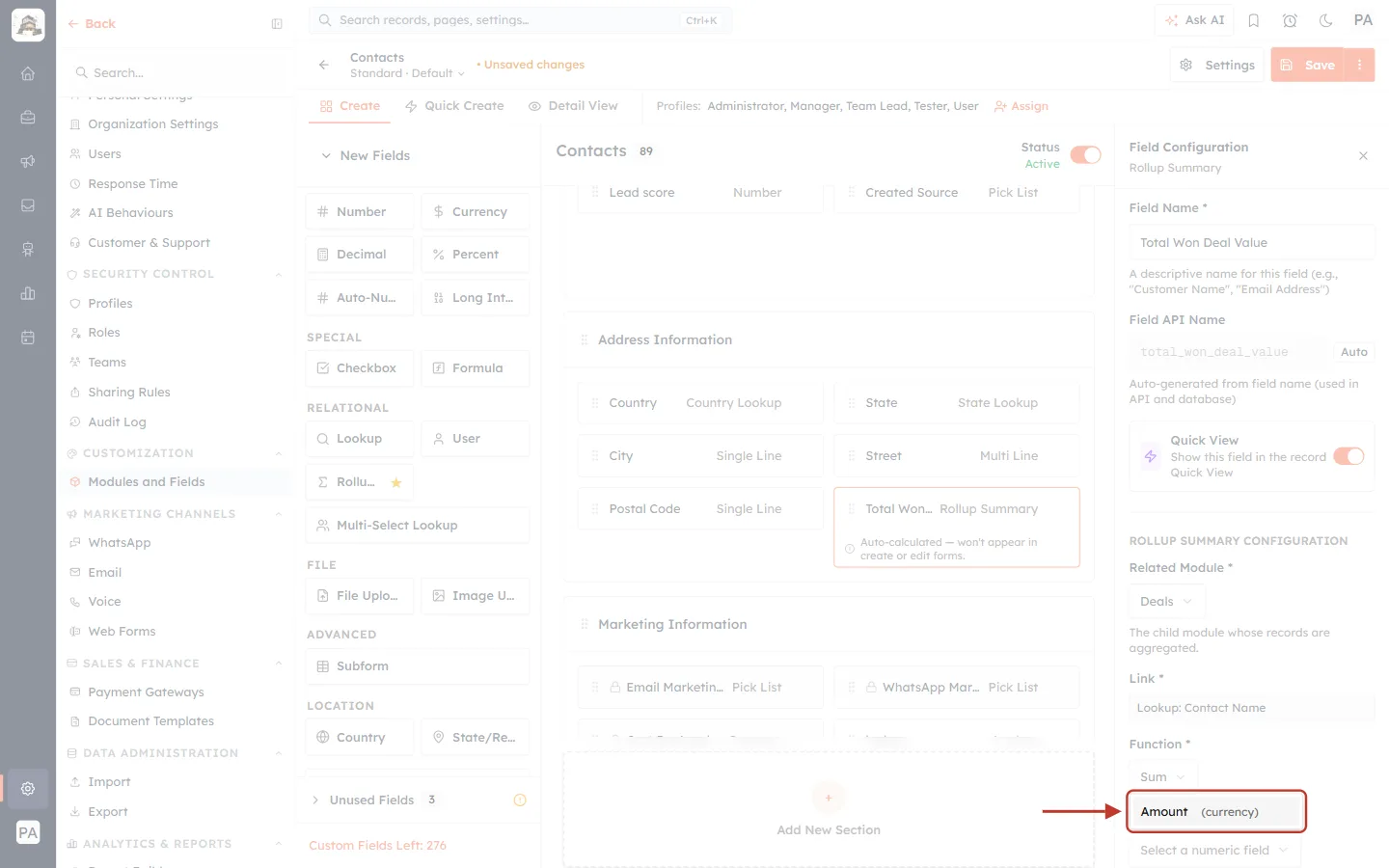
What this screenshot shows. The Field to aggregate list is open (ringed). It offers Amount (currency).
Only fields that fit the function are listed: number fields for Sum, Average, Minimum and Maximum, and date fields for Earliest and Furthest.
The field type is shown in brackets — (currency) — so the result is shown as a currency amount too.
Choose Amount.
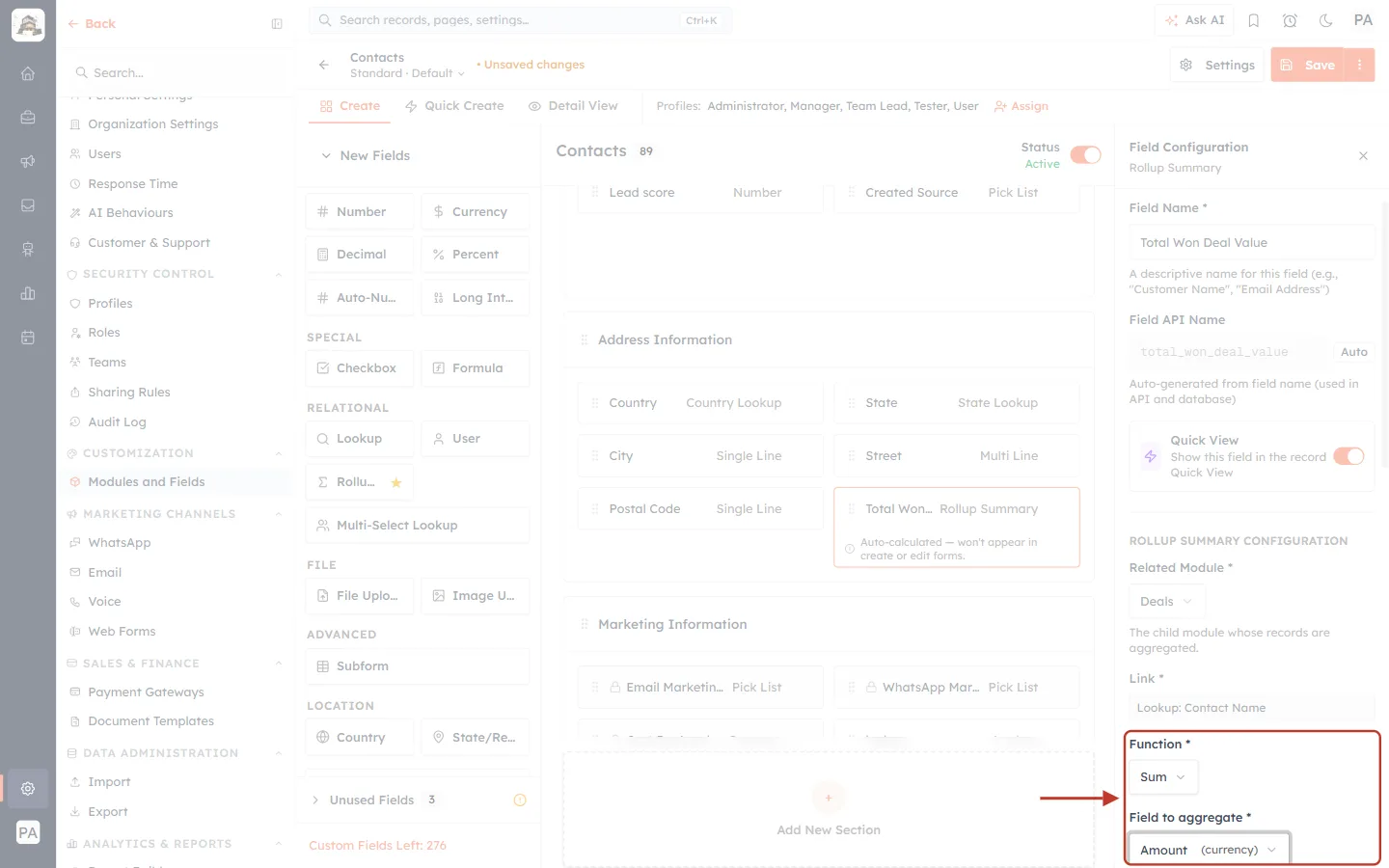
What this screenshot shows. Function is Sum and Field to aggregate is Amount (currency) (ringed).
Together they mean “add up the Amount of the contact’s deals”.
Without a filter, this would add up every deal — open, won and lost. The next steps limit it to won deals.
Step 11: Add a filter (optional)#
Filters let you include only some related records. We only want won deals, so we add one condition.
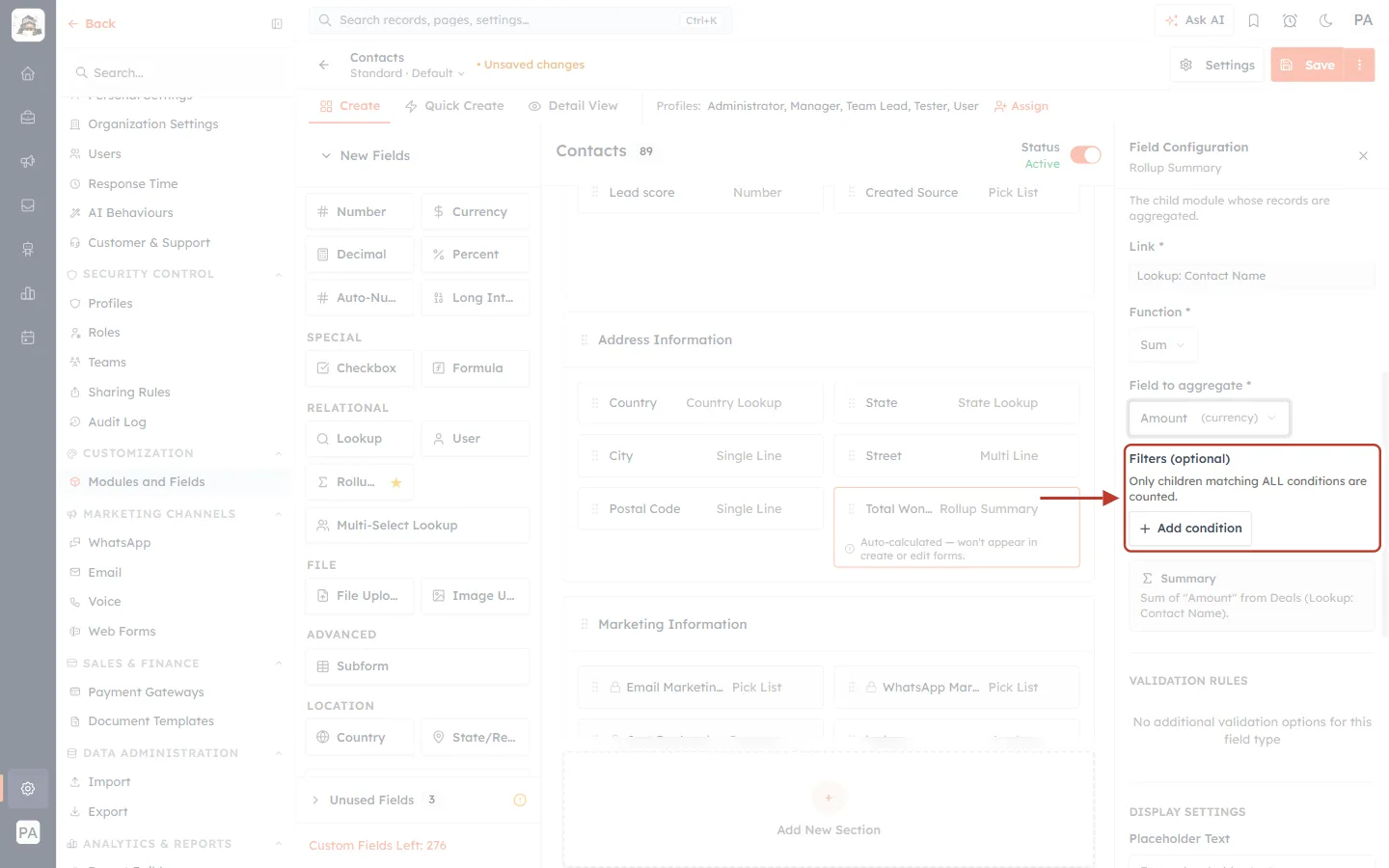
What this screenshot shows. The Filters (optional) area with its Add condition button (ringed).
“Only children matching ALL conditions are counted.” — if you add several conditions, a record must match every one of them.
Leave this empty to include every related record.
Click + Add condition.
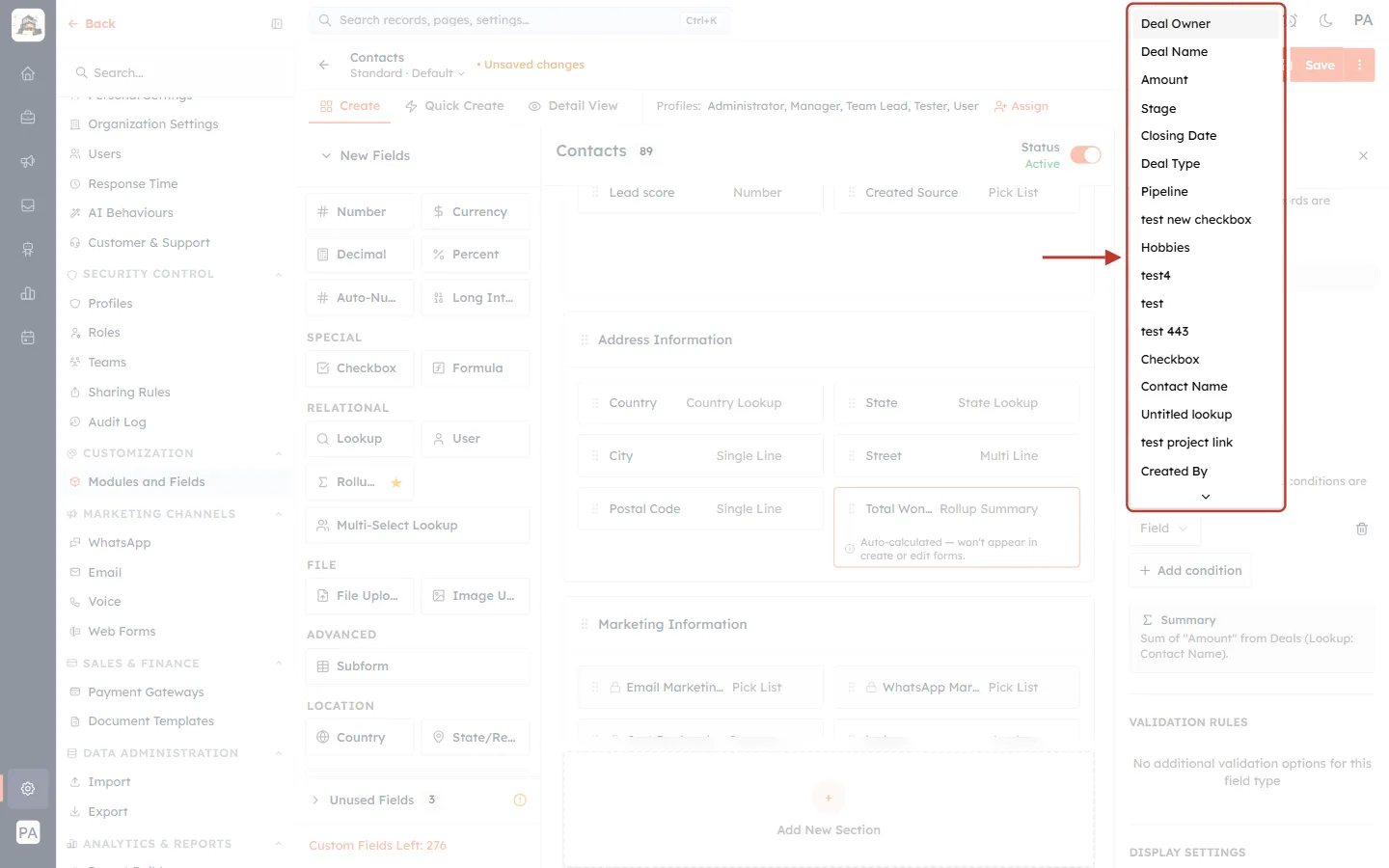
What this screenshot shows. A new condition row has been added and its Field list is open (ringed).
The list shows the Deal fields you can filter on — Deal Owner, Deal Name, Amount, Stage, Closing Date, Deal Type, Pipeline, Created Date and more.
Choose Stage.
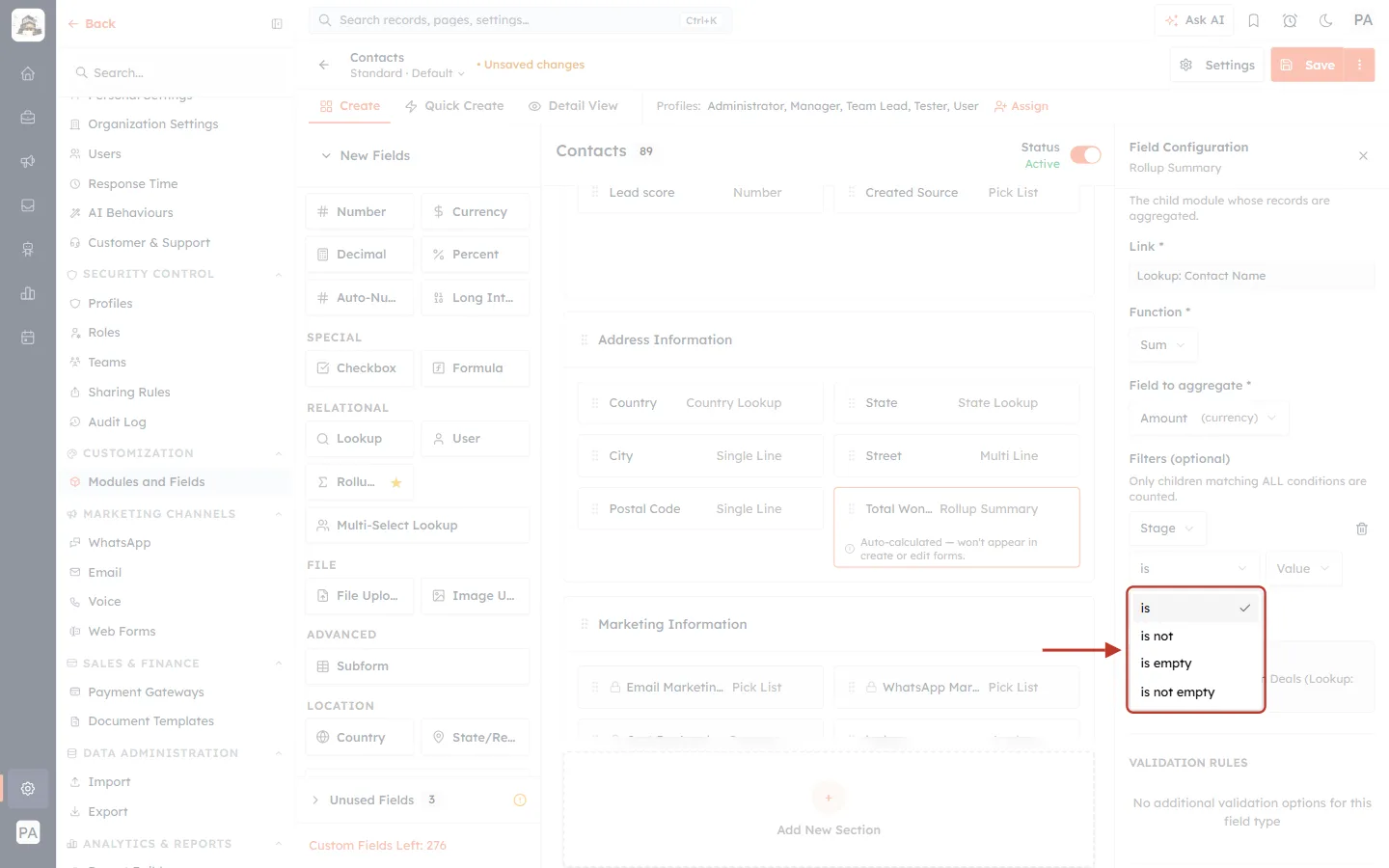
What this screenshot shows. After choosing Stage, the condition’s operator list is open (ringed).
is — the stage is one of the values you pick.
is not — the stage is anything except the values you pick.
is empty / is not empty — the field has no value / has a value.
Keep is.
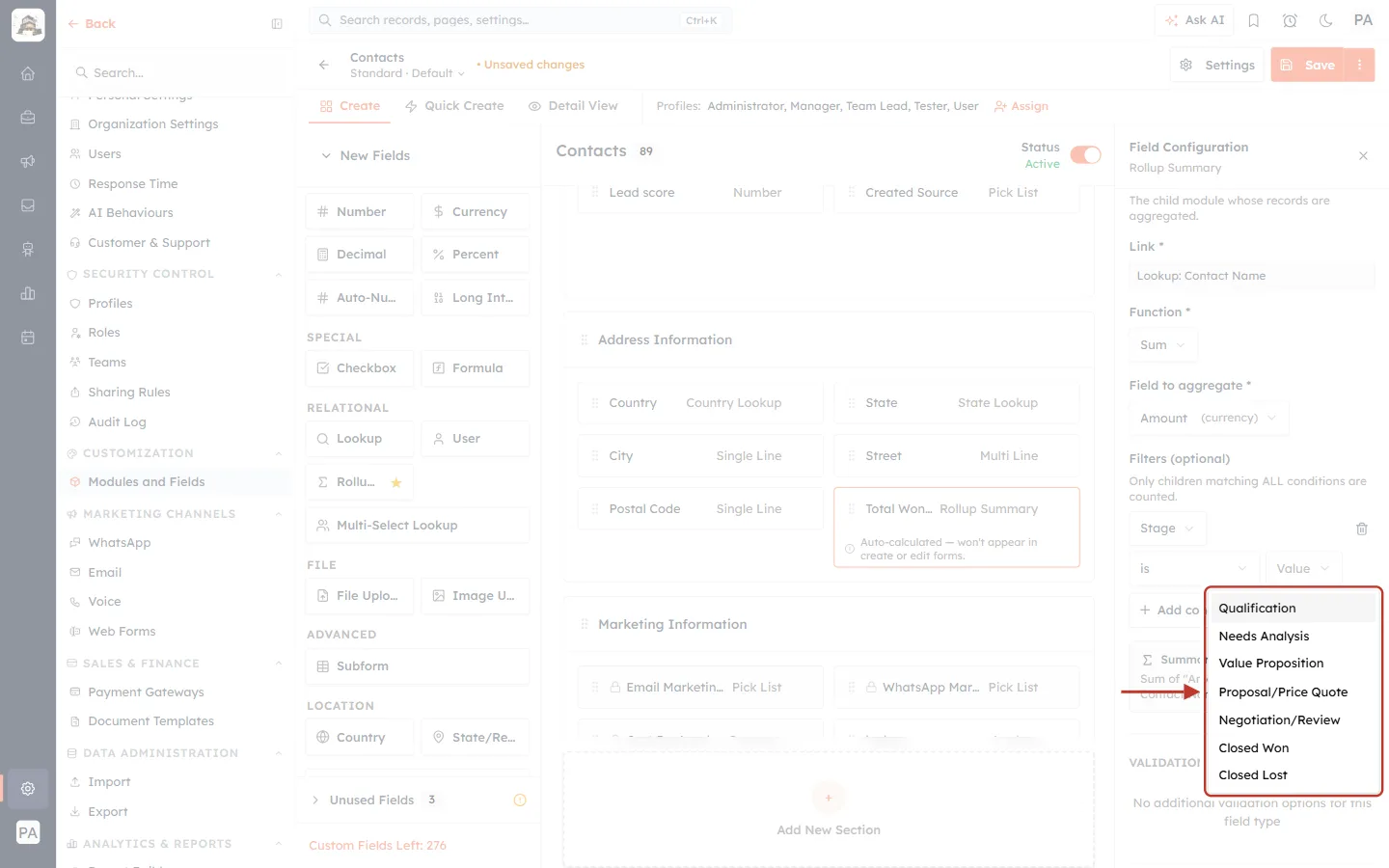
What this screenshot shows. The Value list is open (ringed), showing your deal stages.
The stages come from your Deals Stage field: Qualification, Needs Analysis, Value Proposition, Proposal/Price Quote, Negotiation/Review, Closed Won and Closed Lost.
Choose Closed Won.
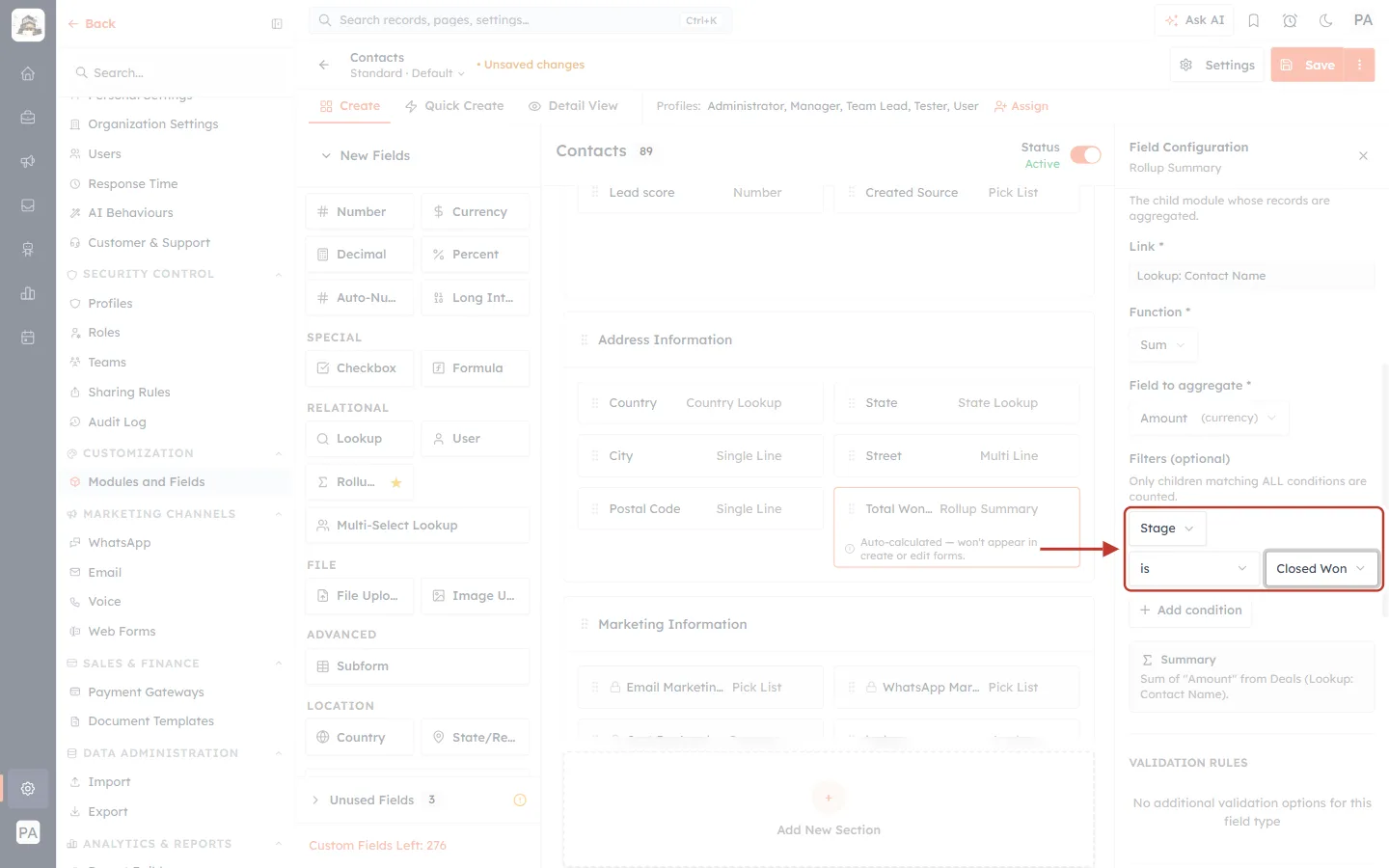
What this screenshot shows. The finished condition (ringed): Stage · is · Closed Won.
Only deals in the Closed Won stage are now added up.
The bin icon on the right of the row removes the condition. + Add condition adds another one.
Step 12: Check the Summary#
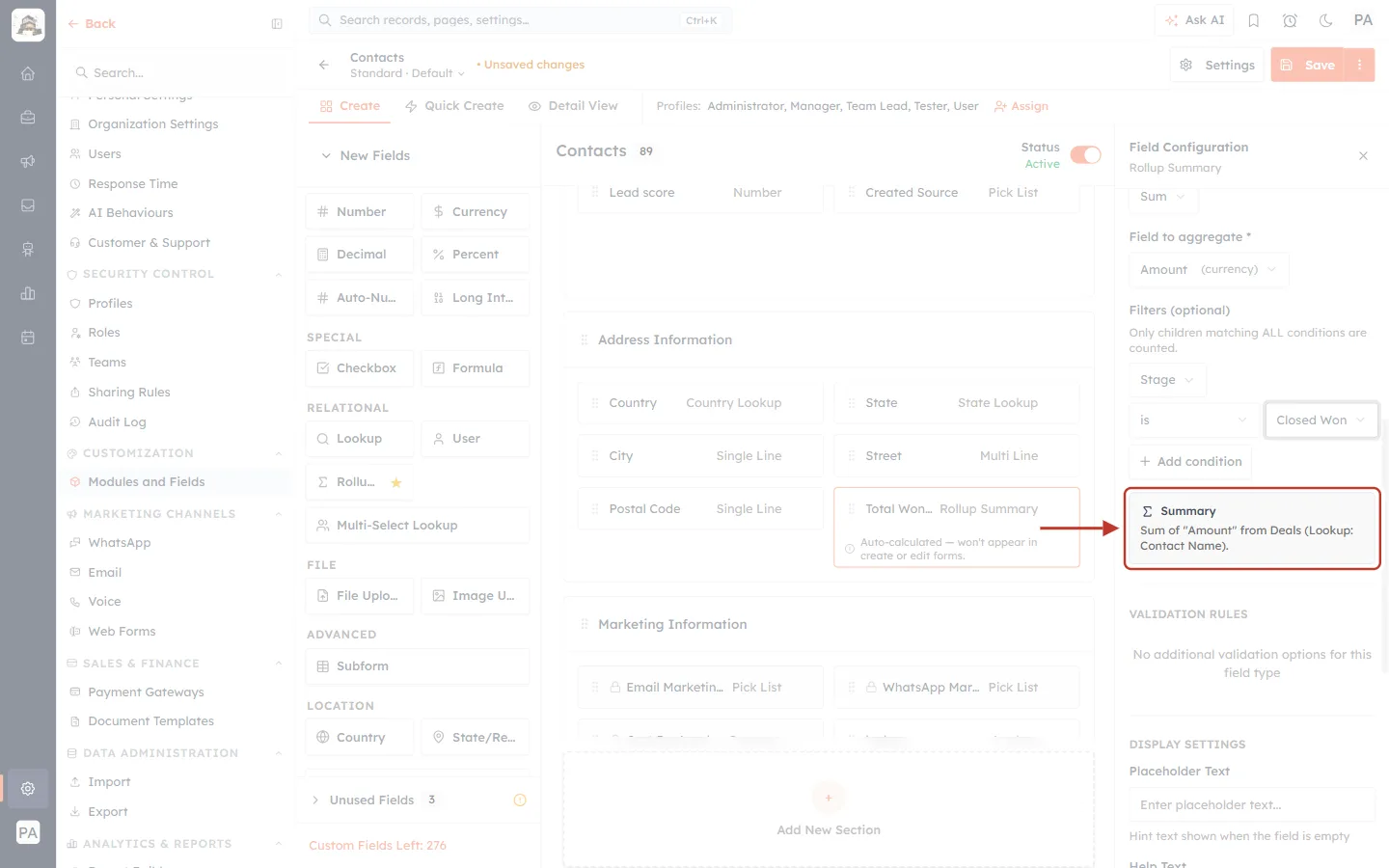
What this screenshot shows. The Summary box (Σ, ringed) under the filters.
It describes the rollup in plain words: Sum of “Amount” from Deals (Lookup: Contact Name).
The Summary appears only when the required settings are complete. If you still see the yellow Incomplete box instead, a required setting is missing.
Filters are listed just above the Summary, so read the two together.
Step 13: Choose where the field is shown#
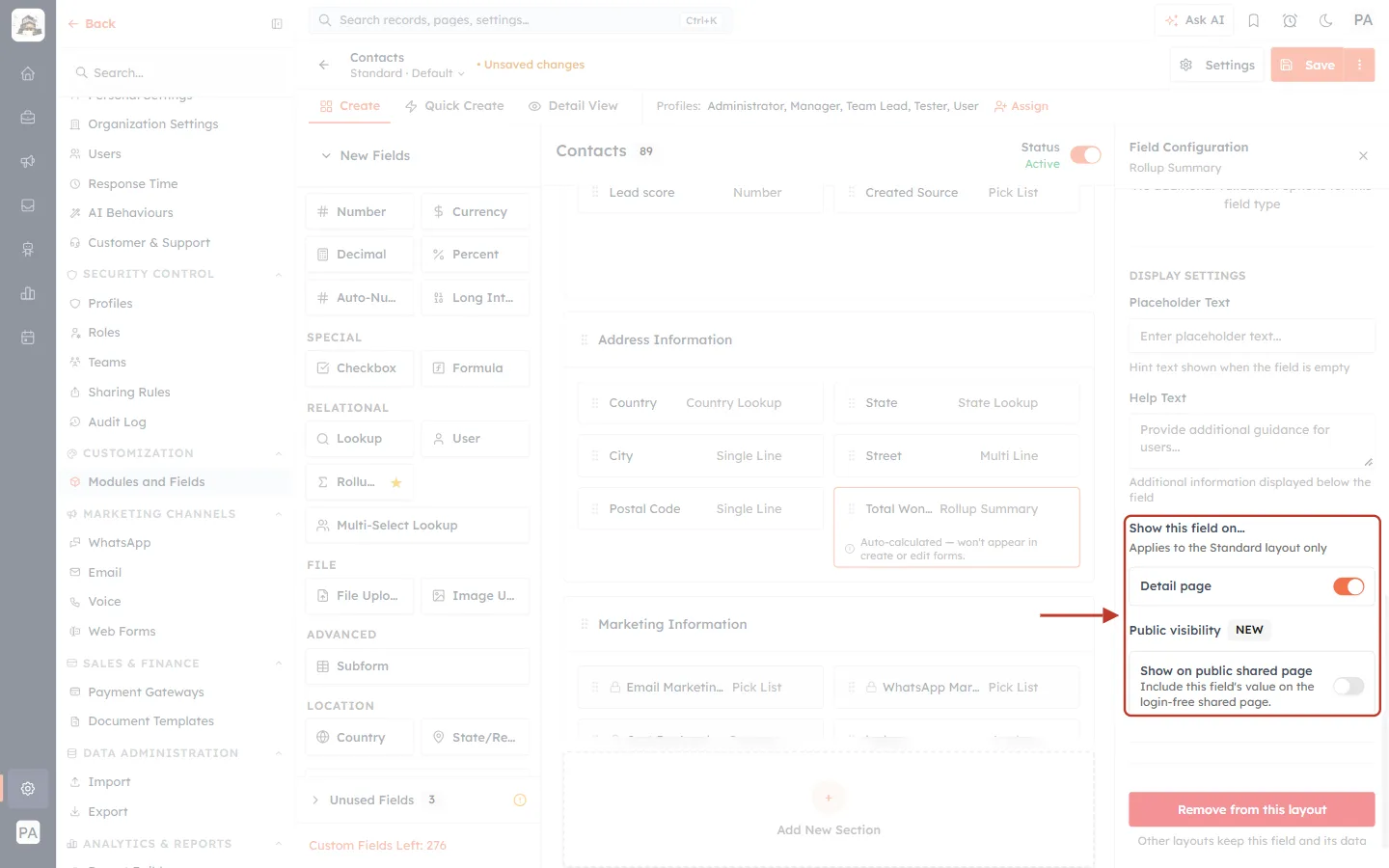
What this screenshot shows. Further down the panel, Show this field on… and Public visibility (ringed).
Detail page — switched on by default for this layout. “Applies to the Standard layout only.”
Show on public shared page — include this value on the login-free page you can share for a record. Leave it off for internal figures such as deal totals.
There are no switches for the create and edit forms, because a calculated field never appears on them.
Step 14: Check the field on the form#
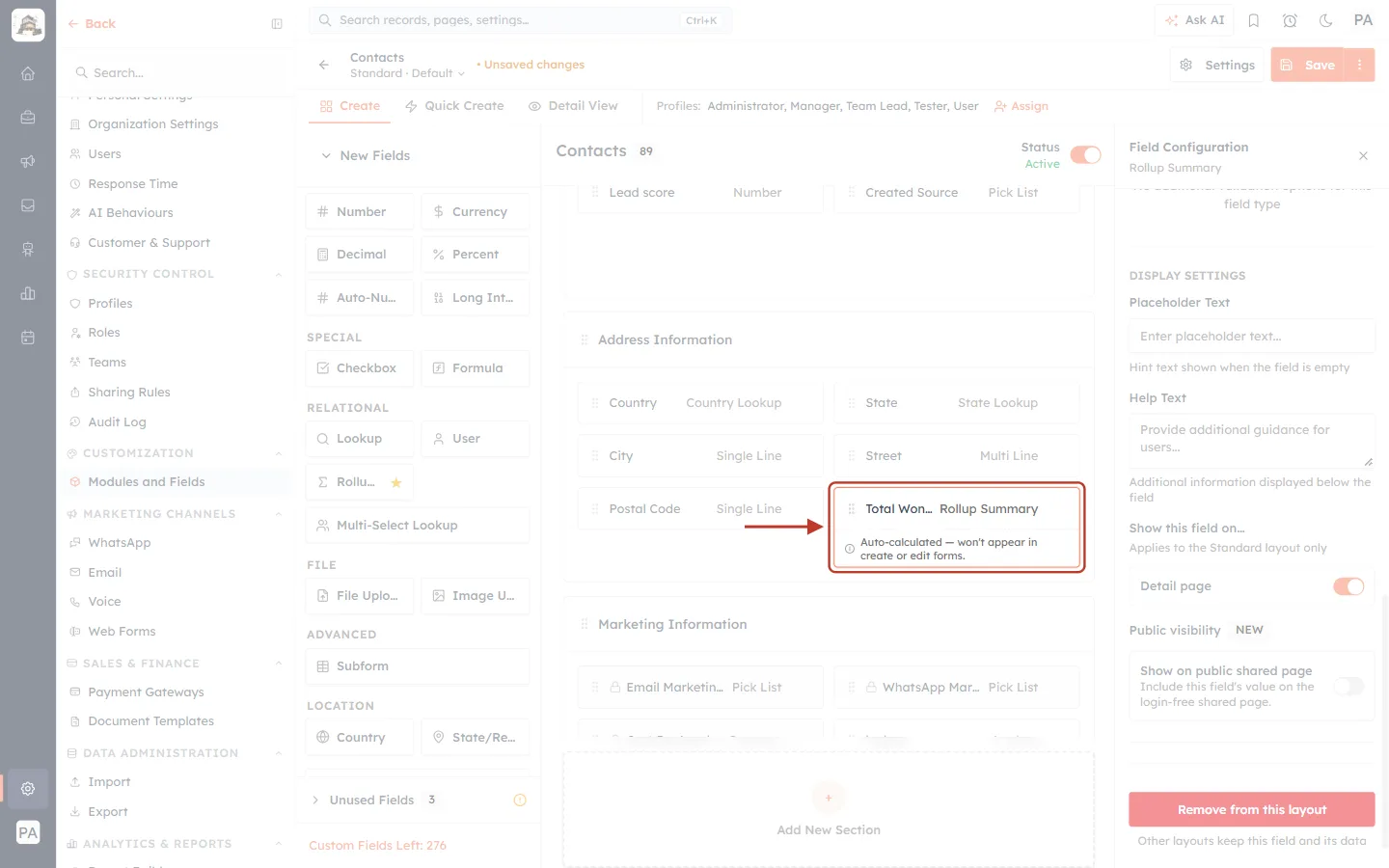
What this screenshot shows. Back on the canvas, the field card now reads Total Won… · Rollup Summary (ringed).
The name is shortened on the card; the full name is shown wherever the field is used.
The note “Auto-calculated — won’t appear in create or edit forms.” stays on the card, so other admins know it is calculated.
You can drag the card to another position or section, like any other field.
Step 15: Save#
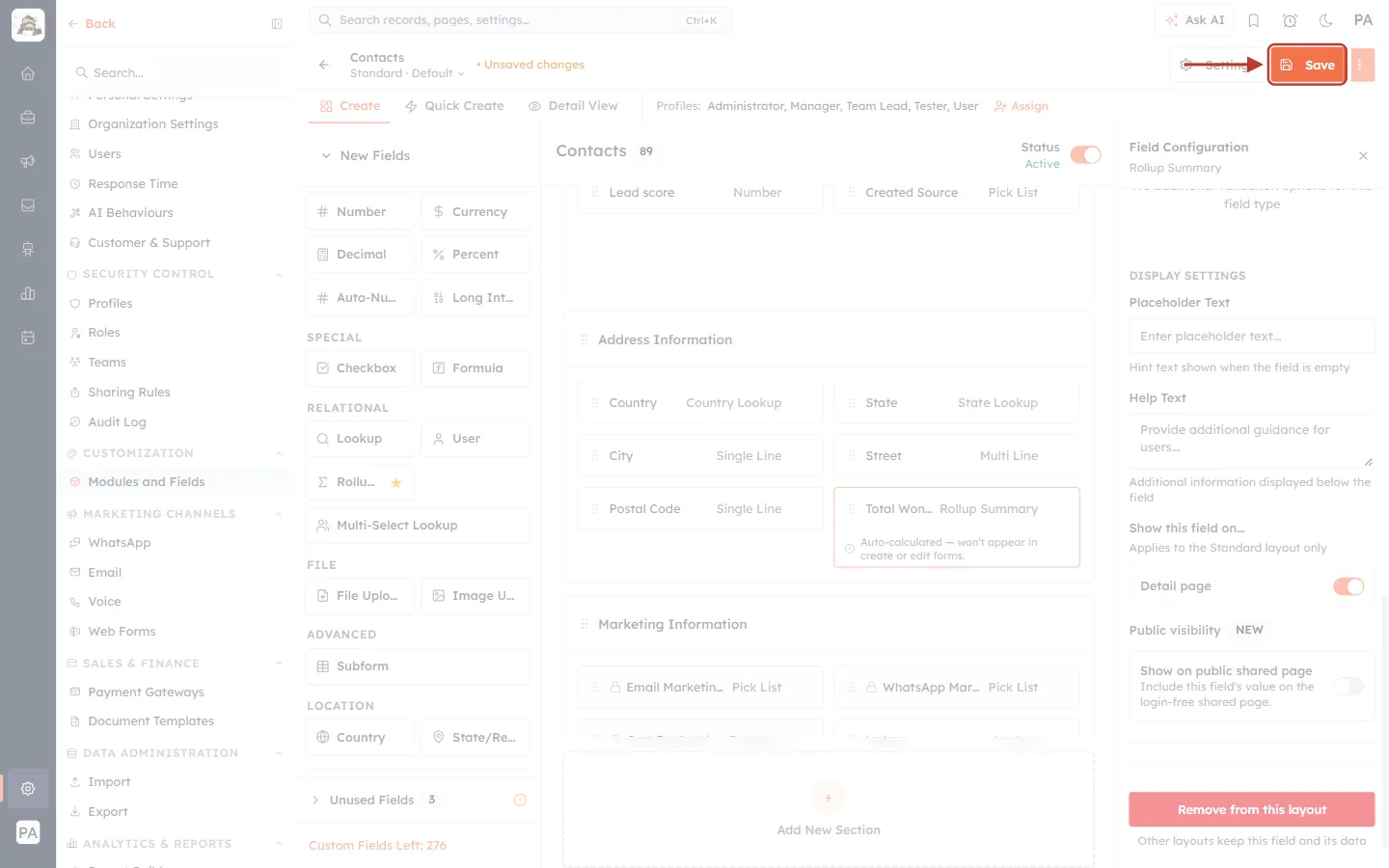
What this screenshot shows. The orange Save button at the top right of the builder (ringed).
Click Save to create the field. Until you do, the page shows • Unsaved changes and nothing is stored.
If you leave the page without saving, the new field is discarded.
✅
Right after you save, the CRM calculates the field for all existing contacts in the background, so the values appear without anyone having to edit a record. On accounts with a lot of data this can take a few minutes.
Part 3 — Example 2: Open Deals (Count with two conditions)#
Goal: on every contact, show how many deals are still open — that is, not won and not lost. Add another Rollup Summary field the same way (Steps 5–8), name it Open Deals and choose Deals as the Related Module.
Step 16: Keep the Function as Count#
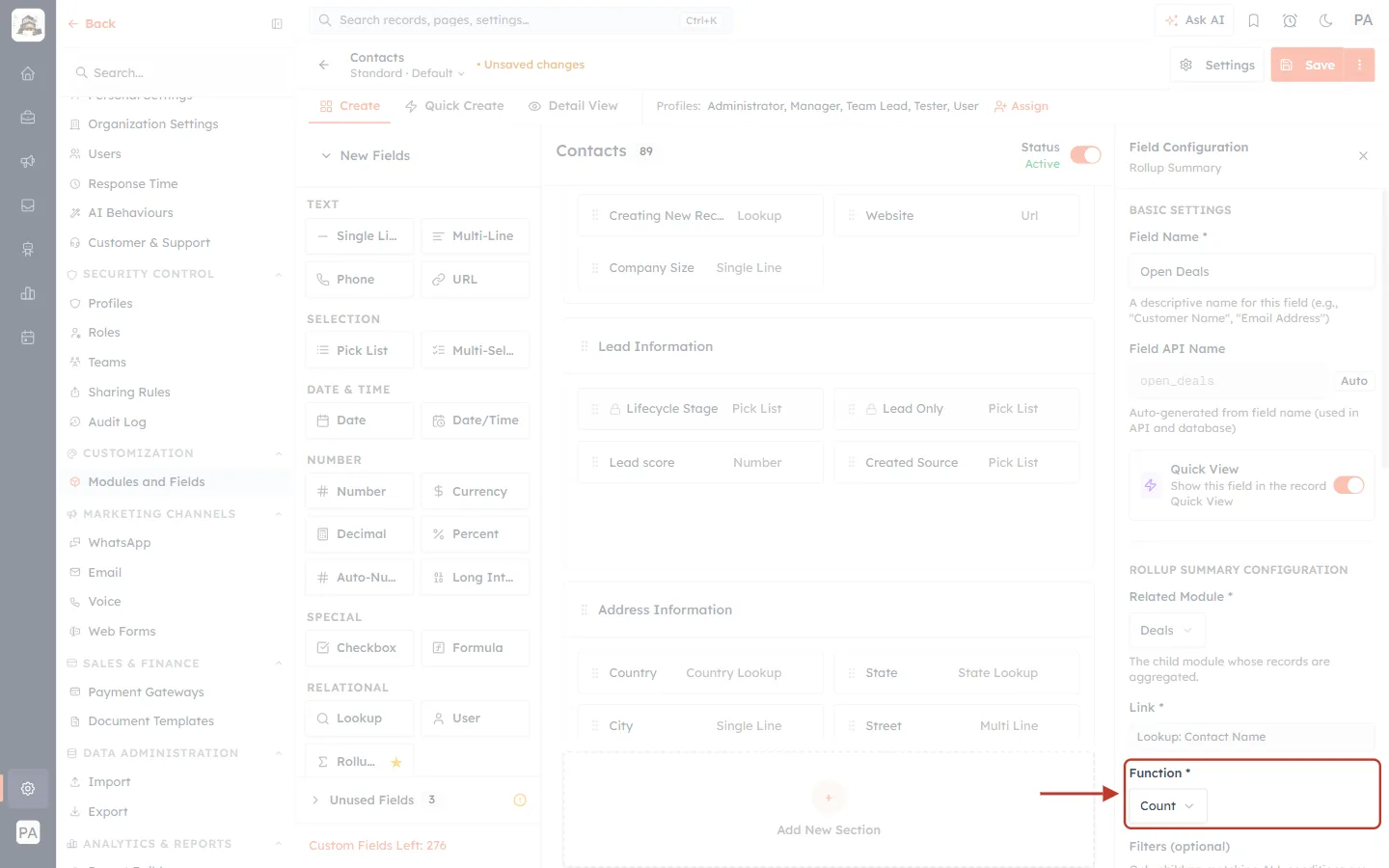
What this screenshot shows. For the Open Deals field, Function is left at Count (ringed).
Count simply counts the related records, so there is no Field to aggregate setting — it only appears for the other functions.
The result is always a whole number. A contact with no matching deals shows 0.
Step 17: Add two “is not” conditions#
Click + Add condition twice and set: Stage · is not · Closed Won and Stage · is not · Closed Lost.
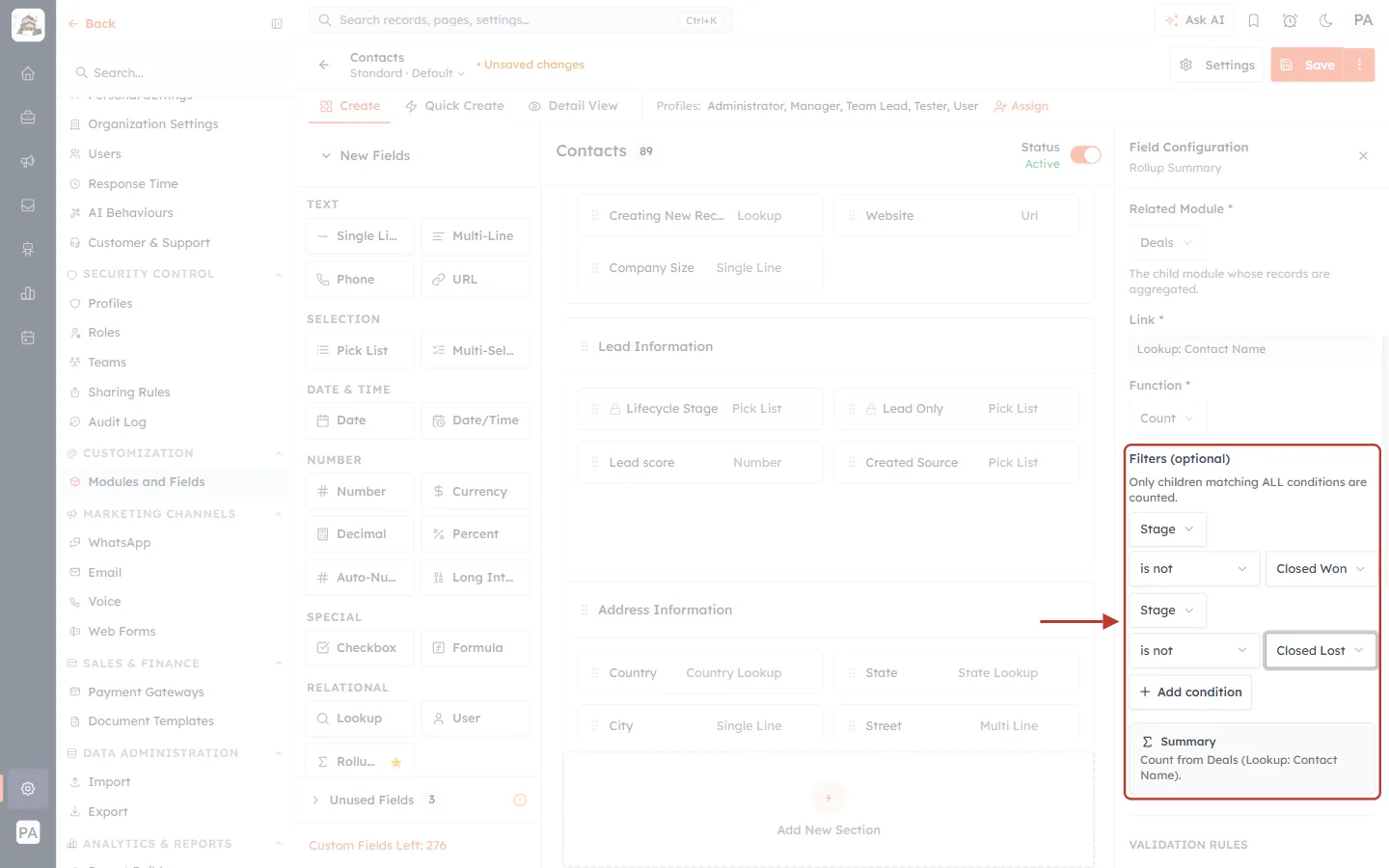
What this screenshot shows. The Filters area with both conditions, and the Summary underneath (ringed).
Condition 1: Stage · is not · Closed Won.
Condition 2: Stage · is not · Closed Lost.
Because a deal must match ALL conditions, only deals in an open stage (Qualification to Negotiation/Review) are counted.
Summary: Count from Deals (Lookup: Contact Name).
Click Save when you are done.
Part 4 — See the values in your Contacts list#
Rollup values are easiest to compare in the module’s list view. Add the new fields as columns, and you can scan, sort and filter contacts by them.
Step 18: Add the rollup fields as columns#
Open CRM → Contacts, click View above the list (top right), search for the field name and tick it.
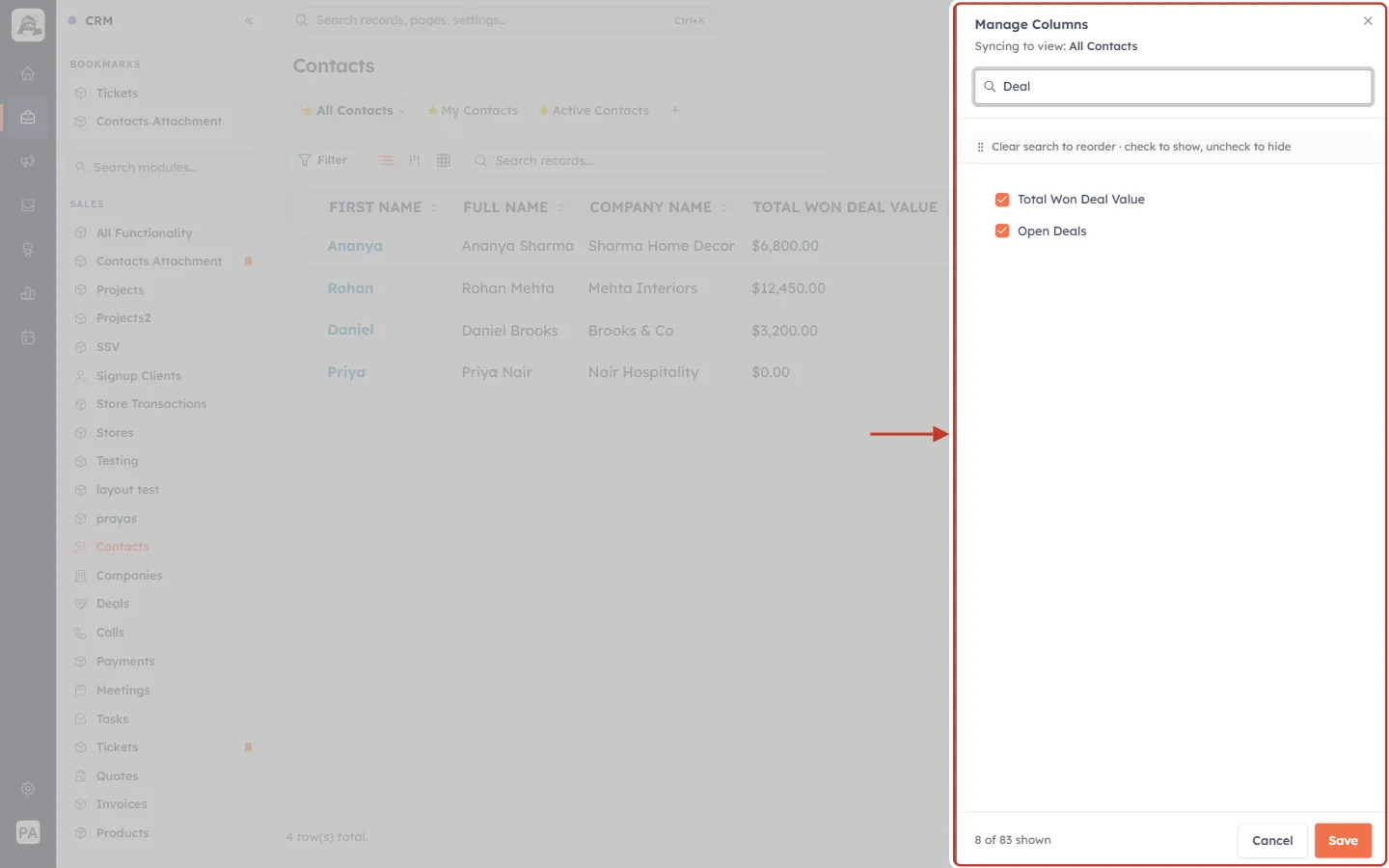
What this screenshot shows. The Manage Columns panel (ringed), opened from View. The search box contains Deal.
“Syncing to view: All Contacts” — the columns you choose are saved to the current view.
Searching for Deal narrows the list to Total Won Deal Value and Open Deals; both are ticked.
Drag the handle (⋮⋮) next to a column to change its position. Untick a column to hide it.
Click Save at the bottom of the panel to apply your columns. See Choose & Reorder Your List Columns.
Step 19: Read the results#
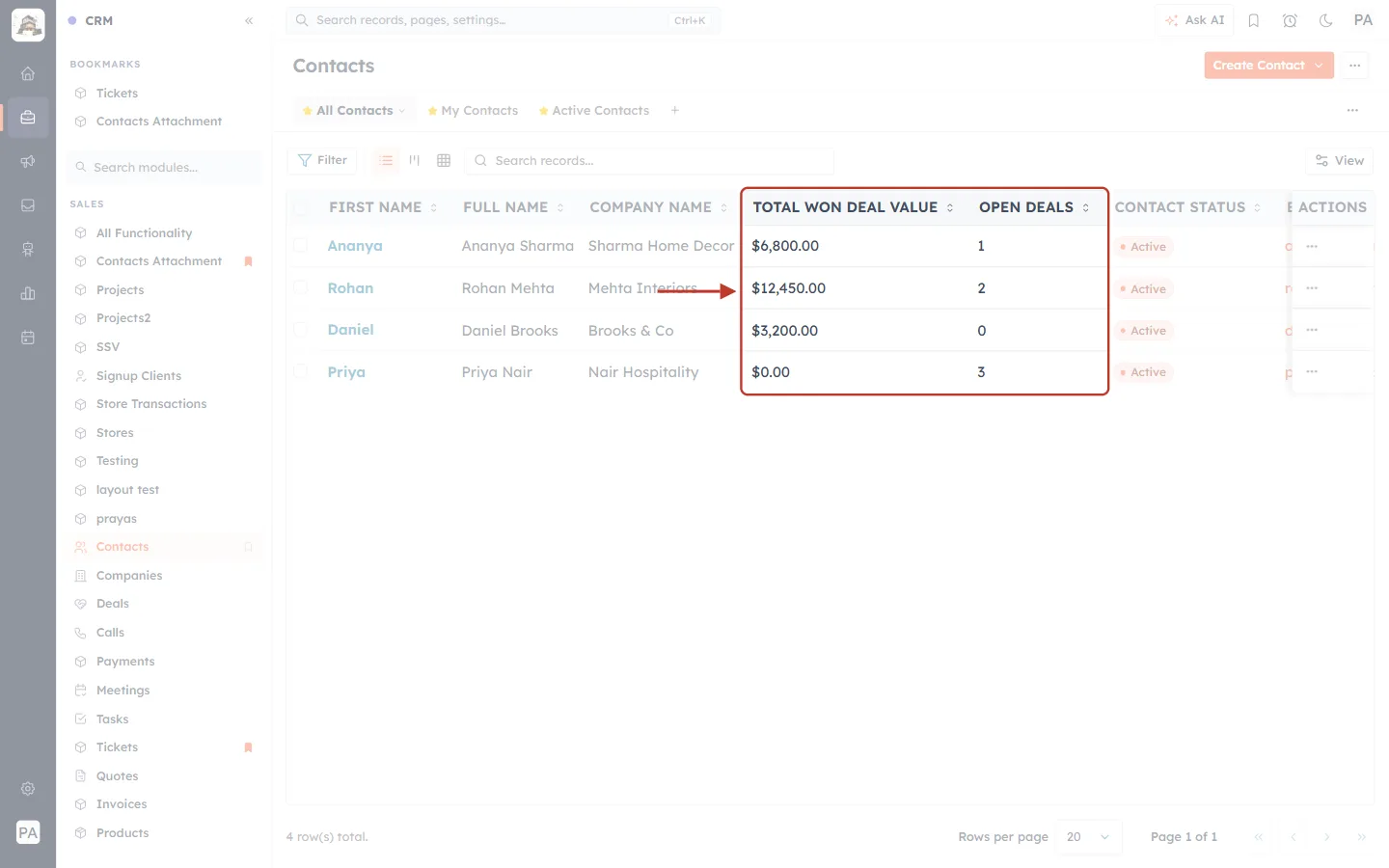
What this screenshot shows. The Contacts list with the two new columns, TOTAL WON DEAL VALUE and OPEN DEALS, ringed. (Sample contacts.)
Ananya Sharma — $6,800.00 won and 1 open deal. She has three deals: Living Room Makeover ($4,500, Closed Won), Office Lobby Lighting ($2,300, Closed Won) and Bedroom Curtains ($1,200, Value Proposition). The two won deals add up to $6,800, and the third is the one open deal.
Rohan Mehta — $12,450.00 won, 2 open: a strong customer with more business in the pipeline.
Daniel Brooks — $3,200.00 won, 0 open: worth a follow-up to find his next project.
Priya Nair — $0.00 won, 3 open: a new prospect with nothing won yet. Sum shows $0.00, not blank, when nothing matches.
Click a column heading to sort — for example, sort by Total Won Deal Value to see your most valuable contacts first.
When a deal changes — for example Bedroom Curtains moves to Closed Won — Ananya’s row updates on its own: Total Won Deal Value becomes $8,000.00 and Open Deals becomes 0. Nobody has to edit the contact.
✅
Rollup fields can also be used in filters and custom views — for example, a view of contacts whose Total Won Deal Value is over $5,000. See Create, Share & Manage Custom Views.
Functions reference#
| Function | Field to aggregate | Result | When nothing matches |
|---|---|---|---|
| Count | Not needed | A whole number | 0 |
| Sum | A number, decimal or currency field | Same type as the field (e.g. currency) | 0 |
| Average | A number, decimal or currency field | A decimal number | Blank |
| Minimum | A number, decimal or currency field | Same type as the field | Blank |
| Maximum | A number, decimal or currency field | Same type as the field | Blank |
| Earliest | A date field | A date | Blank |
| Furthest (latest) | A date field | A date | Blank |
Good to know#
Read-only. A rollup is always calculated. It does not appear on create or edit forms, and nobody can type a value into it.
Always up to date. The value is recalculated automatically when a related record is created, edited, deleted or moved to a different parent (for example a deal reassigned to another contact — both contacts update).
Deleted records don’t count. Records in the recycle bin are left out.
Filters use ALL conditions. A related record is included only if it matches every condition you add. To leave several values out, add one is not condition for each (as in Example 2).
Links supported: a Lookup field on the child module, or the Related To link used by Tasks, Calls, Meetings and Notes. Records linked only through manual many-to-many relationships are not included.
A rollup does not roll up another rollup automatically. If a rollup summarises a field that is itself a rollup, it may lag behind until it is recalculated.
Avoid “current user” filters. Conditions such as “Owner is me” are not applied, because the value is calculated by the system, not for a particular user.
Activity modules can’t hold rollups. Tasks, Notes, Calls and Meetings don’t offer the Rollup Summary field type — but you can roll them up onto Contacts, Companies or Deals.
Troubleshooting#
The module I want isn’t in the Related Module list. It has no Lookup field pointing to this module (and is not an activity module). Add a Lookup to this module on the child module first — see Advanced Field Types.
“No lookup or “Related To” link found from that module to this module.” Same cause: the chosen module can’t point to this record. Pick another module or add a lookup.
The yellow “Incomplete” box won’t go away. A required setting is missing — check Related Module, Link, Function and (for every function except Count) Field to aggregate.
Field to aggregate is empty. The child module has no fields of the right type — number fields for Sum/Average/Minimum/Maximum, date fields for Earliest/Furthest. Add one, or choose Count.
The value is 0 or blank. No related records match. Check the filter conditions, and check that the related records really are linked (for example that each deal’s Contact Name is filled in).
I can’t find the value on the record. Add the field as a column in the list view (Step 18) — that is the quickest way to see and compare rollup values.
Values look out of date after a bulk import. Records brought in by a bulk import may not trigger a recalculation straight away. Contact support and ask for the rollup values to be recalculated.
The new field disappeared. It was not saved. Add it again and click Save before leaving the builder.
Frequently asked questions#
What is the difference between a Formula and a Rollup Summary? A Formula calculates from fields on the same record (for example Price × Quantity). A Rollup Summary calculates across related records (for example the total of a contact’s deals).
Can I edit a rollup after saving it? Yes. Click the field in the builder, change its settings and Save. Existing records are recalculated with the new settings.
Can I remove a rollup? Yes — select it in the builder and click Remove from this layout, then Save. As the panel notes, other layouts keep the field and its data. The related records themselves are never changed by a rollup.
How many rollups can I add? There is no separate limit, but each one uses one of the module’s custom fields (see Custom Fields Left).
Does a rollup slow down my CRM? No. The value is stored on the record and only recalculated when a related record changes.
Previous and next#
Previous: Advanced Field Types: Formula, Rollup, Auto-Number, Lookup & Subforms
Next: Add Your First Contact: Creating Contact Records Step by Step
Related#
Was this article helpful?
Ready to implement this?
OpenAI Engage and apply what you just learned to your own workspace.
Open AI Engage CRM