Loading…


KnowledgeBase
Import & Export Attachments and Media with CSV: Upload Files and Images to Records in Bulk and Download Them (Step-by-Step)
Introduction#
Many records carry files: a contact’s profile picture, KYC documents, signed agreements, product photos, brochures. In AiEngage CRM these live in File Upload and Image Upload fields (on Contacts, for example, Profile Picture, Portfolio Images, Portfolio Documents and Portfolio Videos).
Uploading those files one record at a time is slow. This guide shows how to move them in bulk with a CSV or Excel file, in both directions:
Download (export): export your records and every file and image field comes out as links to the stored files, so you can open, download or back up any attachment.
Upload (import): put a public link to each file in your spreadsheet, import it, and AiEngage CRM fetches the files and attaches them to the right records. You can follow every download and retry any that fail.
What you want to do | Where to go |
|---|---|
Get links to all attachments | Create Contact ▾ → Export Contacts (Part 1) |
Find an earlier export again | Setup → Data Administration → Export |
Attach files to many records | Create Contact ▾ → Import Bulk (CSV, Excel) (Part 2) |
See which files downloaded | Import Details → Media downloads (Part 3) |
Fix a file that failed | The record’s field → retry (Part 4) |
ℹ️
The examples use the Contacts module. Every other module works the same way: the menu reads Create Deal ▾, Create Company ▾ and so on, and the file columns are that module’s own File Upload and Image Upload fields.
Part 1: Download Attachments and Media (Export to CSV)#
Step 1: Open the export#
Open the module’s list, for example Contacts. Click the small arrow on the orange Create Contact button at the top right to open its menu.
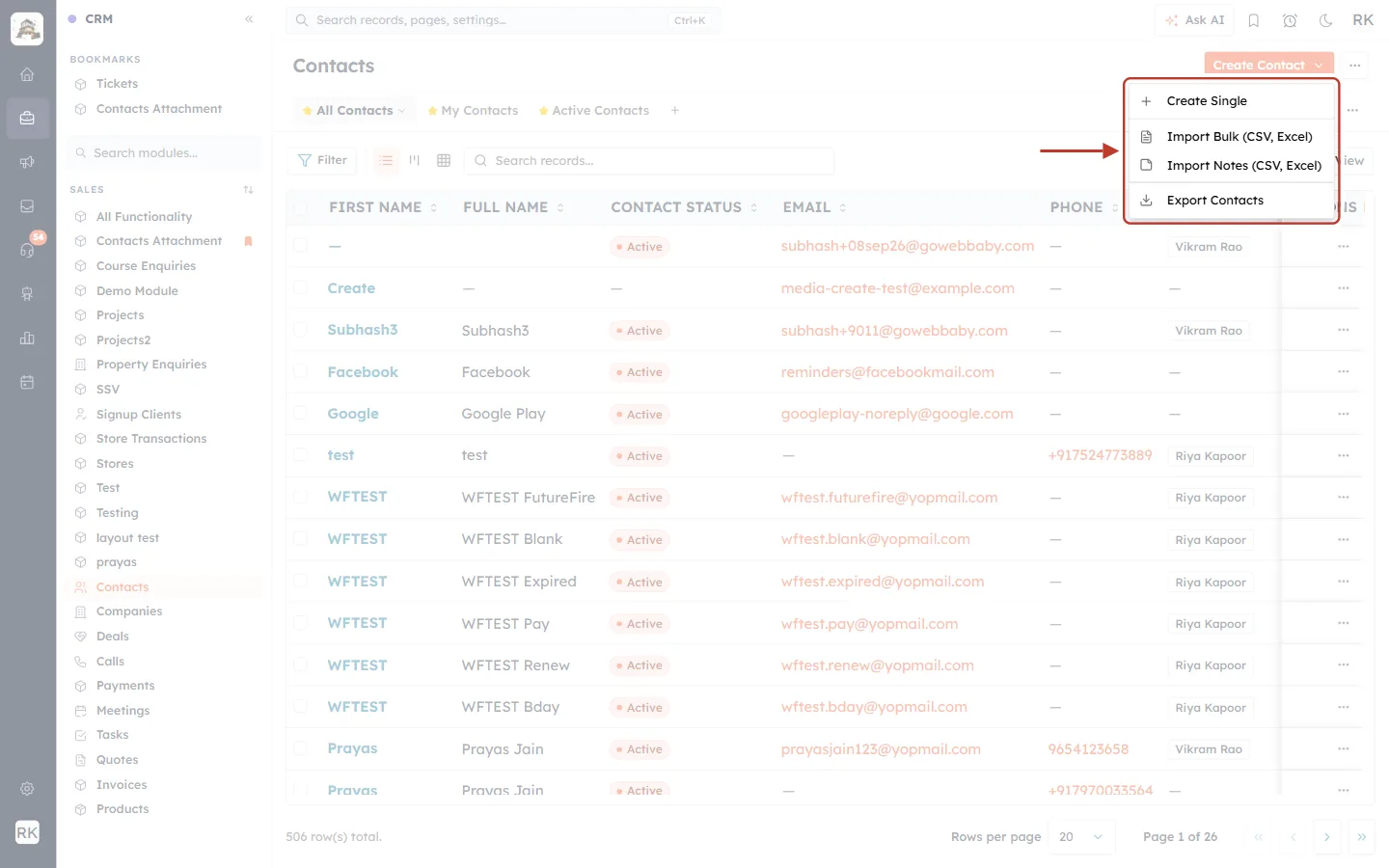
What this screenshot shows. The Contacts list with the Create Contact menu open.
Create Single: add one contact by hand.
Import Bulk (CSV, Excel): bring in many records, including their files (Part 2).
Import Notes (CSV, Excel): import notes for existing records.
Export Contacts: download your records, including links to every attachment (this part).
Behind the menu is the normal Contacts list with its views (All Contacts, My Contacts…), filters and columns.
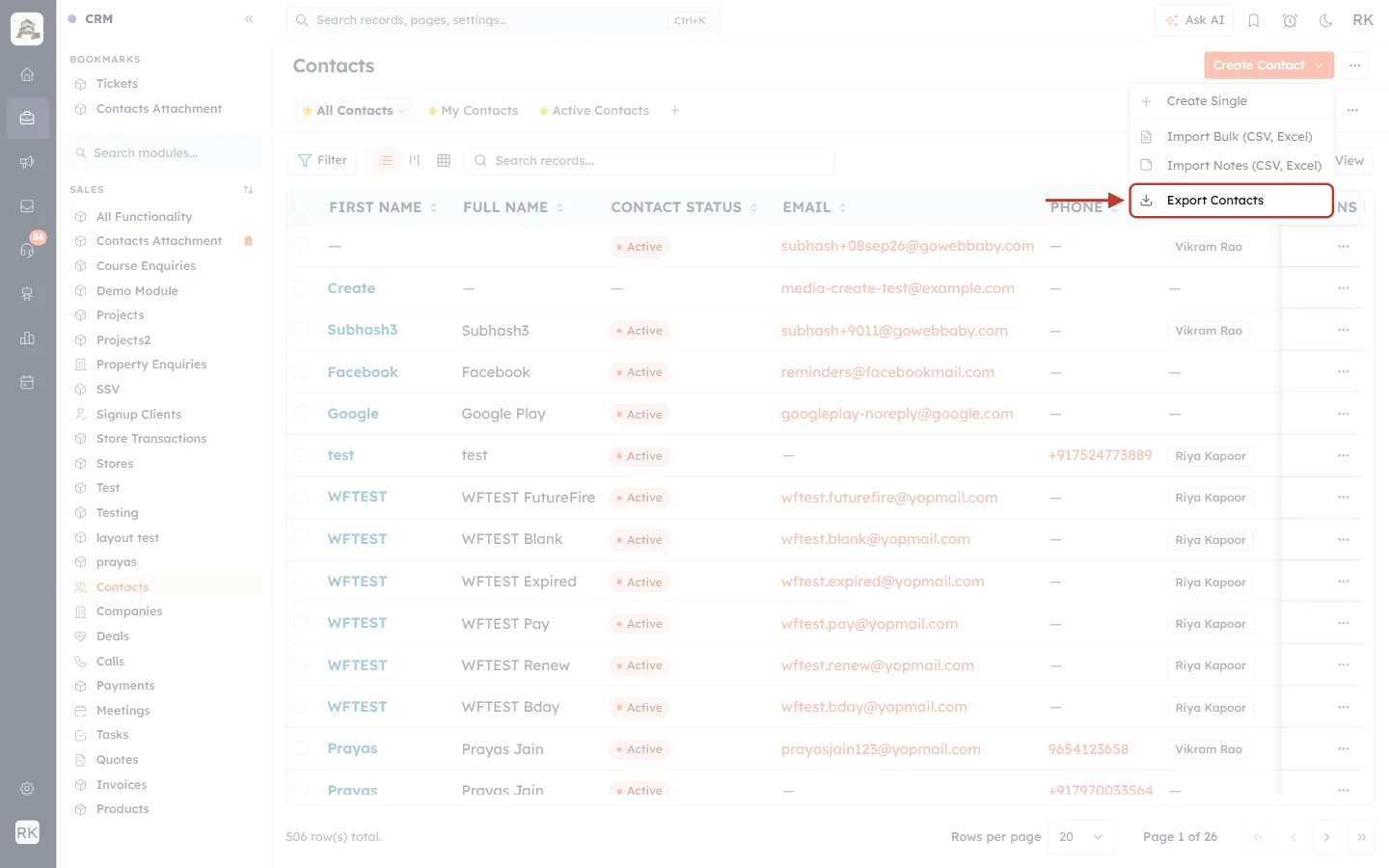
What this screenshot shows. Export Contacts highlighted at the bottom of the menu. Click it.
The item has a download icon and always names the module you are in, for example Export Deals on the Deals list.
Step 2: Choose what to export and the file format#
The Export Contacts window opens. Set it up and click Start export.
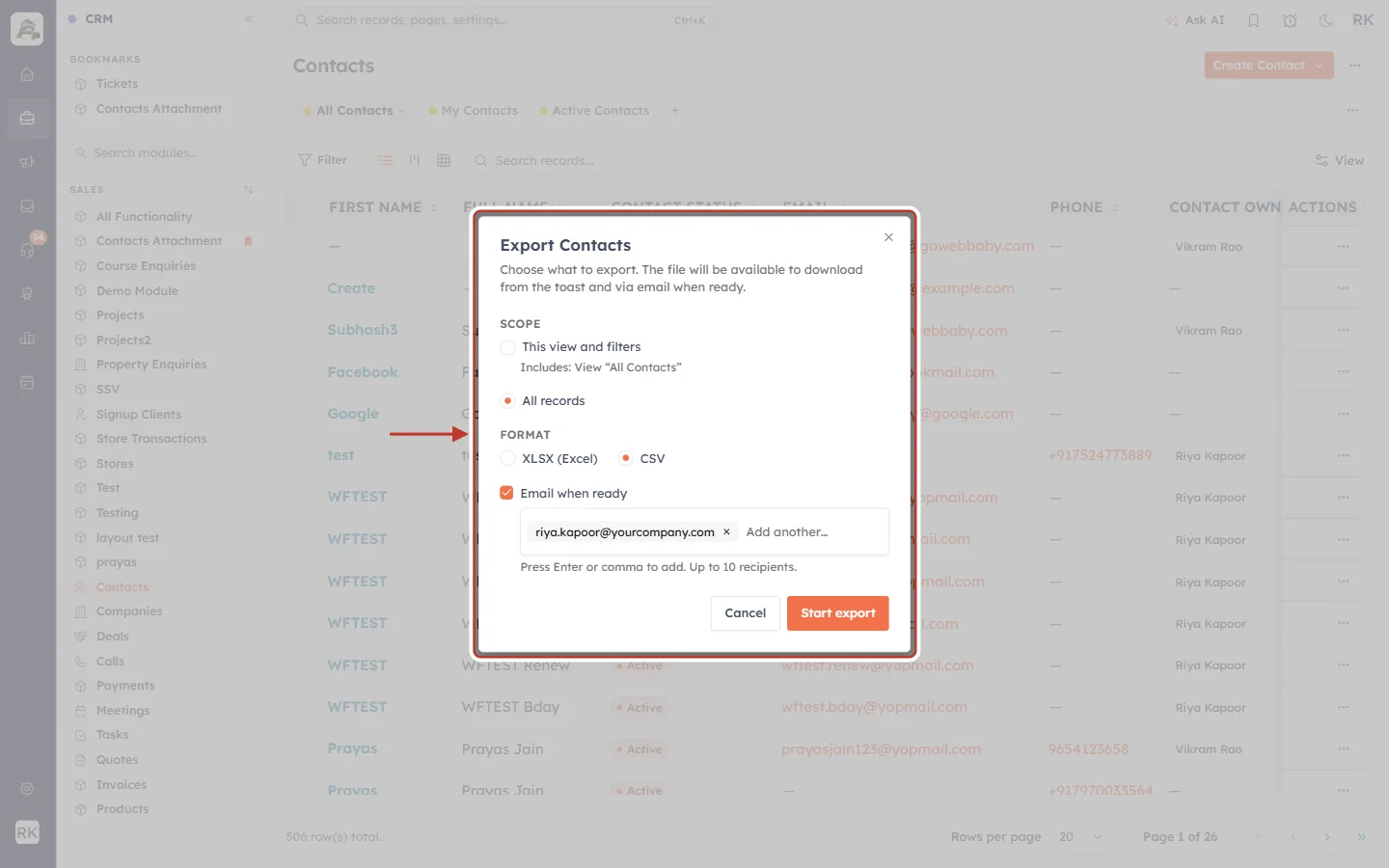
What this screenshot shows. The Export Contacts window, ready to export all records as CSV.
Scope → This view and filters: exports only the records in the view and filters you have open (here “All Contacts”). Use it to export just the records whose files you need.
Scope → All records: exports every record in the module.
Format: XLSX (Excel) or CSV. Both include the file links. Choose CSV if you plan to edit the file and import it again.
Email when ready: the export is also emailed to these addresses when it finishes. Your own address is added for you; type more and press Enter or a comma (up to 10 recipients).
Cancel / Start export: close the window, or start the export.
Step 3: Download the file#
The export runs in the background, so you can keep working. When it is done, an Export ready card appears at the bottom right of the screen.
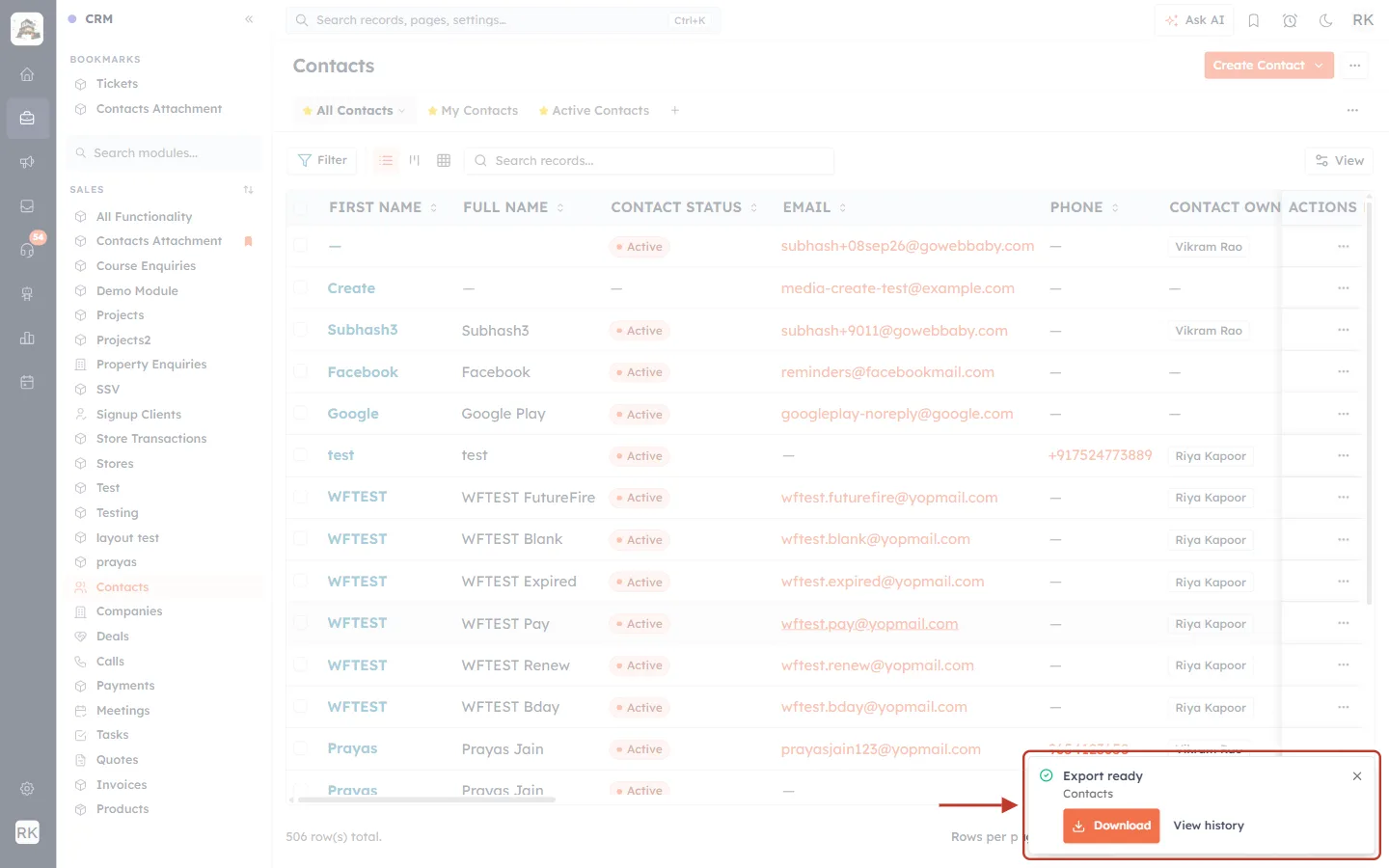
What this screenshot shows. The Export ready card for the Contacts export.
Export ready · Contacts: the export finished, and which module it came from.
Download: saves the CSV (or XLSX) file to your computer.
View history: opens the Exports page shown below.
×: closes the card. The file stays available on the Exports page.
Missed the card? Go to Setup → Data Administration → Export. Every export from the last 30 days is listed there with its own Download link.
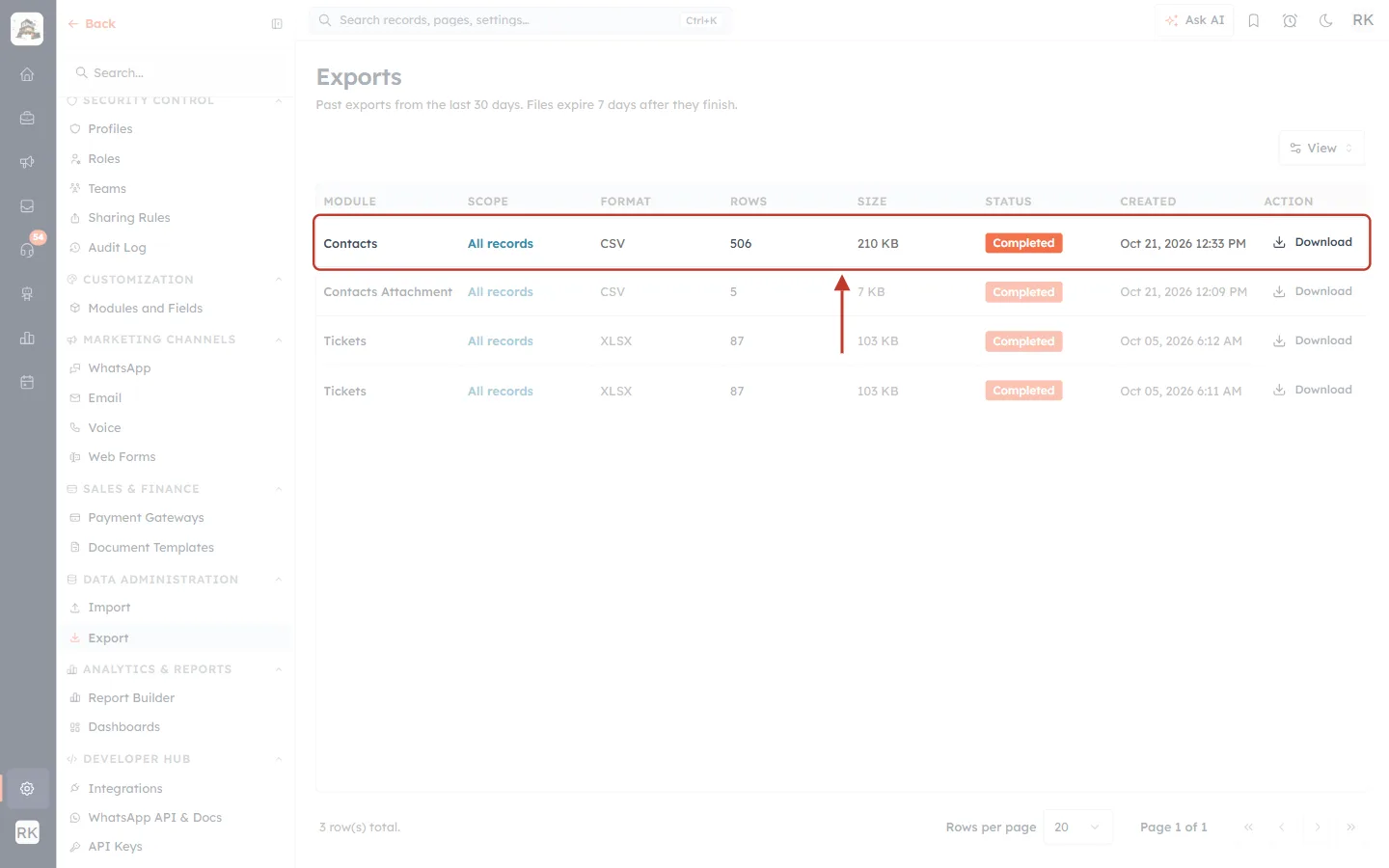
What this screenshot shows. The Exports page, with the new Contacts export highlighted at the top.
Note under the title: “Past exports from the last 30 days. Files expire 7 days after they finish.” Download the file within 7 days.
Module, Scope, Format: what was exported (Contacts, All records, CSV).
Rows, Size: how many records and how large the file is.
Status: Completed once the file is ready.
Created and Download: when it ran, and the link to save it again.
Left menu: the Data Administration group holds Import and Export.
Step 4: Find the attachment links in the file#
Open the file in Excel, Google Sheets or any spreadsheet program. Every File Upload and Image Upload field is a column of links, one link for each stored file. When a record has several files in the same field, the links are in the same cell, separated by a comma.
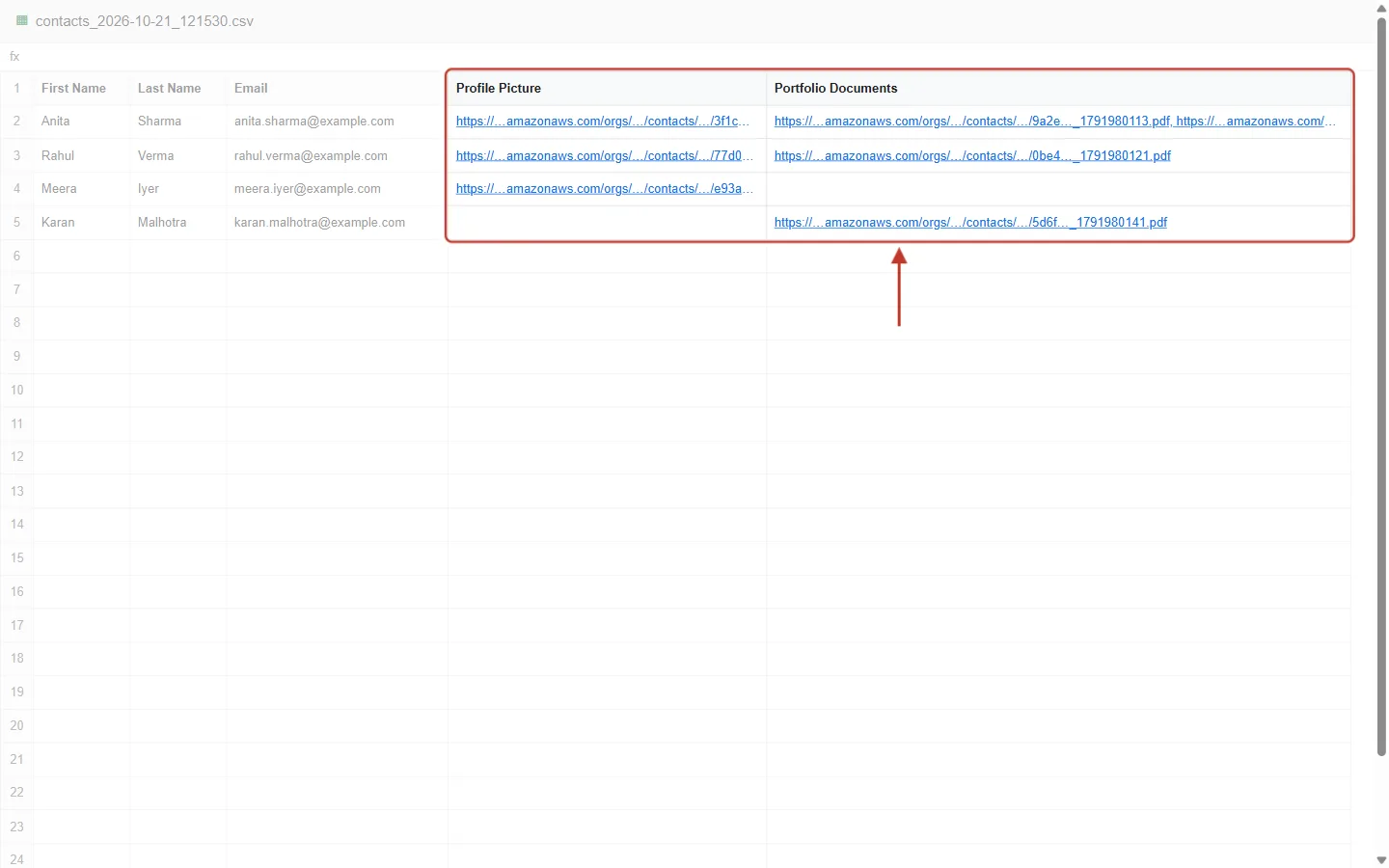
What this screenshot shows. A sample exported Contacts CSV opened in a spreadsheet, with the media columns highlighted.
First Name, Last Name, Email: the normal record fields.
Profile Picture: one link per contact, to the stored picture. An empty cell means the contact has no picture.
Portfolio Documents: one link for each document. Anita Sharma (row 2) has two documents, so her cell holds two links separated by a comma.
Open a link in your browser to view or download that file.
⚠️
Treat the exported file as private. The links point straight at your stored files, and anyone who has the file can open them. Share the export only with people who should see those attachments.
✅
Because the export already uses the same link format the importer accepts, you can edit the file and import it again, for example to copy attachments to another module or a new account. Download the files themselves if you need a permanent backup.
Part 2: Upload Attachments and Media in Bulk (Import from CSV)#
Step 1: Prepare your spreadsheet#
Add one column for each file or image field you want to fill. In each cell, put a public link (a URL that opens the file without signing in) to the file. For several files in one field, separate the links with a comma or put each on a new line in the cell.
First Name,Last Name,Email,Profile Picture,Portfolio Documents
Anita,Sharma,anita.sharma@example.com,https://cdn.yourcompany.com/photos/anita-sharma.jpg,"https://cdn.yourcompany.com/docs/anita-sharma-kyc.pdf, https://cdn.yourcompany.com/docs/anita-sharma-agreement.pdf"
Rahul,Verma,rahul.verma@example.com,https://cdn.yourcompany.com/photos/rahul-verma.png,https://cdn.yourcompany.com/docs/rahul-verma-brochure.pdf
Meera,Iyer,meera.iyer@example.com,https://cdn.yourcompany.com/photos/meera-iyer.jpg,
Use direct, public links. The link must open the file itself, not a sign-in page or a “preview” web page. Links from your own website, a CDN or cloud storage set to “anyone with the link” work well.
Put quotes round a cell that holds several links separated by commas (as in Anita’s row). Spreadsheet programs add the quotes for you when they save a CSV.
Leave the cell empty when a record has no file (as in Meera’s Portfolio Documents).
Respect the field’s limits. Each field has a maximum number of files and a maximum size per file. The importer shows them when you map the column (Step 5).
Step 2: Open the importer#
On the Contacts list, open the Create Contact ▾ menu and click Import Bulk (CSV, Excel). (You can also go to Setup → Data Administration → Import.)
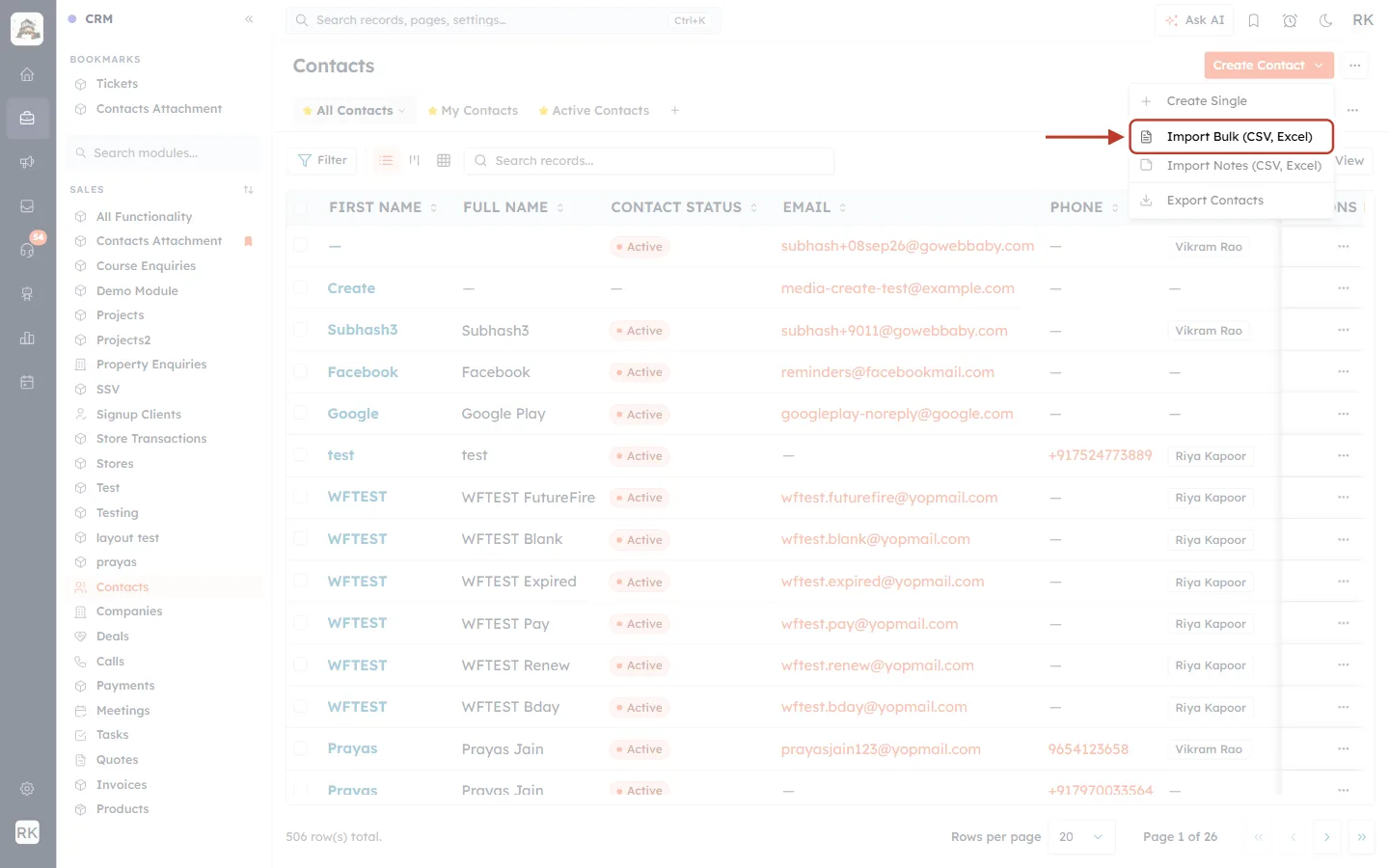
What this screenshot shows. Import Bulk (CSV, Excel) highlighted in the Create Contact menu.
This opens the four-step Import Contacts wizard: Upload & Settings → Map Fields → Lists → Review. Other modules have three steps; the Lists step is only for contacts.
Step 3: Upload the file#
Drag your file onto the upload box, or click it to browse. CSV, XLSX and XLS files up to 50 MB are accepted. Not sure how to lay out the columns? Click Download a sample CSV.
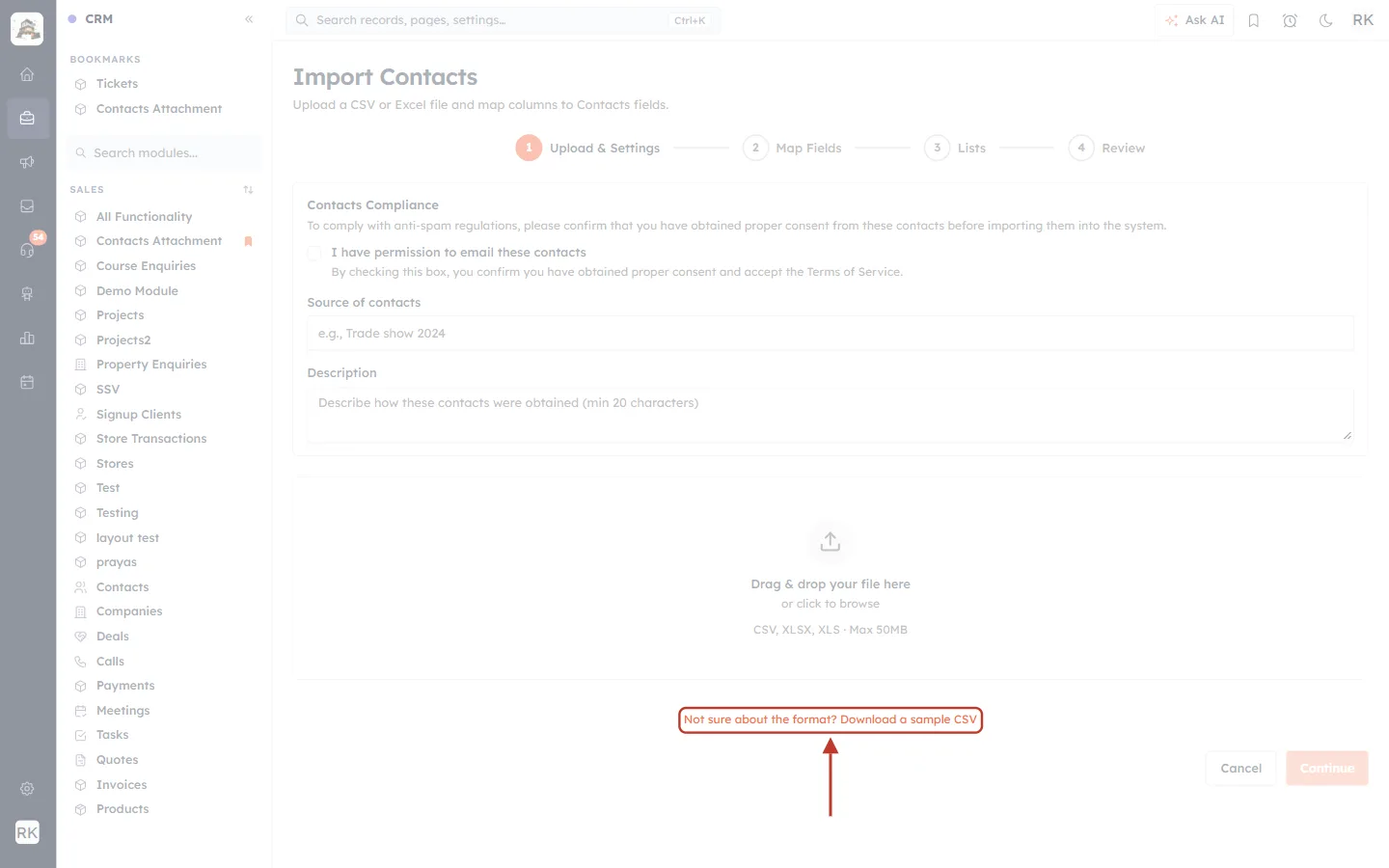
What this screenshot shows. The Not sure about the format? Download a sample CSV link under the upload box.
The sample has one column for each field of the module. File and image columns contain an example link (https://example.com/file.pdf), showing the format to use.
Upload box above the link: “Drag & drop your file here or click to browse · CSV, XLSX, XLS · Max 50MB”.
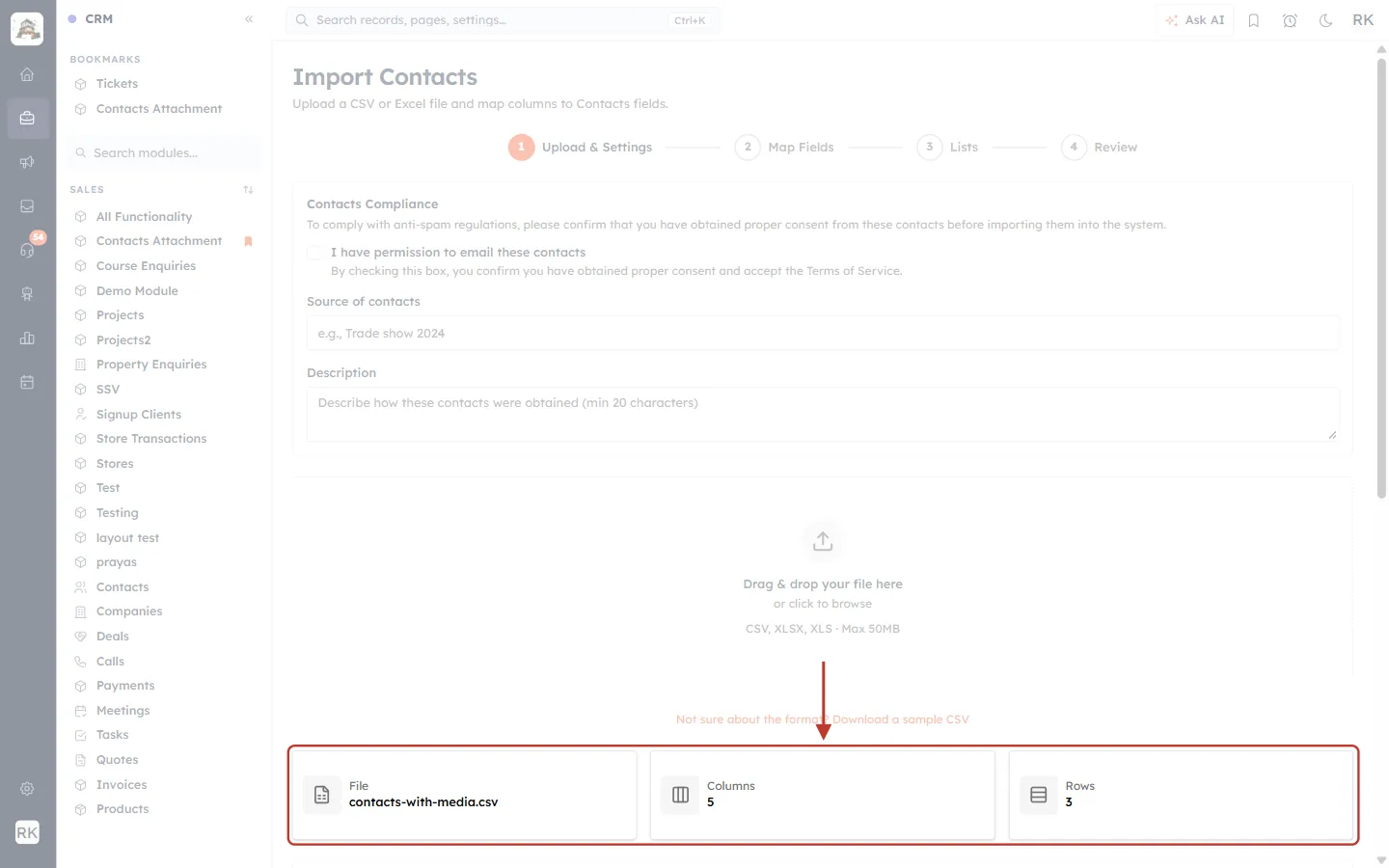
What this screenshot shows. The summary cards that appear once the file is read.
File: the name of the file you chose (contacts-with-media.csv).
Columns: 5: First Name, Last Name, Email, Profile Picture and Portfolio Documents.
Rows: 3: three contacts will be imported.
If the numbers look wrong, check that the file is a real comma-separated CSV and that cells with several links are in quotes.
Step 4: Fill in the import settings#
For contacts, first confirm you have permission to email the people you are importing.
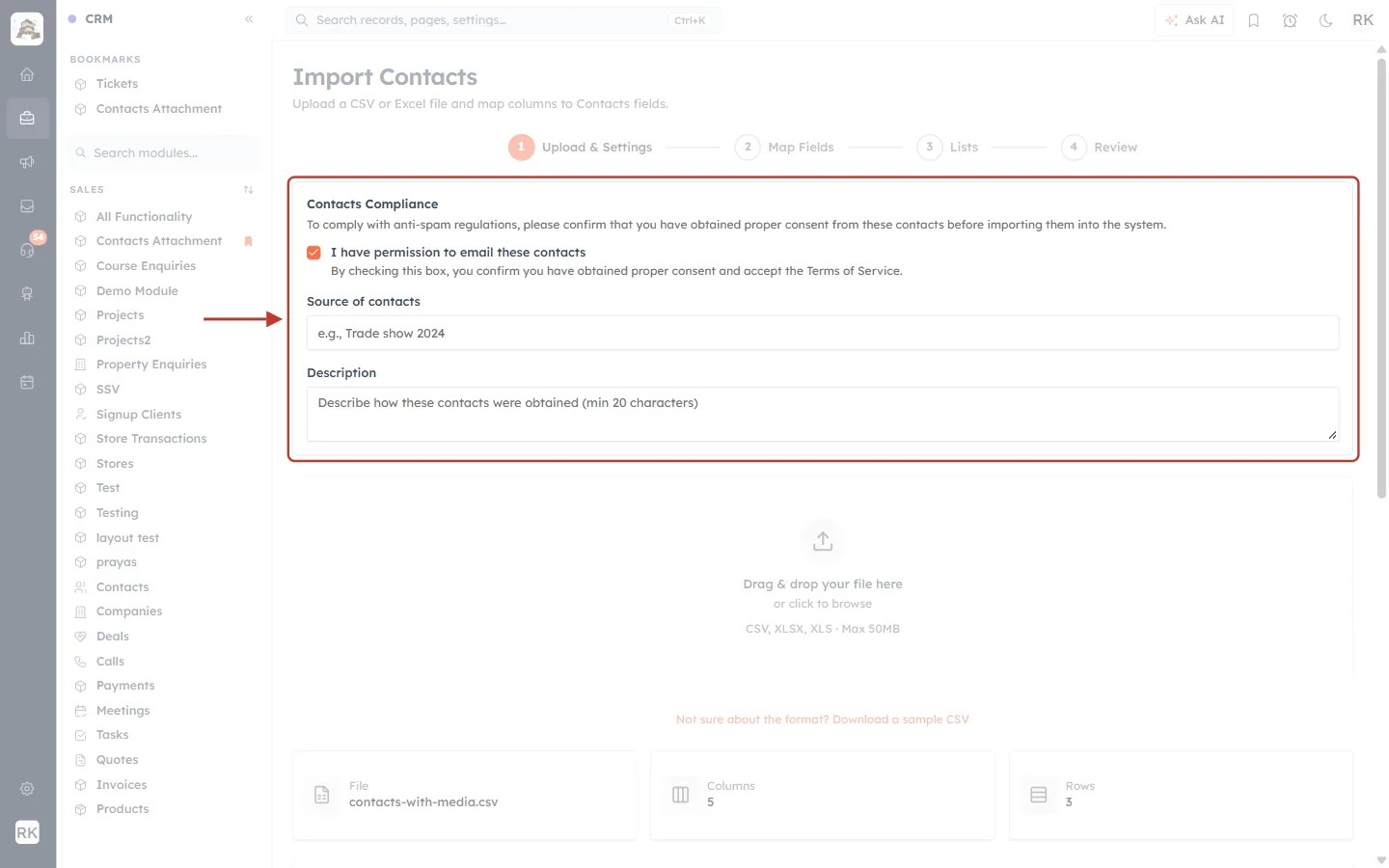
What this screenshot shows. The Contacts Compliance box at the top of the page.
I have permission to email these contacts (ticked): required before you can continue; you confirm consent and accept the Terms of Service.
Source of contacts and Description: optional notes about where the contacts came from.
Then check the rest of the settings: First row contains column headers (leave ticked if your first row holds column names), the Import Mode (Add new records, Update existing records or Update existing and add new), the Contact Status, and the required Owner assignment.
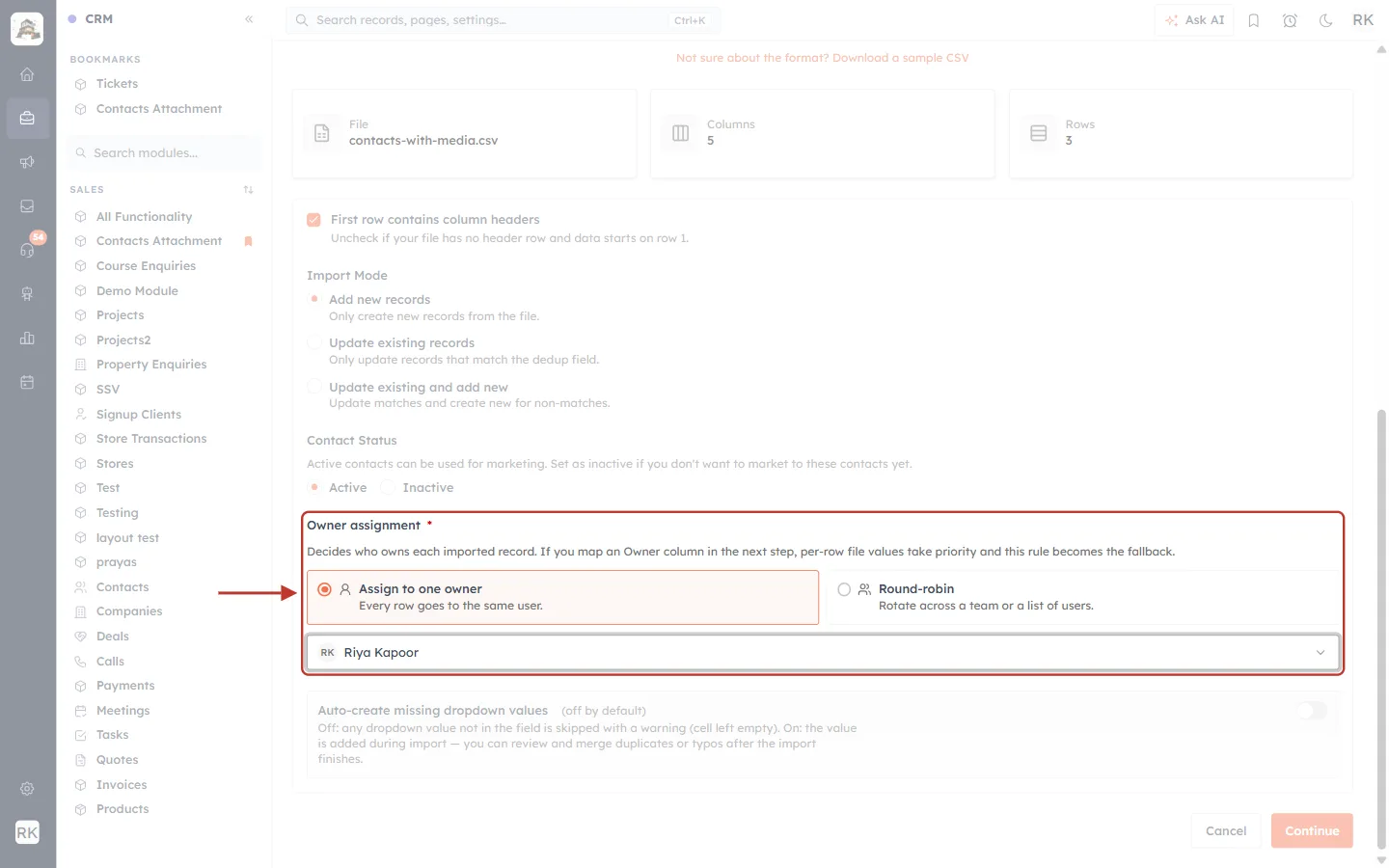
What this screenshot shows. The Owner assignment setting, with Assign to one owner chosen.
Assign to one owner: every imported record goes to the person picked below (here Riya Kapoor).
Round-robin: shares the records across a team or a list of users.
If your file has an Owner column that you map in the next step, the file’s value wins and this setting is used only as the fallback.
Above it: Import Mode and Contact Status. Below it: Auto-create missing dropdown values (off by default).
✅
To add files to contacts you already have, choose Update existing records and include a column that identifies each contact (such as Email). See Import Data into Any Module for how matching works.
Click Continue.
Step 5: Map the file and image columns#
On Map Fields, every column of your file is matched to a CRM field. Columns with the same name as a field are matched for you. Check that each media column points at the right File Upload or Image Upload field.
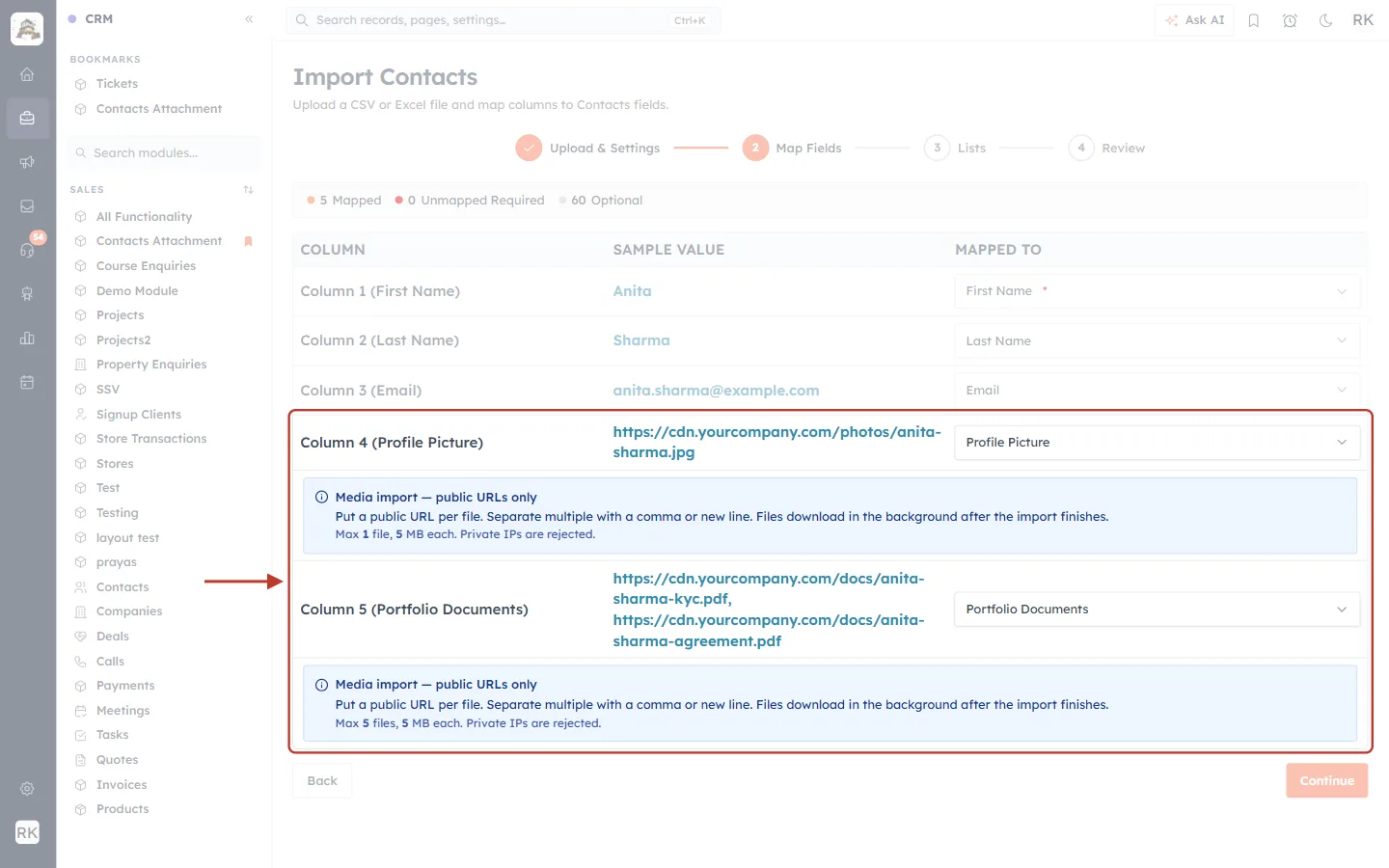
What this screenshot shows. The Map Fields step, with the two media columns highlighted.
Summary bar: 5 Mapped · 0 Unmapped Required · 60 Optional.
Column 4 (Profile Picture): the sample value is the picture link from your first row, and Mapped To is the Profile Picture field.
Column 5 (Portfolio Documents): two links in one cell, mapped to Portfolio Documents.
Under each media column a blue Media import — public URLs only note appears (explained below).
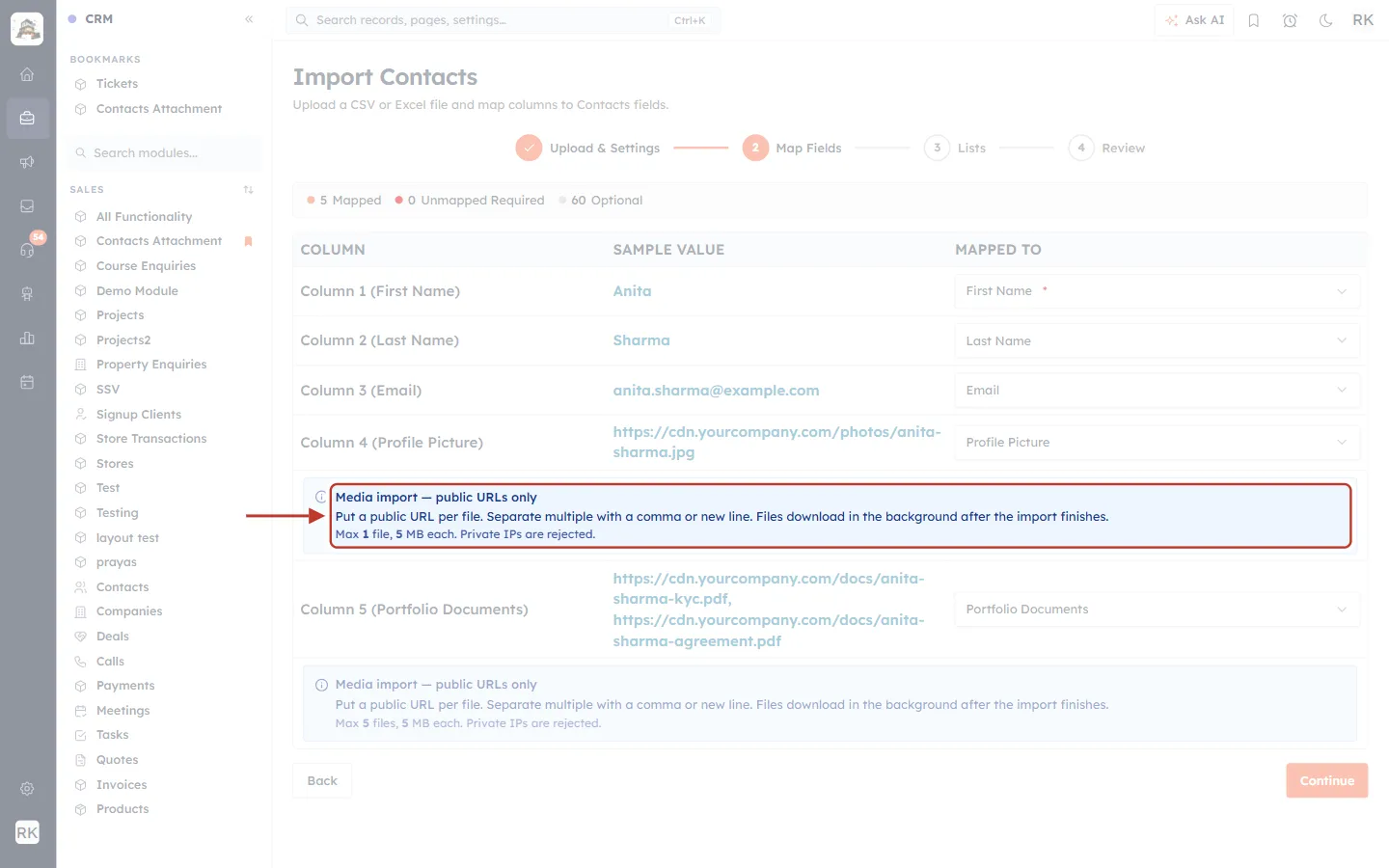
What this screenshot shows. The Media import — public URLs only note for the Profile Picture column.
“Put a public URL per file. Separate multiple with a comma or new line.”: the format rules from Step 1.
“Files download in the background after the import finishes.”: the records are created first and the files are attached a little later.
“Max 1 file, 5 MB each.”: this field’s limits. Profile Picture holds one picture; Portfolio Documents shows “Max 5 files, 5 MB each”. Keep each cell within these limits.
“Private IPs are rejected.”: links to private network addresses, such as a computer on your office network, are refused. The file must be reachable from the internet.
Click Continue. For contacts, the Lists step lets you add the imported contacts to marketing lists; pick lists or click Skip.
Step 6: Review and finish the import#
The Review step sums up your choices. Check it, then click Finish Import.
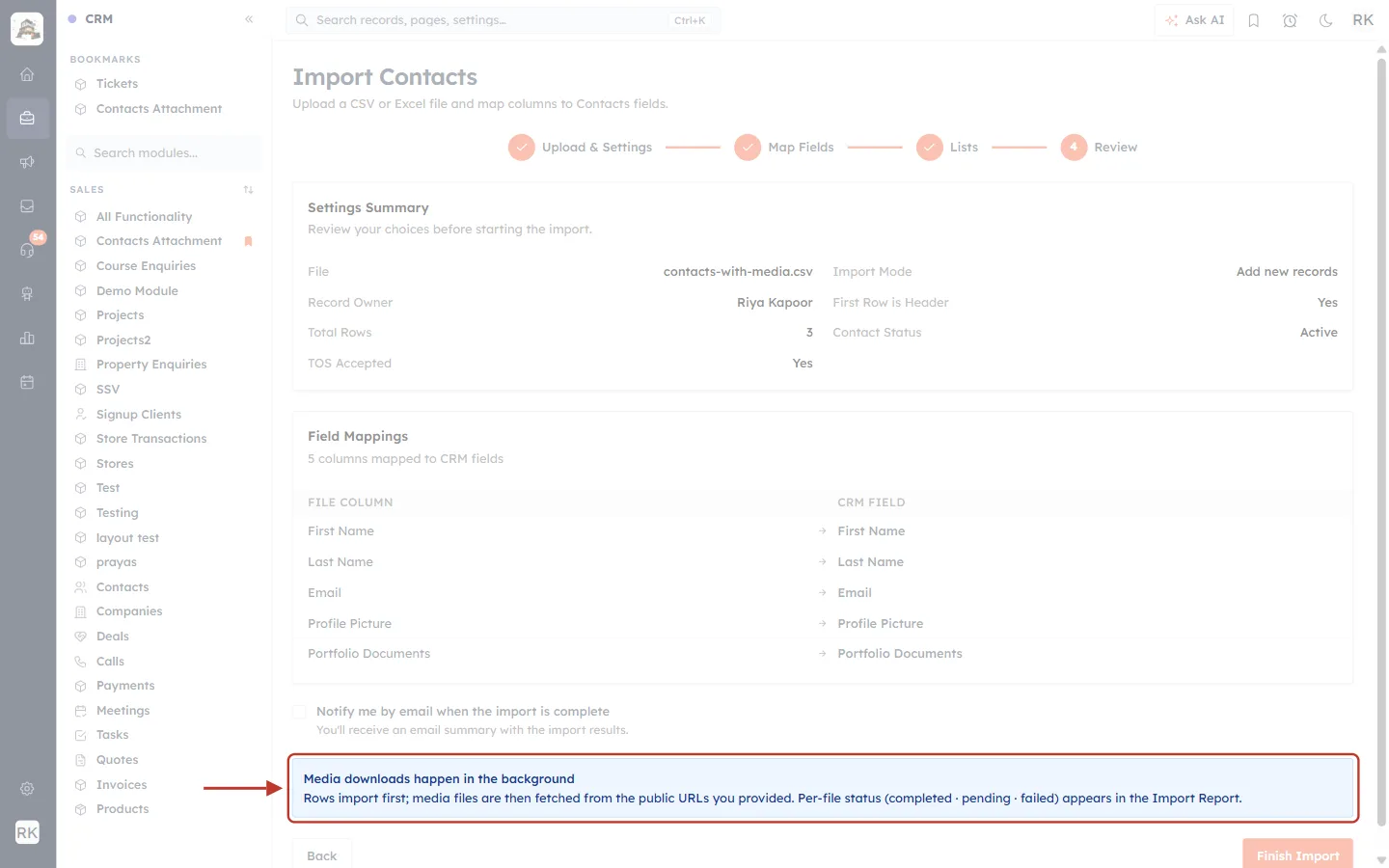
What this screenshot shows. The Review step, with the media note highlighted.
Settings Summary: the file, import mode, record owner, total rows (3), whether the first row is a header, contact status and that the terms were accepted.
Field Mappings: each file column and the CRM field it fills, including Profile Picture → Profile Picture and Portfolio Documents → Portfolio Documents.
Notify me by email when the import is complete: tick it to get an email summary.
Media downloads happen in the background (highlighted): “Rows import first; media files are then fetched from the public URLs you provided. Per-file status (completed · pending · failed) appears in the Import Report.”
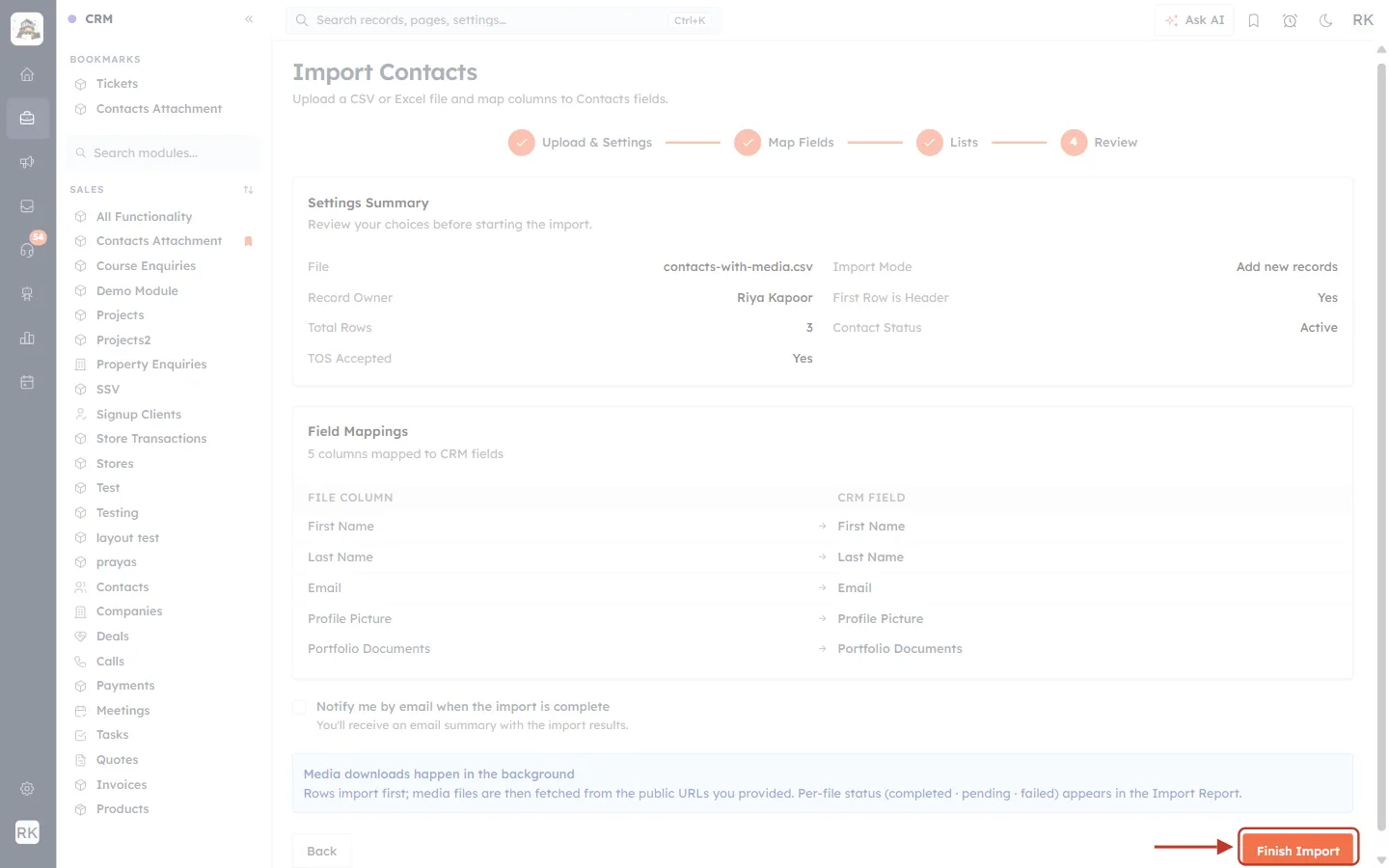
What this screenshot shows. The Finish Import button at the bottom right of the Review step.
Back returns to the previous step if you need to change anything. Finish Import starts the import.
You return to the list, and a progress card at the bottom right follows the import.
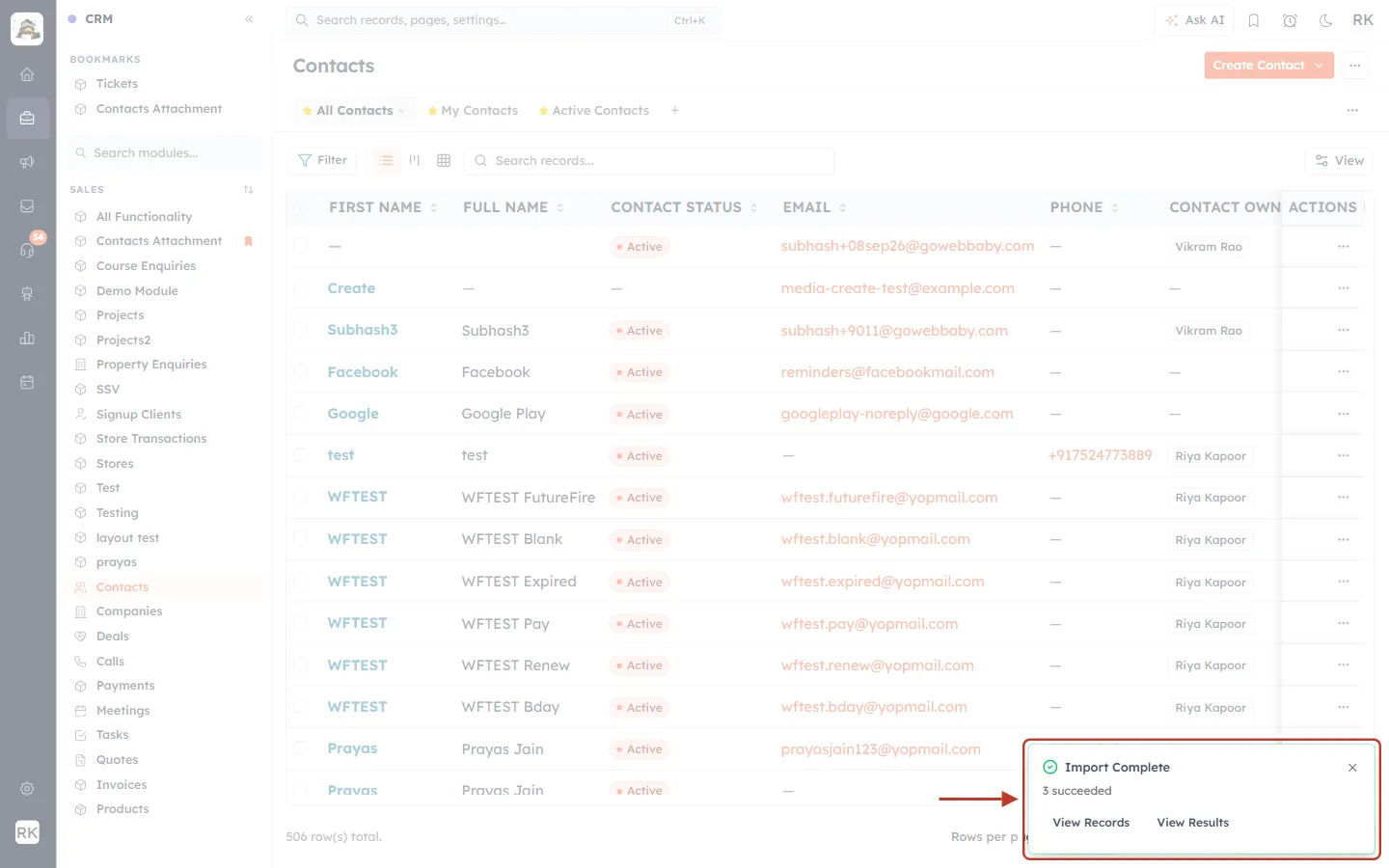
What this screenshot shows. The Import Complete card after the rows have been imported.
Import Complete · 3 succeeded: all three contacts were created.
View Records: opens the list of contacts.
View Results: opens the Import Details page, where you can follow the file downloads (Part 3).
Part 3: Follow the File Downloads (Import Report)#
Click View Results, or open the import from Setup → Data Administration → Import. The Import Details page shows how the rows went and, underneath, how the files are downloading.
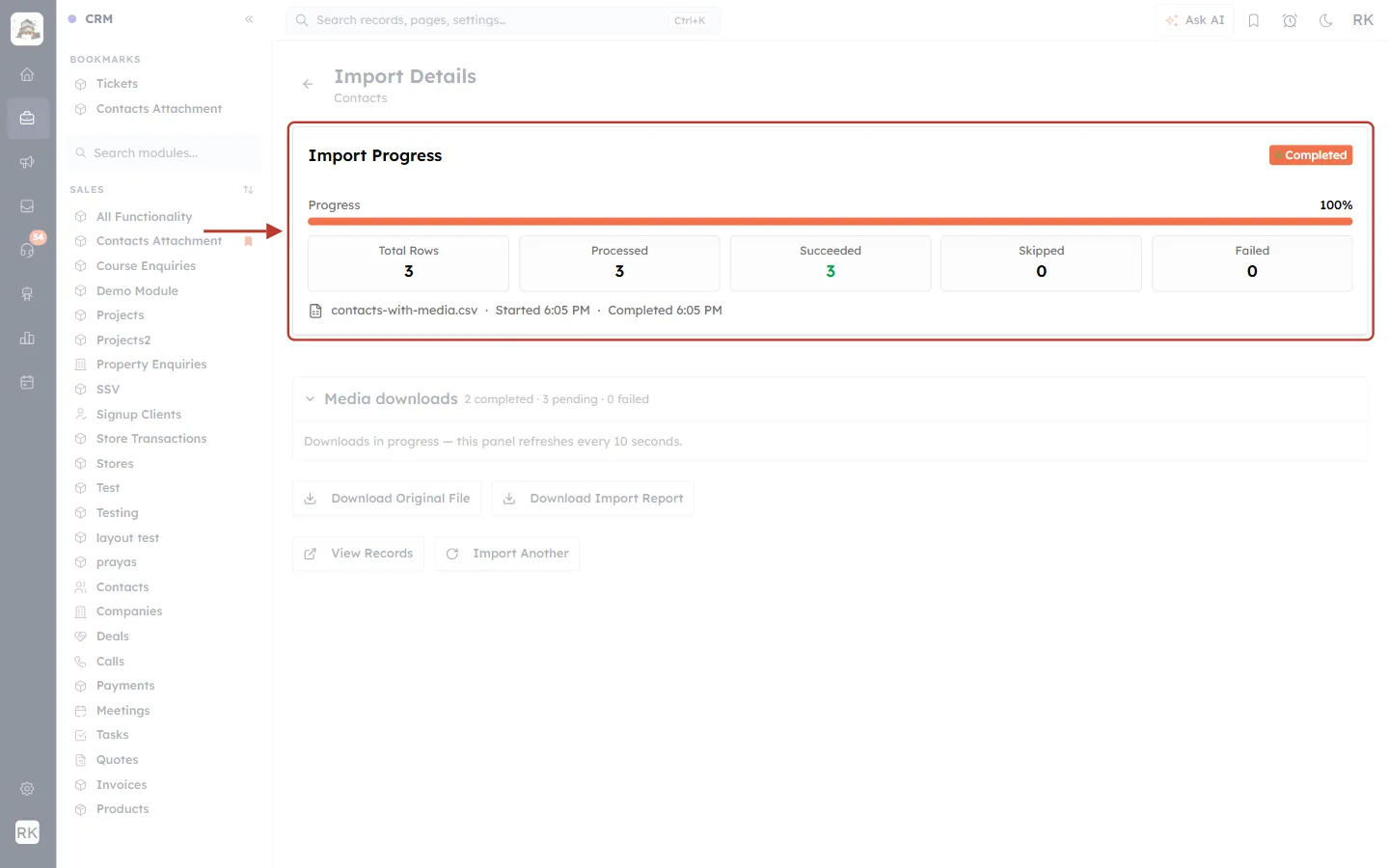
What this screenshot shows. The Import Progress card of the Import Details page.
Completed badge and the 100% bar: every row has been processed.
Total Rows · Processed · Succeeded · Skipped · Failed: 3 rows, all succeeded.
File line: the file name, when the import started and when it completed.
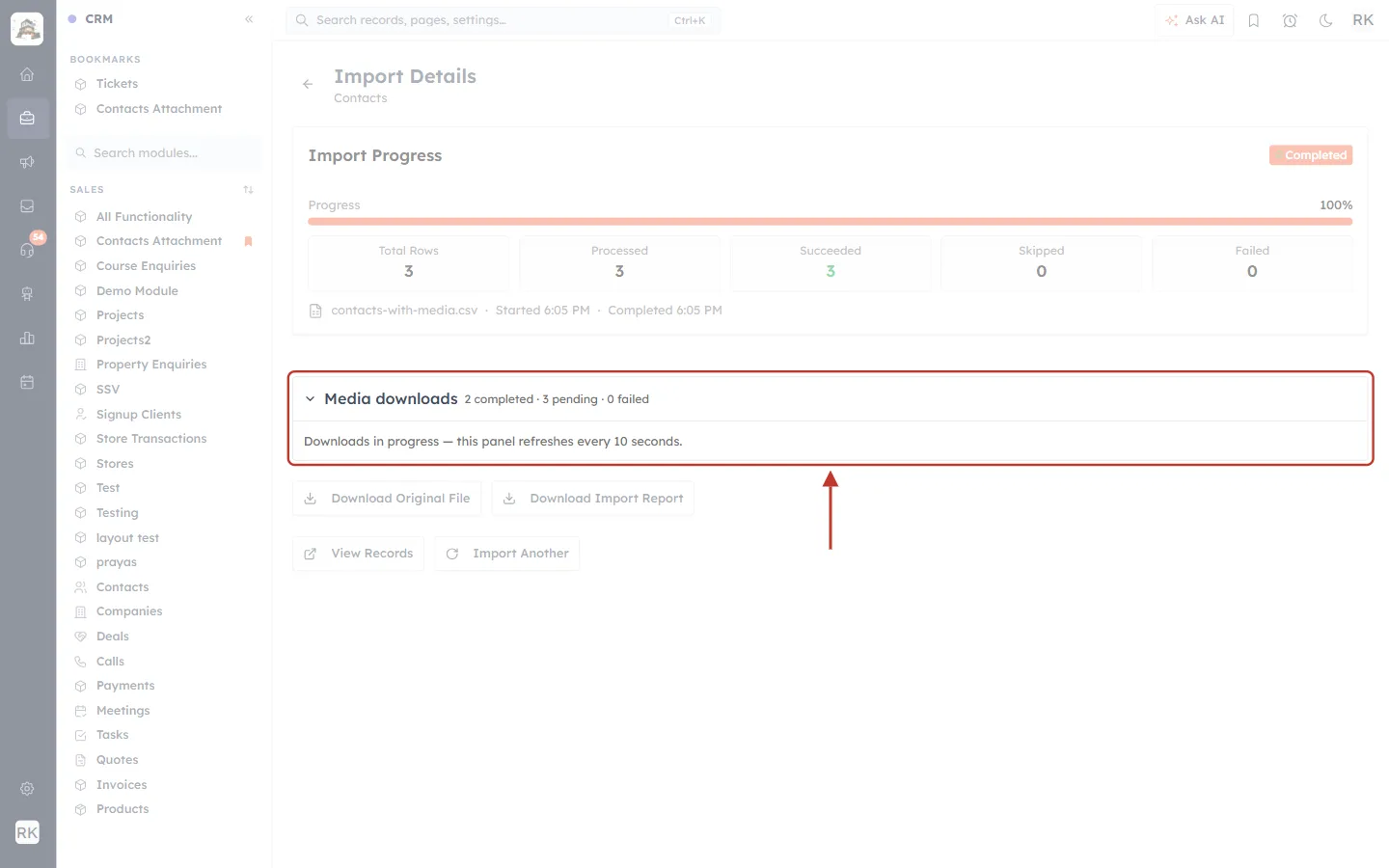
What this screenshot shows. The Media downloads panel while files are still downloading.
2 completed · 3 pending · 0 failed: two files are attached, three are still being fetched.
“Downloads in progress — this panel refreshes every 10 seconds.”: leave the page open and the numbers update by themselves.
Below the panel: Download Original File, Download Import Report, View Records and Import Another.
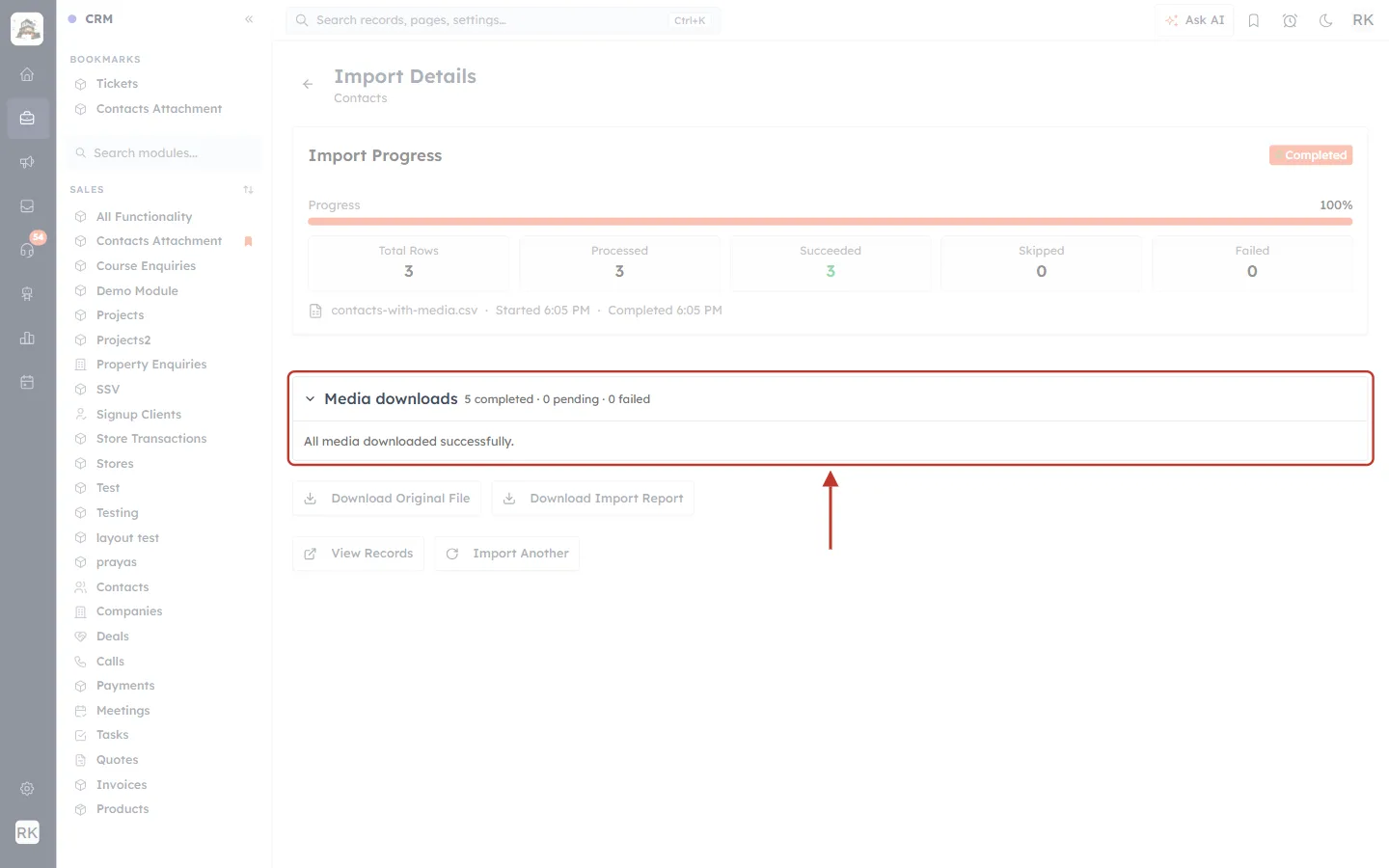
What this screenshot shows. The same panel once everything has downloaded.
5 completed · 0 pending · 0 failed: all five files from the CSV are attached to their contacts.
“All media downloaded successfully.”: nothing more to do.
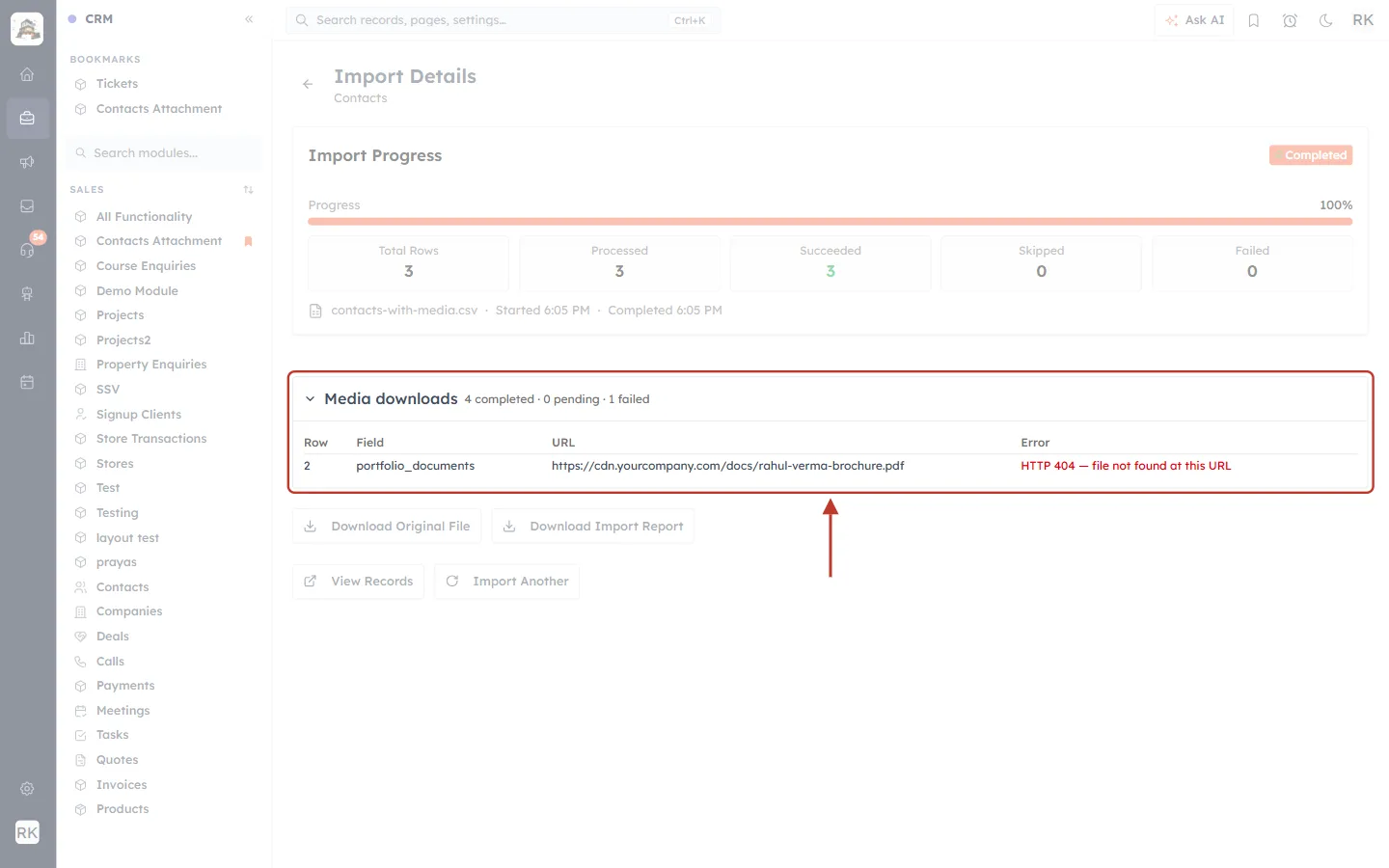
What this screenshot shows. The panel when a file could not be downloaded.
4 completed · 0 pending · 1 failed: one file failed. The contact itself was still imported.
Row: the row of your file the link came from (2).
Field: the field the file was meant for (portfolio_documents).
URL: the link that failed.
Error: why it failed, here “HTTP 404 — file not found at this URL”: the link is wrong or the file was removed.
You can come back to any import later from the import history (Setup → Data Administration → Import).
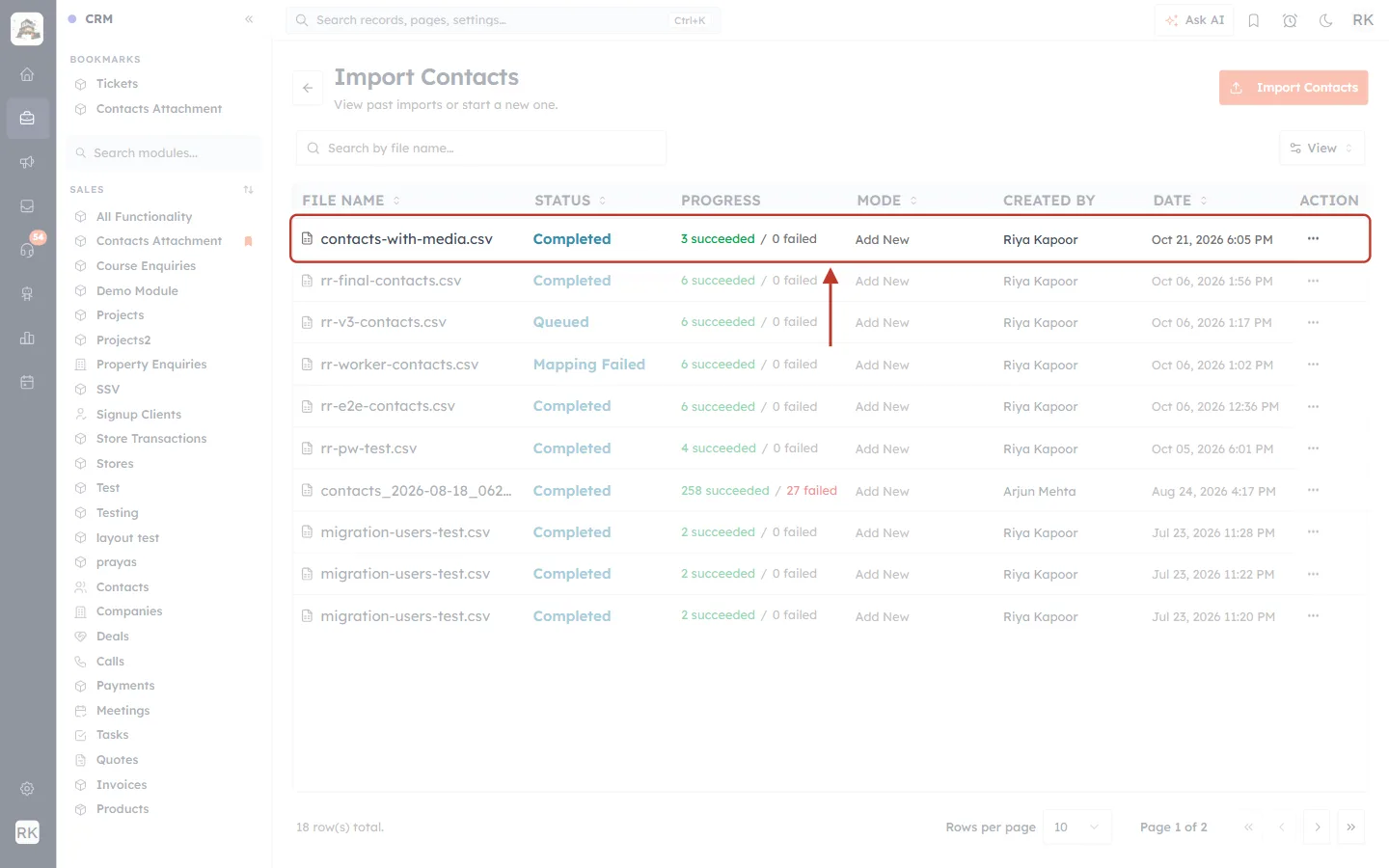
What this screenshot shows. The Import Contacts history page, with this import highlighted at the top.
File Name: contacts-with-media.csv.
Status: Completed. Progress: 3 succeeded / 0 failed (rows, not files).
Mode: Add New. Created By and Date: who ran it and when.
⋯ (Action): more options for the import (next figure).
Import Contacts button at the top right: start a new import.
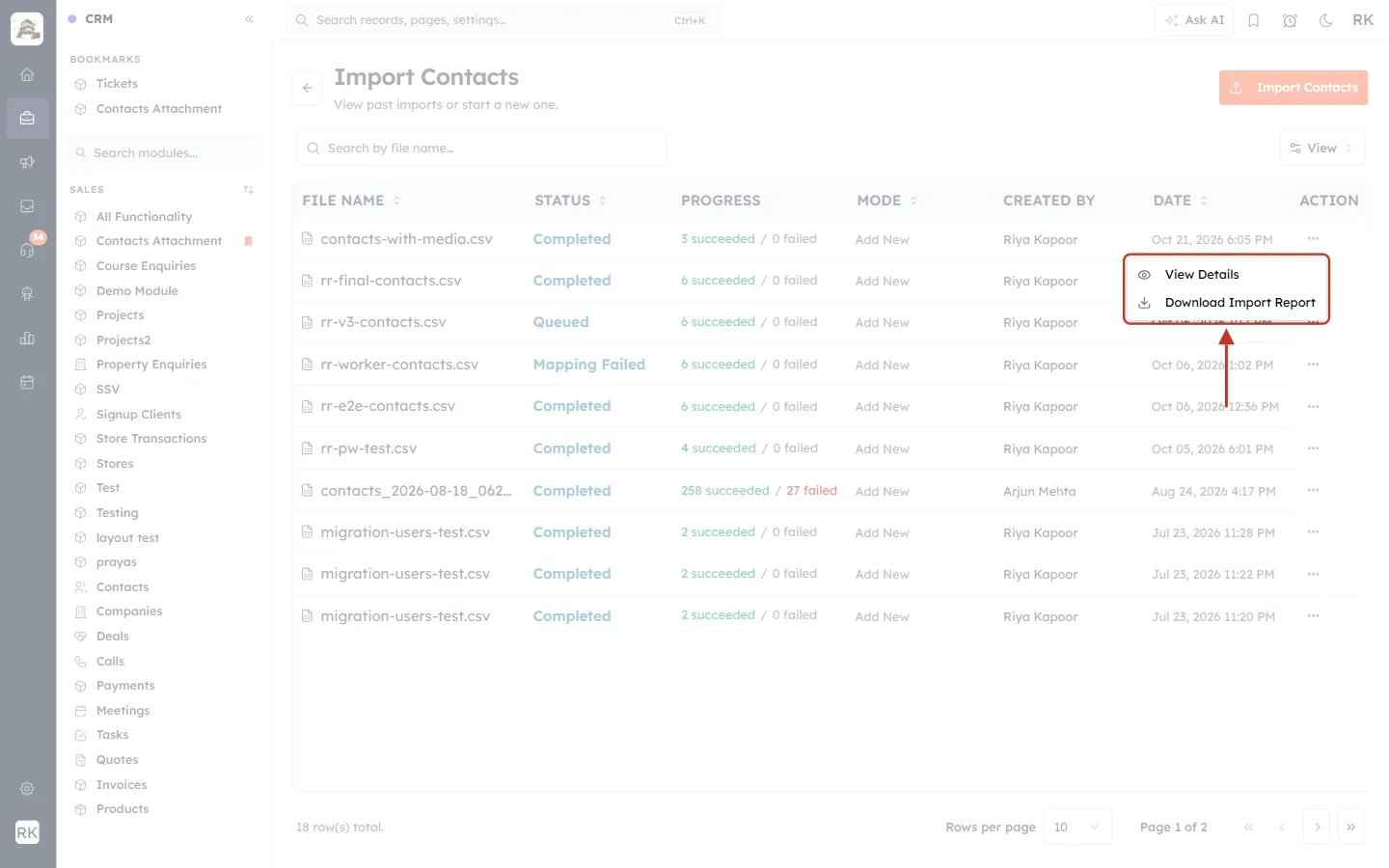
What this screenshot shows. The ⋯ menu of an import.
View Details: opens the Import Details page with the Media downloads panel.
Download Import Report: saves the import report.
Part 4: See the Files on the Record, and Retry a Failed File#
Open one of the imported contacts. On Contacts, the portfolio fields appear on the Portfolio tab.
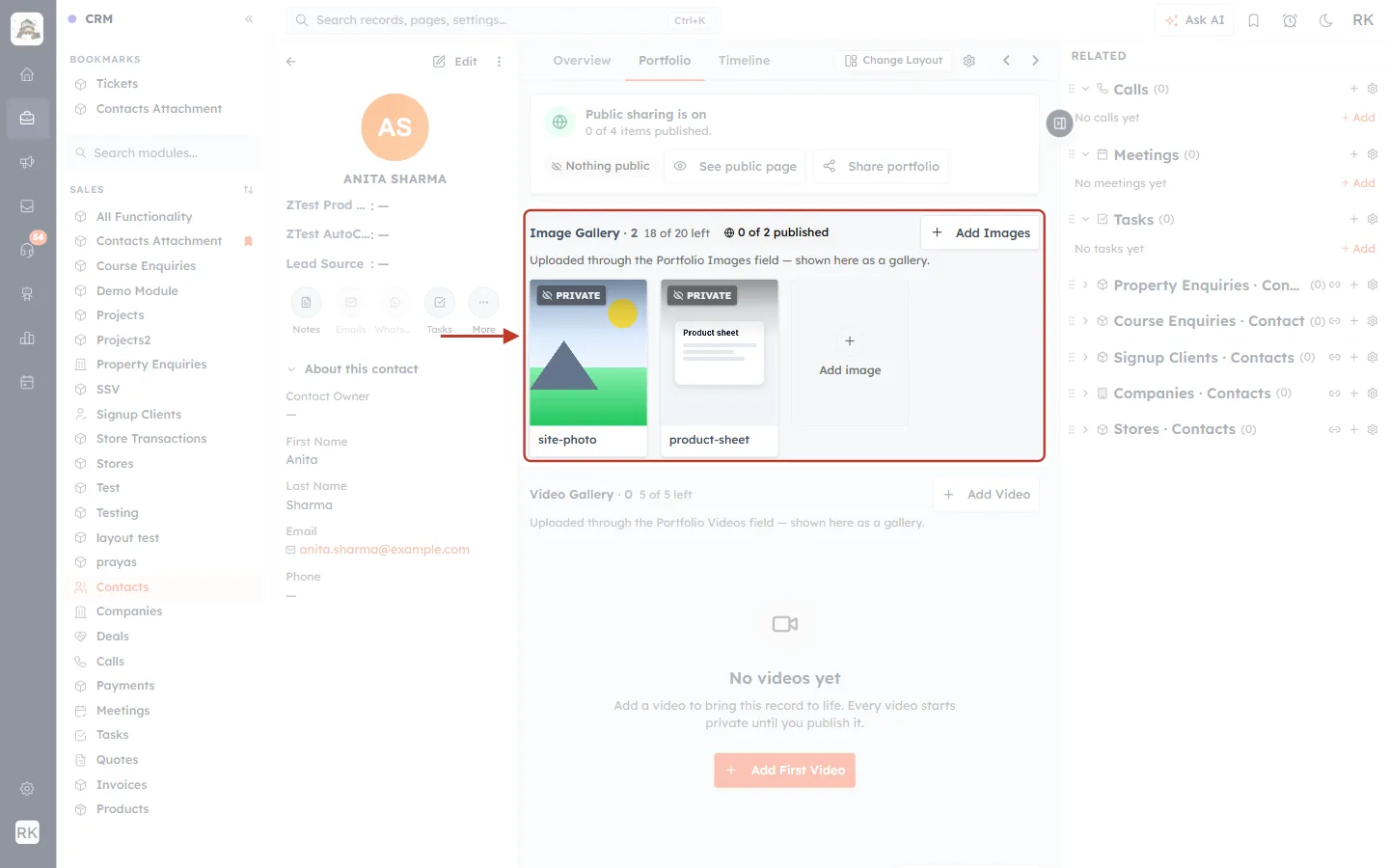
What this screenshot shows. The Image Gallery on the contact’s Portfolio tab.
Image Gallery · 2: the images from the Portfolio Images field; “18 of 20 left” shows the field’s limit.
Each image starts PRIVATE. Hover over it for Make public, Delete, Set as cover and Use as public page avatar.
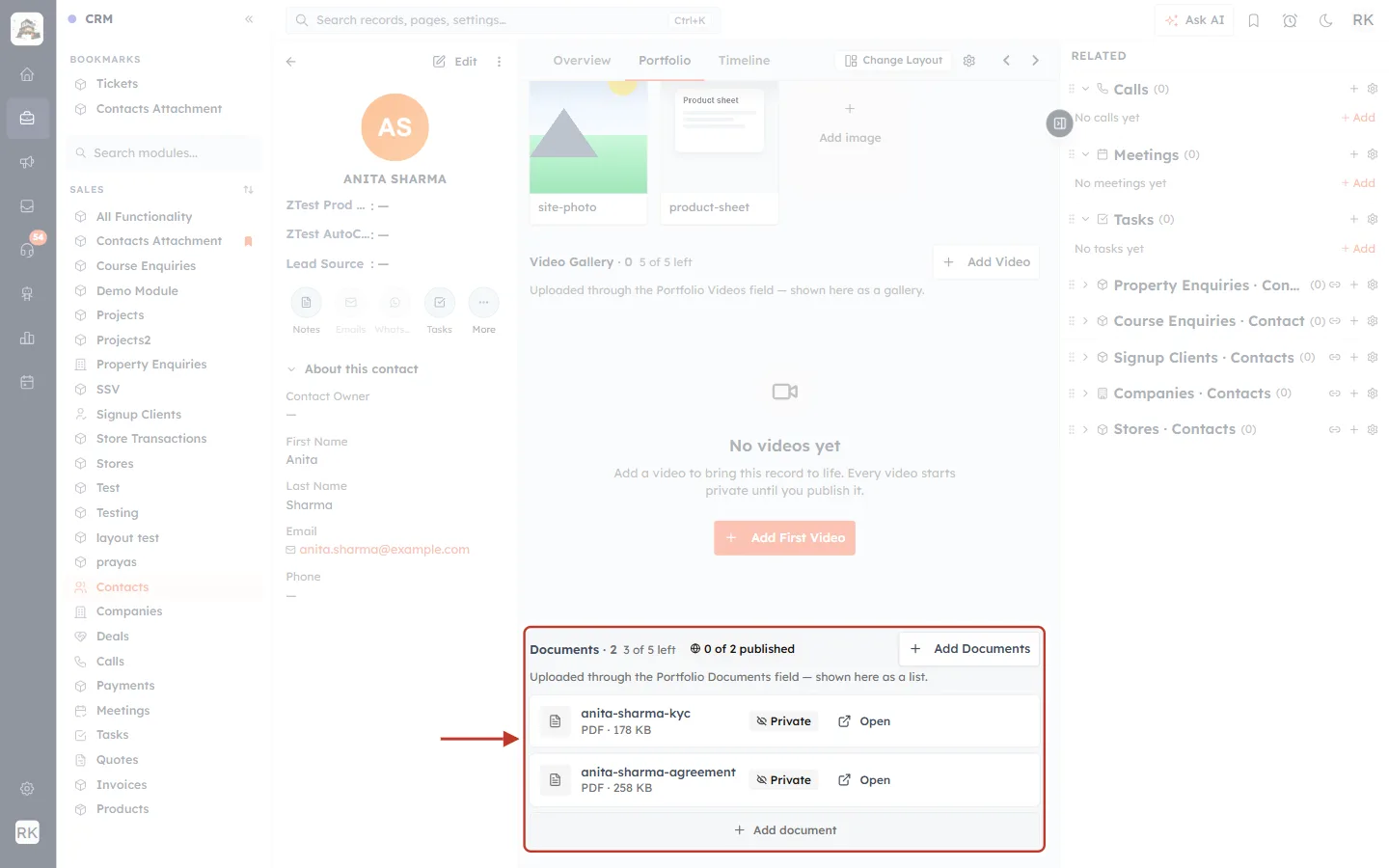
What this screenshot shows. The Documents list on the same tab.
Documents · 2 · 3 of 5 left: the two PDFs imported into Portfolio Documents.
Each row shows the file name, type and size (for example anita-sharma-kyc · PDF · 178 KB), its Private status and an Open link to view or download it.
See Contact Portfolios: Add Images, Videos & Documents, Then Share One Public Link to publish items and share the portfolio.
On modules where File Upload and Image Upload fields are shown on the record’s Overview, each imported file also shows its download status right in the field.
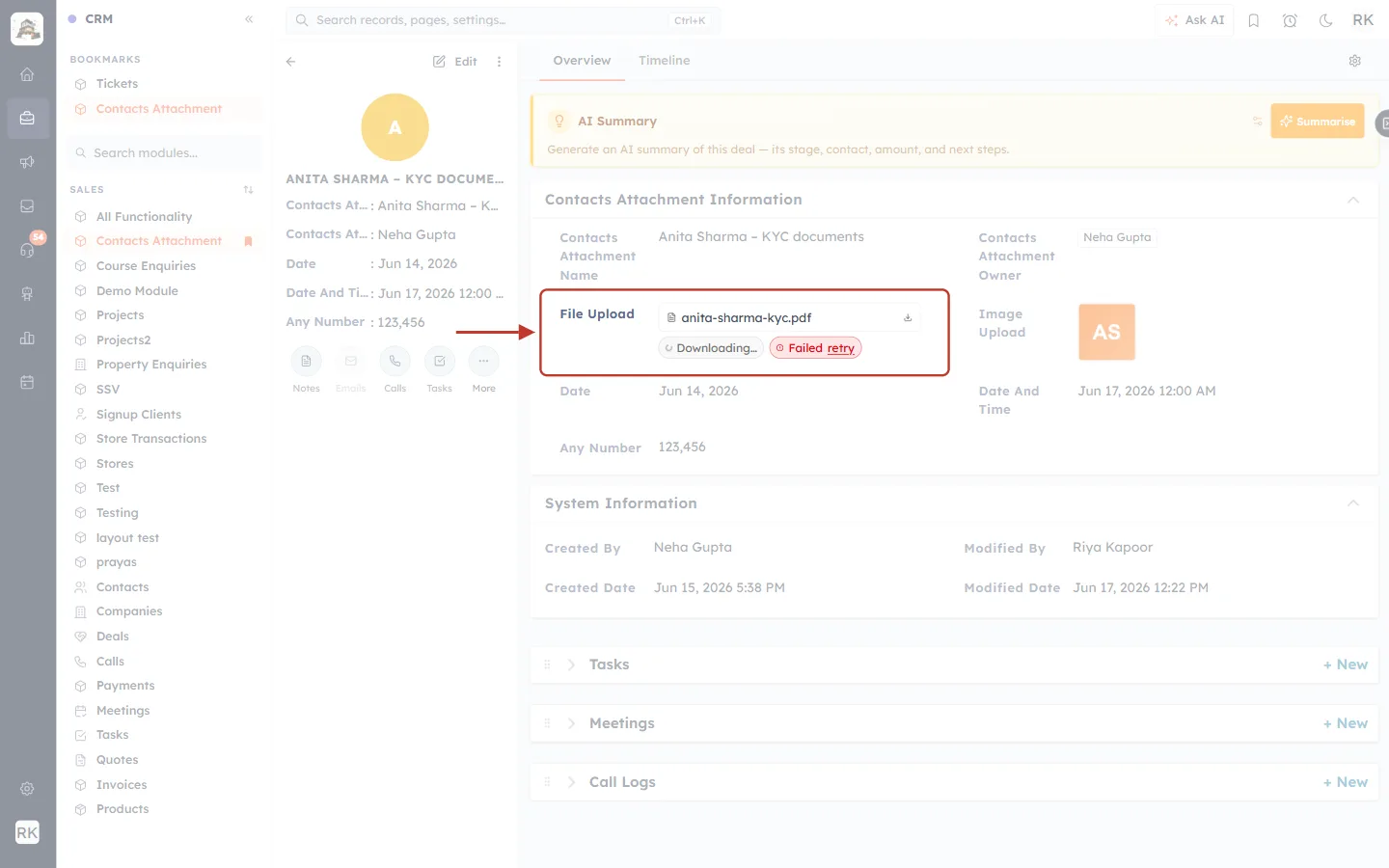
What this screenshot shows. A File Upload field on a record’s Overview (here a custom module) with three imported files in different states.
anita-sharma-kyc.pdf with a download icon: downloaded and attached. Click it to open or download the file.
Downloading…: still being fetched. Hover over it to see the link it is coming from.
Failed · retry (red): the download failed. Hover over it to see why.
Image Upload on the right: the imported picture shows as a thumbnail.
If a download failed because the link was briefly unavailable, or you have now fixed it at the source, click retry.
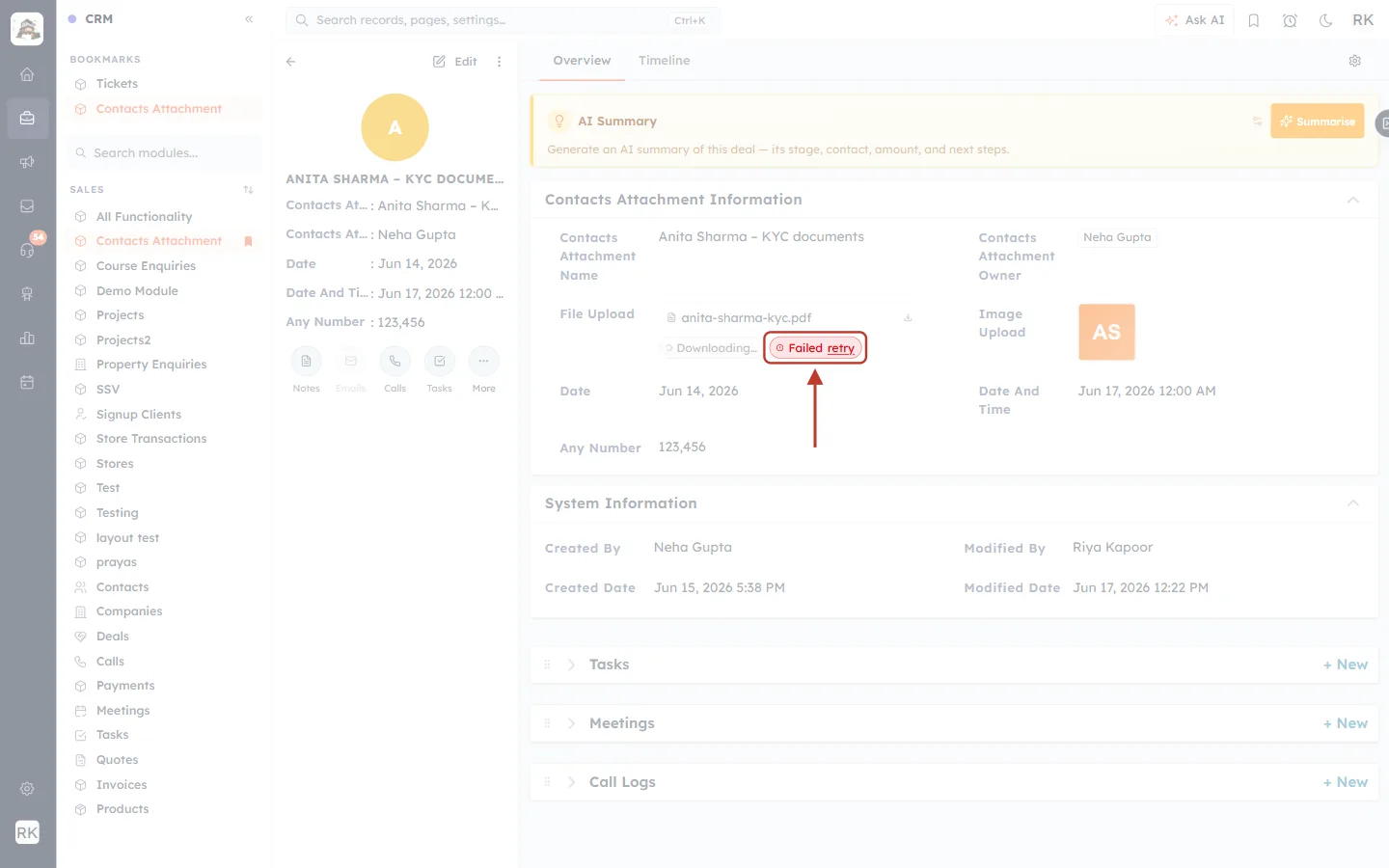
What this screenshot shows. The red Failed chip with its retry link.
Clicking retry fetches the same link again.
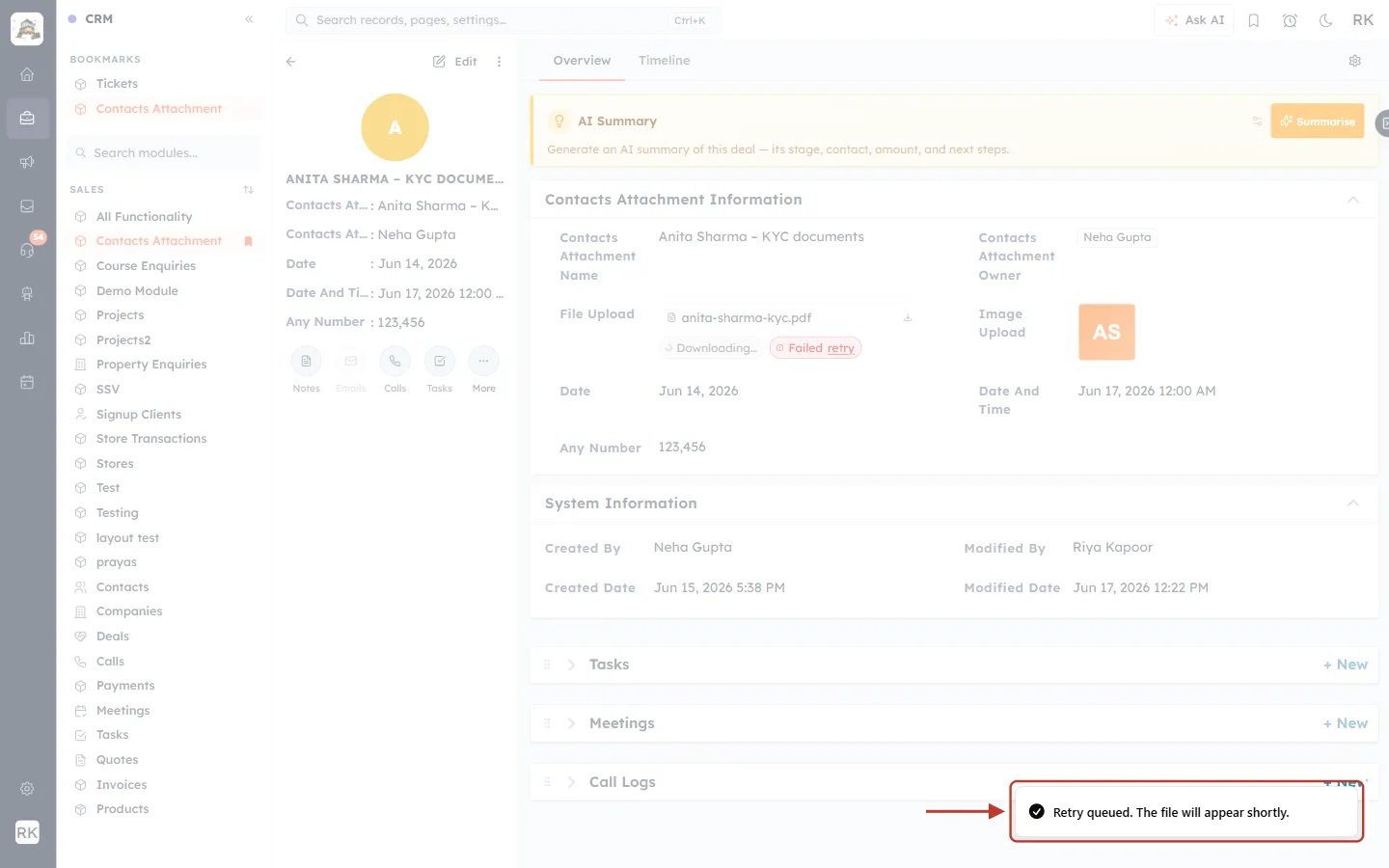
What this screenshot shows. The confirmation after clicking retry: “Retry queued. The file will appear shortly.”
Refresh the record after a moment. The chip changes to the file name once the download succeeds. If it fails again, check the link in your browser.
ℹ️
If the link itself was wrong, retry won’t help. Upload the correct file on the record by hand, or import again with Update existing records and the corrected link.
Quick Reference#
Topic | What to know |
|---|---|
Export format | CSV or XLSX; every File/Image field is a column of file links, several joined by commas |
Where exports are kept | Setup → Data Administration → Export; last 30 days; each file expires 7 days after it finishes |
Import file | CSV, XLSX or XLS, up to 50 MB |
Media cells | One public URL per file; several separated by a comma or new line |
Limits | Per field, e.g. Profile Picture: 1 file, 5 MB · Portfolio Documents: 5 files, 5 MB each |
Not accepted | Links that need a sign-in, and private network (IP) addresses |
When files arrive | After the rows are imported, in the background |
Tracking | Import Details → Media downloads: completed · pending · failed, with Row/Field/URL/Error for failures |
Fixing a failure | retry on the record’s field, or correct the link and import again |
Best Practices#
Test with two or three rows first, check the files on the records, then import the rest.
Open a few links in a private browser window before importing. If the file doesn’t open there, the CRM can’t download it either.
Use clear file names (for example anita-sharma-kyc.pdf) so files are easy to recognise later.
Keep within each field’s limits shown on Map Fields.
Keep exports private and delete downloaded copies you no longer need.
Leave the Import Details page open while files download; it refreshes by itself every 10 seconds.
Troubleshooting#
The import finished but some files are missing#
Files arrive after the rows. Open Import Details and check Media downloads: if files are still pending, wait. If some failed, the table lists the row, field, link and reason.
A file failed with a “not found” or access error#
The link is wrong, the file was moved, or it needs a sign-in. Open the link in a private browser window. Fix the sharing setting or the link, then click retry on the record, or import again with Update existing records.
Only one of several files was attached#
The field may allow fewer files than you supplied (Profile Picture holds one), or the links weren’t separated properly. Put a comma or a new line between links, and keep the cell in quotes in a CSV.
The export has no file columns#
An export with This view and filters only includes the records in that view. Check that the module actually has File Upload or Image Upload fields with files in them, or export All records.
I can’t find my export any more#
Exports are listed for 30 days, and each file can be downloaded for 7 days after it finishes. Run the export again if it has expired.
Frequently Asked Questions#
Can I upload the files themselves (not links) in the CSV?
No. A CSV can only hold text, so the importer takes a public link to each file and downloads it. To upload a file from your computer, open the record and add it to the field directly.
Does the export download the actual files?
The export file contains a link to each stored file. Open the links to view or download the files.
Can I import the links from an export into another module?
Yes. The exported links use the same format the importer accepts. Map the column to a File Upload or Image Upload field of the other module.
Will a failed file stop the import?
No. The record is still created or updated; only that file is missing. It is listed under Media downloads and shows Failed · retry on the record.
Which modules support this?
Any module with File Upload or Image Upload fields, including Contacts, Deals, Companies and your custom modules.
Previous and Next#
Related Articles#
Was this article helpful?
Ready to implement this?
OpenAI Engage and apply what you just learned to your own workspace.
Open AI Engage CRM