Loading…


KnowledgeBase
Global Search (Ctrl/Cmd + K): Find Records, Pages and Settings from Anywhere in Your CRM (Step-by-Step)
Introduction#
Global Search is the quickest way to get around AiEngage CRM. From any screen, press Ctrl + K (on a Mac, Cmd + K). A search box opens in the middle of the screen. Type a few letters, and the CRM shows matching records from every module, plus pages and settings such as workflows, templates, campaigns and users. Press Enter and you are there.
You don’t need to know which module a record is in, or where a setting sits in the menu. You can find a contact, deal, company, workflow or report from the same box.
This guide has five parts:
Part | What you’ll learn |
|---|---|
Part 1 | How to open and close Global Search |
Part 2 | What you see before you type: pages, shortcuts and your recent records |
Part 3 | How to find a record in any module, and see every match with “View all” |
Part 4 | How to find pages and settings, and open a result with the keyboard |
Part 5 | Two-key shortcuts, the theme switch, and what to do when nothing is found |
We use a sample office-supplies business throughout, with contacts such as Priya Nair and companies such as Mehta Logistics. Your names and results will be different.
ℹ️
Who can use it: every user. Global Search only lists pages that your permission profile lets you open. For example, if you can’t manage modules, you won’t see Create Module. If a record or page you expect is missing, see Profile Permissions Explained or ask your admin.
Part 1: Open and close Global Search#
Step 1: Find the search bar at the top of the screen#
Global Search is always at the top of every CRM screen, next to the main menu. You can open it in two ways:
Click the bar that says Search records, pages, settings…
Press
Ctrl+Kon Windows or Linux, orCmd+Kon a Mac. This works on any screen, so you don’t need to reach for the mouse.
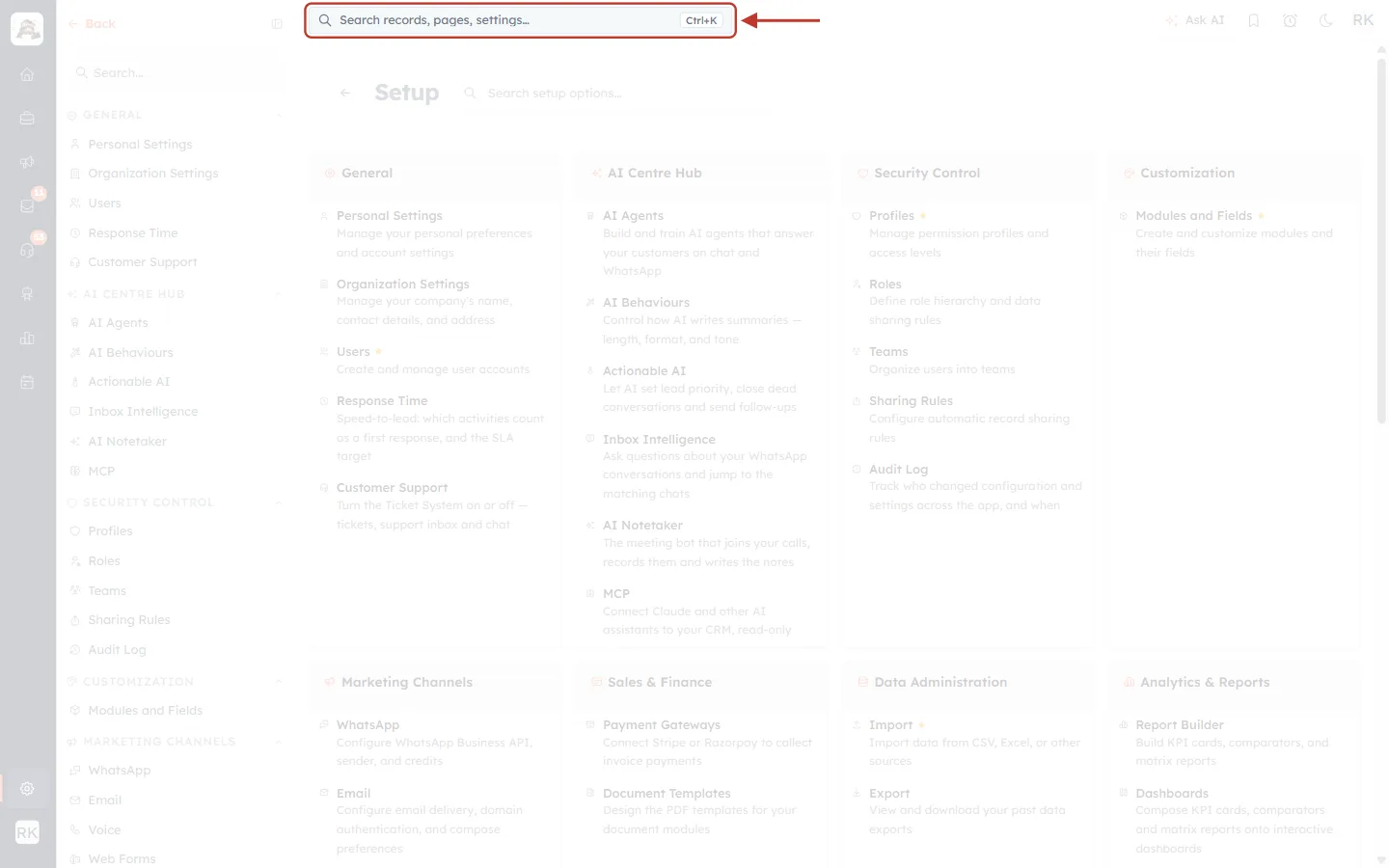
What this screenshot shows. The Setup page, with the Global Search bar at the top of the screen ringed in red. The red arrow points to it.
The magnifying glass and “Search records, pages, settings…”: click anywhere on this bar to open Global Search.
The
Ctrl+Klabel on the right of the bar reminds you of the keyboard shortcut. On a Mac, useCmd+Kinstead.The rest of the screen (here, the Setup page) stays as it is. Global Search opens on top of whatever page you are on, so you never lose your place.
Ask AI, bookmarks, reminders, the moon icon and your initials sit to the right of the bar. These are separate tools and are not part of Global Search.
Step 2: Open Global Search#
Press Ctrl + K (or Cmd + K), or click the bar. A search panel opens in the centre of the screen and the page behind it fades out.
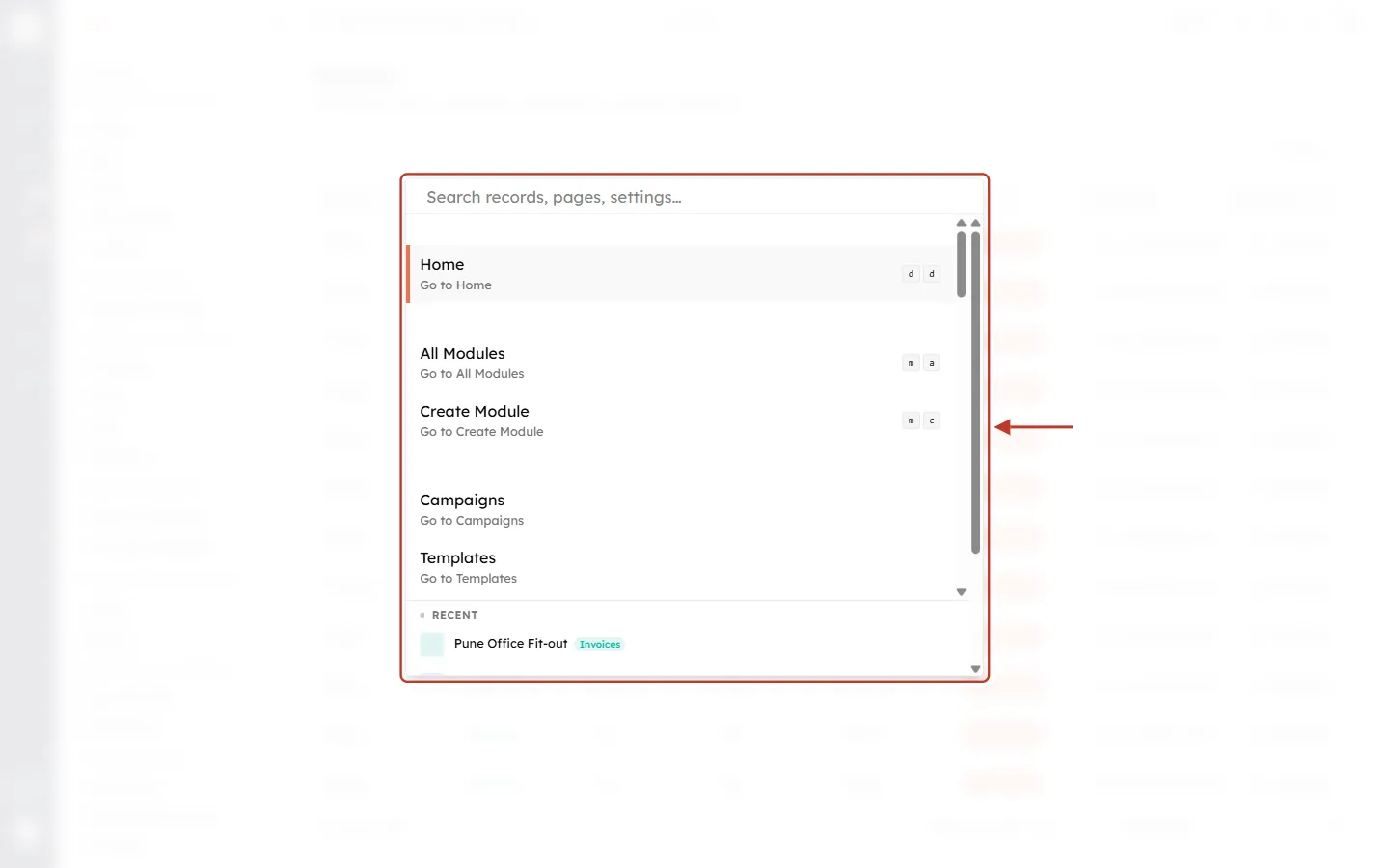
What this screenshot shows. The Global Search panel just after it opens. The whole panel is ringed.
The box at the top says Search records, pages, settings…. Your cursor is already in it, so you can start typing straight away.
The list below shows CRM pages you can jump to, such as Home, All Modules, Create Module, Campaigns and Templates. Each page has a grey “Go to …” line under its name. Pages are grouped with a small gap between each group, and the list scrolls.
The small letter keys on the right (for example d d next to Home) are two-key shortcuts. See Part 5.
The orange bar on the left of Home shows which item is selected. Pressing
Enternow would open Home.RECENT at the bottom lists records you opened lately (Step 4).
Step 3: Close Global Search#
Press Esc, or press Ctrl + K (Cmd + K) again. You can also click outside the panel. You go back to the page you were on, and nothing on it has changed.
✅
Make it a habit:
Ctrl + K, type, Enter. After a few days it is usually faster than clicking through menus.Part 2: What you see before you type#
Step 4: Use the search box and the page list#
Everything starts in the box at the top of the panel. While it is empty, the panel shows CRM pages and your recent records. As soon as you type, the list changes to show what matches.
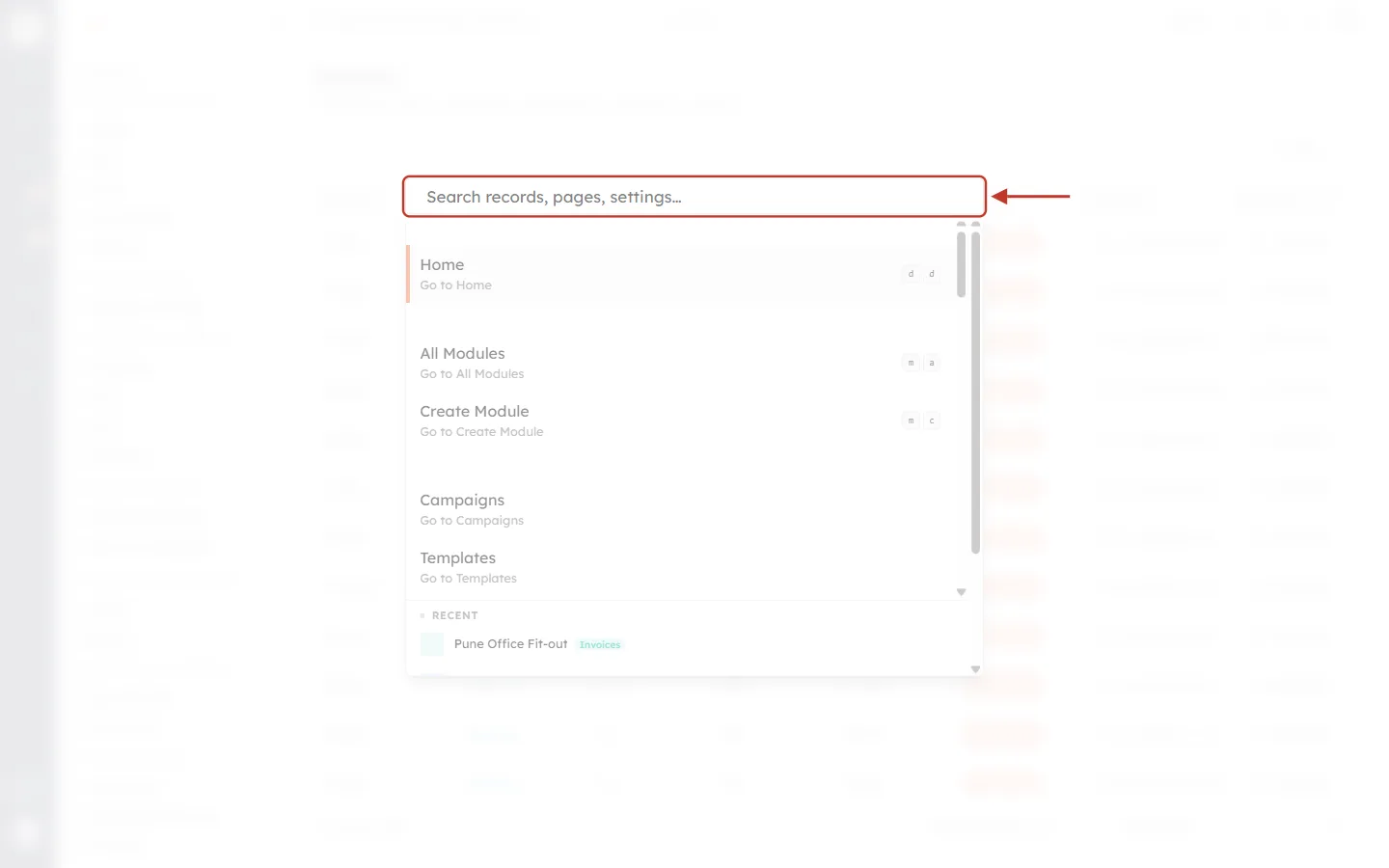
What this screenshot shows. The box at the top of the panel is ringed. This is where you type.
The box is empty and shows the hint Search records, pages, settings…. That hint tells you what you can find: records (contacts, deals, companies and any other module), pages (Home, Dashboards, Reports…) and settings (workflows, templates, users…).
One letter narrows the page list but does not search records yet.
Two letters or more starts a search of your records and settings as well. Results appear as you type. You don’t need to press
Enterto search.The list under the box is faded here because it is not the subject of this step.
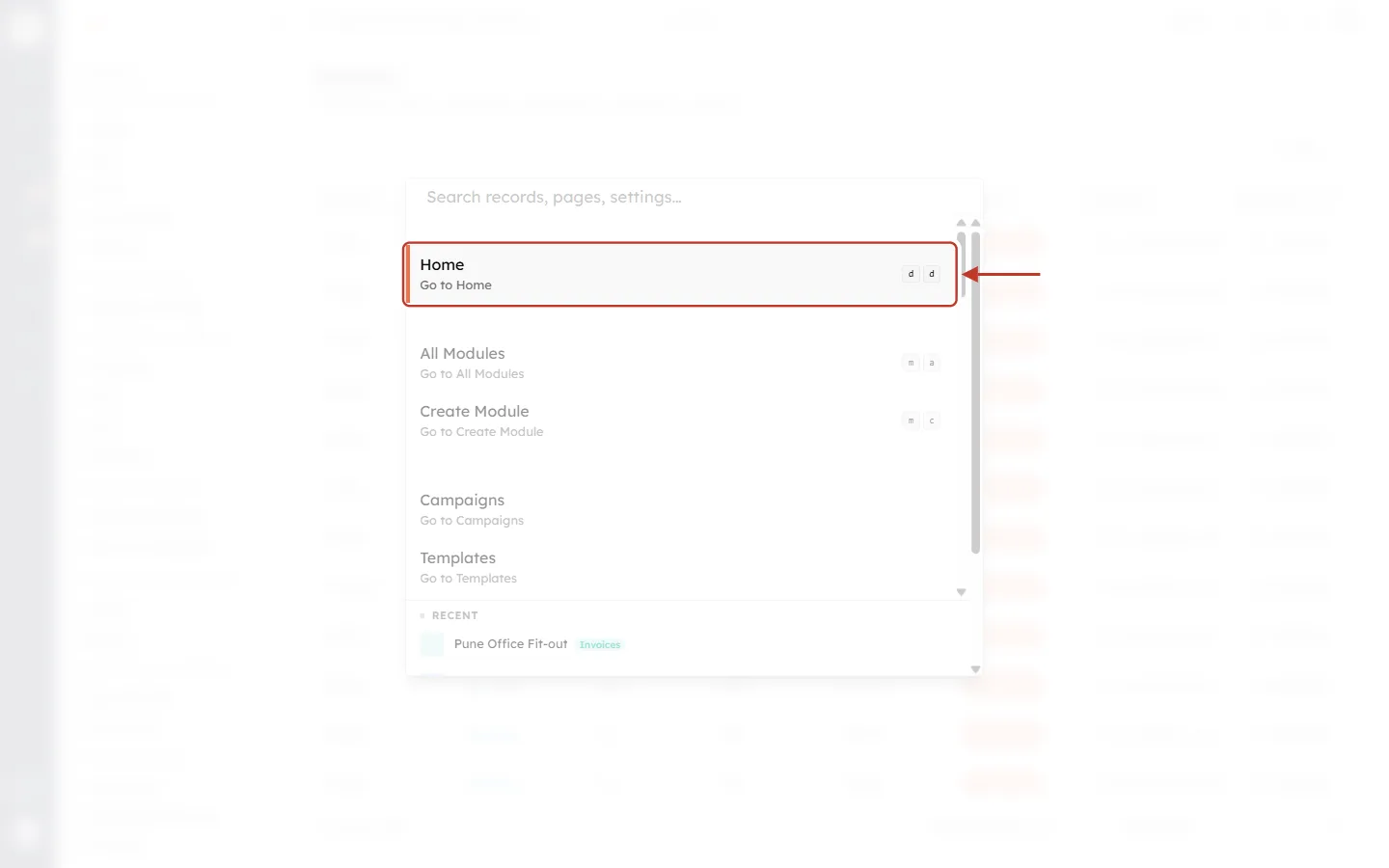
What this screenshot shows. The first item, Home, is ringed, including the two small keys on the right.
Home is the page name and Go to Home says what selecting it does.
The two small d keys show the shortcut for this page. Outside the panel, press
dand thendto go to Home without opening the search at all. Part 5 lists every shortcut.The orange bar on the left shows this item is selected. Press
Enteror click it to open the page.All Modules (
ma) and Create Module (mc) below it have shortcuts too. Pages without keys, such as Campaigns, can still be opened from here.
Step 5: Reopen a record from the Recent list#
When the box is empty, the bottom of the panel shows RECENT: the last records you opened. This is the fastest way back to something you were working on a few minutes ago. Scroll to the bottom of the panel to see it in full.
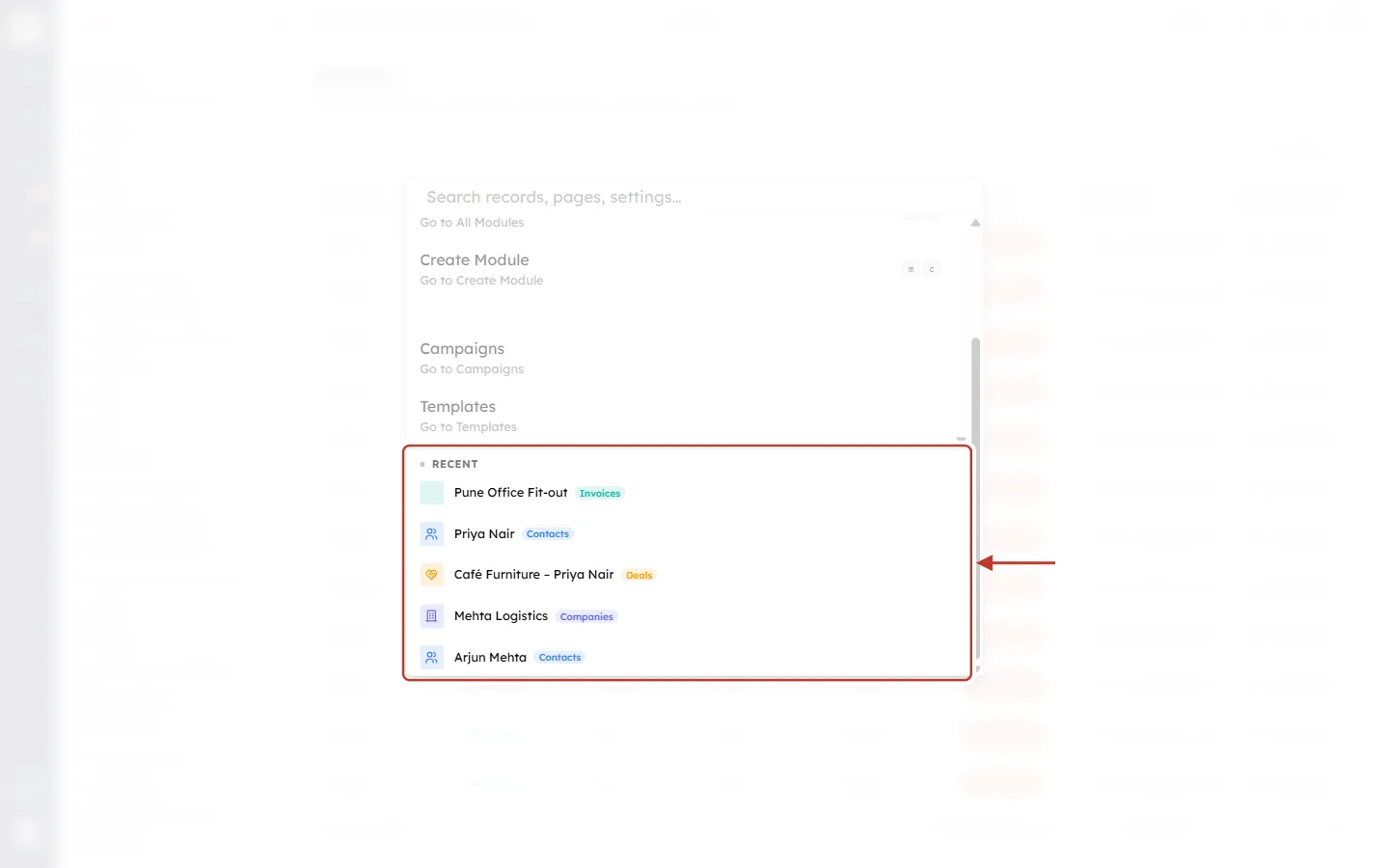
What this screenshot shows. The panel scrolled to the bottom, with the RECENT section ringed.
RECENT lists your five most recently opened records, newest first. Here: Pune Office Fit-out, Priya Nair, Café Furniture – Priya Nair, Mehta Logistics and Arjun Mehta.
The coloured chip after each name shows which module the record belongs to: Invoices, Contacts, Deals or Companies. The small icon on the left uses the same module colour.
Click a record to open it straight away.
The pages above (All Modules, Create Module, Campaigns, Templates) are still there. Scroll up to get back to them.
ℹ️
How the Recent list fills up:
A record is added when you open it, whether you opened it from Global Search or from a list.
The list is kept in your web browser. If you sign in on another computer or another browser, its Recent list starts empty.
Recent records are shown only while the box is empty or has one letter. When you type more, search results take their place.
Part 3: Find a record in any module#
Step 6: Type at least two letters#
Type part of what you are looking for: a name, an email address, a phone number, a company or a city. You don’t need the whole word. In this example we type priya. For a moment the panel shows Searching… while the CRM looks through your data.
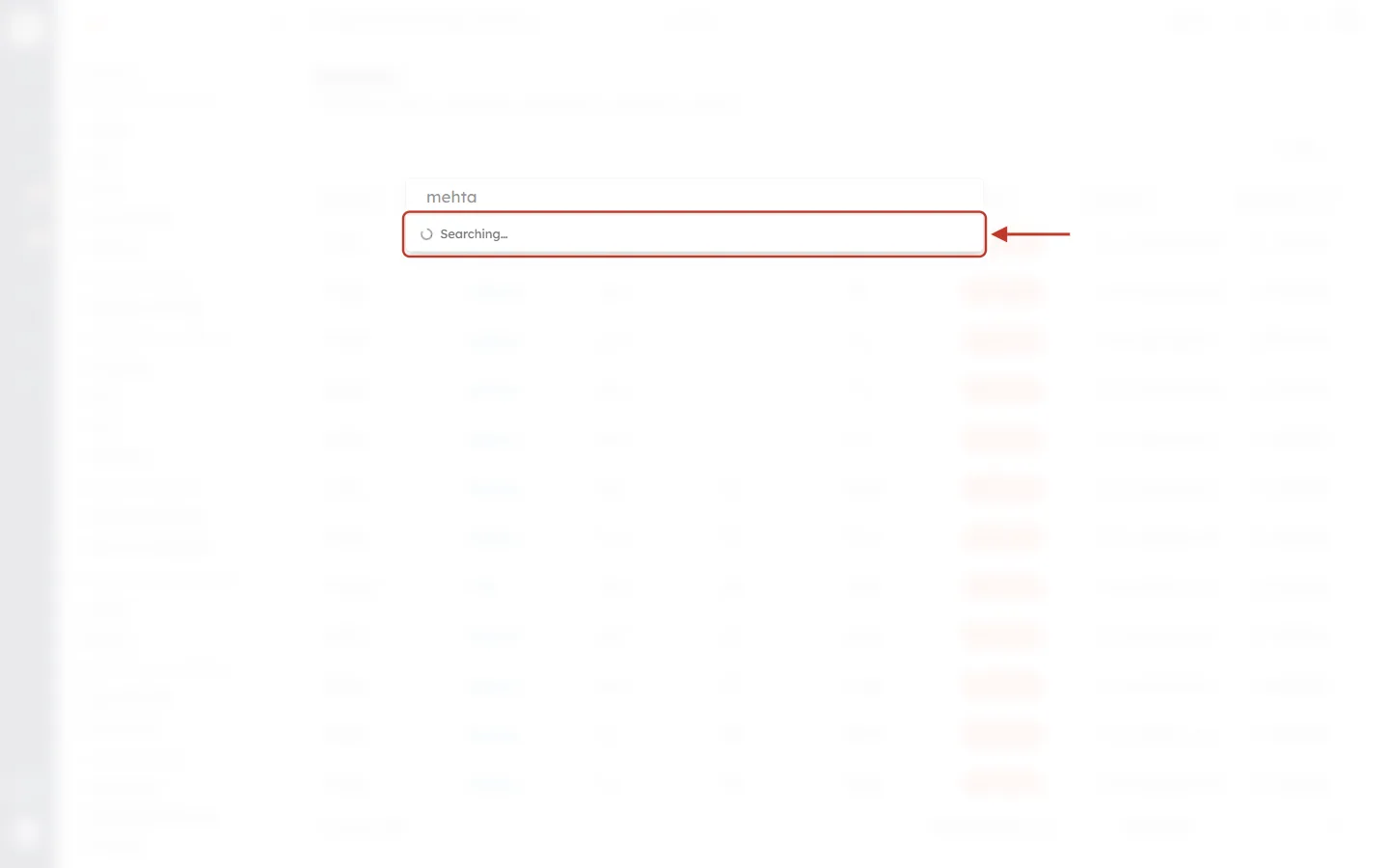
What this screenshot shows. The panel just after typing “mehta”. The Searching… line under the box is ringed.
mehta is in the box at the top. The search started by itself; nobody pressed
Enter.Searching… with a spinning circle means the CRM is still looking. It usually takes under a second. On a large account it can take a little longer.
Keep typing if you want. Each time you pause, the search runs again with the newest words, so you always see results for what is in the box now.
Step 7: Read the results, grouped by module#
Results appear in groups, one group for each module that has a match. Each group shows up to five matches.
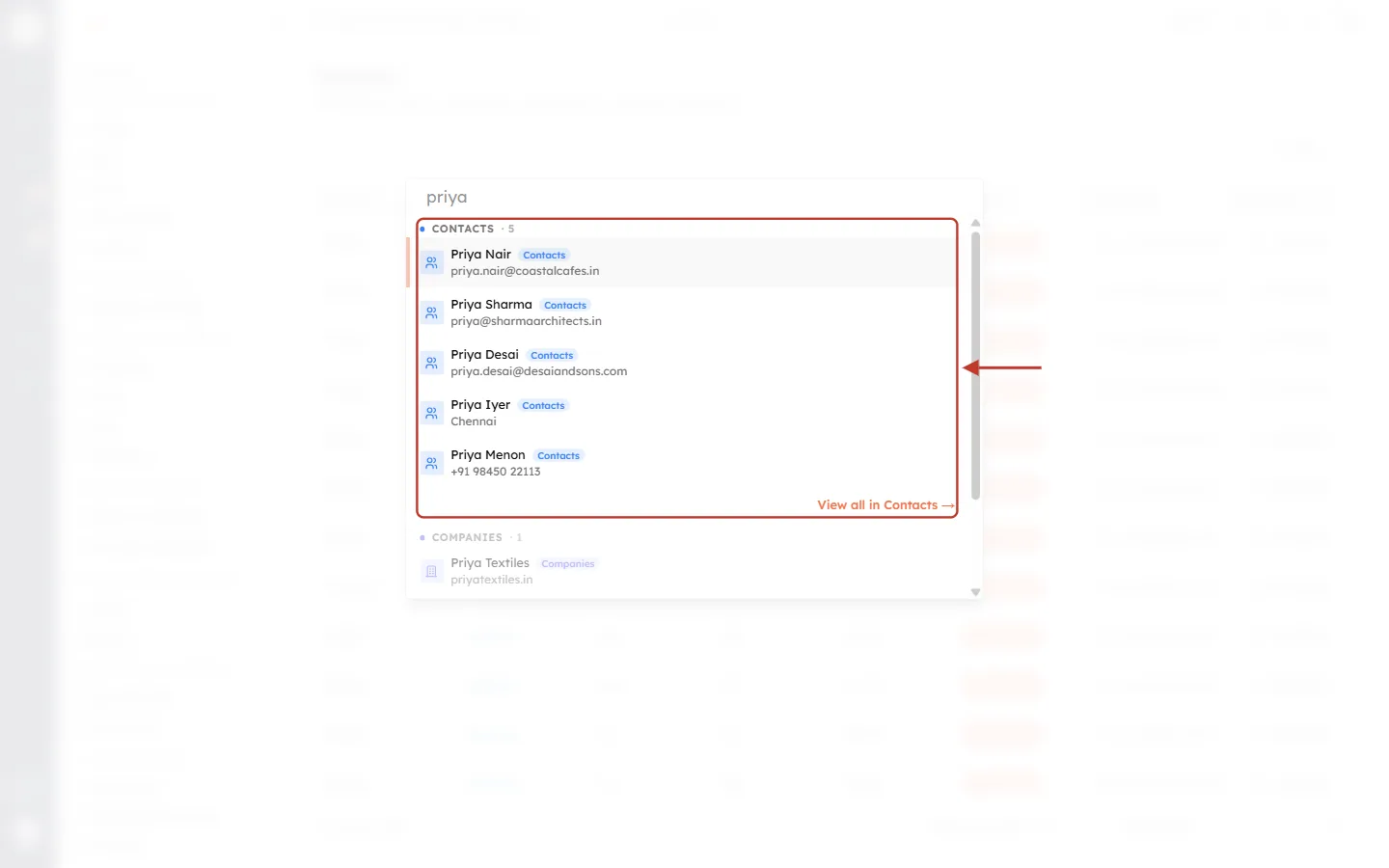
What this screenshot shows. Results for “priya”. The CONTACTS group is ringed, from its heading down to the View all link.
CONTACTS · 5 is the group heading. The coloured dot is the module’s colour and 5 is how many matches are shown in this group.
Five contacts follow: Priya Nair, Priya Sharma, Priya Desai, Priya Iyer and Priya Menon.
The grey line under each name is a detail from the record, such as an email (priya.nair@coastalcafes.in), a city (Chennai) or a phone number (+91 98450 22113). It helps you pick the right person when several share a name.
View all in Contacts → at the bottom right means there are more matching contacts than the five shown (Step 9).
COMPANIES · 1 starts underneath. Scroll down to see other modules.
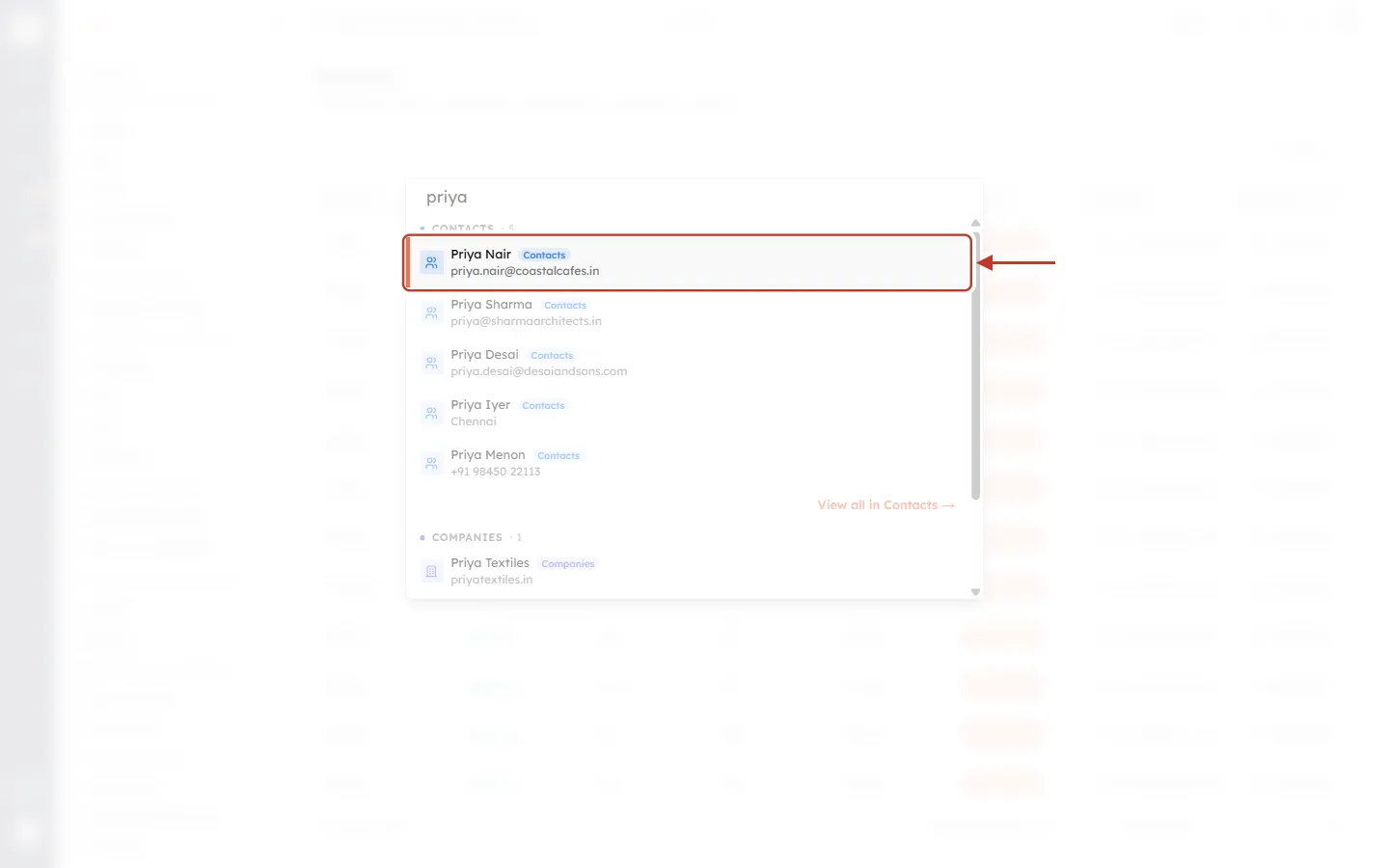
What this screenshot shows. One result, Priya Nair, is ringed. It is selected (orange bar on the left).
The icon on the left is the module’s icon, here the people icon used for Contacts.
Priya Nair is the record’s name.
The blue “Contacts” chip names the module again, which helps when you scroll past several groups.
priya.nair@coastalcafes.in is the detail line from the record.
Click the result, or press
Enterwhile it is selected, to open the record. It is also added to your Recent list.
Step 8: Scroll to see other modules#
Matches in other modules are listed below the first group. Every module is searched, including your own custom modules.
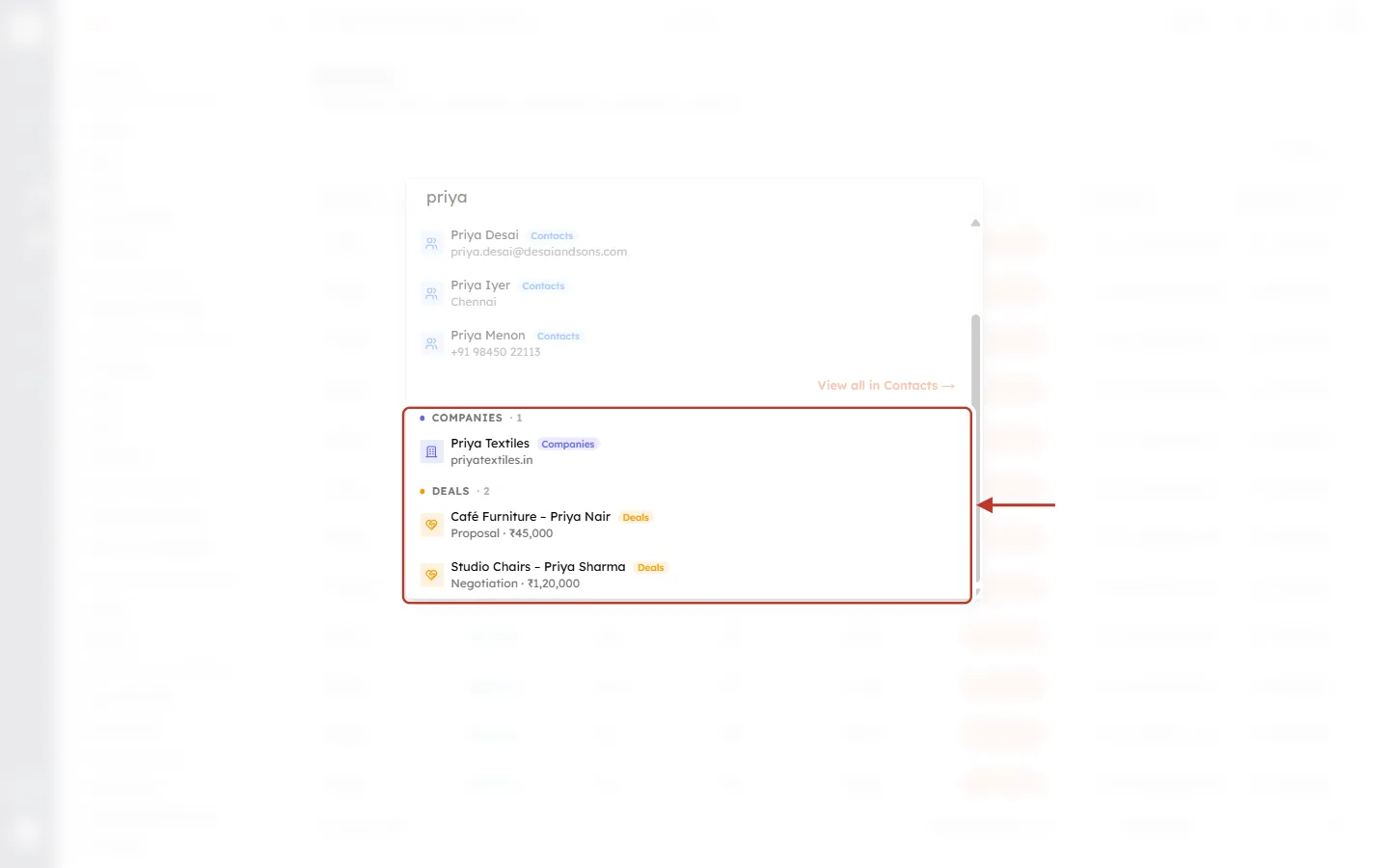
What this screenshot shows. The results scrolled down. The COMPANIES and DEALS groups are ringed.
COMPANIES · 1: the company Priya Textiles, with its website priyatextiles.in as the detail line and a purple Companies chip.
DEALS · 2: Café Furniture – Priya Nair and Studio Chairs – Priya Sharma, each with an orange Deals chip. The detail line shows the stage and amount, for example Proposal · ₹45,000.
The contacts above are faded because they are not the subject here. Scroll up to get back to them.
The order of the groups can change from one search to the next. Read the group headings rather than relying on position.
Step 9: See every match with “View all”#
A group shows at most five records. When a module has more matches, the group ends with View all in <module> →.
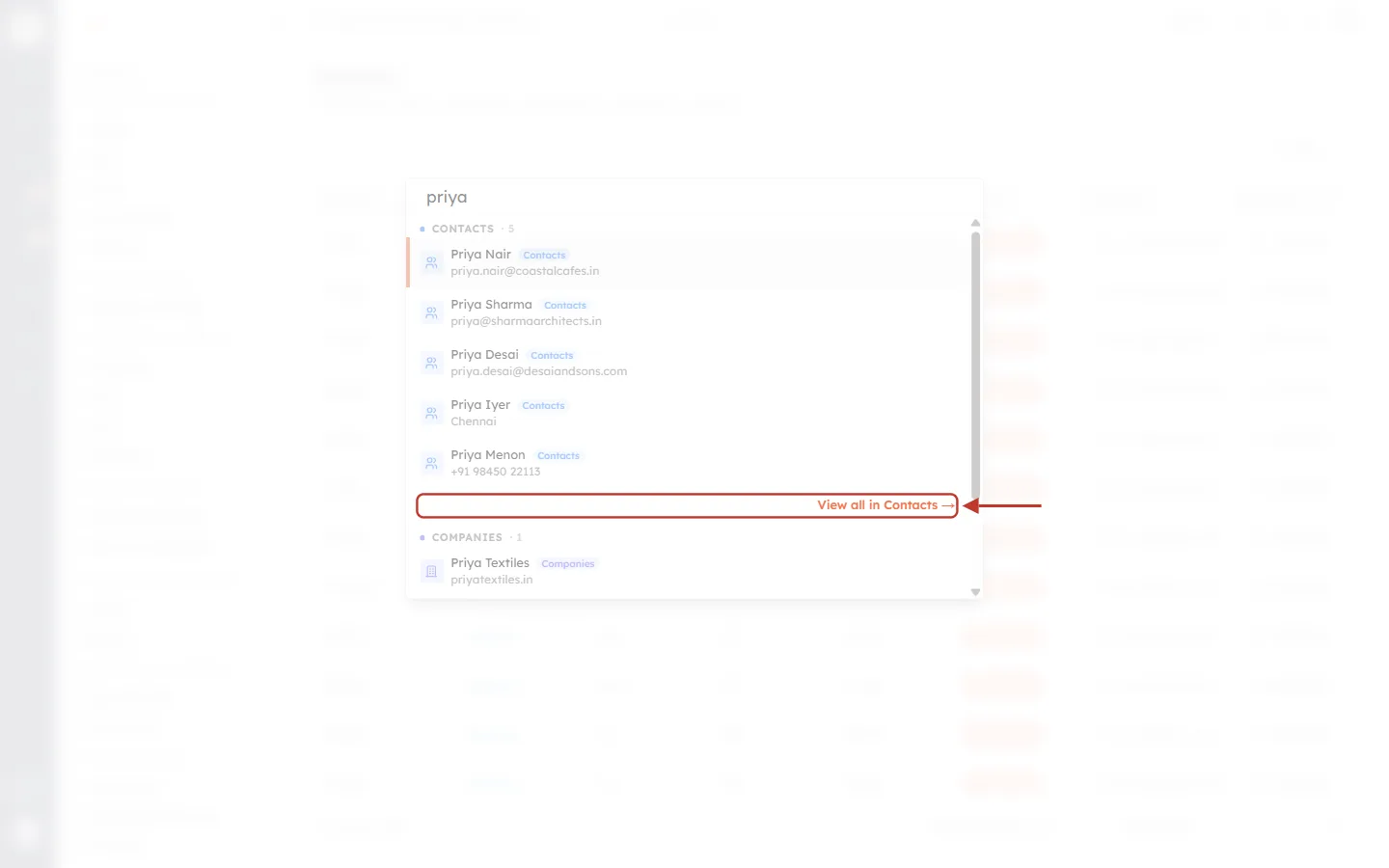
What this screenshot shows. The View all in Contacts → link at the end of the Contacts group is ringed.
View all in Contacts → appears only when more contacts match than the five listed above it.
Click it (or select it with the arrow keys and press
Enter) to open the Contacts list with the same search already applied.The COMPANIES group below has only one match, so it has no View all link.
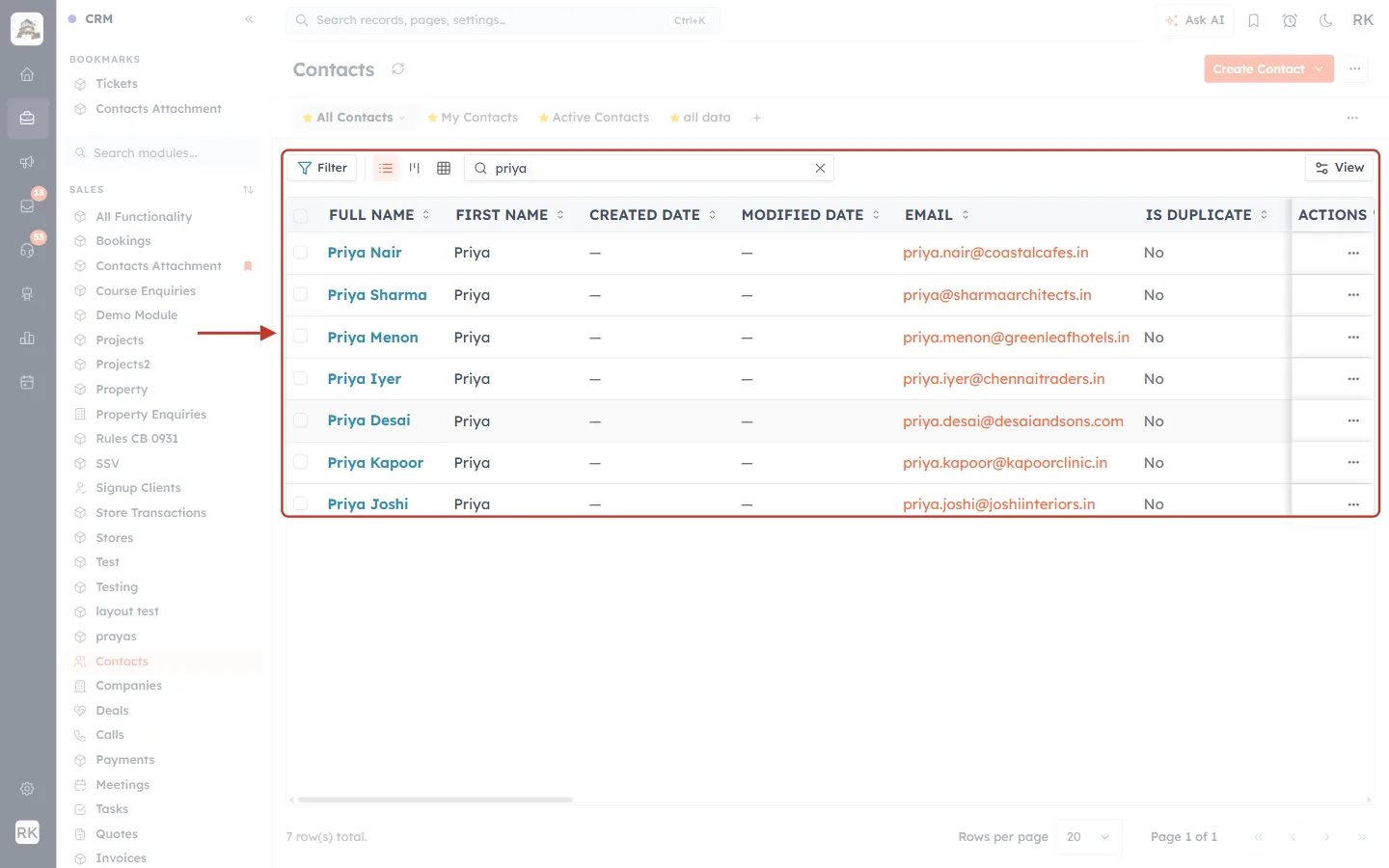
What this screenshot shows. The Contacts list after clicking View all in Contacts. The list’s search box (showing “priya”) and the matching rows are ringed.
The search box above the table already contains priya, the words you typed in Global Search. Click the × at its right end to clear it.
The table shows every matching contact, not just five. Here there are seven, including Priya Kapoor and Priya Joshi, who didn’t fit in the Global Search panel.
Filter, the list/kanban/table buttons and View work as normal, so you can narrow the list further, sort it or change the columns.
7 row(s) total at the bottom left confirms how many records matched.
The left menu highlights Contacts, so you can see which module you are in.
✅
Tip: from this list you can open a record, then use the Previous and Next arrows to step through the matches one by one. See Move Between Records with the Previous and Next Arrows.
Part 4: Find pages and settings#
Step 10: Search for a workflow, template, campaign or other setting#
Global Search also finds things you have built in the CRM, not just records. Type part of a name, for example welcome.
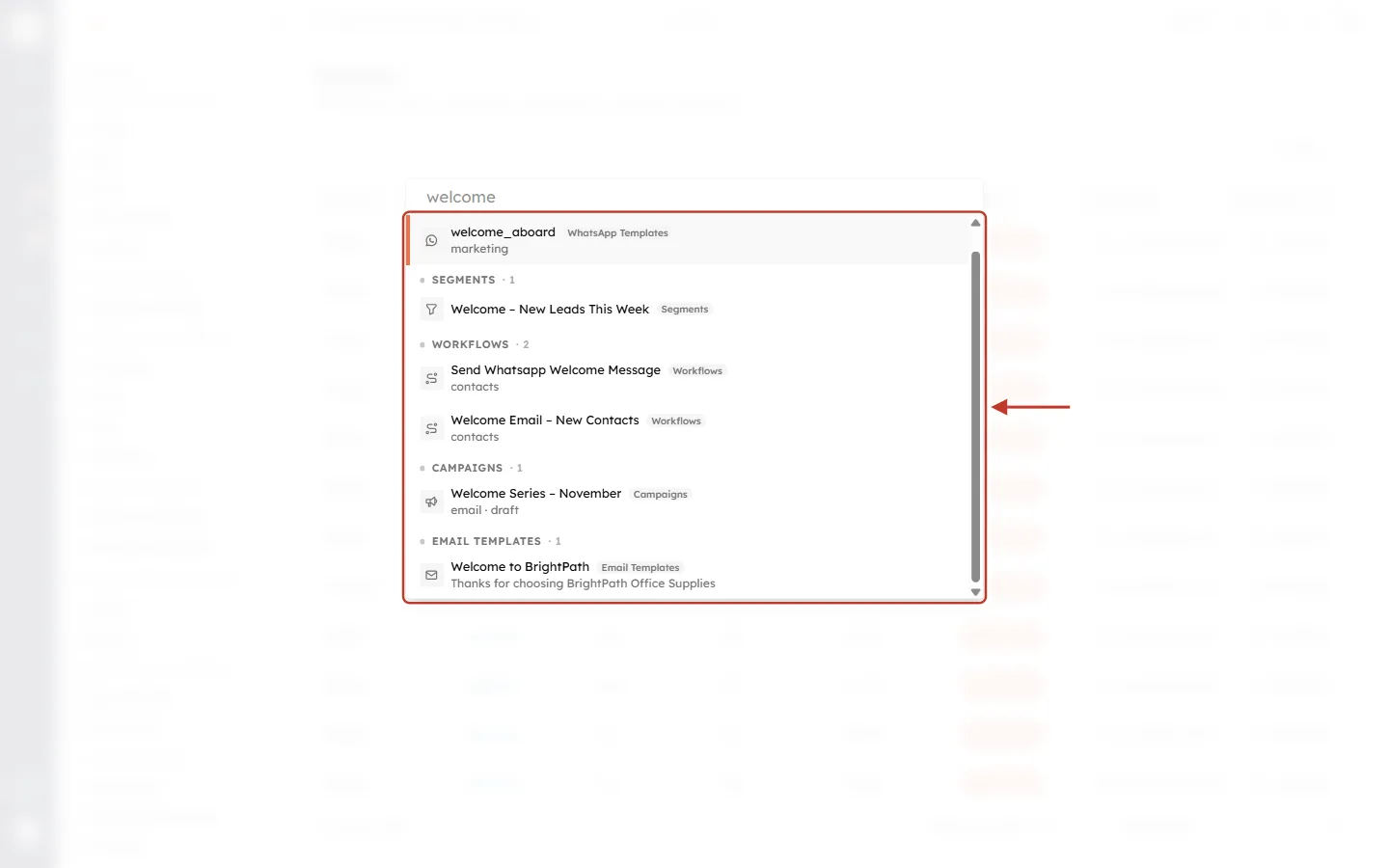
What this screenshot shows. Results for “welcome”. The whole results list is ringed.
WHATSAPP TEMPLATES · 1: the template welcome_aboard. The detail line marketing is its category.
SEGMENTS · 1: the segment Welcome – New Leads This Week.
WORKFLOWS · 2: Send Whatsapp Welcome Message and Welcome Email – New Contacts. The detail line contacts is the module each workflow runs on.
CAMPAIGNS · 1: Welcome Series – November, with email · draft showing its channel and status.
EMAIL TEMPLATES · 1: Welcome to BrightPath, with its subject line underneath.
Each result has a grey chip (Workflows, Segments, Campaigns…) so you can tell them apart at a glance.
Here is everything Global Search looks through:
What you can find | Examples of what to type |
|---|---|
Records in any module: Contacts, Companies, Deals, Invoices, Tickets and your custom modules | A name, email, phone number, company, website or city |
Workflows | Part of the workflow name |
Email Templates and WhatsApp Templates | The template name |
Campaigns and Segments | The campaign or segment name |
Web Forms | The form name |
Users | A teammate’s name or email |
Reports and Dashboards | The report or dashboard name |
AI Agents | The agent’s name |
CRM pages: Home, Setup, Users, Roles, Profiles, Teams, Sharing Rules, Billing and more | The page name, for example setup, roles or billing |
Step 11: Choose a result with the keyboard#
You don’t have to use the mouse. Press ↓ and ↑ to move through the results. The selected result gets a light grey background and an orange bar on its left.
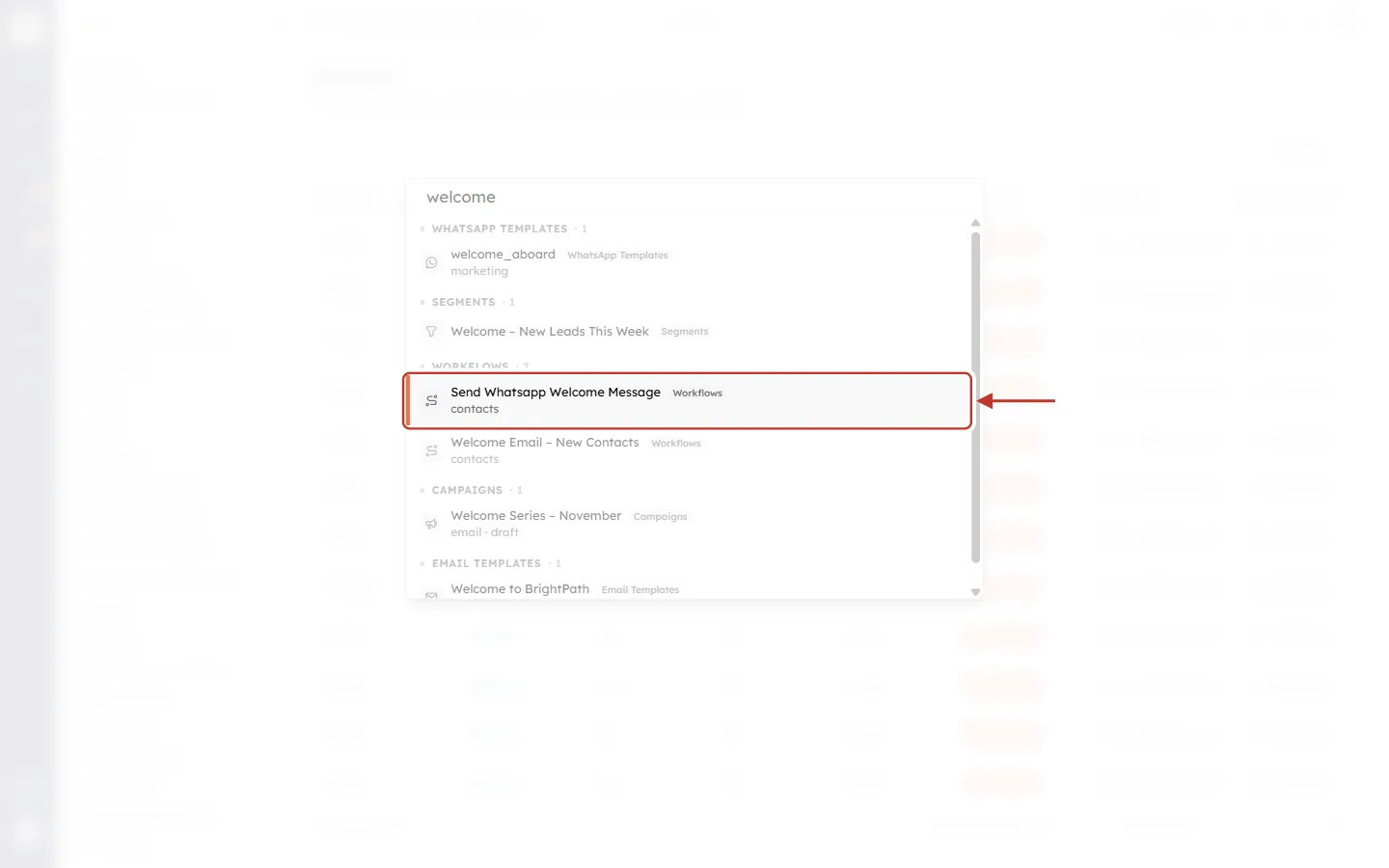
What this screenshot shows. After pressing the down arrow twice, the workflow Send Whatsapp Welcome Message is selected and ringed.
Send Whatsapp Welcome Message has the orange bar on its left, so it is the selected result.
The group headings (WHATSAPP TEMPLATES, SEGMENTS, WORKFLOWS…) are skipped when you move with the arrow keys. Only results can be selected.
Press
Enterto open the selected result.Keep pressing
↓to go further. The list scrolls by itself.
Step 12: Press Enter to open it#
Press Enter (or click the result). Global Search closes and the CRM opens the item.
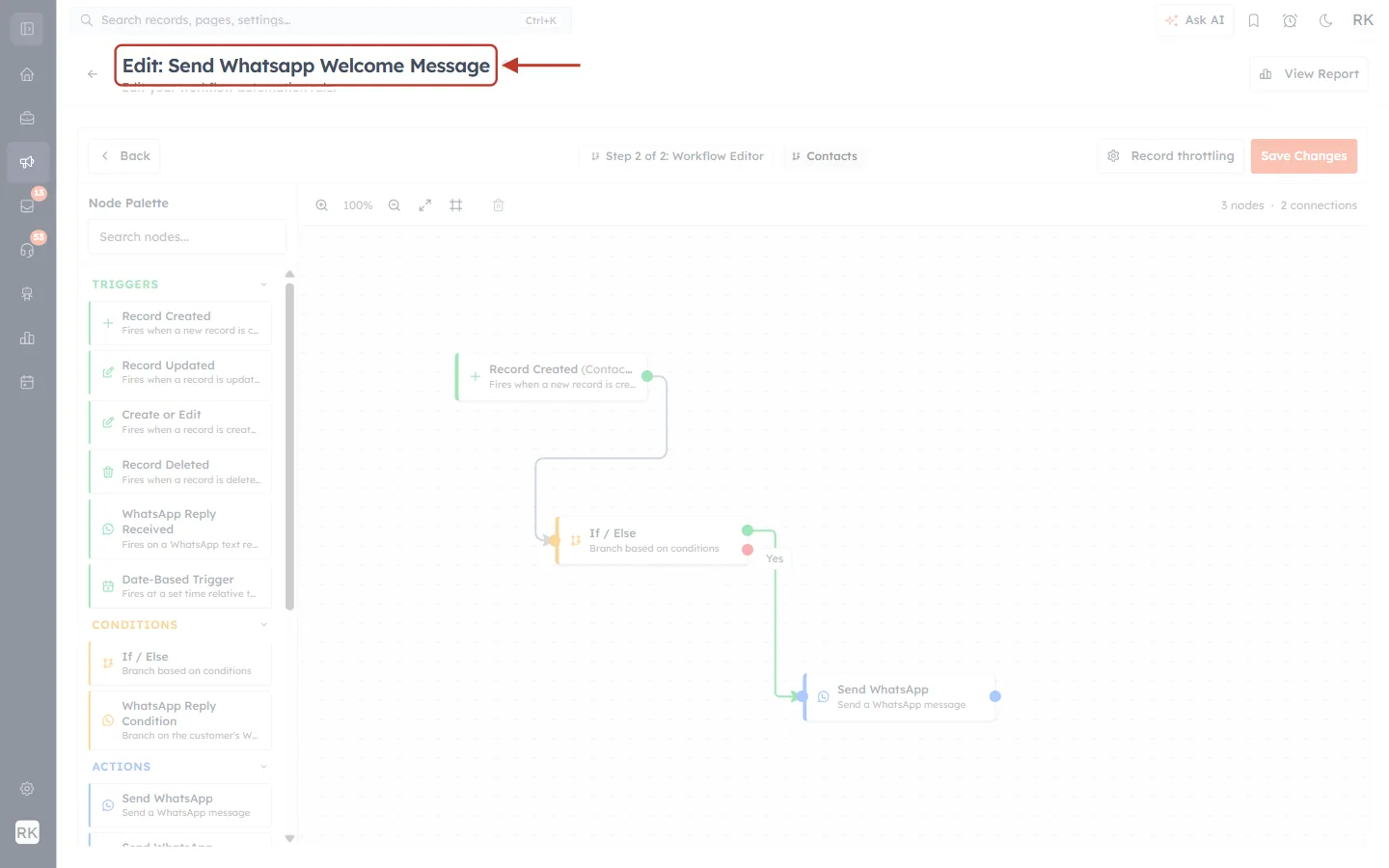
What this screenshot shows. The workflow editor for Send Whatsapp Welcome Message, opened straight from Global Search. The page title is ringed.
Edit: Send Whatsapp Welcome Message at the top confirms the right workflow opened.
The workflow canvas (Record Created → If / Else → Send WhatsApp) is shown, ready to edit, exactly as if you had gone through Setup → Workflows.
The Global Search bar is still at the top of the page, so you can jump somewhere else at once.
Step 13: Go to a CRM page by name#
To open a page, type its name. For example, type setup to open the Setup page.
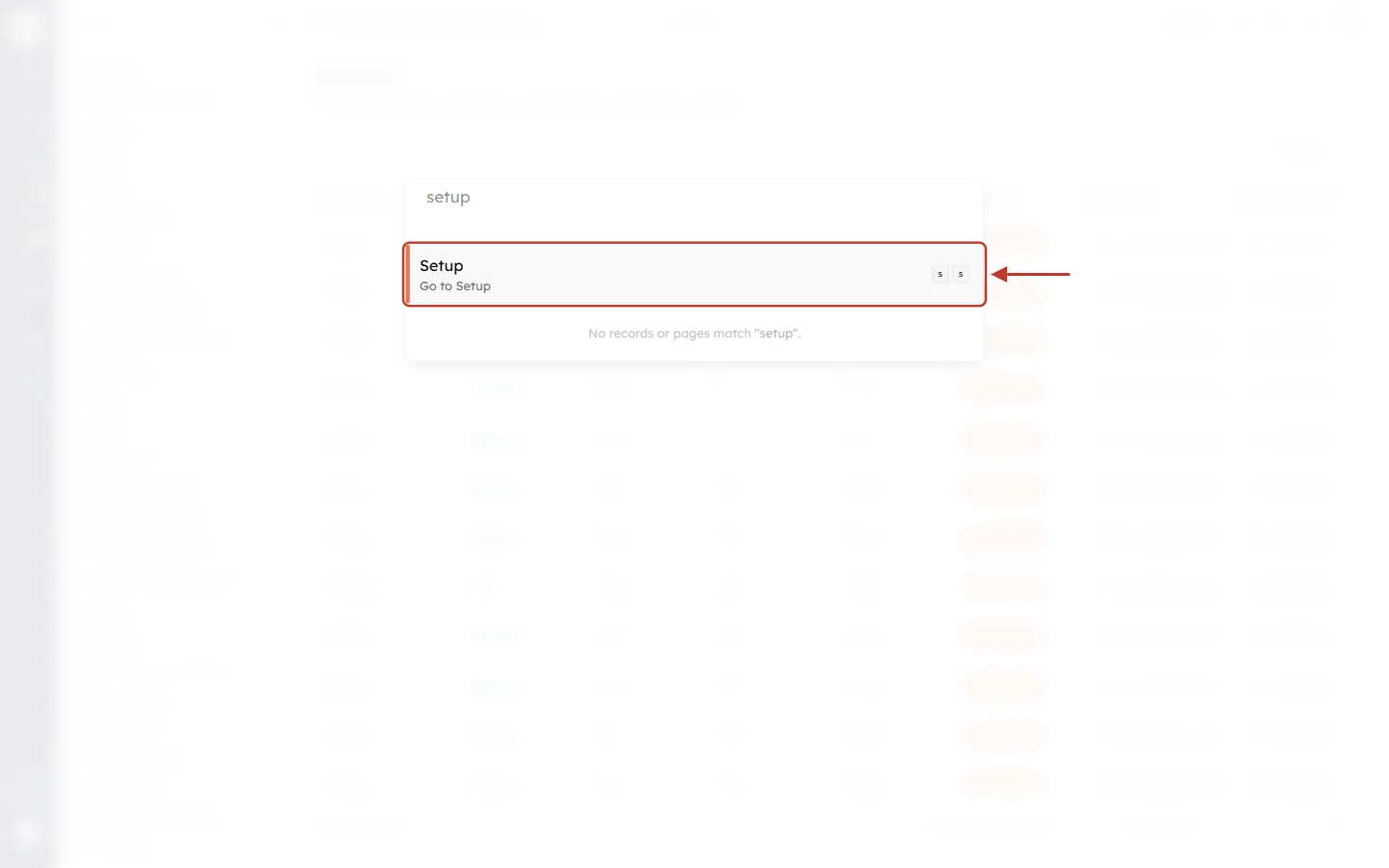
What this screenshot shows. Results for “setup”. The Setup page result is ringed.
Setup with Go to Setup underneath is the page. Press
Enterto open it.The keys s s on the right are its shortcut (Part 5).
No records or pages match "setup". under it refers to records and settings only. No contact or workflow is called “setup”, but the page itself was still found. You can ignore this line when a page is listed above it.
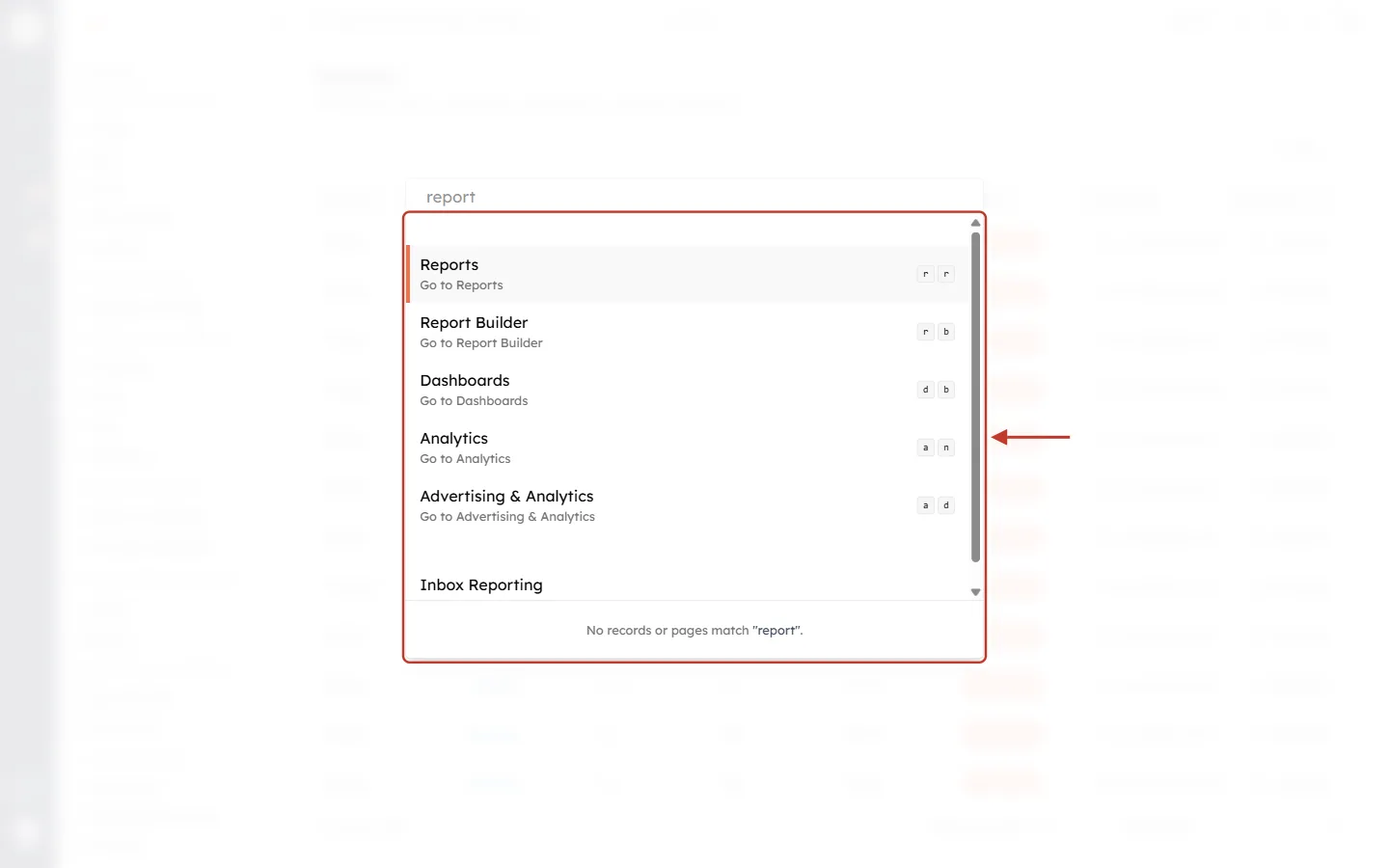
What this screenshot shows. Results for “report”. The list of matching pages is ringed.
Reports (
rr), Report Builder (rb), Dashboards (db), Analytics (an) and Advertising & Analytics (ad) are all found by one word.Inbox Reporting is further down, under the Marketing pages.
The letter keys on the right of each page are its shortcut.
No records or pages match "report". at the bottom again means only that no record or setting has that name. If you have a report or dashboard with “report” in its name, it is listed here instead.
Part 5: Shortcuts, theme and troubleshooting#
Step 14: Use two-key shortcuts to jump straight to a page#
Some pages have a two-key shortcut. Press the first letter, then the second, one after the other (not together). For example, s then s opens Setup.
Press | Goes to |
|---|---|
| Home |
| Setup |
| All Modules |
| Create Module |
| Dashboards |
| Analytics |
| Reports |
| Report Builder |
| Advertising & Analytics |
| Your Profile (personal settings) |
| Switch between light and dark theme |
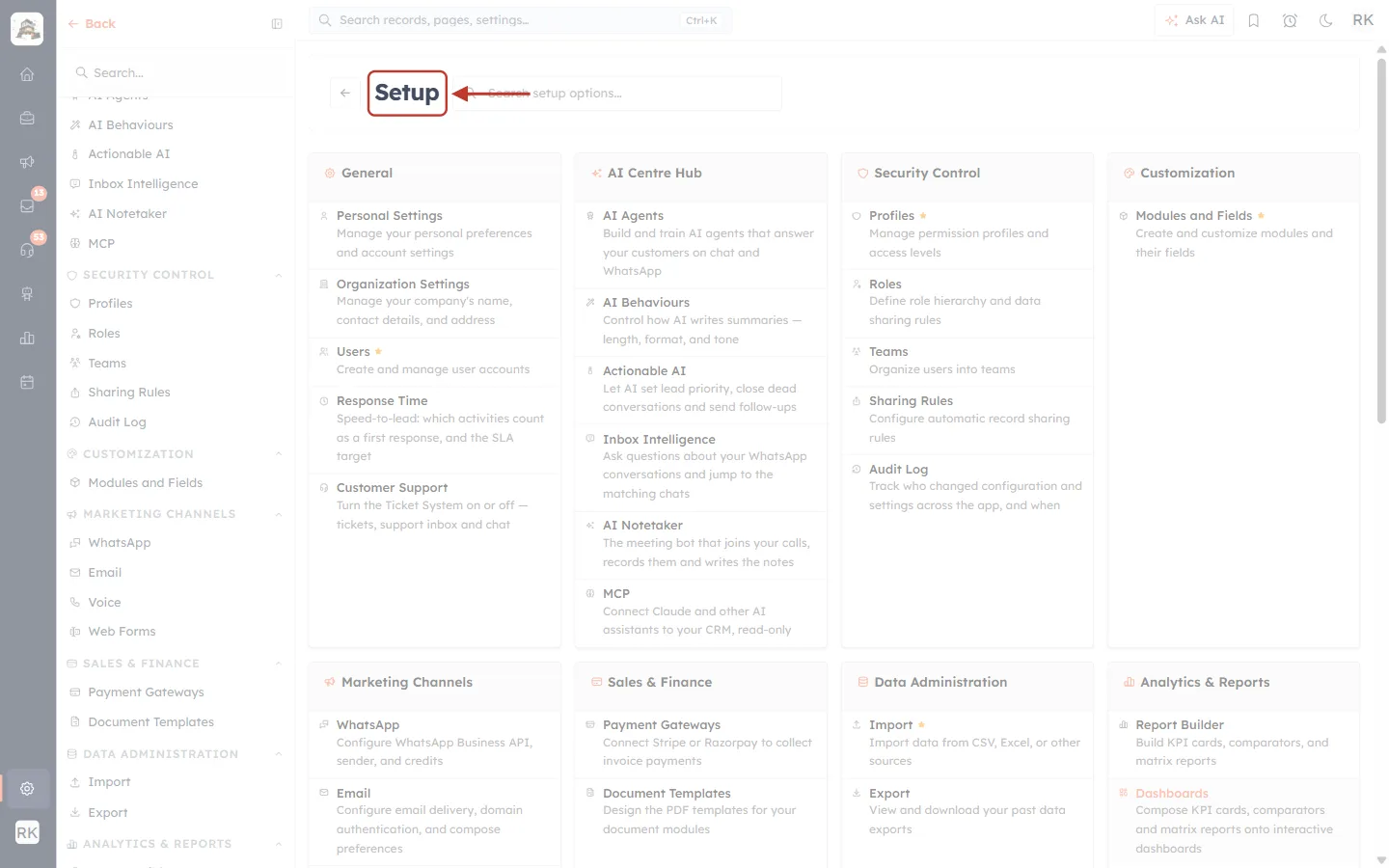
What this screenshot shows. The Setup page, opened by pressing s and then s on the All Modules page. The Setup heading is ringed.
Setup at the top shows the shortcut worked. Global Search never opened.
The cards below (General, AI Centre Hub, Security Control, Customization…) are the normal Setup page.
The left menu lists the same Setup sections, so you can carry on from here.
⚠️
Shortcuts only work when you are not typing. If your cursor is in a search box, a form field or a note, the letters are typed instead.
If a shortcut does nothing, click an empty part of the page first, then press the keys again. Shortcuts for pages you don’t have permission to open don’t work for you.
Step 15: Switch between light and dark theme#
Type theme in Global Search to change how the CRM looks.
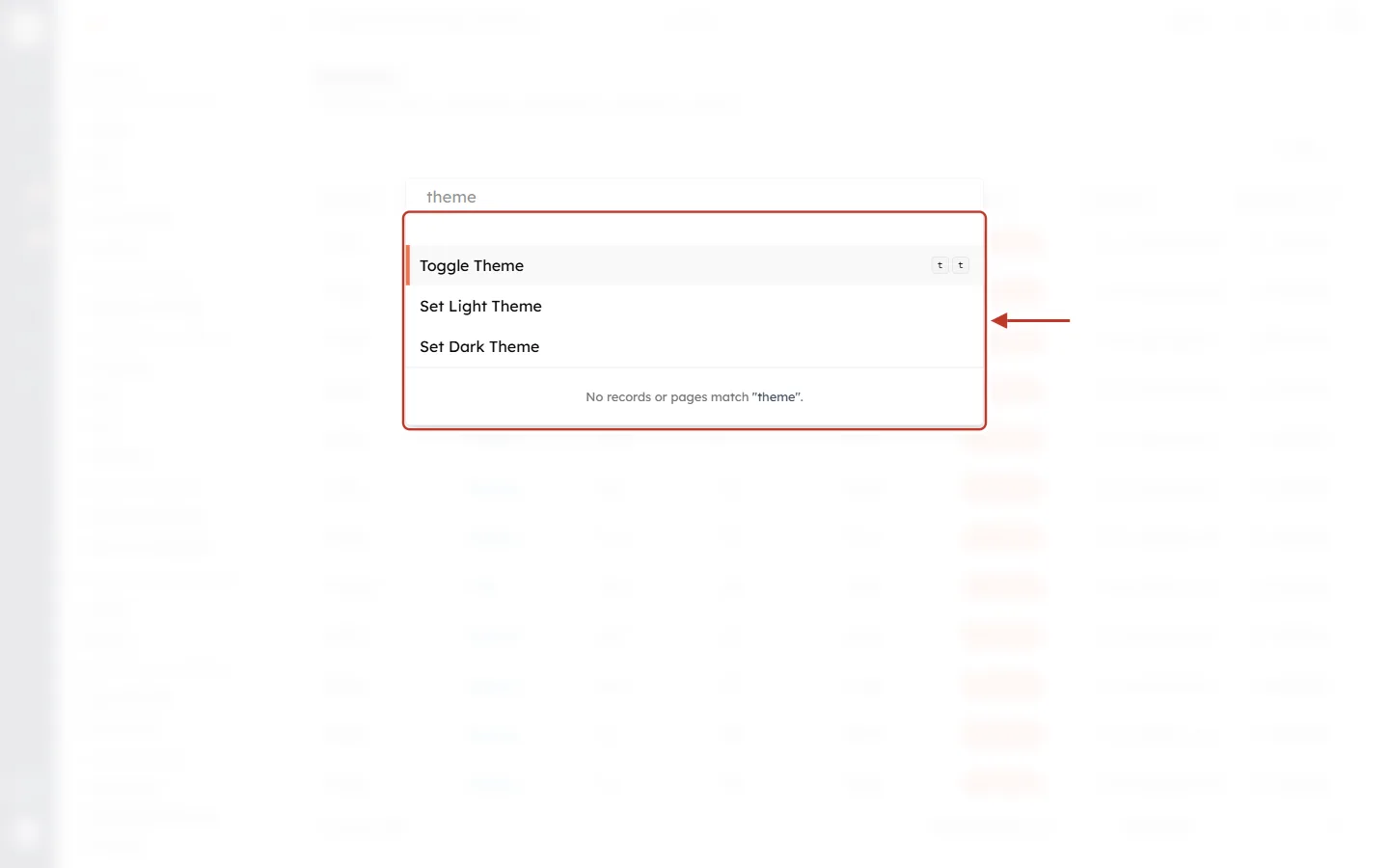
What this screenshot shows. Results for “theme”. The three theme options are ringed.
Toggle Theme switches between light and dark. Its shortcut is
tthent.Set Light Theme always switches to light.
Set Dark Theme always switches to dark.
No records or pages match "theme". just means no record has that name. The theme options above it still work.
Step 16: When nothing is found#
If nothing matches, the panel says so.
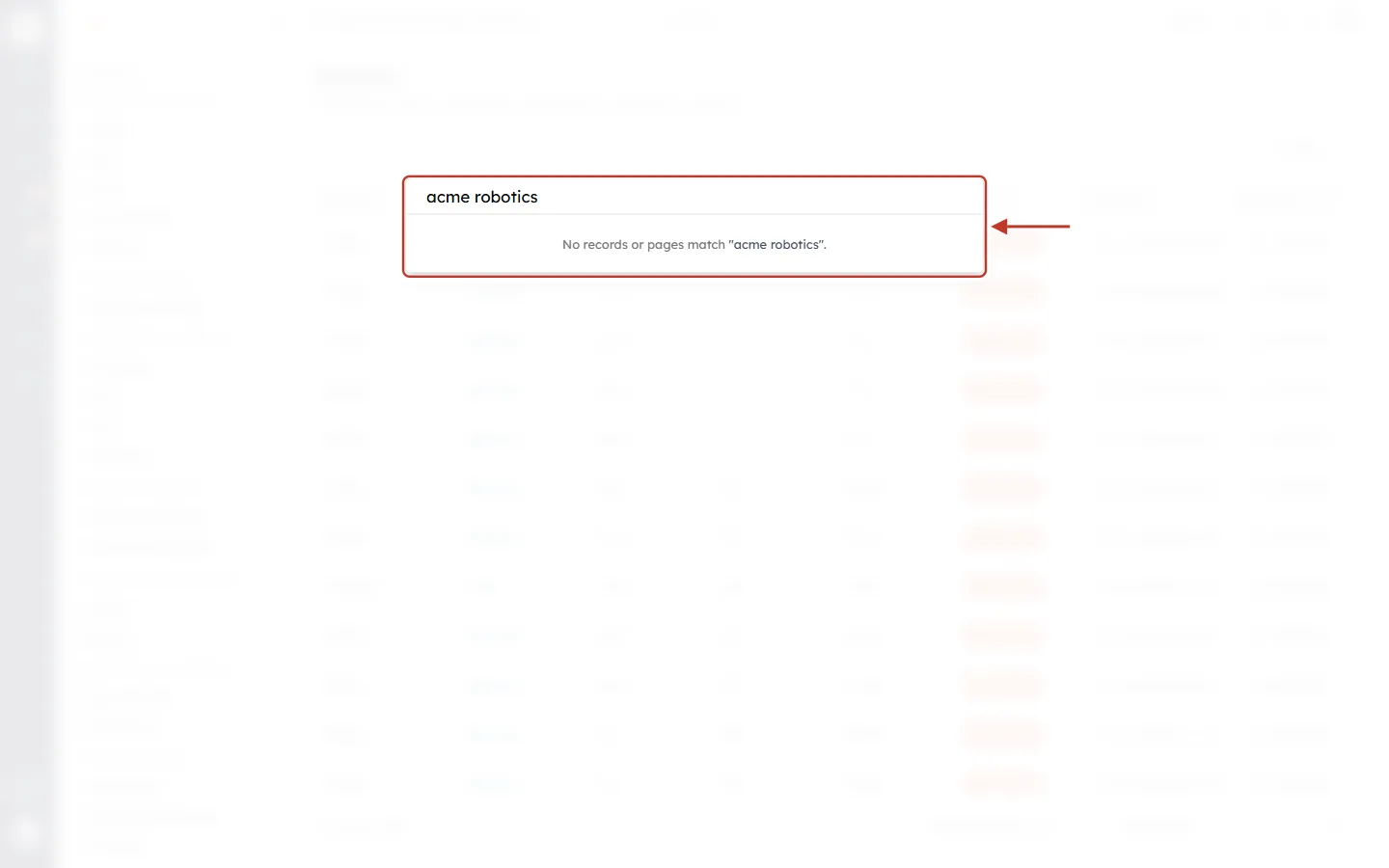
What this screenshot shows. Results for “acme robotics”. The box and the No records or pages match message are ringed.
acme robotics is in the box.
No records or pages match "acme robotics". means no record, setting or page in your CRM matched those words.
Nothing else is listed, so there is nothing to open. Try one of the fixes below.
If you can’t find something you know exists, try these in order:
Type less. Use one distinctive word, or just the start of a name: meh instead of Mehta Logistics Pvt Ltd.
Check the spelling, or search for something else on the record, such as the email address, phone number or company.
Type at least two letters. One letter only filters the page list.
Search by name, not by number. An automatic number such as an invoice or quote number may not be found. Search by the subject or customer name instead, or open the module and sort by the number column.
Check your access. You only see records and pages that your profile and role let you see. If a teammate can find it but you can’t, ask your admin. See Profile Permissions Explained.
Use “View all” when the record is in a module with many matches, then filter the list.
Quick reference#
To do this | Do this |
|---|---|
Open Global Search |
|
Close it |
|
Search records and settings | Type two letters or more; results appear as you type |
Move through results |
|
Open the selected result |
|
See every match in a module | Choose View all in <module> → |
Reopen something you just viewed | Open Global Search with an empty box and use RECENT |
Jump to a page without searching | Use a two-key shortcut, for example s s for Setup |
Frequently asked questions#
Does Global Search look inside every module?
Yes. It searches every module you can view, including custom modules, and shows up to five matches per module. Use View all to see the rest.
Why is my Recent list different on my laptop and my office computer?
The Recent list is saved in each web browser separately. It isn’t shared between browsers or devices.
The keyboard hint says Ctrl+K but I’m on a Mac.
Use Cmd + K. The bar always shows “Ctrl+K”, but on a Mac the Command key is the one that works.
Why doesn’t a shortcut such as s s work?
Your cursor is probably in a text box. Click an empty part of the page and try again. Also check that you are allowed to open that page.
Previous and next#
Previous: Pin Your Favorites: Sidebar Bookmarks
Next: Pre-Launch Checklist: Verify Your CRM Setup Before Going Live
Related articles#
Was this article helpful?
Ready to implement this?
OpenAI Engage and apply what you just learned to your own workspace.
Open AI Engage CRM