Loading…


KnowledgeBase
The Record Detail Page: Related Lists & Pinned Fields
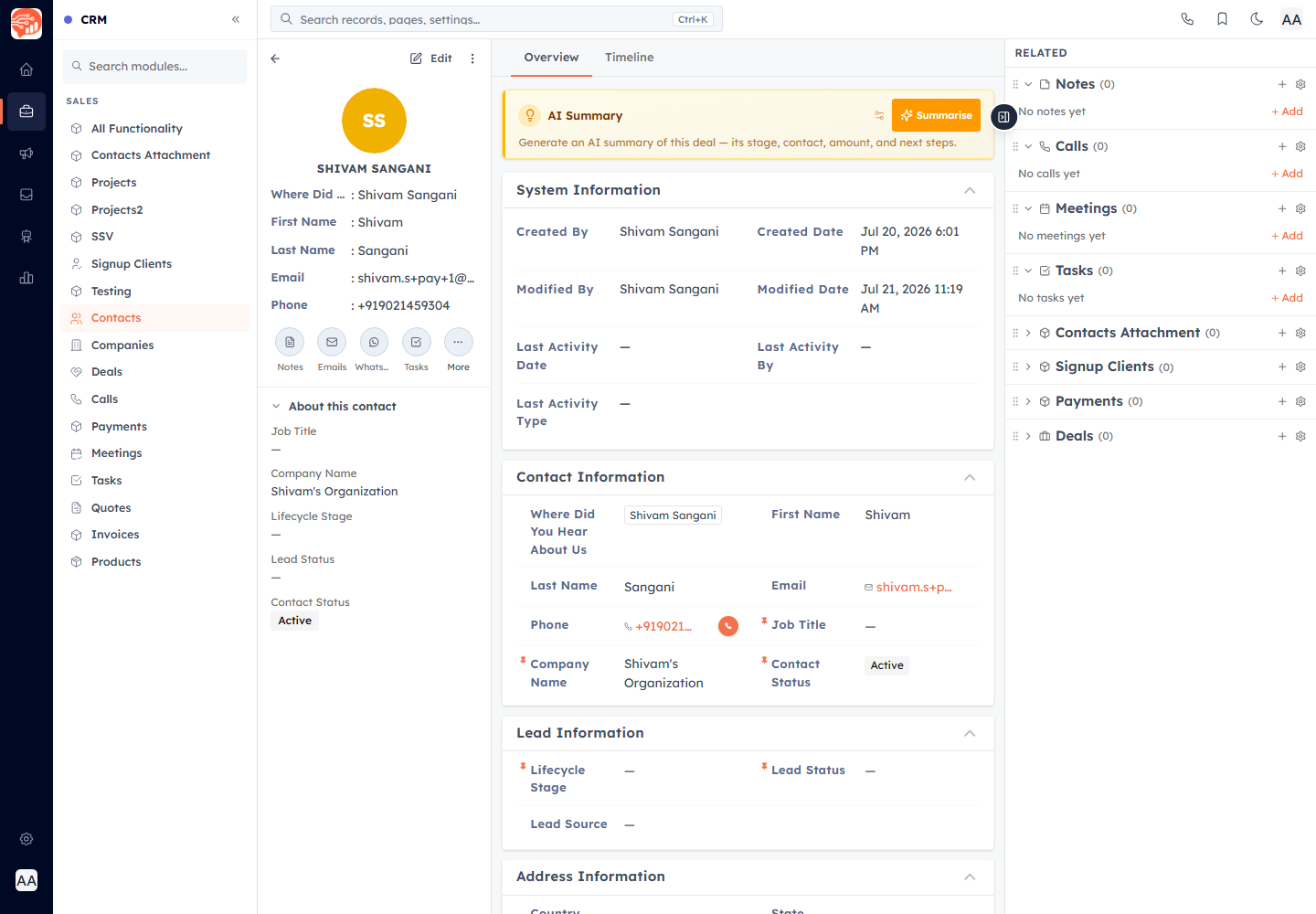
The record detail page is where a single record lives — its fields, its connections to other records, and the context you most want at a glance. Two areas make it powerful on every module: Related Lists that link and create associated records, and a left About this record sidebar of pinned fields you control per user.
Related Lists#
Below the record's fields, Related Lists show associated records grouped by module — Tasks, Meetings, Call Logs, Notes, and any module linked to this one. Each section shows a count and expands on click (sections configured to open by default start expanded). If you have the module customization permission, you can drag sections to reorder them, and the order is remembered per module.
Link existing records#
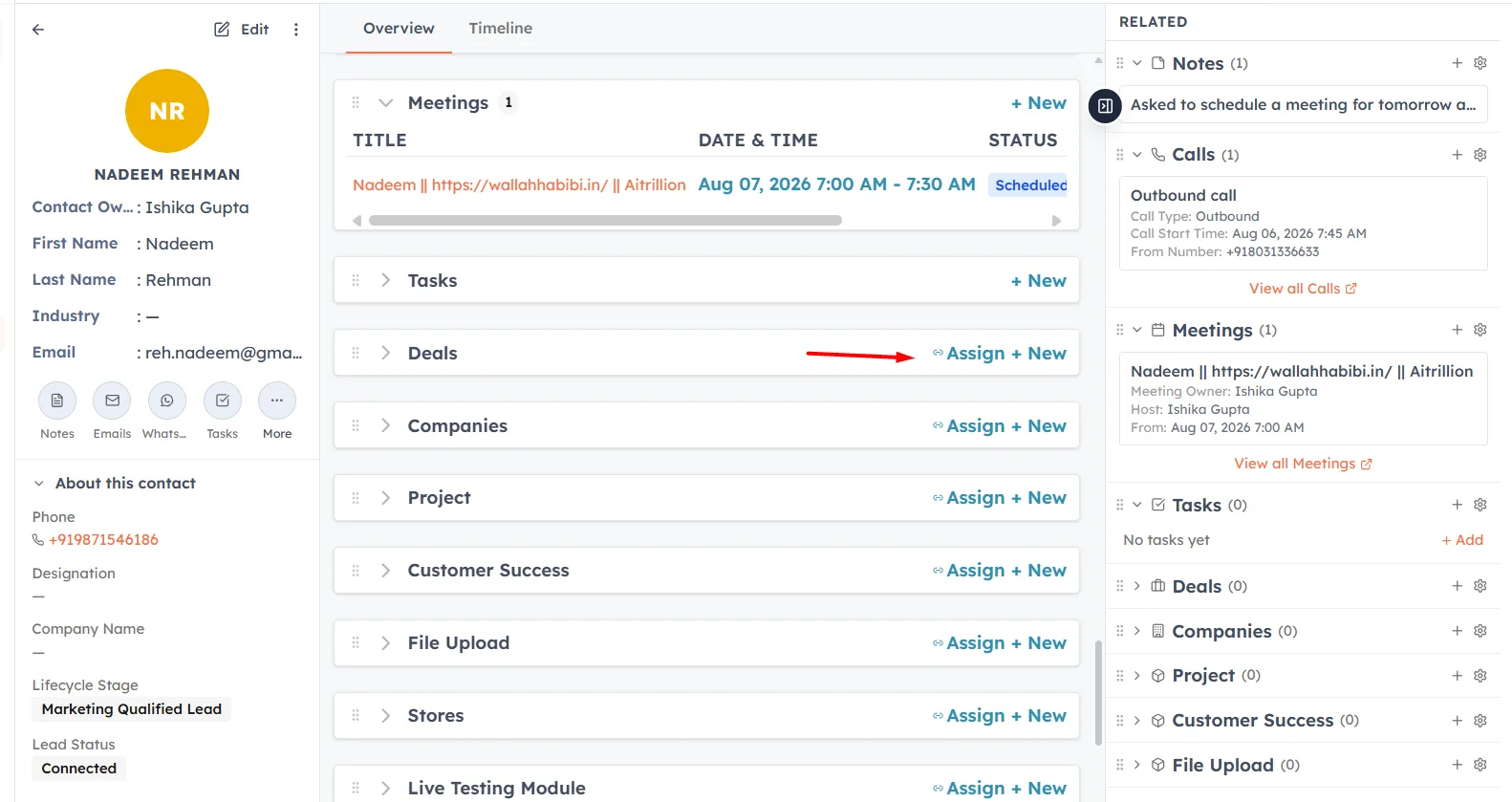
In a related section, click Assign to open the record picker.
Use Search records to find records (search runs on the server as you type).
Tick the records to link — use Select all available to grab the whole filtered list. Records already assigned to this parent are greyed out and marked Assigned.
Click Assign Selected (N). The records are linked in one batch and the section refreshes.
💡
The picker shows a helpful summary for each record — name, email, and a couple of key fields — so you can tell similar records apart before linking.
Create related records inline#
Click New (or + Add) in a related section to create a record that is automatically linked to the current one. The create form opens in a drawer for every module — including Tasks, Meetings, and Calls — pre-wired with the parent relationship, so you do not have to set it manually. For Calls started from a contact, the dialog even pre-fills the phone number. Notes use their own inline editor. After saving, the section and its count refresh.
⚠️
You only see a related module in these lists if you have View permission on it. Sections for modules you cannot access are hidden.
About this record — pinned fields#
The left sidebar's About this <record> panel shows a compact, scrollable list of the fields you care about most, with the label above and the value below. Emails, phones, and URLs render as clickable links; lookups link through to the related record; and pick lists show as badges.
Pinning is per user and per module — your choices do not change what teammates see:
Pin to sidebar — hover a field in the record body and click the pin icon to add it to the About this panel.
Unpin from sidebar — click a pinned field's pin icon (shown filled) to remove it.
Always-visible summary fields — the record's top summary fields cannot be pinned or unpinned here; they are always shown.
Collapse — use the section header to expand or collapse the whole panel.
Your pinned selection is saved automatically to your preferences (a moment after you change it) and restored the next time you open any record in that module.
✅
Pin the three or four fields you check most — status, owner, next step — and every record in that module opens with them right there in the sidebar.
To connect records to a parent company or account, see Link Records to a Company.
Was this article helpful?
Ready to implement this?
OpenAI Engage and apply what you just learned to your own workspace.
Open AI Engage CRM