Loading…


KnowledgeBase
Tool Permissions Step by Step: Control Who Can Mass Update, Mass Delete, Change Owner and Merge Records
Introduction#
Bulk tools work on many records in one go. That makes them powerful, and risky: one wrong click can change, reassign or delete hundreds of records. AiEngage CRM lets you decide, profile by profile, which bulk tools people can use and in which modules. These settings are called Tool Permissions.
Tool | What it does | A module is offered only if the profile can… |
|---|---|---|
Mass Update | Change a field on many selected records at once. | edit that module |
Mass Delete | Delete many selected records at once. | delete in that module |
Change Owner | Give records a different owner. | edit that module |
Mass Merge | Merge duplicate records into one. | edit that module, and the module has Duplicate Check & Merge turned on |
This guide walks through the Tools section of a profile, one screen at a time. Each screenshot is followed by a description of the whole screen.
ℹ️
Tool Permissions only limit Members. The account Owner and Admins can always use every tool.
Before You Begin#
You need access to Settings → Security Control → Profiles. The account owner and administrators have it.
Decide which profile you are changing, for example the one your sales reps use. Changes apply to everyone who holds that profile.
Set Module Access first. The tools only offer modules where the profile can already edit or delete (Part 4). See Create a Permission Profile Step by Step: Build, Edit, Clone, Deactivate & Delete.
Part 1: Open the Tools Section of a Profile#
Step 1: Find the profile#
Go to Settings (gear icon) → Security Control → Profiles.
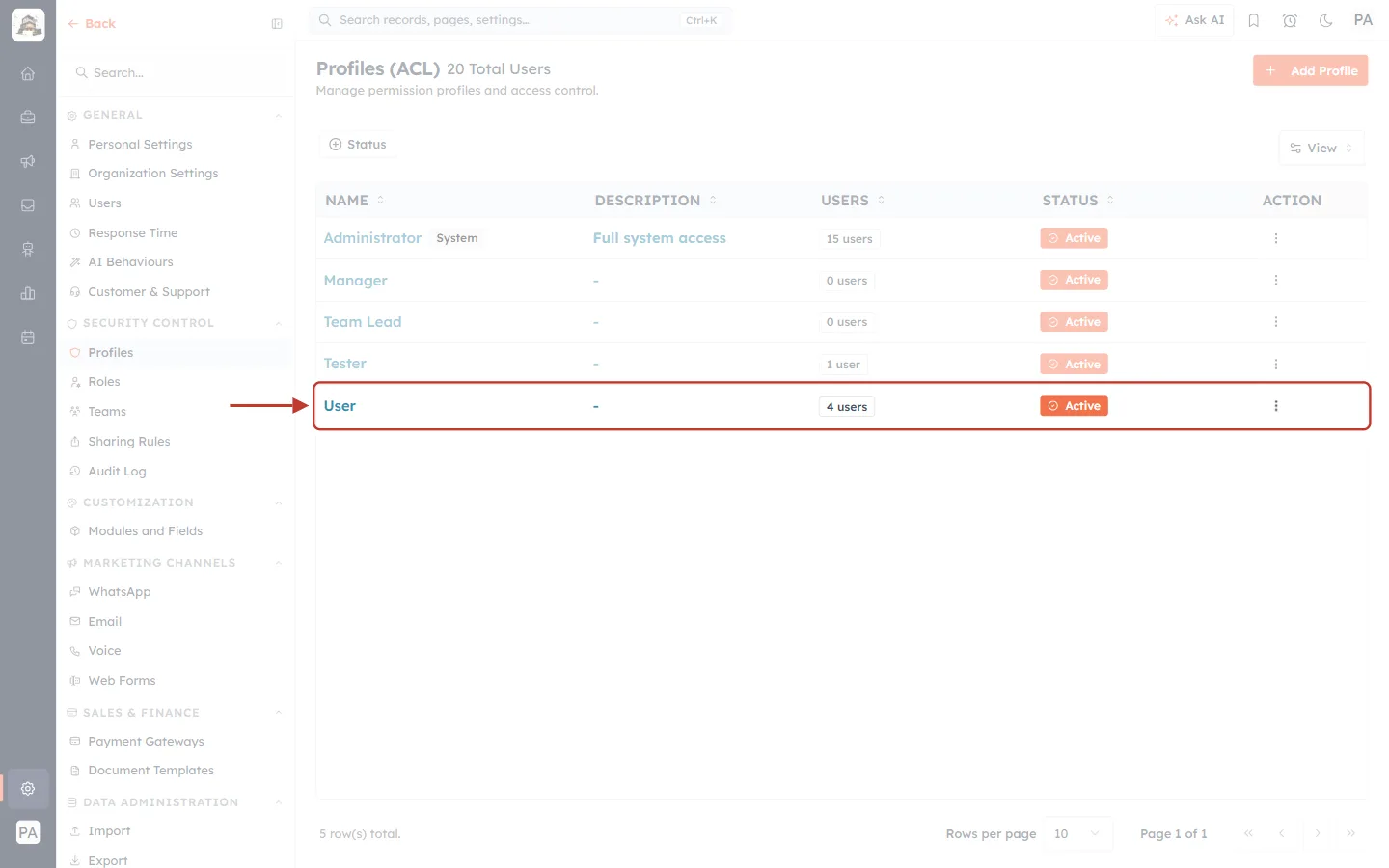
What this screenshot shows. The User profile is ringed on the Profiles list. In this account, regular members hold it.
NAME: User. USERS: 4 users hold it, and all four are affected by any change.
STATUS: Active. The ⋮ menu is at the right end of the row.
Step 2: Open it with Edit#
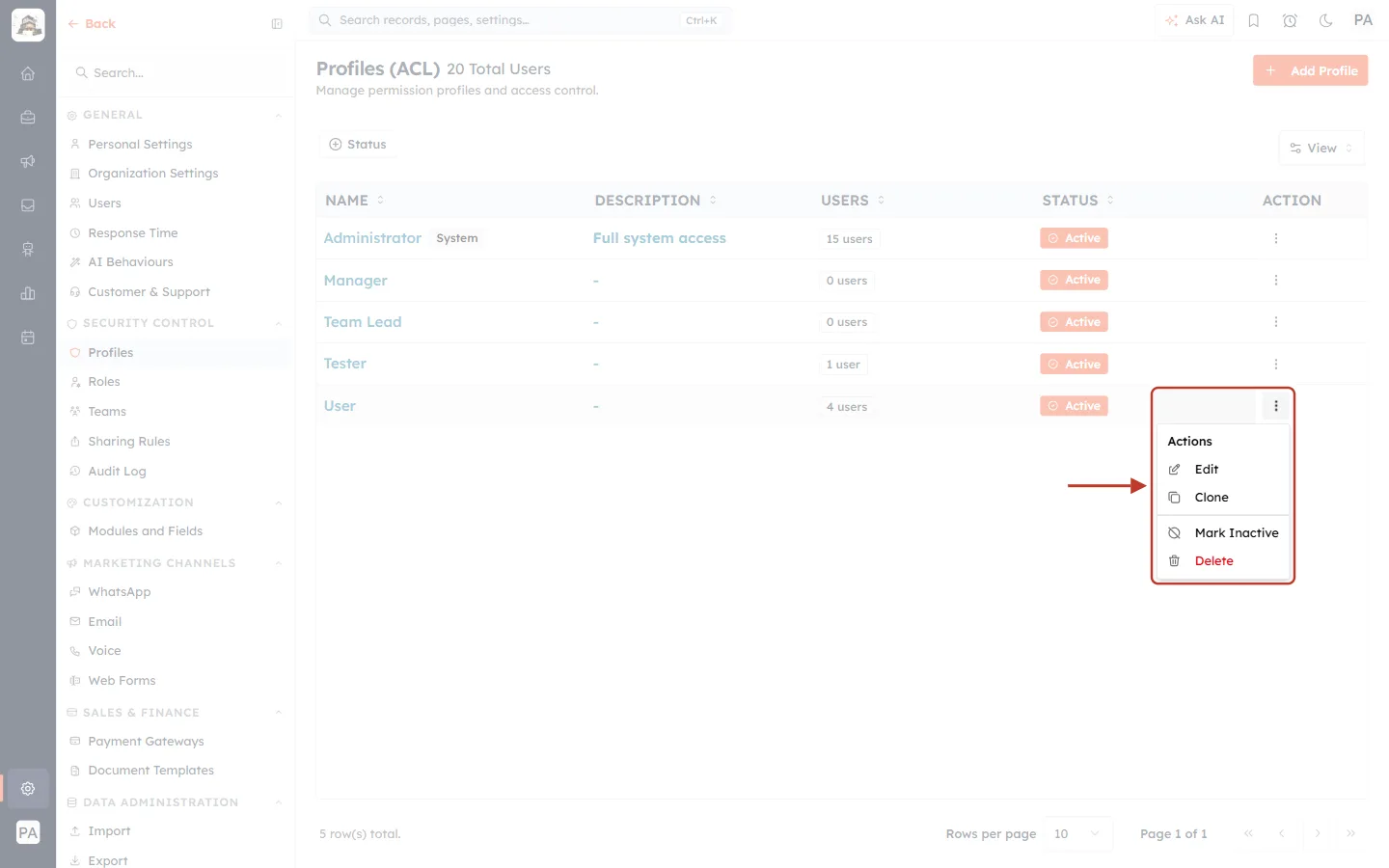
What this screenshot shows. The profile’s ⋮ menu is open and ringed.
Click Edit to open the profile.
Clone makes a copy, which is useful for trying out a different tool setup on a test profile.
Mark Inactive and Delete are not needed here.
Step 3: Click Tools#
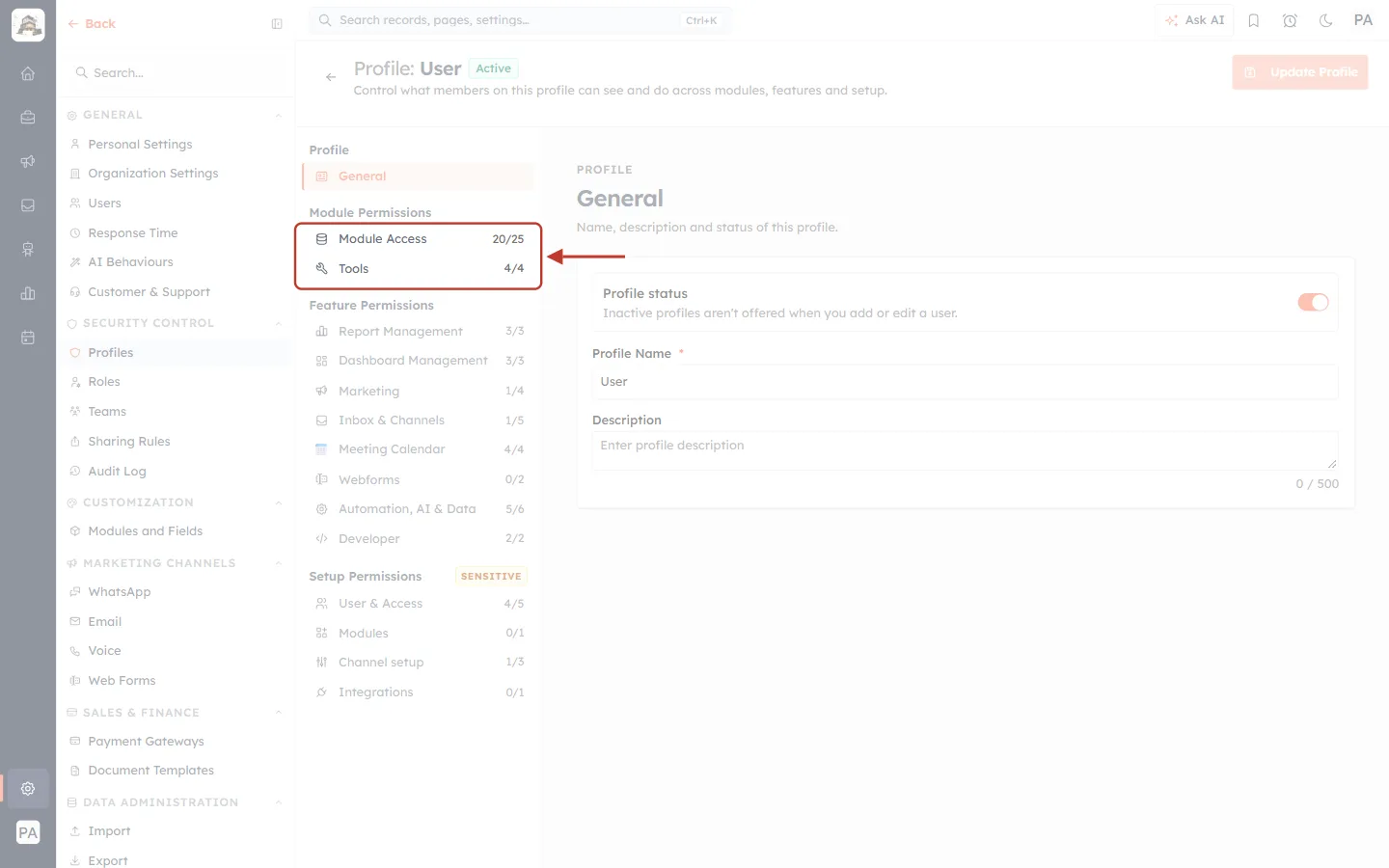
What this screenshot shows. The Module Permissions group of the section list is ringed.
Module Access (20/25): which records the profile can view, edit and delete in each module.
Tools (4/4): the bulk tools. The counter shows how many of the four are switched on.
Click Tools.
Part 2: Read the Tool Permissions#
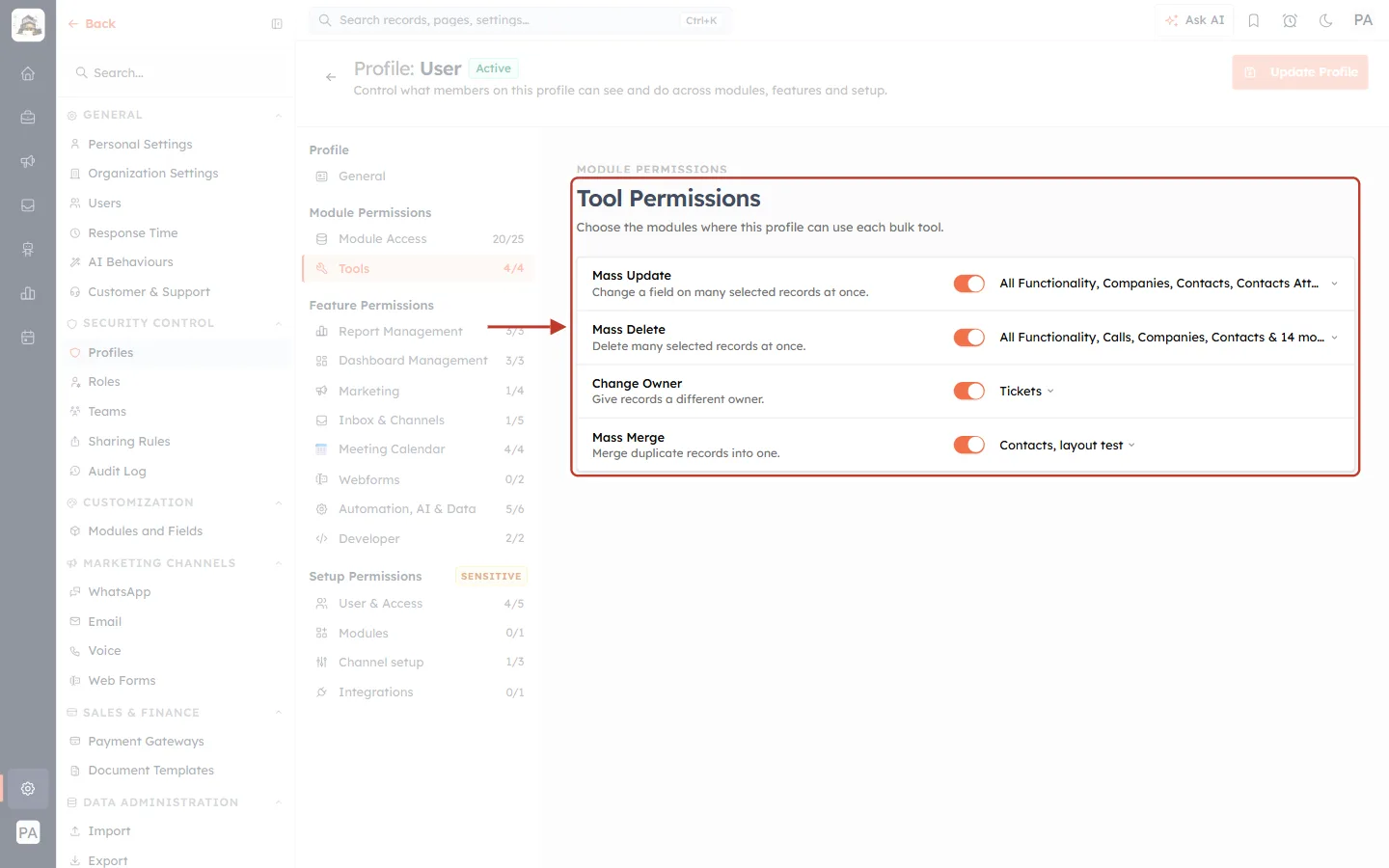
What this screenshot shows. The ringed Tool Permissions card: Choose the modules where this profile can use each bulk tool.
Each tool has a switch (orange = allowed) and, on the right, a module list showing where it can be used.
Mass Update: All Functionality, Companies, Contacts, Contacts Attachment & 15 more.
Mass Delete: All Functionality, Calls, Companies, Contacts & 14 more.
Change Owner: only Tickets on this profile.
Mass Merge: Contacts, layout test.
Part 3: Choose the Modules for Each Tool#
Click the module list to the right of a tool to open its picker. Tick a module to allow the tool there, untick it to block it.
Mass Update#
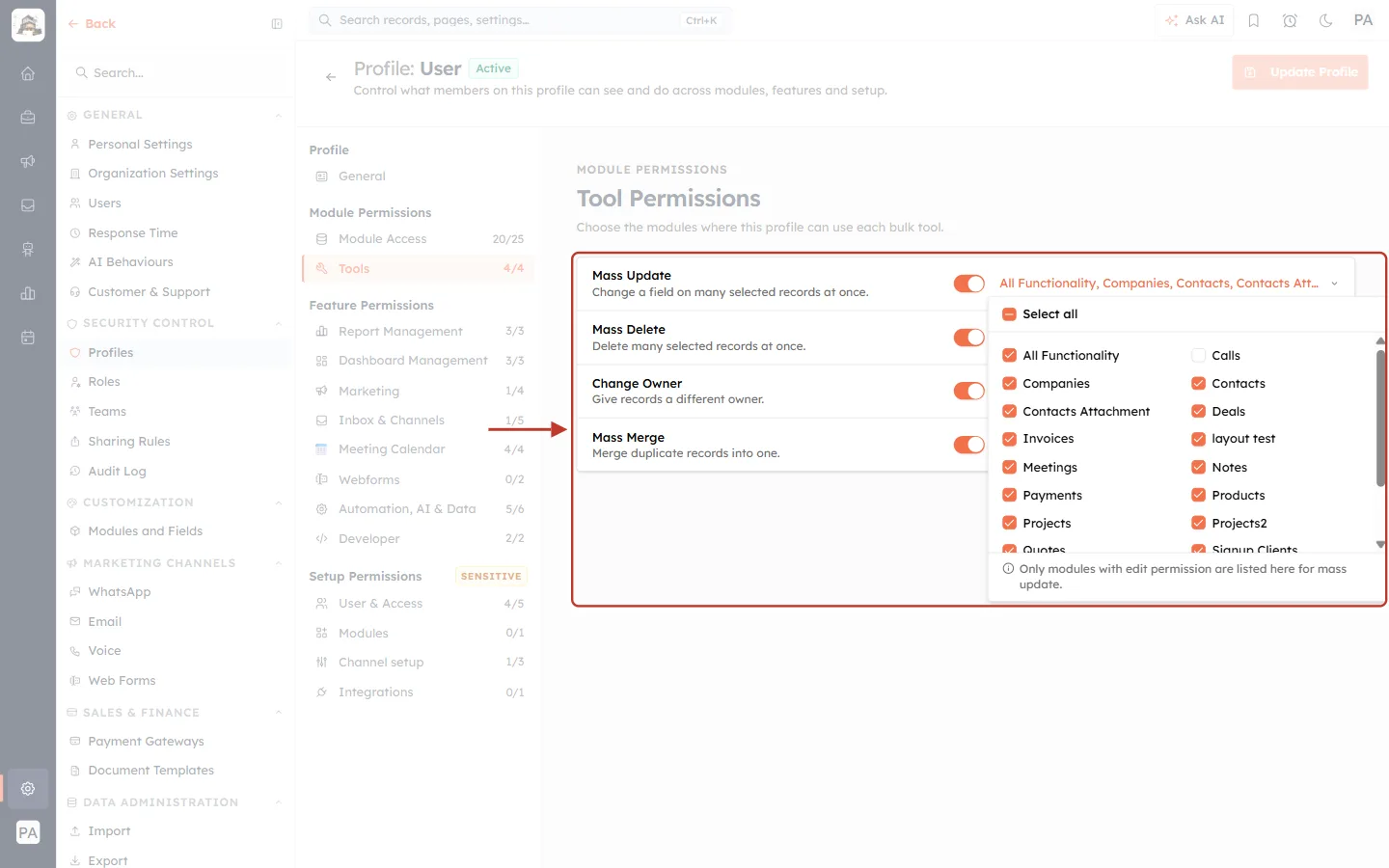
What this screenshot shows. The picker for Mass Update is open and ringed.
Select all at the top ticks or clears every module. A dash in its box means only some are ticked.
Each module has its own tick box. Here, for example, Calls is unticked and Contacts is ticked.
The note at the bottom reads Only modules with edit permission are listed here for mass update.
Mass Delete#
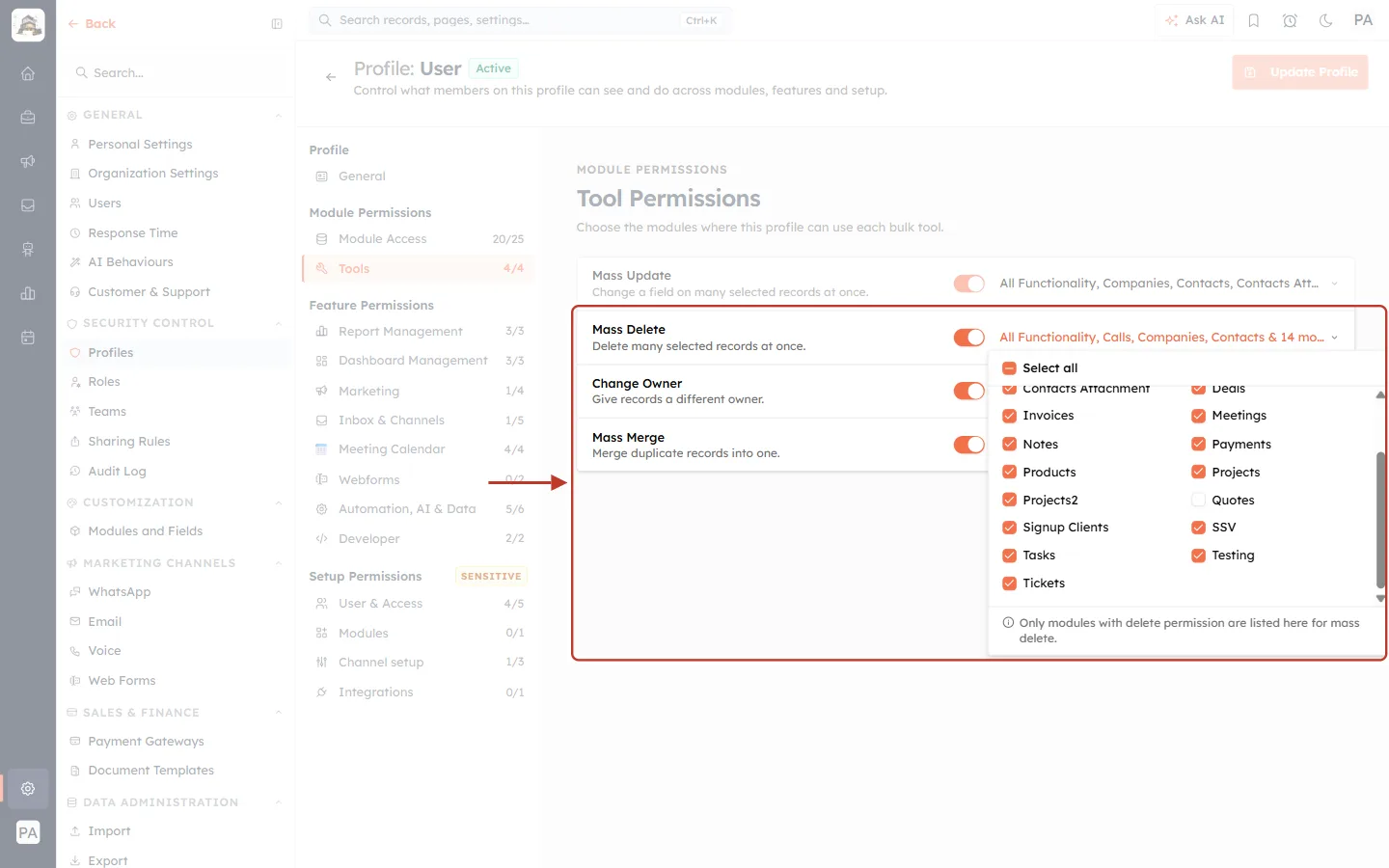
What this screenshot shows. The picker for Mass Delete is open and ringed, scrolled down the list.
Most modules are ticked. Quotes is unticked, so this profile can’t bulk-delete quotes.
The note reads Only modules with delete permission are listed here for mass delete. This list follows the Delete column of Module Access, not Edit.
Change Owner#
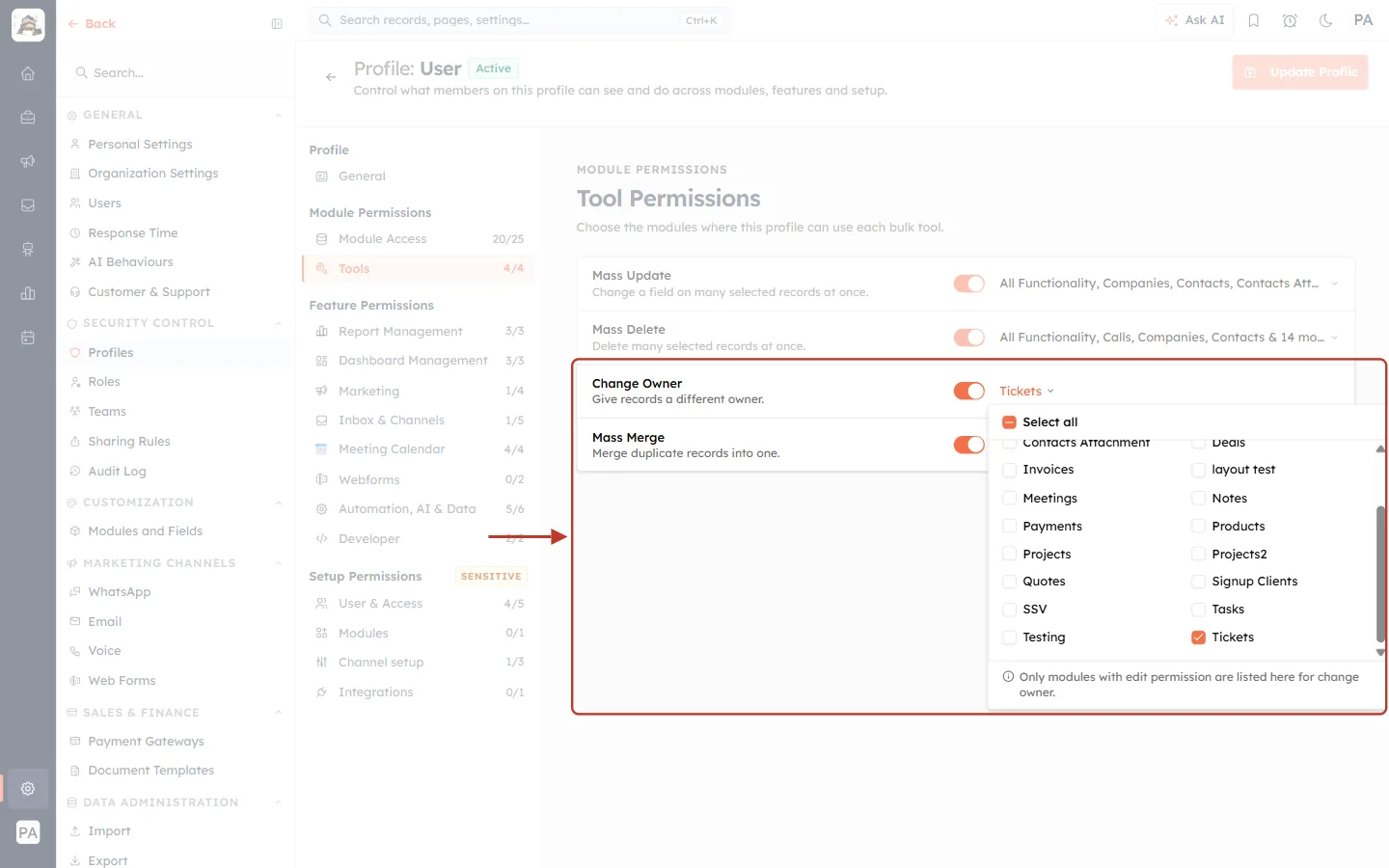
What this screenshot shows. The picker for Change Owner is open and ringed.
Only Tickets is ticked, so members can hand tickets to a colleague but can’t reassign contacts, deals or anything else.
The note reads Only modules with edit permission are listed here for change owner.
Mass Merge#
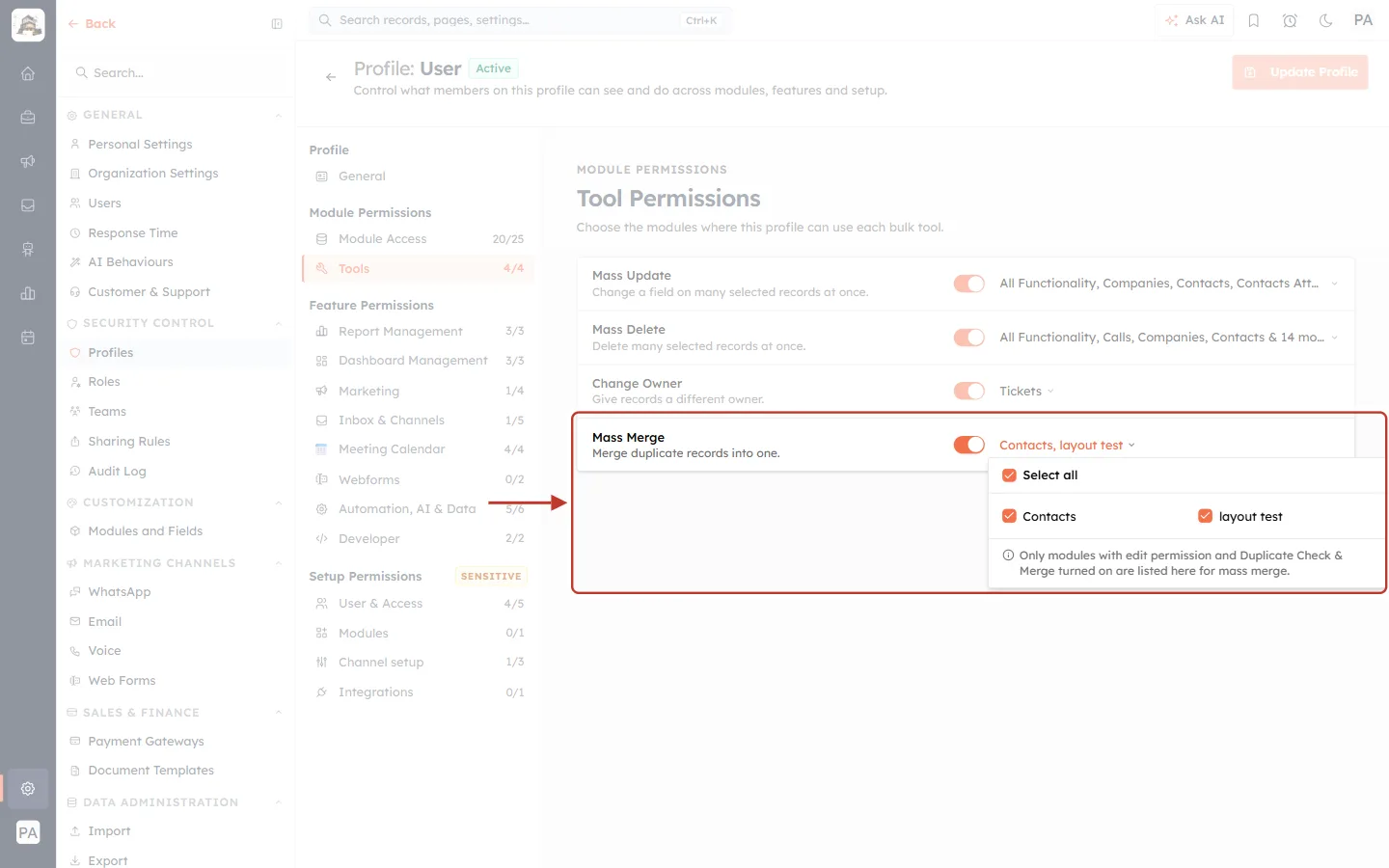
What this screenshot shows. The picker for Mass Merge is open and ringed.
Only Contacts and layout test are offered, both ticked.
The note explains why the list is short: Only modules with edit permission and Duplicate Check & Merge turned on are listed here for mass merge.
To offer another module, turn on duplicate checking for it first. See Find & Merge Duplicates Across Any Module (Deduplication & Merge History).
Example: stop bulk updates on Invoices#
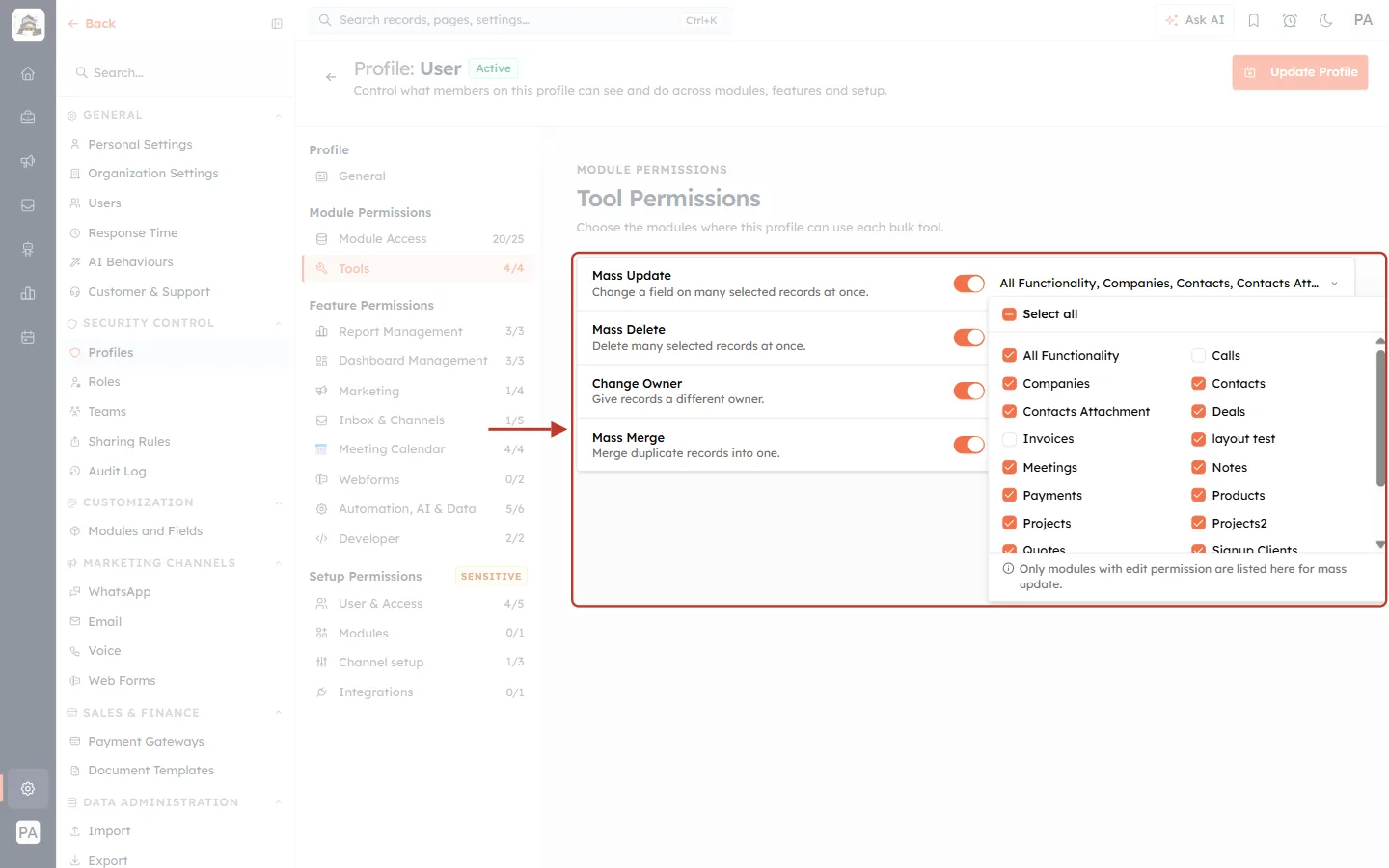
What this screenshot shows. In the Mass Update picker, Invoices has been unticked.
Its box is now empty, while the modules around it stay ticked.
Select all shows a partial state because not every module is ticked.
Close the picker by clicking outside it.
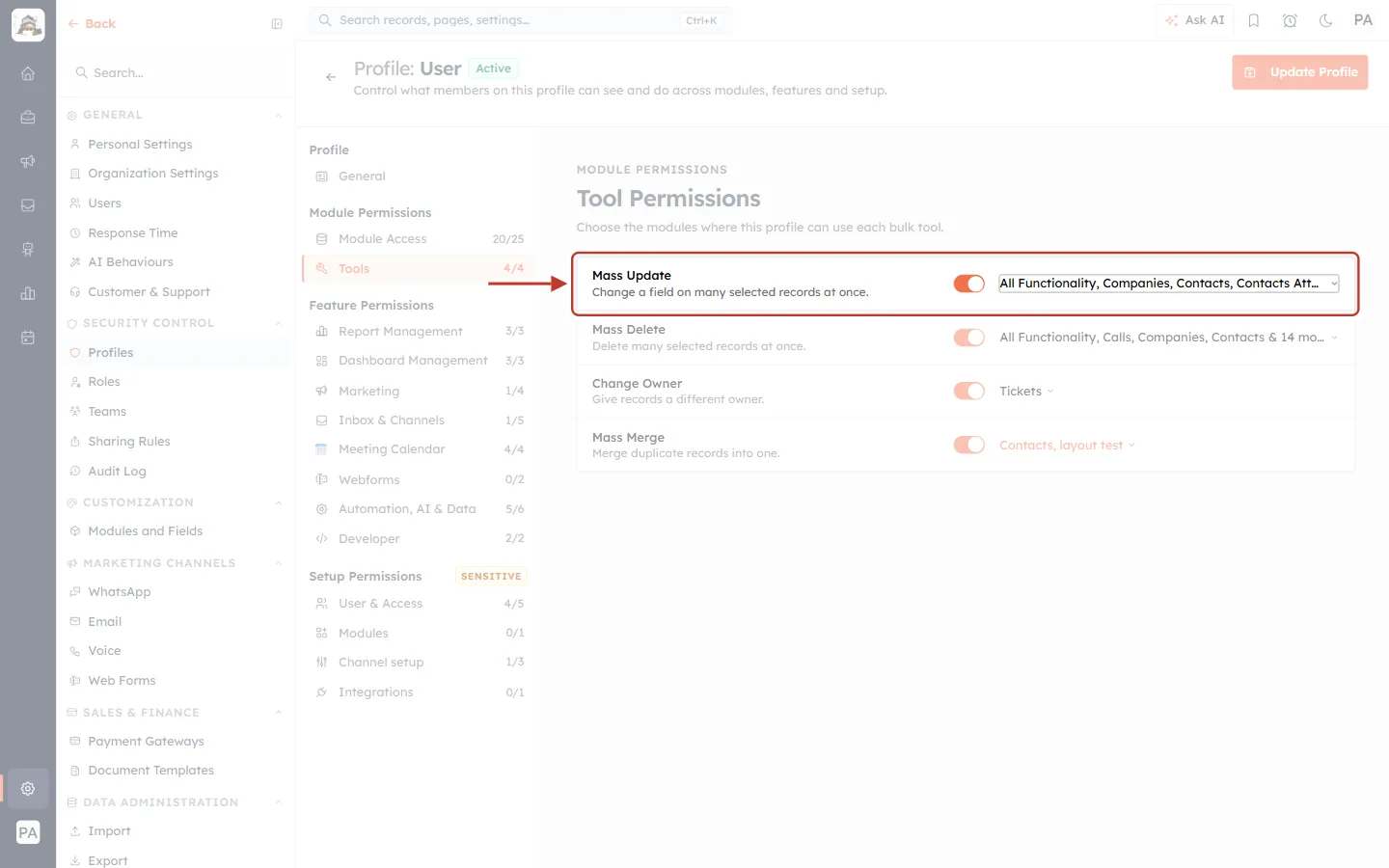
What this screenshot shows. The ringed Mass Update row after closing the picker.
The module summary on the right is updated to match your ticks. Long lists are shortened to the first few modules and “& N more”.
The change isn’t saved yet. Update Profile (top right) has turned bright orange.
Part 4: Switch a Tool Off Completely#
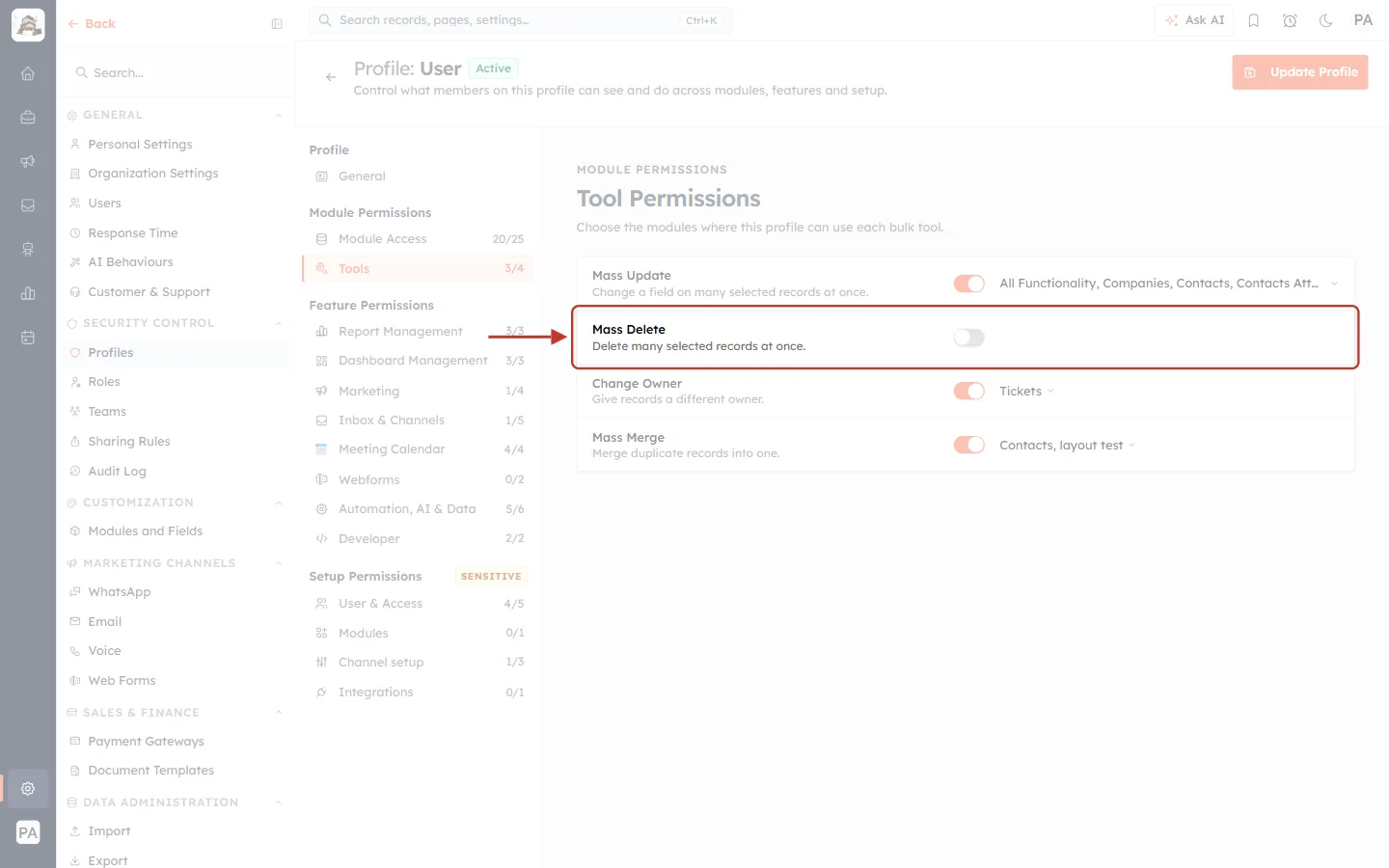
What this screenshot shows. The ringed Mass Delete row has its switch turned off (grey).
With the switch off, the module list disappears and members on this profile can’t bulk-delete anything.
Single records can still be deleted where the profile’s Delete level allows it. This only removes the bulk tool.
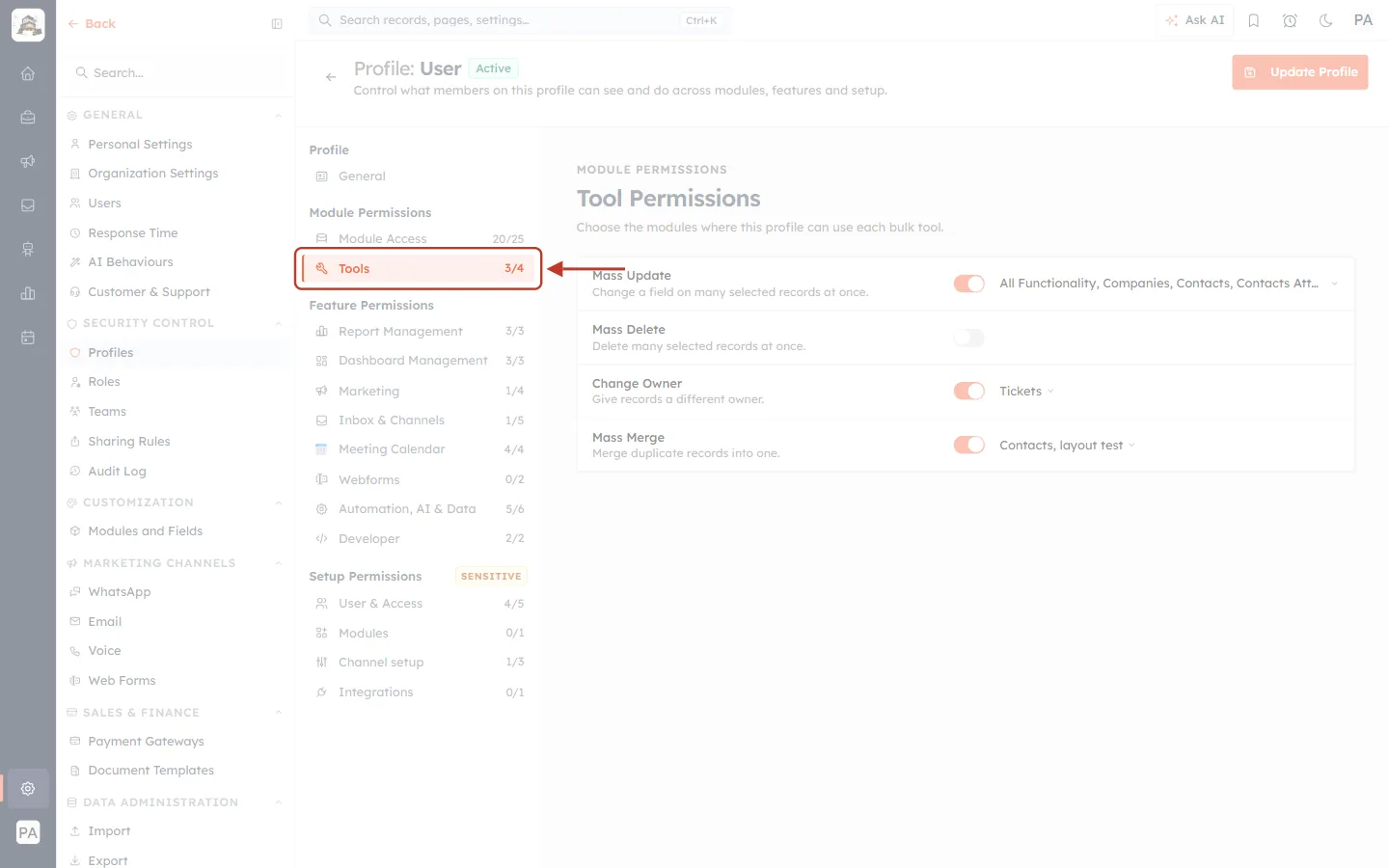
What this screenshot shows. The ringed Tools entry in the section list now reads 3/4.
The counter shows how many of the four tools are on. A full 4/4 means every bulk tool is allowed.
✅
For most sales and support staff, switch Mass Delete off. One mistaken bulk delete can remove hundreds of records.
Part 5: Why a Module Is Missing from a Tool’s List#
Each tool only offers modules where the profile is already allowed to do the underlying action. Here is what happens when Contacts loses its Edit and Delete rights:
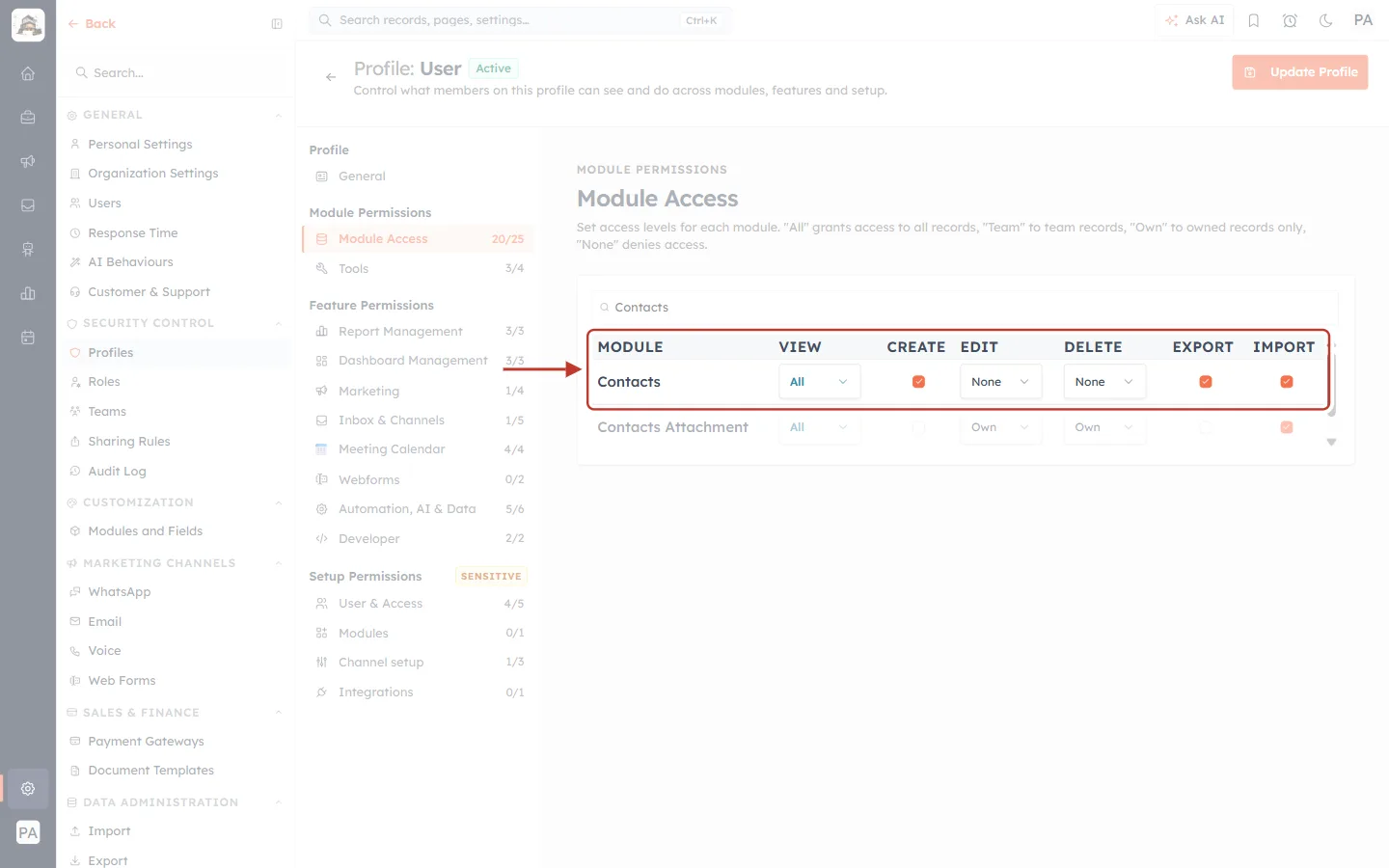
What this screenshot shows. In Module Access, the ringed Contacts row has EDIT: None and DELETE: None.
VIEW is still All, so members can see contacts but no longer change or delete them.
Search modules… is filtered to Contacts. The headings are MODULE, VIEW, CREATE, EDIT, DELETE, EXPORT and IMPORT.
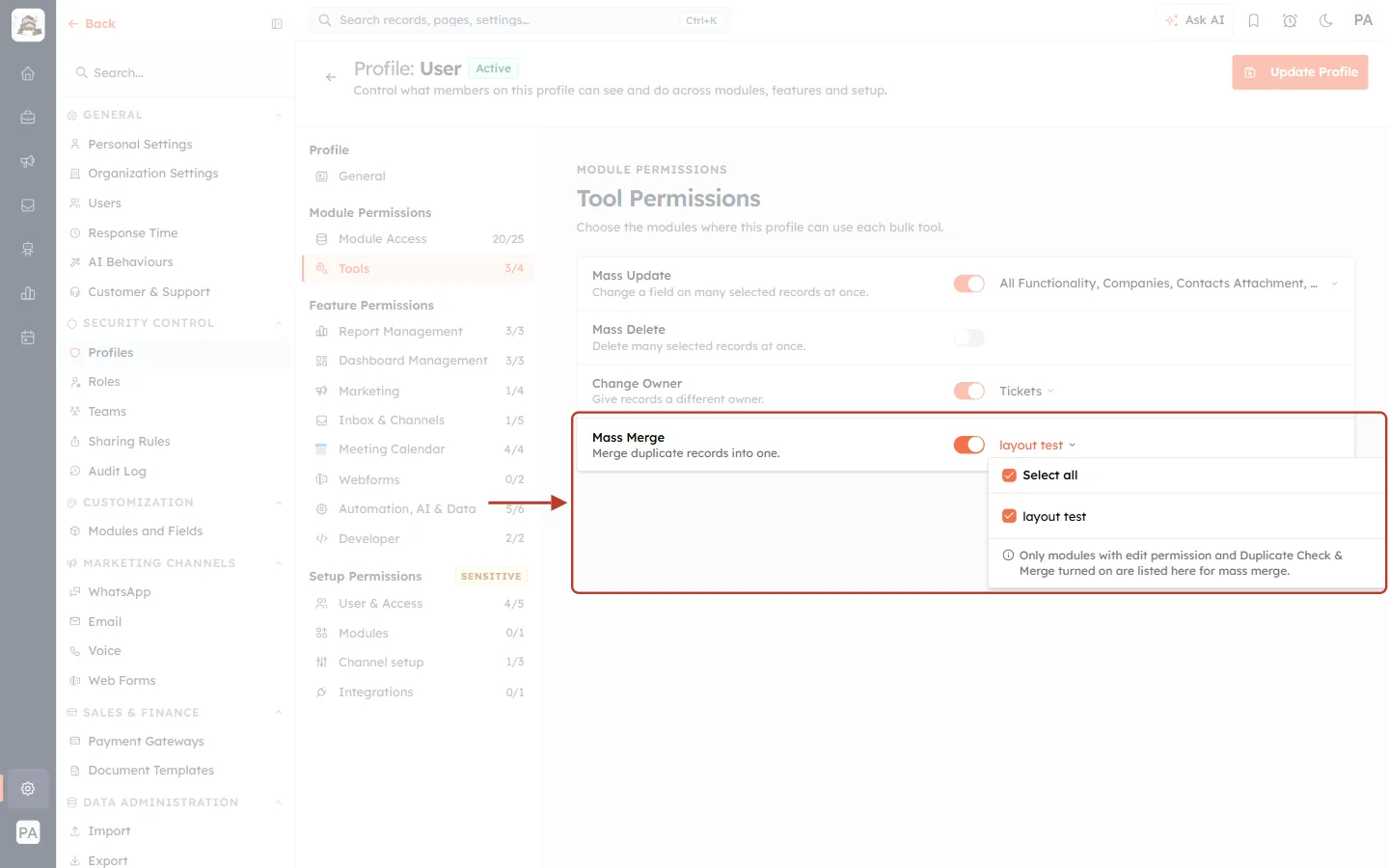
What this screenshot shows. Back in Tools, the Mass Merge picker now offers only layout test.
Contacts has gone from the list, because the profile can no longer edit contacts.
The same happens in every picker: Contacts also leaves Mass Update and Change Owner (needs Edit) and Mass Delete (needs Delete).
To bring a module back, give it Edit (or Delete, for Mass Delete) in Module Access, then tick it again here.
If a module is missing from… | Check this in Module Access | Also check |
|---|---|---|
Mass Update | EDIT is not None | — |
Mass Delete | DELETE is not None | — |
Change Owner | EDIT is not None | — |
Mass Merge | EDIT is not None | Duplicate Check & Merge is on for that module |
Part 6: Save the Profile#
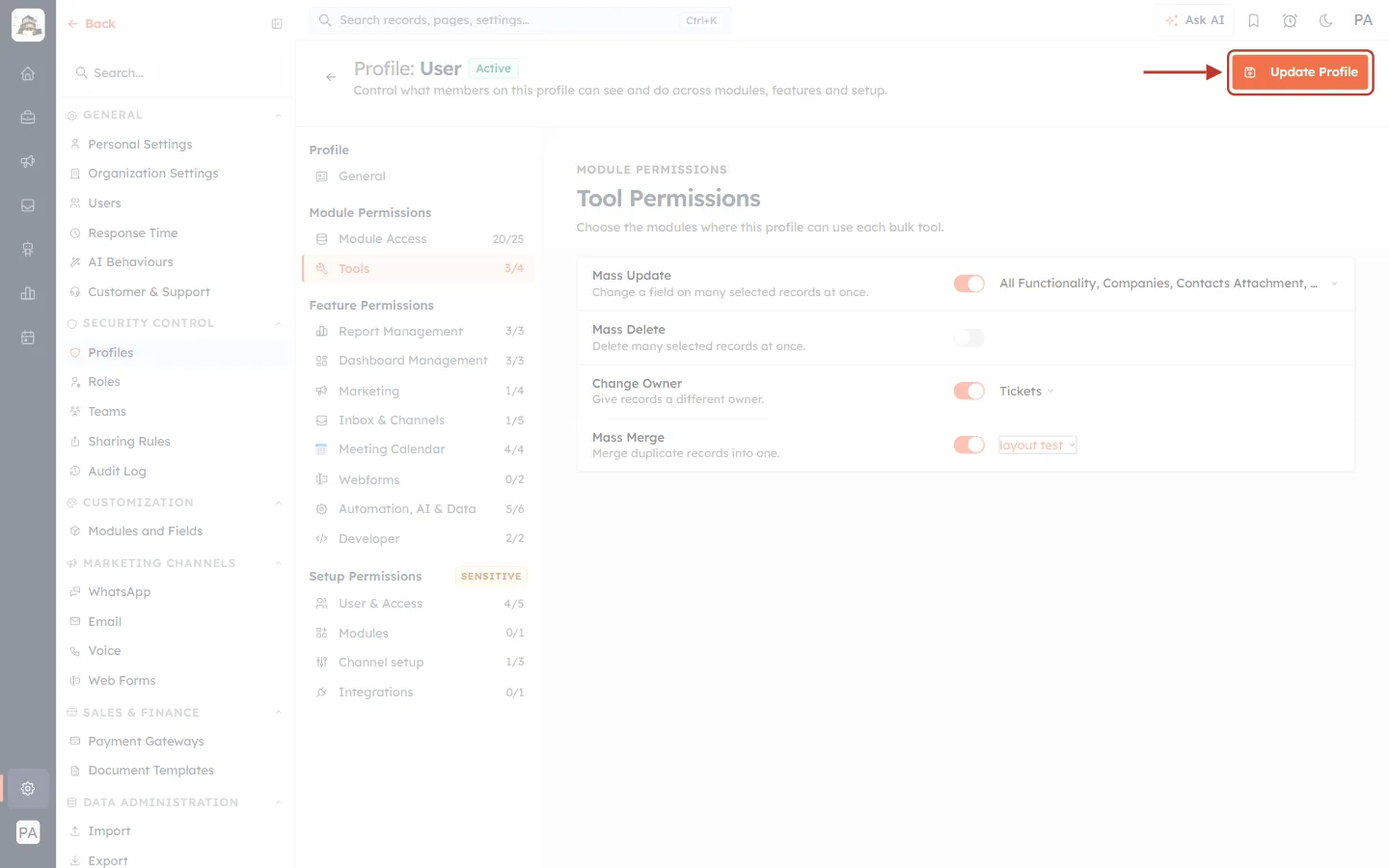
What this screenshot shows. The orange Update Profile button at the top right is ringed. It became active once something changed.
Click it to save every change. You’ll see Profile updated successfully and return to the Profiles list.
Changes apply to everyone on the profile. Ask them to refresh their browser.
Leaving without clicking it keeps the profile as it was.
Part 7: Where Your Team Uses These Tools#
Members find the bulk tools on any module’s list page (for example Sales → Contacts) once they tick one or more records.
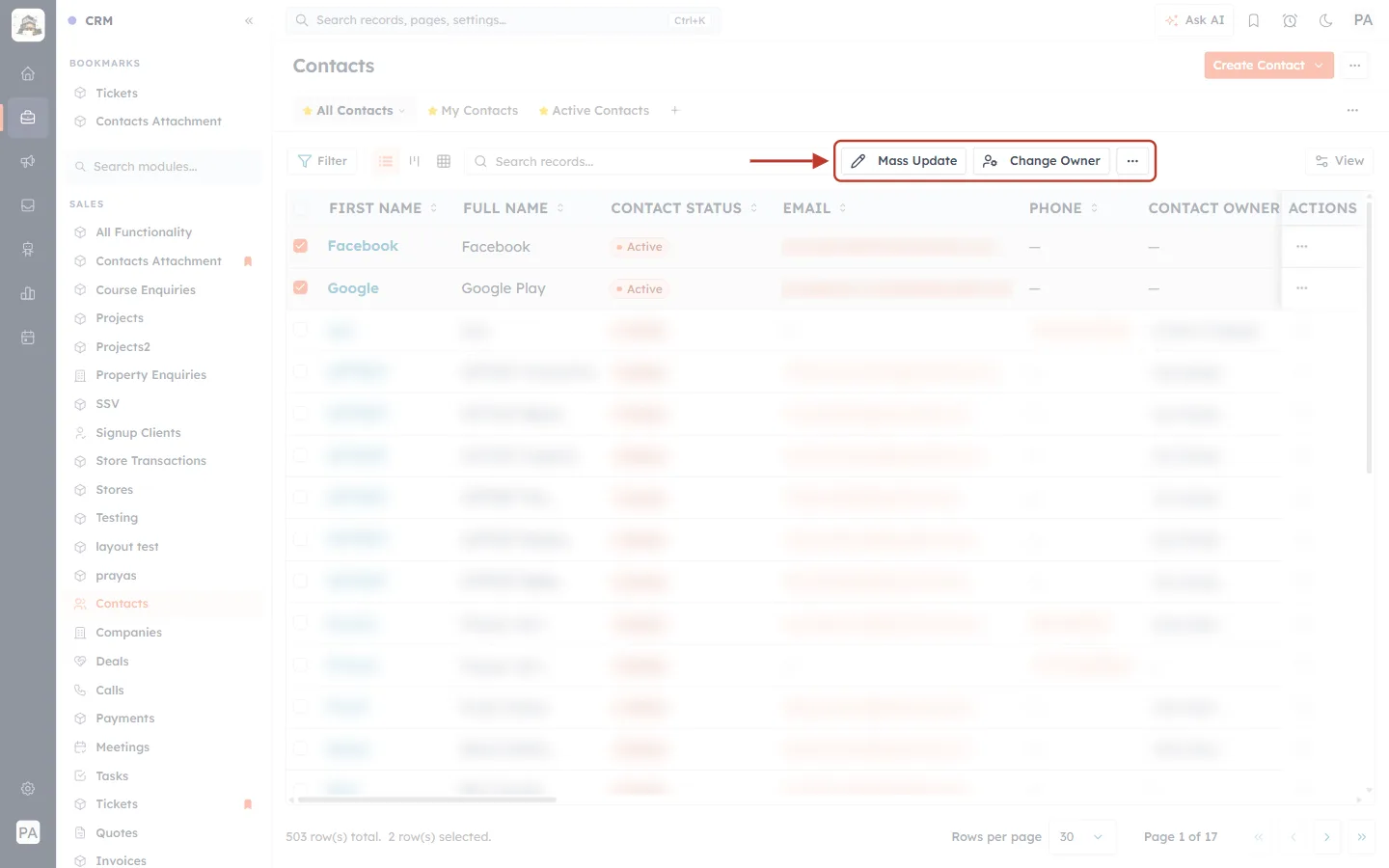
What this screenshot shows. Two contacts are ticked, and the ringed toolbar buttons appear above the list. Other contacts’ details are blurred.
Mass Update: change a field on all ticked records. See Mass Update: Change a Field on Many Records at Once (Up to 500 at a Time).
Change Owner: give the ticked records a new owner. See Change the Owner of Records and Move Their Related Records (Up to 20 at a Time).
…: more bulk actions.
Below the list, 2 row(s) selected confirms how many records the tools will act on.
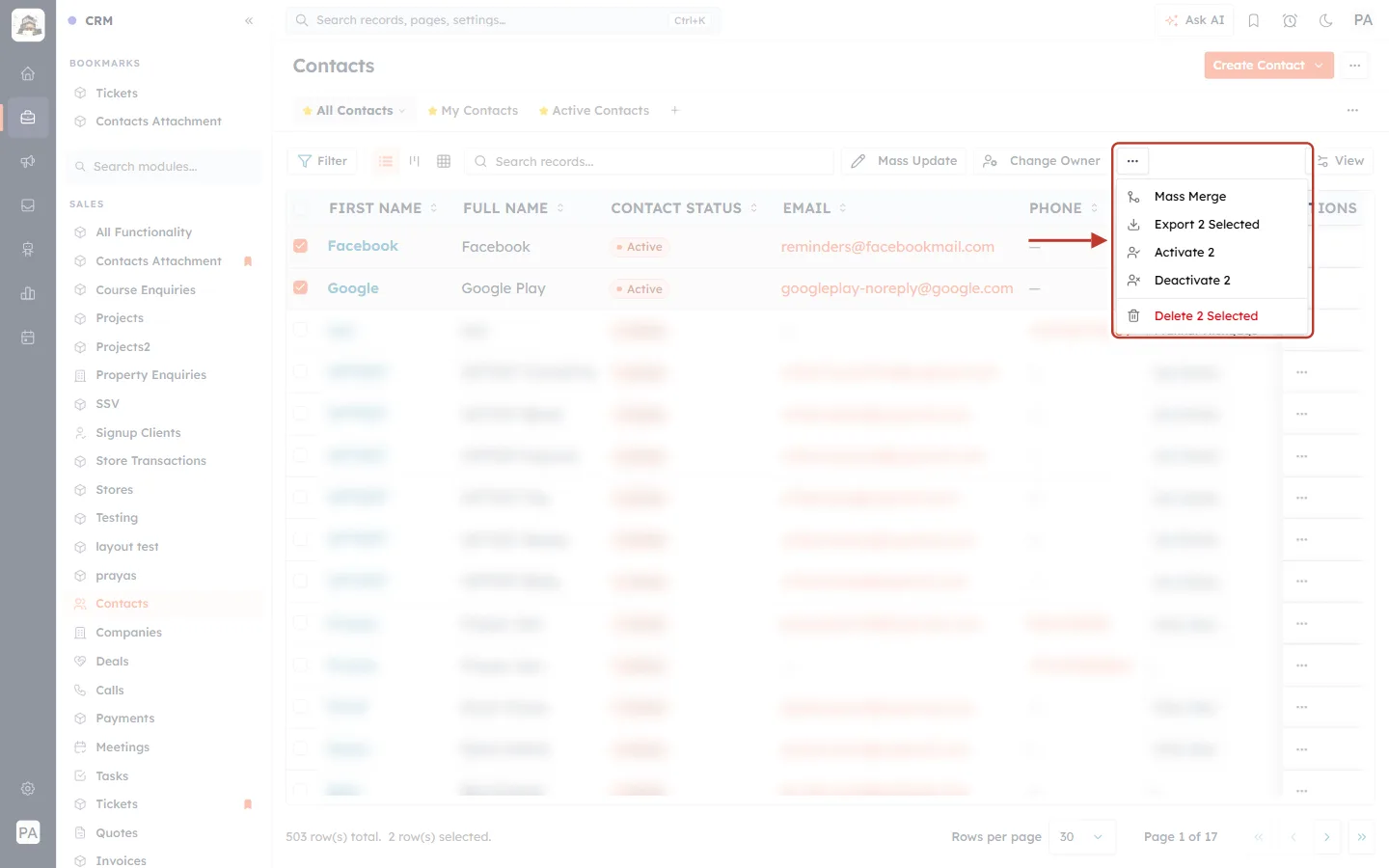
What this screenshot shows. The … menu next to Change Owner is open and ringed.
Mass Merge: merge the ticked duplicates into one record.
Export 2 Selected, Activate 2 and Deactivate 2: other bulk actions on the ticked records.
Delete 2 Selected (red): Mass Delete. See Bulk Actions on Records: Delete, Merge & Update Status.
This view is an administrator’s. A member only sees the tools their profile allows, and only in the modules ticked for them.
Suggested Settings#
Profile | Mass Update | Mass Delete | Change Owner | Mass Merge |
|---|---|---|---|---|
Sales Representative | Contacts, Deals | Off | Contacts, Deals | Off |
Sales Manager | Sales modules | Off, or Deals only | Sales modules | Contacts |
Support Agent | Tickets | Off | Tickets | Off |
Data / CRM Admin | All | All | All | All with duplicate checking |
Troubleshooting#
A member can’t see the Mass Update (or Change Owner) button#
Check the tool’s switch is on in their profile’s Tools section.
Check the module is ticked in that tool’s list.
Check the module’s EDIT isn’t None in Module Access.
Make sure they have ticked at least one record. The buttons only appear then.
A module isn’t in a tool’s list, so I can’t tick it#
The profile lacks the right in Module Access: Edit for Mass Update, Change Owner and Mass Merge, Delete for Mass Delete. Mass Merge also needs Duplicate Check & Merge turned on for the module (Part 5).
My change didn’t apply#
Click Update Profile, check the user holds this profile (Settings → Users → PROFILE column), and ask them to refresh.
Frequently Asked Questions#
Does switching off Mass Delete stop people deleting single records?
No. Single deletes follow the Delete level in Module Access. The switch only removes the bulk tool.
Do these settings limit administrators?
No. The Owner and Admins can always use every tool.
Can I allow a tool in one module only?
Yes. Click Select all to clear the list, then tick just that module, as with Change Owner → Tickets above.
Are there limits on how many records a tool can handle?
Yes. Mass Update handles up to 500 records at a time. Change Owner moves related records for up to 20 records at a time. See the articles linked below.
Previous and Next#
Previous: Assign a Profile to a User Step by Step: Give, Change and Check Each Person’s Permissions
Next: Profiles FAQ & Troubleshooting: Step-by-Step Fixes for Permission and Access Problems
Related Articles#
Profile Permissions Explained: What Every Module, Feature & Setup Setting Controls
Create a Permission Profile Step by Step: Build, Edit, Clone, Deactivate & Delete
Assign a Profile to a User Step by Step: Give, Change and Check Each Person’s Permissions
Profiles FAQ & Troubleshooting: Step-by-Step Fixes for Permission and Access Problems
Mass Update: Change a Field on Many Records at Once (Up to 500 at a Time)
Change the Owner of Records and Move Their Related Records (Up to 20 at a Time)
Find & Merge Duplicates Across Any Module (Deduplication & Merge History)
Understanding the Role Hierarchy: How Roles Decide Whose Records Each User Can See
Was this article helpful?
Ready to implement this?
OpenAI Engage and apply what you just learned to your own workspace.
Open AI Engage CRM