Loading…


KnowledgeBase
Export Your Data
Start an export from a module#
Exports begin on the module you want to export. Open a module’s list (for example Contacts), open the Create {Module} dropdown, and choose Export Module. (This needs the module’s Export permission, granted per profile in Roles.)
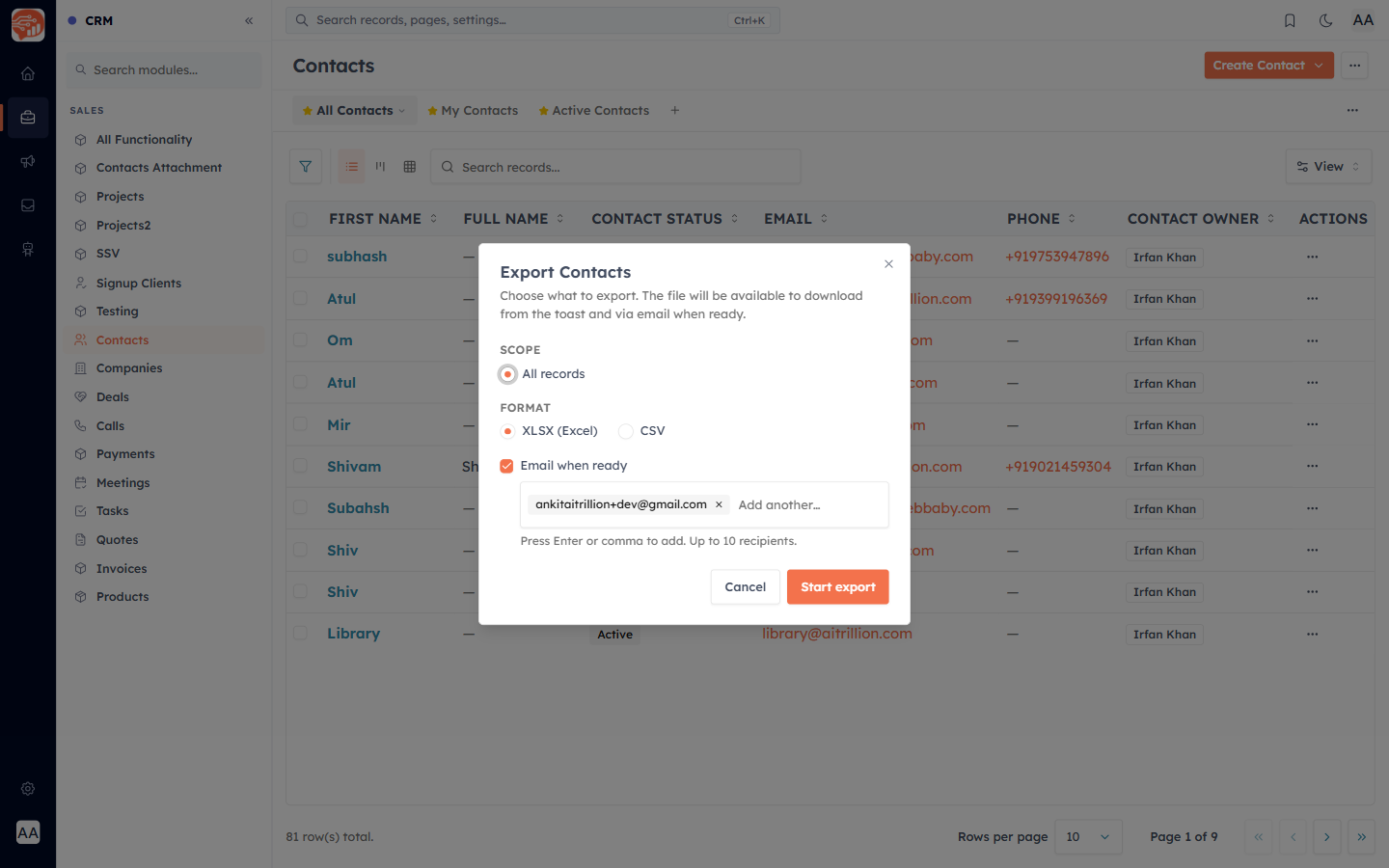
In the dialog, choose:
Scope — Current filter (if a filter is applied), N selected (if you ticked rows), or All records.
Format — XLSX (Excel) or CSV.
Email when ready — get a download link by email (up to 10 recipients).
Click Start export. The file is generated in the background, and you’re notified when it’s ready.
Track & download: the Export center#
Open Setup → Data Administration → Export to see your export jobs.
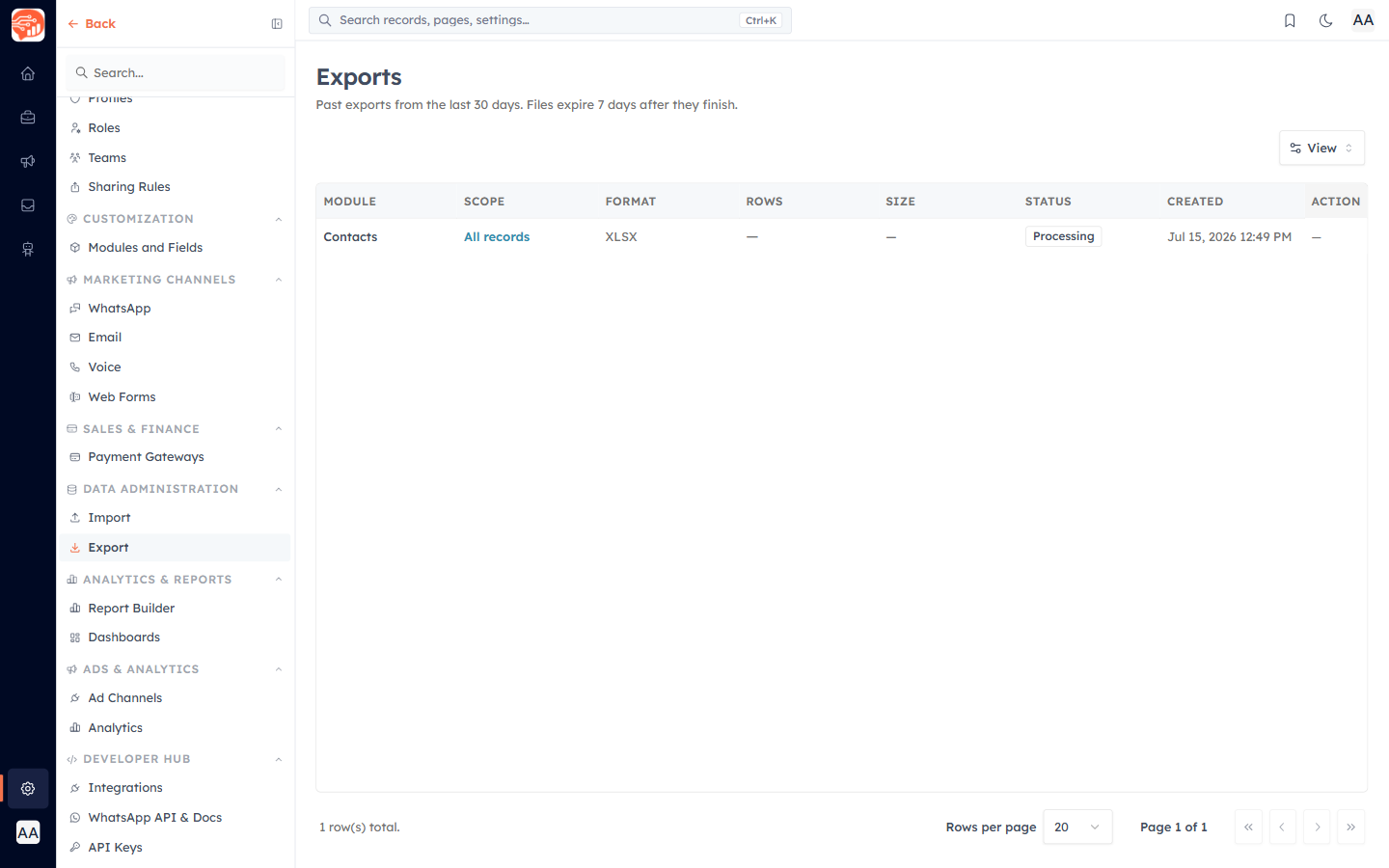
Each row shows the module, scope, format, row count, size, status (Queued / Processing / Completed / Failed), and when it was created.
When a job is Completed, click Download.
💡
History shows the last 30 days, and each file expires 7 days after it finishes — download it before then. You only see your own exports. Large selections are capped at 1,000 selected records (use All records or a filter for more).
💡
Bringing data in instead? See Bulk Import — the other half of Data Administration.
Was this article helpful?
Ready to implement this?
OpenAI Engage and apply what you just learned to your own workspace.
Open AI Engage CRM