Loading…


KnowledgeBase
Round-Robin Owner Assignment When Importing Records: Share Imported Leads Evenly Across Your Team (Step-by-Step)
Introduction#
When you import a list of leads, for example everyone who visited your stand at a trade show, someone has to own each new record so it gets followed up. Giving the whole file to one person overloads them, and splitting the file by hand into several smaller imports takes time.
Round-robin owner assignment does the splitting for you. In the first step of the import wizard you choose Round-robin under Owner assignment, pick a team or a list of specific users, and put them in order. AiEngage CRM then hands out the imported records in turn: the first record to the first person, the second record to the second person, and so on, starting again at the top when it reaches the end of the list.
In this guide we import 9 contacts from a file called trade-show-leads.csv and share them across three sales reps: Riya Kapoor, Aman Verma and Neha Joshi. Each rep ends up with 3 contacts.
Row in the file | Contact | Owner |
|---|---|---|
1 | Aarav Mehta | Riya Kapoor |
2 | Diya Kapoor | Aman Verma |
3 | Kabir Singh | Neha Joshi |
4 | Isha Reddy | Riya Kapoor |
5 | Vihaan Nair | Aman Verma |
6 | Ananya Iyer | Neha Joshi |
7 – 9 | Arjun Das, Meera Joshi, Rohan Gupta | Riya Kapoor, Aman Verma, Neha Joshi |
ℹ️
Before you start: the people you want to rotate across must be users in your CRM (see Invite Your Team: How to Add and Manage Users). To rotate across a whole team, create the team first (see Create Teams: Group Users for Lead Routing, Reporting & Sharing). This guide uses Contacts, but the same Owner assignment setting is in the import wizard of other modules too, such as Deals. For the import basics, read Bulk Import Contacts: Bring Your Existing Data into AI Engage CRM.
Step 1: Open the import wizard#
Open the module you want to import into (here Contacts). Click the arrow on the orange Create Contact button and choose Import Bulk (CSV, Excel).
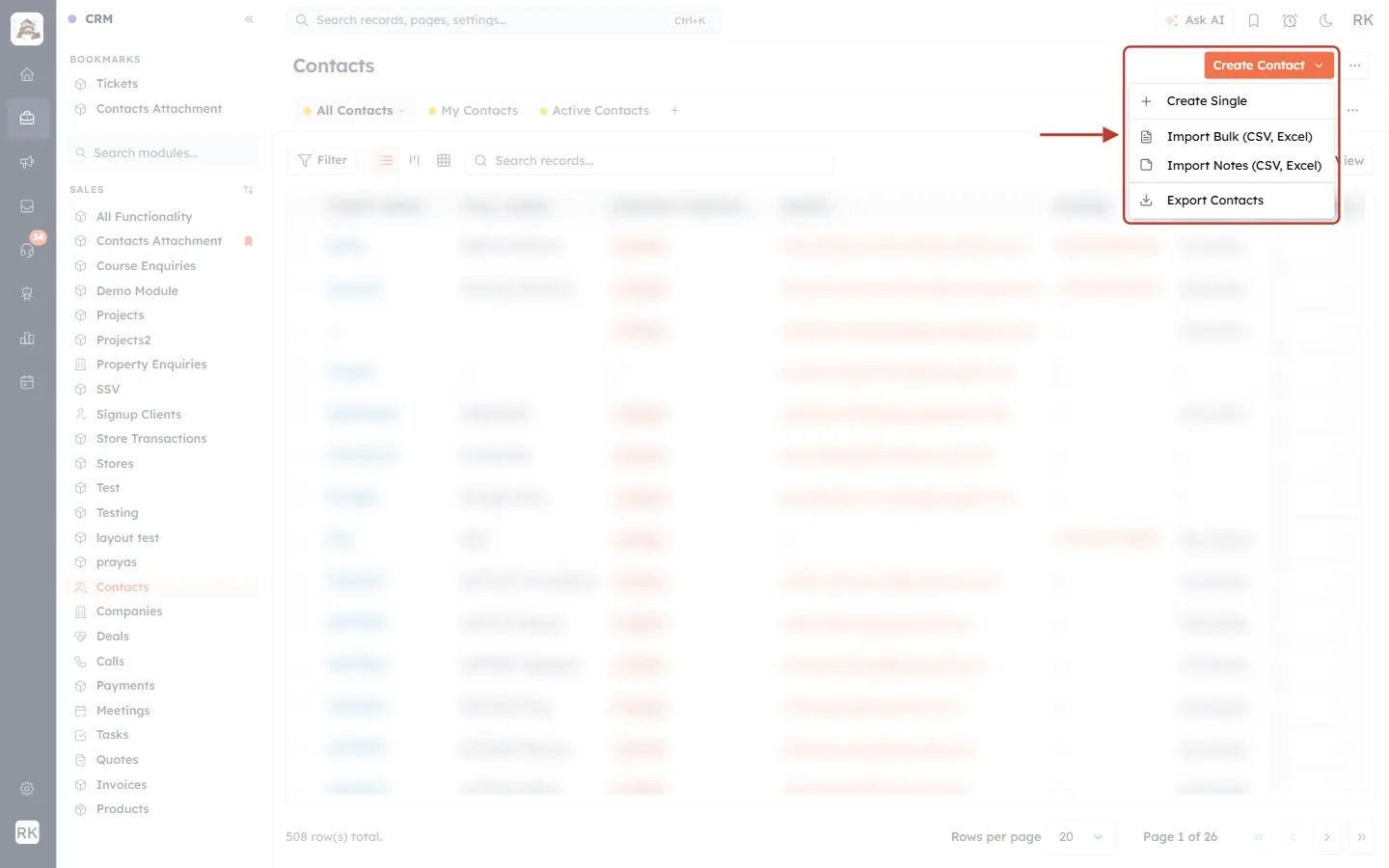
What this screenshot shows. The Create Contact menu, open.
Create Single: adds one contact by hand.
Import Bulk (CSV, Excel): opens the import wizard. This is the one you need.
Import Notes (CSV, Excel) imports notes onto existing contacts, and Export Contacts downloads your contacts.
The contact list behind the menu is blurred for privacy.
Step 2: Fill in the compliance details and upload your file#
The wizard has four steps: Upload & Settings, Map Fields, Lists and Review. For Contacts, the first step starts with Contacts Compliance: tick I have permission to email these contacts, enter the Source of contacts (we use Pune Tech Expo 2026) and a short Description (at least 20 characters). Then drag your CSV or Excel file onto the upload box, or click it to browse.
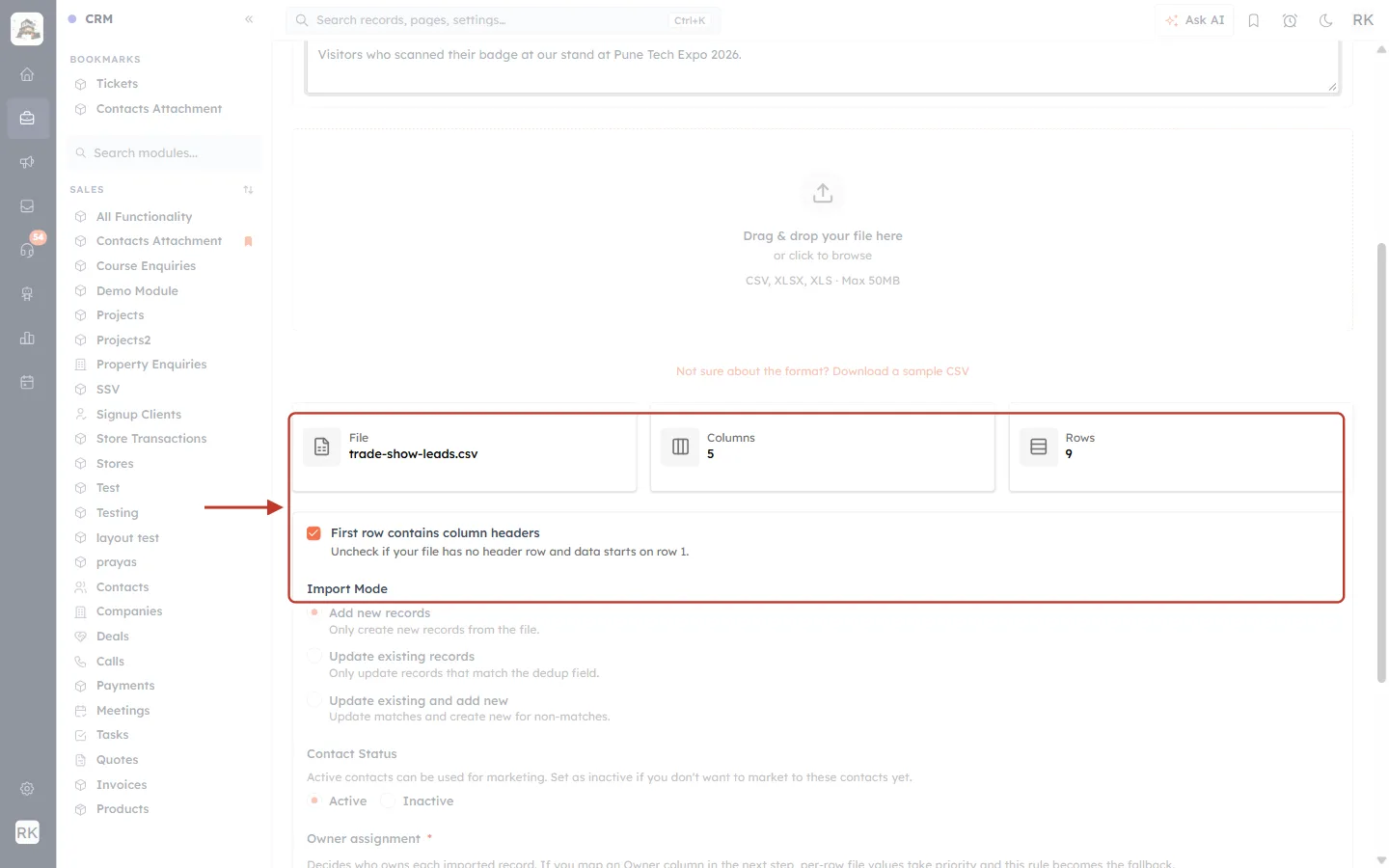
What this screenshot shows. The file summary after the upload.
File: trade-show-leads.csv. Columns: 5 (First Name, Last Name, Email, Phone, Lead Source). Rows: 9 contacts.
First row contains column headers is ticked, because the first line of the file holds the column names.
Import Mode starts below. We keep Add new records, since these are all new contacts.
Step 3: Choose Round-robin under Owner assignment#
Scroll down to Owner assignment. This setting decides who owns each imported record.
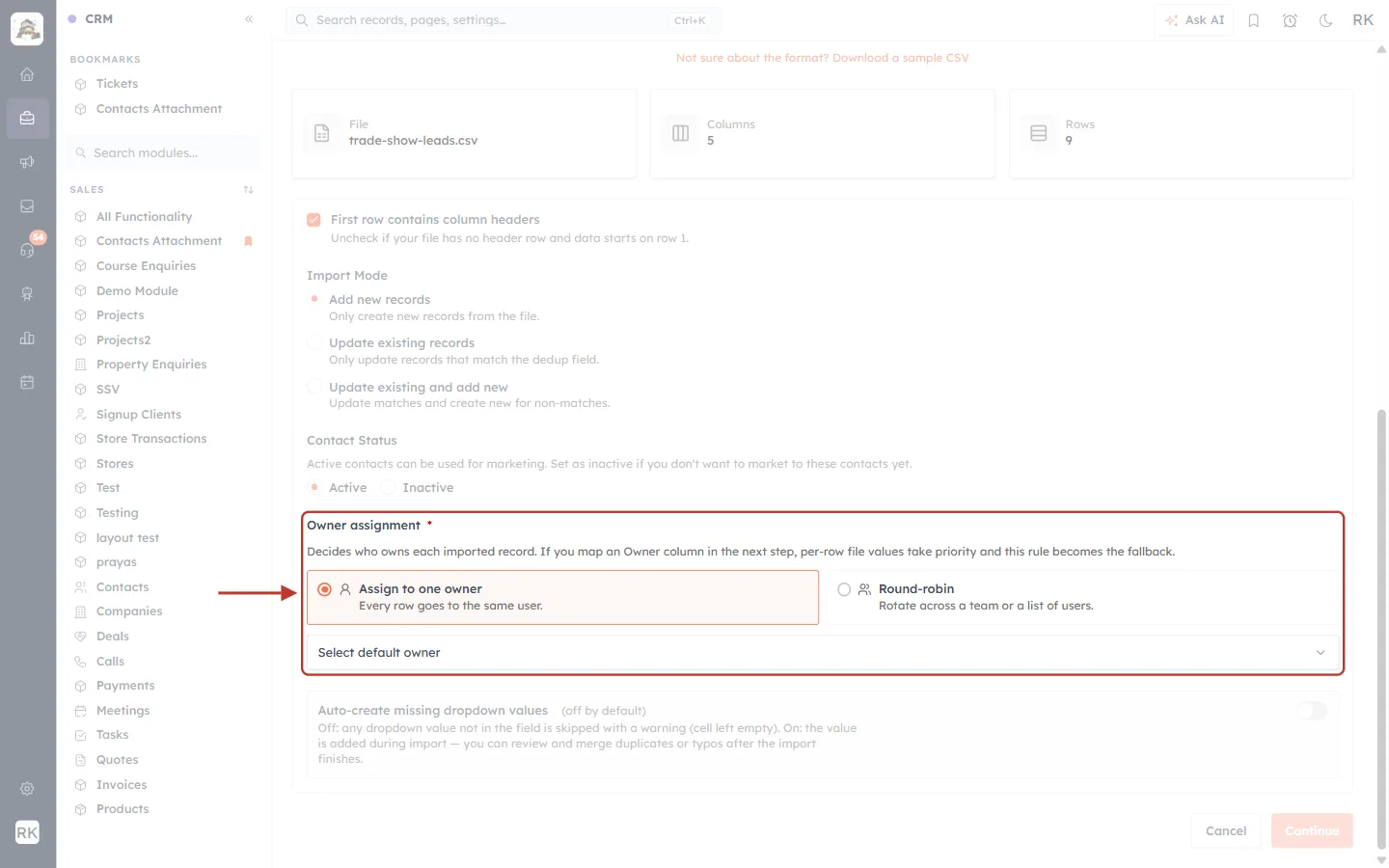
What this screenshot shows. The Owner assignment setting with its two choices.
Assign to one owner (“Every row goes to the same user.”): pick one user and every imported record is theirs.
Round-robin (“Rotate across a team or a list of users.”): records are shared out in turn.
The note above them is important: “If you map an Owner column in the next step, per-row file values take priority and this rule becomes the fallback.” So if your file already says who owns each row, those values win.
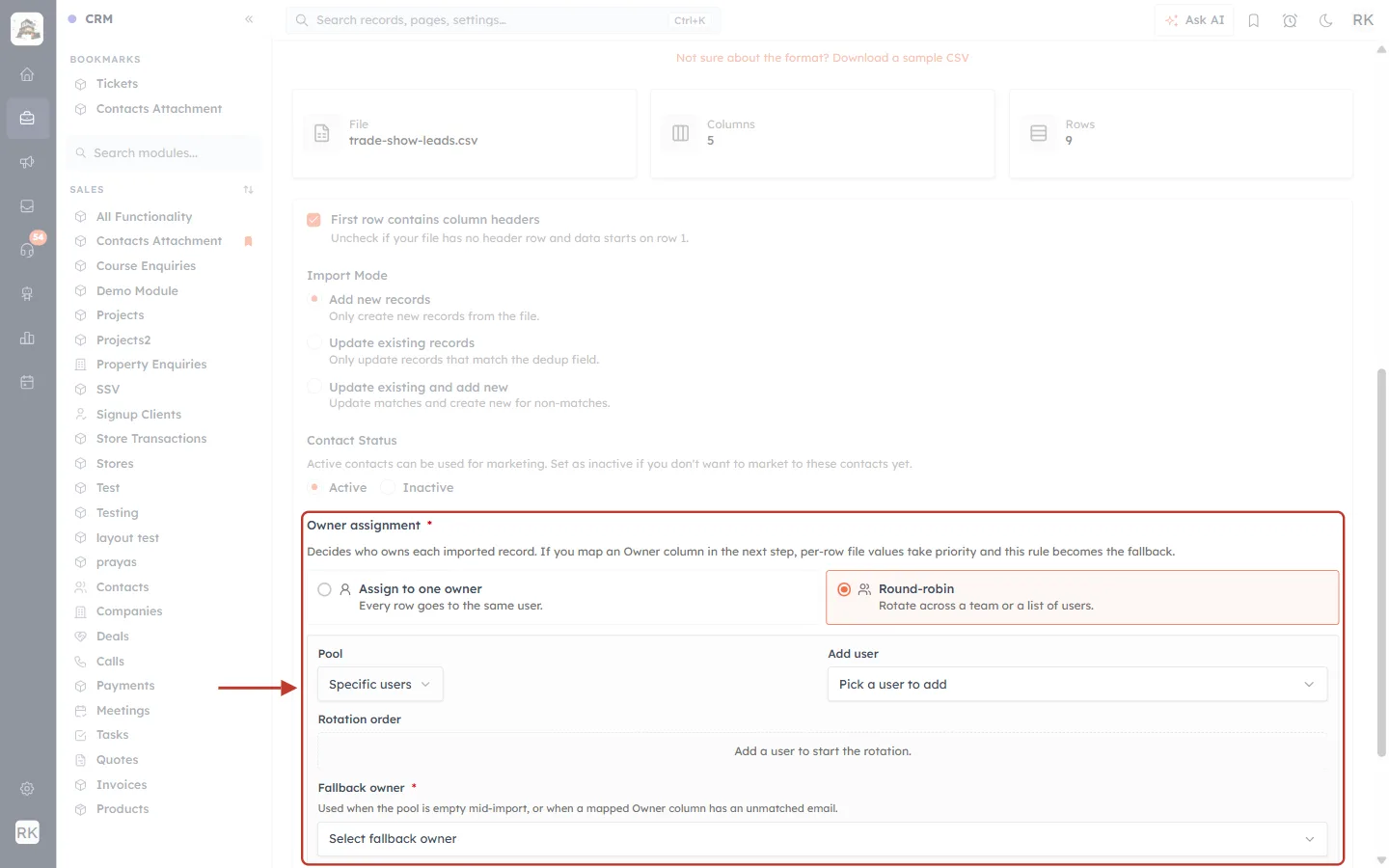
What this screenshot shows. After clicking Round-robin, its settings appear.
Pool: where the people come from: a Team or Specific users.
Add user (for Specific users): pick each person to include.
Rotation order: the list of people, in the order they receive records. It reads “Add a user to start the rotation.” until you add someone.
Fallback owner * (required): the person who gets a record when nobody in the pool can take it (Step 6).
Step 4: Pick the people in the rotation#
Open the Pool list and choose where the people come from.
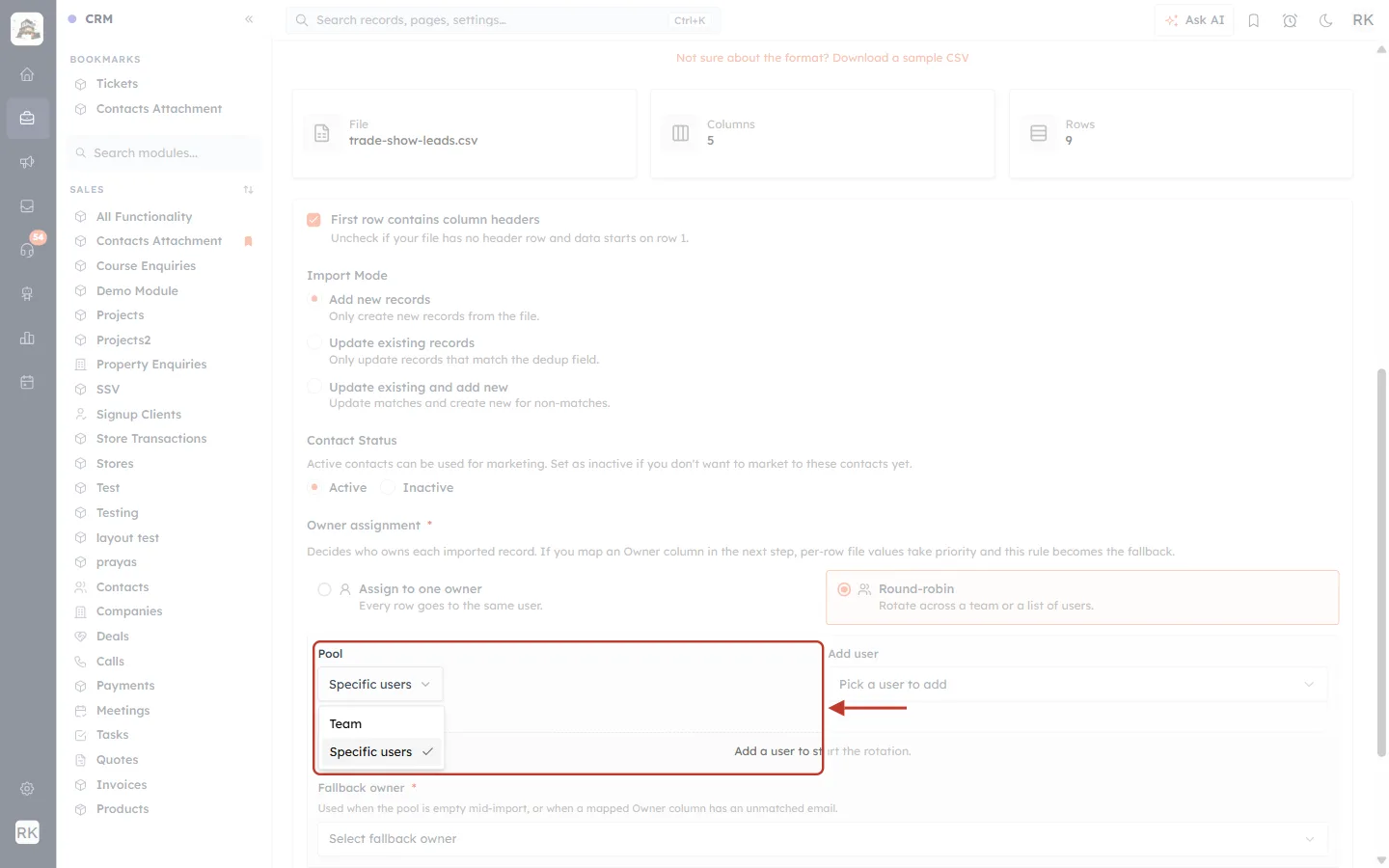
What this screenshot shows. The Pool options.
Team: rotate across the members of one of your teams.
Specific users: build your own list of users, from any team.
Option A: Rotate across a team#
Choose Team, then pick the team in the Team list. Its members fill the rotation automatically.
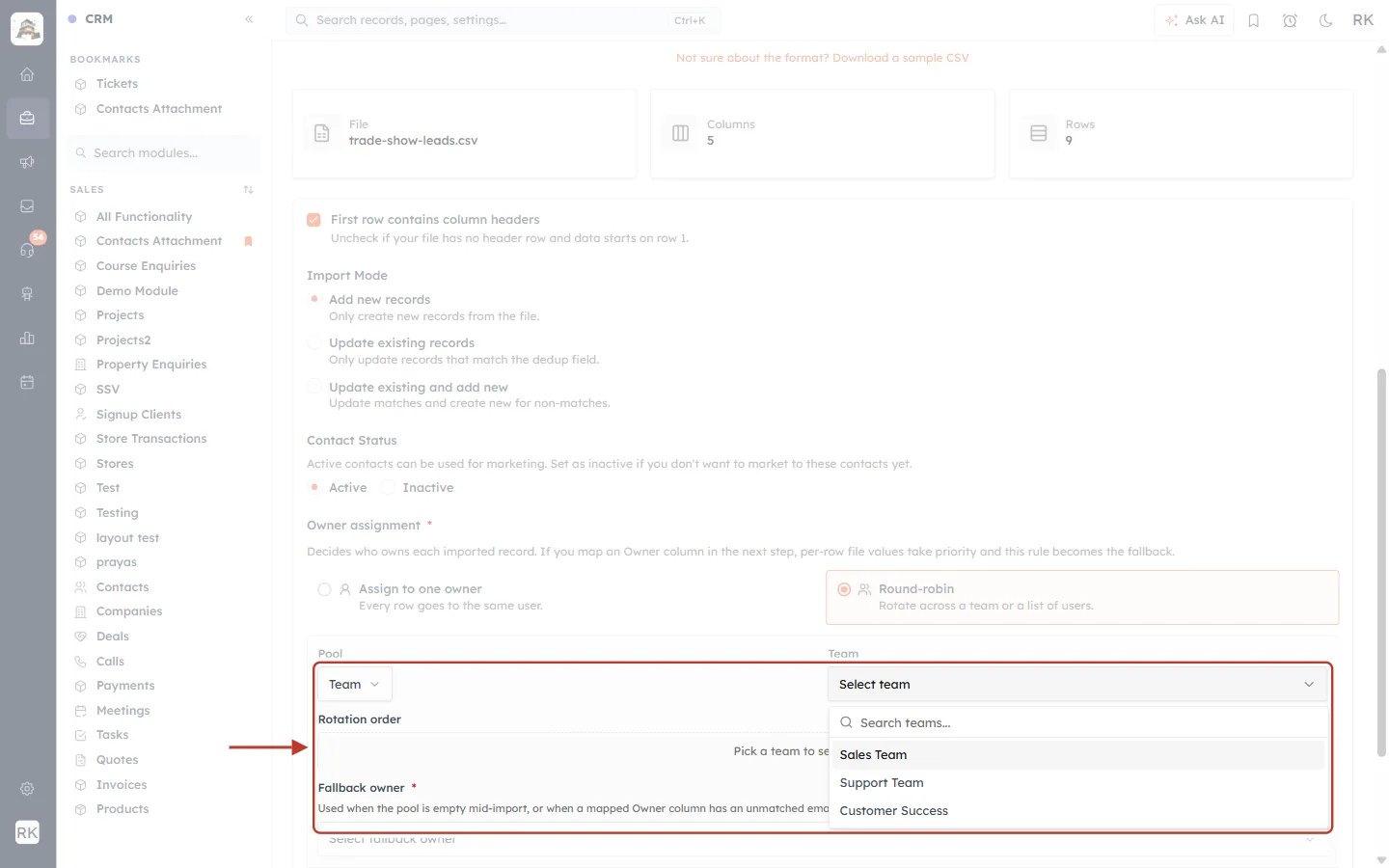
What this screenshot shows. The Team list, open.
It lists your teams, here Sales Team, Support Team and Customer Success. A search box helps when you have many.
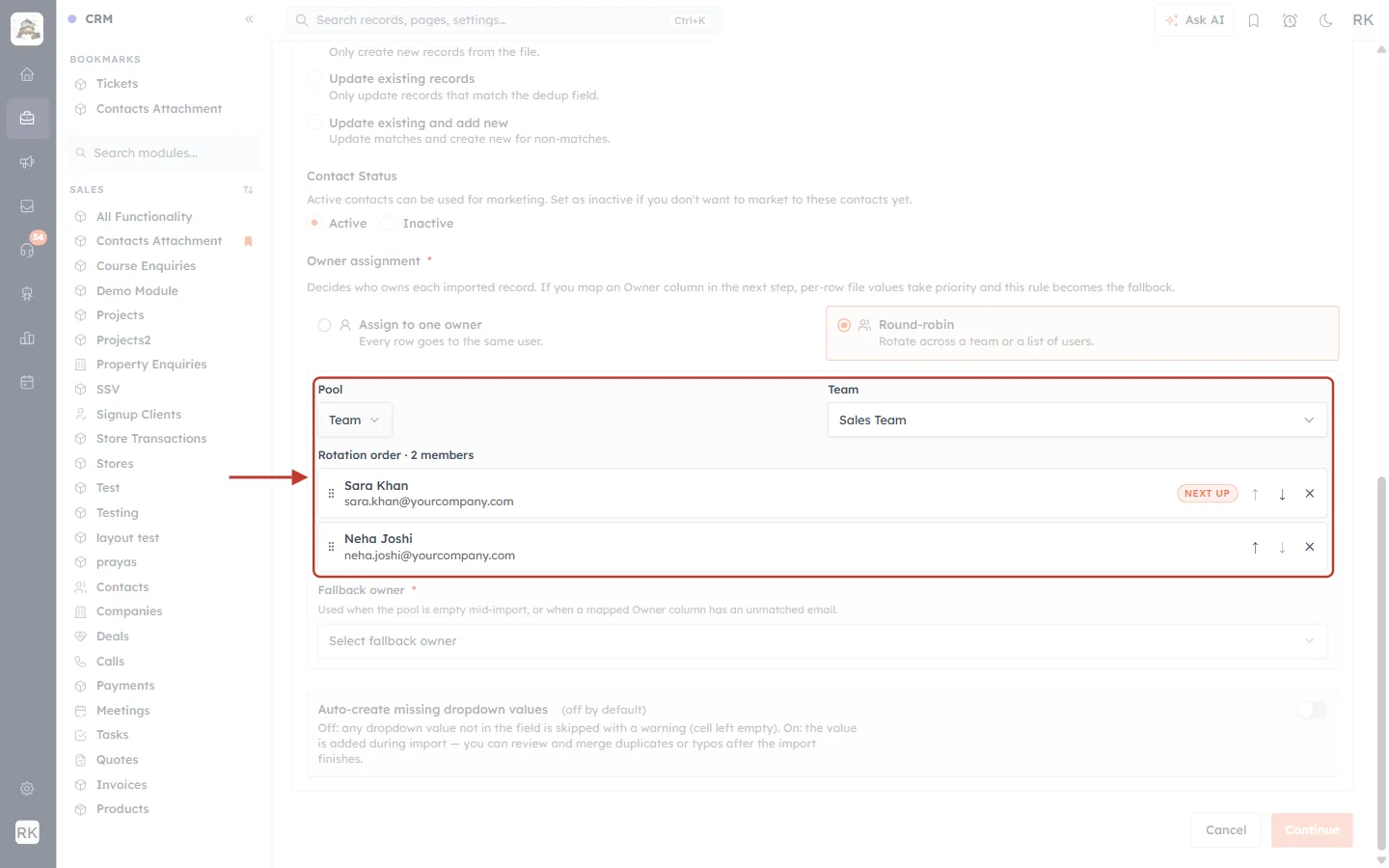
What this screenshot shows. The rotation after picking Sales Team.
Rotation order · 2 members: the team’s members, Sara Khan and Neha Joshi, with their email addresses.
The first person is tagged NEXT UP: they get the first record.
You can still reorder or remove members for this import with the ↑, ↓ and × buttons. This doesn’t change the team itself.
Option B: Rotate across specific users#
In our example we want three particular reps, so we switch Pool to Specific users and add them one by one from Add user.
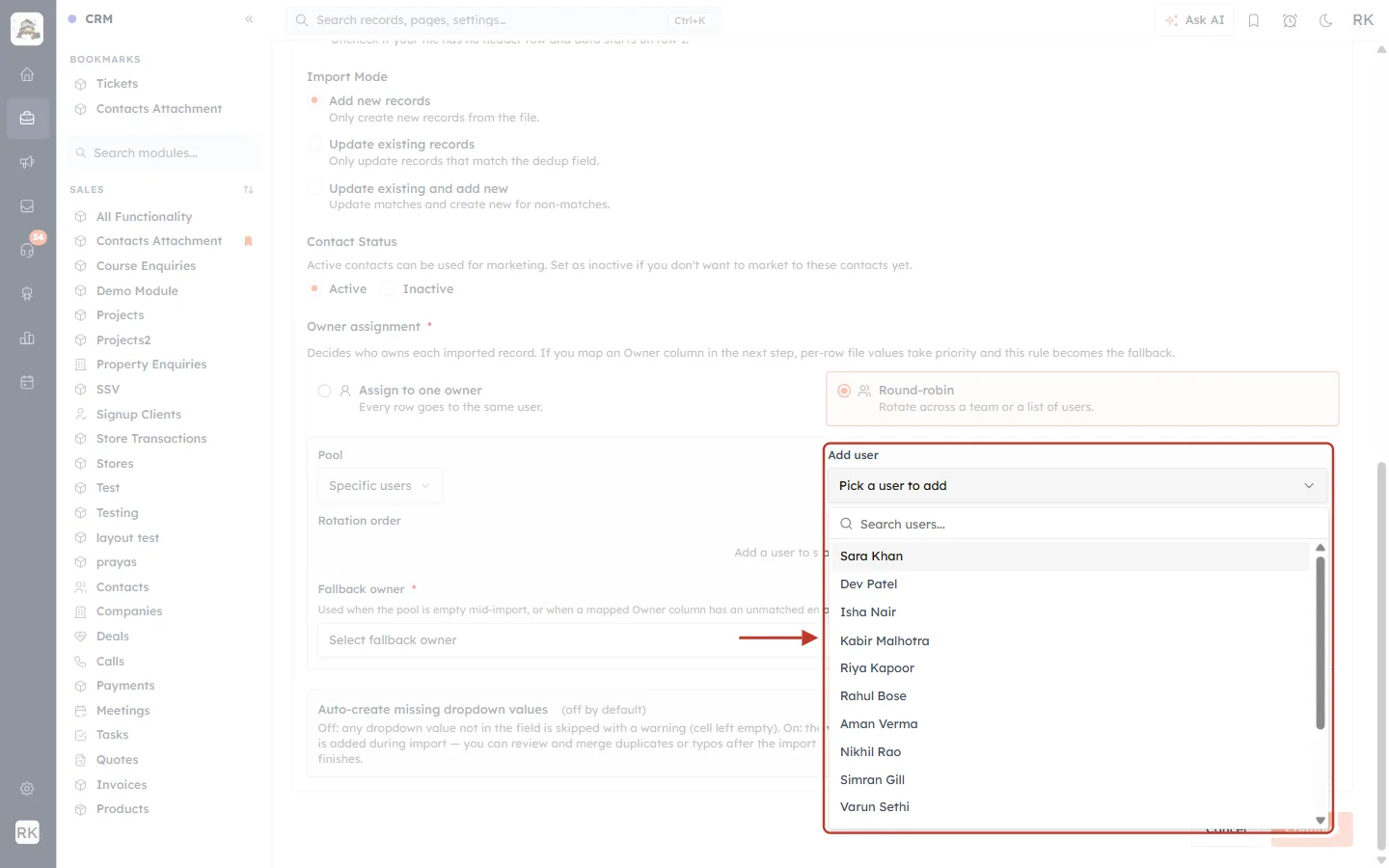
What this screenshot shows. The Add user list, open.
It lists the users in your account; type in Search users… to find someone quickly.
Click a name to add it to the bottom of the rotation. People already in the rotation are left out of the list, so nobody is added twice.
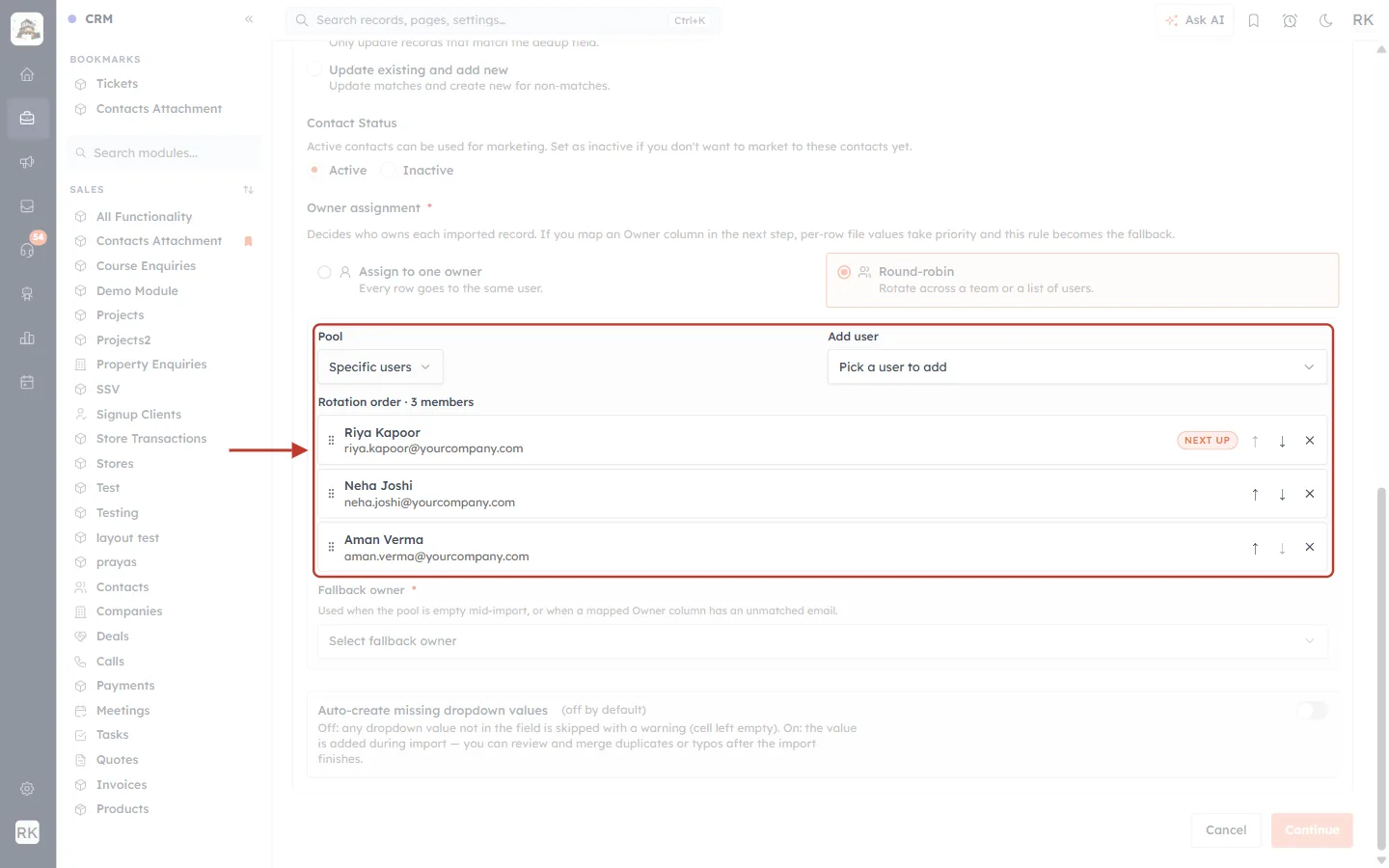
What this screenshot shows. The rotation after adding Riya Kapoor, Neha Joshi and Aman Verma, in that order.
Rotation order · 3 members counts the people in the pool.
Each row shows the person’s name and email, so you can be sure you picked the right user.
Step 5: Set the order#
Records are handed out from the top of the list down. To change who goes first or second, use the arrow buttons on each row, or drag a row by its handle (the six dots on the left). We want Aman before Neha, so we click ↑ on Aman Verma’s row.
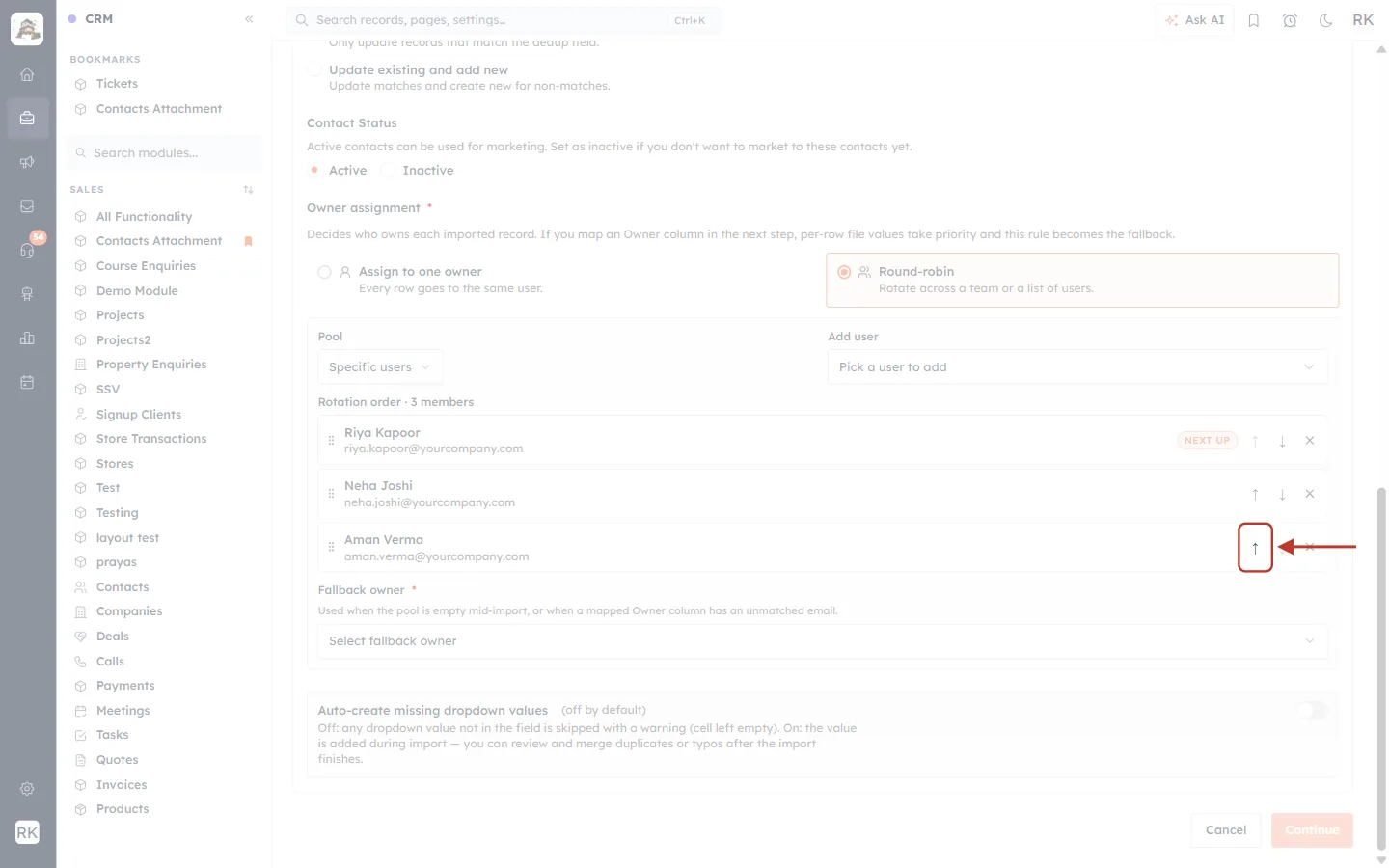
What this screenshot shows. The ↑ (Move up) button on Aman Verma’s row.
↑ moves a person one place up; ↓ moves them one place down. The arrow is greyed out when the person is already at the top or bottom.
× removes the person from this rotation.
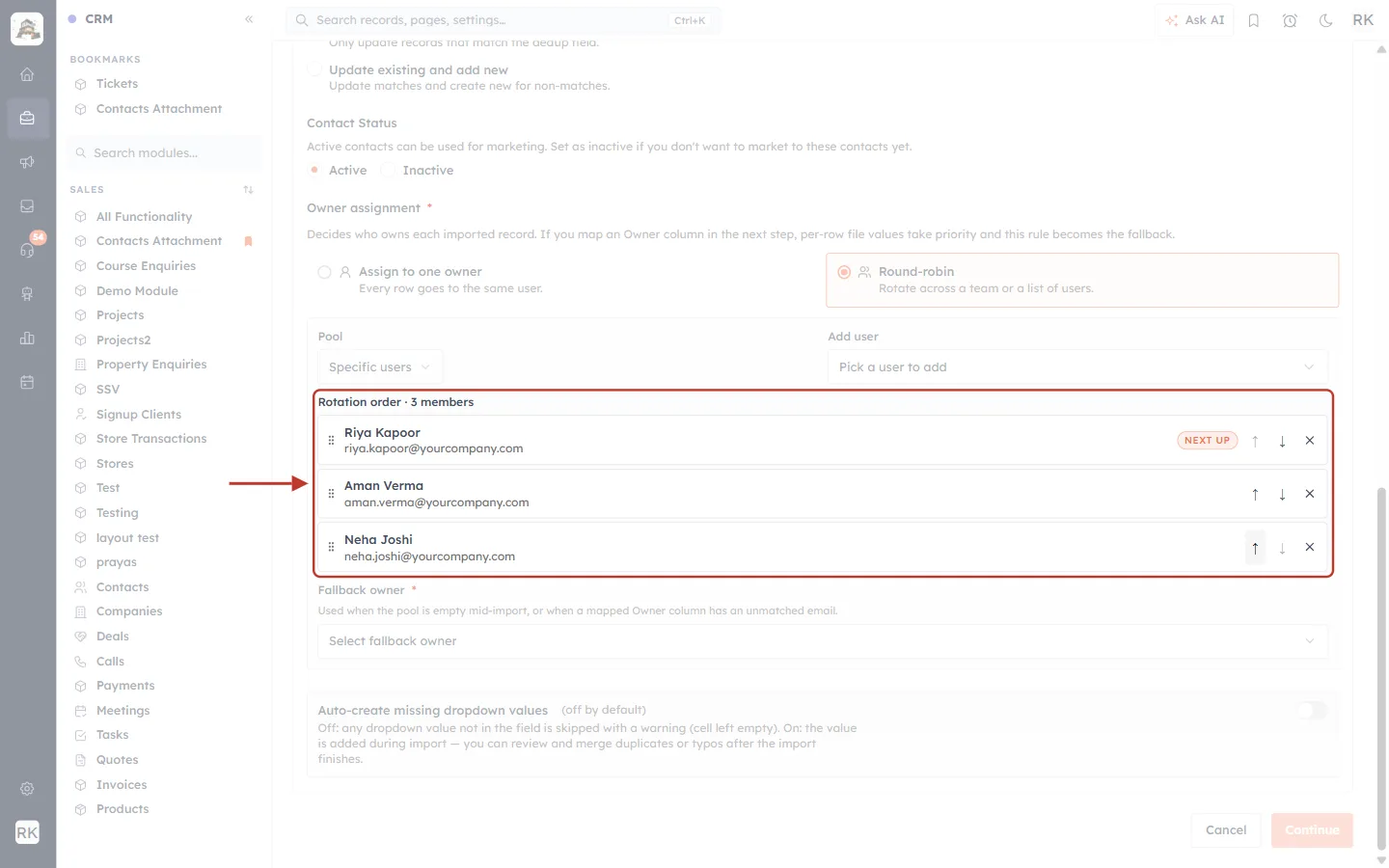
What this screenshot shows. The final order: Riya Kapoor → Aman Verma → Neha Joshi.
Row 1 of the file goes to Riya, row 2 to Aman, row 3 to Neha, row 4 back to Riya, and so on.
With 9 rows and 3 people, each person gets exactly 3 records. If the rows don’t divide evenly, the rotation simply stops part-way through the list.
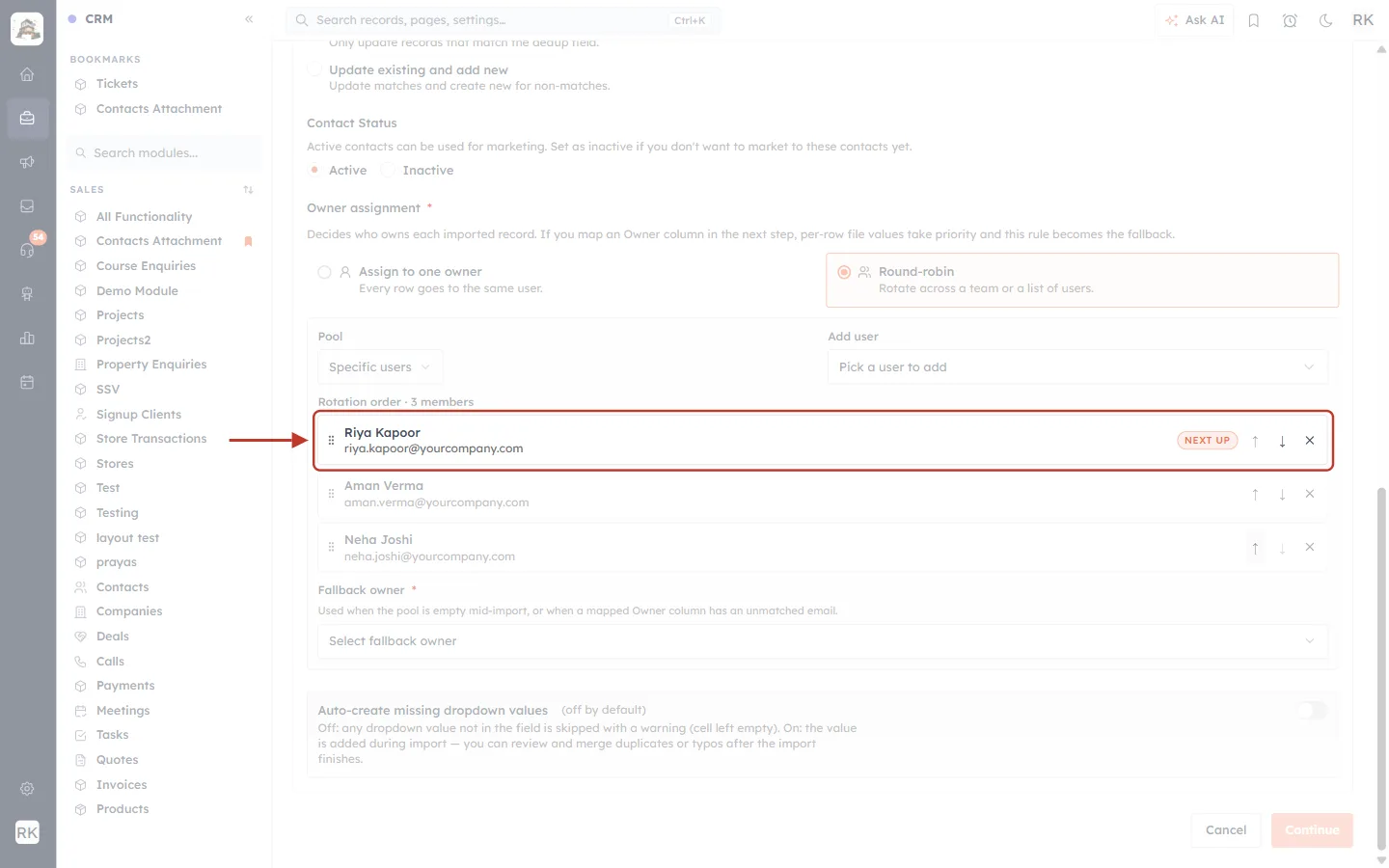
What this screenshot shows. The NEXT UP tag on Riya Kapoor.
It always marks the first person in the list: the owner of the first imported record.
Step 6: Choose a fallback owner#
Pick a Fallback owner. This is a safety net, so records never end up without an owner.
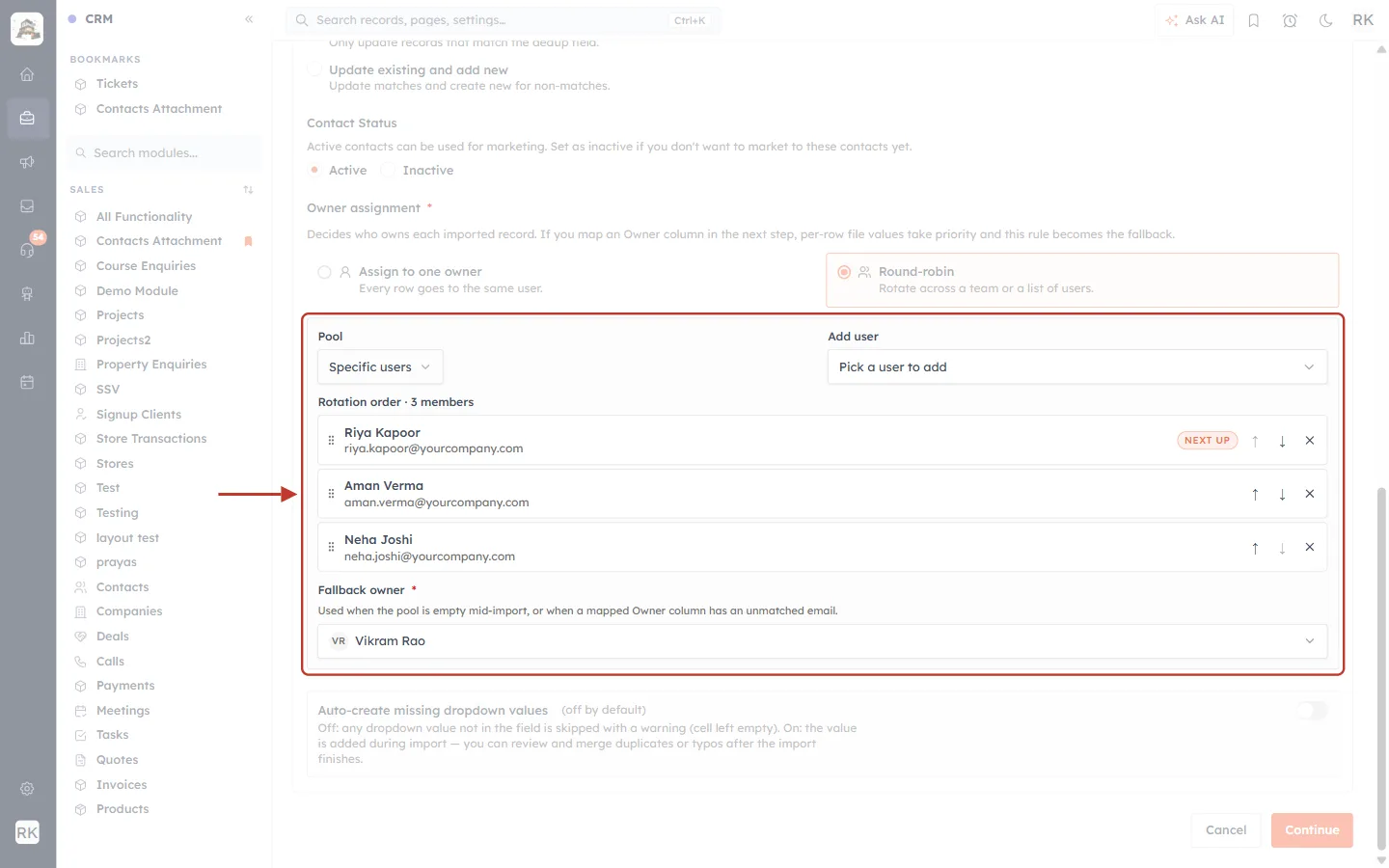
What this screenshot shows. The finished round-robin settings, with Fallback owner: Vikram Rao.
The fallback owner is used “when the pool is empty mid-import, or when a mapped Owner column has an unmatched email”.
Example: if your file has an Owner column and one row says old.rep@yourcompany.com, which isn’t a user in your CRM, that record goes to Vikram Rao.
The fallback owner doesn’t have to be part of the rotation. A team lead or sales manager is a good choice.
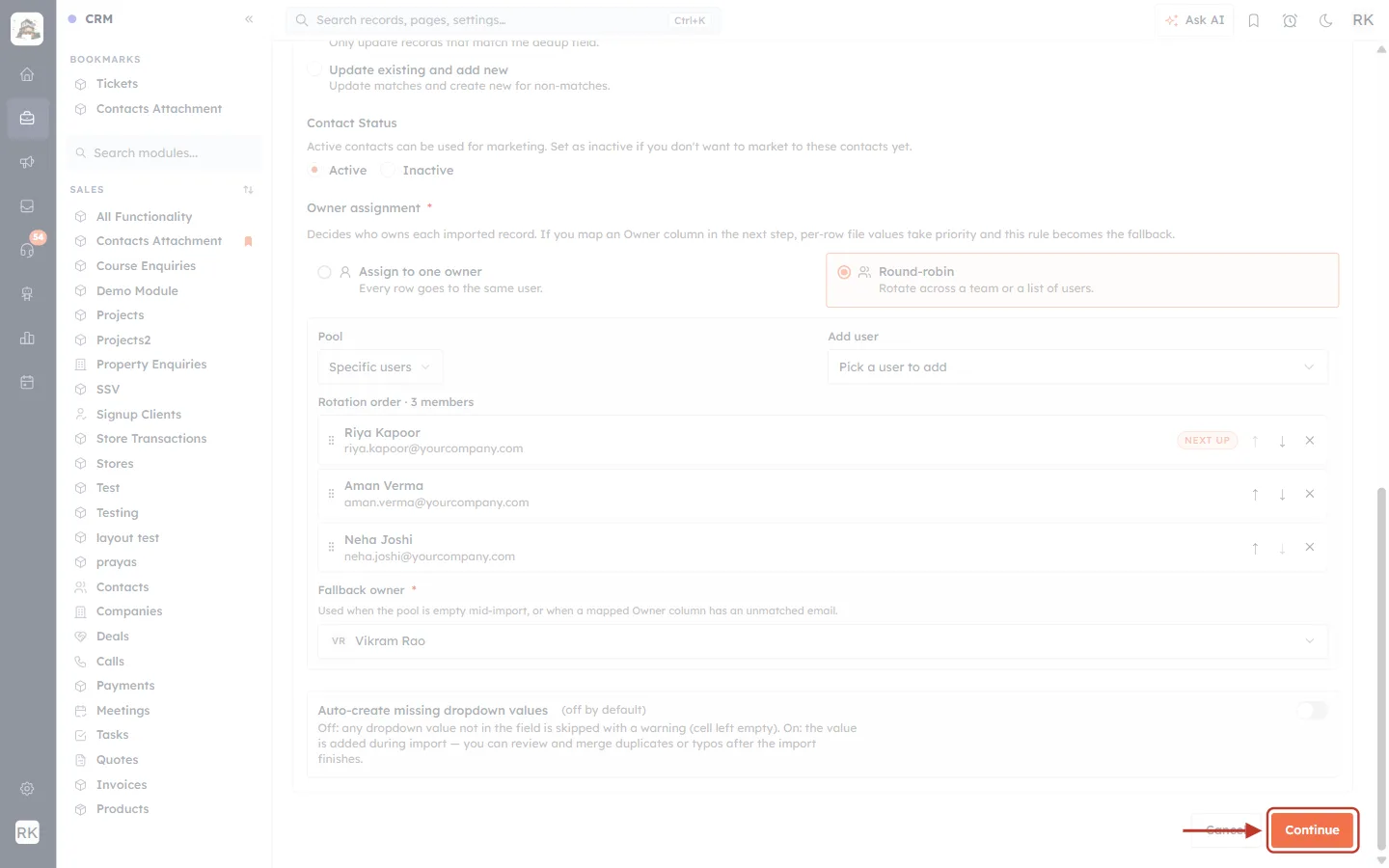
What this screenshot shows. The Continue button at the bottom of Step 1.
It stays disabled until the rotation has at least one person and a fallback owner is chosen (plus the compliance details and a file).
Step 7: Map the fields#
In Map Fields, check that every column of your file points to the right CRM field. Matching column names are mapped for you.
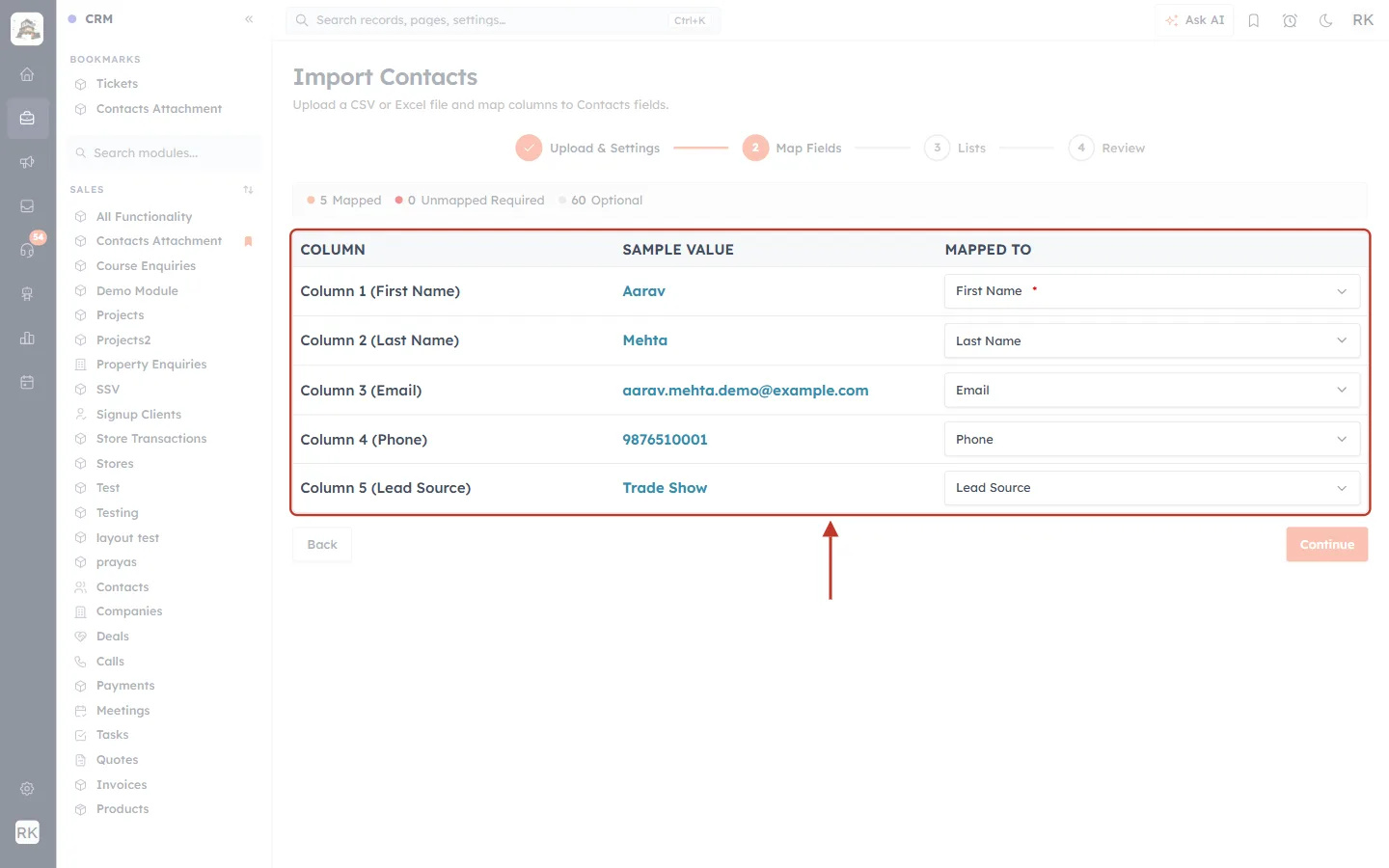
What this screenshot shows. The Map Fields table.
Column: the column in your file. Sample Value: the value from the first data row, for example Aarav or aarav.mehta.demo@example.com. Mapped to: the CRM field it fills.
All five columns are mapped: First Name, Last Name, Email, Phone and Lead Source.
Our file has no Owner column, so the round-robin rule decides every owner. If you map an Owner column here, each row that has an Owner value uses it; an Owner email that doesn’t match any user goes to the fallback owner.
Step 8: Review and finish the import#
Choose any lists to add the contacts to in Lists (or click Skip), then check the Review step.
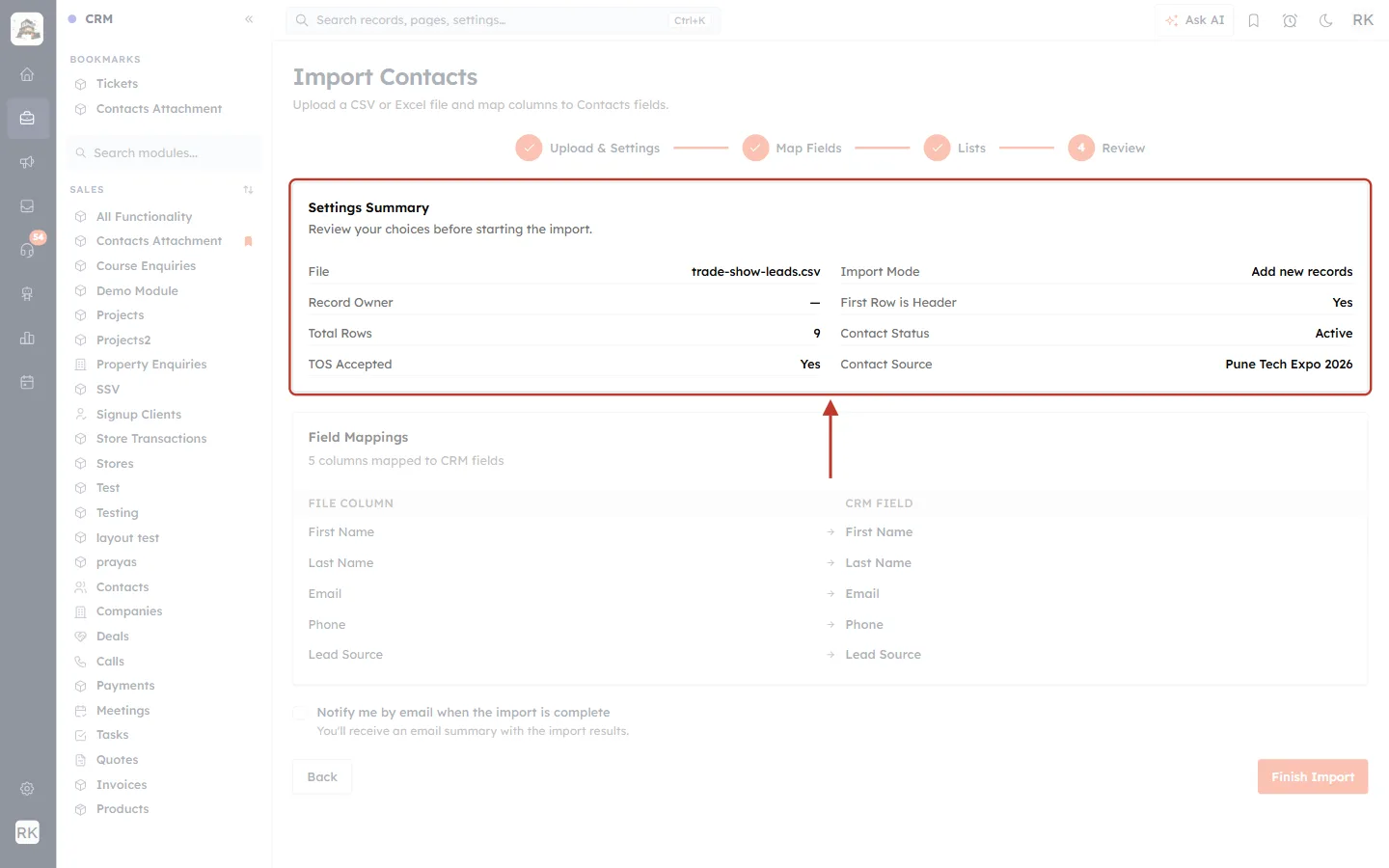
What this screenshot shows. The Settings Summary on the Review step.
File: trade-show-leads.csv, Import Mode: Add new records, Total Rows: 9, Contact Status: Active, Contact Source: Pune Tech Expo 2026.
Record Owner shows a dash (—) when Round-robin is chosen. Your rotation and fallback owner from Step 1 are still used for the import. To check them, click Back to return to Step 1.
Field Mappings lists each file column and the CRM field it fills.
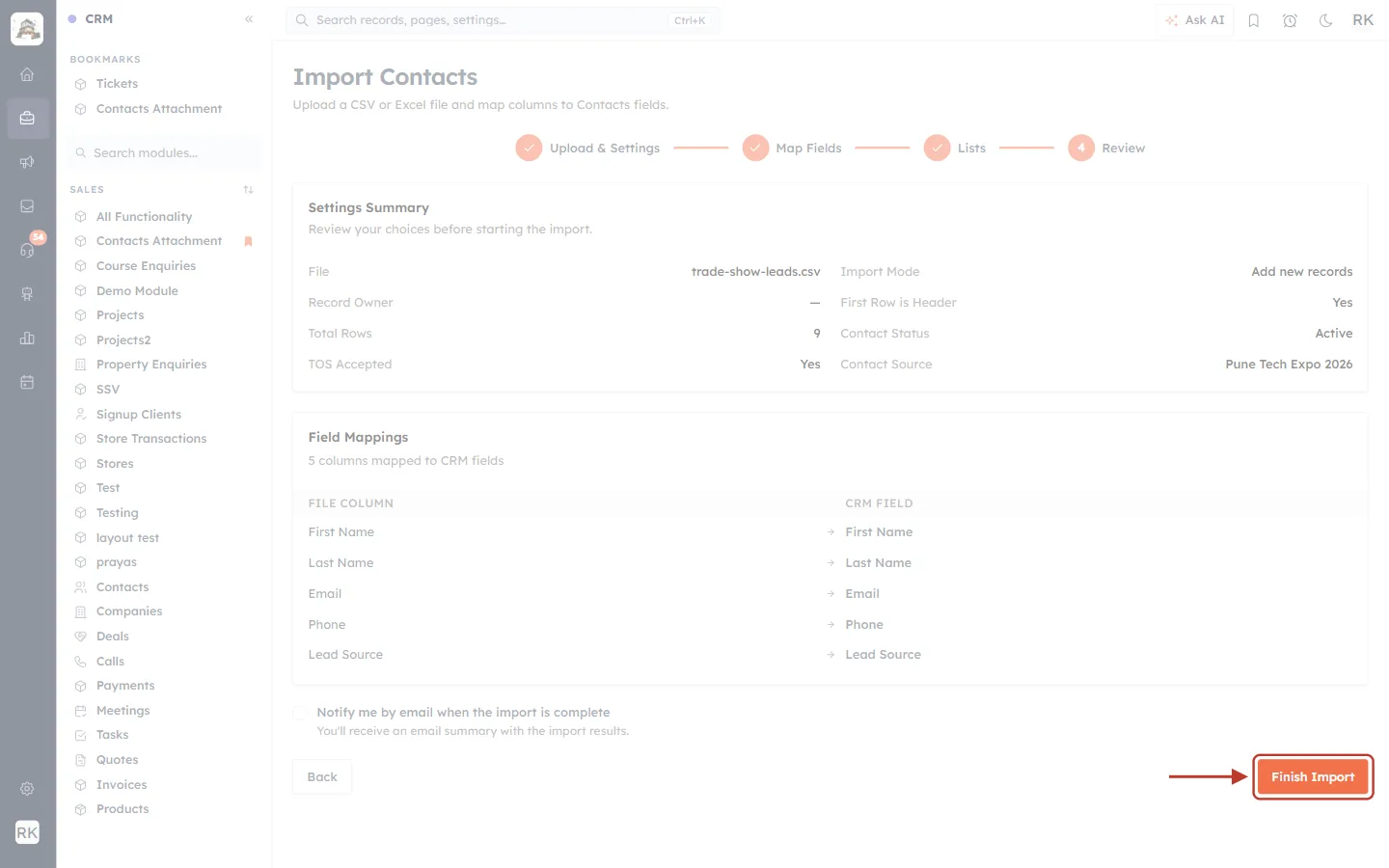
What this screenshot shows. The Finish Import button.
Tick Notify me by email when the import is complete above it if you want an email summary.
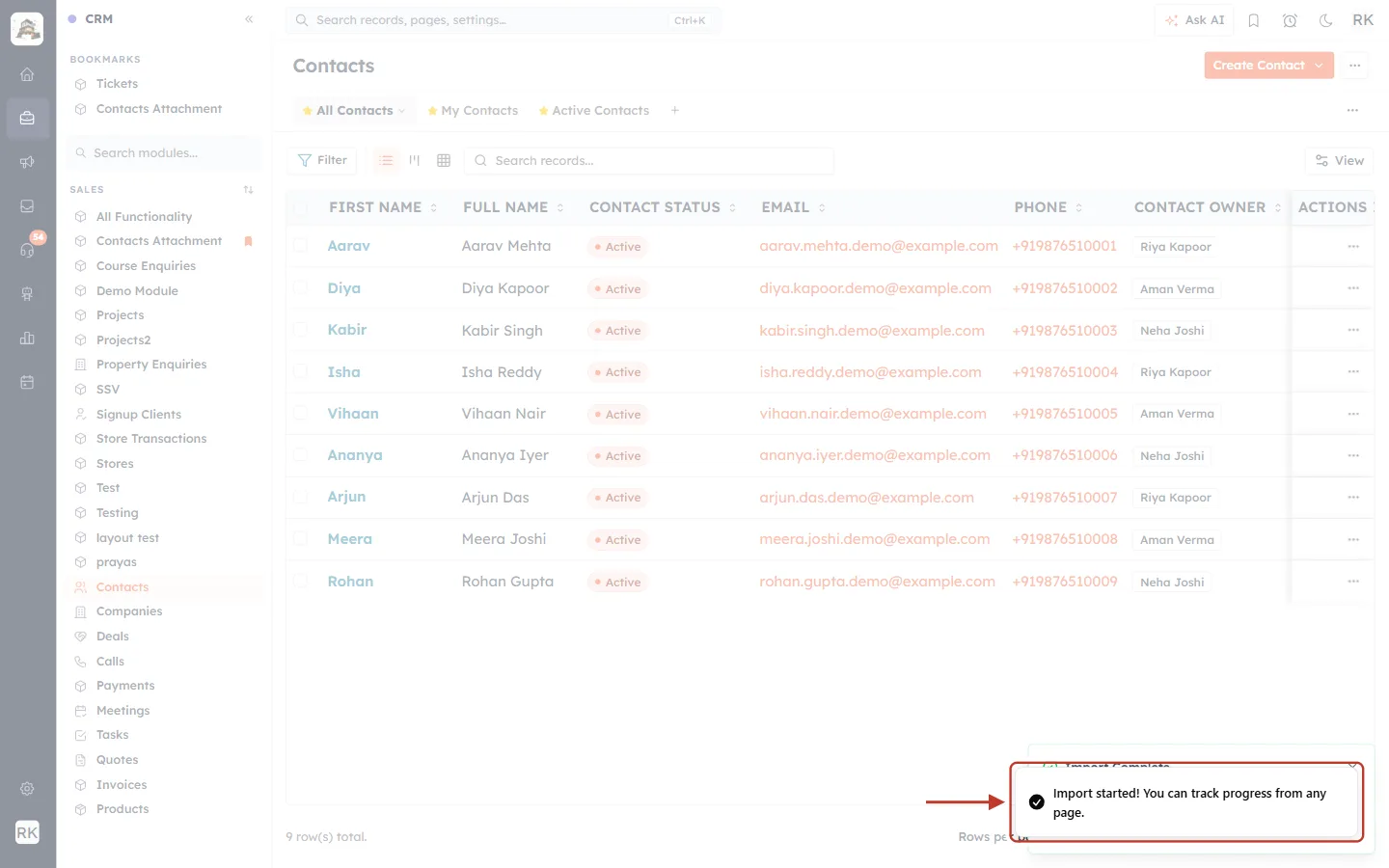
What this screenshot shows. The message “Import started! You can track progress from any page.”
The import runs in the background, so you can keep working while it finishes.
Step 9: Check who owns the new records#
When the import is done, open the module list and look at the owner column.
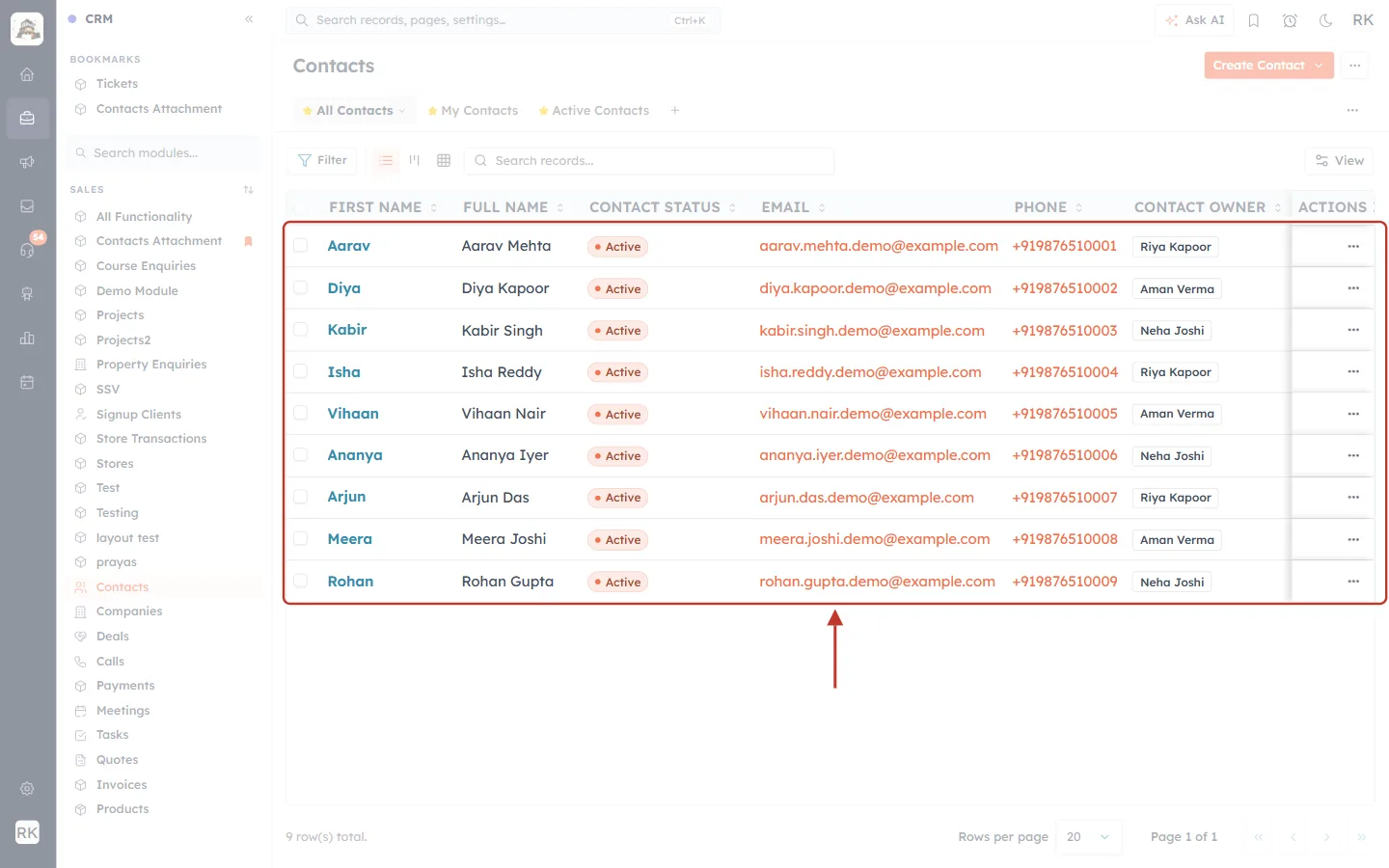
What this screenshot shows. The 9 imported contacts in the Contacts list.
Contact Owner follows the rotation down the list: Riya Kapoor (Aarav), Aman Verma (Diya), Neha Joshi (Kabir), then Riya again (Isha), and so on.
Each rep owns 3 of the 9 contacts.
Each rep can see their share under My Contacts. To see a rep’s share yourself, filter the list on Contact Owner, or save it as a view (see Create, Share & Manage Custom Views).
✅
Need to rebalance later? If a rep is away, select their records and use Change Owner to hand them to someone else. See Change the Owner of Records and Move Their Related Records.
Tips#
Use a team for regular imports. Picking the team fills the rotation with its current members, so you don’t have to add people one by one each time.
Use specific users for one-off campaigns. For example, only the reps who attended the event.
Leave the Owner column out of the file if you want the rotation to decide every owner. Map it only when the file already knows the right owner for some rows.
Put your most available rep first. They receive the first record, and the first of every new round.
Pick a fallback owner who checks their records, such as a sales manager, so unmatched rows are picked up quickly.
New leads from forms and ads can be shared out automatically too, with the Assign Owner workflow action. See Assign Owner: Automatically Route Leads to Your Team.
Troubleshooting#
Problem | What to check |
|---|---|
Continue stays disabled. | Add at least one person to the rotation and choose a fallback owner. Also make sure the file is uploaded and, for Contacts, the compliance box, source and description are filled in. |
The rotation is empty after picking a team. | The team has no members. Add users to the team, or switch Pool to Specific users. |
Some records went to the fallback owner. | Those rows had an Owner value in the file that didn’t match any user’s email, or the pool was empty. |
Owners don’t follow the rotation for some rows. | An Owner column is mapped. Rows with an Owner value use that value instead of the rotation. |
The Review step shows “—” for Record Owner. | That is how round-robin appears in the summary. Your rotation from Step 1 still applies; click Back to check it. |
A person is missing from Add user. | They are already in the rotation, or they aren’t a user in your CRM yet. |
Frequently asked questions#
Does round-robin work for modules other than Contacts?
Yes. The same Owner assignment setting is in the import wizard of other modules, such as Deals and your custom modules.
Does changing the order or removing someone change my team?
No. The rotation applies to this import only; the team’s members stay the same.
Can I give everything to one person instead?
Yes. Choose Assign to one owner and pick the user.
Can I change an owner after the import?
Yes, open the record and change its owner, or use Change Owner on several records at once.
Previous and next#
Related#
Was this article helpful?
Ready to implement this?
OpenAI Engage and apply what you just learned to your own workspace.
Open AI Engage CRM