Loading…


KnowledgeBase
Import Data into Any Module
Import isn't just for contacts#
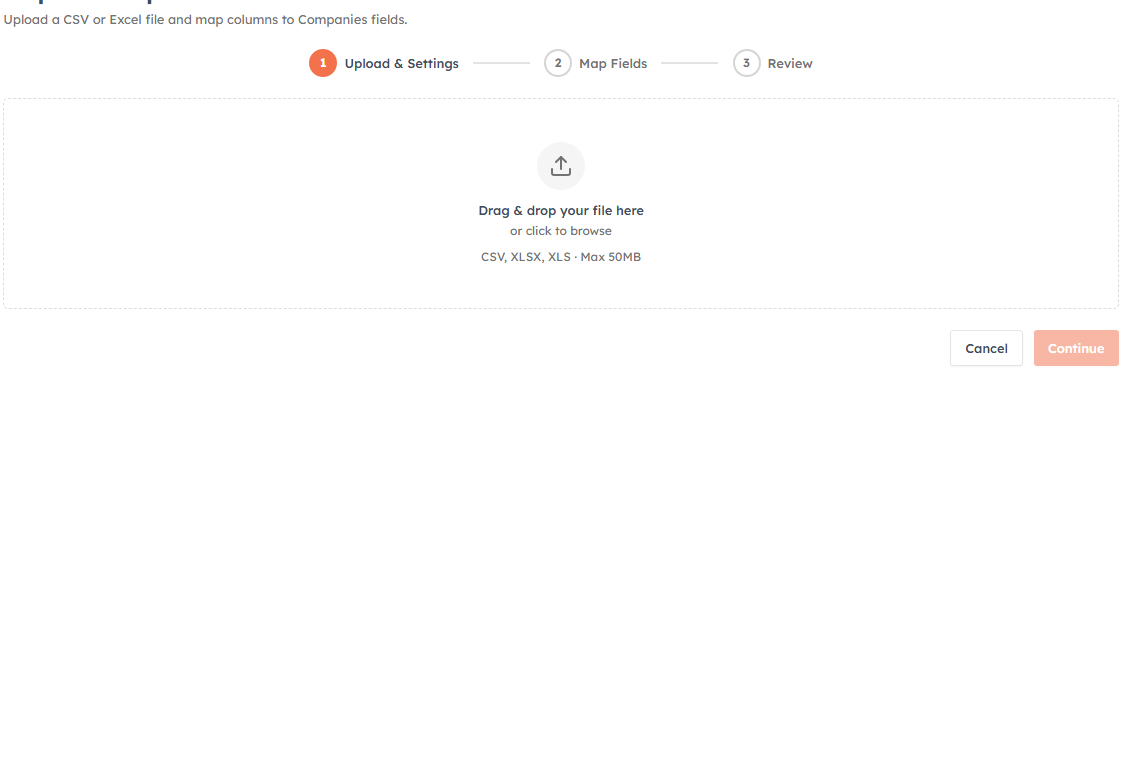
The same import wizard brings a spreadsheet into any module — Contacts, Deals, Companies, or a custom module you built. (For a contacts-specific walkthrough with tips, see Bulk Import Contacts.)
Where to start#
Open the module you want to import into and click Import, or go through Setup → Data Administration → Import. The import page also keeps a history of your past imports — start a new one with Import {Module}.
💡
Supported files: CSV, XLSX, or XLS, up to 50 MB. Put your column headers in row 1 and one record per row.
Step 1 — Upload & settings#
Drag your file in (or browse). The wizard previews your columns and rows, then you set:
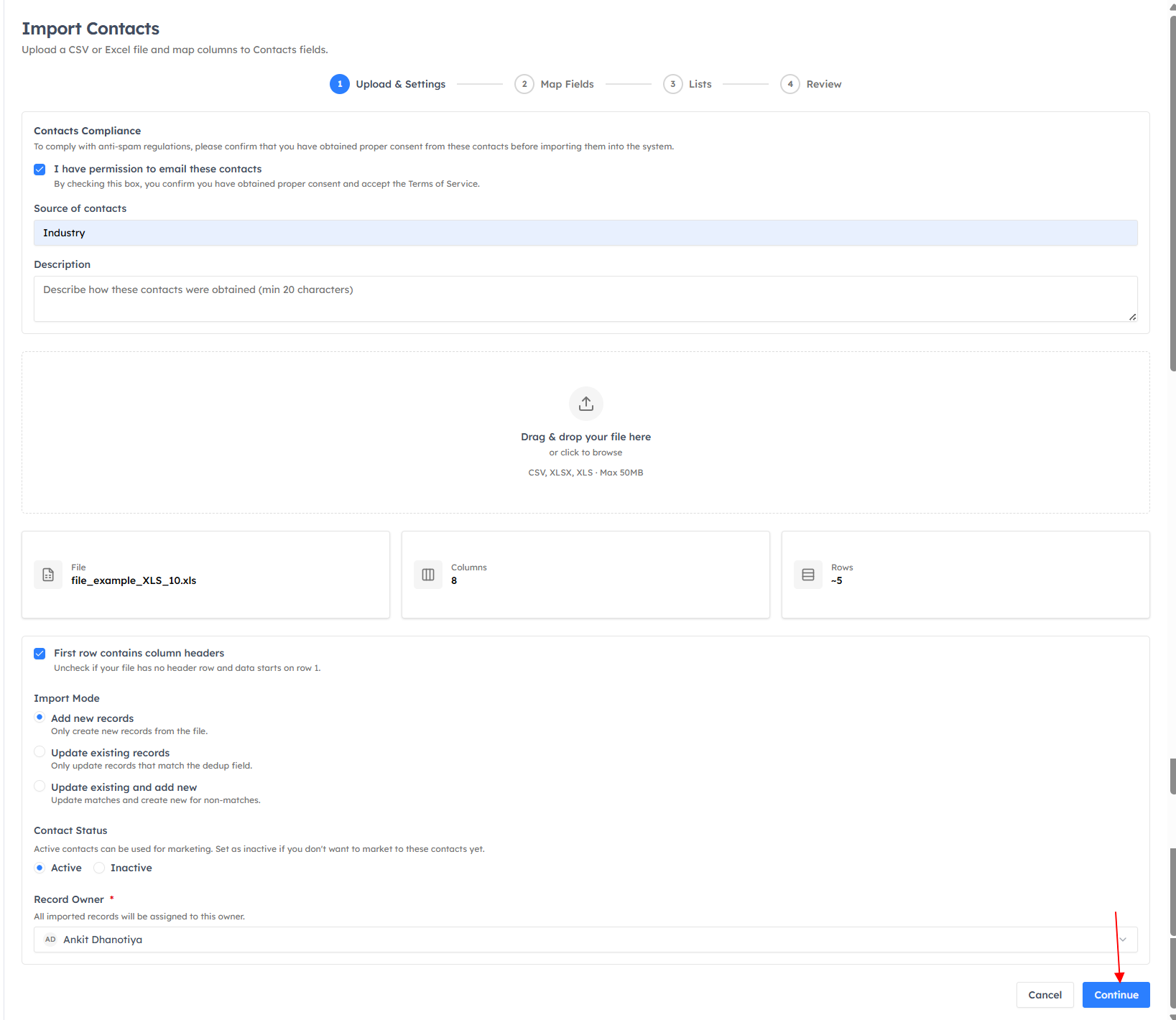
First row contains column headers — leave on unless your file has no header row.
Import Mode — Add new records, Update existing records, or Update existing and add new. For the two update modes, also pick a Deduplication Field (e.g. Email) used to match existing records.
Record Owner (required) — who the imported records are assigned to.
Contacts only: a Contact Status (Active/Inactive) and a Compliance confirmation that you have permission to email them.
Step 2 — Map fields#
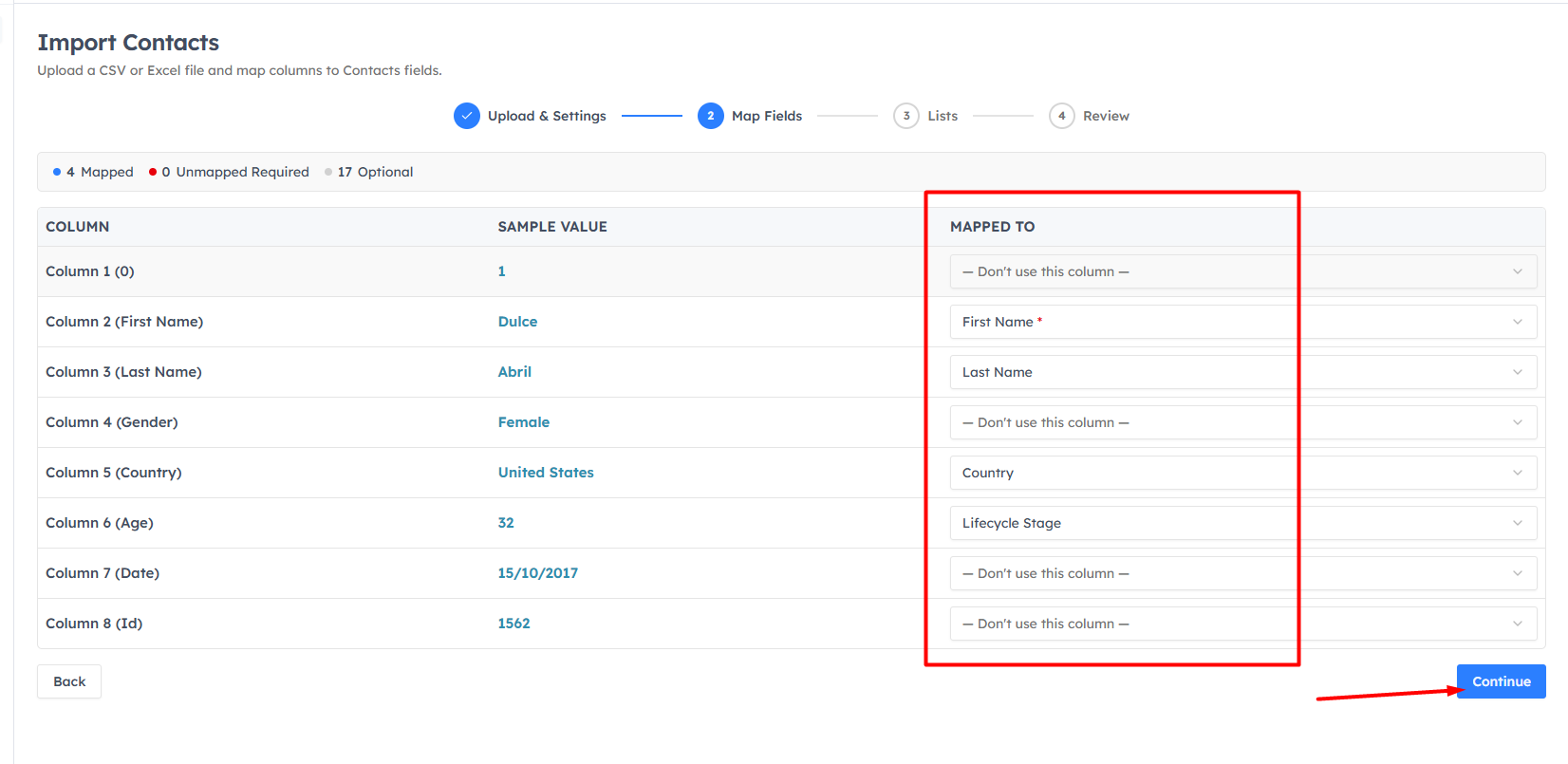
The wizard auto-maps your columns to CRM fields; a sample value from your file sits next to each so you can spot mistakes. Fix any mismatch from the dropdown, or choose "Don't use this column". Required fields are marked with * and must be mapped (and in update modes, your dedup field must be mapped) before you continue.
Step 3 — Lists (Contacts only)#
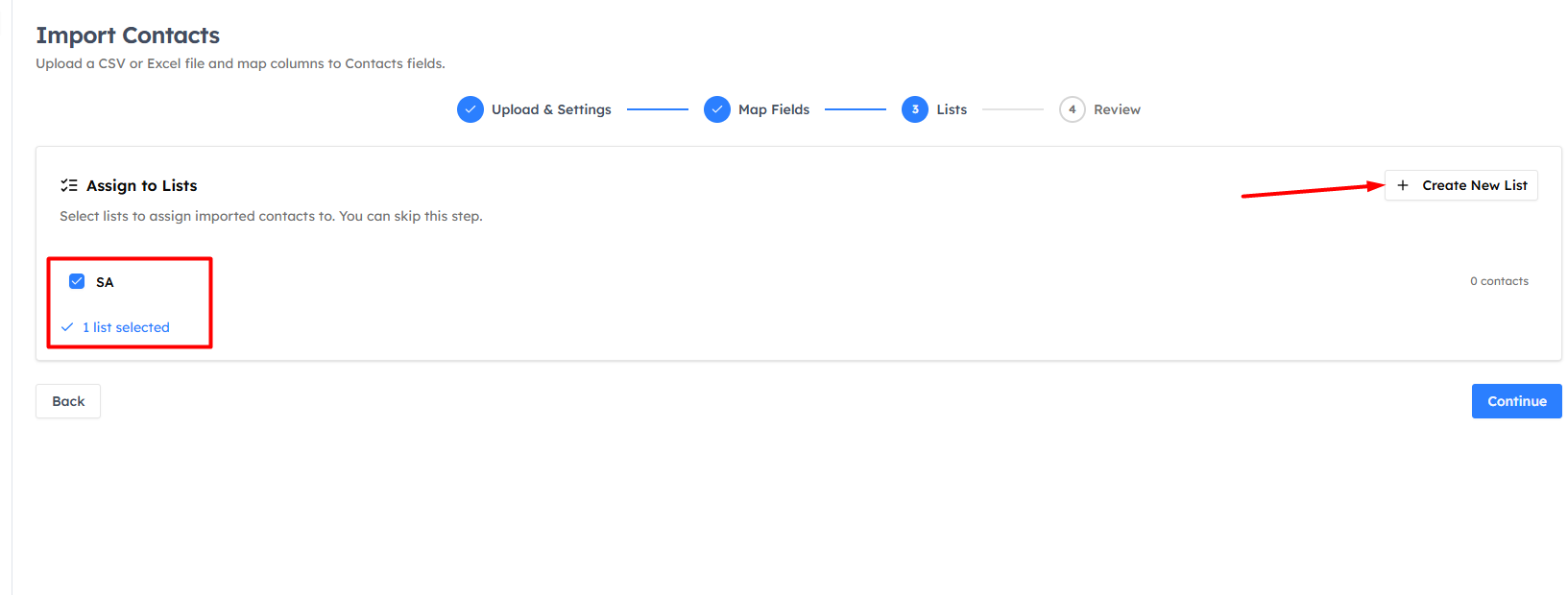
Optionally add the imported contacts to one or more lists, or create a new list on the spot. Other modules skip this step.
Step 4 — Review & finish#
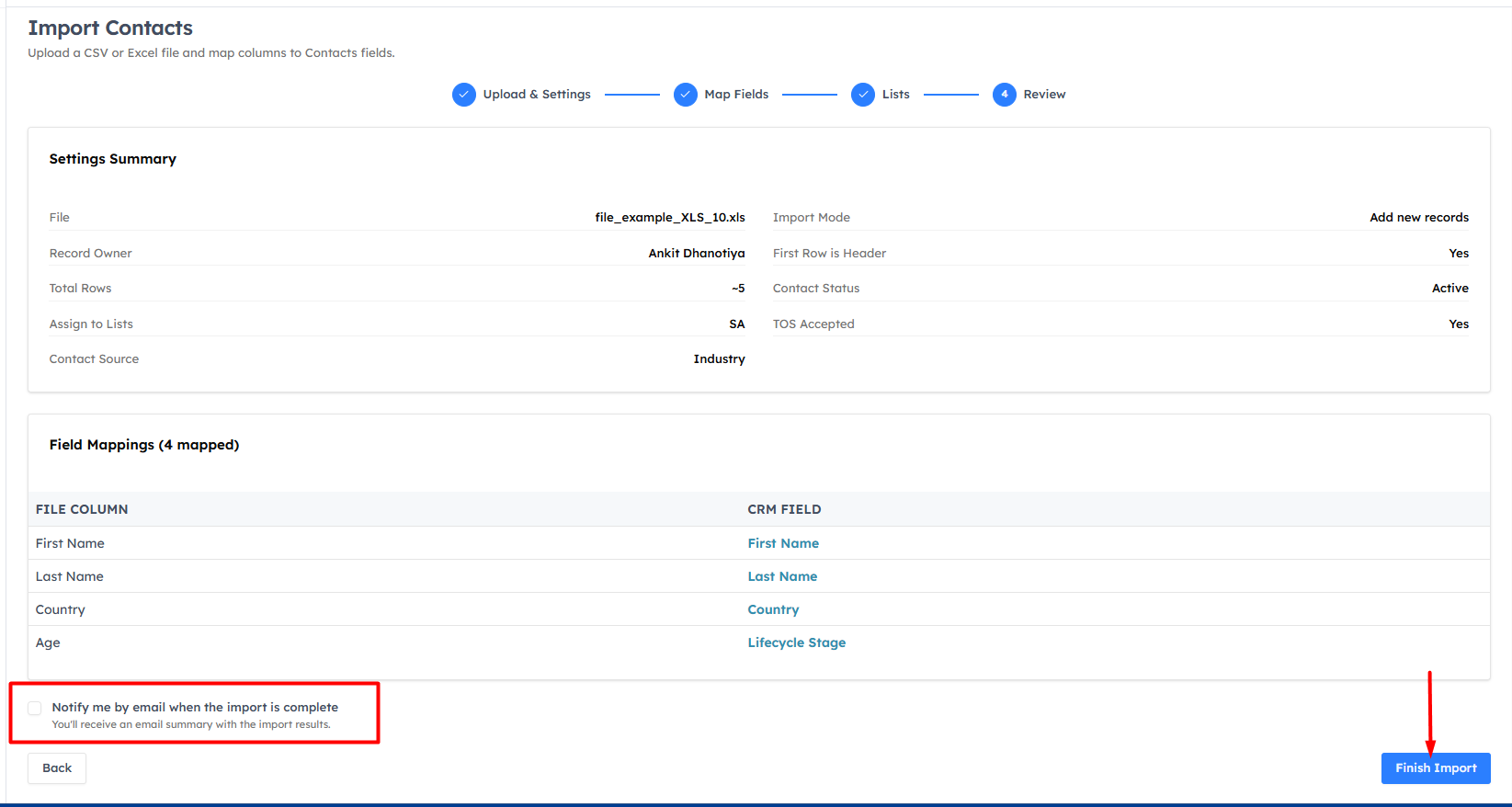
Review the settings summary and field mappings. Tick Notify me by email when the import is complete if you'd like a summary, then click Finish Import. Large imports run in the background — you can navigate away and track progress from any page.
💡
After importing, open the module to see your records — apply filters, assign owners, or start a campaign. Check the import history for Created / Updated / Skipped / Failed counts.
Was this article helpful?
Ready to implement this?
OpenAI Engage and apply what you just learned to your own workspace.
Open AI Engage CRM