Loading…


KnowledgeBase
Set Up Modules Using AI: Create a Module, Add Fields and Arrange Layouts with the AI Setup Assistant (Step-by-Step)
Introduction#
Every business tracks something different. A real estate agency tracks properties, a school tracks admissions, a repair shop tracks service jobs. In AiEngage CRM each of these lives in a module: a list of records with its own fields, sections, list columns and board.
You can build a module by hand (see Create a New Module: Build Custom Modules for Your CRM), but you don’t have to. The AI setup assistant lets you simply describe what you want to track in plain words. It reads how your CRM is set up today, then suggests a complete module on a card: the fields with the right field types, the choices for drop-down fields, sections to group them, the list columns and a board view. You check the card, ask for changes if you like, and click Yes, create it. The module is built for you in a few seconds.
The same assistant also helps with modules you already have. It can suggest new fields for a module, add pipeline stages, rename a module or field, and arrange a layout into clear sections.
In this guide we follow a sample business, a real estate agency in Pune, from start to finish. We ask the assistant for a Properties module, review and change the suggestion, create it, find it in the Modules list, and see how to undo it. Then we ask for better fields on the Deals module and a cleaner Deals layout.
What you can ask for | What the card offers | Button |
|---|---|---|
A new module (“Add a module”) | Module name, fields grouped in sections, a board view, list columns and a preview of a record | Yes, create it |
New fields on a module (“Add fields” or with AI on the Modules page) | Up to 12 fields with their type and the reason for each | Yes, add them |
Deal stages or drop-down choices (“Fit the pipeline”) | The new stages or options, numbered in order | Yes, add stages / Yes, add options |
Clear sections on a layout (“Arrange a layout” or Configure with AI on the Layouts page) | The sections and which fields go in each | Yes, apply it |
Your own words for a module or field (“Rename things”) | The old name and the new name | Yes, rename it |
ℹ️
Two promises the assistant always keeps:
• Nothing is created until you say yes. A suggestion is only a card until you click its button (or type “yes”).
• Every change can be undone. A created module, new fields, stages or a layout change can be undone from the same card, as long as nothing has been built on top of it yet.
ℹ️
Before you start:
• You need permission to customise modules (admins have it). Without it, the assistant still makes suggestions, but the card shows Needs permission and offers Copy suggestion so you can send it to an admin.
• Every workspace gets 50 free setup messages (one time). After that, setup chats use your AI credits, like Ask AI. See AI Credits & Pricing: How AI Usage Is Billed.
Step 1: Open the AI setup assistant#
The assistant lives in the Ask AI panel, on its Onboarding tab. There are several ways in. Use whichever is closest to where you are.
From the Home page: Launch Wizard → Set up modules#
Click the Home icon at the top of the left-hand rail. At the top right of the Home page, click Launch Wizard.
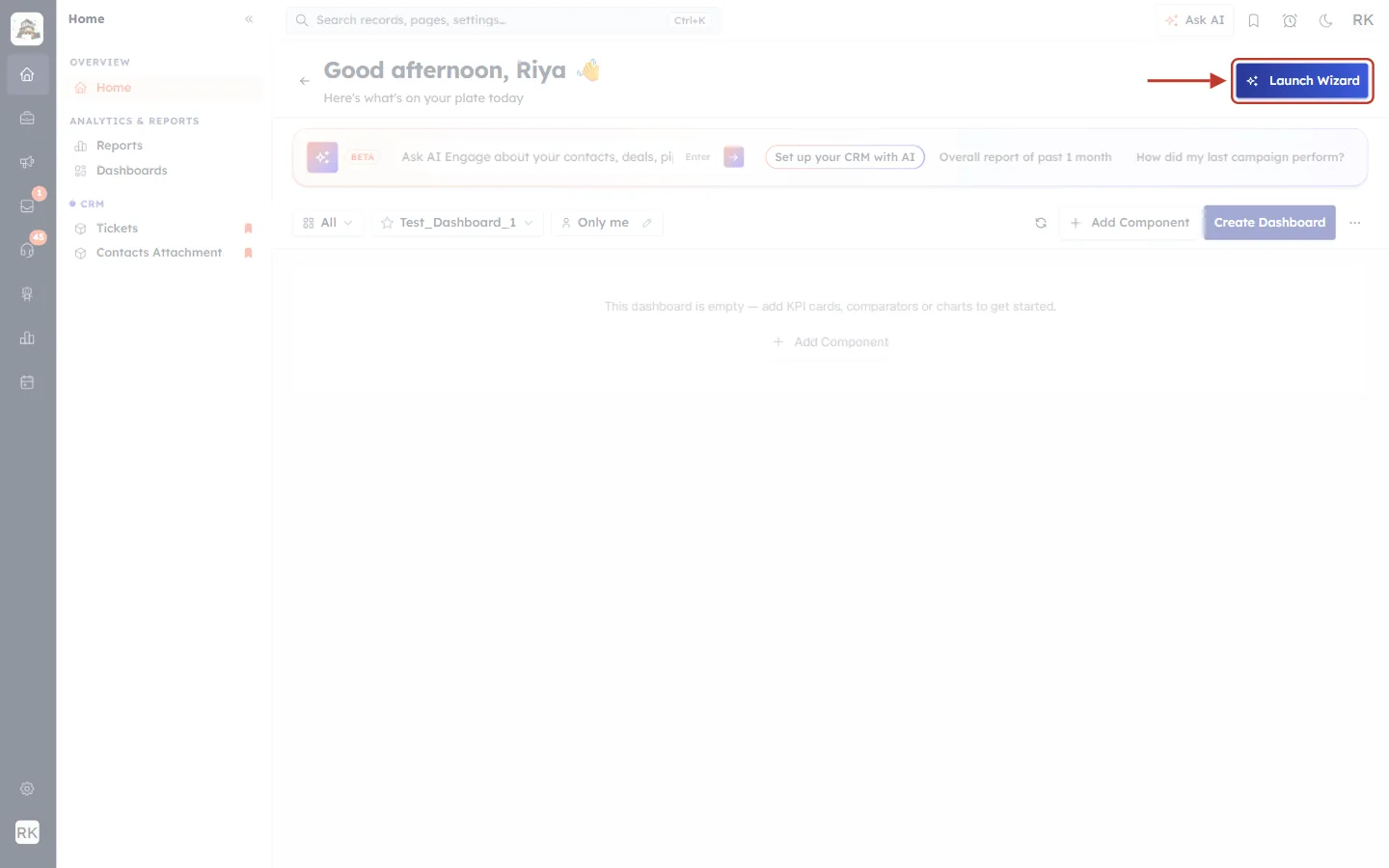
What this screenshot shows. The Home page with the Launch Wizard button ringed in red at the top right.
Good afternoon, Riya: the greeting with the signed-in user’s name.
Ask AI Engage bar: the chat bar below the greeting, with suggested questions on the right.
Launch Wizard (ringed): opens the setup wizard on the Home page. Your dashboards are not changed; Back to Dashboard returns to them.
Test_Dashboard_1, Add Component, Create Dashboard: the normal dashboard tools, which stay as they are.
The wizard opens. In the Quick setup list, find the row Set up modules. It carries an AI Assistant badge. Click Setup using AI on that row.
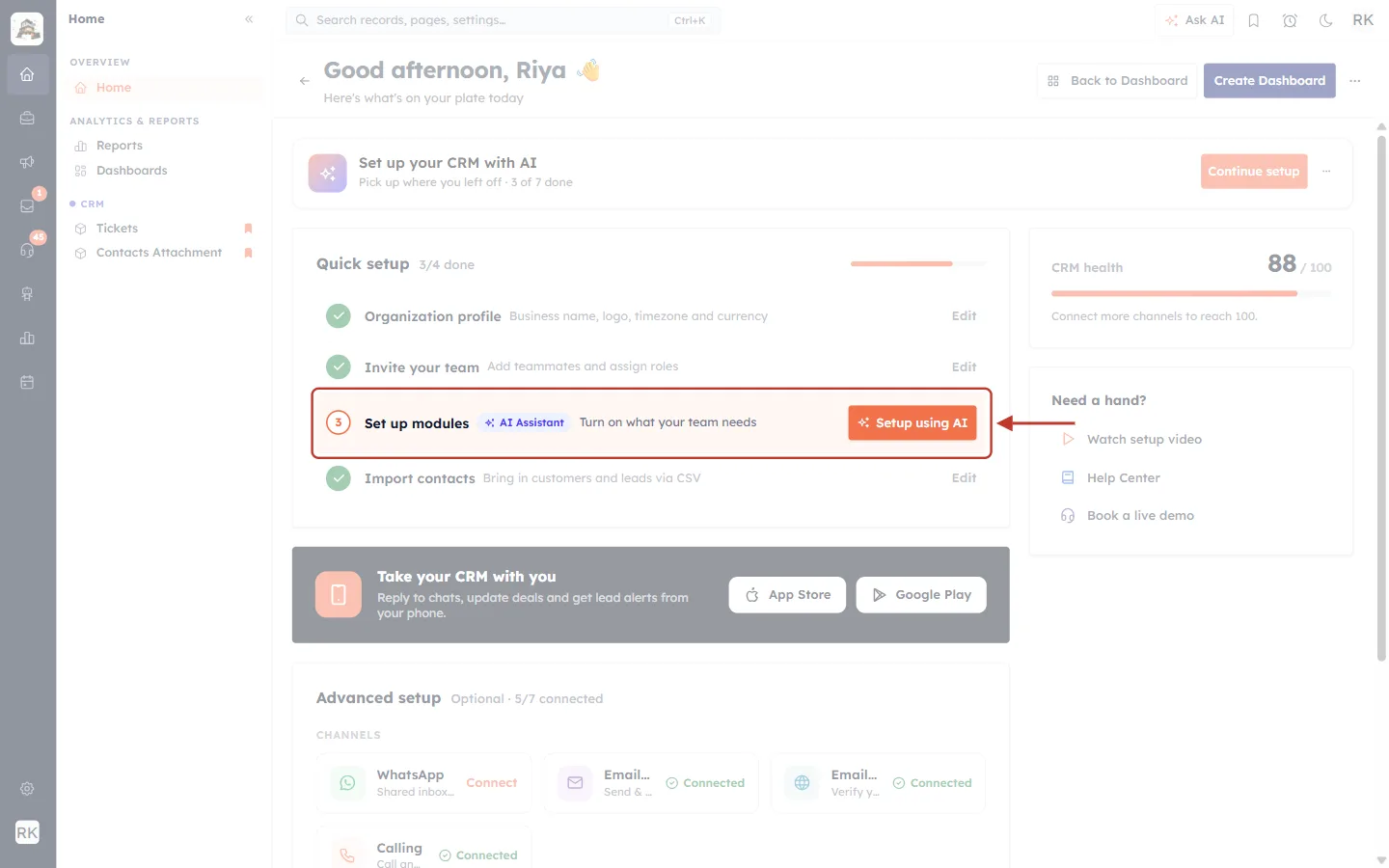
What this screenshot shows. The setup wizard on the Home page. The Set up modules row of Quick setup is ringed, with its orange Setup using AI button.
Set up your CRM with AI: the AI setup card at the top (see the next screenshot).
Quick setup · 3/4 done: the four essential steps and a progress bar.
Organization profile, Invite your team, Import contacts: done steps show a green tick and an Edit link.
3 · Set up modules · AI Assistant · Turn on what your team needs (ringed): the module step. Its button is Setup using AI instead of a manual option. This row never shows a tick, so it is always there when you want to add or improve modules.
CRM health and Need a hand? on the right: your setup score, and links to a setup video, the Help Center and a live demo.
The card at the top of the wizard, Set up your CRM with AI, opens the same assistant. Before you have started it says Start setup; once you have, it shows how far you are (for example 3 of 7 done) and a Continue setup button that takes you back to your latest setup chat.
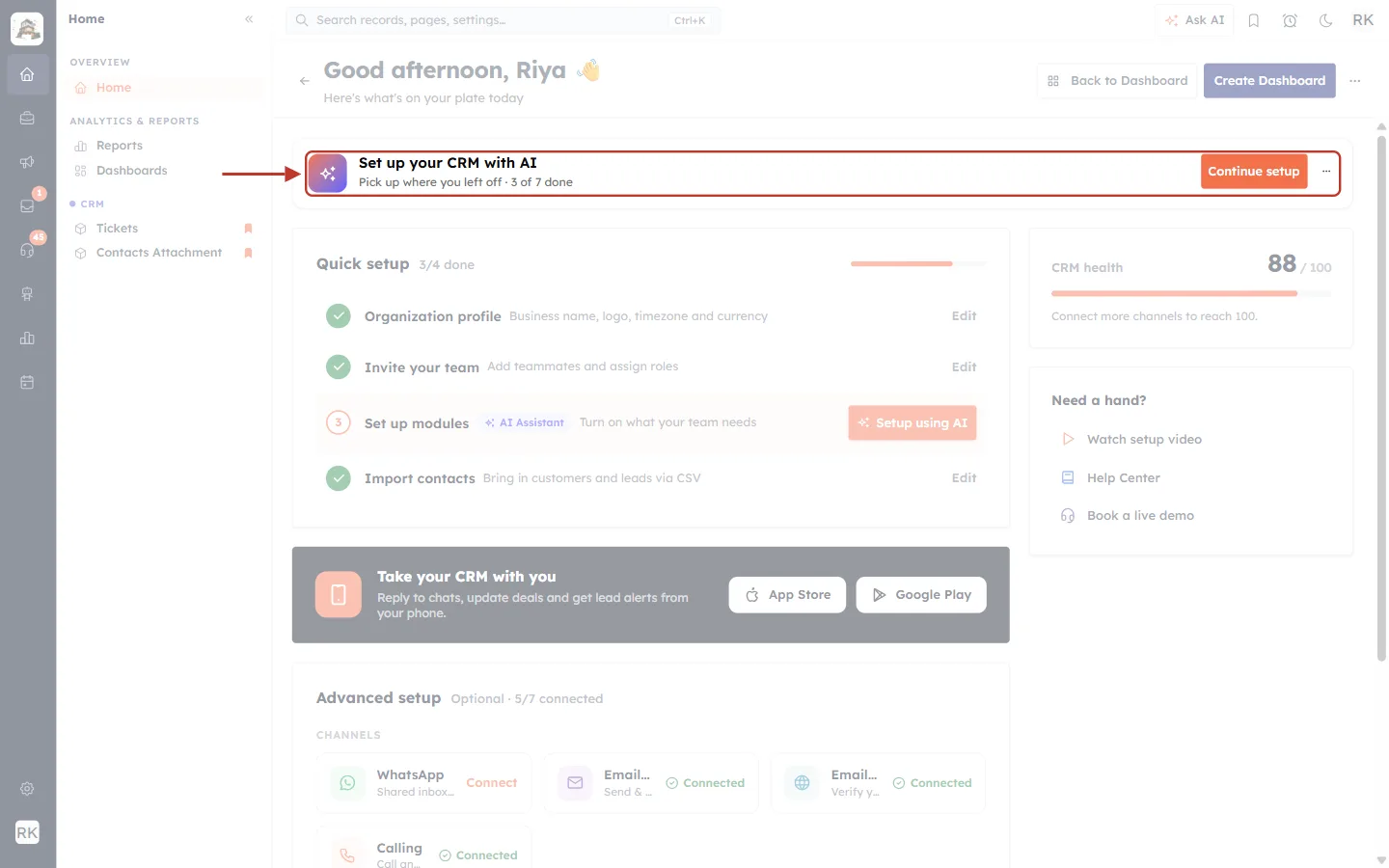
What this screenshot shows. The Set up your CRM with AI card ringed at the top of the wizard.
Set up your CRM with AI: the card’s title, with the sparkle icon on the left.
Pick up where you left off · 3 of 7 done: how many of the assistant’s seven setup stages are finished (Business, Data, Pipeline, Channels, AI agent, Import, Wrap-up).
Continue setup: reopens your latest setup chat.
···: admins can choose Finish setup now here to close the guided setup. You can still use the assistant afterwards.
From the Ask AI bar on the Home page#
On your normal Home dashboard, the Ask AI Engage bar shows a chip called Set up your CRM with AI. Clicking it opens the assistant directly. The chip disappears once setup is finished.
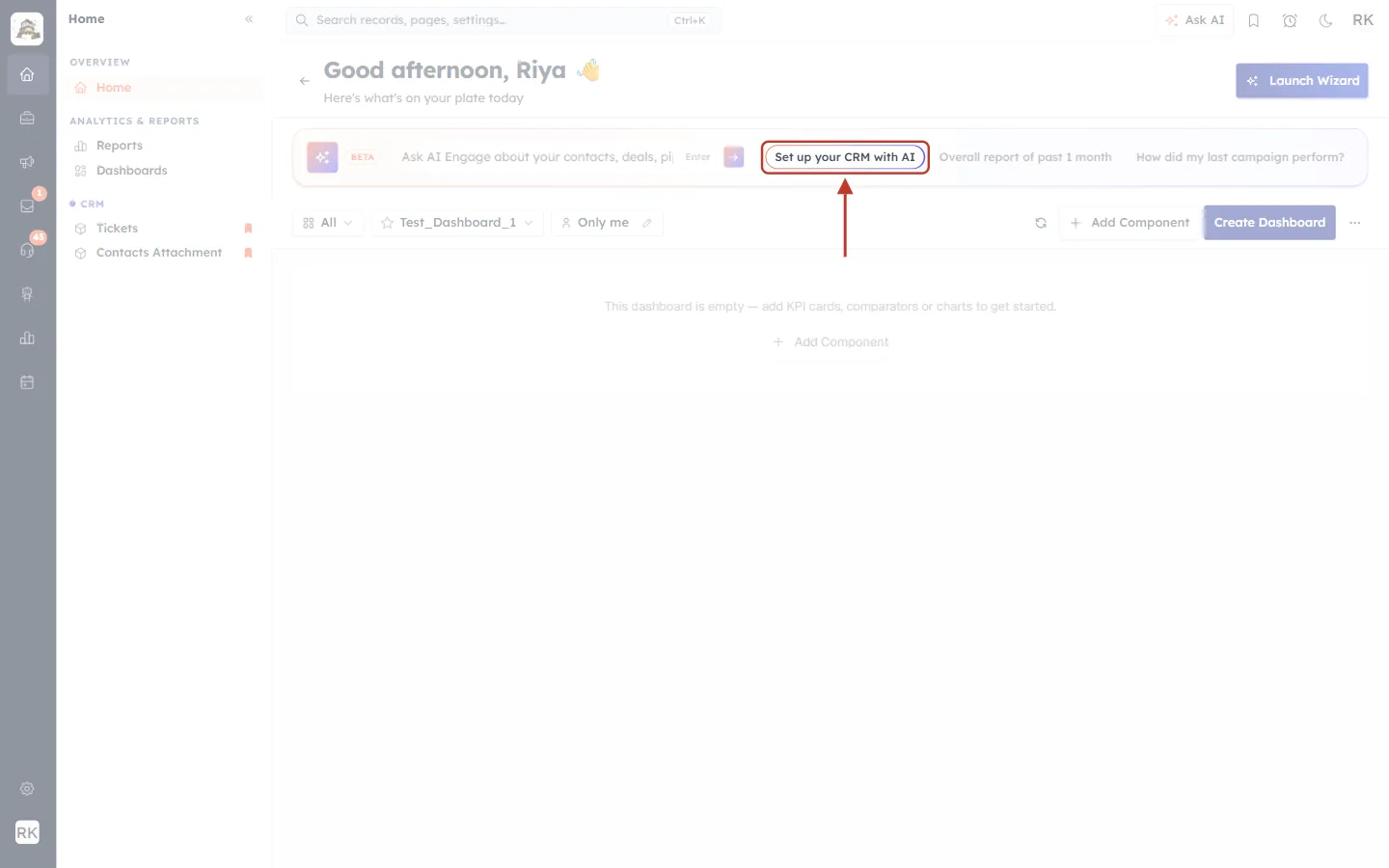
What this screenshot shows. The Ask AI Engage bar on the Home page, with the Set up your CRM with AI chip ringed.
BETA and the text box Ask AI Engage about your contacts, deals…: the normal Ask AI question box.
Set up your CRM with AI (ringed): opens the Ask AI panel on its Onboarding tab.
Overall report of past 1 month, How did my last campaign perform?: suggested questions for the normal Ask AI (the Analytics tab).
From anywhere: Ask AI → Onboarding#
Click Ask AI in the top bar of any page, then click the Onboarding tab at the top of the panel. (Analytics is the tab for asking questions about your data; Onboarding is the one that sets up your CRM.)
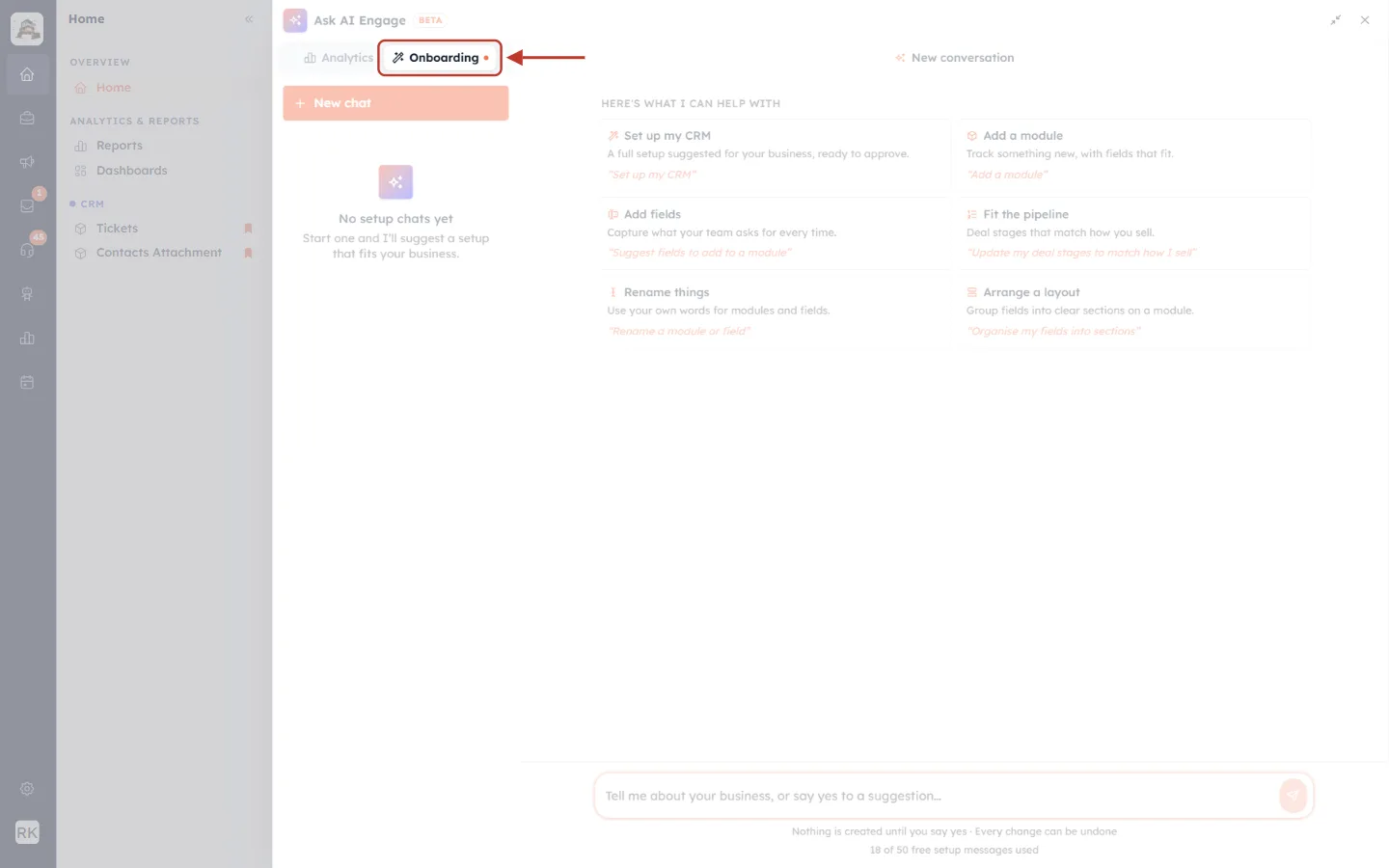
What this screenshot shows. The Ask AI Engage panel open over the page, with the Onboarding tab ringed.
Analytics: answers questions about your CRM data. It does not change your setup.
Onboarding (ringed): the AI setup assistant. The small orange dot means setup is not finished yet.
⤡ and ✕ at the top right: make the panel smaller or larger, and close it.
✅
You can also start from the module itself. The Modules page has a with AI button on every module, and each module’s Layouts page has Configure with AI. Both are covered in Steps 9 and 10.
Step 2: Get to know the Onboarding panel#
The Onboarding panel has three parts: your setup chats on the left, the conversation in the middle, and the message box at the bottom. In a new chat, the middle shows six starters, one for each kind of thing the assistant can do.
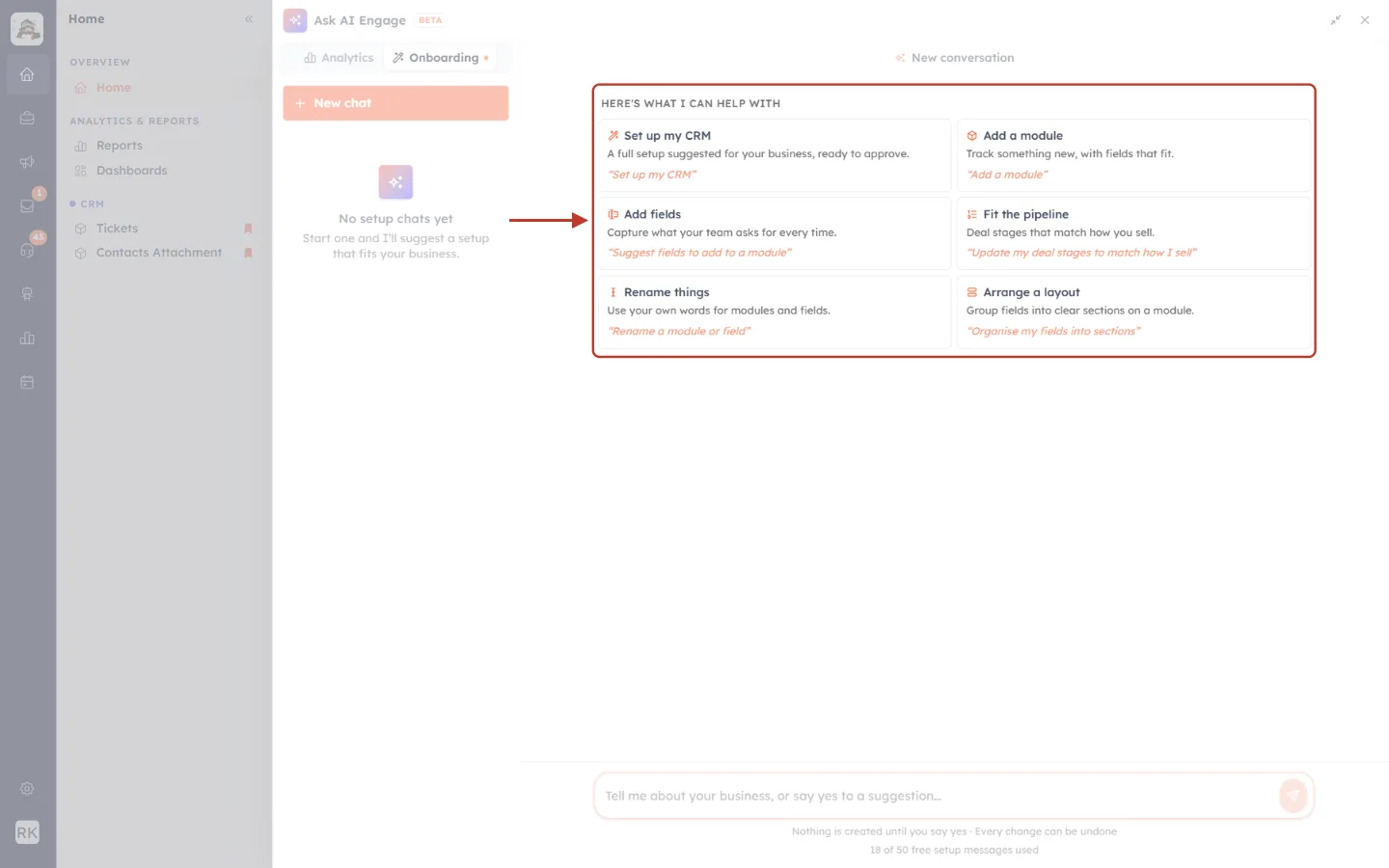
What this screenshot shows. A new setup chat, with the starters under HERE’S WHAT I CAN HELP WITH ringed.
Set up my CRM: a full setup suggested for your business (business profile, modules, pipeline, channels and more), ready to approve card by card.
Add a module: track something new, with fields that fit. This is the one we use in this guide.
Add fields: capture what your team asks for every time, on a module you already have.
Fit the pipeline: deal stages that match how you sell.
Rename things: use your own words for modules and fields.
Arrange a layout: group a module’s fields into clear sections.
Under each starter, the text in orange quotes is what it puts in the message box for you.
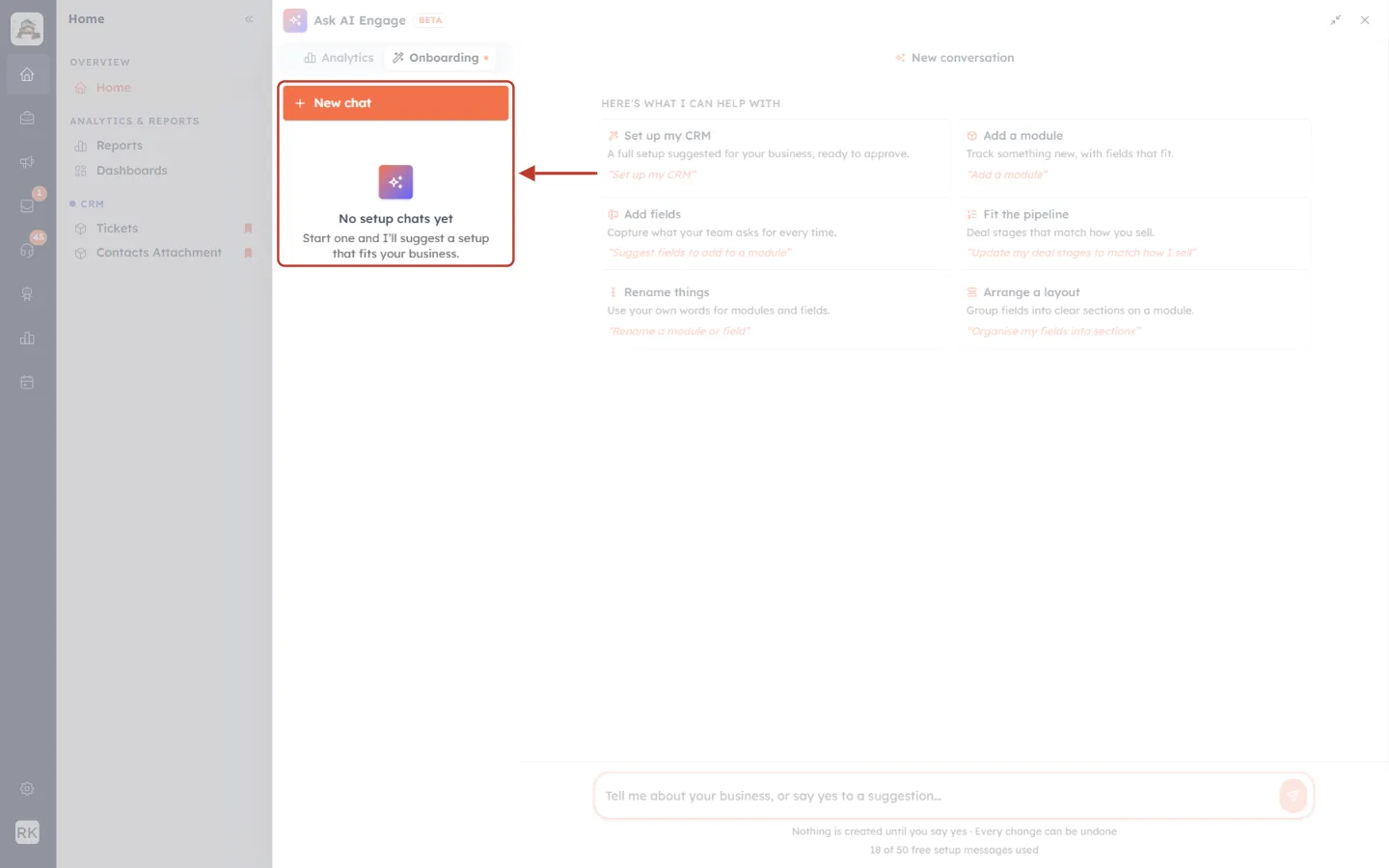
What this screenshot shows. The left side of the panel, with New chat and the empty chat list ringed.
New chat: starts a fresh setup conversation.
No setup chats yet: shown until you send your first message. Afterwards each setup chat is listed here with its date and time, so you can reopen it later.
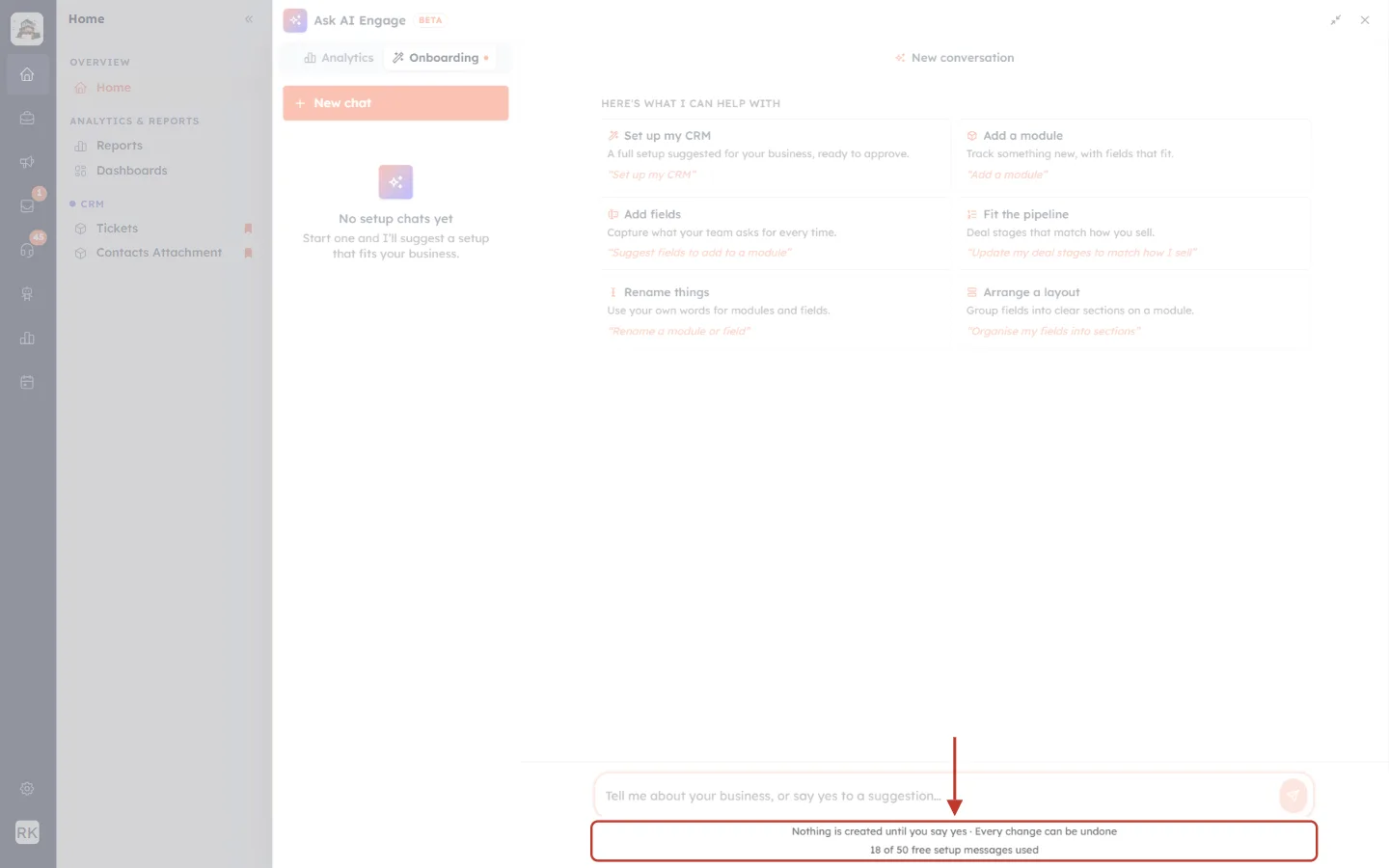
What this screenshot shows. The two lines under the message box ringed.
Tell me about your business, or say yes to a suggestion…: the message box above them.
Nothing is created until you say yes · Every change can be undone: the assistant’s two rules.
18 of 50 free setup messages used: your workspace’s free allowance. Each reply from the assistant uses one. When all 50 are used, the line says Free setup messages used up · setup now uses AI credits.
Step 3: Choose “Add a module” and describe what you track#
Click the Add a module starter. It does not send anything yet: it puts the words Add a module in the message box, so you can add the details.
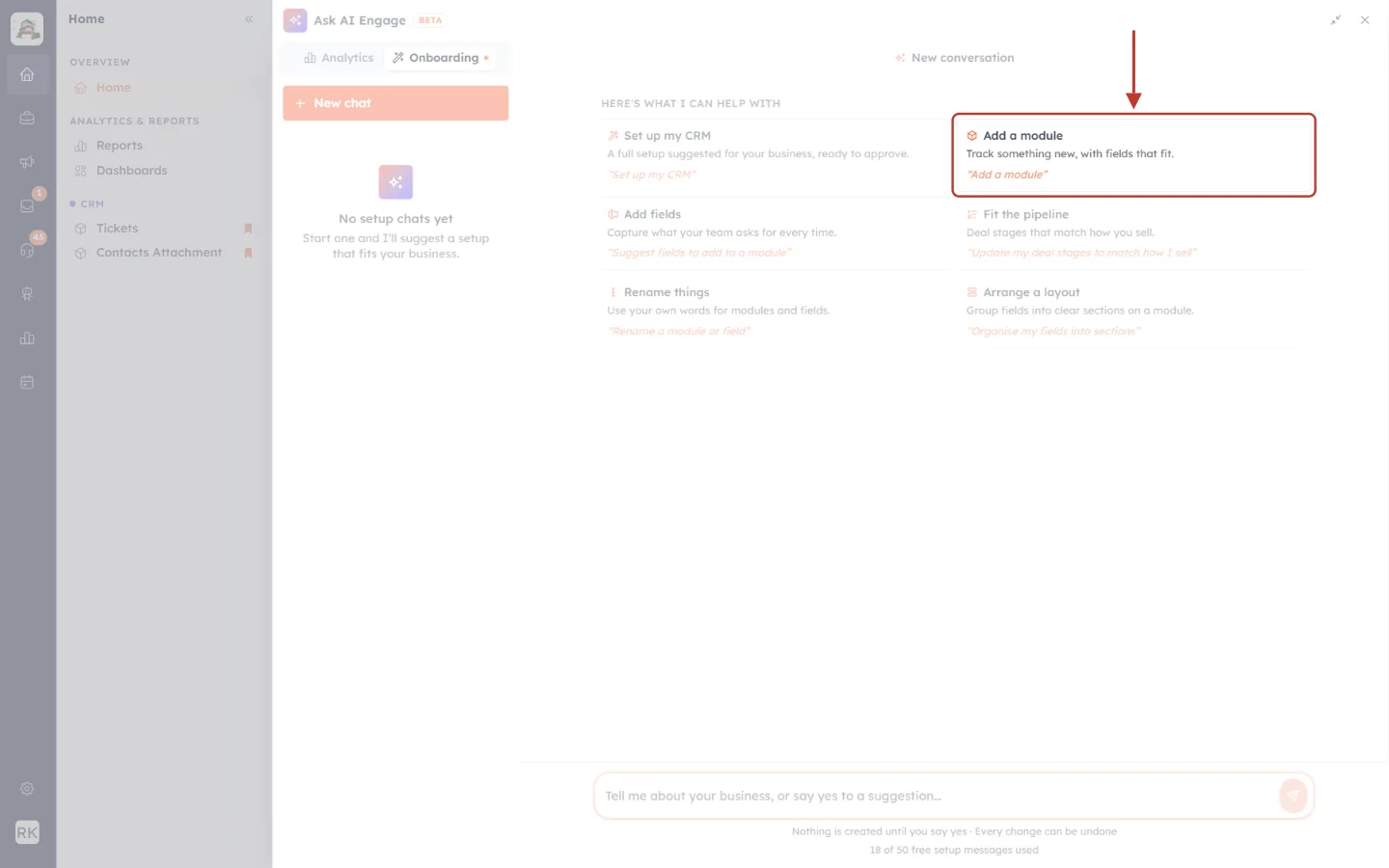
What this screenshot shows. The Add a module starter ringed among the six starters.
Add a module: the title, with the box icon.
Track something new, with fields that fit.: what it does.
“Add a module”: the text it places in the message box.
Now tell the assistant about your business and what you want to track, in your own words. The more you say, the better the first suggestion. It helps to mention:
Your kind of business (for example, a real estate agency in Pune).
What one record is (one property you list).
The details you write down every time (address, locality, asking price, bedrooms).
Any fixed choices, written in brackets (property type: Apartment, Villa, Plot).
The stages a record moves through (listing status: Available, Under offer, Sold).
Who is responsible (the listing agent).
In our example we typed: “Add a module. We are a real estate agency in Pune. I want a Properties module to track the homes we list: address, locality, asking price, bedrooms, property type (Apartment, Villa, Plot), listing status (Available, Under offer, Sold) and the listing agent.”
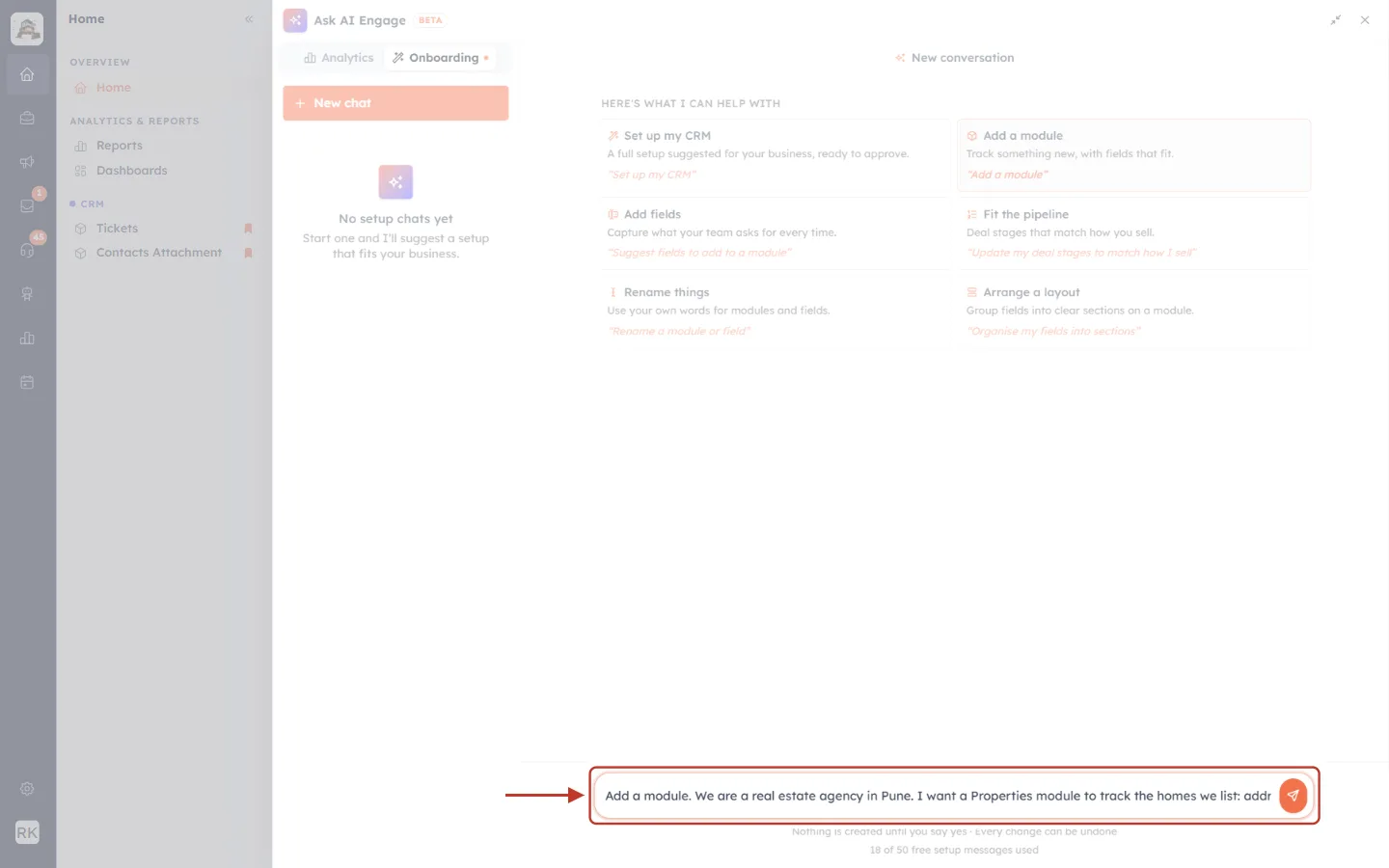
What this screenshot shows. The message box ringed, with the request typed in and the orange send button on the right.
The message starts with Add a module. (from the starter), followed by the business and the details to track.
Send (orange arrow): sends the message. You can also press Enter.
The starters above stay visible until you send.
ℹ️
The assistant can’t read files or attachments. Describe what you need in the message instead.
Step 4: Send the message and read the reply#
Press Enter. Your message appears on the right in orange, and the assistant starts working. While it works, a grey line shows what it is doing, for example Finding it in your CRM data… The orange stop button in the message box lets you stop the reply.
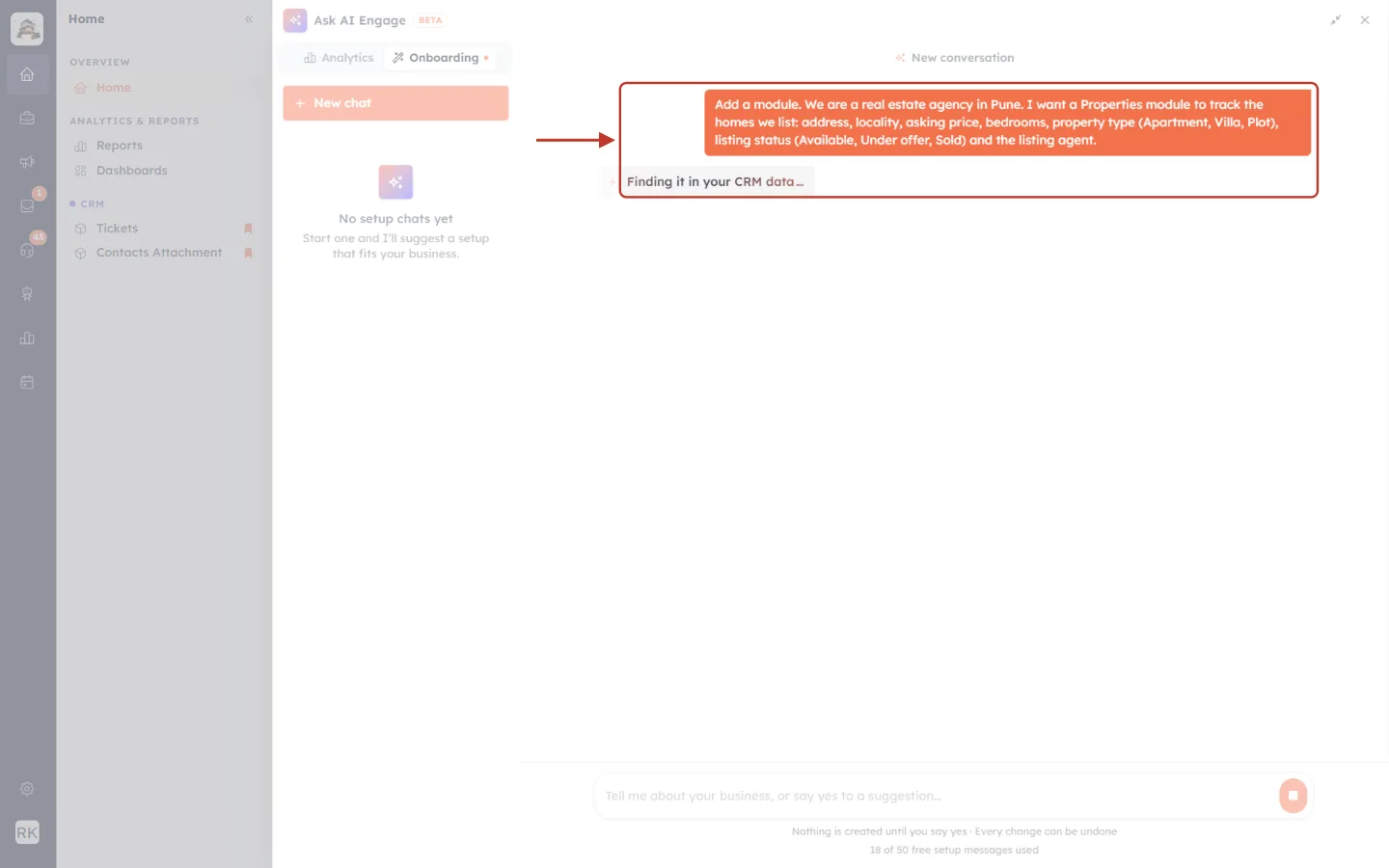
What this screenshot shows. Your message and the assistant’s working indicator ringed.
Orange bubble: the message you sent.
Finding it in your CRM data…: the assistant is reading your current modules and fields, so it doesn’t suggest something you already have.
Stop button in the message box: stops the reply if you change your mind.
The chat list on the left still says No setup chats yet; the chat is listed as soon as the reply arrives.
In a few seconds the reply arrives. It explains what the assistant has prepared and why. Below the text is a small chip, Checked 3 things, and below that the suggestion card.
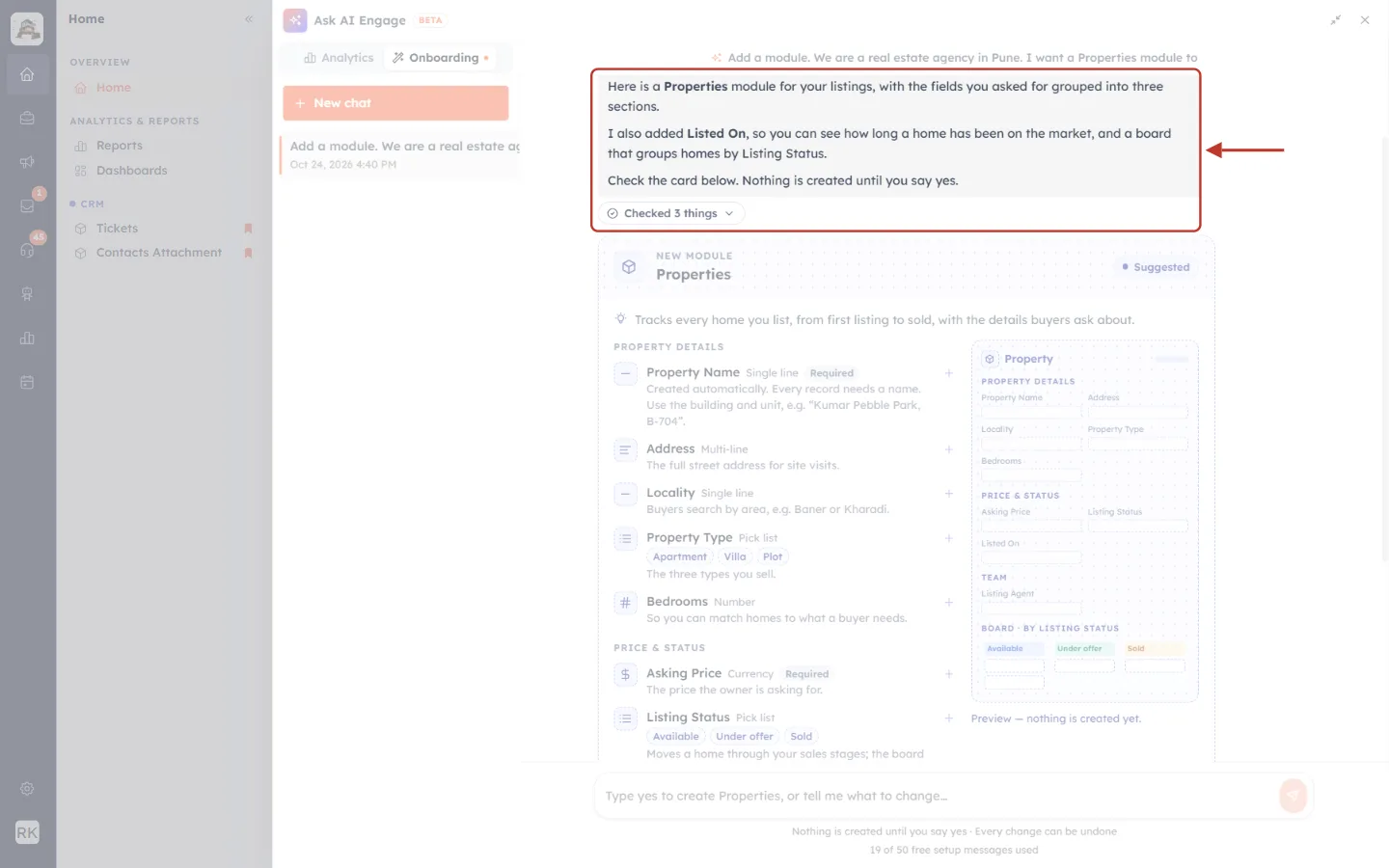
What this screenshot shows. The assistant’s reply ringed, above the Properties card.
Here is a Properties module for your listings…: a summary of the suggestion, with the fields grouped into three sections.
I also added Listed On…: anything the assistant added on its own, and why. Here it added a date field and a board grouped by Listing Status.
Check the card below. Nothing is created until you say yes.: a reminder that nothing has been created yet.
Checked 3 things: click it to see what the assistant checked before suggesting the card.
Click Checked 3 things to open it.
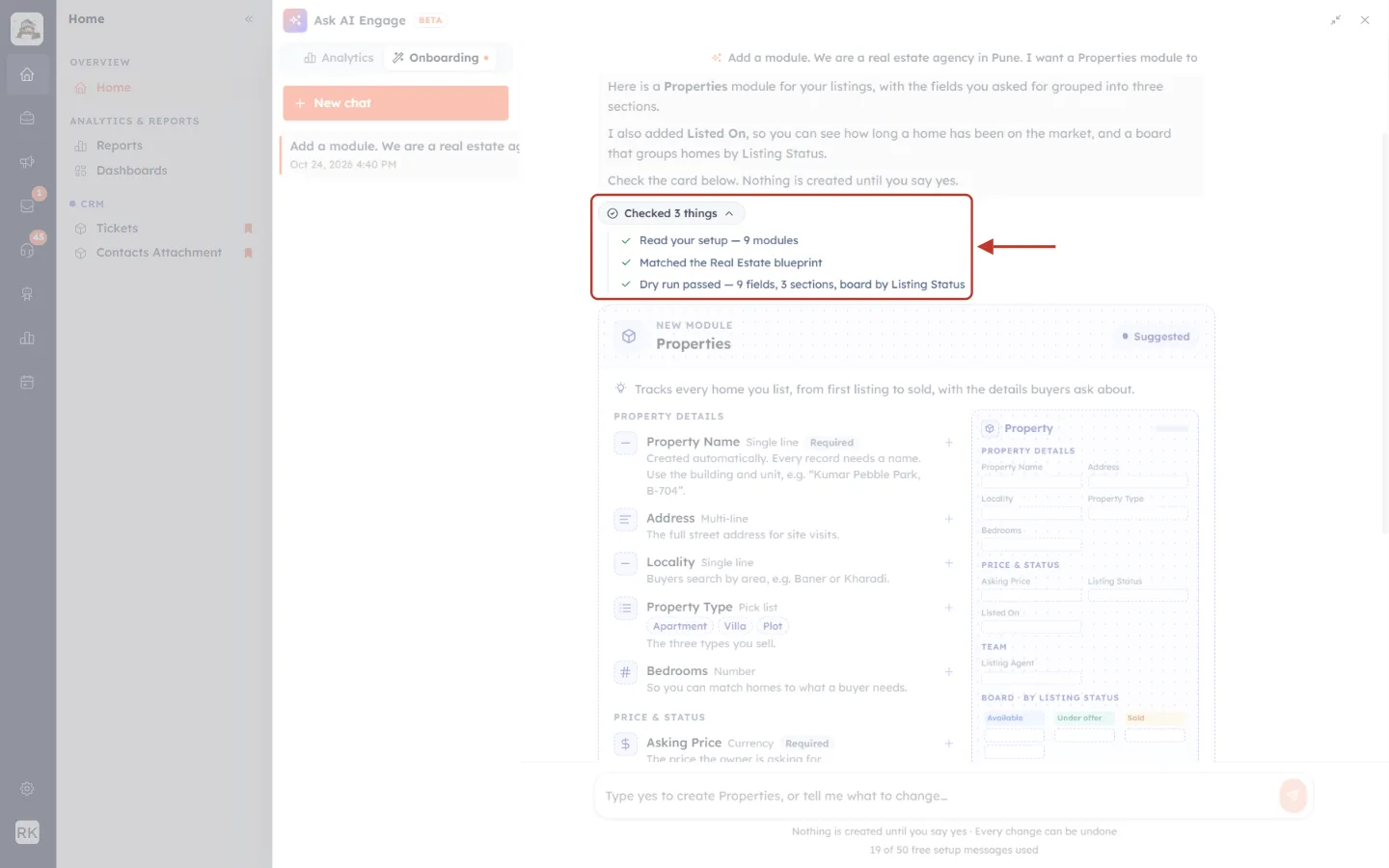
What this screenshot shows. The Checked 3 things chip opened, ringed, showing each check with a green tick.
Read your setup — 9 modules: it read the modules you already have, so it doesn’t create a duplicate.
Matched the Real Estate blueprint: it used a ready-made blueprint for your industry as a starting point. For industries without one it says using general knowledge.
Dry run passed — 9 fields, 3 sections, board by Listing Status: the suggestion was tested against your CRM without saving anything, so it can actually be created (for example, the name isn’t taken and your plan has room for the fields).
If a check shows Dry run found problems, the assistant fixes the card before showing it, or tells you what needs changing.
Step 5: Review the module card#
The card is the suggestion itself. Read it carefully: this is exactly what will be created. The left side lists the fields, grouped by section; the right side is a preview of a record.
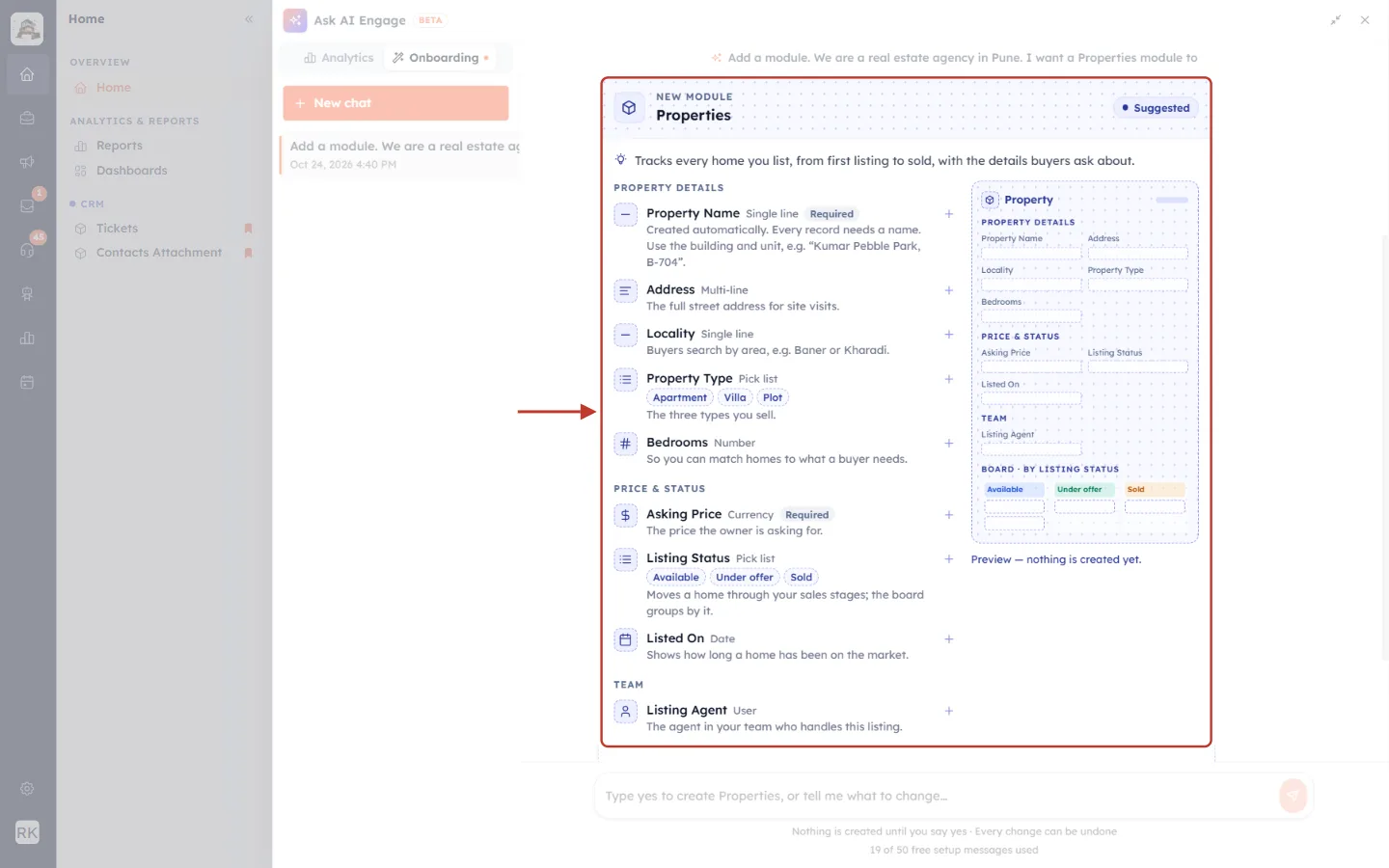
What this screenshot shows. The suggestion card for the new Properties module ringed.
NEW MODULE · Properties: the kind of suggestion and the module’s name.
Suggested (top right): the card’s status. It changes to Creating… and then Created.
💡 Tracks every home you list…: why the assistant suggests this module.
PROPERTY DETAILS: the first section. Each row is one field: its name in bold, its type in grey (Single line, Multi-line, Pick list, Number…), and a line explaining why it is there.
Property Name · Required · Created automatically: every module gets a name field automatically. The assistant suggests how to fill it in.
Property Type · Pick list · Apartment · Villa · Plot: a drop-down field, with its choices shown as small chips.
Preview (right): how a Property record will look, with the same sections.
Scroll down the card to see the rest of the fields and what else the module comes with.
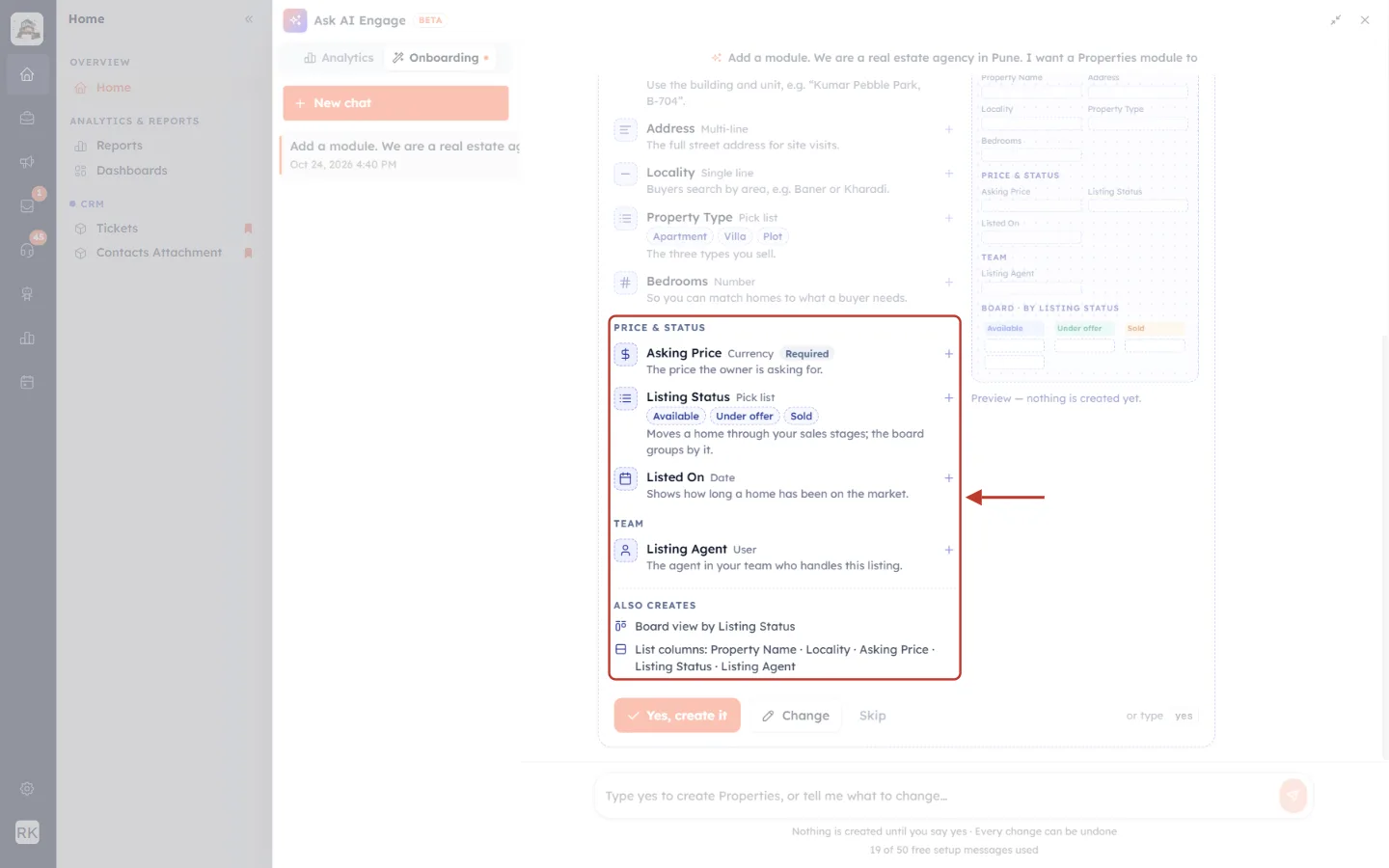
What this screenshot shows. The lower part of the card ringed: the remaining sections and ALSO CREATES.
PRICE & STATUS: Asking Price (Currency, Required), Listing Status (Pick list with Available, Under offer, Sold) and Listed On (Date).
TEAM: Listing Agent is a User field, so you pick one of your teammates.
Required: a record can’t be saved without this field.
ALSO CREATES · Board view by Listing Status: a board (kanban) view where each column is a listing status, so you can drag homes from Available to Sold.
List columns: Property Name · Locality · Asking Price · Listing Status · Listing Agent: the columns you see in the module’s list.
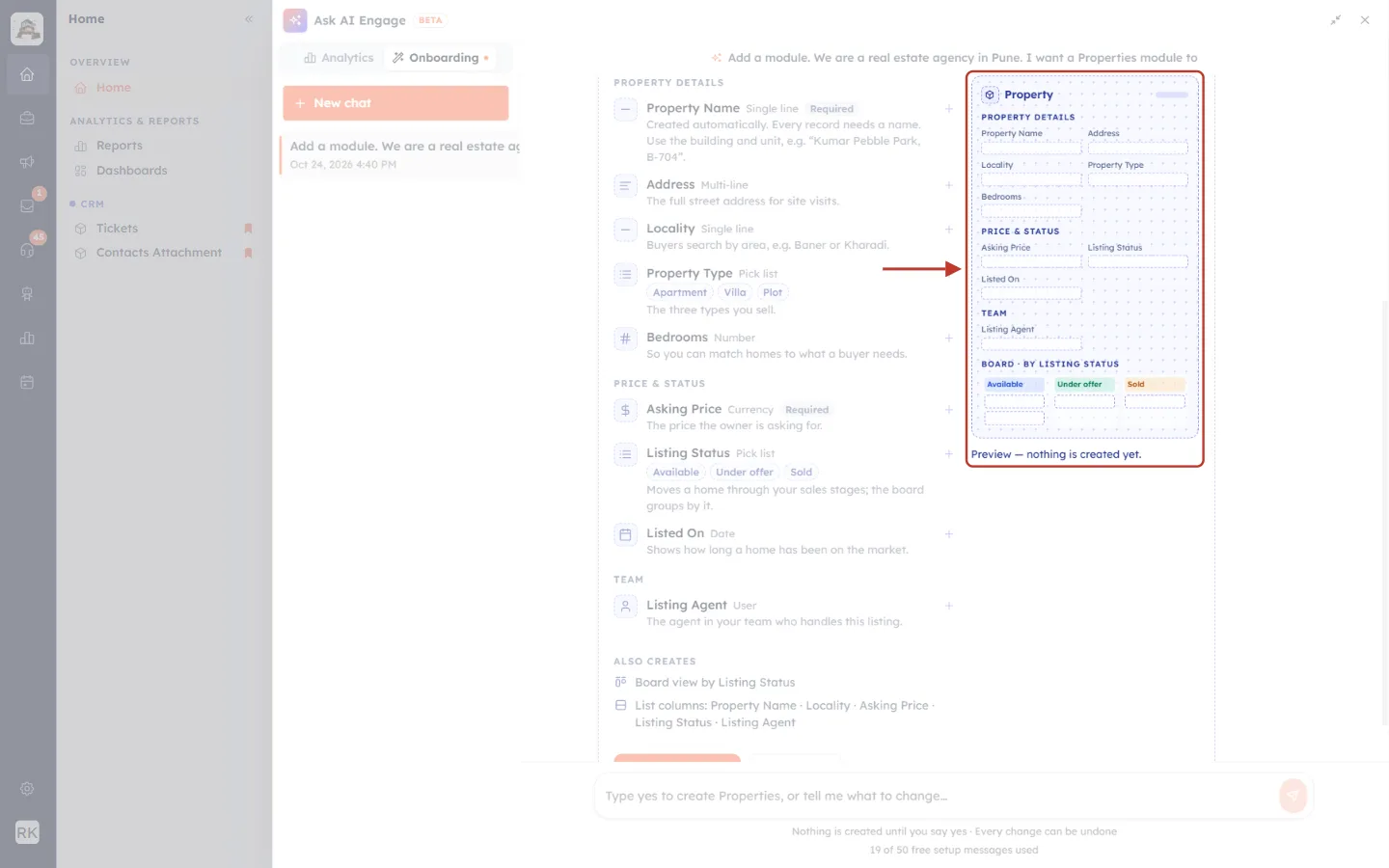
What this screenshot shows. The Preview on the right of the card ringed.
Property: the record’s name as it will appear (the singular of the module name).
PROPERTY DETAILS, PRICE & STATUS, TEAM: the record page’s sections, with every field in place.
BOARD · BY LISTING STATUS: the board view, with one coloured column per status.
Preview — nothing is created yet.: a reminder that this is only a drawing.
At the bottom of the card are its buttons.
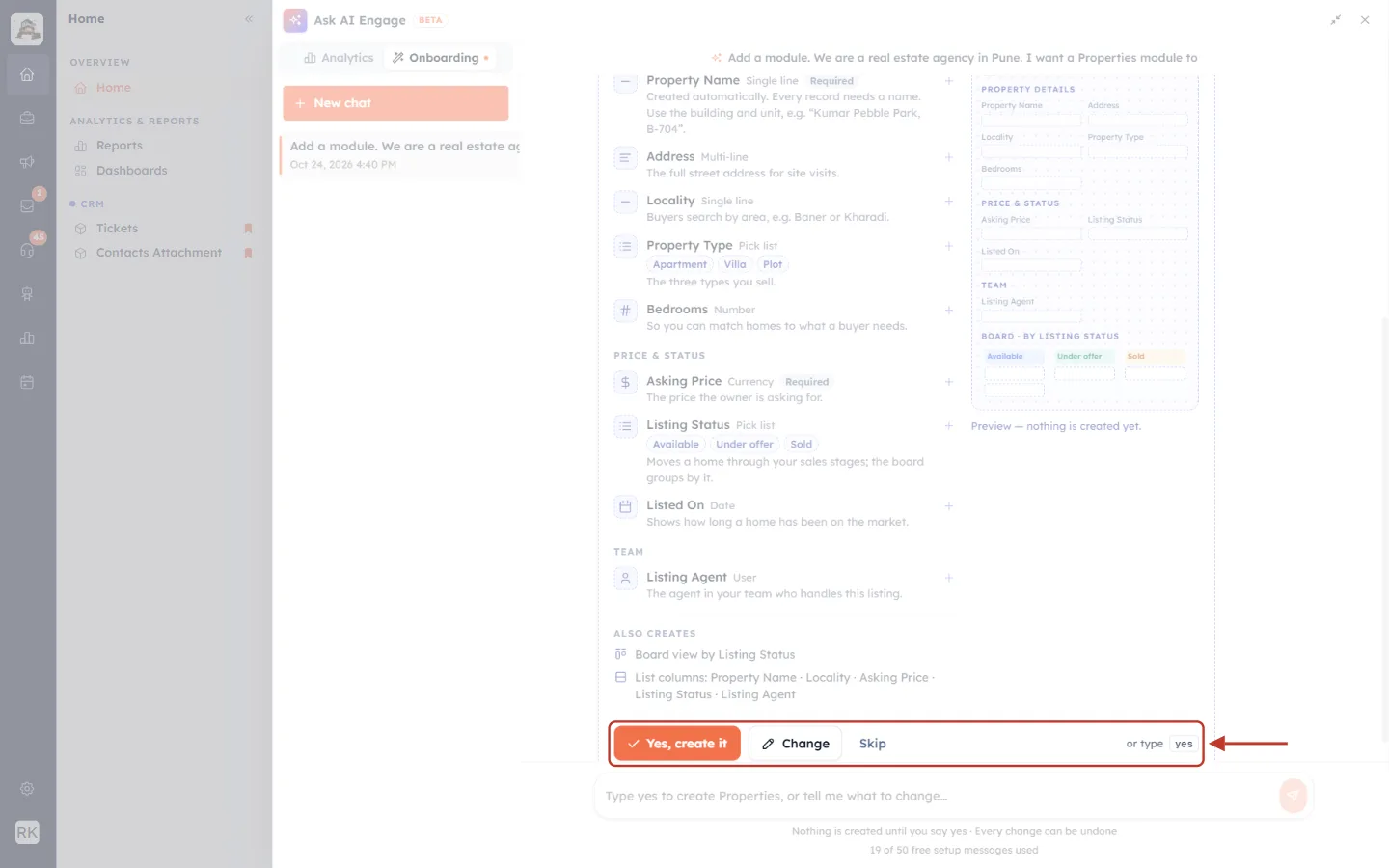
What this screenshot shows. The card’s buttons ringed.
Yes, create it: creates the module exactly as shown (Step 7).
Change: asks for changes to this card (Step 6).
Skip: you don’t want this suggestion. The card folds into one line with Suggest again, in case you change your mind.
or type yes: typing yes (or ok, go ahead, create it, looks good…) in the message box does the same as the button.
ℹ️
A module card can hold at most 12 fields, so the assistant keeps a new module focused. You can always add more fields later, with AI or by hand.
Step 6: Ask for changes (optional)#
If the card isn’t quite right, click Change. The message box is filled with Change “Properties”: so the assistant knows which card you mean.
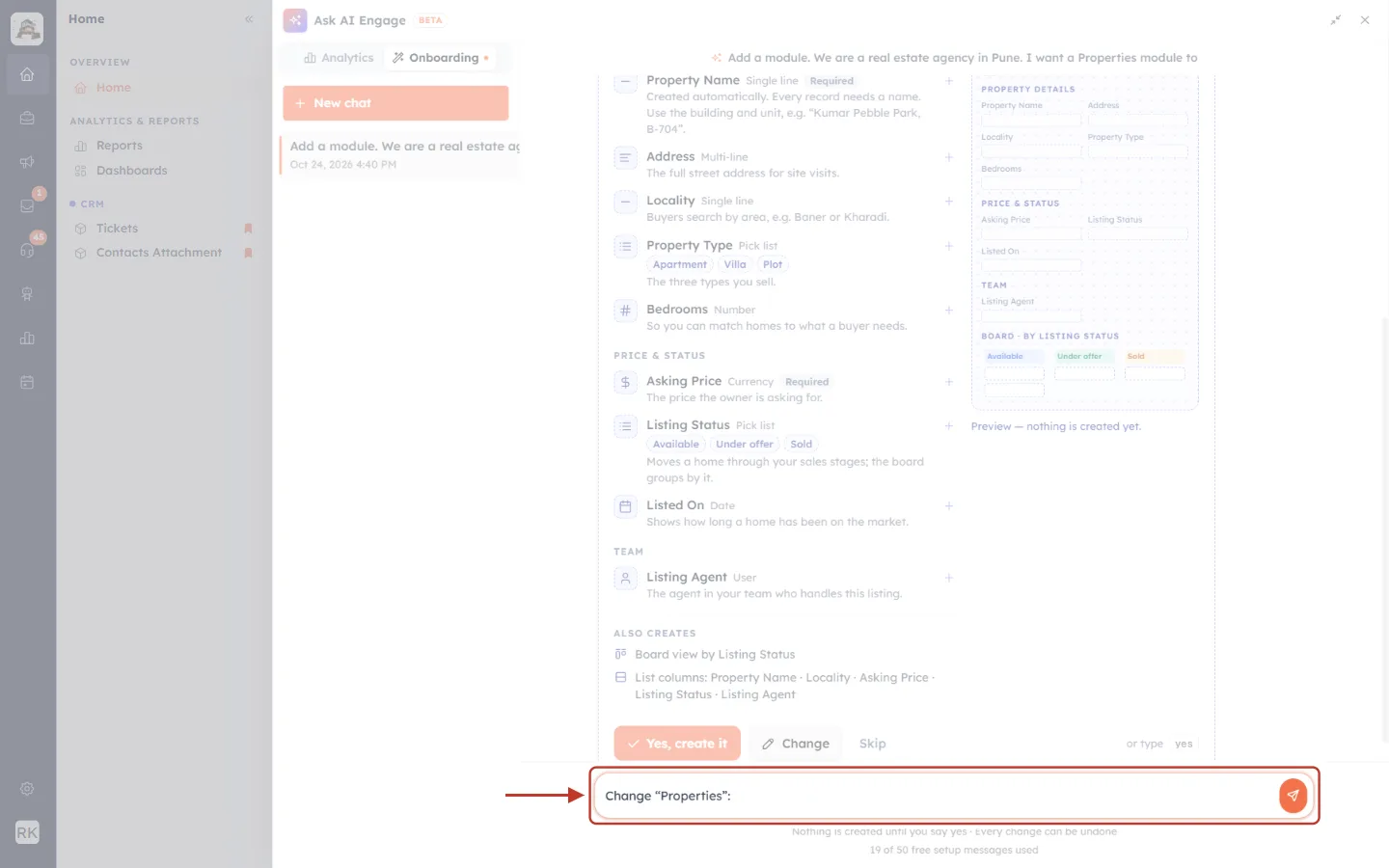
What this screenshot shows. The message box ringed, now starting with Change “Properties”:.
Change “Properties”:: added by the Change button. Type what you want after it.
The card above stays as it is until the assistant sends a revised one.
Type what to change after the colon, in plain words. You can add, remove or rename fields, change a field’s type, add choices, or move a field to another section. We added two fields buyers often ask about:
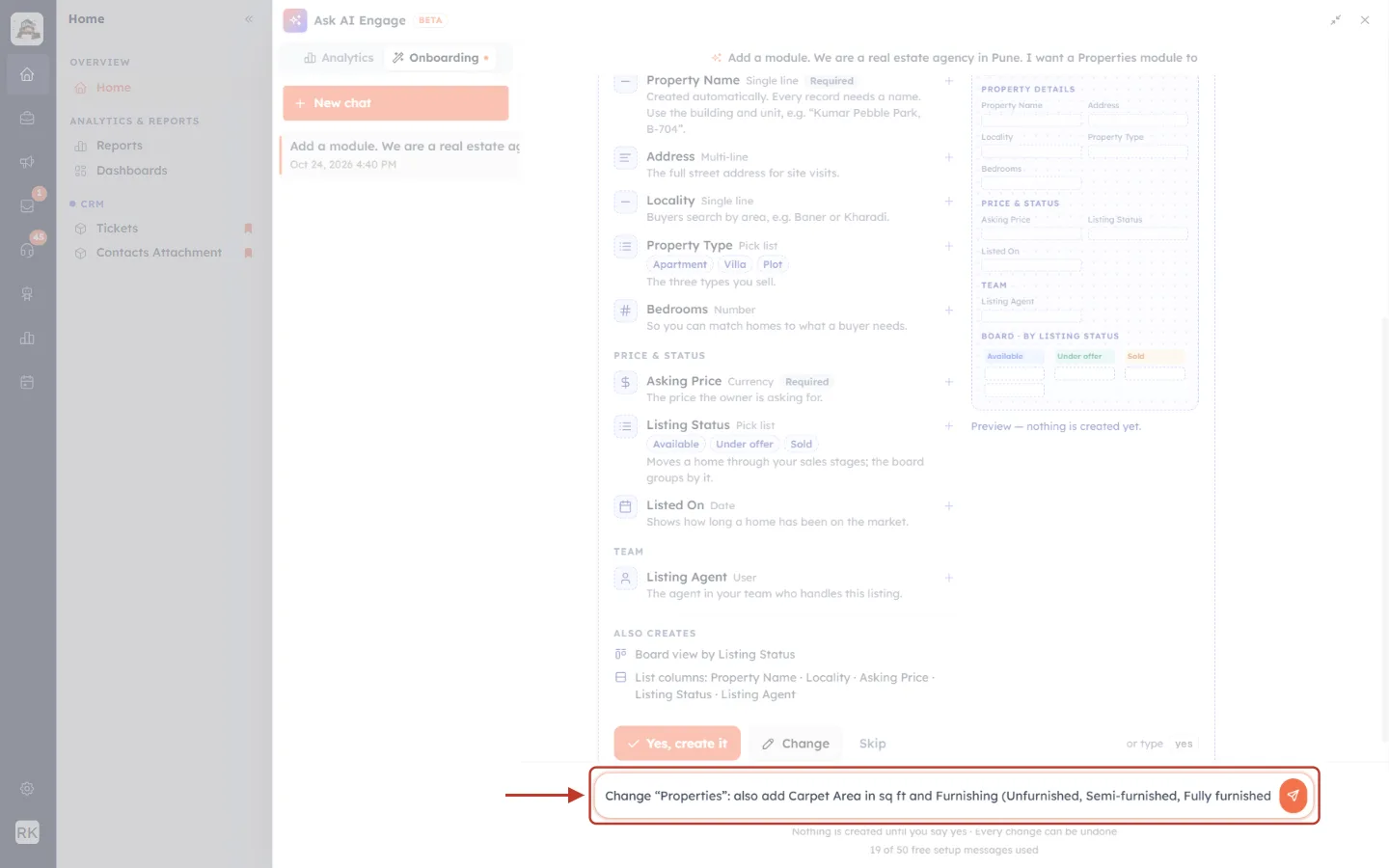
What this screenshot shows. The message box ringed with the full change request.
Change “Properties”: also add Carpet Area in sq ft and Furnishing (Unfurnished, Semi-furnished, Fully furnished): one new number field and one new drop-down field with its three choices.
Press Enter to send it.
The assistant replies with a revised card. The old card is set aside, so only the new one can be created.
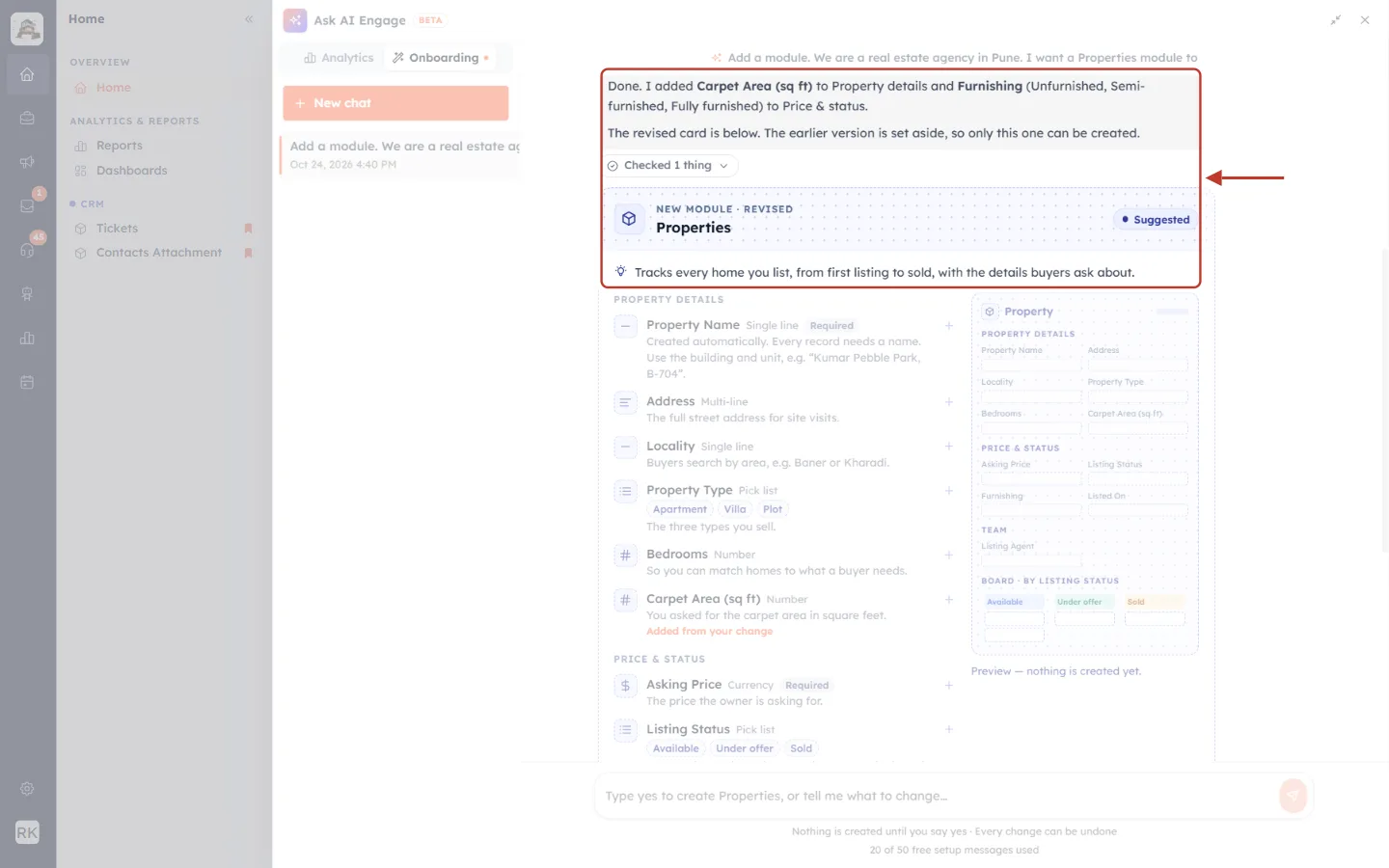
What this screenshot shows. The assistant’s reply and the top of the revised card ringed.
Done. I added Carpet Area (sq ft) … and Furnishing …: what changed and in which section.
The revised card is below. The earlier version is set aside…: only the latest version can be created.
NEW MODULE · REVISED: the card is marked Revised.
Checked 1 thing: the revised card passed its own dry run.
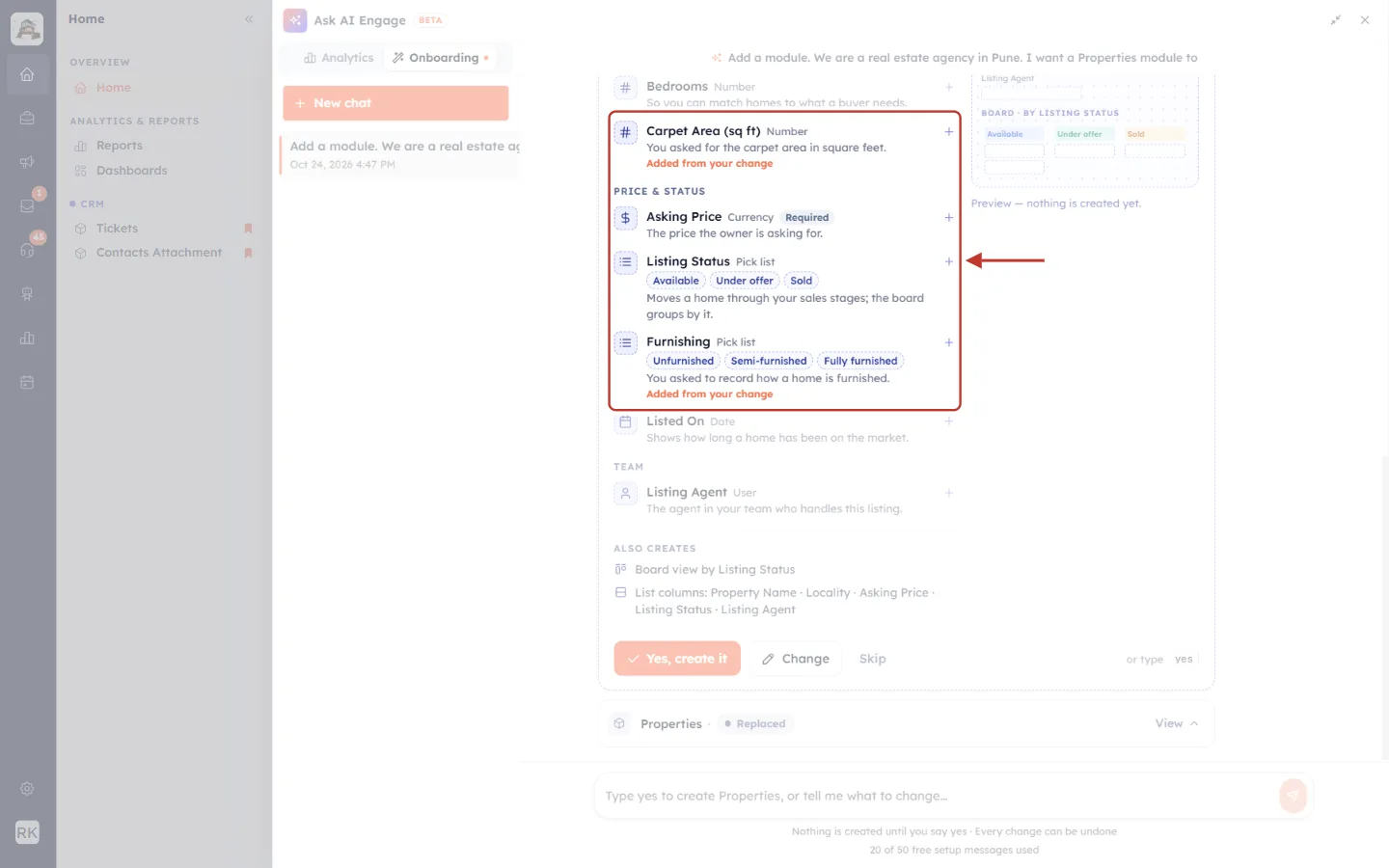
What this screenshot shows. The two new fields in the revised card ringed.
Carpet Area (sq ft) · Number: added to Property details.
Furnishing · Pick list · Unfurnished · Semi-furnished · Fully furnished: added to Price & status.
Added from your change (orange): marks every field that is new in this version, so you can spot the differences quickly.
At the bottom of the message, the earlier card is folded into one line: Properties · Replaced. Click View on it to look at the old version.
✅
You can ask for changes as many times as you need. Each reply uses one setup message.
Step 7: Create the module#
When the card looks right, click Yes, create it (or type yes). The card shows a checklist while the module is built, ticking off each part as it is done.
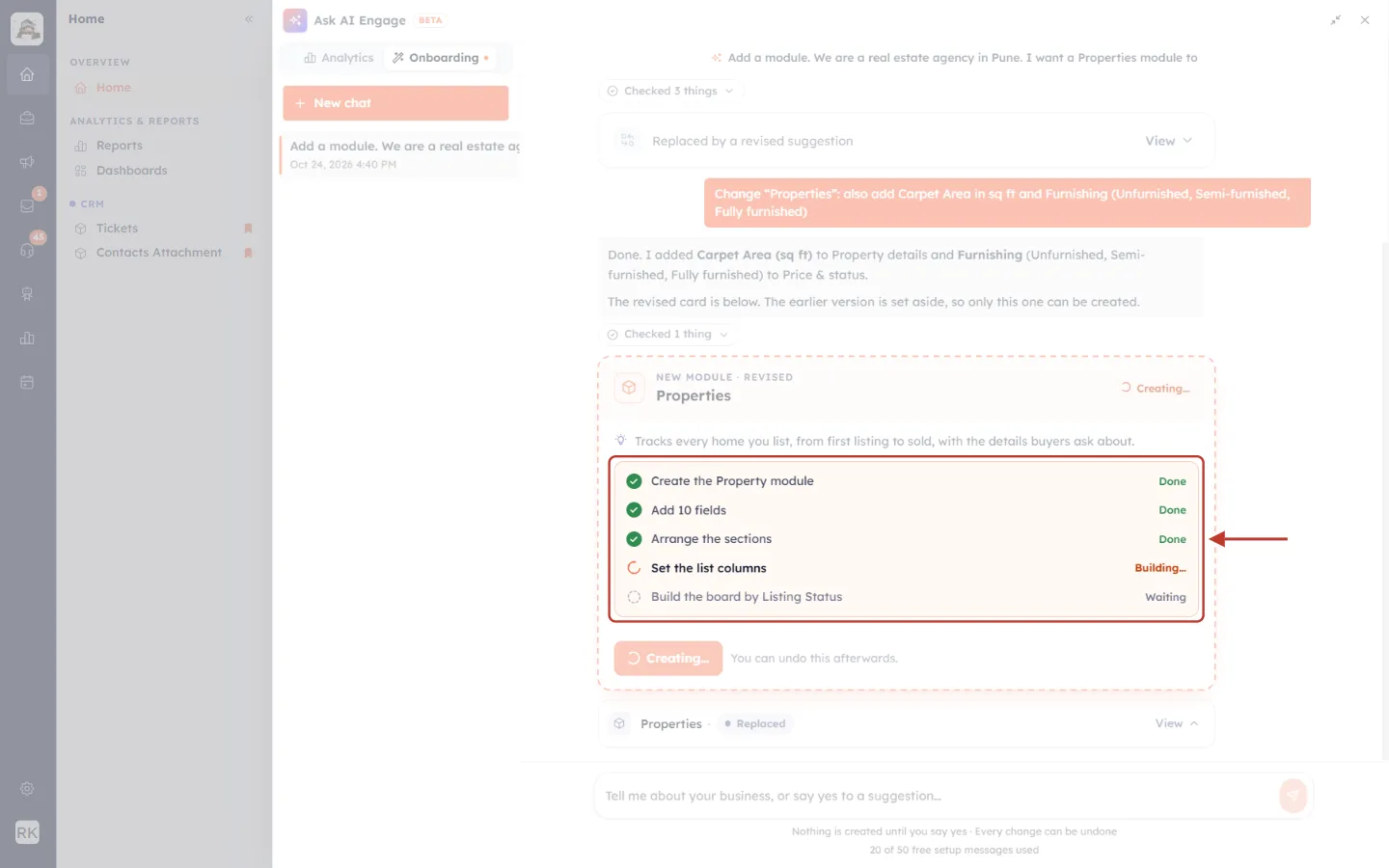
What this screenshot shows. The card while the module is created, with its checklist ringed.
Creating… (top right of the card and on the button): the module is being built.
Create the Property module · Done: the module itself.
Add 10 fields · Done: the fields from the card (the automatic name field is extra).
Arrange the sections · Done: the fields are placed in their sections on the record page and the create form.
Set the list columns · Building…: the step in progress.
Build the board by Listing Status · Waiting: the board view, still to come.
You can undo this afterwards.: shown next to the button while it works.
When everything is done, the card turns green.
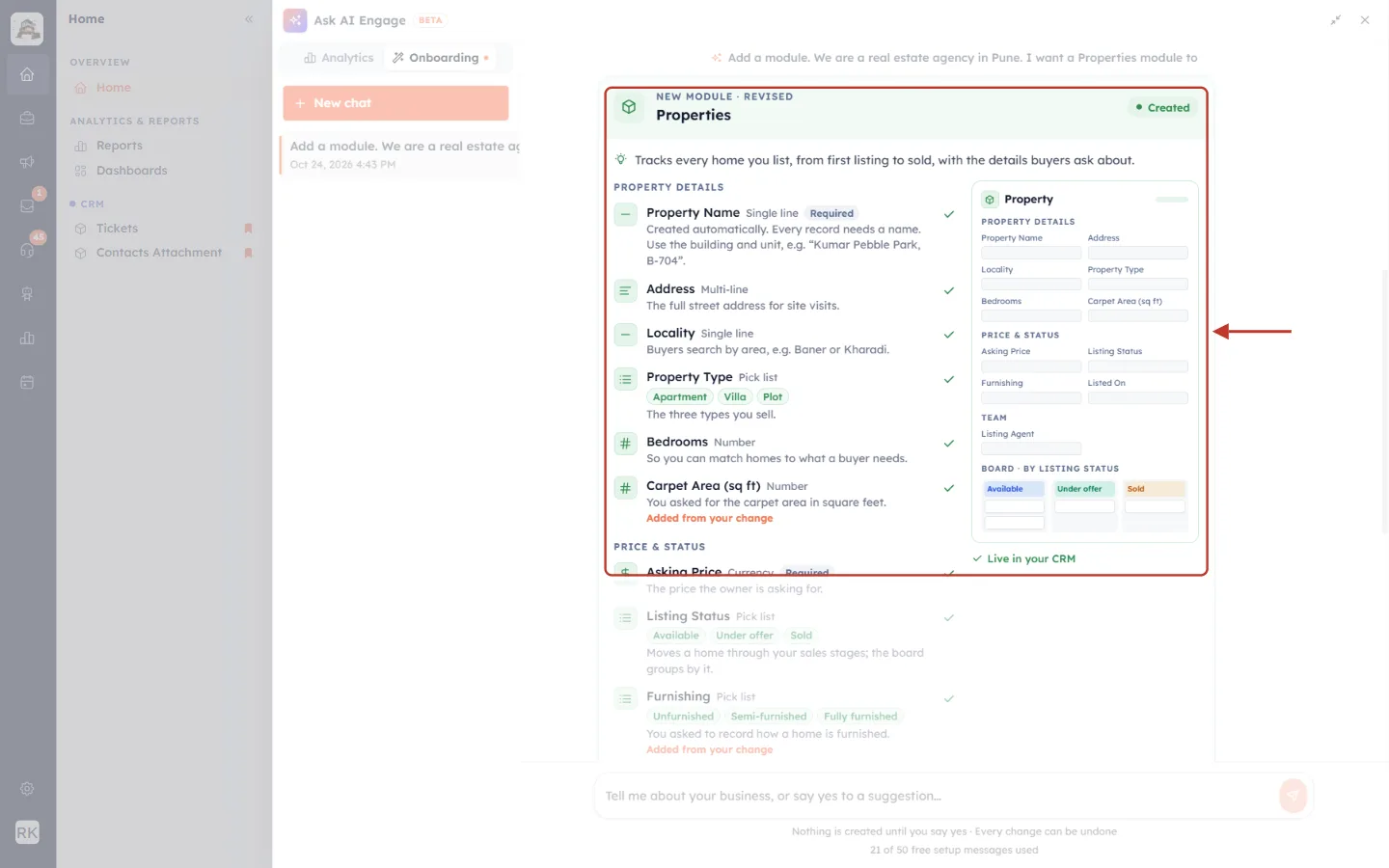
What this screenshot shows. The finished card ringed, now green.
Created (top right): the module exists.
Green ticks on the right of every field row: each field was added.
Live in your CRM under the preview: the preview is now your real record page.
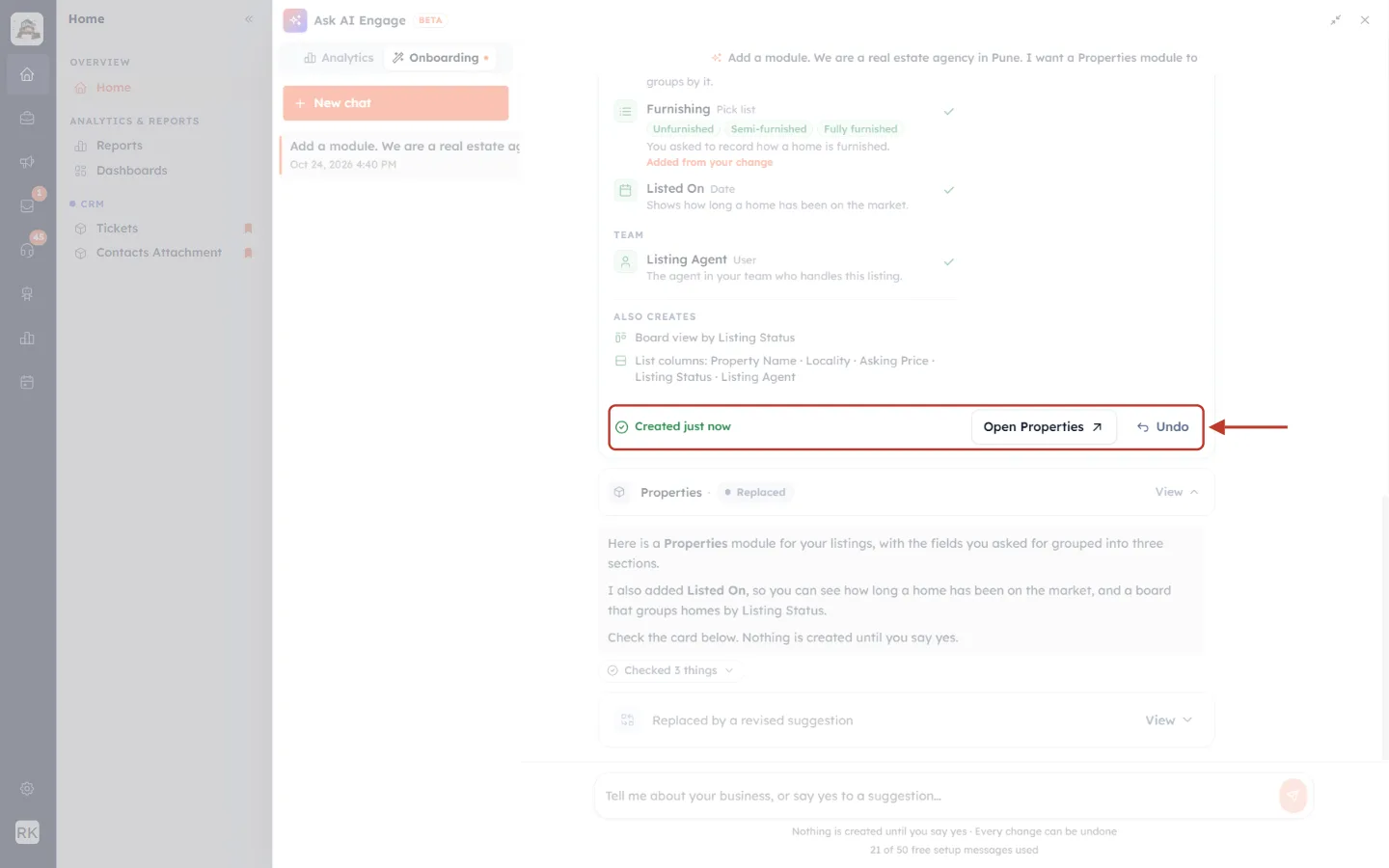
What this screenshot shows. The bottom of the created card ringed.
Created just now: when it was created. Later it reads, for example, Created 2 hours ago.
Open Properties ↗: opens the new module’s record list.
Undo: removes the module again (Step 8).
The new module now appears in your navigation menu and on the Modules page (Settings → Customization → Modules and Fields), like any module you build by hand.
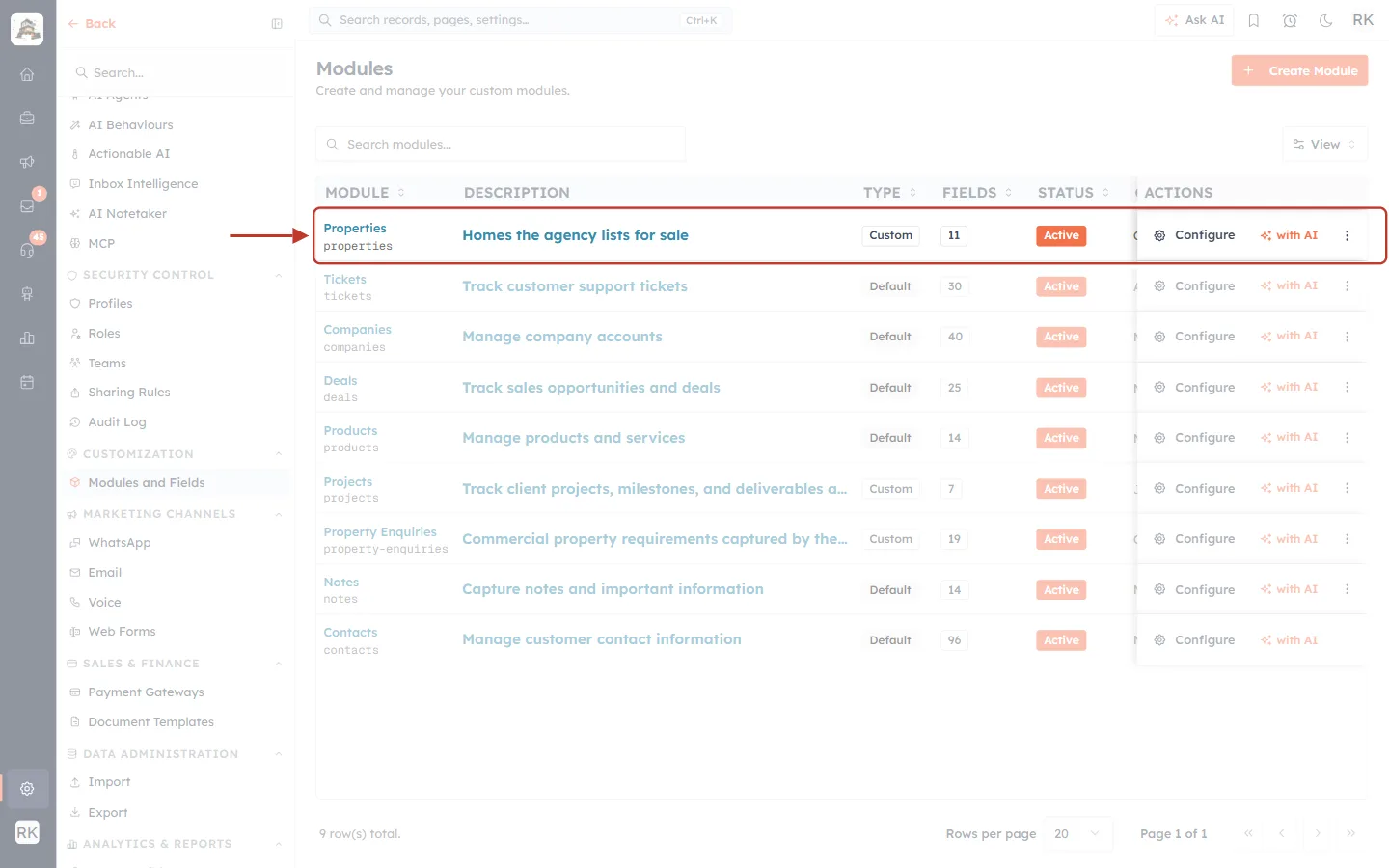
What this screenshot shows. The Modules page with the new Properties row ringed at the top.
Properties · properties: the module name and its internal name (slug).
Homes the agency lists for sale: the description the assistant wrote.
Custom: a module you added (the built-in ones say Default).
11 fields and status Active.
Configure: opens the module’s layouts, where you can change anything by hand. with AI: asks the assistant to improve it (Step 9).
✅
Next steps for your new module: add records by hand or import them (see Import Data into Any Module), fine-tune its form in the layout builder (see Edit a Layout in the Layout Builder), or ask the assistant for more fields.
Step 8: Undo a change you don’t want#
Changed your mind? Click Undo on the created card. The assistant asks you to confirm.
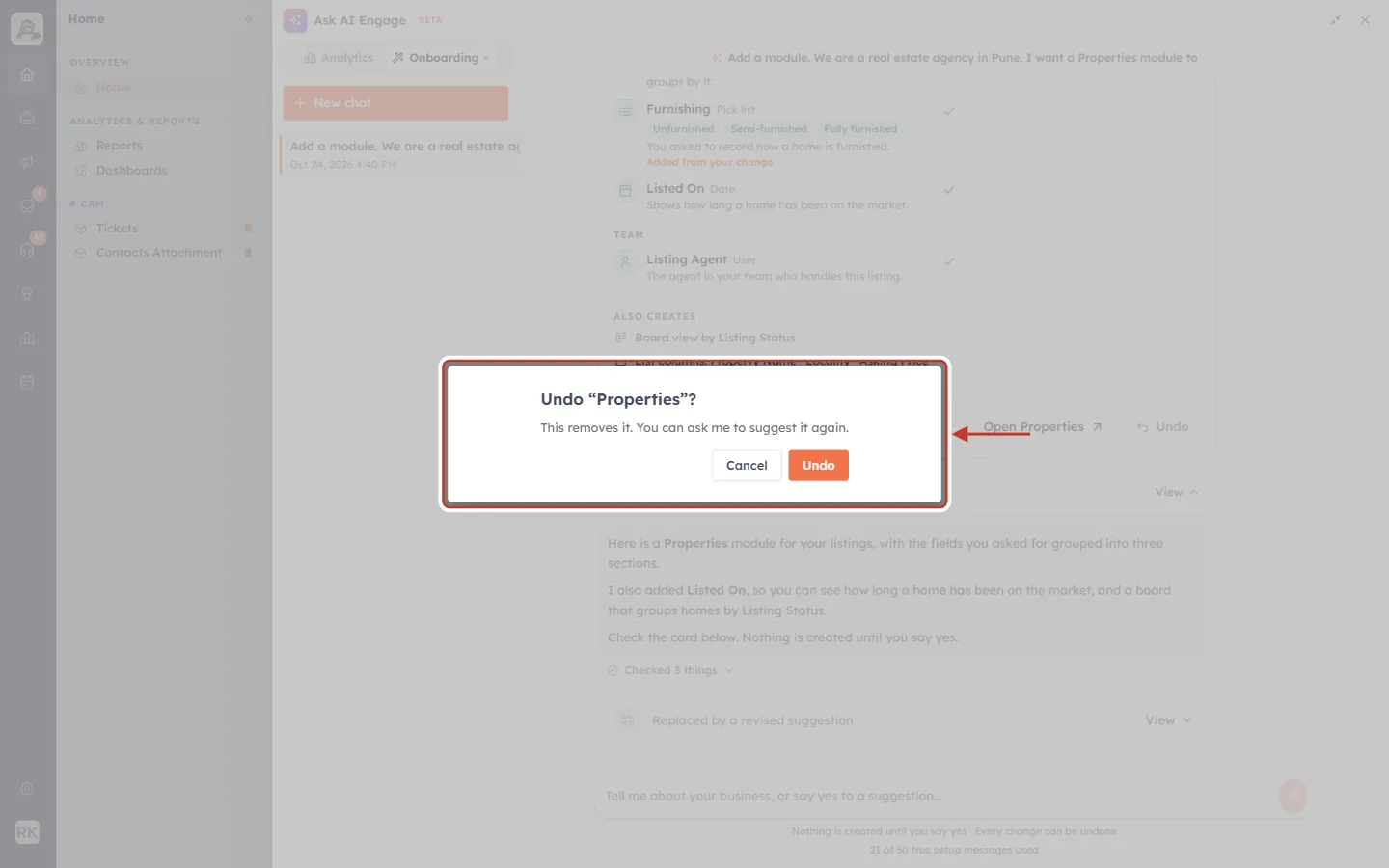
What this screenshot shows. The Undo “Properties”? dialog ringed.
Undo “Properties”?: the card you are undoing.
This removes it. You can ask me to suggest it again.: the module, its fields, layout, list columns and board are removed. Nothing else in your CRM changes.
Cancel: keeps the module.
Undo: removes it. The card folds into one line, Removed Properties · nothing else changed.
⚠️
Undo works only while nothing has been built on top of the change.
• A module can’t be undone once records have been added to it.
• New fields can’t be undone once some of them hold data.
• New stages or options can’t be undone once records use them.
In these cases the Undo button explains why. Make the change by hand instead, from the module’s settings.
Step 9: Improve an existing module with AI#
The assistant also works on modules you already have. Go to Settings → Customization → Modules and Fields. Every module has a small orange with AI button next to Configure; its tooltip reads Configure with AI. Click it on the module you want to improve. We used Deals.
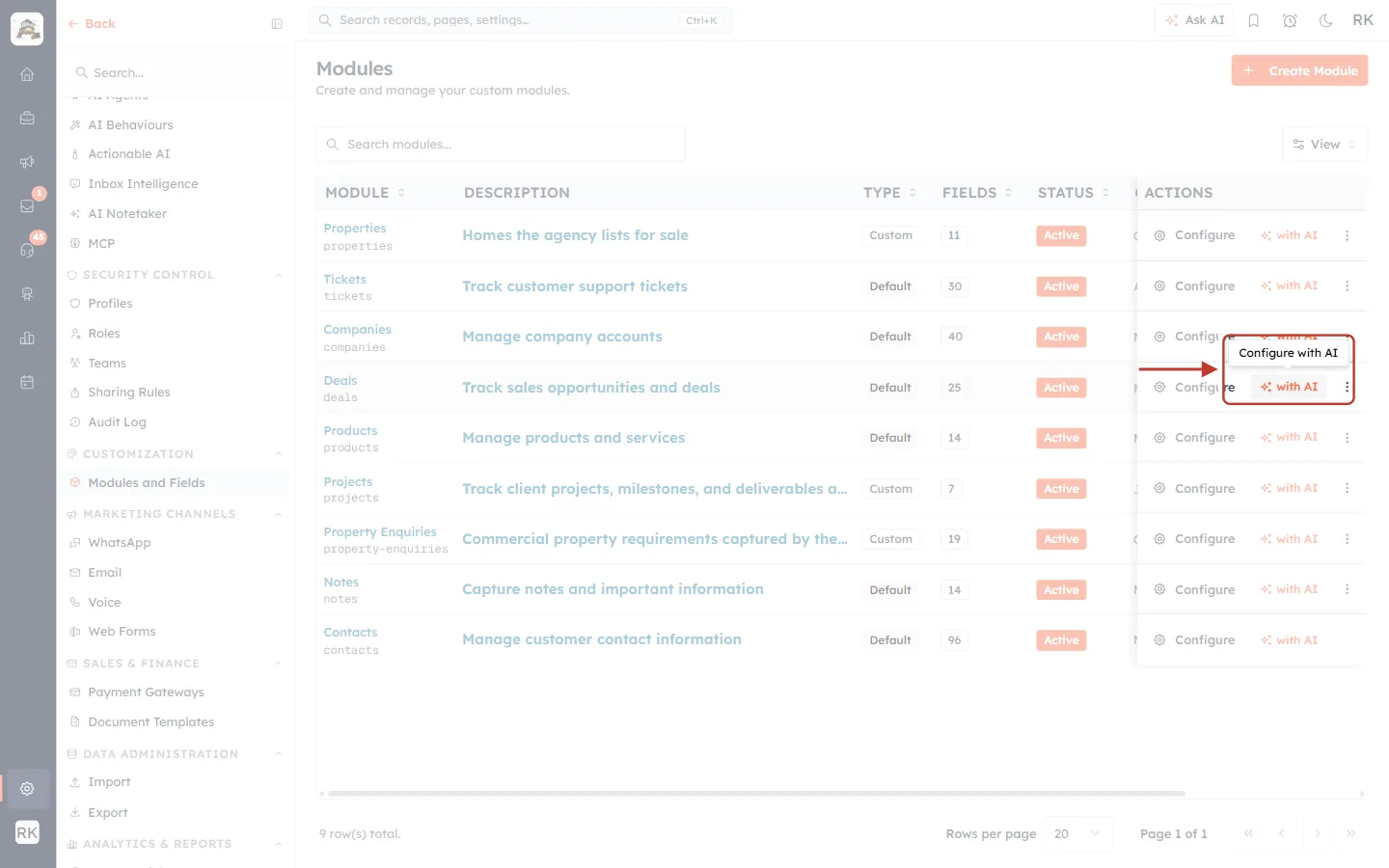
What this screenshot shows. The Modules page with the with AI button on the Deals row ringed, showing its tooltip.
MODULE, DESCRIPTION, TYPE, FIELDS, STATUS: the module list.
Configure: the manual way, through the module’s layouts.
with AI (ringed): opens the assistant and immediately asks it to Suggest fields and improvements for my Deals module.
Configure with AI: the tooltip shown when you point at the button.
The button only appears when the AI setup assistant is available for your workspace.
The Ask AI panel opens on the Onboarding tab and sends the request for you. The assistant reads the fields the module already has and suggests what is missing.
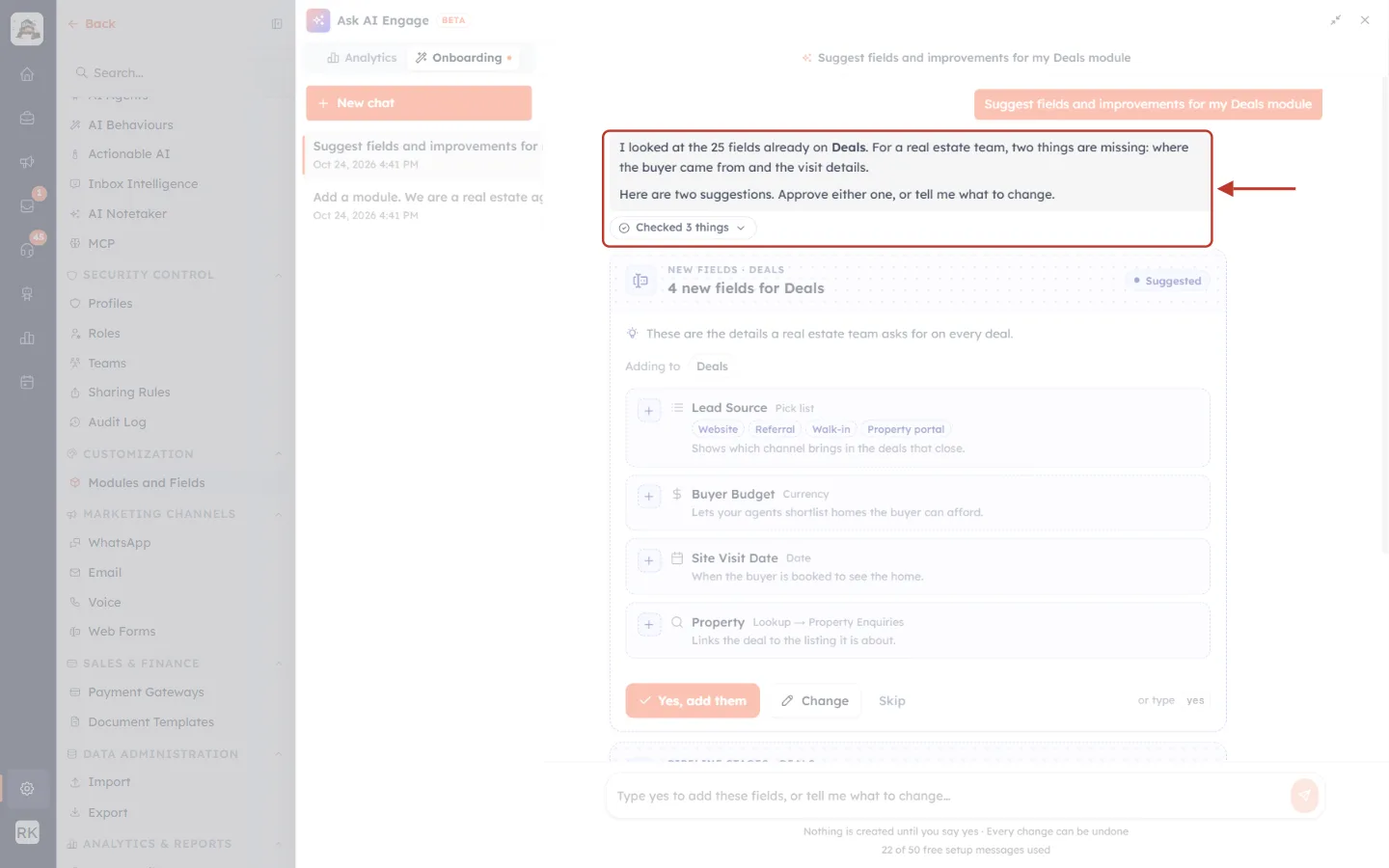
What this screenshot shows. The reply to Suggest fields and improvements for my Deals module ringed.
The orange bubble at the top right is the request the with AI button sent for you.
I looked at the 25 fields already on Deals…: the assistant starts from what you have, so it doesn’t suggest duplicates.
Here are two suggestions. Approve either one…: each suggestion is a separate card. You can approve one, both, or neither.
Checked 3 things: it read the Deals fields and dry-ran both cards.
The new chat is listed on the left as Suggest fields and improvements for….
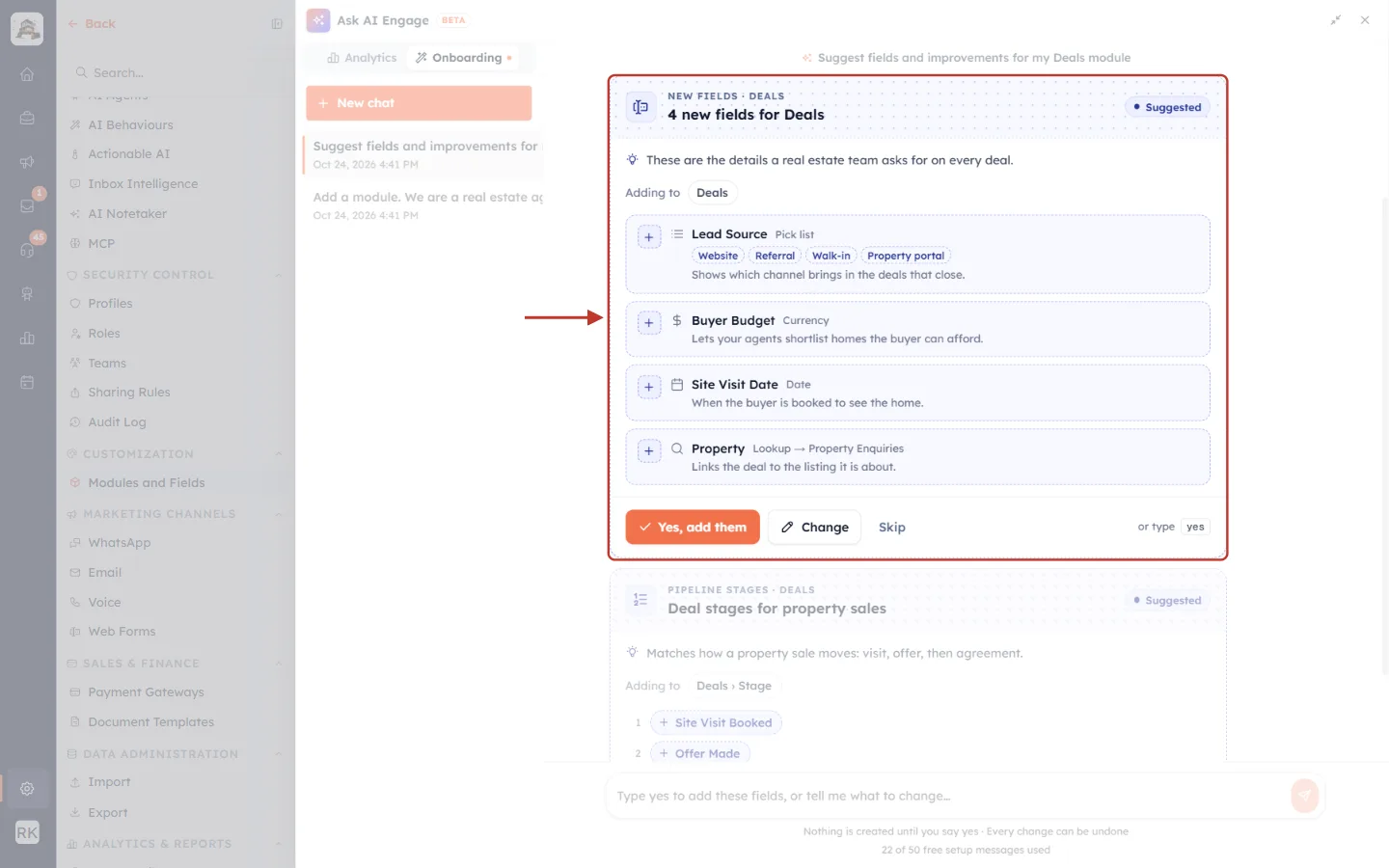
What this screenshot shows. The 4 new fields for Deals card ringed.
NEW FIELDS · DEALS: the kind of card and the module it changes.
Adding to · Deals: where the fields go.
Lead Source · Pick list · Website · Referral · Walk-in · Property portal: a drop-down field with its choices.
Buyer Budget · Currency and Site Visit Date · Date: with the reason for each underneath.
Property · Lookup → Property Enquiries: a lookup field that links each deal to a record in another module.
Yes, add them: adds all four fields, places them on the layout and list. Change and Skip work as on the module card.
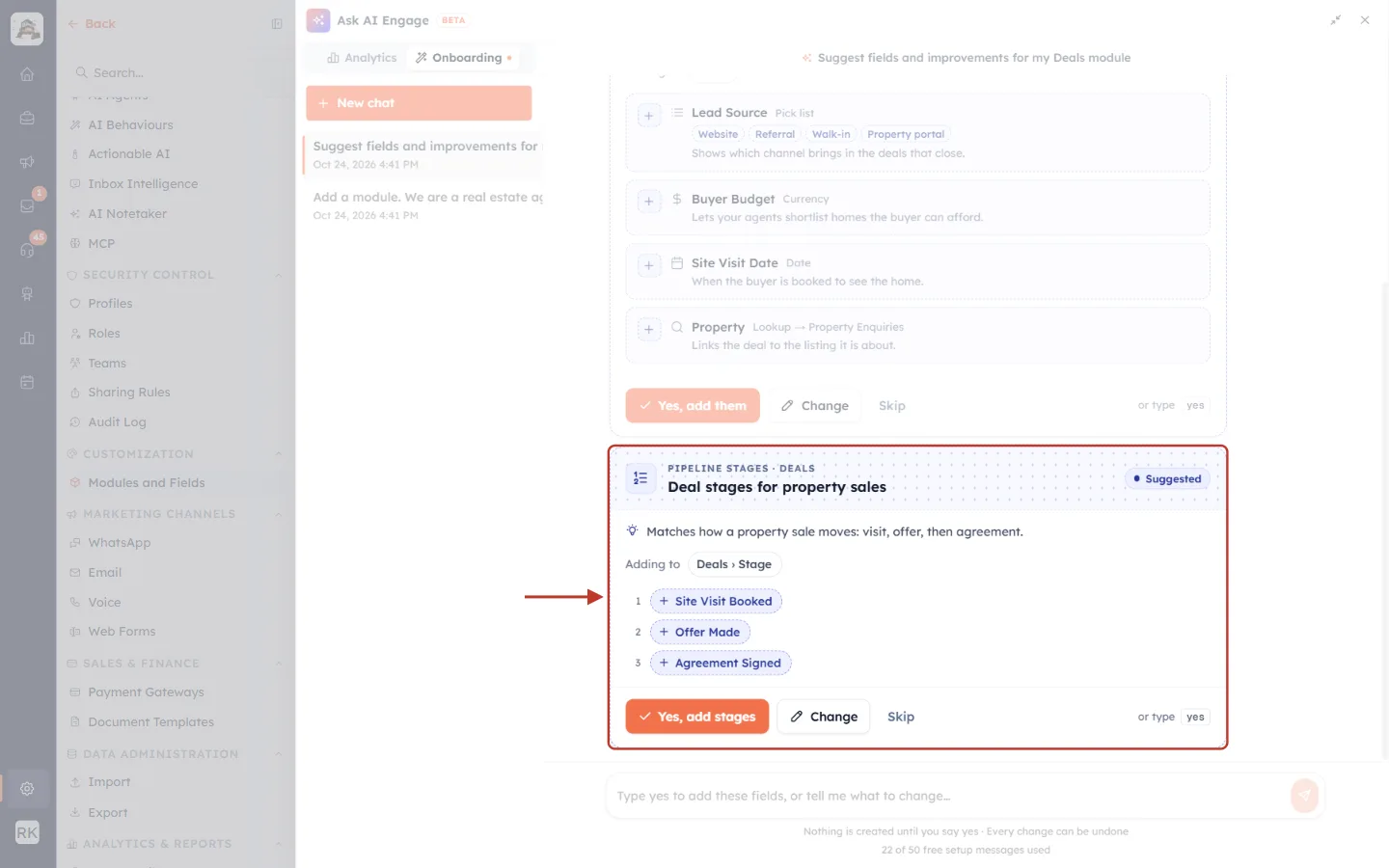
What this screenshot shows. The second card, Deal stages for property sales, ringed.
PIPELINE STAGES · DEALS: this card adds stages to the deal pipeline.
Adding to · Deals › Stage: the field that holds the stages.
1 Site Visit Booked · 2 Offer Made · 3 Agreement Signed: the new stages in order, each marked + because it is new. Your existing stages stay as they are.
Yes, add stages: adds them. Undo removes only the new stages, and only while no deal uses them.
ℹ️
Want to rework your stages yourself? See Set Up Your Deal Pipeline Stages.
Step 10: Arrange a module’s layout with AI#
When a module has many fields, a clear layout helps your team find them. Open the module’s layouts: on the Modules page click Configure on the module. At the top of the Layouts page, click Configure with AI.
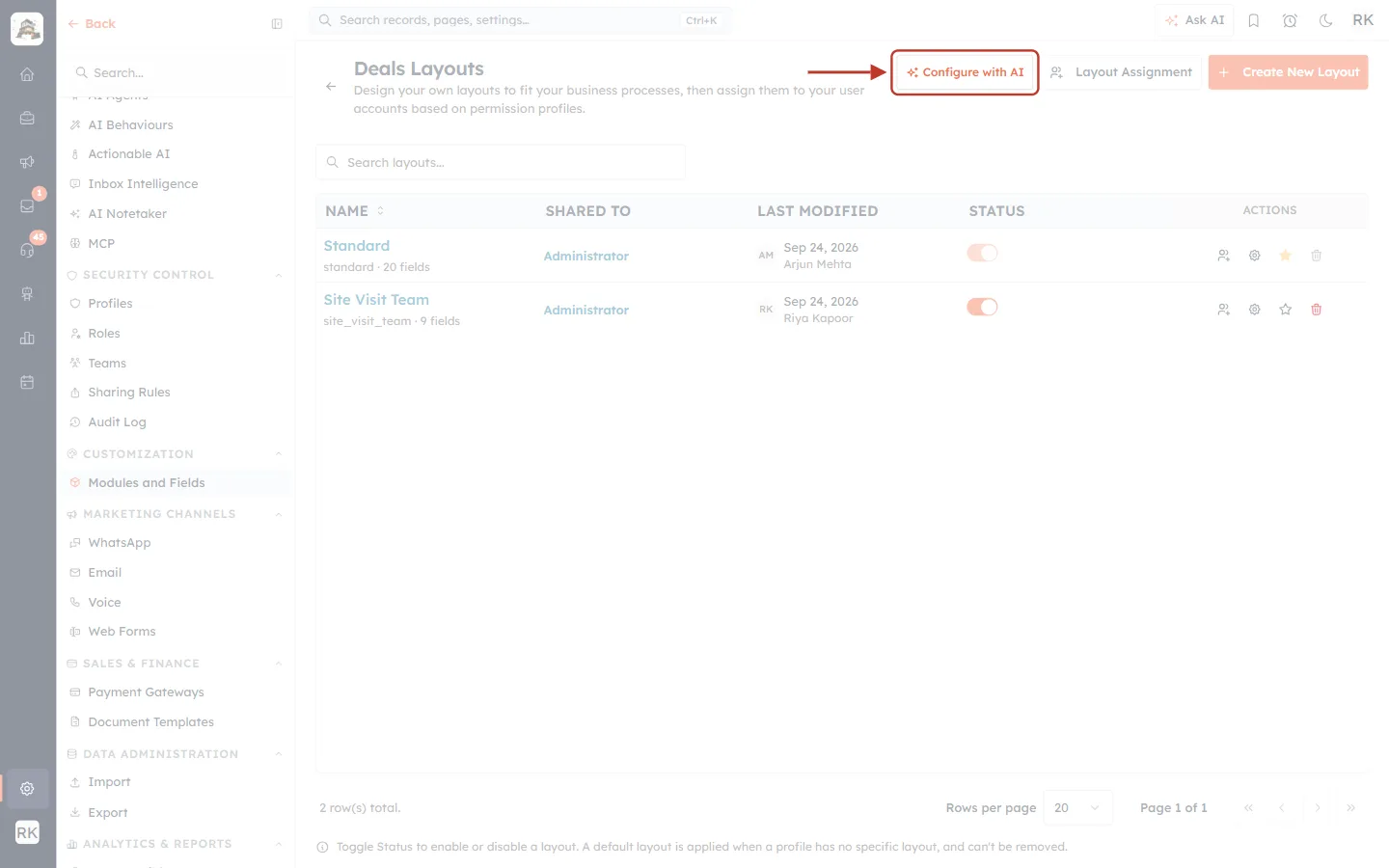
What this screenshot shows. The Deals Layouts page with Configure with AI ringed at the top right.
Deals Layouts: the list of forms for the Deals module, such as Standard and Site Visit Team.
Configure with AI (ringed): asks the assistant to Organise the fields on my Deals layout into clear sections.
Layout Assignment and Create New Layout: the manual layout tools (see Field Layouts and Required Fields: Organise Your CRM Forms).
The assistant suggests a set of sections and which fields go in each.
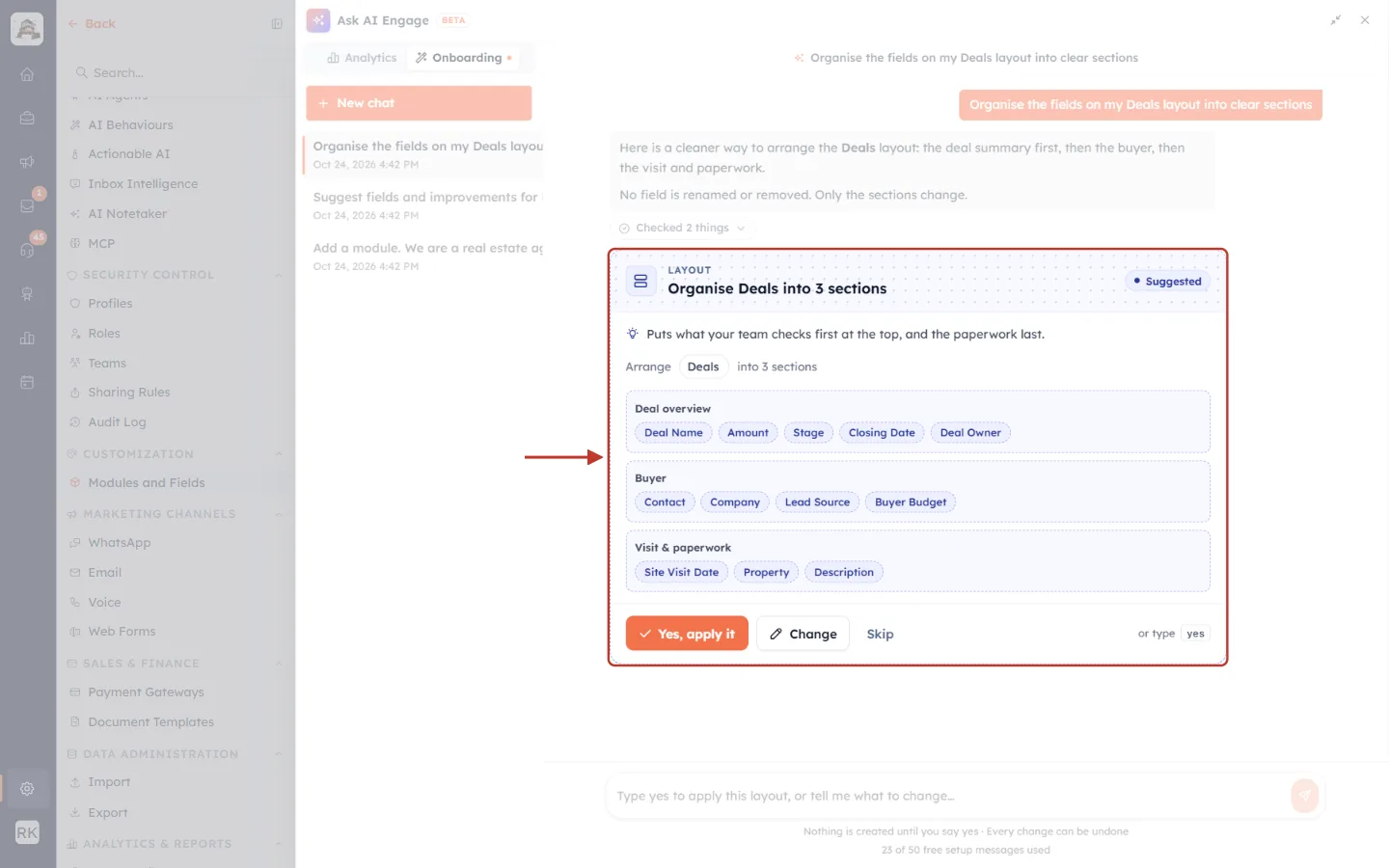
What this screenshot shows. The layout suggestion card, Organise Deals into 3 sections, ringed.
LAYOUT · Organise Deals into 3 sections: the kind of card and what it does.
💡 Puts what your team checks first at the top, and the paperwork last.: the reason.
Deal overview: Deal Name, Amount, Stage, Closing Date, Deal Owner.
Buyer: Contact, Company, Lead Source, Buyer Budget.
Visit & paperwork: Site Visit Date, Property, Description.
Yes, apply it: arranges the record page and the create form into these sections. No field is renamed or removed, and Undo puts the layout back the way it was.
⚠️
If someone changes the same layout in the layout builder after the card was suggested, the card is marked out of date. Ask the assistant to look again.
Good to know#
Topic | Details |
|---|---|
Free setup messages | 50 per workspace, one time. Each assistant reply uses one. After that, setup chats use AI credits. |
Out of AI credits | The assistant says You’re out of AI credits. Add credits to keep going. |
Fields per module card | At most 12. The name field is added automatically on top. |
How long a suggestion stays | A card you haven’t answered expires after 14 days. Ask again for a fresh one. |
Typing “yes” | Works for the latest card. Words like no, but, change or a question mean it is not treated as a yes. |
Permissions | Creating modules and fields needs permission to customise modules. Without it, cards show Needs permission and Copy suggestion. |
Plan limits | If your plan has no room for more custom fields, the card shows Needs upgrade with See plans. |
Files | The assistant can’t read attachments. Describe what you need in the message. |
Speed limit | Sending many messages very quickly shows You’re going a little fast. Wait a moment and try again. |
Troubleshooting#
Problem | What to do |
|---|---|
There is no with AI or Configure with AI button. | The AI setup assistant isn’t available for your workspace or your role. Ask your admin. |
Yes, create it is missing and the card says Needs permission. | Your role can’t customise modules. Click Copy suggestion and send it to an admin, who can create it. |
The card says Out of date. | Something changed since the suggestion was made, for example a module with the same name now exists. Ask the assistant for a new suggestion. |
The card shows Couldn’t create… | Nothing was kept. Click Try again, or ask for a new suggestion. |
Undo doesn’t work and explains why. | Records or data now depend on the change. Remove or edit it by hand in the module’s settings. |
The assistant says The setup assistant is switched off for your workspace. | AI setup has been turned off. Build the module by hand (see Create a New Module: Build Custom Modules for Your CRM) or ask your admin. |
Frequently asked questions#
Is a module made with AI different from one I build by hand?
No. It is a normal module. You can edit its fields, layouts, list columns and board in the usual places at any time.
Can I ask for a module in my own words?
Yes. Write as you would explain it to a colleague. Put fixed choices in brackets so they become drop-down options.
Will the assistant create anything without asking?
No. Nothing is created until you click the card’s button or type “yes”.
Can I come back to a setup chat later?
Yes. Every setup chat is listed on the left of the Onboarding tab. The Home card’s Continue setup reopens the latest one.
Does it cost anything?
The first 50 setup messages are free. After that each reply uses AI credits. See AI Credits & Pricing: How AI Usage Is Billed.
Previous and next#
Previous: Create a New Module: Build Custom Modules for Your CRM
Next: Customize Your CRM: Add Custom Fields and Configure Module Layouts
Related#
Was this article helpful?
Ready to implement this?
OpenAI Engage and apply what you just learned to your own workspace.
Open AI Engage CRM