Loading…


KnowledgeBase
Set Up Your Deal Pipeline Stages
Start in Settings: where pipeline stages live#
Your pipeline is the list of stages a deal moves through. In AI Engage, these are the options of the Deals module’s Stage field, so you set them up in the Module Builder before you start creating deals.
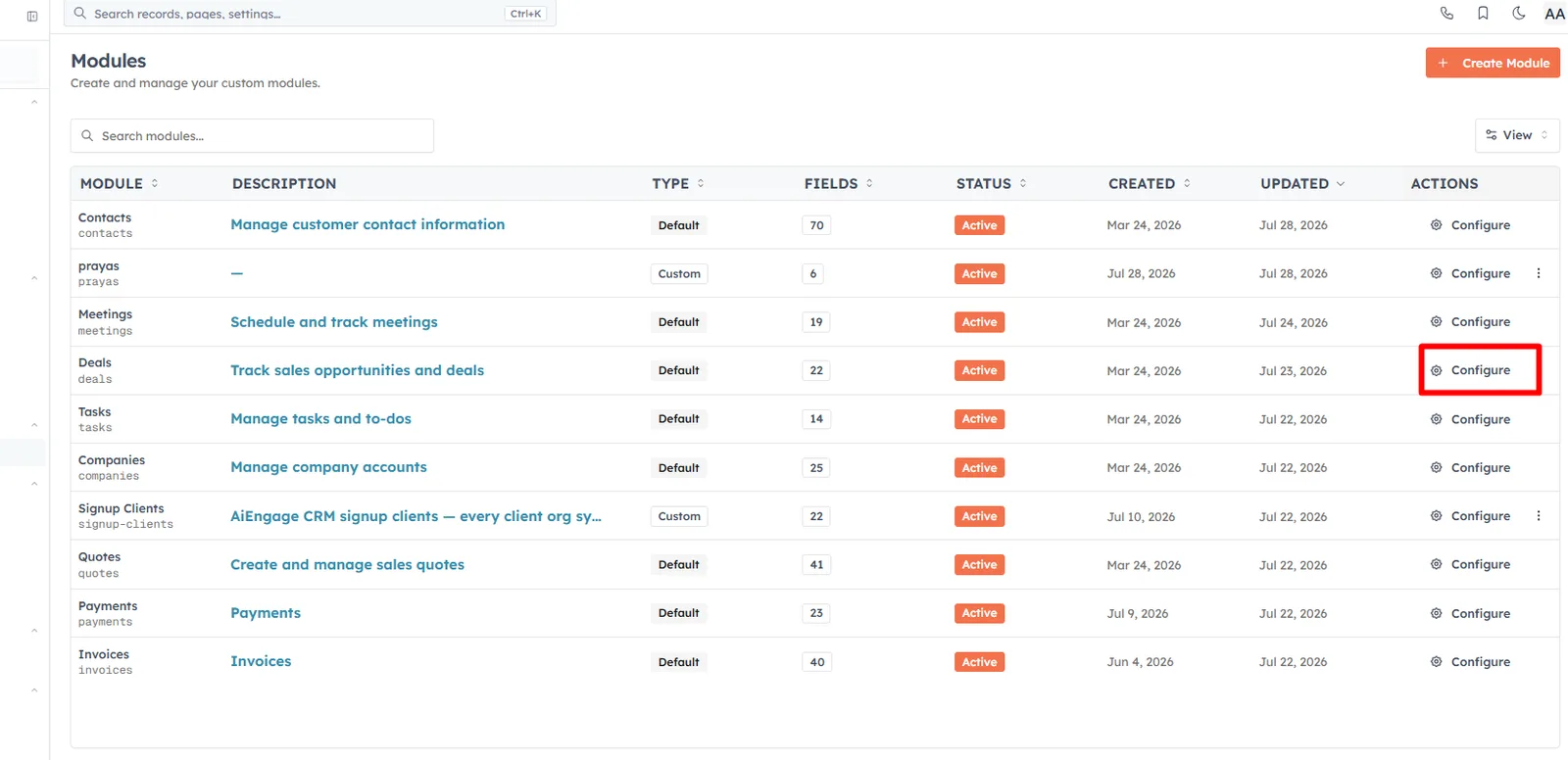
Open Settings → Customization → Modules and Fields, find Deals, and choose Configure.
💡
Do not look for pipeline settings on a deal’s Settings tab — that tab is a "Coming Soon" placeholder. Stages are edited only in the Module Builder.
Edit your stages#
In the builder, click the Stage field on the canvas. The Field Configuration panel opens on the right with an Options list — this is your pipeline.
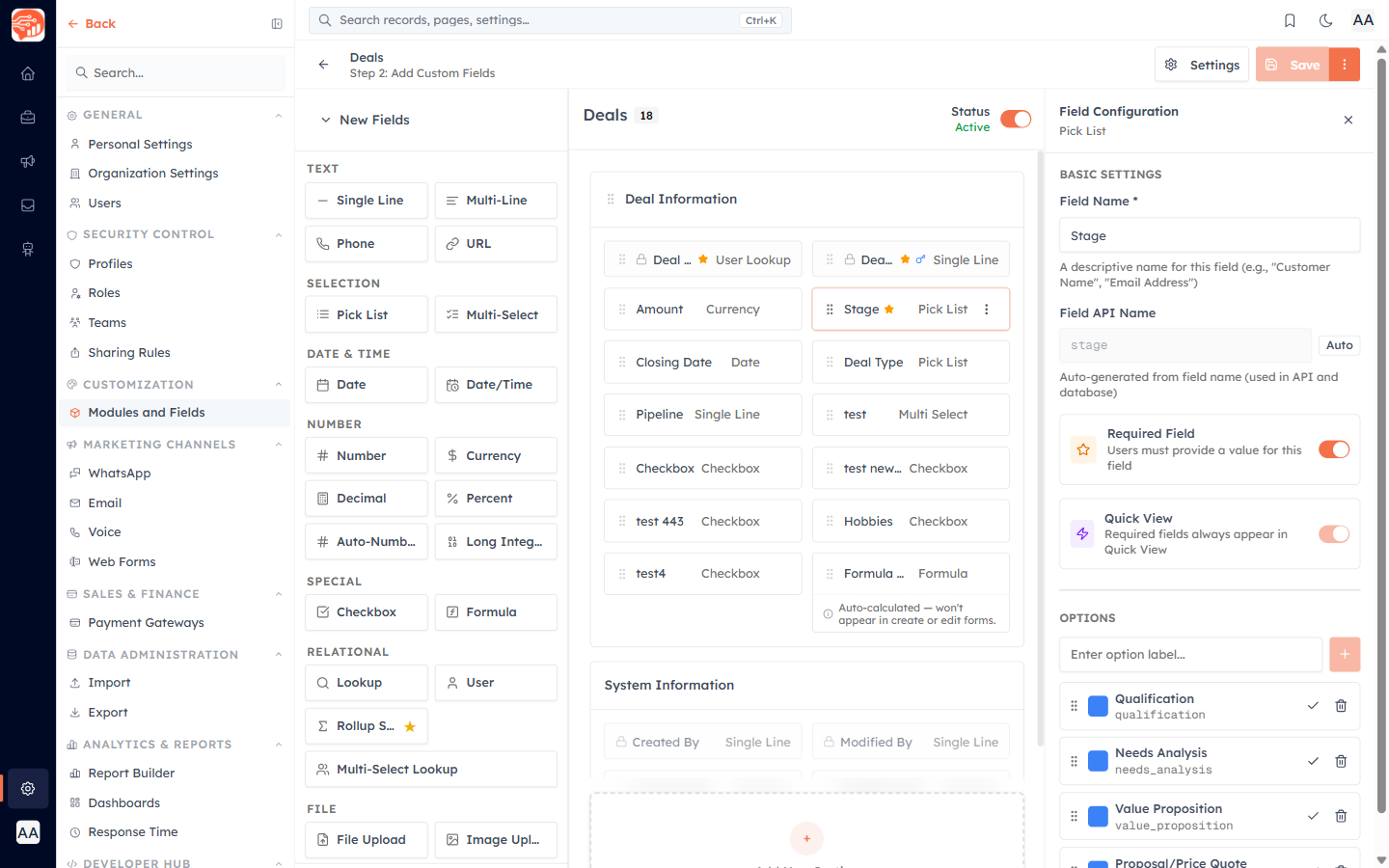
Out of the box, the stages are Qualification, Needs Analysis, Value Proposition, Proposal/Price Quote, Negotiation/Review, Closed Won, and Closed Lost. You can:
Add a stage — type a label in "Enter option label…" and click +.
Rename a stage — click its label and edit it. (The internal value is locked once created, but the label is free to change.)
Reorder stages — drag the handle. This order is exactly the left-to-right column order on your Kanban board.
Set a default — mark the stage new deals start in.
Delete — only stages you added can be removed; built-in ones stay.
💡
Nothing saves until you click Save at the top of the builder. There is no separate "probability" or "won/lost flag" — Closed Won and Closed Lost are simply the final two stages.
Was this article helpful?
Ready to implement this?
OpenAI Engage and apply what you just learned to your own workspace.
Open AI Engage CRM