Loading…


KnowledgeBase
Find & Merge Duplicate Contacts
Keeping contacts clean#
Duplicates creep in over time — the same person entered twice, or imported again. AI Engage CRM helps you both prevent and clean up duplicates.
Prevention#
Email is unique, so a repeat email is caught immediately. Your admin can also turn on duplicate detection across other fields (e.g. name + phone); when it is on, creating a contact that looks like an existing one shows a warning with the possible matches, and you can open the existing record, merge, or save anyway.
Enable Duplicate Check & Merge#
To configure duplicate detection for a module:
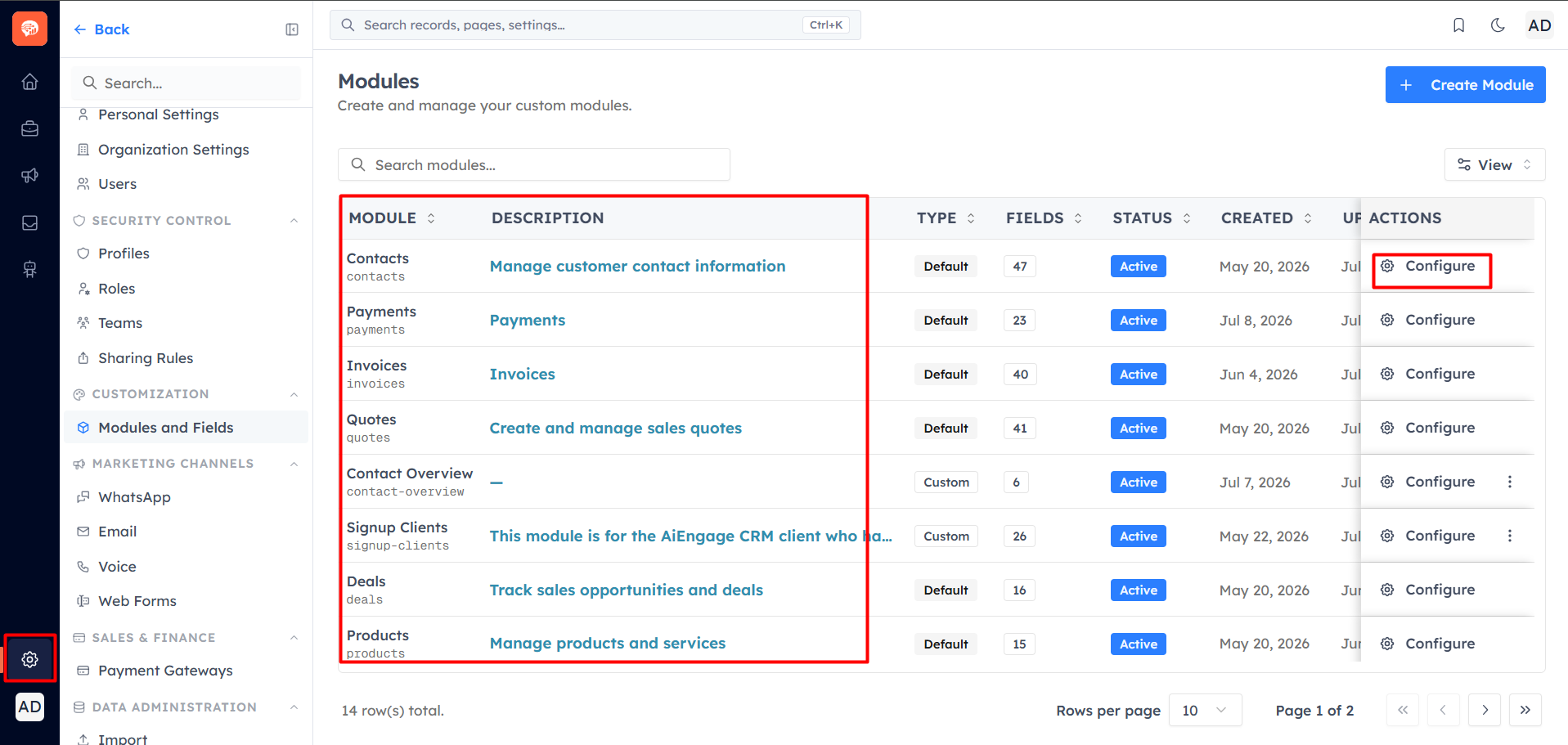
Go to Settings. Navigate to Customization → Modules and Fields. Locate the module you want to configure. Click Configure beside the module.
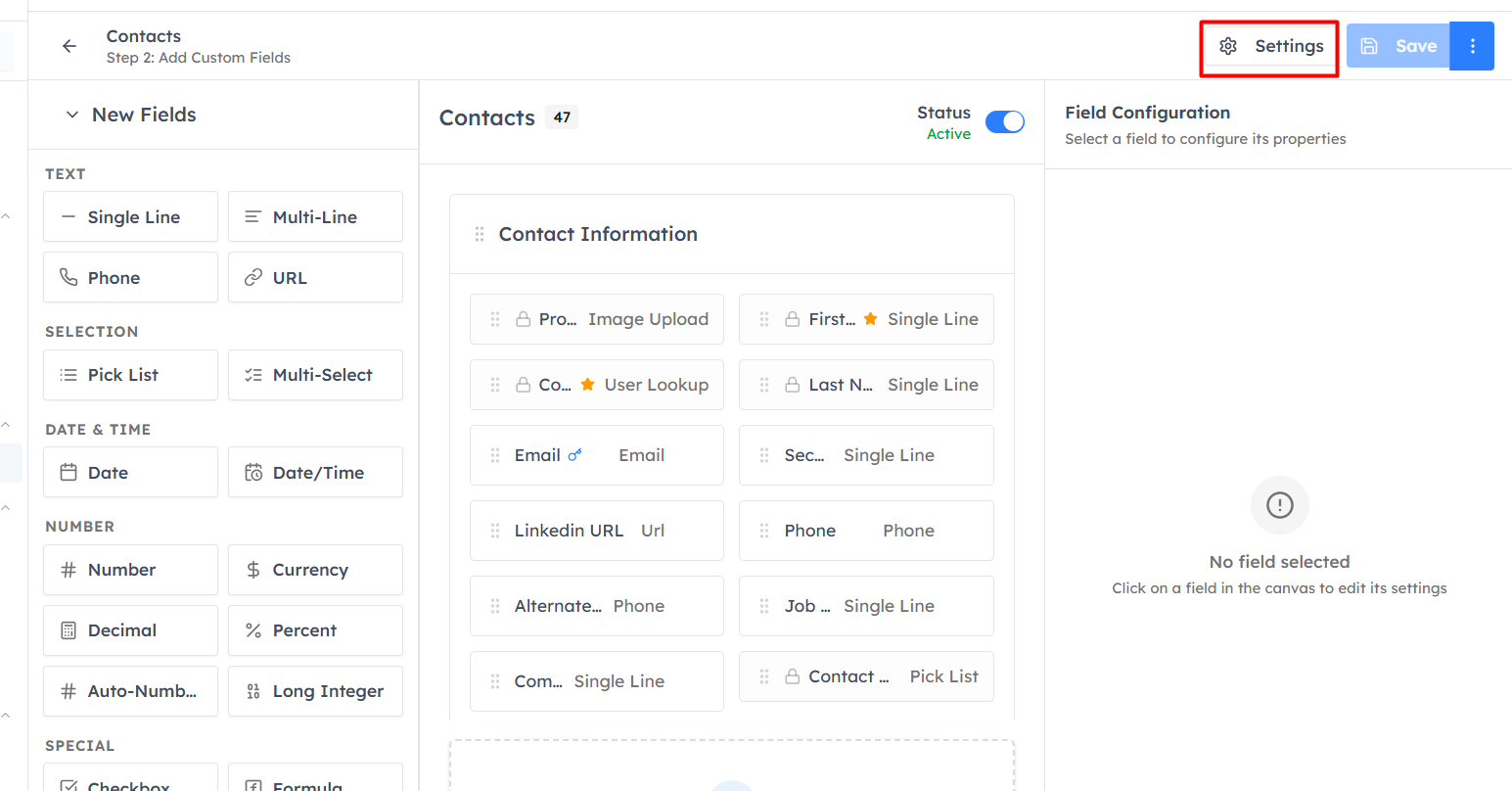
Click Settings in the top-right corner of the module builder.
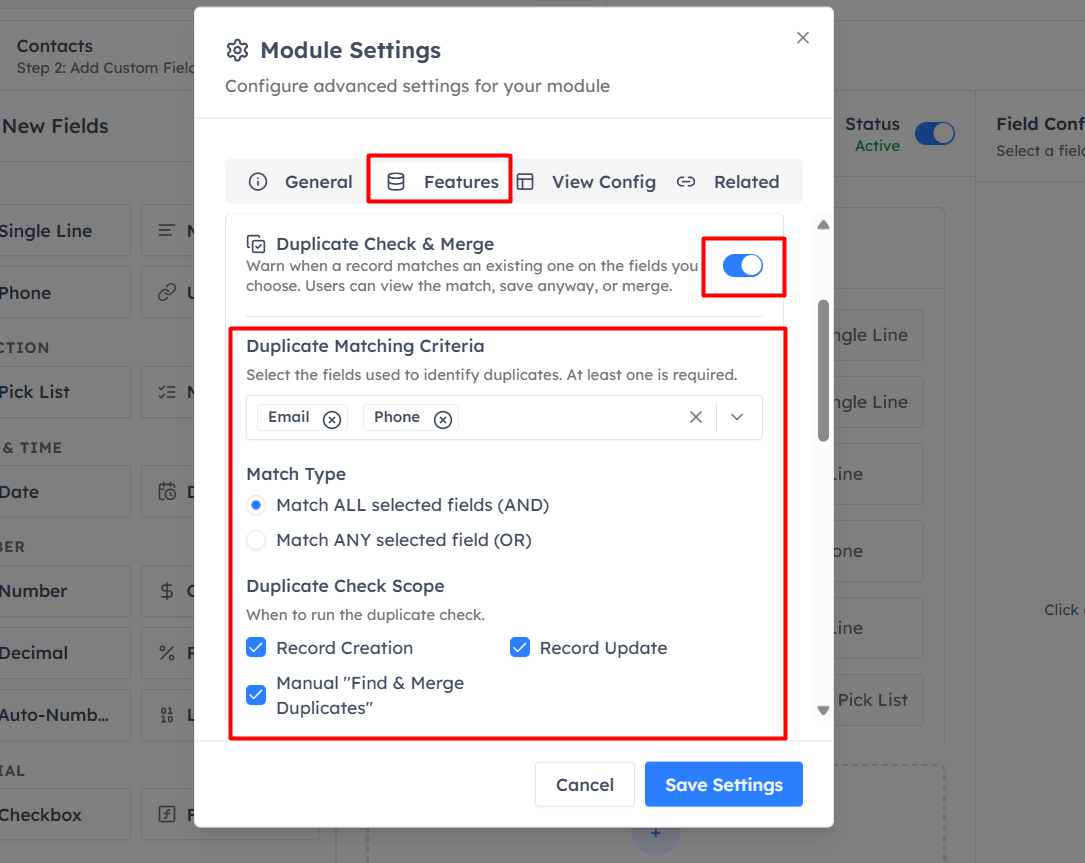
Open the Features tab. Enable the Duplicate Check & Merge toggle. Configure the duplicate matching settings.
Duplicate Matching Criteria#
The Duplicate Matching Criteria determines which fields the CRM uses to identify duplicate records.
Click Select Fields and choose one or more fields that should be compared when checking for duplicates.
For example:
Email
Phone Number
Company Name
Website
Customer ID
Note: At least one field must be selected before duplicate checking can be enabled.
Match Type#
Choose how the selected fields should be evaluated when searching for duplicate records.
Match ALL Selected Fields (AND)#
The CRM considers a record a duplicate only when all selected fields contain matching values.
Example#
Selected fields:
Email
Phone Number
Existing Record | New Record | Result |
|---|---|---|
Email ✔ Phone ✔ | Email ✔ Phone ✔ | Duplicate |
Email ✔ Phone ✘ | Email ✔ Phone ✘ | Not a duplicate |
This option provides stricter duplicate validation and helps reduce false matches.
Match ANY Selected Field (OR)#
The CRM considers a record a duplicate if any one of the selected fields matches.
Example#
Selected fields:
Email
Phone Number
Existing Record | New Record | Result |
|---|---|---|
Email ✔ Phone ✘ | Email ✔ Phone ✔ | Duplicate |
Email ✘ Phone ✔ | Email ✔ Phone ✔ | Duplicate |
This option is useful when a single unique identifier, such as an email address or phone number, is sufficient to identify duplicate records.
Duplicate Check Scope#
Select when the CRM should perform duplicate validation.
Record Creation#
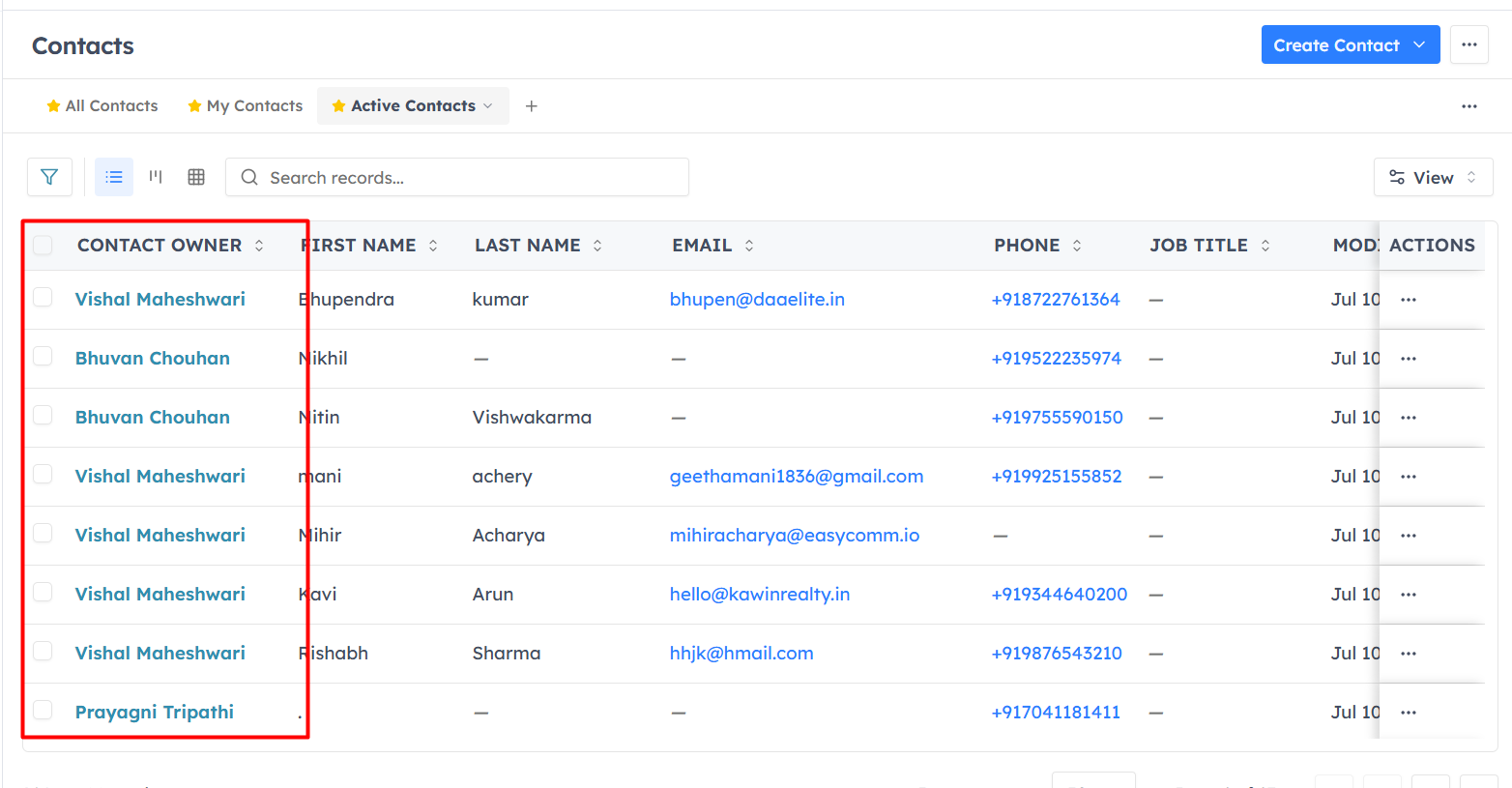
When enabled, duplicate detection is performed whenever a new record is created.
If a matching record is found, the user is notified before the record is saved.
Record Update#
When enabled, duplicate detection is also performed whenever an existing record is updated.
This helps prevent updates that may unintentionally create duplicate records.
Manual "Find & Merge Duplicates"#
Enable this option to allow users to manually search for duplicate records and merge them.
This is useful for cleaning existing data that was created before duplicate detection was configured.
Find & merge duplicates#
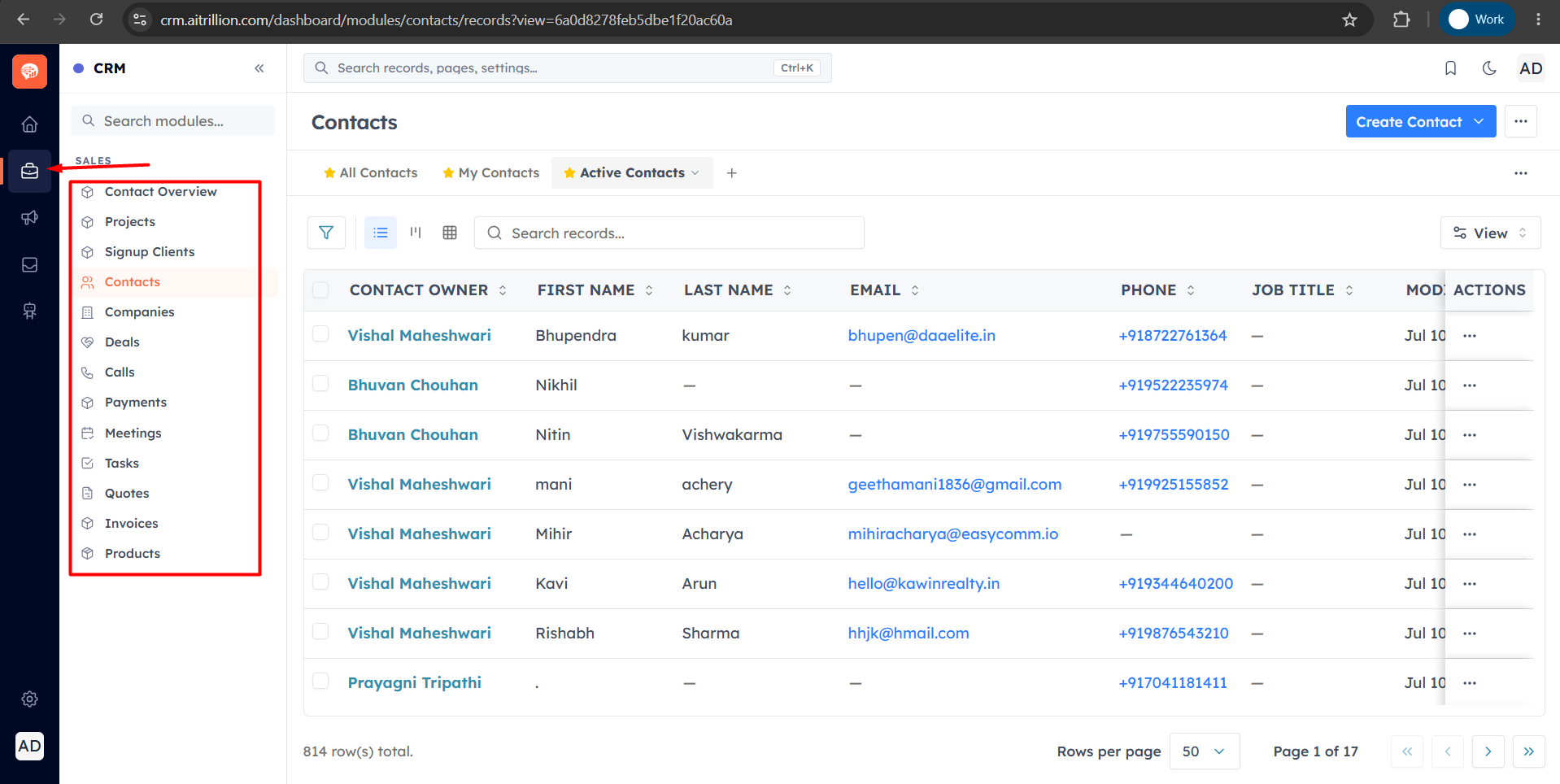
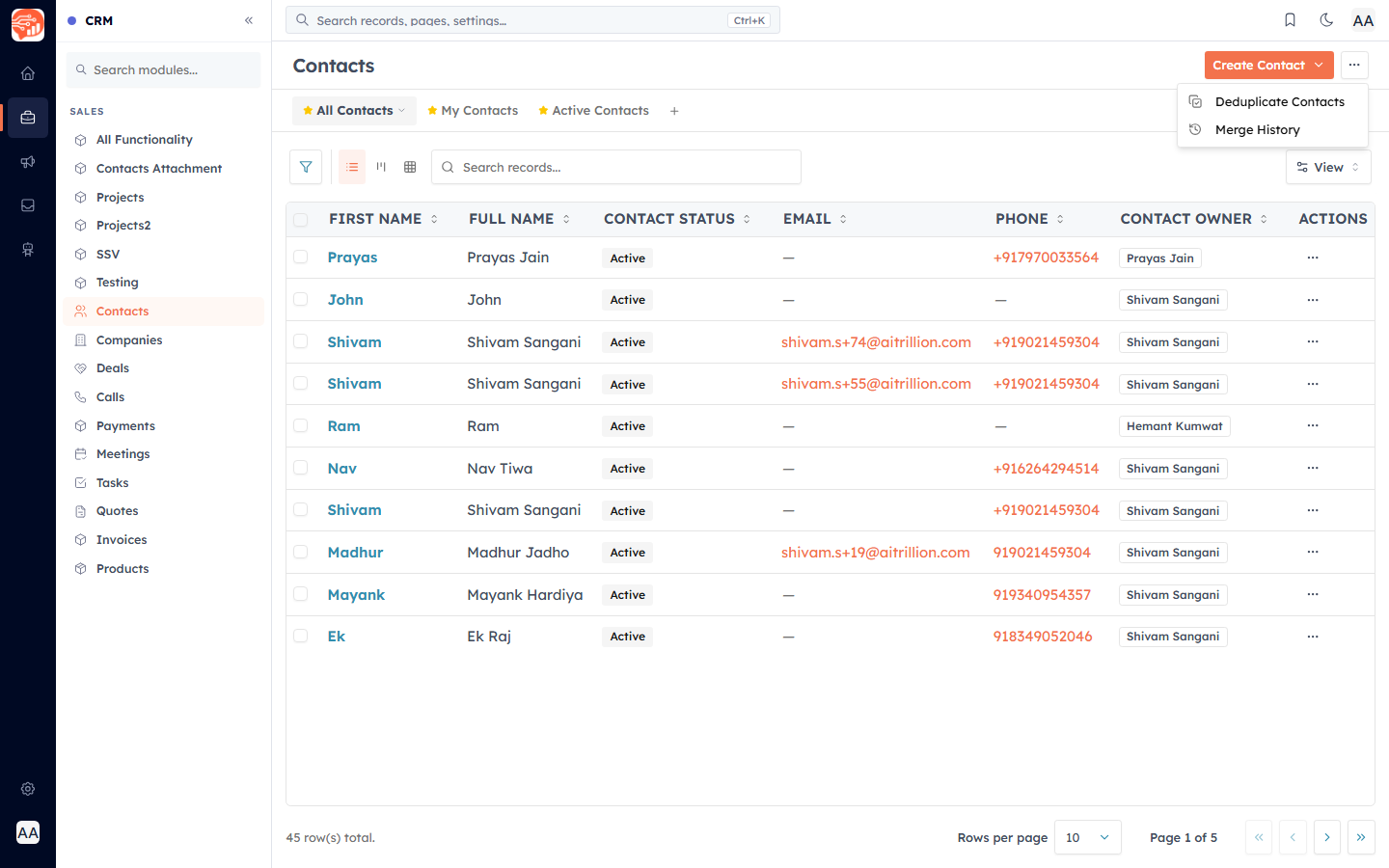
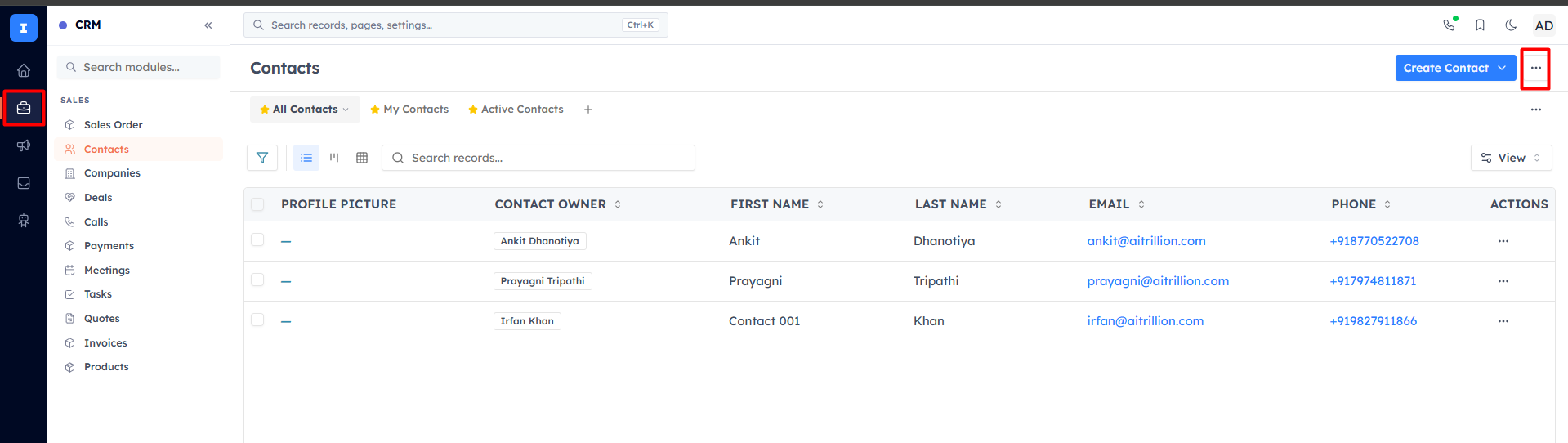
From the Contacts list, open the menu (top right) and choose Deduplicate Contacts.
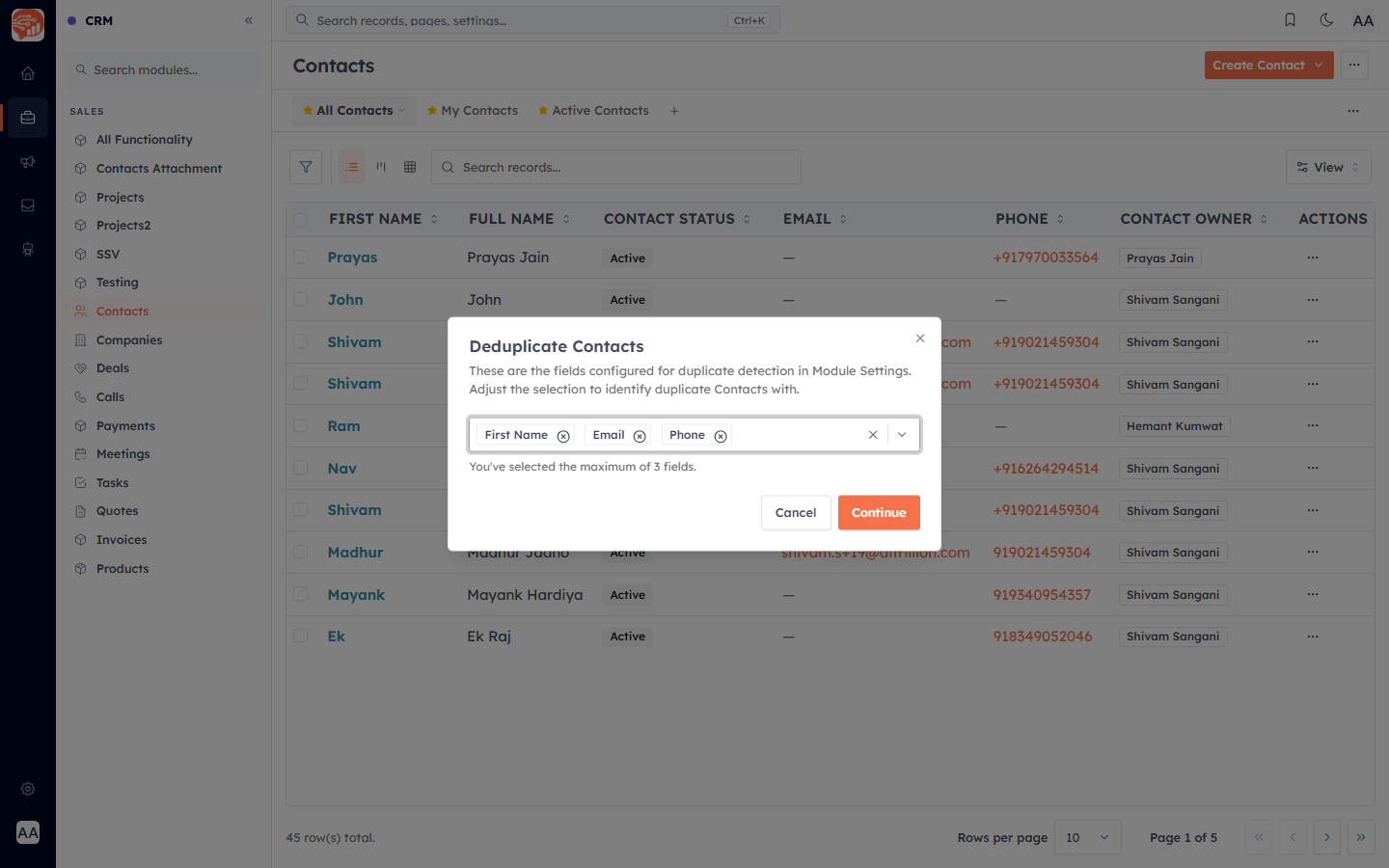
Pick up to three fields to match on (for example First Name, Email, Phone) and click Continue. The CRM scans for duplicates in the background and emails you when it is done with a link to review.
Resolve and merge#
Exact matches can be merged automatically; anything that needs a decision is listed as a conflict for you to resolve. When you merge, you choose the master record to keep and, where values differ, which value to keep. All related records — deals, activities, notes — move onto the master, and the duplicates are archived.
💡
You can also select 2 or more contacts in the list and use the Merge bulk action to combine them directly.
Undo a merge: Merge History & Restore#
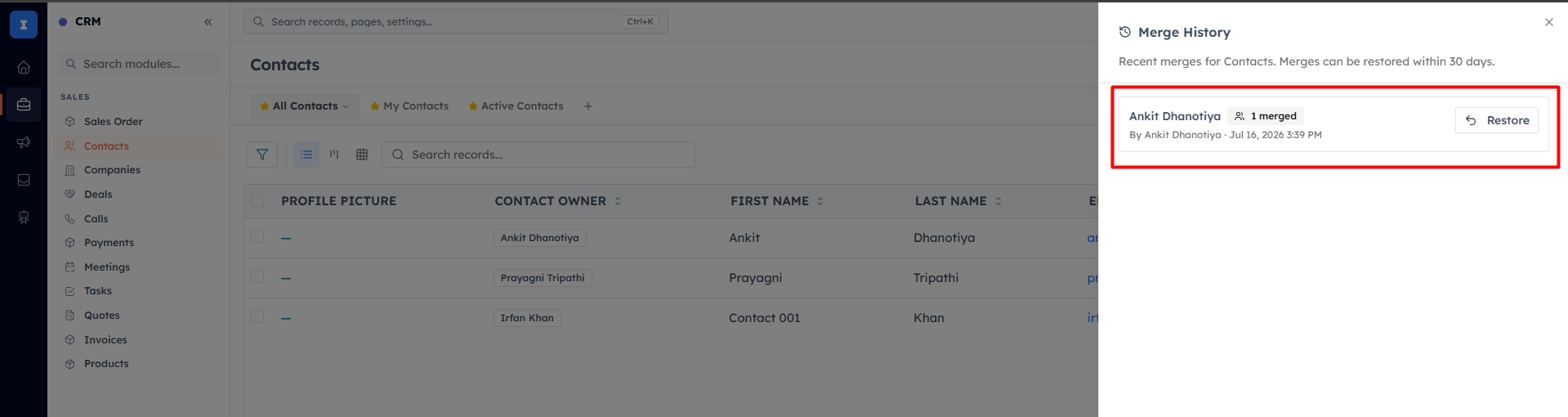
Merges are not permanent — a completed merge can be reverted. Every merge is logged in Merge History. From the Contacts list, open the More actions (⋯) menu and choose Merge History (the same menu as Deduplicate Contacts).
The panel lists recent merges, newest first. Each entry shows the master record that was kept, a "{n} merged" badge for how many records were merged in, and who performed it and when. A merge is restorable for 30 days; after that — or if it has already been restored — the Restore button is disabled and shows the reason ("Outside the 30-day window" or "Already restored").
Restore (revert) a merge#
Click Restore on a merge, then confirm "Restore this merge?". Restoring will:
Recreate the merged-away duplicate record(s) and re-activate them, with their original field values restored.
Roll back the master record's field values to what they were before the merge — while keeping any edits you made to the master after the merge.
💡
Important — what Restore does and does not do. Restore brings back the deleted duplicate records and reverts the master’s field values. It does not automatically move related records back: any deals, tasks, notes, and activities that were re-parented onto the master during the merge stay on the master. If you need them back on a restored record, re-link them manually.
Two time windows to know#
Restore a merge — up to 30 days after the merge, from Merge History.
Resolve conflicts from a Deduplicate run — the review link in the completion email stays active for about 3 days. After it expires, run Deduplicate again for a fresh scan.
💡
Permissions & plan: Merge and Deduplicate need both Edit and Delete permission on Contacts; Restore needs Delete; viewing Merge History needs Edit. All of these require a plan that includes record merge. If the module’s Duplicate Check & Merge setting is turned off, the Deduplicate and Merge History actions are hidden entirely.
💡
That completes the Contacts & Lead Management guide. Start by creating a contact and keep your data clean as you grow.
Was this article helpful?
Ready to implement this?
OpenAI Engage and apply what you just learned to your own workspace.
Open AI Engage CRM