Loading…


KnowledgeBase
Get an AI Summary of a Record
What the AI Summary does#
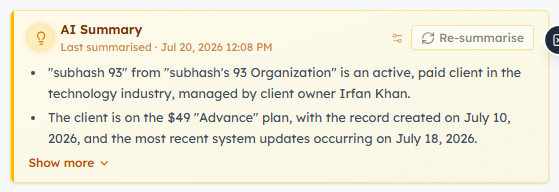
Open any record — a deal, contact, or company — and its Overview tab shows a highlighted amber AI Summary card. One click reads the whole record and writes a short, plain-language briefing: its current state and key fields, the people and companies linked to it, and its recent activity. It’s the fastest way to get up to speed before a call without scrolling the entire timeline.
Before you can use it#
The AI Summary card only appears when your account is set up for AI. In short, you need a paid plan, the AI Summary permission, and some AI credits. If you don’t see the card at all, that’s almost always why — the full checklist is in Turn On AI Summaries.
💡
If you have view access but not manage, you’ll see any summary that already exists, but the Summarise / Re-summarise button is hidden — you can read, not generate. Administrators always have both.
Where you’ll find it#
On a record — the Overview tab of a deal, contact, or company, near the top of the page. Look for the amber card with the glowing bulb and the words “AI Summary”.
In the WhatsApp Inbox — a compact version sits at the top of a chat and summarises the conversation instead of a record.
Generate a summary — step by step#
Open a record and stay on the Overview tab.
Find the amber AI Summary card. Before anything is generated it shows a one-line prompt (“Generate an AI summary of this record — its current state, the key people and companies involved, recent activity, and next steps.”) and a Summarise button.
Click Summarise. The card shows “Summarising…” with a spinner for a few seconds while the AI reads the record.
The finished summary appears as a short set of bullet points, with a “Last summarised · <date & time>” line under the heading.
💡
Generating a summary spends AI credits (it’s an AI action). Reading a summary that already exists is free. See AI Credits & Pricing for how that works.
Reading the summary#
Long summaries are collapsed to the first couple of points to keep the record tidy. Use Show more to expand the full summary and Show less to collapse it again. The Last summarised timestamp tells you how fresh it is — useful for deciding whether it still reflects reality.
Keep it current: Re-summarise#
A summary is a snapshot of the moment it was generated — it does not update on its own. After something meaningful changes (a call logged, a stage moved, a reply received), click Re-summarise to regenerate it from the latest data. This replaces the previous summary and uses AI credits.
To prevent accidental over-spending, there’s a short cooldown between refreshes. If you try again too soon, the button is disabled and a tooltip reads “Next refresh available in …” — wait for the countdown, then re-summarise.
💡
Refresh when something has genuinely changed rather than repeatedly — each generation is a fresh AI charge, and the cooldown is there to stop back-to-back regenerations.
What the summary is based on#
So the summary stays grounded in your real data (rather than guessing), the AI is handed a structured snapshot of the record and everything connected to it:
The record’s own fields — its labelled values (stage, amount, owner, status, and so on).
Related records — the linked contacts, companies, and deals, so the summary knows who and what is involved. A bounded, most-relevant set is used so very busy records stay fast.
Recent activity — the latest items from the timeline: notes, tasks, calls, meetings, emails sent, and WhatsApp messages.
💡
The summary only ever includes records you have permission to see — related records outside your access are left out, so it never leaks data. It is also read-only: generating a summary never edits the record, its fields, or its activity.
AI summaries on a deal — stage, progress & work done\#
On a deal the summary is tuned to your pipeline. Its prompt even reads a little differently — “Generate an AI summary of this deal — its stage, contact, amount, and next steps.” — because a deal summary is really answering “where does this deal stand, and how much has been done on it?” It pulls together:
How far the deal has progressed — its current stage, plus the stage moves recorded in the deal’s timeline. Because it can see that history, the summary can tell you how far the deal has advanced through the pipeline and what’s still outstanding — not just where it sits today.
The numbers — the deal amount, close date, owner, and the other key fields on the record.
Who’s involved — the linked contact and company.
The work done so far — the calls, meetings, emails, WhatsApp messages, notes and tasks logged against the deal, so you can see the effort that’s gone in and where the conversation reached.
What to do next — a suggested next step to move the deal forward.
💡
This is why the AI Summary is so useful before a deal review or a call — one click tells you the stage, the value, the activity so far, and the recommended next move, without scrolling the whole timeline. Log your calls and stage changes and the next Re-summarise will reflect the newest progress.
The compact summary in the WhatsApp Inbox#
The same AI Summary appears, in a denser one-line-header form, at the top of a chat in the WhatsApp Inbox. There it summarises the conversation — what the customer wants and where things stand — so an agent picking up a thread gets instant context. It behaves the same way: Summarise / Re-summarise, a cooldown, and the same AI-credit usage.
Change how summaries are written#
Every summary follows an organisation-wide style you control — length, format, tone, and an optional custom instruction — set at Settings → AI Behaviours. Click the small gear on the summary card to jump straight there. Full details are in Turn On AI Summaries (the “set the summary style” section).
Troubleshooting#
“You’re out of AI credits.” — your AI balance has reached zero. Top up from Billing (see AI Credits & Pricing); a blocked action isn’t charged.
“This record was summarised recently. Try again later.” — you hit the cooldown. Wait for the “Next refresh available in …” countdown, then re-summarise.
No AI Summary card at all — your plan doesn’t include AI, or your profile lacks the AI Summary permission. See Turn On AI Summaries.
Was this article helpful?
Ready to implement this?
OpenAI Engage and apply what you just learned to your own workspace.
Open AI Engage CRM