Loading…


KnowledgeBase
Merge Tickets: Combine Duplicate Support Tickets from the Same Customer into One (Step-by-Step)
Introduction#
Customers often contact you more than once about the same problem. They send an email, then a follow-up an hour later with a new subject line, and then message you again the next day. Each message can open a new ticket. Before long, three agents are looking at three tickets for one problem, and nobody sees the whole story.
Merge fixes this. You select the duplicate tickets, choose the one ticket you want to keep (the primary ticket), and AiEngage CRM folds the others into it:
Every email, reply and note from the other tickets moves into the primary ticket’s conversation, so the full history is in one place.
The other tickets are archived and leave your ticket list.
A short line in the primary ticket records which tickets were merged into it.
If you merge by mistake, an admin can restore the merged tickets within 30 days.
This guide has five parts:
Part | What you’ll learn |
|---|---|
Part 1 | Before you start: who can merge, and the rules a merge follows |
Part 2 | Merge duplicate tickets step by step, from selecting them to the confirmation message |
Part 3 | Check the result in the primary ticket |
Part 4 | What happens when the tickets belong to different customers |
Part 5 | Undo a merge from Merge History |
The screenshots use a sample support team. The customer is Emma Clarke, who has written in three times about the same furniture order (#5821). Your names and ticket numbers will be different.
Part 1: Before you start#
Who can see the Merge button#
The Merge button only appears for people who are allowed to use it. Two settings must both be in place:
Setting | Where an admin turns it on | Why it matters |
|---|---|---|
Mass Merge tool permission for Tickets | Setup → Profiles → open the profile → Tool Permissions → Mass Merge → tick Tickets | Without it, the user’s profile isn’t allowed to merge tickets. |
Duplicate Check & Merge on the Tickets module | Setup → Modules and Fields → Tickets → module Settings → Duplicate Check & Merge | Merging is switched off for the whole module until this is on. The Tool Permissions screen doesn’t even list Tickets under Mass Merge until it is. |
ℹ️
Don’t see Merge? Ask your admin to check both settings above. The step-by-step guide to Tool Permissions is Tool Permissions: Control Who Can Mass Update, Mass Delete, Change Owner and Merge Records. Merge is also never shown in the Trash view, because deleted tickets can only be restored there.
The rules a merge follows#
Rule | What it means for you |
|---|---|
At least two tickets | You need the ticket you keep plus at least one more. With only one ticket ticked, Merge is greyed out. |
Same customer only | All the tickets must belong to the same contact (or have no contact at all). Tickets from two different customers are refused, so two people’s conversations are never mixed up. |
The primary ticket’s details win | The ticket you keep keeps its own subject, ticket number, status, priority, team and assignee. Field values on the other tickets are not copied across. |
Conversations move across | Emails, recorded replies and internal notes from the other tickets move into the primary ticket’s thread. |
The other tickets are archived | They disappear from the ticket list. An admin can bring them back from Merge History within 30 days (Part 5). |
Up to 500 tickets at a time | In practice you’ll usually merge two or three. |
✅
Which ticket should you keep? Usually the oldest one: it has the original request, its ticket number may already be in your customer’s emails, and its status and assignee are usually the most up to date. Whichever ticket you choose, check its status, priority and assignee are right, because those are the values that stay.
Part 2: Merge duplicate tickets step by step#
Step 1: Open your ticket list and find the duplicates#
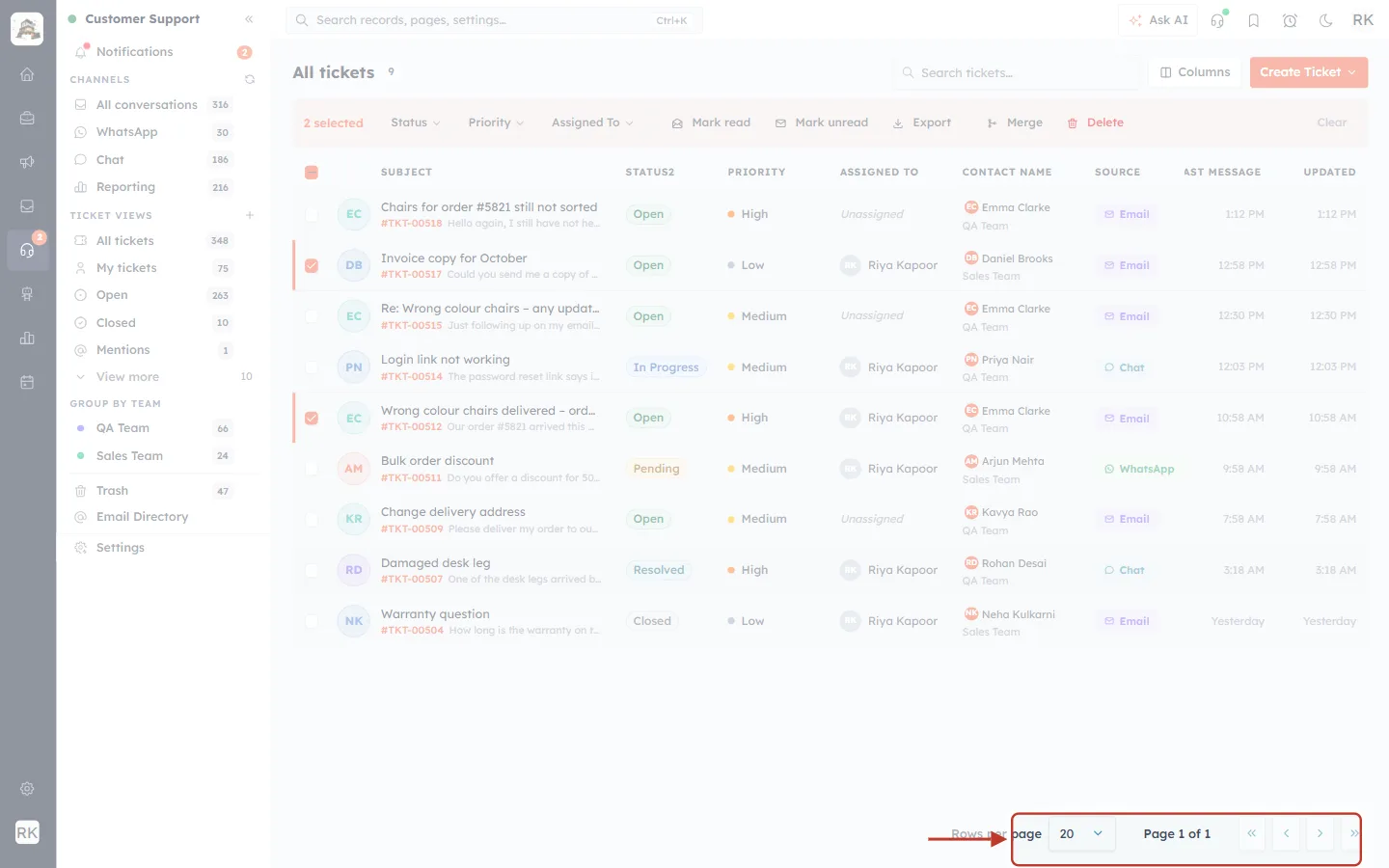
Click the headset icon in the left icon bar to open Customer Support, then click All tickets (or any ticket view) in the side panel. Look for tickets from the same customer about the same problem. The Contact Name column and the subject lines help you spot them. You can also type the customer’s name in Search tickets… at the top right to show only their tickets.
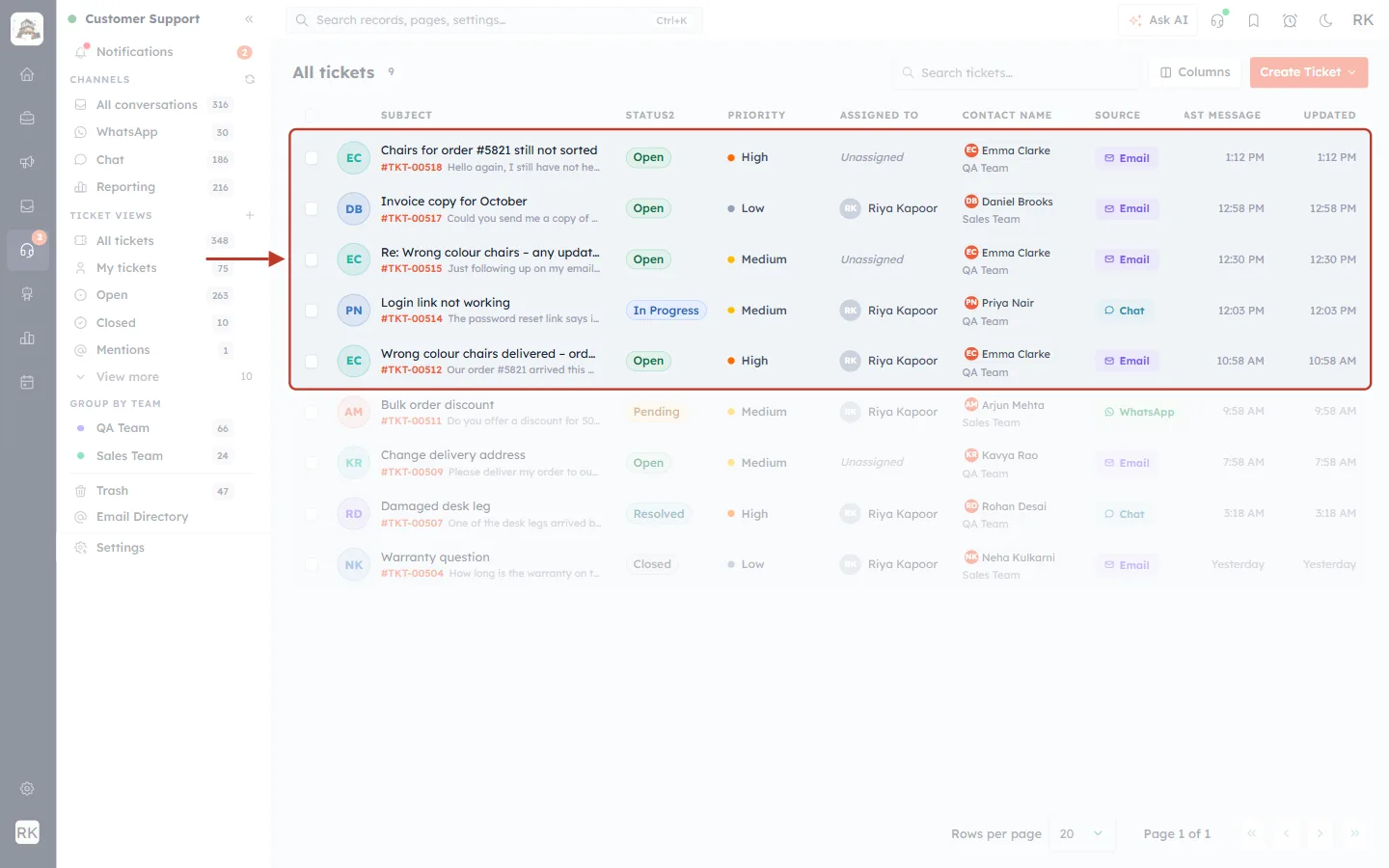
What this screenshot shows. The All tickets list in Customer Support. The ring surrounds the top five rows, which include three tickets from Emma Clarke: #TKT-00518 “Chairs for order #5821 still not sorted”, #TKT-00515 “Re: Wrong colour chairs – any update?” and #TKT-00512 “Wrong colour chairs delivered – order #5821”.
Subject column: the ticket’s subject, with its ticket number (for example #TKT-00512) and the start of the last message underneath.
Status2 and Priority: where each ticket is (Open, In Progress, Resolved…) and how urgent it is. Two of Emma’s tickets are Unassigned, so nobody is working on them yet.
Contact Name: all three duplicates show Emma Clarke, which tells you they come from one customer and can be merged.
Source: the channel the ticket came from (Email, Chat, WhatsApp).
Left side panel: the Customer Support menu with your ticket views (All tickets, My tickets, Open, Closed…), team groups and Trash.
Step 2: Tick the tickets you want to merge#
Tick the checkbox at the start of each duplicate row, including the ticket you plan to keep. You choose which ticket survives later, in the Merge dialog.
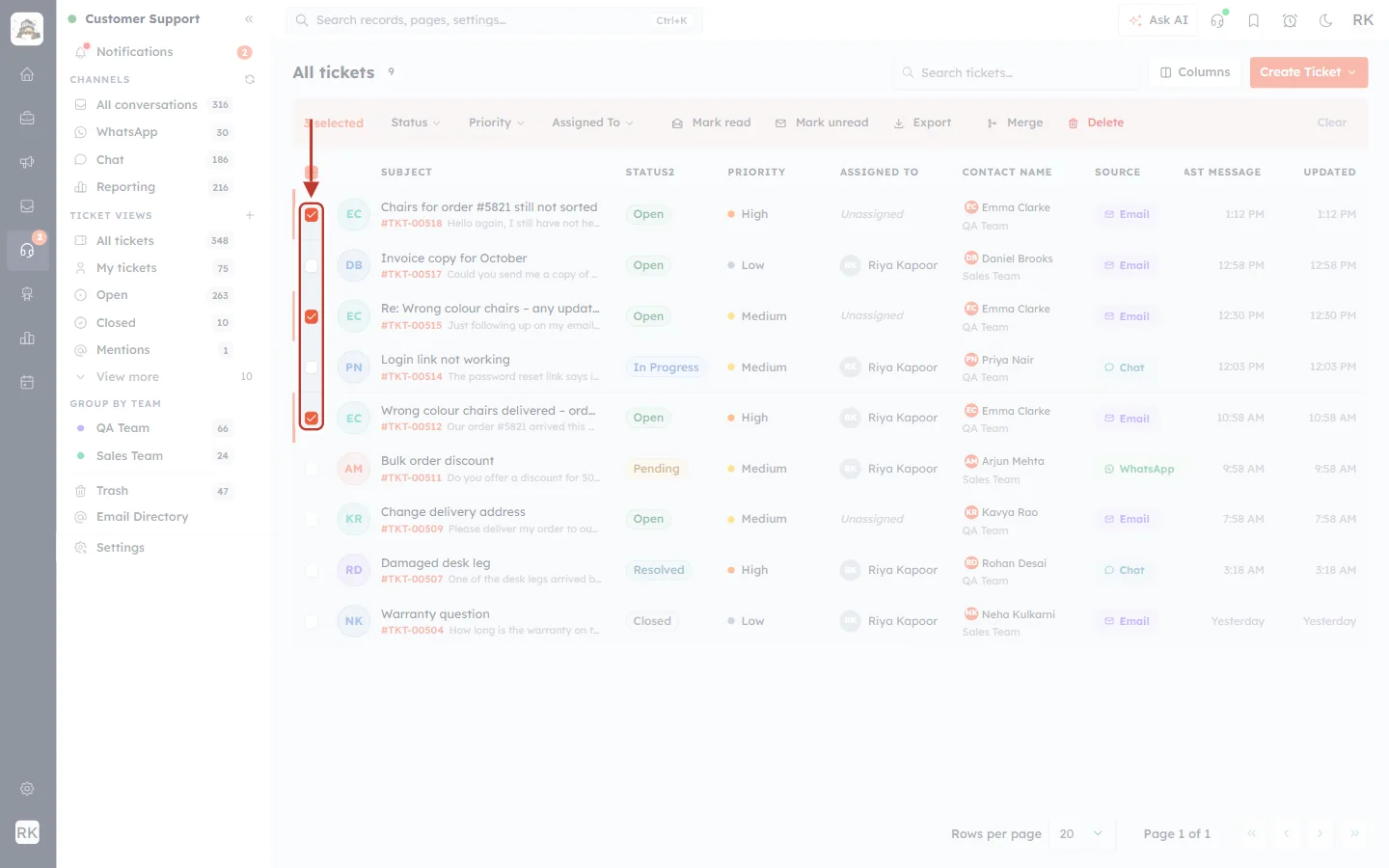
What this screenshot shows. The checkbox column, ringed. Rows #TKT-00518, #TKT-00515 and #TKT-00512 are ticked (orange tick, with an orange bar on the left edge of each row). The other customers’ tickets are left unticked.
Each ticked row gets an orange checkbox and an orange stripe on its left edge, so you can see the selection at a glance.
The box in the column header selects every ticket on this page. Don’t use it for a merge unless every ticket on the page belongs to the same customer.
As soon as one box is ticked, the toolbar above the list changes into the bulk bar (next step).
Step 3: Find Merge in the bulk bar#
When tickets are selected, a coloured bulk bar replaces the column toolbar above the list. It shows how many tickets you’ve selected and the actions you can apply to all of them.
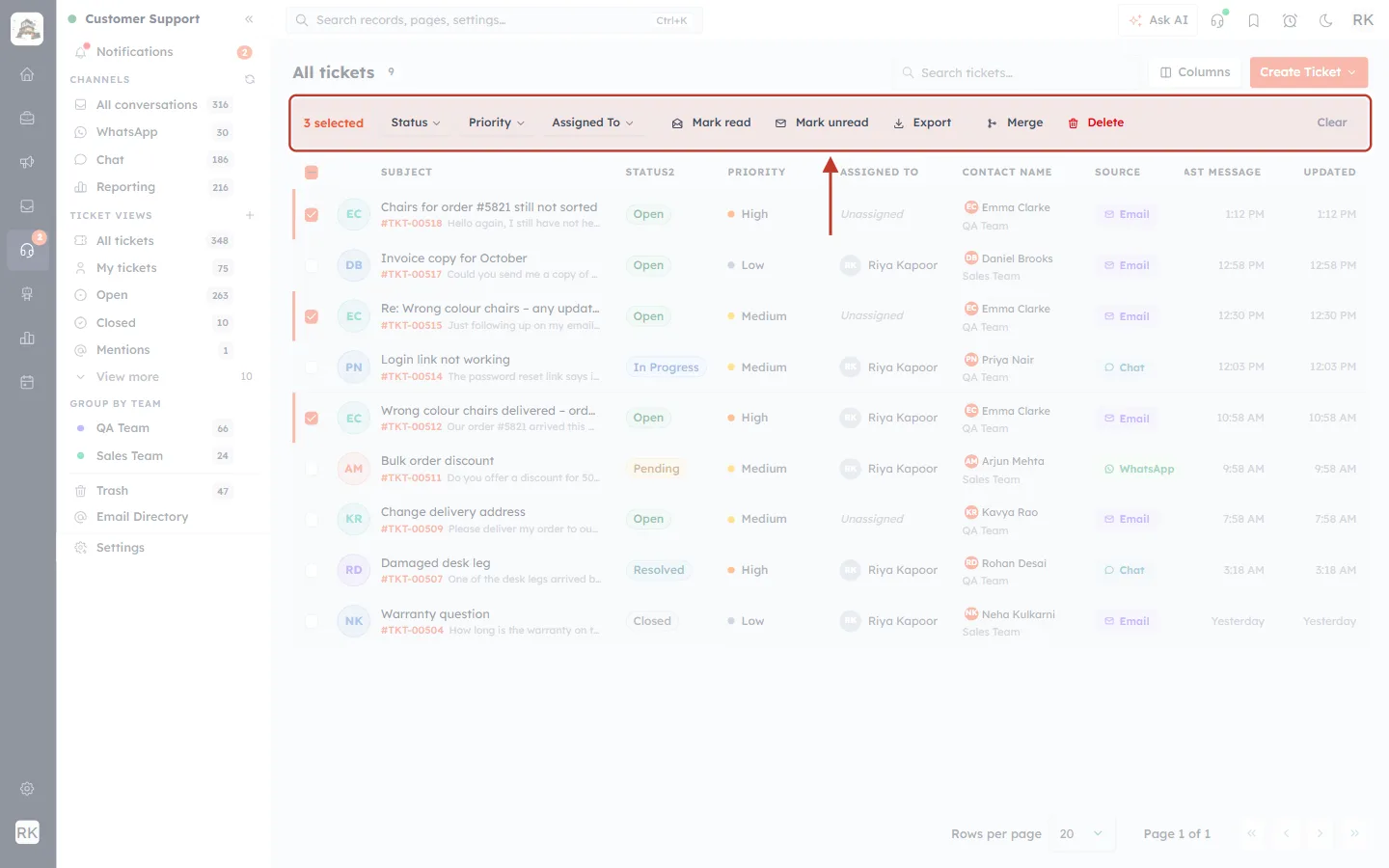
What this screenshot shows. The bulk bar, ringed. From left to right it reads: 3 selected · Status · Priority · Assigned To · Mark read · Mark unread · Export · Merge · Delete · Clear.
3 selected: the number of tickets ticked. Check this matches the duplicates you mean to merge.
Status, Priority, Assigned To, Mark read / Mark unread, Export: everyday bulk actions, covered in Bulk Actions on Tickets: Select Several Tickets and Update Them Together.
Merge: combines the selected tickets into one. It sits after a divider, together with Delete, because both remove tickets from the list.
Clear (far right): unticks everything without doing anything.
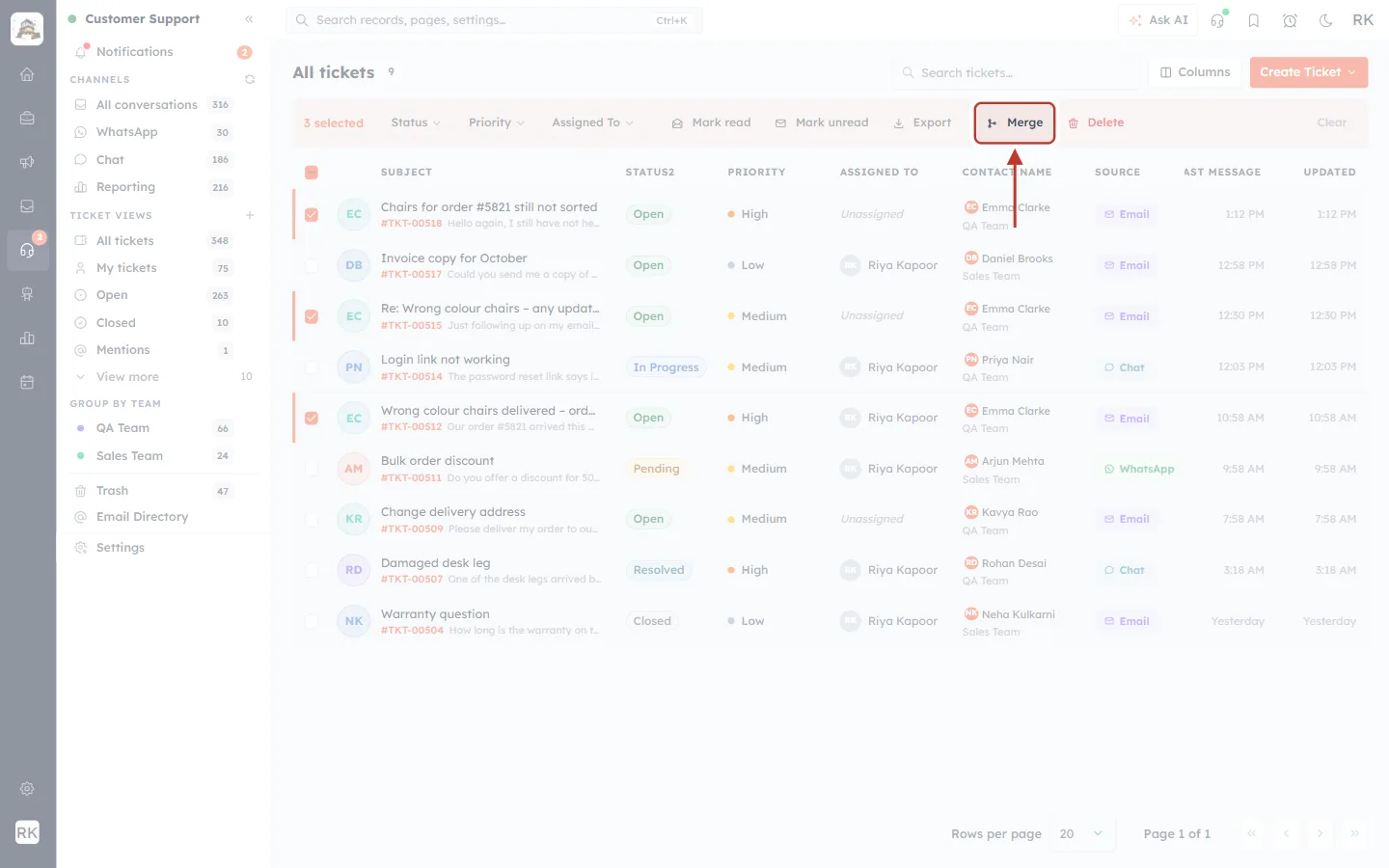
What this screenshot shows. A close-up of the same bar with only the Merge button ringed. It has a small branching-arrows icon and the word “Merge”. The red arrow points to it.
Click Merge to open the Merge dialog. Nothing changes yet: the dialog lets you choose the ticket to keep and confirm first.
If you don’t see Merge at all, your profile or the Tickets module isn’t set up for merging (see Part 1).
Merge needs at least two tickets. With only one ticket ticked, the button is greyed out and can’t be clicked:
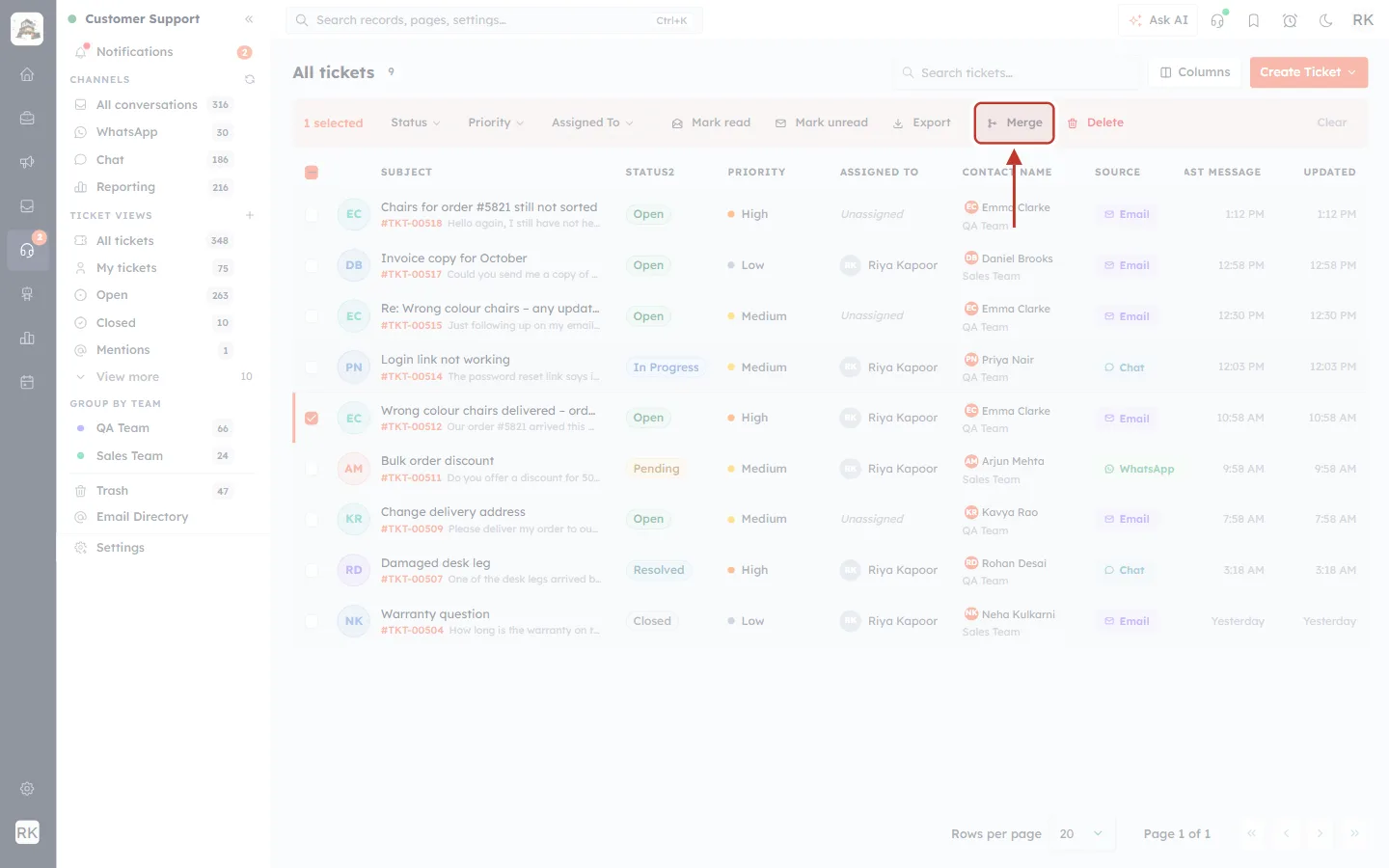
What this screenshot shows. The bulk bar with 1 selected. The ringed Merge button is faded (disabled).
Tick at least one more ticket from the same customer and the button becomes clickable.
Step 4: Read the Merge dialog#
Clicking Merge opens the Merge 3 tickets dialog (the number matches your selection).
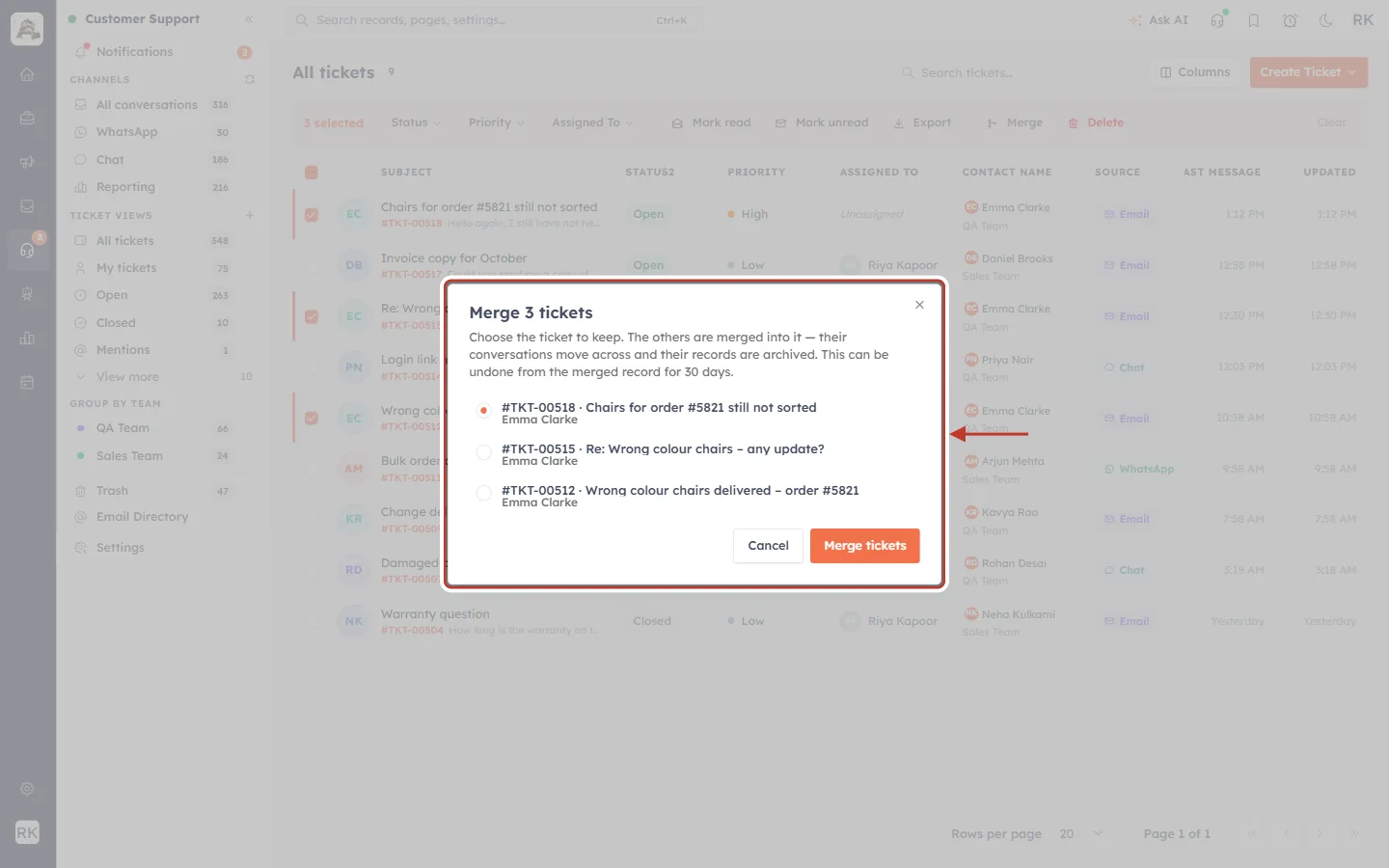
What this screenshot shows. The whole Merge dialog, ringed, over the ticket list. It has a title, an explanation, a list of the three selected tickets with a round button next to each, and Cancel / Merge tickets buttons at the bottom.
Title: “Merge 3 tickets”.
Explanation: what will happen to the tickets (next screenshot).
Ticket list: one row per selected ticket, showing #ticket number · subject and the customer’s name underneath (here Emma Clarke on all three).
Cancel: closes the dialog without merging. Your tickets stay selected.
Merge tickets: carries out the merge.
There’s no red warning in this dialog, which means all the tickets belong to the same customer. Compare Part 4.
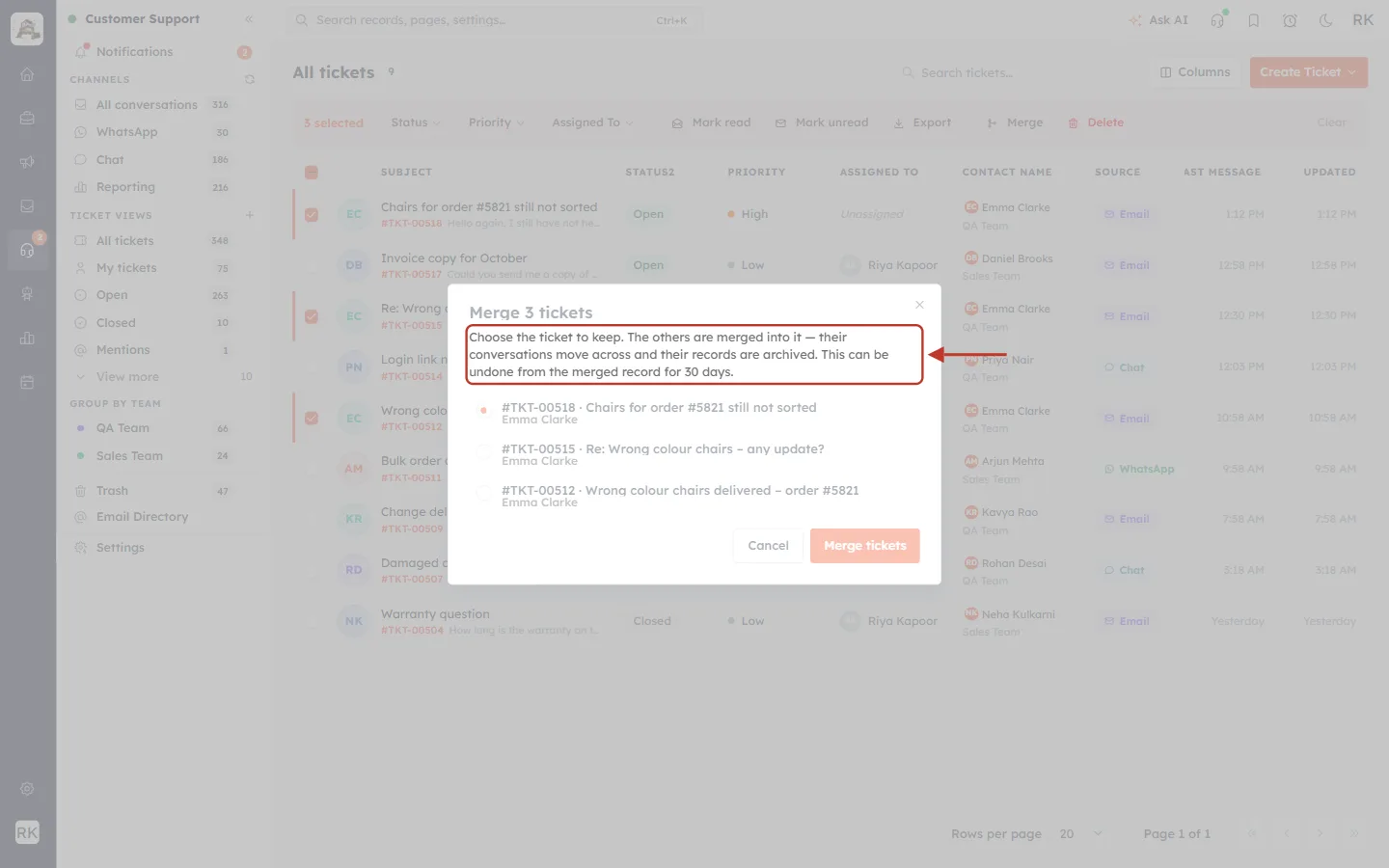
What this screenshot shows. The explanation paragraph, ringed: “Choose the ticket to keep. The others are merged into it — their conversations move across and their records are archived. This can be undone from the merged record for 30 days.”
“Choose the ticket to keep”: one ticket survives, the primary ticket.
“Their conversations move across”: the emails and notes on the other tickets move into the primary ticket.
“Their records are archived”: the other tickets leave your list but aren’t permanently deleted.
“Undone … for 30 days”: an admin can restore them from Merge History (Part 5).
Step 5: Choose the ticket to keep (the primary ticket)#
The dialog pre-selects the first ticket in the list order. This is usually the most recently updated one, which is not always the one you want to keep.
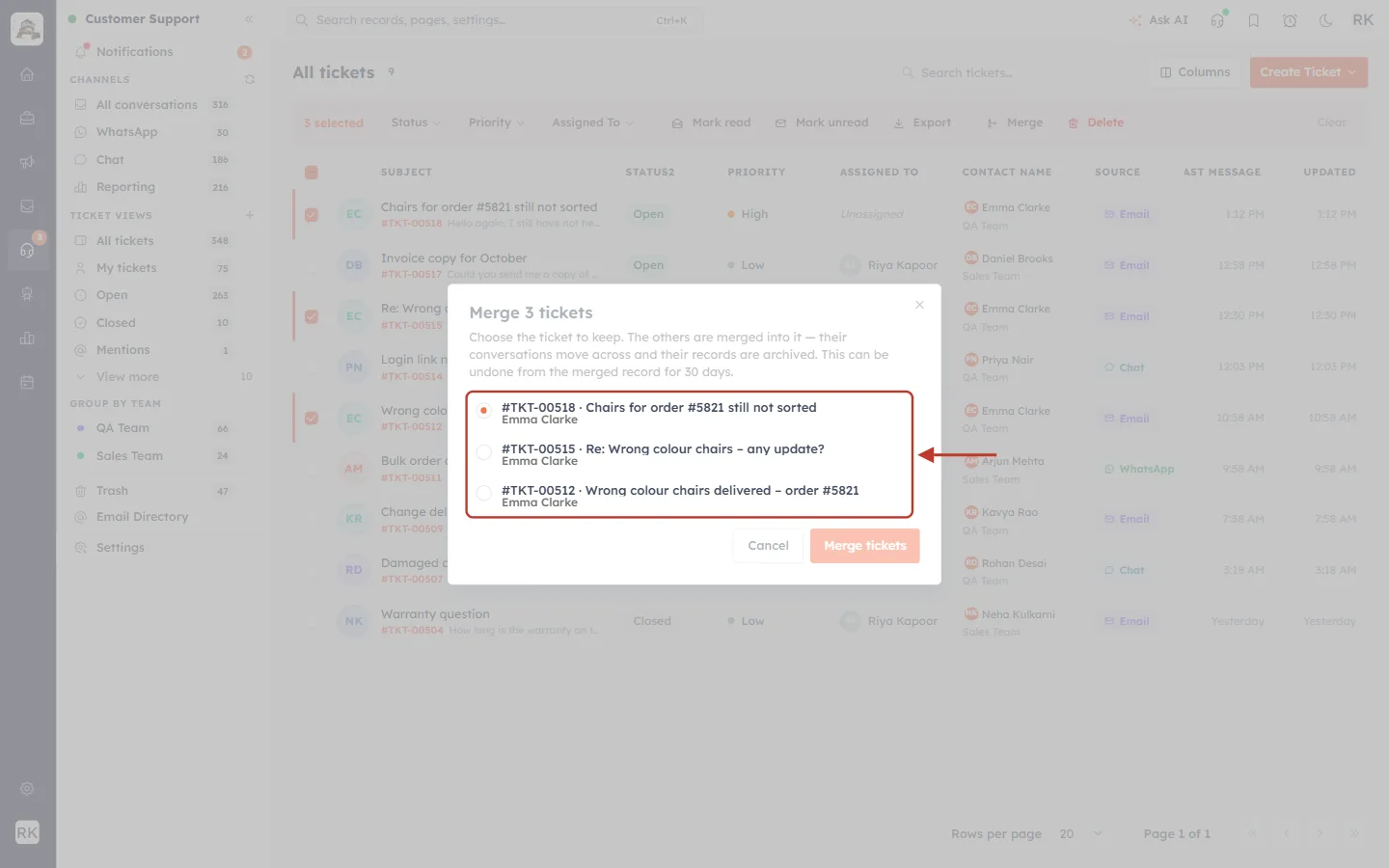
What this screenshot shows. The list of tickets in the dialog, ringed. The round button next to #TKT-00518 · Chairs for order #5821 still not sorted is filled in orange because it was pre-selected. #TKT-00515 and #TKT-00512 are empty.
The filled orange circle marks the ticket that will be kept.
Here the pre-selected ticket is Emma’s newest follow-up, not her original request, so we’ll change it.
Click anywhere on the row of the ticket you want to keep. In our example that is the original request, #TKT-00512.
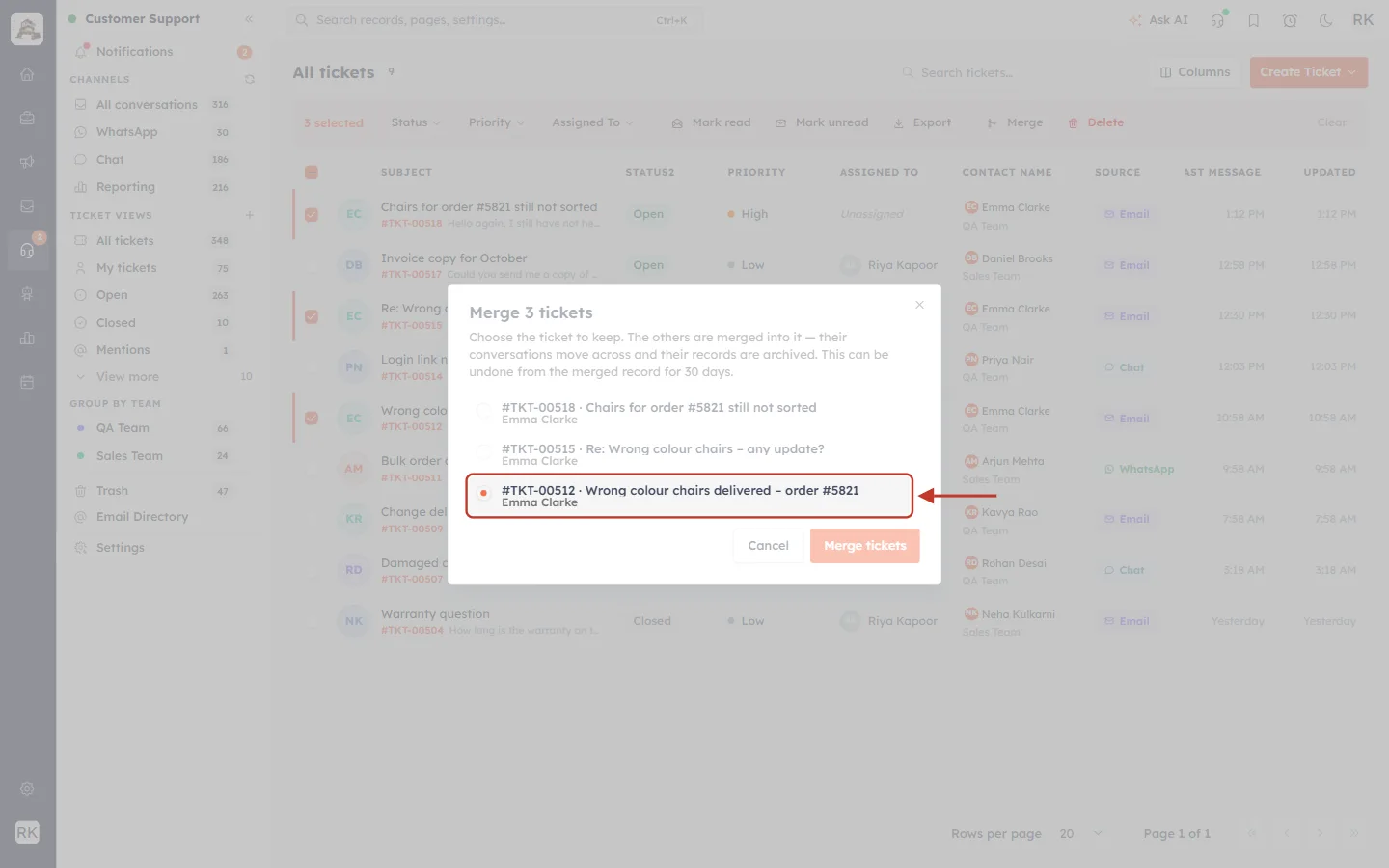
What this screenshot shows. The row #TKT-00512 · Wrong colour chairs delivered – order #5821 / Emma Clarke is ringed, and its round button is now filled in orange.
Only one ticket can be chosen. Picking a new row clears the previous choice.
The other two tickets, #TKT-00518 and #TKT-00515, will be merged into #TKT-00512.
Because the primary ticket’s details win, #TKT-00512 keeps its own subject, status (Open), priority (High) and assignee.
Step 6: Click Merge tickets#
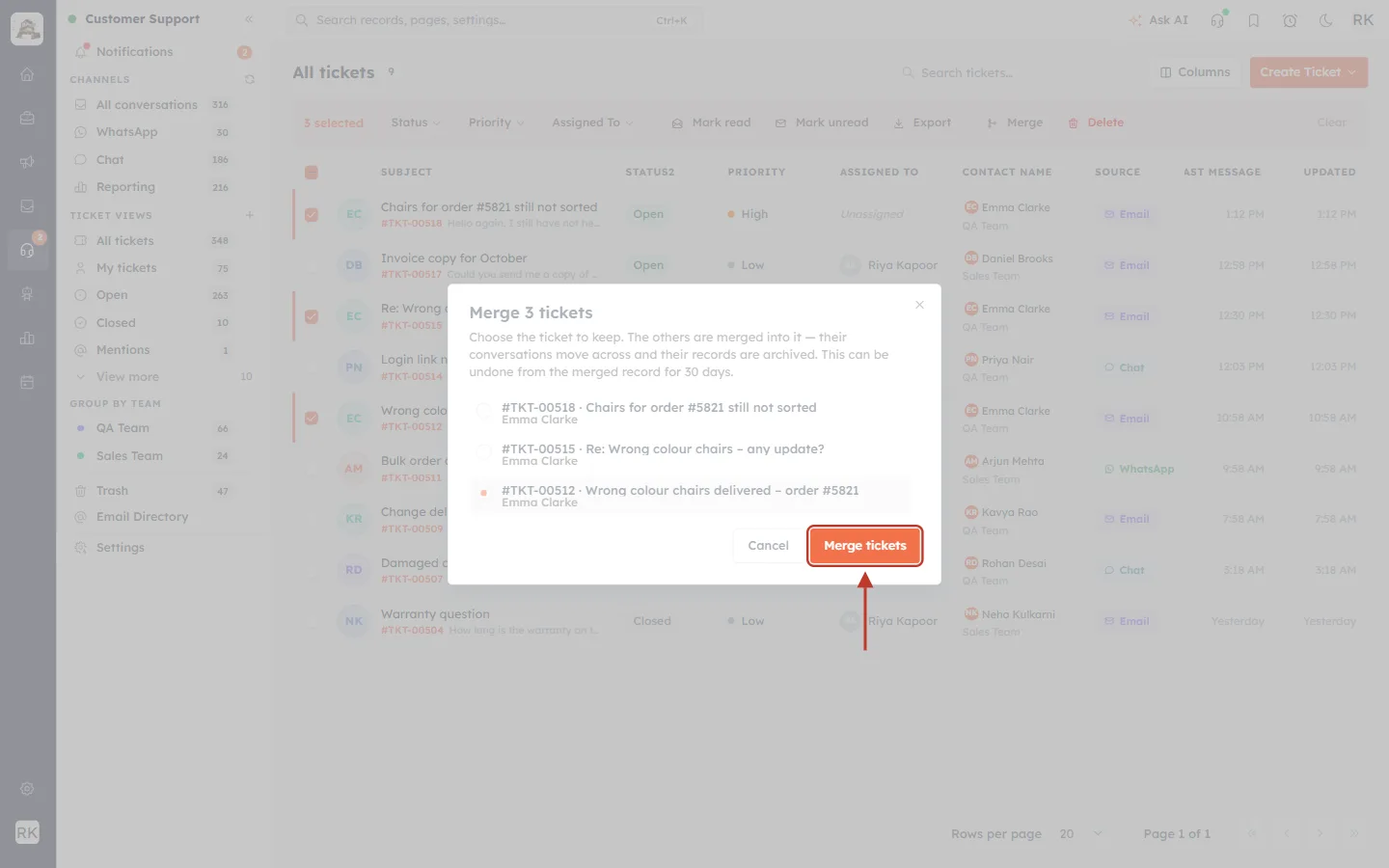
What this screenshot shows. The orange Merge tickets button at the bottom right of the dialog, ringed, with the red arrow pointing to it. Cancel is to its left.
Click Merge tickets to merge. While it works, the button reads Merging… and the dialog can’t be closed.
The button is disabled if no ticket is chosen, or if fewer than two tickets are in the list.
Step 7: Read the confirmation message#
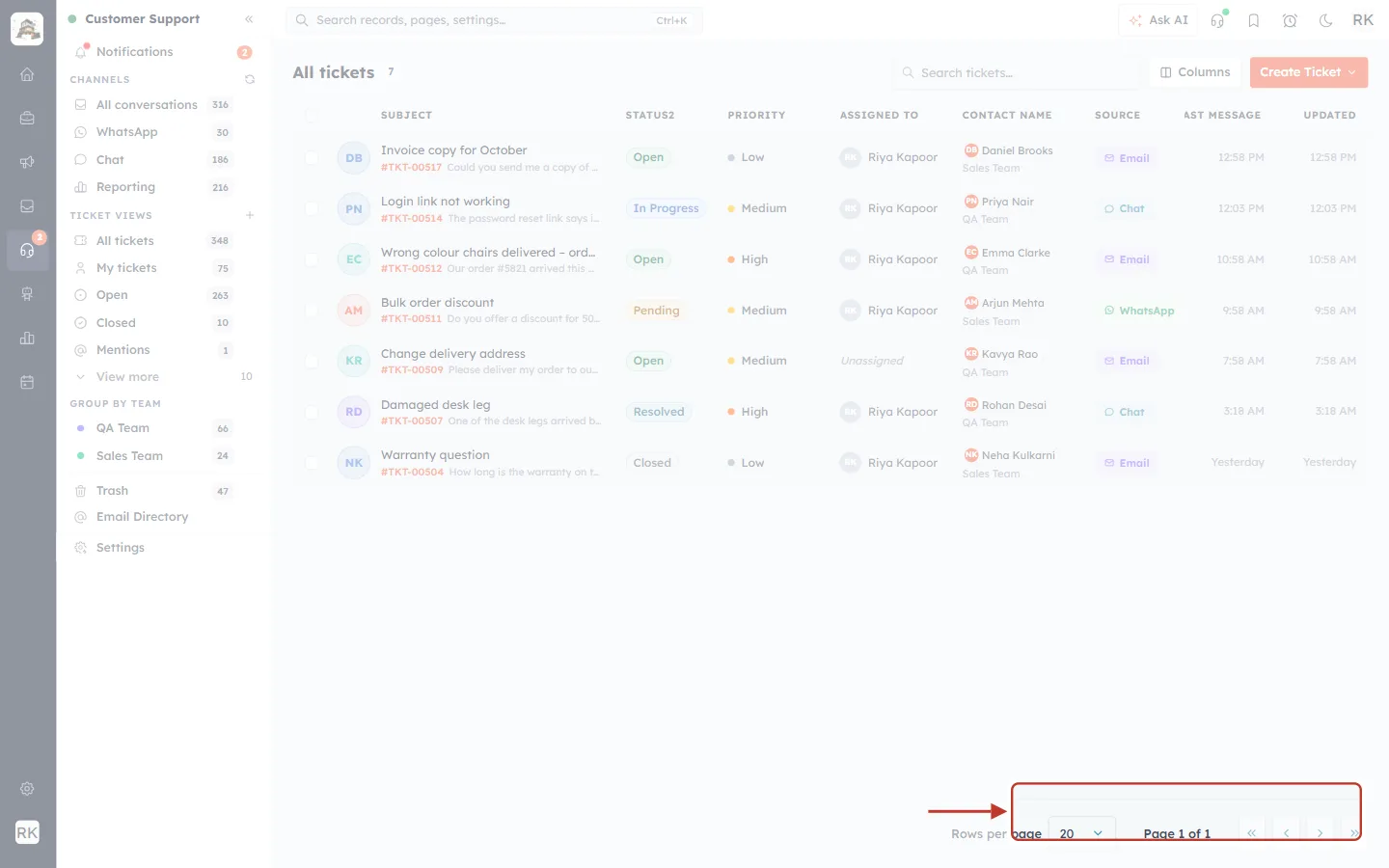
What this screenshot shows. The confirmation message in the bottom-right corner of the screen, ringed: “2 tickets merged into the primary ticket”.
The number is how many tickets were folded in. You selected three tickets and kept one, so two were merged.
The dialog closes, your selection is cleared, and the list and sidebar counts refresh on their own.
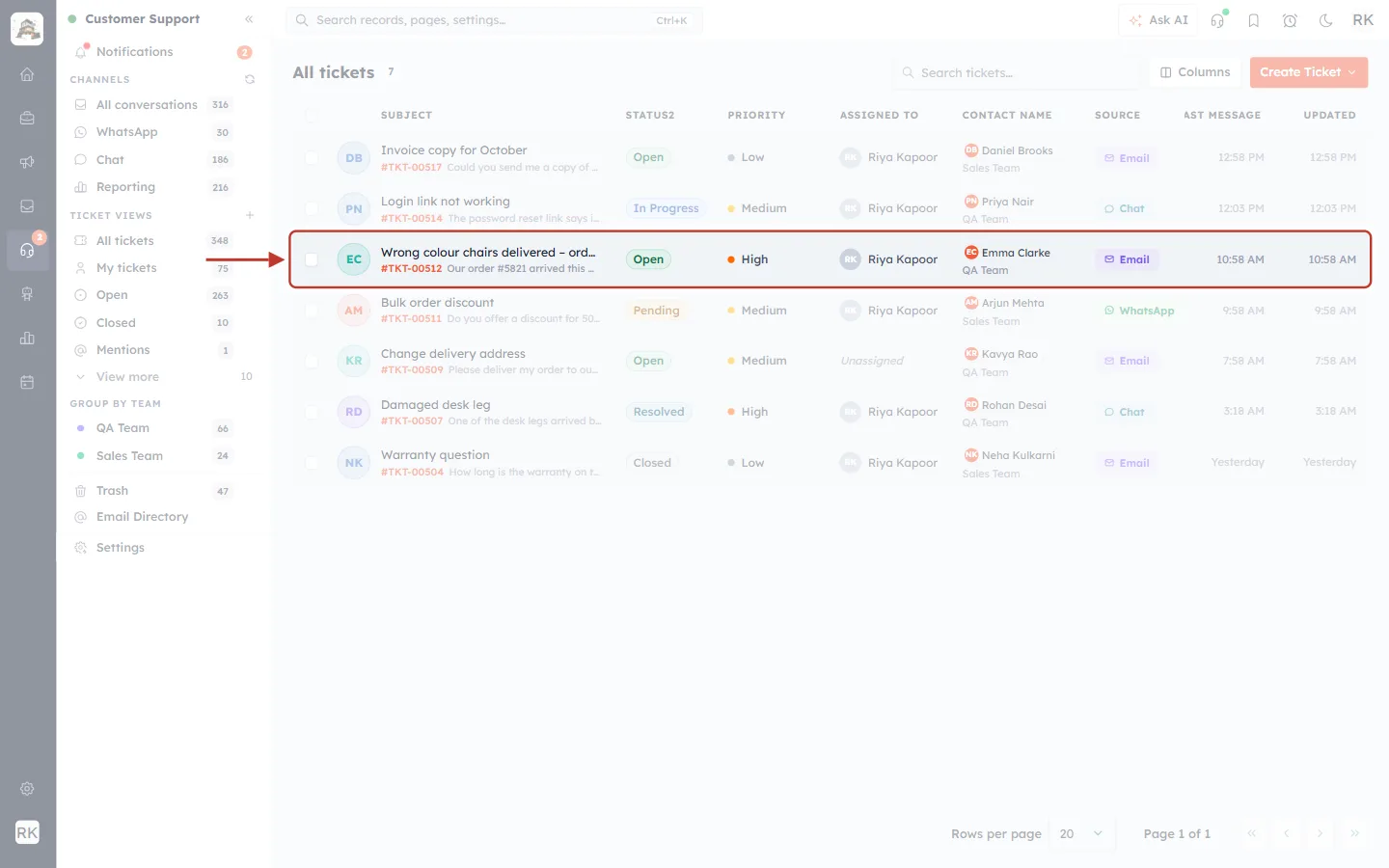
What this screenshot shows. The ticket list after the merge. The ringed row is #TKT-00512 · Wrong colour chairs delivered – order #5821, now the only ticket from Emma Clarke. #TKT-00518 and #TKT-00515 have gone from the list.
The merged tickets are archived, so they no longer appear in All tickets, Open or any other view.
The remaining ticket keeps the same ticket number, so any emails that mention #TKT-00512 still match it.
Part 3: Check the result in the primary ticket#
Click the ticket you kept to open it. Everything the customer sent on the other tickets is now in this one thread.
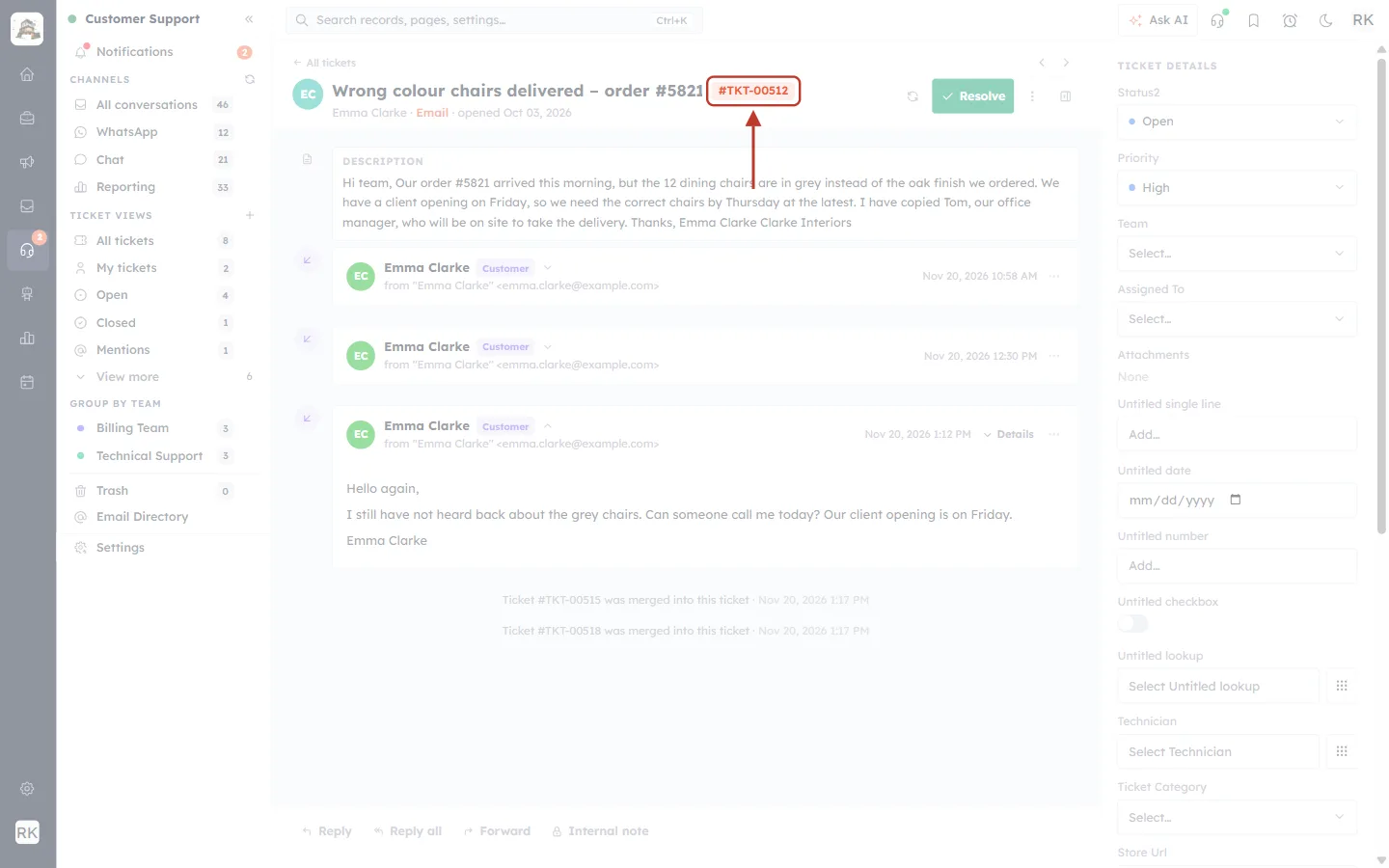
What this screenshot shows. The top of the open ticket, with the ticket number #TKT-00512 ringed. Next to it is the subject “Wrong colour chairs delivered – order #5821”, and underneath it “Emma Clarke · Email · opened Oct 03, 2026”.
The ticket number, subject and opened date are the primary ticket’s own. A merge never renames the ticket you keep.
On the right, TICKET DETAILS still shows the primary ticket’s Status2 (Open) and Priority (High).
The green Resolve button and the ⋮ menu work as usual. Resolve the ticket once the customer’s problem is solved.
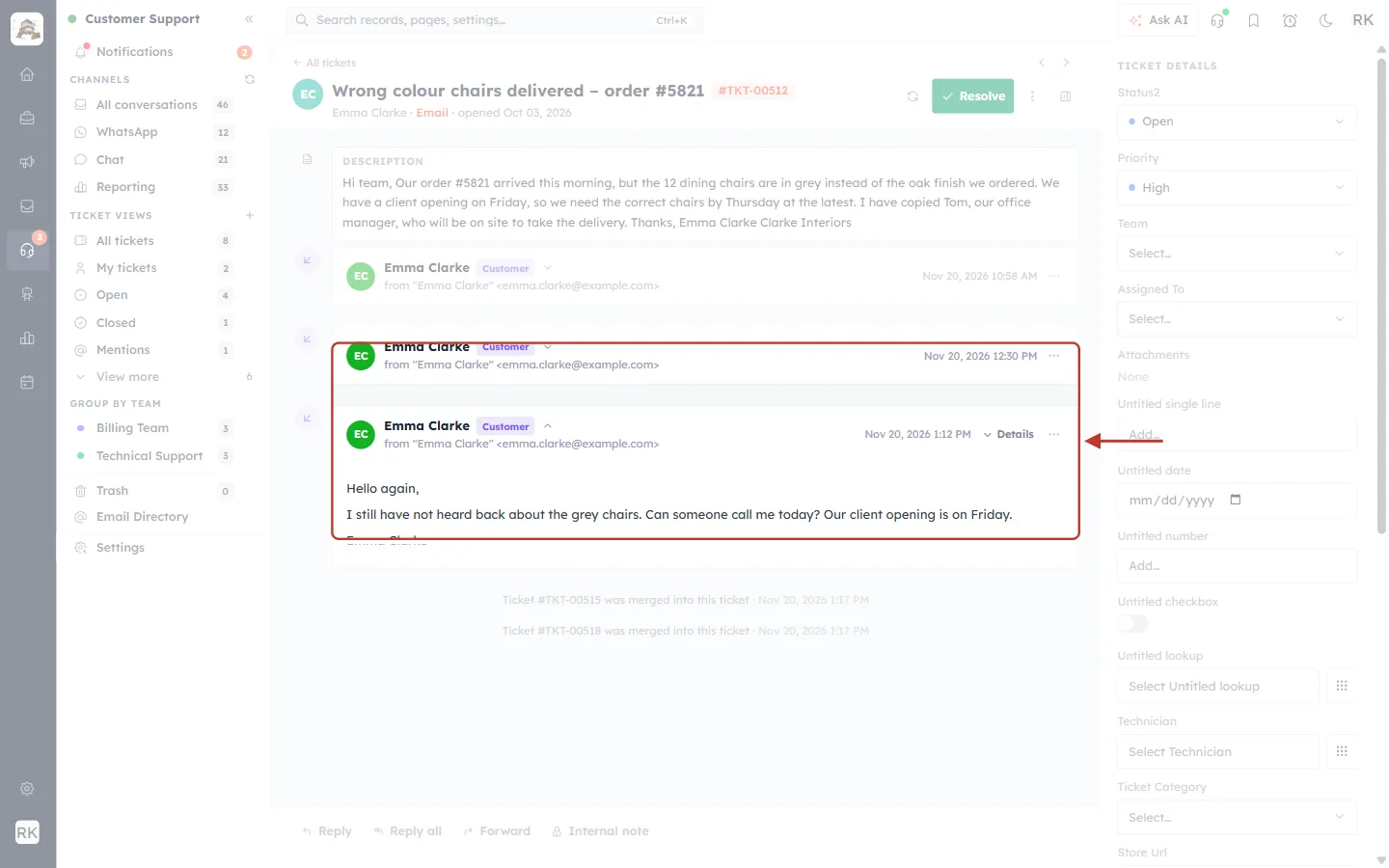
What this screenshot shows. The conversation in the primary ticket. The ring surrounds the second and third emails from Emma Clarke. These came from the merged tickets #TKT-00515 (sent at 12:30 PM) and #TKT-00518 (sent at 1:12 PM). The newest email is expanded and reads “Hello again, I still have not heard back about the grey chairs. Can someone call me today? Our client opening is on Friday.”
The first email card is the original request that was always on #TKT-00512.
The ringed cards came from the merged tickets. They keep their original sender and time, so the thread reads in the order the customer wrote.
Older emails are collapsed to one line. Click a card to open it, or click Details on an open card to see its full address details.
When you reply with Reply or Reply all at the bottom, the reply goes out from this primary ticket.
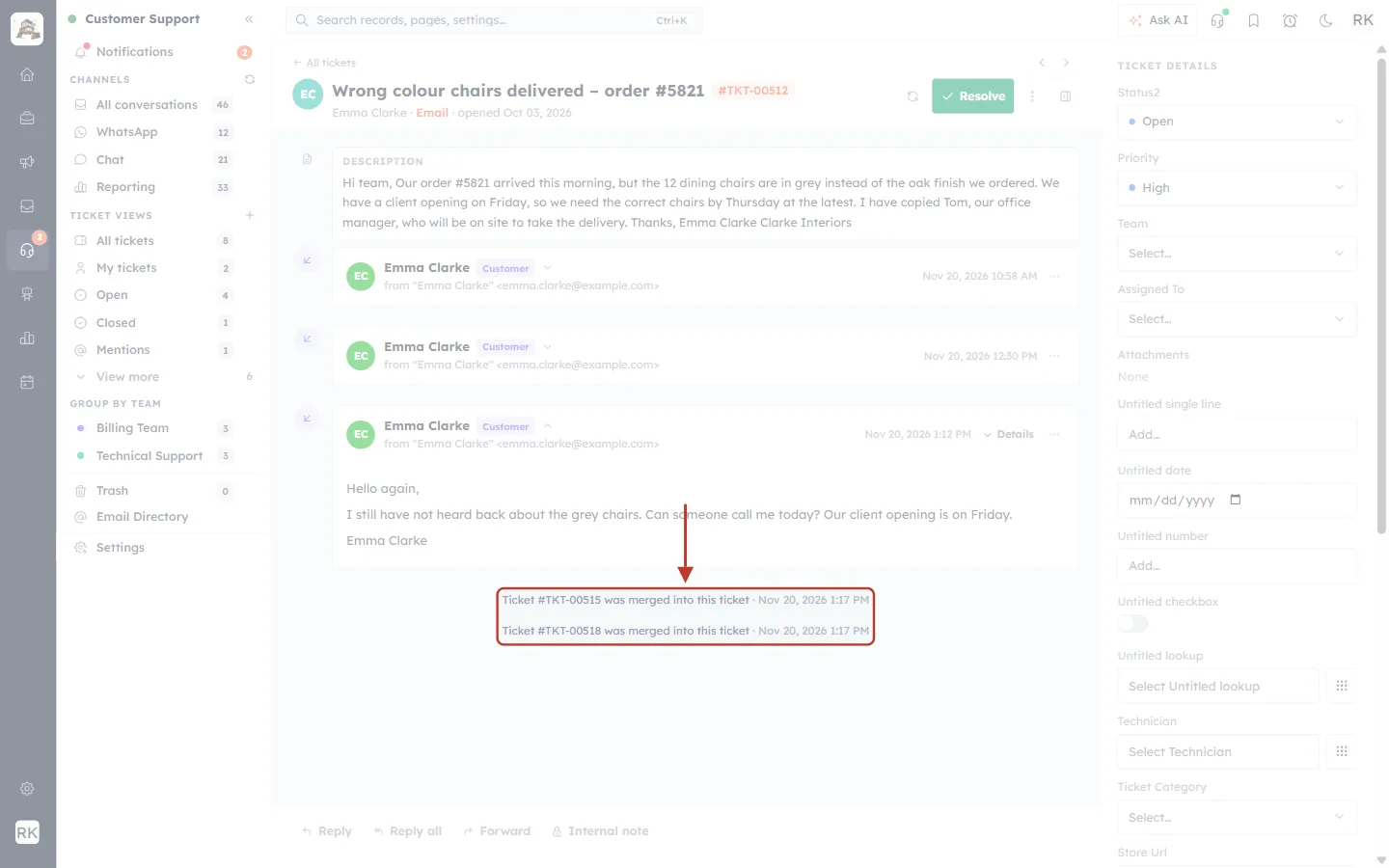
What this screenshot shows. At the end of the thread, two centred grey lines are ringed: “Ticket #TKT-00515 was merged into this ticket · Nov 20, 2026 1:16 PM” and “Ticket #TKT-00518 was merged into this ticket · Nov 20, 2026 1:16 PM”.
One line is added for each merged ticket, with the date and time of the merge.
These lines are a record for your team. They are not emailed to the customer.
Anyone who opens the ticket later can see at a glance that it absorbed other tickets, and which ones.
ℹ️
Tell the customer, if it helps. If your customer has been emailing you about several ticket numbers, a quick reply such as “We’ve combined your messages into ticket #TKT-00512, and we’ll keep you updated there” avoids confusion.
Part 4: When the tickets belong to different customers#
A merge only combines tickets from one customer. If you tick tickets from two different contacts, for example Emma Clarke’s ticket and Daniel Brooks’s ticket, the Merge dialog warns you straight away.
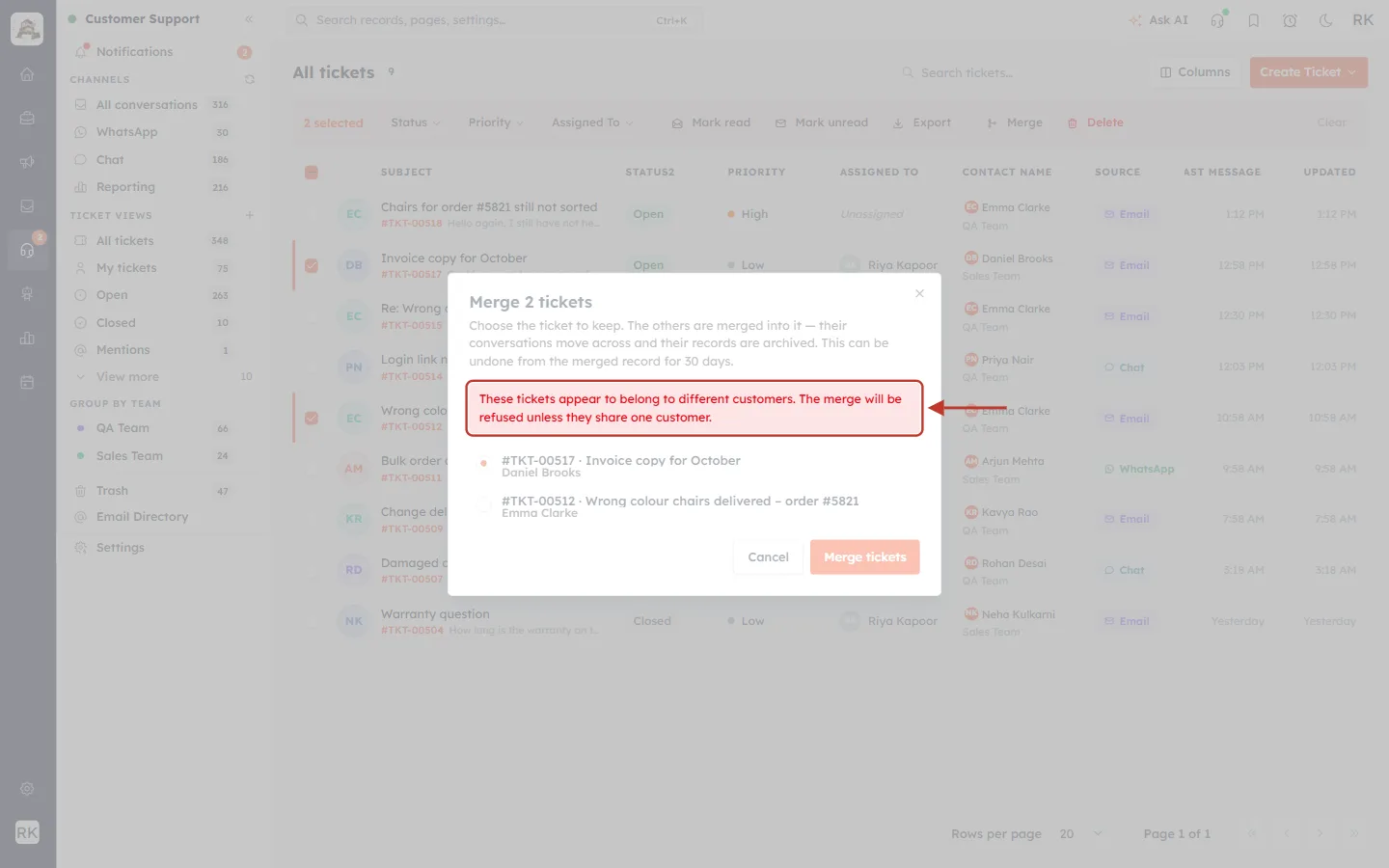
What this screenshot shows. The Merge 2 tickets dialog with the red box ringed: “These tickets appear to belong to different customers. The merge will be refused unless they share one customer.” Below it, the list shows #TKT-00517 (Daniel Brooks) and #TKT-00512 (Emma Clarke).
The red box appears whenever the selected tickets have more than one contact. Check the names under each ticket.
You can still click Merge tickets, but the merge will be refused (next screenshot).
Click Cancel, untick the other customer’s ticket and try again.
What this screenshot shows. The red error message in the bottom-right corner, ringed: “These tickets belong to different customers and cannot be merged.”
Nothing was changed. Both tickets are exactly as they were.
If the two contacts are really the same person (for example, one contact for their work email and one for their personal email), merge the contacts first, then merge the tickets. See Find & Merge Duplicates Across Any Module (Deduplication & Merge History).
⚠️
Tickets with no contact: a ticket that isn’t linked to any contact can be merged with tickets from one customer. Before merging, open it and check it really is the same customer, because the system can’t check that for you.
Part 5: Undo a merge from Merge History#
If tickets were merged by mistake, an admin (or anyone with the Record Merge permission and edit access to Tickets) can restore them within 30 days. This is done from the Tickets module list, not from the Customer Support ticket list.
Step 1: Open the Tickets module list#
Go to /dashboard/modules/tickets/records on your CRM address (for example https://your-crm-address/dashboard/modules/tickets/records), or click Tickets under Bookmarks in the CRM menu if you have bookmarked it. This is the record grid that lists every ticket as a CRM record. Manage Tickets in the CRM: Filter, Kanban & Timeline explains this screen in detail.
Step 2: Open More actions → Merge History#
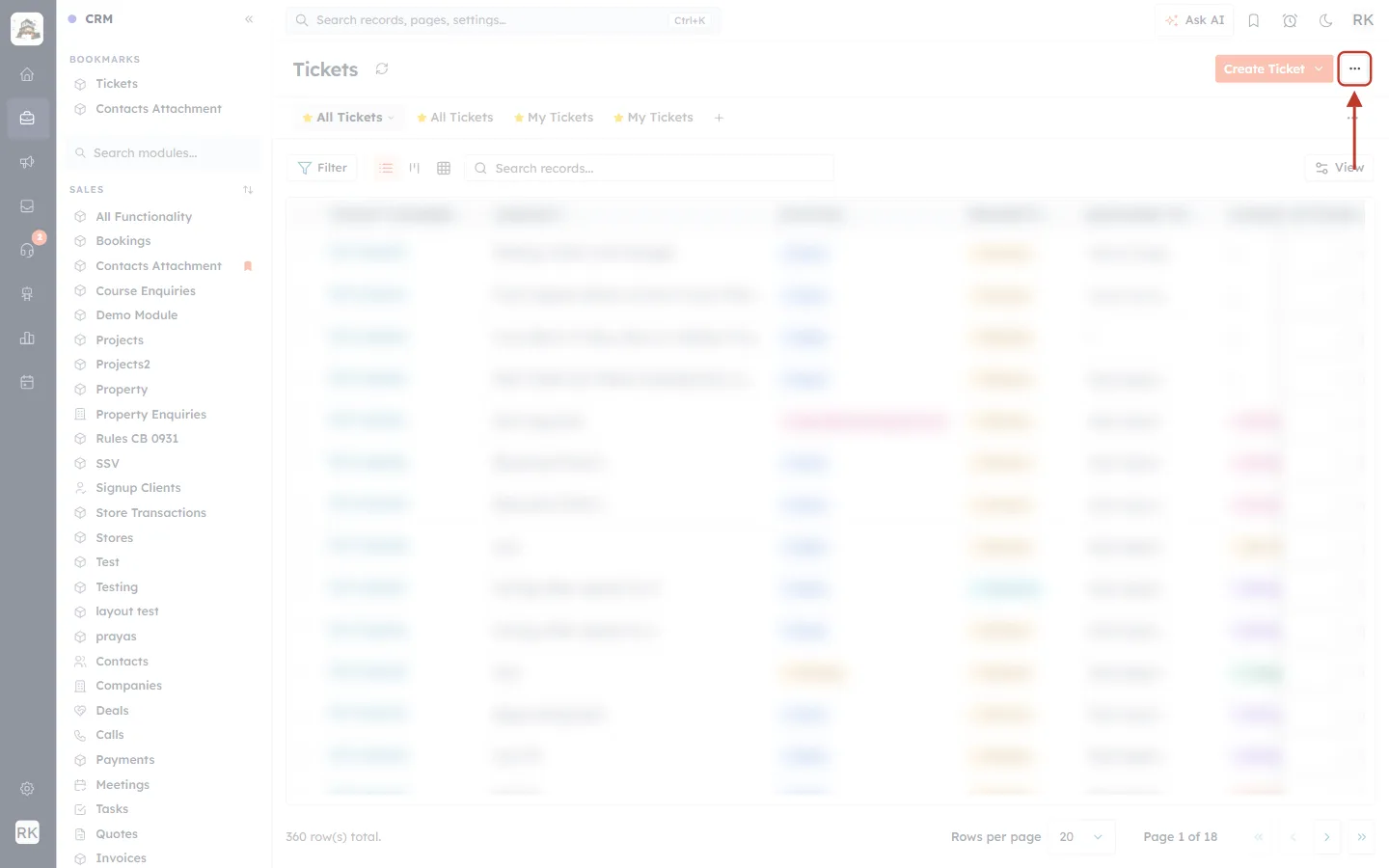
What this screenshot shows. The Tickets module list. The square ⋯ (More actions) button at the top right of the list is ringed, and the red arrow points to it. The rows of the list are blurred in this screenshot.
The ⋯ button holds module-wide actions that don’t need any records ticked first.
It only shows if you are allowed to use Deduplicate or Merge History.
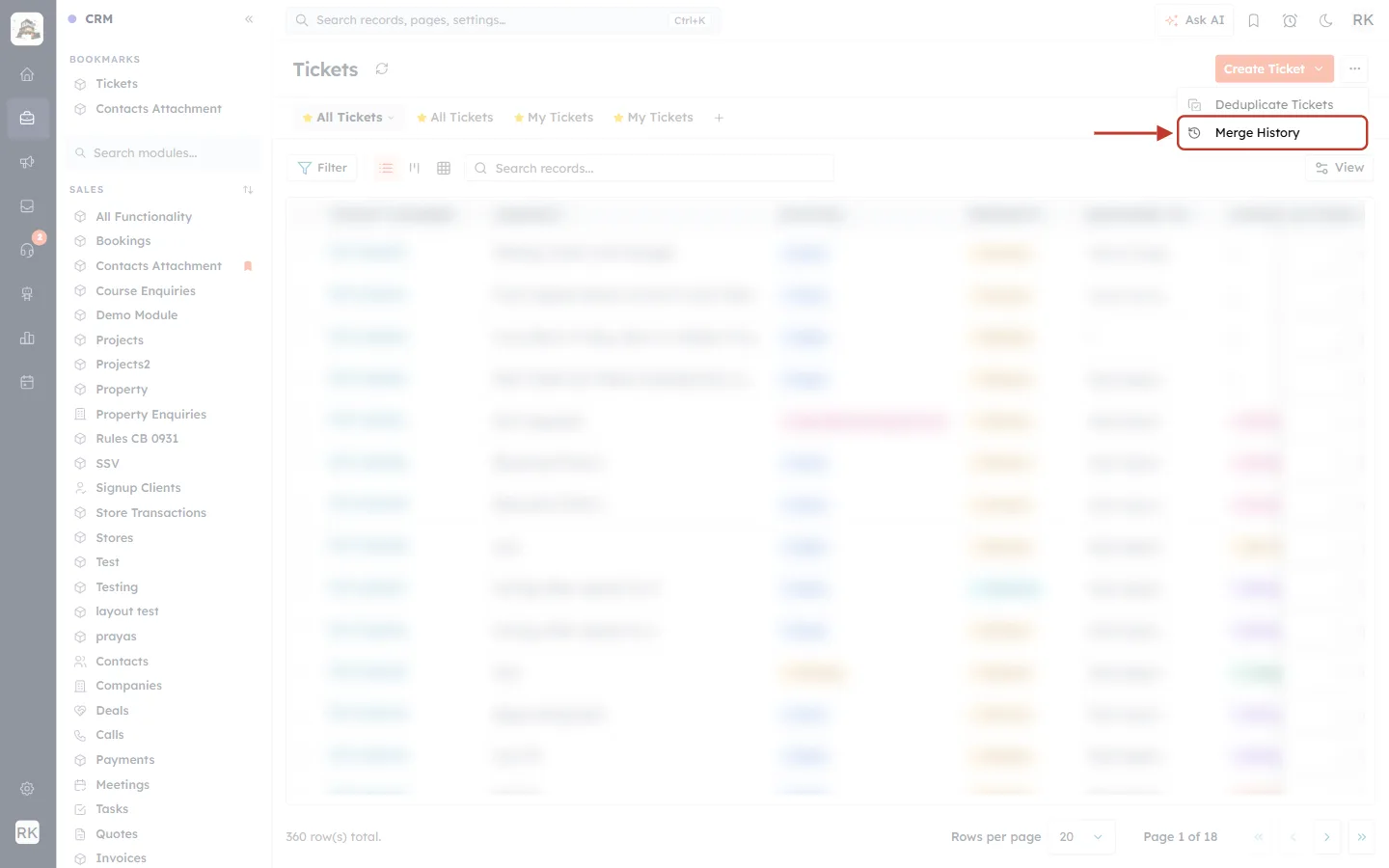
What this screenshot shows. The open More actions menu with two options: Deduplicate Tickets and Merge History. Merge History is ringed.
Deduplicate Tickets scans the module for duplicate records. It’s covered in Find & Merge Duplicates Across Any Module (Deduplication & Merge History).
Click Merge History to see recent merges.
Step 3: Find the merge you want to undo#
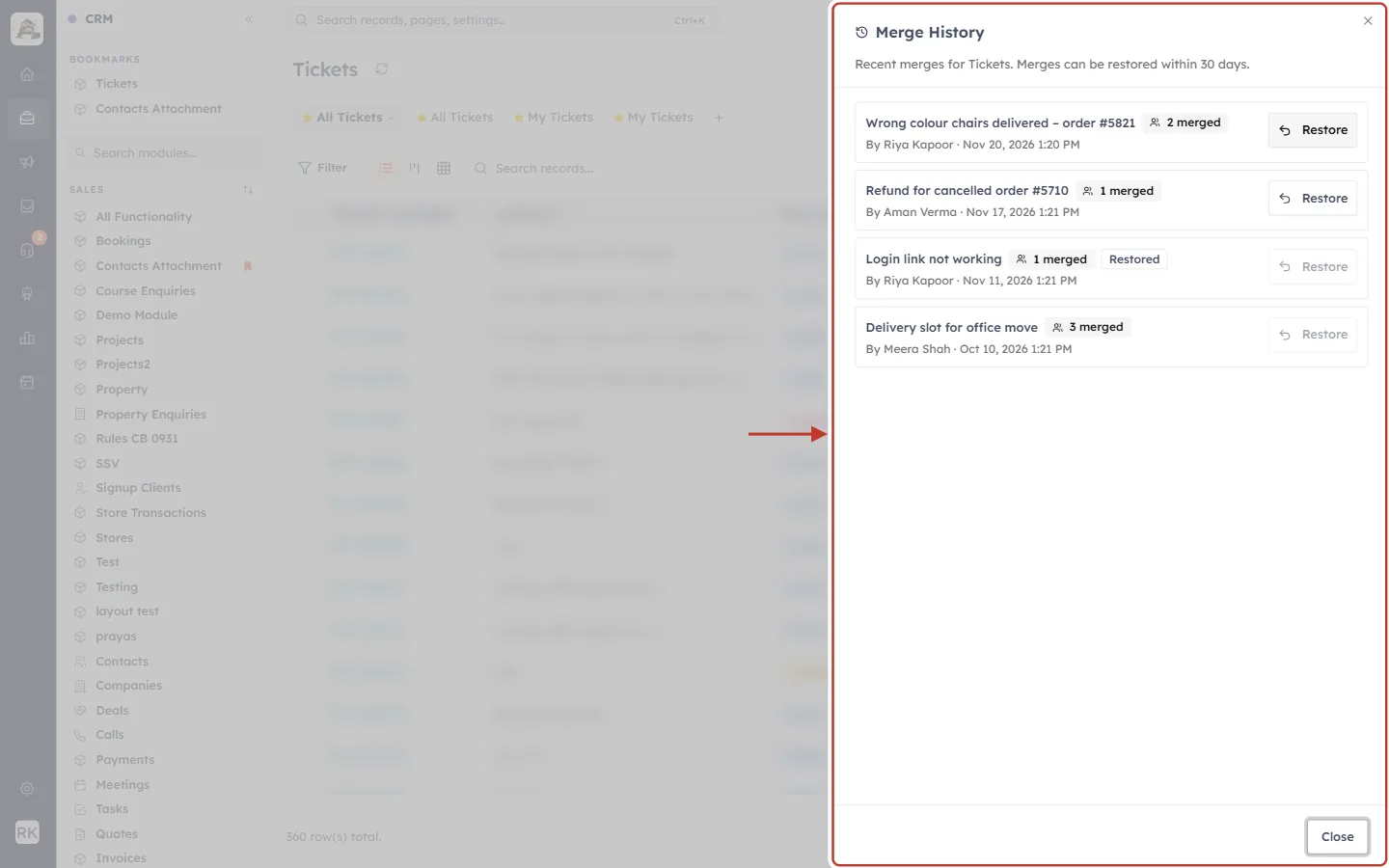
What this screenshot shows. The Merge History panel, which slides in from the right, ringed. Under the title it says “Recent merges for Tickets. Merges can be restored within 30 days.” It lists four merges, newest first, each with a Restore button.
Each card shows the ticket that was kept (its subject), a badge with how many tickets were merged into it, and who merged them and when.
Wrong colour chairs delivered – order #5821 · 2 merged is the merge we just did, by Riya Kapoor today.
A grey Restored badge means that merge has already been undone (see “Login link not working”).
A faded Restore button means the merge can’t be undone any more.
Close at the bottom right closes the panel.
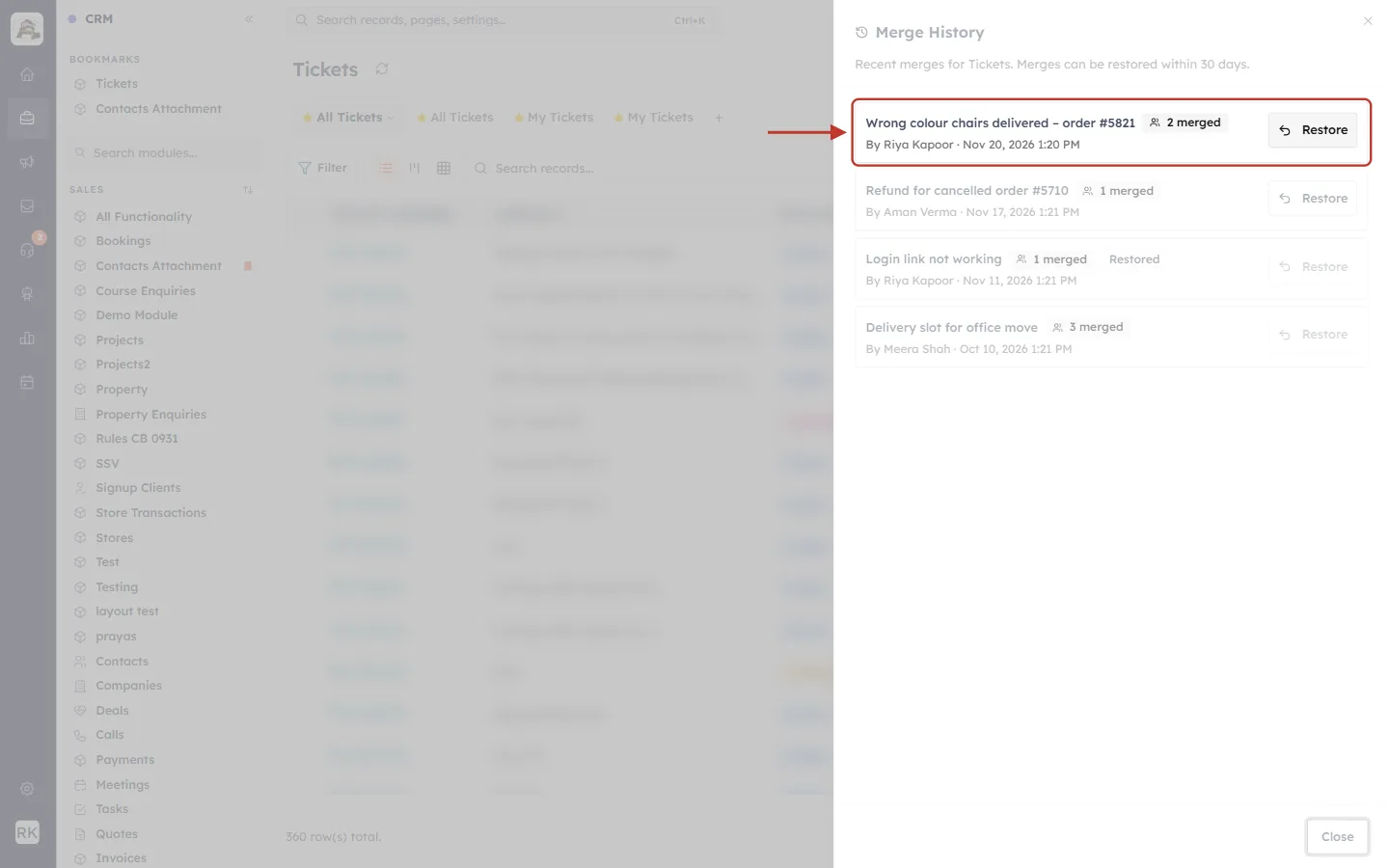
What this screenshot shows. The first card is ringed: “Wrong colour chairs delivered – order #5821 · 2 merged · By Riya Kapoor · Nov 20, 2026 1:20 PM”, with an active Restore button on the right.
Check the subject, the number merged and the date match the merge you want to undo.
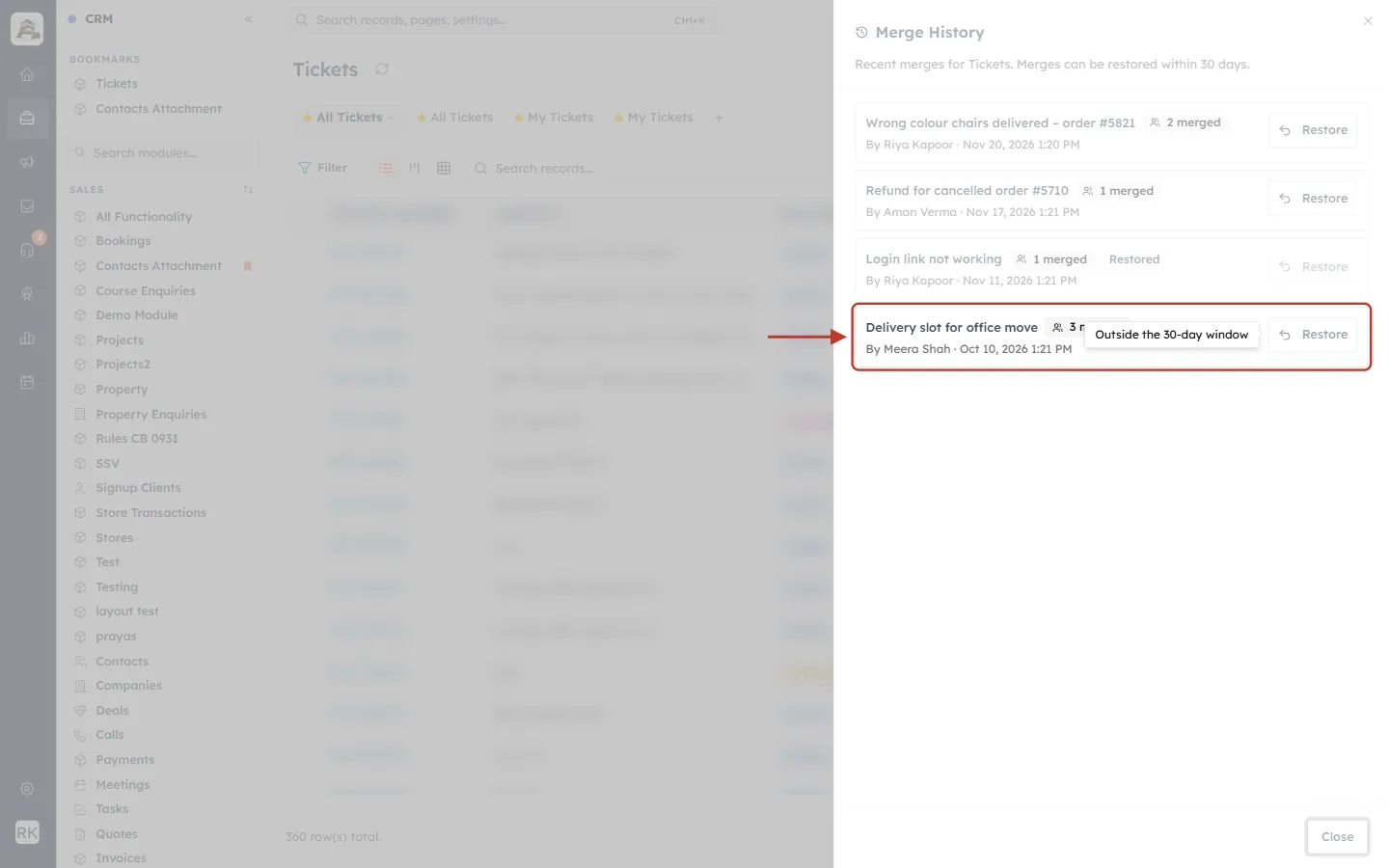
What this screenshot shows. The card “Delivery slot for office move · 3 merged · By Meera Shah · Oct 10, 2026” is ringed. Its Restore button is faded, and hovering over it shows the tooltip “Outside the 30-day window”.
Merges older than 30 days can no longer be restored.
A merge that was already restored shows the tooltip Already restored instead.
Step 4: Restore the merge#
Click Restore on the merge. A confirmation box asks you to check before anything changes.
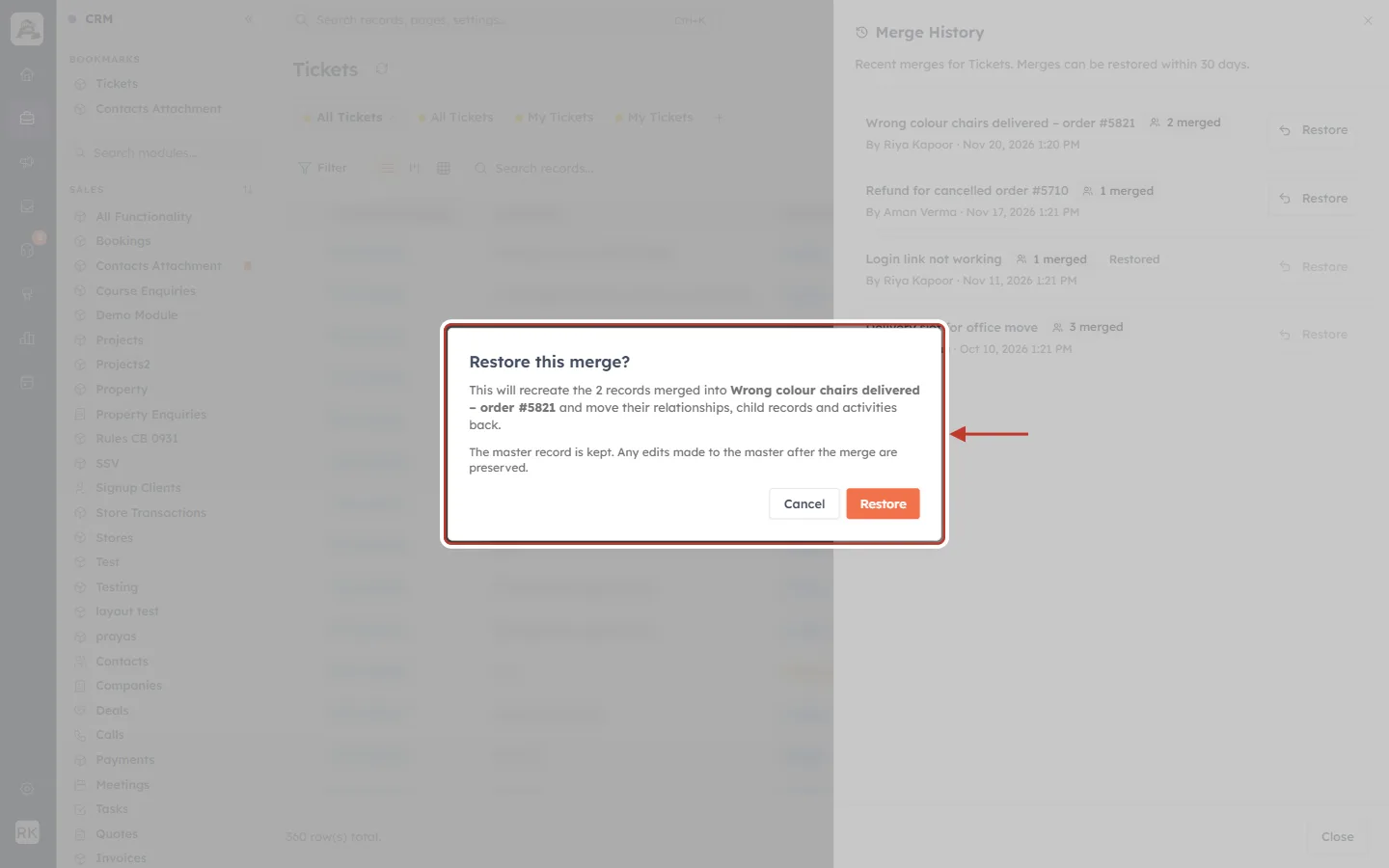
What this screenshot shows. The Restore this merge? box, ringed. It reads: “This will recreate the 2 records merged into Wrong colour chairs delivered – order #5821 and move their relationships, child records and activities back. The master record is kept. Any edits made to the master after the merge are preserved.” Below are Cancel and Restore.
“Recreate the 2 records”: the merged tickets come back as Tickets records with the field values they had before the merge.
“The master record is kept”: the ticket you kept (#TKT-00512) is not deleted.
“Edits made to the master after the merge are preserved”: if someone changed the primary ticket after merging, those changes stay.
Click Restore to go ahead, or Cancel to leave everything as it is.
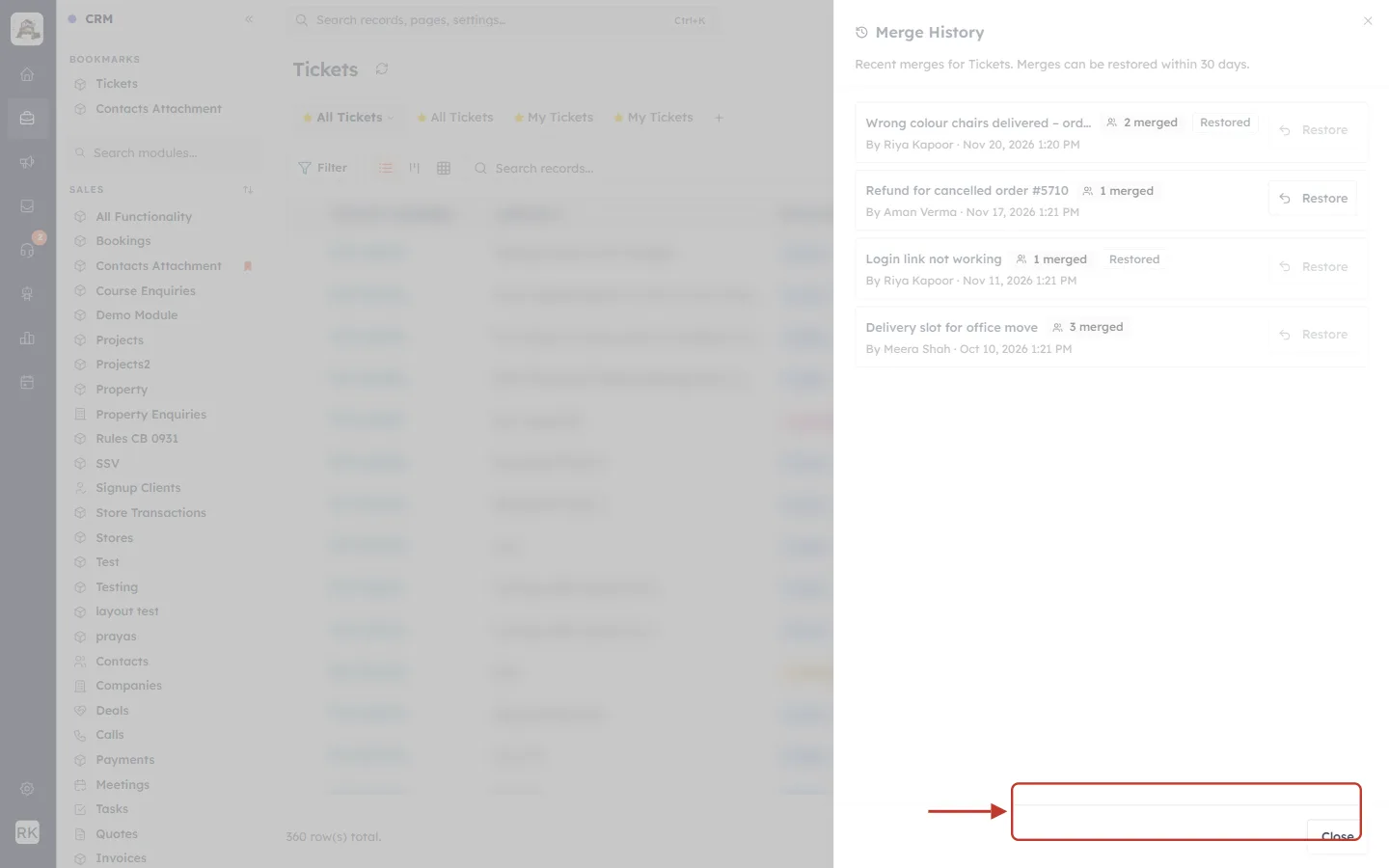
What this screenshot shows. The confirmation message in the bottom-right corner, ringed: “Restored 2 records”.
The number is how many merged tickets were brought back.
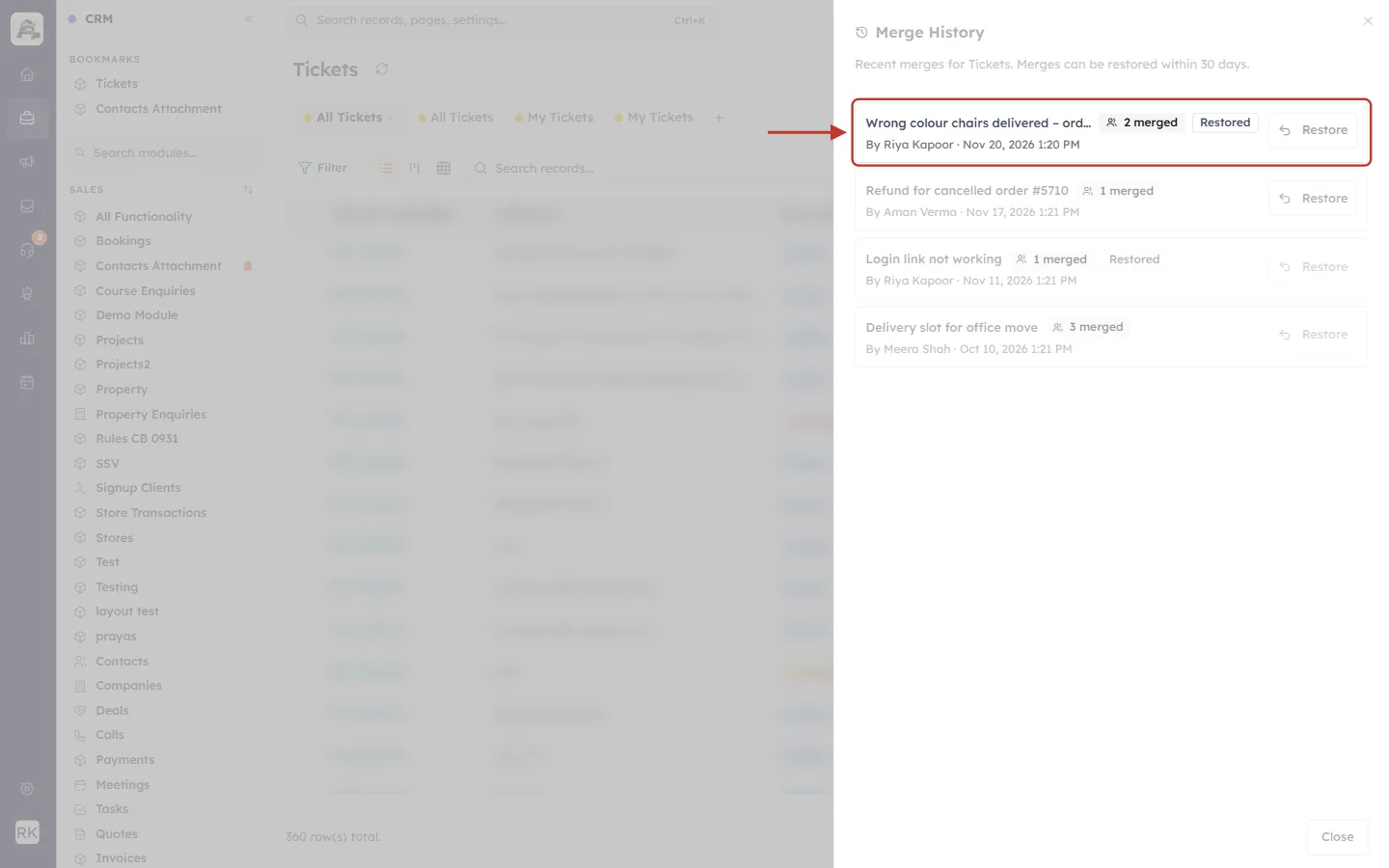
What this screenshot shows. The same card in Merge History, ringed. It now has a Restored badge next to “2 merged”, and its Restore button is faded.
A merge can only be restored once.
⚠️
The emails stay on the primary ticket. Restoring brings back the merged ticket records, but the emails, replies and notes that moved into the primary ticket’s conversation stay there. Open the restored tickets from the Tickets module list to check them. If you need the conversations kept apart, don’t merge in the first place: link the tickets in an internal note instead.
Tips and common questions#
Question | Answer |
|---|---|
Is the customer told about the merge? | The “was merged into this ticket” lines are internal. If you want the customer to know, send them a short reply from the primary ticket. |
Which status does the merged ticket have? | The primary ticket’s own status. Set the status you want on the primary ticket before or after merging. |
Can I merge from inside a ticket? | No. Merge is in the bulk bar of the ticket list. Tick the tickets there. |
Can I merge tickets in Trash? | No. In Trash the only actions are Restore and Delete permanently. |
The Merge button is missing. | Your profile needs the Mass Merge tool for Tickets, and the Tickets module needs Duplicate Check & Merge turned on. Ask your admin (Part 1). |
I get “A selected ticket could not be merged: Ticket not found or not visible to you.” | One of the tickets is outside what your profile lets you see (for example, another team’s ticket). Ask someone with wider access, or your admin, to merge it. See Ticket Permissions: Set Who Can View, Edit, Delete and Reply to Support Tickets. |
I can’t see Merge History. | It needs the Record Merge permission plus edit access to Tickets. Ask your admin. |
Previous and next#
Previous: Bulk Actions on Tickets: Select Several Tickets and Update Them Together
Next: Turn Chats into Tickets: Raise a Support Ticket from a Live Chat or a Single Message
Related articles#
Customer & Support: Handle Customer Tickets from First Message to Resolution
Bulk Actions on Tickets: Select Several Tickets and Update Them Together
Tool Permissions: Control Who Can Mass Update, Mass Delete, Change Owner and Merge Records
Find & Merge Duplicates Across Any Module (Deduplication & Merge History)
Ticket Permissions: Set Who Can View, Edit, Delete and Reply to Support Tickets
Was this article helpful?
Ready to implement this?
OpenAI Engage and apply what you just learned to your own workspace.
Open AI Engage CRM