Loading…


KnowledgeBase
Internal Notes & @Mentions: Talk to Your Team Privately on a Ticket (Step-by-Step)
What this article covers#
Solving a customer’s problem often needs more than one person: someone checks stock, someone else approves a refund, a manager signs off a discount. Internal notes let your team talk about a ticket on the ticket itself, without the customer ever seeing it. @mentions pull a specific teammate into the conversation, and the Mentions page shows each person every note that is waiting for them.
Keeping these conversations on the ticket — instead of in chat apps or hallway conversations — means anyone who opens the ticket later sees the whole story: what the customer asked, what your team found out, who did what, and why.
| Internal note | Reply / Reply all / Forward | |
|---|---|---|
| Who sees it | Only your team, inside the CRM | The people it is emailed to |
| Sent by email? | Never | Yes |
| Shown on the ticket | Yellow card with a padlock and Internal note | Email card with Agent |
| Can @mention teammates | Yes | No |
| Use it for | Updates, questions and hand-overs for your team | Talking to the customer or someone outside your team |
The example in this article continues the ticket from Emma Clarke of Clarke Interiors, whose 12 dining chairs arrived in the wrong colour. You will log an update from the warehouse, ask a teammate in billing to add a goodwill credit, and see what happens when a teammate mentions you.
Before you begin#
You can open the ticket in the Customer & Support workspace — see Ticket Views, Team Groups & Notifications.
Your teammates are users in the CRM, so they appear in the @mention list — see Invite Your Team.
Internal notes work on every ticket, whether or not the customer has an email address.
Part 1 — Write an internal note#
Step 1: Click Internal note#
Open the ticket. At the bottom of the conversation, click Internal note.
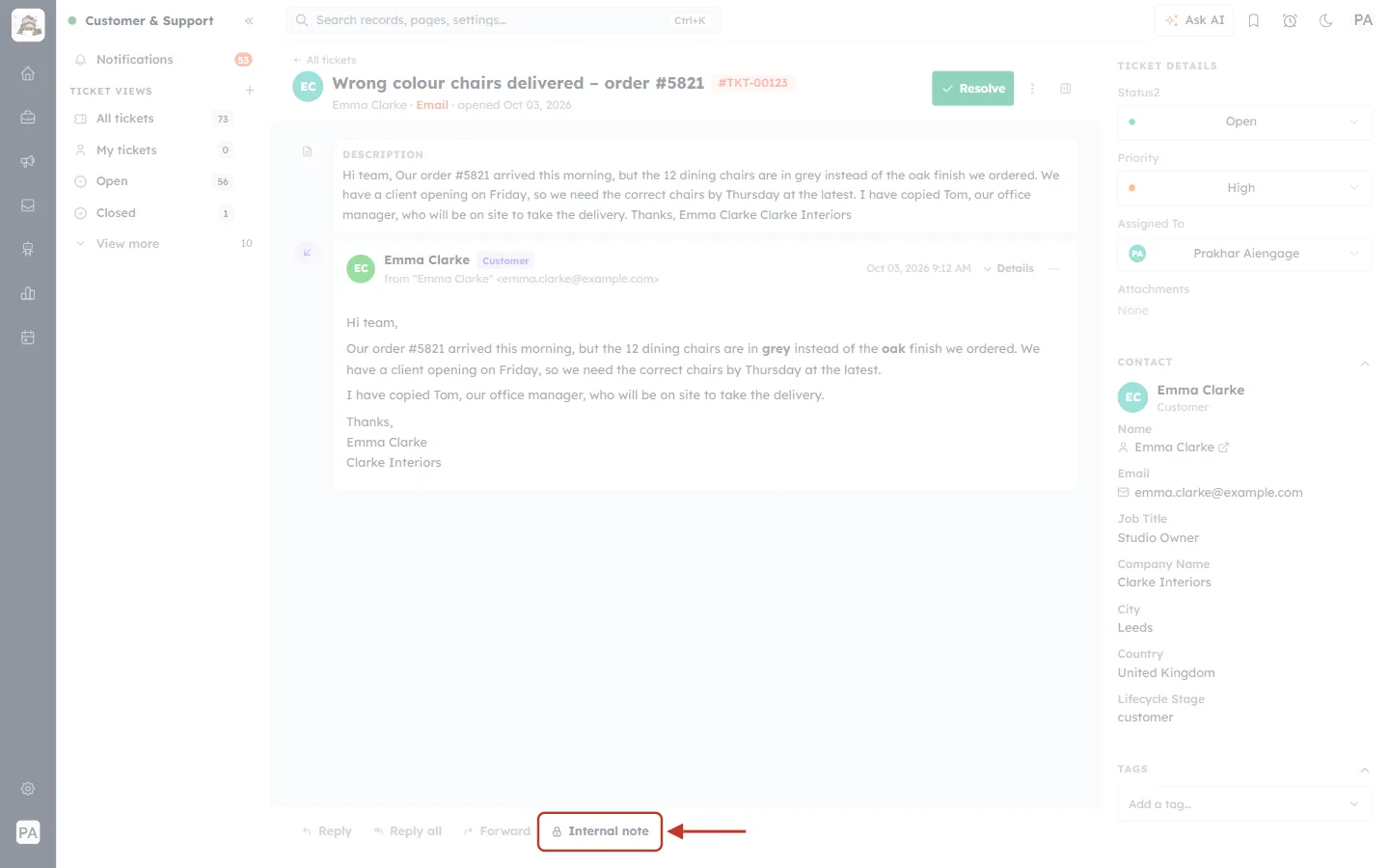
What this screenshot shows. The Internal note button (with a padlock) at the bottom of the ticket conversation is ringed.
It sits at the right-hand end of the reply bar, after Reply, Reply all and Forward (faded).
The padlock is a reminder that what you write here stays private to your team.
Above it (faded) is the ticket conversation: Emma’s email about the wrong-colour chairs.
Step 2: Get to know the note box#
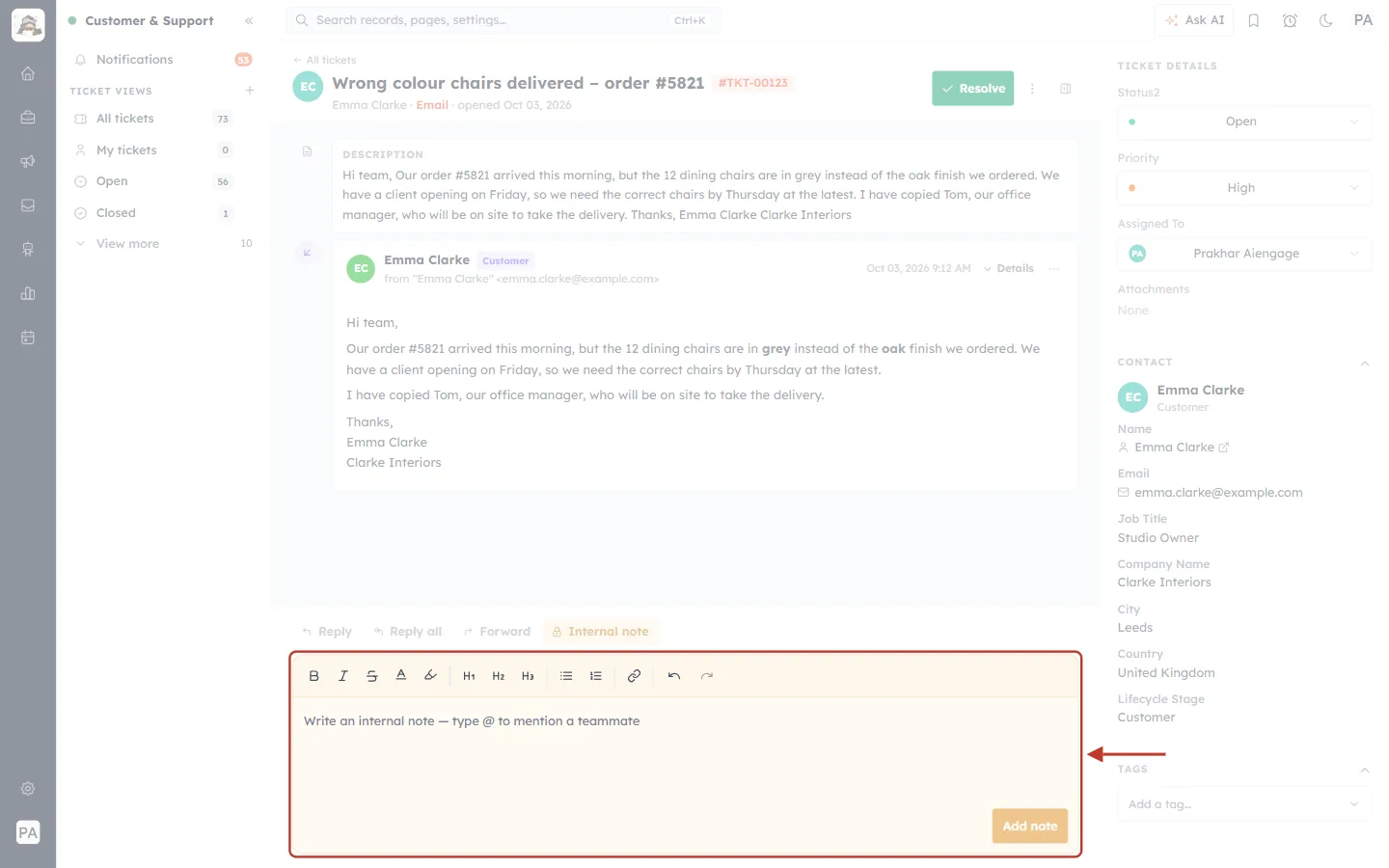
What this screenshot shows. The note box that opens under the reply bar is ringed.
It has a pale yellow background, and the Internal note button above it turns yellow too — so you can always tell you are writing a private note, not an email.
A formatting toolbar: bold, italic, strikethrough, text colour, highlight, headings H1–H3, bulleted and numbered lists, link, and undo/redo.
The writing area says “Write an internal note — type @ to mention a teammate”.
Add note at the bottom right is pale until you type something.
Unlike the email window, there is no To, Cc or Subject — a note is not sent anywhere.
To close the box without saving, click Internal note again.
Step 3: Write the note#
Write what your team needs to know. Use the toolbar — or type a dash and a space at the start of a line — to make a list.
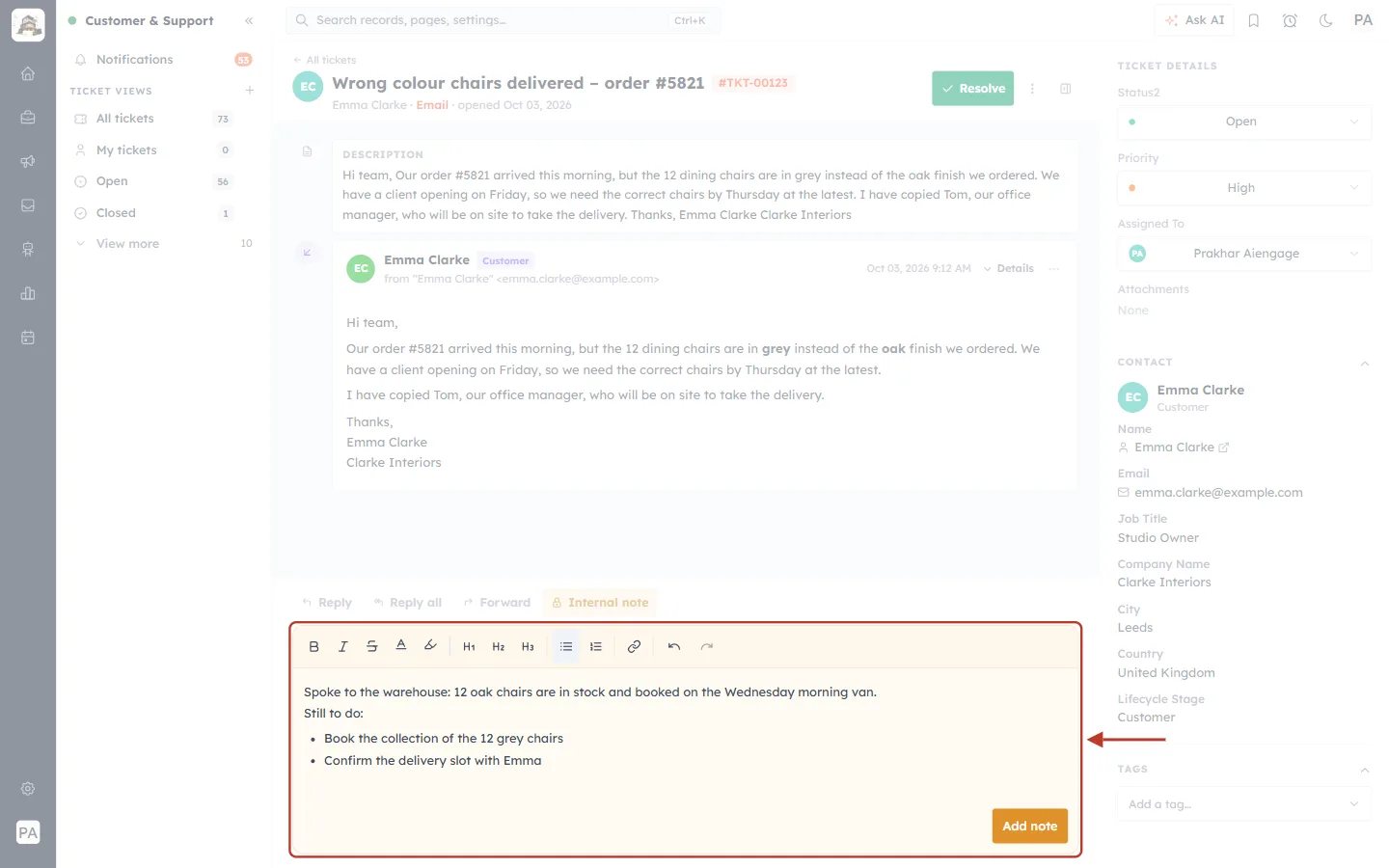
What this screenshot shows. The note box is ringed, with the note written in.
The first line records what has been done: “Spoke to the warehouse: 12 oak chairs are in stock and booked on the Wednesday morning van.”
Then Still to do: and a bulleted list — Book the collection of the 12 grey chairs and Confirm the delivery slot with Emma.
The bulleted-list button in the toolbar is highlighted, because the cursor is in the list.
Add note is now bright orange and can be clicked.
✅
Write notes for the next person who opens the ticket. Say what you found out, what you did, and what still needs doing — then anyone can carry on if you are away.
Step 4: Click Add note#
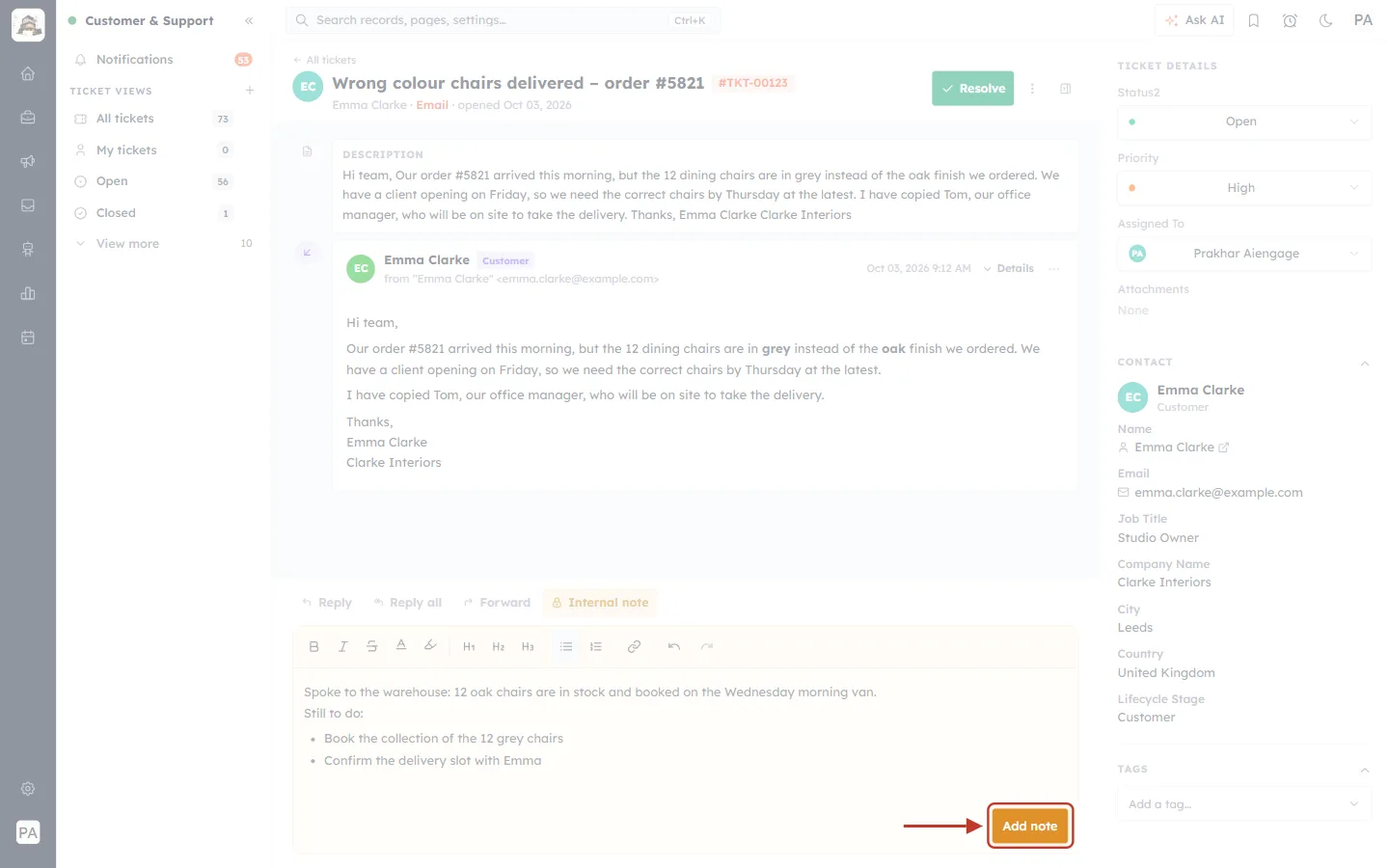
What this screenshot shows. The orange Add note button at the bottom right of the note box is ringed.
Click it to save the note on the ticket.
If it is pale, the note is still empty.
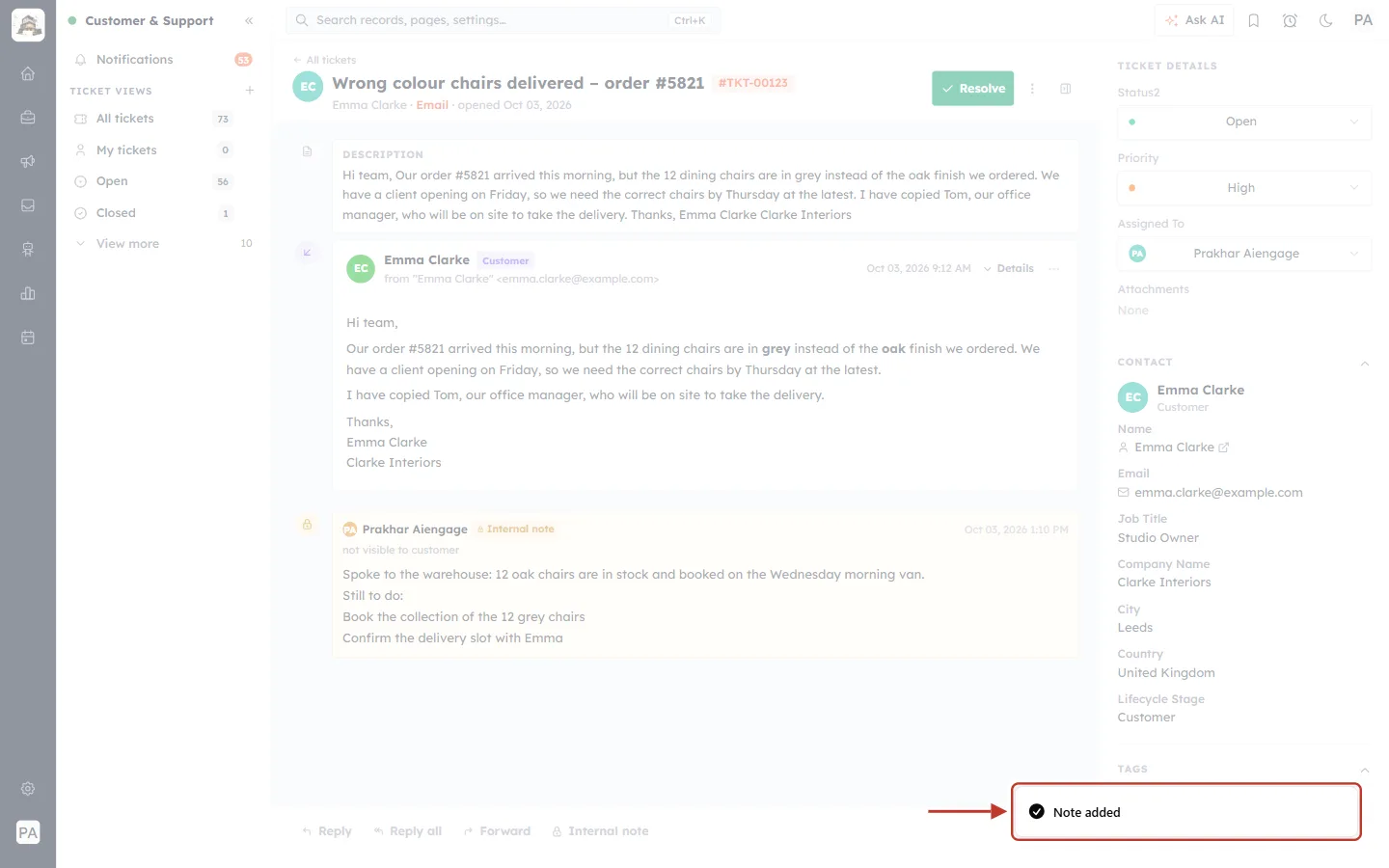
What this screenshot shows. A confirmation at the bottom right of the screen is ringed: “Note added”.
The note box closes, and the note appears in the conversation straight away.
Step 5: Check the note in the conversation#
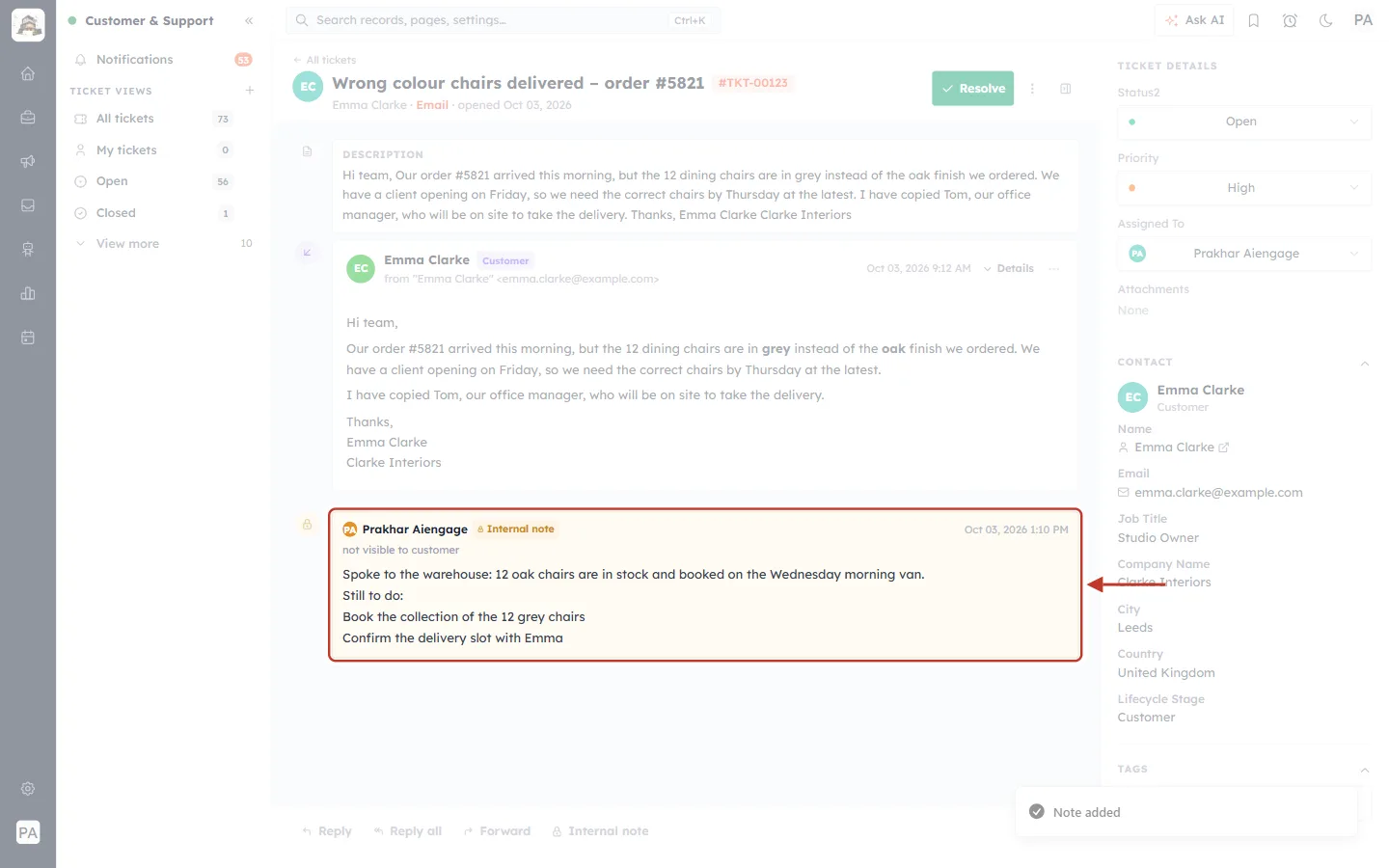
What this screenshot shows. The new note in the ticket conversation is ringed.
A padlock icon on the left, and a pale yellow card — internal notes always look like this, so they cannot be mistaken for an email.
Your initials and name (Prakhar Aiengage), a yellow 🔒 Internal note label and the date and time.
Under the name: not visible to customer.
The note itself, with its formatting — the bulleted to-do list is kept.
The note sits in the conversation in time order, between the emails, so the ticket reads like a story.
ℹ️
Internal notes are never emailed and are never included in your replies to the customer. They are only visible to people who can open the ticket in the CRM.
Part 2 — @mention a teammate#
When you need something from a particular person, mention them in the note. In this example we ask Subhash Patidar, who handles billing, to add a goodwill credit to Emma’s order.
Step 6: Type @ to see your teammates#
Click Internal note, click in the note box and type @.
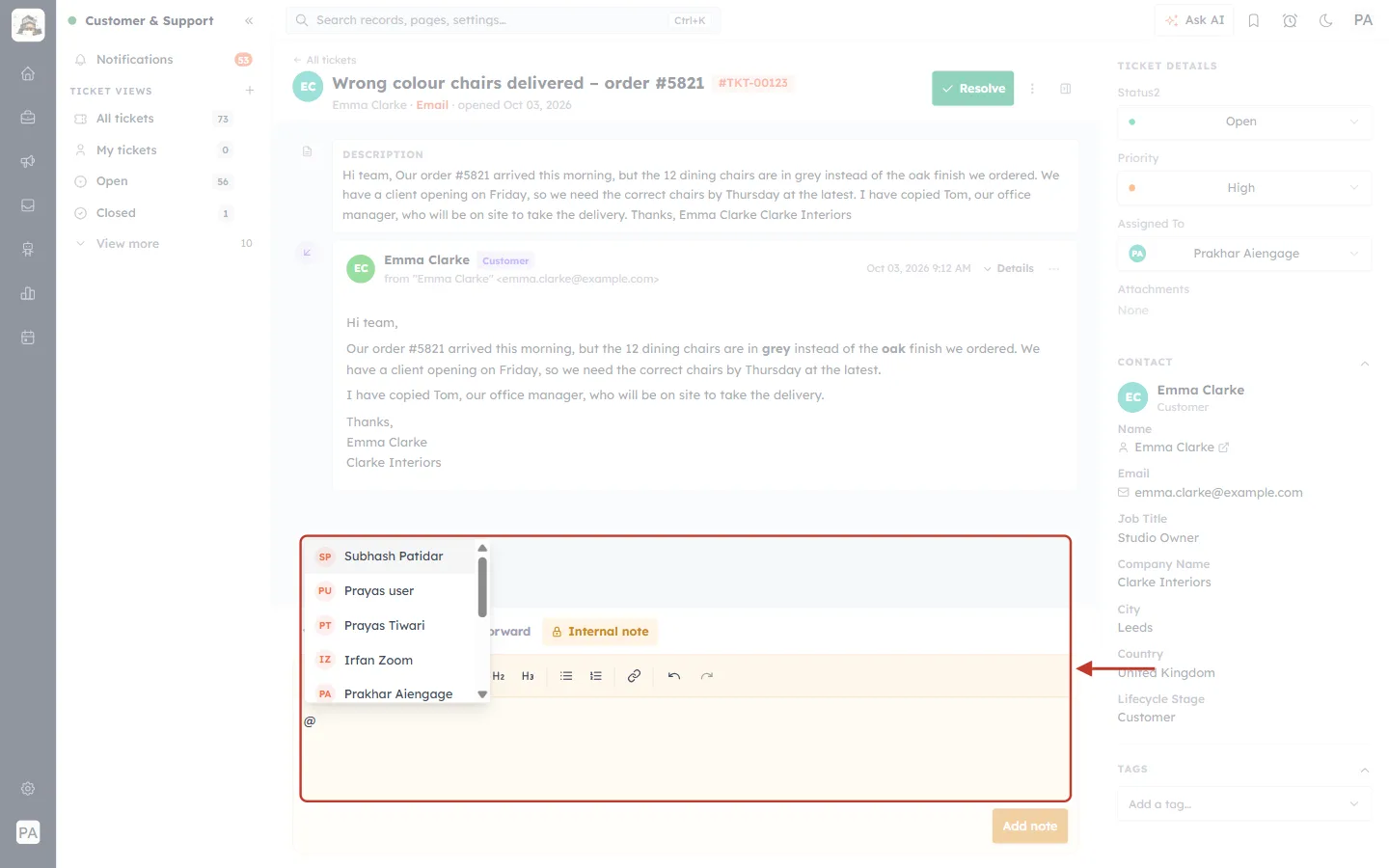
What this screenshot shows. The note box and the list that pops up after typing @ are ringed.
The list shows the users in your CRM, each with their initials and full name — here Subhash Patidar, Prayas user, Prayas Tiwari, Irfan Zoom, Prakhar Aiengage and more.
Scroll the list to see everyone, or keep typing to narrow it down (next step).
The @ you typed is shown in the note box under the list.
Step 7: Type part of the name and pick the person#
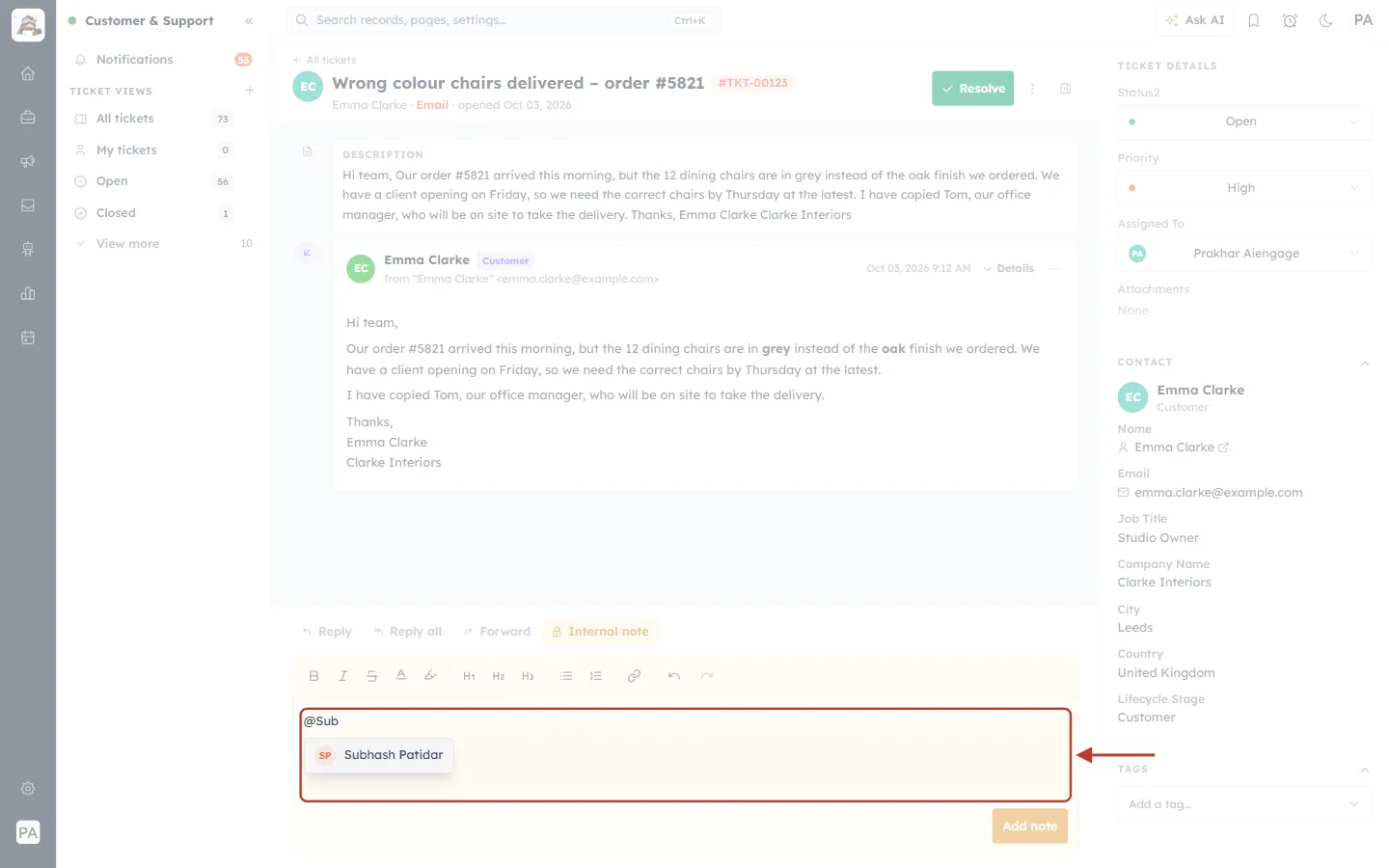
What this screenshot shows. The note box and the list are ringed after typing @Sub.
The list now shows only matching people — Subhash Patidar.
Press Enter or click the name to pick them.
Step 8: Finish the note#
After you pick a name, it becomes a highlighted mention. Carry on typing your message.
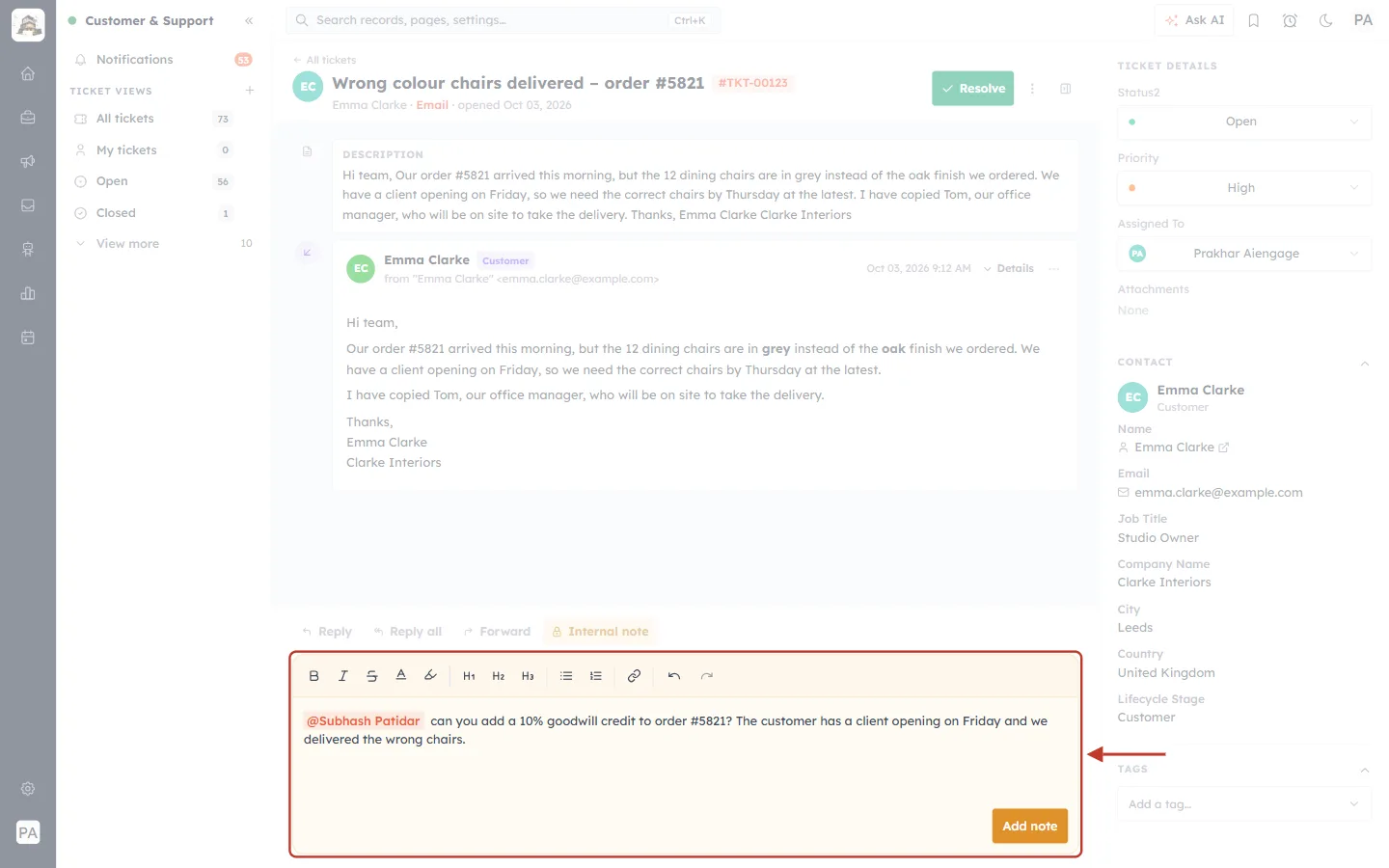
What this screenshot shows. The note box is ringed, with the finished note.
@Subhash Patidar is shown in orange — this is the mention.
Then the request: “can you add a 10% goodwill credit to order #5821? The customer has a client opening on Friday and we delivered the wrong chairs.”
You can mention more than one person in the same note — type @ again for each one.
Click Add note to save it.
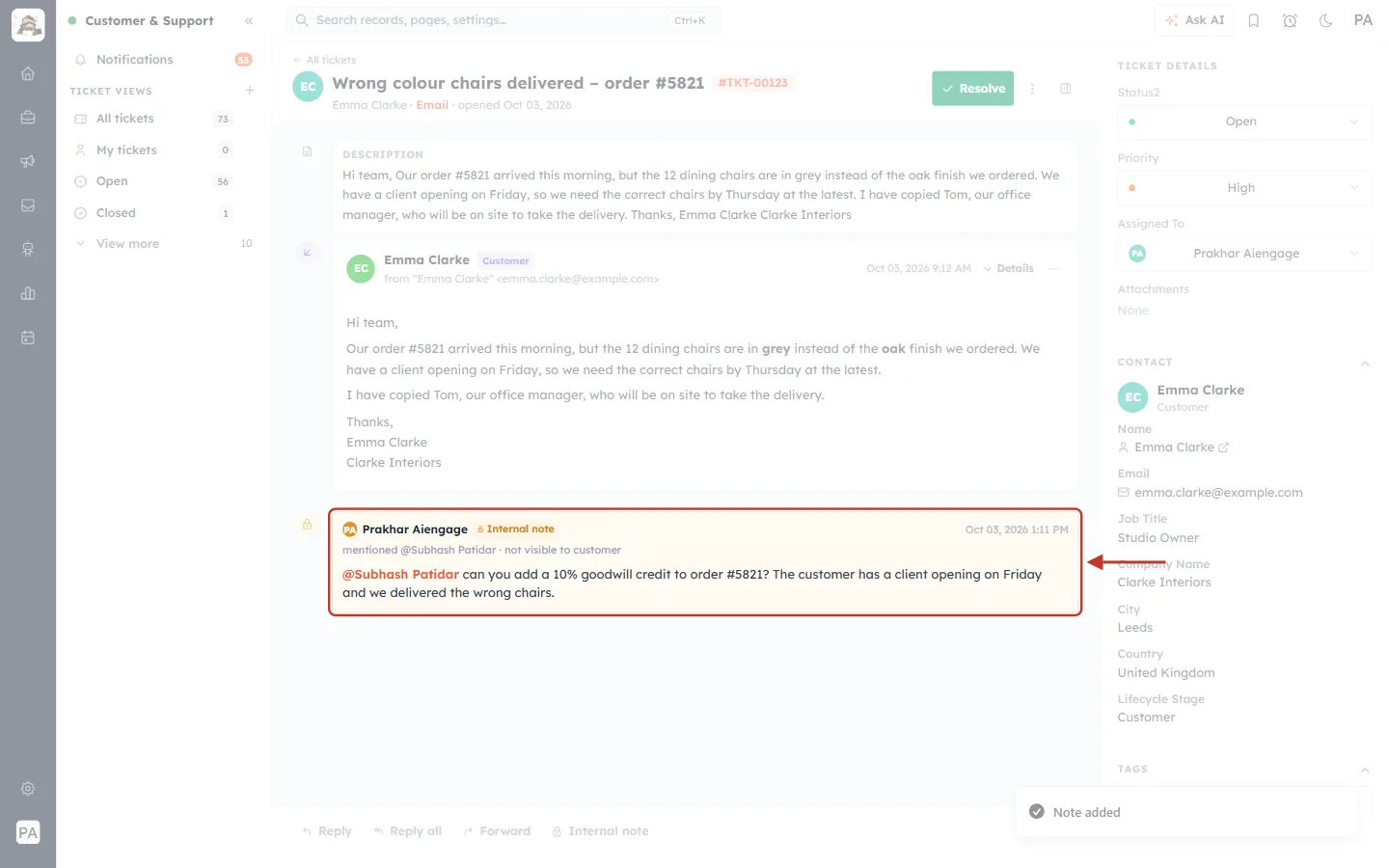
What this screenshot shows. The saved note in the conversation is ringed.
The same yellow 🔒 Internal note card, with your name and the time.
The line under the name now reads mentioned @Subhash Patidar · not visible to customer, so everyone can see who was asked.
In the note, @Subhash Patidar is shown in orange.
Subhash now finds this note on his Mentions page (Part 3).
✅
Mention the one person who needs to act, and say exactly what you need and by when. “@Subhash can you add a 10% credit to order #5821 today?” gets a faster answer than “Can someone look at this?”
Part 3 — When a teammate mentions you#
Every note that mentions you is collected on your Mentions page, so nothing gets lost in a busy queue. To open it, click Mentions in the Customer & Support sidebar, under TICKET VIEWS. If you can’t see it, click View more at the bottom of the list first.
Step 9: Open the Mentions page#
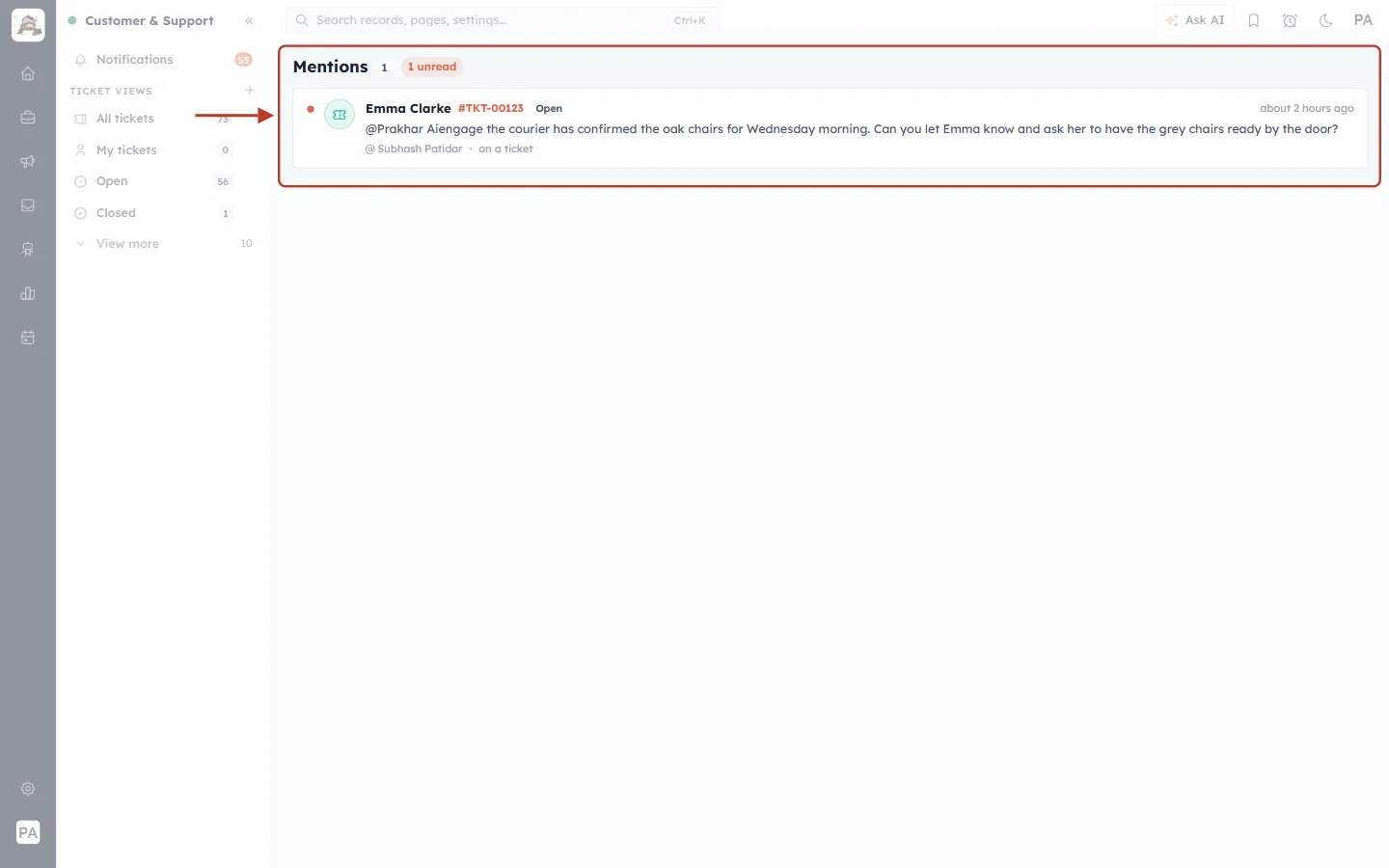
What this screenshot shows. The top of the Mentions page is ringed. Here, a teammate has mentioned you once.
Mentions 1 — the total number of mentions of you.
1 unread (orange) — how many you have not opened yet. It is also a filter (Step 11).
Below, one row per mention, newest first.
If nobody has mentioned you yet, the page says “Nobody has mentioned you yet — An agent who types @your name in a chat or ticket note shows up here.”
Step 10: Read a mention#
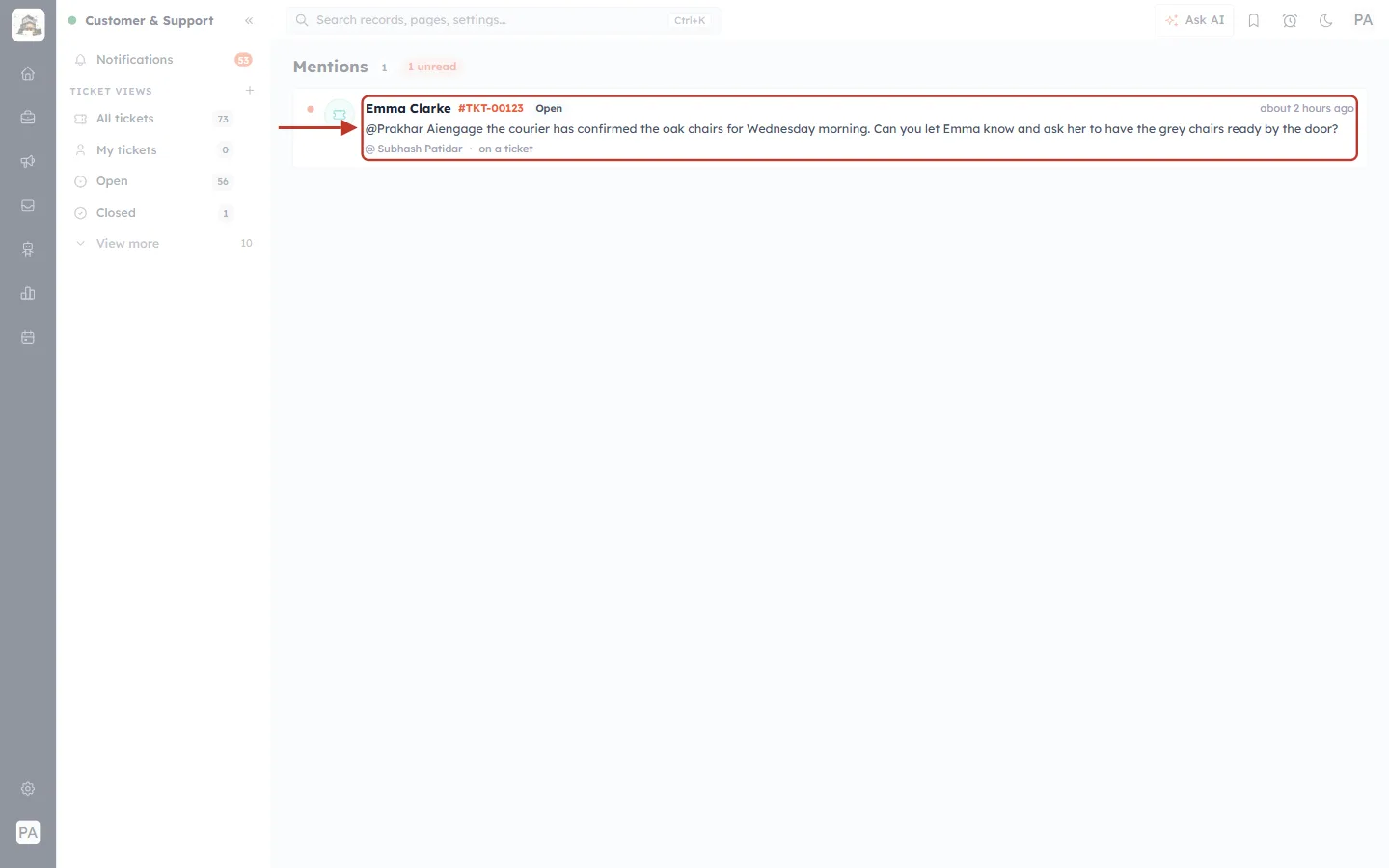
What this screenshot shows. One mention row is ringed.
An orange dot on the far left means you have not opened it yet.
A ticket icon — the mention is on a ticket. (Mentions in a live chat show the customer’s initials instead.)
Emma Clarke — the customer on the ticket — then the ticket number #TKT-00123 and its status, Open.
On the right: how long ago you were mentioned (about 2 hours ago).
The note itself: “@Prakhar Aiengage the courier has confirmed the oak chairs for Wednesday morning. Can you let Emma know and ask her to have the grey chairs ready by the door?”
At the bottom: @ Subhash Patidar · on a ticket — who mentioned you, and where.
Step 11: Show only the mentions you haven’t read#
When you have many mentions, click the orange unread badge next to the title to hide the ones you have already opened.
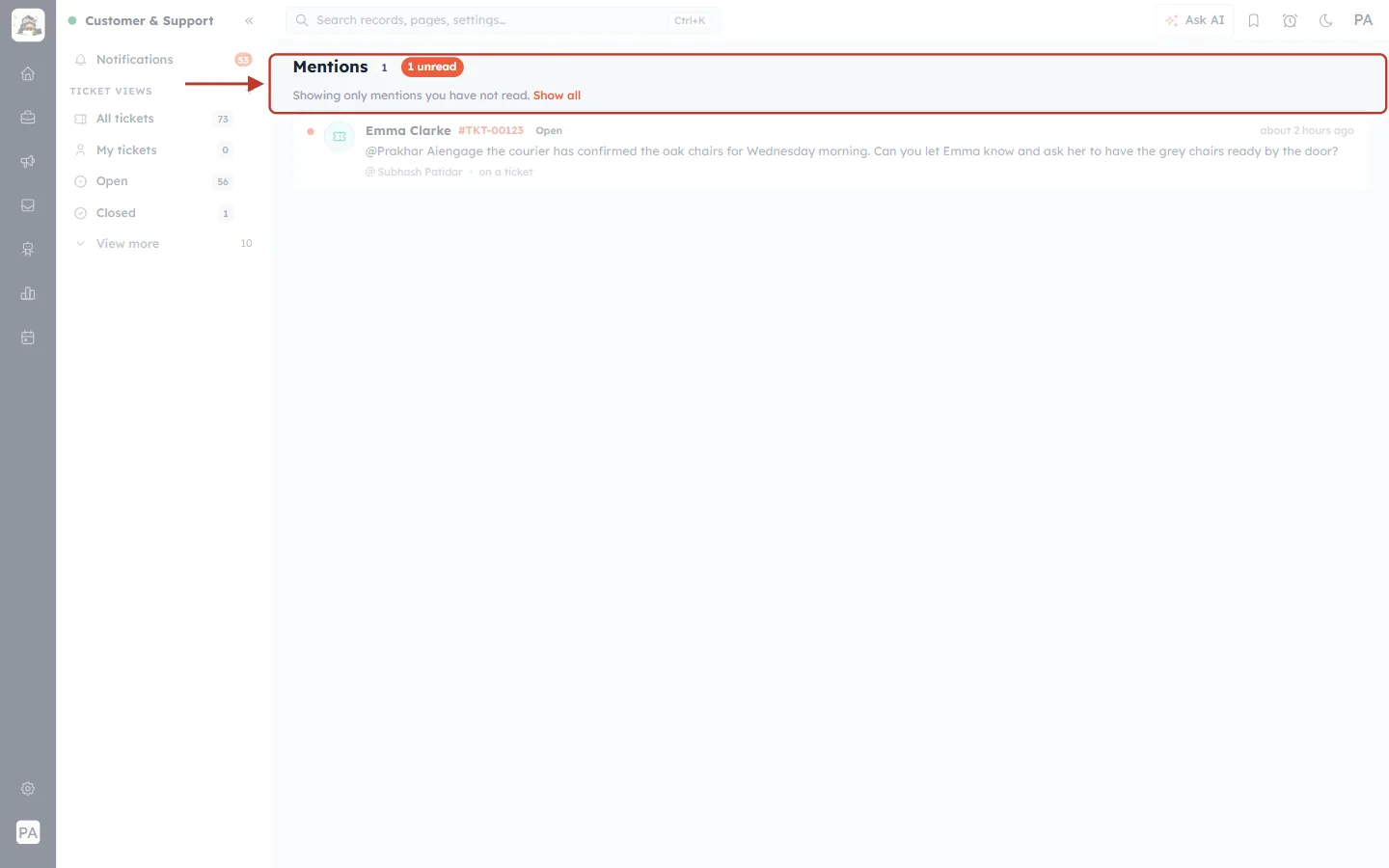
What this screenshot shows. The top of the Mentions page is ringed, with the unread filter switched on.
The orange 1 unread badge is now filled in — the filter is on.
A line underneath says “Showing only mentions you have not read.” with a Show all link to switch the filter off.
When you have opened every mention, the page says “You have read every mention — Nothing is outstanding.”
At the bottom of a long list, Load older mentions shows earlier ones.
Step 12: Open the mention and act on it#
Click the mention. The ticket opens, and the mention is marked as read.
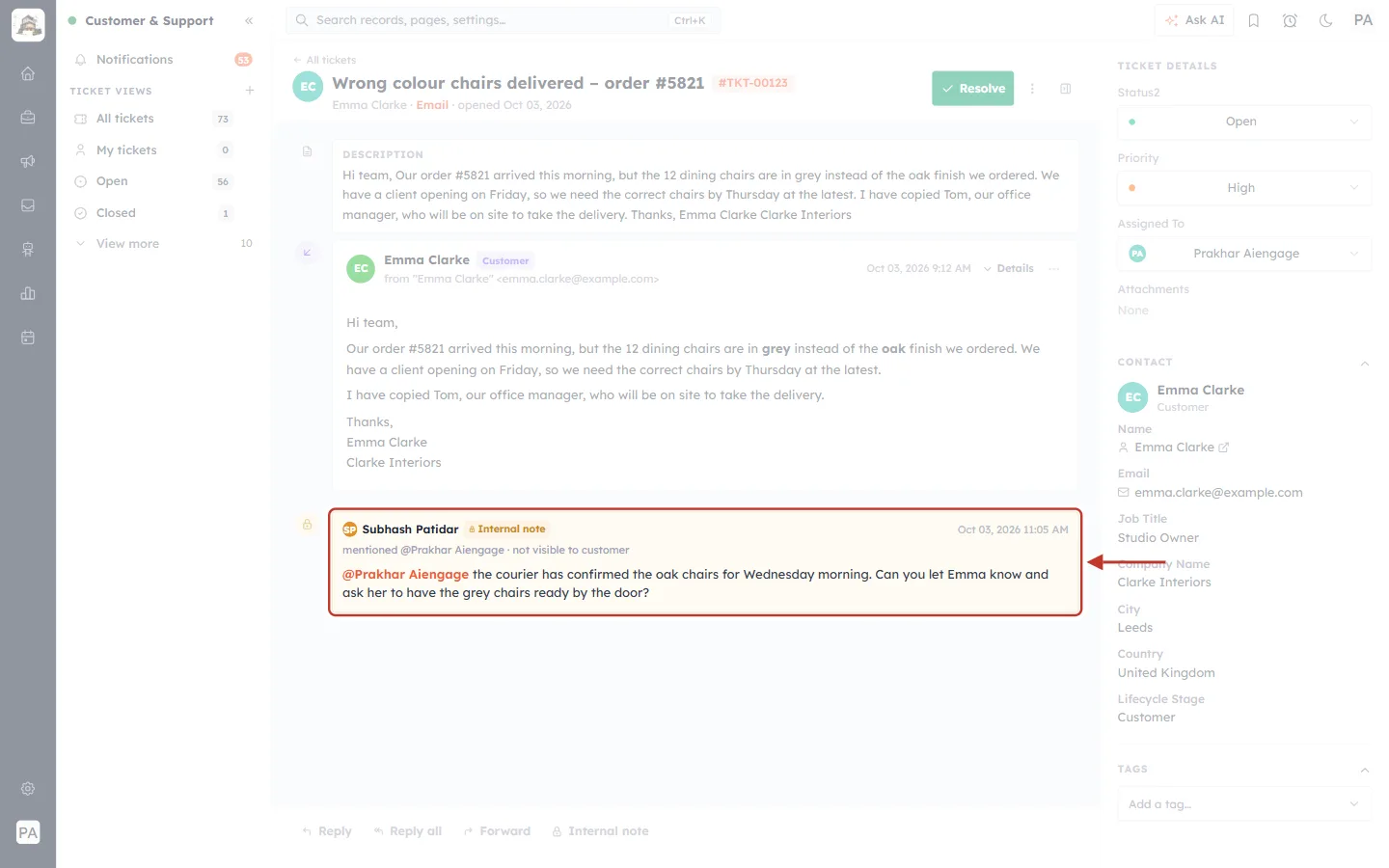
What this screenshot shows. The ticket opened from the Mentions page, with the teammate’s note ringed.
Subhash Patidar, 🔒 Internal note, and the time it was written (Oct 03, 2026 11:05 AM).
mentioned @Prakhar Aiengage · not visible to customer — this is the note that mentioned you.
@Prakhar Aiengage is shown in orange in the note.
Above it (faded) is the rest of the ticket: Emma’s email and the description — everything you need to act.
In this example you would now Reply to Emma with the delivery details (see Reply to Customers), then add a short note so Subhash knows it is done.
ℹ️
The Mentions page also lists mentions from live chats (they say in a chat). If the ticket or chat has since been deleted, the row says Ticket deleted or Conversation deleted.
Good practice for internal notes#
Note every phone call and decision. If it isn’t on the ticket, the next person won’t know about it.
One action per mention. Mention the person who needs to act, and say what you need and by when.
Close the loop. When you have done what you were asked, add a short note (and mention the person back if they are waiting).
Keep it professional. Notes are private from the customer, but anyone on your team with access to the ticket can read them.
Never paste passwords or full card numbers into a note.
Check your Mentions page at the start of each day, using the unread filter.
Troubleshooting#
Add note stays pale. The note is empty. Type something first.
Typing @ shows no list, or the person I want is missing. Only users in your CRM can be mentioned. Check that the teammate has been invited and has accepted — see Invite Your Team. Make sure you are in the Internal note box: @mentions do not work in emails.
The mention appeared as plain text. You typed the name without choosing it from the list. Delete it, type @ again and pick the person with Enter or a click — a real mention turns orange.
I can’t find the Mentions page. In the Customer & Support sidebar, click View more under TICKET VIEWS; Mentions is near the bottom of the list.
I wrote an email by mistake when I meant a note. Before sending, check the window: a note box is yellow with an Add note button; an email window has an orange title bar, To and Subject lines and a Send button.
Frequently asked questions#
Can the customer ever see an internal note? No. Notes are never emailed and are marked not visible to customer on the ticket.
Who can read internal notes? Anyone on your team who can open the ticket in the CRM.
Can I mention someone in an email reply? No — @mentions only work in internal notes. To loop someone in on an email, add them in Cc, or forward the email to them.
Can I mention several people? Yes. Type @ and pick a name for each person; each of them will see the note on their Mentions page.
Do mentions in live chats show up too? Yes. The Mentions page lists mentions from ticket notes (on a ticket) and from chats (in a chat).
Previous and next#
Previous: Reply to Customers from a Ticket: Reply, Reply All, Forward & Schedule Emails (Step-by-Step)
Related#
Was this article helpful?
Ready to implement this?
OpenAI Engage and apply what you just learned to your own workspace.
Open AI Engage CRM