Loading…


KnowledgeBase
Live Agent Handover from the AI Agent: Accept, Take Over and Hand Back Chats (Step-by-Step)
What this article covers#
Your AI agent can answer website chats on its own, day and night. But some customers want a person — because the question is complicated, urgent, or simply because they prefer it. Live agent handover is how the AI agent passes those chats to your team: the AI stops replying, your agents are alerted, and the first agent to accept takes over the conversation.
| Stage | What the customer sees | What your team sees |
|---|---|---|
| 1. AI agent answers | Instant replies from the AI agent | AI Autopilot is replying to this conversation. — with Take over to reply |
| 2. Customer asks for a person | The AI stops replying | Customer requested a live agent., a Live chat request card, a notification and a Waiting label |
| 3. An agent accepts | Replies from your team | You are now handling this conversation — the chat is assigned to you |
| 4. Back to the AI (optional) | AI replies again | Resume AI |
| If nobody accepts in time | Told to expect an email | A Missed label — anyone can still pick it up |
The example in this article is a website chat with Daniel Brooks. The AI agent answers his question about a delayed desk, but he needs it by Monday and asks to speak to a person.
Before you begin#
Your chat widget answers with an AI agent first, and live agent handoff is set up: who receives handed-over chats (a team or chosen agents) and the messages visitors see when agents are online or offline — see Set Up the Website Chat Widget for Support.
Your AI agent is allowed to hand chats to a person — this is switched on in the AI agent’s own settings.
Agents keep AiEngage CRM open in their browser during working hours. An agent only counts as online, and only sees request cards, while the CRM is open.
Decide how long a request may wait before it is marked as missed — see Mark unanswered chats as missed in Support General Settings.
Part 1 — While the AI agent is answering#
Open the chat inbox: in the dark icon bar on the far left click the Inbox icon, then Chat (see Turn Chats into Tickets, Step 1). Click a chat to open it.
Step 1: Recognise a chat the AI agent is handling#
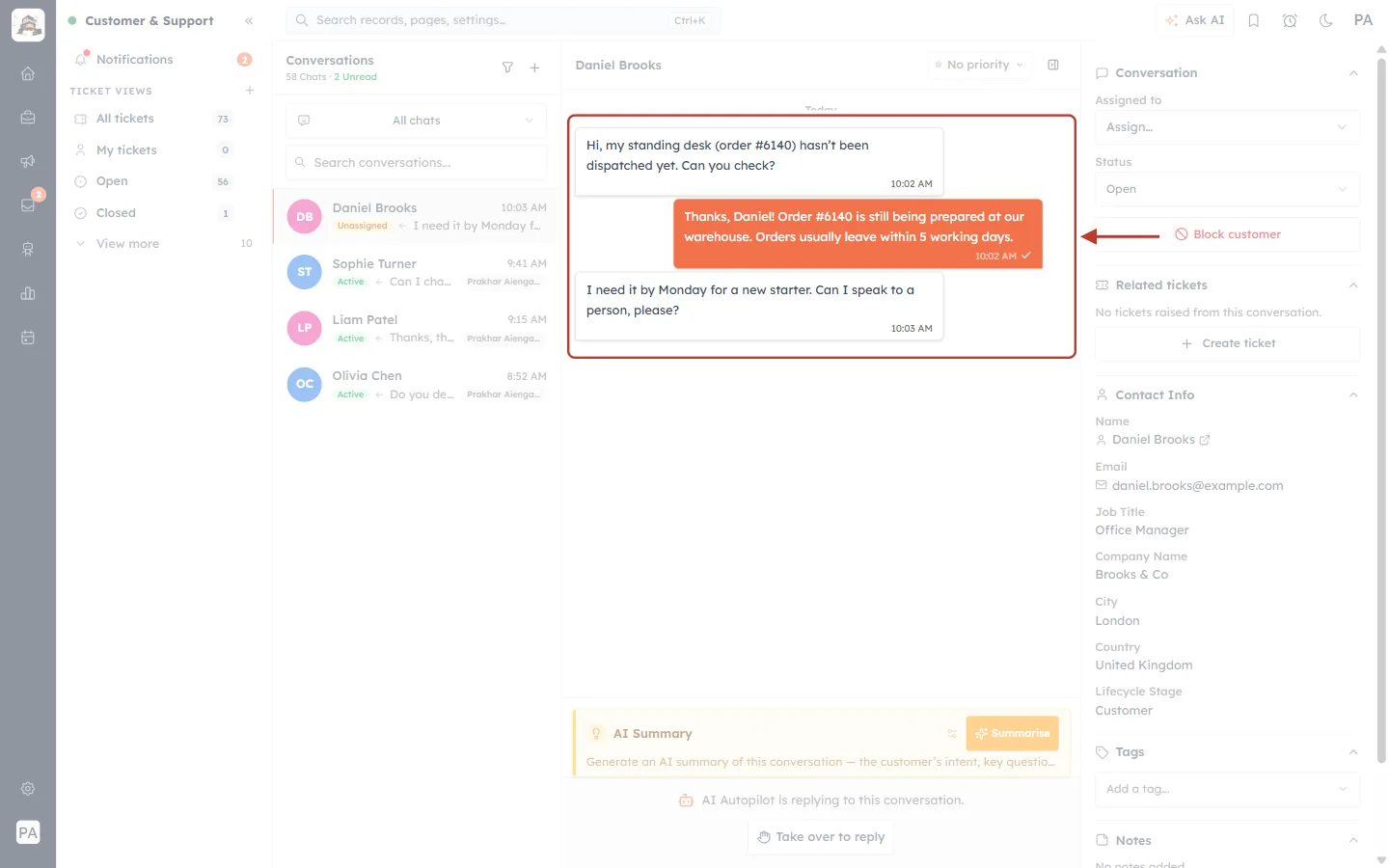
What this screenshot shows. The conversation is ringed: the customer’s question and the AI agent’s answer.
Daniel’s message on the left: “Hi, my standing desk (order #6140) hasn’t been dispatched yet. Can you check?”
The AI agent’s reply on the right, in orange: “Thanks, Daniel! Order #6140 is still being prepared at our warehouse…” AI replies show no name above them; replies from a team member show the agent’s name (see Step 9).
Daniel then asks: “I need it by Monday for a new starter. Can I speak to a person, please?” — this is what triggers the handover (Part 2).
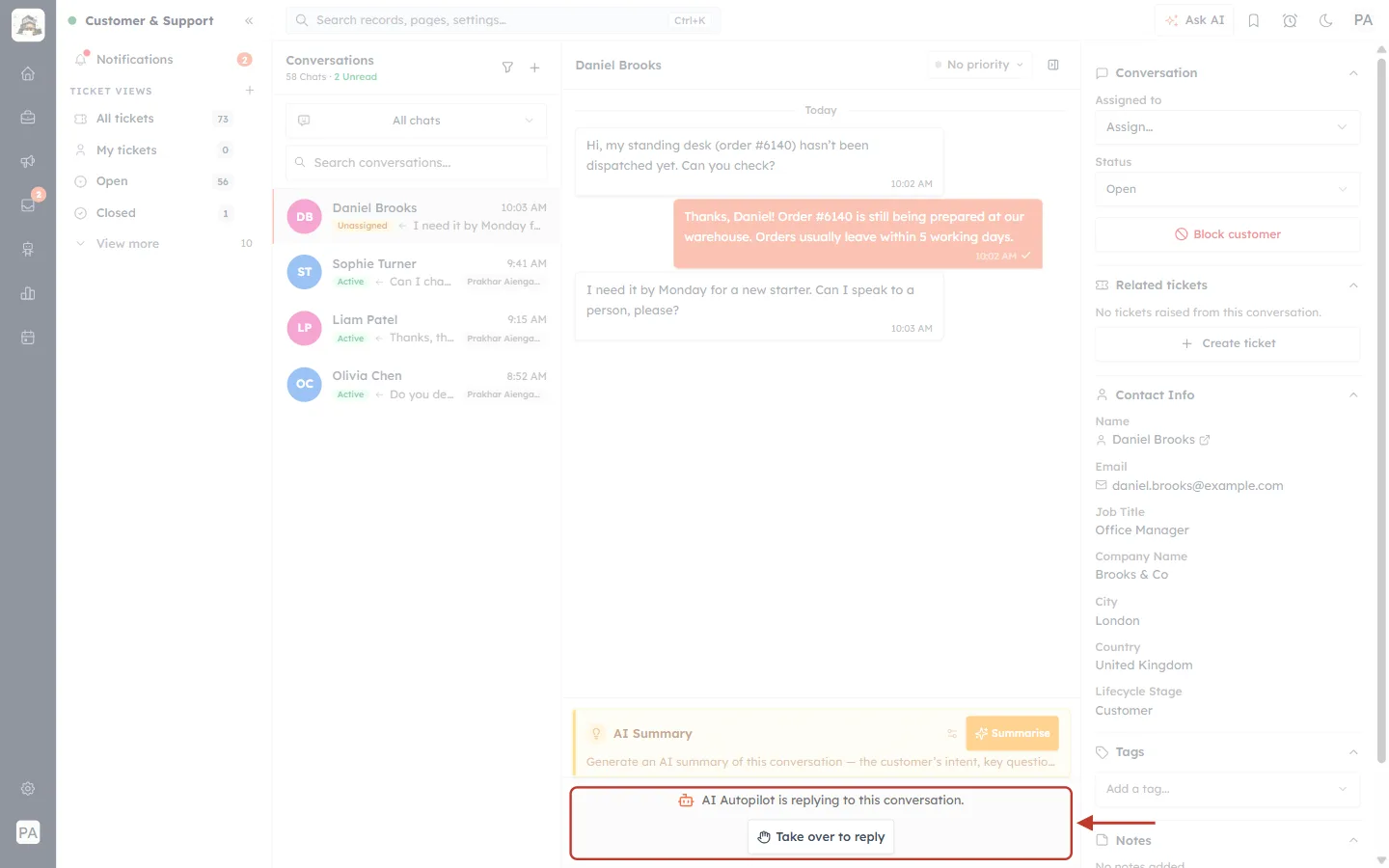
What this screenshot shows. The bar at the bottom of the chat, where the message box normally is, is ringed.
“AI Autopilot is replying to this conversation.” — the AI agent is in charge of this chat, so there is no message box for you.
Take over to reply — step in yourself at any time, without waiting for the customer to ask (see Part 4).
While the AI is writing a reply, an AI is replying indicator with three moving dots appears in the chat.
Part 2 — The customer asks for a person#
When the customer asks to speak to a person, the AI agent stops replying and the chat is handed to your team. Every agent who should receive it is alerted in several ways at once.
Step 2: See the request in the chat#
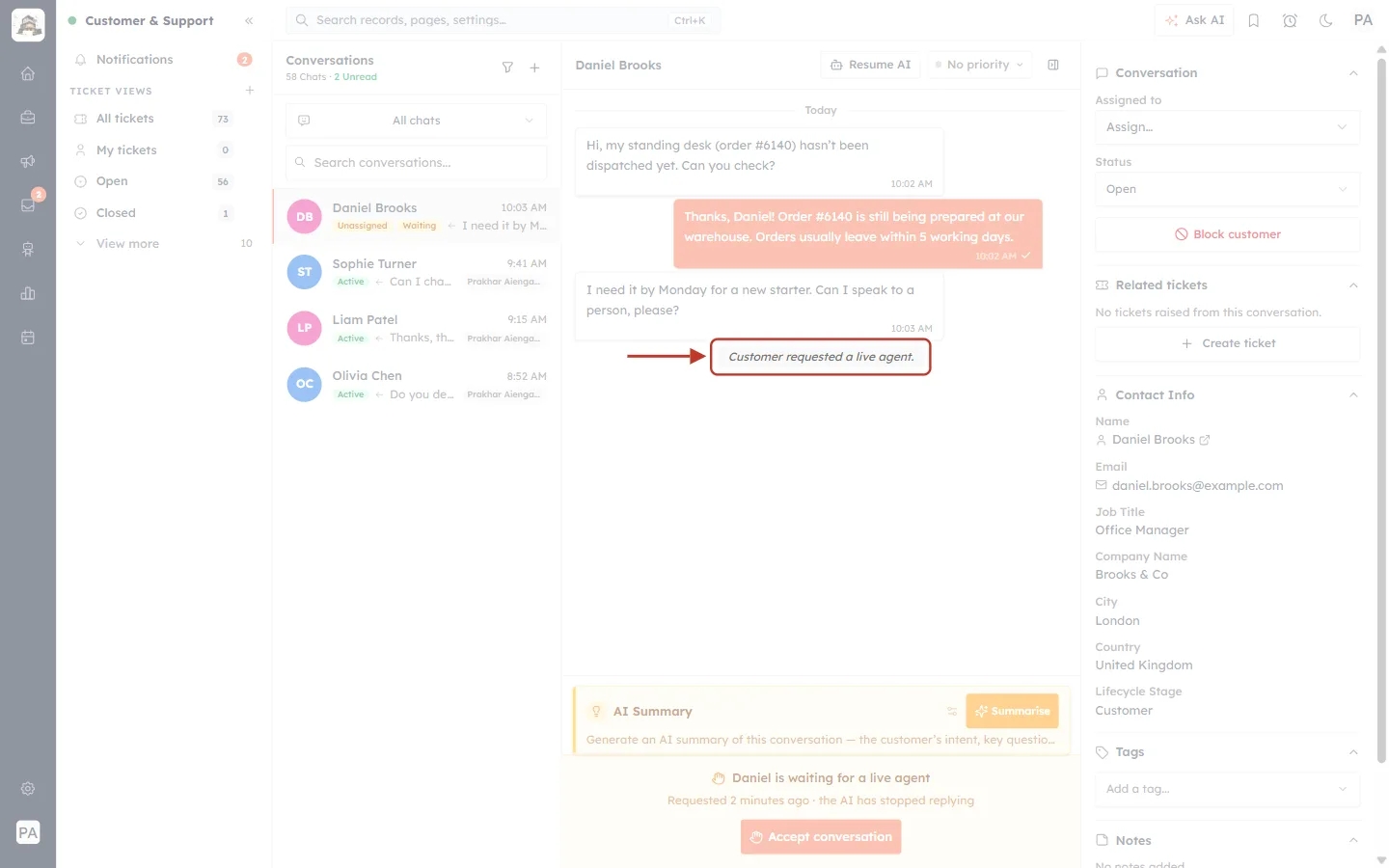
What this screenshot shows. The grey line in the chat is ringed: “Customer requested a live agent.”
It marks the moment the customer asked for a person. From here on the AI does not reply.
Above it (faded): Daniel’s request — “Can I speak to a person, please?”
Step 3: Spot the Live chat request card#
Wherever you are in AiEngage CRM — even on another page — a request card pops up in the bottom-right corner.
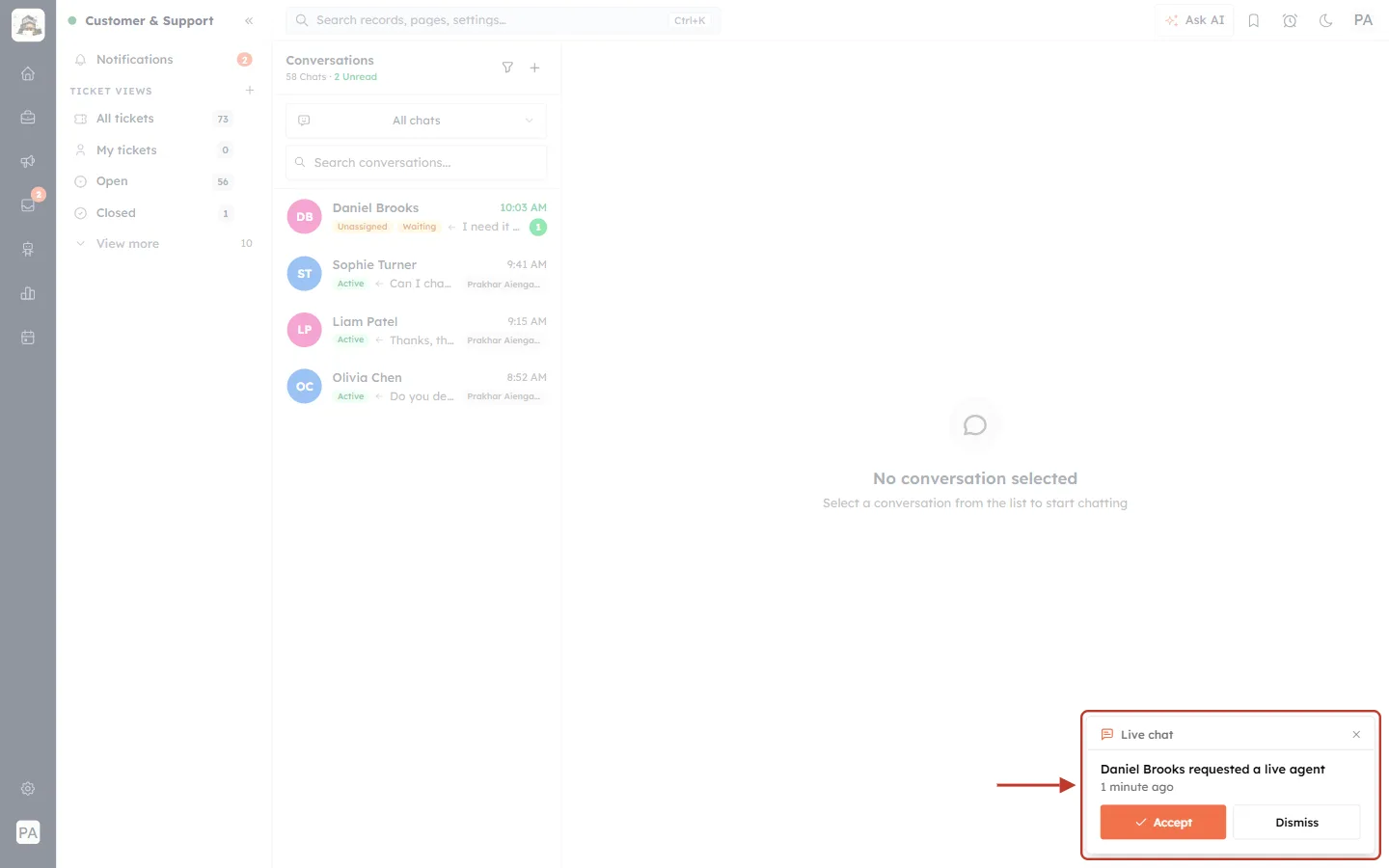
What this screenshot shows. The Live chat request card in the bottom-right corner of the screen is ringed.
Live chat at the top, with an × to close the card.
“Daniel Brooks requested a live agent” and how long ago (1 minute ago).
✓ Accept — take the conversation straight away and jump to the chat.
Dismiss — hide this card. The request itself stays open for the rest of your team.
Cards show requests from the last 10 minutes, up to three at a time. If more customers are waiting, a line says how many (for example “2 more customers are waiting”).
Step 4: Check your notifications#
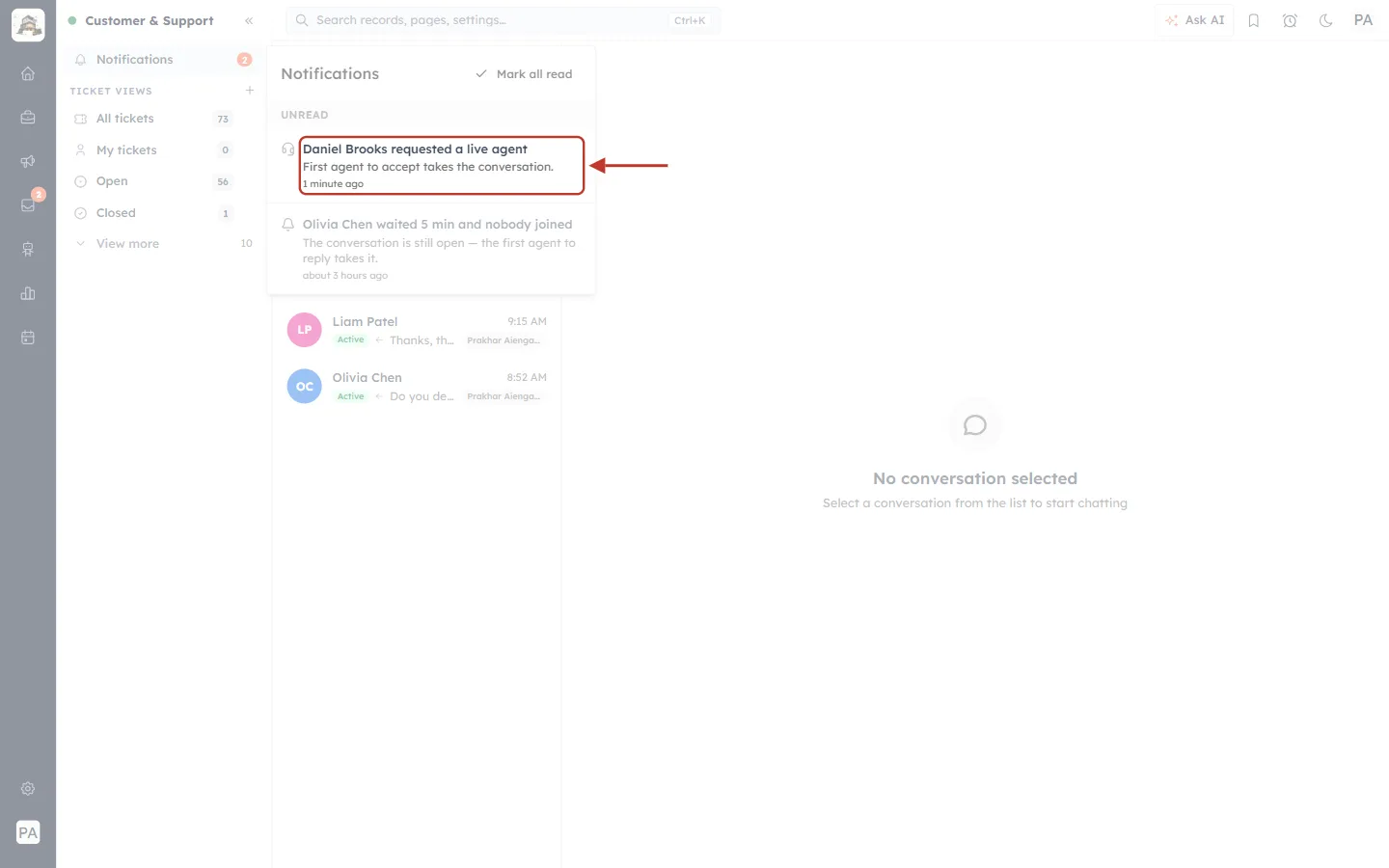
What this screenshot shows. In the Notifications panel (opened from the top of the Customer & Support sidebar), the request is ringed.
Daniel Brooks requested a live agent — “First agent to accept takes the conversation.”
Below it, an earlier notification about a request nobody answered (“Olivia Chen waited 5 min and nobody joined” — see Part 5).
Notifications stay in the list after the request card has gone, so you can catch up later.
Step 5: Find the waiting chat#
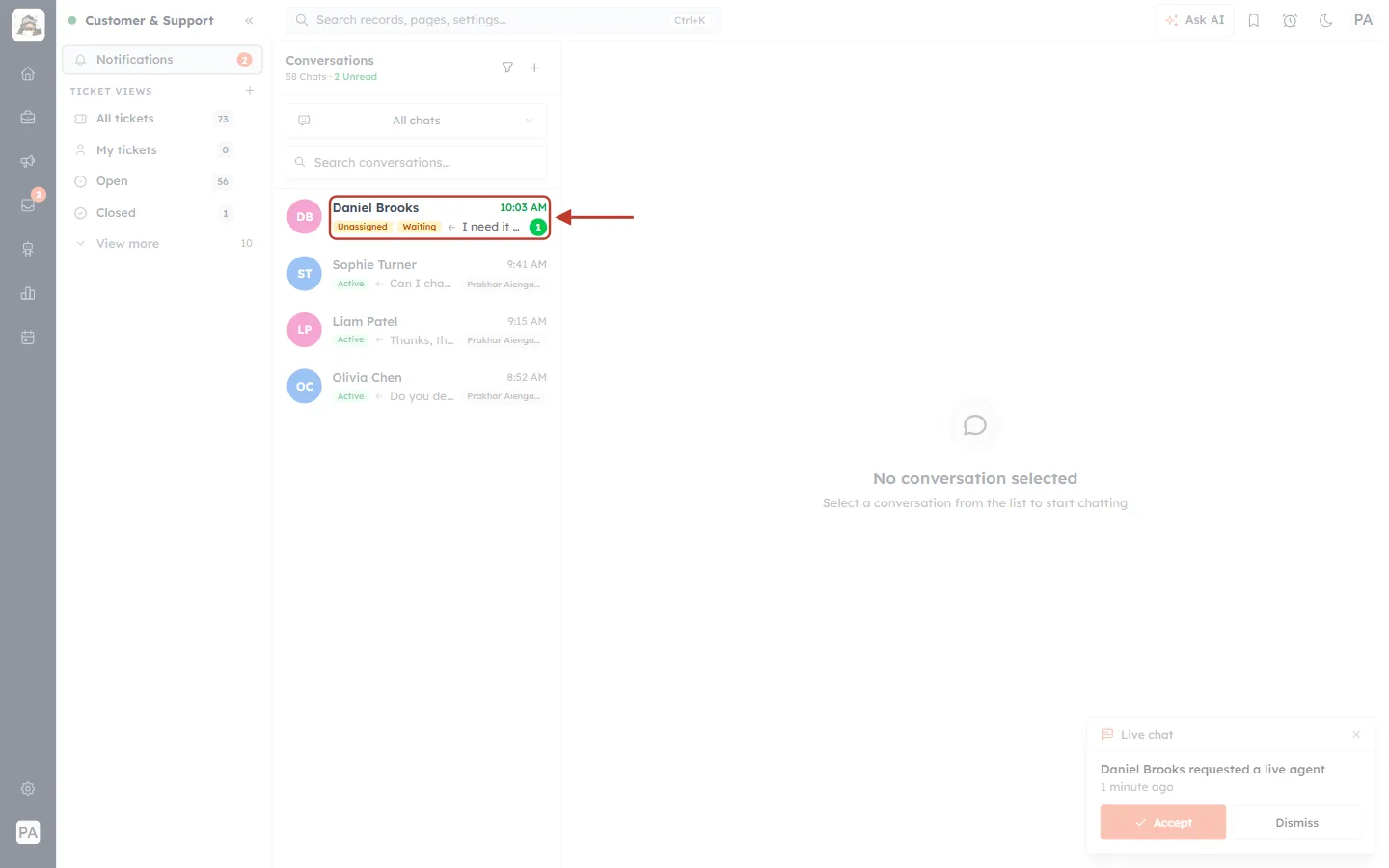
What this screenshot shows. Daniel’s chat in the Conversations list is ringed.
Unassigned (yellow) — no agent has taken it yet.
Waiting (yellow) — the customer is waiting for a live agent.
A green badge with the number of unread messages, and the time of the last message (in green).
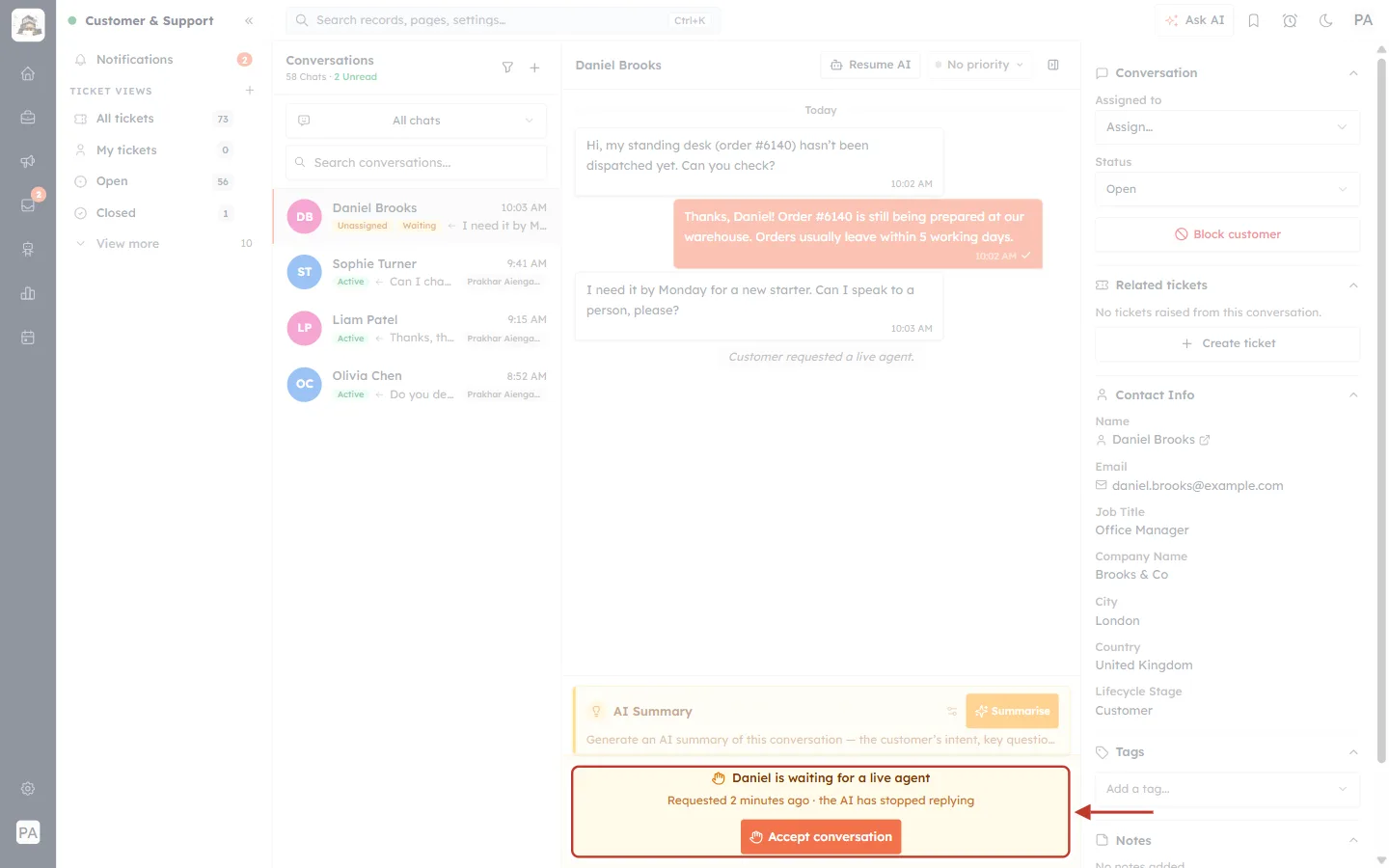
What this screenshot shows. The banner at the bottom of the chat is ringed.
✋ Daniel is waiting for a live agent
Requested 2 minutes ago · the AI has stopped replying — so the customer is relying on your team now.
Accept conversation — take the chat (next step).
There is no message box until someone accepts, so two agents can’t answer the same customer at once.
Part 3 — Accept the chat and reply#
Step 6: Click Accept conversation#
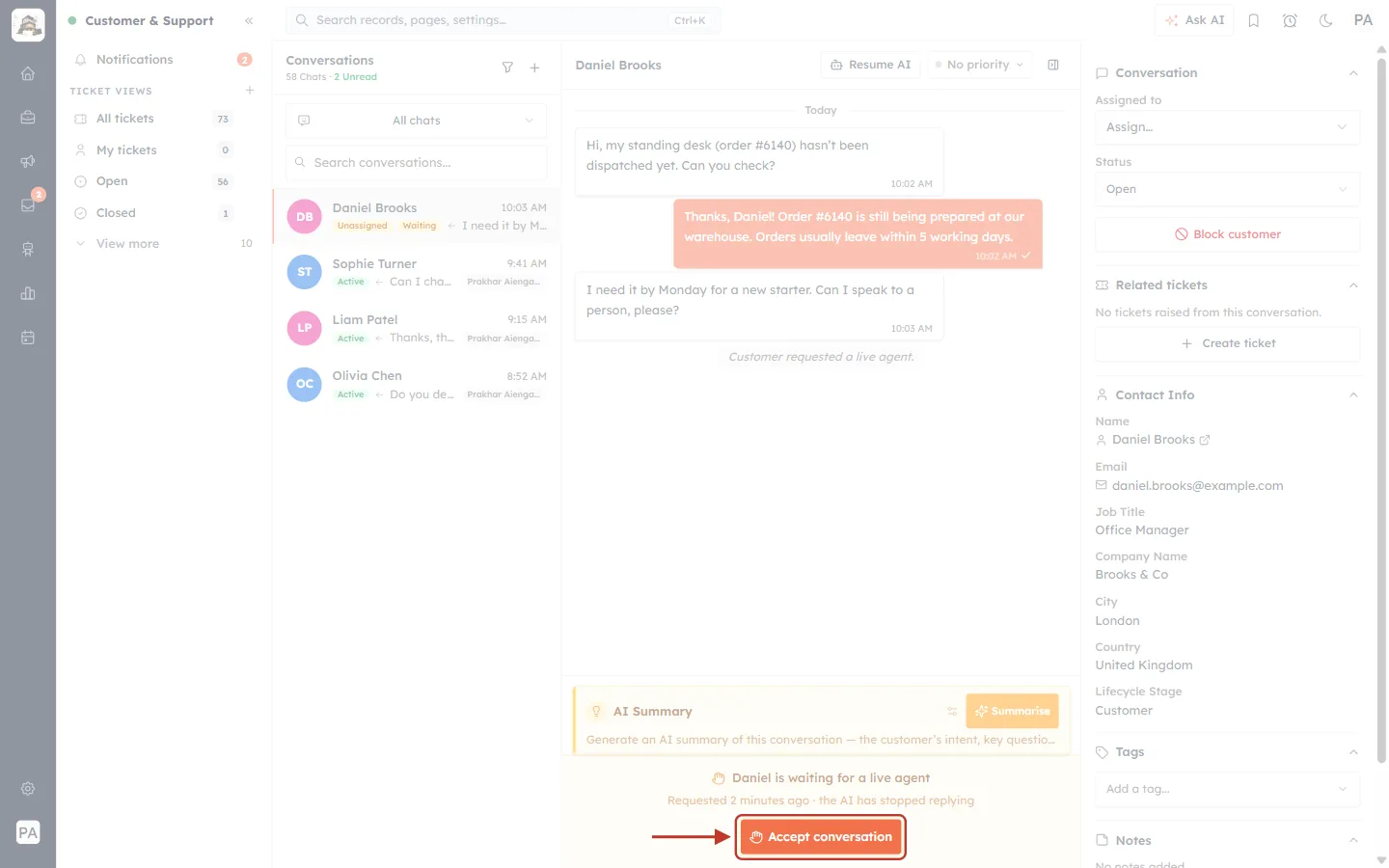
What this screenshot shows. The orange Accept conversation button in the banner is ringed.
Click it to take the chat. Clicking Accept on the request card (Step 3) does the same thing.
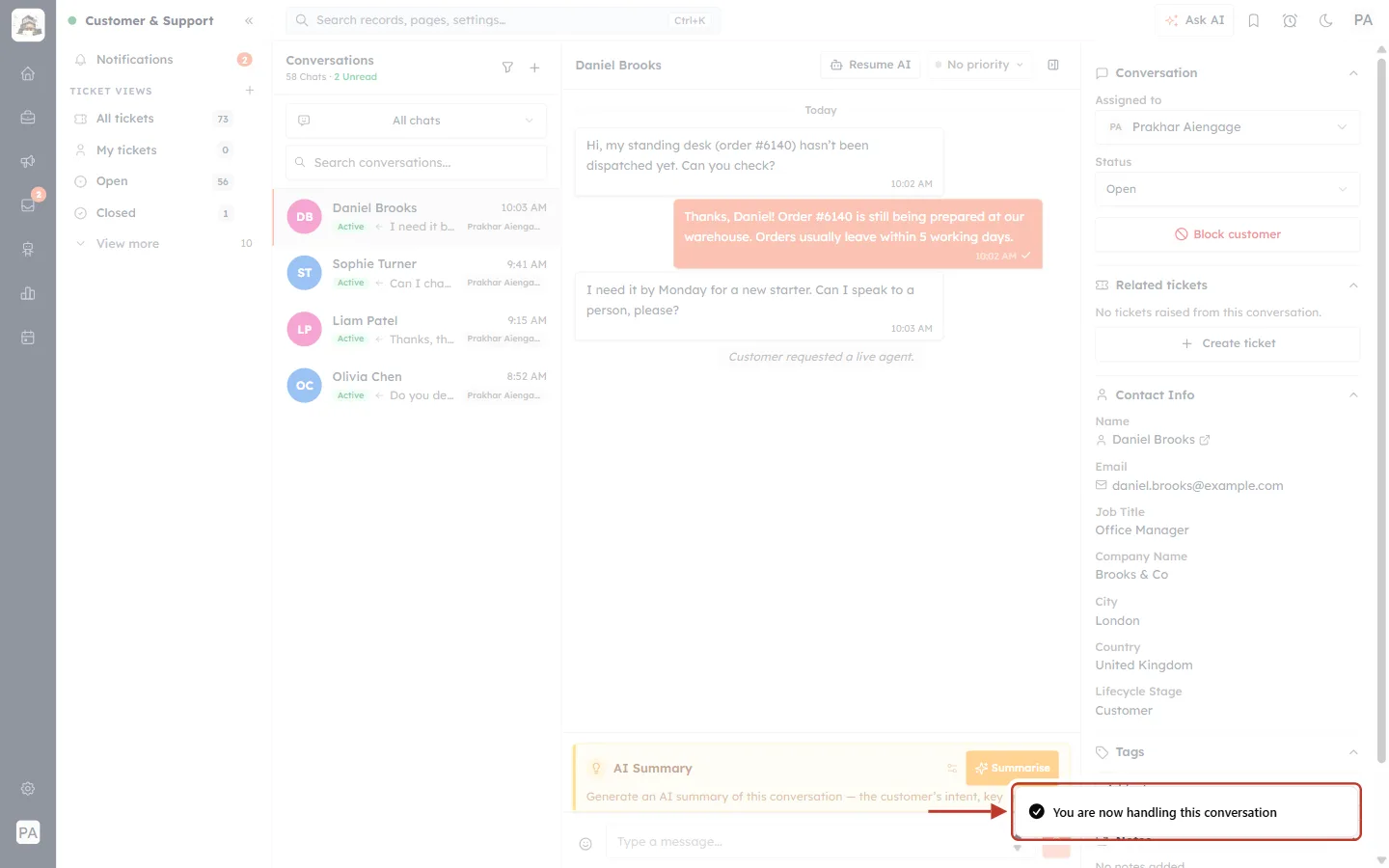
What this screenshot shows. The confirmation at the bottom right is ringed: “You are now handling this conversation”.
The chat is now yours, and the request disappears for your teammates.
If a teammate accepted a moment before you, you see “Already assigned to …” — “They accepted a moment before you. The conversation has moved to them.” No action is needed.
Step 7: Check that the chat is yours#
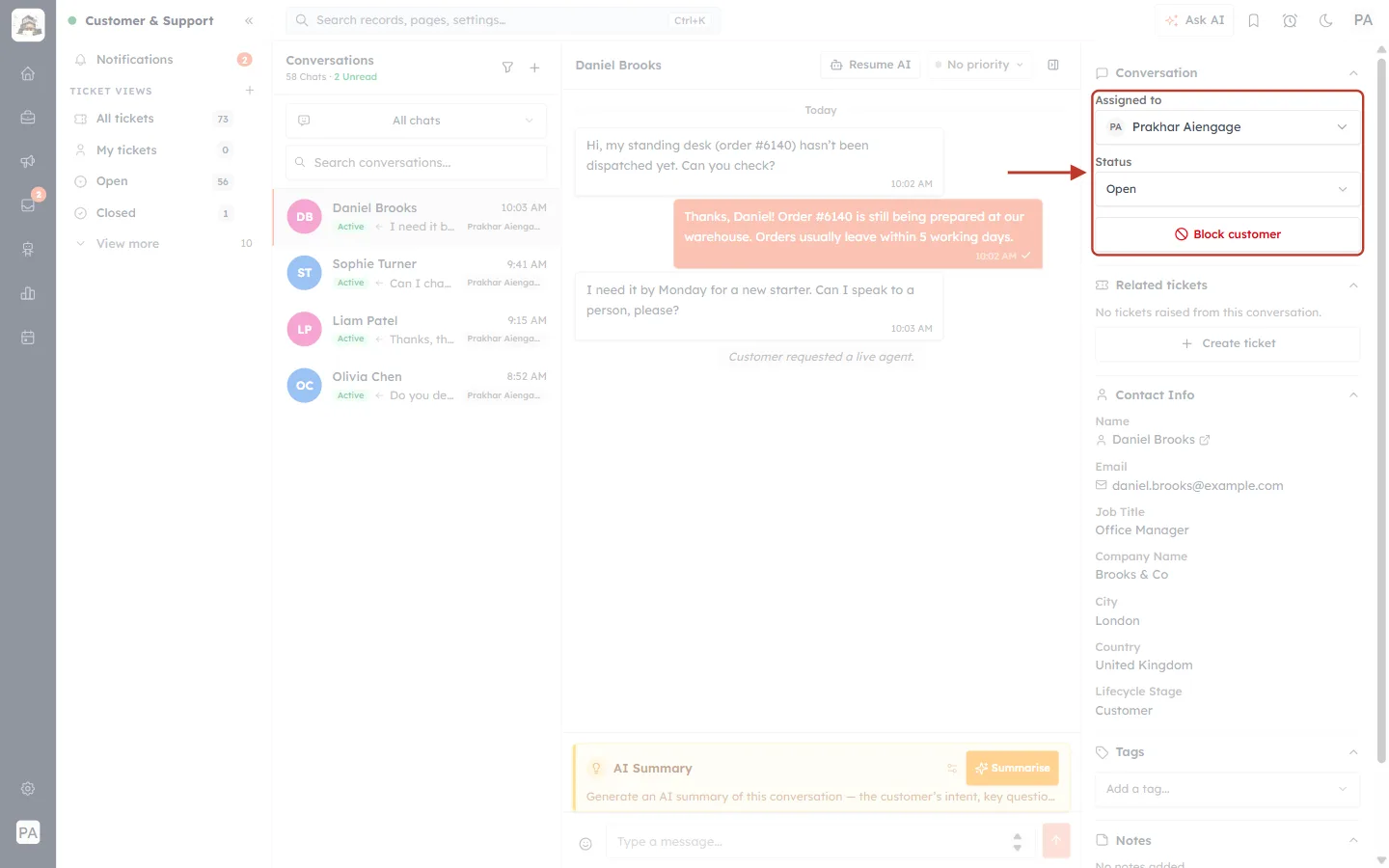
What this screenshot shows. The Conversation panel on the right is ringed.
Assigned to now shows your name (Prakhar Aiengage).
Status — Open.
Block customer — only for spam or abuse.
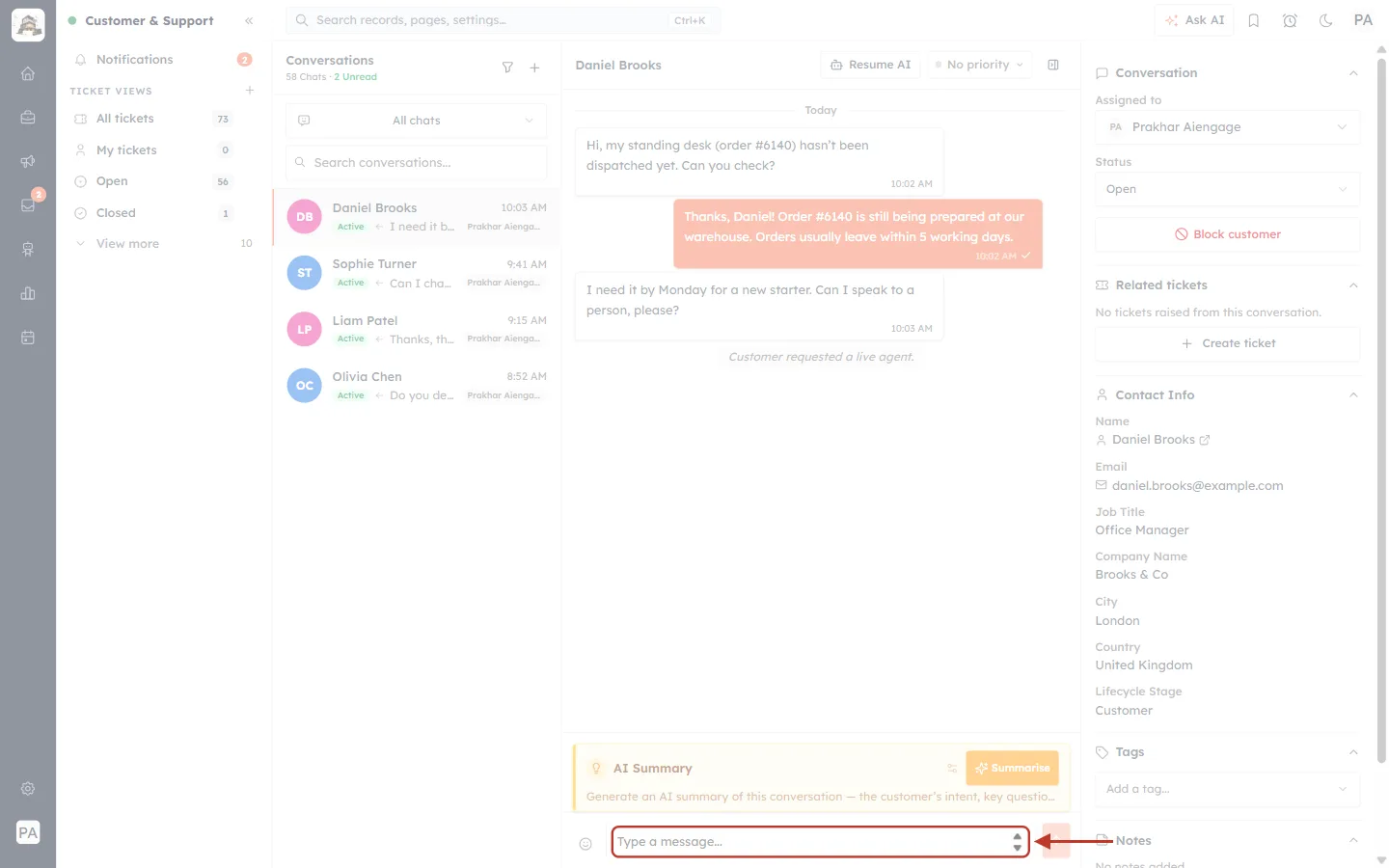
What this screenshot shows. The message box at the bottom of the chat is ringed: Type a message…
It replaces the waiting banner now that you are handling the chat.
On the left, the smiley button adds emoji; on the right is the send button.
Step 8: Introduce yourself and help#
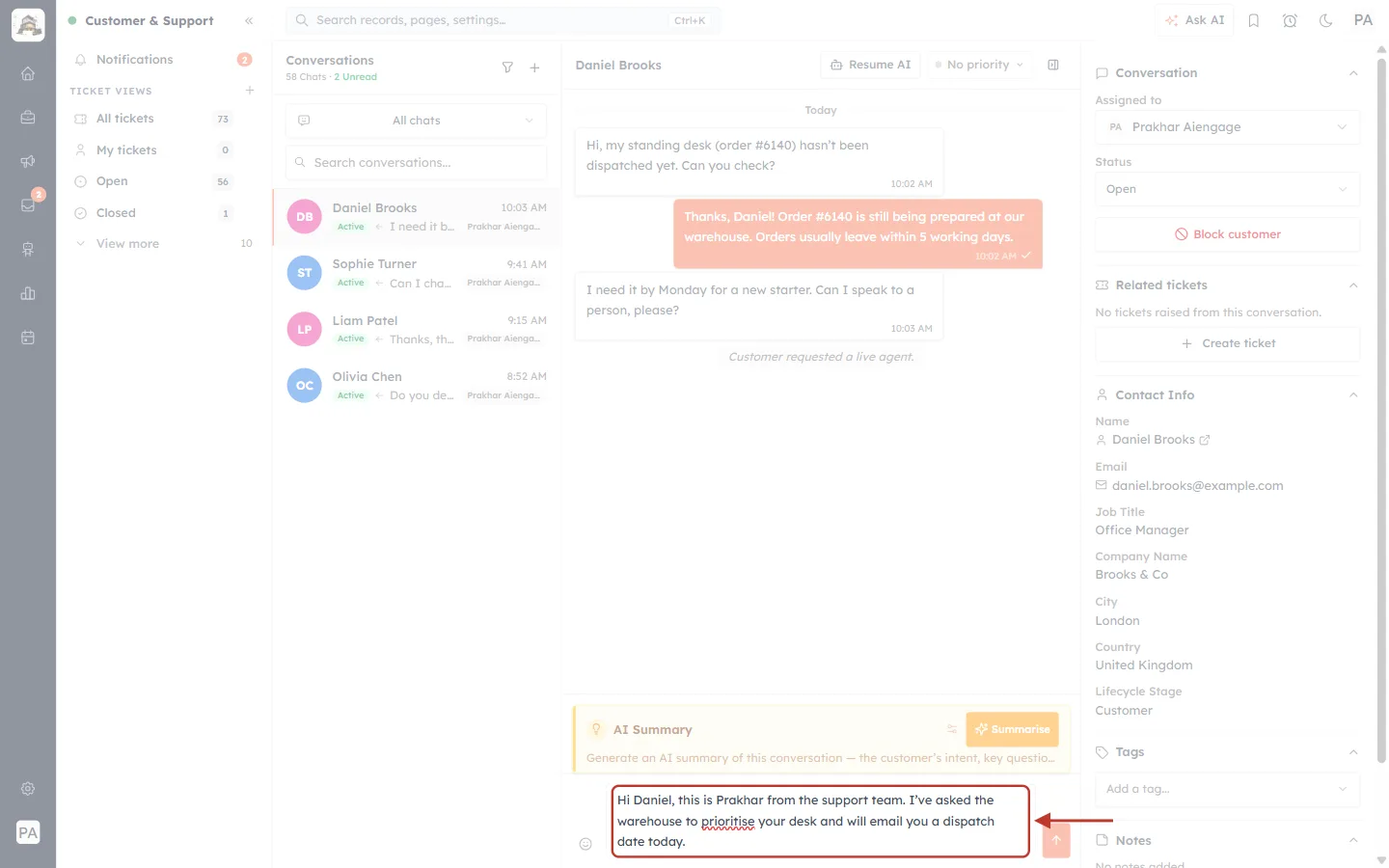
What this screenshot shows. The message box is ringed, with a reply typed in.
“Hi Daniel, this is Prakhar from the support team. I’ve asked the warehouse to prioritise your desk and will email you a dispatch date today.”
Press Enter or click the send button to send it.
✅
Start with your name and a short summary of what you’ll do. The customer has just been talking to a bot — a friendly, personal first message makes the handover feel seamless.
Step 9: See your reply in the chat#
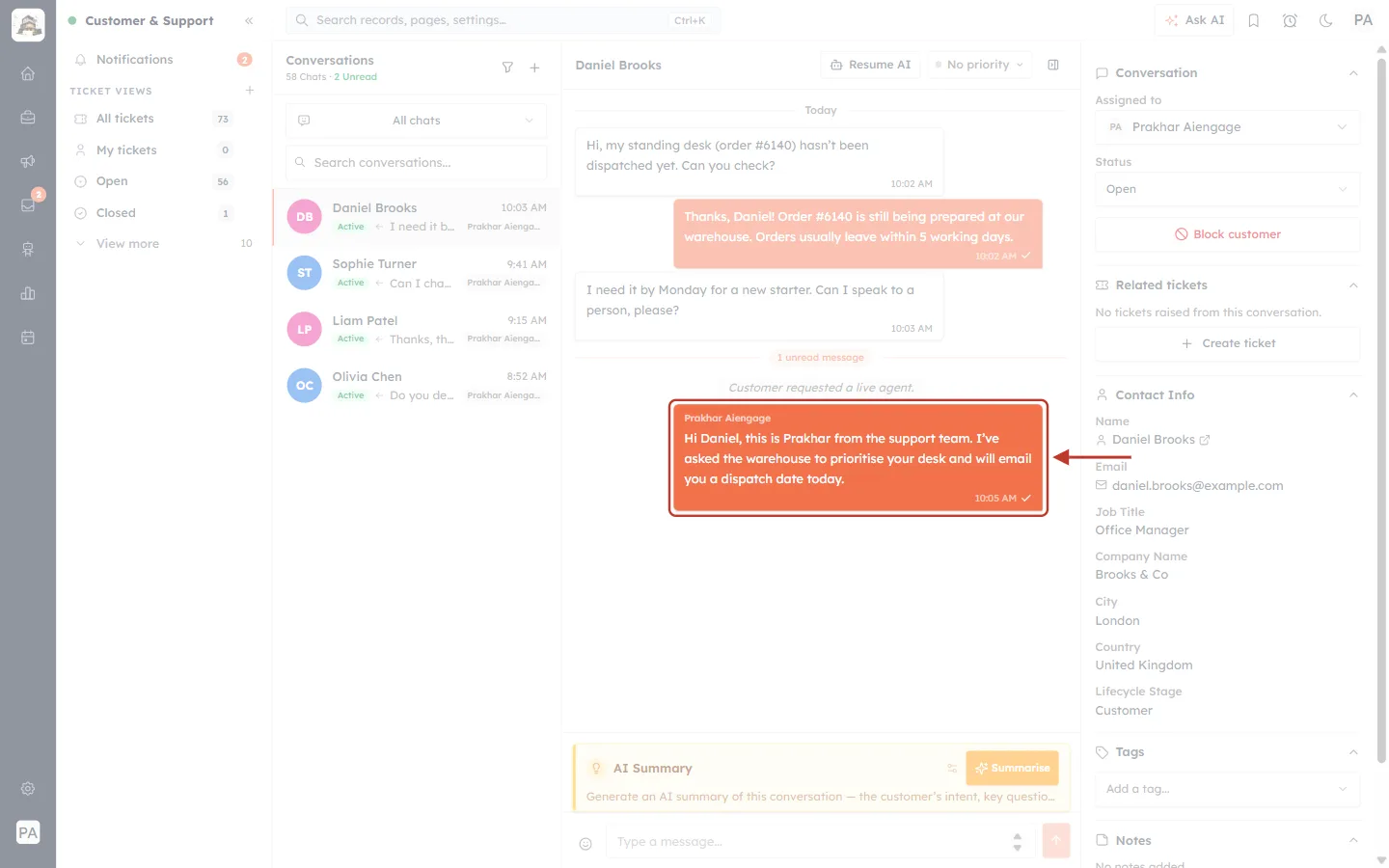
What this screenshot shows. Your reply in the chat is ringed.
Your name, Prakhar Aiengage, appears above the message — so you can tell it apart from the AI agent’s earlier answers.
The time it was sent and a tick when it is delivered.
Above it: the Customer requested a live agent. line, so anyone reading later can see where the person took over.
Step 10: Hand the chat back to the AI (optional)#
When the customer’s problem is dealt with — or if they only needed a quick answer from a person — you can let the AI agent carry on.
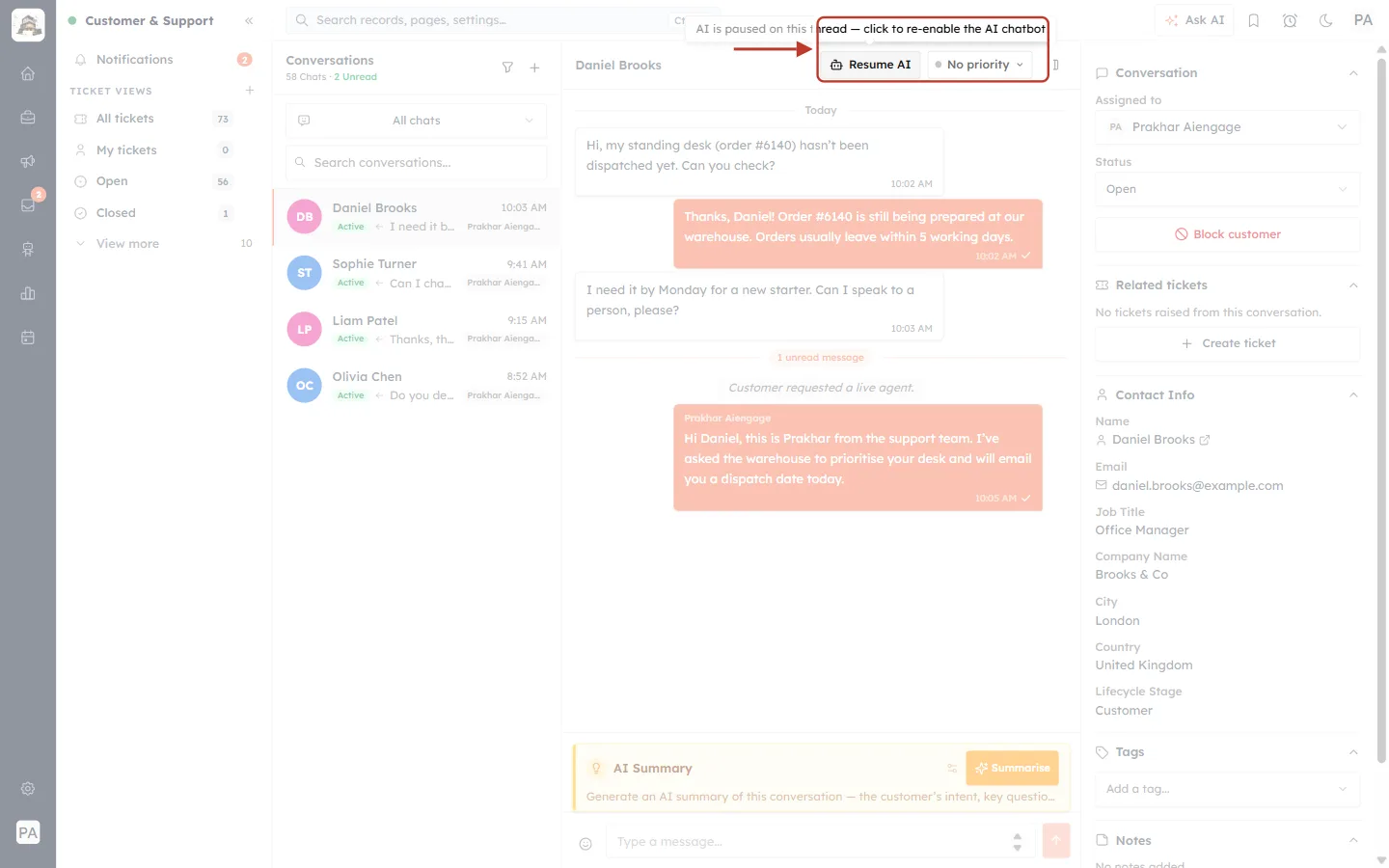
What this screenshot shows. The Resume AI button at the top of the chat and its tooltip are ringed.
Tooltip: “AI is paused on this thread — click to re-enable the AI chatbot.”
Click Resume AI to let the AI agent answer this customer’s next messages again.
If you can’t change the chat, you see an AI paused label instead of the button.
Part 4 — Take over before the customer asks#
You don’t have to wait for a request. If you see a chat where the AI agent is struggling — or a VIP customer you’d like to look after yourself — you can step in at any time.
Step 11: Click Take over to reply#
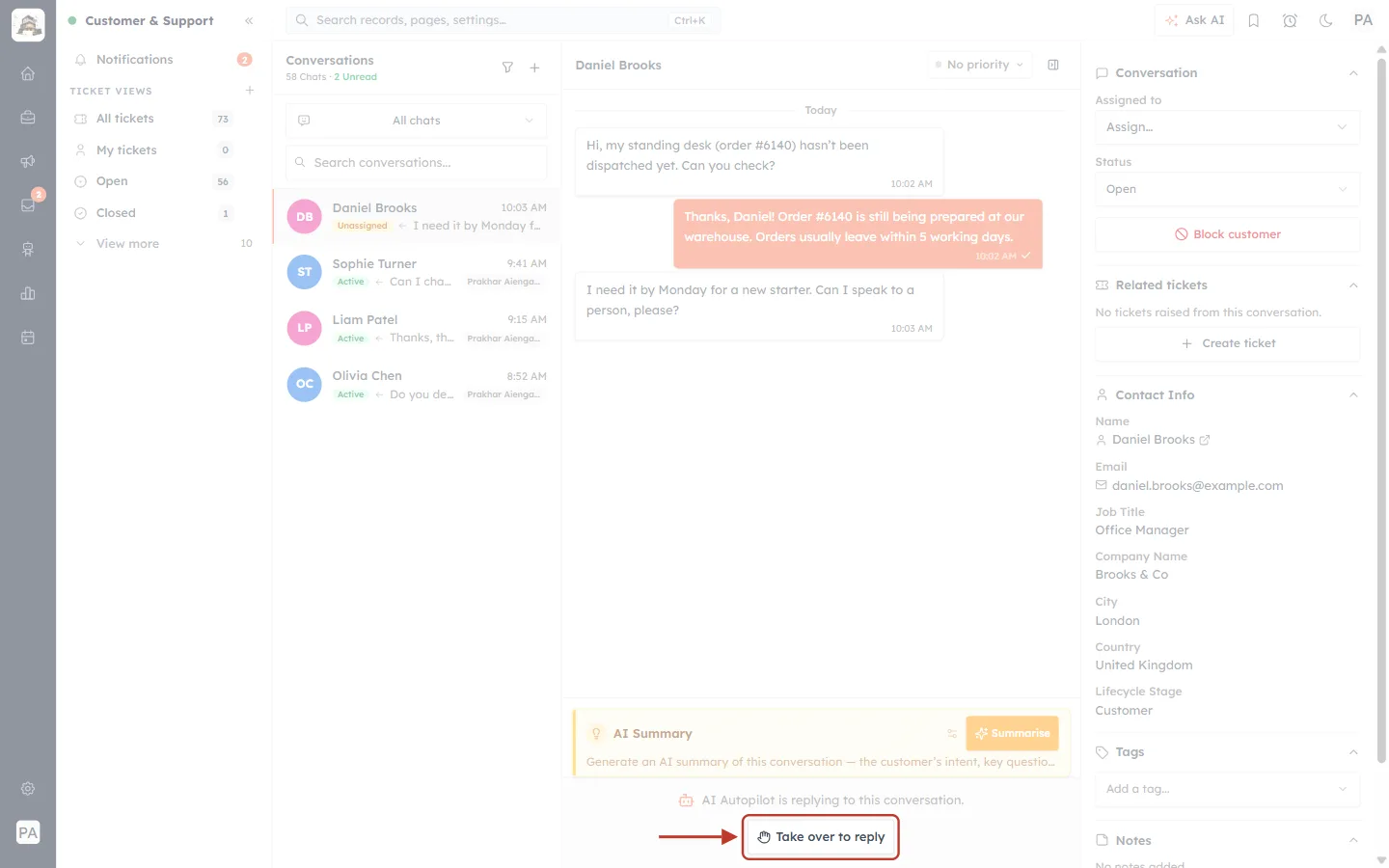
What this screenshot shows. The Take over to reply button under AI Autopilot is replying to this conversation. is ringed.
Click it to pause the AI on this chat and take it yourself.
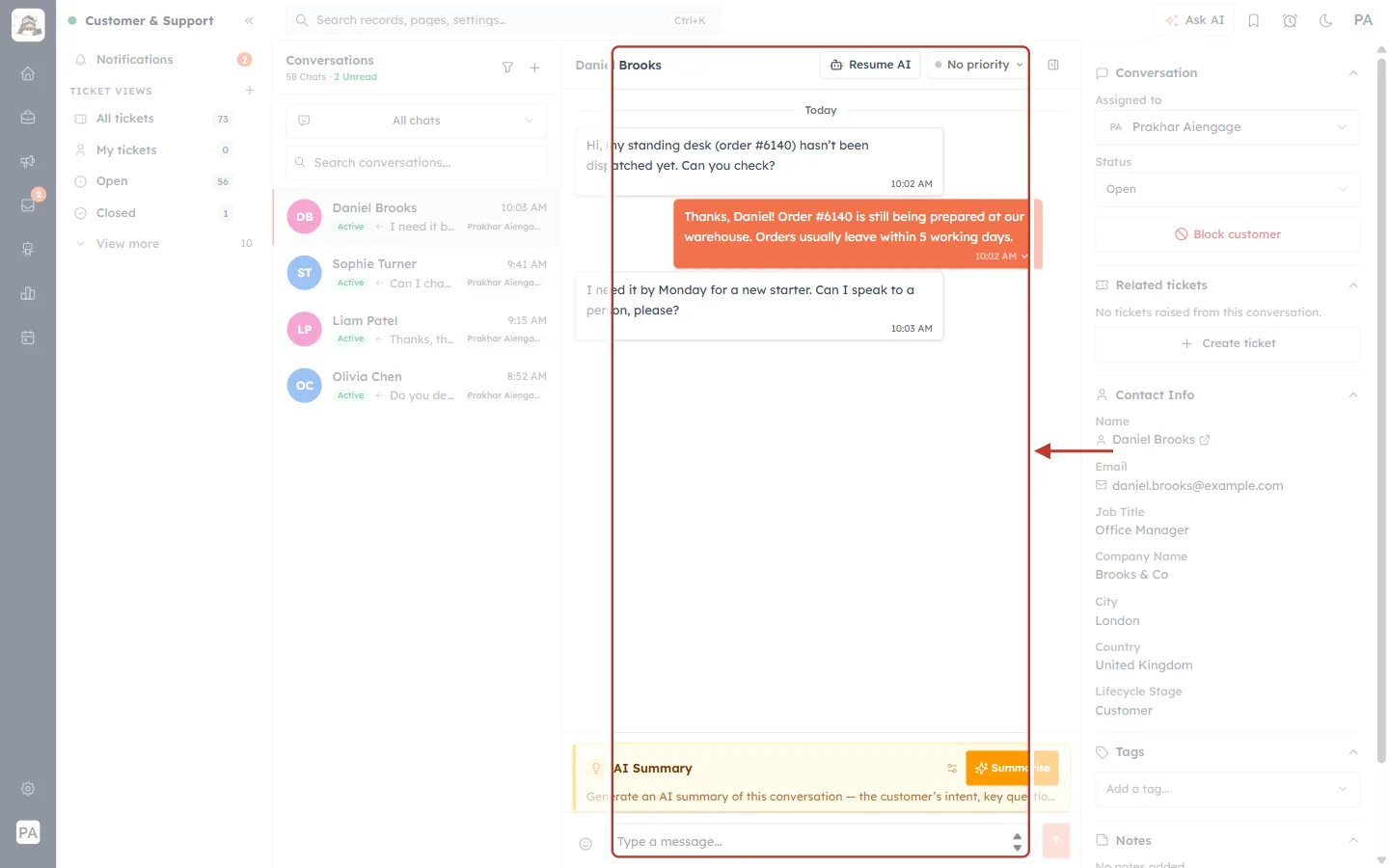
What this screenshot shows. The chat after taking over is ringed, from the Resume AI button at the top to the message box at the bottom.
The AI is paused: Resume AI appears at the top, ready for when you want to hand back.
The Type a message… box appears at the bottom — reply as in Step 8.
Part 5 — When nobody answered in time#
If no agent accepts a request within the waiting time set for your organisation, the request is marked as missed. The customer is told to expect an email — but the chat stays open, and anyone can still pick it up.
Step 12: Find missed requests#
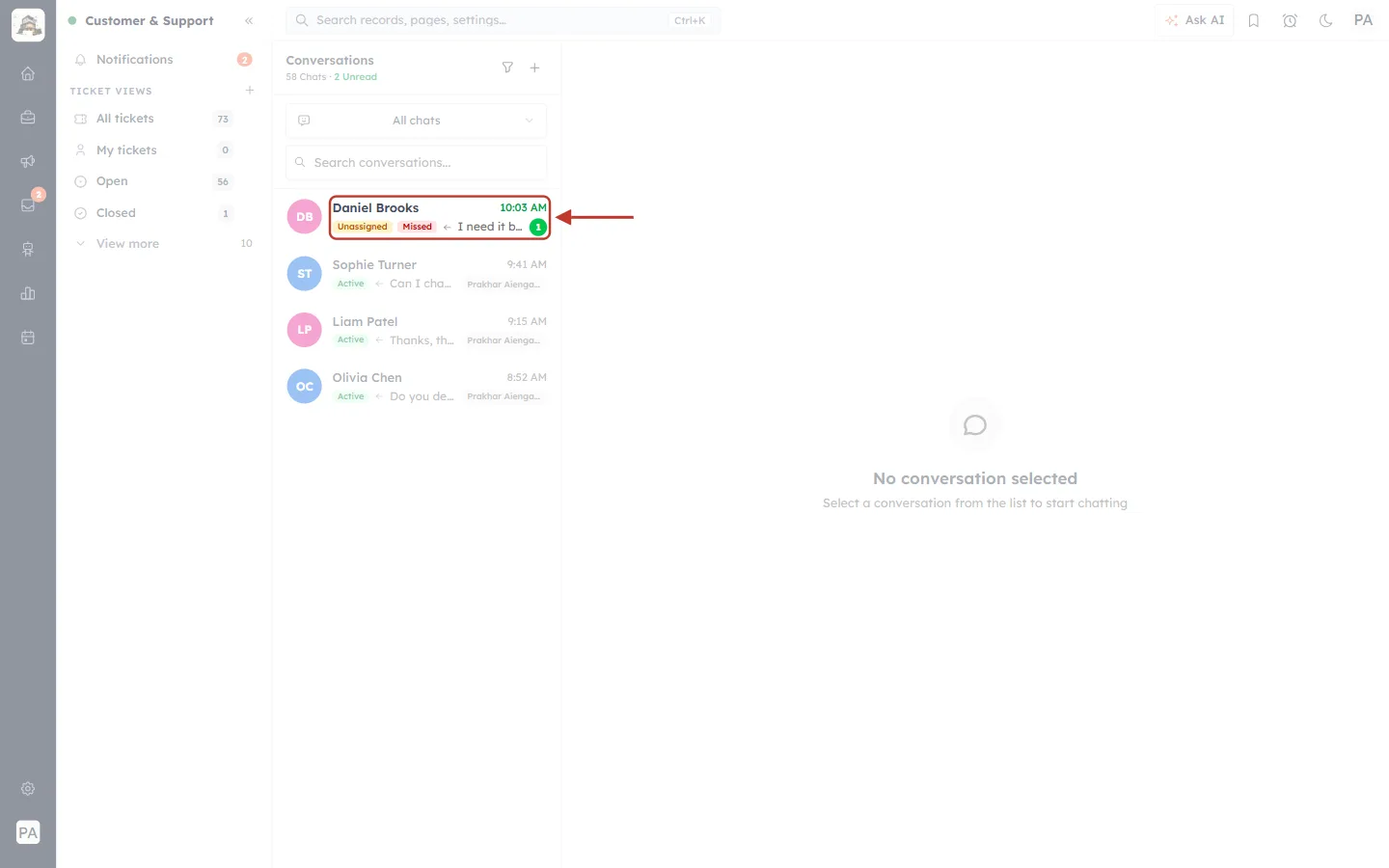
What this screenshot shows. Daniel’s chat in the Conversations list is ringed.
Unassigned and a red Missed label — nobody accepted the request in time.
A notification is also sent, for example “Daniel Brooks waited 5 min and nobody joined — The conversation is still open — the first agent to reply takes it.”
Step 13: Pick up the missed chat#
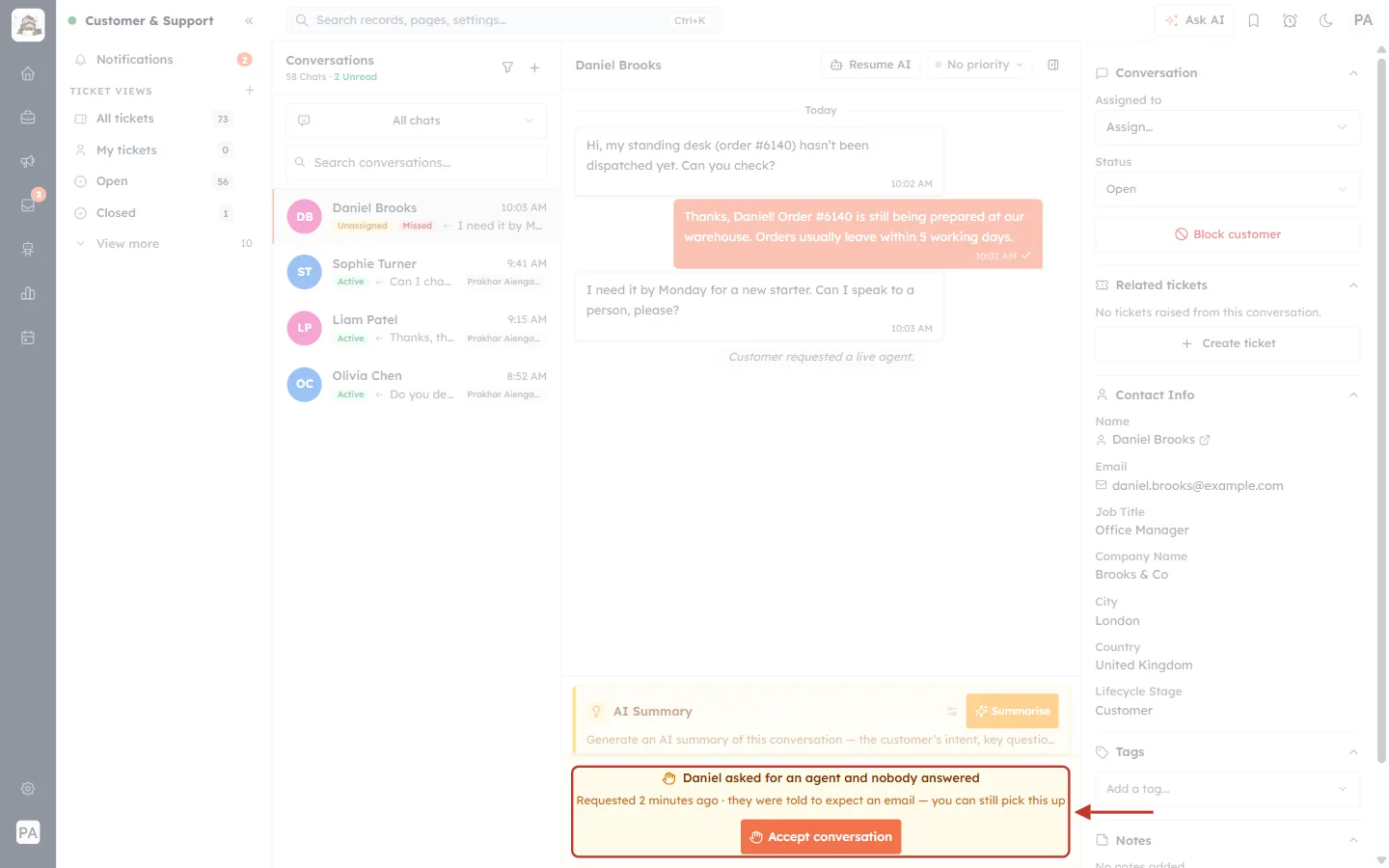
What this screenshot shows. The banner at the bottom of the missed chat is ringed.
✋ Daniel asked for an agent and nobody answered
Requested 2 minutes ago · they were told to expect an email — you can still pick this up
Accept conversation — take the chat as in Step 6. Then follow up: reply in the chat if the customer is still there, or email them as promised (for example by raising a ticket — see Turn Chats into Tickets).
⚠️
Missed requests mean a customer asked for help and didn’t get it. Check for Missed chats at the start of every shift, and make sure someone is covering the inbox during your advertised hours.
Good practice for handovers#
Accept fast. The customer has just asked for a person — every minute feels long.
Read the AI conversation first so you don’t ask the customer to repeat themselves.
Introduce yourself by name and say what you’ll do next.
Raise a ticket if the problem needs follow-up after the chat ends.
Hand back with Resume AI only when the customer’s question is fully dealt with.
Troubleshooting#
Customers ask for a person but nobody gets a request. Check that live agent handoff is switched on for your AI agent, and that the chat widget’s Live agent handoff routes chats to the right team or agents.
I don’t see request cards. Cards only appear while AiEngage CRM is open in your browser, for requests from the last 10 minutes that are routed to you. Older requests are in Notifications and in the Chat inbox.
“Already assigned to …” A teammate accepted the request just before you. The chat has moved to them.
“Another agent took this conversation.” You clicked Accept on a request card for a chat someone else had already taken.
“This conversation is assigned to another agent.” You can only reply in chats assigned to you (or your team, depending on your access). Ask the assigned agent or your administrator.
Requests are marked Missed too quickly. Increase the waiting time under Mark unanswered chats as missed in Support General Settings.
Frequently asked questions#
Does the AI keep replying after the customer asks for a person? No. As soon as the request is made, the AI stops replying (“the AI has stopped replying”) until an agent clicks Resume AI.
Can two agents accept the same chat? No. The first agent to accept takes it; anyone else is told it has moved.
What does Dismiss on the request card do? It only hides the card for you. The request stays open for your team, and is still in Notifications and the Chat inbox.
Can I take over a chat the customer didn’t ask to escalate? Yes — click Take over to reply on any chat the AI is answering.
Previous and next#
Previous: Turn Chats into Tickets: Raise a Support Ticket from a Live Chat or a Single Message (Step-by-Step)
Next: Manage Tickets in the CRM: Filter Tickets, Use the Kanban Board & Read the Timeline (Step-by-Step)
Related#
Was this article helpful?
Ready to implement this?
OpenAI Engage and apply what you just learned to your own workspace.
Open AI Engage CRM