Loading…


KnowledgeBase
Record a Reply for Customers Without Email: Log Phone and In-Person Answers on a Ticket (Step-by-Step)
What this article covers#
Not every customer uses email. Some phone your support line, some walk into your store, and some only ever give you a mobile number. When a ticket’s contact has no email address, AiEngage CRM can’t email them a reply — so instead of Reply, Reply all and Forward, the ticket offers Record reply.
Record reply lets you write down what you told the customer — on a call, in person or any other way — and save it on the ticket. Nothing is sent. The ticket then holds the full story: the problem, what your team checked, and the answer the customer got.
| Record reply | Internal note | Reply (email) | |
|---|---|---|---|
| When you see it | Contact has no email address | Always | Contact has an email address |
| What it’s for | Logging the answer you gave the customer outside the CRM | Talking privately with your team | Emailing the customer |
| Sent to the customer? | No — saved on the ticket only | No — team only | Yes, by email |
| How it shows in the thread | reply recorded on the ticket (not emailed) | Yellow card, Internal note · not visible to customer | Email message |
Before you begin#
You need access to the ticket in Customer & Support (your profile’s Tickets View and Edit levels) — see Ticket Permissions.
Tickets without an email contact are often logged by an agent with New ticket — see Create a Ticket Manually.
Part 1 — Recognise a ticket whose customer has no email#
Step 1: Open the ticket#
In Customer & Support, click the ticket in the list to open it.
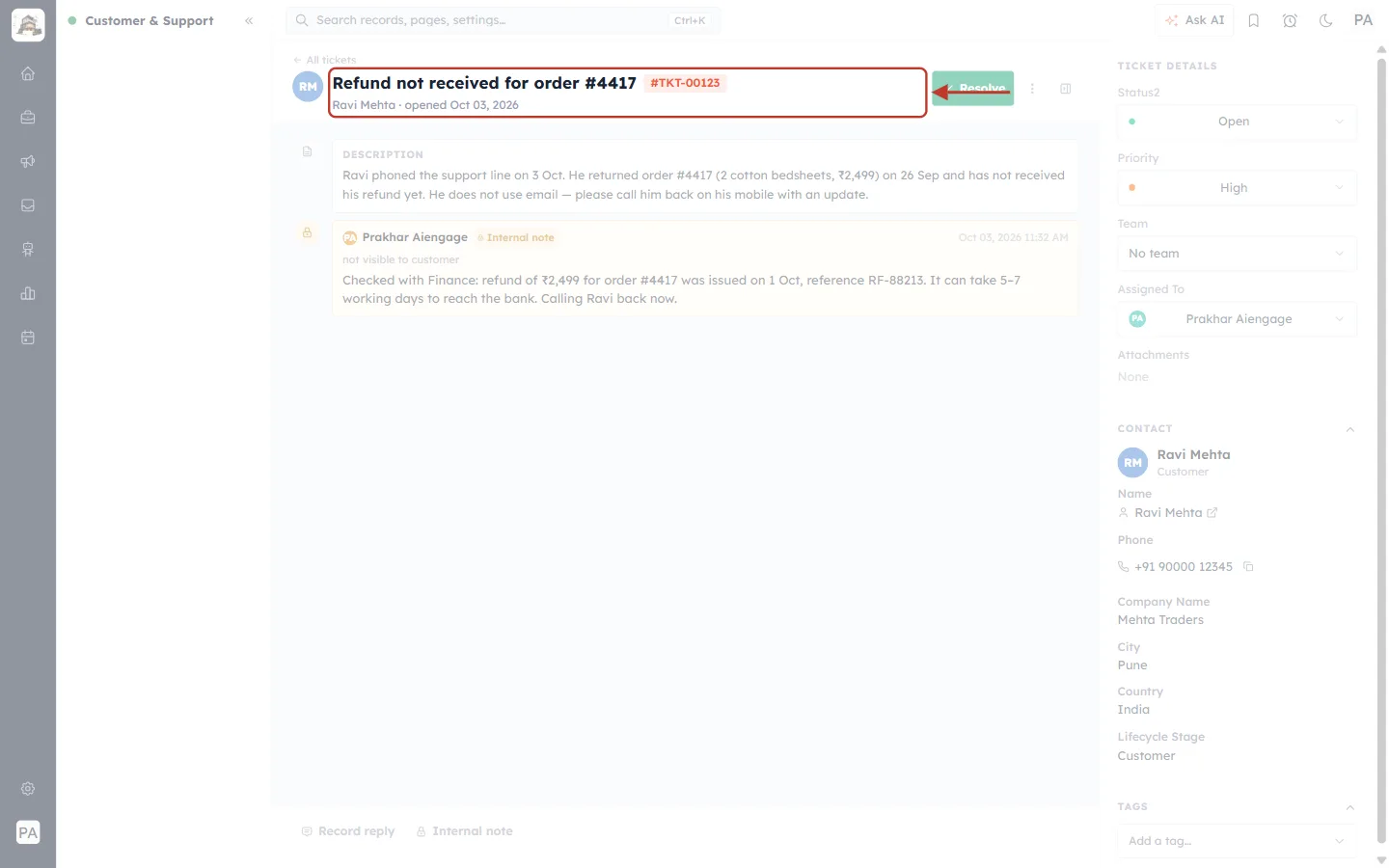
What this screenshot shows. The header of the example ticket is ringed: Refund not received for order #4417, ticket #TKT-00123.
Under the subject: the customer (Ravi Mehta) and when the ticket was opened (opened Oct 03, 2026).
The DESCRIPTION below explains the case: Ravi phoned about a missing refund, doesn’t use email, and wants a call back on his mobile.
The yellow card is an Internal note from a colleague — not visible to customer — saying the refund was issued and they are calling Ravi back.
Step 2: Check the contact details#
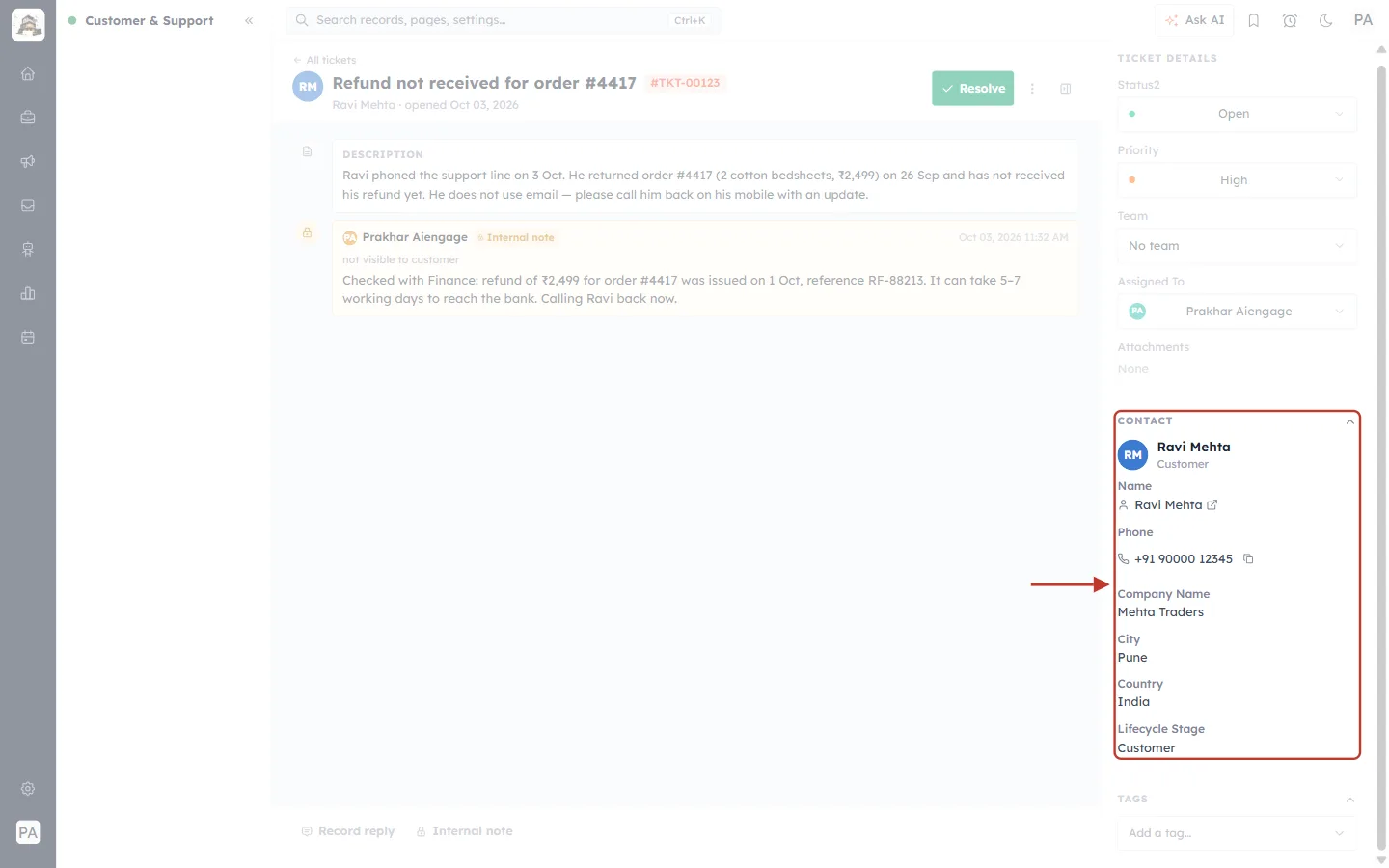
What this screenshot shows. The CONTACT section of the ticket details panel is ringed.
Name — Ravi Mehta, with a link icon to open the full contact record.
Phone — +91 90000 12345, with a copy button so you can dial it quickly.
Company Name, City, Country and Lifecycle Stage.
There is no Email row — this contact has no email address, so the ticket can’t send email.
Step 3: Look at the reply bar#
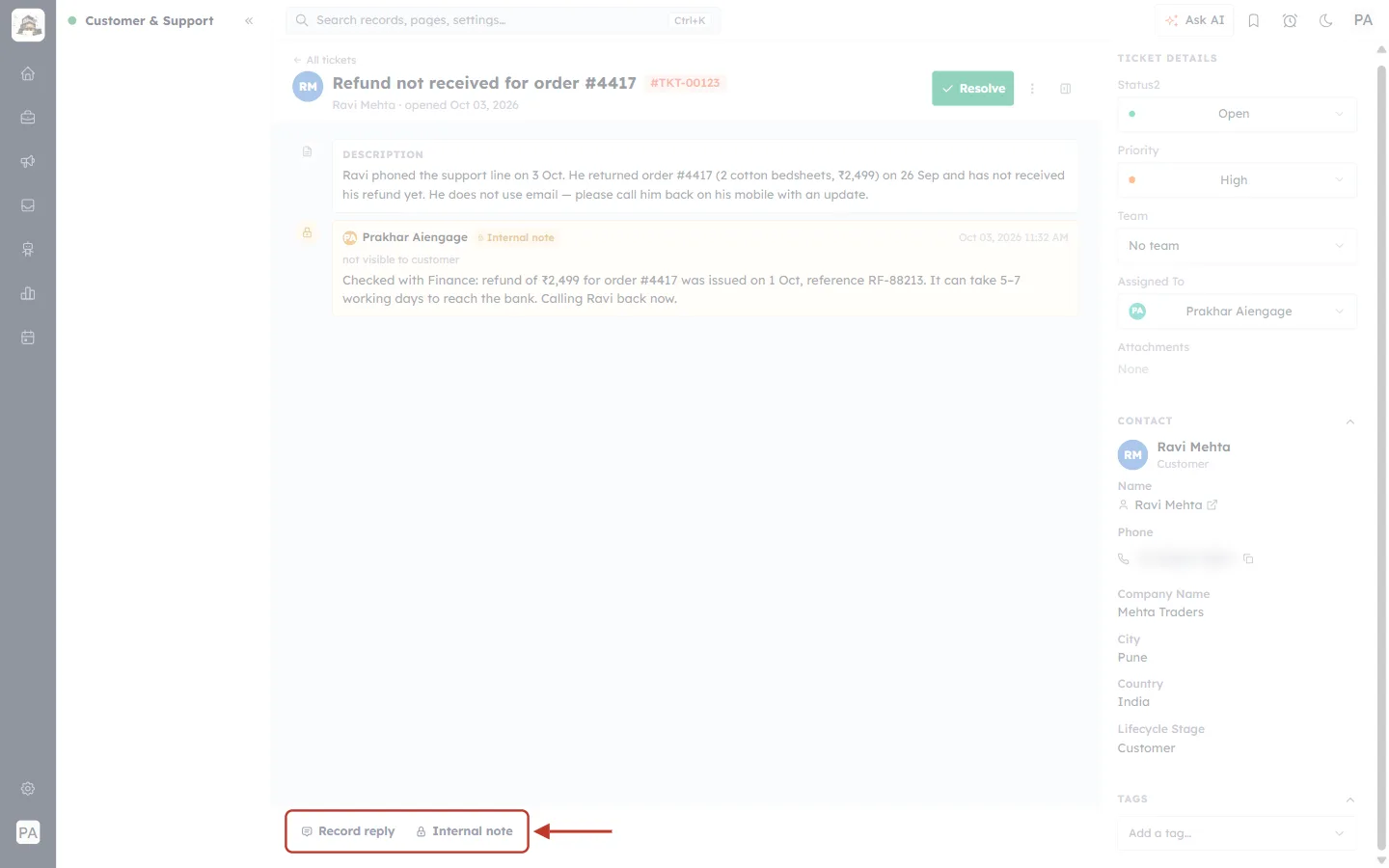
What this screenshot shows. The reply bar at the bottom of the ticket is ringed. It offers only Record reply and Internal note.
Record reply — log the answer you gave the customer (this article).
Internal note — a private message for your team — see Internal Notes & @Mentions.
Reply, Reply all and Forward are missing because there is no email address to send to.
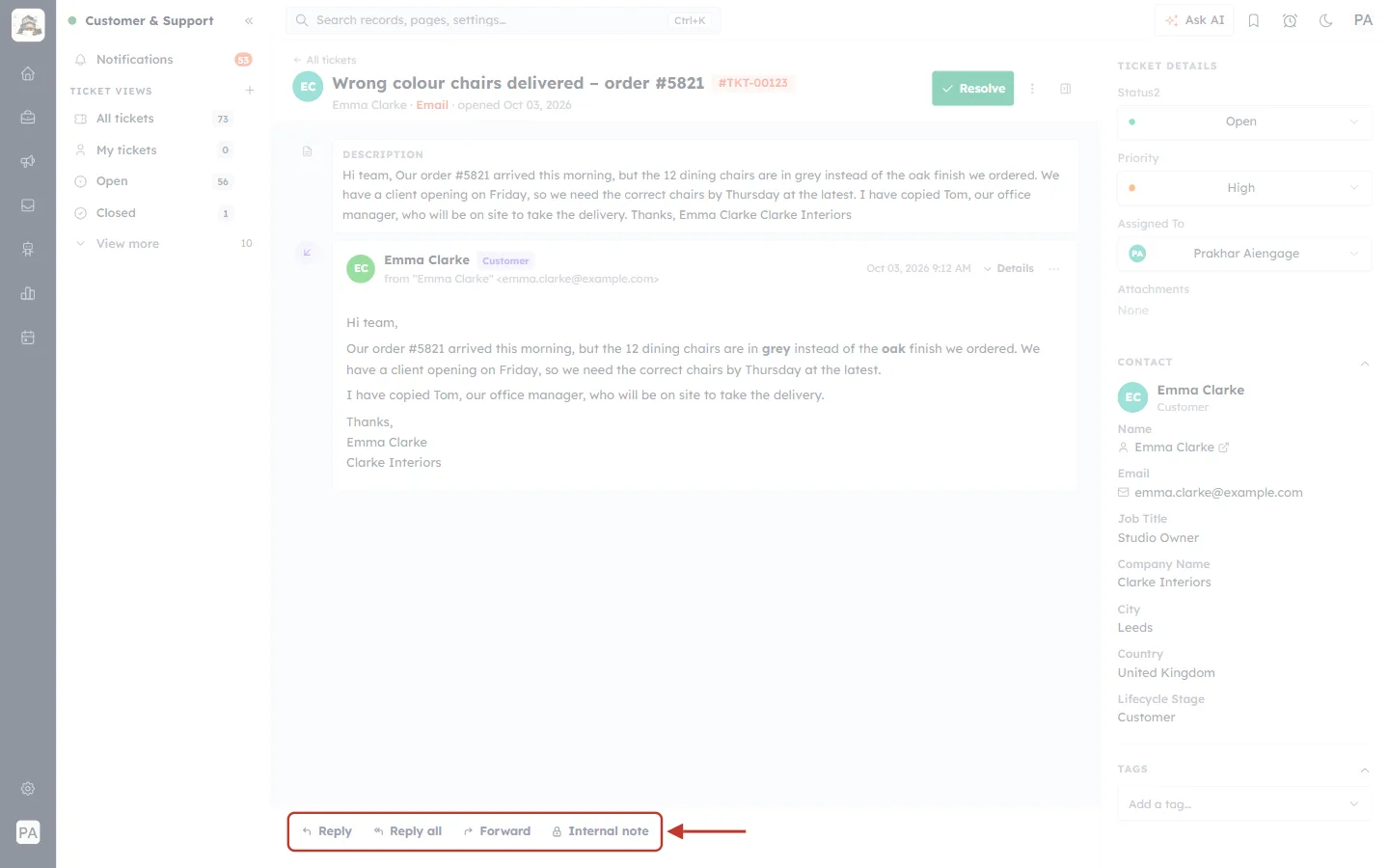
What this screenshot shows. For comparison, the reply bar of a ticket whose contact has an email address (emma.clarke@example.com) is ringed.
Reply, Reply all, Forward and Internal note are offered — and no Record reply.
The CONTACT panel on the right shows an Email row.
See Reply to Customers from a Ticket for email replies.
Part 2 — Record the reply#
Step 4: Talk to the customer#
Give the customer their answer the usual way — call them on the number in the CONTACT panel, speak to them in person, or send a message from your phone. Then come back to the ticket to record what you said.
Step 5: Click Record reply#
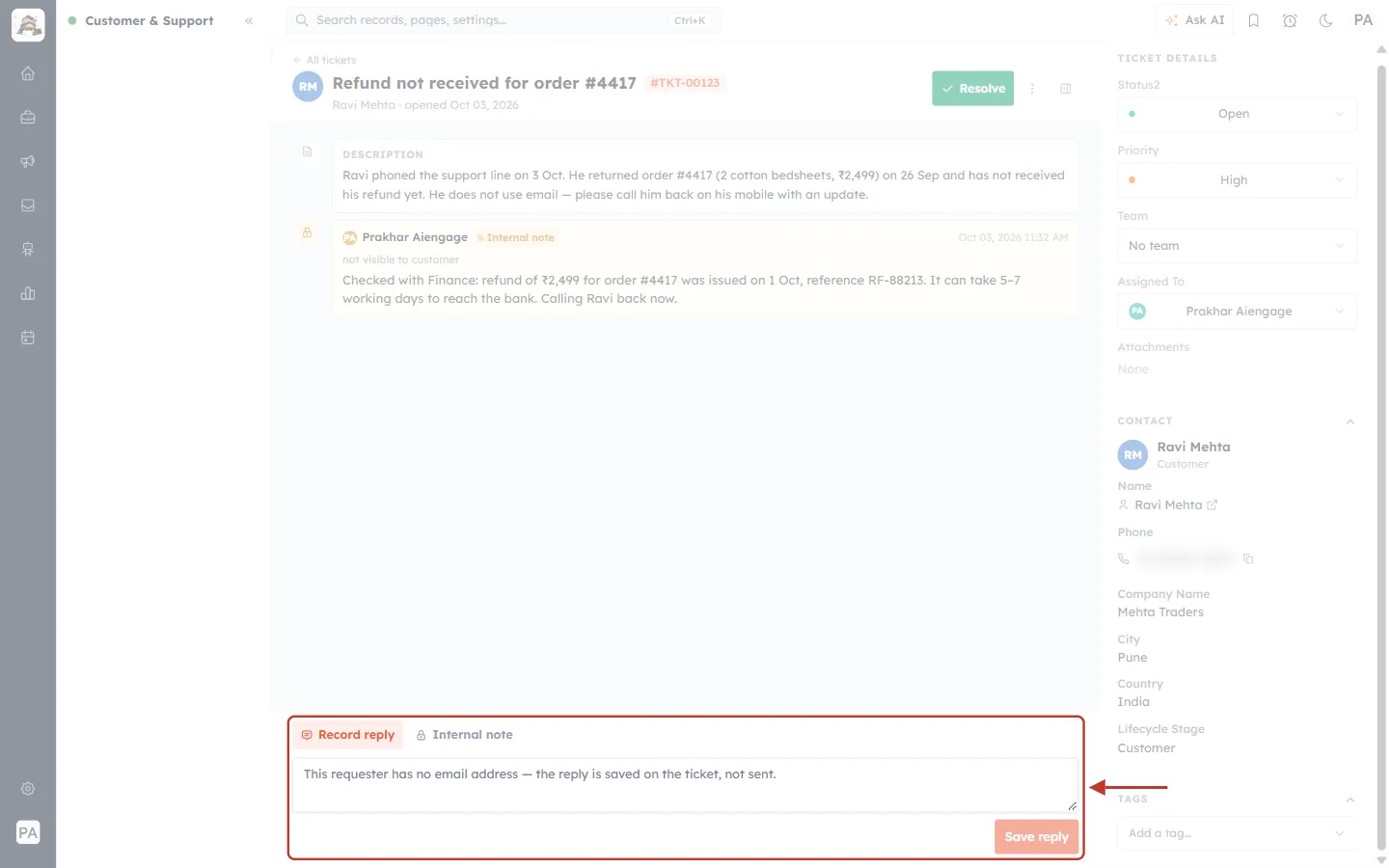
What this screenshot shows. The Record reply box that opens above the reply bar is ringed. Record reply is now highlighted in orange.
The empty box shows the reminder: This requester has no email address — the reply is saved on the ticket, not sent.
Save reply (bottom right) stays faded until you type something.
To close the box without saving, click Record reply again.
Step 6: Write what you told the customer#
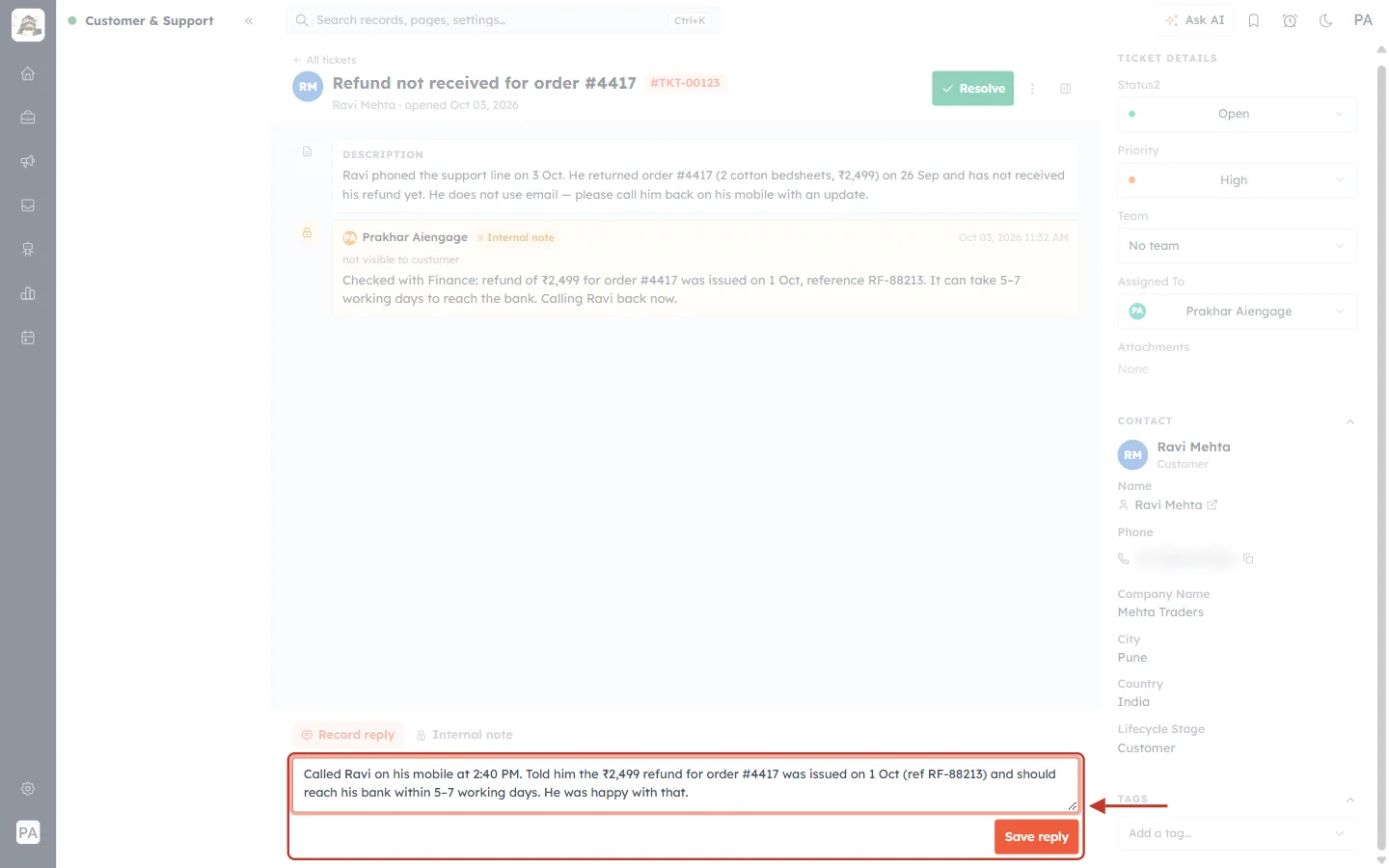
What this screenshot shows. The Record reply box with the text filled in is ringed.
The example says who was contacted and how (called Ravi on his mobile at 2:40 PM), what he was told (the ₹2,499 refund was issued on 1 Oct, ref RF-88213, 5–7 working days) and how he reacted (happy with that).
This is plain text — write it as a short summary that anyone on your team will understand later.
Save reply is now active.
✅
Good recorded replies answer four questions: who you spoke to, how (phone, in person, SMS), what you told them, and what happens next. Include reference numbers, amounts and dates.
Step 7: Click Save reply#
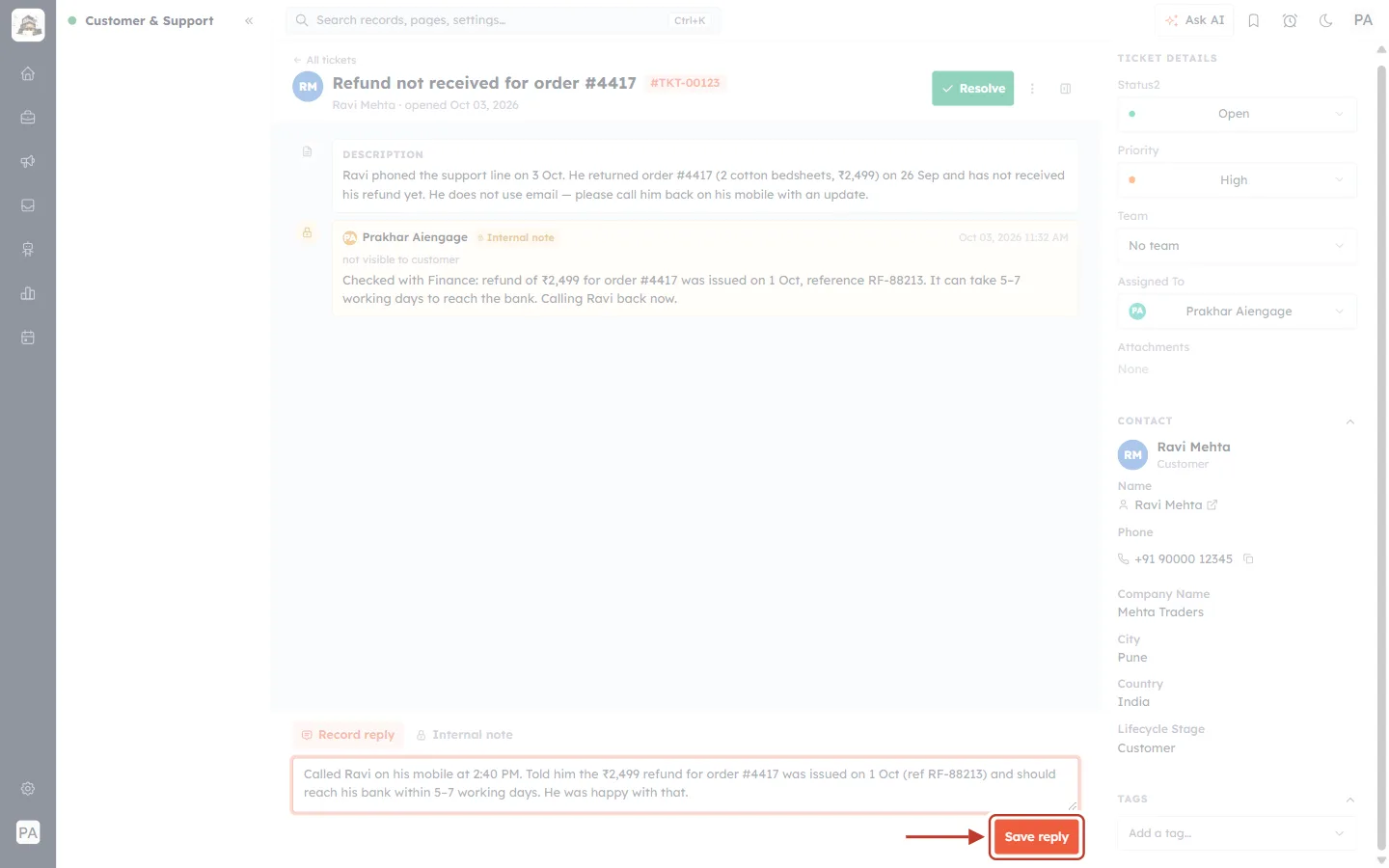
What this screenshot shows. The orange Save reply button is ringed.
Click it to save the reply on the ticket.
Nothing is emailed or texted to the customer.
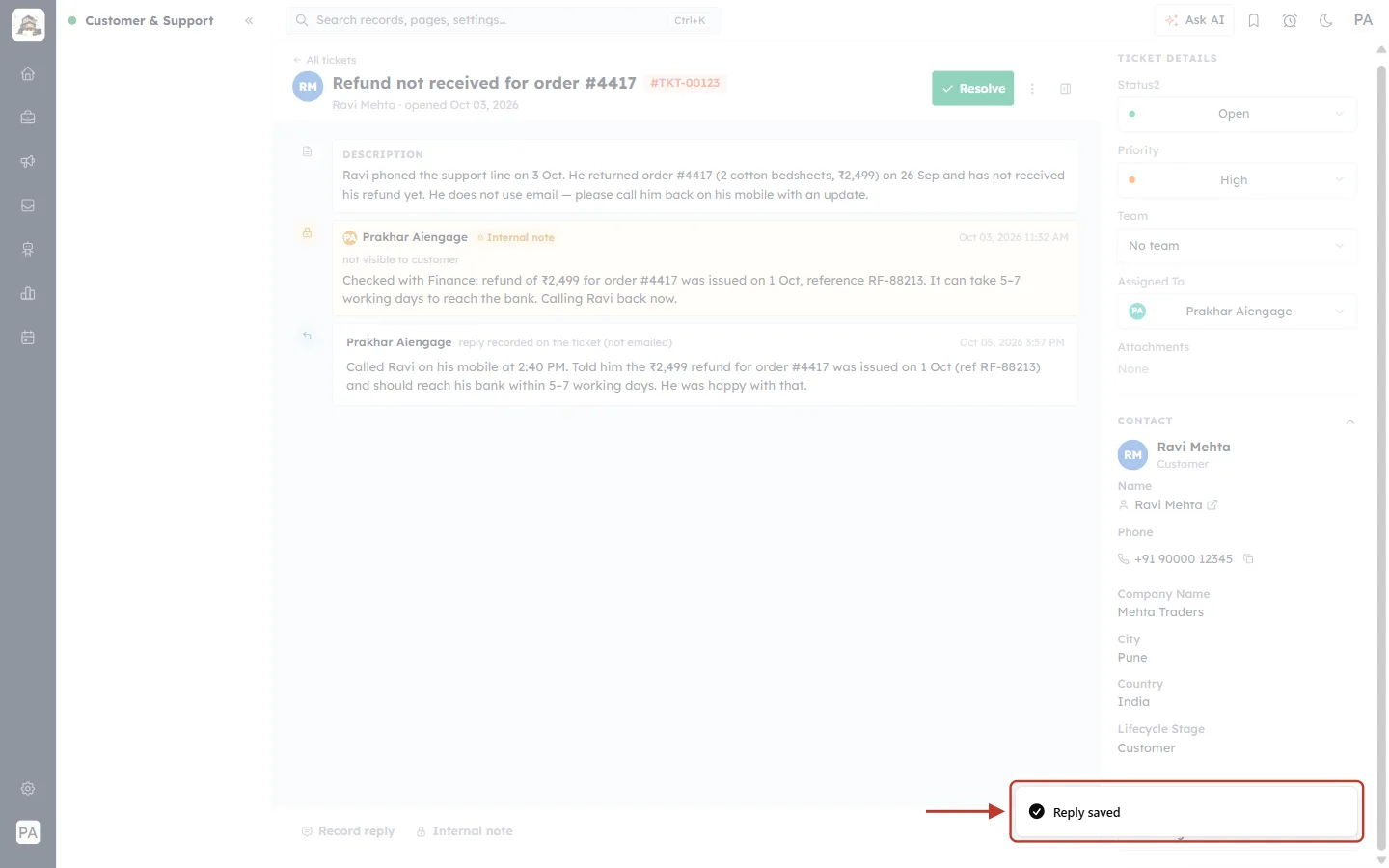
What this screenshot shows. The confirmation at the bottom right is ringed: Reply saved.
The message disappears after a few seconds.
The Record reply box closes and the reply appears in the thread.
Part 3 — See the recorded reply in the ticket#
Step 8: Find the reply in the thread#
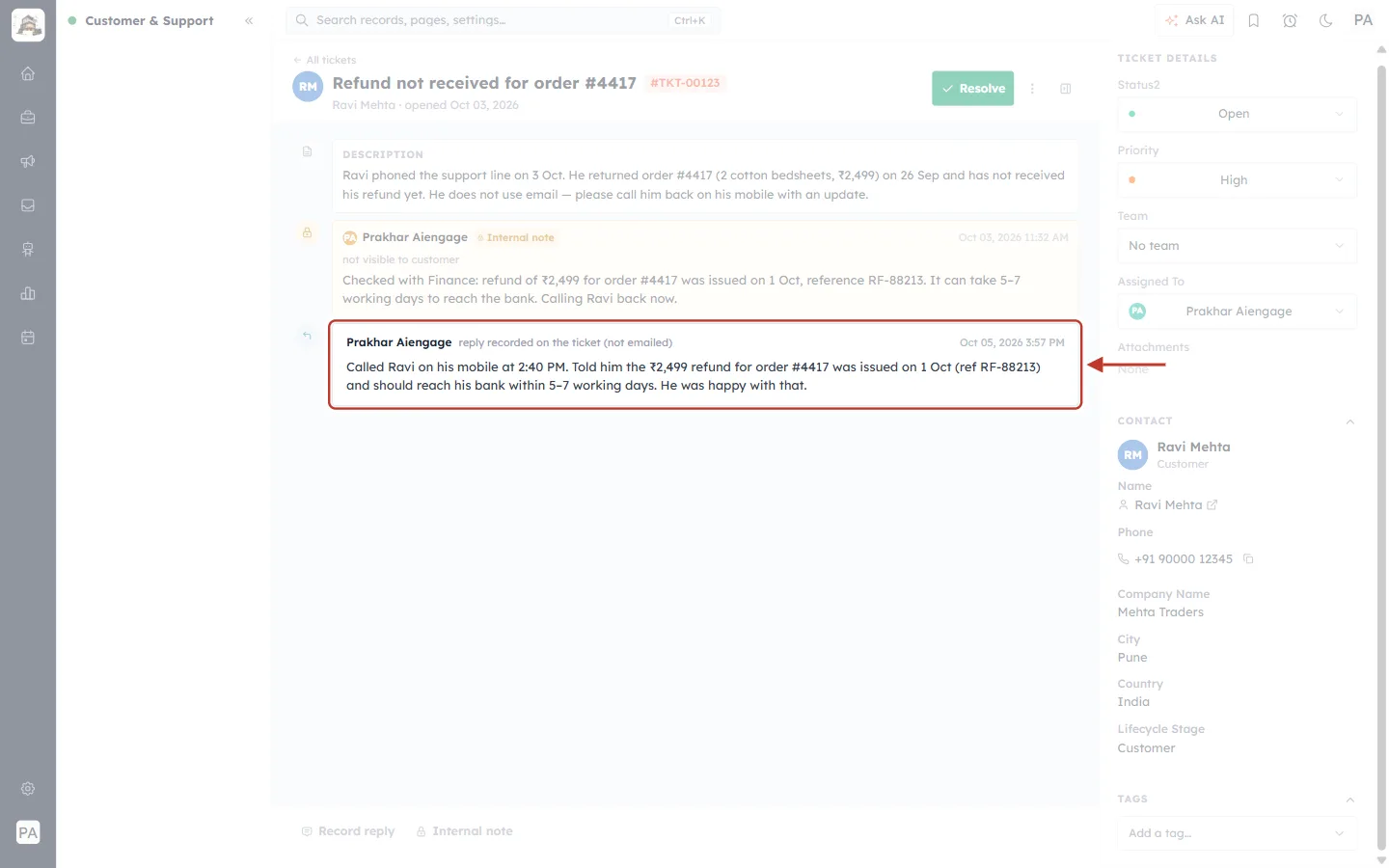
What this screenshot shows. The recorded reply, now part of the ticket conversation, is ringed.
The agent who recorded it (Prakhar Aiengage) and the label reply recorded on the ticket (not emailed).
The date and time it was saved (Oct 05, 2026 3:57 PM) on the right.
The text exactly as you wrote it.
A small reply arrow on the left of the card marks it as a reply to the customer.
Step 9: Tell a recorded reply apart from an internal note#
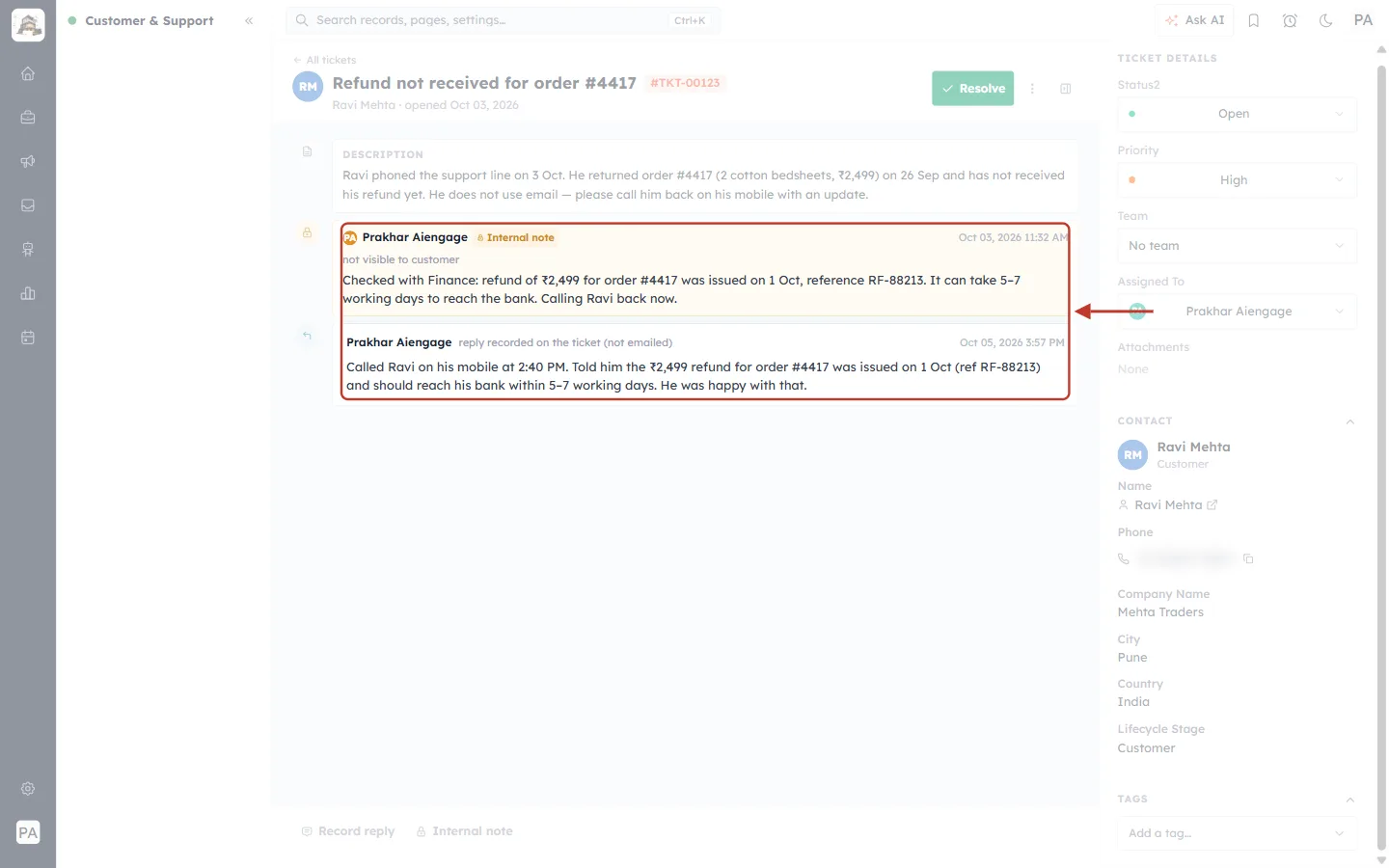
What this screenshot shows. The internal note and the recorded reply are ringed together, so you can compare them.
Internal note (top) — yellow card with a padlock, the Internal note badge and not visible to customer. Used to talk to your team.
Recorded reply (bottom) — white card with a reply arrow and reply recorded on the ticket (not emailed). Used to record what the customer was told.
Together they tell the whole story: what your team found out, then what the customer heard.
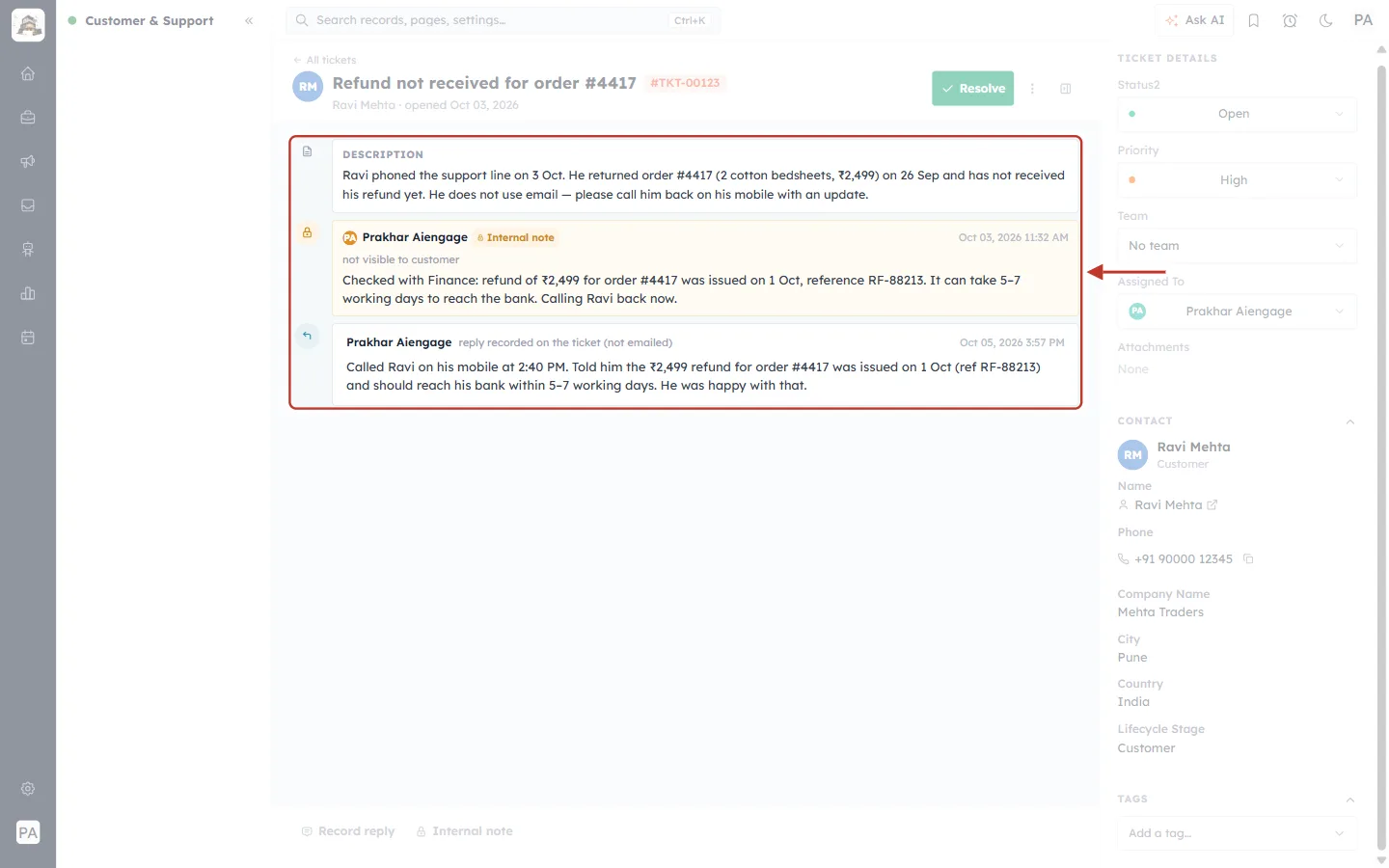
What this screenshot shows. The whole conversation is ringed: description, internal note and recorded reply, in time order.
Anyone who opens the ticket later — a colleague, a team lead, or you next week — can see exactly what the customer was told and when.
Step 10: Finish the ticket#
If the customer’s problem is solved, click Resolve at the top of the ticket. Since the customer has no email address, they won’t receive an email about it. See Assign, Prioritise, Tag & Change Ticket Status.
Part 4 — When the customer gives you an email address#
If the customer later gives you an email address, you can start replying by email on the same ticket:
In the CONTACT section, click the link icon next to the customer’s name to open their contact record.
Add their email address and save.
Open the ticket again — Reply, Reply all and Forward now appear instead of Record reply. Your earlier recorded replies stay in the thread.
ℹ️
Record reply is shown whenever the ticket’s contact has no email address. As soon as the contact has one, the ticket switches to email replies.
Good practice#
Record every answer, even short ones (“Called, no answer — will try again at 4 PM”). An empty thread looks like nobody helped.
Record straight after the call, while the details are fresh.
Use internal notes for team talk and recorded replies for what the customer heard — don’t mix the two.
Ask for an email address when it’s convenient for the customer, so you can send written confirmations in future.
Troubleshooting#
I don’t see Record reply. The contact has an email address — use Reply instead. Record reply only appears for contacts without email.
Save reply is greyed out. The box is empty. Type your reply first.
The box disappeared while I was typing. Clicking Record reply a second time closes the box. Click it again to reopen it.
I can’t record a reply at all. Your profile may not allow you to edit this ticket. Ask an administrator to check your Tickets permissions.
Frequently asked questions#
Does the customer receive anything? No. A recorded reply is saved on the ticket only — it is not emailed, texted or sent any other way.
Can my colleagues see recorded replies? Yes. Everyone who can open the ticket sees them in the thread.
Can I attach a file or format the text? No — a recorded reply is plain text. If you need to keep a file with the ticket, attach it to an internal note.
What if the ticket came from a WhatsApp or website chat? If the customer is still in the chat, answer them there from the Team Inbox — see Turn Chats into Tickets. Use Record reply to log answers you gave outside the CRM.
Previous and next#
Previous: Internal Notes & @Mentions: Talk to Your Team Privately on a Ticket (Step-by-Step)
Next: Assign, Prioritise, Tag & Change Ticket Status: Organise and Resolve Support Tickets (Step-by-Step)
Related#
Was this article helpful?
Ready to implement this?
OpenAI Engage and apply what you just learned to your own workspace.
Open AI Engage CRM