Loading…


KnowledgeBase
Email Directory: Find Every Email Address on Your Support Tickets and Reuse It When Replying (Step-by-Step)
What is the Email Directory?#
Over time your support team exchanges email with many people: customers, their colleagues who were copied in, suppliers, couriers and your own shared addresses. The Email Directory keeps a single list of every email address that has appeared on your ticket emails, so you can look someone up quickly and reuse their address without retyping it.
The directory builds itself; there is nothing to set up or type in. Every time a ticket email is received, sent or replied to, each address on it (in the From, To, Cc, Bcc or Reply-To line) is added, or updated if it is already there.
Use it to… | How |
|---|---|
Find the right address for someone | Search by name, address or company domain (Part 2). |
See who you deal with most | Read the Tickets and Last used columns (Part 1). |
Spot addresses that aren’t customers yet | Look for rows with no name, or names that don’t match a contact. |
Add people to a reply quickly | Start typing in To, Cc or Bcc; addresses from the directory are suggested (Part 3). |
ℹ️
Everyone in the directory comes from ticket emails only: support mailboxes and replies sent from tickets. Contacts who have never emailed support, and chats or WhatsApp conversations, don’t appear here.
Before you begin#
Customer Support switched on for your organisation, with at least one email channel, usually a connected support mailbox. See Connect a Support Mailbox (Email-to-Ticket).
Access to tickets. You need some ticket view access in your profile (All, Team or Own). Users with no ticket access can’t open the directory. See Ticket Permissions.
The directory only lists your own organisation’s addresses; nobody outside your organisation can see them.
Part 1: Open and read the Email Directory#
Step 1: Click Email Directory in the sidebar#
Open Customer Support (the headset icon in the left rail). Near the bottom of the sidebar, below Trash, click Email Directory.
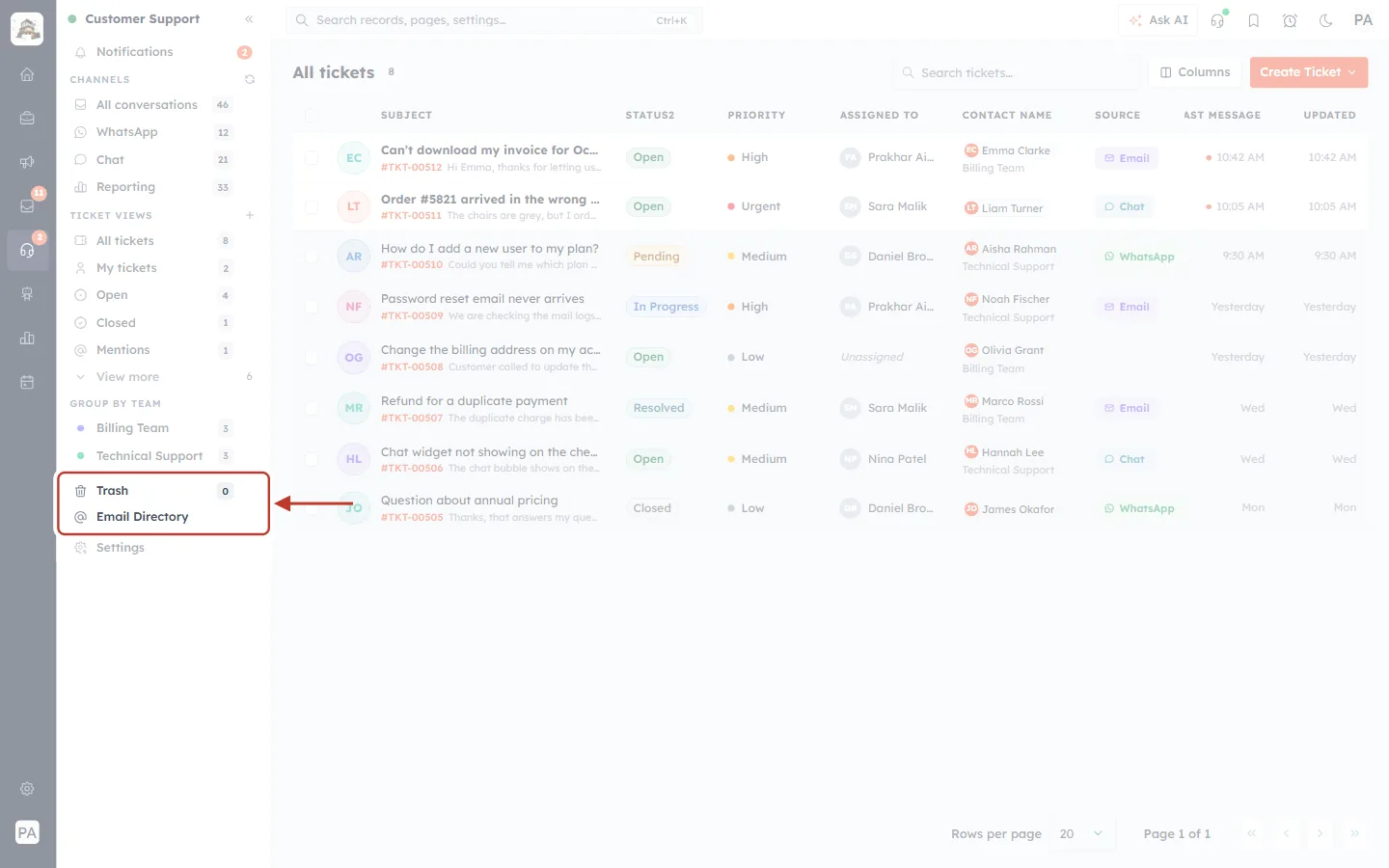
What this screenshot shows. Trash and Email Directory are ringed at the bottom of the Customer Support sidebar.
Email Directory (@ icon): opens the directory.
Trash (above it): deleted tickets. Like the directory, it is a place you visit on purpose rather than a ticket view.
The ticket list on the right (faded) shows sample tickets.
You can also go straight to app.aiengagecrm.com/dashboard/tickets/email-directory.
Step 2: Get to know the page#
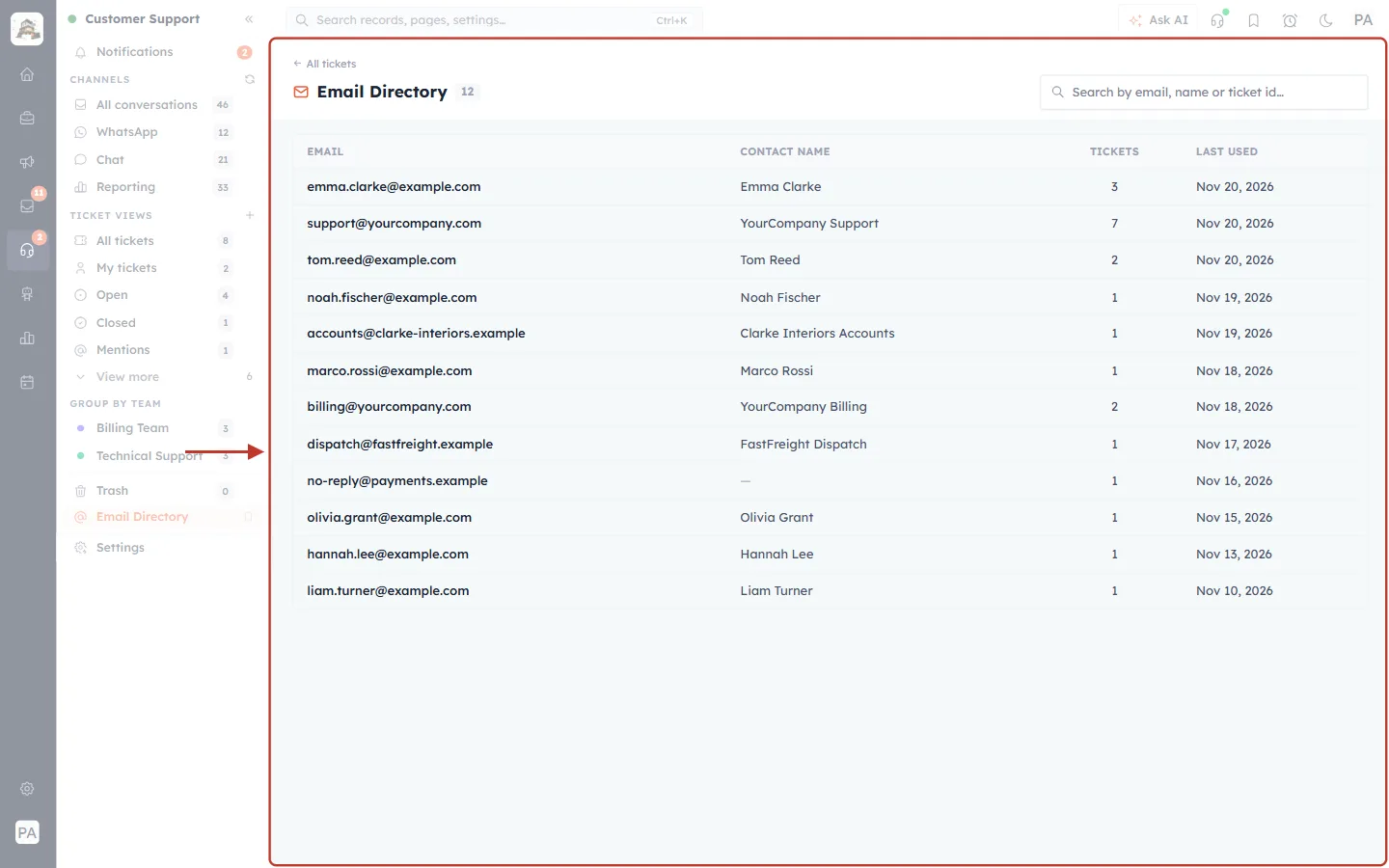
What this screenshot shows. The whole Email Directory page is ringed. (All addresses in these screenshots are samples.)
The header at the top: a link back to your tickets, the page title with a count, and a search box (Step 3).
The table: one row per email address, with the most recently used at the top (Step 4).
The page is read-only: there is nothing to add, edit or delete. It keeps itself up to date from your ticket emails.
Step 3: Read the header#
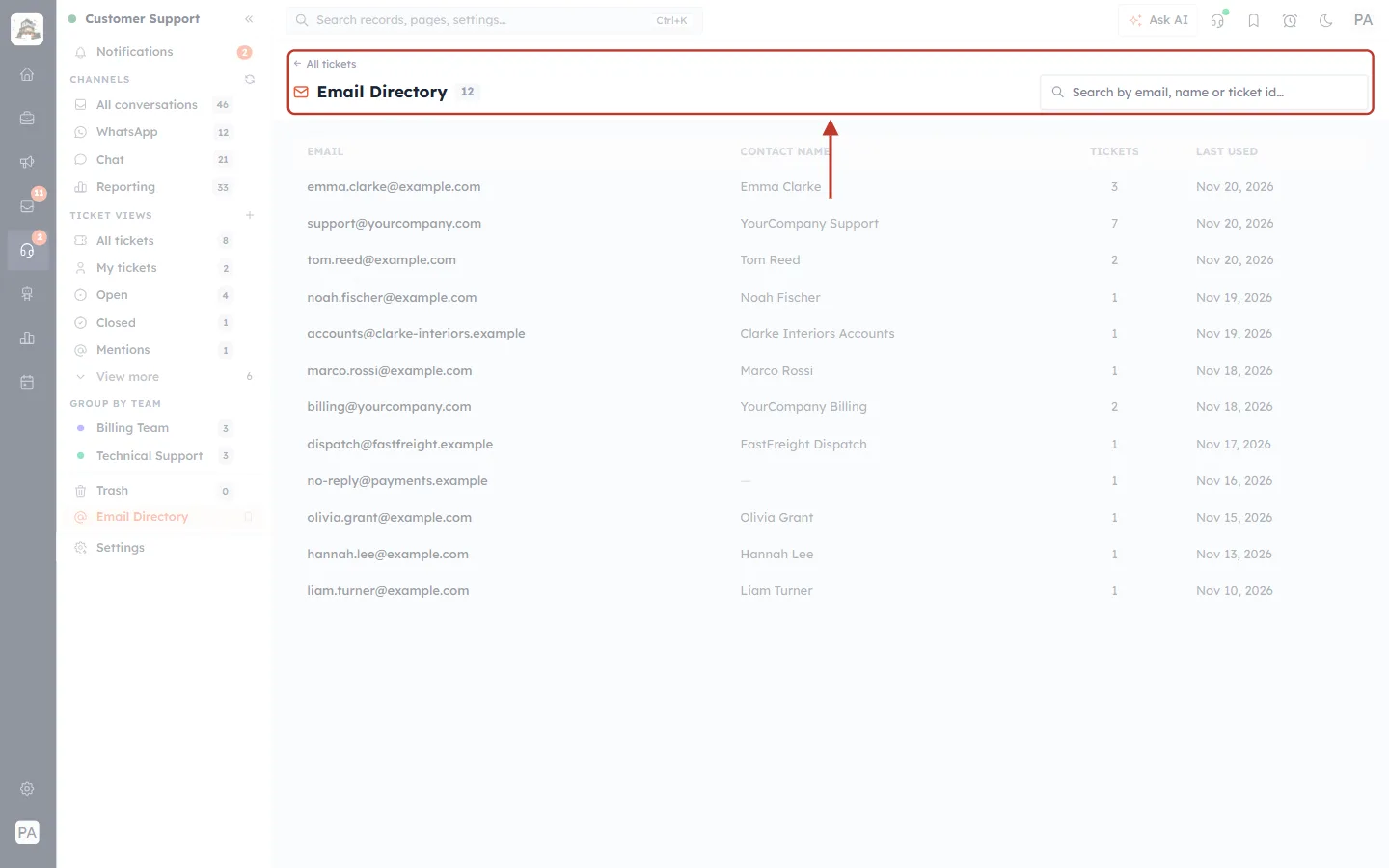
What this screenshot shows. The header is ringed.
← All tickets: goes back to the ticket list.
Email Directory 12: the title and the number of addresses in the directory (or, while you search, how many match).
Search by email, name or ticket id…: the search box (Part 2).
Step 4: Read the table#
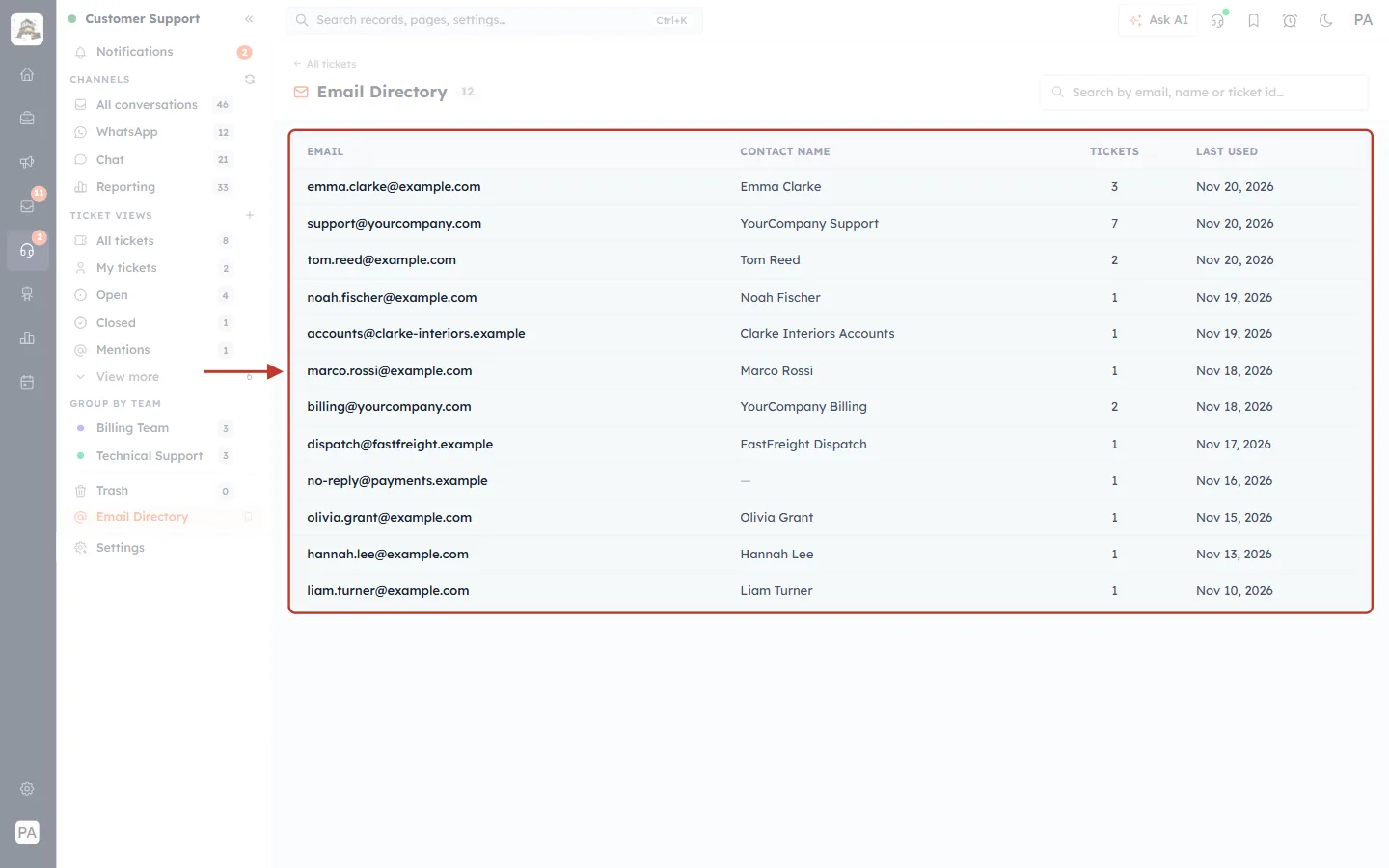
What this screenshot shows. The table is ringed. It has four columns.
EMAIL: the address, always stored in lower case, so Emma.Clarke@Example.com and emma.clarke@example.com are the same row. Each address appears only once.
CONTACT NAME: the name that came with the address on the email (for example “Emma Clarke” <emma.clarke@example.com>). It is updated when a newer email shows a better name.
TICKETS: how many tickets the address has appeared on, as sender or recipient.
LAST USED: the date of the most recent ticket email with this address on it.
Rows are sorted by Last used, newest first, and the page shows the 25 most recent addresses. Use search to find older ones.
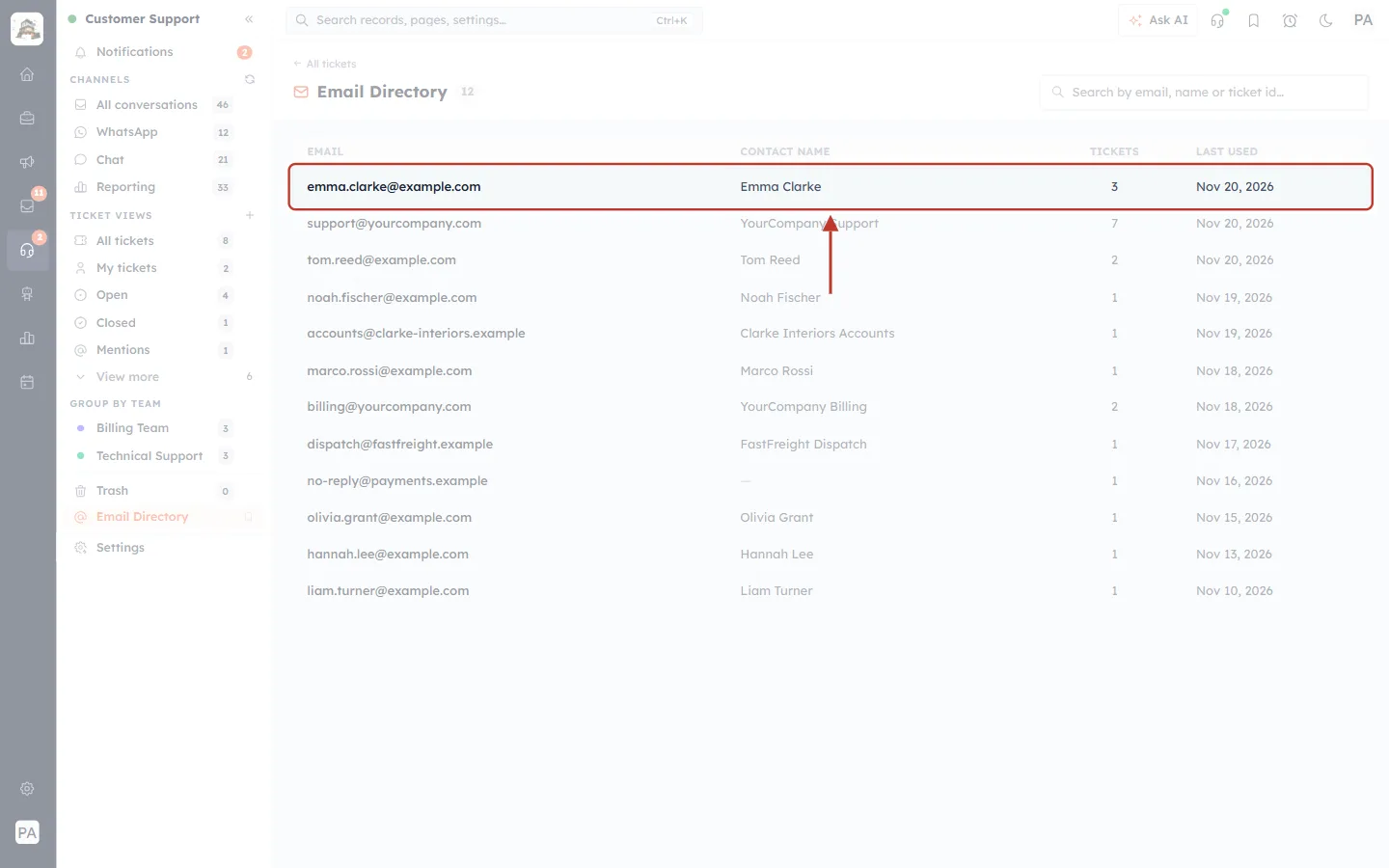
What this screenshot shows. One row is ringed: emma.clarke@example.com.
Emma Clarke: her name from her emails.
3: she has been on three tickets.
Nov 20, 2026: the last ticket email with her address was today.
Your own shared addresses appear too. In this sample, support@yourcompany.com is on 7 tickets, because it receives and sends every reply.
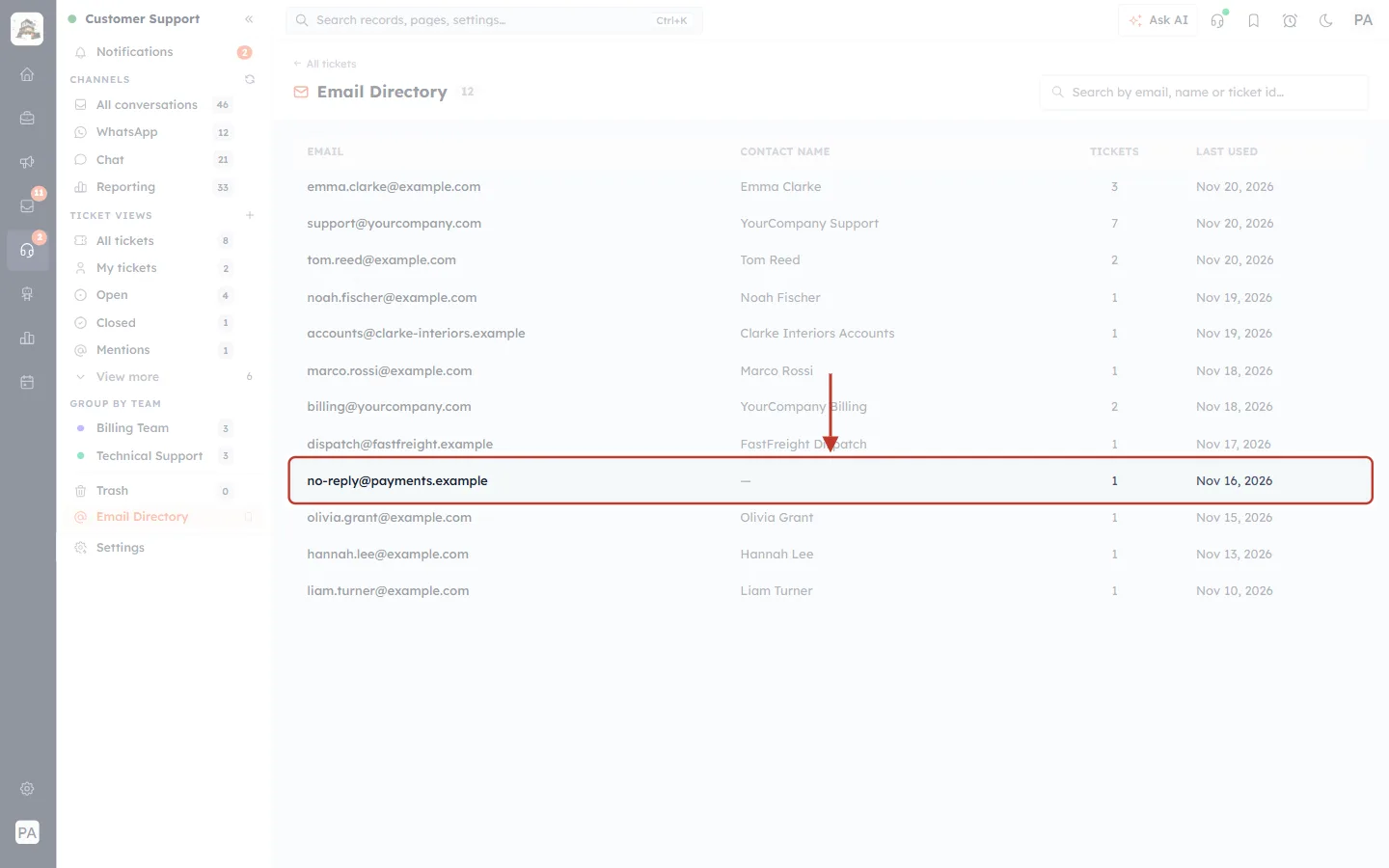
What this screenshot shows. A row with no name is ringed: no-reply@payments.example, with a dash (—) under Contact name.
A dash means the emails carried only a bare address, with no display name. Automated senders often look like this.
If automated senders like this keep creating tickets, add them to your mailbox’s exclusion rules (see Connect a Support Mailbox (Email-to-Ticket)).
Part 2: Search the directory#
Type in the search box. The list updates as you type, after a short pause.
Step 5: Search by name#
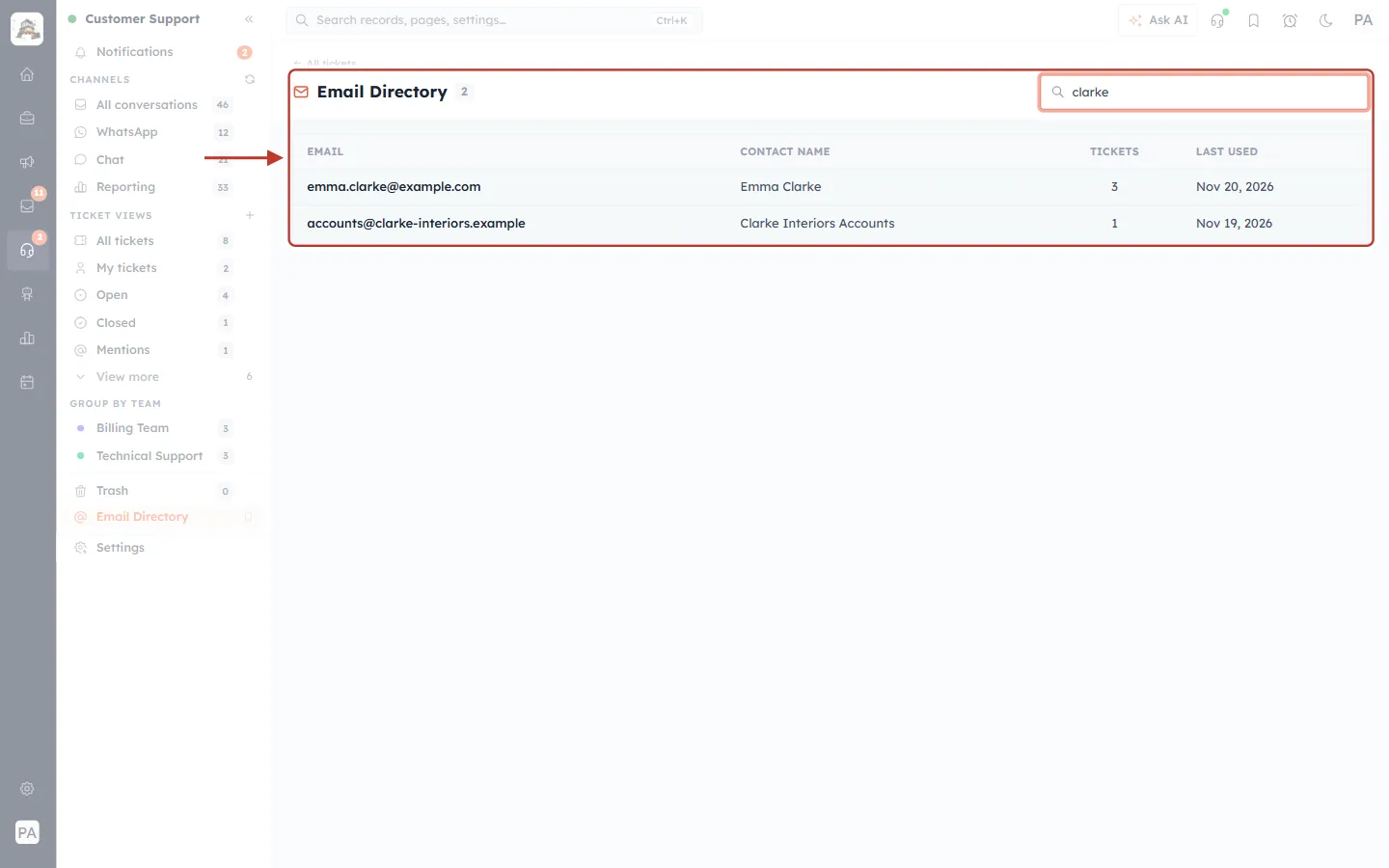
What this screenshot shows. The search box with clarke typed in, and the results, are ringed.
Search matches any part of the name or the address, so clarke finds both emma.clarke@example.com (by name and address) and accounts@clarke-interiors.example (by address and name).
The count beside the title changes to 2, the number of matches.
Upper or lower case doesn’t matter.
Step 6: Search by company domain#
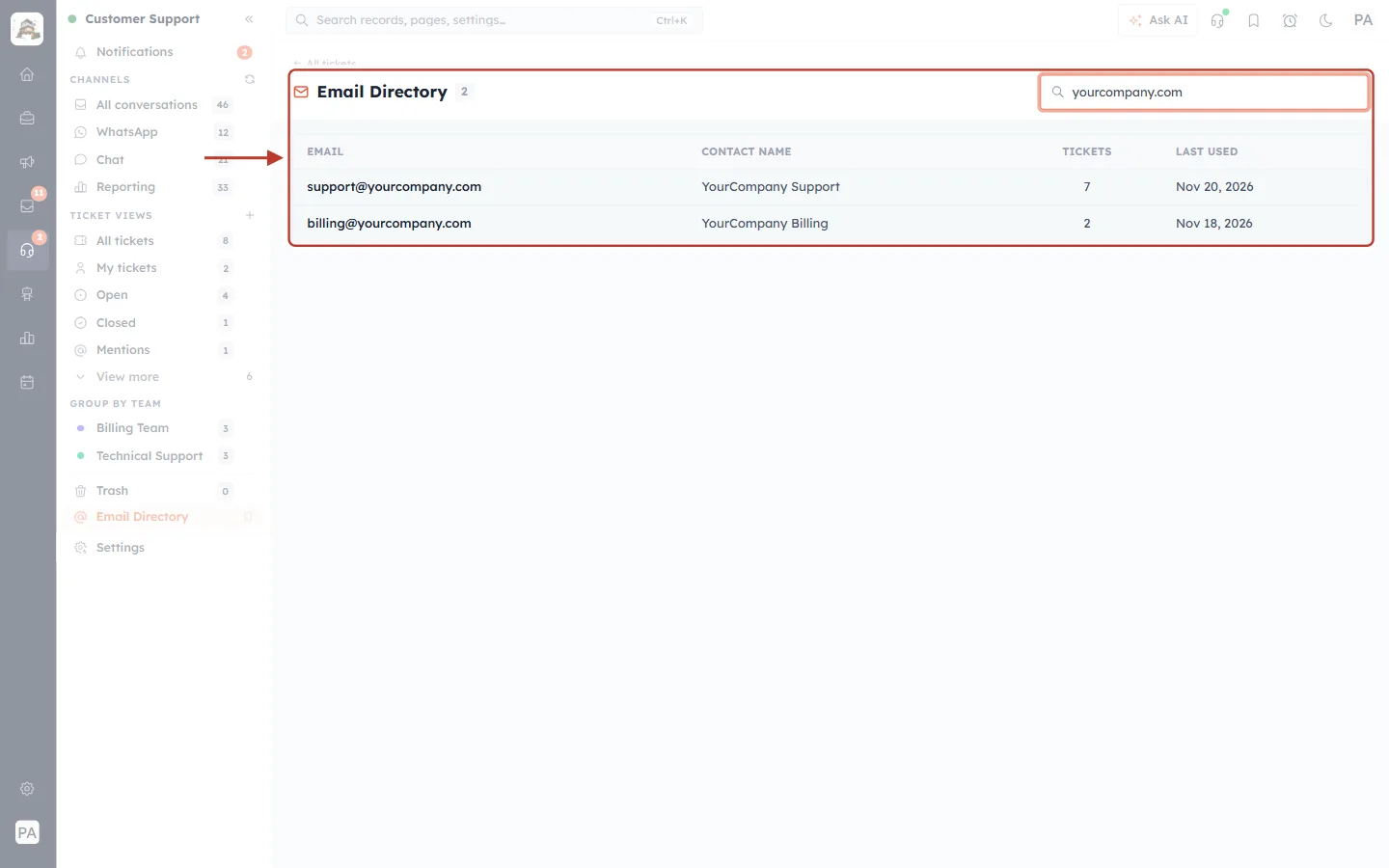
What this screenshot shows. With yourcompany.com typed in, the results are ringed.
Typing a domain lists every address at that company, here your own support@ and billing@ addresses.
Use it to find everyone you have dealt with at a customer’s business, for example clarke-interiors.
You can also paste a ticket ID to list everyone who was on that ticket’s emails.
Step 7: When nothing matches#
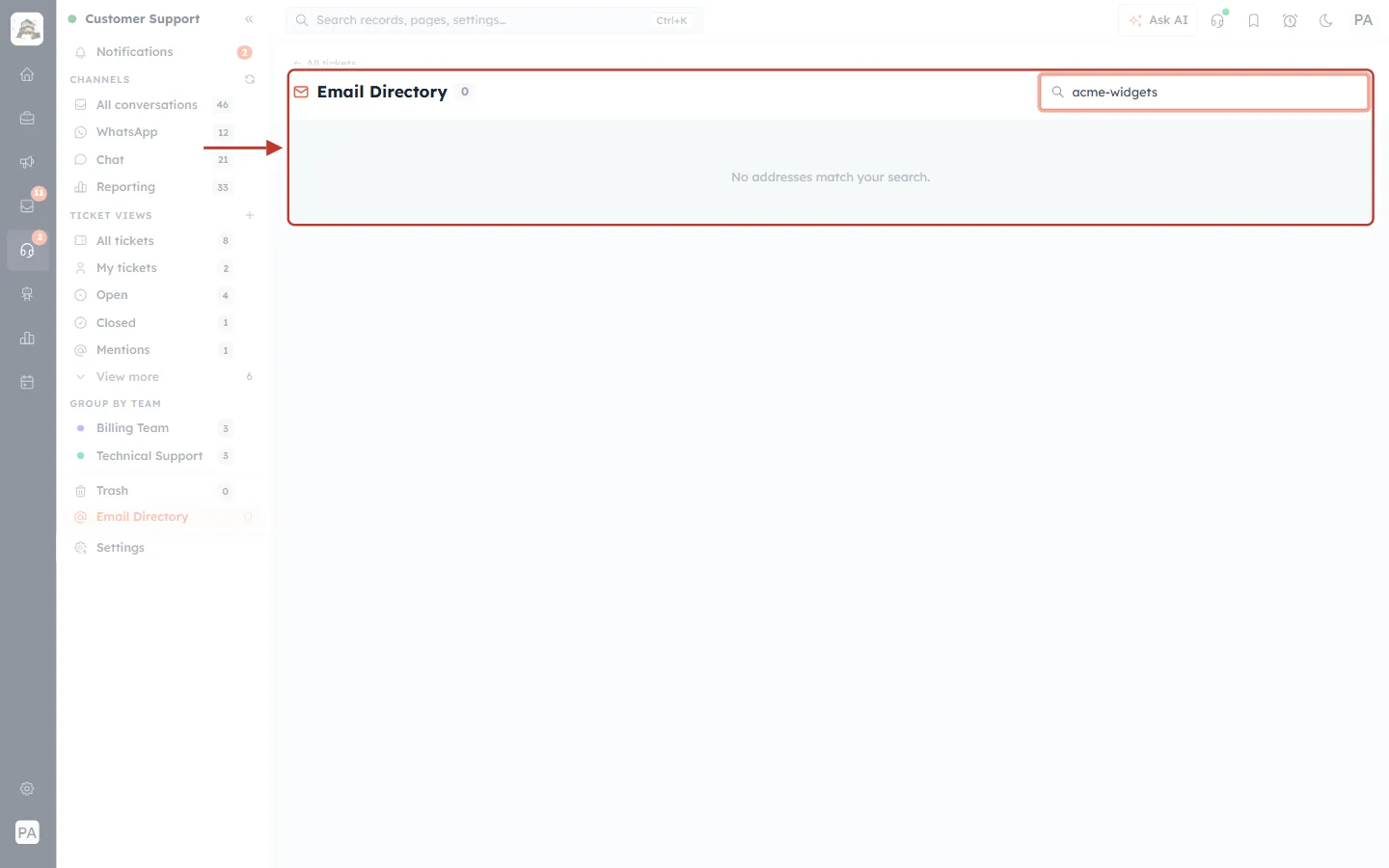
What this screenshot shows. With acme-widgets typed in, the empty result is ringed: No addresses match your search.
Nobody with that name or address has appeared on a ticket email yet.
Check the spelling, or try part of the name or domain. Clear the box to see the full list again.
Part 3: Use the directory when replying#
The directory also powers the address fields in the reply composer. When you reply to a ticket and type in To, Cc or Bcc, matching addresses from the directory are suggested.
Step 8: Type part of a name or address#
Open a ticket and click Reply (see Reply to Customers from a Ticket). Click Cc (or To, or Bcc) and start typing.
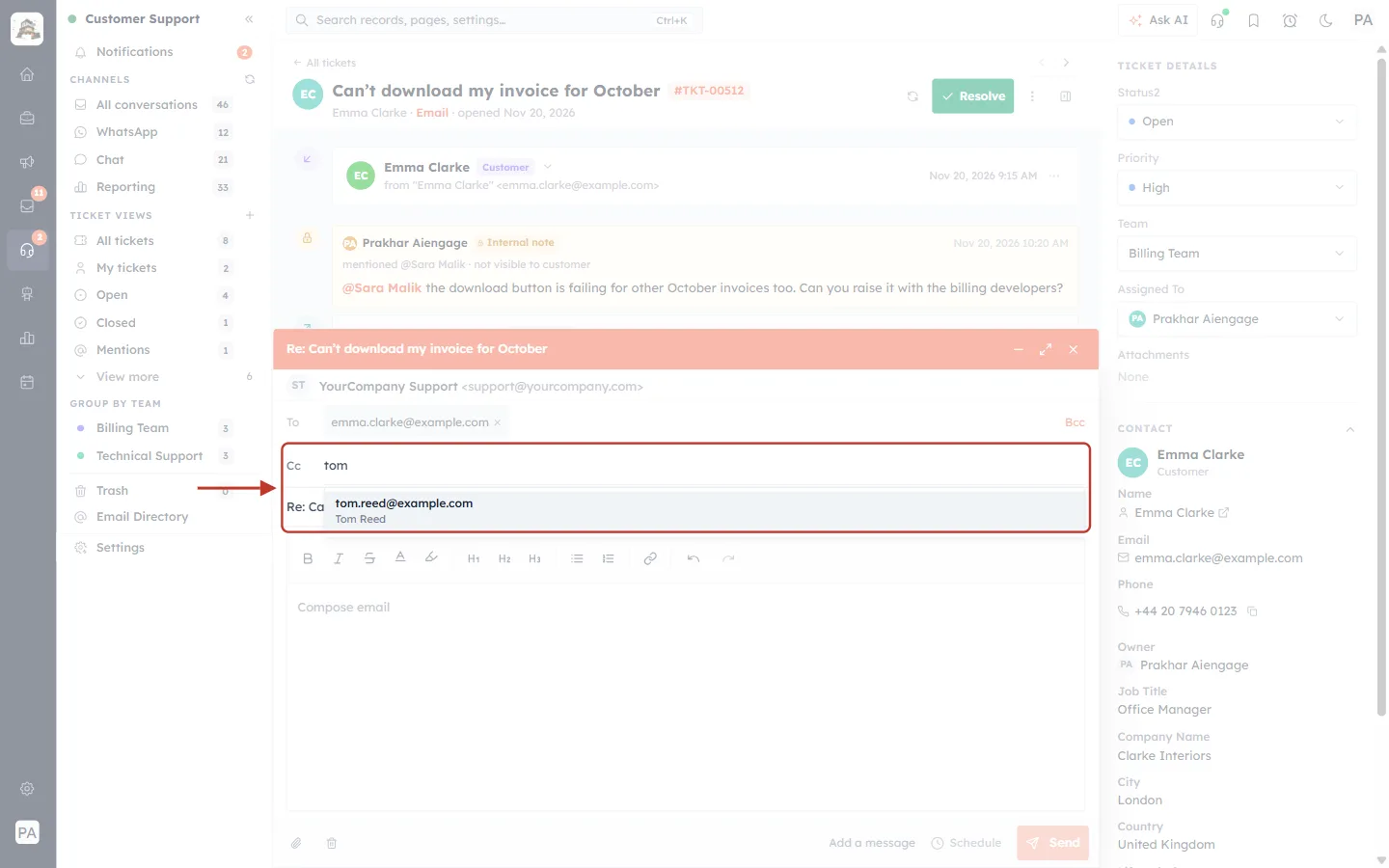
What this screenshot shows. In the reply composer, tom has been typed in the Cc field, and the suggestion is ringed.
tom.reed@example.com · Tom Reed: the address and name from the directory. Tom was copied in on earlier emails from this customer.
Click a suggestion, or use the ↑ and ↓ keys and press Enter, to add it.
You can still type any full address yourself, even one that isn’t in the directory yet.
Step 9: Check the added address#
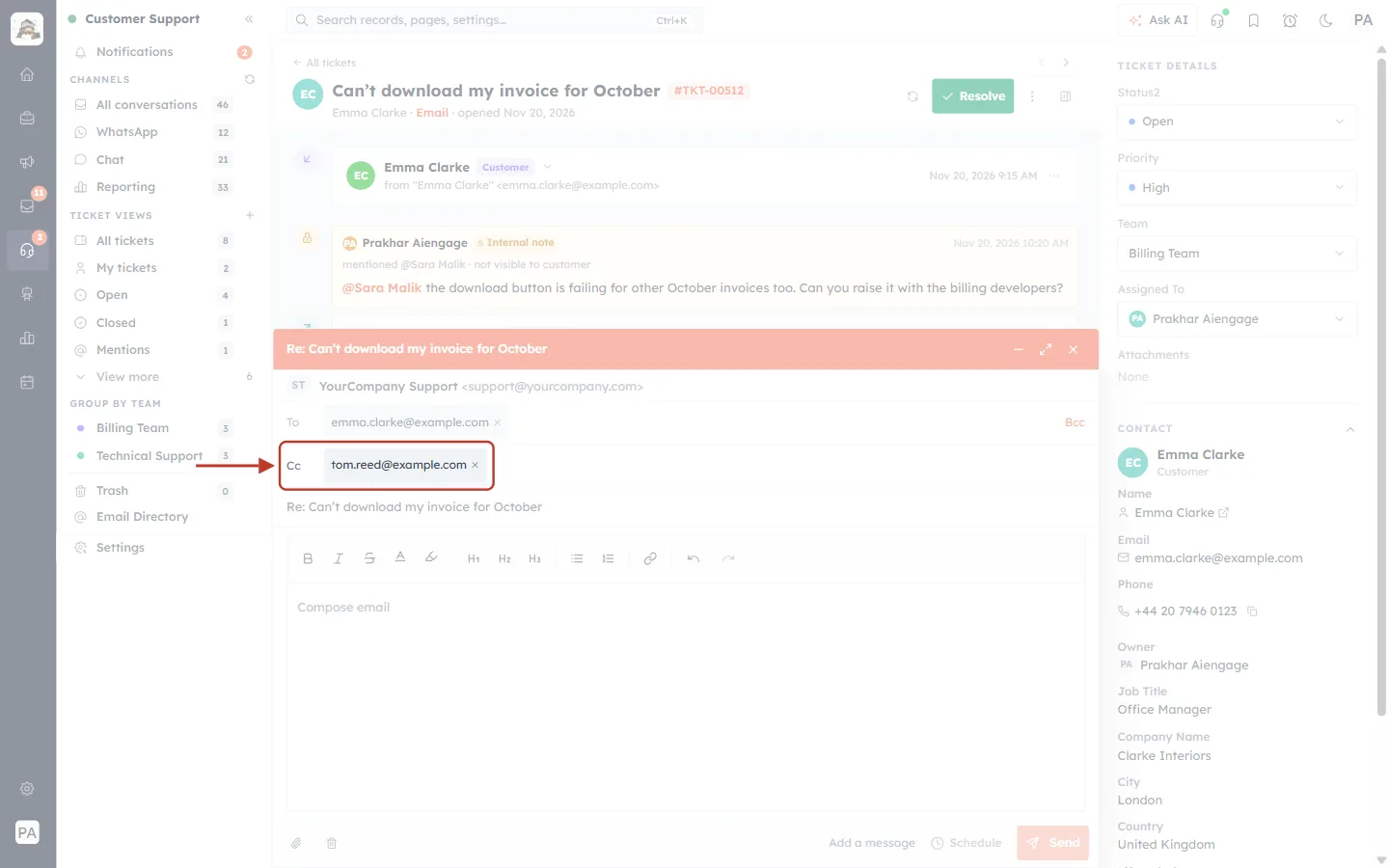
What this screenshot shows. The Cc field is ringed, now holding tom.reed@example.com as a chip.
Click the × on the chip to remove it.
Once you send the reply, everyone on it is recorded in the directory, so new people you copy in are suggested next time.
✅
Typing two or three letters of a name is usually enough. It’s faster and safer than retyping long addresses, and avoids replies going to a mistyped address.
Good to know#
It fills itself. There is no import, add or delete. Addresses appear as soon as a ticket email that includes them is received or sent.
Only ticket emails count. Marketing emails, chats and WhatsApp messages don’t add addresses.
The directory is not your contact list. It records who appeared on support emails, not your CRM contacts. To turn an address into a contact, add it as a contact (support mailboxes can do this automatically with Auto-create contact).
Last used only moves forward. An older email can never make an address look less recently used.
Troubleshooting#
I can’t see Email Directory in the sidebar. Customer Support may be switched off, or your profile has no ticket access. Ask your admin.
“No email addresses yet.” No ticket emails have been received or sent yet. Connect a support mailbox, or reply to a ticket by email.
Someone I emailed isn’t listed. Only addresses on ticket emails are recorded. If you emailed them from somewhere else, they won’t appear. Try searching part of their name or domain; the page only shows the 25 most recent until you search.
A name is wrong or missing. The name comes from the emails themselves, not from your contacts. It updates when a newer email shows a better name.
No suggestions appear when I type in Cc. Type at least a couple of letters and pause briefly. If the person has never been on a ticket email, there is nothing to suggest; type their full address.
Previous and next#
Previous: Reply to Customers from a Ticket: Reply, Reply All, Forward & Schedule Emails (Step-by-Step)
Next: Internal Notes & @Mentions: Talk to Your Team Privately on a Ticket (Step-by-Step)
Related#
Was this article helpful?
Ready to implement this?
OpenAI Engage and apply what you just learned to your own workspace.
Open AI Engage CRM