Loading…


KnowledgeBase
Agent Chat Availability: Switch Your Live Chats On or Off with Chat on / Chat off (Step-by-Step)
Introduction#
When a visitor on your website chat asks to speak to a person, AiEngage CRM routes the conversation to an agent who is available. Chat availability is your personal answer to the question “Am I taking live chats right now?”. You set it with the Chat on / Chat off menu in the top bar.
Chat on: visitors who ask for a person can be routed to you.
Chat off: new live chats go to the rest of your team, not to you. Use it when you go to lunch, join a meeting or finish for the day.
It only changes your own availability. It doesn’t switch live chat off for the team, and nobody can change someone else’s availability.
Part | What you’ll learn |
|---|---|
Part 1 | Find the chat availability button and read its green or red dot |
Part 2 | Switch yourself off with Chat off |
Part 3 | Switch yourself back on with Chat on |
Part 4 | How availability works: when you count as online, and what website visitors see |
Part 5 | For admins: your switch versus the organization’s chat switch |
ℹ️
Before you start: chat availability is part of Customer Support. If Customer Support isn’t switched on for your workspace, you won’t see the button. See Turn Customer Support On or Off.
Part 1: Find the chat availability button#
Step 1: Open Customer Support#
The button only appears while you are working in Customer Support (tickets, chats and support settings). Click the headset icon in the dark icon bar on the left to go there.
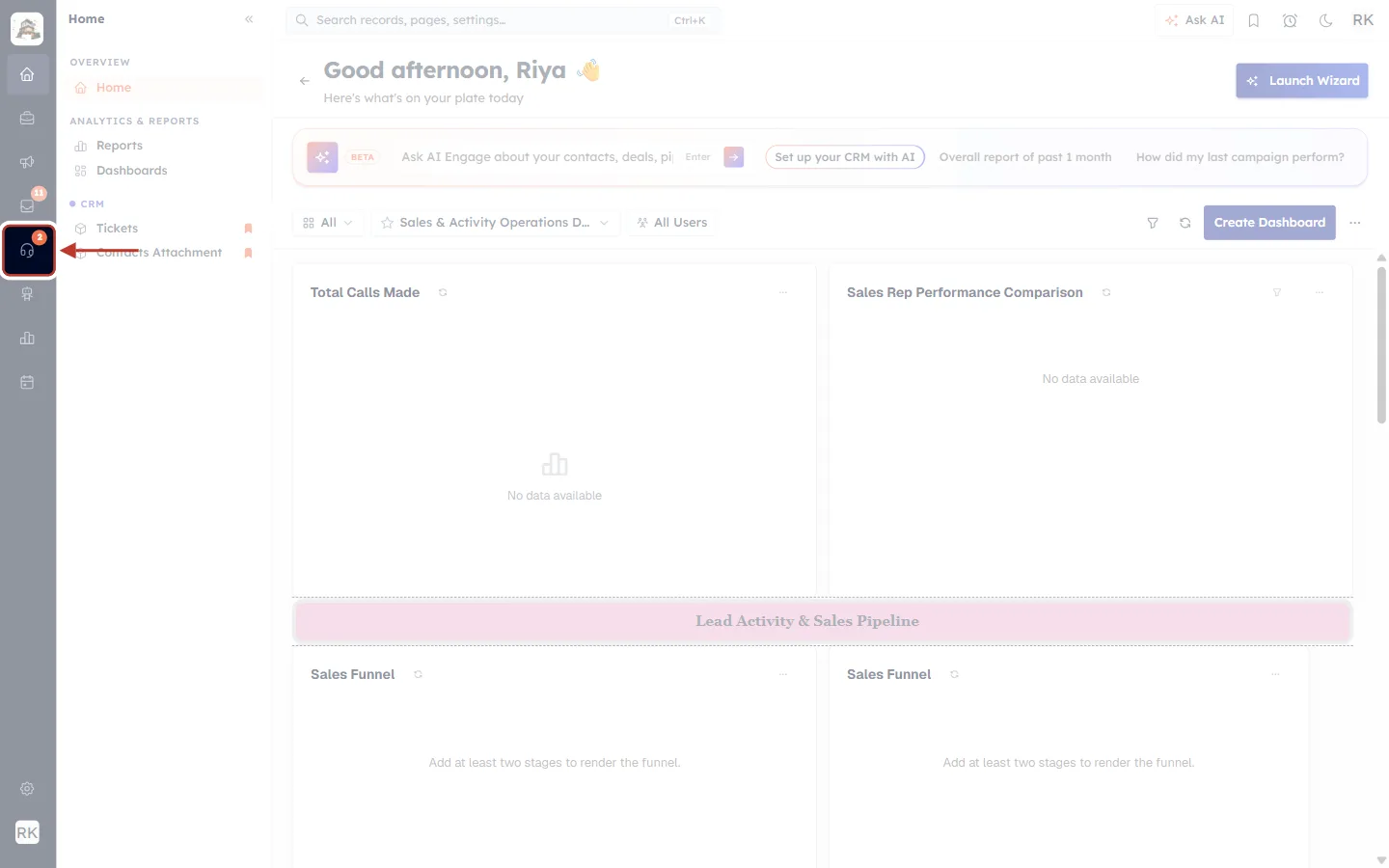
What this screenshot shows. The left icon bar with the Customer Support headset icon ringed, and the red arrow pointing to it.
This is the Customer Support area: tickets, live chats and support settings.
On other pages, such as Home, Dashboards or a contact record, the button isn’t shown. There, the top-right icons are just Ask AI, bookmarks, reminders, dark mode and your profile:
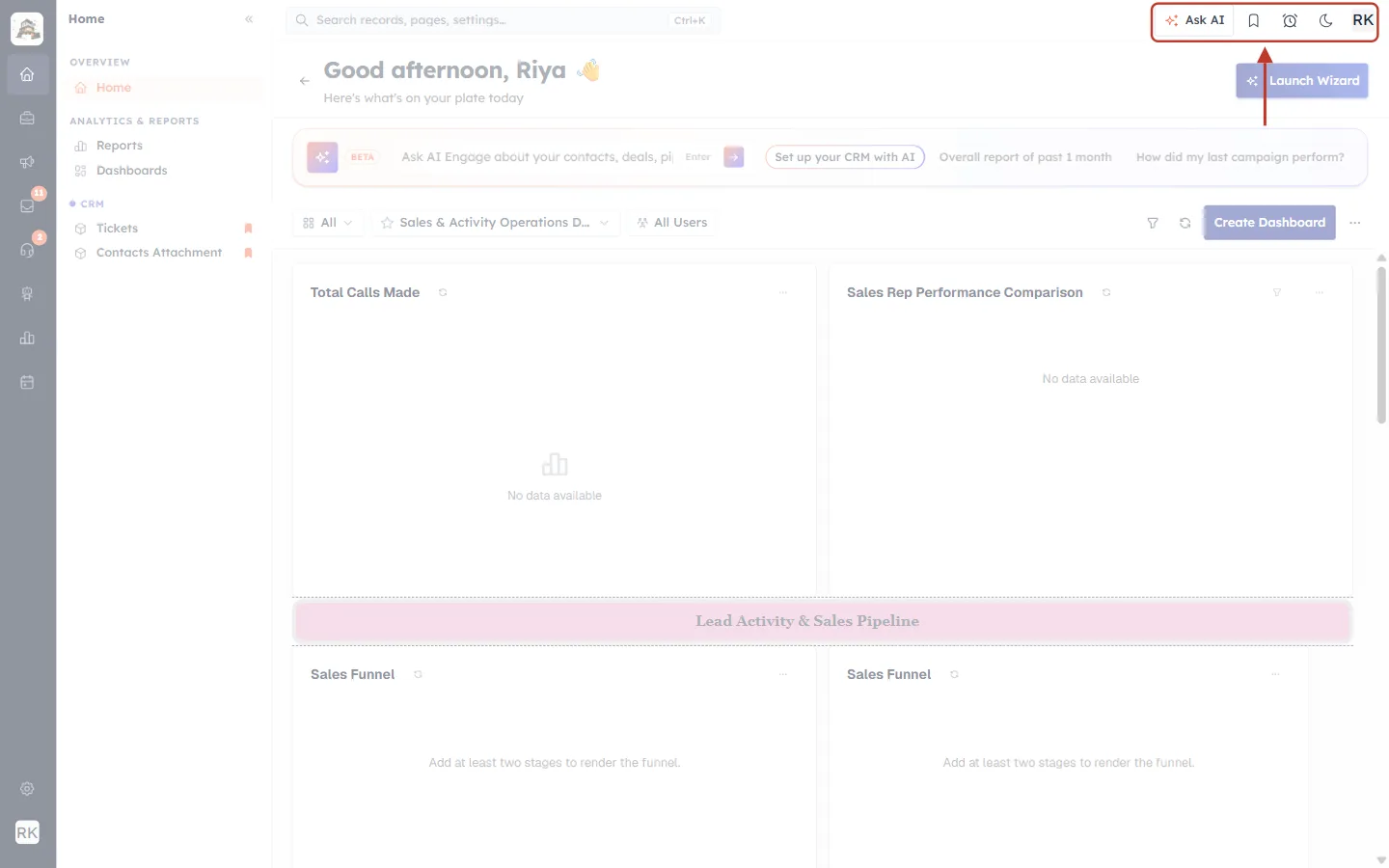
What this screenshot shows. The Home page. The ring surrounds the icons at the top right: Ask AI, the bookmark, the reminders clock, the dark-mode moon and your initials. There’s no headset here.
Your availability still applies while you’re on other pages. The button is simply only shown inside Customer Support, where you work on chats.
Step 2: Find the headset in the top bar#
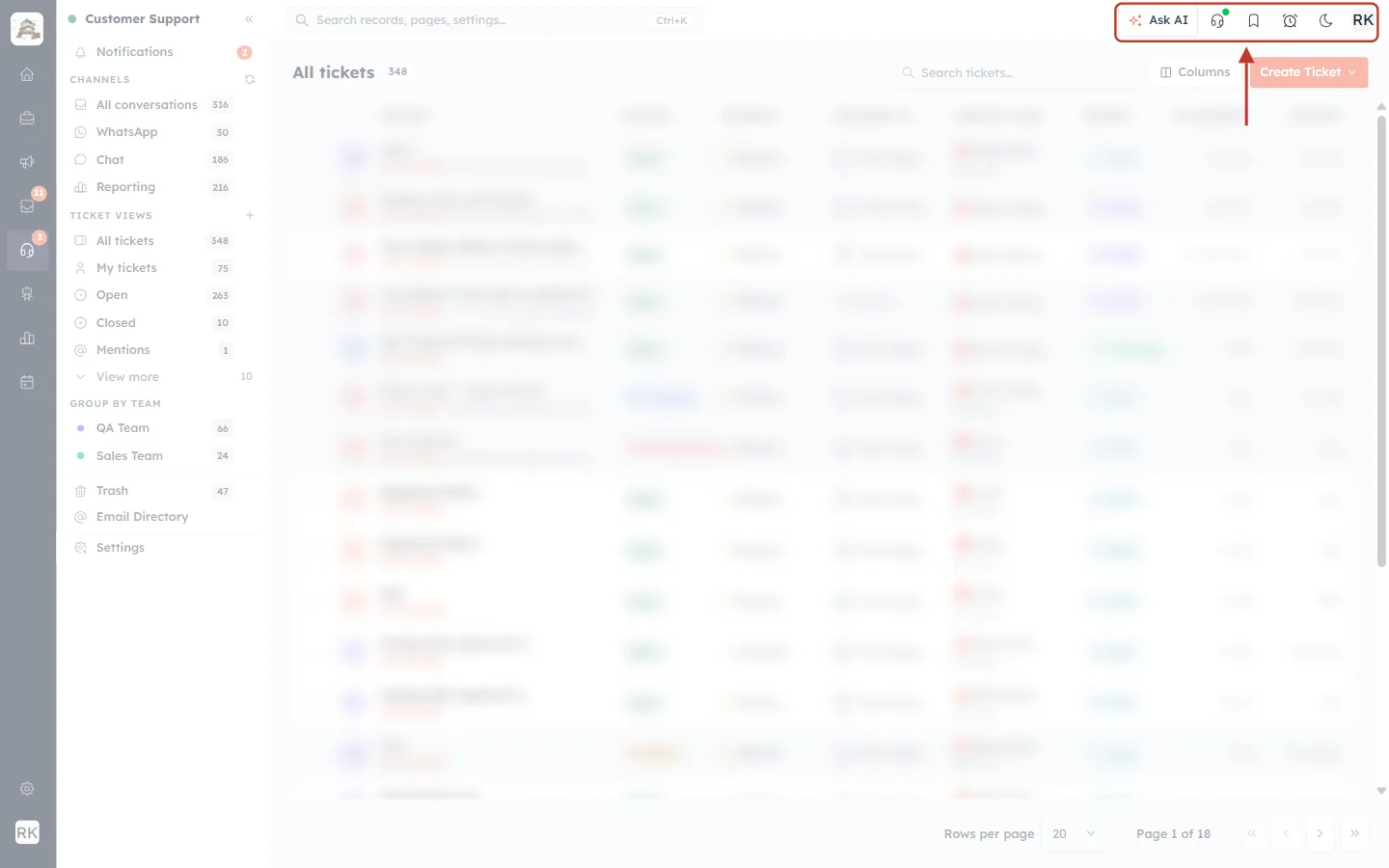
What this screenshot shows. The All tickets page in Customer Support. The ring surrounds the icons at the top right, which now include a headset with a small coloured dot, between Ask AI and the bookmark icon. The ticket list behind is blurred.
The headset in the top bar is your chat availability. The headset in the left icon bar opens Customer Support. Same symbol, two different buttons.
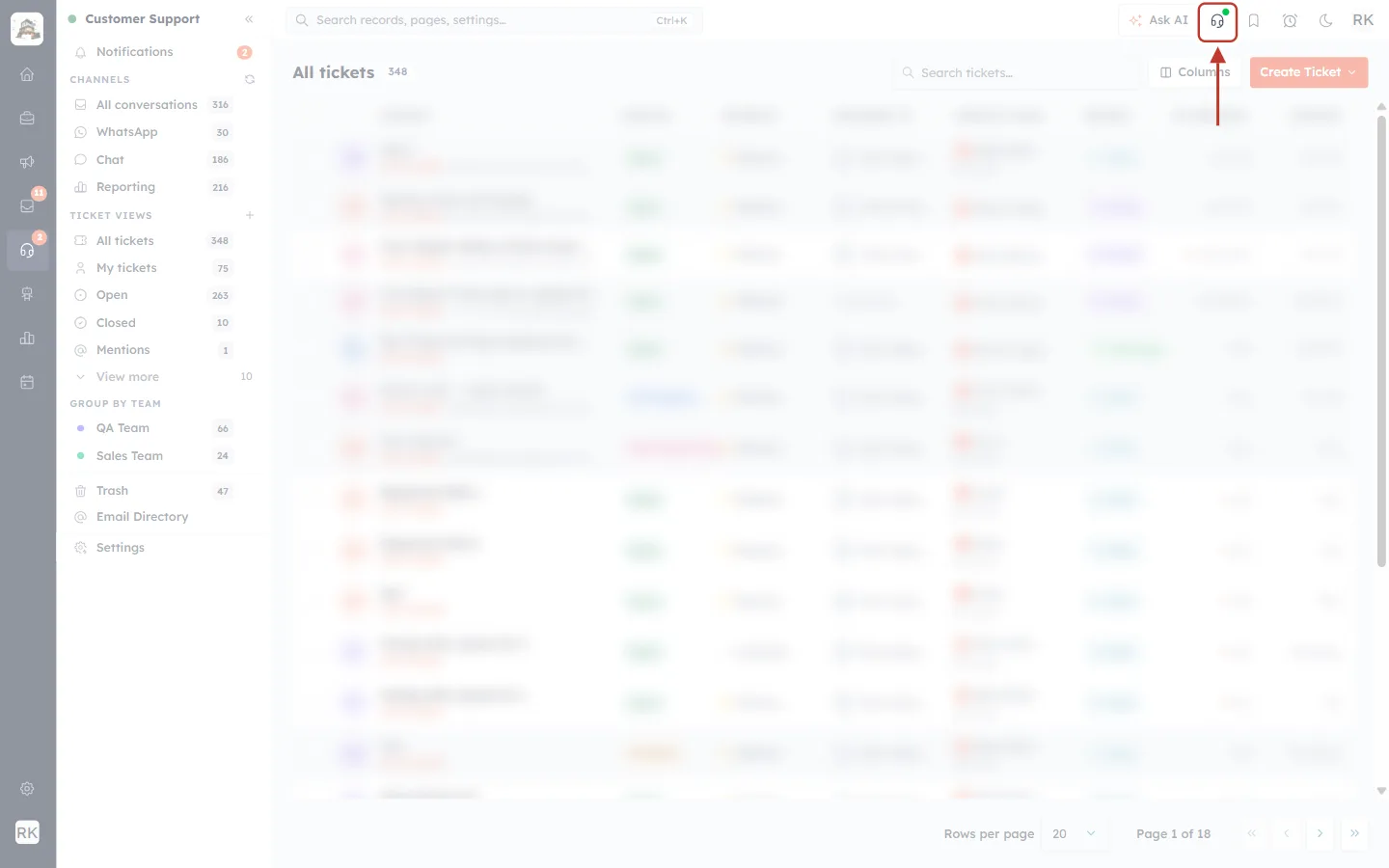
What this screenshot shows. A close-up of the headset button in the top bar, ringed. Its small green dot means you are taking live chats.
Green dot: Chat on. Visitors can be routed to you.
Red dot: Chat off. New live chats go to the rest of your team.
Step 3: Hover to read your status#
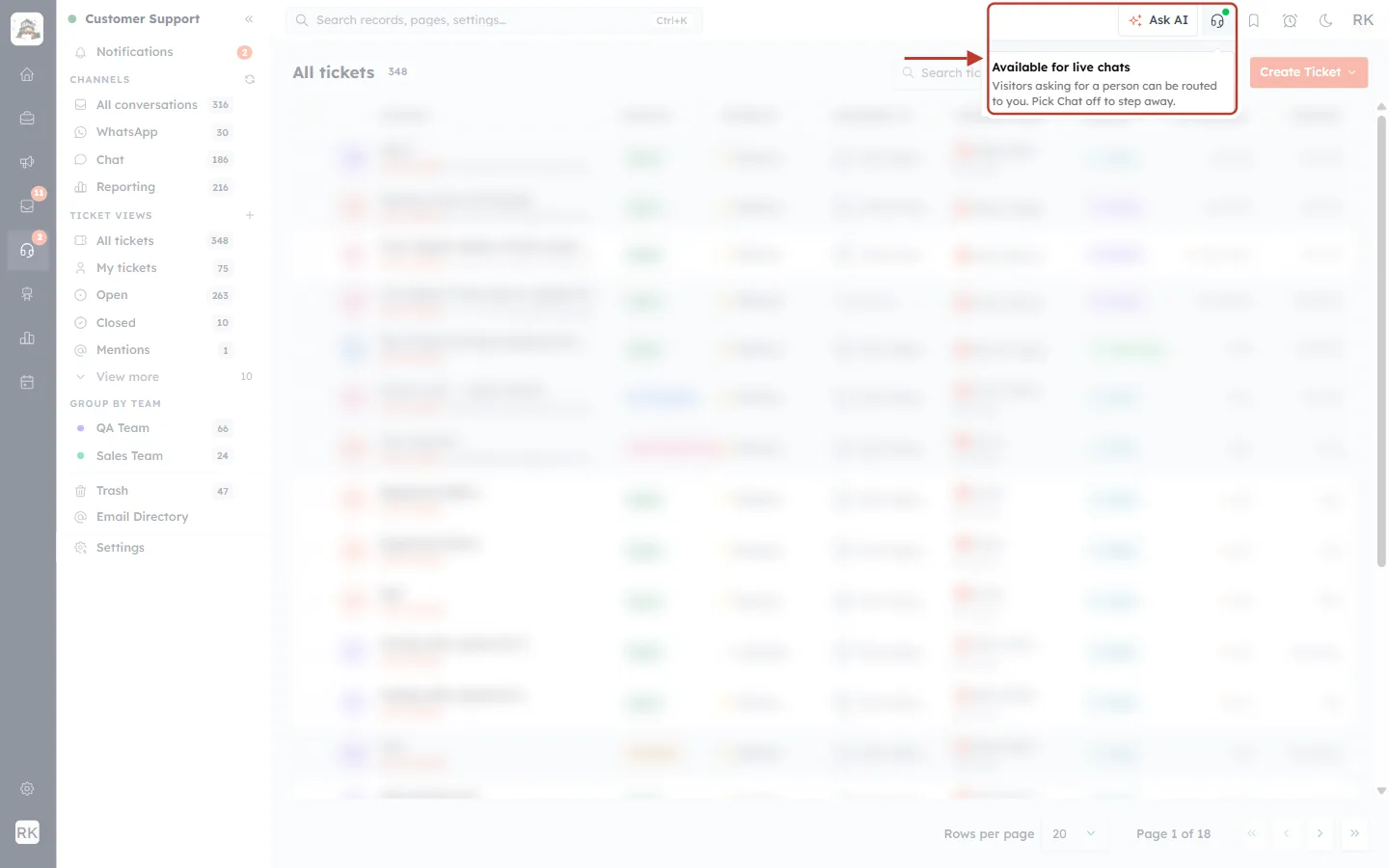
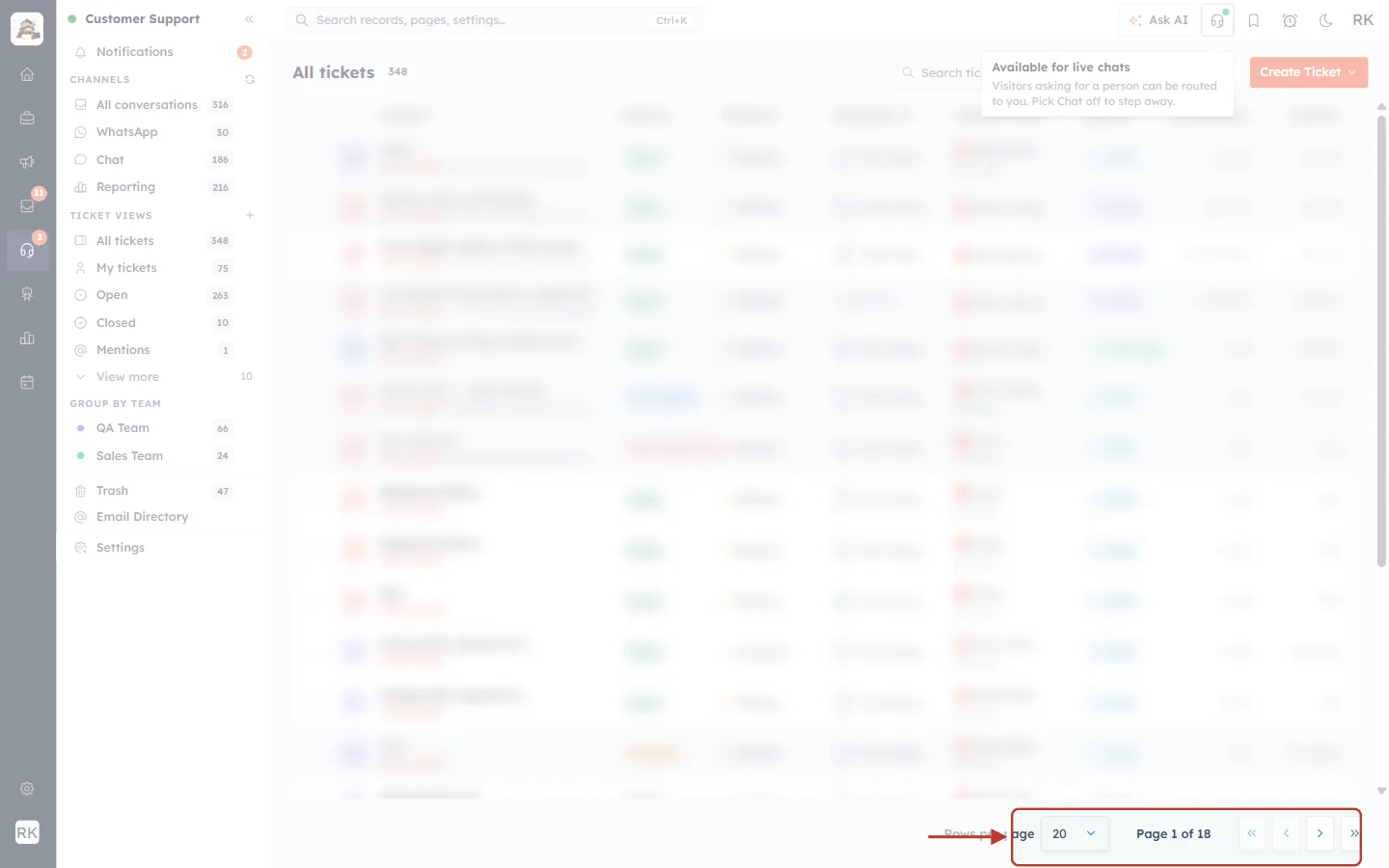
What this screenshot shows. The mouse is over the headset button and a tooltip is shown, ringed: “Available for live chats — Visitors asking for a person can be routed to you. Pick Chat off to step away.”
The first line is your current state. The second line explains what it means and how to change it.
Part 2: Switch yourself off (Chat off)#
Step 1: Click the headset button#
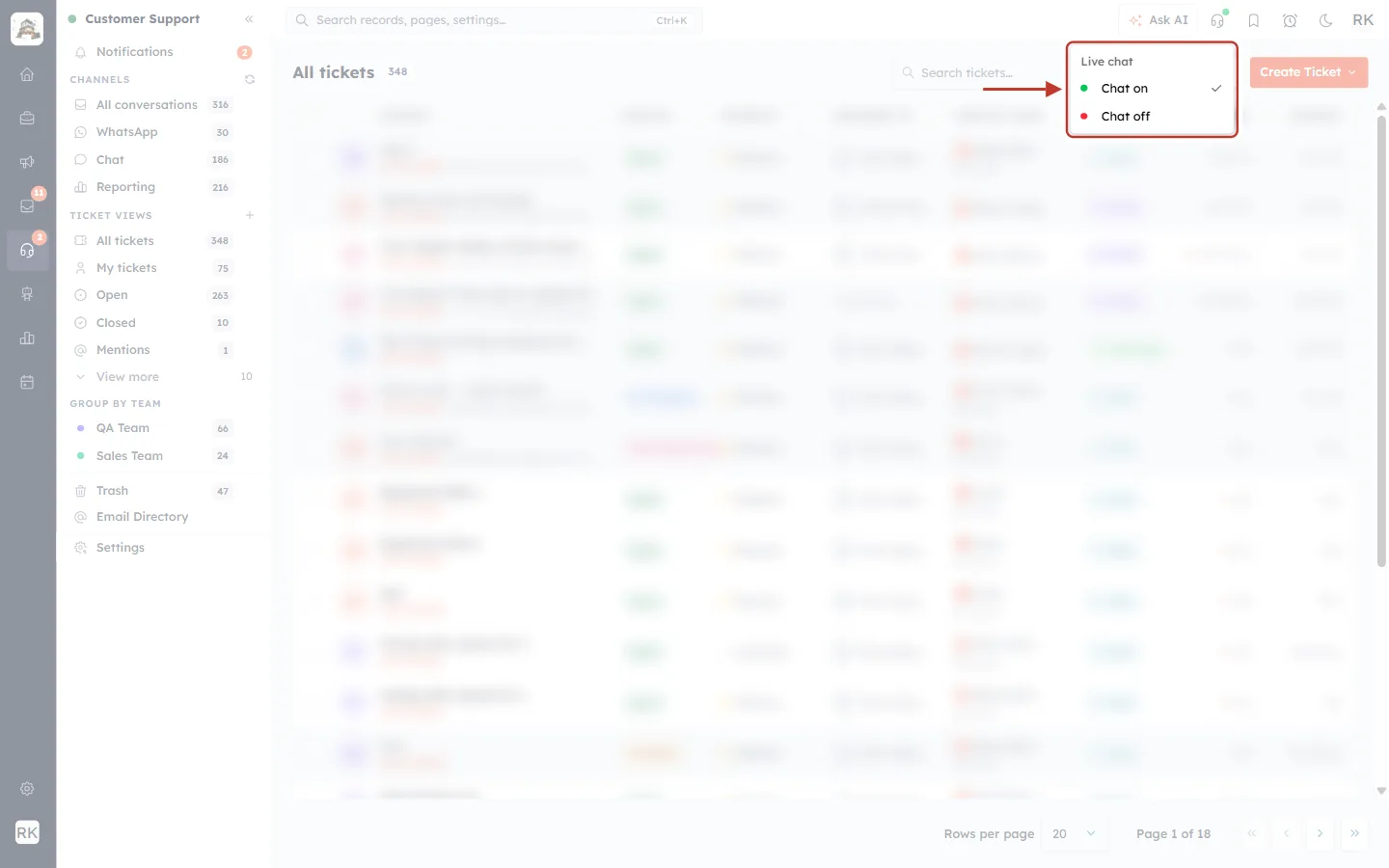
What this screenshot shows. The menu that opens when you click the headset, ringed. Under the heading Live chat are two options: Chat on (green dot, with a tick ✓ because it is the current state) and Chat off (red dot).
The tick shows which state you’re in now.
Picking the option that is already ticked does nothing, so you can’t switch by accident.
Step 2: Choose Chat off#
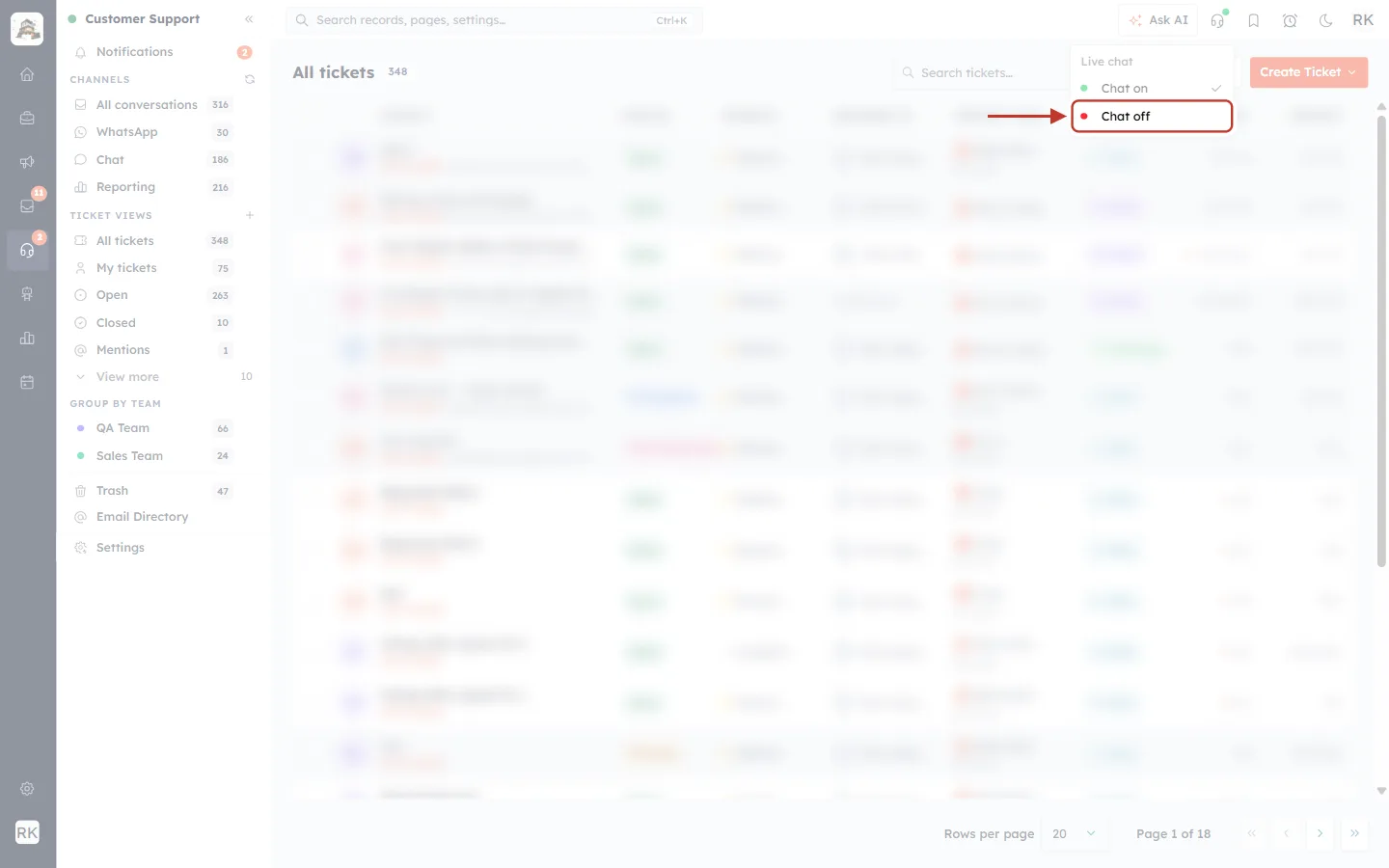
What this screenshot shows. The Chat off option in the Live chat menu, ringed.
Click Chat off to stop receiving new live chats.
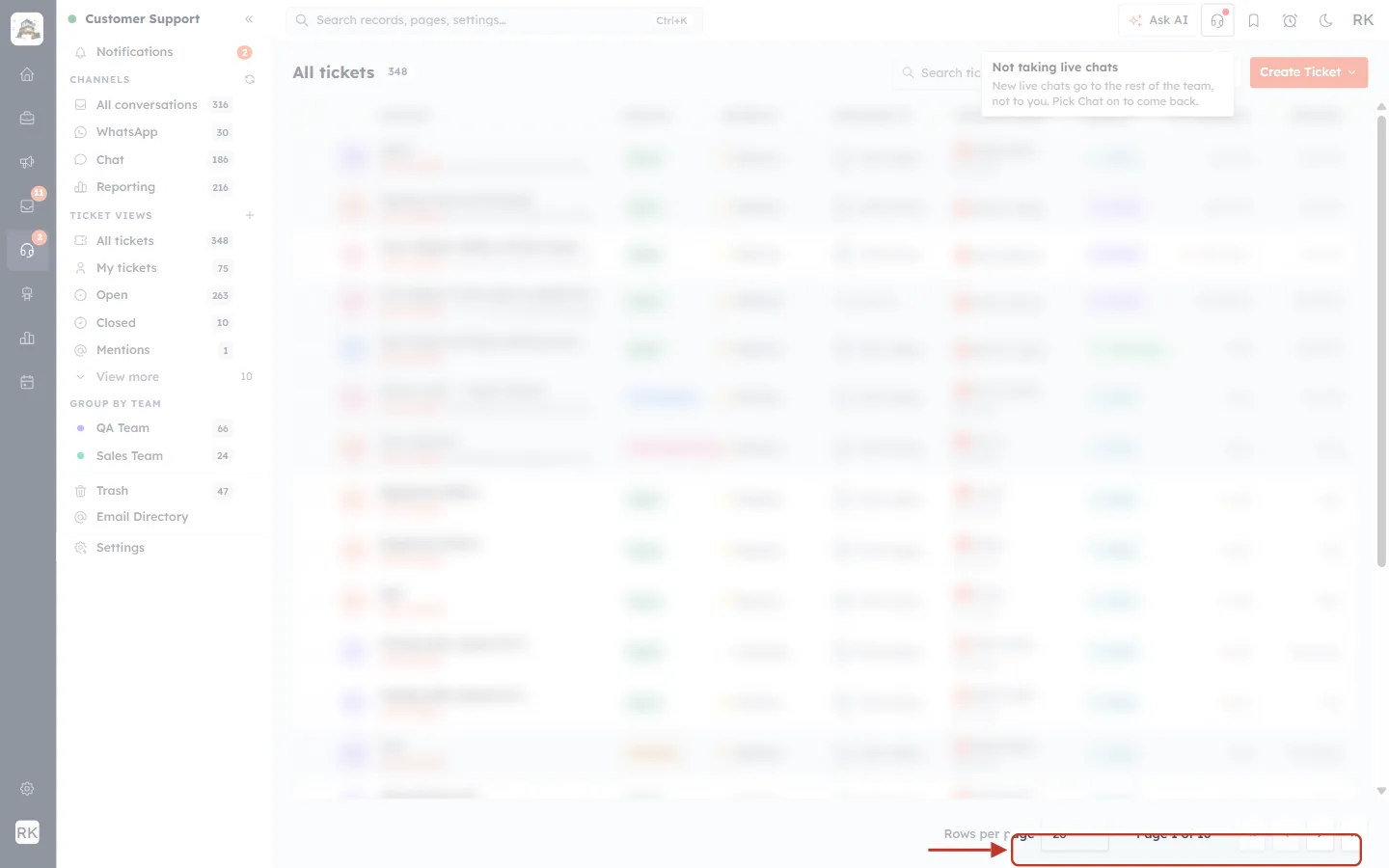
What this screenshot shows. The confirmation message in the bottom-right corner, ringed: “You are no longer receiving live chats. Your team is unaffected.”
You’re now out of live chat routing. The rest of your team keeps receiving chats as normal.
Chats you already have open stay with you. Chat off only affects new chats.
Step 3: Check the red dot#
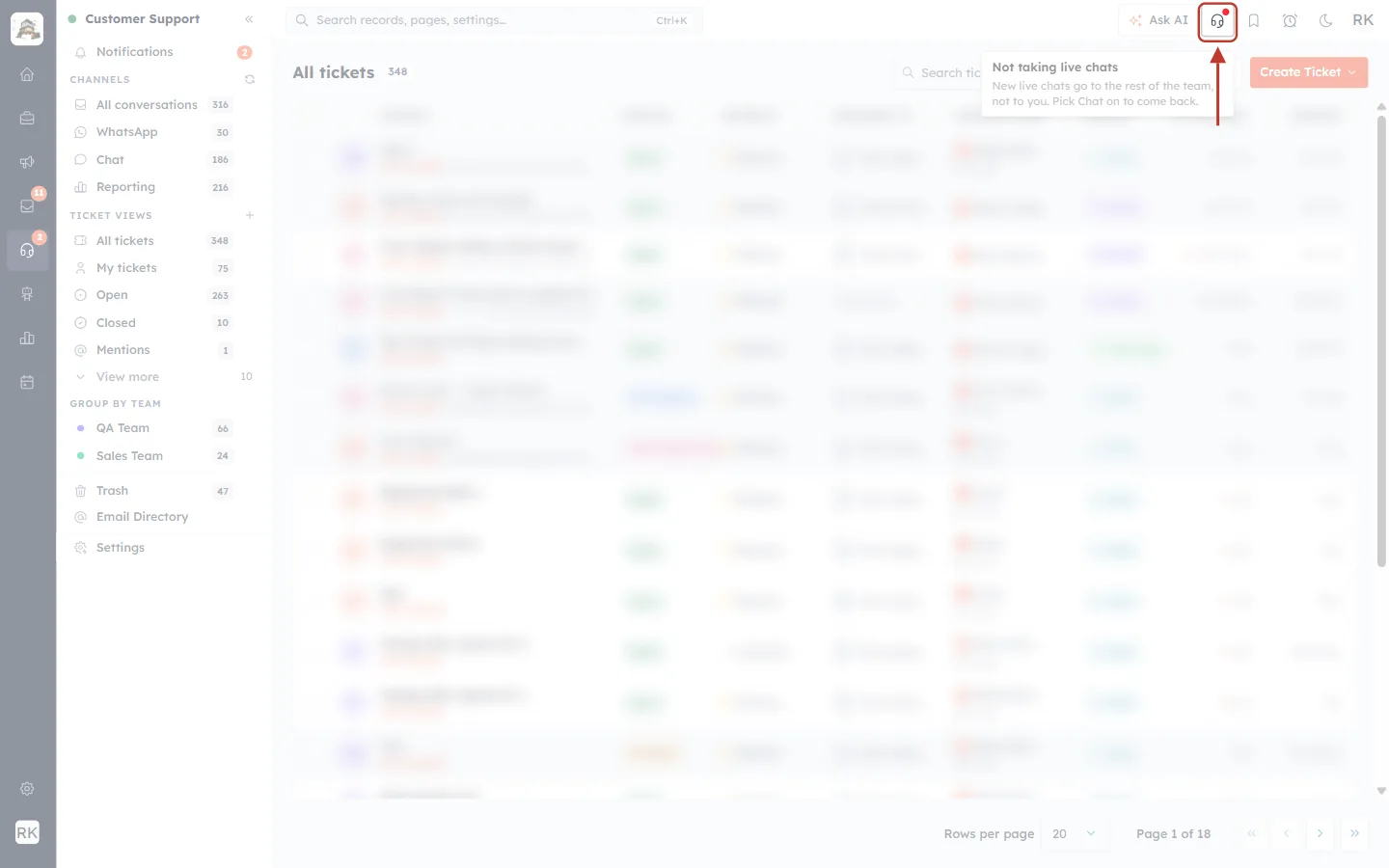
What this screenshot shows. The headset button in the top bar, ringed. Its dot is now red.
The red dot reminds you, on every Customer Support page, that you aren’t taking live chats.
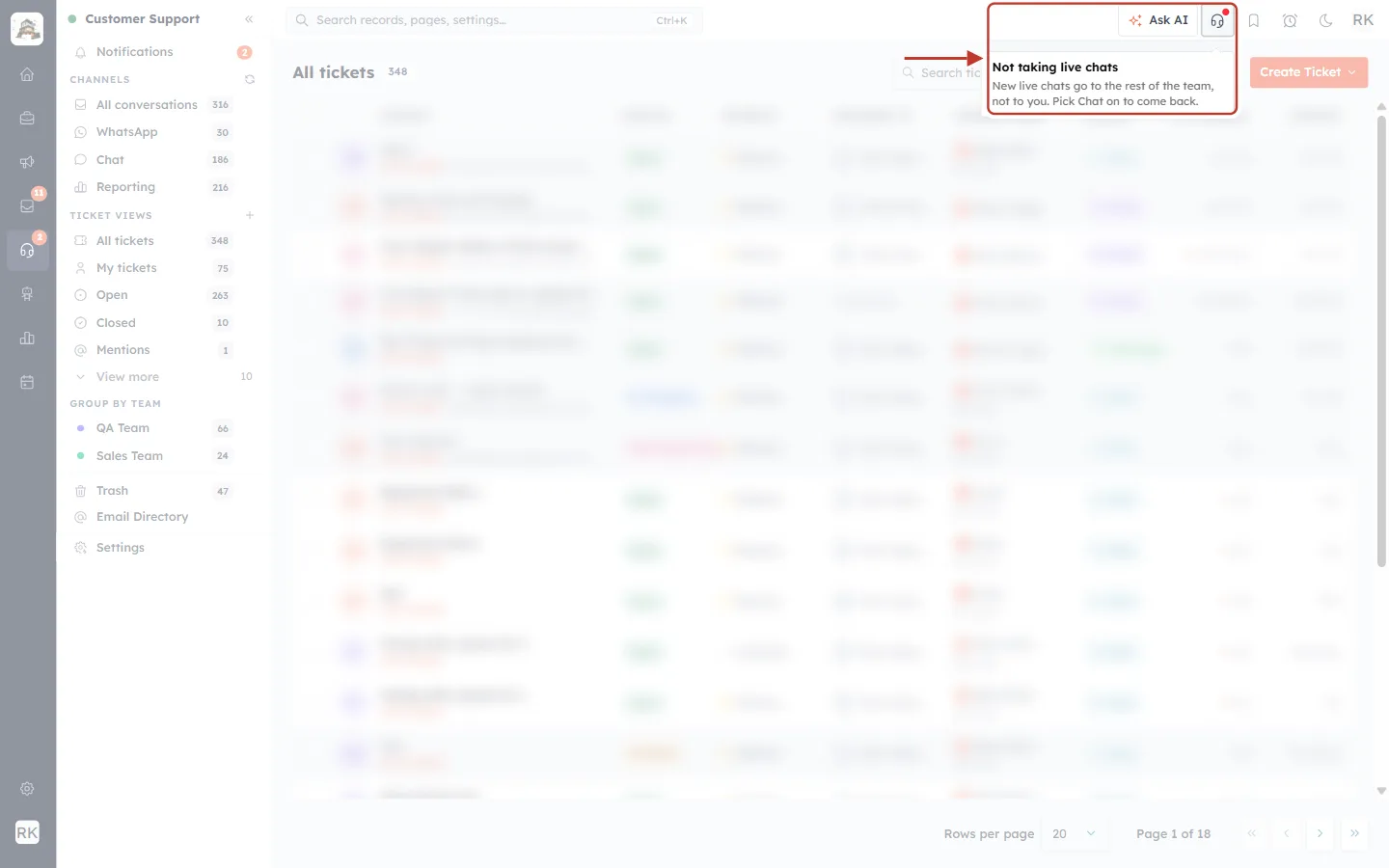
What this screenshot shows. Hovering over the button now shows, ringed: “Not taking live chats — New live chats go to the rest of the team, not to you. Pick Chat on to come back.”
Your choice is kept: you stay on Chat off until you switch back, even if you reload the page or come back later.
Part 3: Switch yourself back on (Chat on)#
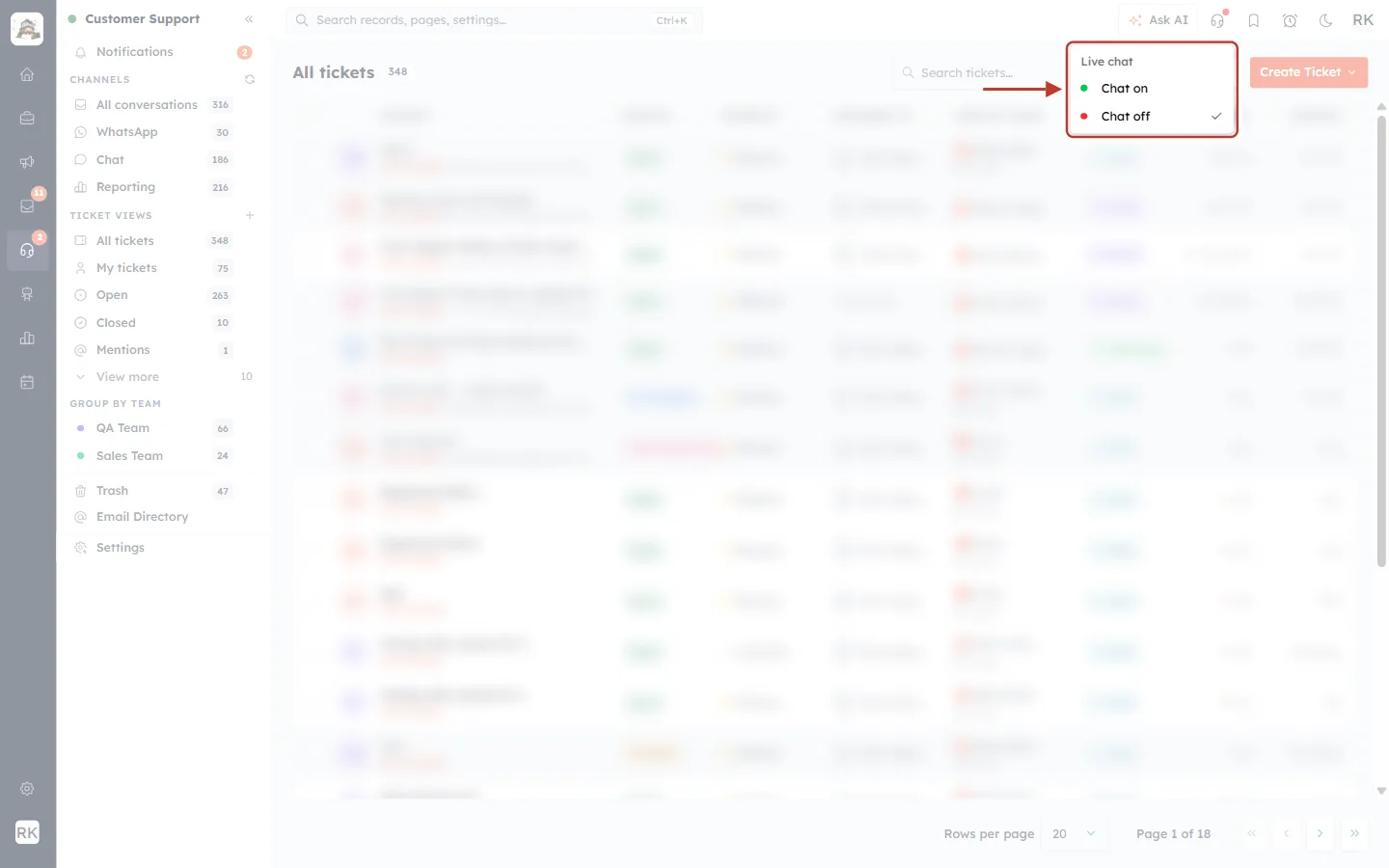
What this screenshot shows. The Live chat menu opened again, ringed. This time the tick ✓ is next to Chat off.
Click the headset button any time to open this menu.
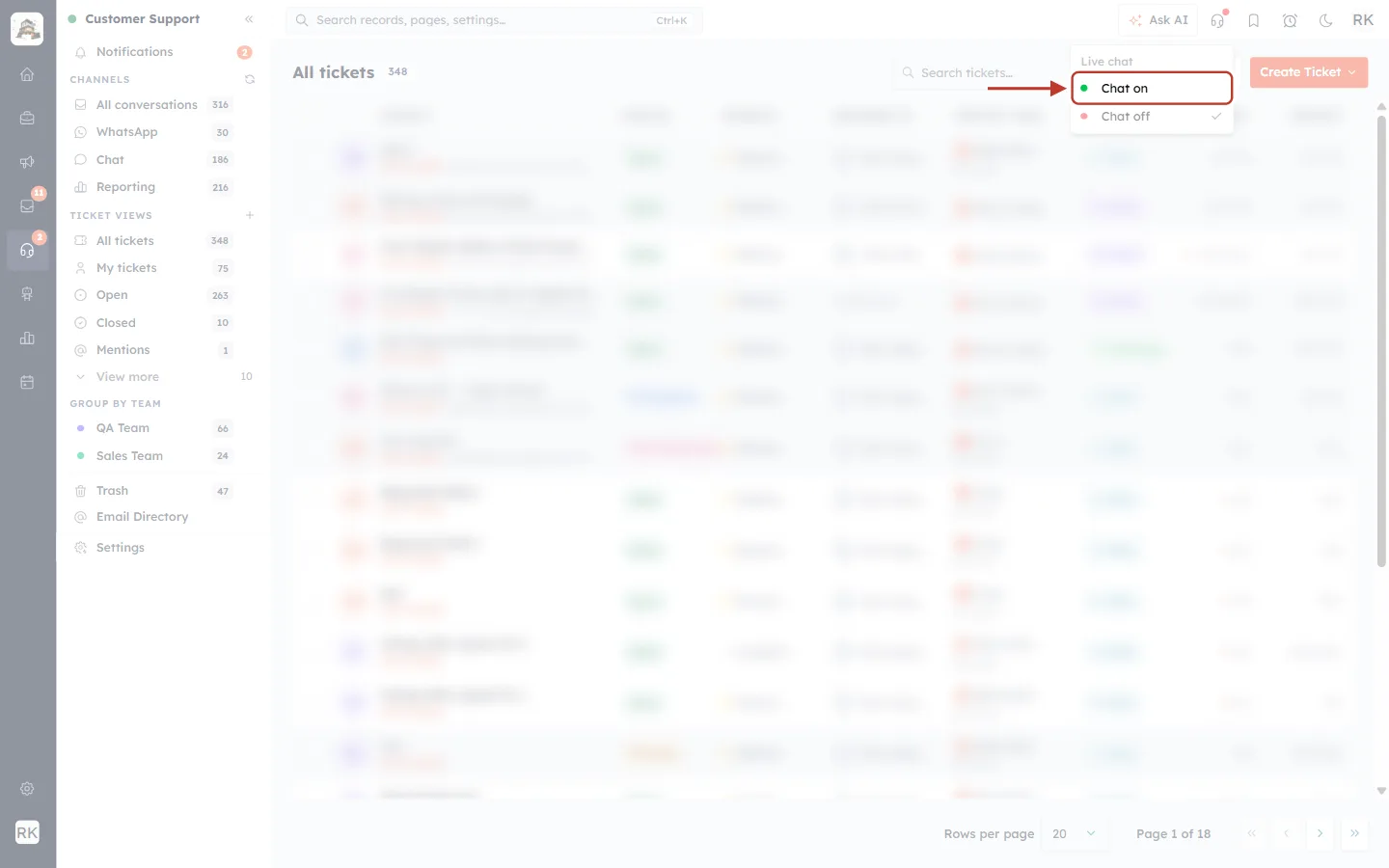
What this screenshot shows. The Chat on option, ringed.
Click Chat on when you are back at your desk.
What this screenshot shows. The confirmation message, ringed: “You are available for live chats.”
The dot turns green again, and visitors who ask for a person can be routed to you.
✅
Make it a habit: choose Chat off before a break or meeting and Chat on when you return. Waiting visitors then always go to someone who can actually answer.
Part 4: How availability works#
When do you count as online?#
For live chat routing, you count as online only when both of these are true:
Condition | What it means |
|---|---|
Your inbox is open | AiEngage CRM is open and signed in on your computer (or the mobile app is running). It checks in about once a minute. If you close it, you stop counting as online within about five minutes. |
Your chat is switched on | Your headset dot is green (Chat on). |
Your inbox | Your switch | Result |
|---|---|---|
Open | Chat on | Online: chats can be routed to you |
Open | Chat off | Offline: you said you’re away |
Closed | Chat on | Offline: nobody is at your desk |
ℹ️
Chat off works straight away. Closing your laptop takes a few minutes to count, but choosing Chat off takes you out of routing immediately. That’s why it’s worth using before you step away.
What website visitors see#
Each chat widget can tell visitors when none of its agents are online. An admin sets this in Customer Support → Settings → Chat Widget.
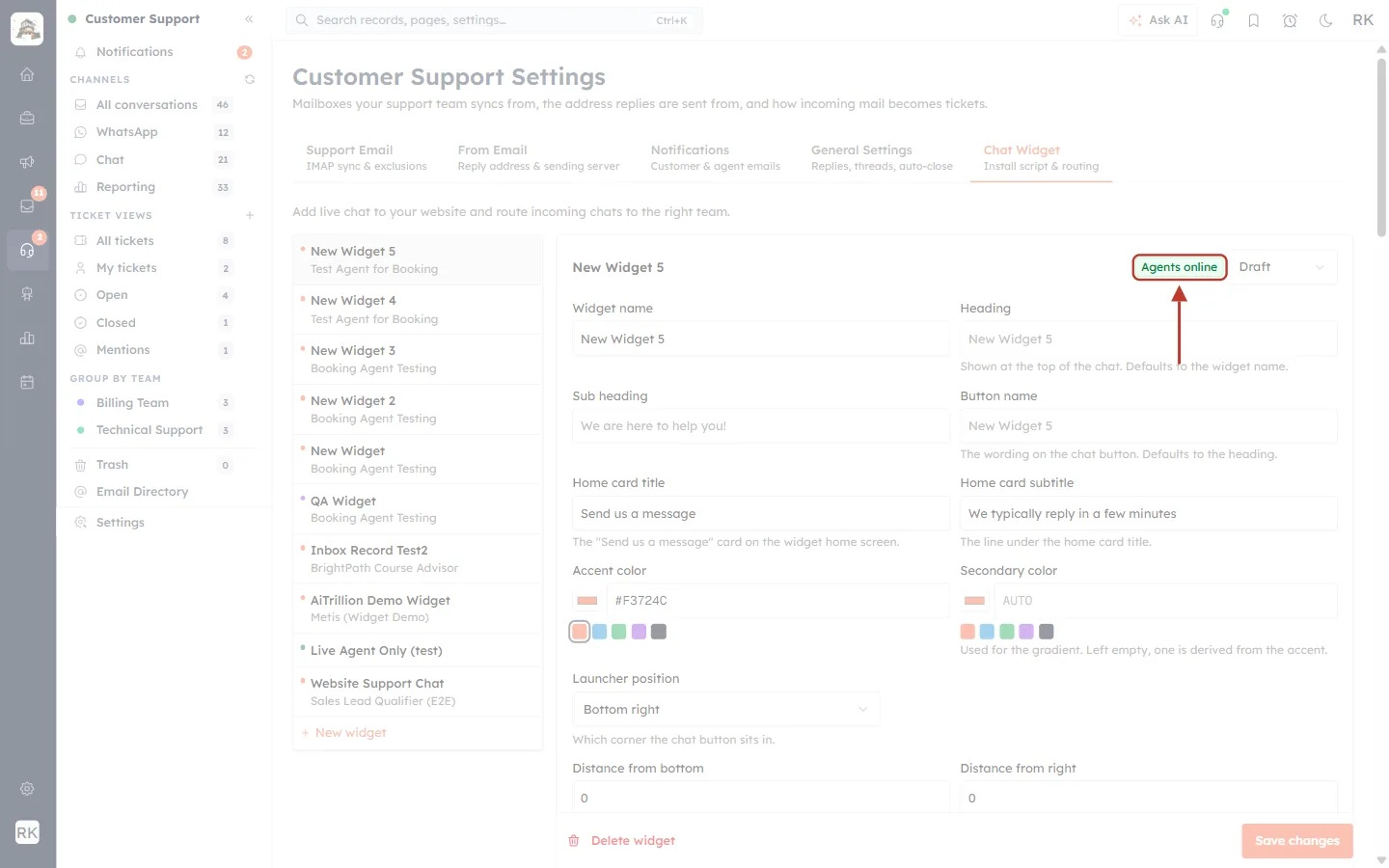
What this screenshot shows. The Chat Widget settings tab with one widget open. Next to its status (Draft), the green badge Agents online is ringed.
The badge shows, right now, whether at least one of this widget’s agents counts as online (inbox open and Chat on).
If every agent of the widget picks Chat off, the widget treats them as offline.
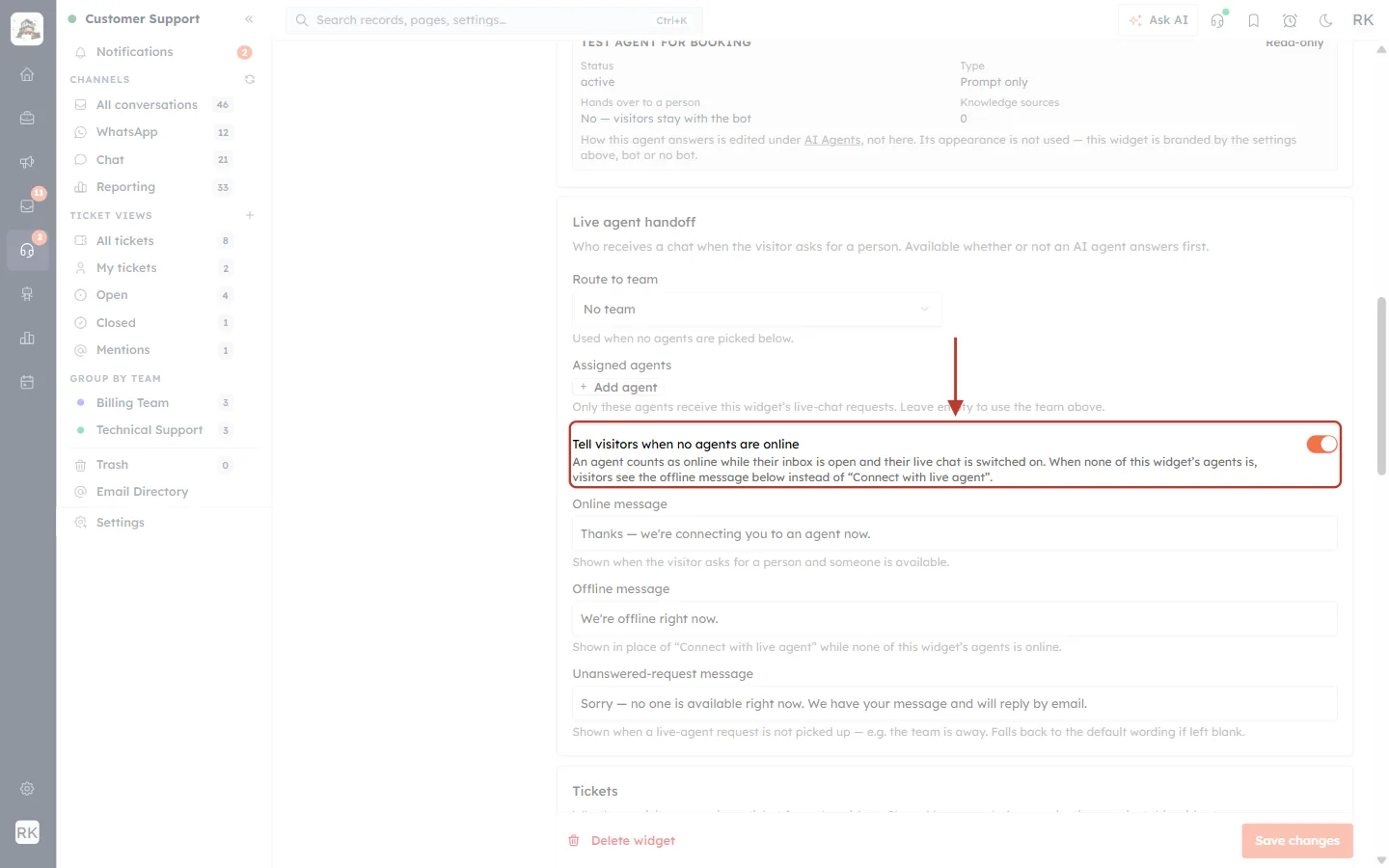
What this screenshot shows. Further down the same widget, the setting Tell visitors when no agents are online is ringed: “An agent counts as online while their inbox is open and their live chat is switched on. When none of this widget’s agents is, visitors see the offline message below instead of ‘Connect with live agent’.”
With this switched on, visitors only get the “Connect with live agent” option when an agent is actually available. Otherwise they see your offline message.
Your Chat on / Chat off choice is part of this decision.
See Set Up the Website Chat Widget for Support for the rest of the widget settings.
Availability also matters for missed chats. A chat is only marked as missed when an agent who could have answered didn’t. If every agent it was routed to is offline, the chat keeps waiting instead, and the timer effectively starts again when someone comes online.
Part 5: For admins: your switch versus the organization’s switch#
There are two different switches, and it helps to know which is which:
Chat on / Chat off (top bar) | Chat conversation is enabled (General Settings) | |
|---|---|---|
Who it affects | Only you | Your whole organization |
Who can change it | Every agent, for themselves only | Admins |
What it does | Takes you in or out of live chat routing | Decides whether live chat exists at all for your team |
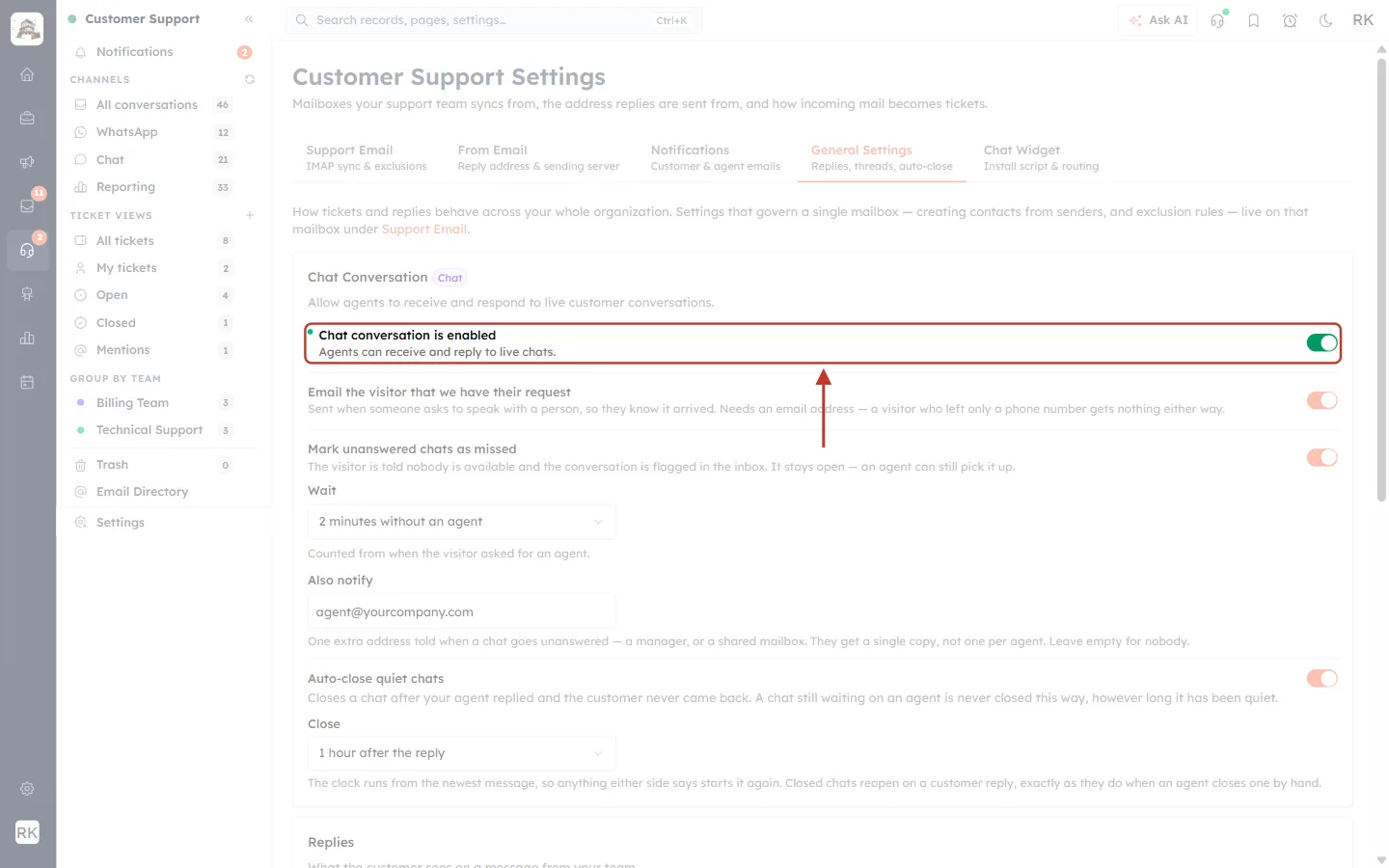
What this screenshot shows. Customer Support Settings → General Settings → Chat Conversation. The row “Chat conversation is enabled — Agents can receive and reply to live chats.” is ringed, with its green switch on the right.
This is the organization’s switch. When it is off, nobody receives live chats, whatever their own Chat on / Chat off says.
Changing your personal Chat on / Chat off never changes this switch.
See Support General Settings for the other settings on this tab.
Common questions#
Question | Answer |
|---|---|
I don’t see the headset in the top bar. | It only appears on Customer Support pages. Open Customer Support from the left icon bar. If you still don’t see it, Customer Support may be off for your workspace or not included in your profile. |
Can I switch a colleague off who forgot? | No. Each agent can only change their own availability. If they close AiEngage CRM, they stop counting as online within about five minutes anyway. |
Will Chat off close my open chats? | No. Conversations you already have stay with you. Chat off only stops new live chats from being routed to you. |
Does Chat off stop ticket emails or assignments? | Chat on / Chat off is about live chats. It doesn’t change your tickets or who they’re assigned to. |
I switched off yesterday. Am I still off today? | Yes. Your choice is kept until you change it, so remember to pick Chat on when you start work. |
Previous and next#
Previous: Live Agent Handover from the AI Agent
Related articles#
Was this article helpful?
Ready to implement this?
OpenAI Engage and apply what you just learned to your own workspace.
Open AI Engage CRM