Loading…


KnowledgeBase
Support General Settings: Live Chat, Reply Display, Reopen on Reply & Auto-Close Resolved Tickets
What this article covers#
The General Settings tab holds the rules that apply to all of your support work, whatever mailbox or chat a ticket came from. Seven switches and two time settings decide things such as: can agents take live chats, what does a customer see when an agent replies, and what happens to tickets once they are resolved.
Most teams set these once and rarely touch them again — but getting them right avoids the two classic helpdesk failures: a customer reply sitting unread on a ticket marked as done, and a queue full of finished tickets that nobody closed.
| Section | Setting | Default |
|---|---|---|
| Chat Conversation | Chat conversation is enabled | On |
| Mark unanswered chats as missed (+ wait time) | Off | |
| Replies | Show the agent’s name in replies | On |
| Forwarded emails keep the original sender | Off | |
| Reopen a closed ticket when the customer replies | On | |
| New ticket threads start private | Off | |
| Auto-close | Close resolved tickets automatically (+ Close after) | On, 7 days |
ℹ️
Every switch on this page saves as soon as you click it — there is no Save button. If a change cannot be stored you will see “Could not save that setting.”
Before you begin#
Admin access. “Only administrators can turn Chat Conversation on or off.”
It helps to know how tickets move through their statuses — see Introduction to Customer & Support.
Part 1 — Open General Settings#
Step 1: Open the General Settings tab#
Press Ctrl + K (Cmd + K on a Mac), type Support Email and open it, then click the General Settings tab.
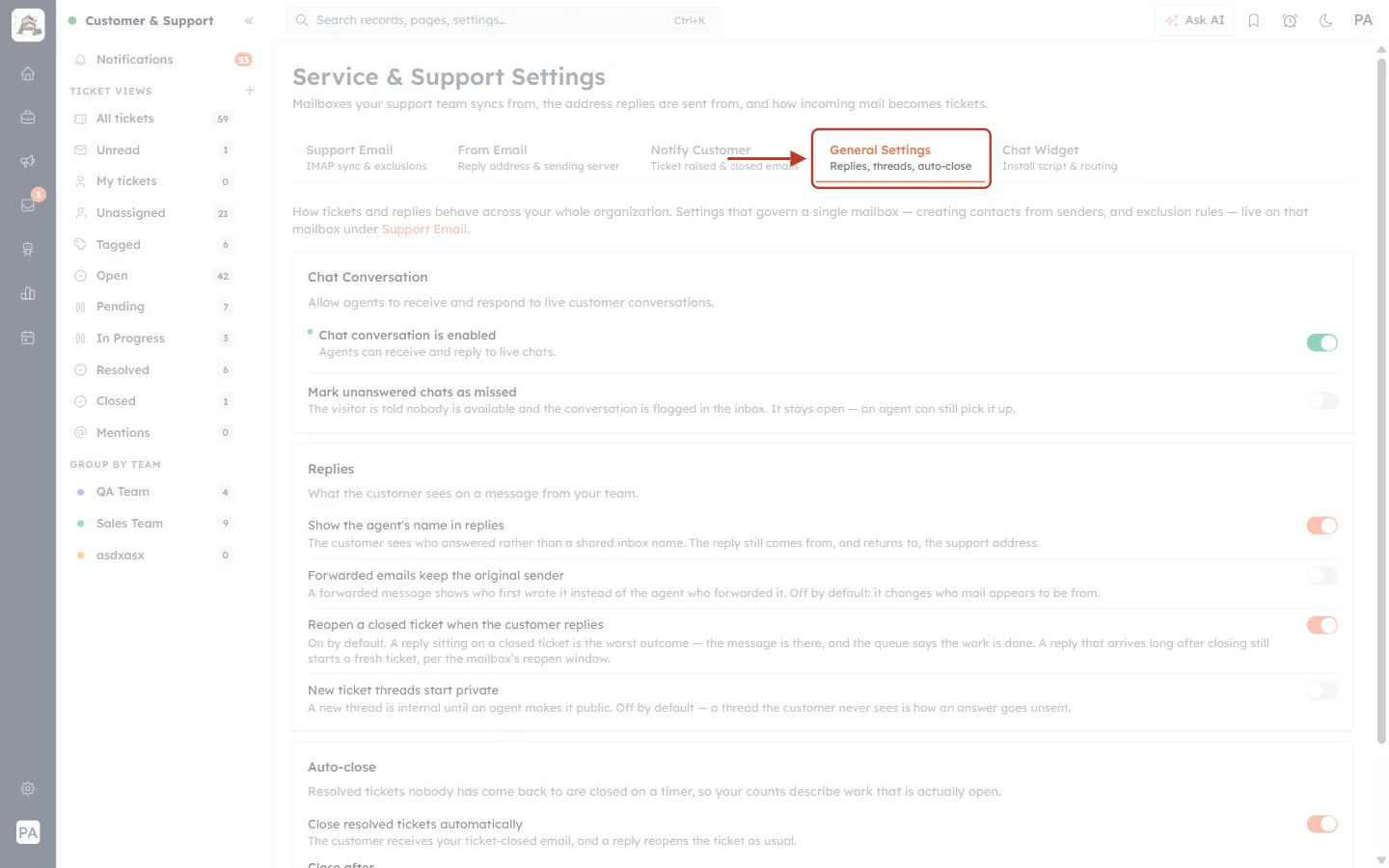
What this screenshot shows. Service & Support Settings, with the General Settings tab ringed.
General Settings — Replies, threads, auto-close — the tab this article is about (orange when selected).
The other tabs (faded): Support Email, From Email, Notify Customer and Chat Widget.
Below (faded): the three sections — Chat Conversation, Replies and Auto-close.
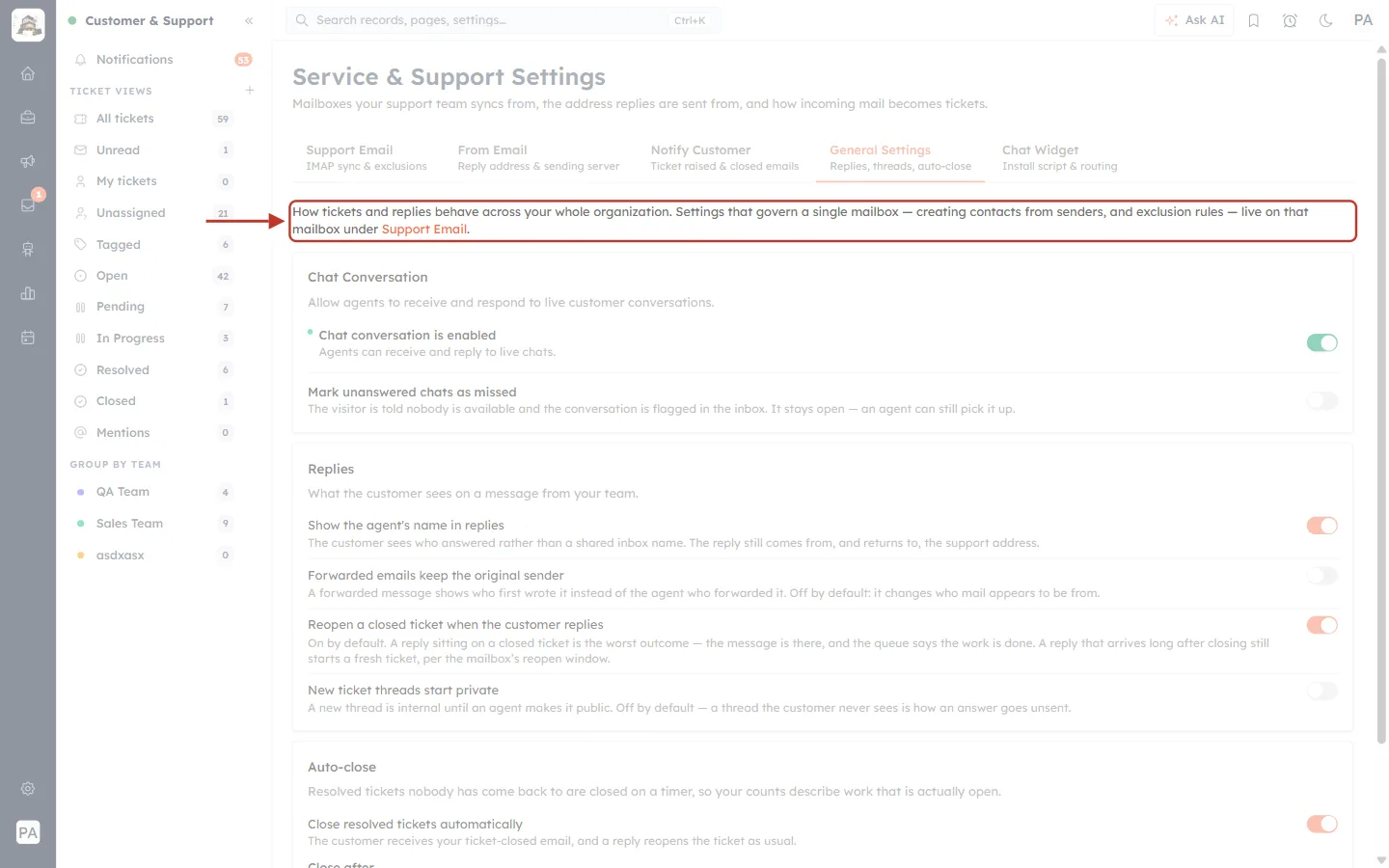
What this screenshot shows. The description at the top of the tab is ringed.
“How tickets and replies behave across your whole organization.”
“Settings that govern a single mailbox — creating contacts from senders, and exclusion rules — live on that mailbox under Support Email.” See Connect a Support Mailbox for those.
Part 2 — Chat Conversation#
Step 2: Allow or block live chat#
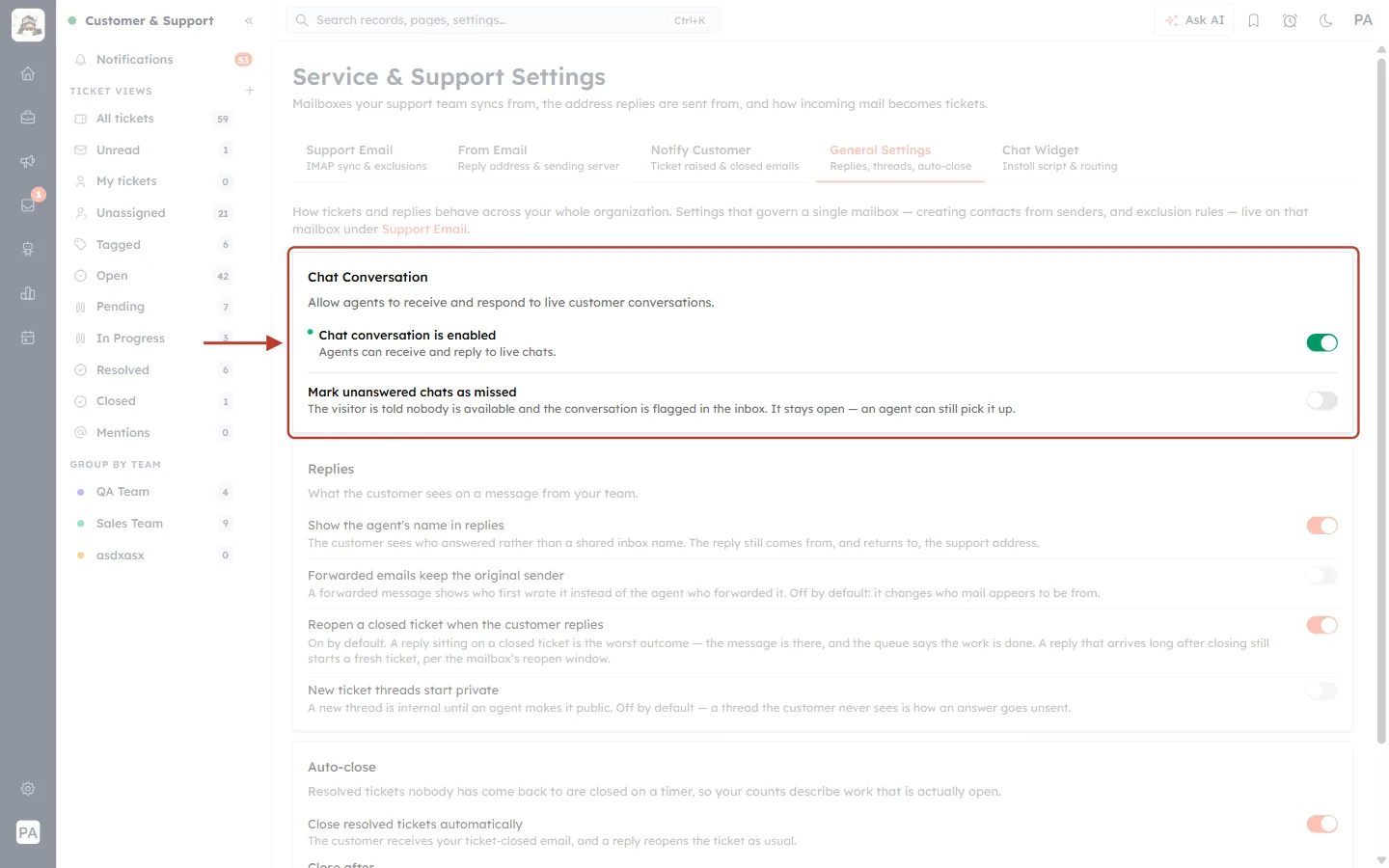
What this screenshot shows. The Chat Conversation card is ringed. “Allow agents to receive and respond to live customer conversations.”
● Chat conversation is enabled — the green dot and the switch on the right (on) mean agents can take live chats from your website chat widget. “Agents can receive and reply to live chats.”
Mark unanswered chats as missed — off by default (Step 3).
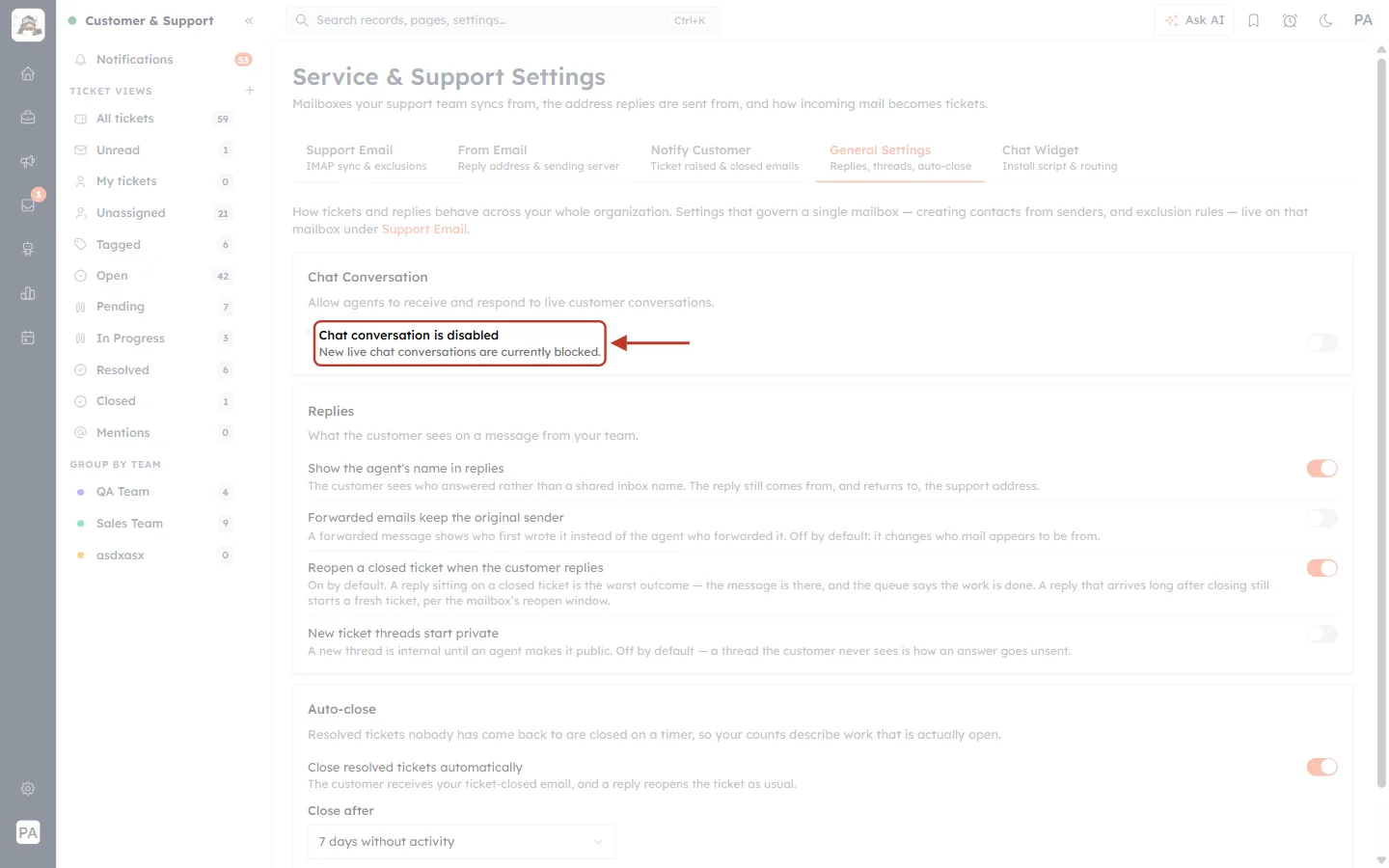
What this screenshot shows. The same card after switching chat off. The status line is ringed.
Chat conversation is disabled — the dot turns grey.
“New live chat conversations are currently blocked.” Visitors can no longer start a live chat with your team.
You will see the message “Chat conversation disabled”. Switch it on again at any time (“Chat conversation enabled”).
⚠️
Only switch chat off if nobody will be answering chats — for example during a holiday closure. Visitors who would have chatted will need another way to reach you.
Step 3: Flag chats that nobody answers#
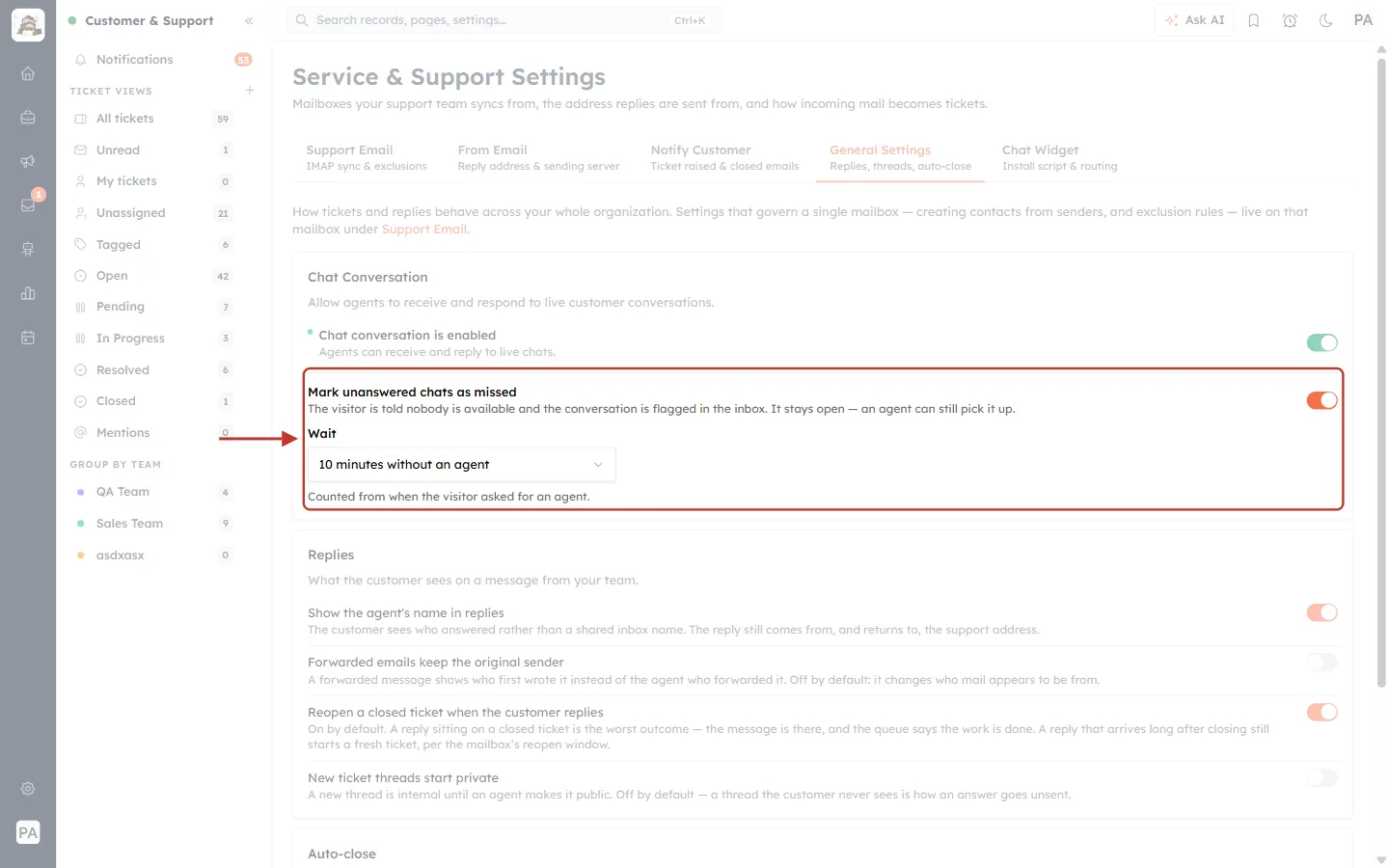
What this screenshot shows. Mark unanswered chats as missed switched on. The setting and its new Wait box are ringed.
“The visitor is told nobody is available and the conversation is flagged in the inbox. It stays open — an agent can still pick it up.”
Wait — how long a visitor can wait for an agent before the chat counts as missed, here 10 minutes without an agent.
“Counted from when the visitor asked for an agent.”
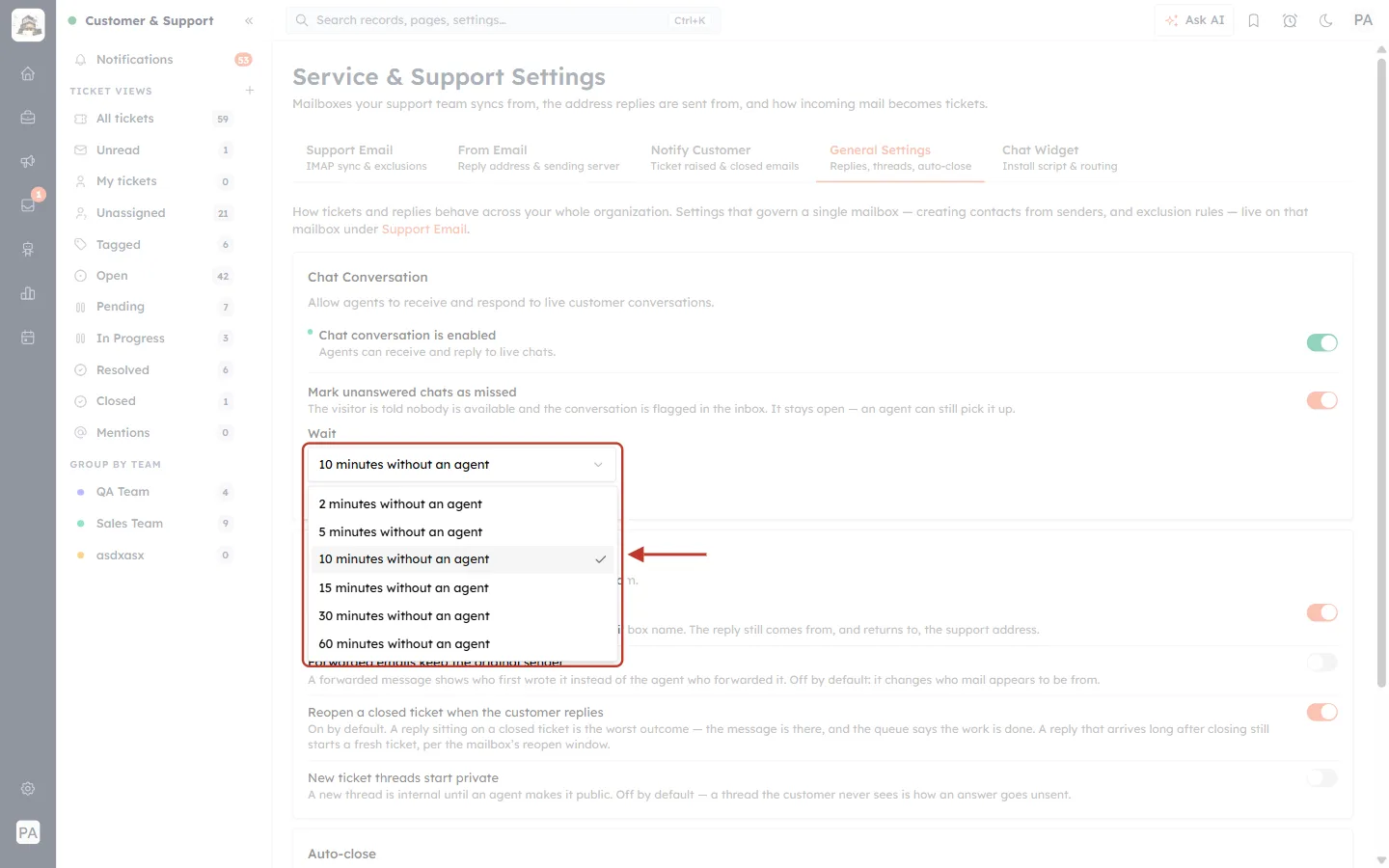
What this screenshot shows. The Wait list is open and ringed.
Choose 2, 5, 10, 15, 30 or 60 minutes without an agent.
A short wait is honest with visitors when the team is busy; a longer one gives agents more time to respond before the chat is flagged.
If the switch cannot be turned on you will see “Could not update Missed Chat. Your change was not saved.”
Part 3 — Replies#
Step 4: Review the Replies options#
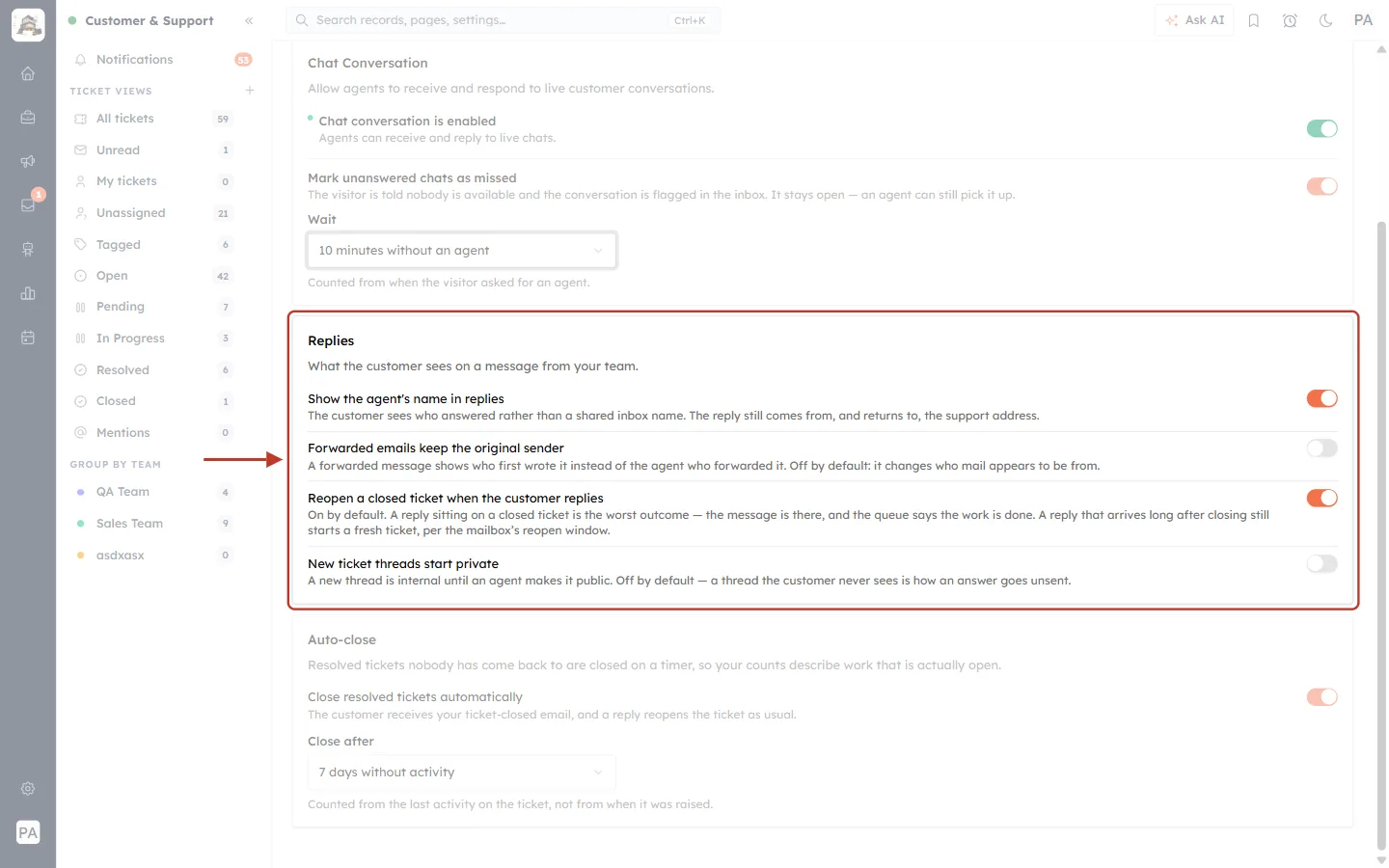
What this screenshot shows. The Replies section — “What the customer sees on a message from your team.” — is ringed. It has four switches, explained one by one below.
Show the agent’s name in replies — on.
Forwarded emails keep the original sender — off.
Reopen a closed ticket when the customer replies — on.
New ticket threads start private — off.
Step 5: Show the agent’s name in replies#
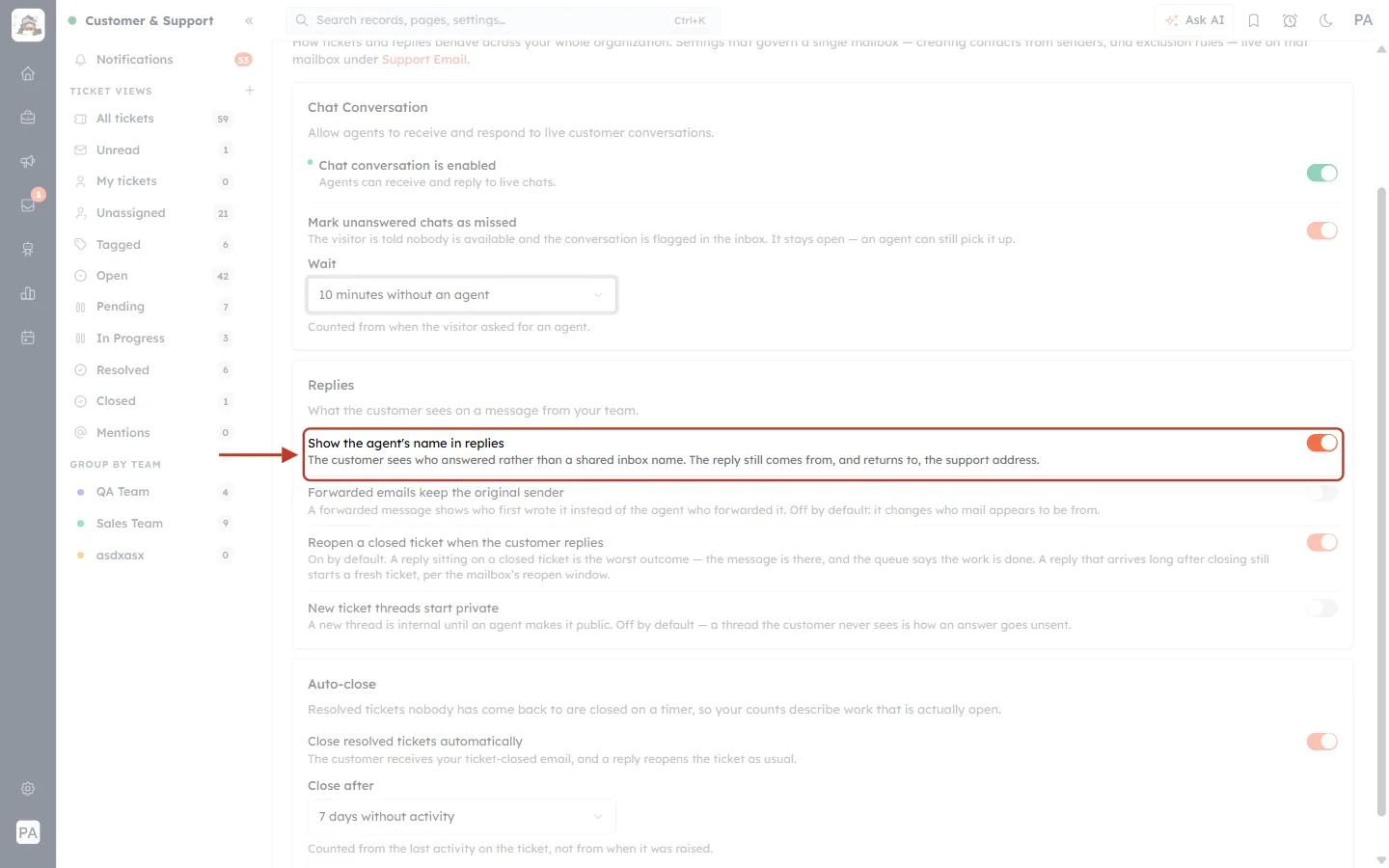
What this screenshot shows. The Show the agent’s name in replies row is ringed (switch on).
On: “The customer sees who answered rather than a shared inbox name.” The agent’s name appears on the reply instead of only the team name.
“The reply still comes from, and returns to, the support address” — so customer replies still reach the support mailbox and the same ticket.
Turn it off if you prefer every reply to look like it comes from the team.
Step 6: Decide who forwarded emails appear to be from#
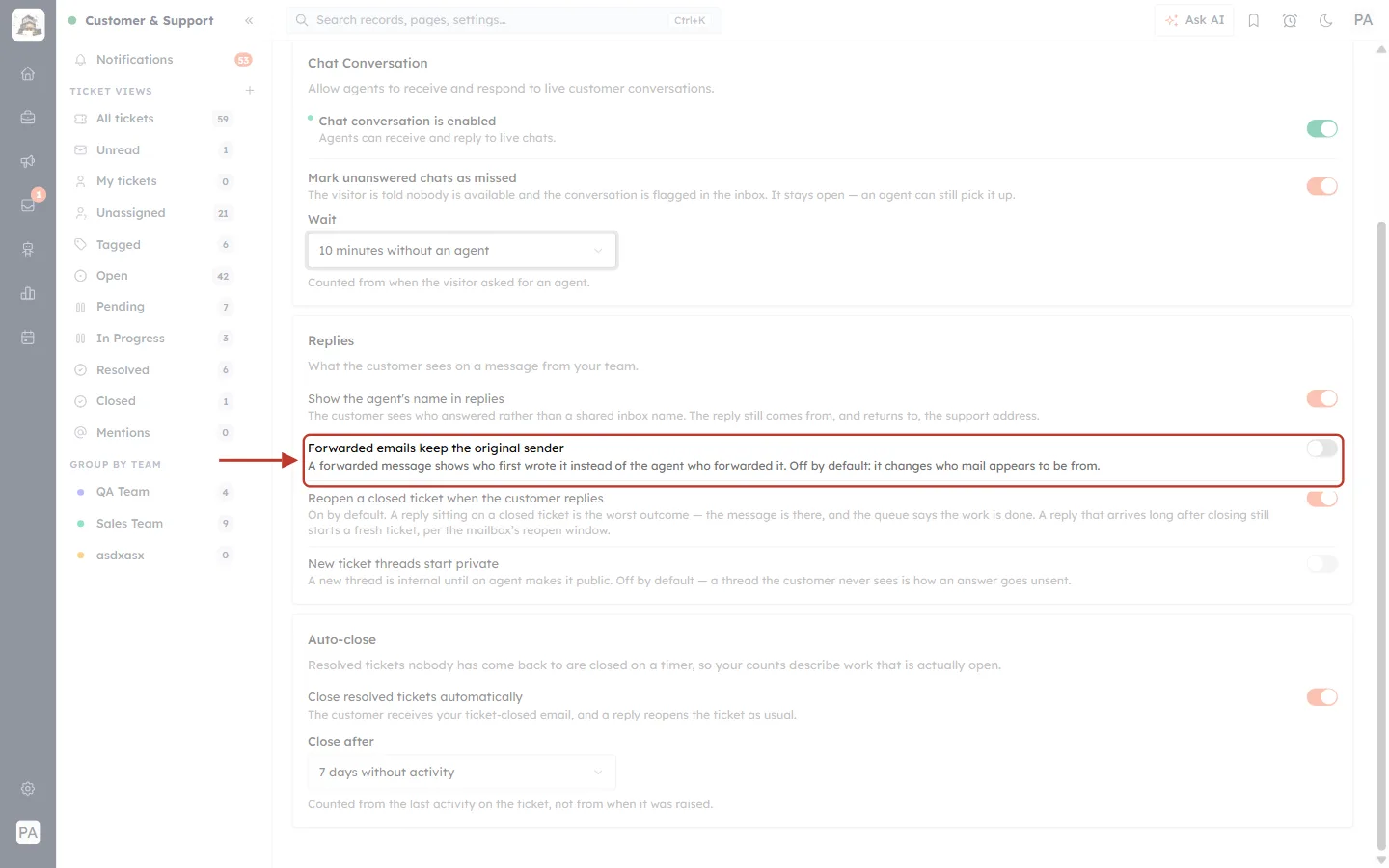
What this screenshot shows. The Forwarded emails keep the original sender row is ringed (switch off).
Off (default): when an agent forwards a message, it shows as coming from the agent who forwarded it.
On: “A forwarded message shows who first wrote it instead of the agent who forwarded it.”
“Off by default: it changes who mail appears to be from.” Only turn it on if the people you forward to need to see the original sender.
Step 7: Reopen closed tickets when the customer replies#
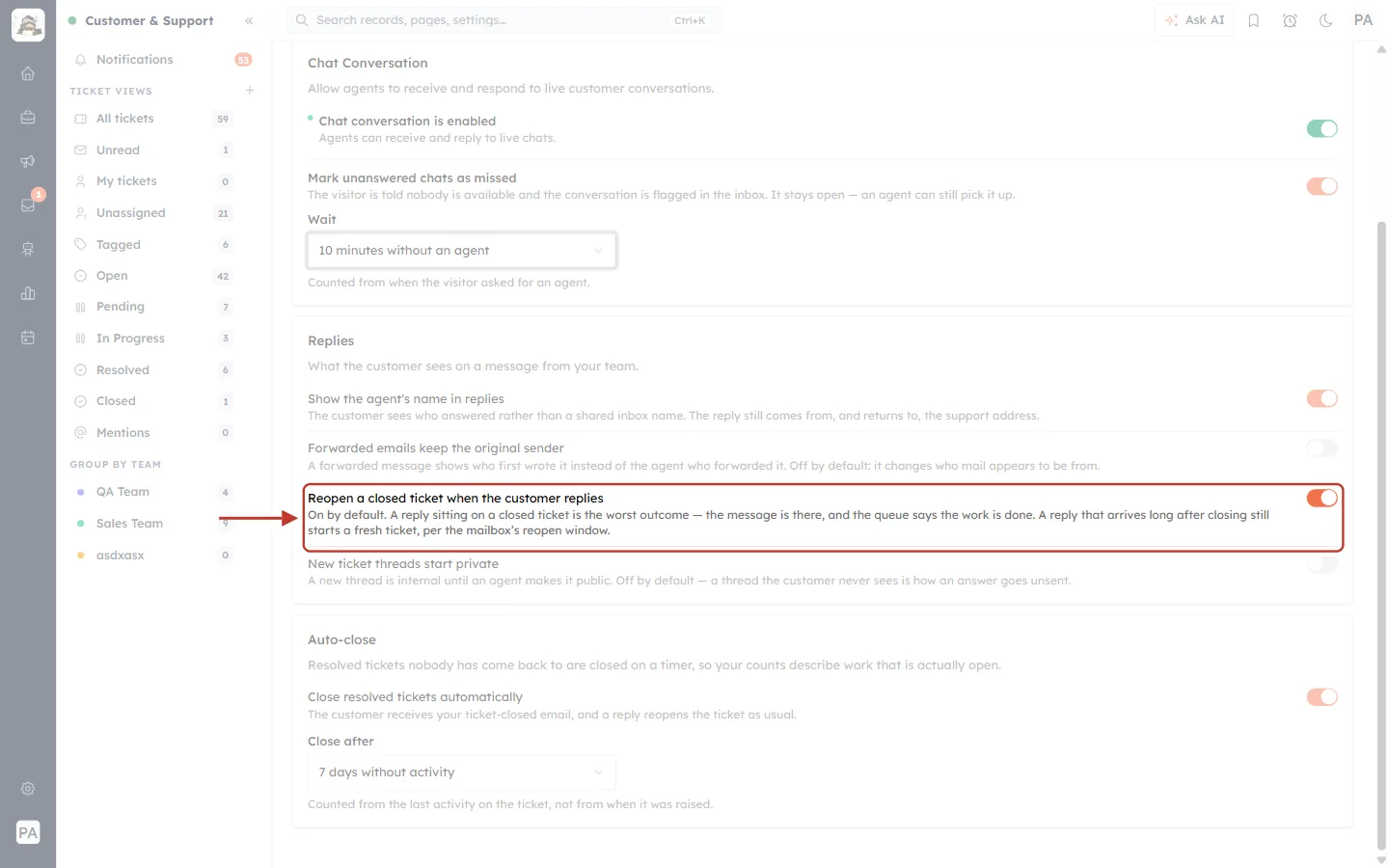
What this screenshot shows. The Reopen a closed ticket when the customer replies row is ringed (switch on).
“On by default. A reply sitting on a closed ticket is the worst outcome — the message is there, and the queue says the work is done.”
With it on, a reply to a closed ticket reopens it, so it reappears in your ticket views instead of hiding among closed work.
“A reply that arrives long after closing still starts a fresh ticket, per the mailbox’s reopen window.” That window (1–30 days) is set on each mailbox — see Connect a Support Mailbox, Step 10.
✅
Leave this on. Pair it with the ticket reopened email in Automatic Customer Emails, so the customer knows their follow-up was seen.
Step 8: Choose whether new threads start private#
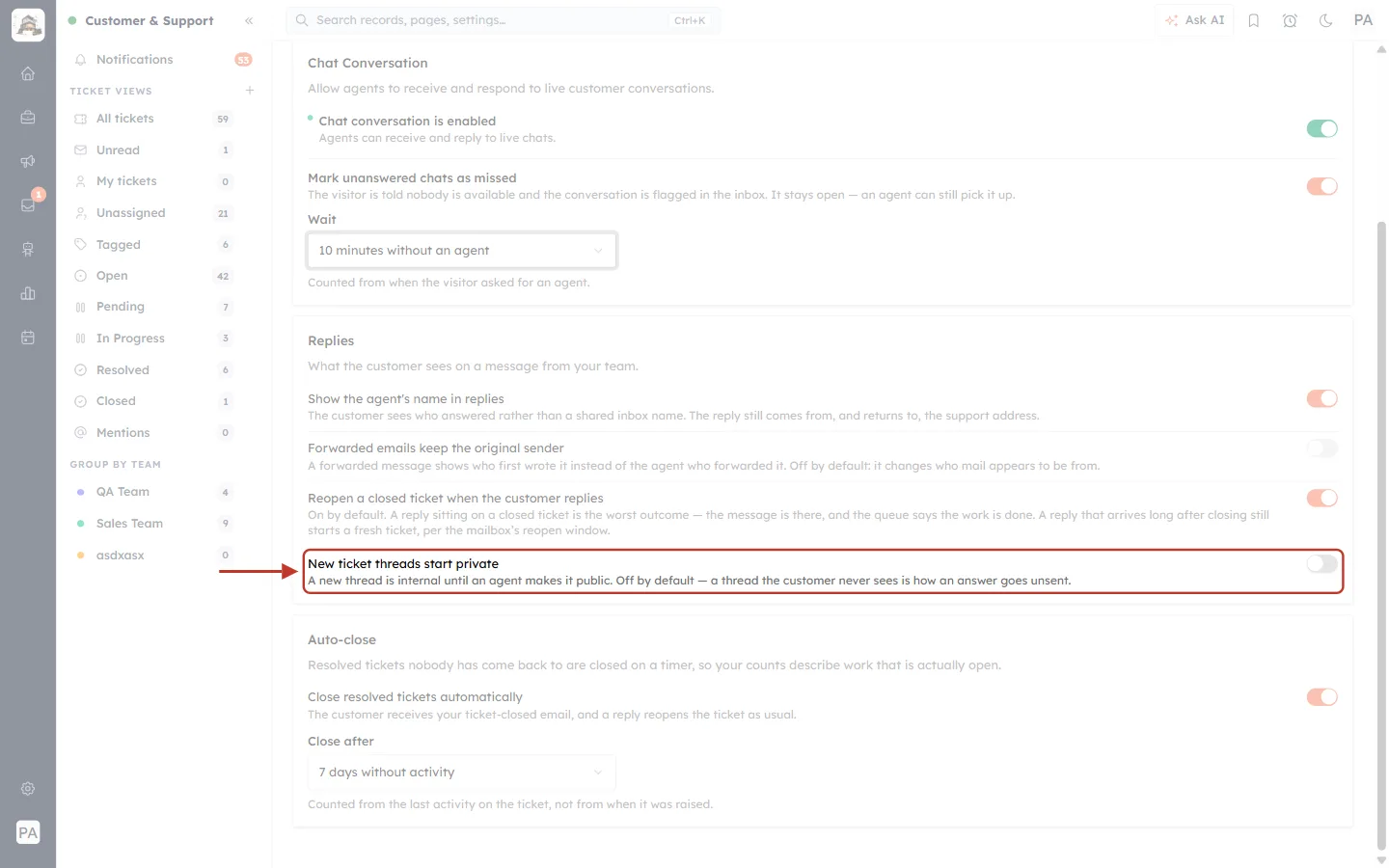
What this screenshot shows. The New ticket threads start private row is ringed (switch off).
Off (default): a new conversation thread on a ticket is visible to the customer as normal.
On: “A new thread is internal until an agent makes it public.”
“Off by default — a thread the customer never sees is how an answer goes unsent.” Turn it on only if your team drafts answers internally before sharing them.
Part 4 — Auto-close#
Step 9: Close resolved tickets automatically#
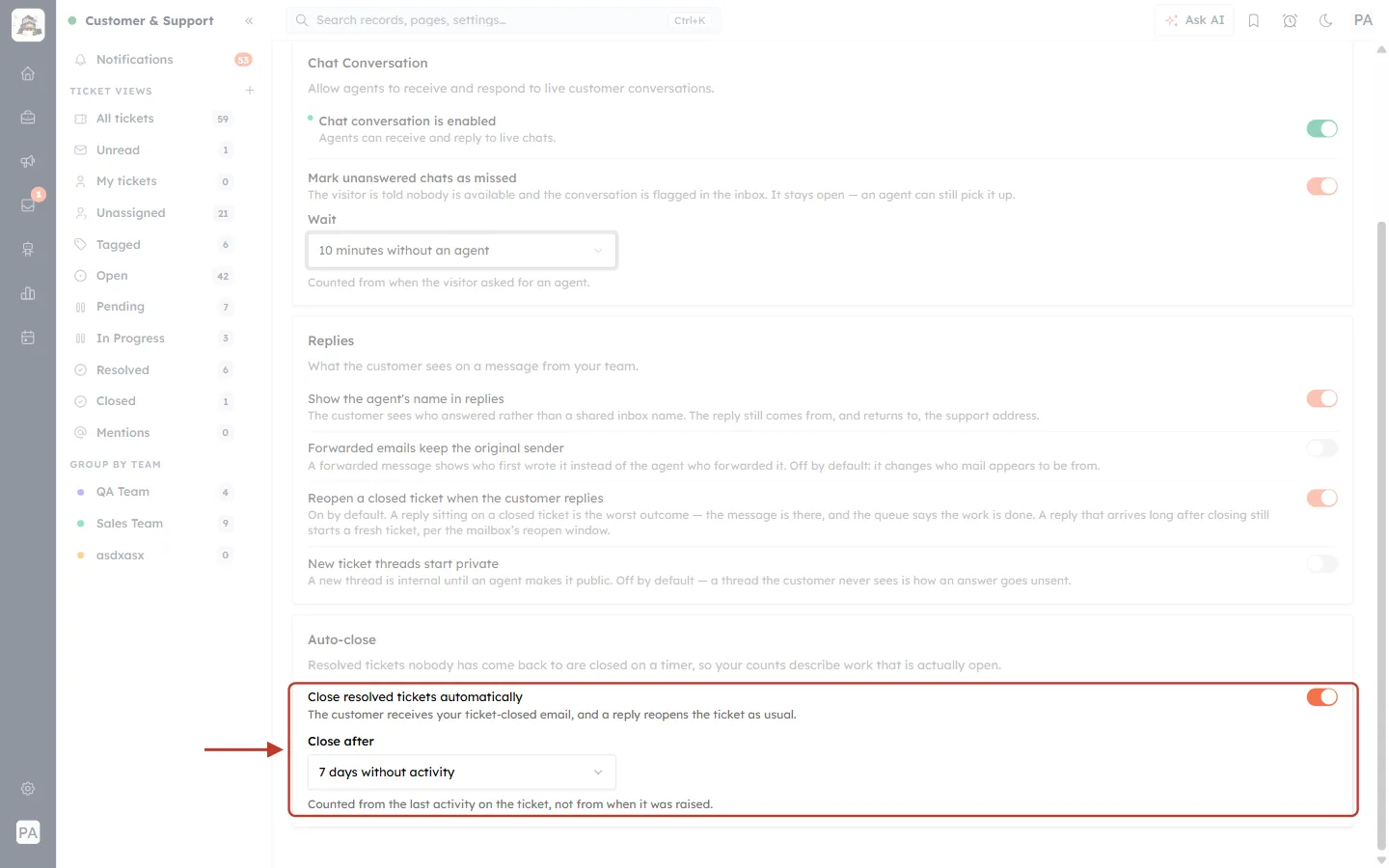
What this screenshot shows. The Auto-close settings are ringed. “Resolved tickets nobody has come back to are closed on a timer, so your counts describe work that is actually open.”
Close resolved tickets automatically (switch on) — “The customer receives your ticket-closed email, and a reply reopens the ticket as usual.”
Close after — 7 days without activity.
“Counted from the last activity on the ticket, not from when it was raised.” New activity on the ticket restarts the count.
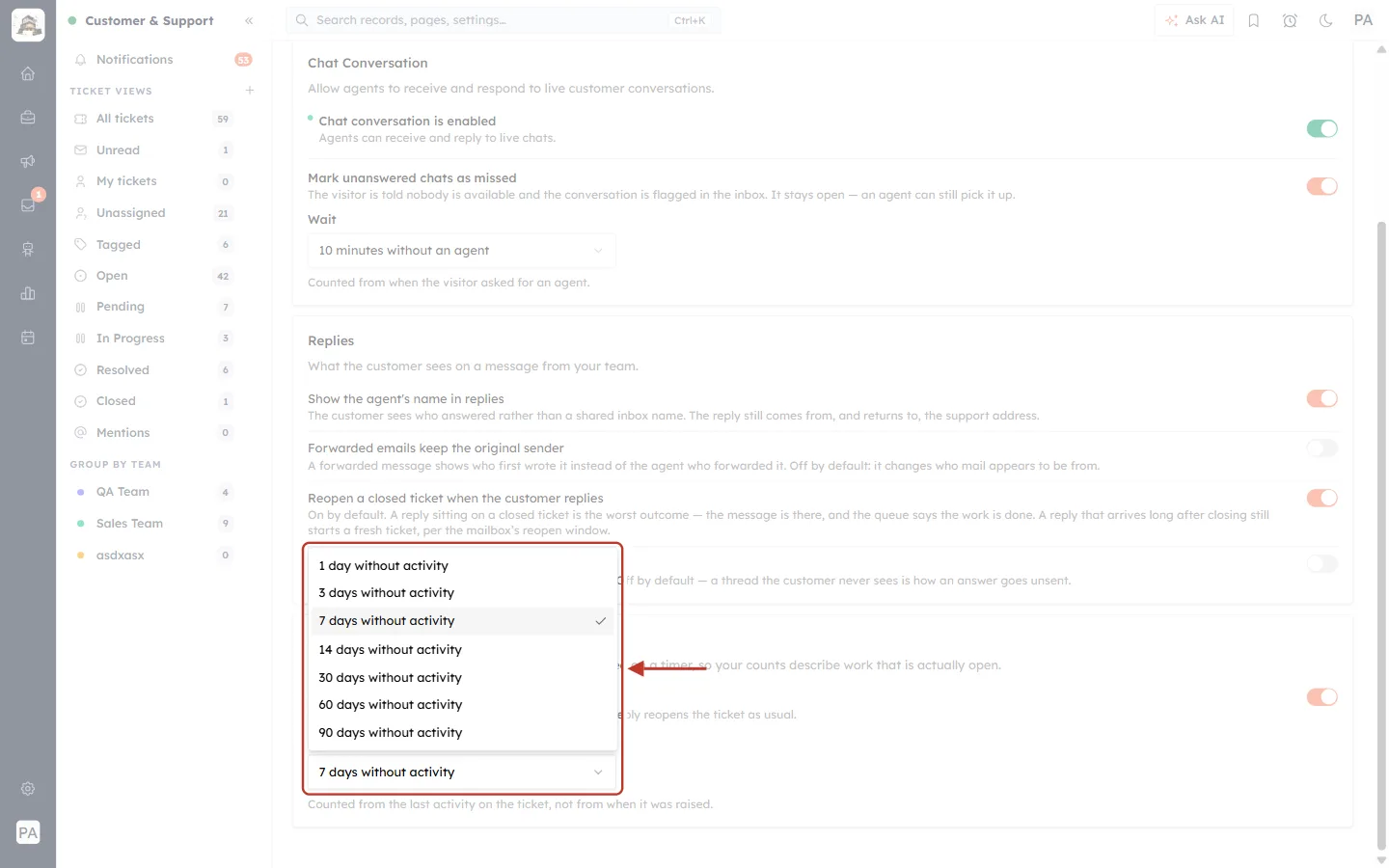
What this screenshot shows. The Close after list is open and ringed.
1, 3, 7, 14, 30, 60 or 90 days without activity.
7 days suits most teams: long enough for a customer to say “it’s still broken”, short enough to keep your counts honest.
Only Resolved tickets are closed this way — Open, Pending and In Progress tickets are never closed automatically.
ℹ️
The ticket-closed email is off by default on the Notify Customer tab. If you switch it on, customers get an email when auto-close closes their ticket — in addition to the resolved email. See Automatic Customer Emails.
Recommended settings#
| Setting | Recommended | Why |
|---|---|---|
| Chat conversation | On | Visitors can reach your team live. |
| Mark unanswered chats as missed | On, 5–10 minutes | Visitors are told honestly when nobody is free, and missed chats are flagged for follow-up. |
| Show the agent’s name | On | Replies feel personal; replies still return to the support address. |
| Forwarded emails keep the original sender | Off | Keeps it clear who sent each email. |
| Reopen on customer reply | On | No customer reply is ever left on a closed ticket. |
| New threads start private | Off | Answers are not accidentally left unsent. |
| Auto-close | On, 7 days | Your open counts show real work only. |
Troubleshooting#
Visitors cannot start a chat. Check that Chat conversation is enabled. If it says “New live chat conversations are currently blocked”, switch it on.
I cannot change Chat Conversation. “Only administrators can turn Chat Conversation on or off.” Ask an administrator.
A customer replied but the ticket stayed closed. Check Reopen a closed ticket when the customer replies is on. If the reply came after the mailbox’s reopen window, a new ticket was created instead — look for it in All tickets.
Resolved tickets are not closing. Check Close resolved tickets automatically is on, and remember the timer restarts whenever there is new activity on the ticket.
Customers say they never got an answer, but the agent replied. Check New ticket threads start private. If it is on, a thread stays internal until an agent makes it public.
“Could not save that setting.” The change was not stored. Try again; if it keeps happening, check your admin access.
Previous and next#
Previous: Automatic Customer Emails: Notify Customers When a Ticket Is Raised, Resolved, Closed or Reopened
Next: Set Up the Website Chat Widget for Support: Live Chat, AI Agent, Handoff & Install
Related#
Was this article helpful?
Ready to implement this?
OpenAI Engage and apply what you just learned to your own workspace.
Open AI Engage CRM