Loading…


KnowledgeBase
The Notifications Panel: What You’re Alerted About, Opening an Alert and Mark All Read (Step-by-Step)
Introduction#
The Notifications panel is where AiEngage CRM tells you about things that need your attention in Customer & Support. For example, a customer on your website chat may ask to speak to a person, a customer may wait with nobody answering, or a ticket’s status may change.
Each alert links straight to the conversation or ticket it is about. One click takes you there, and the alert is marked as read. When you have caught up, Mark all read clears every unread alert at once.
This guide has four parts:
Part | What you’ll learn |
|---|---|
Part 1 | Where the Notifications panel is, and how the counts and red dot work |
Part 2 | What you are alerted about: each type of alert explained |
Part 3 | Opening an alert, loading older alerts and using Mark all read |
Part 4 | Live chat request pop-ups, and turning live chats on or off for yourself |
The screenshots use a sample support team. The customer names and ticket numbers are examples, so yours will be different.
ℹ️
Before you start: the Notifications panel is part of Customer & Support. If you don’t see the headset icon in the left-hand bar, Customer & Support isn’t switched on for your account, or your profile doesn’t include it. Ask your admin. See Introduction to Customer & Support.
Part 1: Find the Notifications panel#
Step 1: Open Customer & Support#
In the dark icon bar on the far left of the screen, click the headset icon. This opens Customer Support, with its own menu in the side panel next to the icon bar.
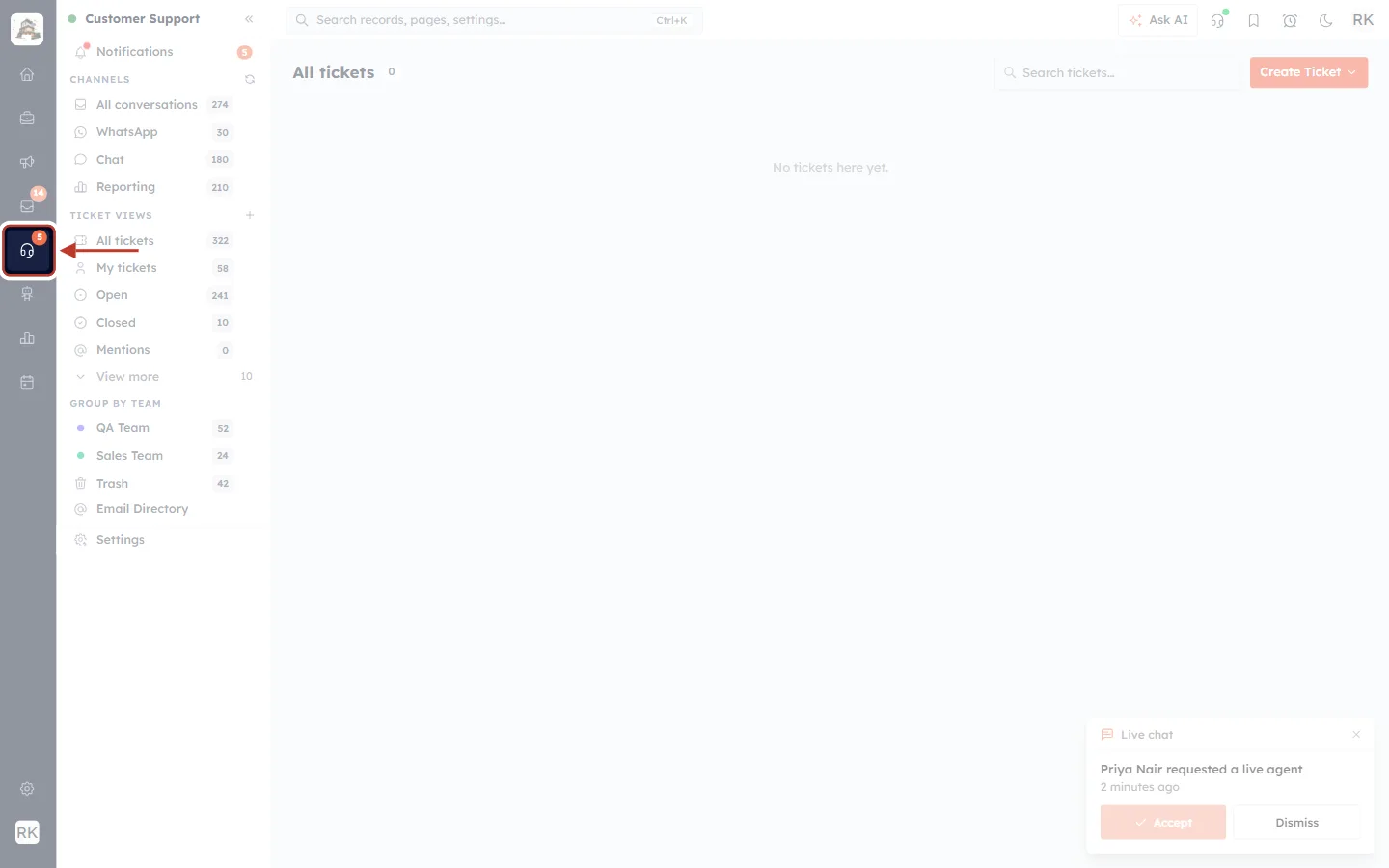
What this screenshot shows. The left icon bar, with the Customer Support headset icon ringed. The red arrow points to it.
The headset icon opens Customer & Support. It is dark when Customer & Support is open, as here.
The small orange number on the icon (here 5) is how many unread notifications you have. You can see it from any screen in the CRM, so you know when something is waiting even while you work elsewhere.
The side panel next to it now shows the Customer Support menu: Notifications, Channels, Ticket Views and Group by Team.
The ticket list on the right is faded because it isn’t the subject of this step.
Step 2: Find “Notifications” at the top of the side panel#
Notifications is the first item in the Customer Support side panel, above CHANNELS.
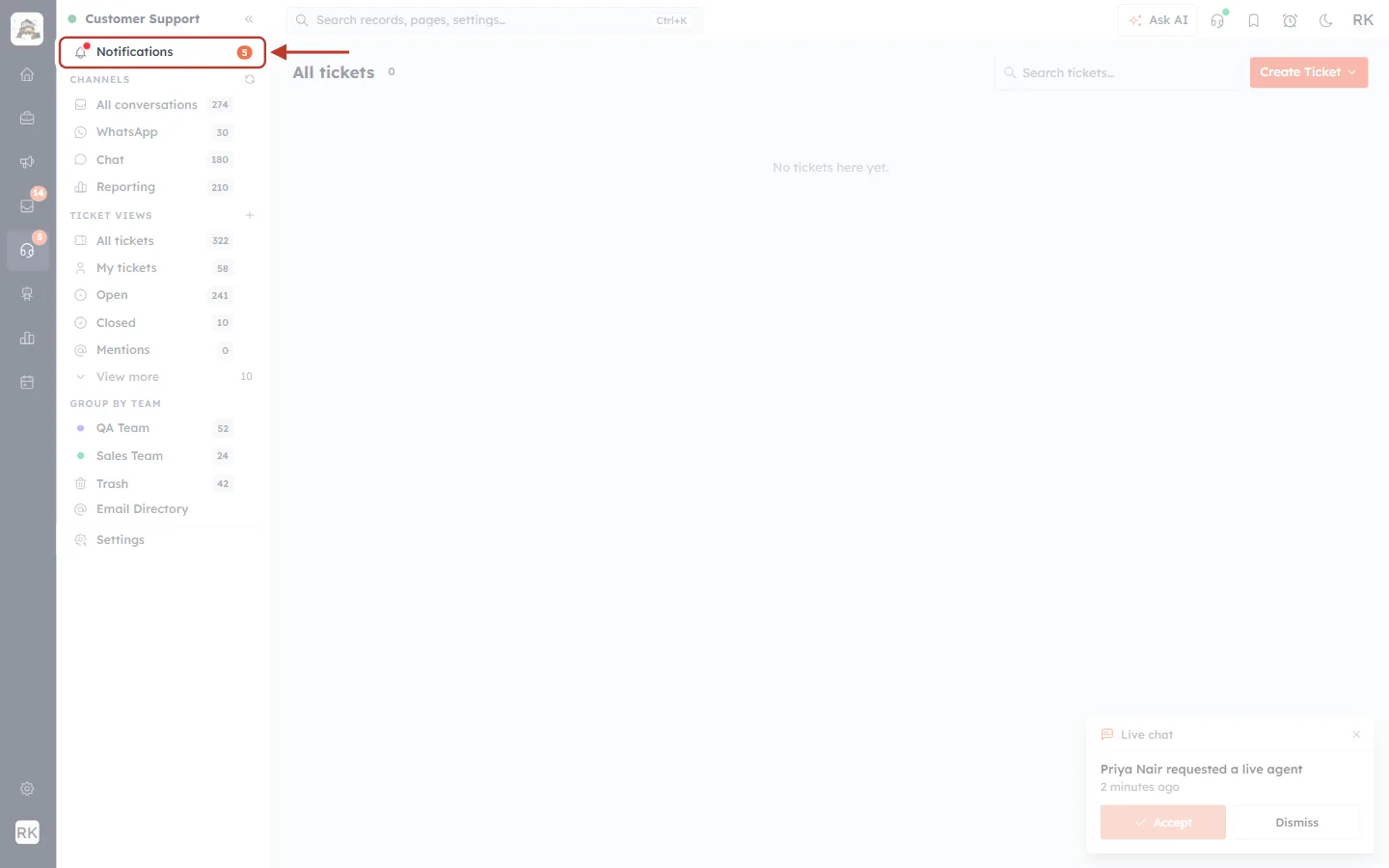
What this screenshot shows. The top of the Customer Support side panel. The Notifications item is ringed.
The bell icon and the word Notifications: click here to open the panel.
The orange number on the right (here 5) is the number of unread notifications. From 100 upwards it shows 99+.
The small red dot on the bell, which pulses gently, means new notifications have arrived since you last opened the panel. It disappears as soon as you open the panel, even if you don’t read anything.
CHANNELS, TICKET VIEWS and the rest of the menu below are faded. They are covered in Find the Right Tickets Fast: Ticket Views, Team Groups & Notifications.
ℹ️
How quickly do counts update? New alerts usually appear within a moment. The CRM also checks your unread count every two minutes while the CRM is open in your browser, and again whenever you come back to its browser tab. You don’t need to refresh the page.
Step 3: Open the panel#
Click Notifications. The panel opens to the right of the side panel, on top of the page you are on.
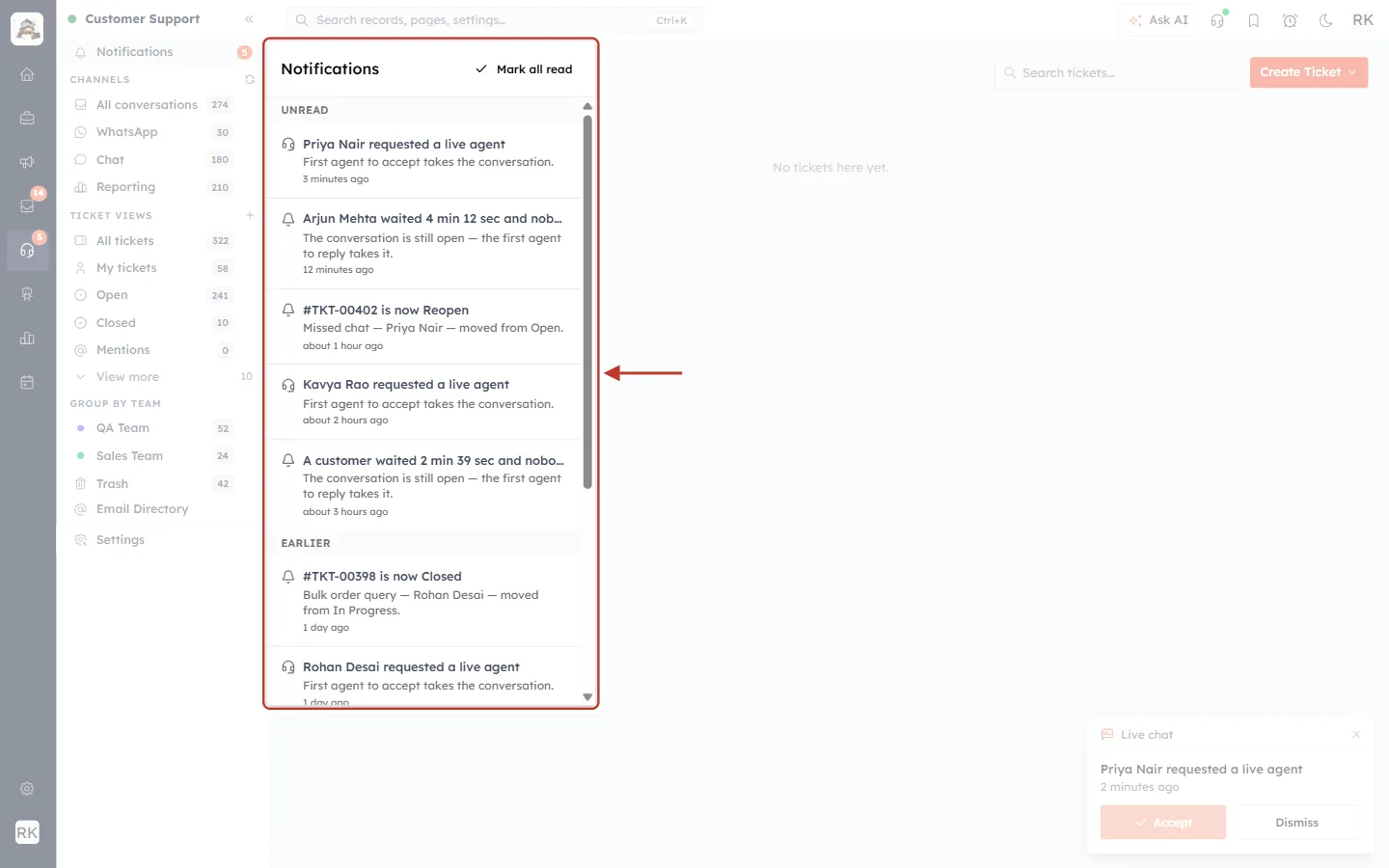
What this screenshot shows. The Notifications panel open on top of the ticket list. The whole panel is ringed.
Notifications at the top left is the panel’s title.
Mark all read, with a tick, is at the top right (Step 11). It only appears while you have unread notifications.
UNREAD lists the notifications you haven’t opened yet, newest first.
EARLIER lists notifications you have already read.
Each notification has an icon, a bold title, a short description in grey and how long ago it happened (for example 2 minutes ago).
The scroll bar on the right shows there is more to see below.
The Live chat card in the bottom-right corner is a separate pop-up for live agent requests (Part 4).
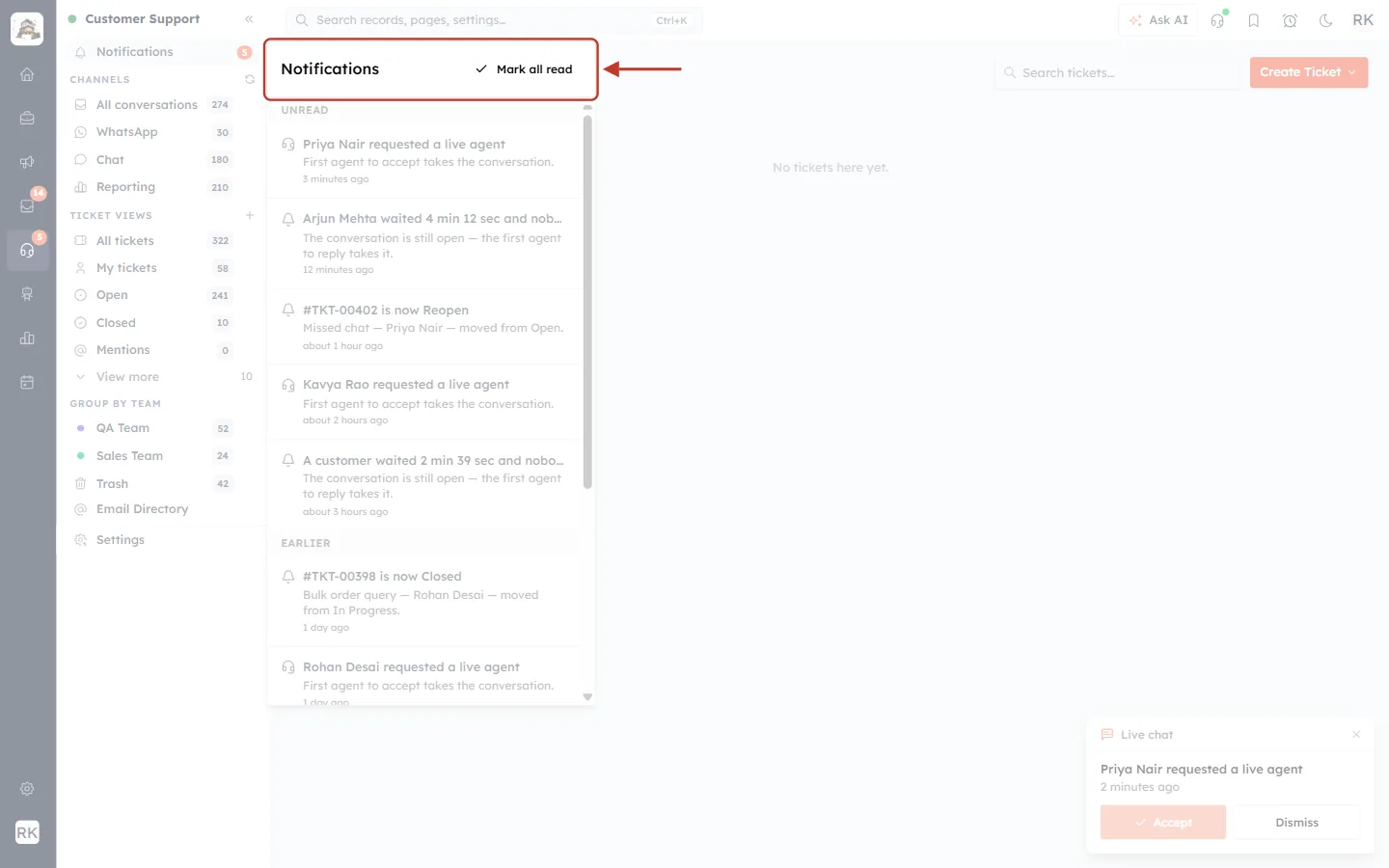
What this screenshot shows. The header strip at the top of the panel is ringed.
Notifications: the panel title.
✓ Mark all read: marks every unread notification as read in one click. See Step 11.
To close the panel, press
Escor click anywhere outside it.
Part 2: What you’re alerted about#
Step 4: Read the Unread section#
The UNREAD section is your to-do list. Work through it from the top, because the newest alerts are first.
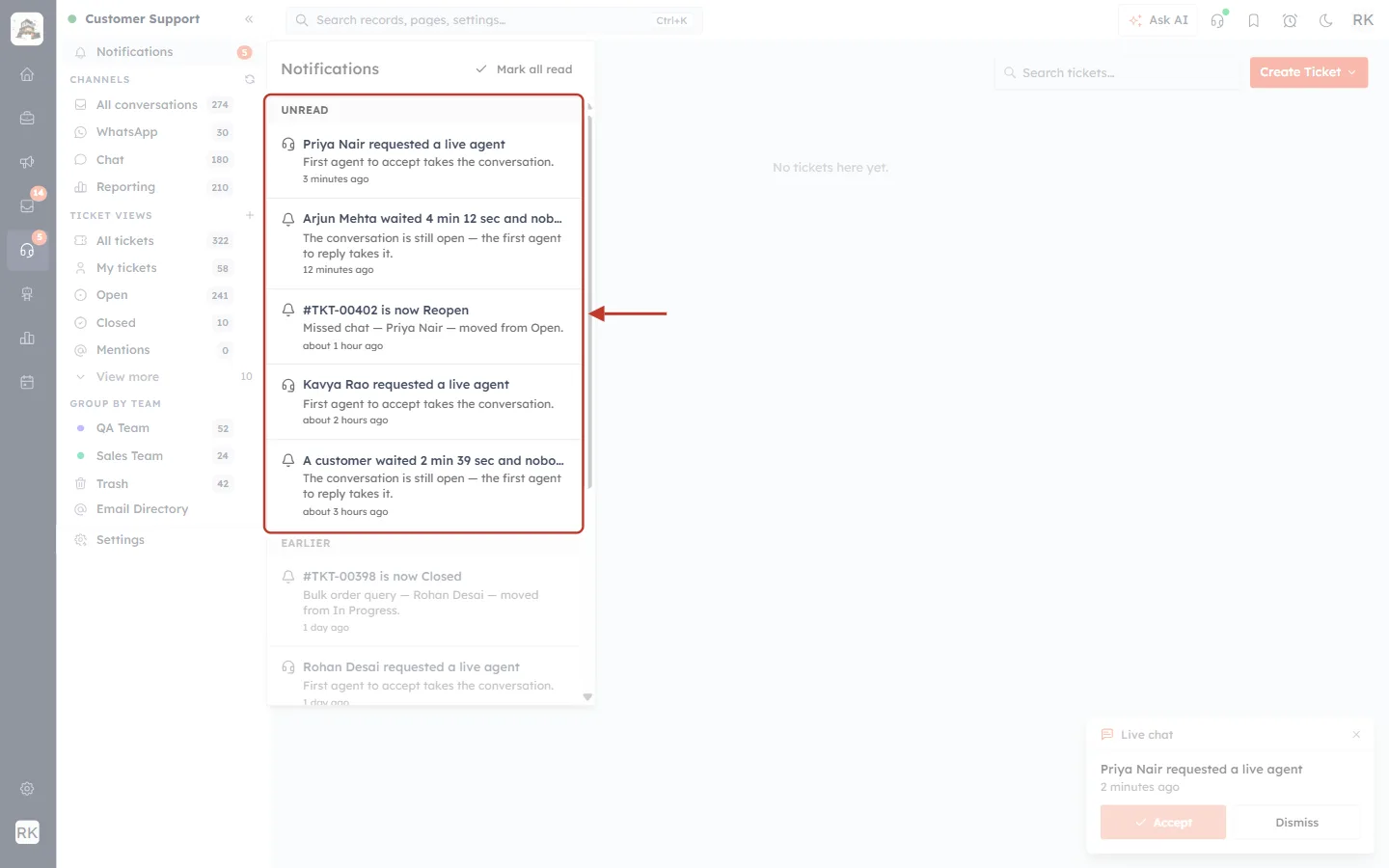
What this screenshot shows. The UNREAD section is ringed. It holds five notifications.
Priya Nair requested a live agent (headset icon), 2 minutes ago.
Arjun Mehta waited 4 min 12 sec and nobody joined (bell icon), 11 minutes ago.
#TKT-00402 is now Reopen (bell icon), about 1 hour ago.
Kavya Rao requested a live agent, about 2 hours ago.
A customer waited 2 min 39 sec and nobody joined, about 3 hours ago. “A customer” is used when the visitor didn’t give a name.
Long titles are cut short with “…”. Open the alert to see everything.
There are three kinds of alert in the panel. The steps below explain each one.
Alert | Icon | What it means | Where clicking takes you |
|---|---|---|---|
<Customer> requested a live agent | Headset | A customer chatting with your AI agent asked to talk to a person. | The conversation in the Team Inbox |
<Customer> waited <time> and nobody joined | Bell | A customer asked for a person, but nobody joined the chat. The time shows how long they waited. | The conversation in the Team Inbox |
#<ticket number> is now <status> | Bell | A ticket moved to a new status, for example Reopen, In Progress or Closed. | The ticket |
Step 5: Live agent requests#
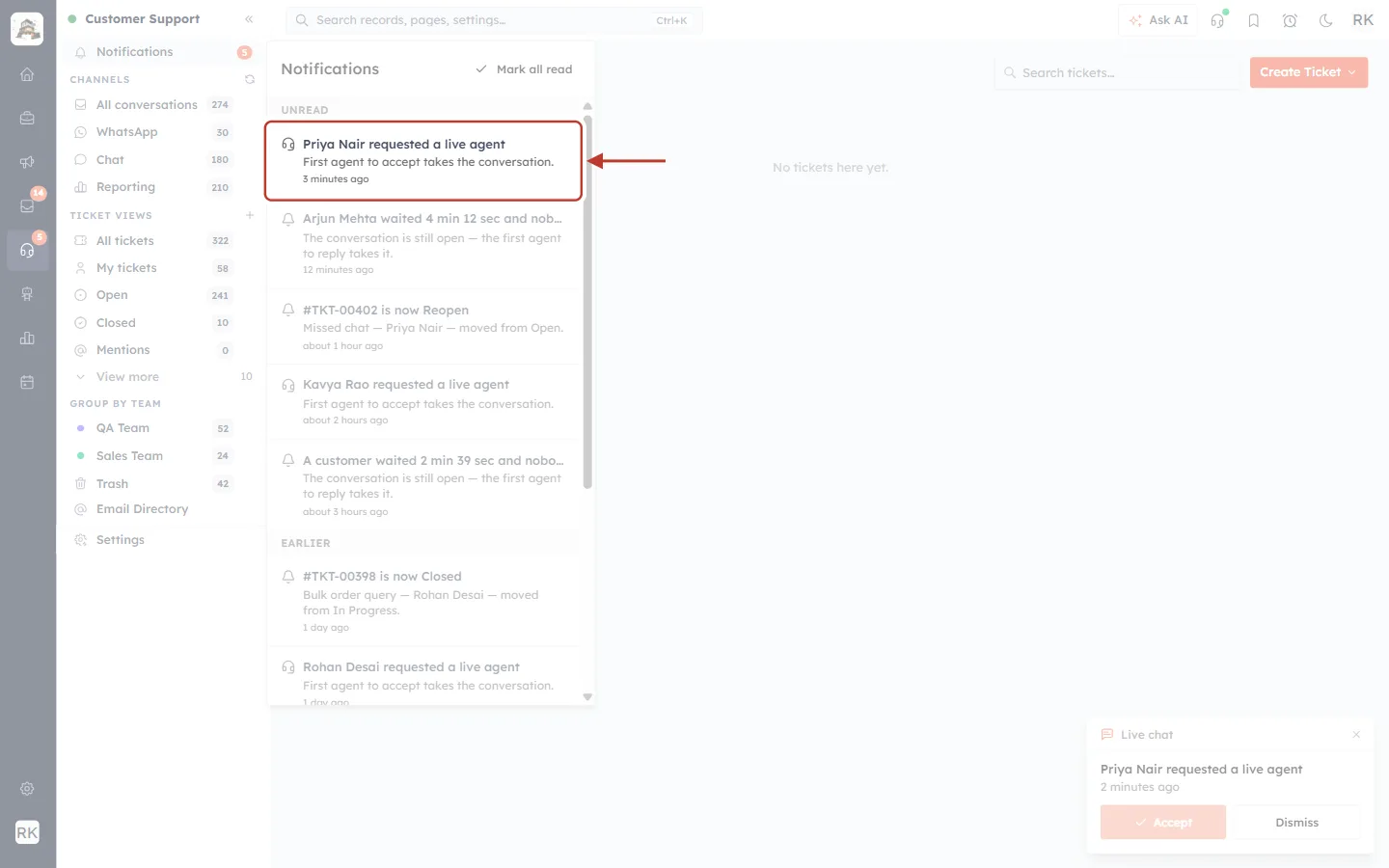
What this screenshot shows. One notification, Priya Nair requested a live agent, is ringed.
The headset icon marks a live agent request, so you can spot these at a glance.
Priya Nair requested a live agent: the customer, chatting on your website or another channel with your AI agent, asked to speak to a person.
First agent to accept takes the conversation. Whoever accepts first gets the chat.
2 minutes ago: when the customer asked.
Act on these first. The customer is waiting in a live chat right now. To reply, see Live Agent Handover from the AI Agent.
Step 6: Missed chats#
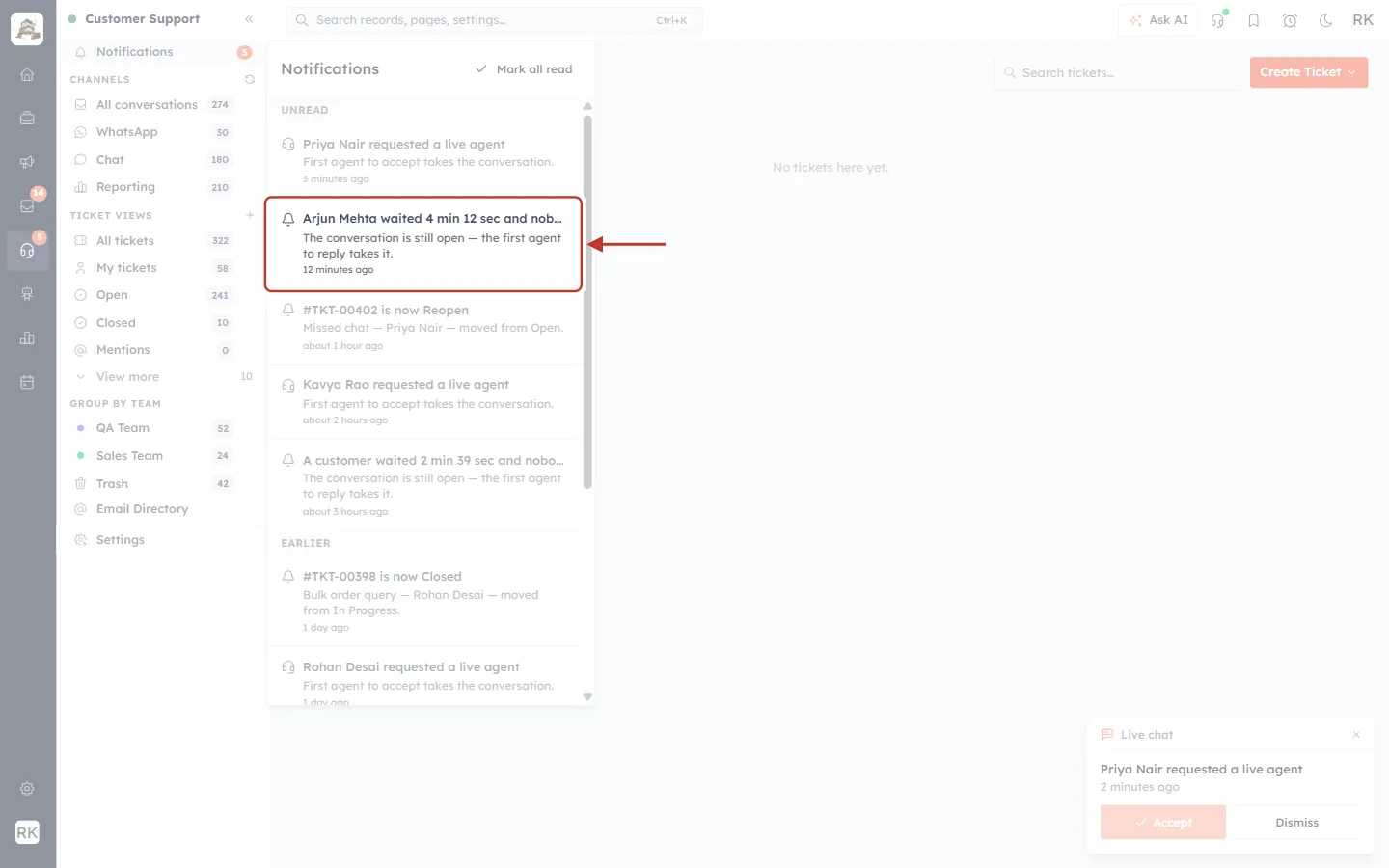
What this screenshot shows. One notification, Arjun Mehta waited 4 min 12 sec and nobody joined, is ringed.
The bell icon is used for missed chats.
Arjun Mehta waited 4 min 12 sec and nobody joined: the customer asked for a person and waited that long, but no agent joined.
The conversation is still open — the first agent to reply takes it. It isn’t too late. Reply now and the conversation is yours.
11 minutes ago: when the wait ended.
✅
Tip: lots of missed-chat alerts usually means nobody had live chat turned on, or everyone was busy. Check who has Chat on (Step 14) and your live chat settings in Support General Settings.
Step 7: Ticket status changes#
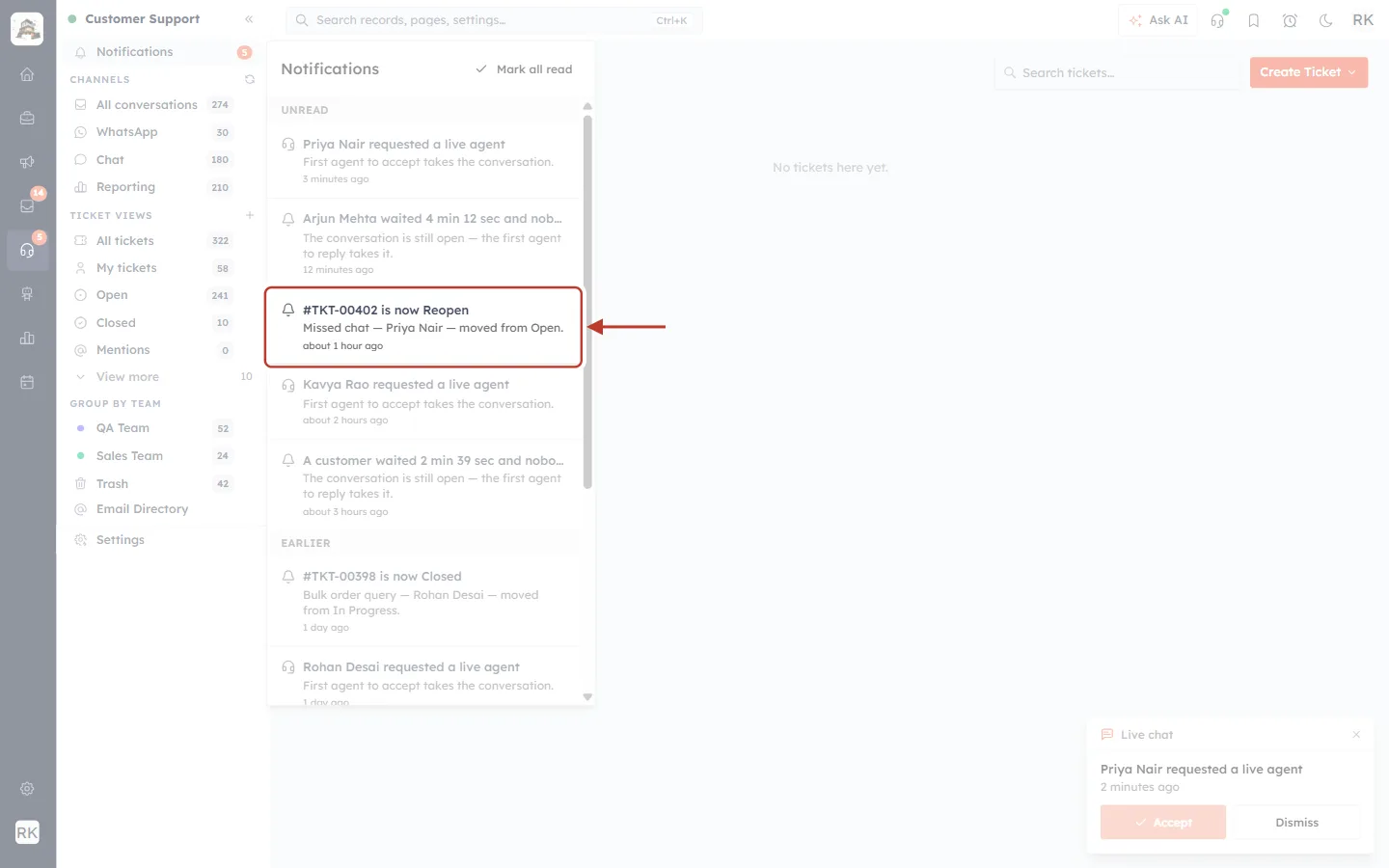
What this screenshot shows. One notification, #TKT-00402 is now Reopen, is ringed.
#TKT-00402 is now Reopen: ticket number TKT-00402 has moved to the status Reopen.
Missed chat — Priya Nair — moved from Open. The grey line gives the ticket subject (Missed chat), the customer (Priya Nair) and the status it moved from (Open).
about 1 hour ago: when the status changed.
The status names are the ones your team uses on tickets, so they may differ from this example.
ℹ️
Other alerts: if the CRM sends you other kinds of alert, they appear in the same list, each with its own icon. The panel works the same way for all of them.
Step 8: Look back with the Earlier section#
Notifications you have already opened move to EARLIER. Nothing is deleted when you read it, so you can always go back.
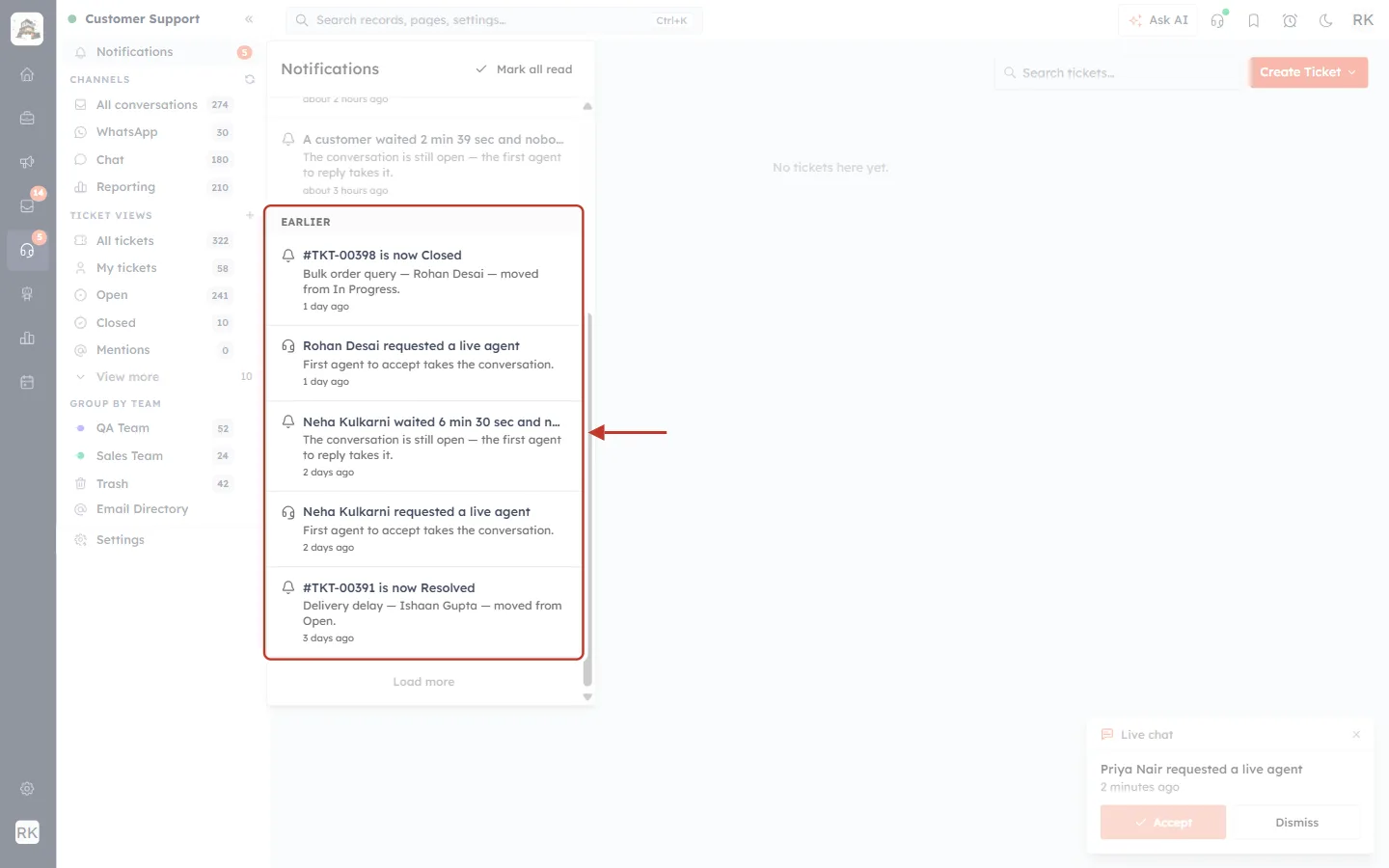
What this screenshot shows. The panel scrolled down. The EARLIER section is ringed.
EARLIER holds notifications you have read: here #TKT-00398 is now Closed, Rohan Desai requested a live agent, two alerts about Neha Kulkarni and #TKT-00391 is now Resolved.
The times (1 day ago, 2 days ago, 3 days ago) show these are older.
You can still click them. An earlier notification opens its conversation or ticket in the same way.
Part 3: Open alerts, load more and mark all read#
Step 9: Load older notifications#
The panel shows your 10 most recent notifications first. To see older ones, scroll to the bottom of the panel.
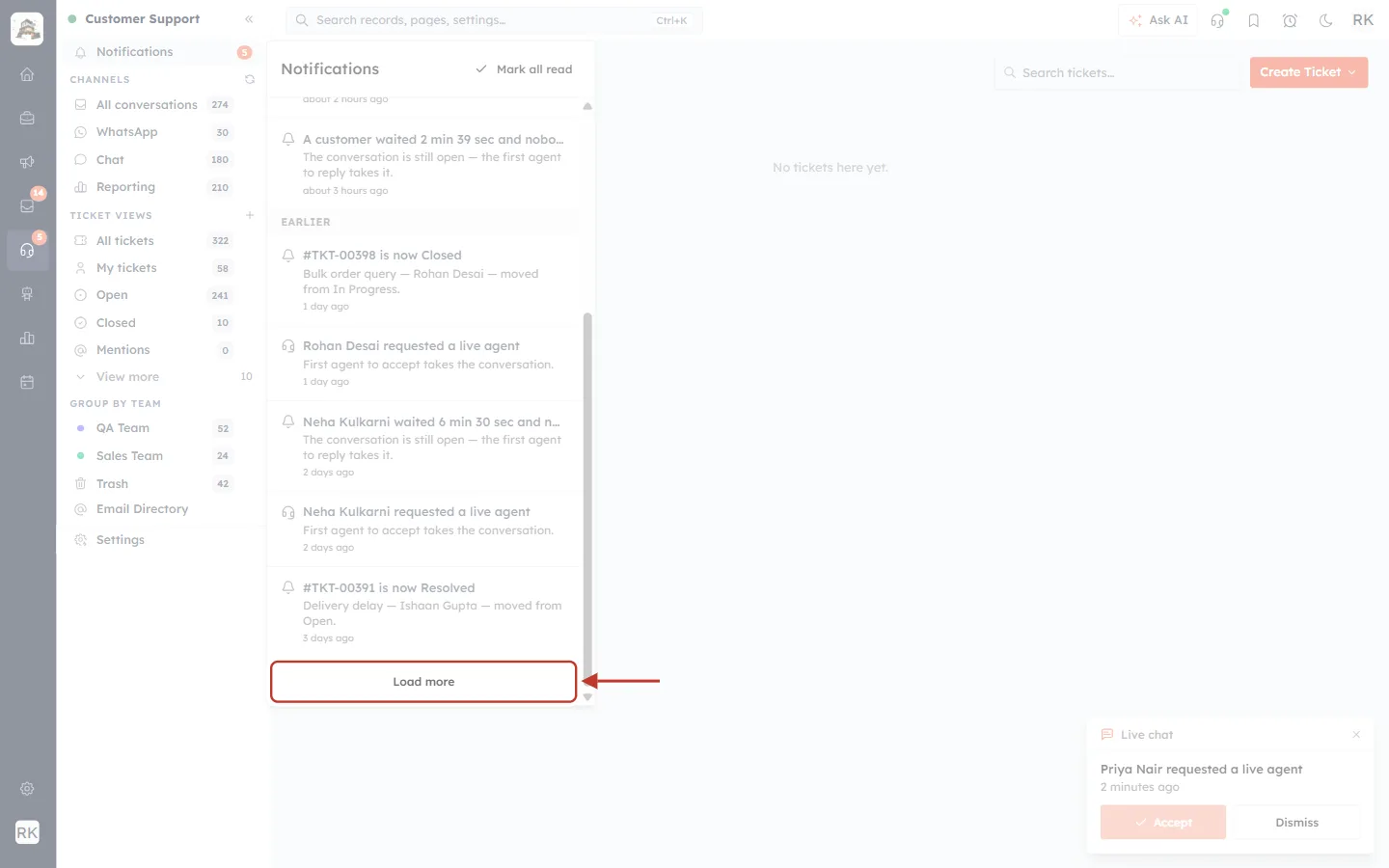
What this screenshot shows. The bottom of the panel, with the Load more button ringed.
Load more appears only when there are older notifications to show.
Click it to add the next 10 to the list. While they load, the button says Loading….
When there is nothing older, the button disappears.
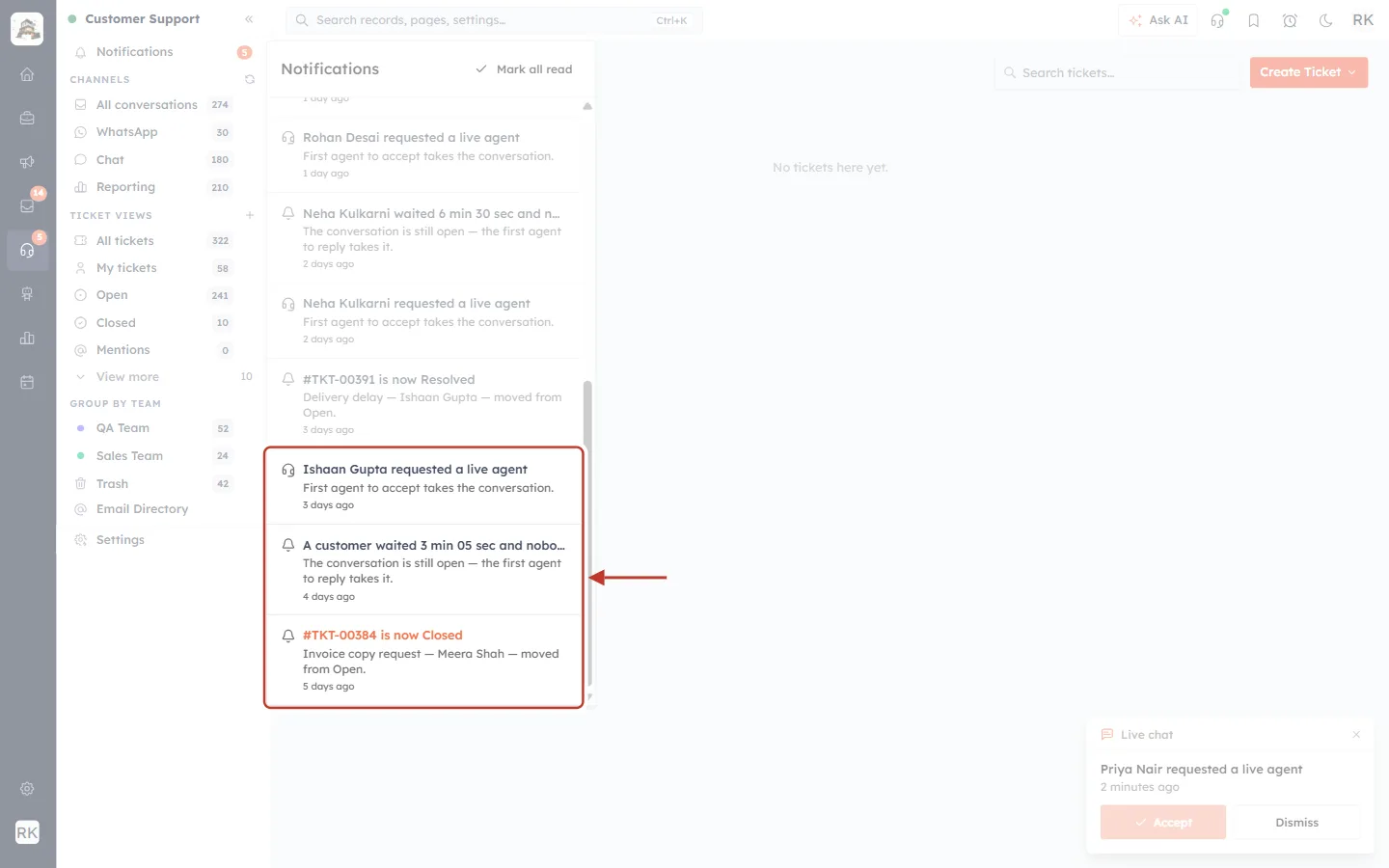
What this screenshot shows. After clicking Load more, three older notifications appear at the bottom. They are ringed.
Ishaan Gupta requested a live agent (3 days ago), A customer waited 3 min 05 sec and nobody joined (4 days ago) and #TKT-00384 is now Closed (5 days ago) were added to the end of the list.
The Load more button has gone, which means these are the oldest notifications.
The title in orange (#TKT-00384) shows where the mouse pointer is. Titles turn orange when you hover over them, so you know they can be clicked.
Step 10: Click a notification to open it#
Click any notification. Three things happen:
The panel closes.
The CRM opens what the notification is about: the ticket, or the conversation in the Team Inbox.
The notification is marked as read. It moves to EARLIER, and the unread count goes down by one.
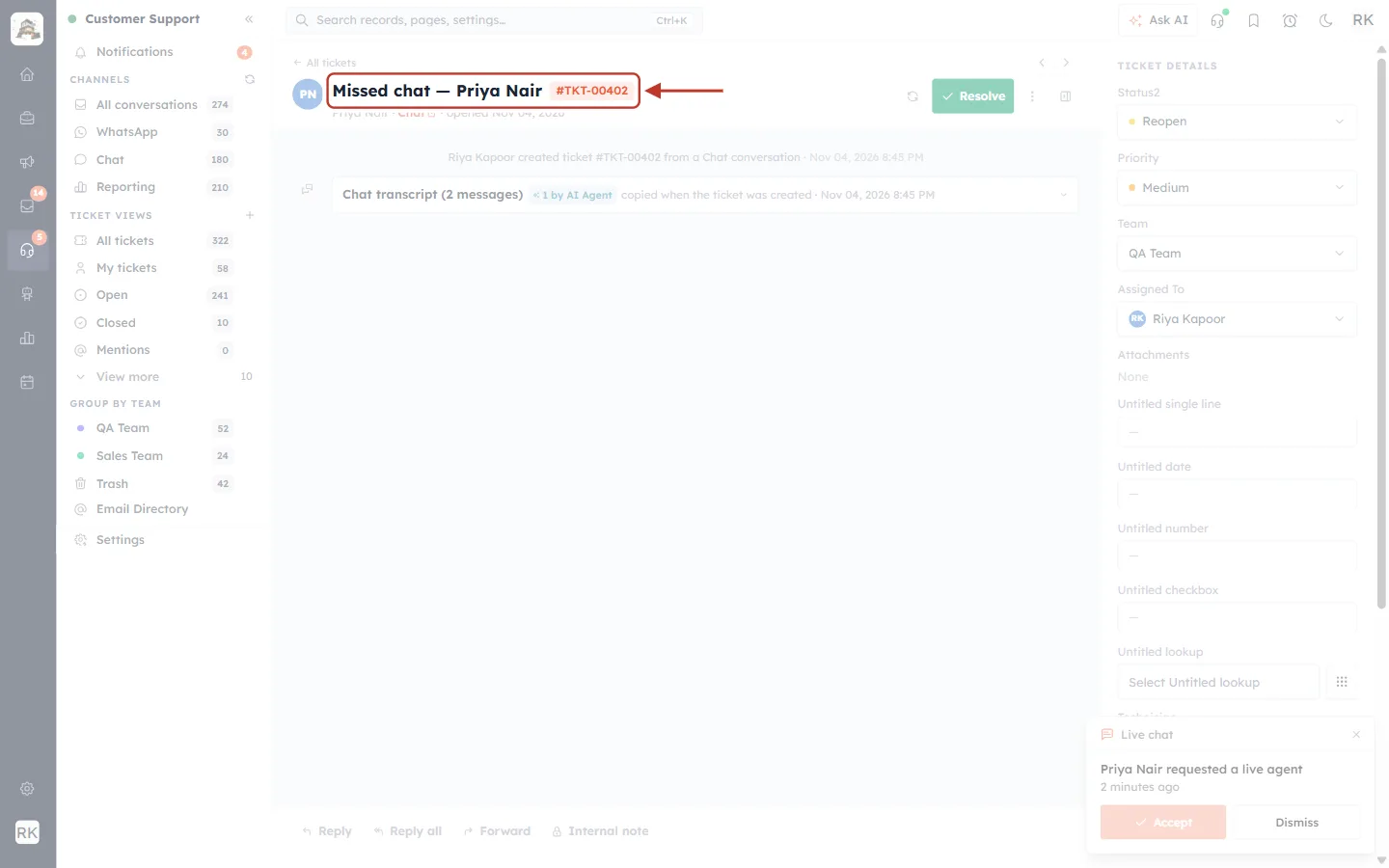
What this screenshot shows. The ticket opened by clicking “#TKT-00402 is now Reopen”. The ticket title and number are ringed.
Missed chat — Priya Nair and #TKT-00402 at the top confirm this is the ticket from the notification.
Status2: Reopen on the right (under TICKET DETAILS) shows the new status the alert told you about.
The timeline in the middle shows how the ticket was created and the chat transcript. Reply, Reply all, Forward and Internal note are at the bottom.
Notifications 4 in the side panel: the count has gone down from 5 to 4 because this alert is now read.
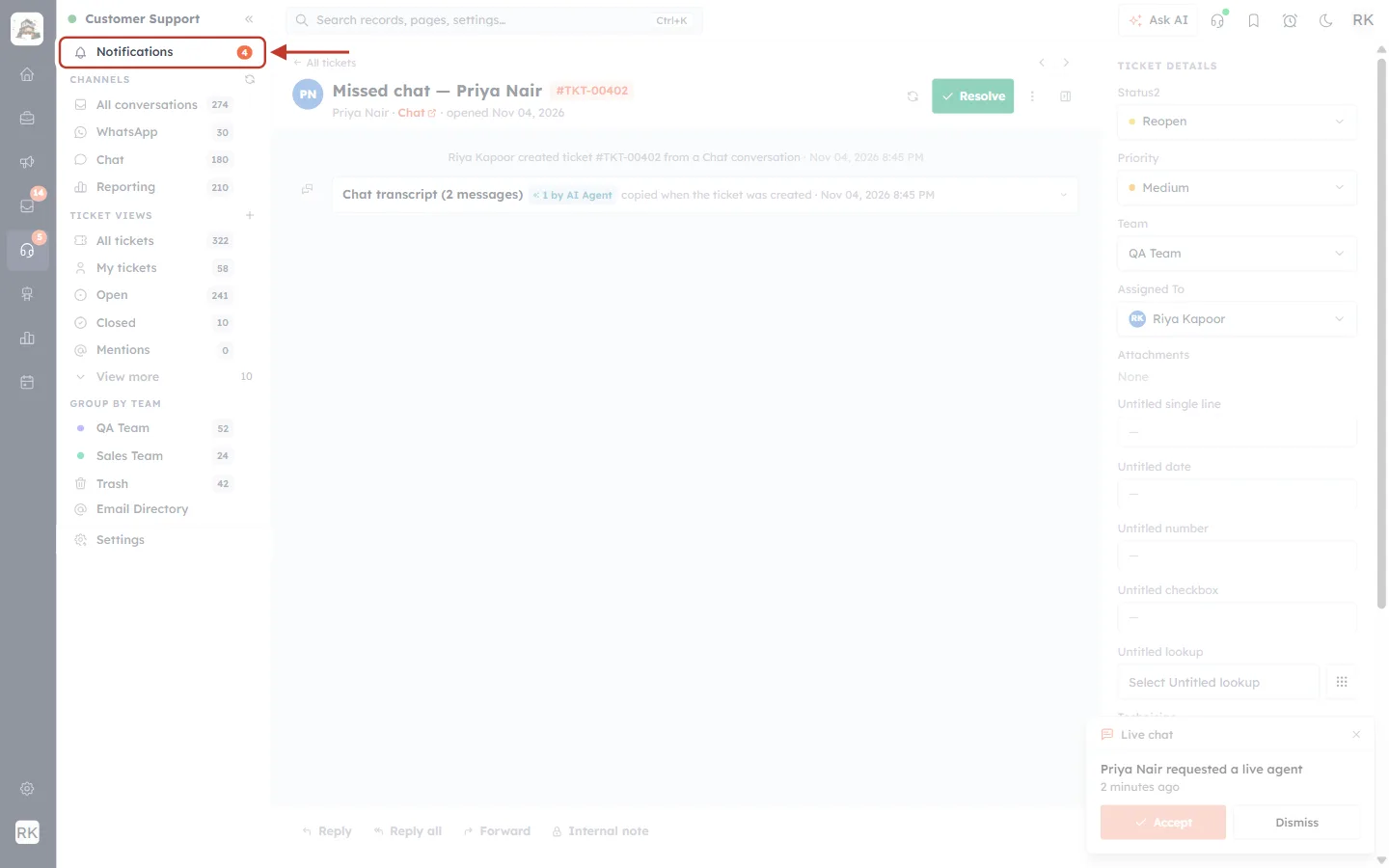
What this screenshot shows. The Notifications item in the side panel is ringed. It now shows 4.
4 unread notifications remain. The one you opened no longer counts.
The red dot has gone because you opened the panel. It comes back only when something new arrives.
Step 11: Mark all read#
When you have dealt with everything, or the alerts are no longer relevant, clear them all in one go. Open the panel and click Mark all read at the top right.
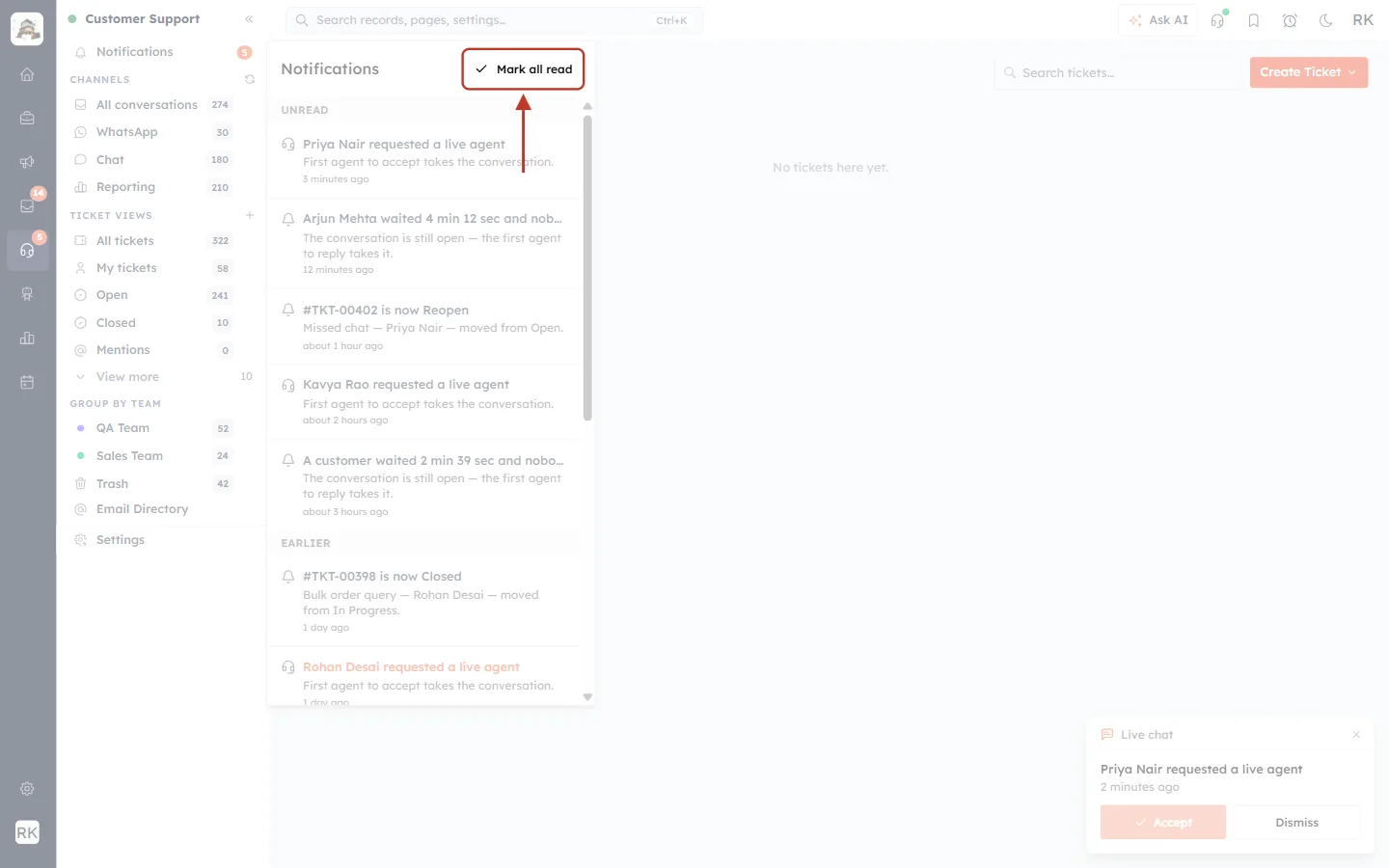
What this screenshot shows. The top of the Notifications panel, with the ✓ Mark all read button ringed.
✓ Mark all read marks every unread notification as read, including ones you haven’t loaded with Load more.
You don’t need to open each alert first.
Nothing is deleted. All your notifications stay in the panel under EARLIER.
⚠️
There is no “mark as unread”. Once a notification is read, you can’t make it unread again. Before you click Mark all read, check the UNREAD list for live agent requests or missed chats that still need a reply.
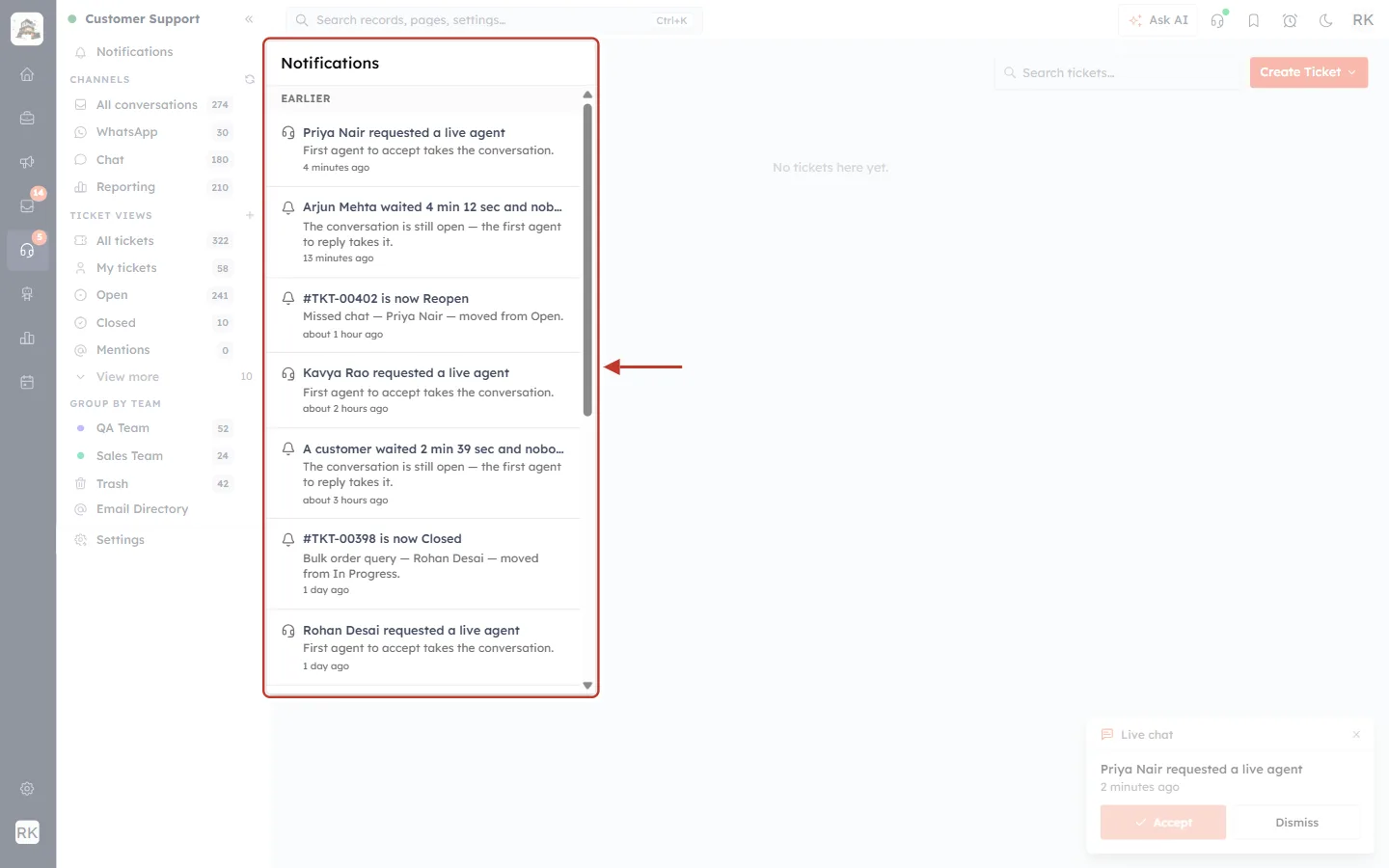
What this screenshot shows. The panel straight after clicking Mark all read. The whole panel is ringed.
The UNREAD section has gone. Every notification is now listed under EARLIER, newest first.
The Mark all read button has disappeared, because there is nothing left unread.
The notifications are all still here (Priya Nair, Arjun Mehta, #TKT-00402 and so on), and you can still click them.
The Notifications item behind the panel no longer shows a count.
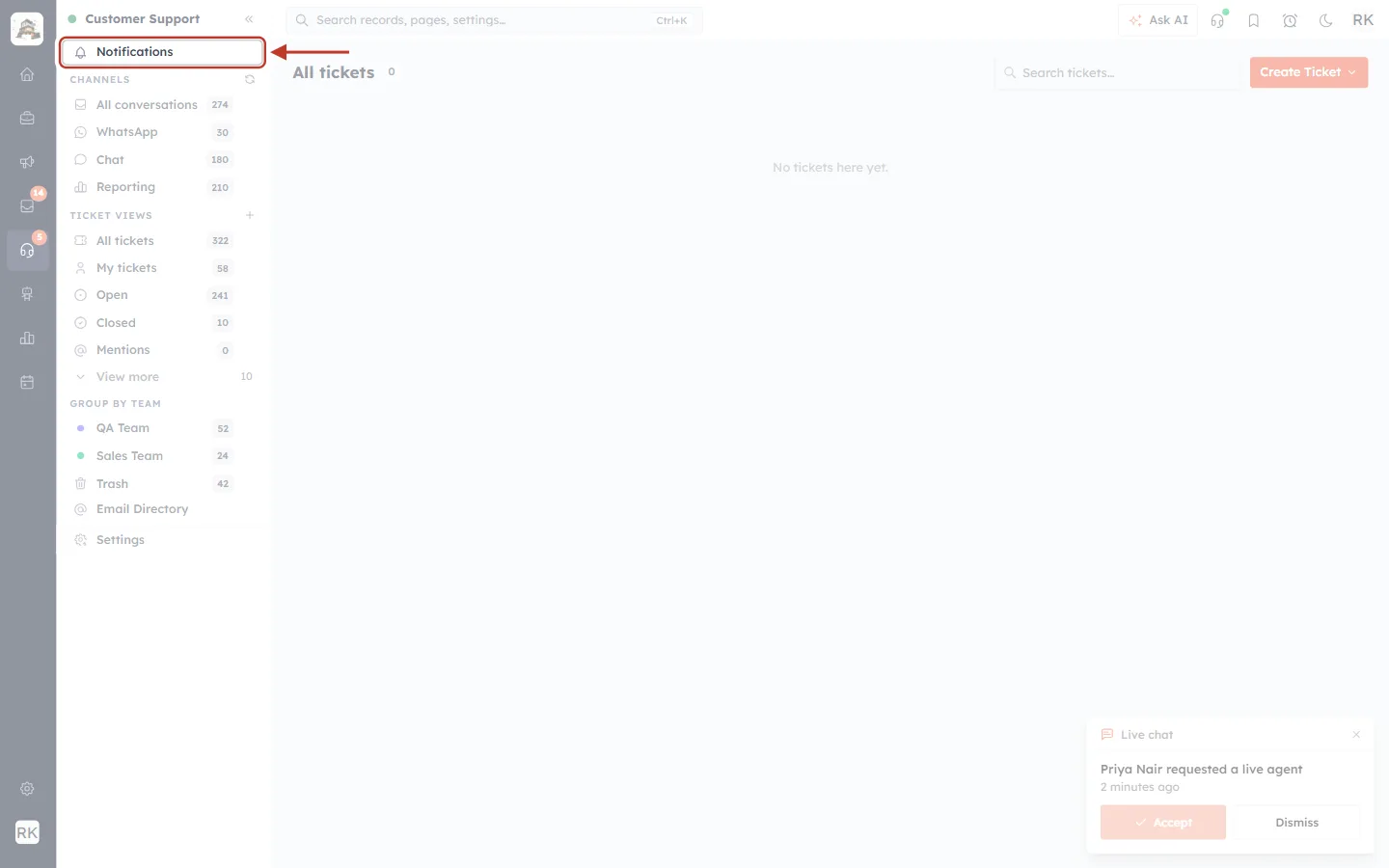
What this screenshot shows. The Notifications item in the side panel after Mark all read is ringed. It has no number and no red dot.
No orange number means you have no unread notifications.
No red dot means nothing new has arrived since you last looked.
The number on the headset icon in the left bar can take a moment to catch up. It updates the next time the CRM checks, within about two minutes.
Step 12: When there’s nothing to show#
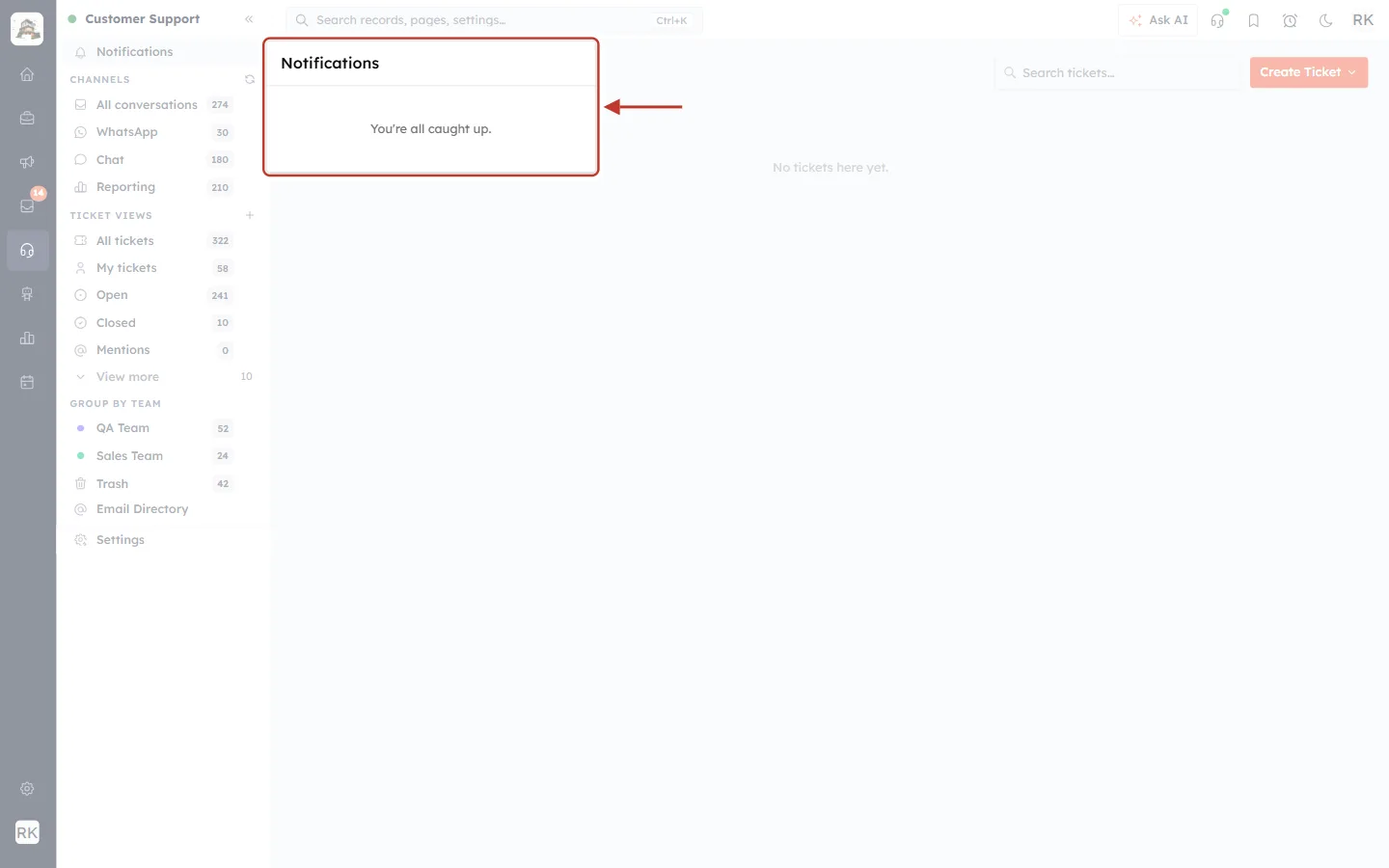
What this screenshot shows. The Notifications panel for a user who has no notifications. The panel is ringed.
You’re all caught up. means there are no notifications for you at all, read or unread.
There is no Mark all read button, because there is nothing to mark.
The Notifications item in the side panel has no number.
Part 4: Live chat requests and your chat availability#
Step 13: Answer a live chat request from the pop-up#
A live agent request is urgent, because the customer is waiting in the chat. So as well as adding it to the Notifications panel, the CRM shows a Live chat card in the bottom-right corner of the screen.
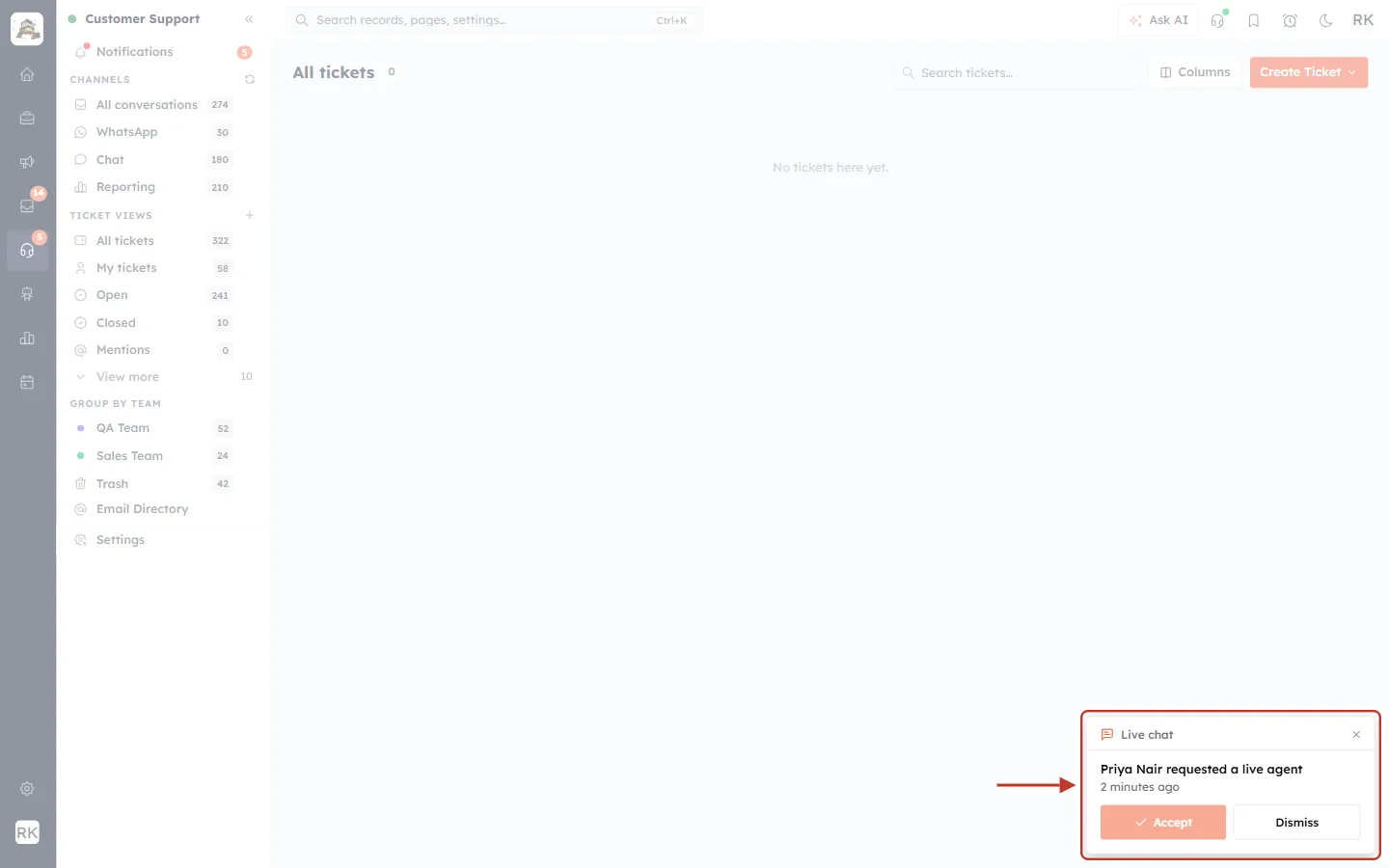
What this screenshot shows. The bottom-right corner of the screen, with the Live chat card ringed.
Live chat at the top of the card tells you what kind of request it is.
Priya Nair requested a live agent, 2 minutes ago: who is waiting and for how long.
✓ Accept (orange button): takes the conversation and opens it in the Team Inbox so you can reply straight away. If another agent got there first, you’ll see Another agent took this conversation.
Dismiss or the × at the top right: hides the card and stops the alert sound. The request stays unread in the Notifications panel, so you can still find it.
Several requests at once: up to three cards are shown, stacked. If more customers are waiting, a line under them says, for example, 2 more customers are waiting.
ℹ️
Sound, tab and desktop alerts: when a new live agent request arrives, the CRM can also:
play a ringing sound for up to about 90 seconds
flash the title of the browser tab, for example “3 customers waiting”
show a desktop notification, if you allowed notifications for the CRM in your browser
Accepting or dismissing the request stops the sound. Some browsers block sound until you have clicked somewhere on the page, so click once after signing in.
Step 14: Turn live chats on or off for yourself#
Whether you receive live chats at all depends on your live chat availability. You set it with the headset button in the top bar, next to Ask AI.
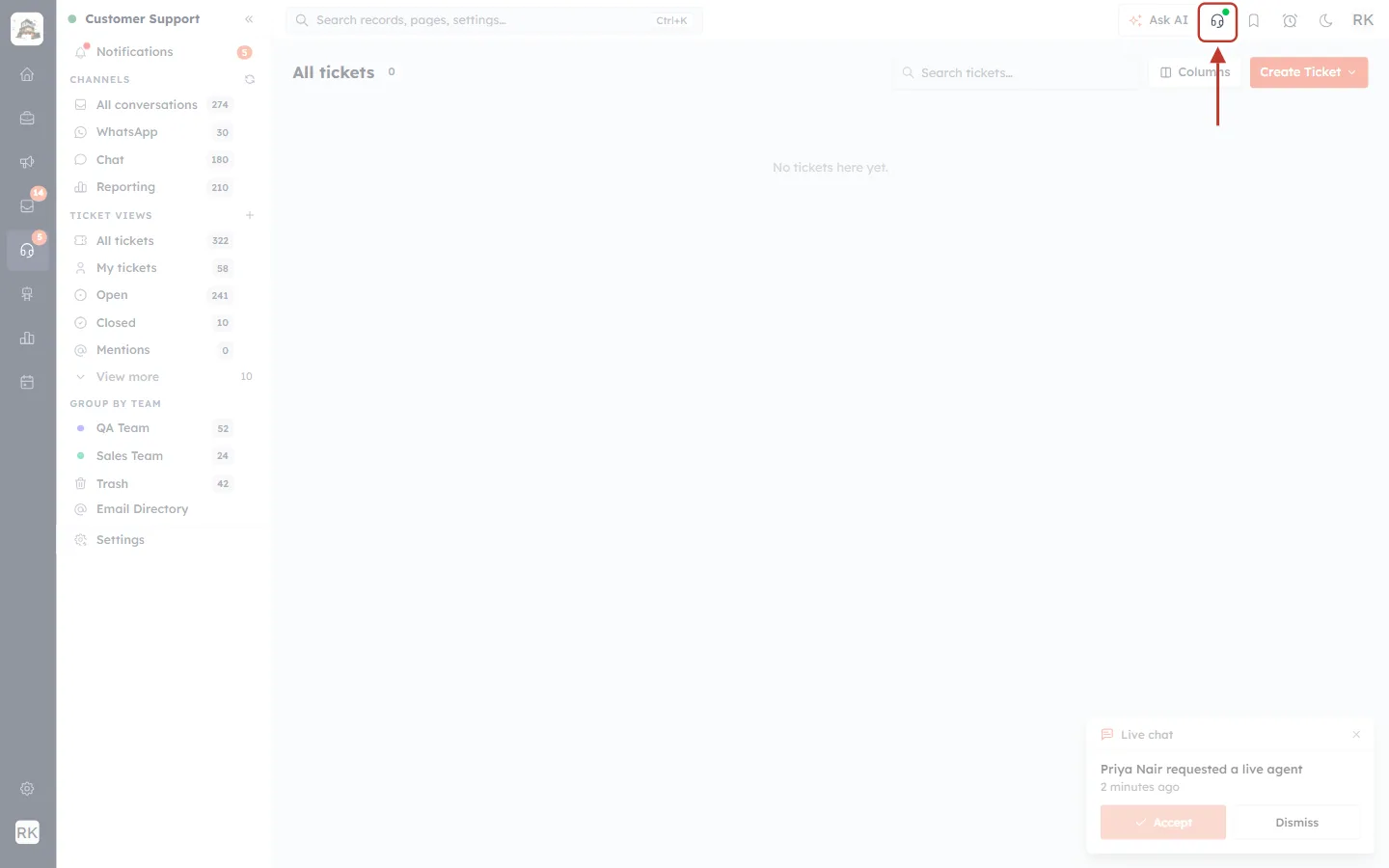
What this screenshot shows. The top bar, with the headset availability button ringed.
The headset button shows your live chat availability.
A green dot means Available for live chats: visitors asking for a person can be routed to you.
A red dot means Not taking live chats: new live chats go to the rest of the team, not to you.
Hover over it to see a short explanation of your current status.
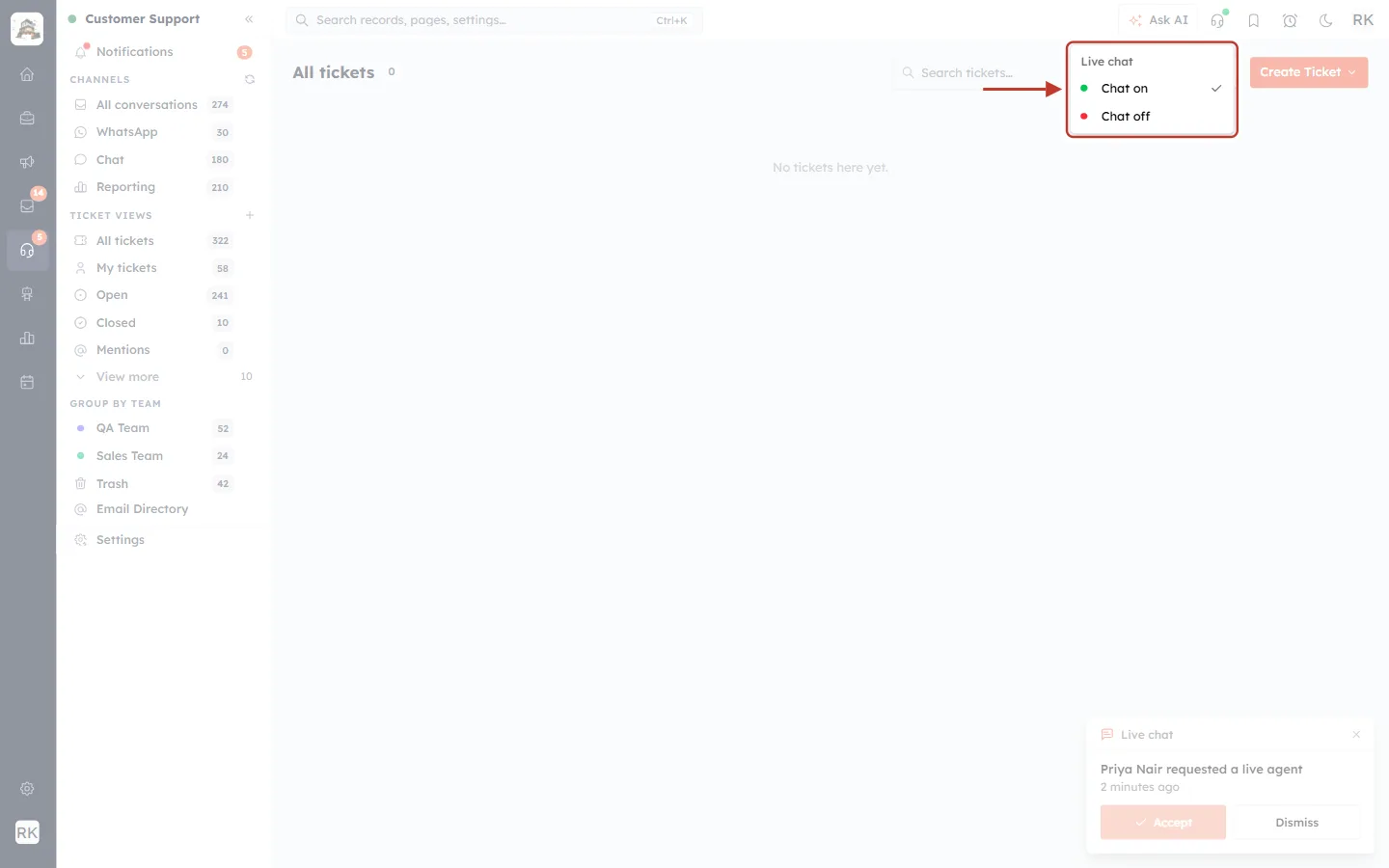
What this screenshot shows. The menu that opens when you click the headset button. The menu is ringed.
Live chat is the menu title.
Chat on (green dot) is ticked here, which means you are available. Choose it to start receiving live chats. You’ll see You are available for live chats.
Chat off (red dot): choose it to step away, for example at lunch or the end of your shift. You’ll see You are no longer receiving live chats. Your team is unaffected.
Your choice only affects you. Your teammates keep receiving live chats as usual.
✅
Good habit: switch to Chat off when you leave your desk, and back to Chat on when you return. Customers then reach someone who can actually answer, and you get fewer missed-chat alerts.
Quick reference#
To do this | Do this |
|---|---|
Open the Notifications panel | Click the headset icon in the left bar, then Notifications at the top of the side panel |
See how many alerts are unread | Look at the number on the headset icon or next to Notifications |
Know if something new arrived | A pulsing red dot on the Notifications bell |
Open an alert | Click it. It opens the ticket or conversation and is marked read |
See older alerts | Scroll to the bottom of the panel and click Load more |
Clear all unread alerts | Click ✓ Mark all read |
Answer a live chat request | Click Accept on the Live chat card in the bottom-right corner |
Stop receiving live chats for a while | Headset button in the top bar → Chat off |
Frequently asked questions#
Does Mark all read delete my notifications?
No. They move to EARLIER and stay there. You can still open them.
I dismissed a Live chat card by mistake. Is the request lost?
No. Dismissing only hides the card. The request is still unread in the Notifications panel. Click it to open the conversation.
I clicked a live agent request but another agent was already chatting.
Only the first agent to accept takes the conversation. If you see Another agent took this conversation, a teammate is already helping the customer and you don’t need to do anything.
The number on the headset icon didn’t change after Mark all read.
It updates the next time the CRM checks, usually within two minutes.
I don’t hear the alert sound.
Check that your device isn’t muted and that the CRM tab isn’t muted in your browser. Click once anywhere on the CRM page after signing in, because browsers often block sound until you do.
Are these the same as WhatsApp inbox notifications?
The WhatsApp Team Inbox has its own unread counts and assignment alerts. See Inbox Notifications: Unread Counts & Assignment Alerts.
Previous and next#
Previous: Find the Right Tickets Fast: Ticket Views, Team Groups & Notifications
Next: Create a Ticket Manually
Related articles#
Was this article helpful?
Ready to implement this?
OpenAI Engage and apply what you just learned to your own workspace.
Open AI Engage CRM