Loading…


KnowledgeBase
What Happens After Someone Books
What this covers#
You built the event, set your hours and handed out the link. Someone picks a slot. Then what?
A booking is not just a time blocked out somewhere — it writes a Meeting record into your CRM, filled in from the booking itself. This article covers what lands in that record, where the invitee ends up, how to tell which campaign the booking came from, and what the record is good for afterwards.
It picks up where Share Your Booking Link leaves off.
Where the booking lands#
Open Meetings → Meetings in the left rail. Every booking made through a published link appears there as a record, alongside the meetings you create by hand.
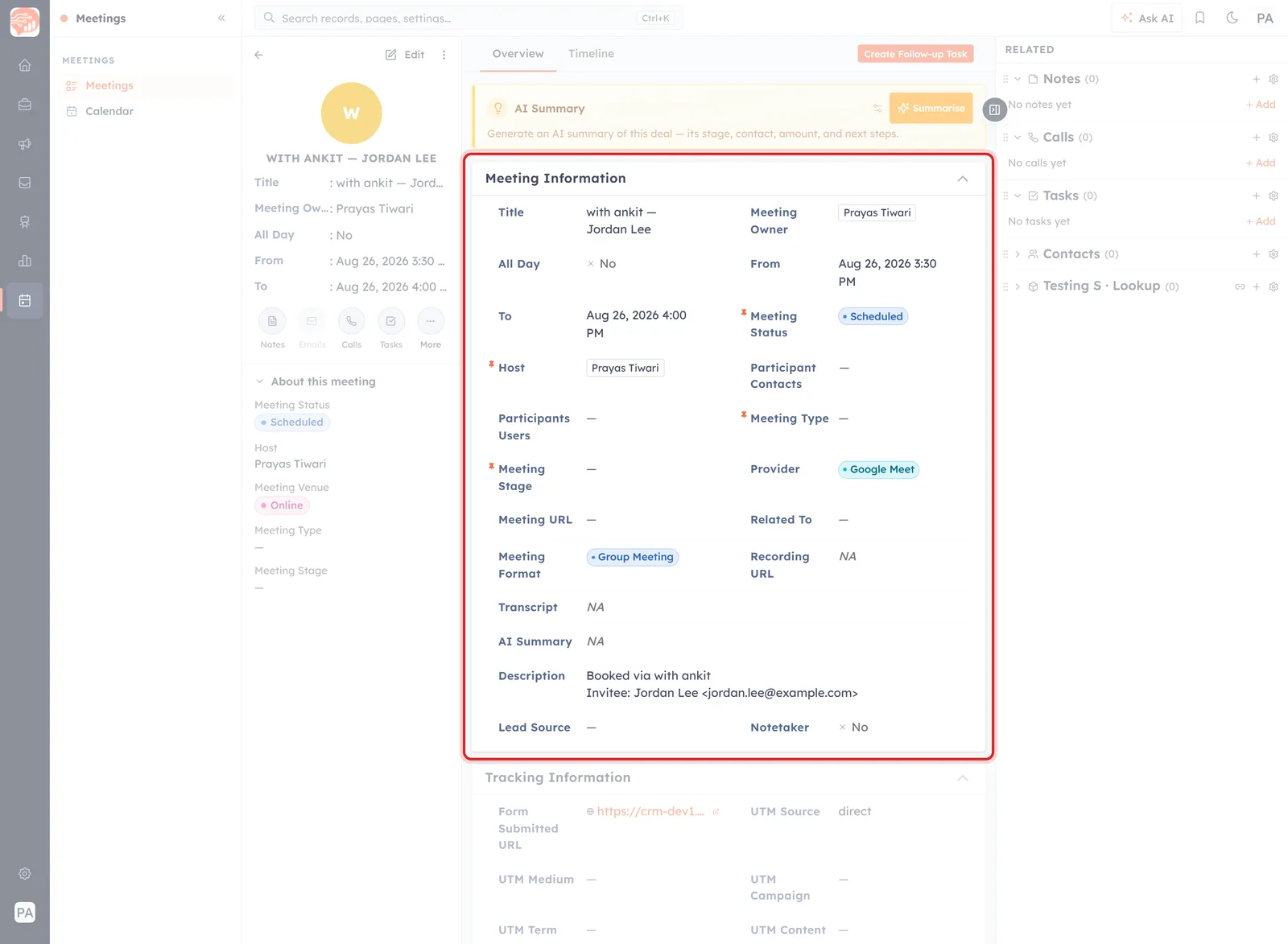
A booked meeting, open. The summary rail is on the left and the Related panel on the right — but the block outlined in red is the one to read: Meeting Information, filled in by the booking itself.
Two things tell you at a glance that a record came from a booking rather than from someone clicking Create Meeting:
- The title. Bookings are named
<event name> — <invitee name>, so a Discovery Call booked by Jordan Lee arrives as Discovery Call — Jordan Lee. You do not type it; the CRM builds it. - The Tracking Information block is filled in. A meeting you create by hand has nothing there. A booking does — see Where the booking came from below.
📅
The record arrives with Meeting Status: Scheduled and Meeting Venue: Online. Status is yours to move as the meeting runs its course — In Progress, Completed, Cancelled.
What the record already knows#
Almost everything in the Meeting Information block is carried across from the event and the booking, so there is nothing to fill in before the call.
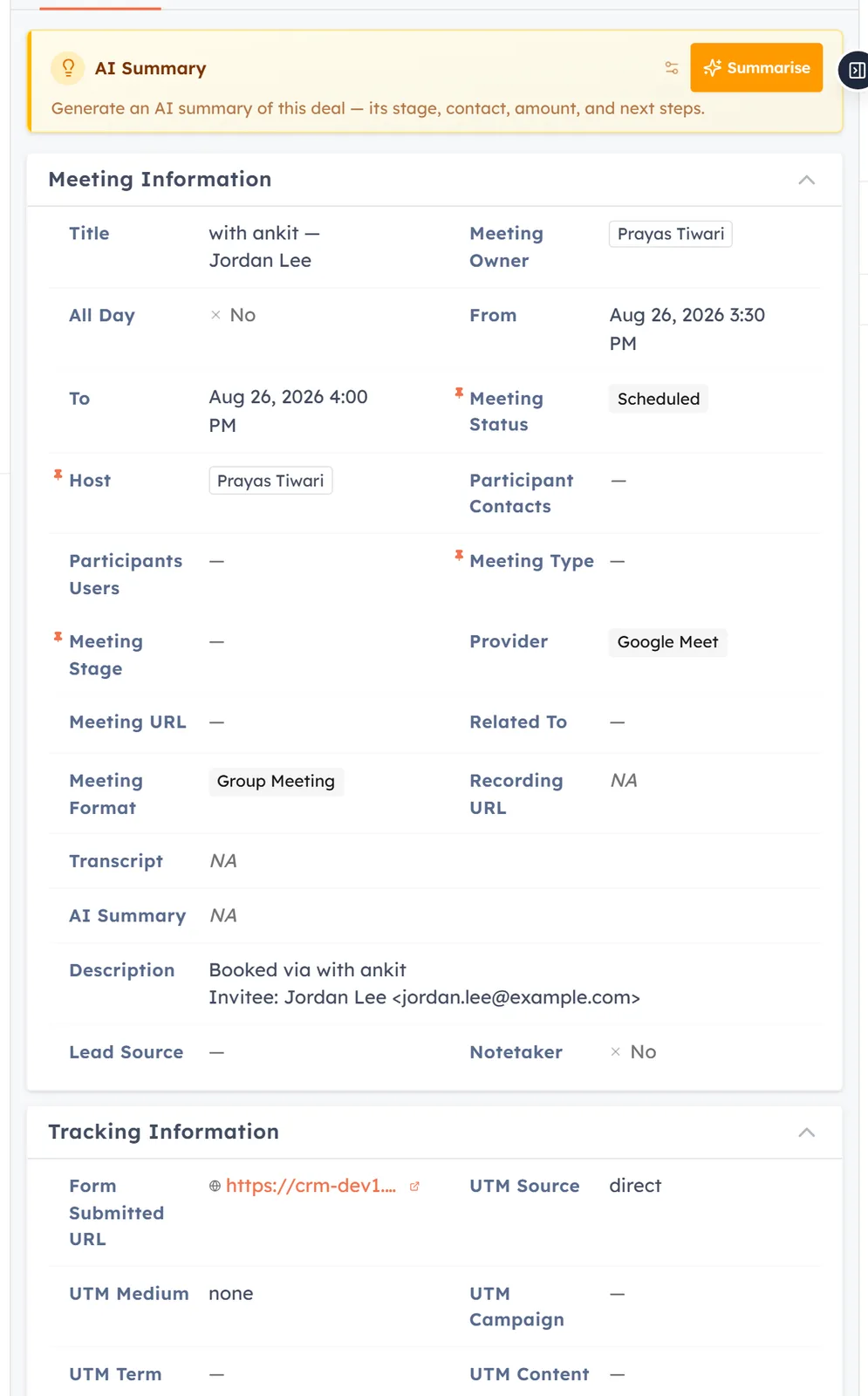
Meeting Information on a booked meeting. Provider, Meeting Format, the times and the Description are all filled in by the booking.
The fields worth knowing:
- From / To — the slot the invitee chose, at the duration you set on the event. They picked it in their own timezone; it is stored in yours.
- Host — whoever you named as host on step 1 of the wizard. The Meeting Owner is set to the same person, so it shows up under My Meetings for them.
- Provider — the location the event was published with, such as Google Meet.
- Meeting Format — the Meeting type from step 1: One-to-One or Group Meeting.
- Description — the giveaway. Bookings write two lines here:
Booked via <event name>
Invitee: <name> <email@address>
That second line is the one to reach for when you need the invitee’s address and do not want to go hunting. The Participant Contacts column on the Meetings list shows them too.
Where the booking came from#
Scroll past Meeting Information and the Tracking Information block tells you how the invitee reached your booking page — the part no hand-made meeting ever has.
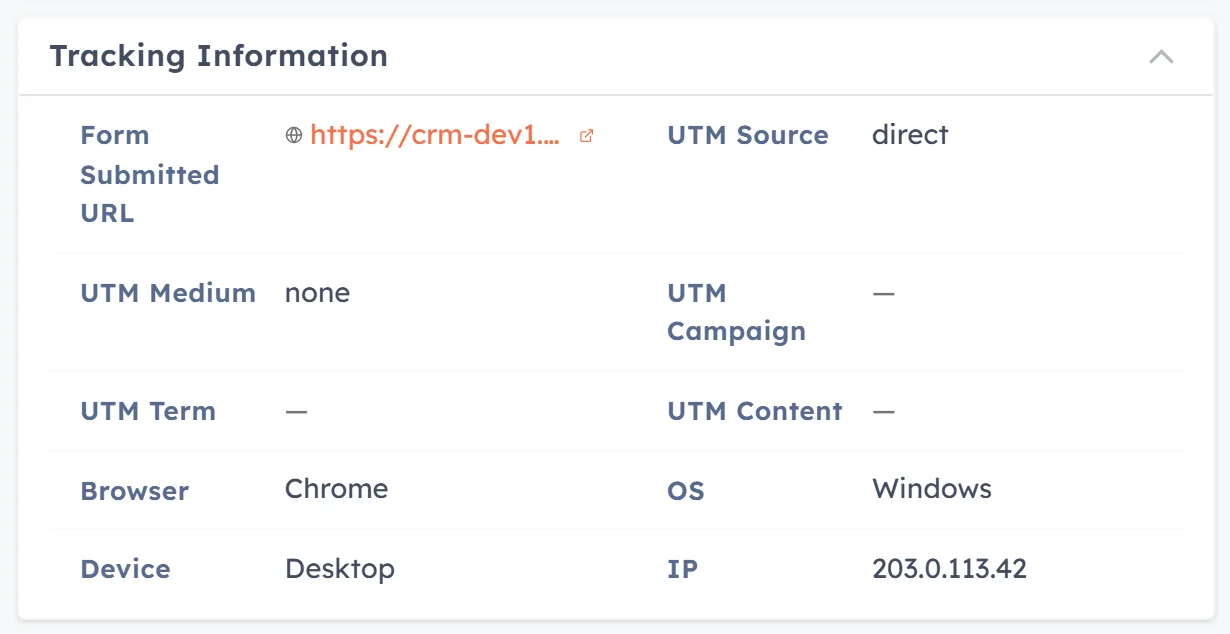
Tracking Information. The form URL, the UTM values and the invitee’s browser, OS, device and IP are all captured at the moment of booking.
- Form Submitted URL — the exact booking page they used, so with several links live you can tell which one did the work.
- UTM Source / Medium / Campaign / Term / Content — read from the link they clicked. Someone who typed the address or used your signature arrives as direct with a medium of none; someone who clicked a tagged campaign link carries that campaign through to the meeting.
- Browser, OS, Device, IP — captured at the moment of booking. Device is the practically useful one: a mobile booker may need a dial-in rather than a video link.
📈
Those UTM fields are only as good as the links you hand out. Switch on UTM link tracking before you put a booking link in a campaign, and every booking that follows tells you which campaign produced it.
The invitee becomes a contact#
The Booking form you picked on step 1 of the wizard is not just a set of questions. The wizard says so under the field itself:
Invitees fill this — answers create a contact.
So a booking gives you two things, not one: the meeting, and the person. Whatever the invitee typed becomes contact data, which is why the form you attach to an event is worth a moment’s thought — ask for the fields you actually want on the contact record, and no more. Every extra question is a chance for someone to abandon the booking.
⚠️
Someone who books twice with a different email address arrives as a second contact. Contacts carry an Is Duplicate flag for exactly this; check it now and then rather than after a campaign has gone out twice to the same person.
What to do with the record#
The meeting is a working record, not a receipt. Three things on the page earn their keep:
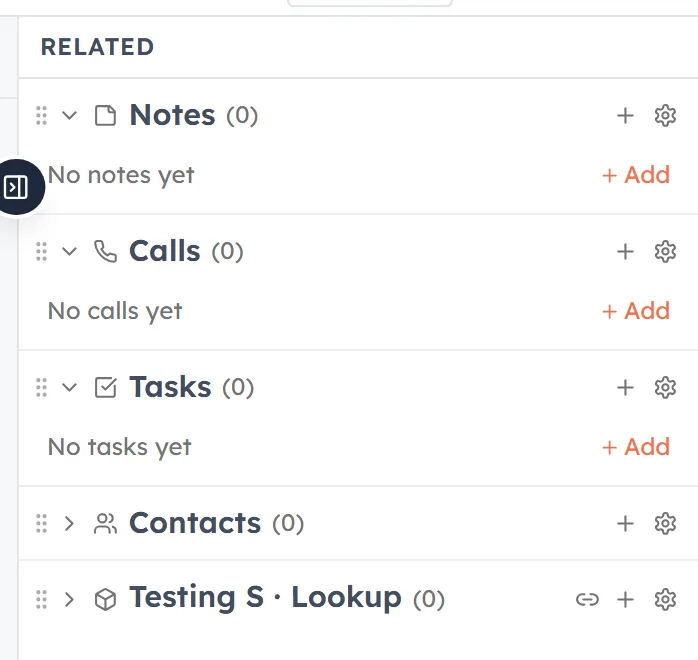
The Related panel. Notes, calls, tasks and contacts all hang off the meeting, so the follow-up lives with the booking that caused it.
- Create Follow-up Task — the button in the top right. The most valuable click on the page: it turns “I should send them the pricing” into something that will actually chase you.
- The Related panel — notes, calls, tasks and contacts attach to the meeting, so what happened stays with the booking that caused it instead of scattering across the CRM.
- Overview and Timeline — the two tabs above the fields. Overview is what you have been reading; Timeline is the audit trail of what changed on this record and when.
What a booking does not fill in#
Worth knowing so an empty field does not read as a problem:
- Notetaker arrives as No. A booking does not bring the AI notetaker along — that is the Record this meeting option, which lives on the meeting form rather than on the booking link. Recording URL, Transcript and AI Summary stay NA unless the notetaker joins.
- Meeting Type, Meeting Stage and Lead Source stay empty. They are yours to set, and they are the fields that make the Meetings list worth filtering later.
- Related To is empty. If the booking belongs to a deal or a company, link it yourself — it is the difference between a meeting you can find again and one you cannot.
A quick habit#
After a booking lands, thirty seconds spent on the record pays for itself:
- Read the Description to see who booked and through which link.
- Set Meeting Type or Stage if you use them for reporting.
- Point Related To at the deal or company the conversation belongs to.
- Click Create Follow-up Task before you forget what you owe them.
Then move the Meeting Status along as the meeting happens, so the list stays honest. Manage Your Events: Views, Filters & Actions covers the other side of this — the events themselves rather than the bookings they produce.
Was this article helpful?
Ready to implement this?
OpenAI Engage and apply what you just learned to your own workspace.
Open AI Engage CRM