Loading…


KnowledgeBase
"No times are available right now" — Fix an Empty Booking Page
What this covers#
Somebody opened your booking link and there was nothing on it to book. This article gets you from that to a working page.
The good news is that this is almost never a broken feature. It is nearly always a setting that quietly rules out every slot — and the fix takes about a minute once you know which one.
⚠️
Nobody will report this to you. An invitee who meets an empty page does not write to say so; they close the tab. If you have shared a link and heard nothing back, that silence is worth ten seconds of checking.
First: which message is it?#
Two different failures look similar from a distance and have nothing to do with each other. Read the page before you change anything.
“No times are available right now”#
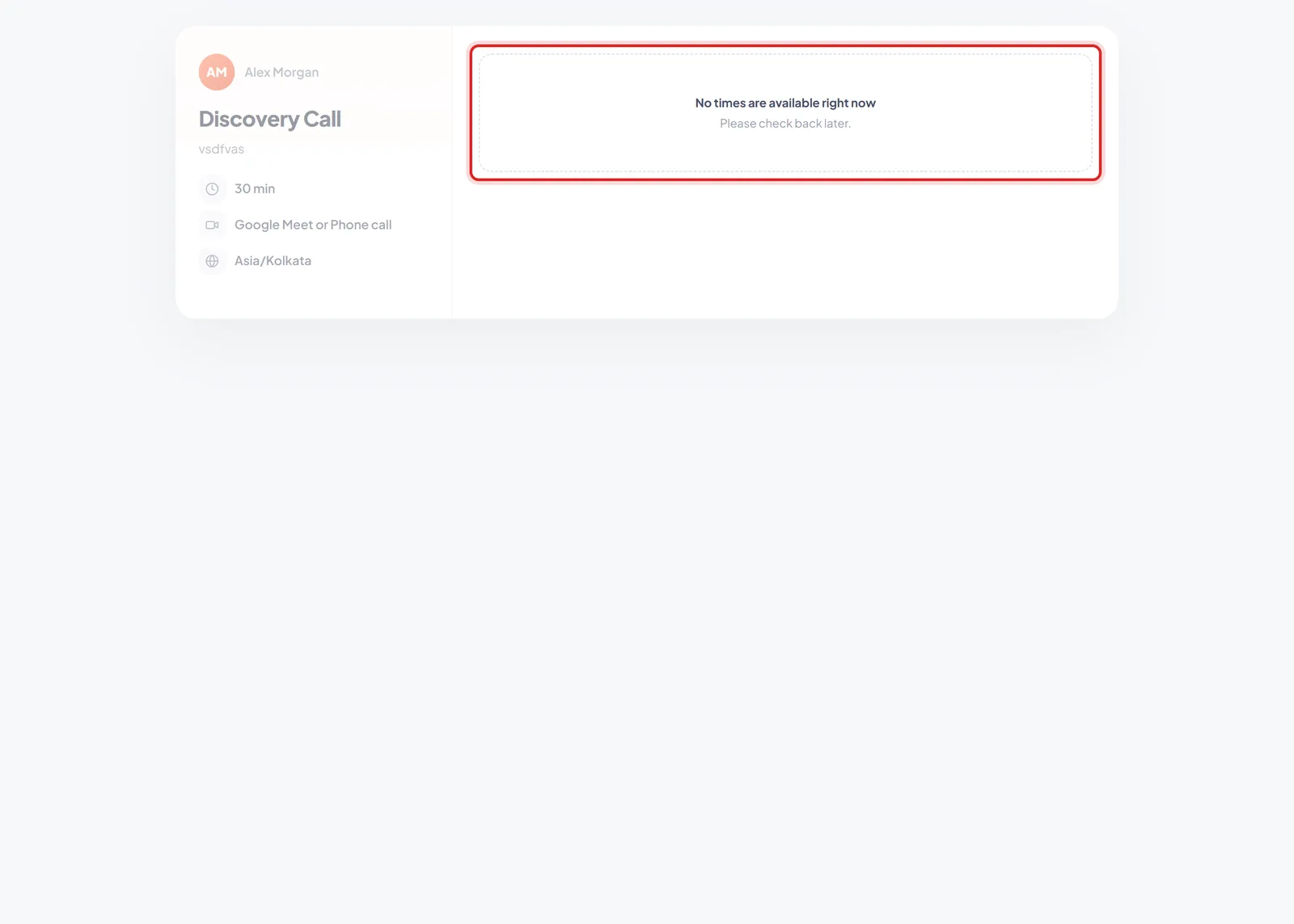
The event loads — host, name, duration, location are all there — and only the times are missing.
No times are available right now. Please check back later.
The link is fine. The event exists, the page rendered, your name and duration are on it. There is simply nothing bookable behind it, which is an availability problem — keep reading.
“This link isn’t available”#
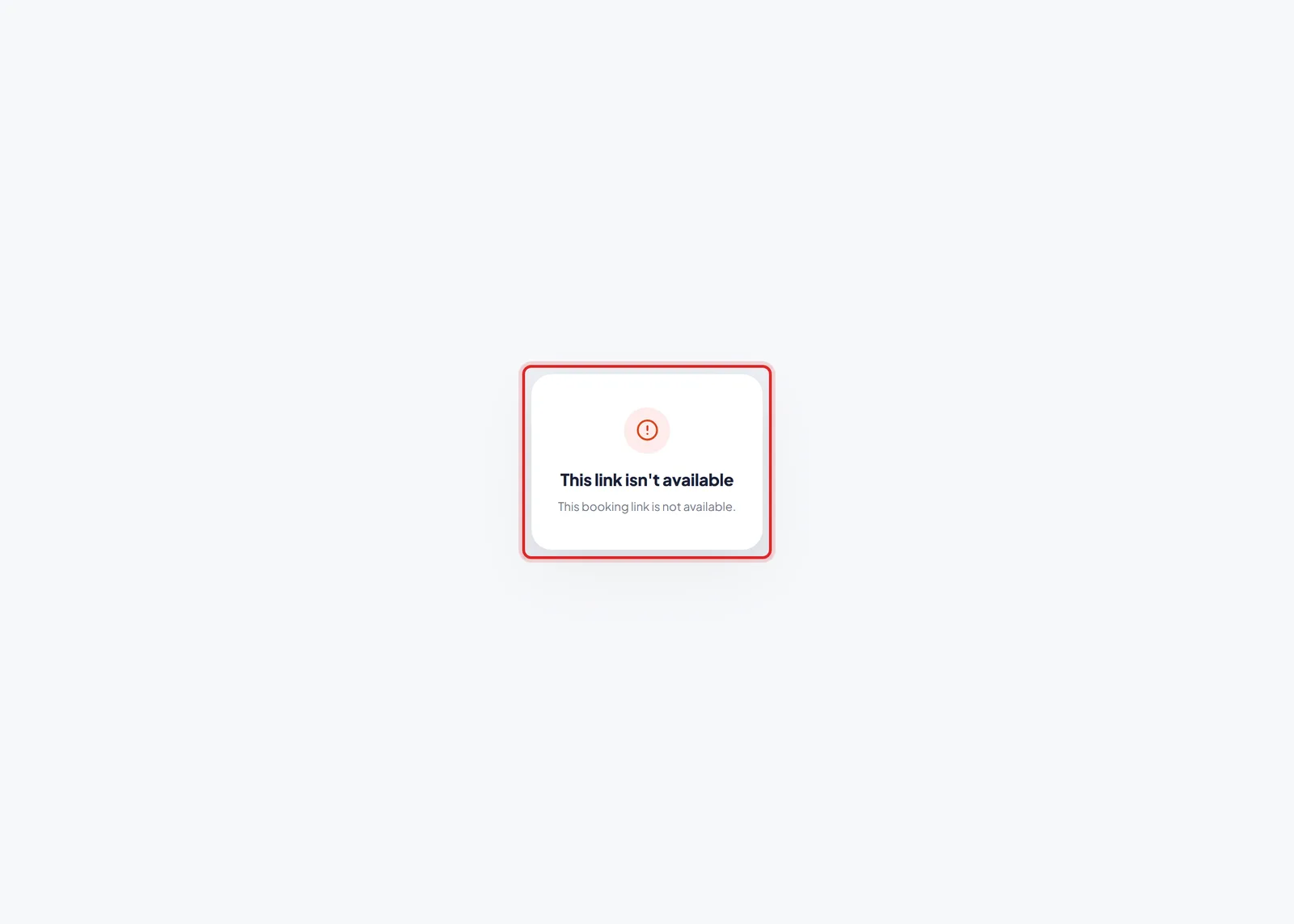
A different failure entirely: nothing answers at this address.
This link isn’t available. This booking link is not available.
No event details, no host, no calendar. Nothing answers at that address at all. That is an address problem, not an availability one:
- The link is mistyped or truncated — the usual culprit when it was pasted into a signature or a chat by hand.
- The calendar was renamed. The address is built from the calendar name, so renaming a published calendar strands every copy of the old link already in the wild. Share Your Booking Link covers that trap.
Fix the address, or re-share the current one. Nothing below applies.
Check it the way they see it#
Before diagnosing anything, open your own link in a private window. Signed in as yourself you may not see what an invitee does, and you want the real thing in front of you.
Then work through the four causes, most common first.
Cause 1: no day is actually switched on#
This is the common one, and the easiest to do by accident — particularly after using Clear week and not finishing the job.
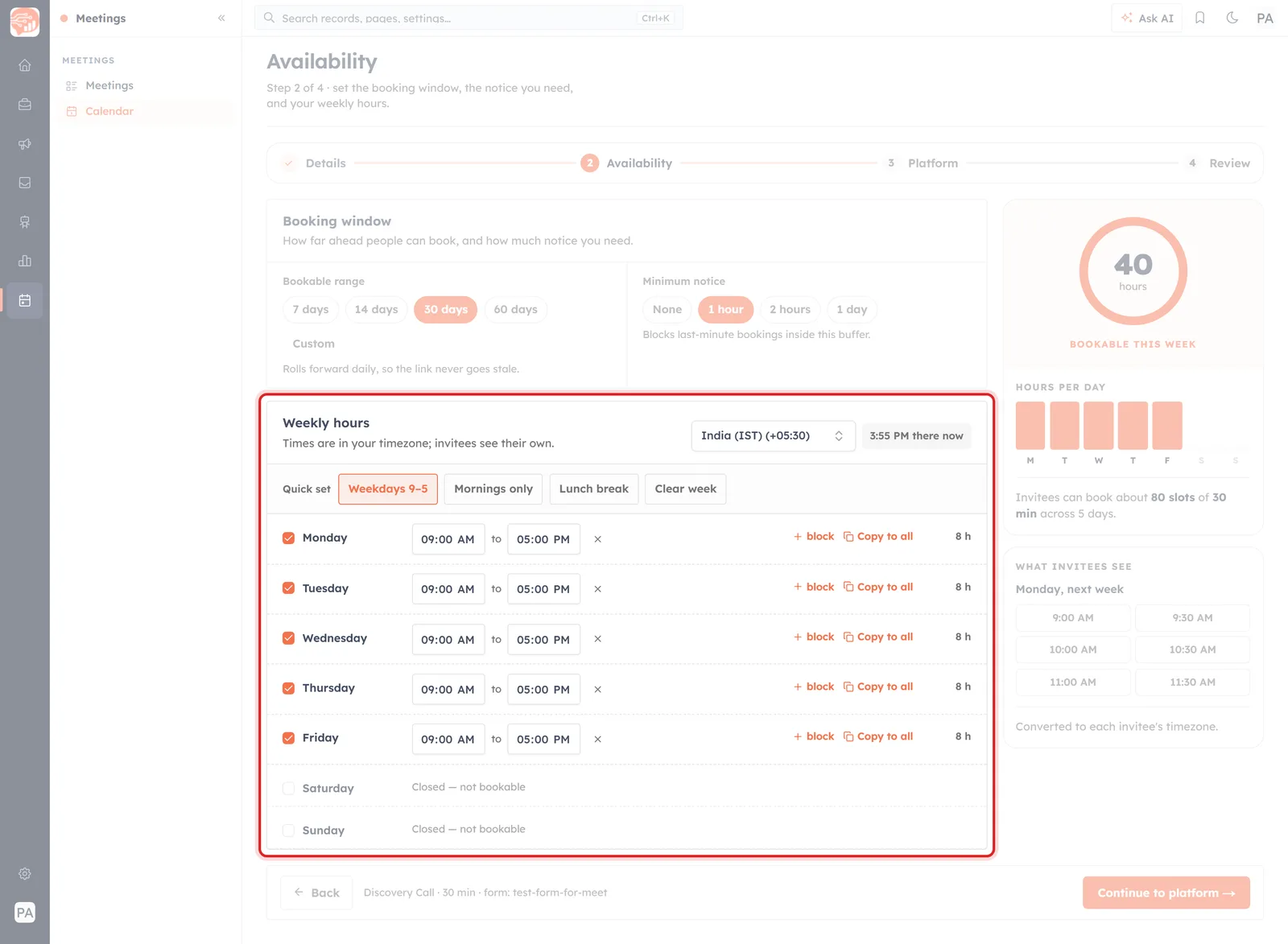
Weekly hours. The checkbox at the left of each day is the switch; unchecked days read “Closed — not bookable”.
Open the event and go to step 2, Availability. In Weekly hours, look at the checkbox at the left of each day, not the times:
- Unchecked means “Closed — not bookable”. If every day reads that, your page is empty, and no other setting matters.
- Checked but with no usable range — a day whose hours were cleared offers nothing either.
- A range shorter than the meeting — a 30-minute event needs at least 30 free minutes. Half an hour of availability for a one-hour event yields nothing.
Quickest fix: hit Weekdays 9–5 under Quick set, then adjust. Set Your Availability for Bookings covers these controls properly.
Cause 2: minimum notice has eaten what was left#
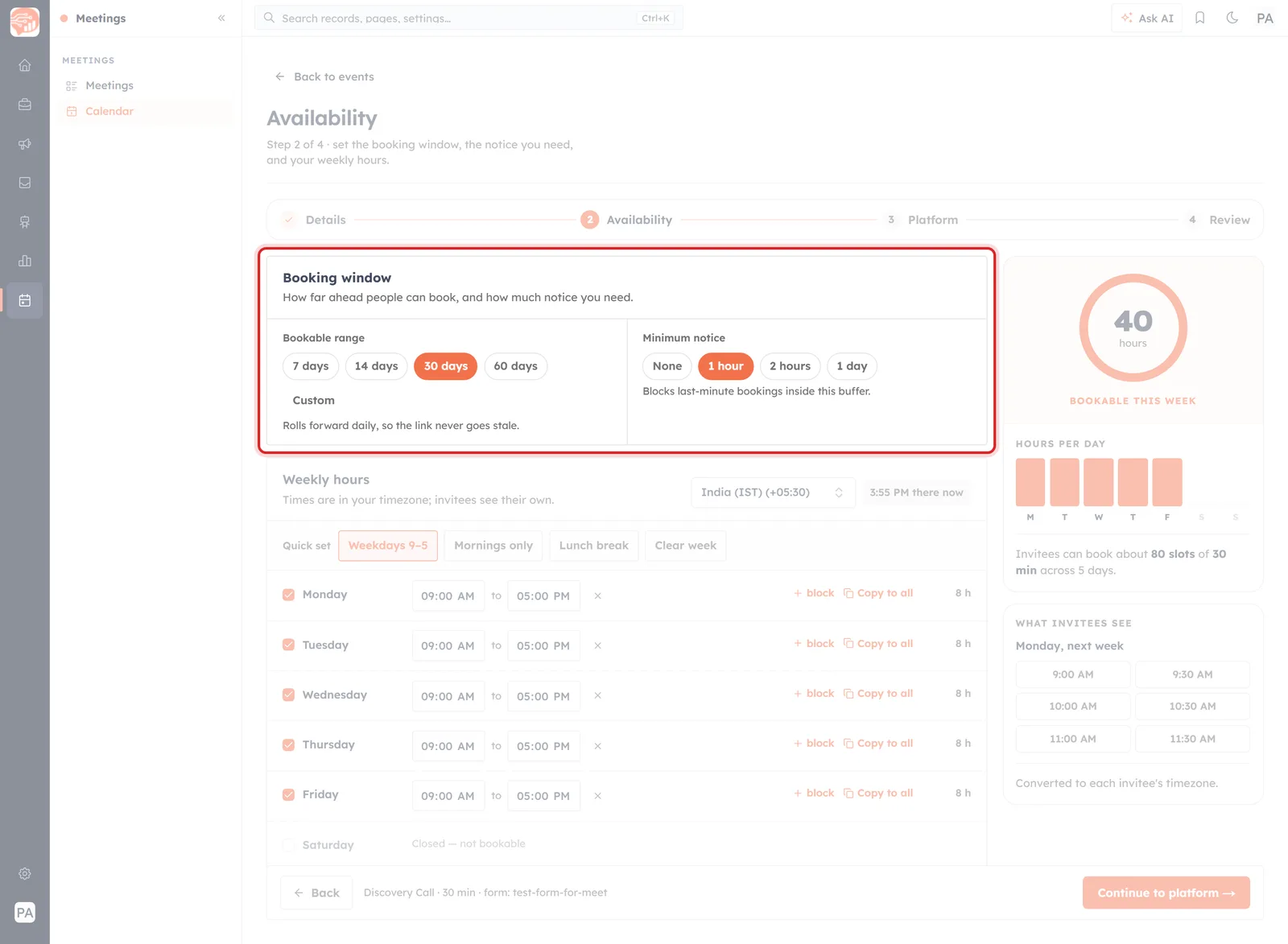
Booking window. Bookable range decides how far ahead, minimum notice decides how soon.
Minimum notice blocks bookings inside a buffer — the form is explicit that it “blocks last-minute bookings inside this buffer”. Set to 1 day, everything in the next 24 hours disappears.
On its own that is fine. Combined with a short bookable range or a nearly-full week, it can remove the last few slots you had. If your page looks empty late in the day, this is the first thing to try at None or 1 hour.
Cause 3: the bookable range is too short#
Bookable range decides how far ahead people can book: 7, 14, 30 or 60 days, or a custom span. It “rolls forward daily, so the link never goes stale” — it is a window, not a fixed end date.
A short range is only a problem when the days inside it have nothing left. On 7 days, one busy week is enough to empty the page; on 30, there is almost always something further out. If you are booked up, widen the range.
Cause 4: the timezone is not what you think#
Your hours are stored in the timezone shown beside Weekly hours, and the label is worth reading: “Times are in your timezone; invitees see their own.” The current local time sits next to the selector so you can sanity-check it at a glance.
Get that wrong — a stale timezone after a move, or one picked in a hurry — and your 9–5 lands somewhere unhelpful. This rarely empties a page outright; more often it makes availability look sparse or strange, and someone books 3 a.m. your time.
The panel that tells you first#
You never have to guess at any of this. The right-hand side of the Availability step answers the question while you are still editing.
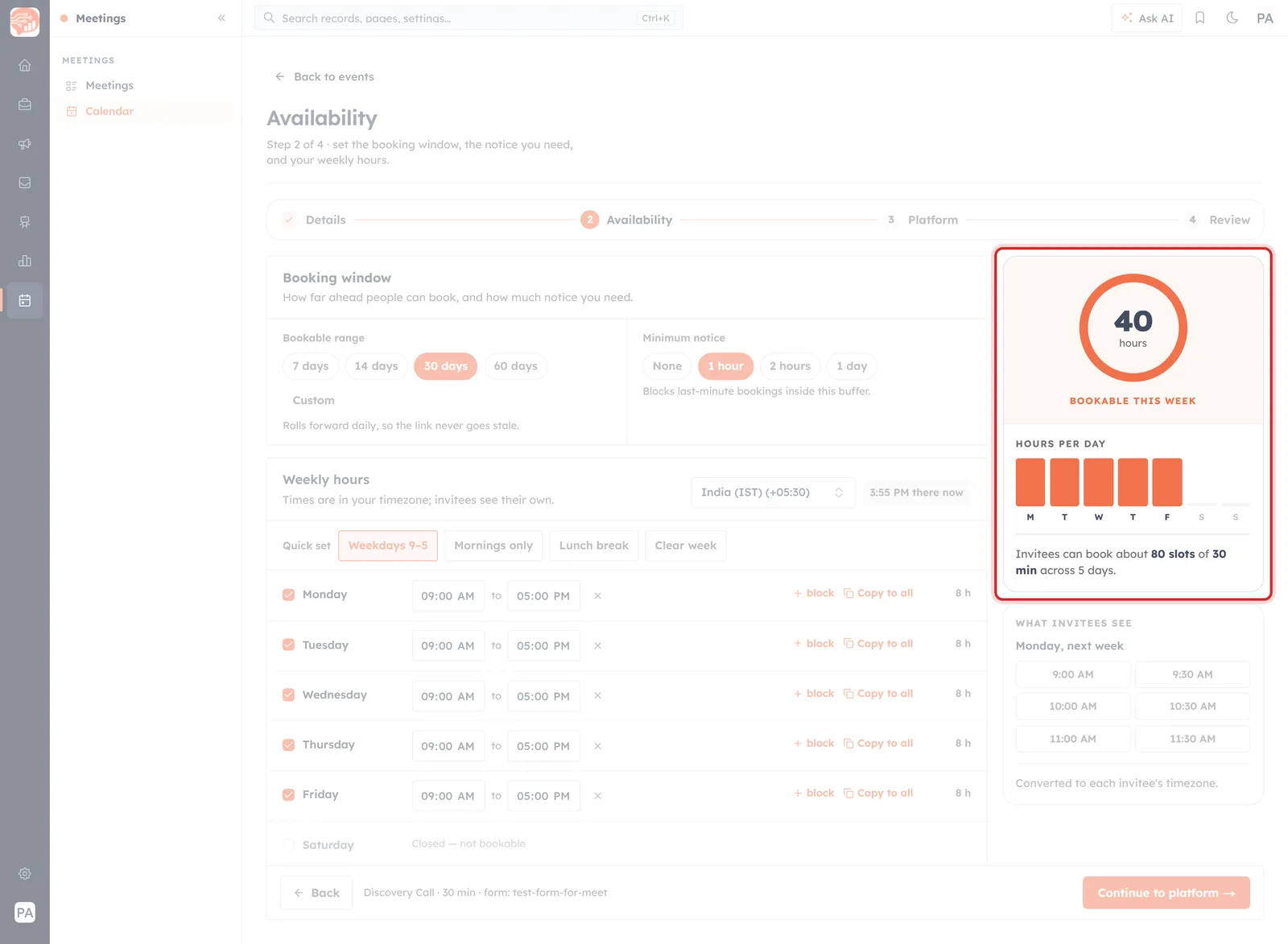
The check that costs nothing: hours bookable this week, an estimated slot count, and a preview of what invitees are offered.
- “BOOKABLE THIS WEEK” — total hours. If this reads 0, your page is empty. That single number is the whole diagnosis.
- HOURS PER DAY — a bar per weekday. Gaps show which days are off at a glance.
- The slot estimate — “Invitees can book about 80 slots of 30 min across 5 days.” A number far lower than you expected means something is wrong.
- WHAT INVITEES SEE — actual times from next week, ending in the reminder that they are “converted to each invitee’s timezone”.
💡
Make a habit of glancing at that panel before you leave the Availability step. It is the difference between finding this out yourself and finding it out from someone who has already given up.
Still empty?#
If every day is on, notice is at None, the range is 30 days and the panel still says zero:
- Re-read the day rows. A range like 9:00 AM to 9:00 AM is zero hours, not twenty-four.
- Check the duration against the gaps. A 60-minute event cannot fit into 45-minute windows.
- Look at the blocks. A block added to a day carves time out of it; several can leave less than you think.
- Try a fresh event. Build a throwaway one with Weekdays 9–5 and nothing else changed. If that one offers slots, the difference between the two is your answer.
Keeping it from happening again#
- Check the panel before leaving the Availability step — hours bookable, not zero.
- Open your own link in a private window after any change to your hours.
- Do not rename a published calendar unless you are ready to re-share the link.
- Re-check seasonally. Holidays, a house move, a new working pattern — each quietly changes what your link offers.
Once the page is working again, The Booking Page Your Invitee Sees walks through what a working one looks like from their side.
Was this article helpful?
Ready to implement this?
OpenAI Engage and apply what you just learned to your own workspace.
Open AI Engage CRM