Loading…


KnowledgeBase
Edit, Clone or Delete a Meeting
What this covers#
Meetings move, repeat, and occasionally should never have been created. Three actions handle all of that — and one of them cannot be taken back.
Where the actions live#
There are two menus, and they are not identical.
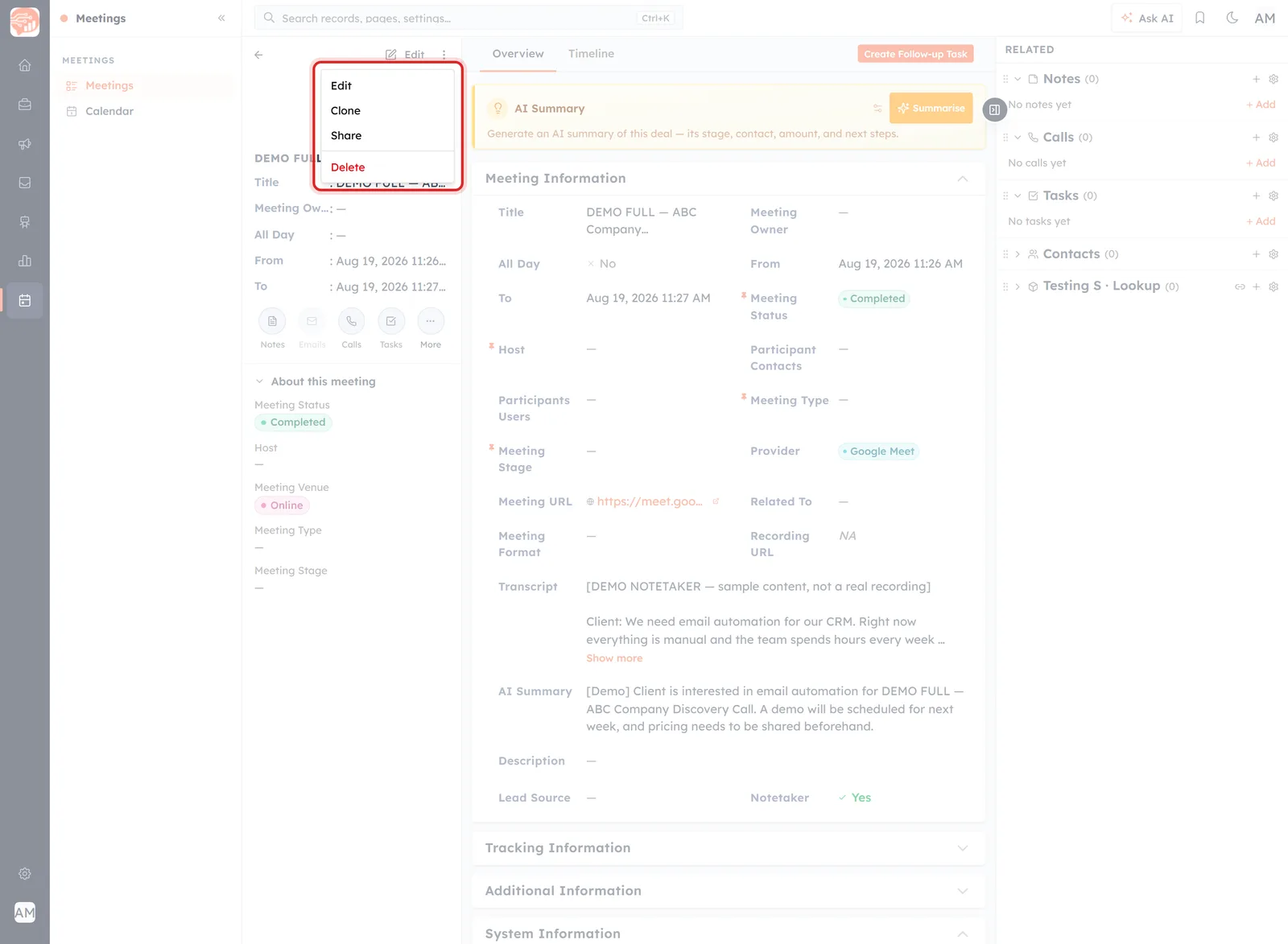
The ⋮ menu on an open record, beside Edit.
- On an open record — the ⋮ button beside Edit, offering Edit, Clone, Share and Delete.
- On the Meetings list — the Actions menu at the end of each row, offering View Details, Edit, Clone and Delete.
So the list swaps Share for View Details. If you are hunting for an action and cannot find it, you are probably in the other menu.
This article covers Edit, Clone and Delete — the three that change something.
Edit#
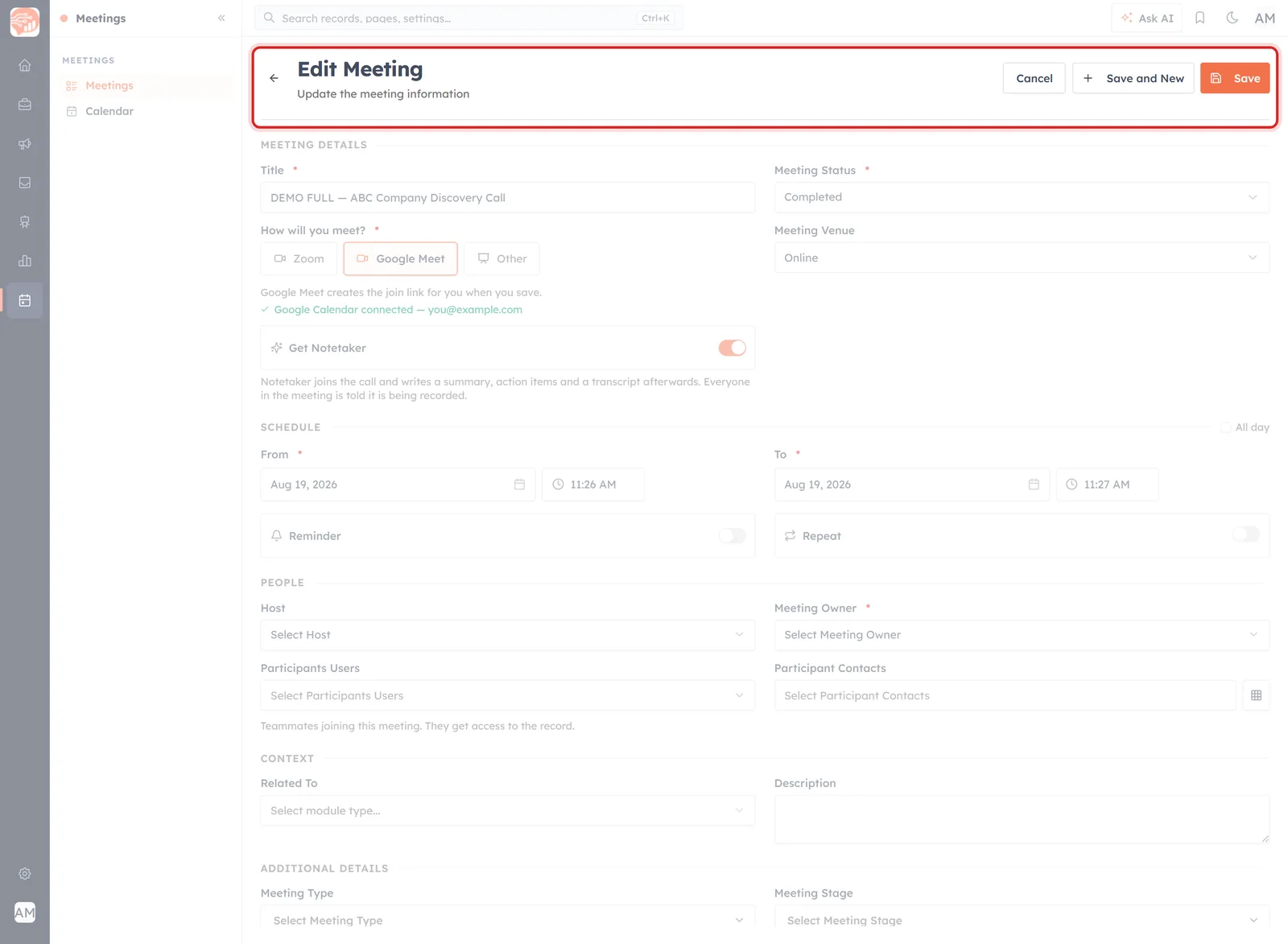
“Edit Meeting — Update the meeting information”, with Cancel, Save and New, and Save.
Opens the same form you create meetings with, filled in. Three buttons sit in the header and stay there as you scroll:
- Save — keeps the changes and returns you to the record.
- Save and New — keeps them and opens a blank form. Handy when working through a backlog.
- Cancel — discards everything since you opened it.
Editing is how you do most of the day-to-day work: move a time, add a participant, switch on the notetaker before a call, or move Meeting Status along afterwards.
ℹ️
A meeting created by a booking edits exactly like any other. Whether changing its time notifies the invitee is not something the form tells you — so if you are moving a booked meeting, message the person as well rather than assuming the CRM has.
Clone#
Clone does not immediately duplicate anything. It opens the Create Meeting form, prefilled from the meeting you cloned.
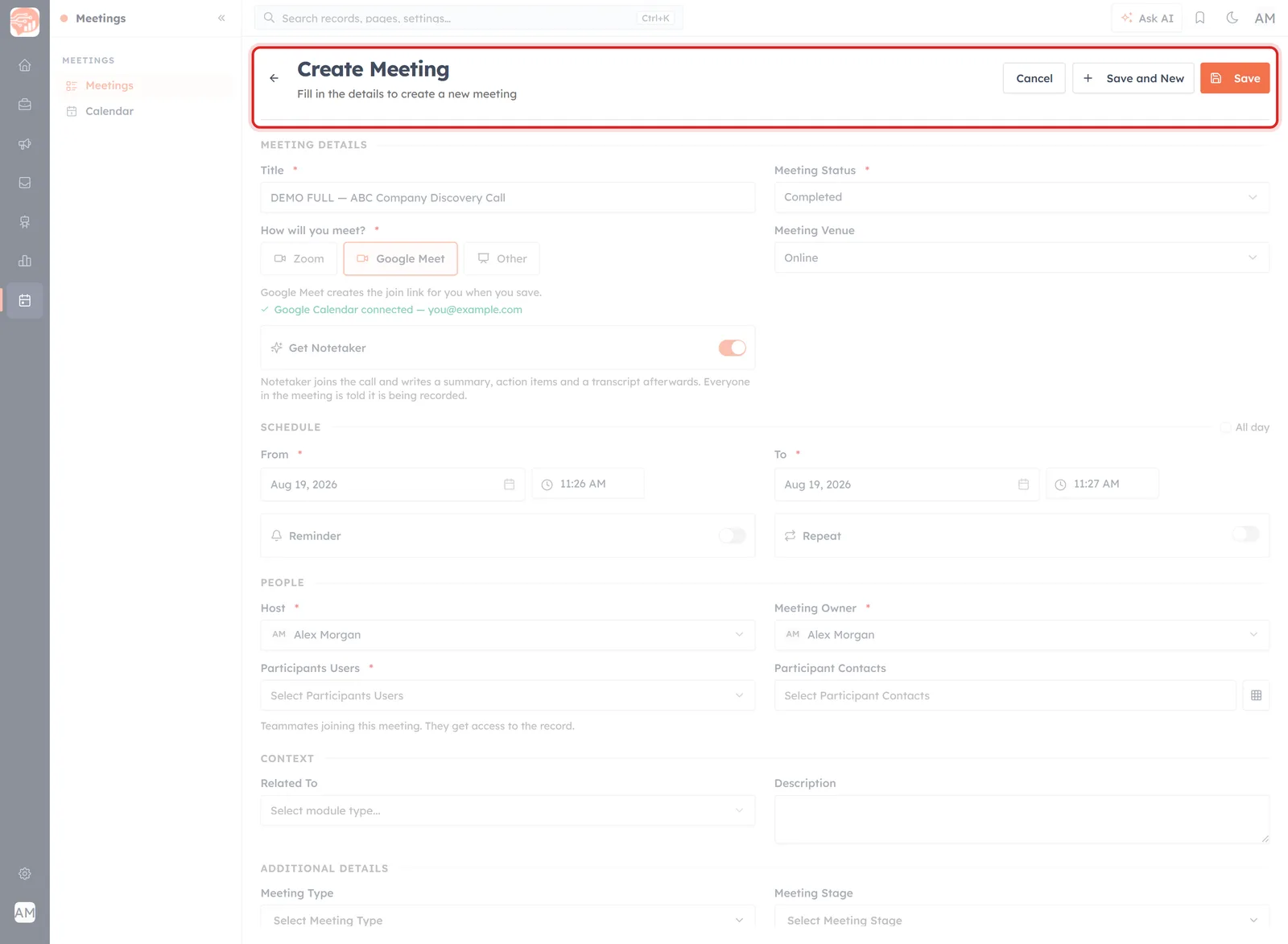
Clone lands on “Create Meeting — Fill in the details to create a new meeting”, already filled in.
The details come across — title, times, status, venue, host, owner, and the notetaker setting. Nothing exists until you press Save, so a clone you change your mind about costs nothing: Cancel and it never happened.
💡
Change the title and the times before saving. The title arrives identical to the original, so a clone saved as-is leaves two meetings with the same name on the same day — findable only by their dates. Clone is for “same shape, new occasion”, not for a carbon copy.
Clone earns its place for a repeat conversation with the same people, or as a template for a meeting you set up in the same way every time. For something genuinely regular, the Repeat toggle is the better tool — see Reminders & Recurring Meetings.
Delete#
Delete asks first, and is blunt about the consequences.
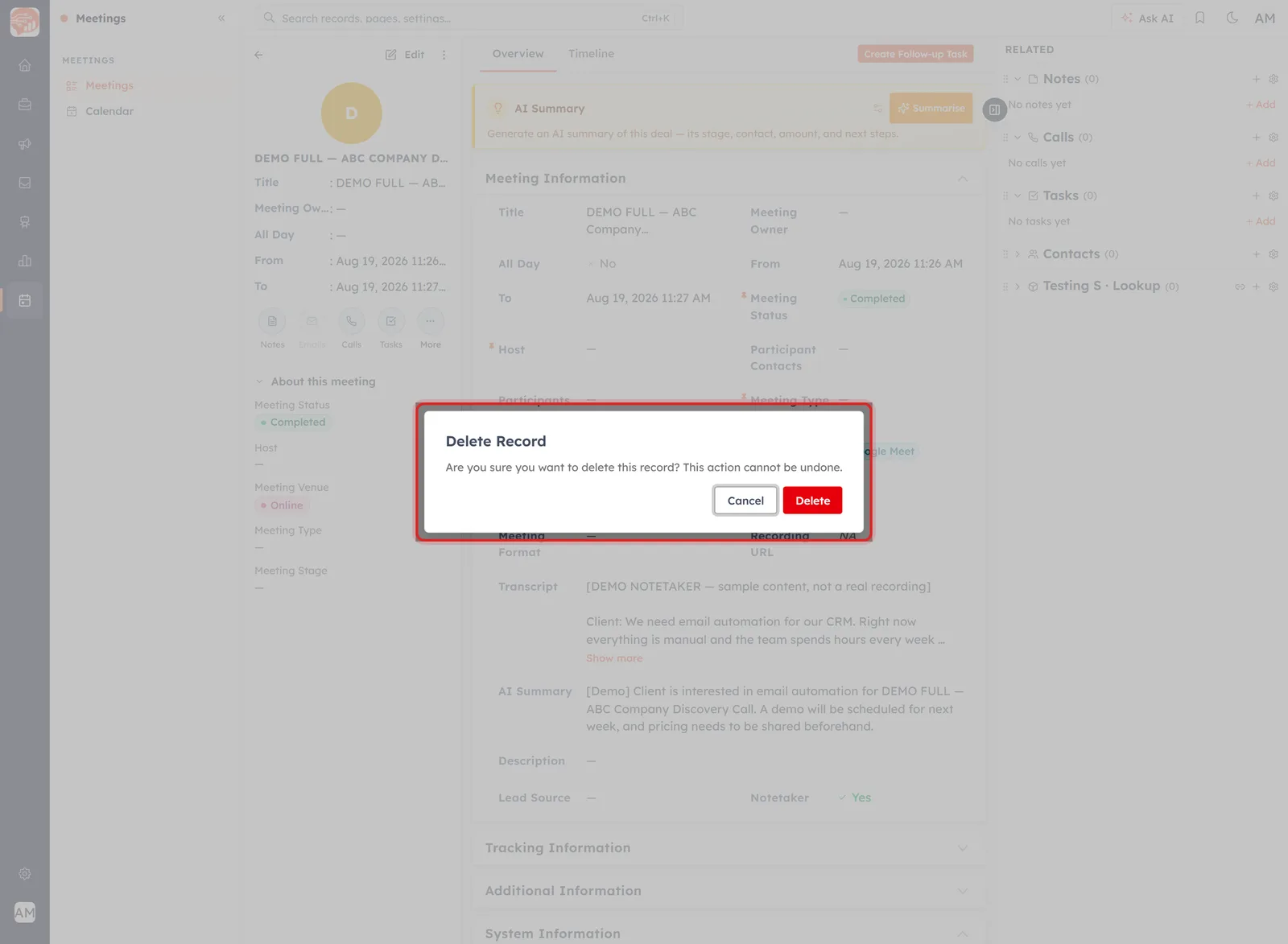
The confirmation: “This action cannot be undone.”
Delete Record. Are you sure you want to delete this record? This action cannot be undone.
Cancel and a red Delete. That is the only thing standing between the meeting and its disappearance, so read the record title before you click.
⚠️
A meeting that did not happen is not a meeting to delete. Set Meeting Status to Cancelled instead. Deleting destroys the fact that it was ever arranged — and three cancellations from the same contact is a pattern you would want to see. Delete is for records that should never have existed: a duplicate, a test, a mistake.
The dialog does not say what becomes of anything hanging off the meeting — notes, tasks, a transcript. Assume the worst: if any of it is worth keeping, copy it somewhere else before you delete.
Which one you want#
- Something changed — time, people, status: Edit.
- It is happening again — same shape, new date: Clone, then change the title and time. Regularly? Use Repeat instead.
- It fell through — status Cancelled, not Delete.
- It should never have existed — a duplicate or a test: Delete, and read the title first.
Was this article helpful?
Ready to implement this?
OpenAI Engage and apply what you just learned to your own workspace.
Open AI Engage CRM