Loading…


KnowledgeBase
The Booking Form — Answers Become Contacts
What this covers#
Booking form is a required field on step 1, and it does more work than its position suggests. It decides the questions an invitee answers before their booking goes through — and those answers become a contact in your CRM.
So it is two things at once: the last hurdle between someone and a booked meeting, and the source of the record you will work that person from afterwards. This article covers choosing one, checking it, and deciding what is worth asking.
The field, and the three things beside it#
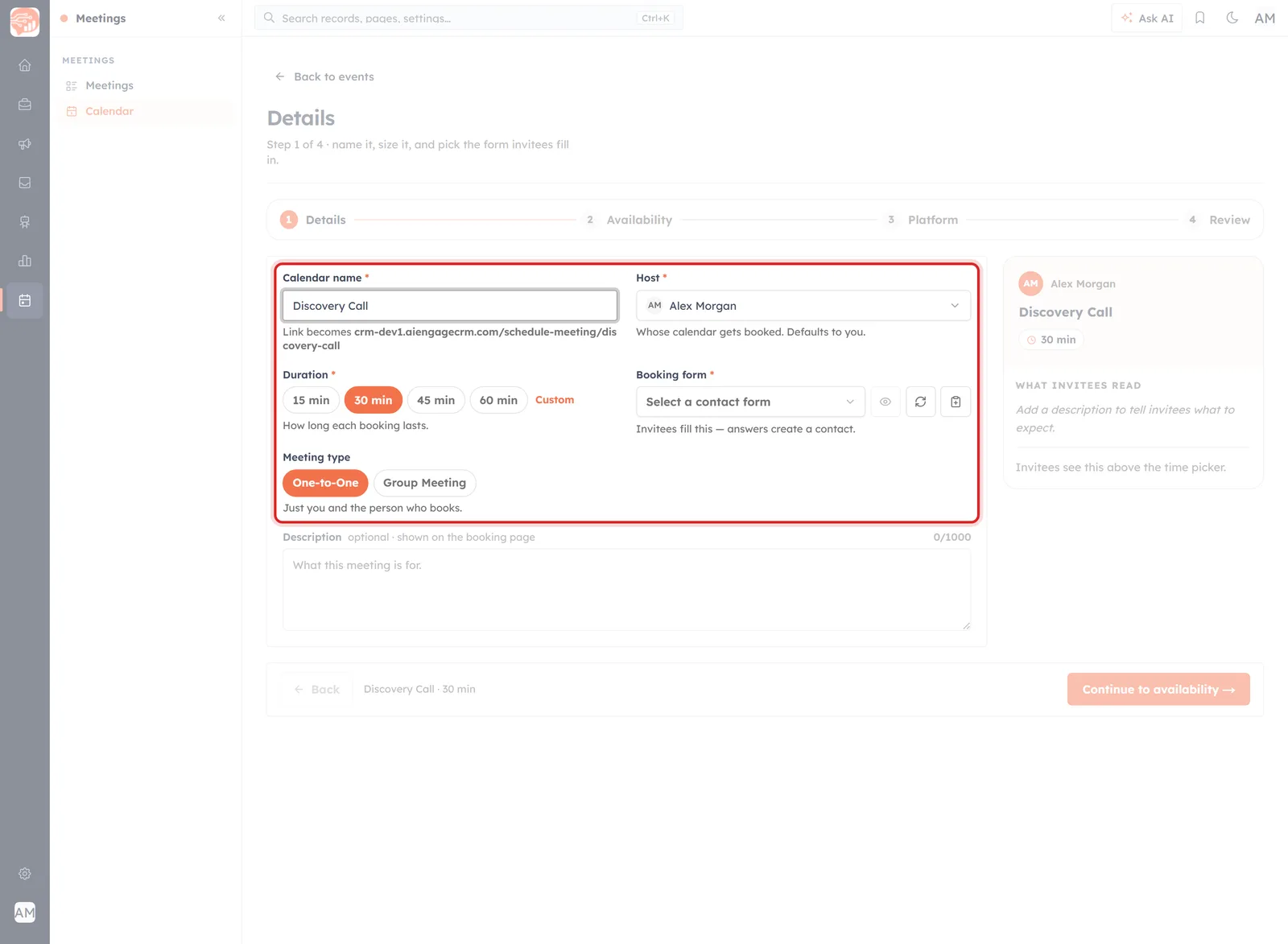
Booking form, its helper line, and the three controls that sit beside the picker.
The helper line under the field is the whole article in six words:
Invitees fill this — answers create a contact.
Three controls sit to the right of the picker:
- Preview form — the eye. Shows you the questions without leaving the wizard.
- Refresh form list — the circular arrow. For when you have just built a form in another tab and want it to appear here.
- Create booking form — the clipboard. Takes you off to build a new one.
Choosing one#
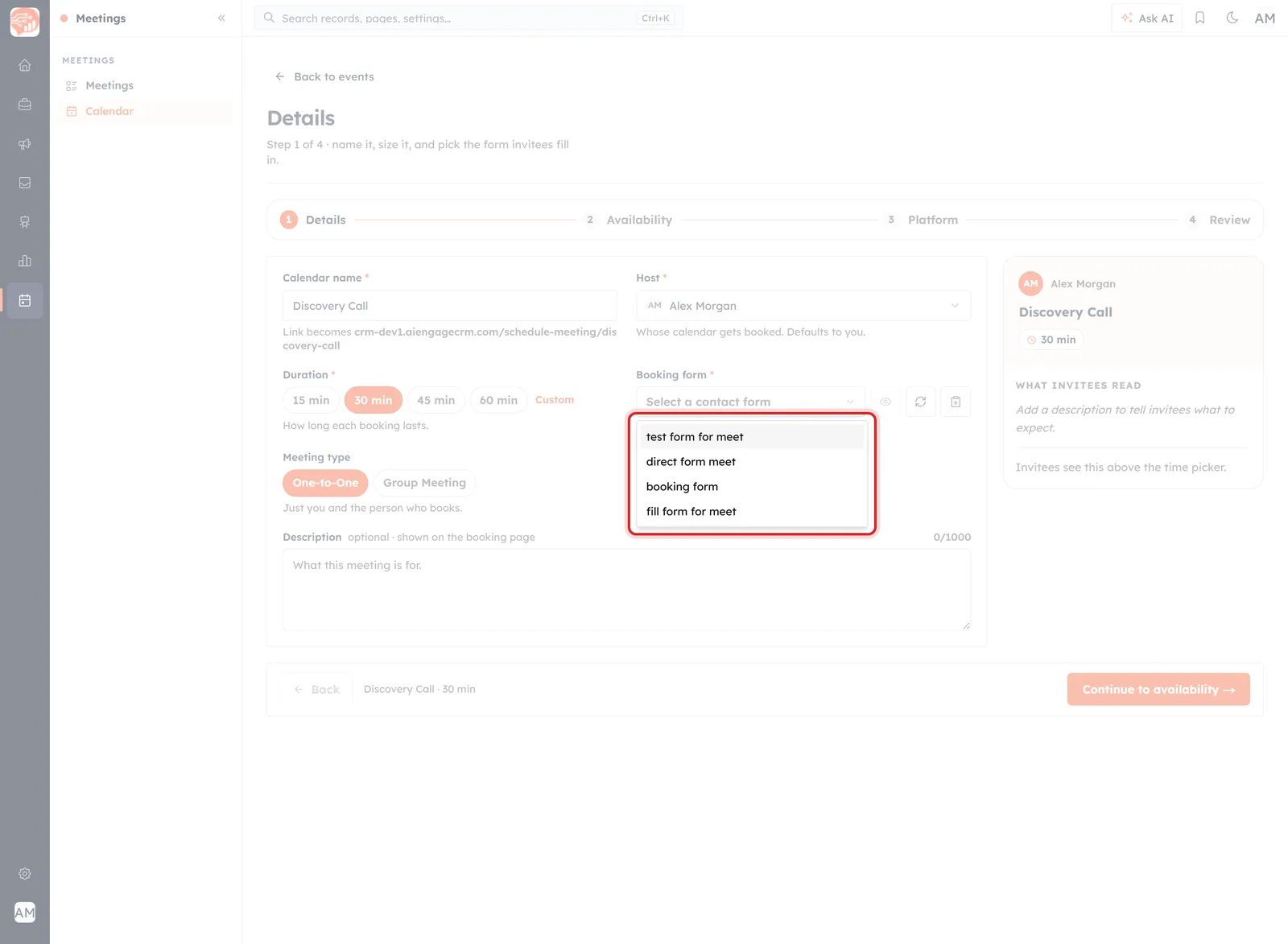
The picker lists the contact forms your organisation has already built.
The picker lists the forms that already exist. Whatever you pick, the wizard footer shows the choice as you carry on through the steps, so you can confirm it without going back.
ℹ️
A booking form is a web form. The Create booking form control opens the web form builder pointed at the Contacts module — which is exactly why the answers land as a contact. Building one is covered by Create a Web Form: The 4-Step Builder, and the questions themselves by Adding & Configuring Web Form Fields. This article is only about attaching one to a booking link.
Check it before you publish#
Click Preview form. You get the questions exactly as they will be asked, under a line that says as much.
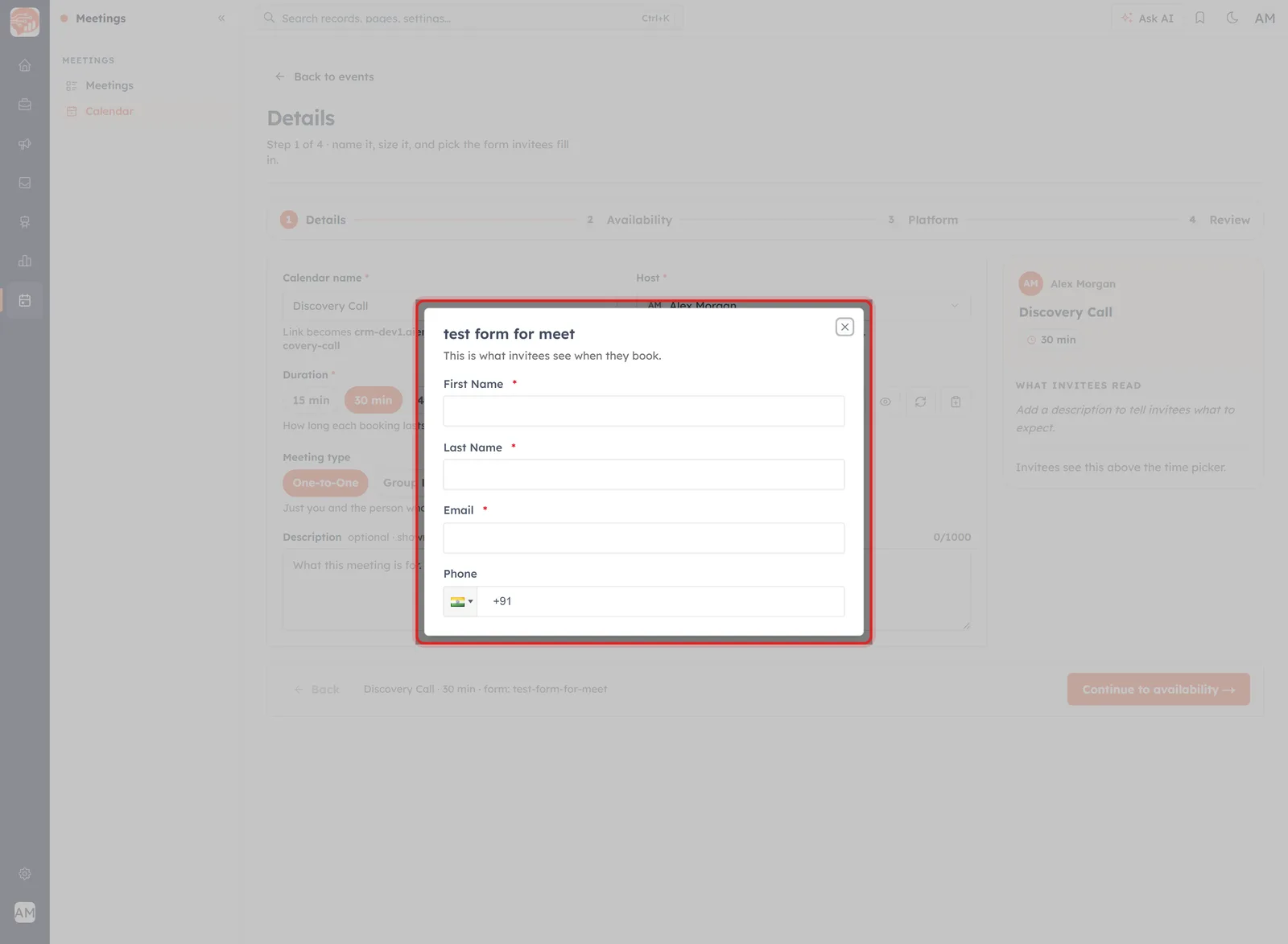
“This is what invitees see when they book.” The preview renders the real fields, required markers and all.
Worth ten seconds every time, because the form was probably built for something else and inherited whatever that needed. What you are checking:
- Is anything missing that you need in order to run the meeting?
- Is anything here you do not need? Every extra field is a reason to abandon the booking.
- Are the required fields the right ones? A red asterisk on something optional will cost you bookings.
What the invitee actually sees#
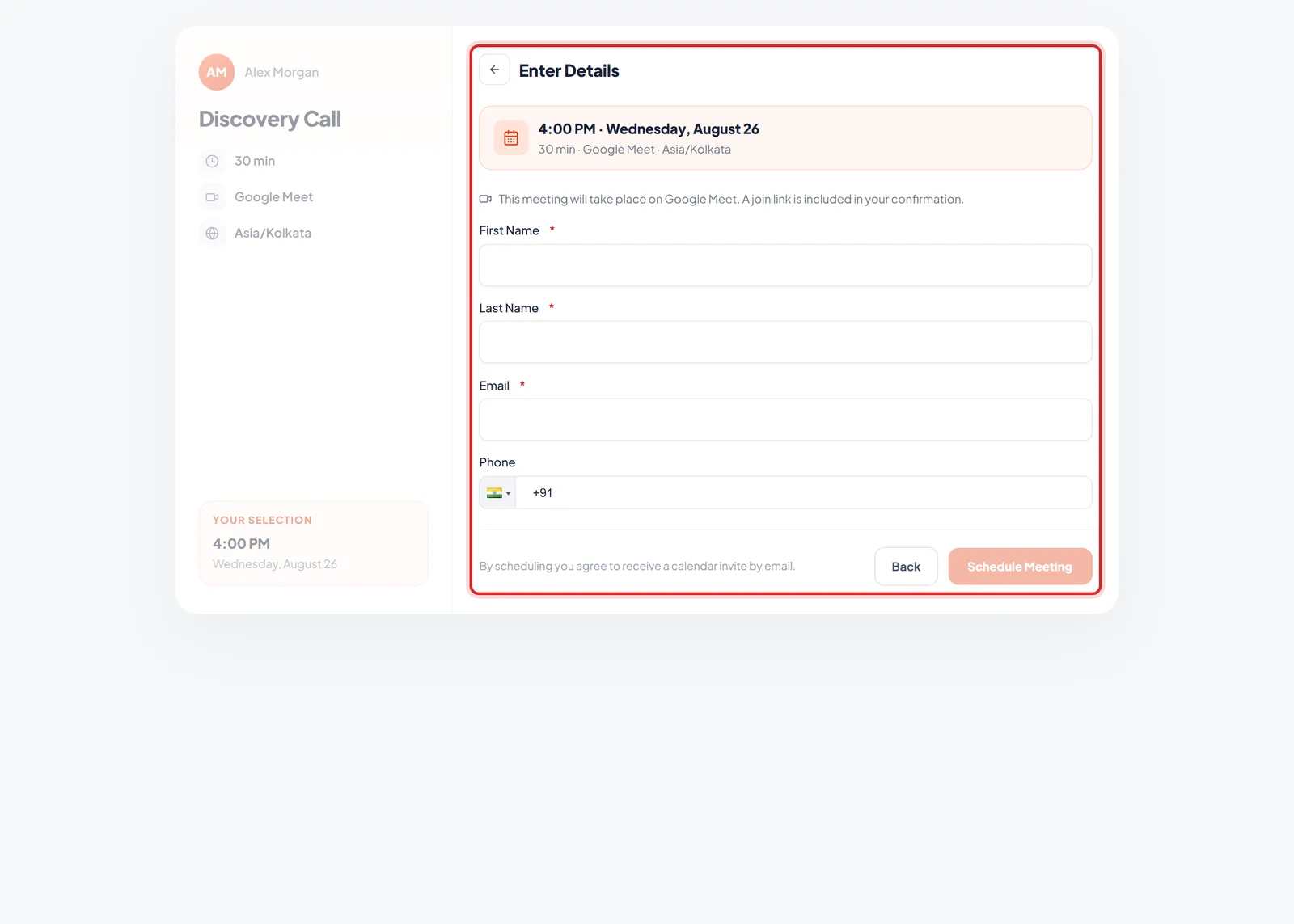
The same questions on the booking page, after the invitee has chosen a slot.
The form does not greet them. It appears at the Enter Details step, once they have already picked a time — so by the time they meet it they are invested, which is the best moment to ask for anything.
A phone field brings its own country selector; required fields carry a red asterisk; and underneath sits the line “By scheduling you agree to receive a calendar invite by email.” The Booking Page Your Invitee Sees walks the rest of that page.
What the answers become#
Two records come out of one booking:
- A contact, from the form answers — which is why the form you attach determines the quality of the record you end up with. Ask for a phone number and you have one; do not, and you never will.
- A meeting, carrying the invitee's name and email on its Description, and the page they came from in Tracking Information. What Happens After Someone Books covers that record in full.
⚠️
Somebody who books twice with a different email address arrives as a second contact. Contacts carry an Is Duplicate flag for exactly this — worth checking occasionally rather than after a campaign has gone out to the same person twice.
What to ask for#
The temptation is to ask everything while you have their attention. Resist it: this form is a checkout, and every field is a chance to abandon.
- Name and email — unavoidable. You cannot confirm a meeting without them.
- Phone — worth it if you will genuinely call, or need a fallback when the video link fails.
- One qualifying question — “what would you like to cover?” earns its place: it tells you how to prepare and it makes the meeting better.
- Anything else — ask yourself whether you would rather have the answer or the meeting. You are usually choosing between them.
Different links can carry different forms, which is the way out of that trade-off: a short form on the link in your email signature, a longer one on a link you send to qualified prospects.
Before you move on#
- Preview the form and read it as an invitee would.
- Check the required fields are ones you genuinely need.
- If nothing fits, build one — Create booking form, then Refresh form list to pick it up here.
Then carry on to Set Your Availability for Bookings.
Was this article helpful?
Ready to implement this?
OpenAI Engage and apply what you just learned to your own workspace.
Open AI Engage CRM