Loading…


KnowledgeBase
The Booking Page Your Invitee Sees
What this covers#
You build the event, set your hours and hand out the link. The page at the end of that link is the one part of the whole business you never really look at — and it is the only part your invitee ever sees.
This article walks it from their side: what is on the page, how their timezone is handled, what they have to fill in, and what it means when the page has nothing to offer.
It follows on from Share Your Booking Link.
What opens#
Your link goes to a page of its own. No account, no sign-in, nothing to install — the invitee clicks and is looking at your availability.
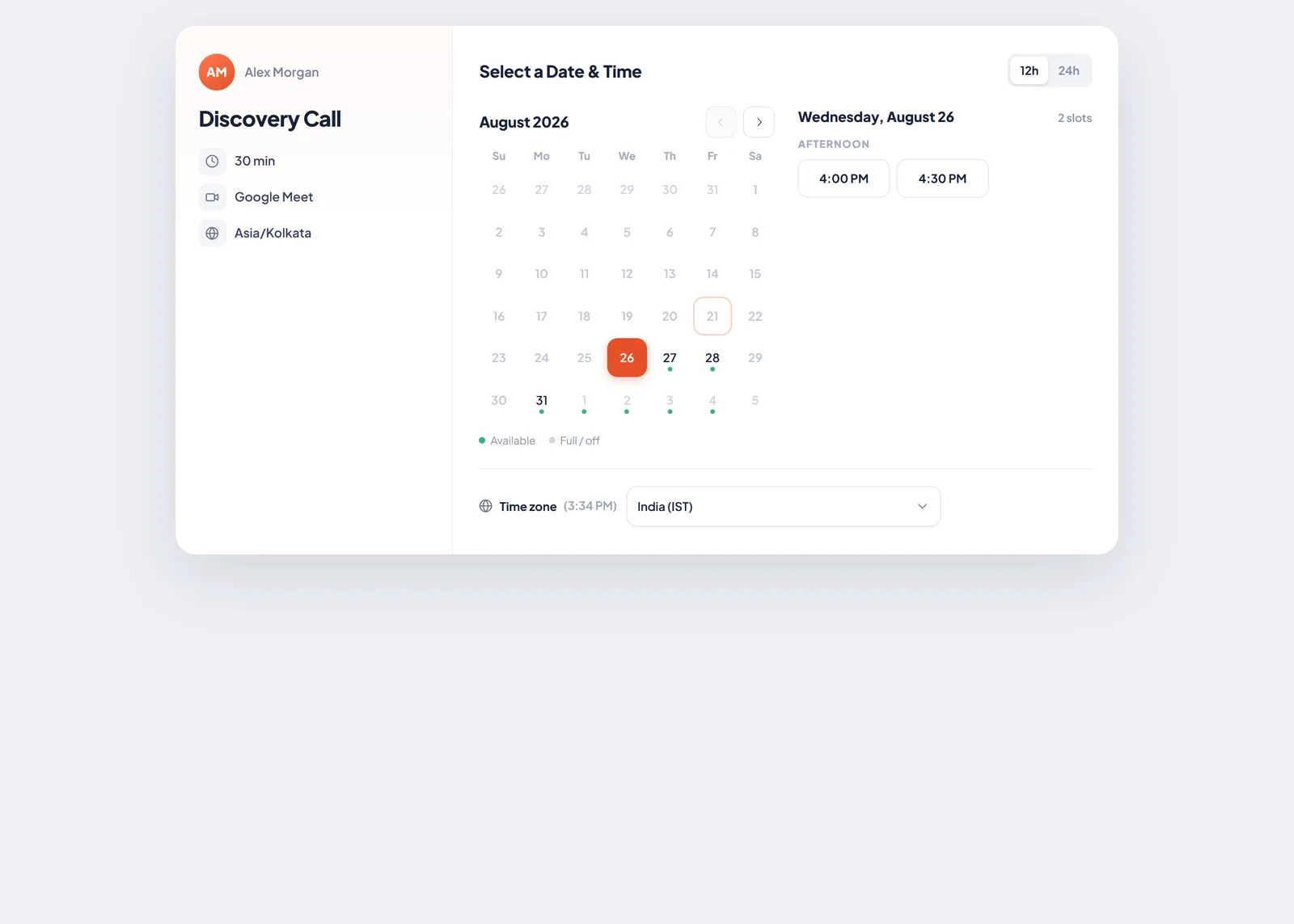
The booking page. What the meeting is on the left, when it can happen on the right.
Two halves: the meeting on the left, the calendar on the right. Nothing else competes for attention.
The left: what they are booking#
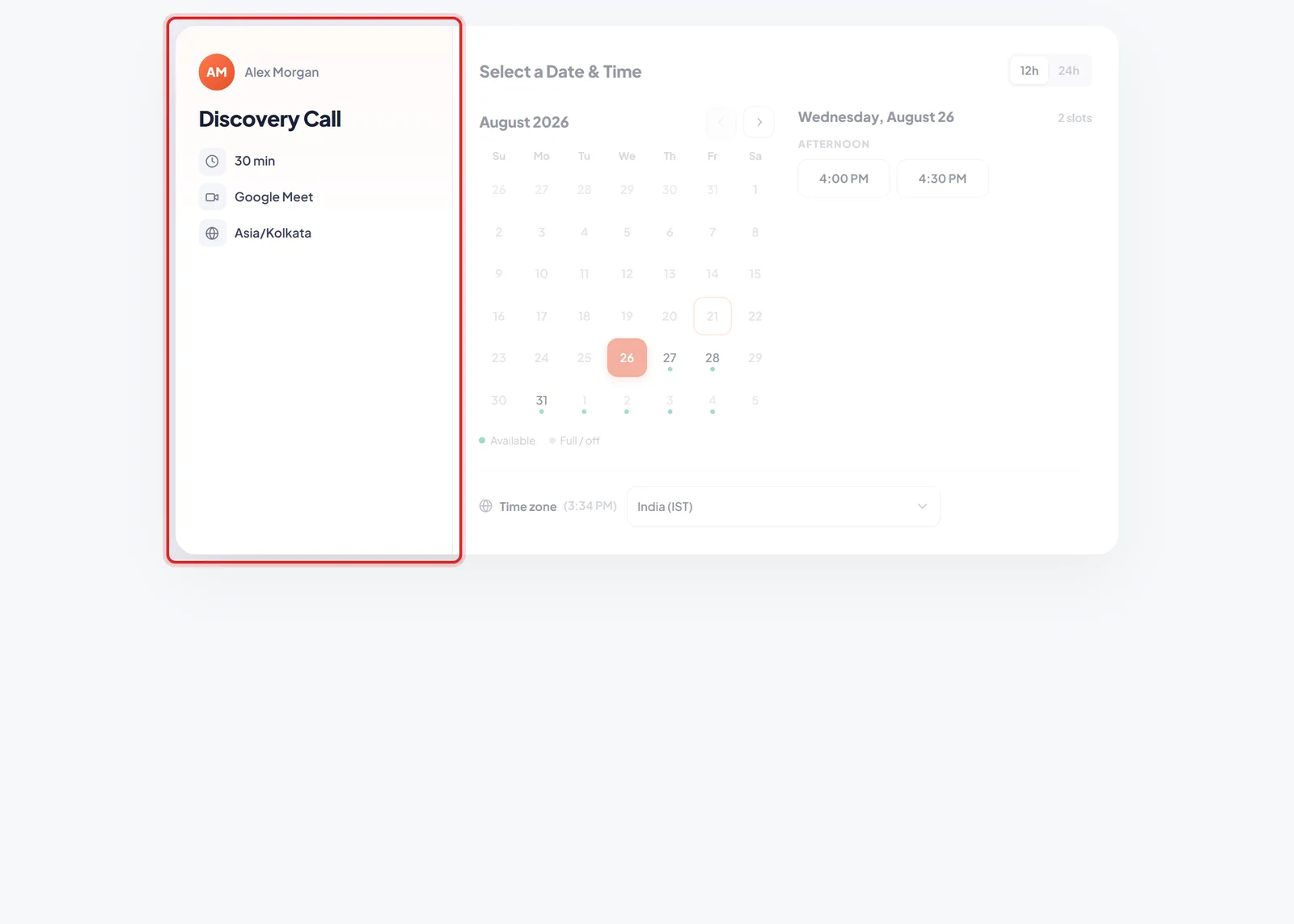
The details rail: who they are meeting, what it is called, how long it lasts, and where it happens.
Four things, all of them decided by you when you built the event:
- The host — name and initials, at the top. Whoever you named as host on step 1.
- The event name — the biggest text on the page, so it is worth it reading like something a person would want to attend.
- The duration — how long they are committing to.
- The location — Google Meet, for instance. If you published the event with several locations, this reads as a choice: Google Meet or Phone call.
If you wrote a description for the event, it appears here too. That description is your only chance to set expectations before someone commits a slot — an event with none makes the invitee guess.
The right: choosing a time#
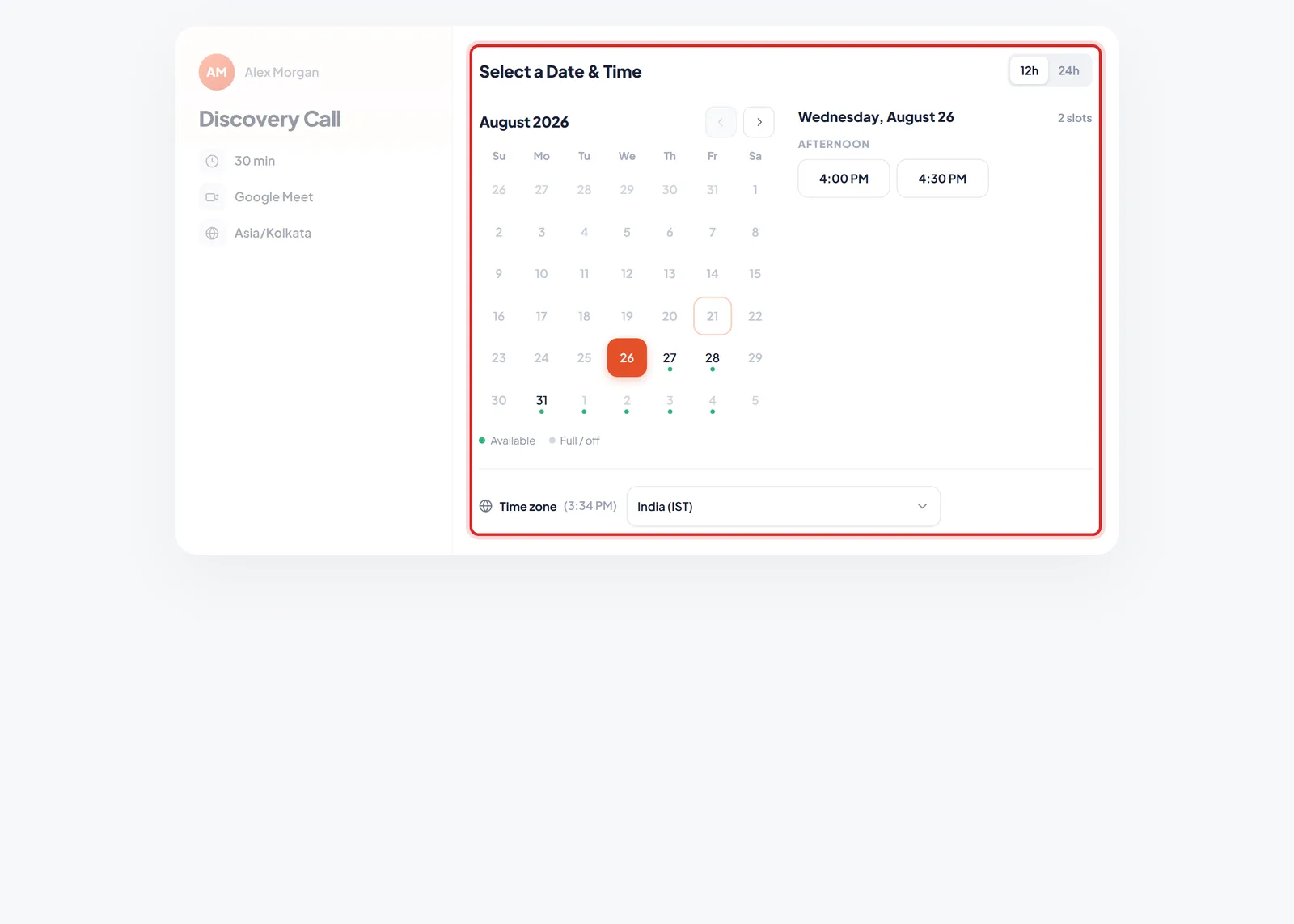
Select a Date & Time. Green dots mark bookable days; the times for the chosen day sit alongside.
Select a Date & Time is a month at a time, and it does the reading for them:
- A green dot under a date means there is something free that day. The legend spells it out — Available against Full / off.
- Today is outlined; the day they have picked is filled in.
- The chosen day gets a headline — Wednesday, August 26 — and a count, 2 slots, with the times grouped under MORNING and AFTERNOON.
- 12h / 24h switches the clock format, for people who think in one or the other.
- The arrows move through the months your bookable range allows.
Picking a time does not commit them to anything: a Next button appears beside the slot they chose, and the booking only moves on when they click it.
Timezones are handled for them#
This is the part worth trusting. Your hours are set in your timezone, and the page converts them into the invitee's automatically — nobody does arithmetic and nobody turns up an hour out.
The same pair of slots on the same event reads as:
- 4:00 PM and 4:30 PM to someone in India
- 12:00 PM to someone in London
- 6:30 AM and 7:00 AM to someone in New York
A Time zone selector sits under the calendar with the invitee's current local time beside it, so they can confirm the page guessed right — and change it if they are booking while travelling.
🌍
The practical consequence for you: set your weekly hours in your own timezone and leave them alone. Trying to be helpful by offering “US-friendly” hours you do not actually work only produces meetings you resent.
Entering their details#
After Next, the page turns into a short form.
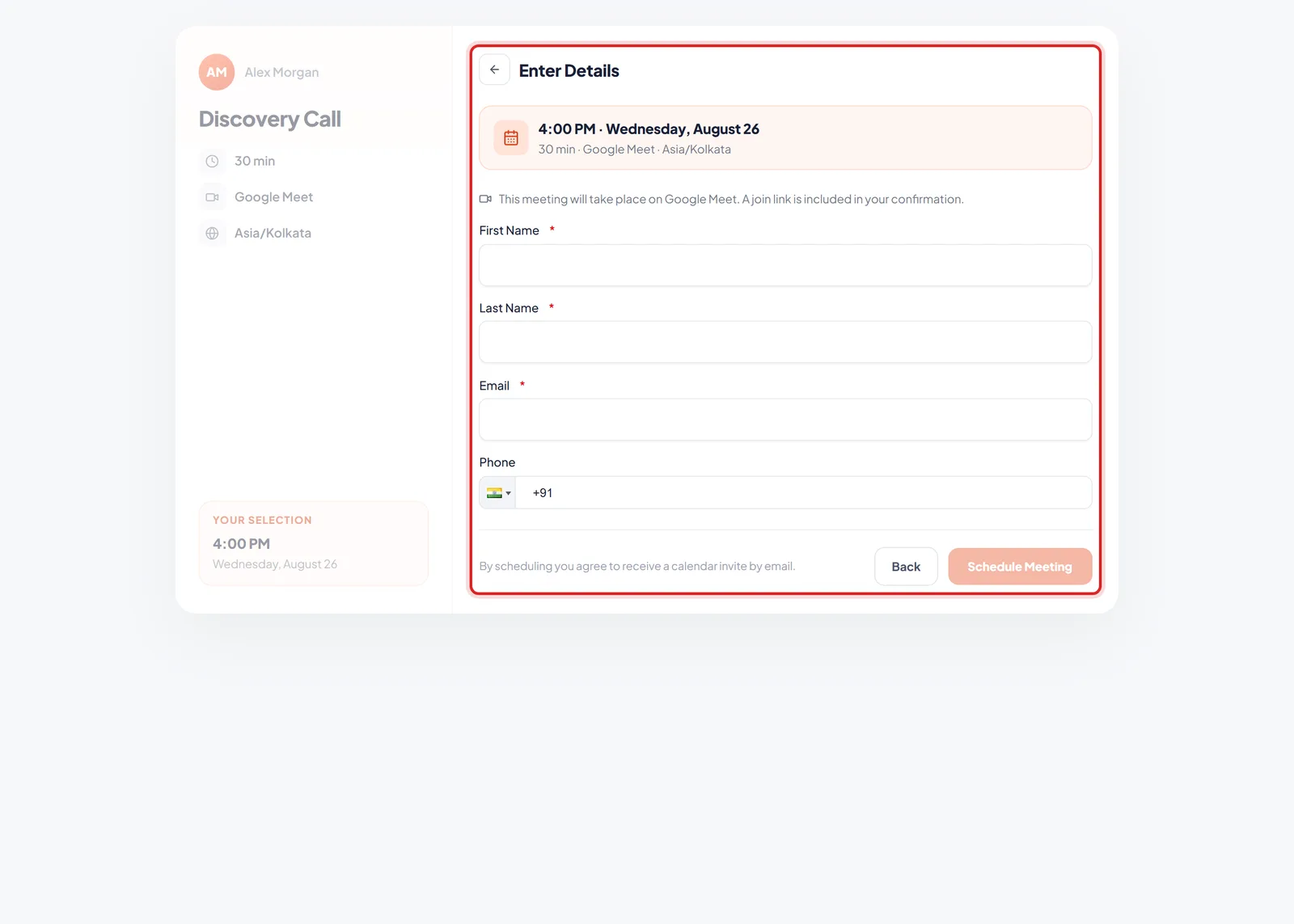
Enter Details. The chosen slot is restated at the top, then the questions from your booking form.
What is on it:
- The slot, restated — time, date, duration, location and timezone, so nobody books the wrong thing by accident. The choice also stays visible on the left under YOUR SELECTION.
- A line about the location — for a video meeting: “This meeting will take place on Google Meet. A join link is included in your confirmation.”
- The questions — these come from whichever booking form you attached to the event. The ones shown here are that event's, not a fixed set: required fields carry a red asterisk, and a phone field brings its own country selector.
- A consent line — “By scheduling you agree to receive a calendar invite by email.”
- Back and Schedule Meeting — the second one is the booking.
💡
This is the form standing between you and the booking, so every extra question costs you meetings. It is also the form whose answers become the contact record — so ask for what you will genuinely use, and nothing more. Whatever they type lands in your CRM: What Happens After Someone Books.
When the page has nothing to offer#
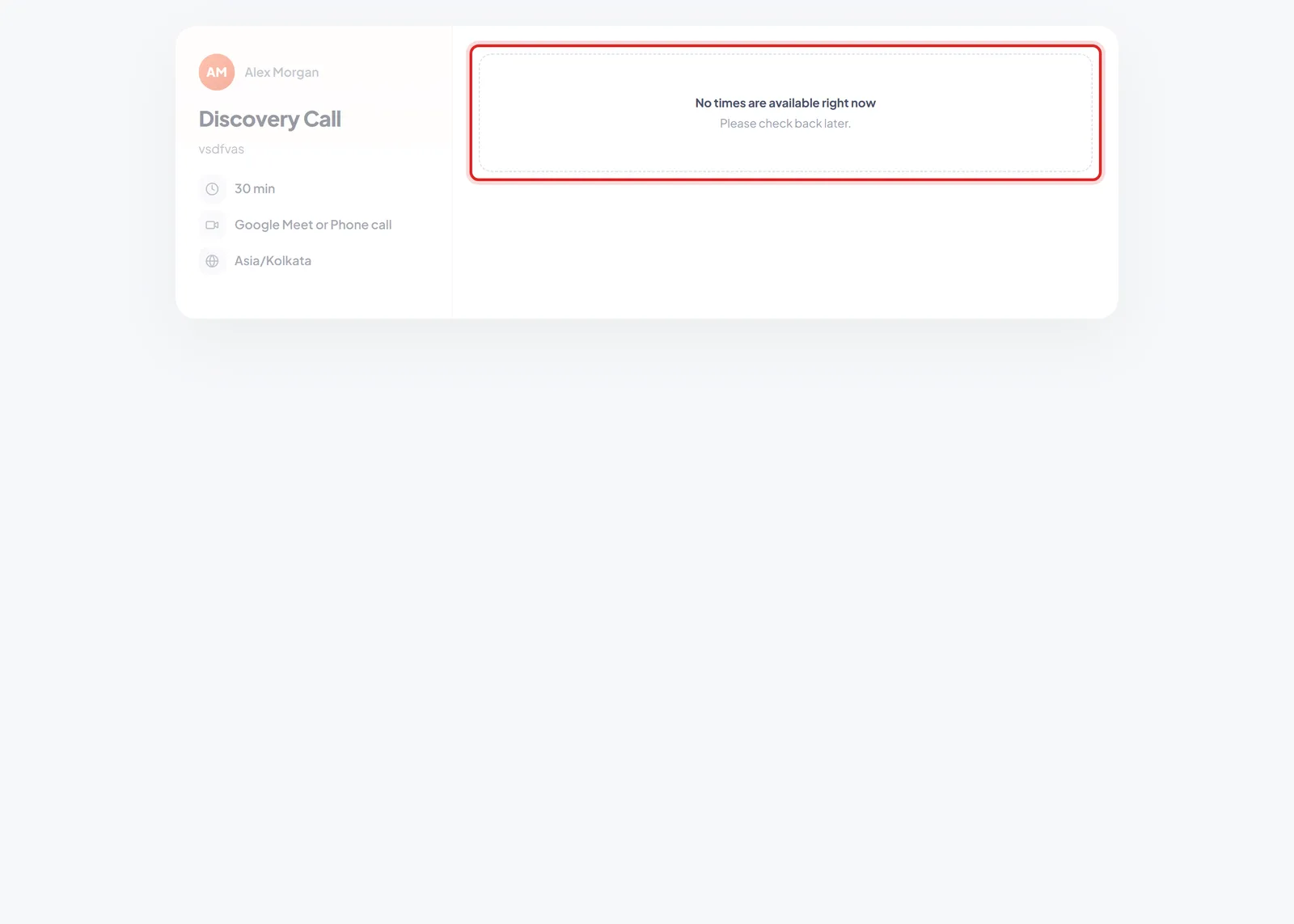
The empty state. The link works — there is simply nothing bookable behind it.
Instead of a calendar, an invitee can meet this:
No times are available right now. Please check back later.
The link is not broken; there is just nothing free behind it. It usually means one of:
- No weekly hours are set, or every day is marked closed.
- The bookable range is short and the near days are all taken.
- The minimum notice has swallowed everything left today.
- Your calendar is genuinely full for the whole range.
⚠️
Nobody will tell you about this. An invitee who meets an empty page does not email to say so — they leave. Open your own link in a private window now and then, especially after changing your hours, and you will see exactly what they see.
Two things worth doing#
- Book yourself once. Walk the whole thing end to end as an invitee. It is the only way to find a confusing name, a missing description or a form asking for something you do not need.
- Re-check after you change your hours. Availability is the setting most likely to silently empty your page.
Was this article helpful?
Ready to implement this?
OpenAI Engage and apply what you just learned to your own workspace.
Open AI Engage CRM