Loading…


KnowledgeBase
Set Your Availability for Bookings
What this covers#
Availability is step 2 of 4 in the Calendar wizard, and it is the step that decides whether your booking link is useful or a nuisance. It answers three questions: how far ahead people can book, how much warning you need, and which hours of which days are open at all.
You reach it from Meetings → Calendar → New event, after naming the calendar on step 1. The whole wizard is covered in Create an Event in the Calendar; this article is just step 2, in full.
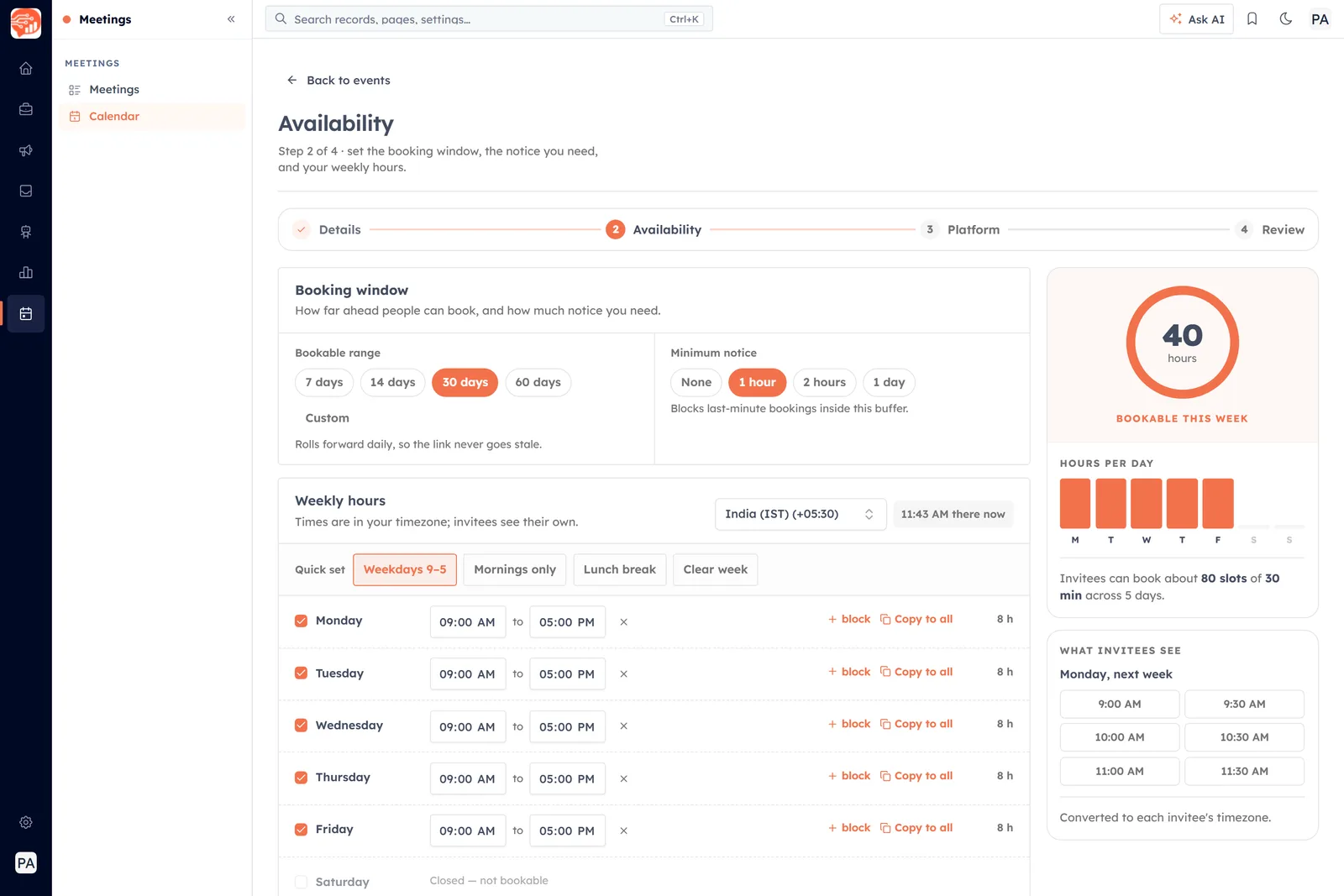
Step 2, Availability. Two cards on the left, a live summary of what you have built on the right.
The booking window#
The first card sets the outer edges — how far ahead people can book, and how much notice you need.
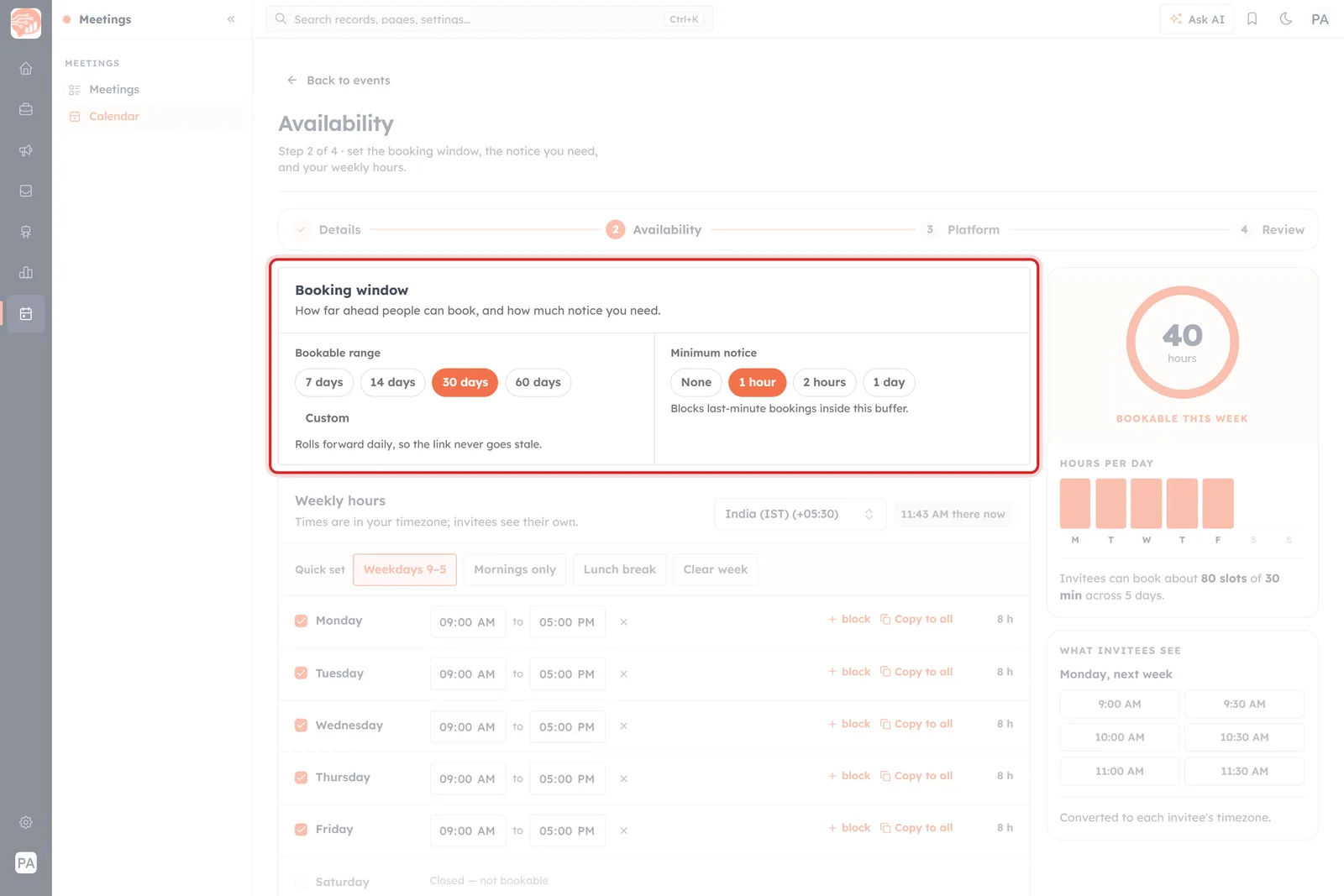
Bookable range on the left, Minimum notice on the right.
Bookable range#
How far into the future the link is open: 7 days, 14 days, 30 days or 60 days, or a Custom figure of your own.
The line under it is the important part: “Rolls forward daily, so the link never goes stale.” The range is not a fixed end date. A 30-day range means the next 30 days, always — the window moves with today, so a link you shared six months ago is still bookable this morning.
- Short range (7–14 days) keeps your calendar flexible and pushes people to book soon.
- Long range (30–60 days) suits meetings people plan around — but you are promising those hours a long way out.
Minimum notice#
The buffer in front of now: None, 1 hour, 2 hours or 1 day. As the screen puts it, it “blocks last-minute bookings inside this buffer” — slots inside the buffer simply do not appear to an invitee.
None means someone can book you for ten minutes from now. That is occasionally what you want — a support desk, say — and usually not. An hour or two is the setting most people end up on; a full day suits meetings you need to prepare for.
Weekly hours#
The second card is the real work: which hours, on which days, are bookable.
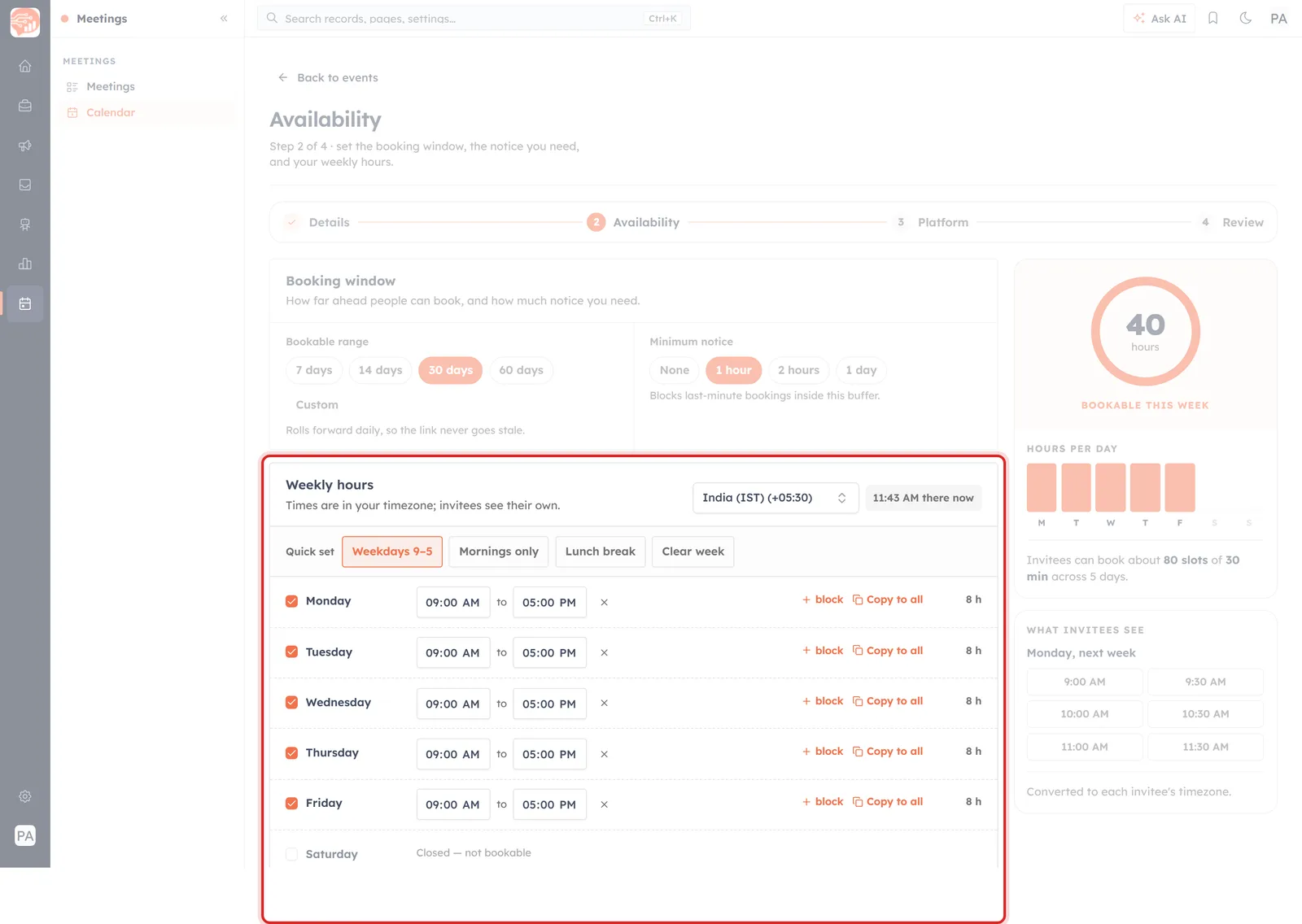
One row per day. A ticked day is open; an unticked one reads “Closed — not bookable”.
Start from a preset#
Quick set fills the whole week in one click, and you can adjust afterwards:
- Weekdays 9–5 — Monday to Friday, eight bookable hours a day, forty for the week.
- Mornings only — a three-hour morning window on each weekday; fifteen hours for the week.
- Lunch break — the same working day, split into two blocks with a gap in the middle, so nobody can book you over lunch.
- Clear week — closes every day. A blank slate to build from, and a fast way to take the link out of service without deleting it.
Then set it day by day#
Each day has its own row, and the controls are the same on all seven:
- The checkbox opens or closes the day. Unticked, the row reads “Closed — not bookable” — which is what Saturday and Sunday start as.
- The two time fields are the start and end of a bookable block.
- + block adds a second block to the same day, for a split schedule — mornings and late afternoons, with the middle protected. The day’s total goes up accordingly, and the × beside a block removes it again.
- Copy to all pushes that day’s hours onto every other open day. Set Monday properly, copy it, then fix the one day that is different.
- The hour count at the end of the row (8 h) is that day’s bookable total, so a typo in the times shows up immediately.
Timezones are handled for you#
Above the rows sits your timezone, with the current time in it, and the card states the rule plainly: “Times are in your timezone; invitees see their own.”
💡
You never convert anything by hand. Set 9:00 AM to 5:00 PM in your timezone and someone booking from another country sees those hours converted to theirs — which is exactly why the summary panel shows you a real example before you continue.
The panel on the right#
Everything you change is totalled live on the right, and it is worth reading before you move on.
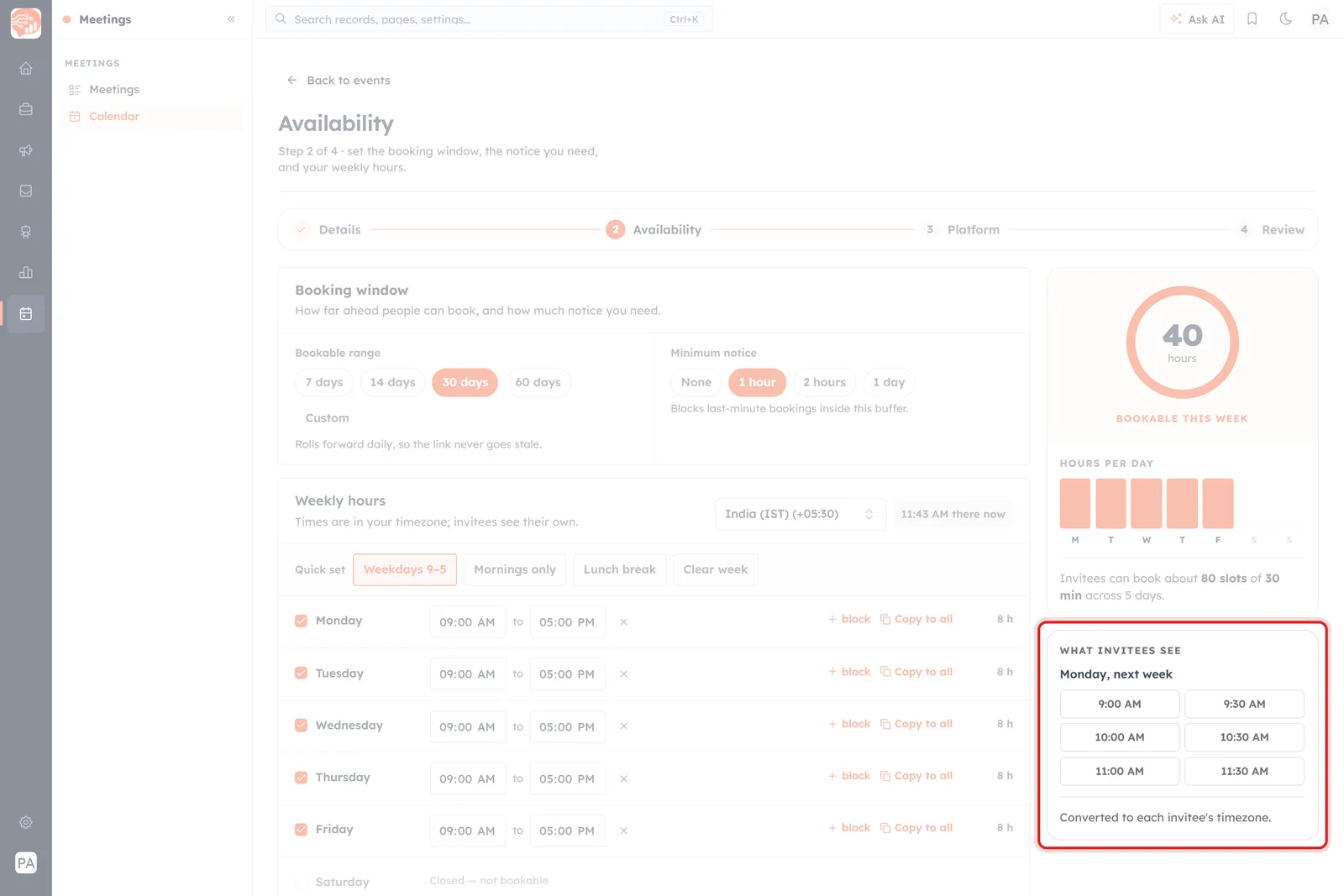
“What invitees see” — real slots for next Monday, converted to each invitee’s timezone.
- Bookable this week — the total hours you have opened. Forty is a full working week; if this number surprises you, your rows are wrong.
- Hours per day — a bar per weekday, so a day you left closed by accident is obvious at a glance.
- The slot estimate — how many bookable slots those hours come to at your chosen duration (“about 80 slots of 30 min across 5 days”).
- What invitees see — the actual time picker for next Monday, built from the hours you just set.
Hours that hold up#
A booking link gives away control of your calendar inside the hours you open. A few habits keep that comfortable:
- Do not open every hour you are technically free. Availability is not a timesheet — leave yourself room to work.
- Protect lunch and the start of the day with two blocks rather than one, or with the Lunch break preset.
- Set a notice period you can live with. One hour is fine if you watch your calendar; a day is safer if you do not.
- Match the range to the meeting. A quick call does not need to be bookable two months out.
- Check the slot count. If it says eighty, eighty different people could take eighty different half-hours of your month.
🌍
Selling across timezones? Your morning is somebody’s evening. Widening the window by an hour at one end often does more for bookings than anything else on this screen — and the What invitees see panel shows you the effect before you commit.
Before you continue#
- Every day you meant to open is ticked, and the ones you did not are showing Closed — not bookable.
- The hours total matches what you intended to give away.
- The notice period would not embarrass you at 8:55 for a 9:00 meeting.
- The timezone above the rows is genuinely the one you work in.
Then Continue to platform for step 3, where the meeting gets a location. Availability stays editable after the calendar is published, so none of this is permanent — but the invitees who book before you fix it get the hours you set today.
Was this article helpful?
Ready to implement this?
OpenAI Engage and apply what you just learned to your own workspace.
Open AI Engage CRM