Loading…


KnowledgeBase
Meeting Status & Venue — the Lifecycle
What this covers#
Two dropdowns on every meeting decide whether your Meetings list is worth opening: Meeting Venue, which says where it happens, and Meeting Status, which says where it has got to.
They take about a second each and they are the difference between a list you can filter and a list of everything you have ever agreed to. This article covers what each one offers, what a booking sets them to, and how to change the options themselves.
Meeting Status: where it has got to#
Meeting Status is a required field on the meeting form, and the only one of the two that changes over a meeting's life.
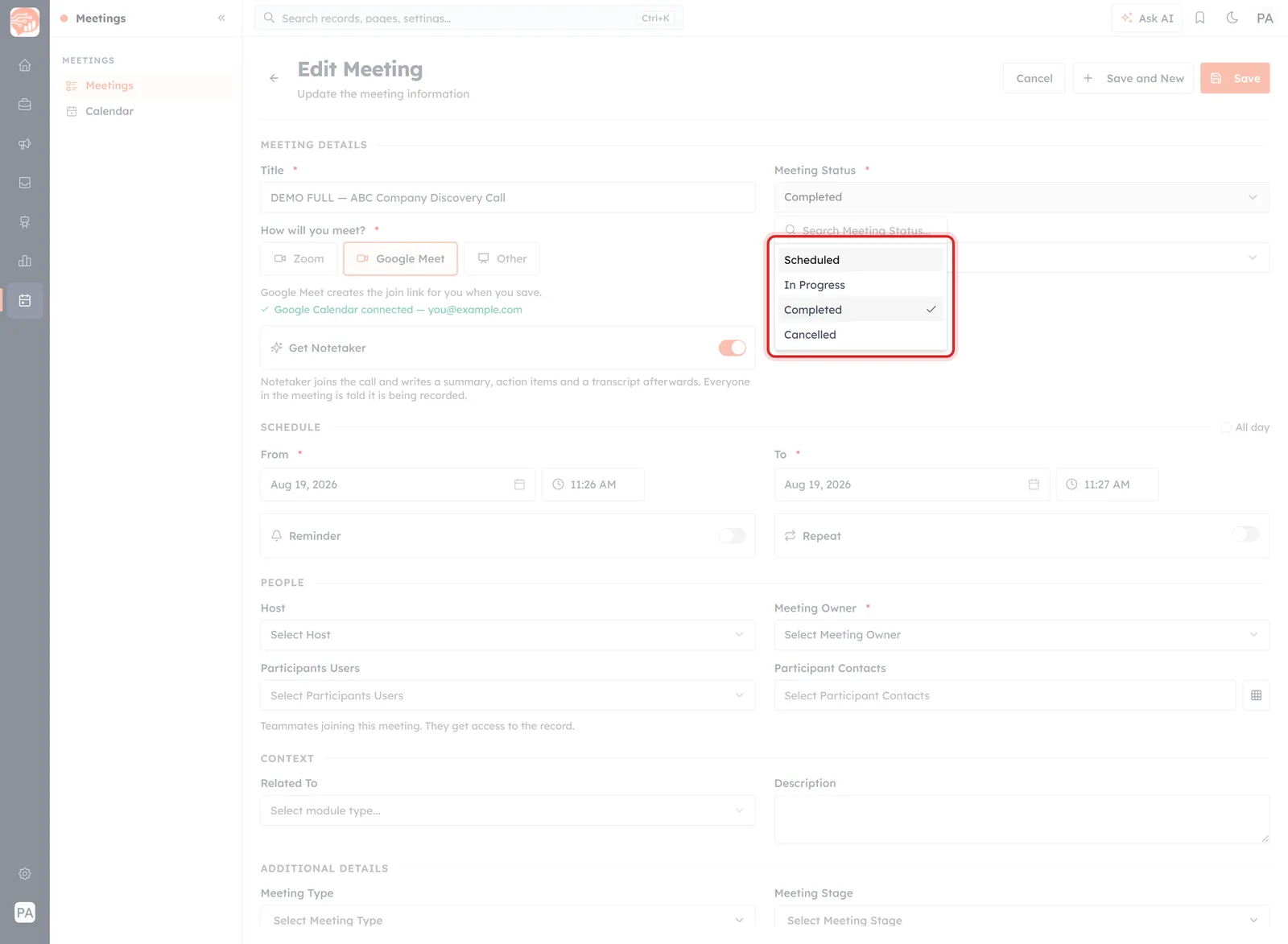
Meeting Status offers four values. The current one is ticked, and there is a search box for lists longer than this.
Four values, in the order a meeting actually moves through them:
- Scheduled — agreed, not yet happened. The default, and where every meeting starts.
- In Progress — happening now. Useful mostly to colleagues wondering whether to interrupt you.
- Completed — it happened. This is the one that matters: a meeting that took place and a meeting that fell through look identical until somebody says which.
- Cancelled — it did not happen, and is not going to.
💡
Cancelled is not the same as deleted, and that is the point. Deleting a cancelled meeting throws away the fact that it was ever arranged. Marking it Cancelled keeps the history — three cancellations from the same contact is a pattern worth seeing.
Nothing moves the status for you. A meeting whose time passed last week still reads Scheduled until somebody changes it, which is why a list nobody maintains slowly stops meaning anything.
Meeting Venue: where it happens#
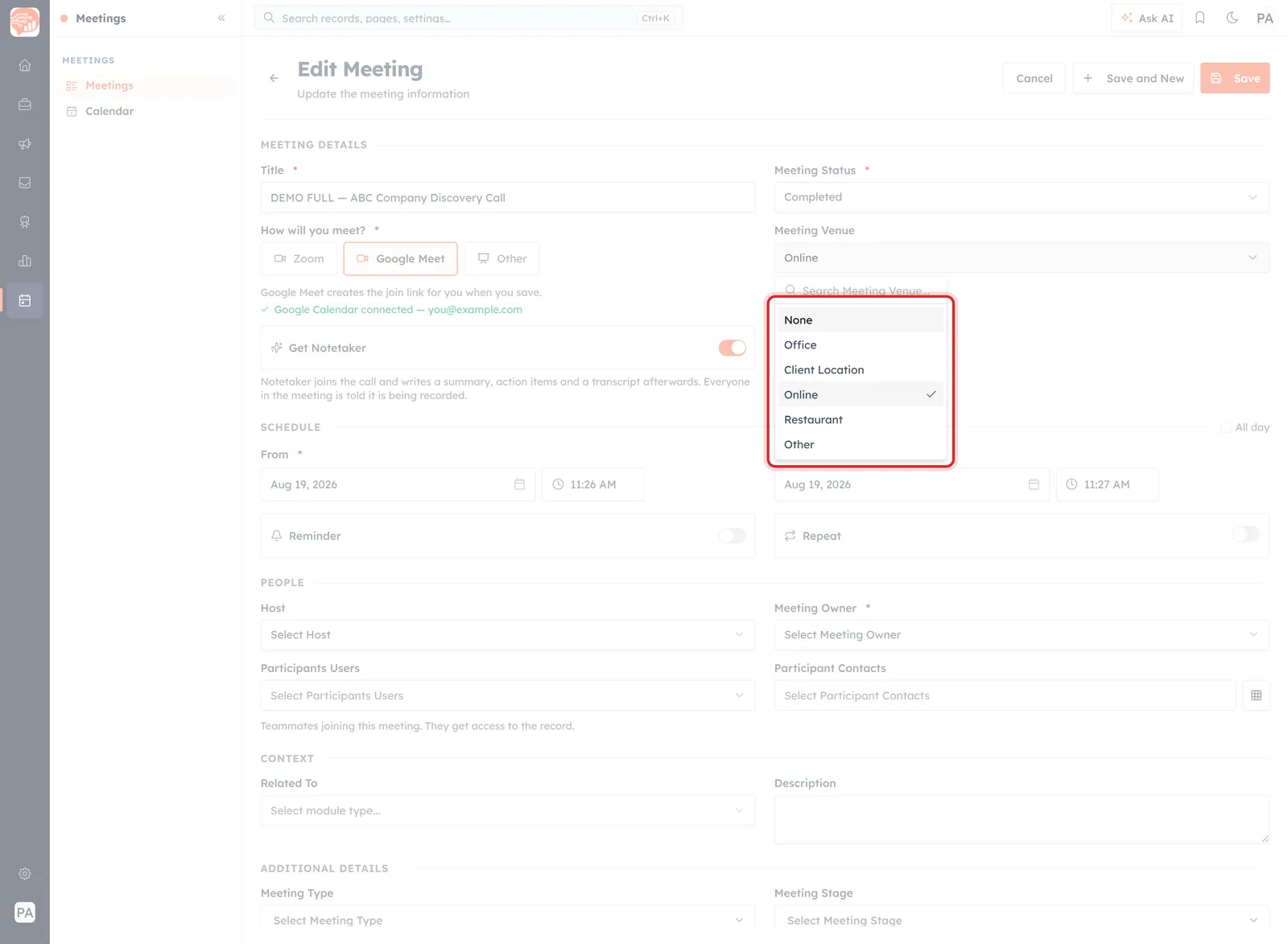
Meeting Venue. Six values, covering the ordinary ways a meeting takes place.
- None — unset.
- Office — yours.
- Client Location — theirs. The one worth recording, because it usually means travel.
- Online — a video call.
- Restaurant — lunches and dinners, which are meetings whether or not they feel like it.
- Other — anything else.
Venue does not change once set. It is the answer to “do I need to leave the building?”, and it is what makes a week of Client Location meetings visible before you have agreed to all of them.
What a booking sets them to#
A meeting created when somebody books one of your links arrives with both already filled in:
- Meeting Status: Scheduled — the field's default.
- Meeting Venue: Online — booking links produce video and phone meetings.
So the only one you need to touch afterwards is the status, once the meeting has happened. What Happens After Someone Books covers the rest of what arrives.
Where they show up#
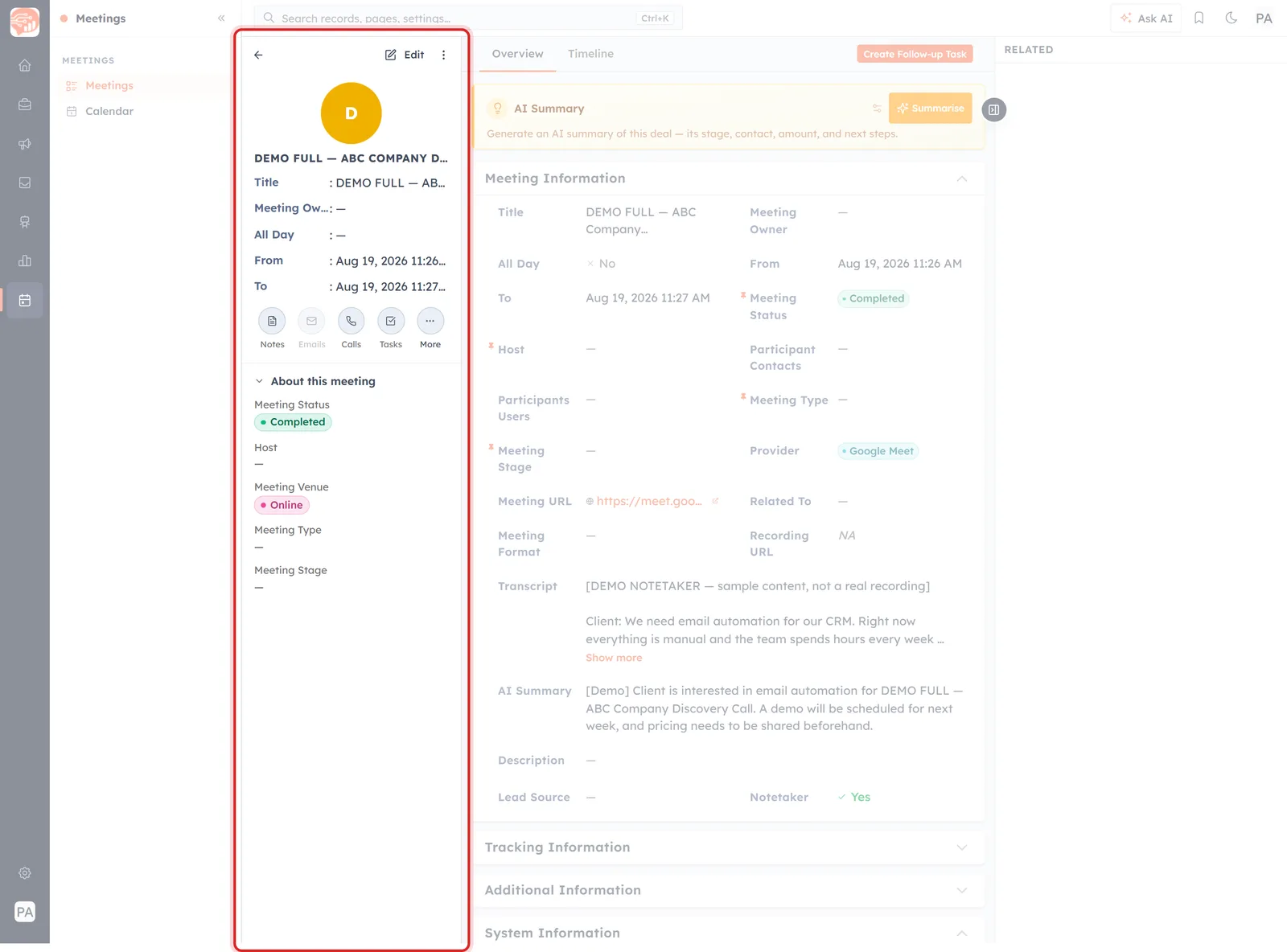
“About this meeting” on the record — status and venue are the first two things it reports.
Both are read far more often than they are set:
- About this meeting on the record, where they head the summary — see Reading a Meeting Record.
- The Meetings list, as their own columns, which is what makes the list sortable and filterable into something useful.
⚠️
A list where every row reads Scheduled is not a list of upcoming meetings — it is a list of meetings nobody has updated. The cost of skipping this is not felt today; it is felt the first time someone asks how many client meetings happened last quarter.
Changing what the dropdowns offer#
Neither list is fixed. If your team meets at co-working spaces, or you want a status the four values do not cover, edit the field itself.
Go to Settings → Modules and Fields (under CUSTOMIZATION), find the Meetings row and click Configure.
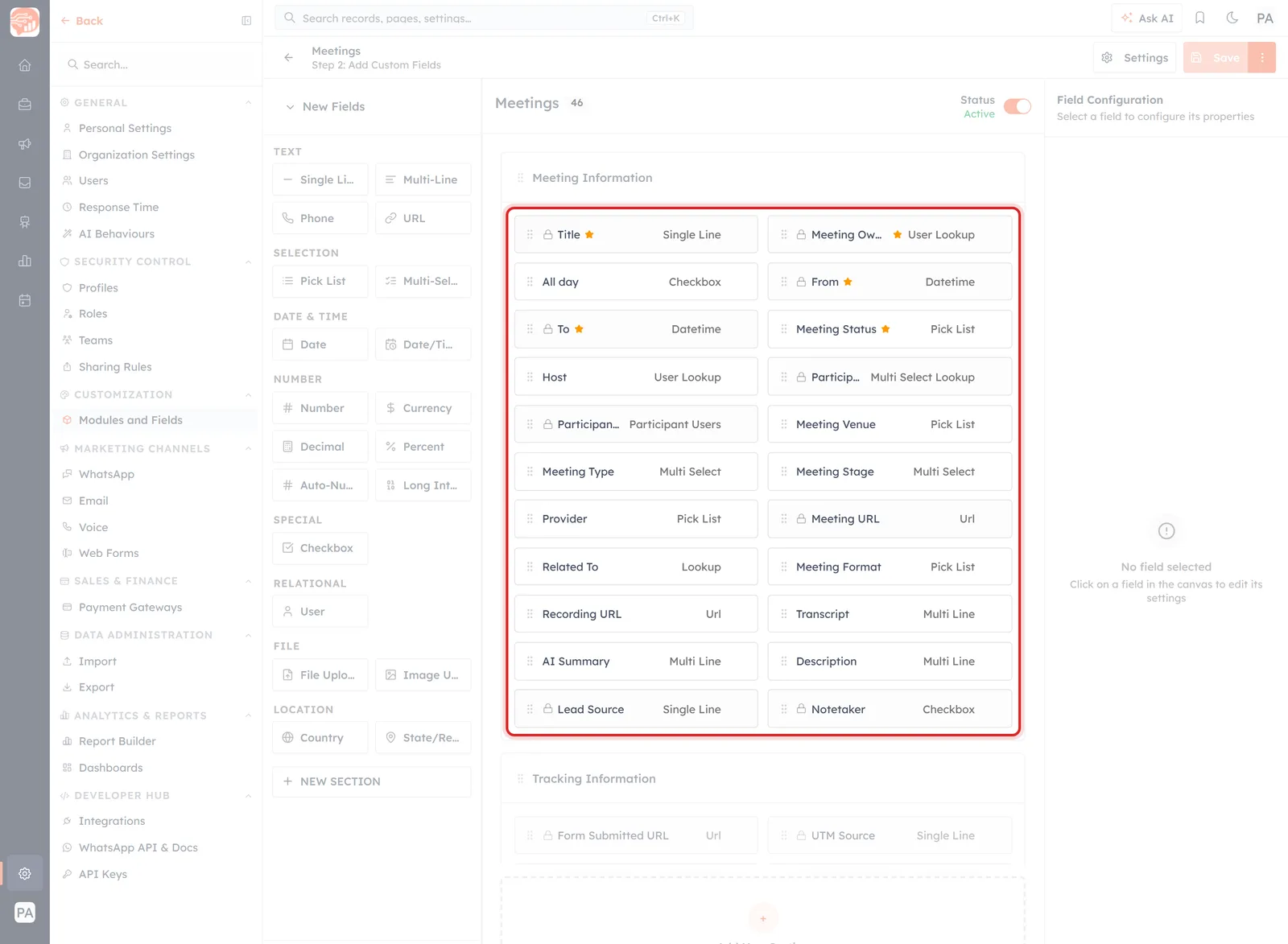
The Meetings module builder. Meeting Status and Meeting Venue are Pick List fields; clicking one opens its settings on the right.
The builder lays out every field on the module. Meeting Status and Meeting Venue are both Pick List fields — click one and Field Configuration opens on the right, where:
- OPTIONS lists the values, with one marked Default — for Meeting Status that is Scheduled, which is why every new meeting starts there.
- BASIC SETTINGS holds the field name, its auto-generated API name, and whether it is required.
- DISPLAY SETTINGS decides where the field appears — create form, edit form, mobile quick create, detail page — plus placeholder and help text.
- Field access can withhold a field's value from users whose role or profile is not allowed to see it. The panel is careful about the distinction: it “controls access, not layout”.
Changes take effect once you Save.
⚠️
Add freely; rename and delete carefully. Adding a value affects nothing that already exists. Renaming or removing one touches every meeting already using it, and Delete Field says so plainly: “This action cannot be undone.” If in doubt, add the new value and stop using the old one rather than editing it away.
The other three dropdowns#
Worth knowing, because they behave differently:
- Meeting Type — Demo, Consultation, Follow-up, Negotiation, Review.
- Meeting Stage — Planning, Execution, Follow-up.
- Source of the meeting — Web, Referral, Cold Call, Advertisement, Social Media, Partner.
All three are Multi Select rather than pick lists, so a meeting can carry more than one value at once. All three also ship empty on every record, which is why they are worth filling in only if you will actually report on them — and worth removing from the form if you will not.
A habit worth having#
- Set the venue when you create the meeting. You already know the answer; you will not later.
- Move the status when the meeting ends — Completed or Cancelled, never left on Scheduled.
- Sweep the list weekly. Sort by date, fix anything in the past still reading Scheduled. It takes a minute and keeps every report downstream honest.
Was this article helpful?
Ready to implement this?
OpenAI Engage and apply what you just learned to your own workspace.
Open AI Engage CRM