Loading…


KnowledgeBase
Introduction to Meetings & the Calendar
What this covers#
Everything about meetings in AI Engage CRM lives in one module — and that module has two halves. They both end with a meeting on a calendar, but they start from opposite directions, and picking the wrong one is the most common mistake here.
This article explains the split, shows you where each half lives, and points you at the article that goes deep on it.
The two halves#
Open Meetings from the left sidebar and you get two entries under it:
- Meetings — the records list. You create a meeting yourself, for a time you have already agreed, and add the people to it.
- Calendar — Events, described on the screen as “booking links people can use to schedule time with you”. You publish a link, and the other person picks a slot from the hours you made available.
The short version:
- You know the time already? Create a meeting in Meetings.
- You want them to choose the time? Build a booking link in Calendar.
Calendar: booking links people use#
Calendar opens on Events — one row per booking link you have built.
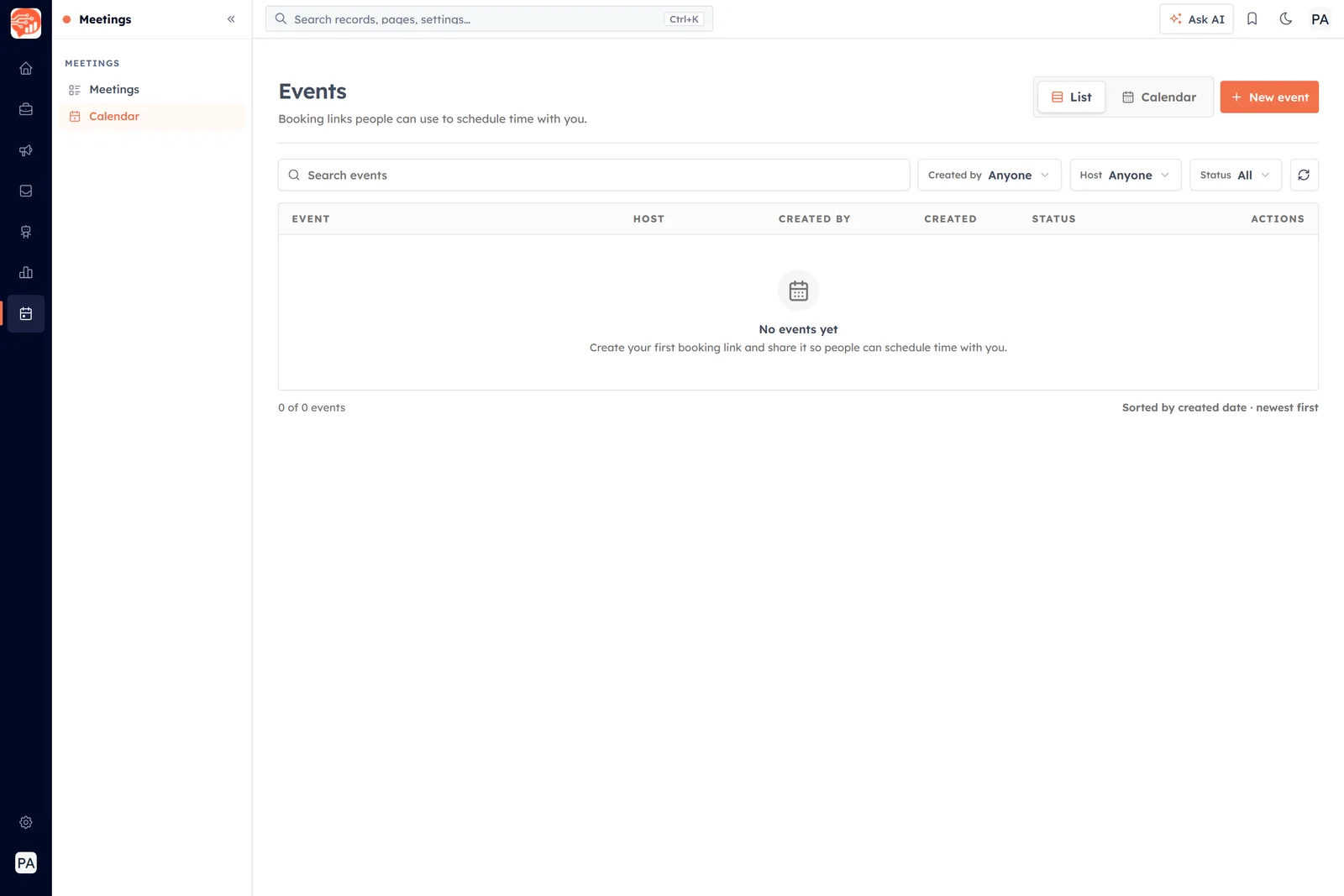
Events in List view. A new account starts empty — “No events yet”.
The list gives you a row per event with its host, who created it, when, and its status, plus an Actions column at the end. Above it are a search box and three filters — Created by, Host and Status — and the list is sorted by created date, newest first.
The pair of buttons at the top right switches how you look at the same events:
- List — the table above. Best for managing the links themselves.
- Calendar — a month grid, with Month, Week and Day options and a Today button. Best for seeing what the bookings are doing to your week.
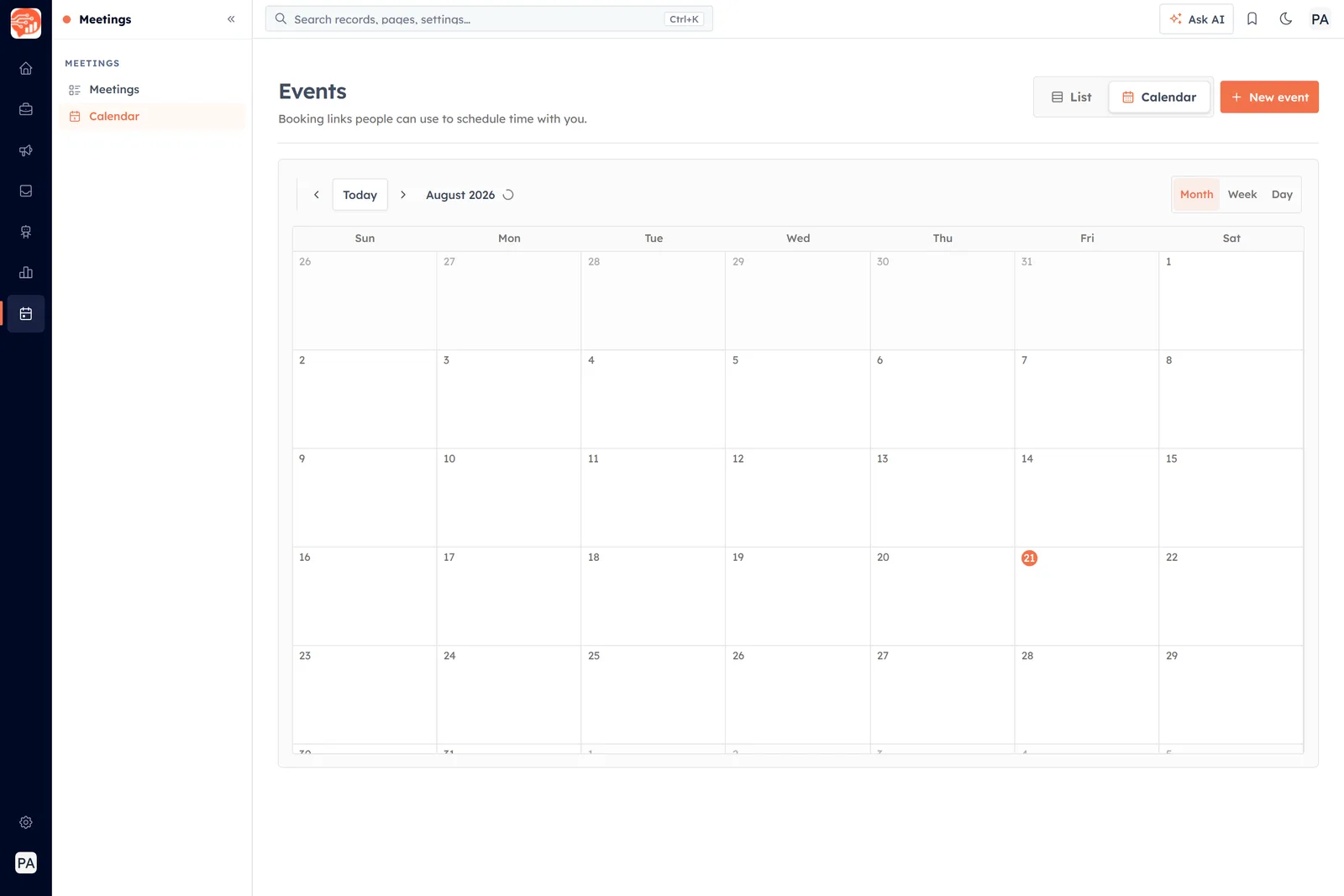
The same events in Calendar view. Month, Week and Day sit at the top right.
Building one takes four steps#
New event opens a four-step wizard, and the rail across the top tells you where you are:
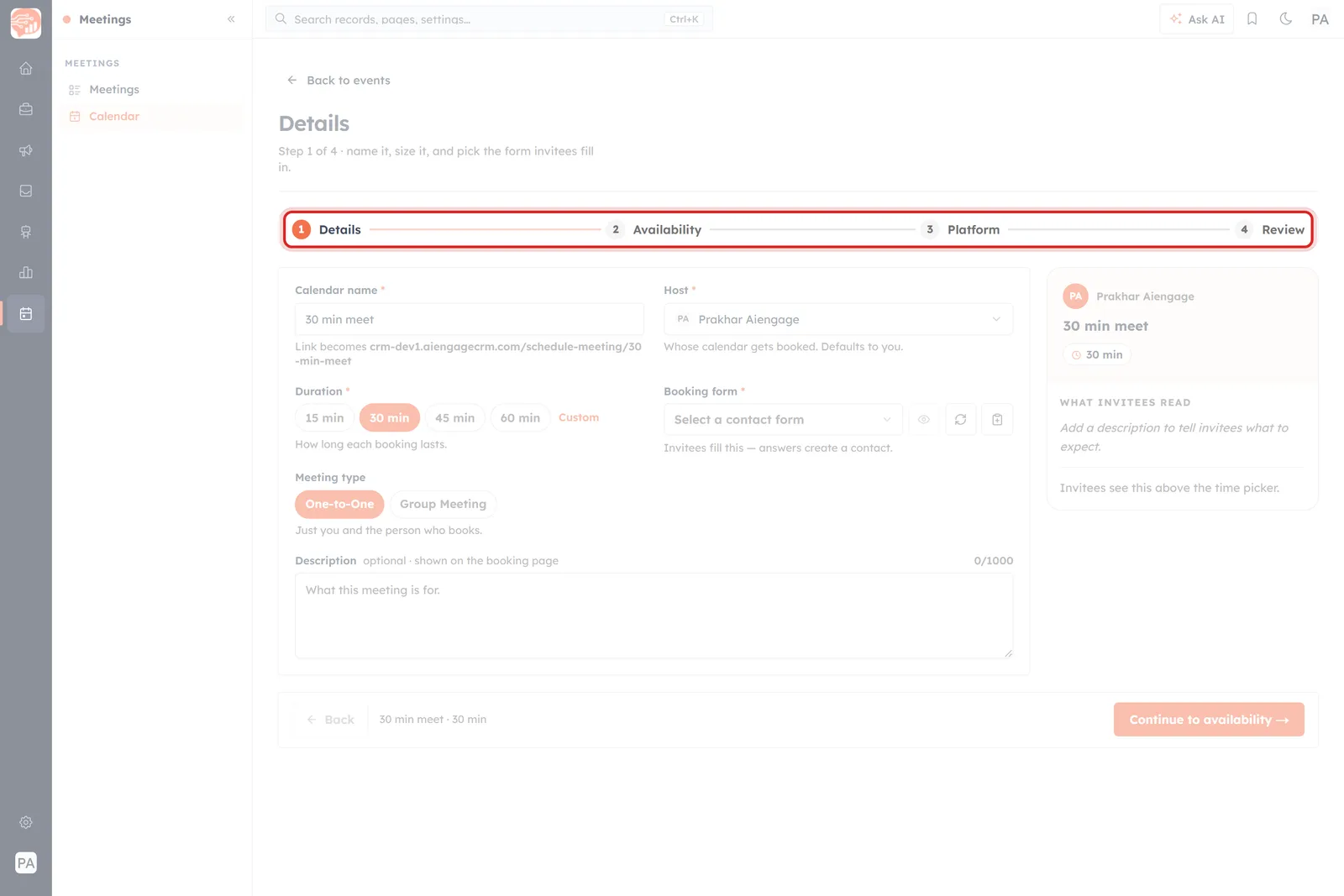
Step 1 of 4. The rail runs Details → Availability → Platform → Review.
- 1 · Details — name it, set the duration, pick the host, choose the booking form invitees fill in, and decide between a One-to-One and a Group Meeting. The calendar name matters more than it looks: the booking link is built from it.
- 2 · Availability — how far ahead people can book, how much notice you need, and your weekly hours.
- 3 · Platform — where the meeting happens: Google Meet, Zoom, in person, or a phone call. You can offer several and let the invitee choose.
- 4 · Review — a summary of all three, the Share panel, and the Publish calendar button.
Each step is covered properly in Create an Event in the Calendar, and what to do with the finished link is in Share Your Booking Link.
💡
Your weekly hours are set in your timezone, but invitees always see slots converted to theirs. You never have to do that arithmetic yourself — and neither do they.
⚠️
Booking links are limited by plan. Publish calendar can answer with an Unlock More Meeting Calendars message instead of a live link, if your plan’s allowance is already used. Nothing is lost when that happens — the wizard keeps your work until the plan allows it.
Meetings: the ones you schedule yourself#
The Meetings entry is an ordinary records list, and it behaves like every other records list in the CRM.
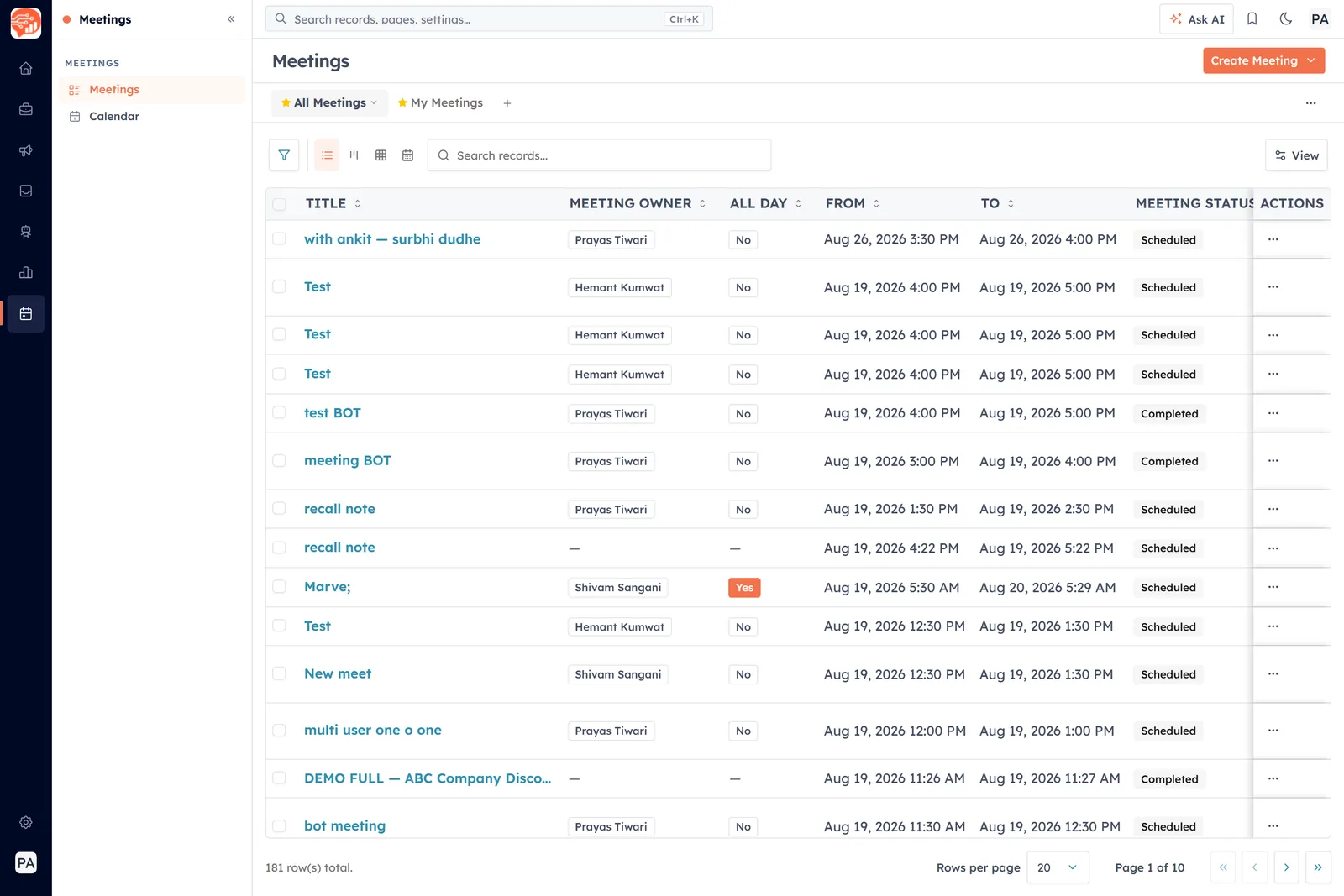
Meetings records. All Meetings and My Meetings are saved views; Create Meeting is at the top right.
Each row carries the meeting’s title, its owner, whether it is an all-day meeting, the from and to times, and a status such as Scheduled or Completed. All Meetings and My Meetings are saved views you can switch between, and the icons above the table swap the layout — list, board, grid or calendar — while View, the filter button and the search box narrow what is in it.
Create Meeting at the top right starts a new one. The whole form, field by field, is in Create a Meeting from the Meetings Module.
Which one do I want?#
- A time you agreed on a call — create it in Meetings. Nobody needs to choose anything.
- “When are you free?” over email — send a booking link instead, and stop the back-and-forth.
- Something repeatable — a demo, a discovery call, a support slot — build it once as an event and reuse the link forever.
- A one-off with an existing contact — a meeting record is quicker than a link.
They are not exclusive. Most people end up with two or three booking links they share widely, and meeting records for everything that gets arranged in conversation.
Where to start#
- Create an Event in the Calendar — the four-step wizard, start to finish.
- Share Your Booking Link — the link’s address, the Share panel, and where to put it.
- Create a Meeting from the Meetings Module — scheduling one yourself, field by field.
Was this article helpful?
Ready to implement this?
OpenAI Engage and apply what you just learned to your own workspace.
Open AI Engage CRM