Loading…


KnowledgeBase
Connect Google Calendar and Google Meet: Automatic Meet Links, Calendar Events and Meeting Status (Step-by-Step)
Introduction#
When you connect your Google account to AiEngage CRM, you stop creating meeting links by hand. From then on:
Every booking and every Google Meet meeting gets its own Meet link. Two people booking the same day get two different rooms.
A Google Calendar event is created on the host’s calendar, with the Meet link inside it. It is updated or removed when you reschedule or cancel in the CRM.
The meeting status updates itself. The CRM checks with Google whether the call started and ended and moves the meeting from Scheduled to In Progress to Completed.
Busy times can be hidden. With Calendar sync on, times you are busy in Google Calendar are not offered on your booking pages.
ℹ️
The connection is personal. Each user connects their own Google account once; it is not a company-wide setting. Meetings are created on the host’s calendar, so the host’s connection is the one that matters. The CRM’s connection is called Google Calendar; Google Meet links come with it.
Before you start#
A Google account you can sign in to (personal Gmail or Google Workspace).
Pop-ups allowed for the CRM in your browser. Google’s sign-in opens in a small pop-up window, and a blocker stops it silently.
Where | What you see there |
|---|---|
Meetings → Settings | Your Google Calendar connection card (Step 1) |
Calendar → New calendar → Platform step | Google Meet tile, its card and Connected accounts (Steps 2–5) |
Meetings → Create Meeting | A connection line under “How will you meet?” (Step 7) |
A meeting record | Provider, Meeting URL, status and recording (Step 8) |
Step 1: Connect from Meetings → Settings#
Open Meetings from the left rail and click Settings, the last item. This page (titled Integrations) holds your own calendar and video connections.
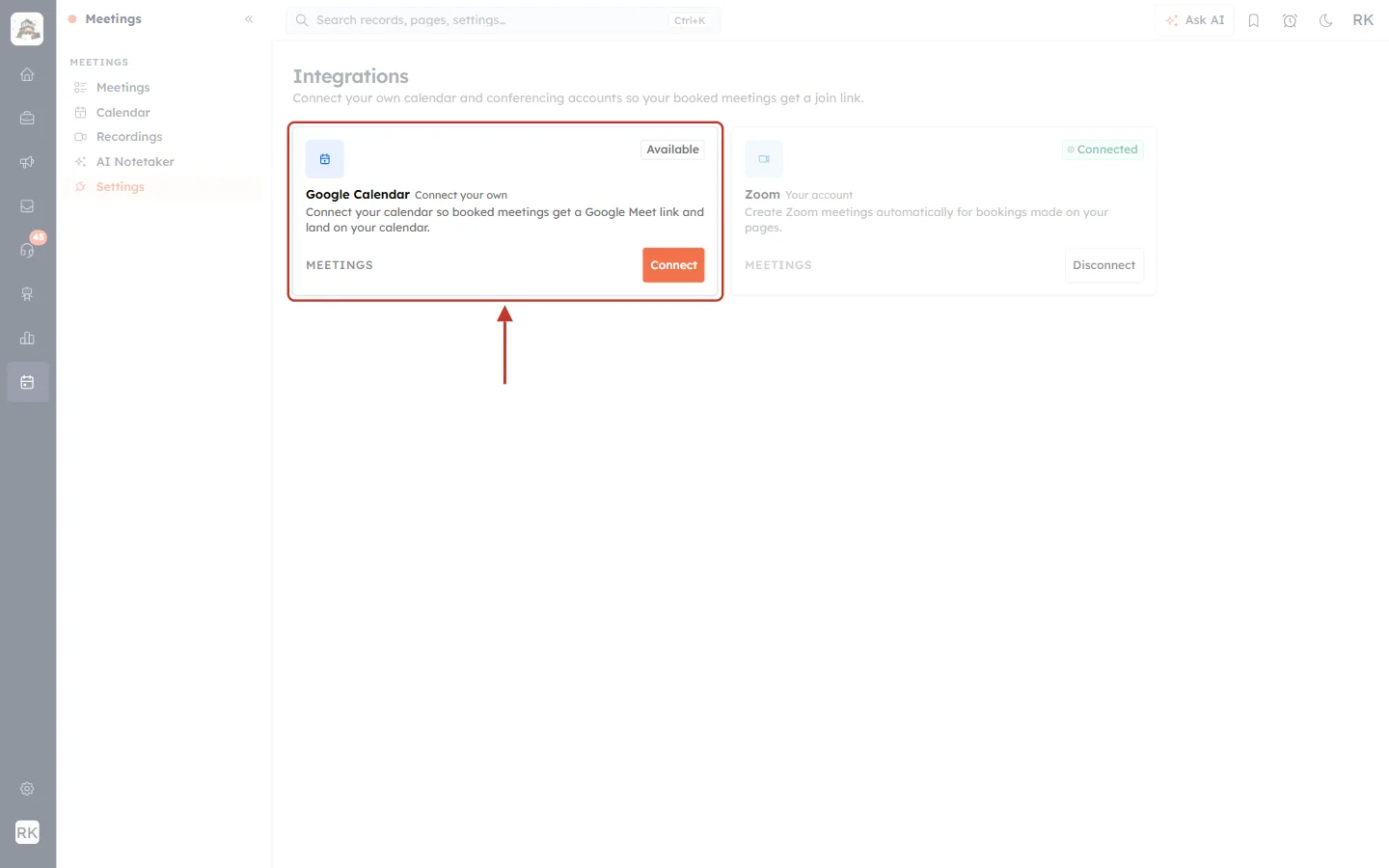
What this screenshot shows. The Google Calendar card is ringed. It is not connected yet.
The badge at the top right reads Available, and the tag after the name reads Connect your own.
The description: “Connect your calendar so booked meetings get a Google Meet link and land on your calendar.”
Click the orange Connect button. A Google sign-in window opens (see What Google asks for below).
The Zoom card beside it works the same way; see Zoom Integration: Add, Use and Remove the App.
Choose your Google account in the pop-up, review the permissions and click Allow. The window closes itself and the card changes.
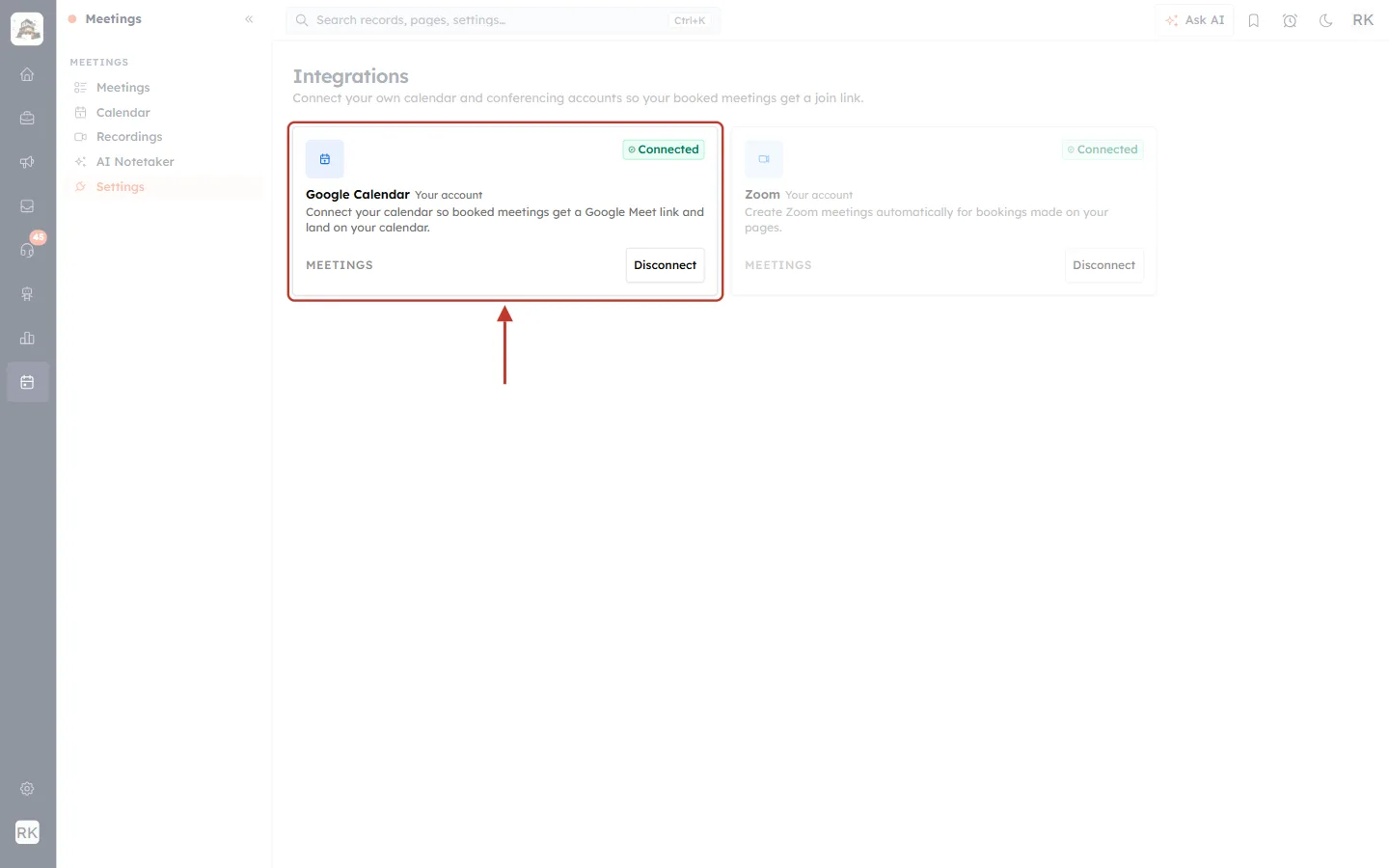
What this screenshot shows. The same card after connecting.
The badge now reads Connected (green), and the tag reads Your account.
The button changes to Disconnect, which unlinks the account again.
⚠️
If nothing happens when you click Connect, your browser blocked the pop-up. Allow pop-ups for the CRM address and click again. If you close Google’s window or click Cancel, nothing is saved; just click Connect again.
What Google asks for, and why#
Google’s consent screen lists the permissions AiEngage CRM requests. It asks for the smallest set that makes the features work:
Permission (in short) | What it is used for |
|---|---|
View and edit events on your calendars | Creating the calendar event for each meeting (the Meet link is created with it) and updating or removing it when you reschedule or cancel. |
See your free/busy information | Calendar sync: learning when you are busy so those times are hidden. Only start and end times are read: no titles, attendees or descriptions. |
See your primary Google Account email address | Showing which account is connected (for example riya@yourcompany.com). |
See information about your Google Meet conferences | Checking whether a call has started and ended, so the status moves on its own. Only timing and status are read. |
✅
AiEngage CRM does not read your other calendars, your mailbox or your Google Drive, and does not read the content of your Google Meet calls. Recordings, transcripts and AI summaries on a meeting come from the CRM’s own AI Notetaker; see AI Note Taker: Recordings, Transcripts, Credits & Storage.
Step 2: Use Google Meet on a booking calendar#
Open Meetings → Calendar, click + New calendar (or the pencil on an existing calendar), fill in Details and Availability, and continue to step 3, Platform. Click the Google Meet tile.
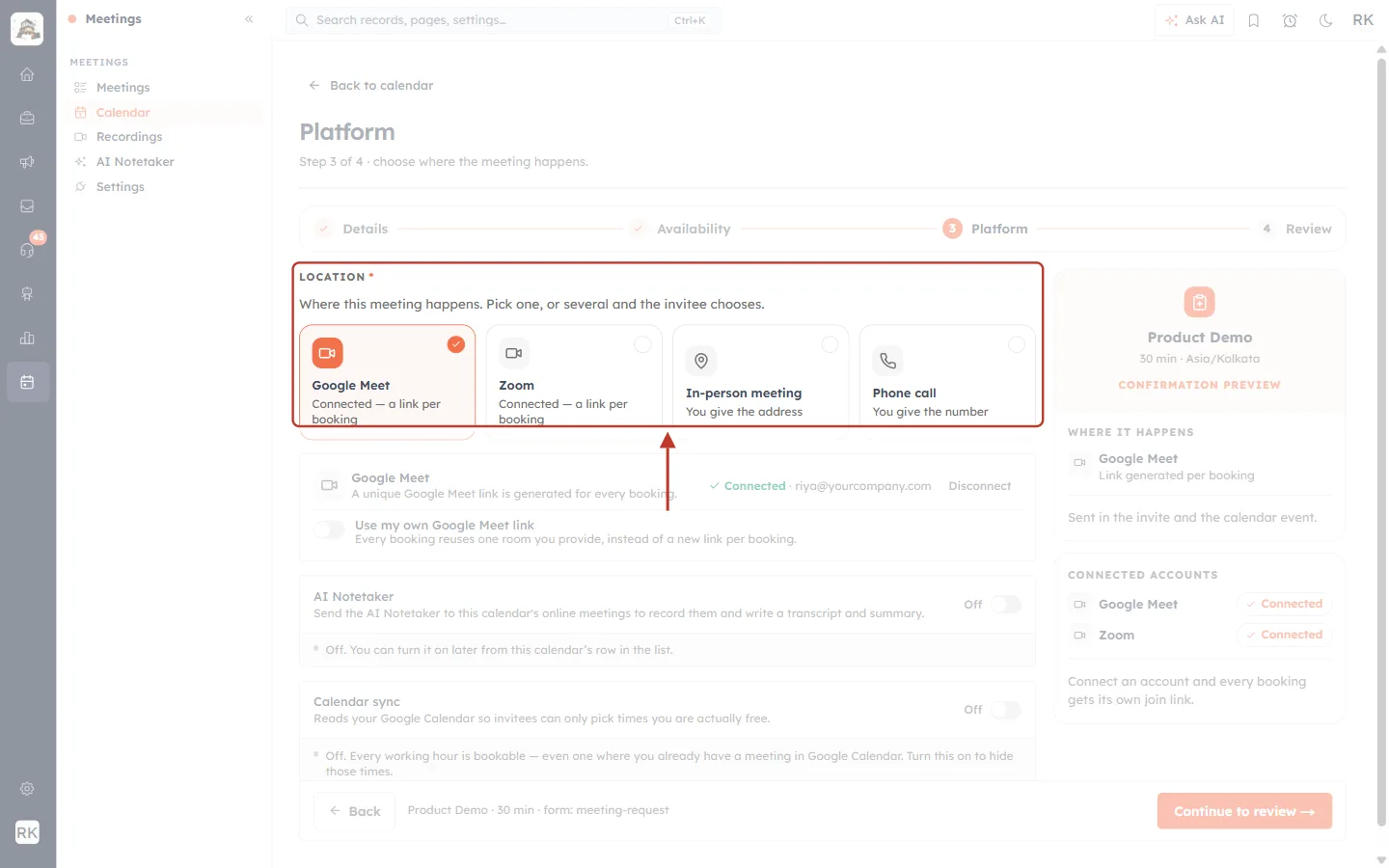
What this screenshot shows. The Location tiles are ringed. Google Meet is selected (orange, with a tick).
Under each video tile is its status. “Connected — a link per booking” means the host’s account is connected and ready.
Zoom shows the same kind of status. In-person meeting and Phone call have nothing to connect.
You can pick several locations; the invitee then chooses when booking.
Step 3: Check the Google Meet card#
Selecting the tile opens a card underneath it.
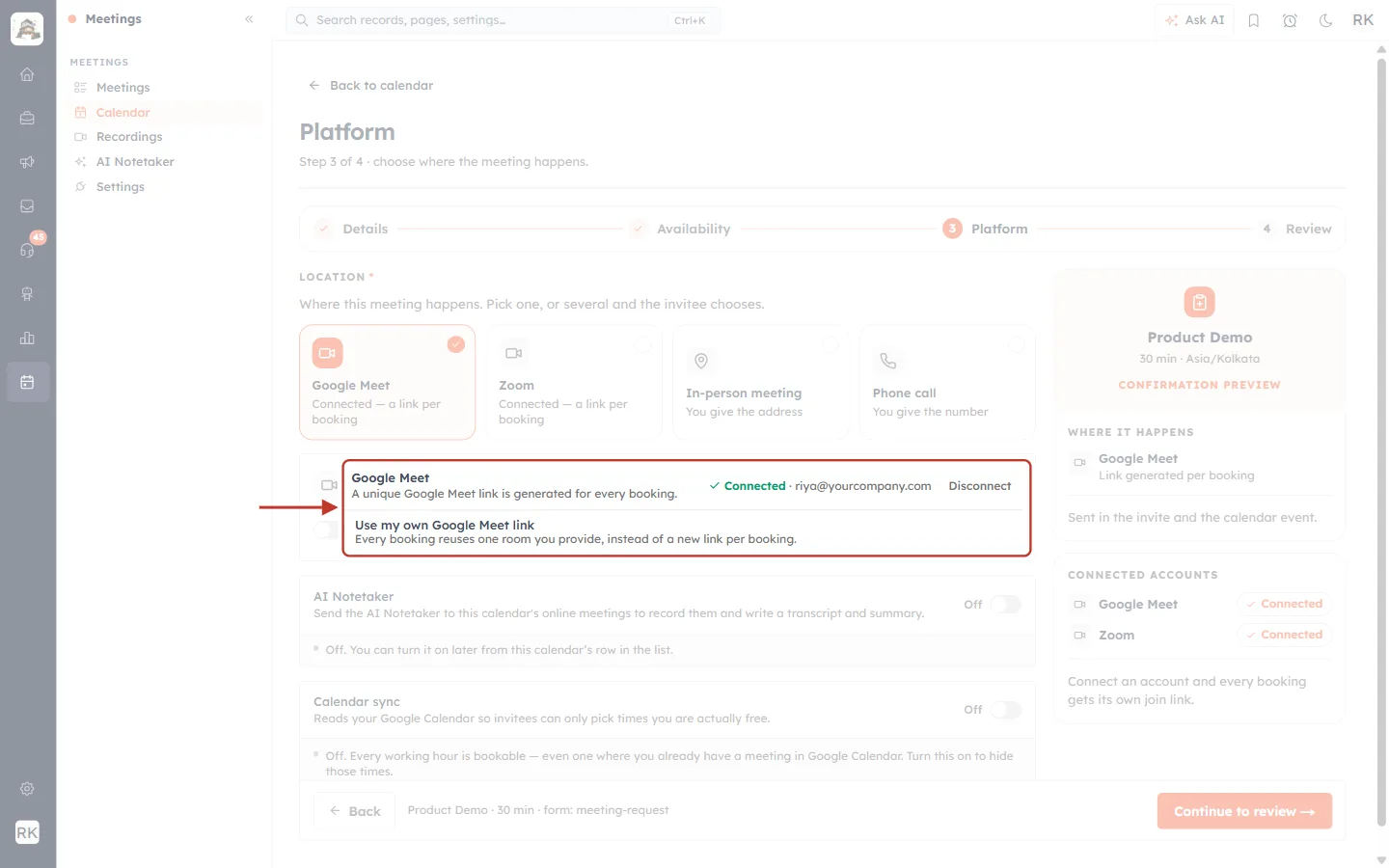
What this screenshot shows. The Google Meet card is ringed.
“A unique Google Meet link is generated for every booking.”
On the right: a green tick, Connected, the connected Google address (riya@yourcompany.com) and Disconnect. Check the address if you have several Google accounts.
Use my own Google Meet link (off): leave it off so each booking gets a fresh room. Turn it on only if every booking should reuse one permanent room you paste in.
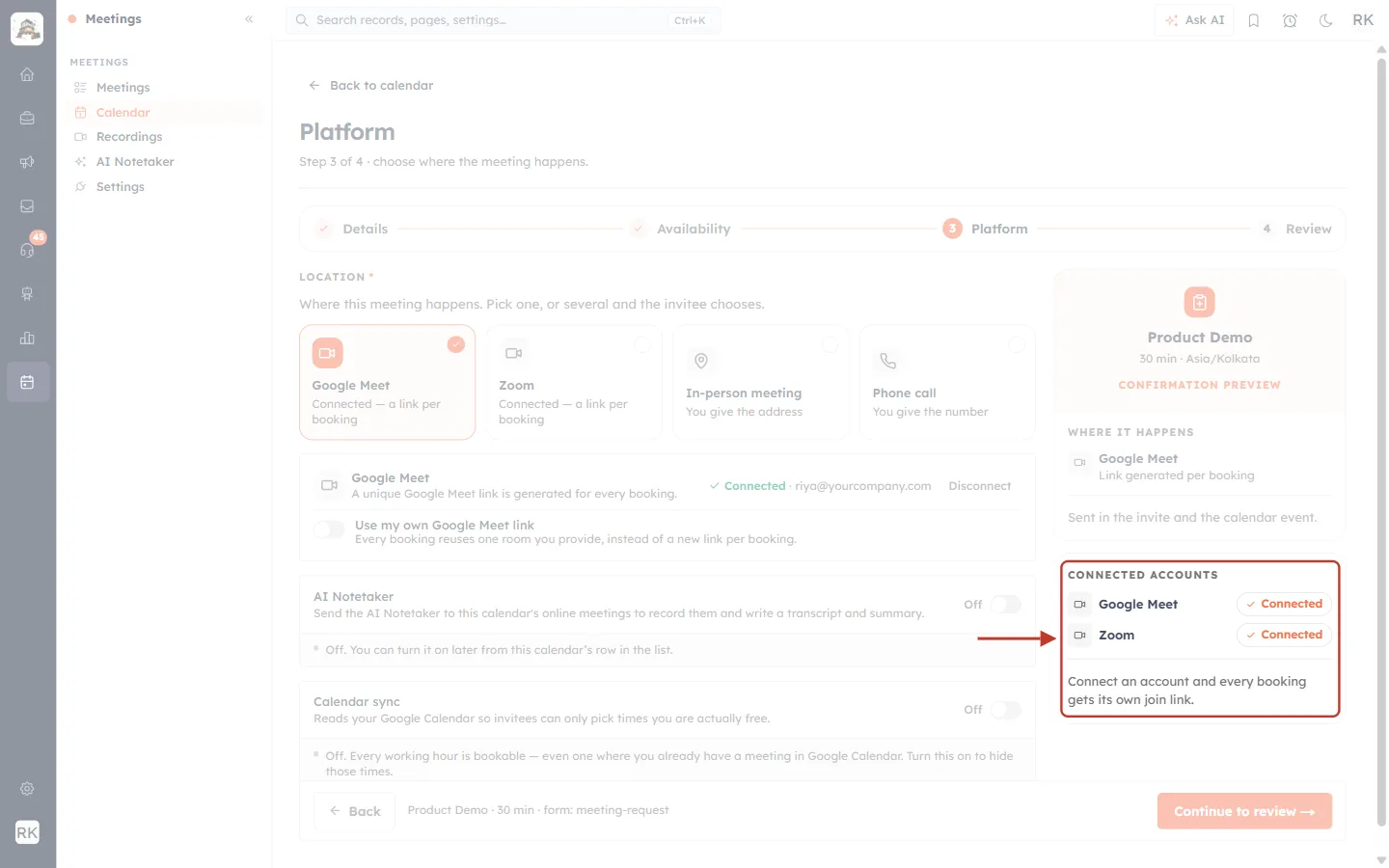
What this screenshot shows. The CONNECTED ACCOUNTS panel on the right is ringed.
Each video service shows Connected, Connect (not linked yet) or Reconnect (the connection has stopped working).
These are the host’s accounts. If you picked a teammate as host, their connection is shown (see Choose the Host and Meeting Type).
“Connect an account and every booking gets its own join link.”
Step 4: Turn on Calendar sync (recommended)#
Further down the Platform step, the Calendar sync switch uses the same Google connection to hide times the host is already busy.
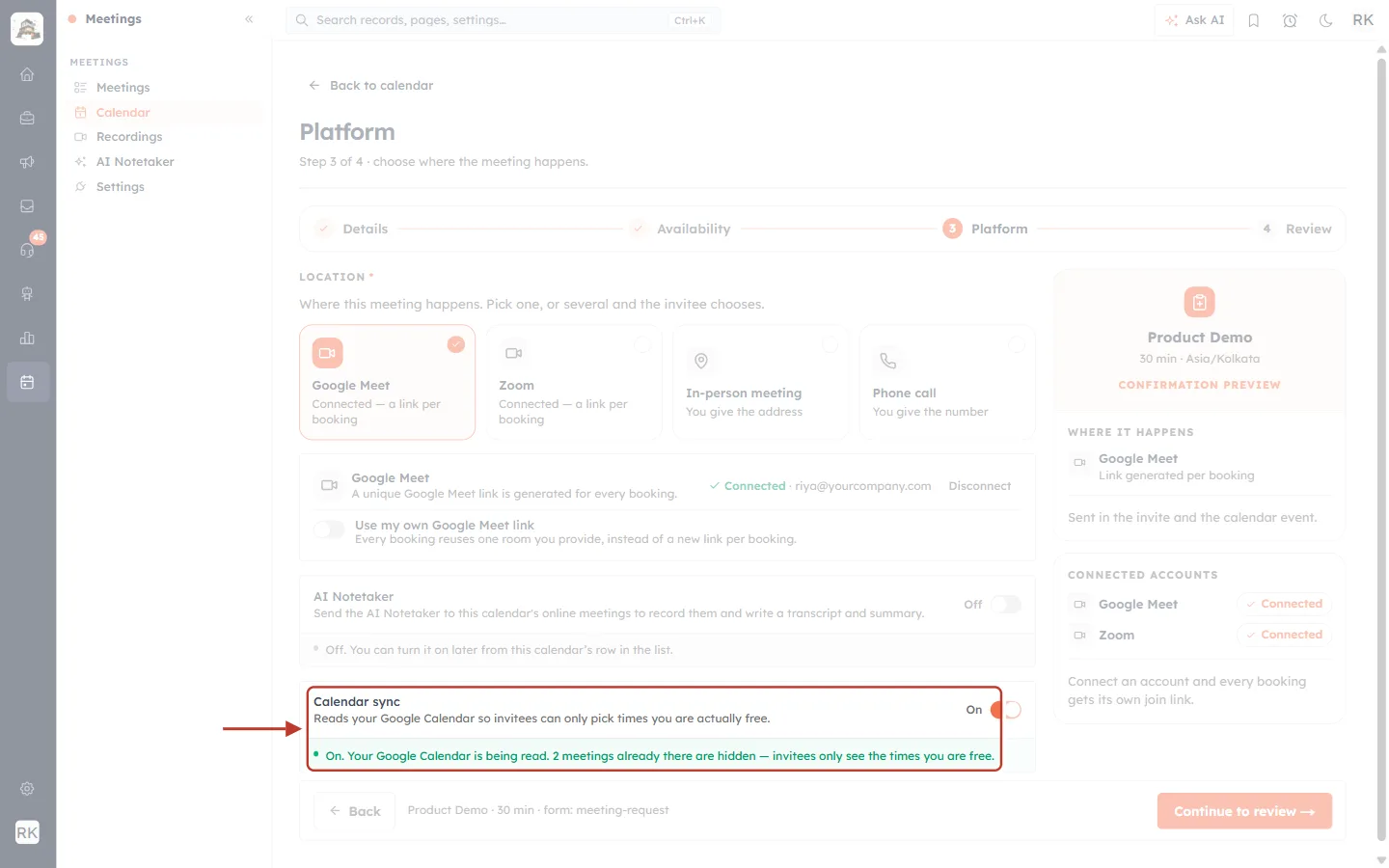
What this screenshot shows. The Calendar sync card is ringed, switched On.
“Reads your Google Calendar so invitees can only pick times you are actually free.”
The green line reports what it found, for example “On. Your Google Calendar is being read. 2 meetings already there are hidden — invitees only see the times you are free.”
It is optional, but it is the simplest way to avoid double bookings. More in Set Your Availability for Bookings.
Step 5: When Google isn’t connected, or has expired#
If the host has never connected Google, the tile and card ask you to connect, right inside the wizard.
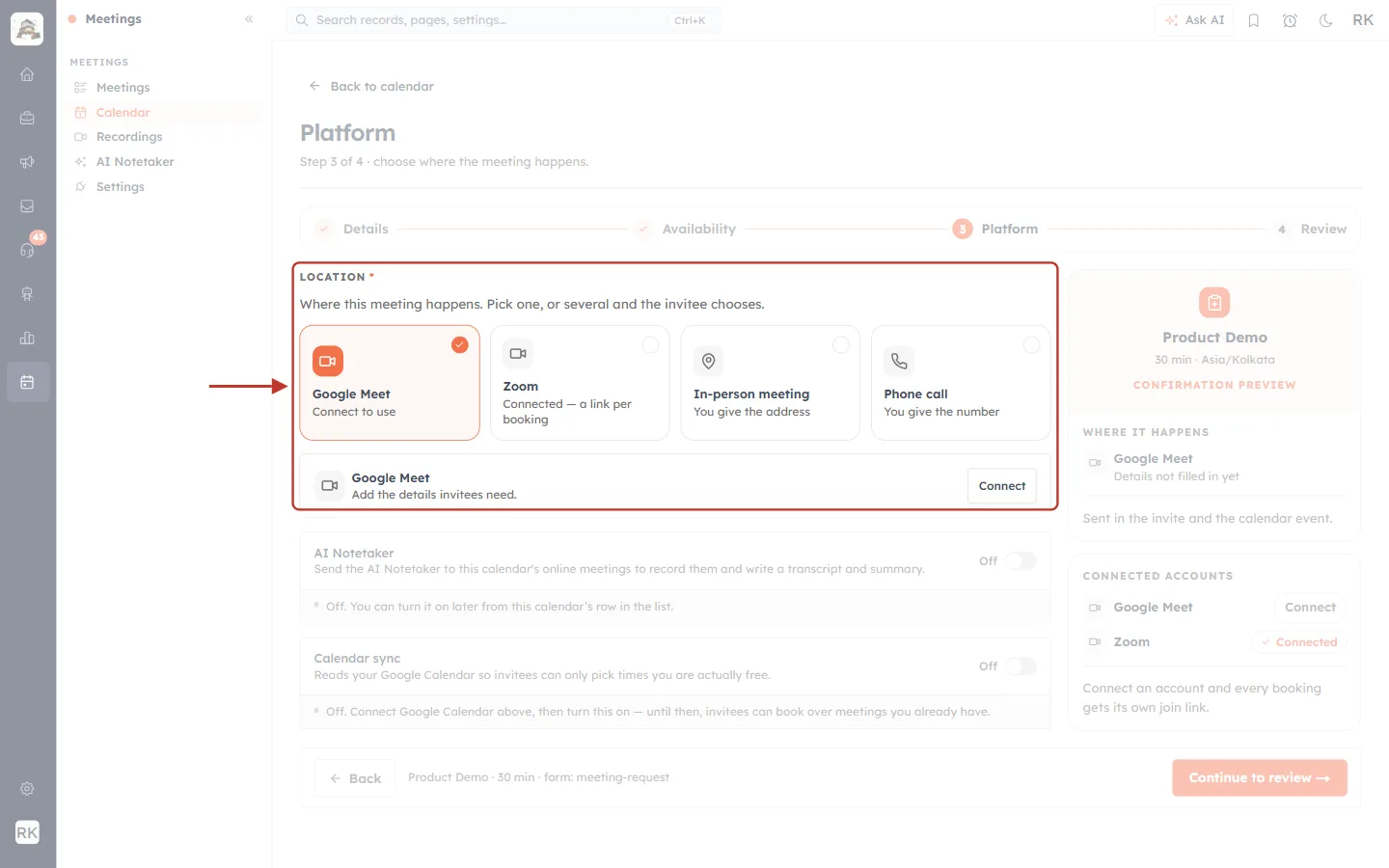
What this screenshot shows. Google Meet is selected, but the account is not connected. The tile and card are ringed.
The tile reads “Connect to use”.
The card reads “Add the details invitees need” with a Connect button. Clicking it opens the same Google pop-up as Step 1; the calendar you are building stays open.
On the right, Connected accounts shows Connect beside Google Meet, and the preview says Details not filled in yet.
Google connections can stop working, for example after a password change or if access is removed in your Google account. The CRM checks the connection live and tells you.
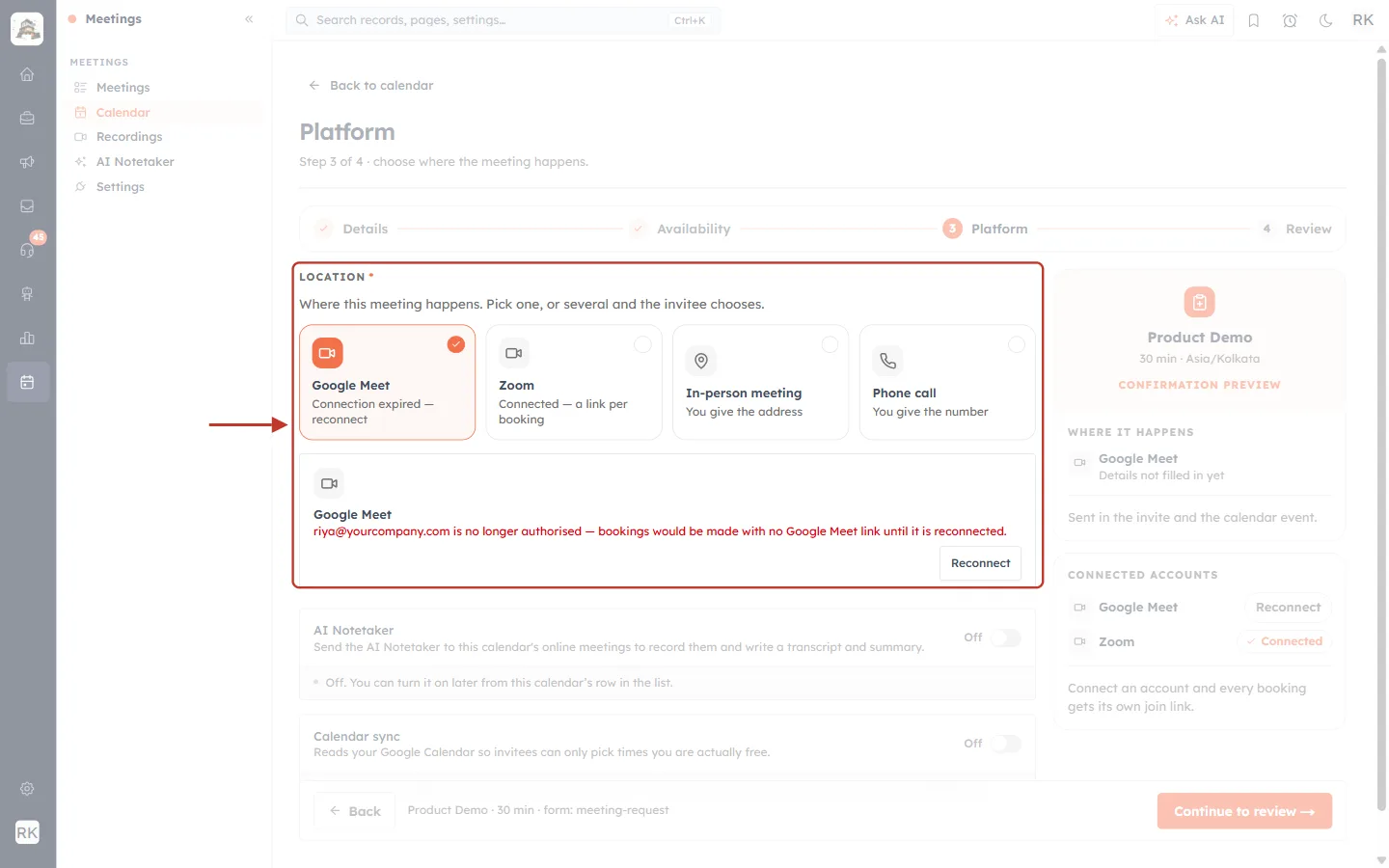
What this screenshot shows. The tile and card for an expired connection are ringed.
The tile reads “Connection expired — reconnect”.
The card explains in red: “riya@yourcompany.com is no longer authorised — bookings would be made with no Google Meet link until it is reconnected.”
Click Reconnect and sign in again. It is the same short pop-up as the first time.
Step 6: Finish and publish#
With Google Meet connected, click Continue to review and Publish calendar. Every booking on this calendar now gets its own Meet link and a Google Calendar event. See Create a Booking Calendar (Booking Link) Step by Step for the full wizard.
Step 7: Google Meet on a meeting you create yourself#
Open Meetings → Meetings, click Create Meeting → Create Single, and under How will you meet? choose Google Meet. A line underneath shows the connection.
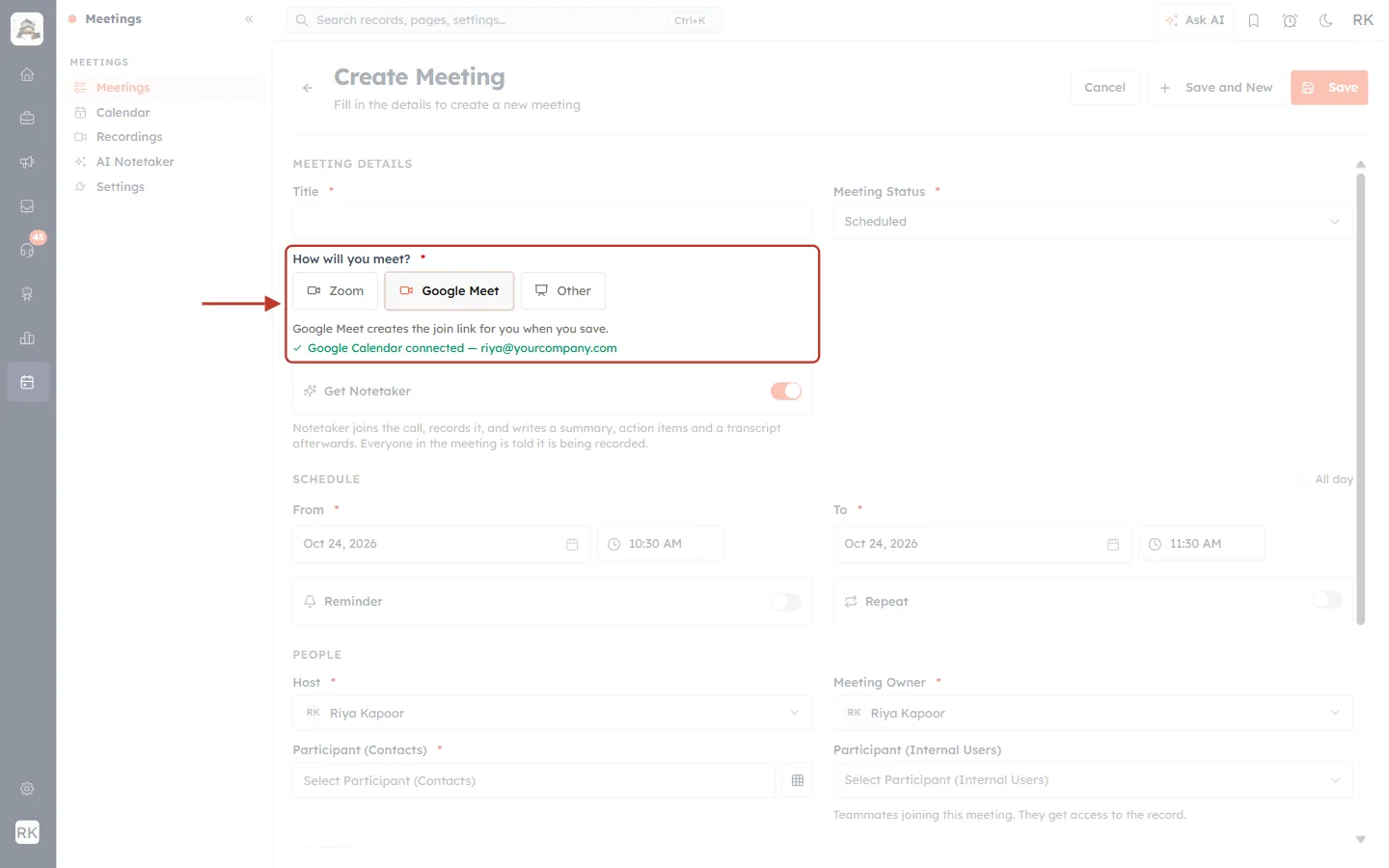
What this screenshot shows. The How will you meet? field is ringed, with Google Meet selected.
“Google Meet creates the join link for you when you save.”
Green tick: “Google Calendar connected — riya@yourcompany.com”, the account that will be used.
If the host has no connection but you do, the line adds (your account): the link is created on your account.
Below it, Get Notetaker sends the AI Notetaker to this meeting.
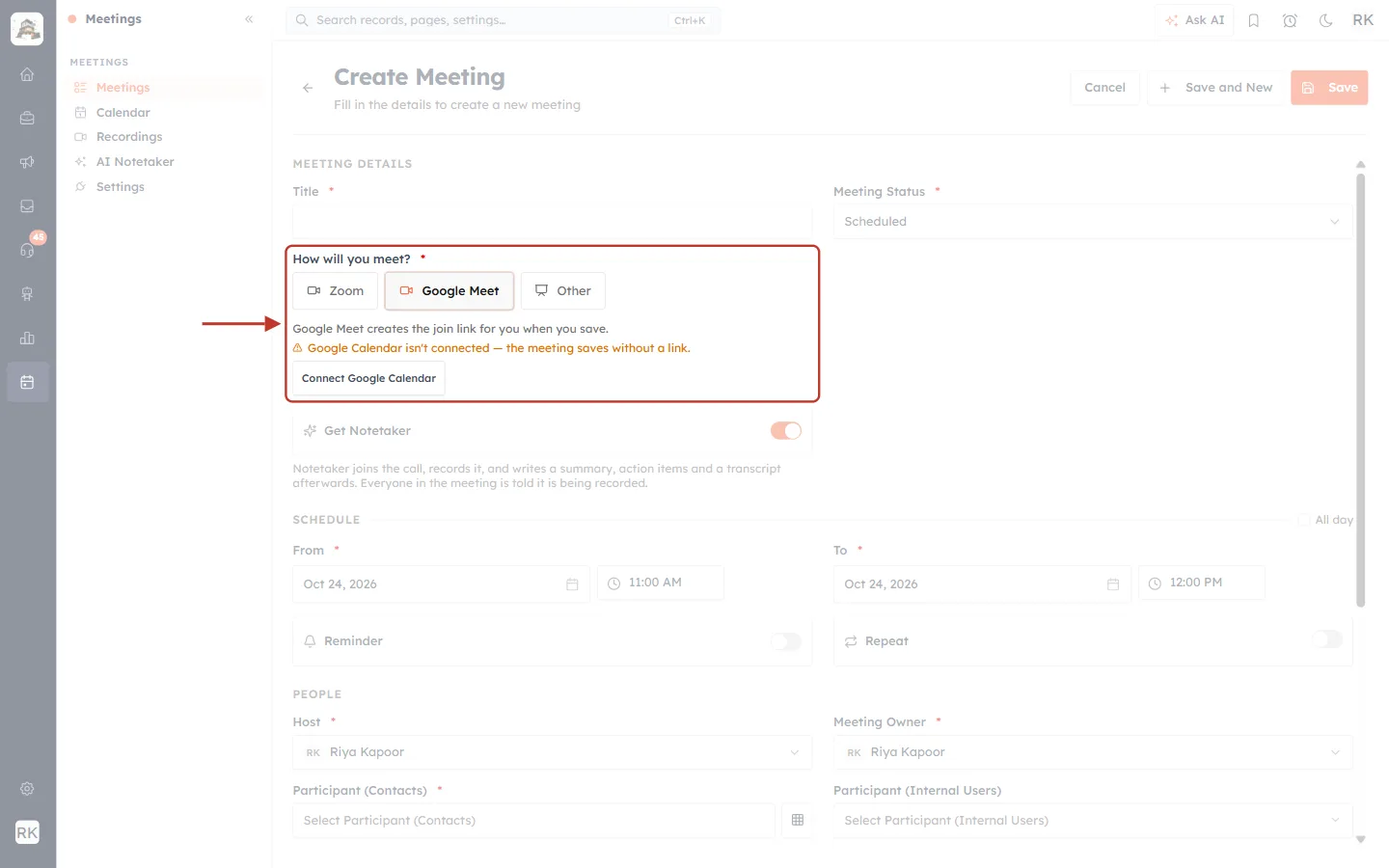
What this screenshot shows. The same field when Google is not connected.
An amber warning: “Google Calendar isn’t connected — the meeting saves without a link.”
Connect Google Calendar opens the Google pop-up without leaving the form.
For an expired connection the warning says the account is no longer authorised — no join link will be created, with a Reconnect button.
You can still save the meeting; the warning makes sure you aren’t surprised by a meeting without a link. More in Create a Meeting from the Meetings Module.
Step 8: What you see after the meeting#
Open the meeting under Meetings. Everything Google and the AI Notetaker produced is on the record.
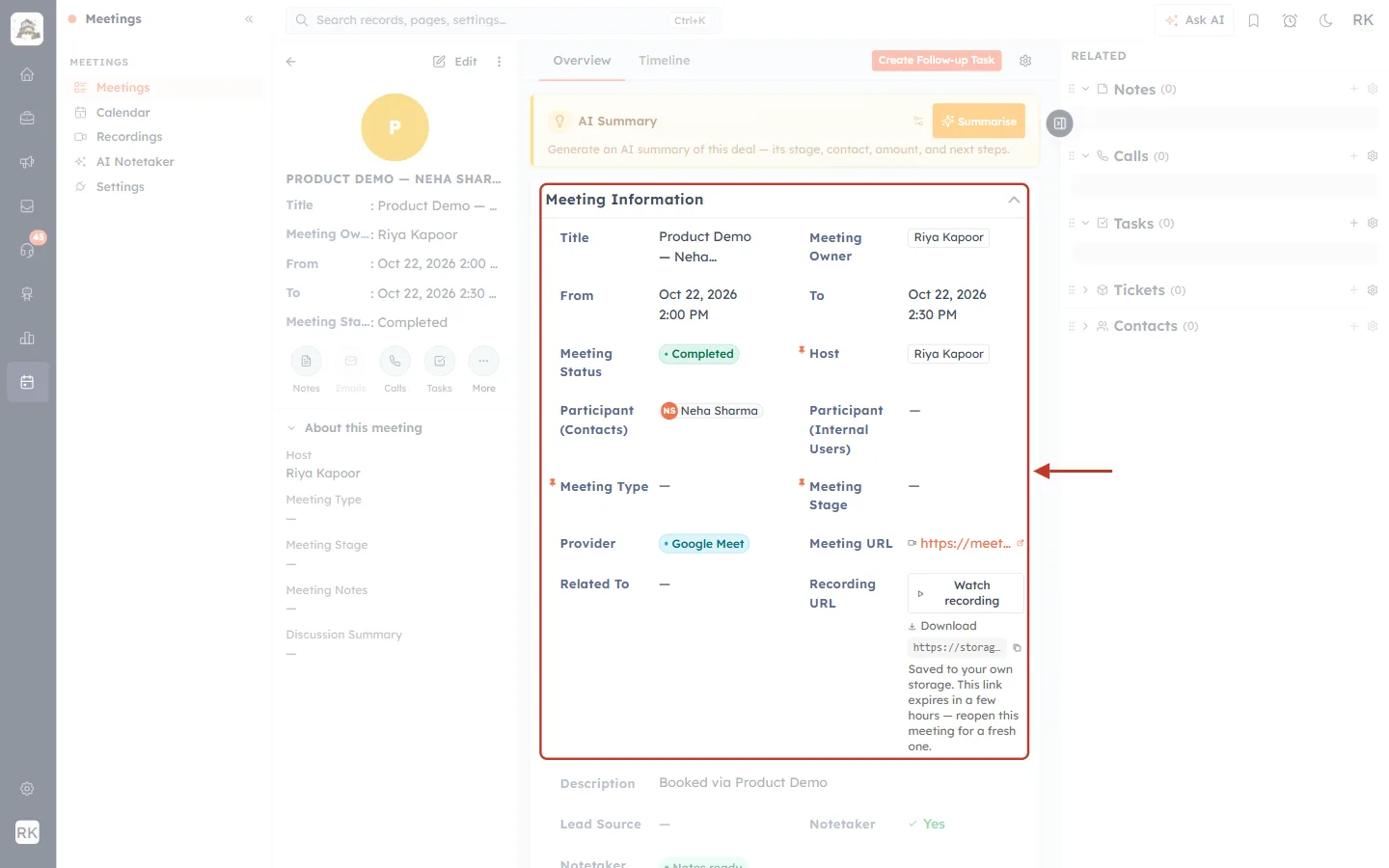
What this screenshot shows. The Meeting Information card of a sample meeting, Product Demo — Neha Sharma, is ringed.
Title, Meeting Owner, From and To: filled in from the booking.
Meeting Status: Completed. Nobody set it by hand: the CRM saw on Google that the call had ended.
Host and Participant (Contacts): who ran the call and who attended.
Provider, Meeting URL and Recording URL: see the next two screenshots.
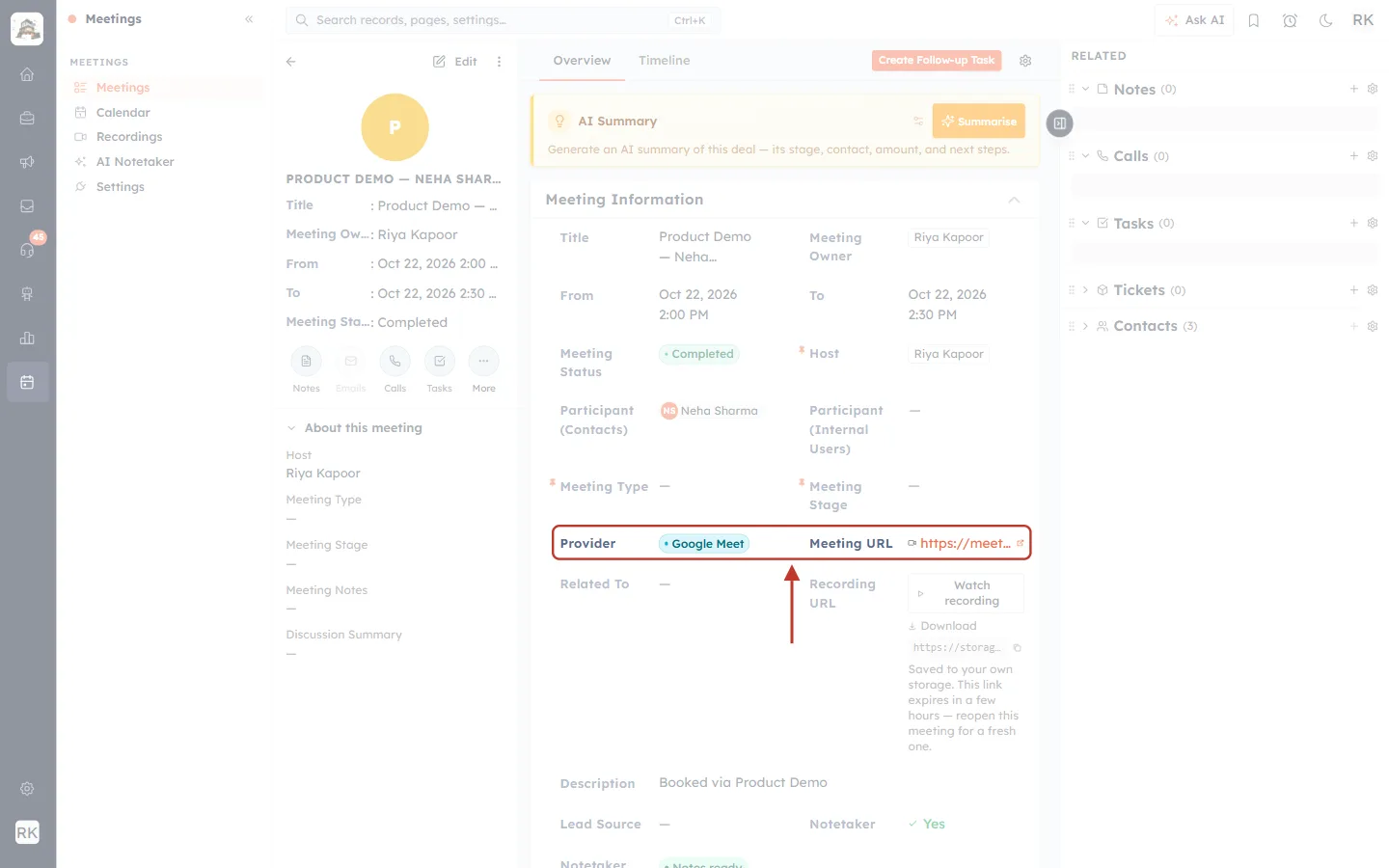
What this screenshot shows. Provider and Meeting URL are ringed.
Provider: Google Meet, the service that created the link.
Meeting URL: the Meet room created for this one meeting. The small icon opens it in a new tab.
The same link is in the Google Calendar event and the invitation, so everyone joins the same room.
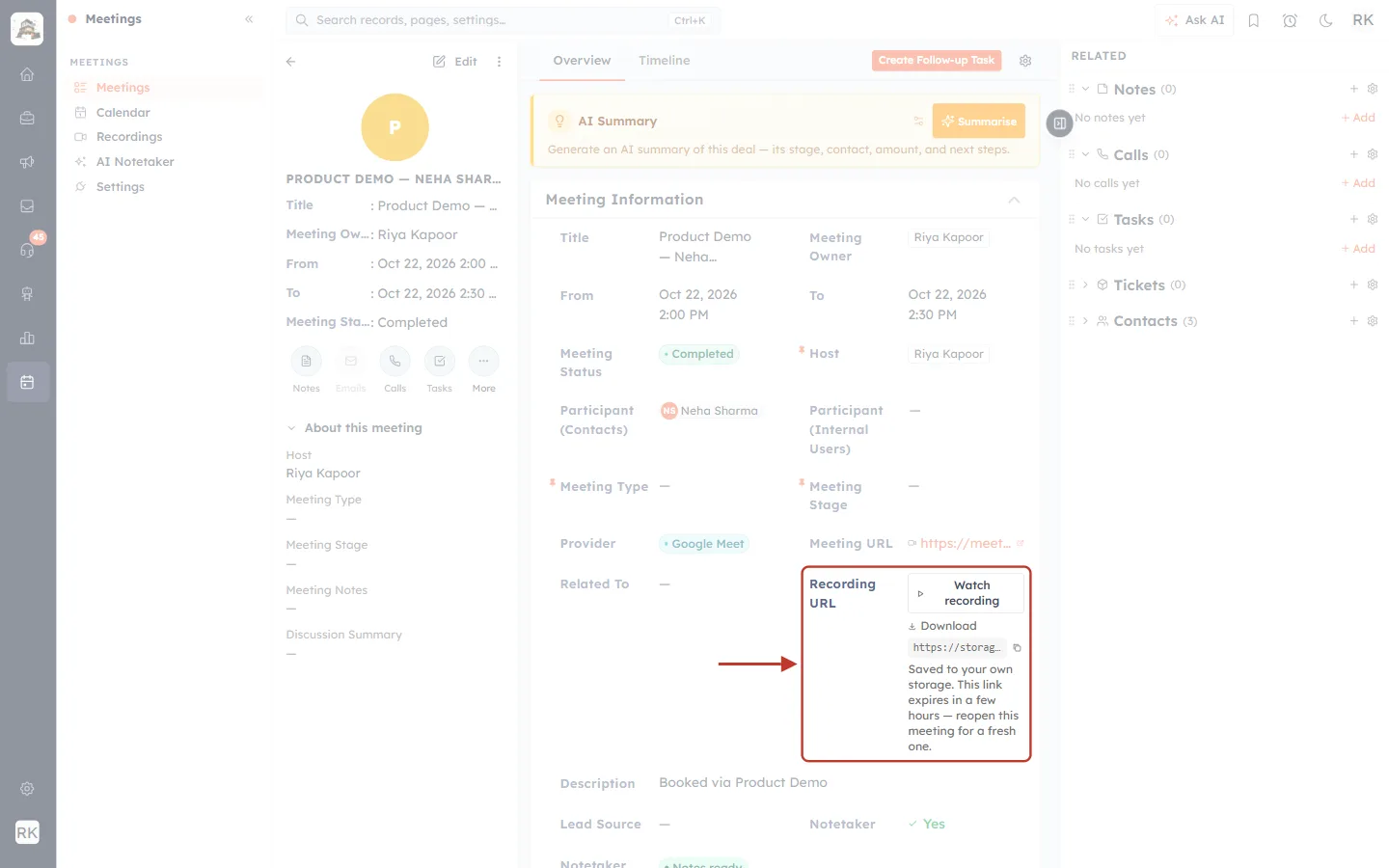
What this screenshot shows. The Recording URL field is ringed.
Watch recording plays the call; Download saves the file.
The note reads “Saved to your own storage. This link expires in a few hours — reopen this meeting for a fresh one.”
This recording comes from the AI Notetaker. A recording you start inside Google Meet itself is saved to the organiser’s Google Drive by Google.
ℹ️
A meeting nobody joined stays Scheduled, because Google never reports it as started. See Meeting Status & Venue — the Lifecycle.
Reconnecting and disconnecting#
Reconnect: shown when a connection stops working. Click it and sign in again.
Disconnect: on the Settings card or the Google Meet card. Meetings already created keep their links and calendar events; new bookings and meetings stop getting a Meet link until you connect again.
Wrong account? Disconnect, then Connect again and choose the right account in Google’s window.
Troubleshooting#
Problem | What to do |
|---|---|
Nothing happens when I click Connect | Allow pop-ups for the CRM and try again. |
The meeting saved but has no link | The host had no working Google connection when it was saved. Connect or reconnect the host’s account, then edit the meeting and save it again. |
The tile says “Connection expired — reconnect” | Click Reconnect and sign in again. |
The status is stuck on Scheduled | It moves only when Google reports the call as started and ended. A meeting nobody joined stays Scheduled. |
Busy times are still offered on my booking page | Turn on Calendar sync on the calendar’s Platform step (Step 4). |
Previous and next#
Related#
Was this article helpful?
Ready to implement this?
OpenAI Engage and apply what you just learned to your own workspace.
Open AI Engage CRM