Loading…


KnowledgeBase
Calendar Settings Changes: Turn AI Notetaker On or Off for Each Calendar (Step-by-Step)
Introduction#
In the Meetings area of AiEngage CRM, a calendar is a booking link people use to schedule time with you (for example “Product Demo” or “Sales Discovery Call”). The AI Notetaker is the bot that joins your online meetings to record them and write a transcript and an AI summary.
We have changed where you decide which calendars use the AI Notetaker. Earlier, a table of calendars sat on the AI Notetaker settings page. Now every calendar carries its own AI Notetaker switch and its own settings, right on the Meetings → Calendar page, next to the calendar they belong to. The AI Notetaker page keeps only the settings that apply to your whole workspace.
This guide walks you through every change step by step, with a screenshot for each screen, so you can find the new controls and set them up with confidence.
What changed at a glance#
What you want to do | Before | Now |
|---|---|---|
Choose which calendars the AI Notetaker joins | Calendars table on Meetings → AI Notetaker | AI NOTETAKER switch on each calendar row in Meetings → Calendar |
Change transcript, recording, summary or bot name for one calendar | Calendars table on the AI Notetaker page | Settings button (sliders icon) next to the calendar’s switch |
Turn the AI Notetaker on while creating a calendar | Not available | AI Notetaker switch on the Platform step of New calendar |
Change settings for everyone (bot on/off, default bot name, advanced options) | Meetings → AI Notetaker | Still Meetings → AI Notetaker, now marked Organization-wide settings and confirmed with a Save for everyone popup |
Connect your own Google Calendar or Zoom | Meetings → Integrations | Meetings → Settings (same screen, new name and place) |
ℹ️
Who sees the new controls: the AI NOTETAKER column, the per-calendar settings and the New calendar switch appear only for users whose profile has the AI Notetaker permission (Setup → Profiles → Meeting Calendar). Other users still see and use the Calendar page, just without that column.
Your existing setup is kept: calendars that already used the AI Notetaker keep their on/off choice and settings. Nothing is switched on or off for you.
Step 1: Open Meetings → Calendar#
Click the calendar icon in the left-hand rail to open the Meetings menu, then click Calendar. This page lists every calendar (booking link) in your workspace.
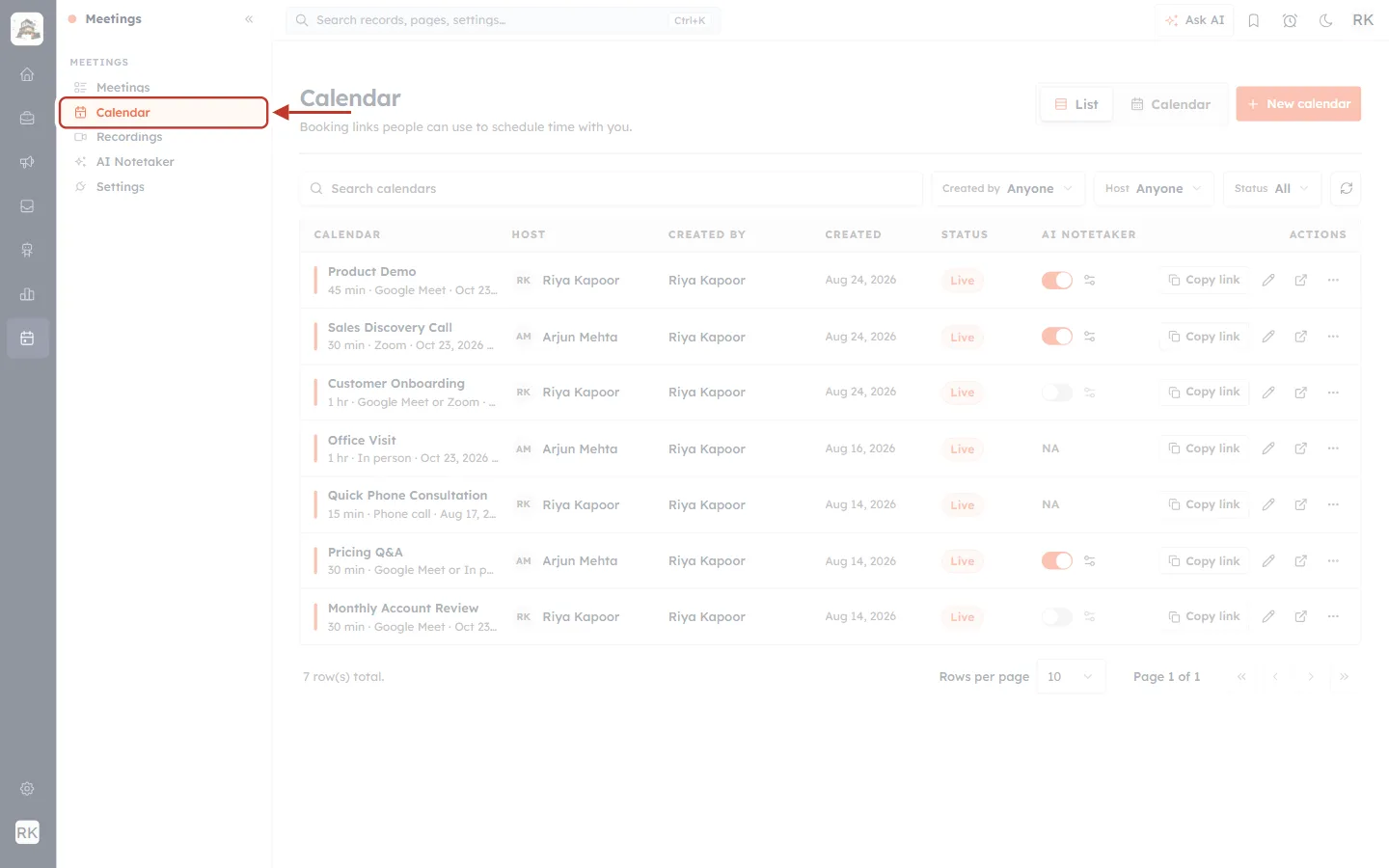
What this screenshot shows. The Meetings menu is open on the left and the Calendar item is ringed in red, with the arrow pointing at it.
Meetings opens the list of meeting records.
Calendar (highlighted) opens your booking calendars. This is where the per-calendar AI Notetaker controls now live.
Recordings lists what the AI Notetaker recorded.
AI Notetaker holds the workspace-wide notetaker settings (see Step 7).
Settings is where you connect your own Google Calendar and Zoom accounts (see Step 9).
Step 2: Find the new AI NOTETAKER column#
In the calendar list, look at the column headed AI NOTETAKER, between STATUS and ACTIONS. Each row shows what the AI Notetaker does for that calendar.
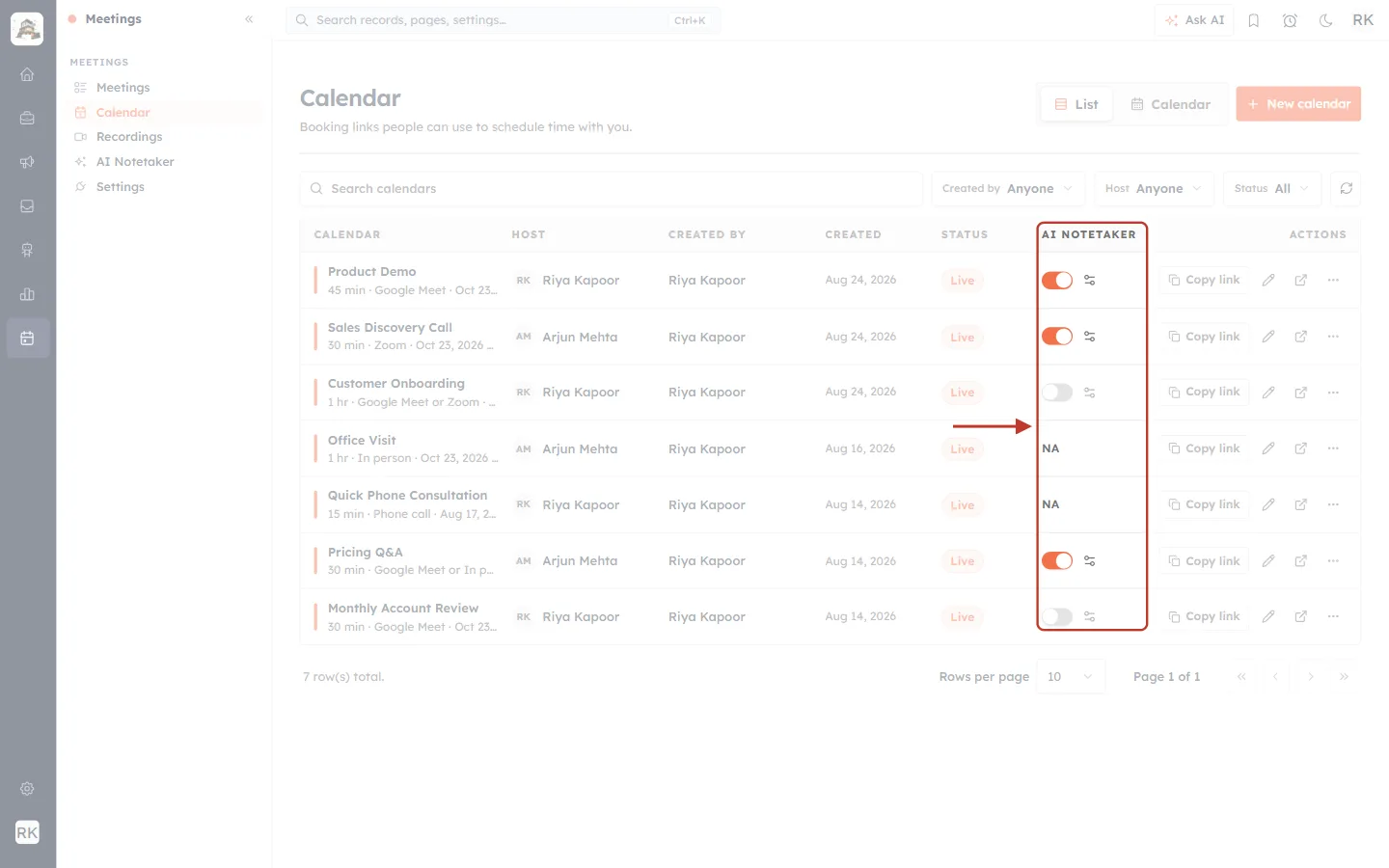
What this screenshot shows. The whole AI NOTETAKER column is ringed. It shows three different states in one view.
Switch on (orange): for example Product Demo, Sales Discovery Call and Pricing Q&A. The AI Notetaker joins the online meetings booked on these calendars.
Switch off (grey): for example Customer Onboarding and Monthly Account Review. The AI Notetaker does not join their meetings.
NA: Office Visit (in person) and Quick Phone Consultation (phone call). These calendars have no Google Meet or Zoom, so there is no online call for the bot to join.
The sliders icon beside each switch opens that calendar’s own AI Notetaker settings (Step 4).
The other columns are unchanged: CALENDAR (name, length, location), HOST, CREATED BY, CREATED, STATUS and ACTIONS (Copy link, edit, open, more).
Each row is one calendar. The ringed row below shows how to read it from left to right.
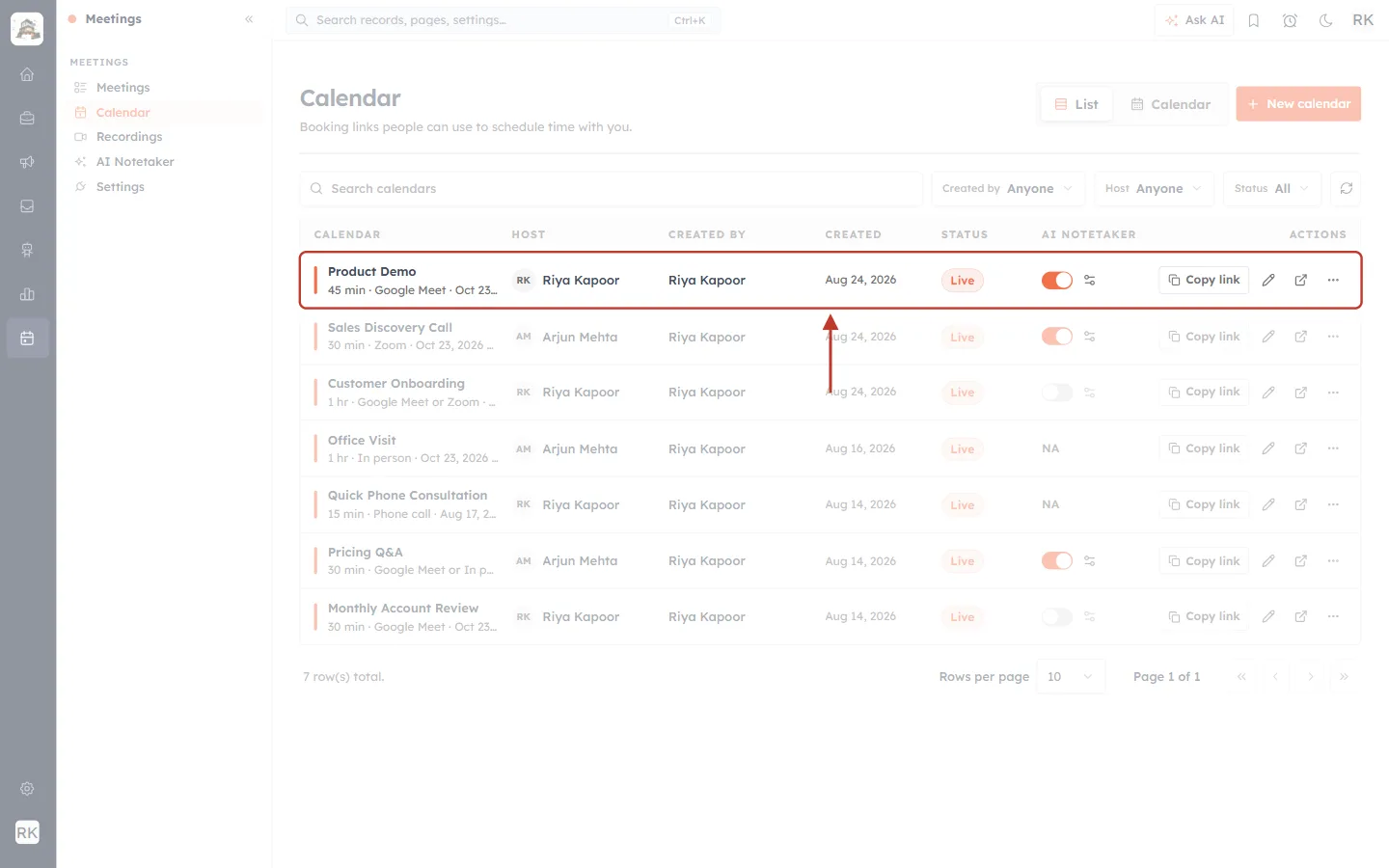
What this screenshot shows. The Product Demo row is ringed, so you can see every part of a calendar row together.
Product Demo, with 45 min · Google Meet under it: the calendar’s name, meeting length and location.
Riya Kapoor under HOST is the person whose calendar gets booked. CREATED BY shows who made the calendar.
Live under STATUS means people can book it now.
The orange switch and sliders icon are the calendar’s AI Notetaker controls.
Copy link, the pencil (edit), the open-in-new-tab icon and the … menu work as before.
Step 3: Turn the AI Notetaker on or off for a calendar#
Click the switch in the calendar’s AI NOTETAKER cell. Orange means on, grey means off. The change is saved straight away; there is no separate Save button.
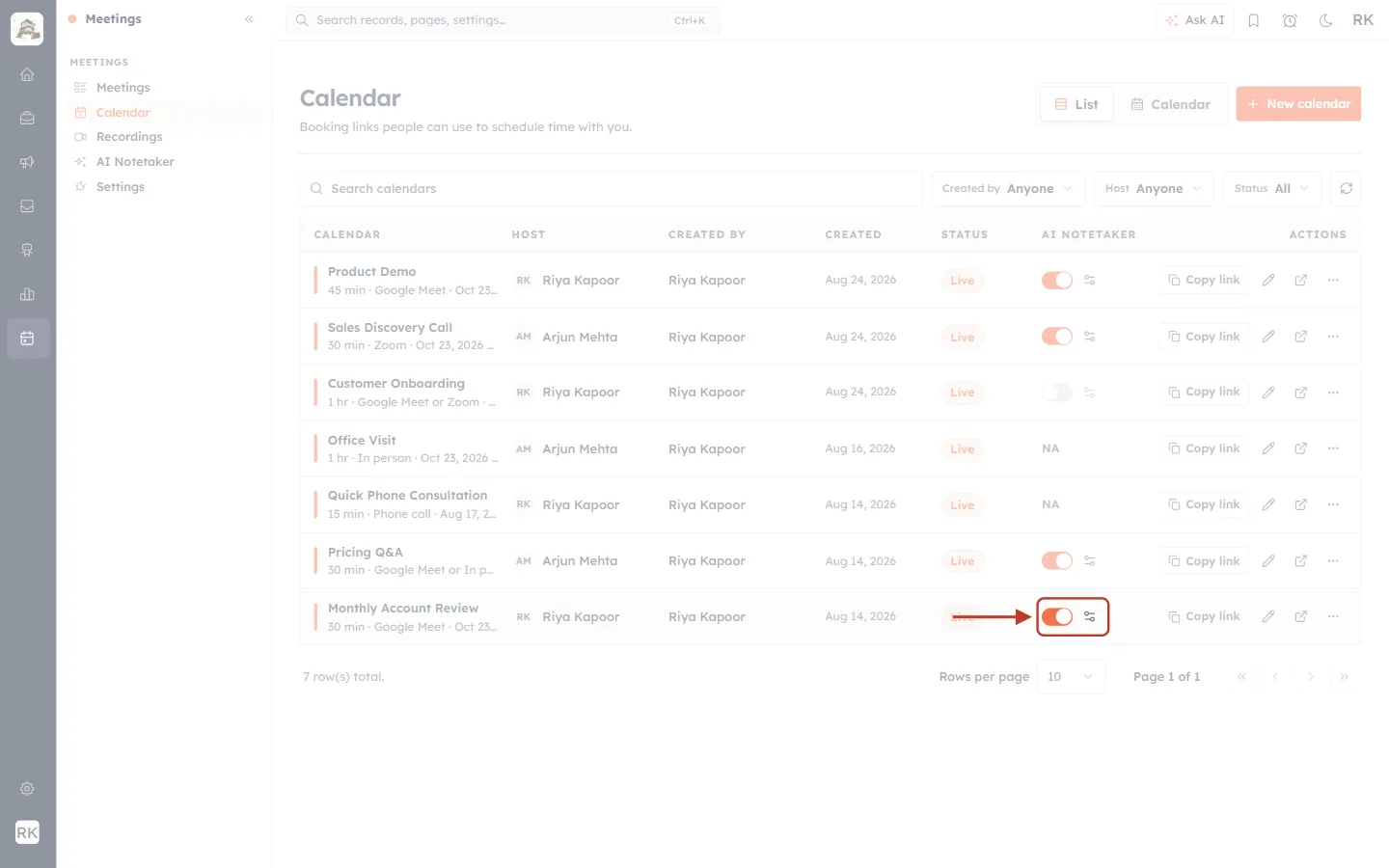
What this screenshot shows. The switch for Monthly Account Review has just been turned on (now orange), and its sliders icon has become active.
The ring shows the switch and the settings icon together, because they work as a pair.
From now on, the AI Notetaker joins new online meetings booked on Monthly Account Review.
Turn the switch off again to stop the bot joining that calendar’s meetings. Other calendars are not affected.
Find the calendar in the list (use Search calendars, or the Created by, Host and Status filters, if you have many).
Click its switch in the AI NOTETAKER column.
Wait a moment for the confirmation message. If the save fails, the switch flips back to how it was and an error message tells you why.
✅
A calendar that offers both an online and an offline location (for example Pricing Q&A: Google Meet or In person) still has a switch. When it is on, the bot joins the Google Meet and Zoom bookings only; in-person and phone bookings are skipped.
Why some calendars show NA#
Hover over NA to see the reason.
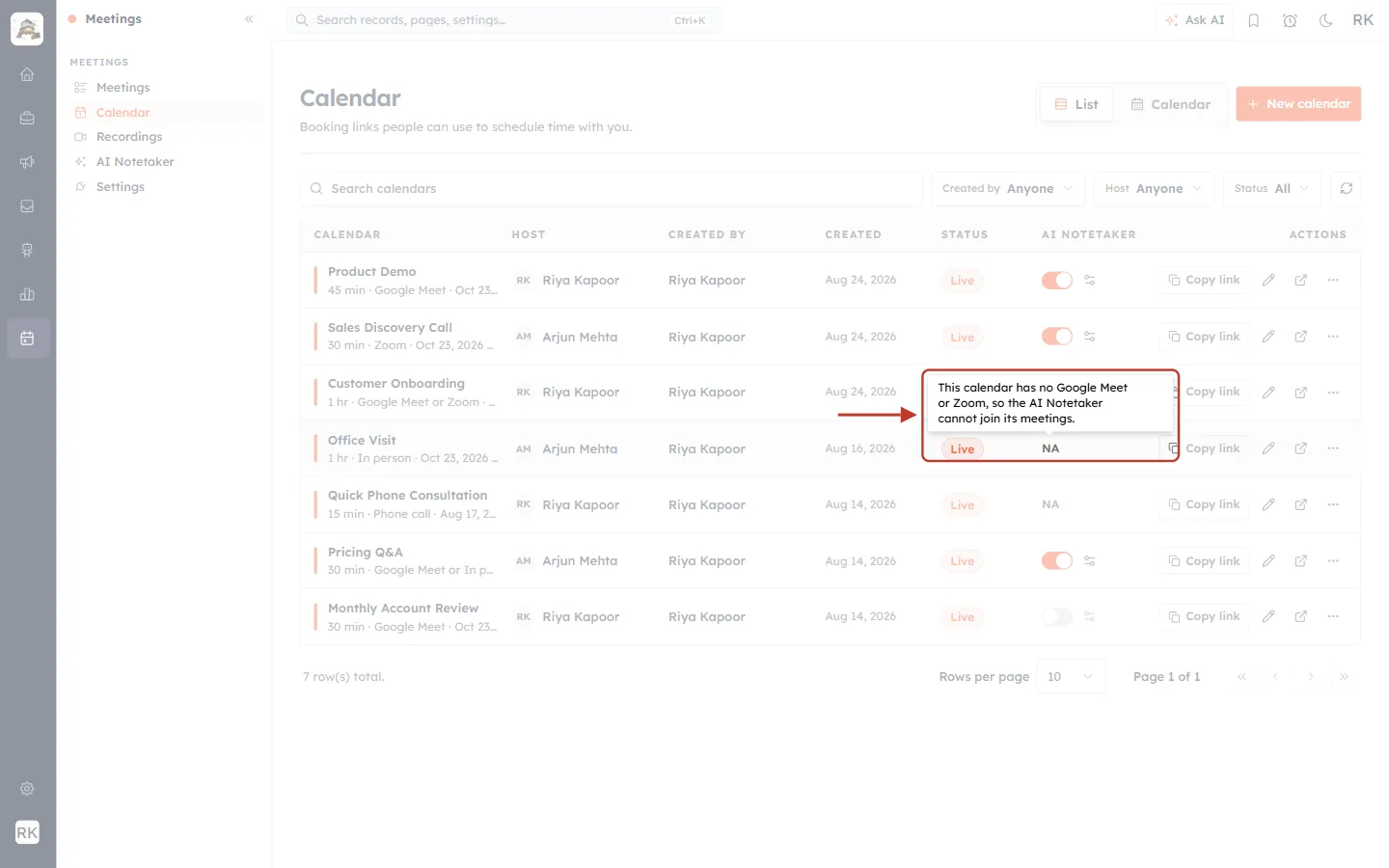
What this screenshot shows. The mouse is over NA on the Office Visit row, and the tooltip is ringed.
The tooltip reads: “This calendar has no Google Meet or Zoom, so the AI Notetaker cannot join its meetings.”
Office Visit is an In person calendar, so there is no video call to record.
To use the AI Notetaker on such a calendar, edit it (pencil icon), add Google Meet or Zoom on the Platform step, and save. The switch then appears in place of NA.
Step 4: Open a calendar’s own AI Notetaker settings#
Click the sliders icon next to the calendar’s switch. The icon only works while that calendar’s switch is on; when it is off, the icon is greyed out and its hover text says “Turn AI Notetaker on for this calendar to change its settings.”
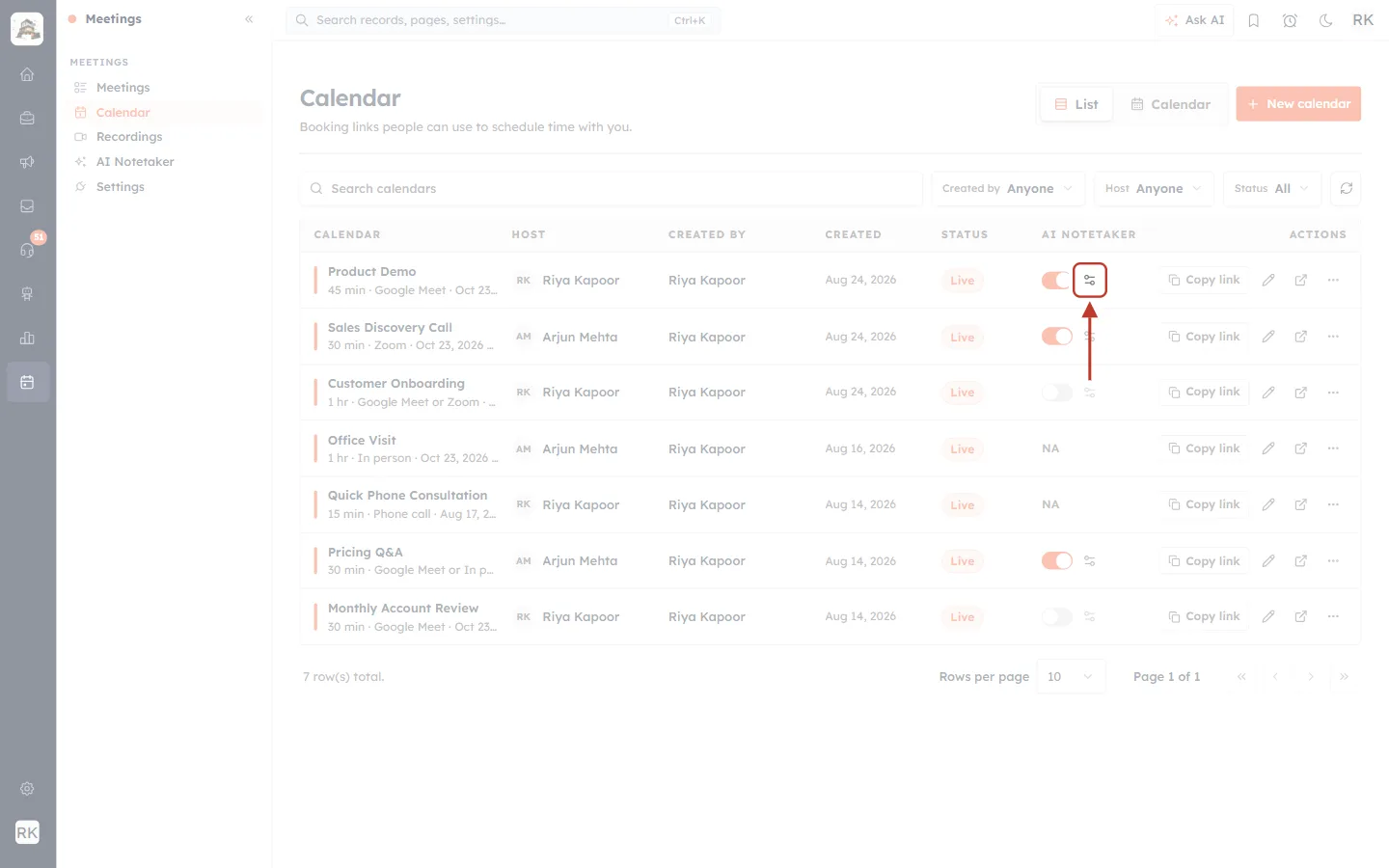
What this screenshot shows. The sliders icon on the Product Demo row is ringed and the arrow points at it.
The switch to its left is on, so the icon can be clicked.
Every calendar with a switch has its own icon; the settings you choose apply to that calendar only.
A window opens with the calendar’s name as its title.
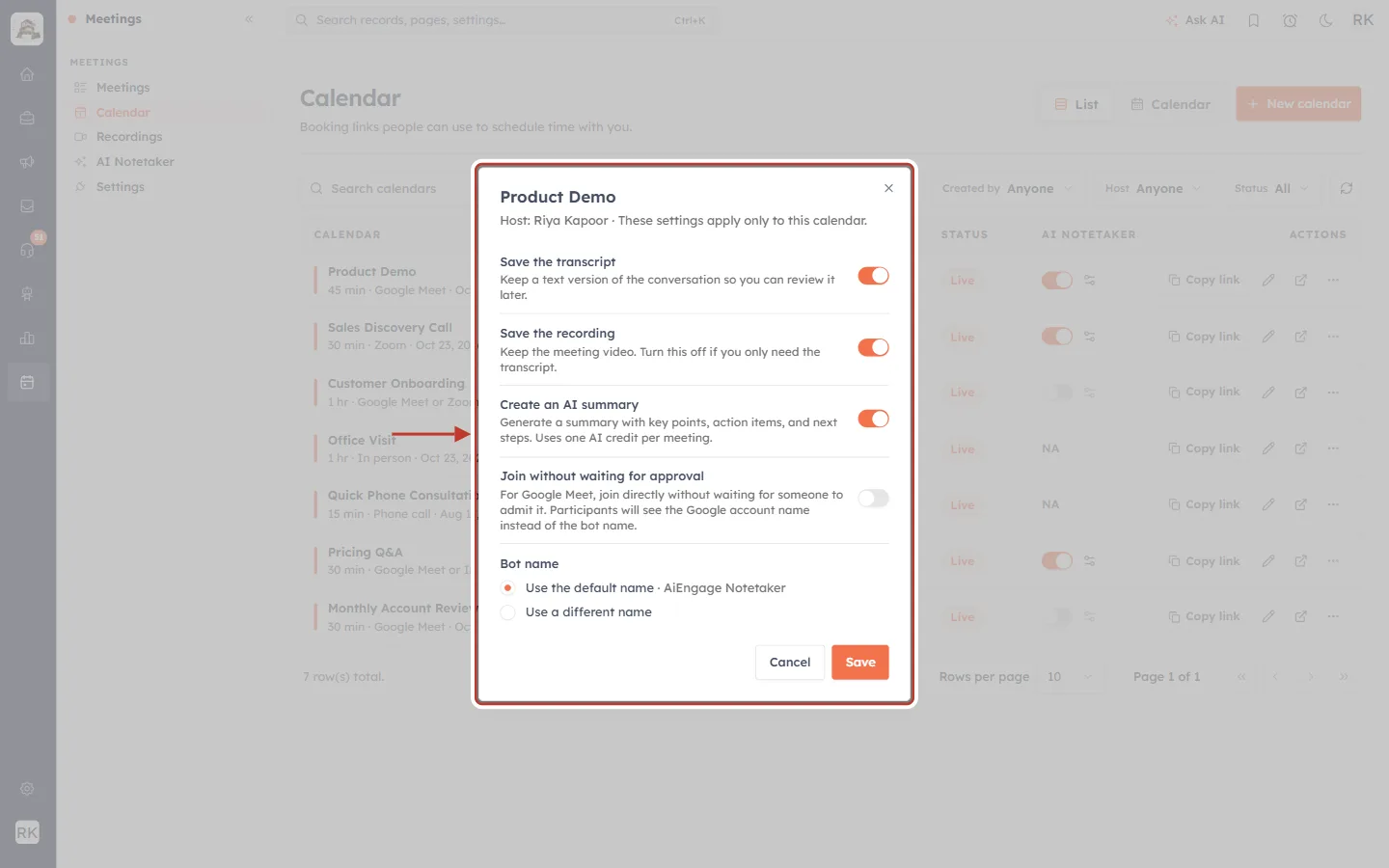
What this screenshot shows. The settings window for Product Demo is ringed. Each row is one setting with a switch on the right.
The top line, “Host: Riya Kapoor · These settings apply only to this calendar.”, confirms which calendar you are changing. This helps when several calendars share a name.
Save the transcript: keeps a text version of the conversation so you can review it later.
Save the recording: keeps the meeting video. Turn this off if you only need the transcript (it saves storage).
Create an AI summary: writes a summary with key points, action items and next steps. It uses one AI credit per meeting.
Join without waiting for approval: for Google Meet, the bot joins directly instead of waiting in the lobby. Participants then see the Google account name instead of the bot name.
Bot name: Use the default name (shown after the dot, here “AiEngage Notetaker”) or Use a different name.
Cancel closes the window and discards your changes; Save saves them for this calendar.
ℹ️
When you open the window for the first time, each switch shows your workspace’s current setting from Meetings → AI Notetaker. Change only what this calendar needs to do differently.
Step 5: Give the bot a different name on one calendar#
Under Bot name, select Use a different name and type the name participants should see in the call (up to 100 characters). Then click Save.
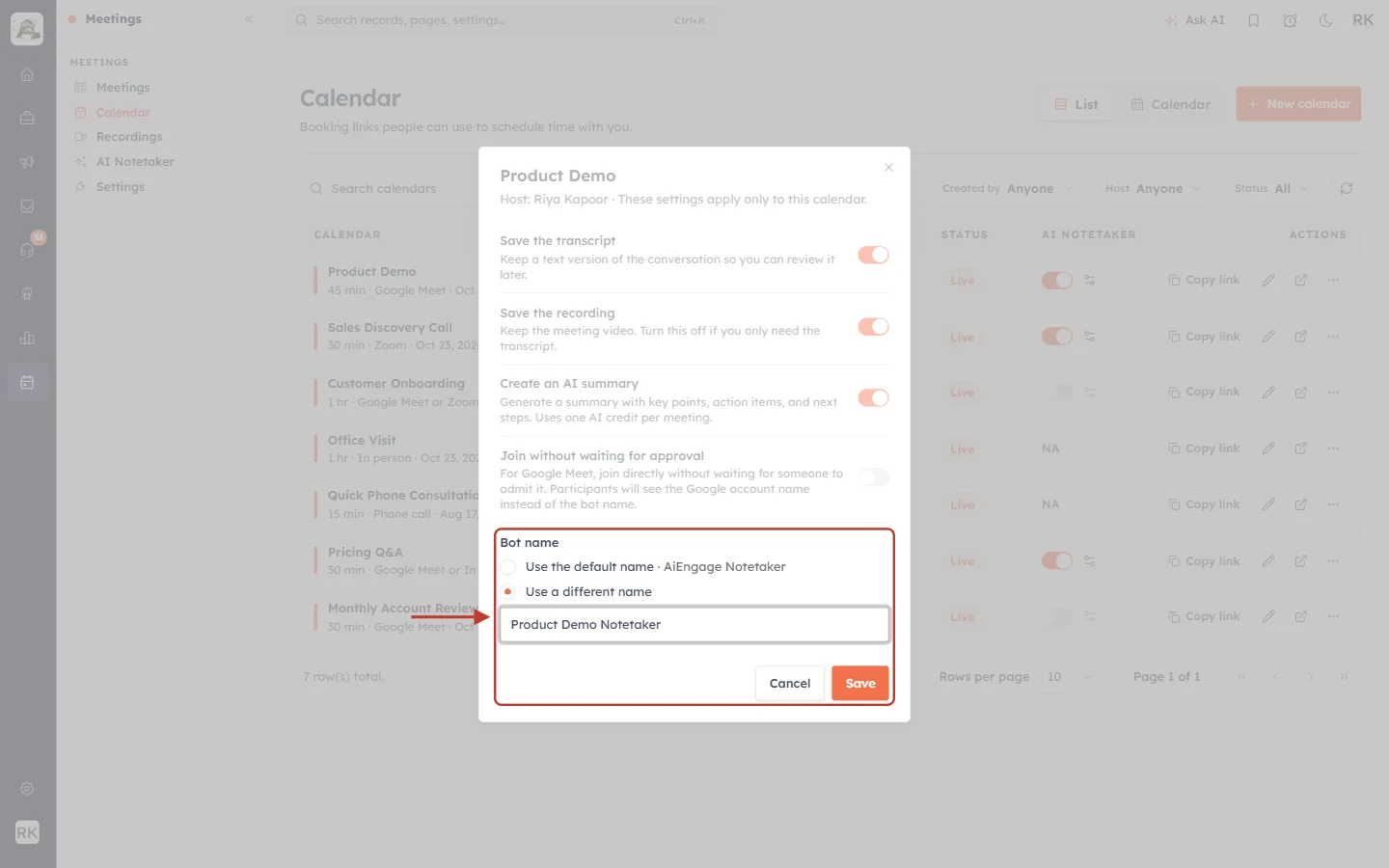
What this screenshot shows. The Bot name section and the Save button are ringed. Use a different name is selected and the box reads “Product Demo Notetaker”.
The default option still shows the workspace name (“AiEngage Notetaker”) so you can compare.
The custom name is used only for Product Demo meetings; every other calendar keeps the default.
To go back to the default, select Use the default name and save. The custom name is cleared.
The window stays open until the save succeeds. If it fails, your changes stay in the window so you can try again.
Step 6: When the controls are locked#
If the Enable AI Notetaker switch on Meetings → AI Notetaker is off, the bot is off for the whole workspace. The calendar switches and settings icons are then locked (greyed out), and hovering over one explains why.
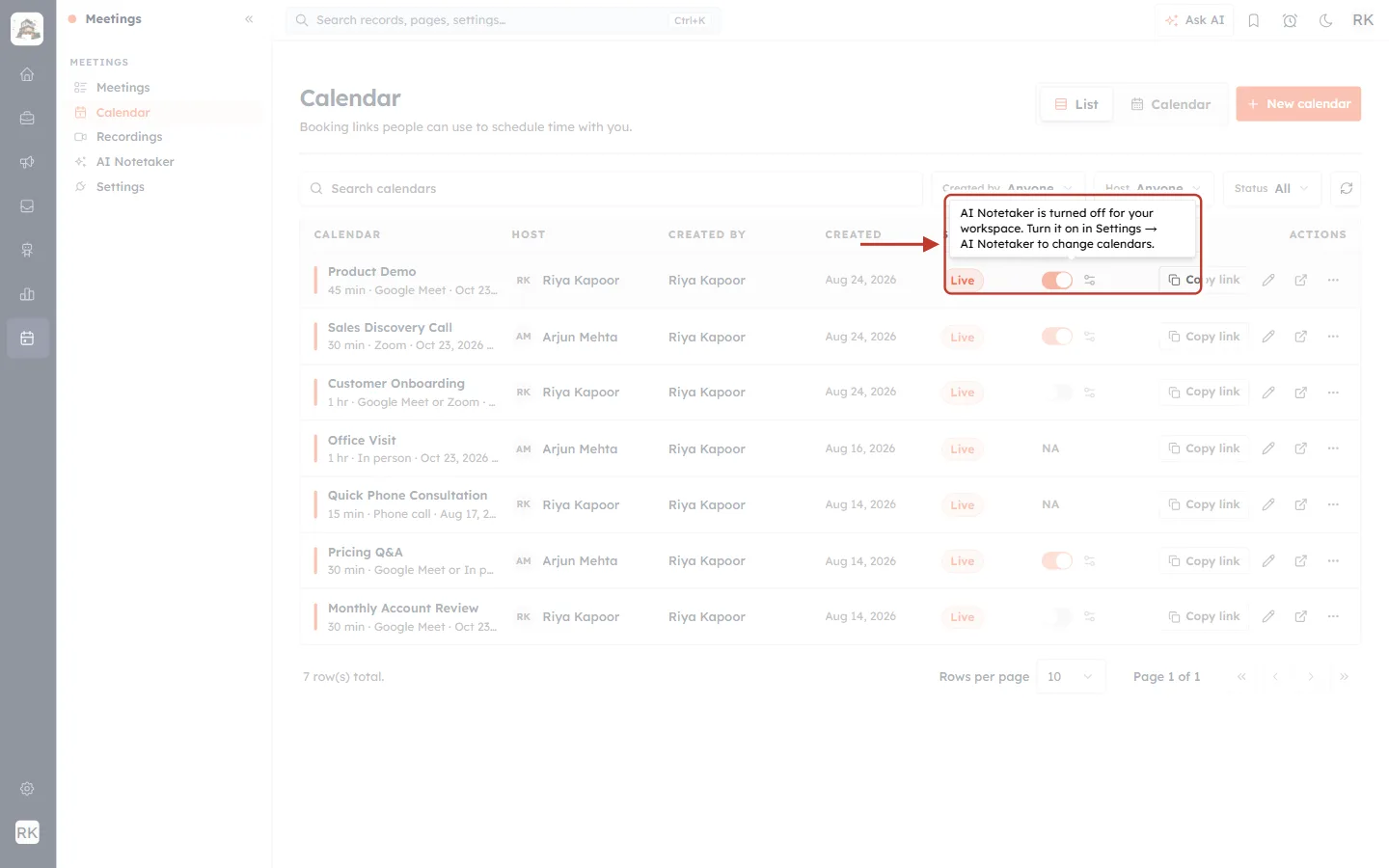
What this screenshot shows. The mouse is over the Product Demo switch, and the tooltip above it is ringed.
The tooltip reads: “AI Notetaker is turned off for your workspace. Turn it on in Settings → AI Notetaker to change calendars.”
The switches still show each calendar’s saved choice, so nothing is lost while the workspace switch is off.
Turn the workspace switch back on (Step 7) and the calendar controls unlock. If you do this in another browser tab, come back to this tab and the page picks up the change by itself.
Step 7: Workspace-wide settings on Meetings → AI Notetaker#
Click AI Notetaker in the Meetings menu. This page now holds only the settings that apply to everyone in your workspace.
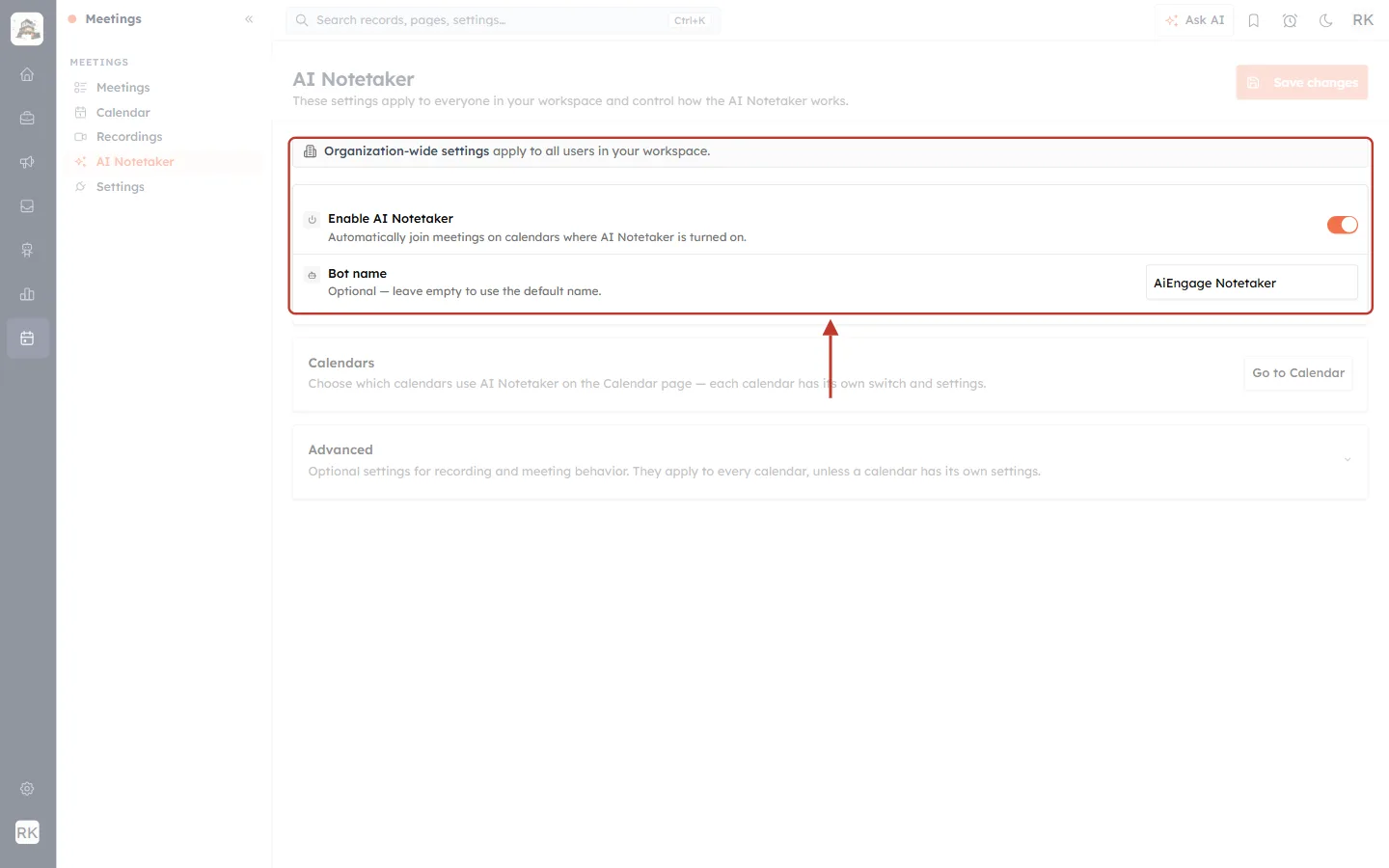
What this screenshot shows. The Organization-wide settings notice and the main settings card are ringed.
The notice “Organization-wide settings apply to all users in your workspace.” reminds you that changes here affect every user.
Enable AI Notetaker: the master switch. When it is on, the bot joins meetings on calendars where AI Notetaker is turned on. When it is off, no calendar gets the bot.
Bot name: the default name the bot uses in calls. Leave it empty to use the standard name. A calendar can override it (Step 5).
Save changes (top right) becomes active once you change something.
The calendar table that used to be on this page has been replaced by a short Calendars card.
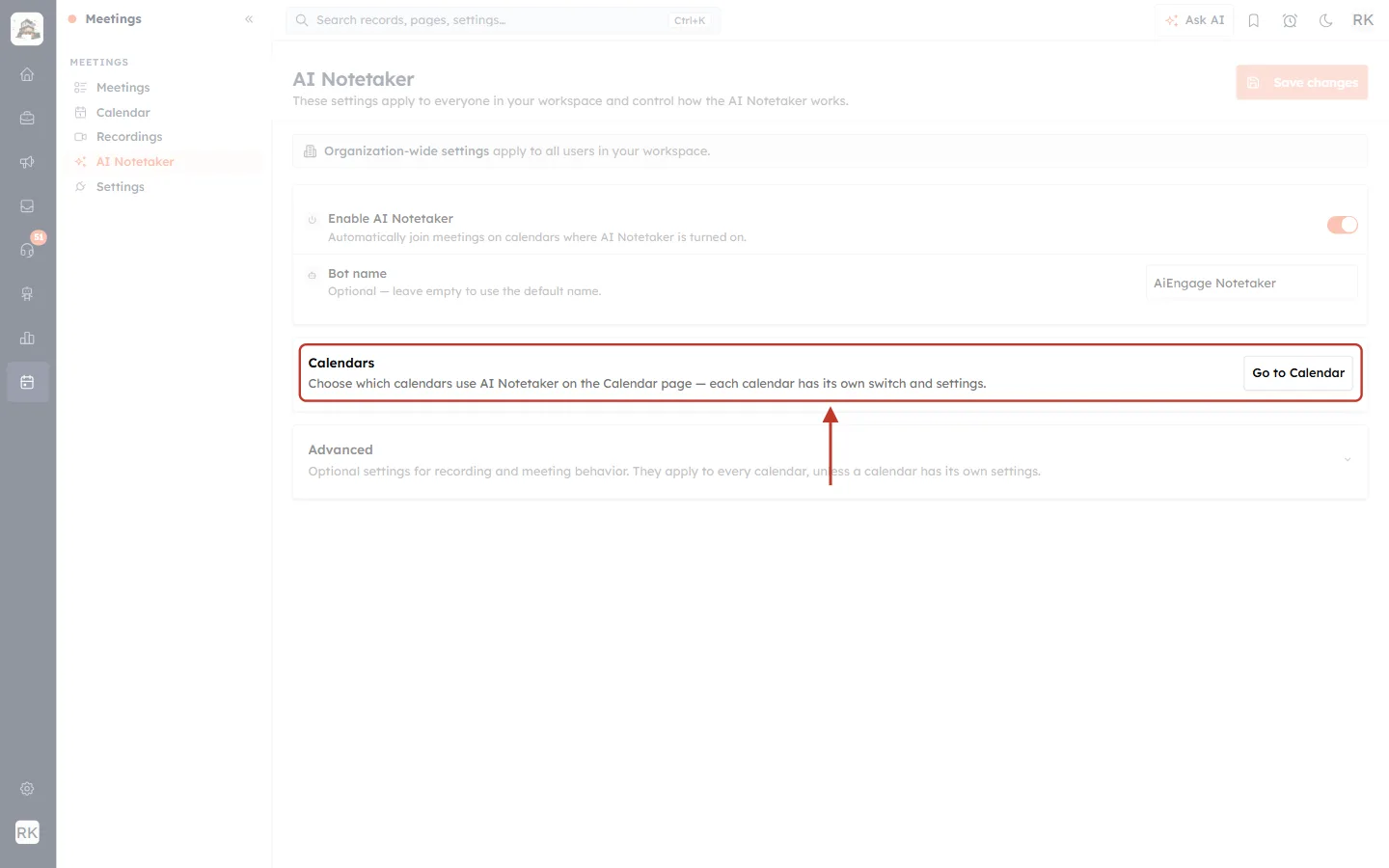
What this screenshot shows. The Calendars card is ringed.
It reads: “Choose which calendars use AI Notetaker on the Calendar page — each calendar has its own switch and settings.”
Go to Calendar takes you straight to Meetings → Calendar (Step 2).
The Advanced section below holds recording format, when the bot joins, waiting-room timeout, leave rules and maximum recording time. These apply to every calendar unless a calendar has its own setting.
When you click Save changes (or flip Enable AI Notetaker), a confirmation popup now lists exactly what will change for everyone.
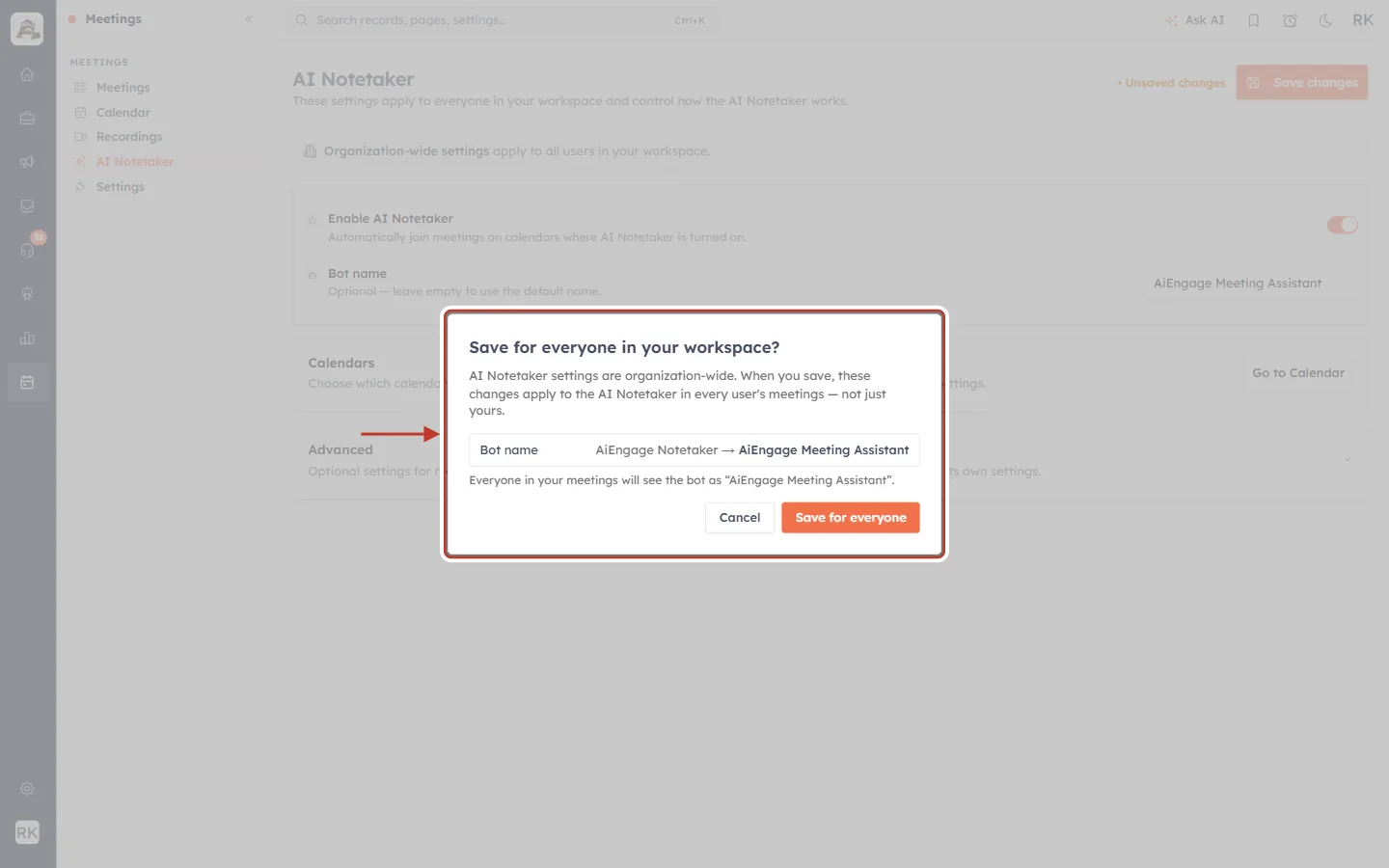
What this screenshot shows. The Save for everyone in your workspace? popup is ringed. In this example only the bot name was changed.
The text explains that the settings are organisation-wide and will apply to the AI Notetaker in every user’s meetings, not just yours.
Each change is listed as old value → new value; here Bot name: AiEngage Notetaker → AiEngage Meeting Assistant.
A line below explains the effect, for example “Everyone in your meetings will see the bot as ‘AiEngage Meeting Assistant’.”
Save for everyone saves the change. Cancel puts the saved values back, so nothing changes.
⚠️
Turning Enable AI Notetaker off stops the bot joining meetings for every user in your workspace, on every calendar. Each calendar’s own switch is kept, so turning it back on restores the same set of calendars.
Step 8: Turn on the AI Notetaker while creating a new calendar#
You can now choose the AI Notetaker while you build a calendar. On Meetings → Calendar, click + New calendar.
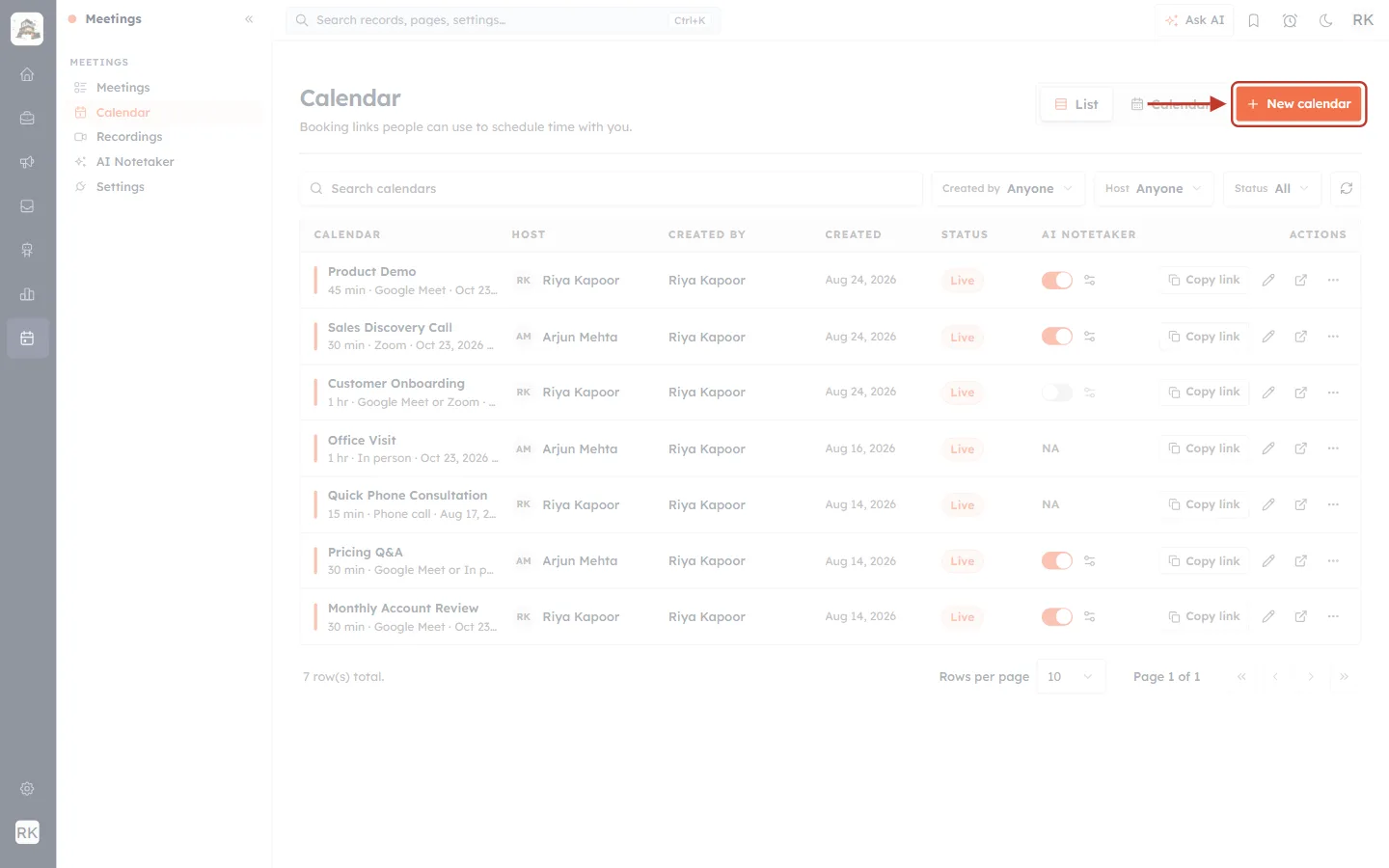
What this screenshot shows. The orange + New calendar button at the top right of the Calendar page is ringed.
Next to it, List and Calendar switch between the list of calendars and a calendar view of bookings.
Clicking the button opens a four-step wizard: Details, Availability, Platform and Review.
Fill in Details (name, host, duration, booking form) and Availability as usual (see Create an Event in the Calendar). On the Platform step, pick Google Meet or Zoom as the location. A new AI Notetaker card appears below the location details.
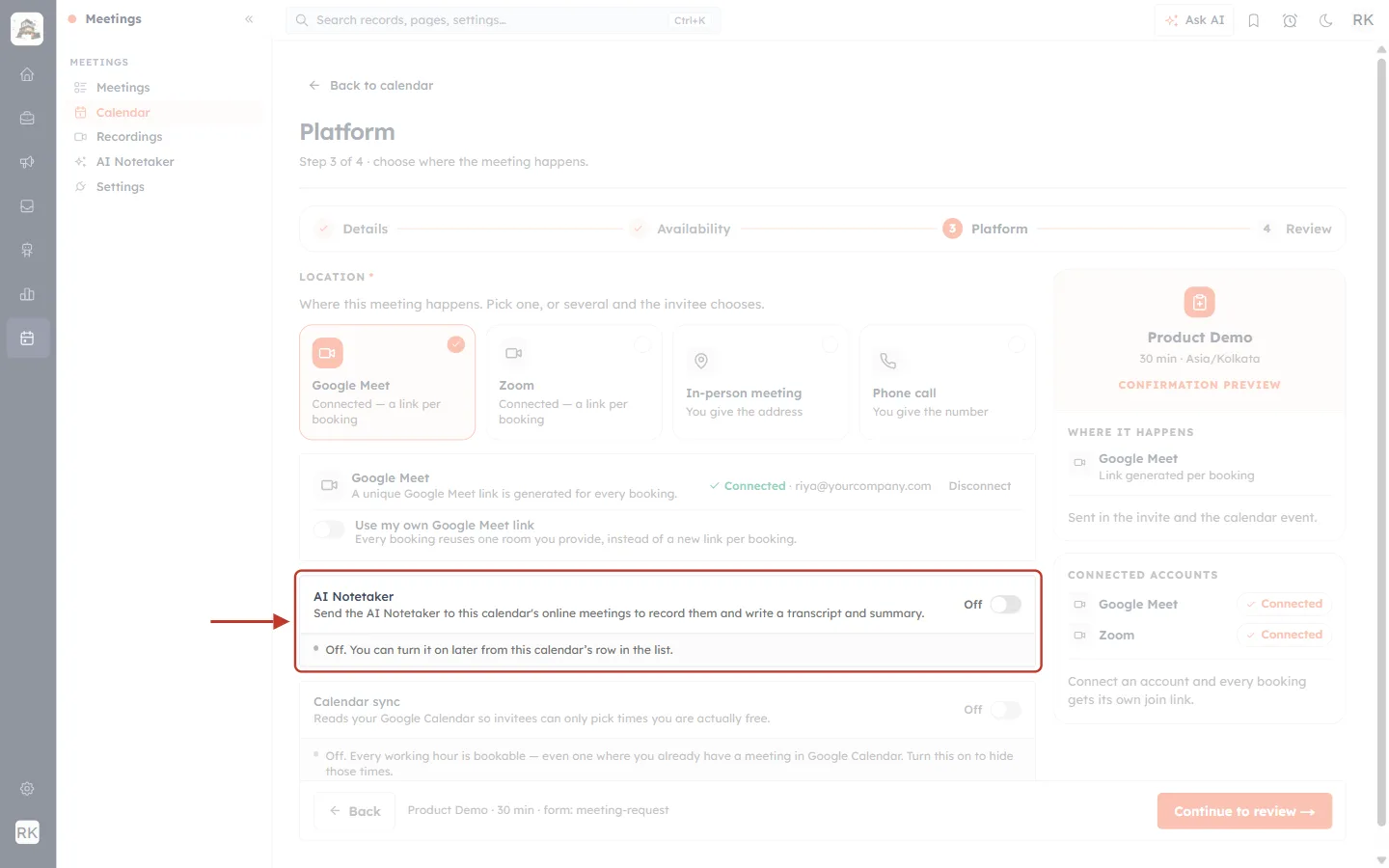
What this screenshot shows. The AI Notetaker card on step 3 of 4, Platform, is ringed. Google Meet is selected as the location.
The card reads: “Send the AI Notetaker to this calendar’s online meetings to record them and write a transcript and summary.”
It starts Off. The note below says “Off. You can turn it on later from this calendar’s row in the list.”
The card only appears once Google Meet or Zoom is picked. With only In-person meeting or Phone call selected, it is hidden.
On the right, Connected accounts confirms Google Meet and Zoom are connected for the host, so every booking gets its own join link.
Click the switch to turn it On.
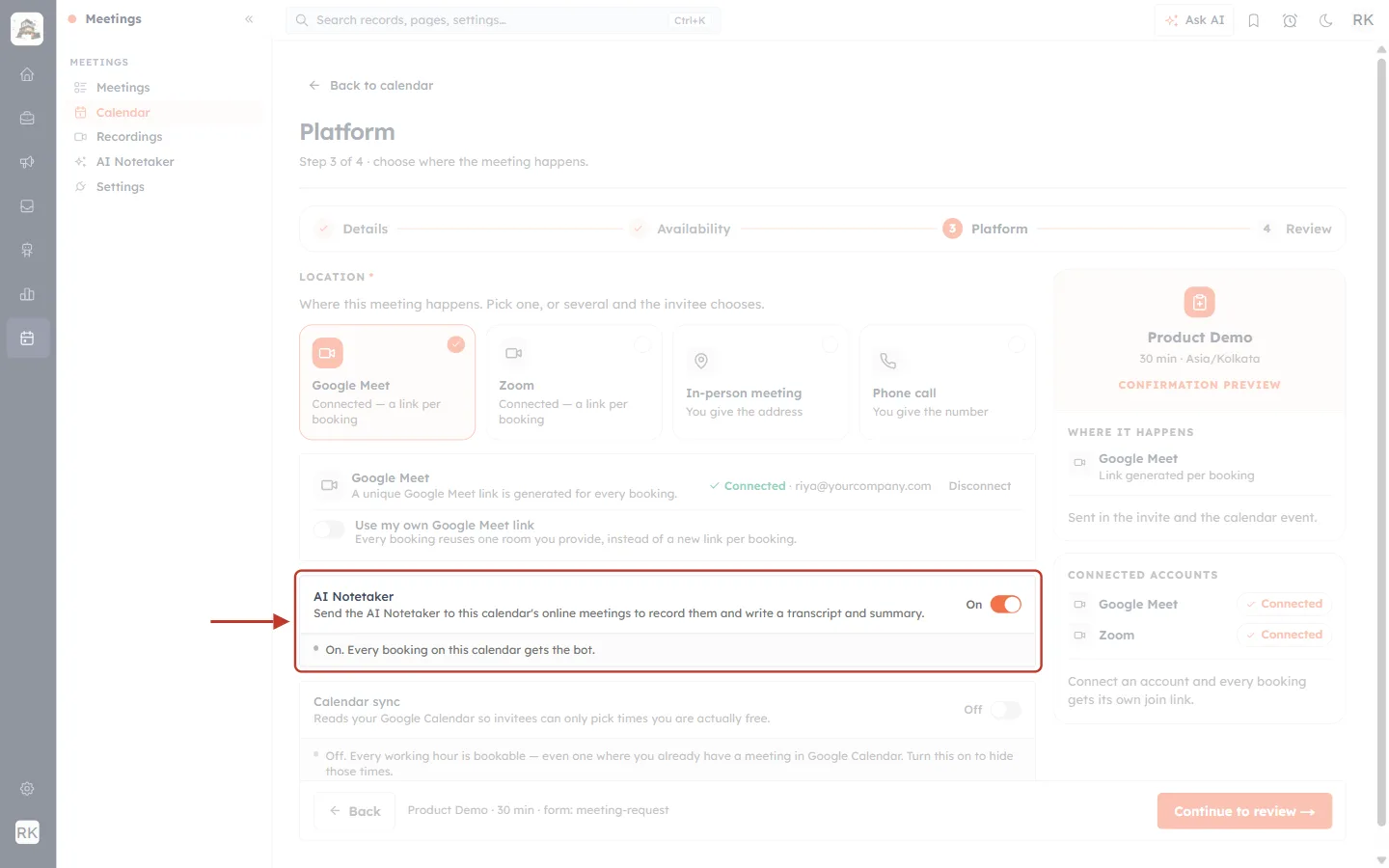
What this screenshot shows. The same card, now switched On.
The note changes to “On. Every booking on this calendar gets the bot.”
If the calendar also offers In-person meeting or Phone call, the note says instead that Google Meet and Zoom bookings get the bot and in-person and phone bookings are skipped.
Click Continue to review to move to the last step.
The Review step shows your choice in the Platform section before you publish.
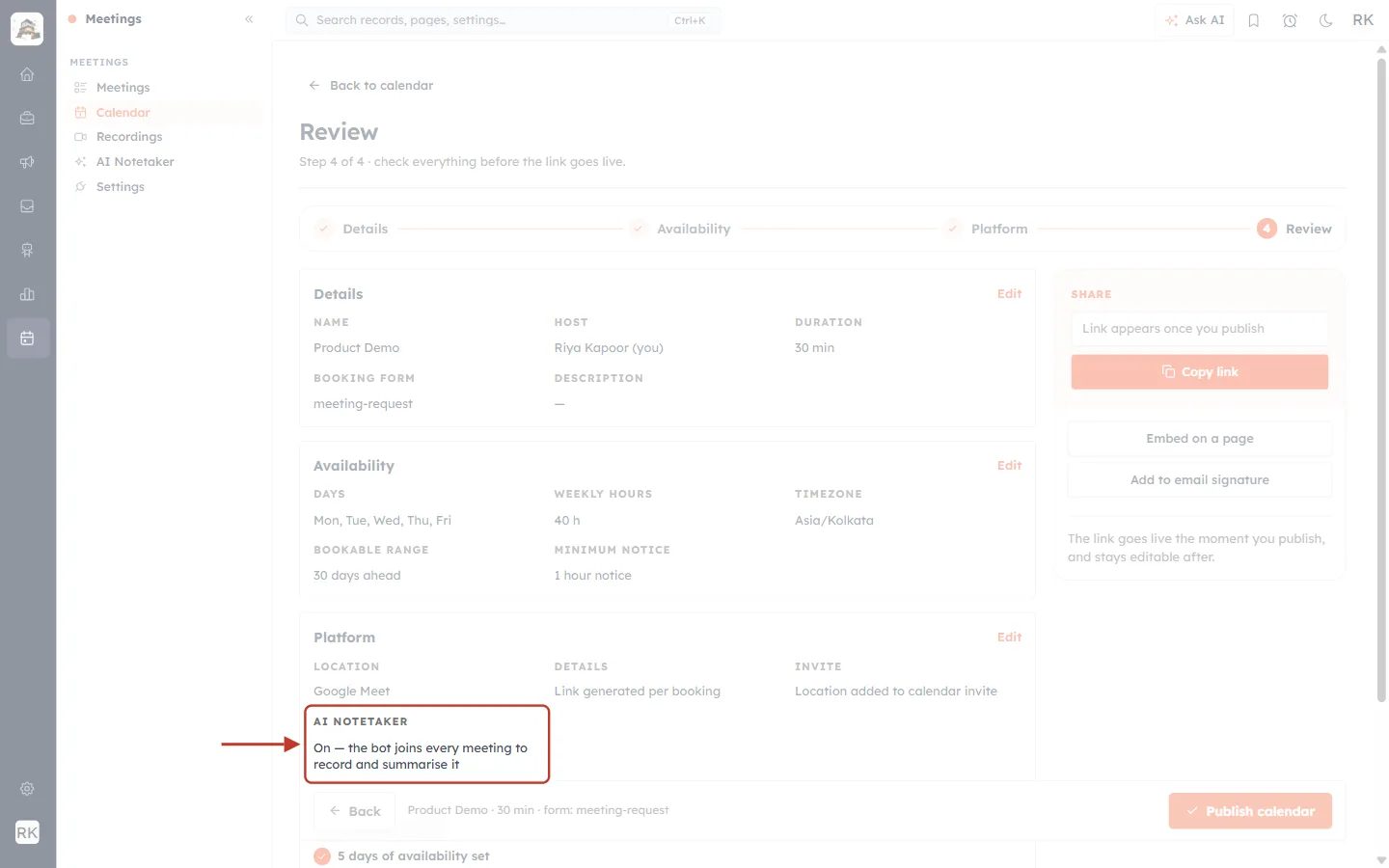
What this screenshot shows. On step 4 of 4, Review, the AI NOTETAKER line in the Platform section is ringed.
It reads “On — the bot joins every meeting to record and summarise it” (or Off if you left it off).
The Details, Availability and Platform sections each have an Edit link if you want to go back and change something.
Click Publish calendar. The calendar goes live and appears in the list with its AI NOTETAKER switch already set.
ℹ️
The AI Notetaker card is shown only while creating a calendar. To change it for an existing calendar, use that calendar’s switch in the list (Step 3).
If the AI Notetaker is off for your workspace#
If Enable AI Notetaker is off (Step 7), the card says so, and turning its switch on asks first.
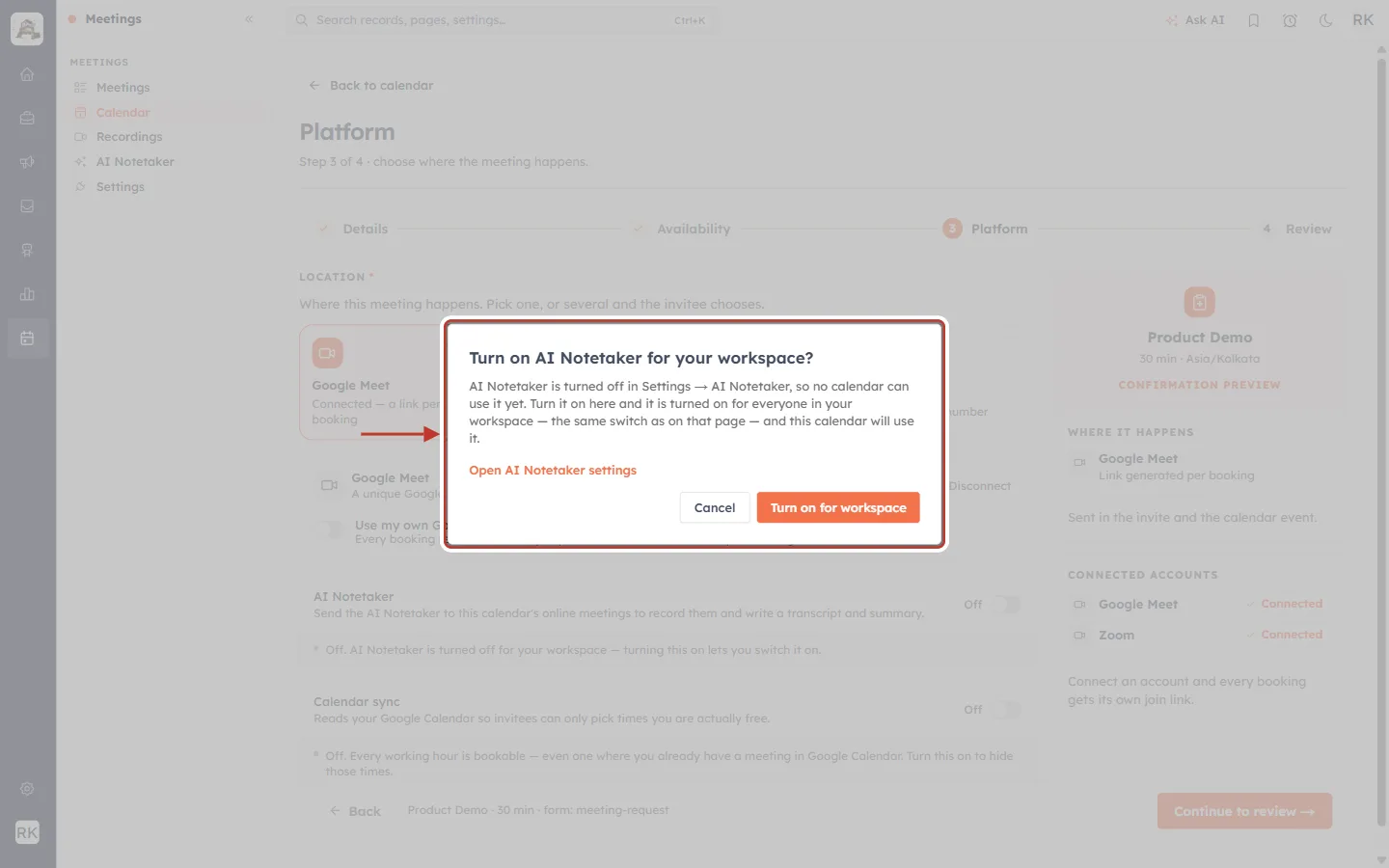
What this screenshot shows. The Turn on AI Notetaker for your workspace? popup is ringed.
It explains that the AI Notetaker is turned off in Settings → AI Notetaker, so no calendar can use it yet.
Turn on for workspace turns on the same master switch as the AI Notetaker page, for everyone in your workspace, and switches this calendar on.
Open AI Notetaker settings opens that page in a new tab, so the calendar you are building is not lost.
Cancel leaves both switches off.
Step 9: Connect your own accounts in Meetings → Settings#
The AI Notetaker can only join a meeting that has a Google Meet or Zoom link, and those links come from the host’s own connected accounts. The screen for connecting them is now called Settings and sits last in the Meetings menu (it used to be Integrations).
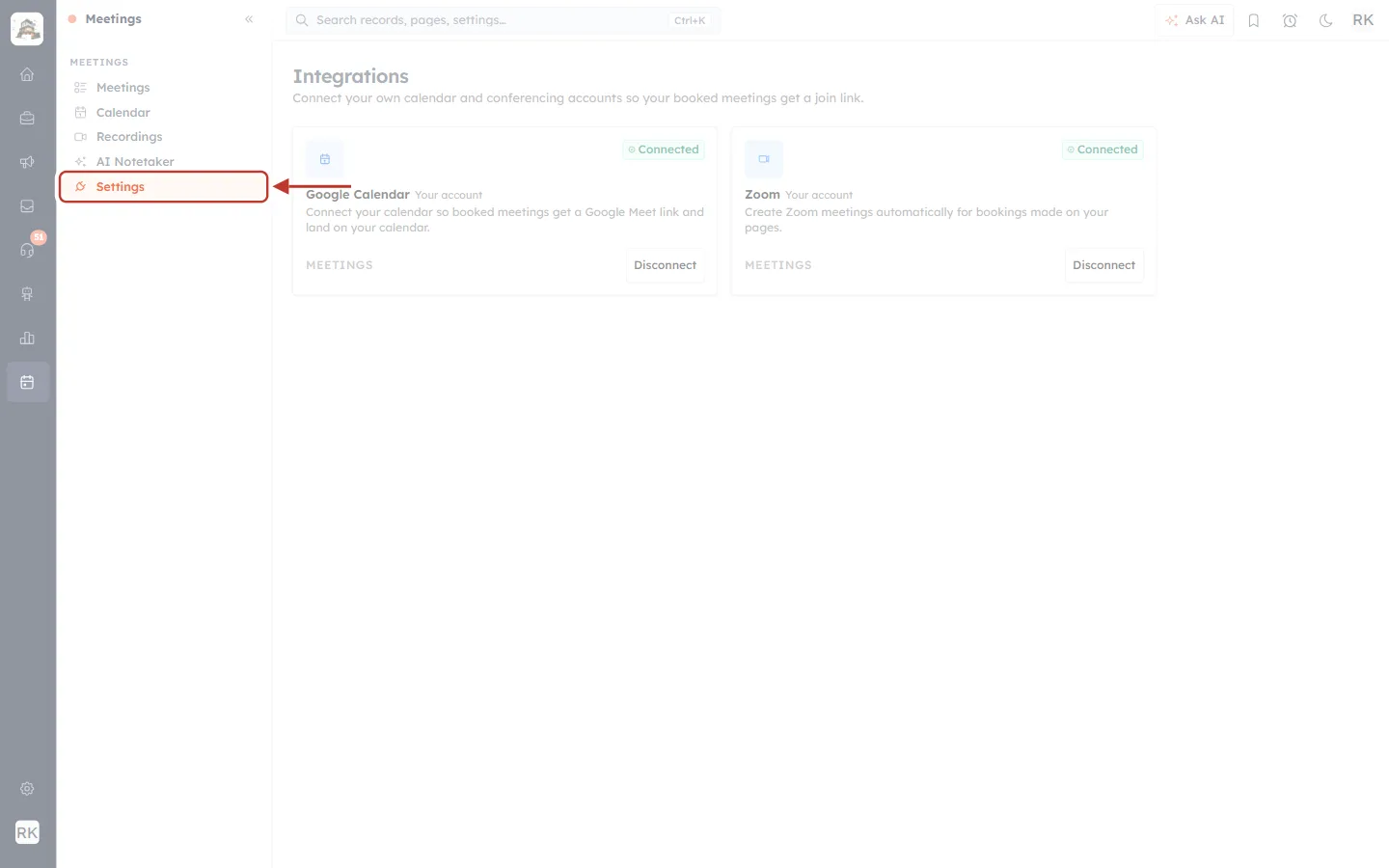
What this screenshot shows. The Settings item at the bottom of the Meetings menu is ringed.
Every user can open it; no special permission is needed, because it only connects your own accounts.
Old links and bookmarks to the Integrations page still open the same screen.
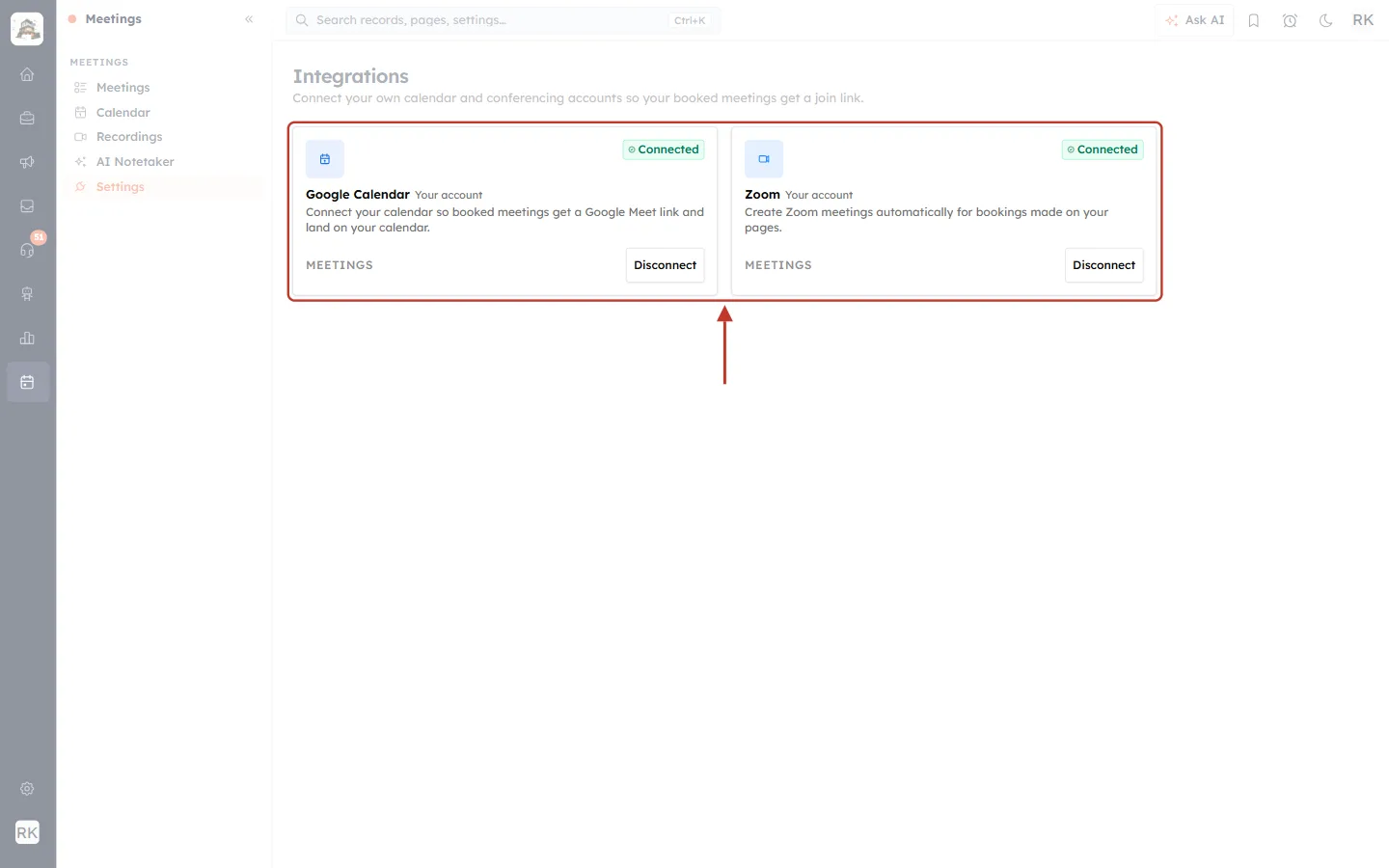
What this screenshot shows. The Google Calendar and Zoom cards are ringed. Both show Connected.
Google Calendar: once connected, booked meetings get a Google Meet link and land on your Google Calendar.
Zoom: once connected, Zoom meetings are created automatically for bookings made on your calendars.
“Your account” means the connection is personal: each host connects their own.
Click Connect to link an account or Disconnect to remove it. For full details see Connect Google Meet: Automatic Links, Calendar Events & Status and Zoom Integration: Add, Use and Remove the App.
Frequently asked questions#
I can’t see the AI NOTETAKER column. Why?#
The column, the settings window and the New calendar switch are shown only to users whose profile includes the AI Notetaker permission. Ask your administrator to turn it on under Setup → Profiles → Meeting Calendar.
Did my calendars change after this update?#
No. Calendars that used the AI Notetaker before keep their on/off choice and their settings. Only the place where you manage them has moved.
The switch is greyed out on every calendar.#
The workspace switch Enable AI Notetaker is off. Turn it on in Meetings → AI Notetaker (Step 7), or ask someone who manages the AI Notetaker to do it.
The sliders icon is greyed out on one calendar.#
That calendar’s switch is off. Turn the switch on first, then open its settings.
Does a calendar’s setting override the workspace setting?#
Yes. Transcript, recording, AI summary, joining without approval and the bot name can be set per calendar. Anything you don’t change on a calendar follows the workspace setting on Meetings → AI Notetaker.
Does the AI summary cost credits?#
Yes. Create an AI summary uses one AI credit per meeting. Turn it off on calendars where you only need the recording or transcript. See AI Note Taker: Recordings, Transcripts, Credits & Storage for credits and storage.
Previous and next#
Related#
Was this article helpful?
Ready to implement this?
OpenAI Engage and apply what you just learned to your own workspace.
Open AI Engage CRM