Loading…


KnowledgeBase
Reading a Meeting Record
What this covers#
Meetings reach your CRM two ways — somebody books a slot on one of your links, or you create one yourself. Either way they open onto the same page.
This article is a tour of that page: how it is laid out, what each block holds, where the notetaker’s output lands, and what you can actually do from it. If you want to know what a booking specifically writes into a record, What Happens After Someone Books covers that; this one applies to any meeting at all.
Opening a record#
Go to Meetings → Meetings and click a meeting’s title. From the Actions menu at the end of a row, View Details does the same thing.
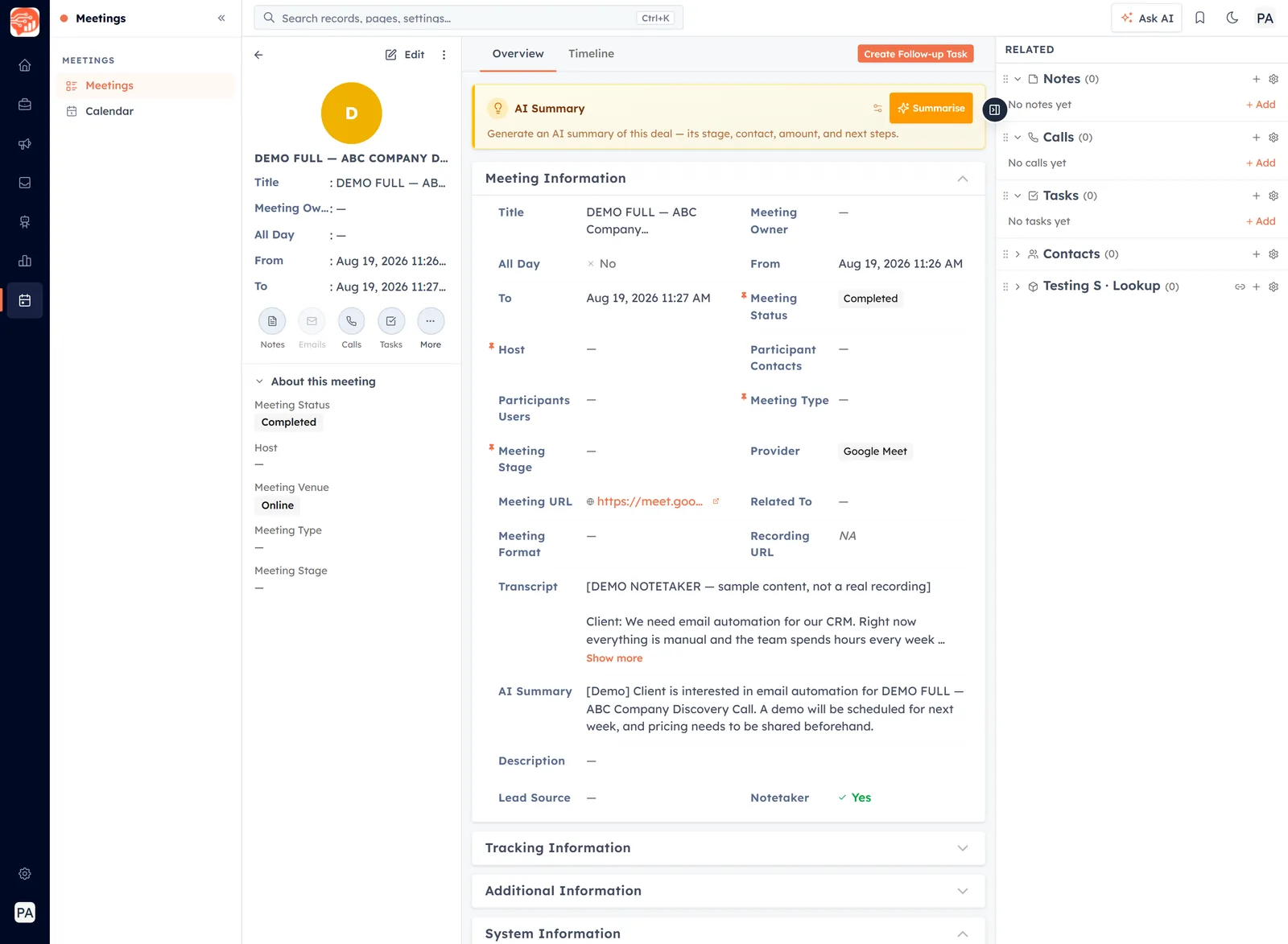
A meeting record. Summary rail on the left, the record itself in the middle, related items on the right. The figures that follow ring one of these at a time.
The page is three columns, and each one answers a different question:
- Left — the summary rail. What is this meeting, at a glance?
- Middle — the record. Everything the CRM knows about it.
- Right — Related. What else is attached to it?
The summary rail#
The left column is the version of the meeting you can read without scrolling.
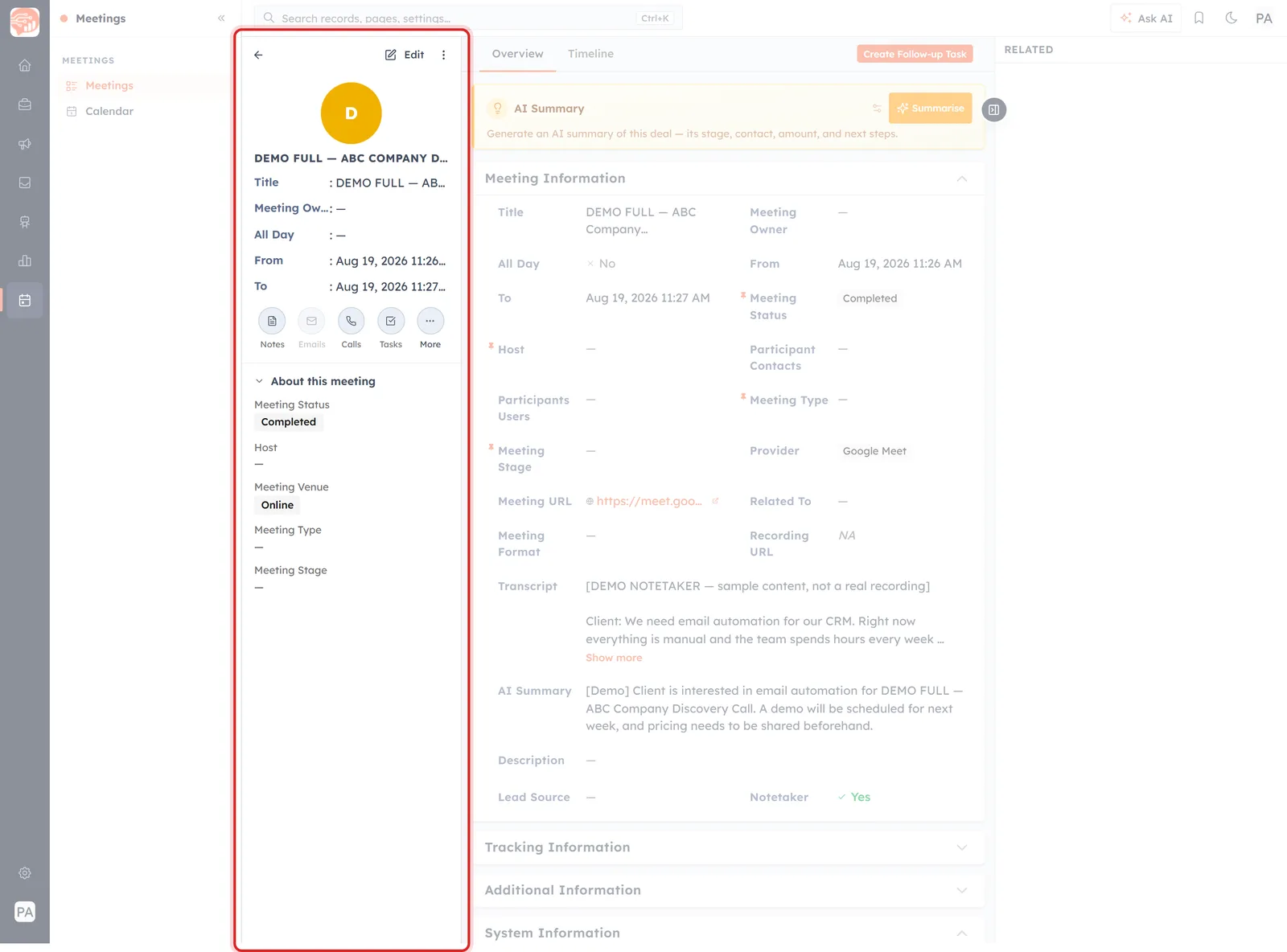
The summary rail, ringed: title and times up top, quick actions in the middle, About this meeting underneath.
Three parts, top to bottom:
- The header — the meeting’s title, its owner, and the From/To times, with Edit and the record menu (⋮) above them.
- Quick actions — Notes, Emails, Calls, Tasks and More, for adding something to the meeting without leaving the page. Emails is greyed out on meetings that have none.
- About this meeting — the five fields worth knowing before you read anything else: Meeting Status, Host, Meeting Venue, Meeting Type and Meeting Stage.
💡
That panel is the quickest argument for filling in Meeting Type and Meeting Stage. Leave them empty and the summary of every meeting you own reads the same.
Overview and Timeline#
Two tabs sit above the middle column.
Overview is the default and holds the fields, grouped into four collapsible blocks:
- Meeting Information — who, when, where, and how it happened. The block you will spend all your time in.
- Tracking Information — how the meeting came to exist. Filled in for bookings, empty for meetings you create yourself; What Happens After Someone Books explains what goes in it.
- Additional Information — collapsed by default, and where any custom fields you add to the Meetings module appear.
- System Information — created and modified, by whom and when. Useful when two people are working the same records.
Timeline is the other half: what has happened to this record, and what is queued to happen.
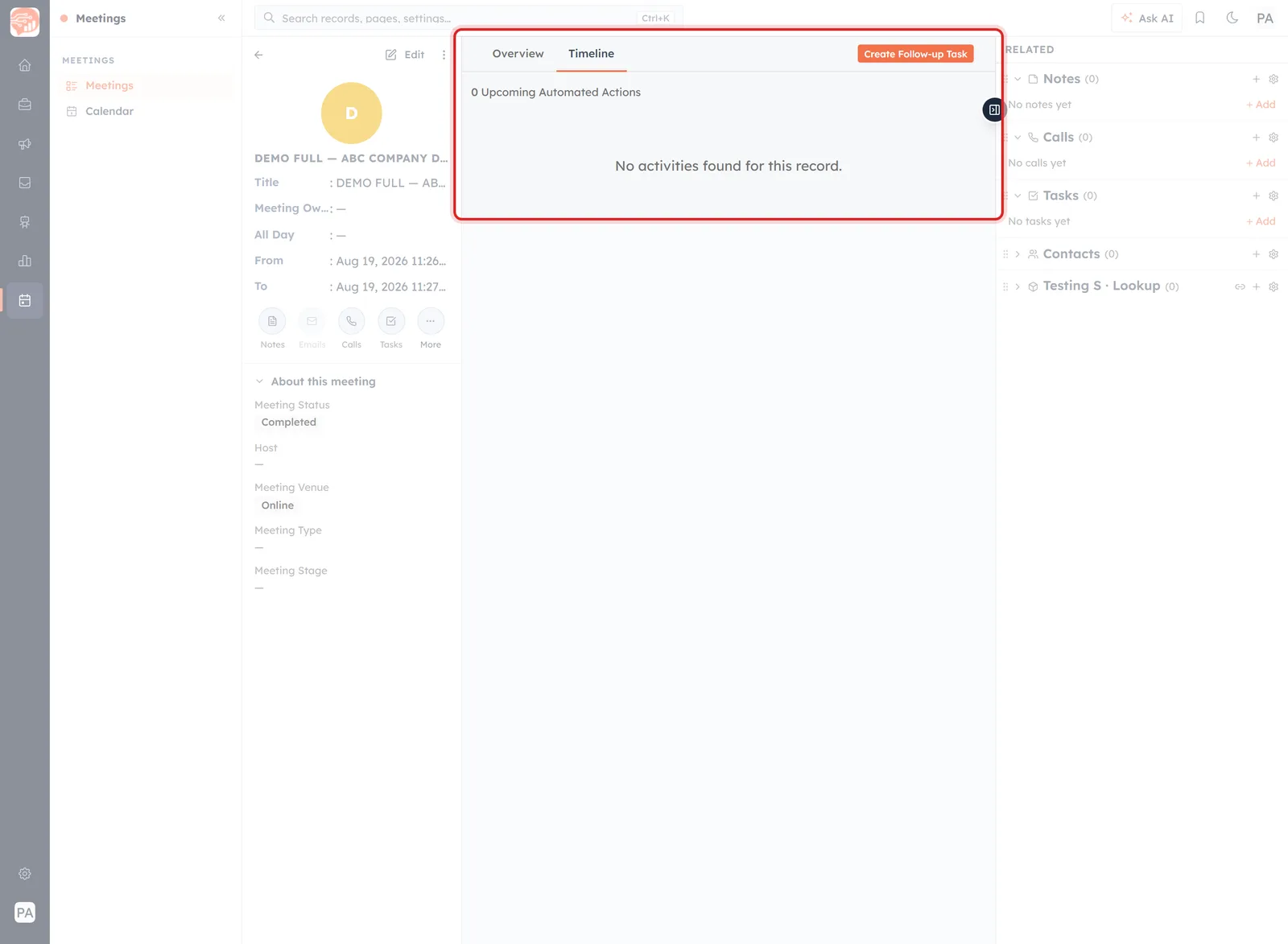
Timeline, ringed, on a record with no history yet — “0 Upcoming Automated Actions” and “No activities found for this record.”
The line at the top counts Upcoming Automated Actions — anything a workflow has scheduled against this meeting. Below it is the activity history. A brand-new record shows “No activities found for this record”, which means nothing has happened yet, not that something is broken.
When the notetaker has been#
If the meeting ran with Record this meeting switched on, the notetaker’s output lands in Meeting Information rather than anywhere separate.
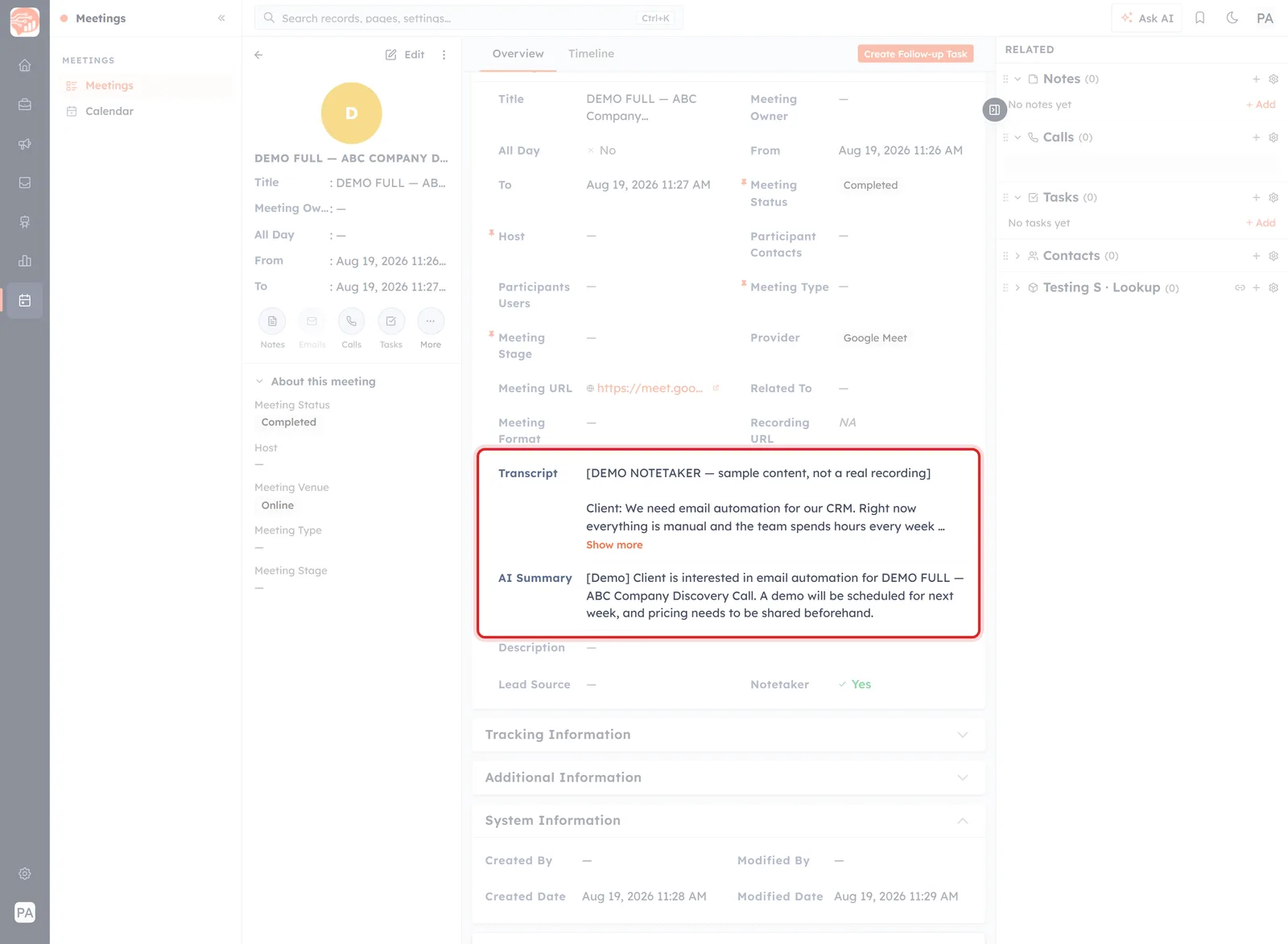
A meeting the notetaker attended. Transcript and AI Summary are ringed; further down the same block, Notetaker reads Yes.
- Notetaker — Yes or No. The quickest way to know whether to expect anything below.
- Transcript — what was said. Long ones are truncated with a Show more link.
- AI Summary — the short version: what the other side wants and what was agreed.
- Recording URL — the recording, where one exists. NA means there is nothing to play.
🤖
These four stay empty on a meeting the notetaker did not attend — including every meeting created by a booking link, which does not bring it along. That is a setting on the meeting itself, not on the booking link.
Separately, the AI Summary panel at the top of Overview has a Summarise button that generates a summary on demand. Its helper text mentions deals rather than meetings — it is a shared component — but the button works on the record you are looking at.
The Related panel#
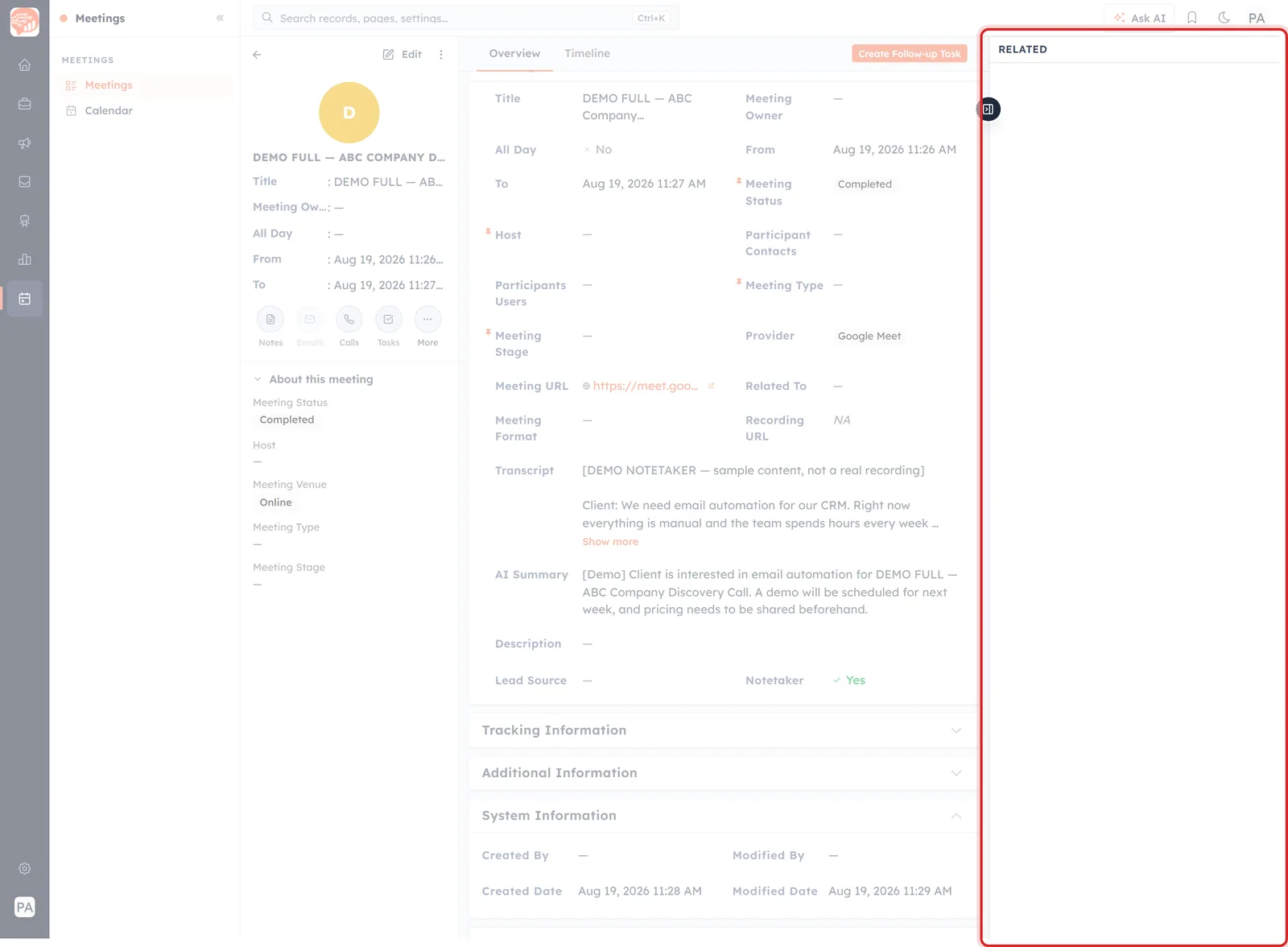
The Related panel, ringed. Every section carries a count, so an untouched meeting reads (0) all the way down.
The right column lists everything hanging off this meeting: Notes, Calls, Tasks, Contacts, and any custom lookup your CRM adds. Each shows a count, so you can see at a glance whether the follow-up actually happened.
Each section has a + to add an item and a gear for its settings, and the sections themselves can be dragged into the order you prefer.
The point of the panel is that the follow-up lives with the meeting that caused it. A note written here is findable from the meeting; the same note typed somewhere else is not.
Acting on the record#
Three controls do the work:
- Edit — opens the meeting for changes. This is where you move Meeting Status along as the meeting happens.
- Create Follow-up Task — top right of the middle column, and the most useful button on the page. It turns what you owe someone into something that will chase you.
- The ⋮ menu — beside Edit.
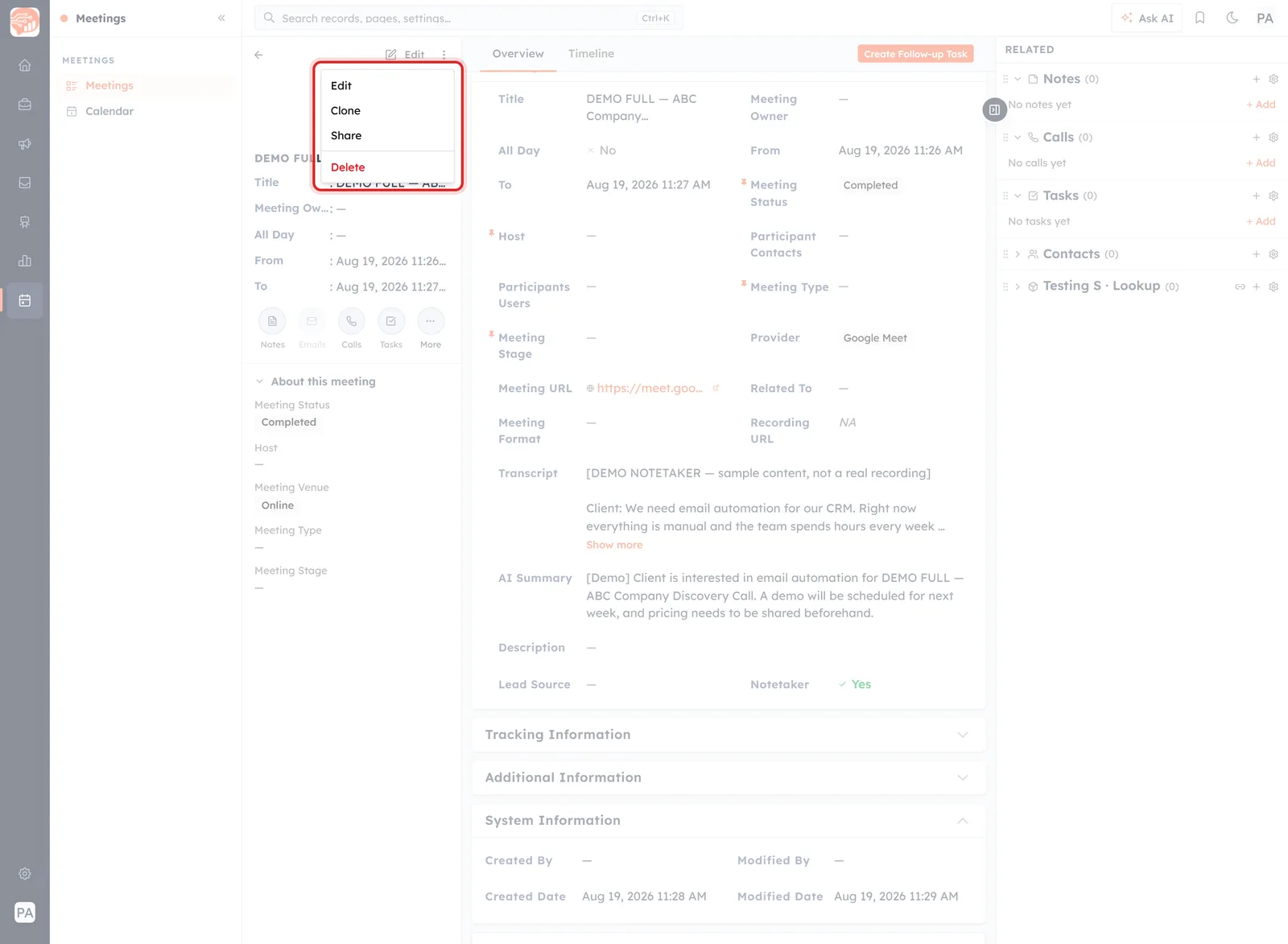
The record menu, ringed: Edit, Clone, Share and Delete.
Clone is the one worth knowing about — it copies the meeting so a repeat conversation with the same people takes one click rather than a re-typed form. Delete is at the bottom, in red, and does not ask twice about being the wrong button.
⚠️
The row menu on the Meetings list and the ⋮ menu on the record are not the same menu. The list offers View Details, Edit, Clone, Delete; the record swaps View Details for Share. If you are hunting for an action and cannot find it, check the other one.
Reading one quickly#
When a meeting record is new to you, this order gets you oriented in under a minute:
- About this meeting — status, host, venue. Is this still ahead of you or already done?
- Meeting Information — the times, the people, and the Description, which is where a booking records who booked and through which link.
- AI Summary or Transcript, if the notetaker was there — faster than asking whoever attended.
- The Related panel — counts of zero across the board mean nothing has been followed up yet.
- Timeline, if you need to know what changed and when.
Then leave it better than you found it: set the status, and click Create Follow-up Task if anything is owed. Create a Meeting from the Meetings Module covers the other direction — putting a meeting into the CRM in the first place.
Was this article helpful?
Ready to implement this?
OpenAI Engage and apply what you just learned to your own workspace.
Open AI Engage CRM