Loading…


KnowledgeBase
AI Agent Capabilities: Let Your Agent Book Meetings and Request Callbacks Right in the Chat (Step-by-Step)
Your AI agent can do more than answer questions. With Capabilities switched on, it can take action for your visitors during the conversation:
Book meetings: the agent shows open times from your Meeting Calendar booking pages, confirms the details and books the meeting, right in the chat.
Request a callback: when a visitor asks to be phoned back (“call me tomorrow at 5”), the agent creates a Task for your team, due that day, with a reminder shortly before the call.
This guide walks you through switching both on, every setting you will see, what your visitor sees in the chat, and what lands in your CRM afterwards. The screenshots use a sample agent, BrightPath Admissions Assistant, built for a training institute that offers a free 30-minute counselling call.
ℹ️
Where capabilities work. Capabilities run in website widget and WhatsApp chats. The Test Chat on the agent’s page does not use them, so to try a booking or a callback, chat with the agent on your website (or on WhatsApp).
Before you start#
You need permission to manage AI agents (the AI Agents menu with Create Agent and Edit agent).
You need an AI agent. If you don’t have one yet, follow Build Your First AI Agent.
For Book meetings: at least one active booking page in Meeting Calendar. If you have none, follow Create a Booking Calendar (Booking Link) Step by Step first.
For Request a callback: the Tasks module must be active in your CRM. Callbacks are saved as tasks.
The agent must be live where your visitors are: on your website (Publish to Your Website) or on WhatsApp (Connect an Agent to WhatsApp).
Step 1: Open your agent for editing#
Click the AI Agents icon in the left-hand rail and choose My Agents. Find the agent you want to give capabilities to and click its name.
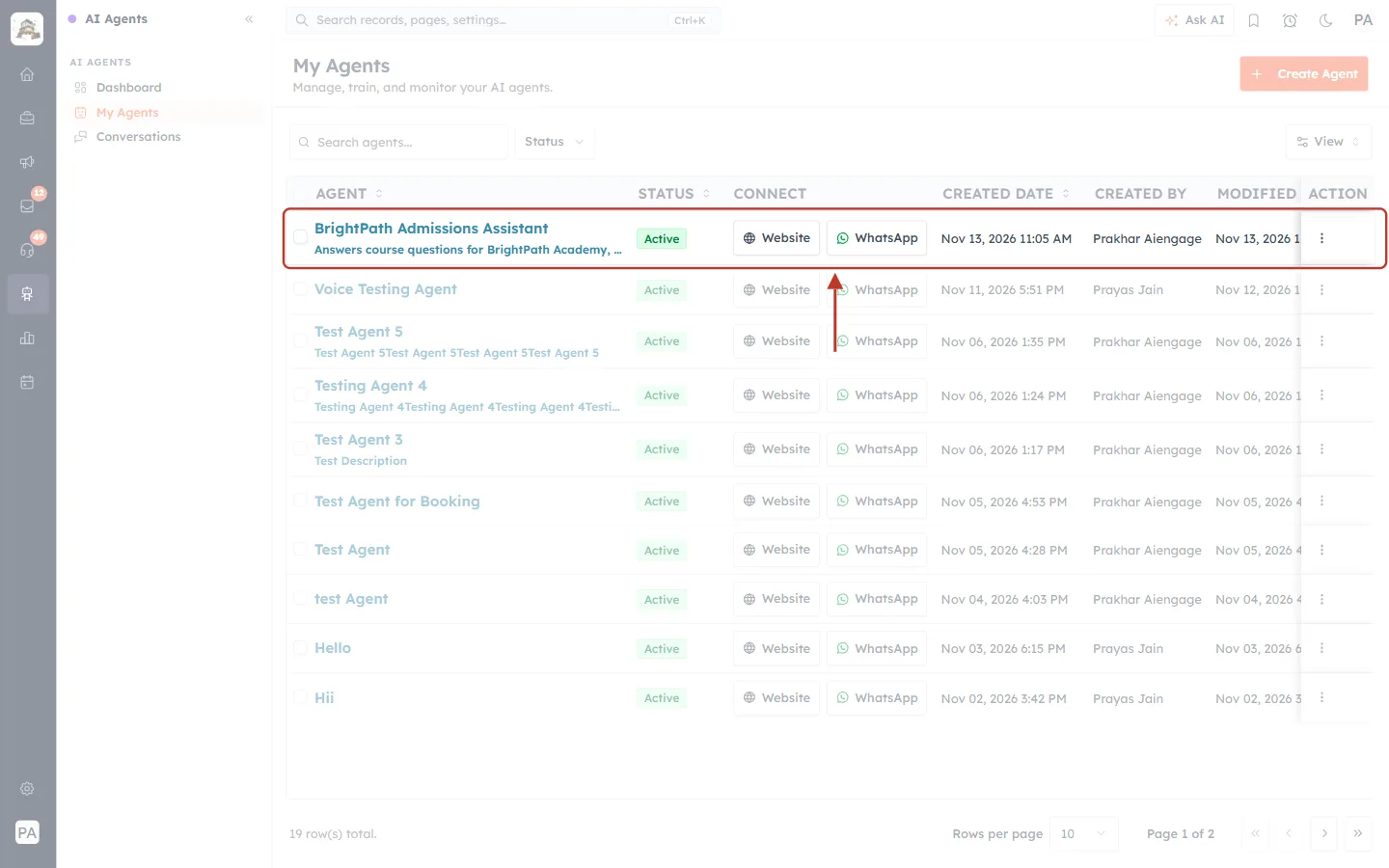
What this screenshot shows. The My Agents page, which lists every AI agent in your organization. The row for the sample agent is ringed.
Agent: the agent’s name and description. Click the name to open the agent.
Status: Active means the agent is answering chats.
Connect: where the agent can be used (Website, WhatsApp).
Created / Modified date and by and Last trained: who set the agent up and when it last changed.
Create Agent (top right) starts a brand-new agent; the ⋮ menu at the end of a row has more actions.
The agent’s page opens. Click Edit agent in the top-right corner.
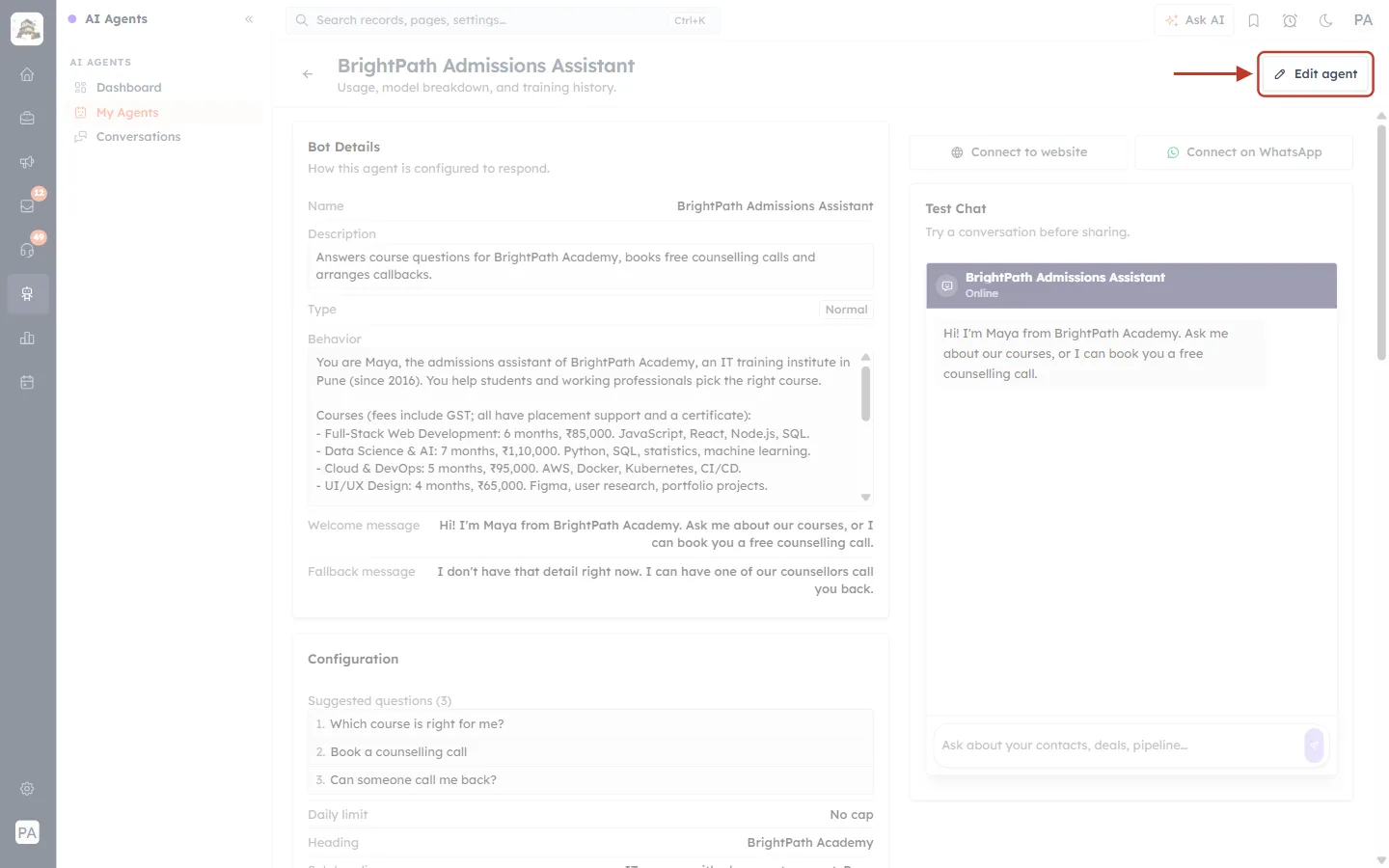
What this screenshot shows. The agent’s detail page, with the Edit agent button ringed in the top-right corner.
The page title is the agent’s name, with “Usage, model breakdown, and training history” underneath.
The left column summarises the agent’s settings; the right column has Connect to website, Connect on WhatsApp and a Test Chat.
Edit agent opens the same two-step editor you used to build the agent: 1 Build and 2 Review & Publish.
In the editor, scroll down past Identity, Persona, Lead Qualification, Ask initial questions and map with data and Ask visitor details until you reach the Capabilities card.
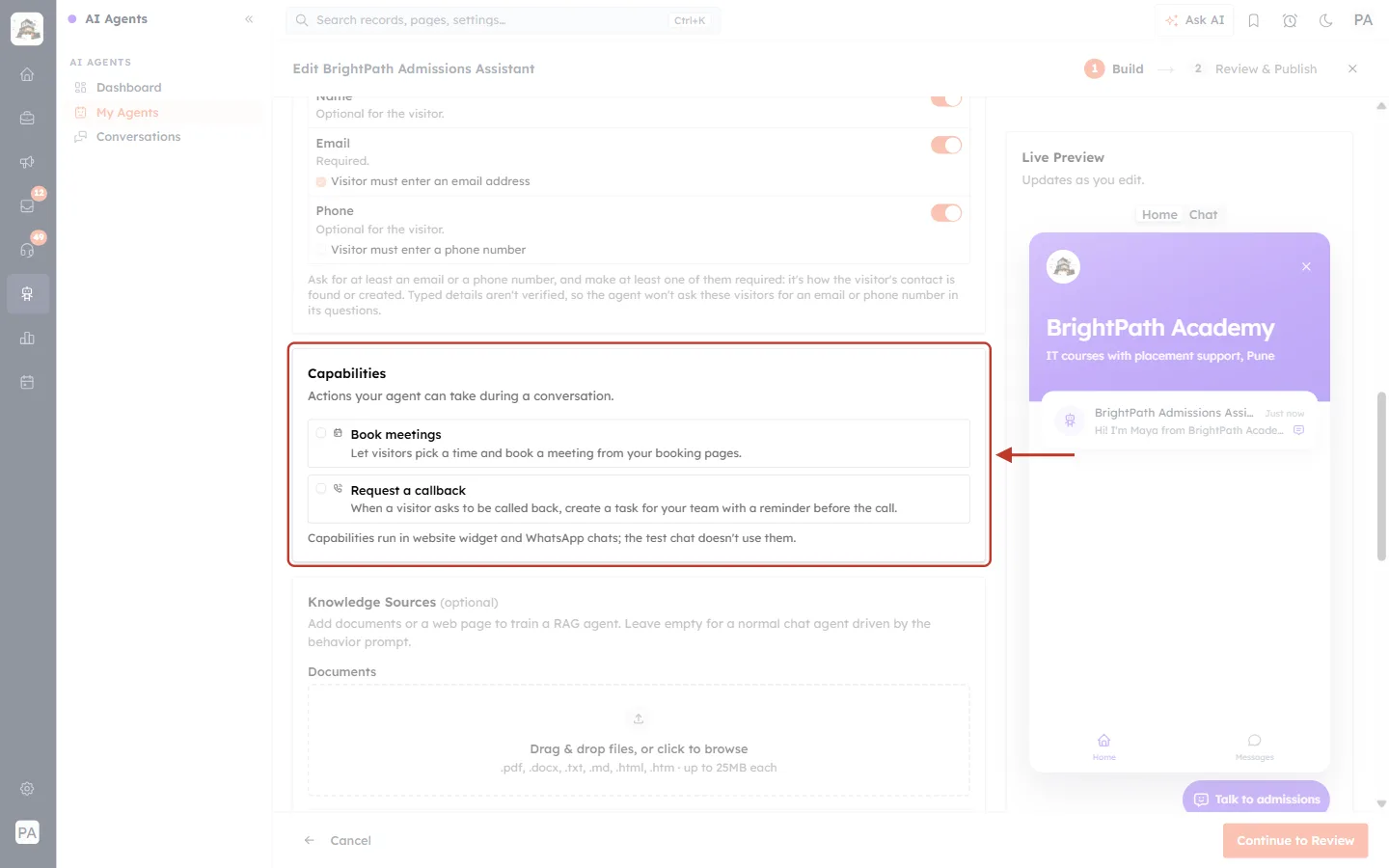
What this screenshot shows. The Capabilities card, ringed, before anything is switched on.
The card’s subtitle reads “Actions your agent can take during a conversation.”
Book meetings: “Let visitors pick a time and book a meeting from your booking pages.”
Request a callback: “When a visitor asks to be called back, create a task for your team with a reminder before the call.”
Each capability has a tick box on the left. Ticking it switches the capability on and opens its settings underneath.
The note under the card reminds you that capabilities run in website widget and WhatsApp chats, and that the test chat doesn’t use them.
On the right, the Live Preview shows how your website widget looks while you edit.
✅
Unticking a capability later keeps its settings. Tick it again and your booking pages and reminder choices come back as they were.
Step 2: Turn on “Book meetings” and choose your booking pages#
Tick Book meetings. The settings open underneath and list the booking pages in your organization.
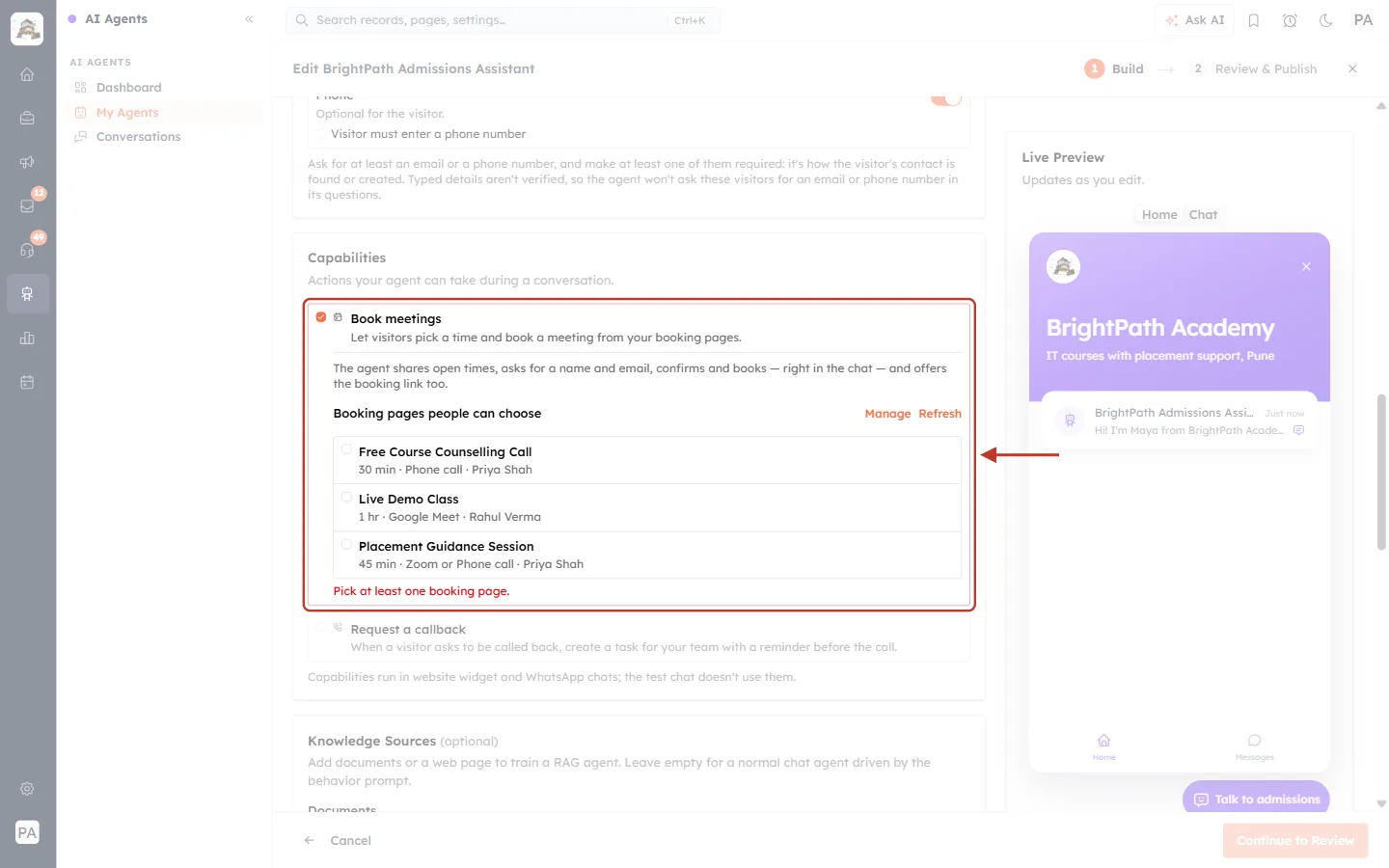
What this screenshot shows. Book meetings switched on, ringed, with its settings open.
The first line explains what the agent does: “The agent shares open times, asks for a name and email, confirms and books, right in the chat, and offers the booking link too.”
Booking pages people can choose: every active booking page in your Meeting Calendar, sorted by title.
Under each title you see the meeting’s length, where it happens and the host, for example 30 min · Phone call · Priya Shah or 1 hr · Google Meet · Rahul Verma. The host’s name helps you tell apart two pages with similar names.
Nothing is picked yet, so the red line “Pick at least one booking page.” is shown and you can’t continue until you pick one.
Booking pages that are switched off in Meeting Calendar don’t appear here.
Tick the page (or pages) people should be able to book from the chat. In this example, the agent offers the Free Course Counselling Call.
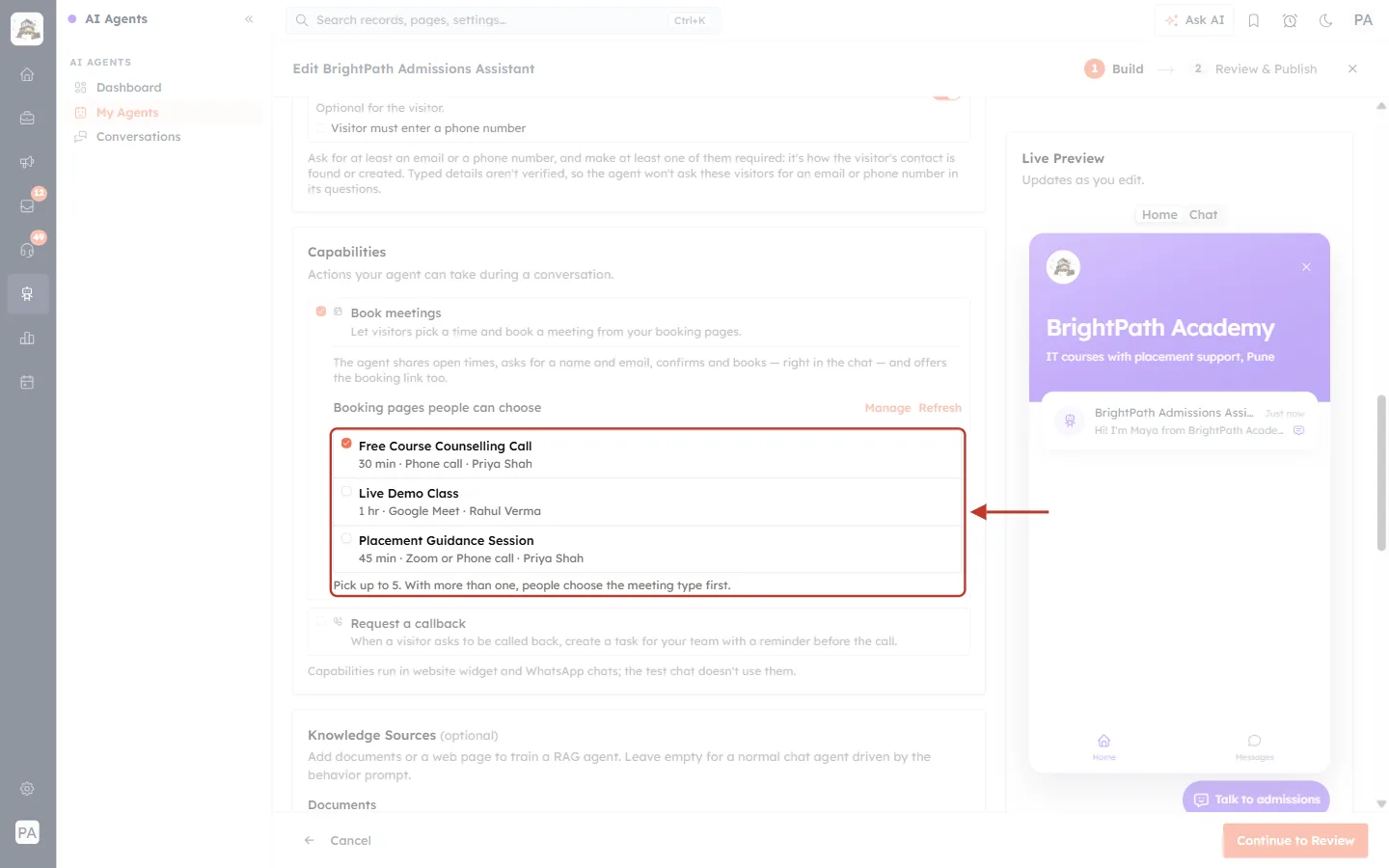
What this screenshot shows. The Free Course Counselling Call page ticked, ringed together with the hint under the list.
The ticked page is the one the agent will offer in chats.
The hint now reads “Pick up to 5. With more than one, people choose the meeting type first.”
You can offer up to 5 booking pages per agent. When you reach five, the other pages are greyed out and the hint says that’s the most one agent can offer.
If you pick more than one page, the agent first asks the visitor which kind of meeting they want, then shows the times for that page.
ℹ️
Only one booking page in your organization? The agent picks it for you automatically when you tick Book meetings. You can still untick it.
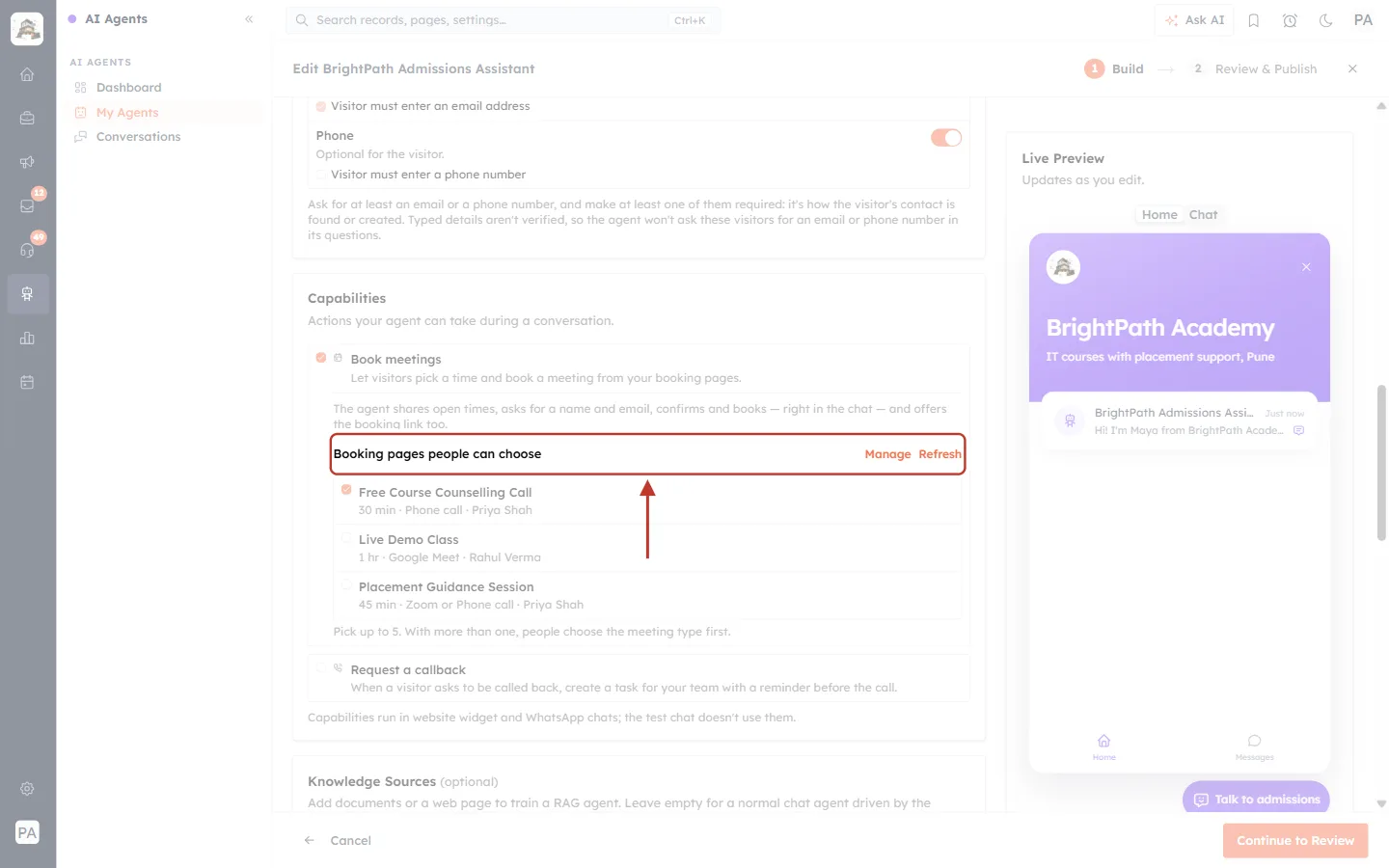
What this screenshot shows. The heading row of the booking page list, ringed, with the Manage and Refresh links on the right.
Manage opens Meeting Calendar in a new browser tab, so you can create a booking page or change one without losing what you’ve set up in the agent editor. You see this link only if you are allowed to manage Meeting Calendar.
Refresh reloads the list. Use it after you create or switch on a booking page in the other tab.
If there are no active booking pages at all, the list is replaced by “There are no active booking pages yet. Create one in Meeting Calendar, then refresh this list.” See Create a Booking Calendar (Booking Link) Step by Step.
⚠️
If a booking page is switched off or deleted later, the agent stops offering it in chats straight away. The next time you edit the agent, that page shows a red row, “A picked booking page was switched off or deleted.”, with a Remove button. Remove it (or switch the page back on) before you can continue.
Step 3: Turn on “Request a callback” and choose who gets the task#
Tick Request a callback. Its three settings open underneath.
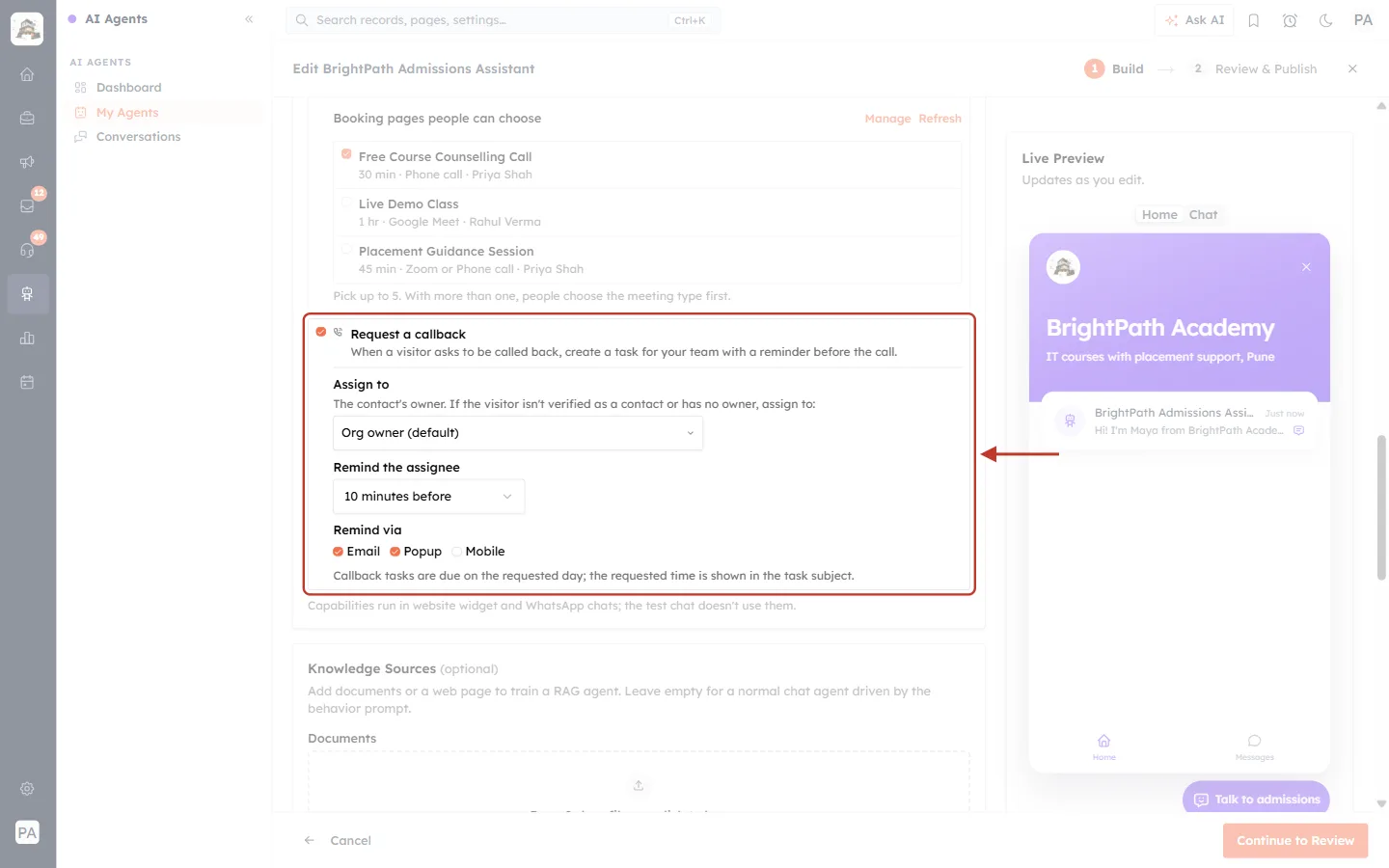
What this screenshot shows. Request a callback switched on, ringed, with its default settings.
Assign to: “The contact’s owner. If the visitor isn’t verified as a contact or has no owner, assign to:” followed by a user picker. It starts as Org owner (default).
Remind the assignee: how long before the requested call time the reminder fires. The default is 10 minutes before.
Remind via: how the reminder is delivered: Email, Popup and Mobile. Email and Popup are ticked by default.
The last line explains the task: “Callback tasks are due on the requested day; the requested time is shown in the task subject.”
Who gets the callback task? The agent always tries the visitor’s contact owner first, so your existing customers go to the rep who already knows them. The user you pick in Assign to is the back-up for visitors who aren’t verified as a contact (for example, a website visitor whose typed email matches an existing contact, which doesn’t prove who they are) or whose contact has no owner. If you leave it on Org owner (default), the back-up is your organization’s owner.
Click the Assign to box to choose a different back-up user.
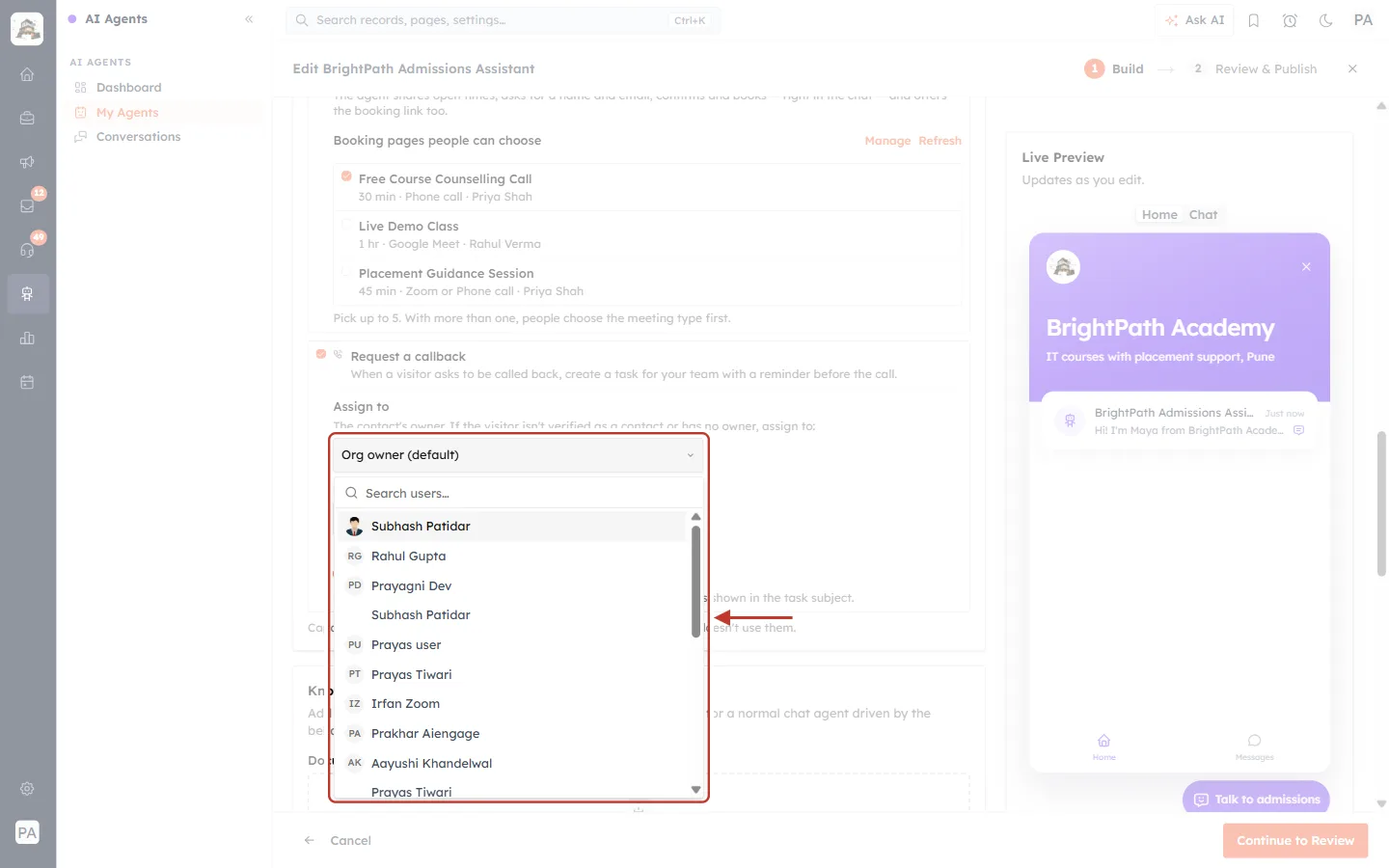
What this screenshot shows. The Assign to picker open, ringed, with the list of users.
The box at the top still shows the current choice, Org owner (default).
Search users… lets you type part of a name to find someone quickly.
Only active users are listed. Pick the person (for example, your admissions or sales lead) who should handle callbacks from new visitors.
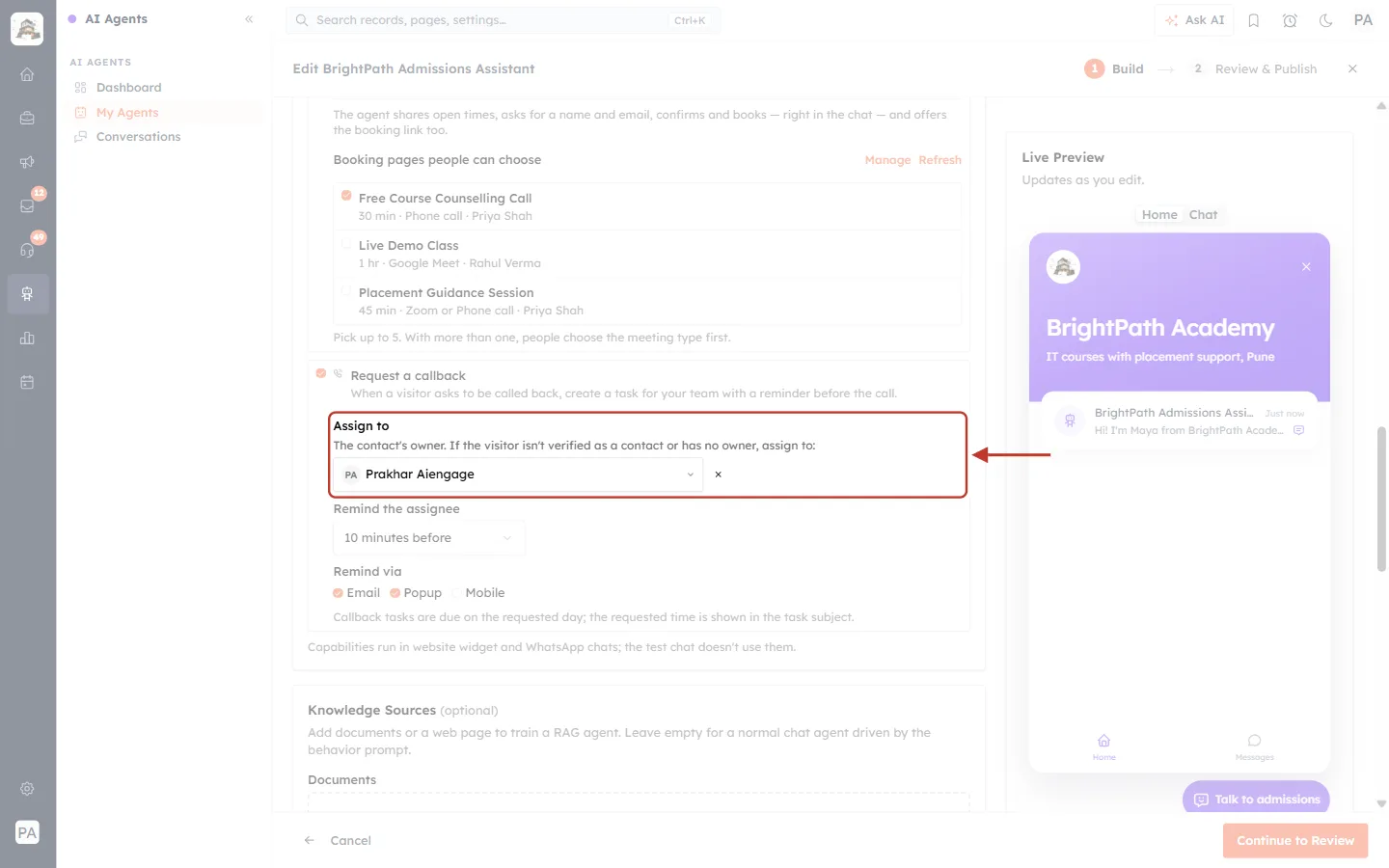
What this screenshot shows. The Assign to setting, ringed, after a user was picked.
The chosen user’s name now shows in the box (here, the sample user who handles admissions callbacks).
The × next to the box clears your choice and goes back to the org owner.
If this user is deactivated later, the agent skips them and gives the task to the org owner instead, so callbacks are never lost.
Next, choose when the assignee is reminded. Click the Remind the assignee drop-down.
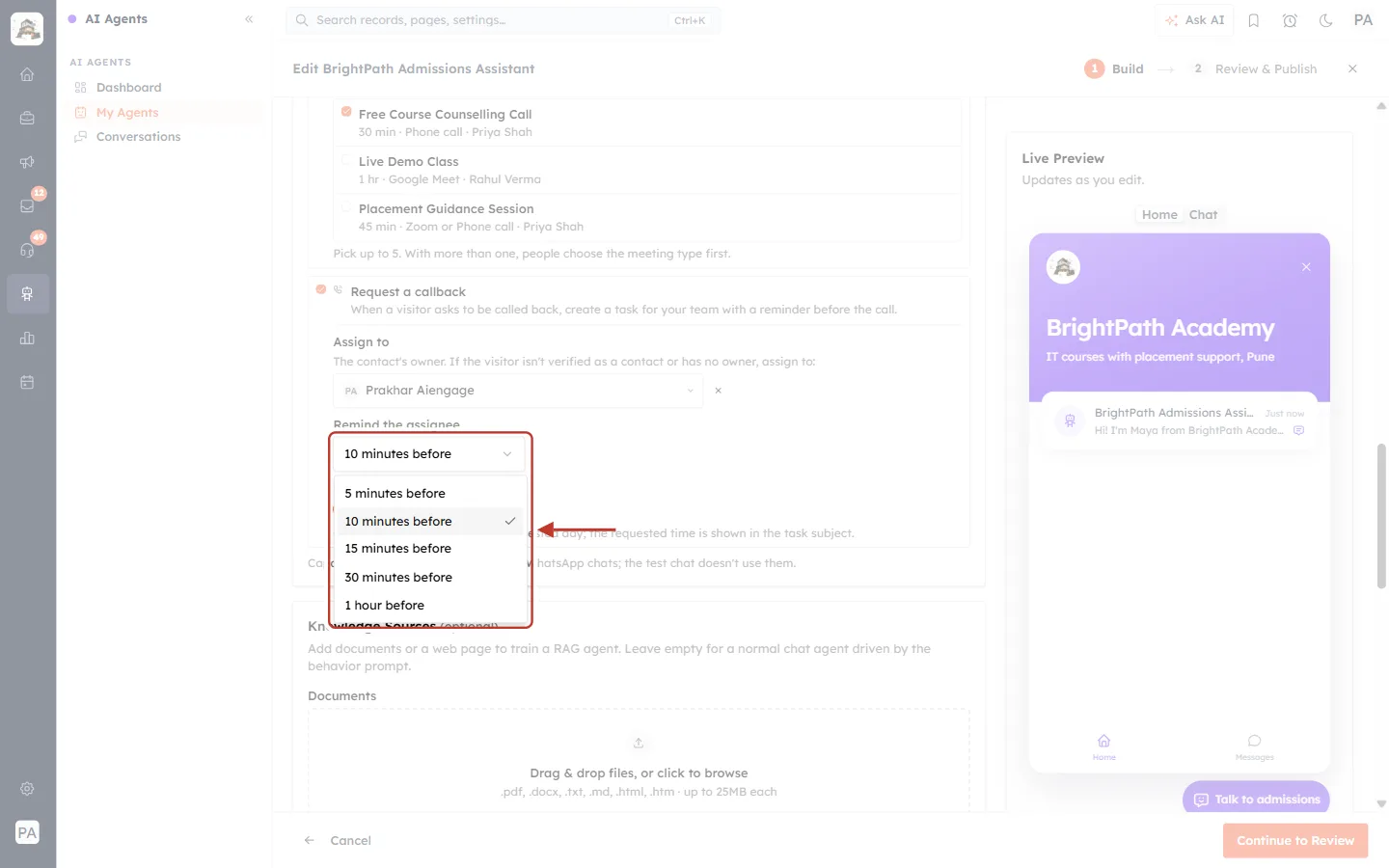
What this screenshot shows. The Remind the assignee drop-down open, ringed.
The options are 5 minutes before, 10 minutes before (the default, marked with a tick), 15 minutes before, 30 minutes before and 1 hour before.
The reminder is set for the requested call time minus this amount. For a call at 5:00 PM with “15 minutes before”, the reminder fires at 4:45 PM.
In this example we choose 15 minutes before.
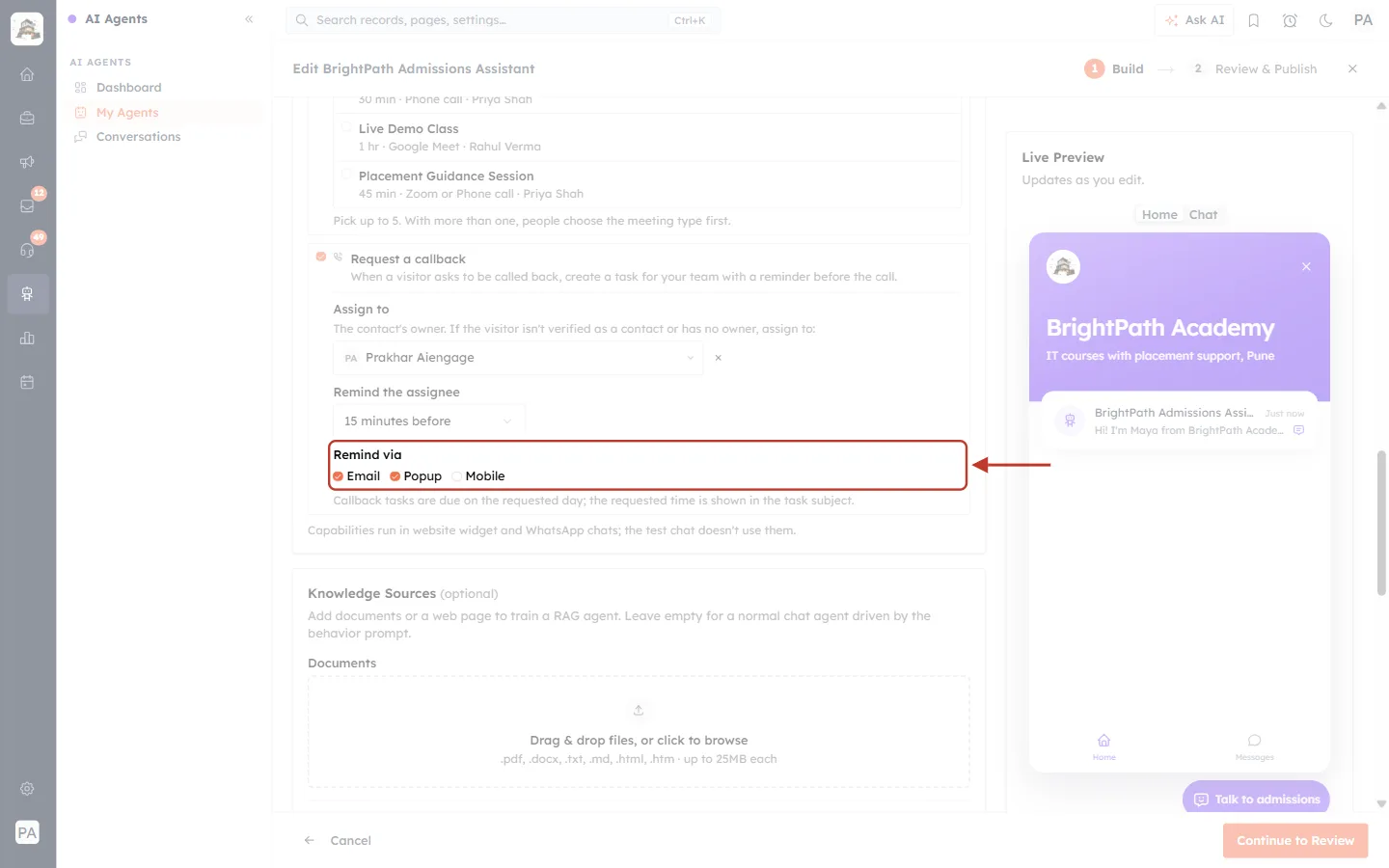
What this screenshot shows. The Remind via row, ringed.
Email: the assignee gets a reminder email.
Popup: a reminder pops up in the CRM while they are signed in. It also appears in the reminders panel (The Reminders Panel: See Due and Upcoming Reminders).
Mobile: a push notification on the AiEngage mobile app.
Tick at least one. With none ticked you see “Pick at least one way to remind them.” and can’t continue.
Your callback settings are now complete:
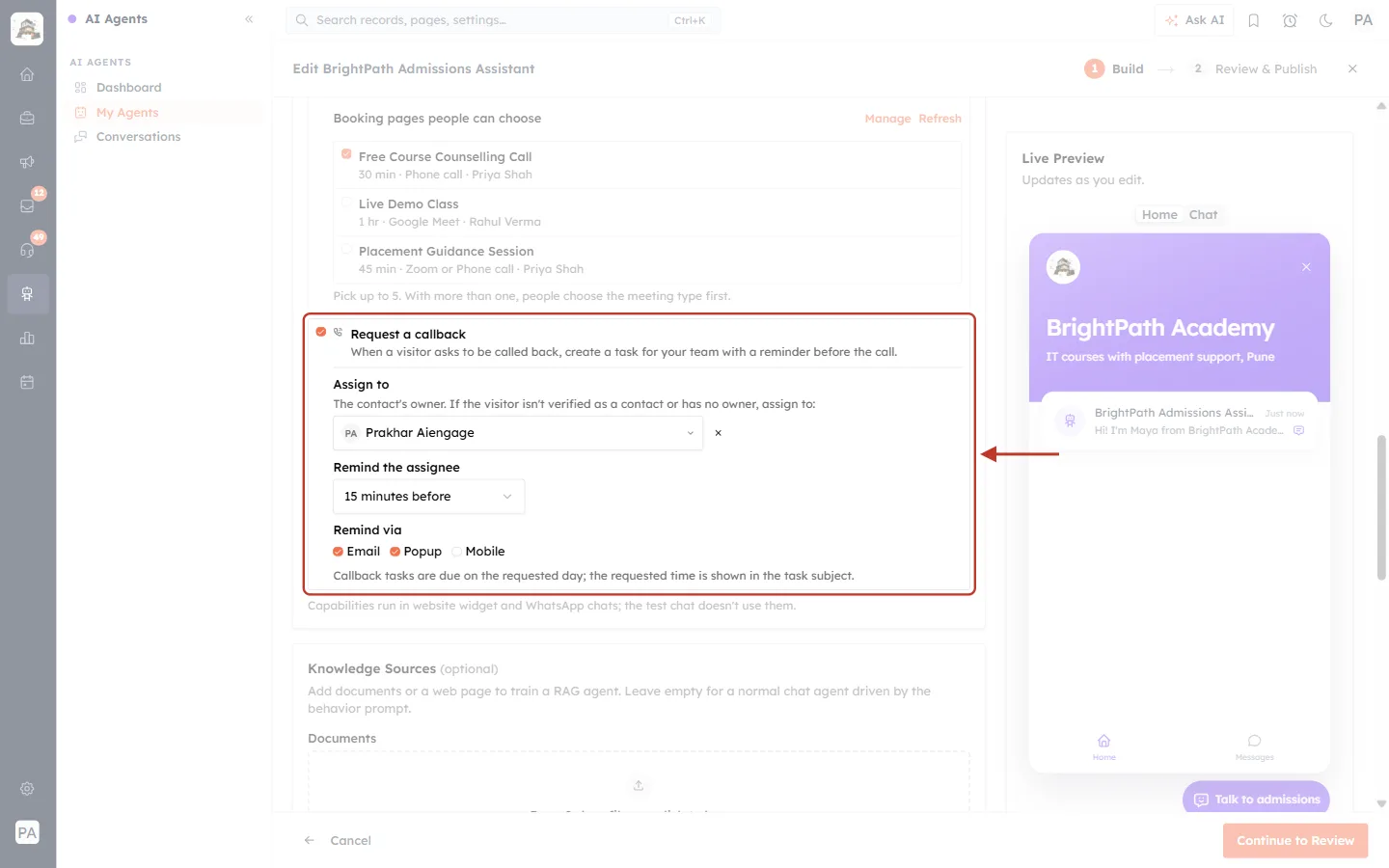
What this screenshot shows. The finished Request a callback settings, ringed.
Assign to: the chosen back-up user.
Remind the assignee: 15 minutes before.
Remind via: Email and Popup ticked, Mobile left off.
Above it, Book meetings is still on with Free Course Counselling Call picked.
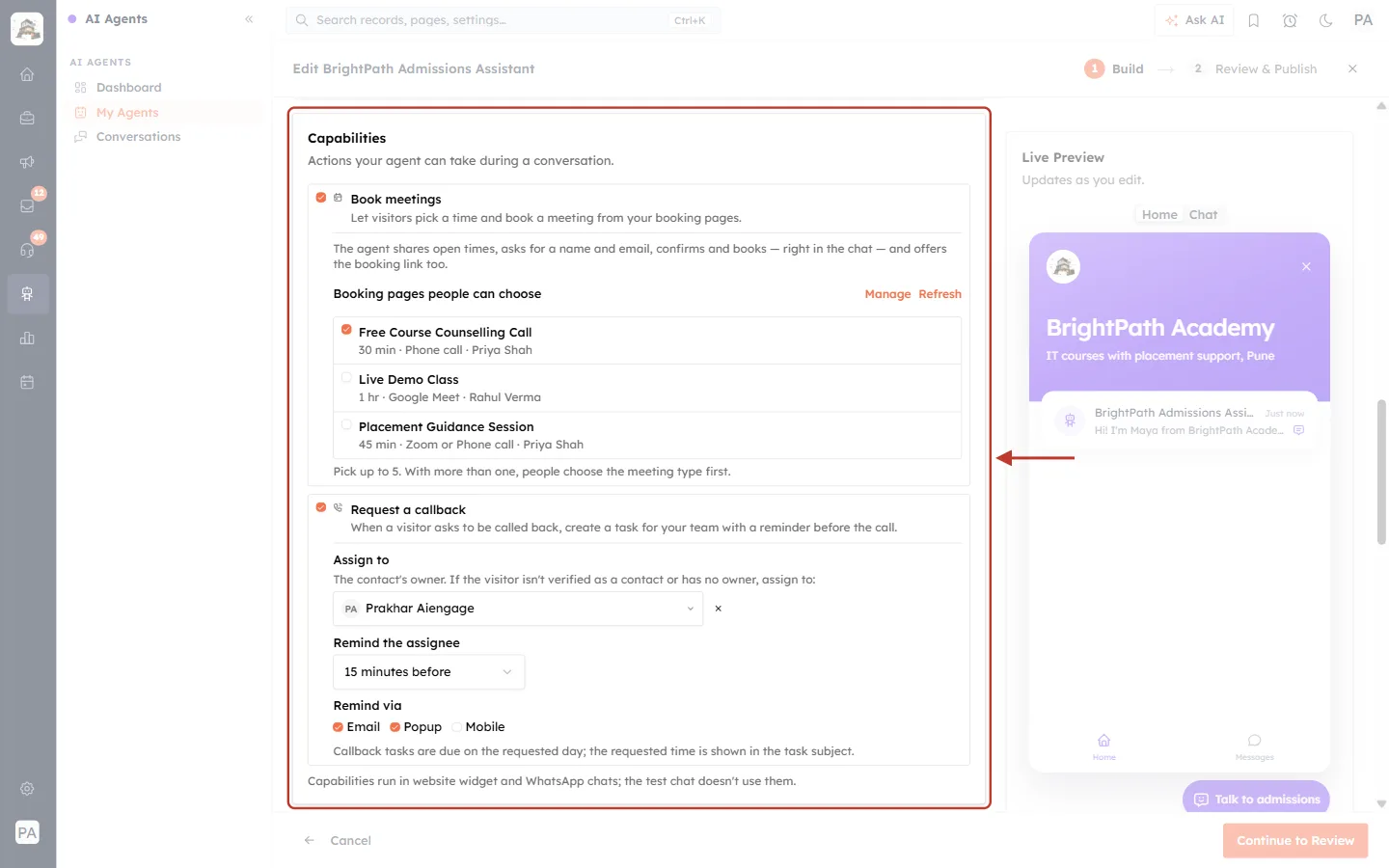
What this screenshot shows. The whole Capabilities card, ringed, with both capabilities switched on. Check it once before you continue.
Book meetings ticked, with the booking page you chose.
Request a callback ticked, with the assignee, reminder time and channels.
If a capability has a problem that blocks saving (no booking page picked, or no reminder channel), its box is outlined in red so you can find it.
Step 4: Review and publish#
Click Continue to Review at the bottom right. The Review & Publish step shows a summary of every setting.
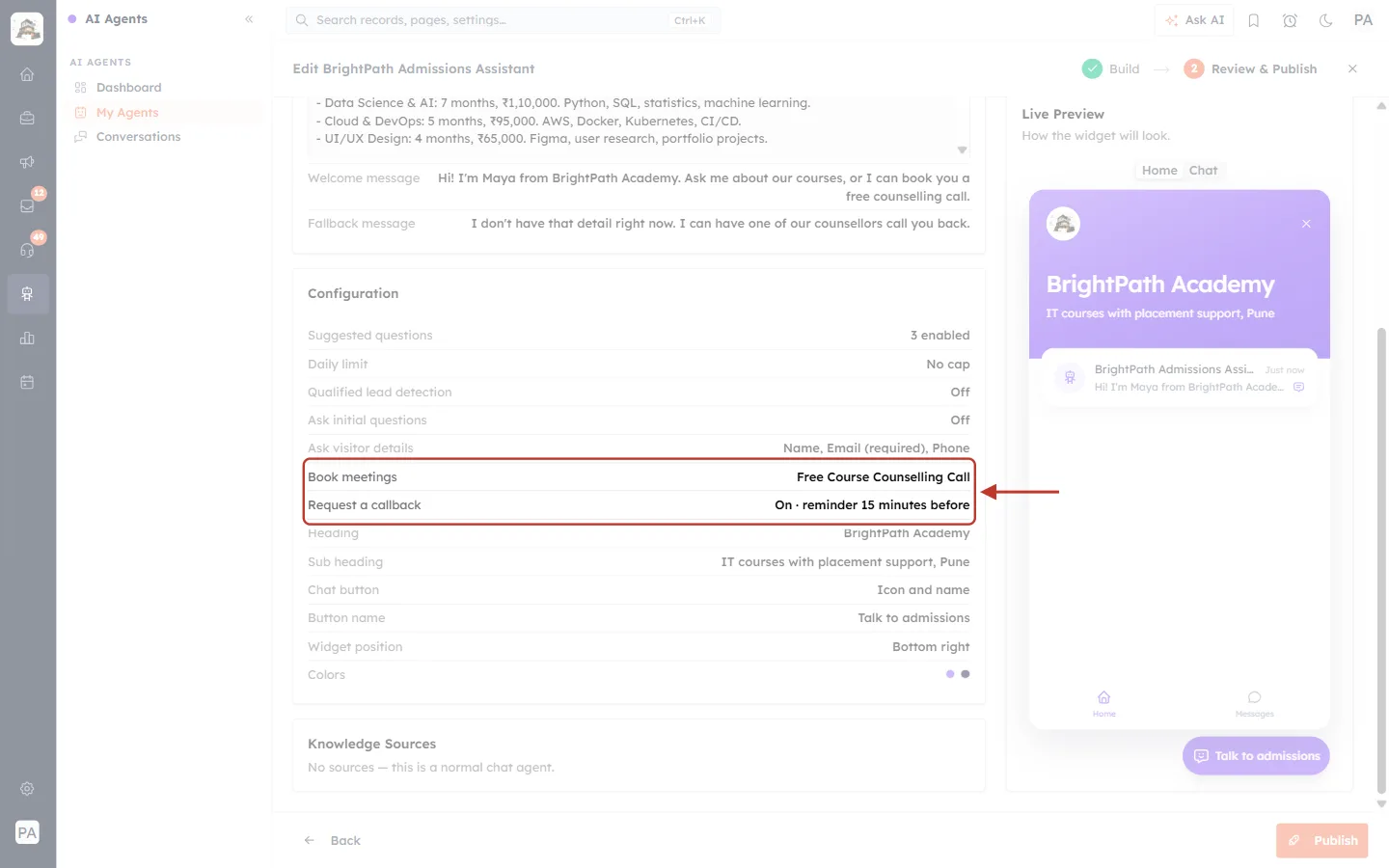
What this screenshot shows. The Configuration card on the Review & Publish step, with the two capability rows ringed.
Book meetings lists the booking pages you picked, here Free Course Counselling Call. If it is off, it says Off.
Request a callback shows On · reminder 15 minutes before.
The other rows (Suggested questions, Daily limit, Qualified lead detection, Ask initial questions, Ask visitor details, Heading, Chat button and so on) summarise the rest of the agent.
To change anything, click Back at the bottom left.
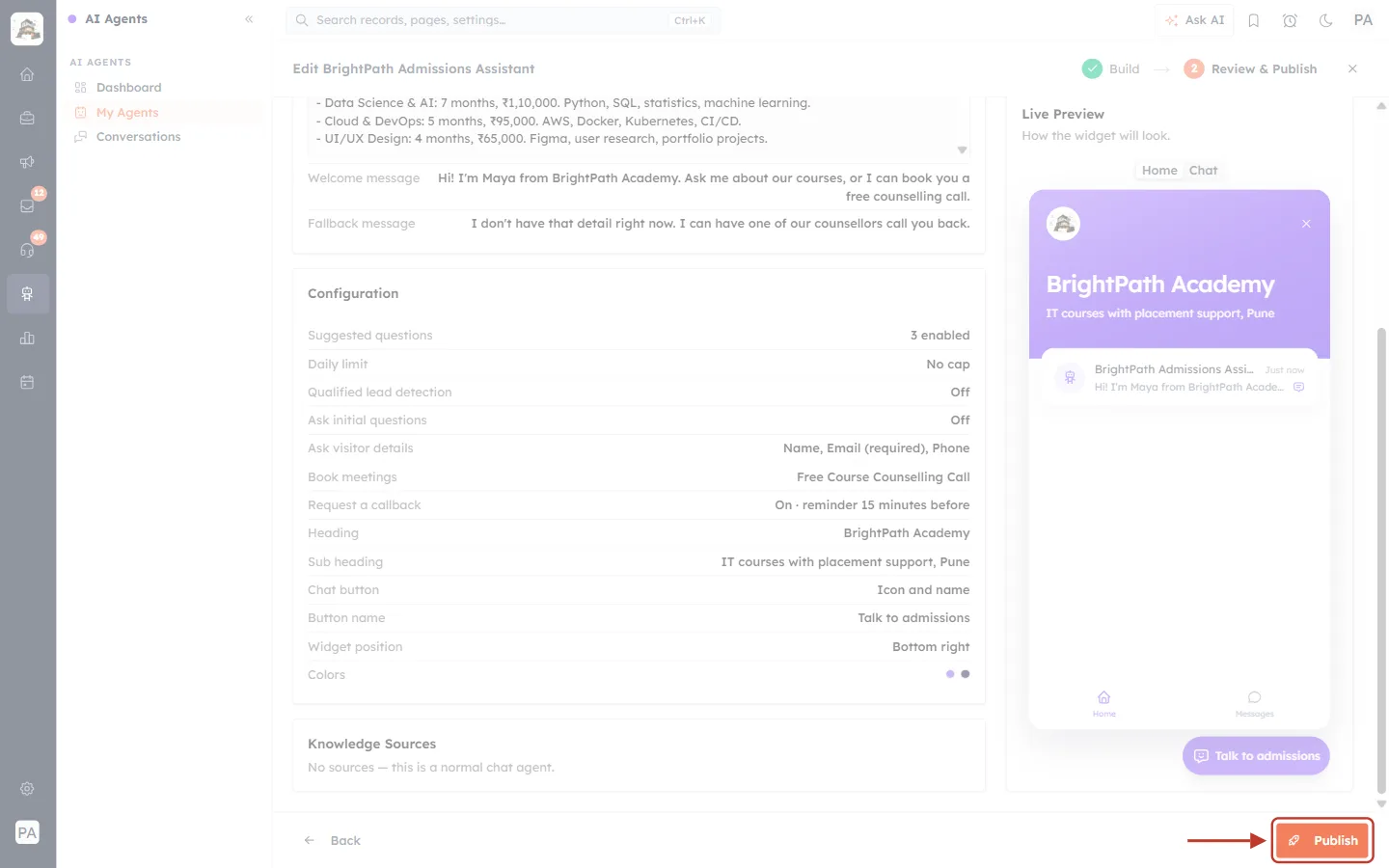
What this screenshot shows. The Publish button, ringed, in the bottom-right corner of the Review step.
Click Publish to save. The new settings apply to the agent’s next chats on your website and WhatsApp; you don’t need to change the website code.
After publishing, open the agent again. Its detail page now has a Capabilities card that shows exactly what the agent can do.
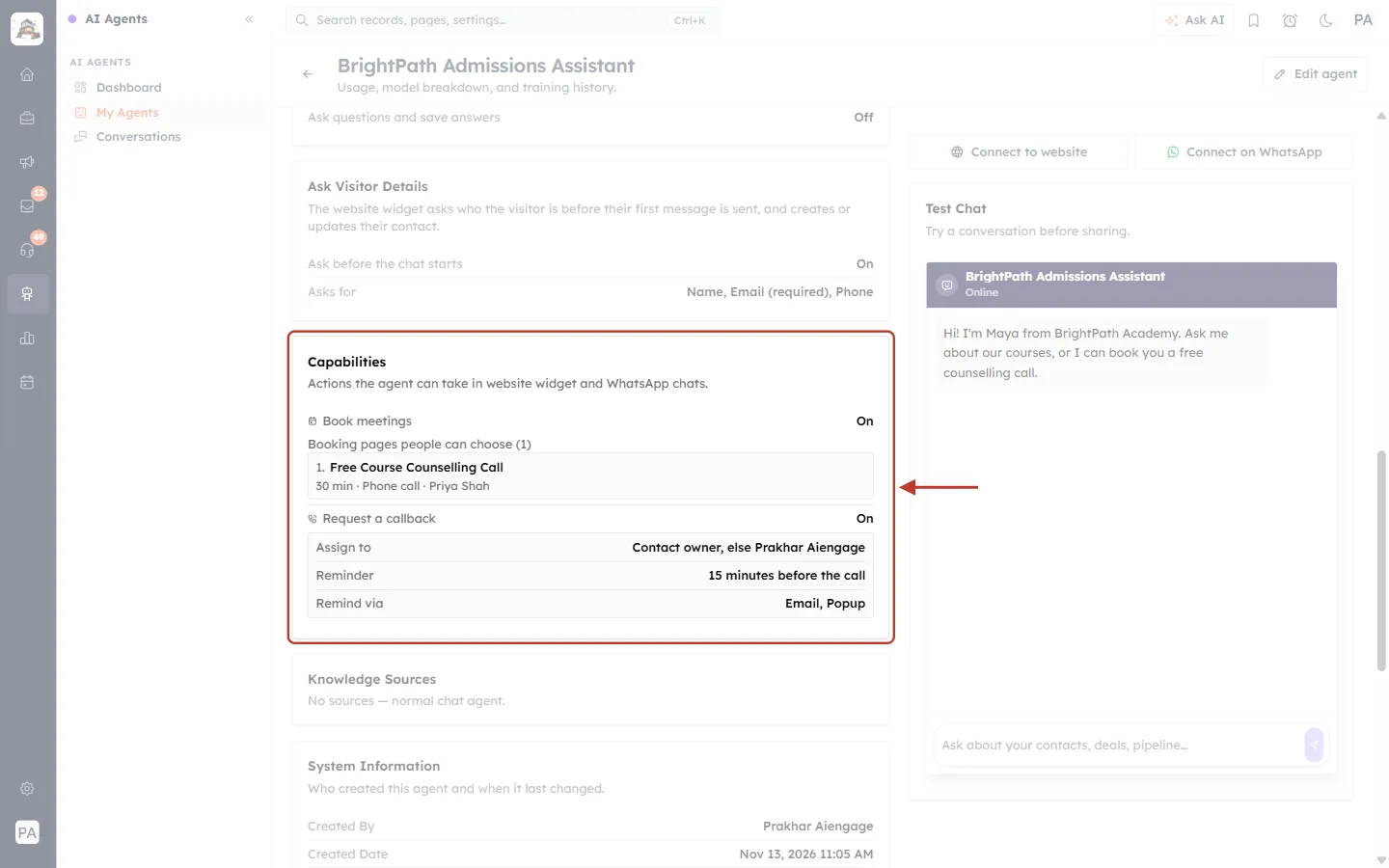
What this screenshot shows. The Capabilities card on the agent’s detail page, ringed.
The subtitle says “Actions the agent can take in website widget and WhatsApp chats.”
Book meetings: On, followed by Booking pages people can choose (1) and the numbered list of pages with their length, place and host.
Request a callback: On, with Assign to (Contact owner, else the user you picked), Reminder (15 minutes before the call) and Remind via (Email, Popup).
If a booking page has since been switched off or deleted, it is marked here too, so you can spot it without opening the editor.
Step 5: See how a visitor books a meeting in the chat#
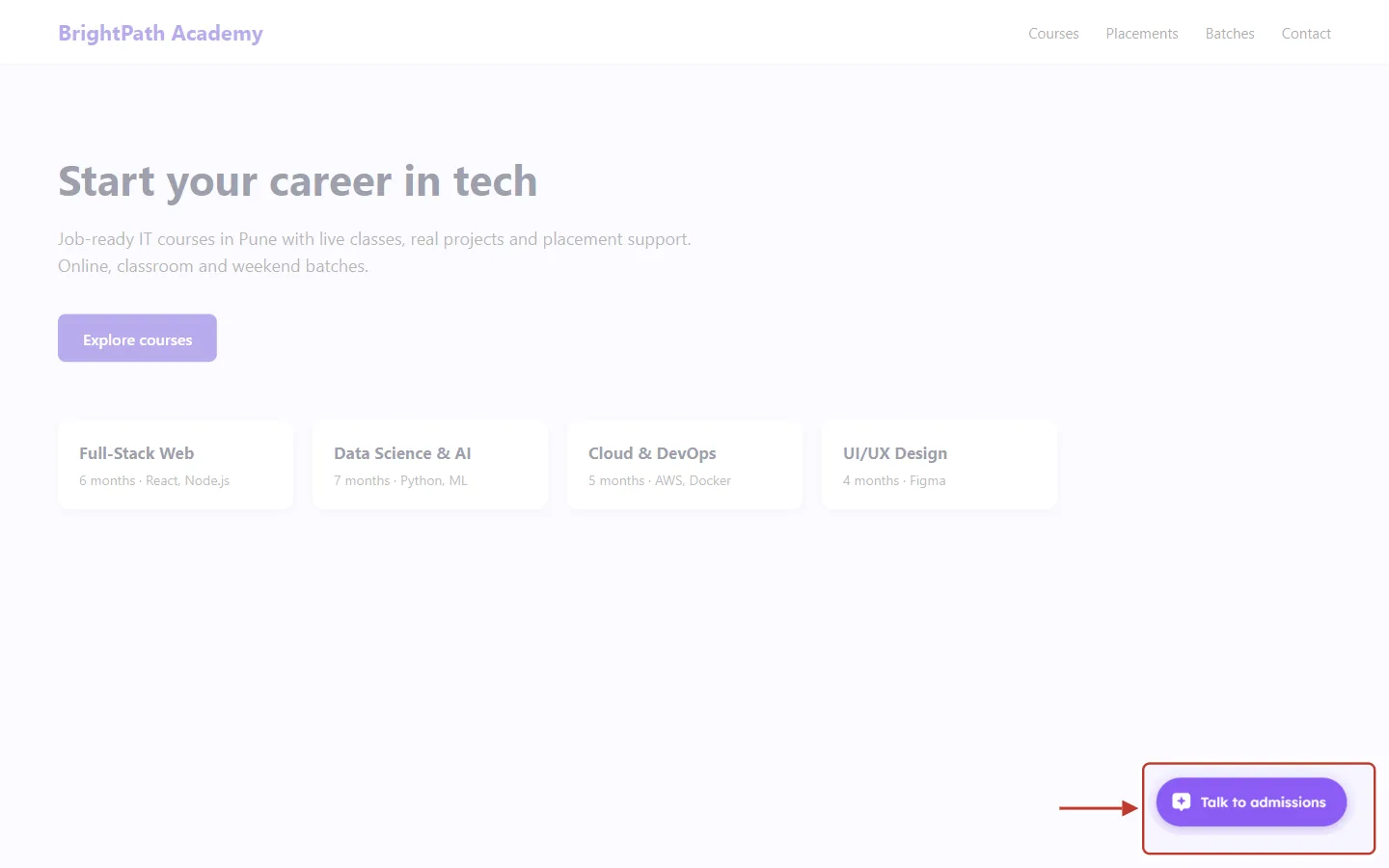
Here is what a visitor on your website sees. The sample site shows the agent’s chat button in the bottom-right corner.
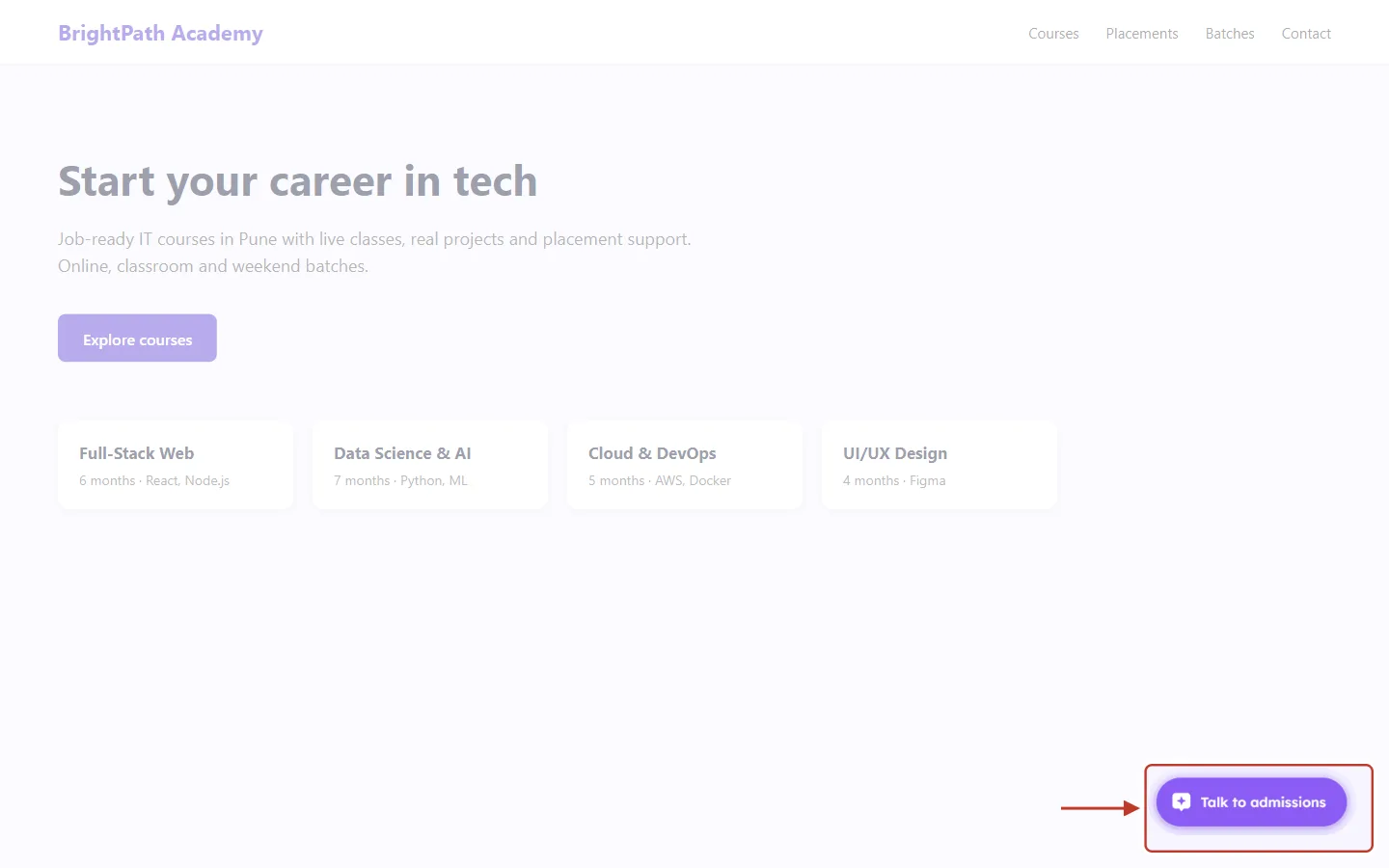
What this screenshot shows. The chat button on the website, ringed.
The button shows the name you set in the agent’s Appearance settings, here Talk to admissions.
Visitors click it to open the chat. The button sits bottom-right or bottom-left depending on the agent’s Widget position.
What this screenshot shows. The widget’s home screen, ringed.
The heading and sub-heading (BrightPath Academy, IT courses with placement support, Pune) come from the agent’s Appearance settings.
Send us a message starts a new chat with the agent.
Home and Messages tabs at the bottom switch between the home screen and the visitor’s earlier chats.
The visitor types their message: “Hi, I’d like to book a free counselling call to talk about the Data Science course.” Because this agent has Ask visitor details switched on, the widget first asks who they are.
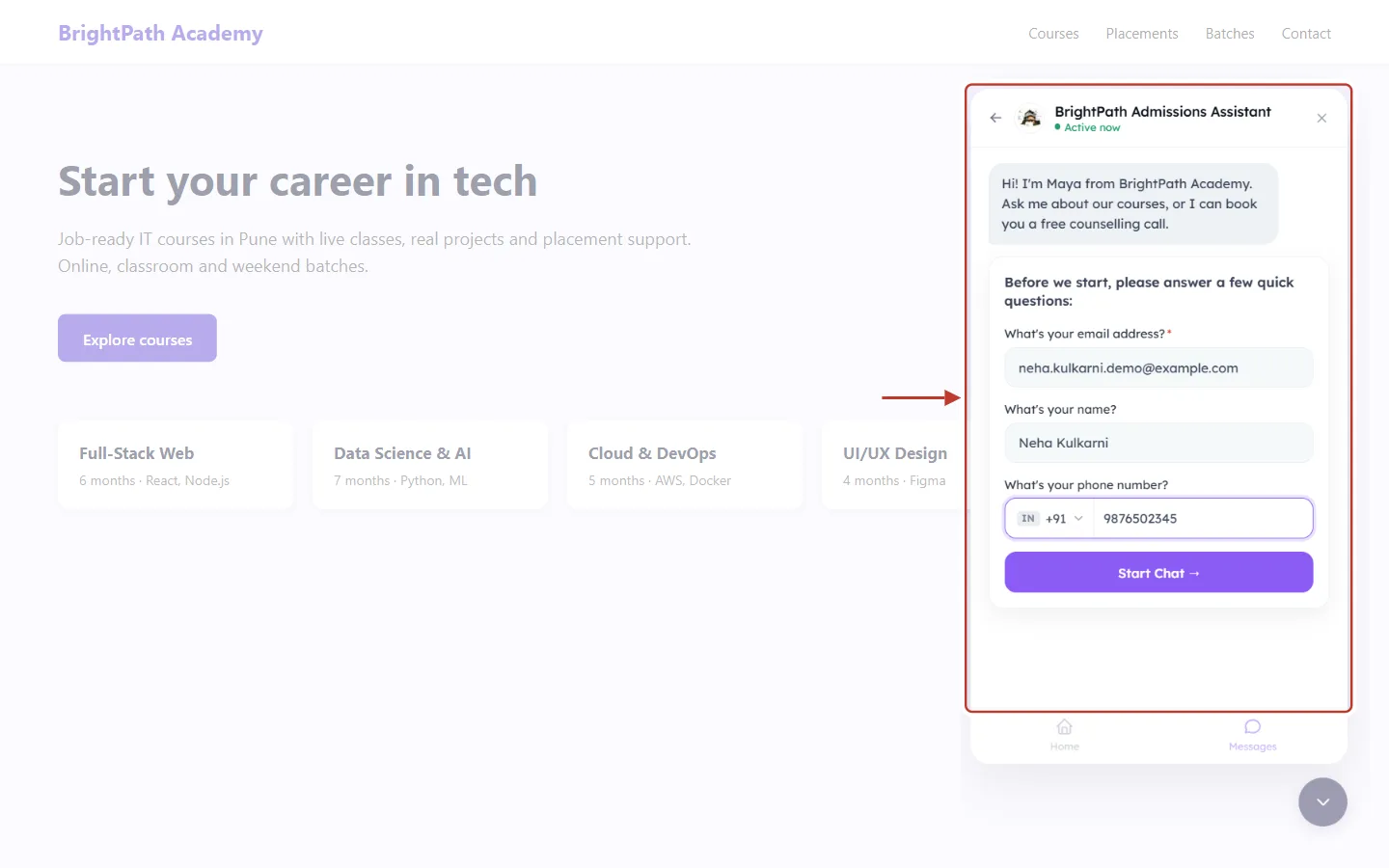
What this screenshot shows. The visitor details form, ringed, filled in by the sample visitor Neha Kulkarni.
Email (required here), Name and Phone (with a country code picker).
Start Chat sends the details and the visitor’s first message. The details create or update a contact in your CRM.
The agent already knows the visitor’s name and email for the booking, so it doesn’t have to ask again. (Ask visitor details is explained in Data Mapping with Your AI Agent on Chat.)
The agent looks up real open times for the booking page and replies with a short list.
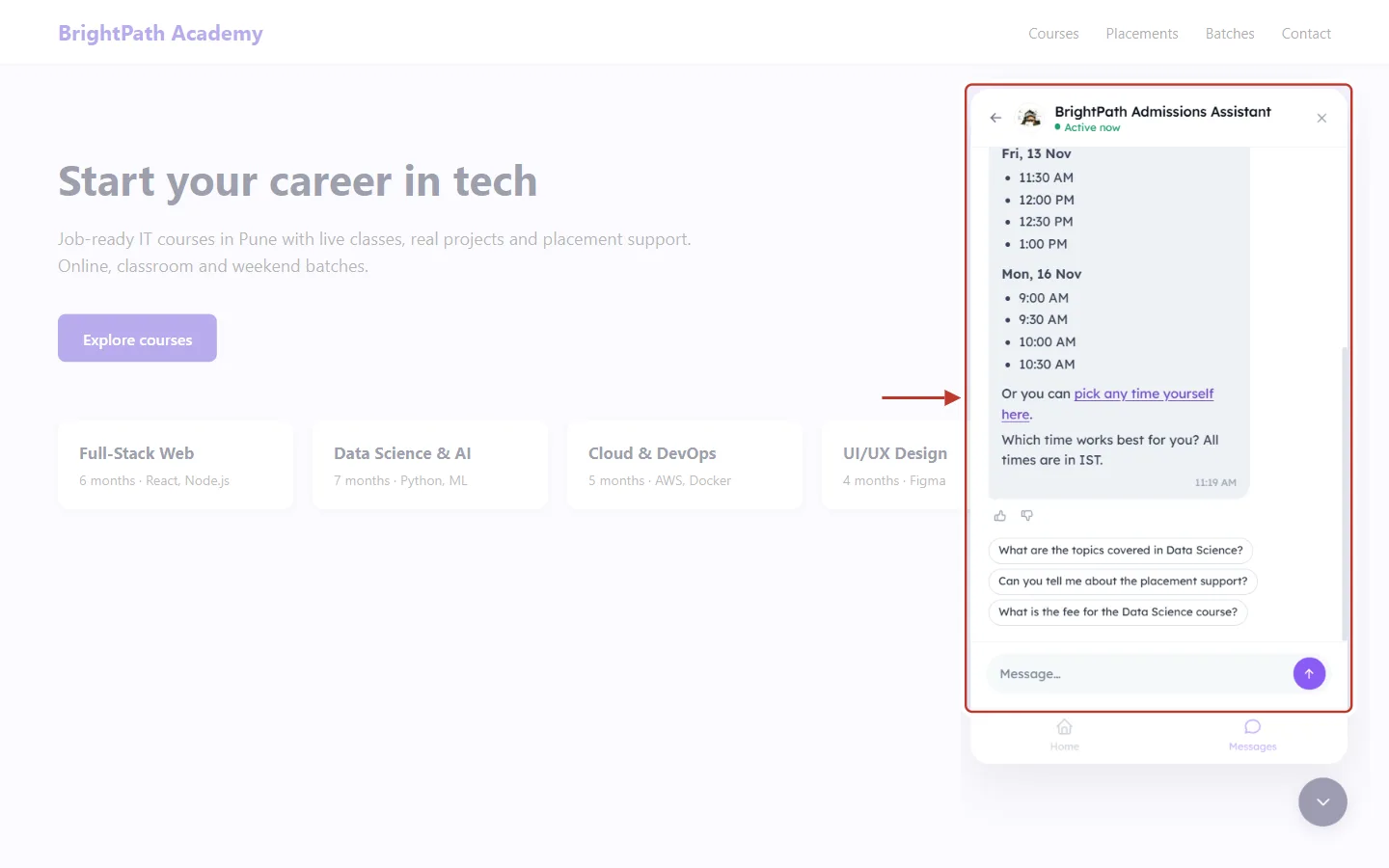
What this screenshot shows. The agent’s reply in the chat panel, ringed. These times are read live from the booking page’s availability.
Open times are grouped by day, for example Fri, 13 Nov: 11:30 AM, 12:00 PM, 12:30 PM, 1:00 PM and Mon, 16 Nov: 9:00 AM to 10:30 AM. The agent shows a few days at a time; the visitor can ask for other days.
Only times the booking page really offers are shown: its working hours, minimum notice, buffers and existing bookings are all respected, exactly as on the public booking page.
pick any time yourself here is a link to the booking page, for visitors who prefer to choose from the full calendar.
“All times are in IST.”: times are shown in the visitor’s own time zone (the website widget uses the browser’s time zone).
Below the reply are suggested follow-up questions the visitor can tap.
The visitor picks a time: “Monday 16 Nov at 10:00 AM works for me.” Before booking anything, the agent repeats the details and asks for a final yes.
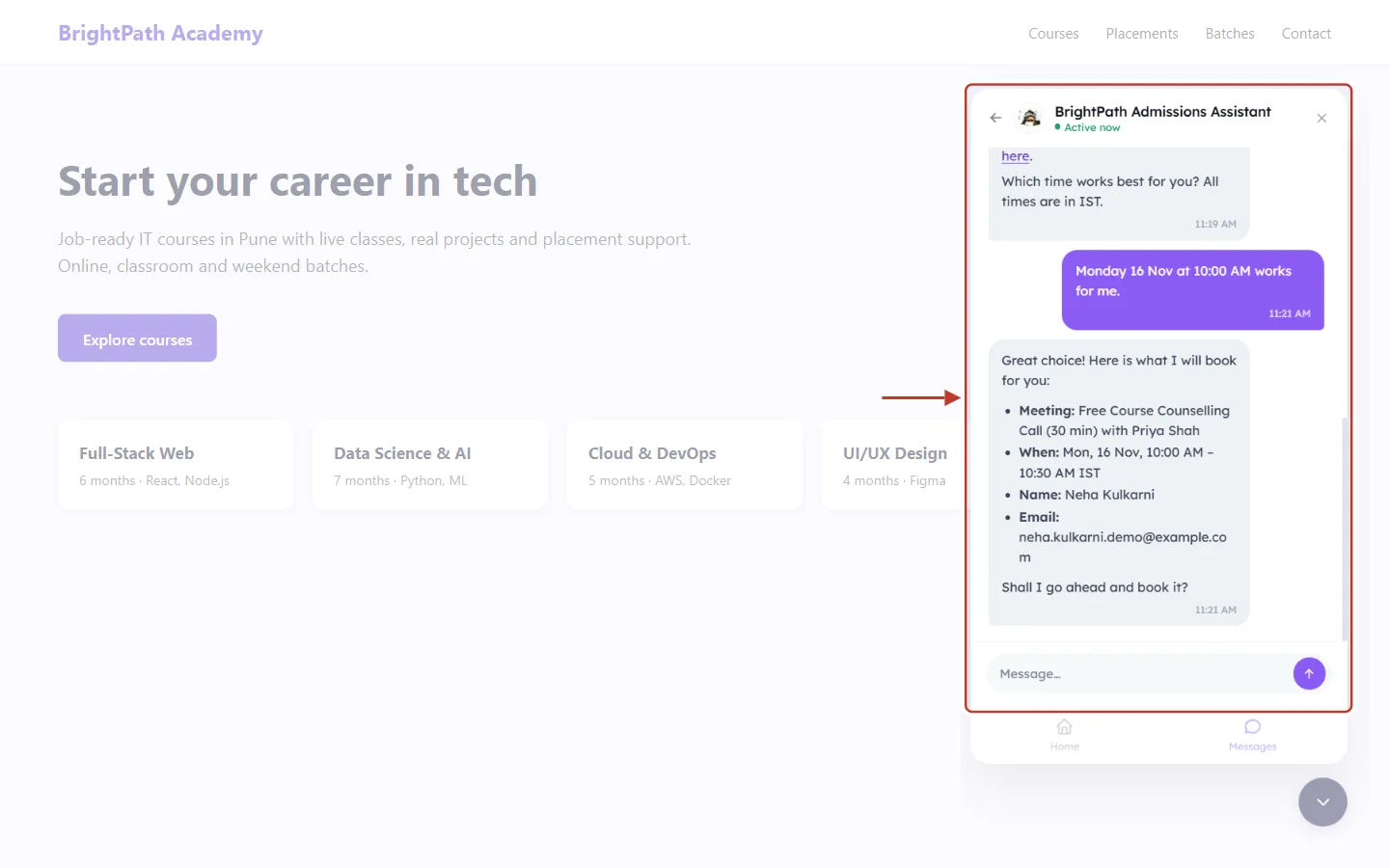
What this screenshot shows. The agent’s confirmation message, ringed. This is an example of the confirm step.
Meeting: the booking page and its length, with the host.
When: the day, start and end time, and the time zone.
Name and Email: who the meeting is booked for. These come from the visitor details form; if the agent didn’t have them, it would ask for them here.
“Shall I go ahead and book it?”: nothing is booked until the visitor says yes.
The visitor replies “Yes, please book it.” and the agent books the meeting.
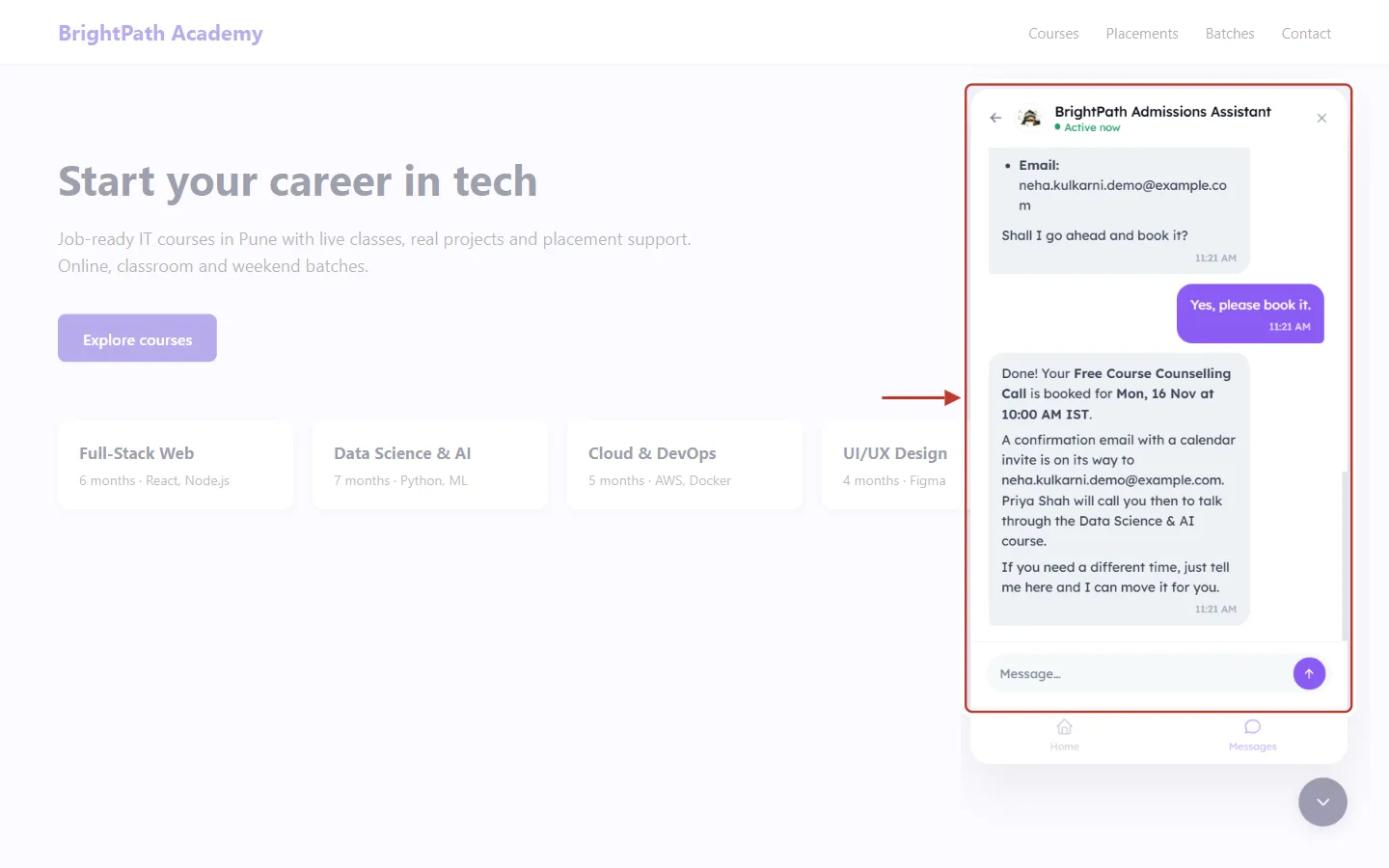
What this screenshot shows. The booking confirmation in the chat, ringed. This is an example of the final message.
The agent confirms the meeting and the time: Free Course Counselling Call on Mon, 16 Nov at 10:00 AM IST.
The booking is made through the same booking engine as your public booking page. If someone else took the time a moment earlier, the agent says so and offers other times instead.
The visitor is told a confirmation email with a calendar invite is on its way.
If they need a different time later, they can ask in the same chat and the agent moves the meeting.
What happens in your CRM after the agent books? Exactly the same as when someone books on your booking page: a Meeting record is created on the host’s calendar with the status Scheduled, the visitor’s contact is found by email (or created), and the confirmation emails with a calendar invite go to both the visitor and the host. For every detail, see What Happens After Someone Books.
ℹ️
Rescheduling. A visitor can ask the agent to move a meeting it booked in the same chat (“Can we make it 11 instead?”). The agent finds new times, confirms once and moves the same meeting, so the join link stays the same and a “new time” email is sent. The agent can’t cancel meetings, and it can’t move meetings that were booked somewhere else; for those, use the link in the confirmation email or change the meeting in the CRM.
Step 6: See how a visitor requests a callback#
A second visitor, Rohan Mehta, is busy at work and would rather talk on the phone. After filling in the same visitor details form, he writes: “Can a counsellor call me back tomorrow at 5 PM?”
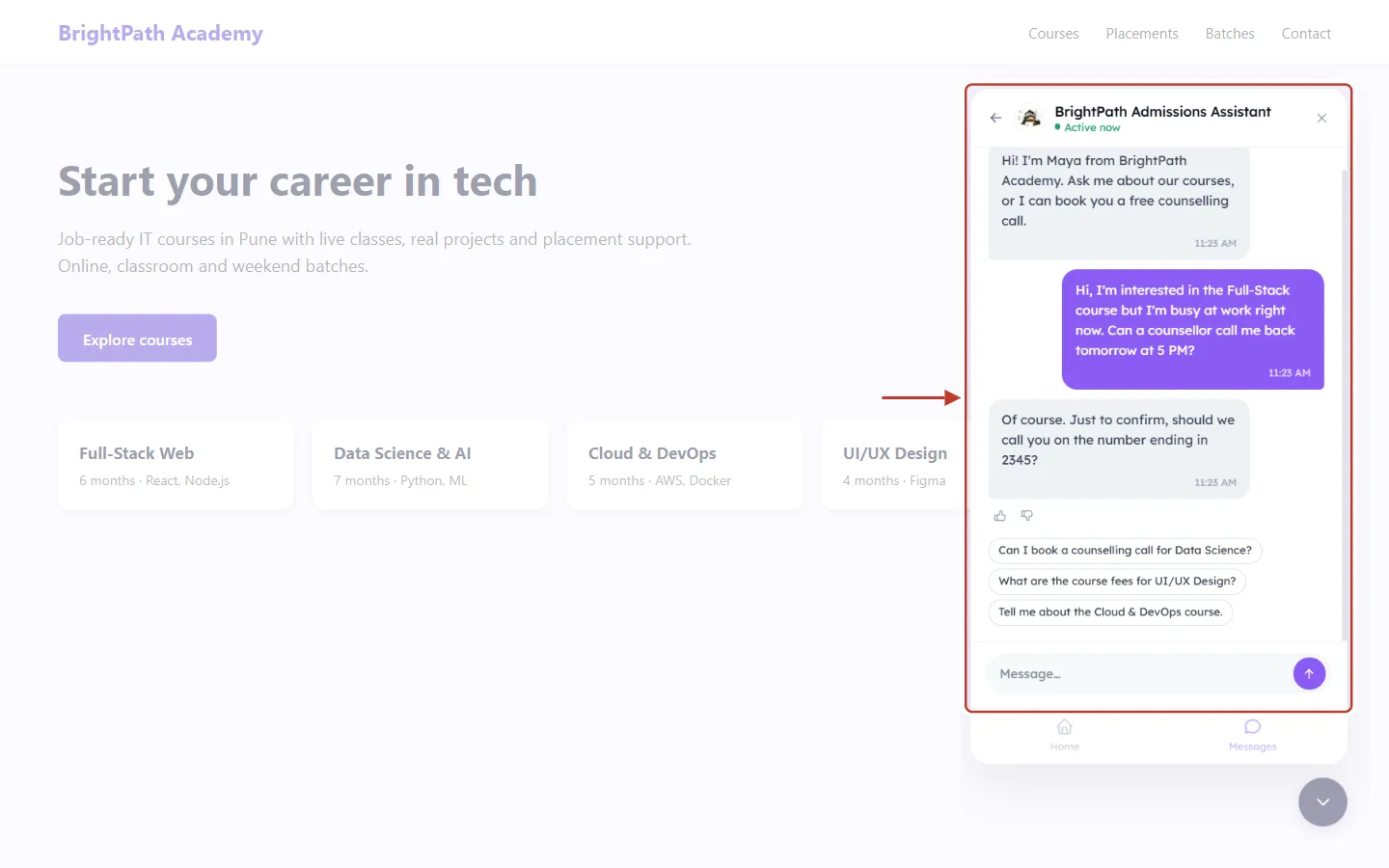
What this screenshot shows. The agent’s first reply, ringed: it checks which number to call.
The agent understands the day and time in plain language (“tomorrow at 5 PM”) and works it out in the visitor’s time zone.
“Just to confirm, should we call you on the number ending in 2345?”: the agent uses the number the visitor gave in the details form, and shows only the last four digits for privacy.
On WhatsApp, the agent uses the WhatsApp number of the chat.
If no number is known, the agent asks for one. It only ever uses a number the visitor actually typed; it never guesses one.
Rohan replies “Yes, that’s right.” The agent creates the callback task and confirms.
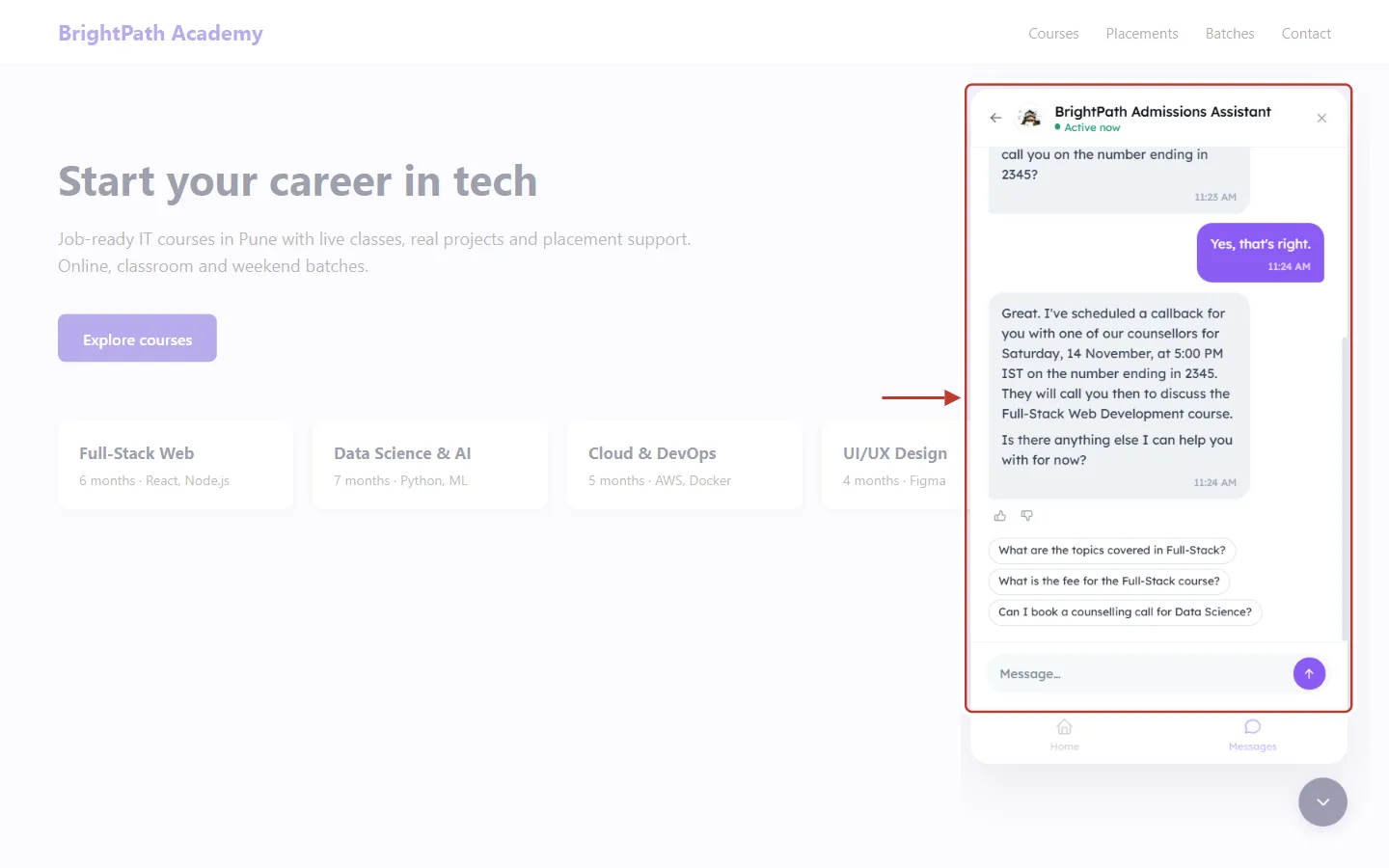
What this screenshot shows. The agent’s confirmation, ringed.
The callback is set for Saturday, 14 November, at 5:00 PM IST on the number ending in 2345.
The agent mentions what the call is about (here, the Full-Stack Web Development course) and offers more help.
If the visitor changes their mind in the same chat (“make it 6 instead”), the agent moves the same task rather than creating a second one.
Callbacks can be set from 15 minutes from now (or longer, if your reminder is set further ahead) up to 30 days ahead. Outside that range, the agent suggests the earliest or latest possible time.
Step 7: Find and handle the callback task#
The callback appears in your Tasks list straight away. Open Tasks from the CRM menu.
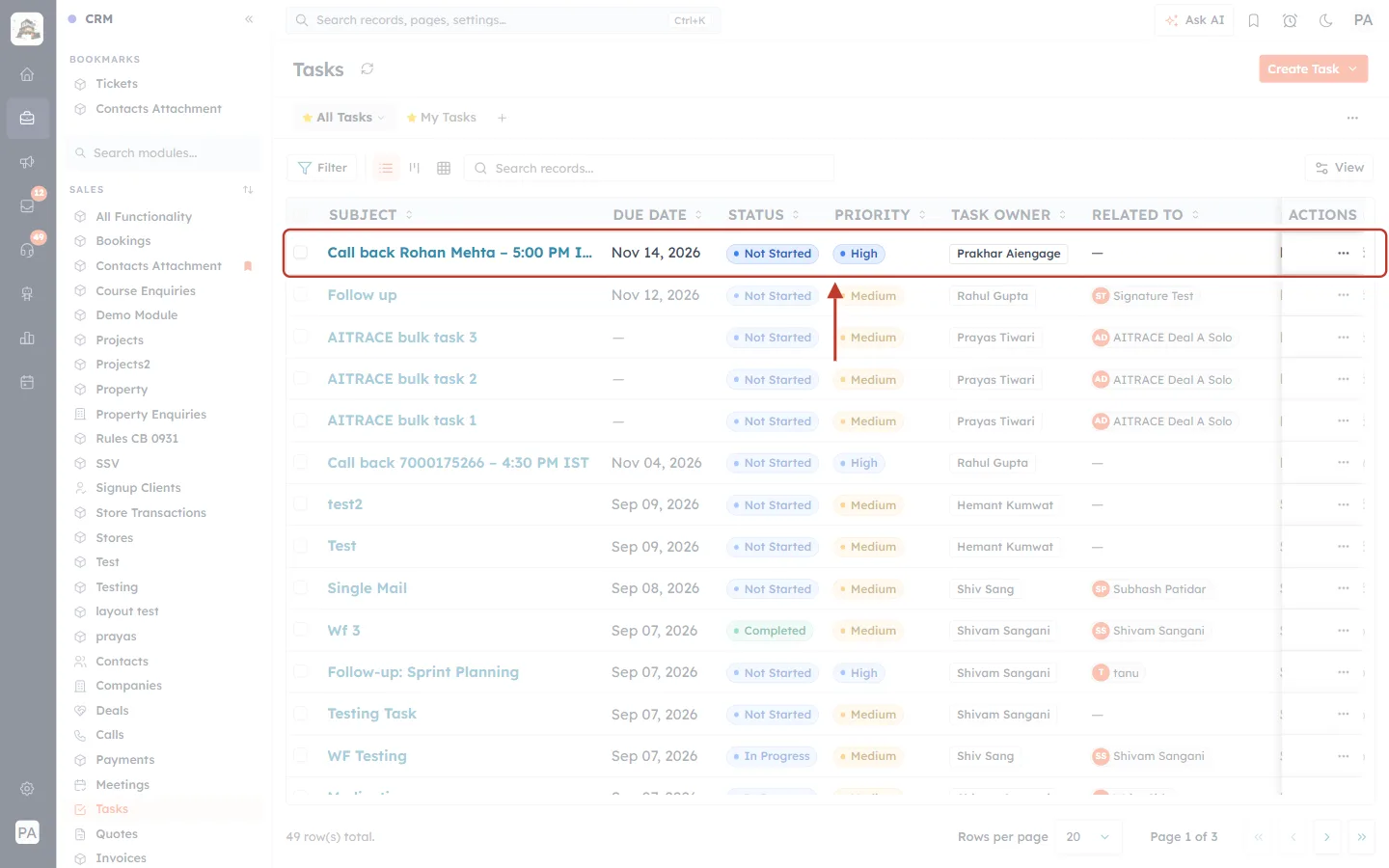
What this screenshot shows. The Tasks list, with the new callback task ringed at the top.
Subject: Call back Rohan Mehta – 5:00 PM IST. The subject always starts with “Call back”, then the person’s name (or their number if no name is known), then the requested time and time zone.
Due Date: Nov 14, 2026, the day of the call.
Status: Not Started. Priority: High, so callbacks stand out.
Task Owner: the user the task went to (see Step 3 for how it is chosen).
Related To: the visitor’s contact when they are verified; empty here because the email Rohan typed matched a contact that already existed, and a typed email doesn’t prove who someone is.
Click the task to open it.
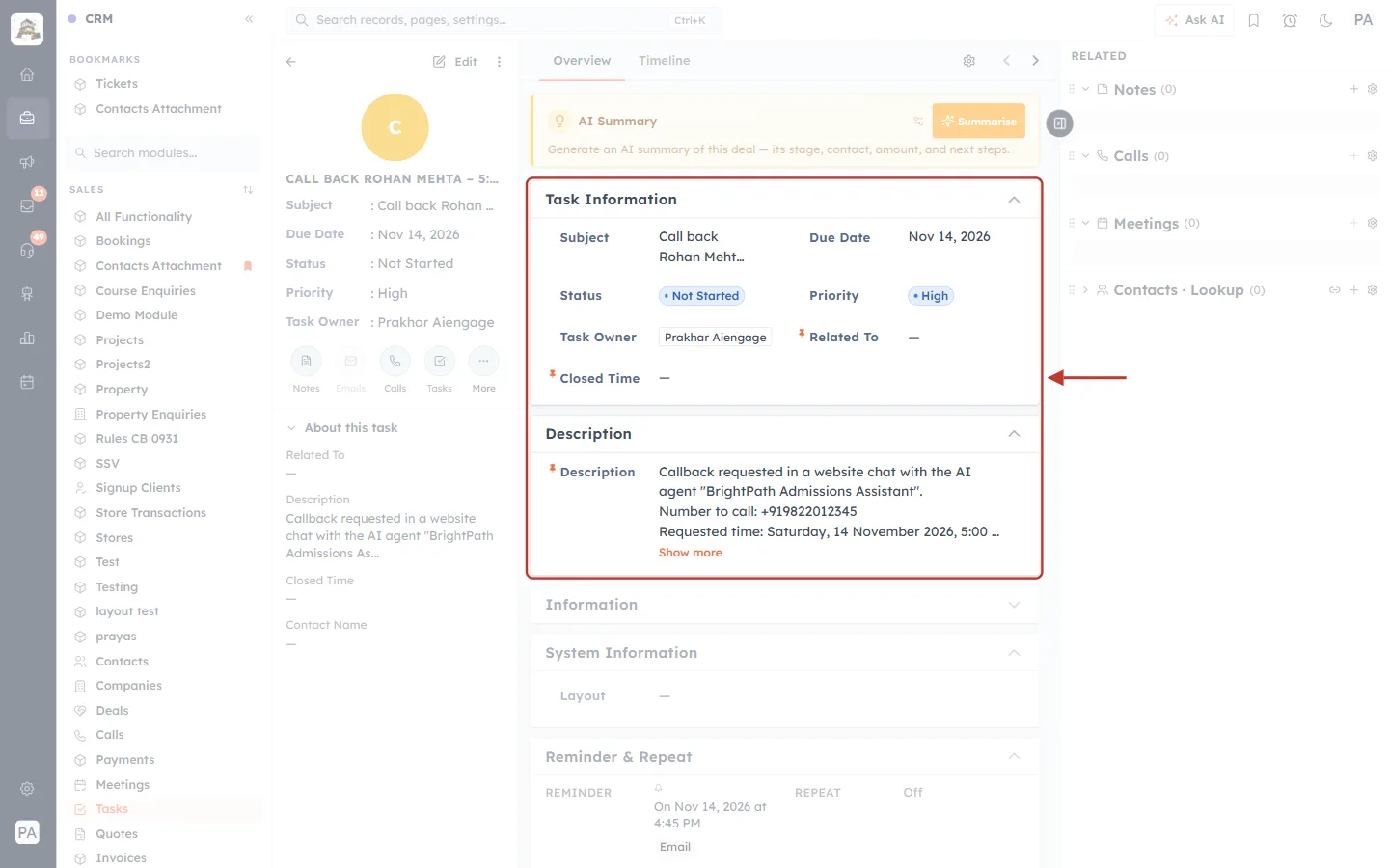
What this screenshot shows. The callback task record, with Task Information and Description ringed.
Subject, Due Date, Status, Priority and Task Owner match the list.
Related To is empty because the visitor wasn’t verified as a contact, so the task went to the Assign to user from Step 3.
The Description holds the details the caller needs. Click Show more to read all of it.
Edit the task like any other: change the owner, add notes, or mark it Completed after the call.
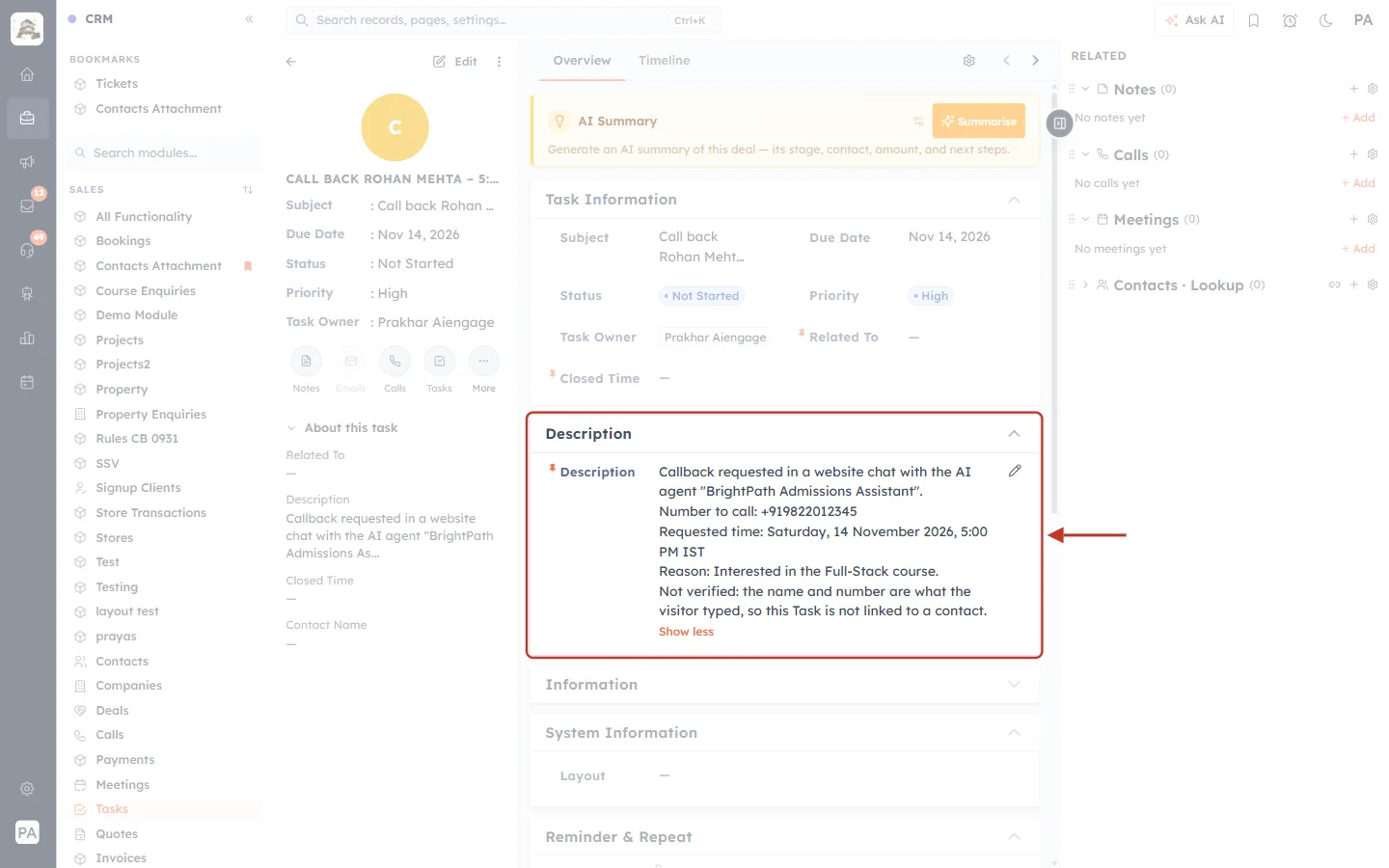
What this screenshot shows. The Description card, ringed and expanded.
Callback requested in a website chat with the AI agent “BrightPath Admissions Assistant”.: where the request came from (website chat or WhatsApp chat) and which agent took it.
Number to call: +919822012345: the full number to dial.
Requested time: Saturday, 14 November 2026, 5:00 PM IST: in your organization’s time zone. If the visitor is in a different time zone, a Their local time line is added as well.
Reason: Interested in the Full-Stack course.: what the visitor wants to talk about, when they said so.
Not verified: the name and number are what the visitor typed, so this Task is not linked to a contact.: added only for visitors who aren’t verified. Treat the details as unconfirmed until you speak to them.
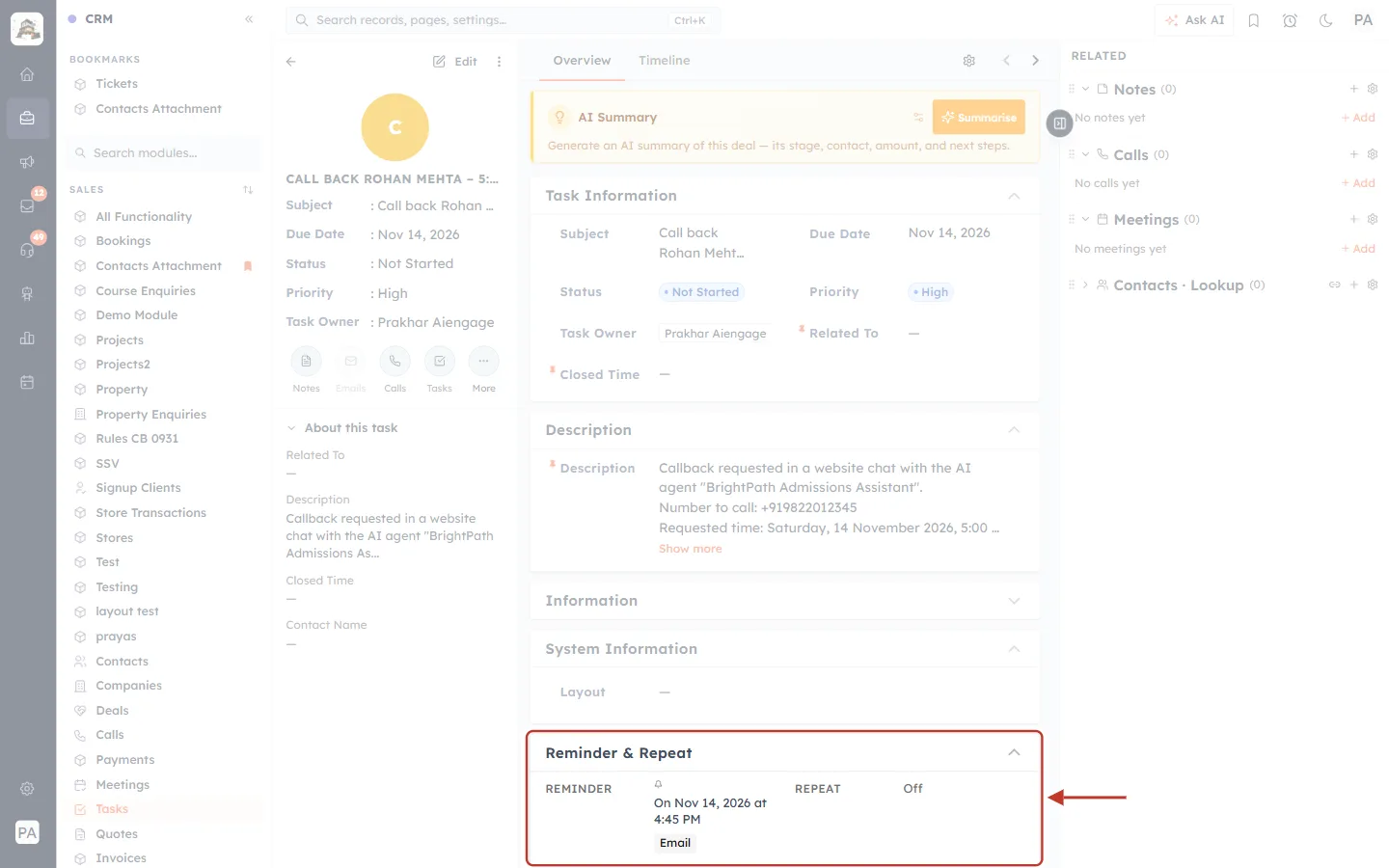
What this screenshot shows. The Reminder & Repeat card, ringed.
Reminder: On Nov 14, 2026 at 4:45 PM, which is the 5:00 PM call minus the 15 minutes chosen in Step 3.
The reminder is delivered through the channels you ticked in Remind via.
Repeat: Off. A callback is a one-off task.
You can change the reminder on the task like any other reminder. See Set a Reminder on a Task, Meeting or Call.
✅
Make callbacks easy to find. Create a list view on Tasks filtered by Subject contains “Call back” and Status is Not Started, so your team sees every open callback in one place. See Create and Complete Tasks.
Verified visitors and contact owners#
The agent only links a callback to a contact, and gives it to that contact’s owner, when it is sure the visitor is that contact:
Situation | Task linked to contact? | Task goes to |
|---|---|---|
WhatsApp chat from a number that belongs to a contact, or a website visitor signed in through visitor identity | Yes | The contact’s owner |
First-time website visitor: the details form creates a new contact in this chat | Yes, to the new contact | The new contact’s owner (new contacts are owned by the org owner unless you change it) |
Website visitor whose typed email matches a contact that already exists | No (marked “Not verified”) | The user in Assign to, else the org owner |
Visitor with no details at all | No (marked “Not verified”) | The user in Assign to, else the org owner |
Verified contact with no owner, or an owner who is deactivated | Yes | The user in Assign to, else the org owner |
ℹ️
Why is a matching email not enough? Anyone can type someone else’s email into a website form. To keep your customers’ records safe, the agent never attaches a typed request to an existing contact on that basis alone.
Limits that protect your calendar and team#
Limit | Book meetings | Request a callback |
|---|---|---|
Booking pages per agent | Up to 5 | — |
How far ahead | As far as the booking page allows (the agent looks up to 2 weeks ahead in the chat; the booking link shows the rest) | From 15 minutes ahead (longer if your reminder is longer) up to 30 days |
Per chat, per day | 3 bookings and 5 reschedules | 5 callbacks set or moved (3 for unverified visitors) |
Per person, per day | 3 bookings per email address | 3 callbacks per phone number (2 for unverified visitors) |
When a limit is reached, the agent tells the visitor politely and suggests another way to reach you. These limits stop abuse; ordinary visitors never hit them.
Troubleshooting#
Problem | What to check |
|---|---|
The test chat doesn’t book or create callbacks. | That is expected. Capabilities only run in website widget and WhatsApp chats. Test on your website (a private browser window works well) or on WhatsApp. |
The booking page list is empty. | You have no active booking pages. Create one, or switch one on, in Meeting Calendar (Create a Booking Calendar (Booking Link) Step by Step), then click Refresh. |
A booking page I want isn’t in the list. | It is switched off in Meeting Calendar. Switch it on and click Refresh. |
“A picked booking page was switched off or deleted.” | Click Remove on that row, or switch the page back on in Meeting Calendar and click Refresh. |
Continue to Review is disabled. | Book meetings is ticked with no page picked, a picked page was switched off, or Request a callback has no Remind via channel ticked. The card with the problem is outlined in red. |
The agent says there are no times available. | The booking page has no open times in the next days. Check its availability, booking window and minimum notice. See “No times are available right now”: Fix an Empty or Unavailable Booking Page. |
The agent offered a time but the booking failed. | Someone else booked that time a moment earlier. The agent offers other times; the visitor picks again. |
No callback task was created. | Make sure the Tasks module is active, Request a callback is ticked and the agent was published. The visitor must also confirm a phone number. |
The callback went to the org owner instead of the contact owner. | The visitor wasn’t verified as a contact (see the table above), the contact has no owner, or the owner is deactivated. Pick a user in Assign to to control who gets these tasks. |
The agent says the time is too soon or too far away. | Callbacks need at least 15 minutes’ notice (more if your reminder is longer) and can be set up to 30 days ahead. |
The agent says it can’t book or call back, even though the capability is on. | Check the agent’s behaviour prompt. A line such as “You cannot book anything” works against the capability; remove it and publish again. |
Frequently asked questions#
Do I need to change the code on my website?
No. Capabilities are agent settings. Once you publish, the widget already on your site uses them.
Does it work on WhatsApp?
Yes. Both capabilities work in WhatsApp chats with the agent. On WhatsApp the agent already knows the visitor’s number, and a number that belongs to a contact counts as verified.
Can I switch on only one of the two?
Yes. Each capability has its own tick box. Many teams start with Request a callback and add Book meetings later.
Can the visitor still use my normal booking page?
Yes. The agent offers the booking page link with the times, and the page works exactly as before.
Which time zone is used?
The visitor sees times in their own time zone. The callback task is written in your organization’s time zone, with the visitor’s local time added when it differs.
Can the agent cancel a meeting?
No. It can book and reschedule meetings it booked in the same chat. Cancelling is done from the confirmation email link or in the CRM.
Does it cost AI credits?
Chats with the agent use AI credits as usual, including the extra steps for finding times and booking. See AI Credits & Pricing: How AI Usage Is Billed.
Where can I read the whole chat later?
In AI Agents → Conversations. See Conversations & Usage.
Previous and next#
Previous: Data Mapping with Your AI Agent on Chat
Next: Conversations & Usage
Related#
Was this article helpful?
Ready to implement this?
OpenAI Engage and apply what you just learned to your own workspace.
Open AI Engage CRM