Loading…


KnowledgeBase
Set a Reminder on a Task, Meeting or Call
What a reminder does#
A reminder is a notification AI Engage sends you before a piece of work is due, so the thing you scheduled three weeks ago does not quietly go past you. You set it on the record itself, at the moment you create it — there is no separate reminders screen to visit and nothing to install.
Three modules carry it, and only three:
Tasks — counted from the Due Date.
Meetings — counted from the From (start) time.
Calls — counted from the Call Start Time.
Deals, Contacts, Tickets and the rest have no Reminder panel. If you want a nudge about one of those, create a task against it instead — see Create and Complete Tasks.
🆕
A reminder used to be an email and only an email. It now reaches you on up to three channels — email, a popup inside AI Engage, and your mobile — and you pick which ones per record. Jump to Choose how the reminder reaches you below.
Where the Reminder panel is#
Open the form for the record you want to be reminded about:
Tasks >> Create Task
Meetings >> Create Meeting
Calls >> Create Call
You can also open an existing record and click Edit — it is the same form, so everything below applies just as well to a record you created last week.
Scroll down and you will find two small panels side by side, below the main details and above More Fields. The left one is Reminder. The red arrow in the picture below points at it.
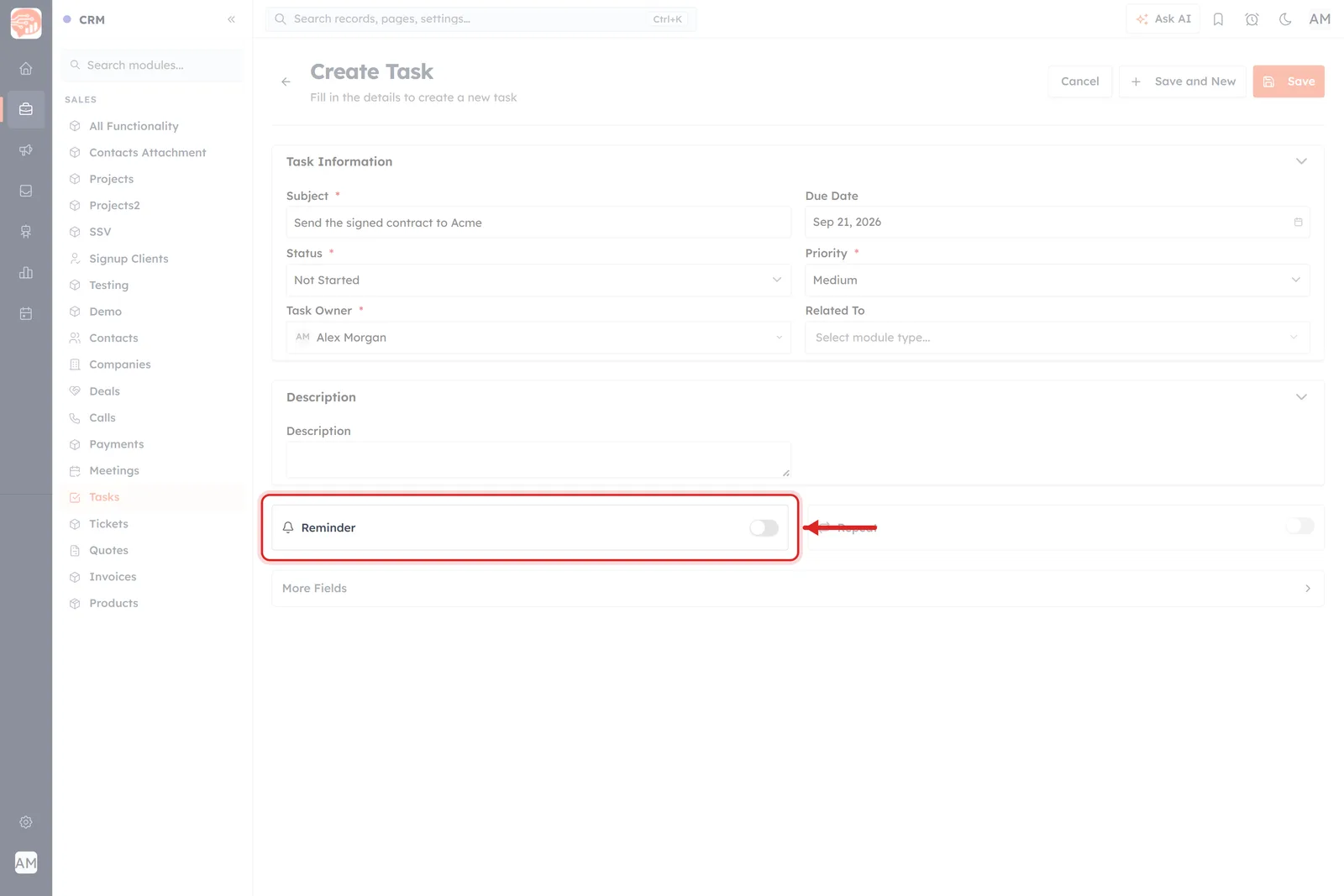
The Reminder panel on the Create Task form. The rest of the screen is faded so you can see exactly which panel to look for.
Read that panel left to right: a small bell icon, the word Reminder, and a switch at the far right. The switch is grey, which means off — and while it is off, the panel shows nothing else at all. To its right sits a second panel, Repeat, which is a different feature entirely (that one makes the record come round again; we cover it at the end).
ℹ️
Nothing in this panel is required. A task with no reminder saves perfectly happily — it just never notifies anybody.
Step 1 — Give the record a date first#
Before you touch the switch, fill in the date the reminder should be measured from: Due Date on a task, From on a meeting, Call Start Time on a call.
This matters more than it looks. Every option in the panel is worked out backwards from that date, so if it is missing or already in the past, AI Engage has nothing to count back from and the timing choices are limited or blocked. Set a real date first and the panel behaves.
Step 2 — Switch Reminder on#
Click the switch. It turns orange and the panel opens out to show everything below.
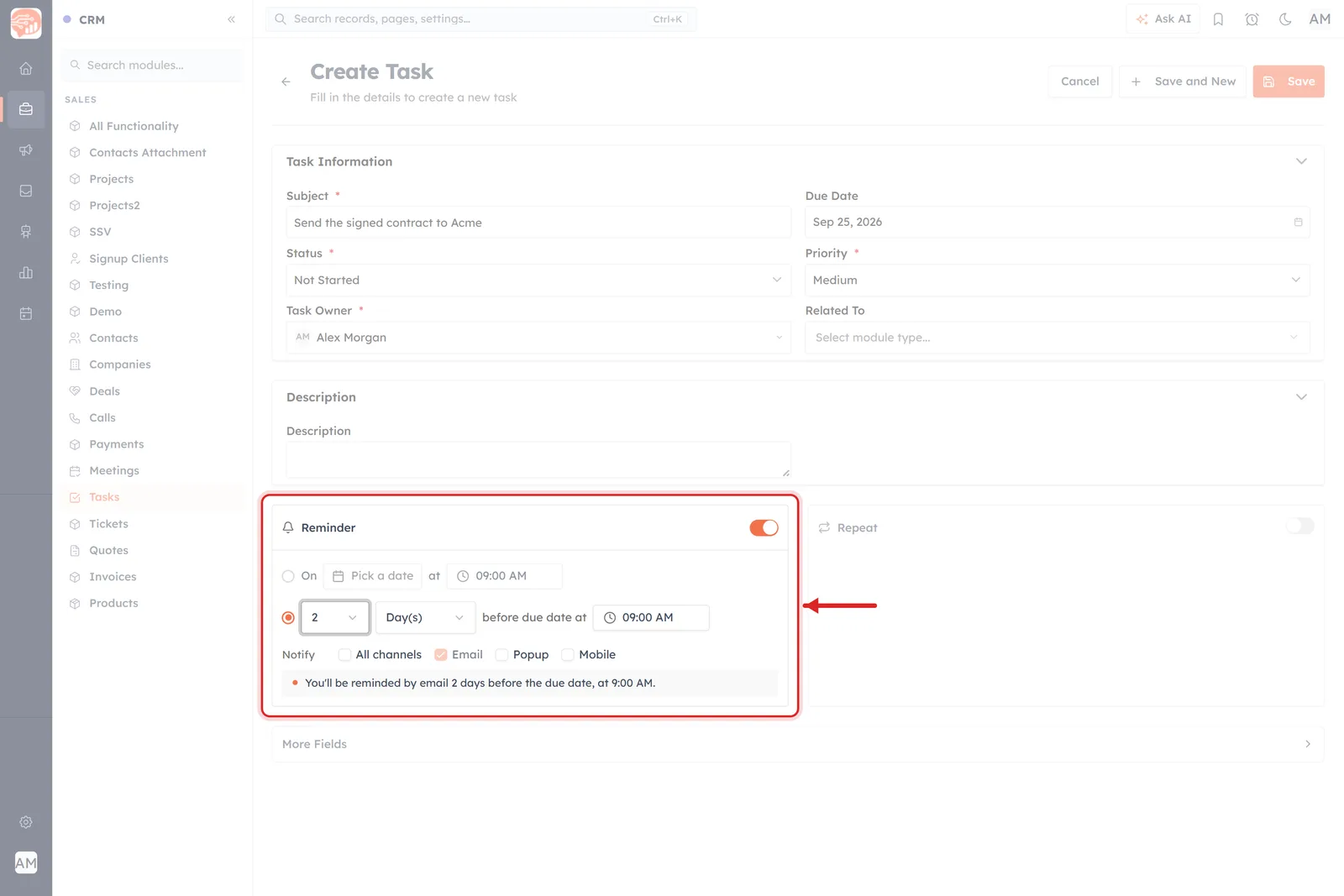
The whole Reminder panel, switched on, on the Create Task form. Two ways to say when, a row of channels for how, and a plain-English sentence at the bottom telling you what you just set.
There are four things inside it, top to bottom:
The first row — On [ Pick a date ] at [ 09:00 AM ]. A radio button, a date picker and a time picker. Choose this when you want the reminder at one exact moment you name yourself.
The second row — [ 2 ] [ Day(s) ] before due date at [ 09:00 AM ]. A radio button, a number, a unit, and (for days) a time of day. Choose this when you want the reminder to be a certain distance ahead of the record itself.
Notify. A row of tick boxes — All channels, Email, Popup, Mobile — deciding where the reminder is delivered. Email is ticked for you.
The grey summary strip. A sentence beginning “You’ll be reminded by…”, rewritten every time you change anything above it — including which channels you tick.
The two timing rows are alternatives, not a pair — the filled orange radio button shows which one is live. The other row fades slightly but stays on screen so you can switch between them without losing what you typed.
✅
The summary strip is the fastest way to check yourself. If the sentence describes what you meant — the right channels, at the right moment — the reminder is right. If it does not, change something above it and read it again.
What changes from module to module#
It is the same control everywhere, but it does not draw itself the same way on all three modules. What changes is the unit list, the field the panel counts back from, and whether a time-of-day picker appears on the end of the row. The Notify channels are identical on all three.
Task#
Pictured above, on the Create Task form, where the panel sits below Description.
Units: Day(s) and nothing else.
Counts back from: the Due Date — the row reads “before due date”.
Time-of-day picker: yes, on the end of the row. A due date is a date with no clock time, so this is where you say when on that day the reminder should go.
Summary line: “You’ll be reminded by email 2 days before the due date, at 9:00 AM.”
Meeting#
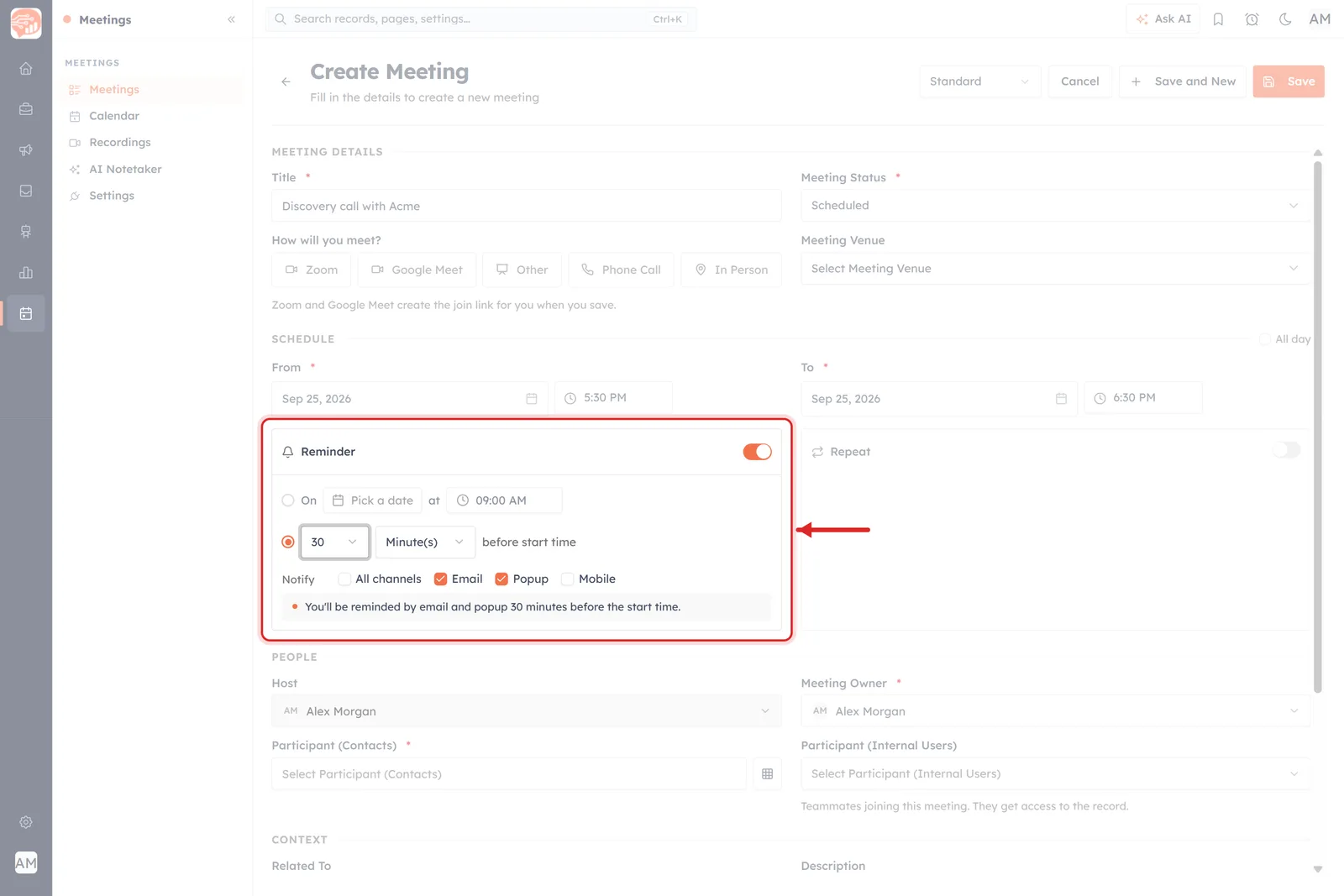
The Create Meeting form. Here the Reminder panel sits inside SCHEDULE, directly under From and To, set to “30 Minute(s) before start time” with both Email and Popup ticked.
Units: Minute(s), Hour(s) and Day(s).
Counts back from: the From (start) time — the row reads “before start time”.
Time-of-day picker: gone. “30 minutes before the start time” already names an exact moment on the clock, so there is nothing left to ask. It comes back if you switch the unit to Day(s).
Summary line: “You’ll be reminded by email and popup 30 minutes before the start time.”
Call#
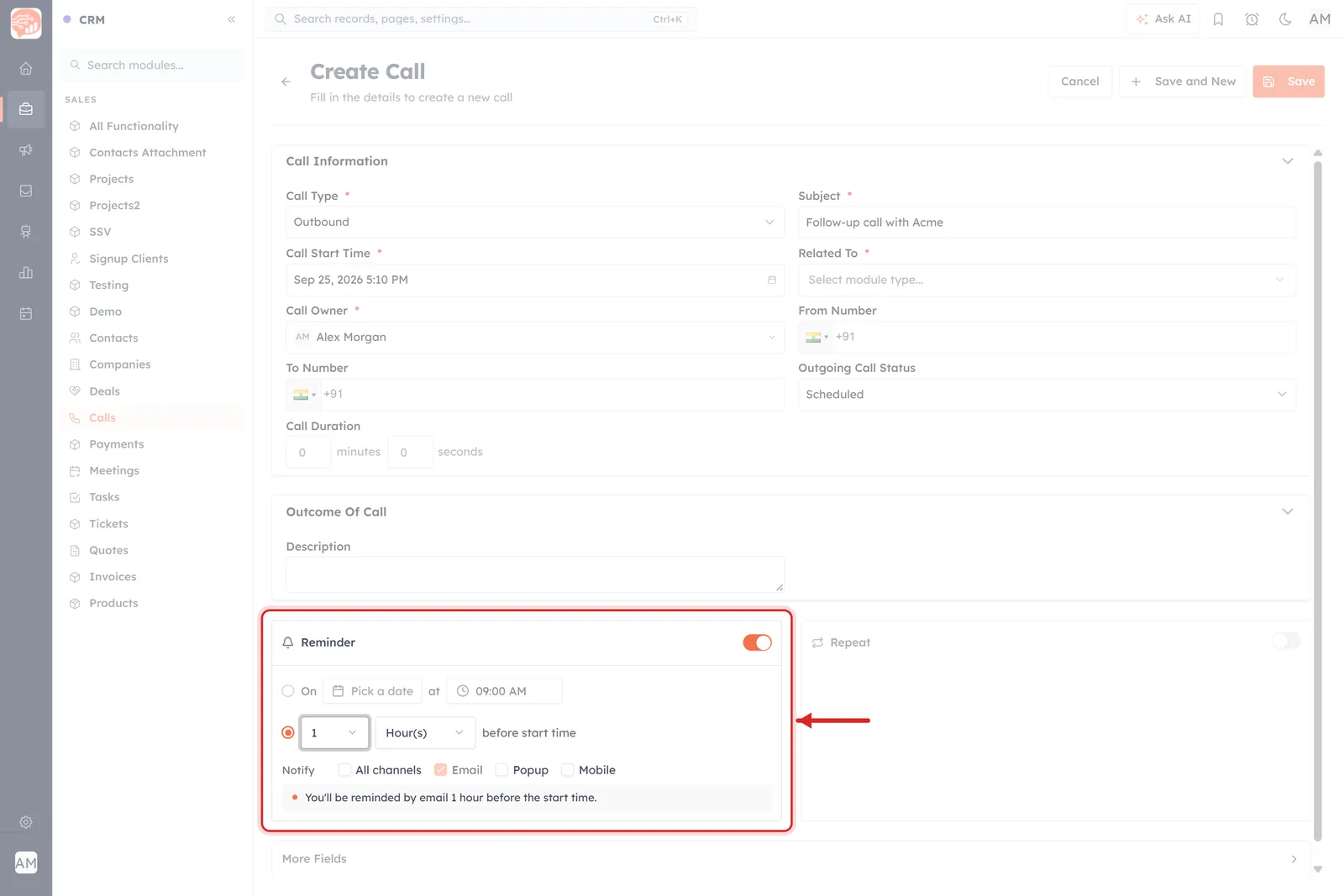
The Create Call form. The Reminder panel sits below Outcome Of Call, set to “1 Hour(s) before start time”.
Units: the same three as a meeting.
Counts back from: the Call Start Time, again shown as “before start time”.
Time-of-day picker: hidden for minutes and hours, back for days.
Summary line: “You’ll be reminded by email 1 hour before the start time.”
One more difference is hiding in the first dropdown: how far the numbers run. It depends on the unit, because AI Engage will not offer an offset that would put the reminder before now — Minute(s) stops at 59, Hour(s) at 23, and Day(s) stops at however many whole days are left between today and the record’s own date.
ℹ️
Meetings and calls are identical here — both have a real start time, so both get minutes and hours. Only tasks are restricted to days, and only because a Due Date carries no clock time of its own.
Option A — X before the due date#
This is the row most people want. It says: whenever this thing is due, warn me this far ahead of it.
The number#
The first dropdown is how many. Open it and you get On at the top, then 1, 2, 3 and upwards.
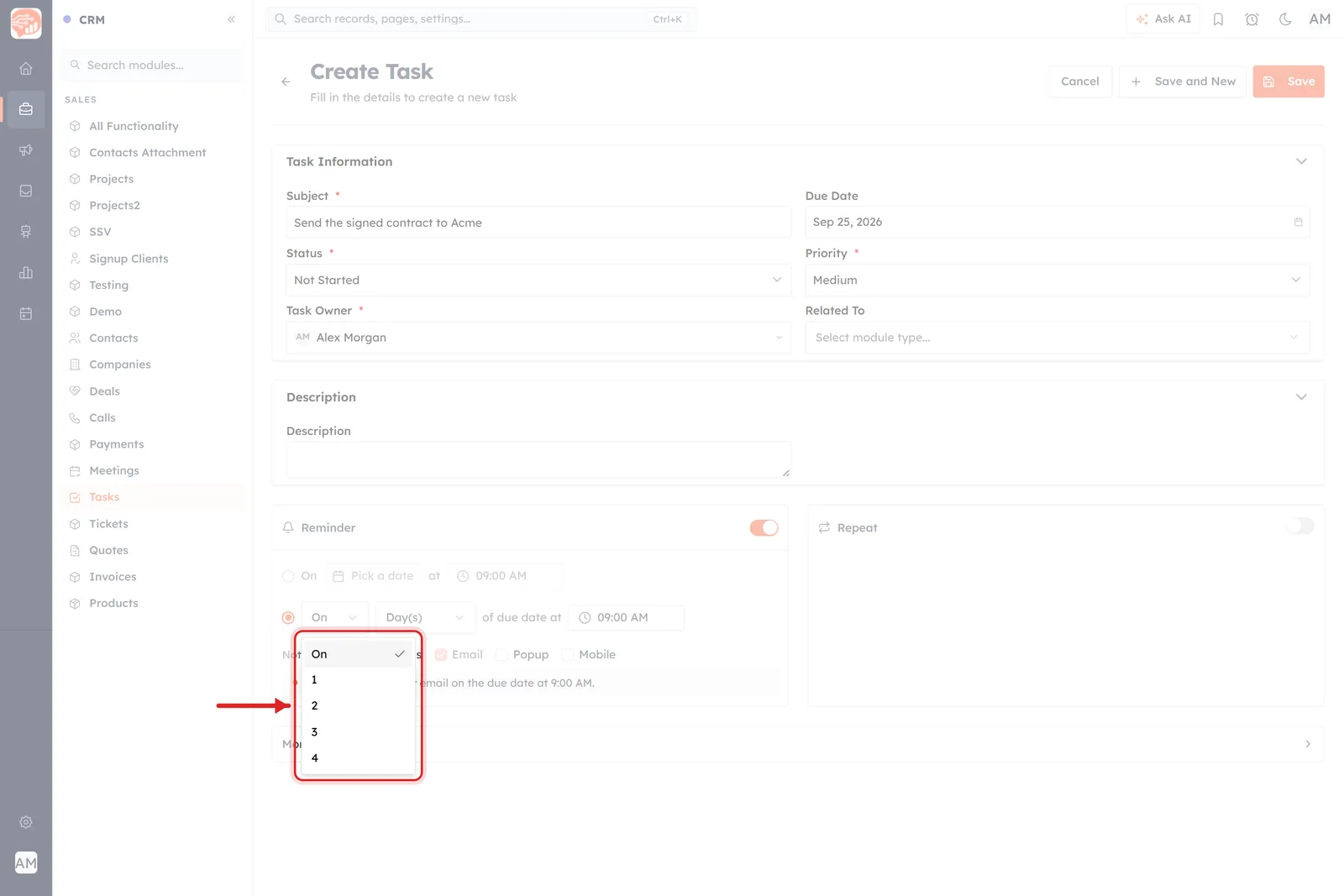
The how-many list. “On” means zero — no gap at all. The numbers below it stop at 4 in this example, and that limit is deliberate.
Two things to notice in that list:
“On” means zero. Pick it and the row rewrites itself to “On Day(s) of due date at 09:00 AM” — the reminder lands on the day itself rather than ahead of it, and the summary becomes “You’ll be reminded by email on the due date at 9:00 AM.”
The list stops where the past begins. In this screenshot the task is due on 25 September and the picture was taken on the 21st, so the list runs out at 4 — the exact number of days in between. AI Engage will not offer you a reminder that would have had to be sent before now. Choose a due date further out and the list gets longer by itself.
The unit#
The second dropdown is what the number counts in. On a task there is exactly one choice:
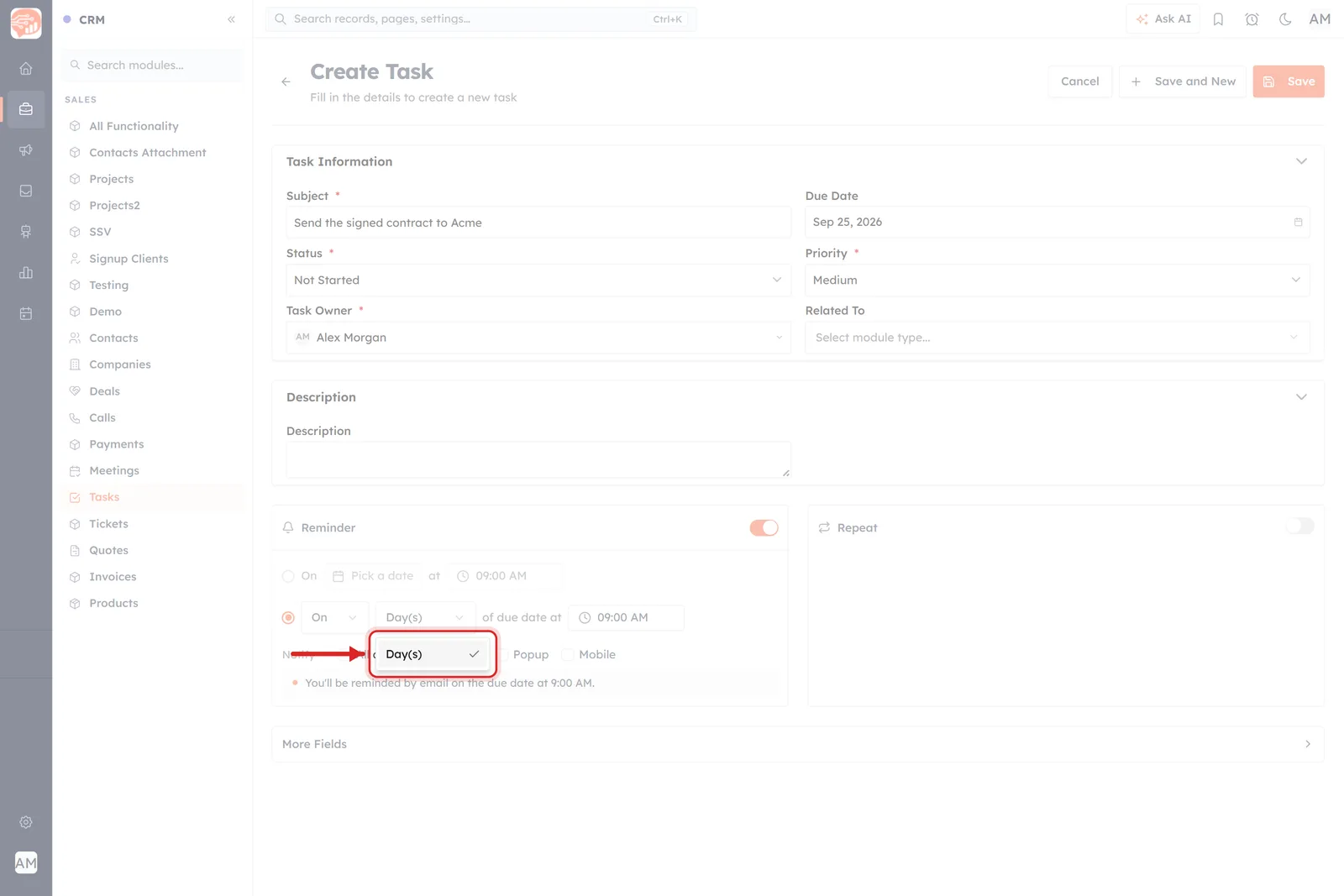
On a task the unit list has a single entry: Day(s).
That is not a bug. A task’s Due Date is a date with no clock time on it — “25 September”, not “25 September at 4pm” — so “30 minutes before” would have nothing to be 30 minutes before. Because days are vague in that way, the row adds a time-of-day picker at the end (“…before due date at 09:00 AM”) so you can say when on that day the reminder should go. Meetings and calls get more units; see below.
💡
A sensible default for a task is 1 Day(s) before due date at 09:00 AM — the reminder is waiting for you the morning before, while there is still a day left to do something about it.
Option B — one exact date and time#
Click the radio button on the first row instead and you name the moment yourself.
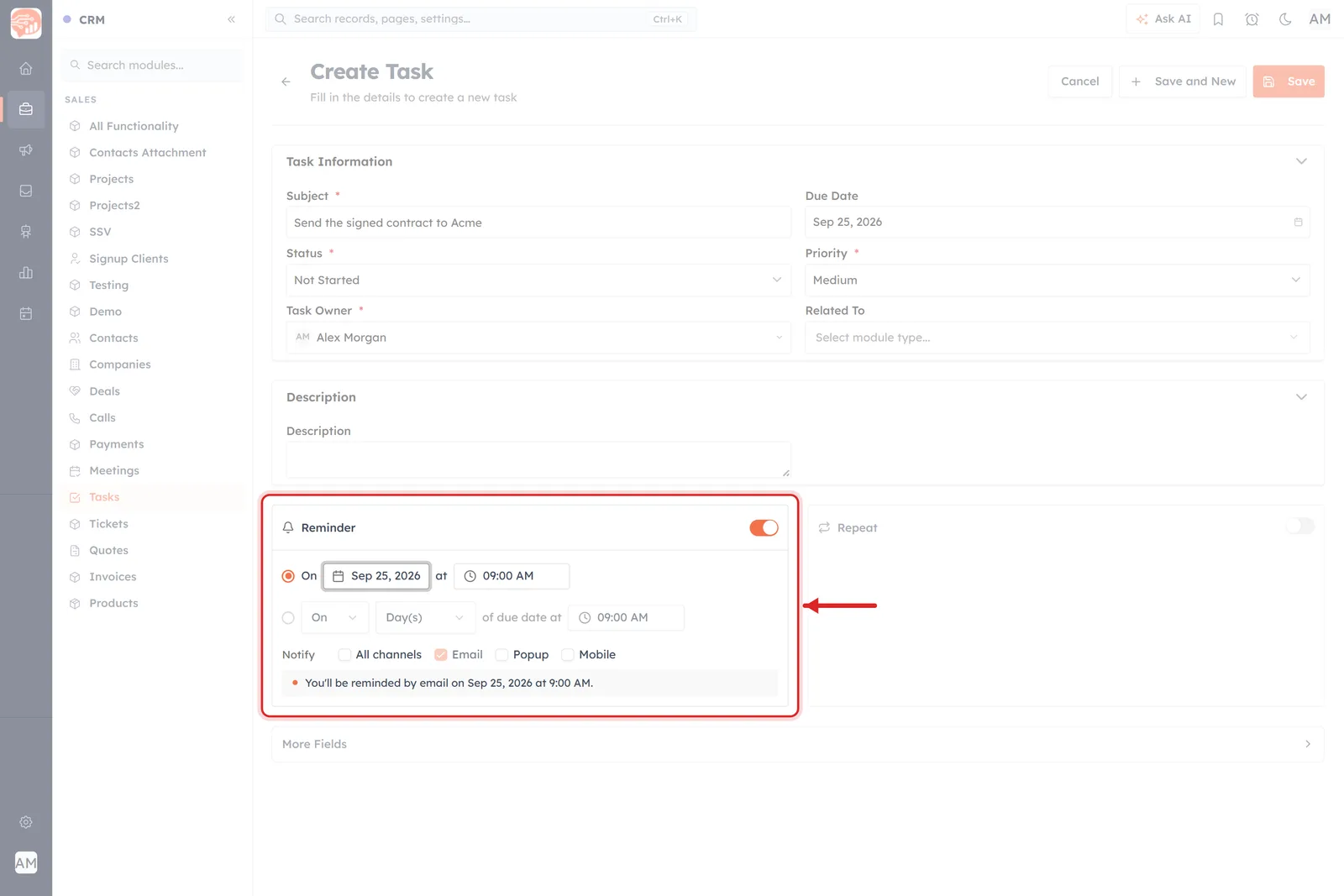
The exact-moment row. Click “Pick a date” for the calendar, then set the clock time next to it. The summary now reads “on Sep 25, 2026 at 9:00 AM”.
Pick a date opens a calendar; past dates are greyed out and cannot be chosen. The box next to it sets the time of day. Whatever you choose, the summary line at the bottom restates it in full, which is how you tell at a glance that you have not set 9am on the wrong day.
Use this row when the reminder has its own logic — “chase this the morning of the board meeting” — rather than being a fixed distance from the record’s own date.
Choose how the reminder reaches you#
This is the part that has changed. Notify used to be a dropdown with one entry in it, Email. It is now a row of tick boxes, and you can have more than one at a time.
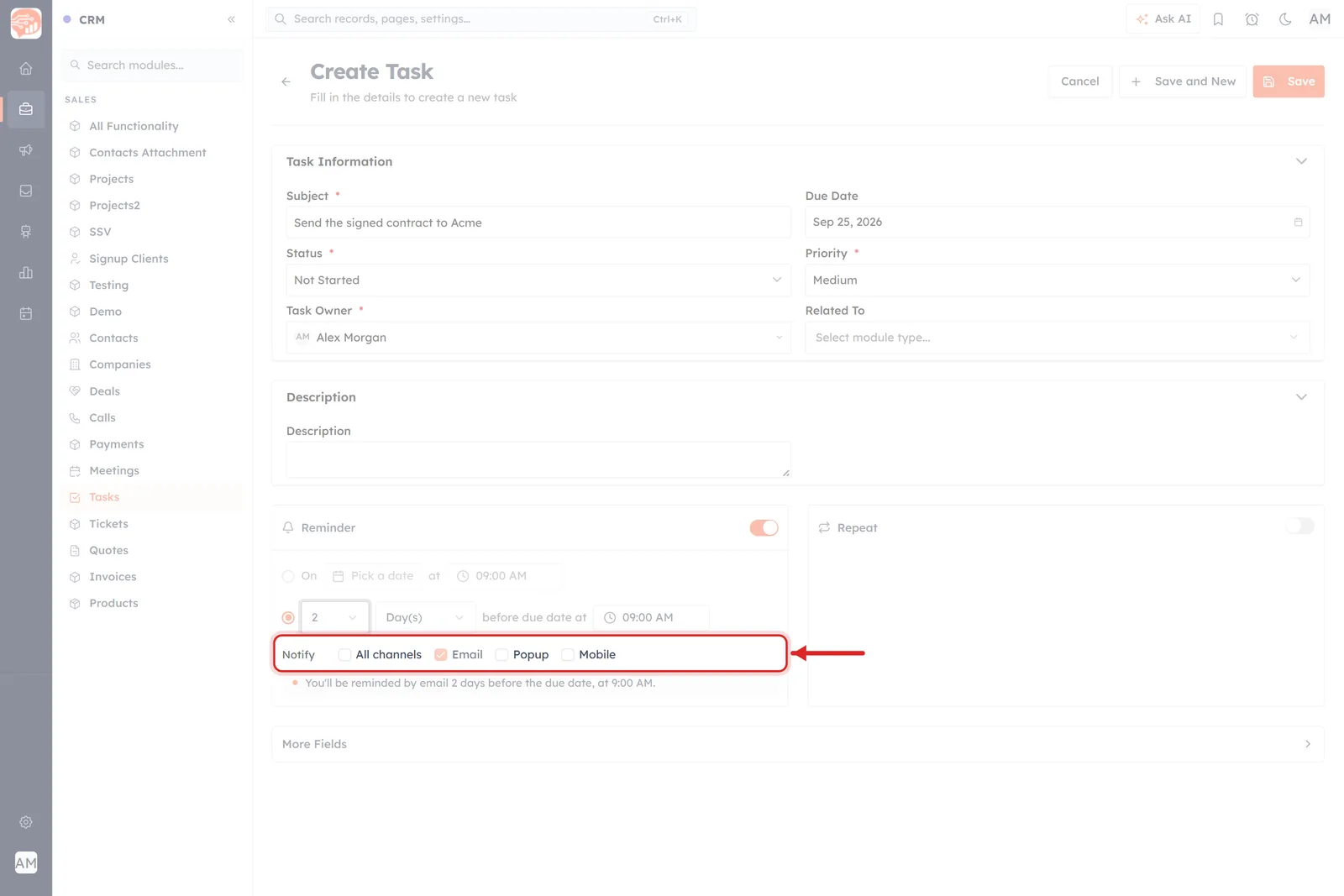
The Notify row as it arrives: four tick boxes, with Email already ticked for you.
The three real channels are:
Email — the reminder is emailed to the record’s owner. This is the one that is ticked by default, and the only one that reaches you when you are nowhere near AI Engage.
Popup — the reminder is shown to you inside AI Engage itself, so it lands in front of you while you are working in the CRM.
Mobile — the reminder is pushed to your mobile device.
Tick as many as you want. The summary strip keeps up, naming every channel you have chosen:
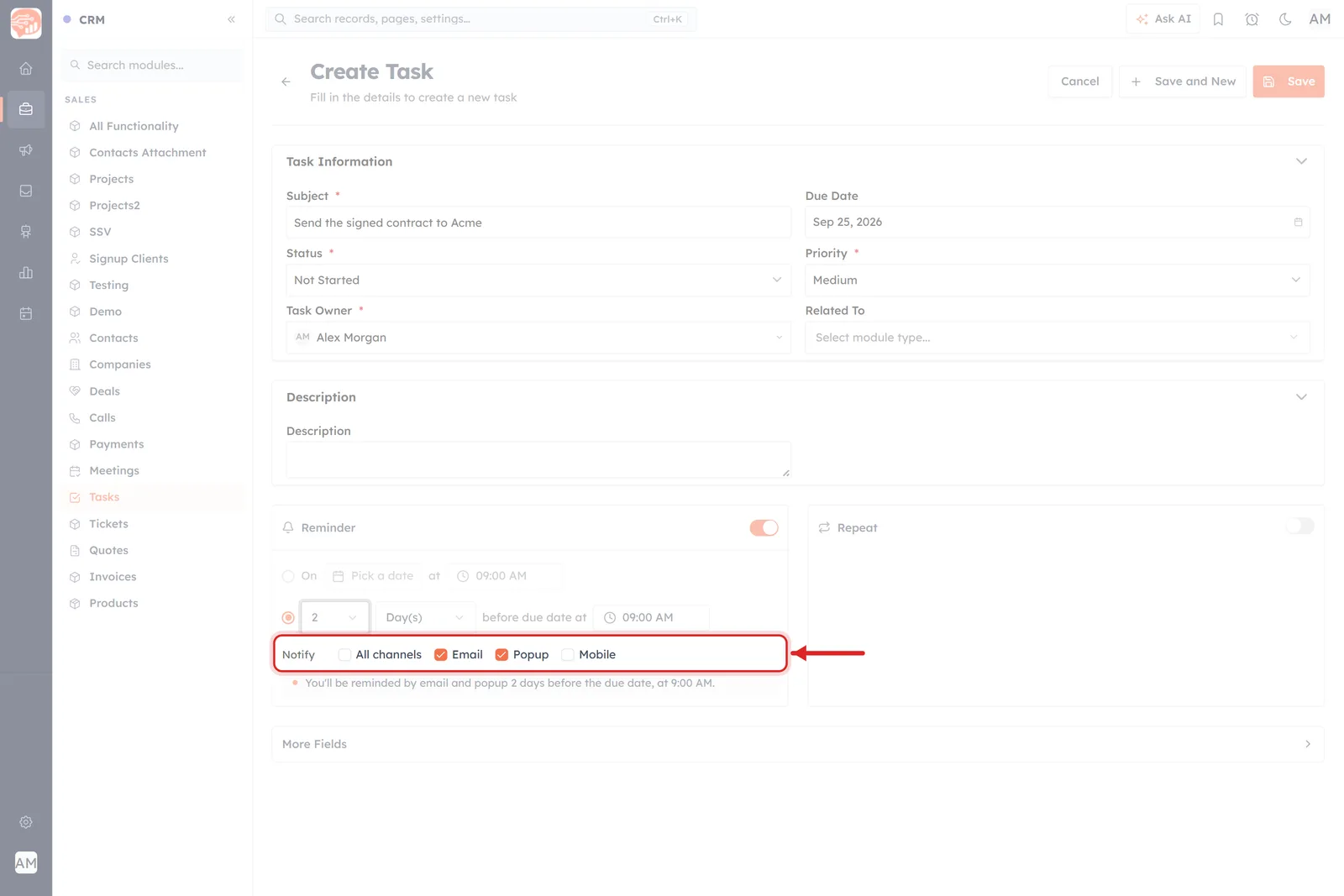
Email and Popup together. The summary underneath now reads “You’ll be reminded by email and popup…”.
The All channels shortcut#
The first box, All channels, is a shortcut rather than a fourth channel. Tick it and you get all three at once. It also works the other way round: tick Email, Popup and Mobile one by one and the moment the third goes on, the row collapses into a single ticked All channels box — the three individual boxes disappear, because there is nothing left to choose.
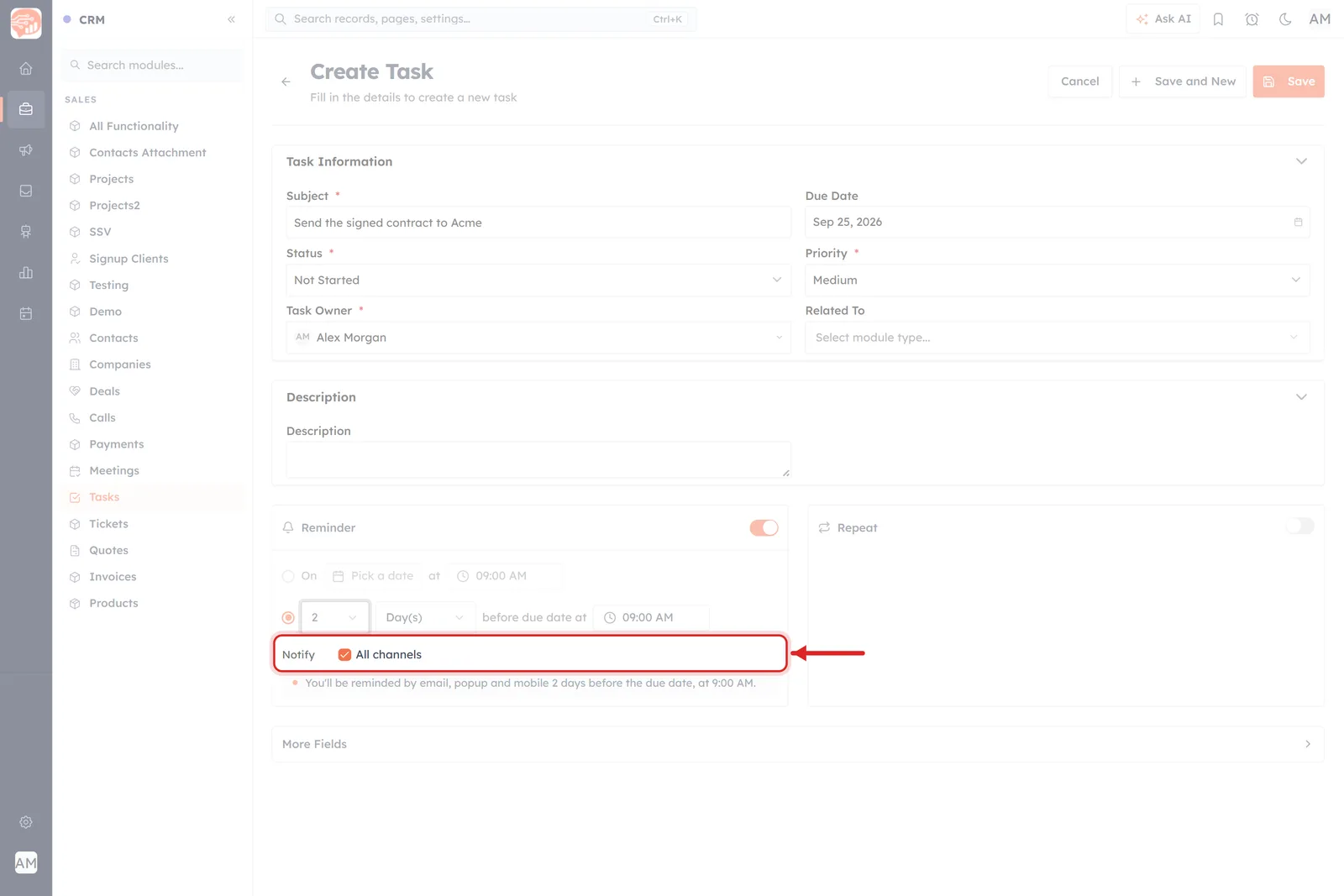
All three channels on. The row folds down to one box, and the summary spells out what that means.
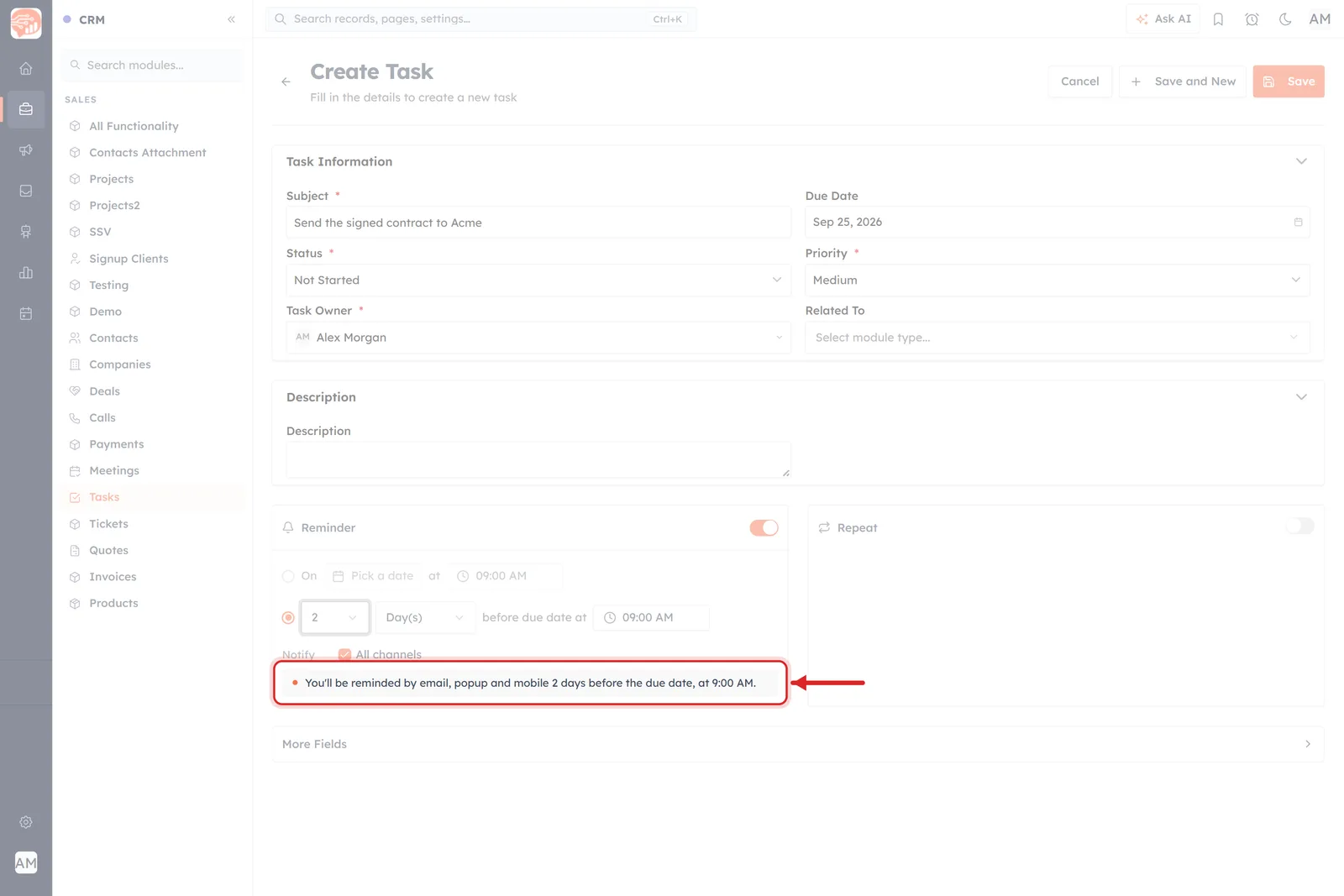
The summary strip always names the channels, so you never have to count tick boxes to know what will happen.
To get back to picking individually, untick All channels. The three boxes reappear with Email ticked and the other two clear — the state the panel started in.
ℹ️
You cannot switch every channel off. Untick the last remaining one and it simply stays ticked — a reminder always has somewhere to go. If you want no notification at all, switch the whole Reminder panel off instead.
Where the reminder actually goes#
Three things are true of every reminder however you deliver it, and none of them are on screen:
It goes to the record’s owner — the person in Task Owner, Meeting Owner or Call Owner — not to whoever created the record. If you set up a task and assign it to a colleague, the reminder is theirs.
It is sent once. There is no repeat and no snooze; when it has gone, it has gone. That is true per channel too — ticking three boxes gets you one reminder in three places, not three reminders.
Email is the safety net. Popup only finds you while you are in AI Engage, so on anything that matters keep Email ticked as well.
The reminder names the record, shows the due date and links straight back to it, so one click takes you to the task or meeting you were being reminded about.
ℹ️
Reminders are sent in your account’s timezone. If yours arrive at odd hours, check the timezone on your profile — see Set Up Your Personal Profile.
On a meeting#
The panel is the same, but a meeting has a real start time — From, with a clock — so the unit list is longer.
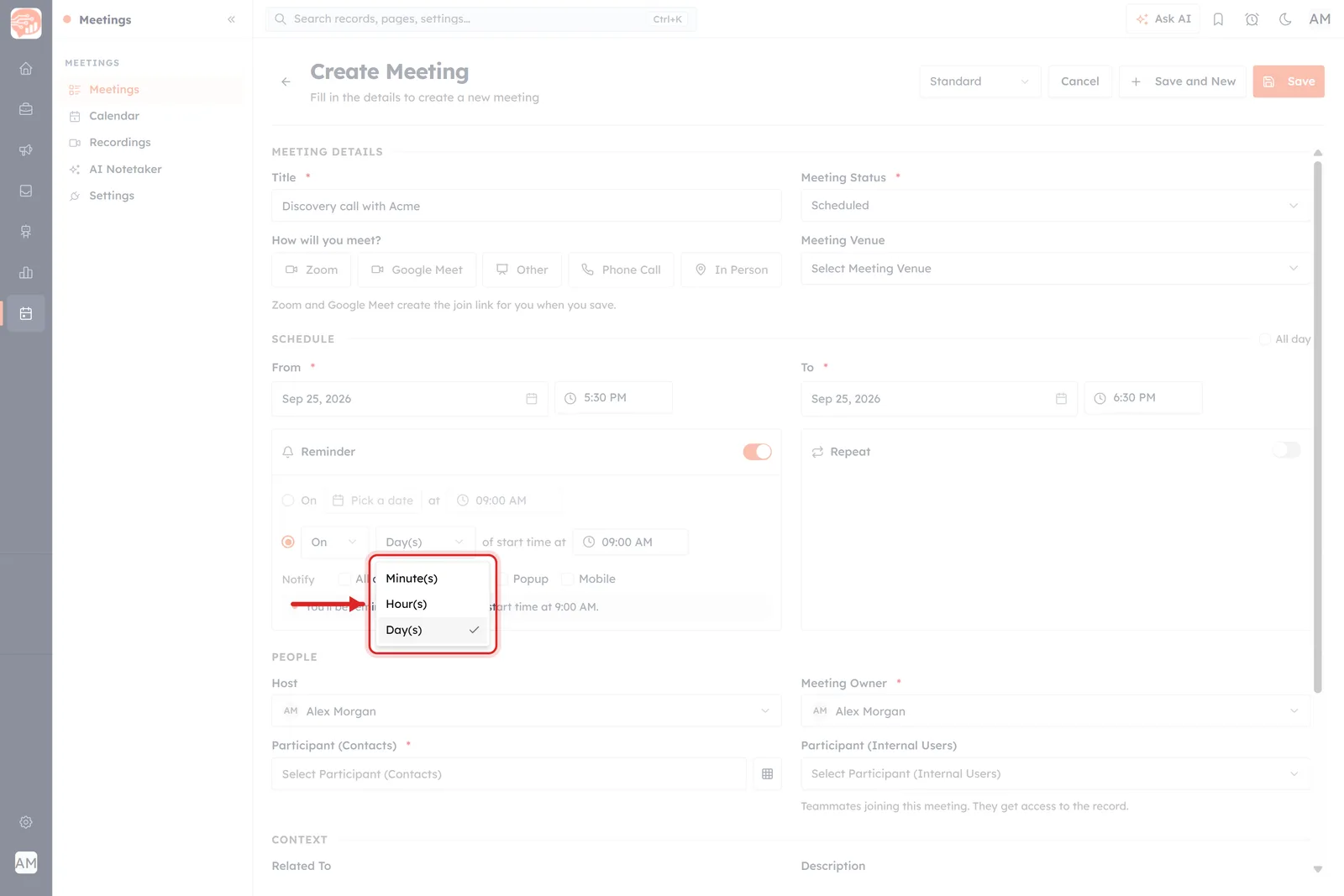
On a meeting or a call the unit list offers Minute(s), Hour(s) and Day(s).
Which gives you the reminder people actually want for a meeting — “30 Minute(s) before start time”, pictured earlier. Look closely at that row and one box has disappeared: there is no time-of-day picker on the end any more. It is not needed, because “30 minutes before the start time” already points at an exact moment on the clock. The picker only comes back when you switch the unit to Day(s), since a day on its own does not say when.
Notice too that the wording changed. On a task the row said “before due date”; here it says “before start time”. The panel always names the field it is counting from.
💡
For anything with a join link, 15–30 minutes is the useful window: long enough to find the link and close what you were doing, short enough that you have not forgotten again by the time it starts. Ticking Popup as well as Email helps here — it catches you at your desk. More on the meeting form in Schedule Meetings.
On a call#
Calls work exactly like meetings, counting back from Call Start Time, with the same three units and the same Notify channels — the Create Call form is pictured earlier in this article.
This is worth doing on calls you are scheduling for later rather than logging after the fact. If you are recording a call that already happened, leave Reminder alone — see Log Calls for the difference.
If you see the red warning#
Ask for a reminder at a moment that has already gone by and the summary strip turns into a warning.
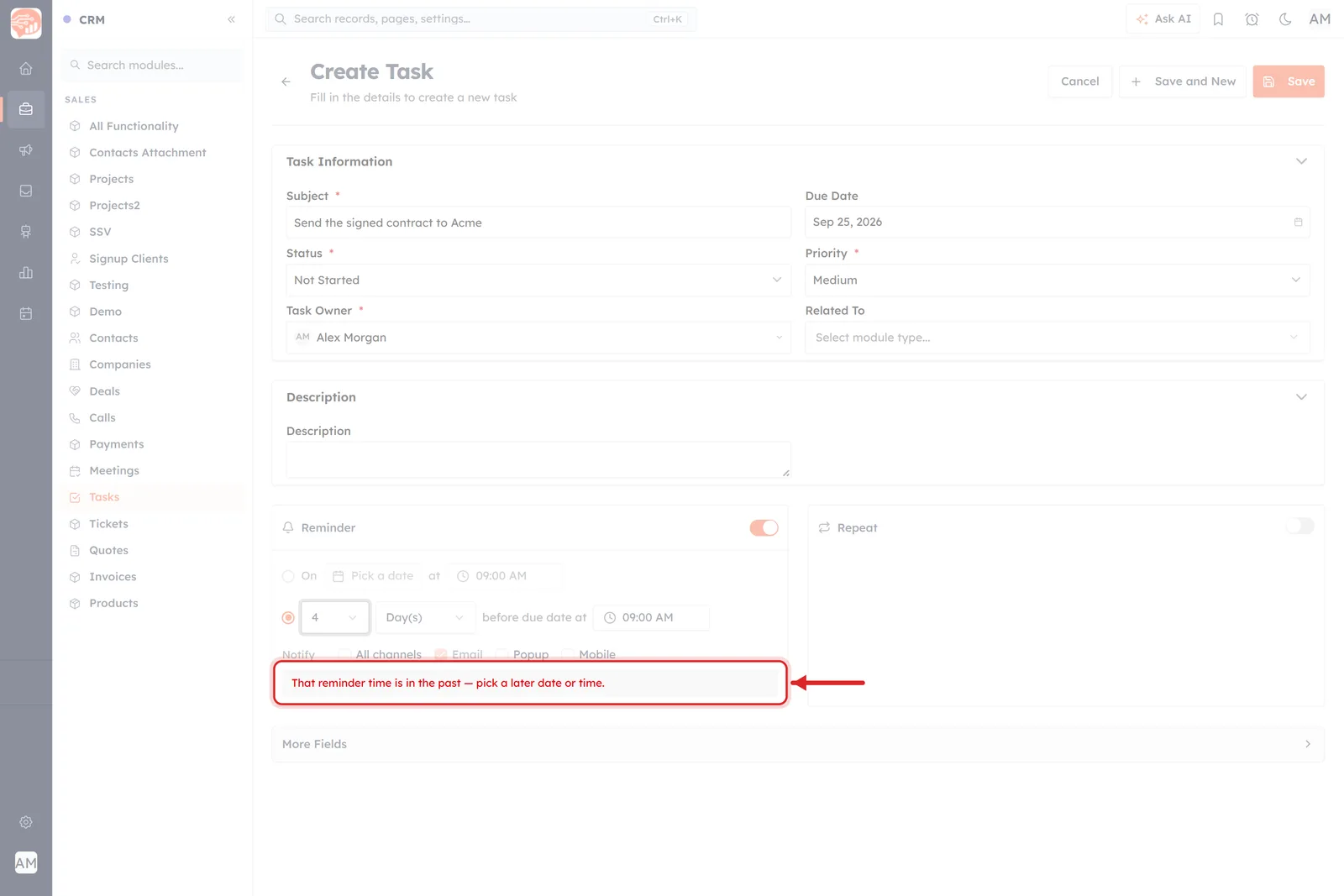
The summary line is replaced by red text: “That reminder time is in the past — pick a later date or time.”
Here the task is due on 25 September and the reminder was set to 4 Day(s) before at 09:00 — which works out as 9am on the day the picture was taken, a time that had already passed. Nothing is broken; AI Engage is telling you this reminder could never be sent.
Fix it by doing any one of these:
Choose a smaller number, so the reminder lands later.
Set a later time of day on the end of the row.
Push the record’s own date further out.
Switch to the exact date and time row and pick a moment in the future.
The moment the timing becomes possible, the red text goes and the ordinary “You’ll be reminded…” sentence comes back.
⚠️
Save with the red warning showing and you have a record with no working reminder. The record itself saves — it is only the alert that cannot fire — so nothing tells you afterwards. Clear the warning before you save.
Save it#
The reminder is part of the record, so it is stored when you click Save on the form — there is no separate save inside the panel. Cancel the form and the reminder goes with it.
To change or remove a reminder later, open the record, click Edit, and the panel comes back exactly as you left it, channels included. Switch it off to cancel the reminder altogether.
Reminder vs Repeat#
The panel to the right of Reminder is Repeat, and the two are easy to confuse:
Reminder notifies you about this record, once, before it is due.
Repeat makes the record itself come round again — daily, weekly, monthly, yearly or a custom interval — so you do not have to type the same meeting out every week. It stays greyed out until the record has a date.
They work together happily: a weekly check-in that repeats every Monday can also remind you 30 minutes before each one. Repeat is covered in Reminders & Recurring Meetings.
Quick answers#
Can I be reminded by popup or on my phone instead of by email? Yes. Tick Popup, Mobile, or both, in the Notify row — and untick Email if you do not want it.
What is the All channels box? A shortcut that turns on all three at once. When all three are on individually, the row collapses into it.
Can I turn every channel off? No — one always stays ticked. Switch the whole Reminder panel off instead.
Can I get more than one reminder on a record? No — one reminder per record, though that one reminder can arrive on up to three channels.
Why is my unit list only Day(s)? You are on a task, and a task’s due date has no clock time. Meetings and calls offer minutes and hours.
Why does the number list stop so early? It stops where the reminder would fall before now. A date further in the future gives you a longer list.
I completed the task early — does the reminder still go? Close or delete the record if you do not want it, or switch Reminder off in the edit form.
Was this article helpful?
Ready to implement this?
OpenAI Engage and apply what you just learned to your own workspace.
Open AI Engage CRM