Loading…


KnowledgeBase
Ask AI Engage: Get Answers About Your CRM
Ask AI Engage is a chat assistant that answers questions about the data already in your CRM. Instead of building a report or filtering a list to find out how many deals close this month, you ask for it in plain language and read the answer.
It opens as a panel on the right-hand side of whatever page you are on, and it stays with you as you move around the CRM.
💡
Ask AI Engage only reads your data. It answers questions and pulls numbers — it will not create, edit or delete records for you.
🧪
Ask AI Engage is currently in beta. You will see a BETA badge next to its name in the app.
What you can ask#
The assistant can reach six areas of your CRM. The example questions below are the same ones it offers when you start a new chat, and clicking one in the app sends it straight away.
| Area | What it covers | Try asking |
|---|---|---|
| Find records | Contacts, deals, calls, tasks, meetings, quotes and your custom modules | Show me the deals closing this month |
| Break down the numbers | Group and total anything by owner, stage, status or date | Group the calls by user for the last 30 days |
| Reports and dashboards | Run a saved report, or read what a dashboard widget is showing | What are my saved reports? |
| Marketing performance | Campaigns, segments, lists and ad channels | How did my last campaign perform? |
| People and ownership | Who owns a record, who is on a team, who did what and when | Who are the users in my organisation? |
| Plan and usage | Where you stand against your plan limits and call minutes | How much of my plan am I using? |
You are not limited to these. They show the kind of question the assistant is good at — anything that amounts to “find, count, group or summarise something in my CRM” is fair game.
Two ways to open it#
1. The Ask AI button in the top bar#
The quickest way, and the one that works from every screen. Look for the coloured button with a sparkle icon at the top right of the CRM, labelled Ask AI. On smaller screens the label is hidden and only the sparkle shows.
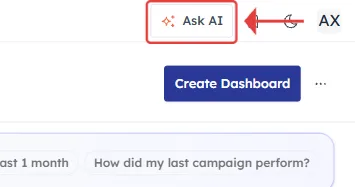
Click it and the chat slides in from the right over your current page. Click it again to close.
2. The ask bar on your Home dashboard#
Your Home dashboard has a bar reading Ask AI Engage about your contacts, deals, pipeline…, with a couple of suggested questions beside it such as Overall report of past 1 month and How did my last campaign perform?
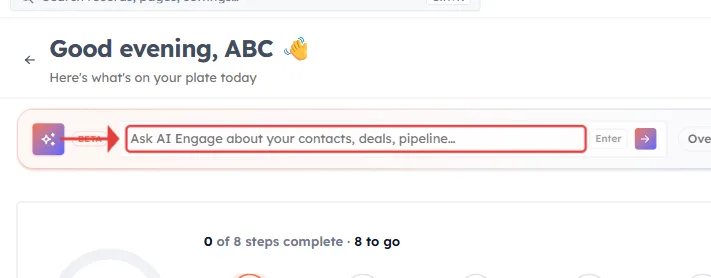
This bar behaves slightly differently depending on how you use it:
- Type a question and press Enter — or click the send arrow, or click one of the suggestions. The chat opens and your question is sent immediately.
- Click the empty part of the bar — the chat opens with anything you had typed carried across, waiting for you to press send.
💡
Both routes lead to the same chat panel and share the same conversation. There is no separate “dashboard chat”.
Asking your first question#
When you open a brand-new chat you will see a short list headed Here’s what I can help with — the six areas from the table above, each with a question already written out. Click any of them to ask it. It is the fastest way to see what the assistant does before you write your own question.
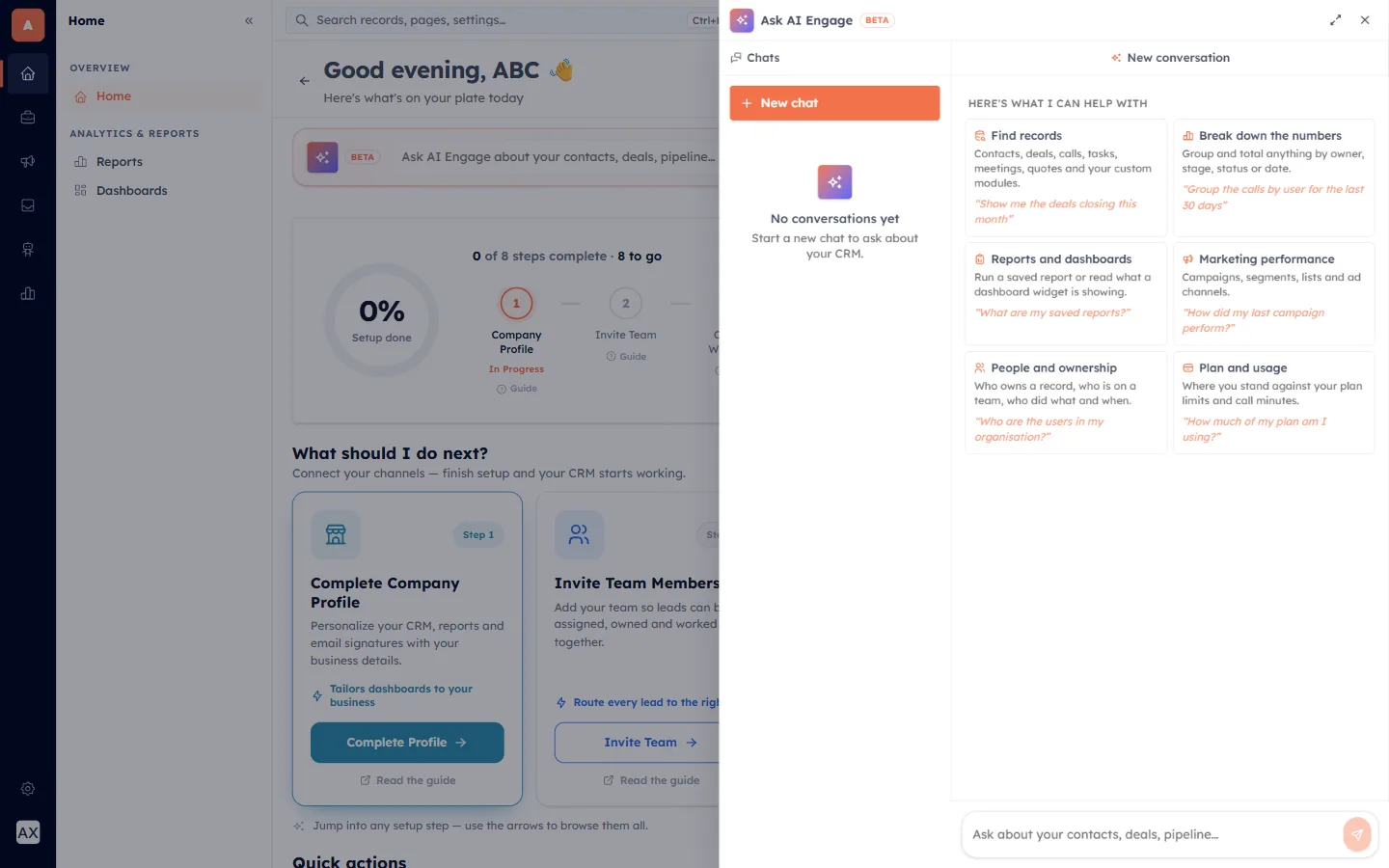
Ask a question and the answer is written back into the conversation.
A few things that make answers better:
- Name the time period. “Last 30 days”, “this month”, “this quarter” — otherwise the assistant has to guess what you meant.
- Say how you want it broken down. “By owner”, “by stage”, “by source” turns a flat count into something you can act on.
- Follow up rather than restarting. Once you have an answer, “now split that by owner” or “and what about last month?” keeps the context you already built.
The chat follows you around the CRM#
The chat panel is not tied to the page you opened it on. Navigate from a contact to a deal to your Settings and the conversation is still there — including how far you had scrolled and any message you had half typed.
Closing the panel does not throw anything away either. Reopen it and you are exactly where you left off. If the assistant is still writing a long answer when you close the panel, it carries on in the background and the finished answer is waiting for you.
After a full browser refresh the assistant remembers which conversation you were in and reloads it, along with your panel width. The panel itself starts closed after a refresh, so open it again from the top bar.
Working with your conversations#
The panel is split in two. Down the left is a Chats list of your previous conversations, so you can go back to something you asked last week rather than working it out again. Before your first question it reads No conversations yet.
| To do this | Do this |
|---|---|
| Reopen an old conversation | Click it in the Chats list — the full transcript loads |
| Start a fresh conversation | Click + New chat. Your previous one stays in the list |
| Delete a conversation | Use the delete option on the conversation and confirm |
Start a new chat whenever you change subject. The assistant uses earlier messages as context, so a question about campaign performance dropped into a long thread about deal stages will get a worse answer than the same question in a clean chat.
Resizing and closing the panel#
- Make it wider — click Expand panel (the diagonal-arrows icon) at the top right of the chat. Click it again to go back to the narrower width.
- Close it — click Close (×) at the top right, press Esc, click anywhere on the dimmed page behind the panel, or click the Ask AI button again.
Ask AI Engage uses AI credits#
Every question you ask draws on your organisation’s AI credit balance, the same balance your AI Agents use. When it runs out, the assistant stops answering and replies with:
Your AI credits are exhausted. Add credits to continue.
If you see that message, nothing is broken — your organisation simply needs more credits. An administrator can top them up from your billing settings, after which the assistant answers normally again.
Who can use Ask AI Engage#
Access follows your AI Agents permission. If your profile does not include permission to view AI Agents, the Ask AI button is not shown at all — so if you cannot find it anywhere in the top bar, that is why. Ask an administrator to review your profile in Settings → Profiles.
⚠️
The assistant can only see data you are already allowed to see. Your role hierarchy, sharing rules and profile permissions all still apply, so two people can ask the same question and correctly get different answers.
Common questions#
I clicked Ask AI and it took a moment before I could type
The first time anyone in your organisation uses it, the assistant is set up on demand. That takes a few seconds and only happens once. Afterwards it opens instantly.
Is this the same as my AI Agents?
No. AI Agents are chatbots you build and train on your own content to talk to your customers on your website or WhatsApp. Ask AI Engage is for you and your team, and it answers questions about the data inside your CRM.
Is this the same as Inbox Intelligence?
No. Inbox Intelligence answers questions about your WhatsApp conversations specifically and helps you jump to the matching chats. Ask AI Engage covers your CRM records, reports, campaigns and usage.
Can it change my data?
No. It reads and reports only. Creating or updating records, sending messages and moving deals are all still done by you, or by a workflow you set up.
Was this article helpful?
Ready to implement this?
OpenAI Engage and apply what you just learned to your own workspace.
Open AI Engage CRM