Loading…


KnowledgeBase
The Reminders Panel: See Due and Upcoming Reminders, Join or Call, Snooze and Dismiss (Step-by-Step)
Introduction#
When you set a reminder on a task, meeting or call, AiEngage CRM needs a place to show it to you. That place is the Reminders panel, opened from the ⏰ alarm-clock button in the top bar of every page.
The panel has two lists:
Due: reminders whose time has arrived and that need your attention now. From here you can Join a meeting, Call a contact, Snooze the reminder until later, or Dismiss it.
Upcoming: reminders that will go off soon, so you can plan your day.
A red number on the alarm clock tells you how many reminders are due. You can see it from any page, without opening the panel.
What you want to do | What to click |
|---|---|
See your reminders | The ⏰ alarm clock in the top bar |
Open the task, meeting or call | Its title in the panel |
Join an online meeting | Join |
Phone the contact | Call |
Be reminded again later | Snooze ▾ → choose a time |
Clear the reminder | Dismiss |
Every screenshot below uses sample reminders and is followed by a description of the whole screen, so you can match it with your own.
Before You Begin#
Reminders are set on the task, meeting or call itself, using the Reminder switch on its form. If you haven’t set any yet, see Set a Reminder on a Task, Meeting or Call.
The panel shows your own reminders: the ones for tasks, meetings and calls you own.
Dates and times follow your organization’s date format, time format and time zone.
Part 1: Open the Reminders Panel#
Step 1: Find the alarm clock in the top bar#
Look at the top-right corner of any page. The alarm clock sits between the bookmark button and the dark-mode (moon) button.
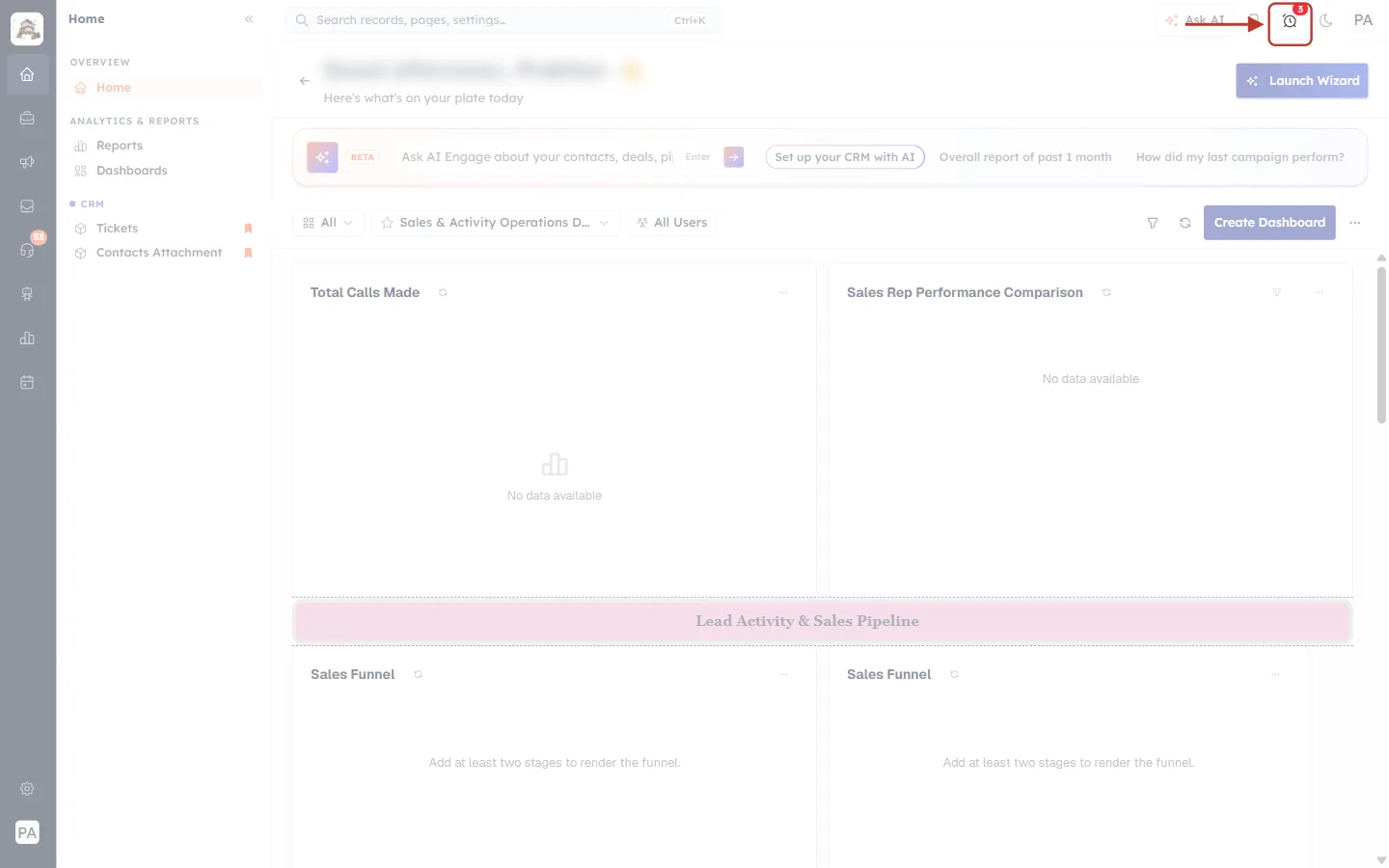
What this screenshot shows. The ringed button is the Reminders alarm clock in the top bar. The arrow points at it from the left.
The small red badge with the number 3 means three reminders are due right now. The badge counts only Due reminders, not Upcoming ones. Above 99 it shows 99+.
With nothing due, the badge disappears and only the plain alarm clock is shown.
To the left are Ask AI and the bookmark button. To the right are the moon (dark mode) and your profile initials.
The page behind is the Home dashboard, but the alarm clock is on every page of the CRM. The greeting with the user’s name is blurred.
Step 2: Click the alarm clock#
Click it. The panel drops down from the top bar and loads your latest reminders each time it opens.
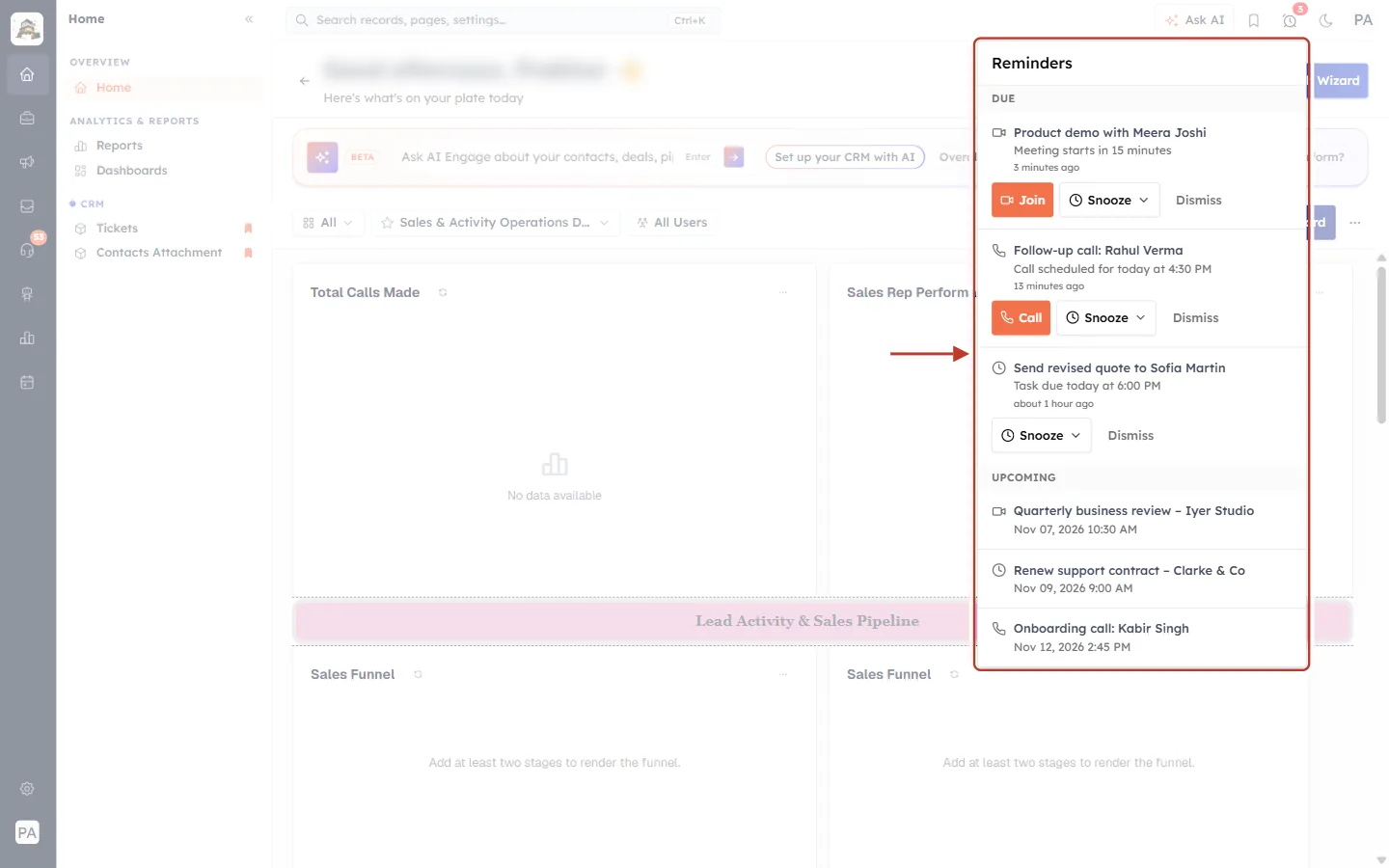
What this screenshot shows. The ringed box is the whole Reminders panel. The arrow points at it from the left.
The heading Reminders is at the top.
DUE lists three reminders whose time has come: a meeting (Product demo with Meera Joshi), a call (Follow-up call: Rahul Verma) and a task (Send revised quote to Sofia Martin). Each has buttons under it.
UPCOMING lists three reminders still to come: a meeting on Nov 07, a task on Nov 09 and a call on Nov 12. These have no buttons.
The small icon before each title shows the type: a video camera for a meeting, a phone for a call and a clock for a task.
If you have many reminders, the panel scrolls. Scroll inside it to see the rest.
ℹ️
The panel also refreshes by itself. When a reminder goes off while you are working, it appears under Due and the badge goes up, without reloading the page. It also refreshes when you come back to the browser tab.
Part 2: Read and Act on Due Reminders#
Each Due reminder shows three lines of text: the title of the record, the reminder message, and how long ago the reminder went off. Click the title to open the task, meeting or call. The buttons underneath depend on the type.
Step 3: A meeting reminder — Join#
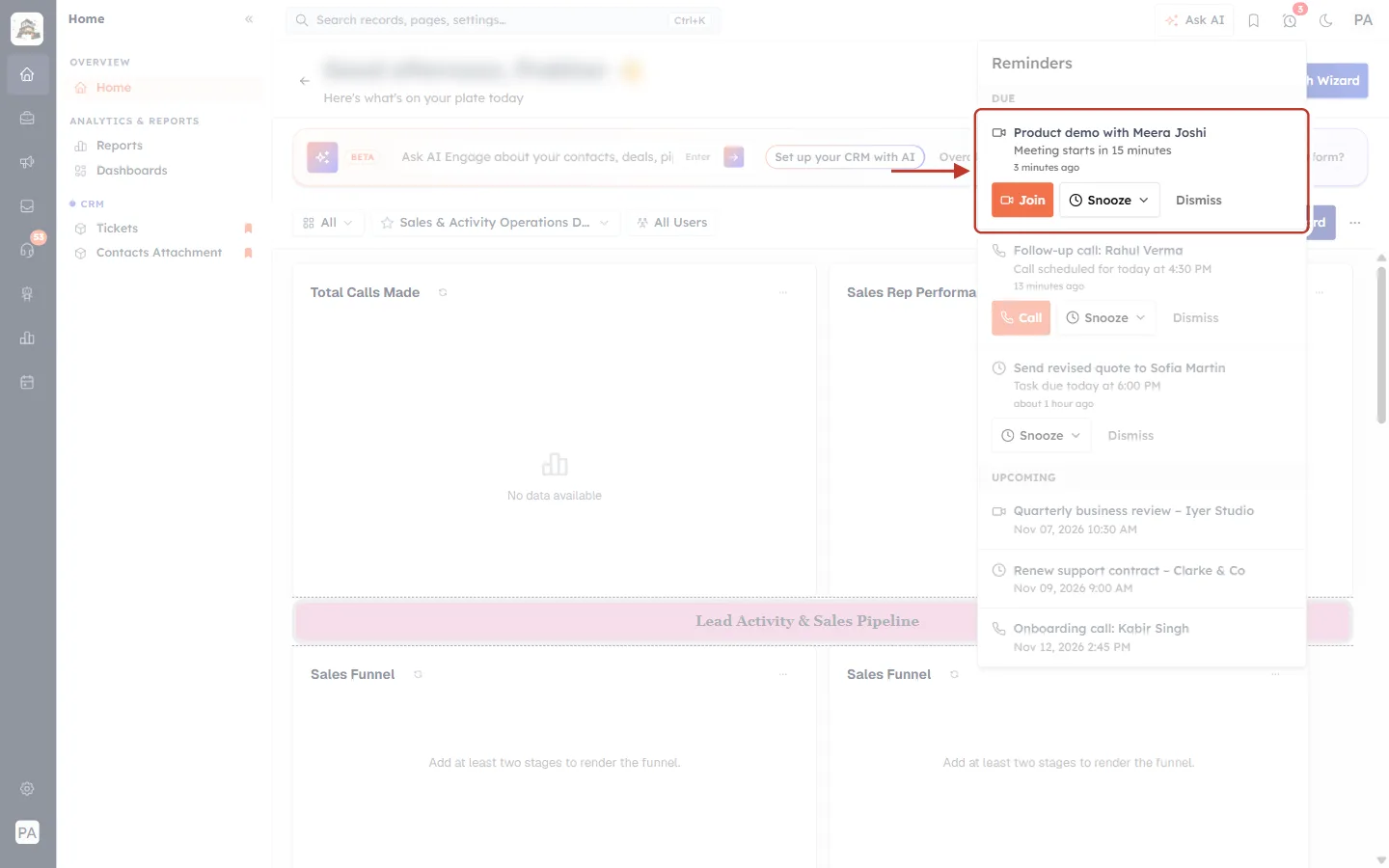
What this screenshot shows. The ringed row is a Due meeting reminder.
Title: Product demo with Meera Joshi, with a video-camera icon in front. Click the title to open the meeting record.
Message: Meeting starts in 15 minutes. Below it, in small grey text: 3 minutes ago, which is when the reminder went off.
The orange Join button opens the meeting’s online link (Google Meet, Zoom and so on) so you can join straight away. It appears only when the meeting has a meeting link.
Next to it are Snooze ▾ and Dismiss (Parts 3 and 4).
Step 4: A call reminder — Call#
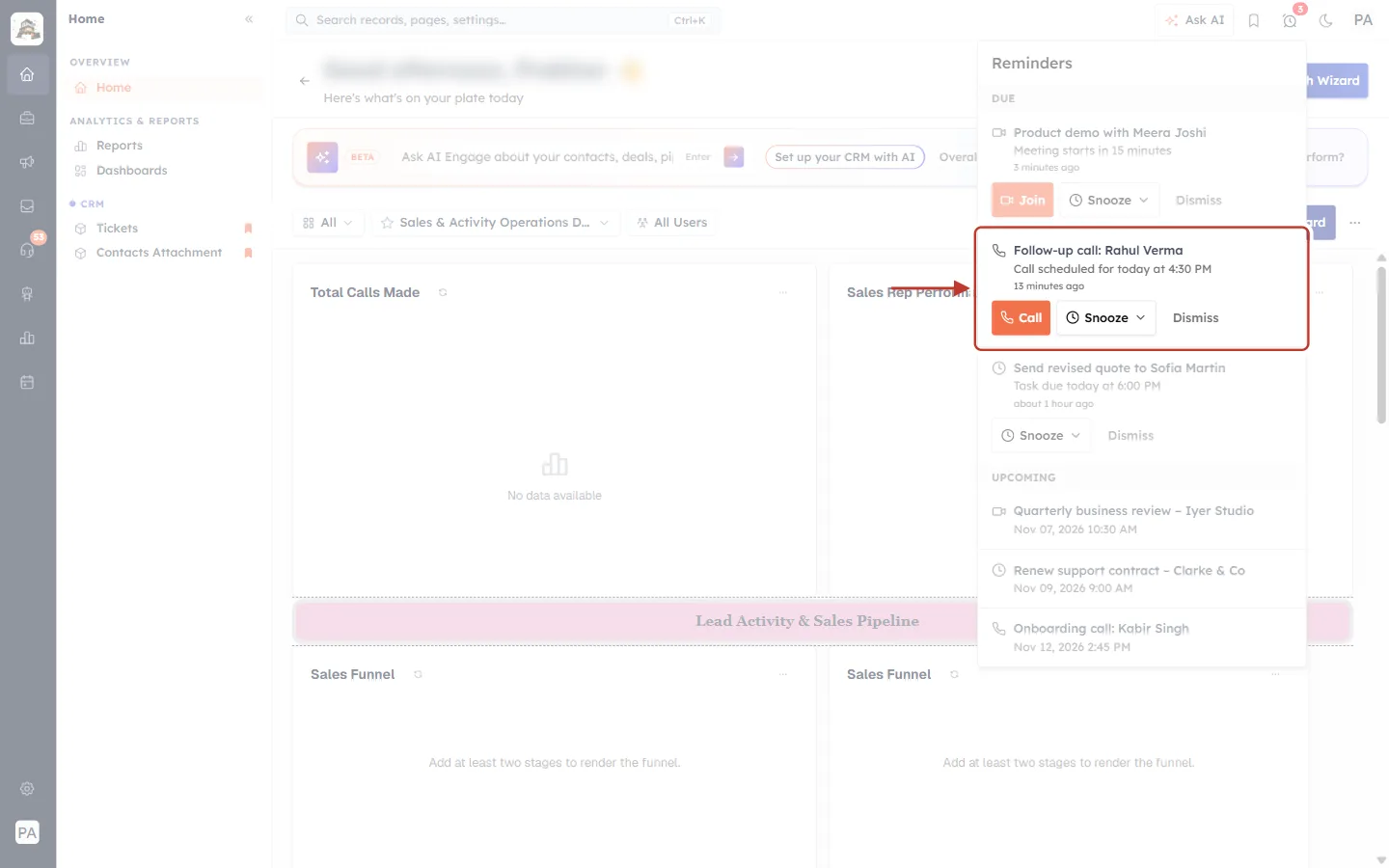
What this screenshot shows. The ringed row is a Due call reminder.
Title: Follow-up call: Rahul Verma, with a phone icon. Message: Call scheduled for today at 4:30 PM, fired 13 minutes ago.
The orange Call button starts the call to the contact’s phone number, using your calling setup in AiEngage CRM. It appears only when the call has a phone number.
Snooze ▾ and Dismiss work the same as for every reminder.
Step 5: A task reminder#
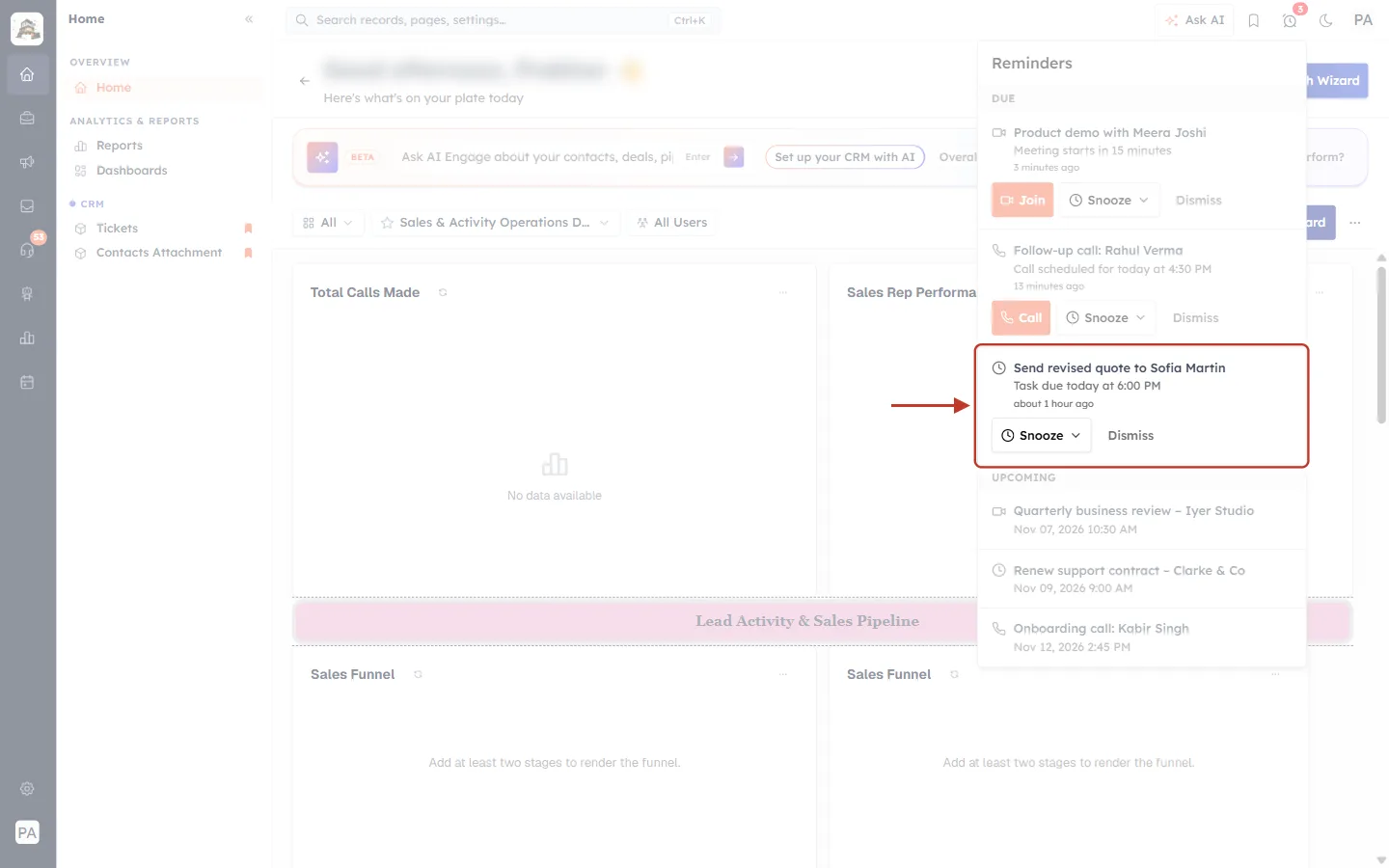
What this screenshot shows. The ringed row is a Due task reminder.
Title: Send revised quote to Sofia Martin, with a clock icon. Message: Task due today at 6:00 PM, fired about 1 hour ago.
A task has no Join or Call button, only Snooze ▾ and Dismiss.
Click the title to open the task, do the work and mark it complete. See Create and Complete Tasks.
Part 3: Snooze a Reminder#
Not ready to deal with it yet? Snooze moves the reminder out of the Due list and reminds you again at the time you choose.
Step 6: Click Snooze and pick a quick option#
Click Snooze ▾ under the reminder. A box of quick options opens right under it.
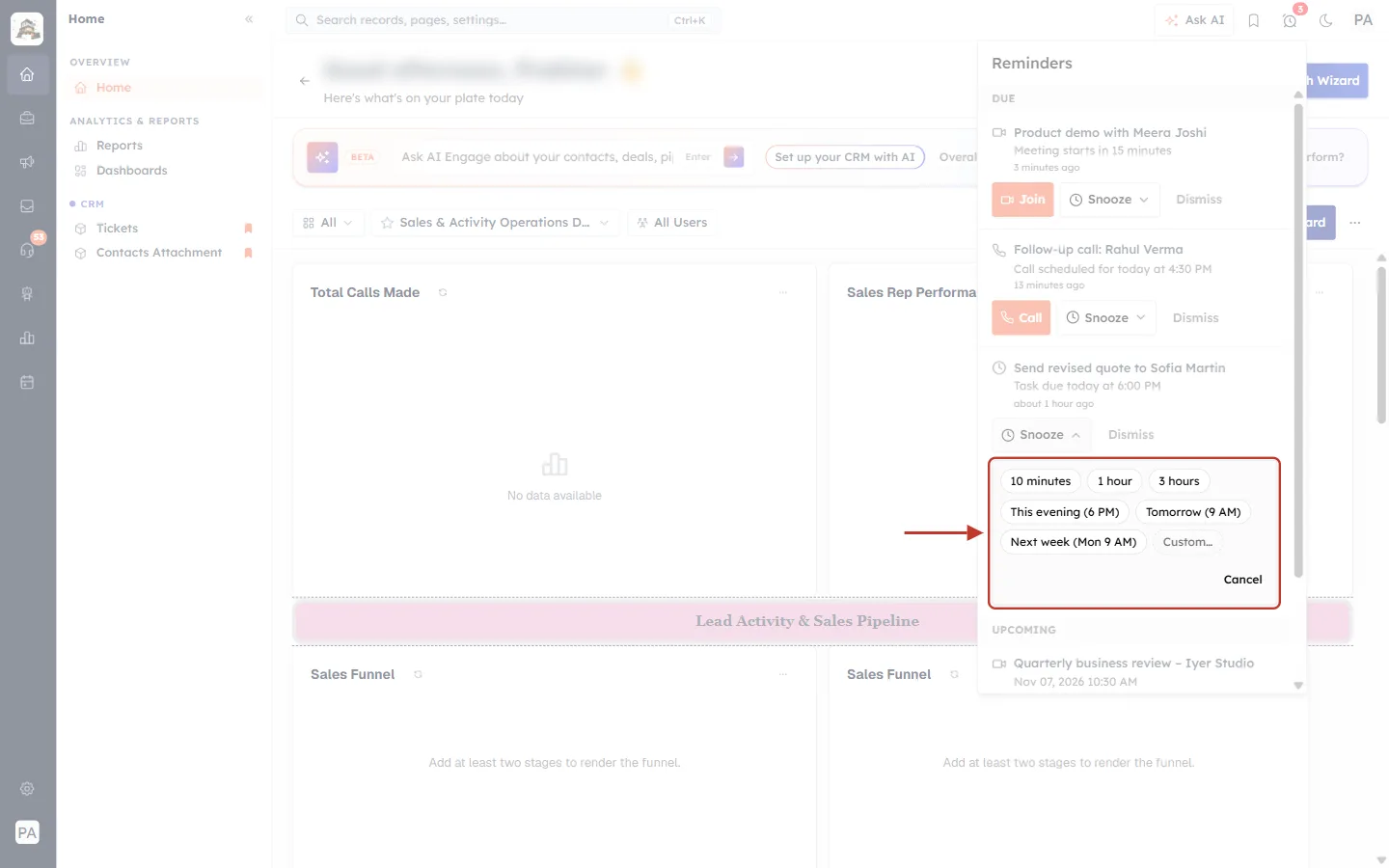
What this screenshot shows. The ringed box opened under the task reminder after clicking Snooze. The arrow points at it.
Quick options: 10 minutes, 1 hour, 3 hours, This evening (6 PM), Tomorrow (9 AM) and Next week (Mon 9 AM). One click snoozes the reminder at once.
This evening (6 PM) only appears before 6 PM. Later in the day it is left out.
Custom… (dashed border) lets you pick your own date and time (Step 7).
Cancel closes the box without snoozing. The Snooze button above now shows an upward arrow (▴) because the box is open.
The rest of the panel is faded but unchanged: the meeting and call reminders above and Upcoming below.
Option | Reminds you again |
|---|---|
10 minutes / 1 hour / 3 hours | That long from now |
This evening (6 PM) | Today at 6:00 PM |
Tomorrow (9 AM) | Tomorrow at 9:00 AM |
Next week (Mon 9 AM) | Next Monday at 9:00 AM |
Custom… | Any future date and time you choose |
Step 7: Choose your own date and time (Custom…)#
Click Custom…. The box changes to show a date button and a time button.
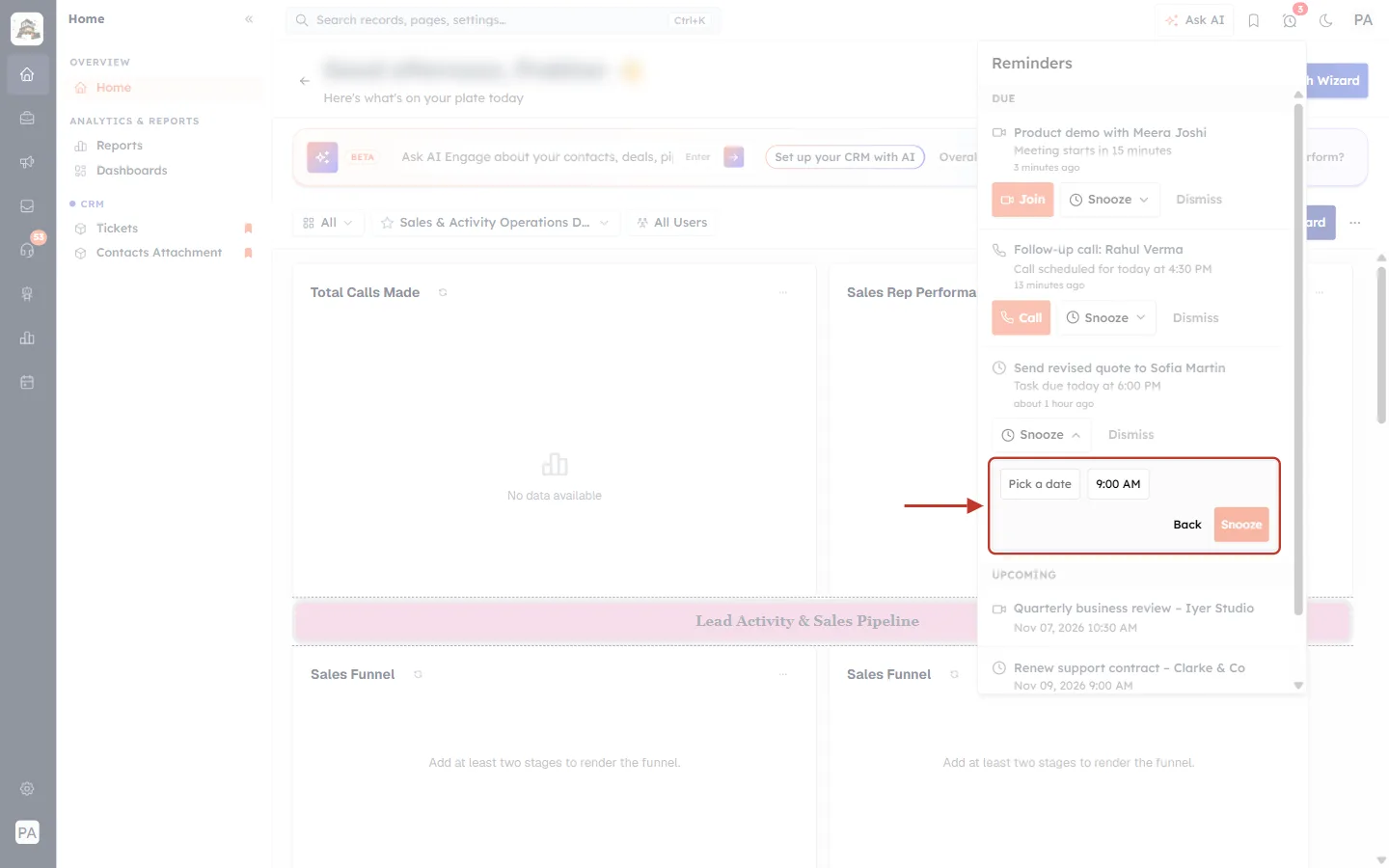
What this screenshot shows. The ringed box is the custom snooze picker.
Pick a date on the left opens a calendar. The time on the right starts at 9:00 AM.
Back returns to the quick options.
Snooze (orange) stays pale until you have picked a date.
Click Pick a date. A calendar opens.
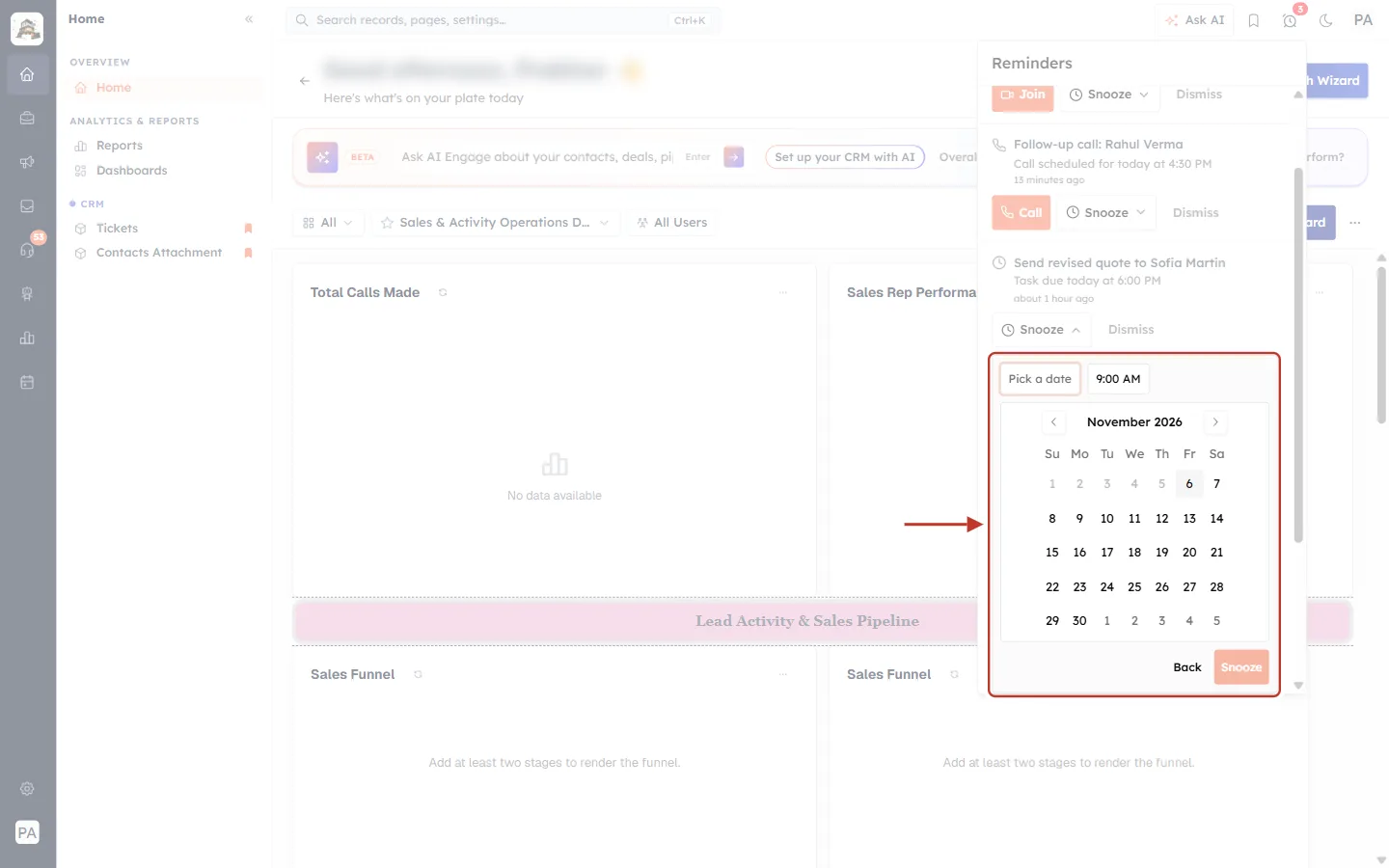
What this screenshot shows. The ringed box shows the calendar for November 2026.
Use ‹ and › beside the month name to move between months.
Days before today (here the 1st to the 5th) are grey and can’t be chosen. Today, the 6th, has a light grey background.
Click a day to choose it. The calendar closes and the date appears on the button.
At the bottom: Back, and Snooze, which is still pale.
Next, click the time button to choose the time. The list goes in 15-minute steps. Scroll it and click the time you want.
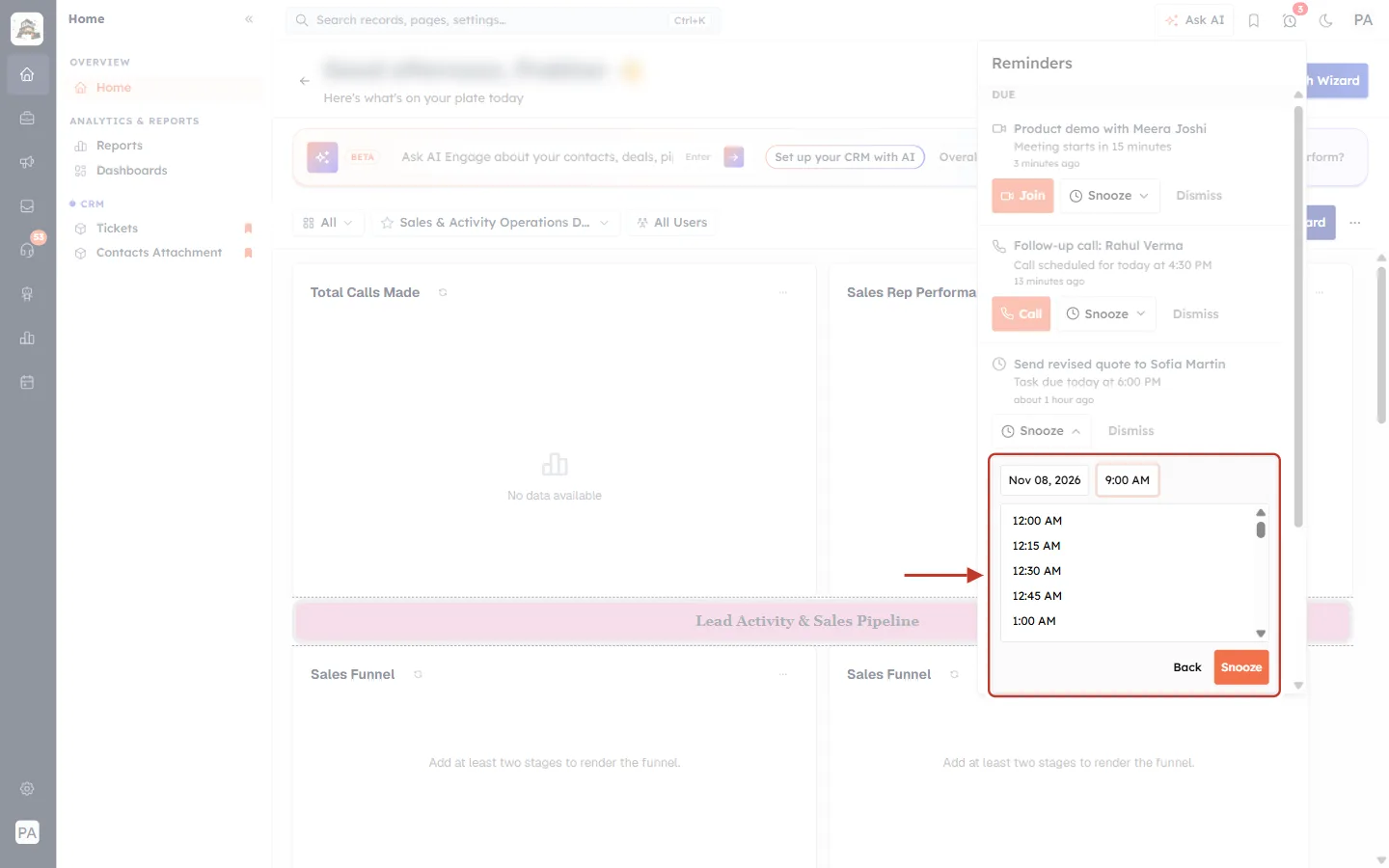
What this screenshot shows. The date is now Nov 08, 2026 and the time list is open inside the ringed box.
The time button (9:00 AM) is highlighted because its list is open.
The list starts at 12:00 AM and goes up in 15-minute steps: 12:15 AM, 12:30 AM, 12:45 AM, 1:00 AM… Scroll down for later times.
Snooze is now bright orange because a date has been picked.
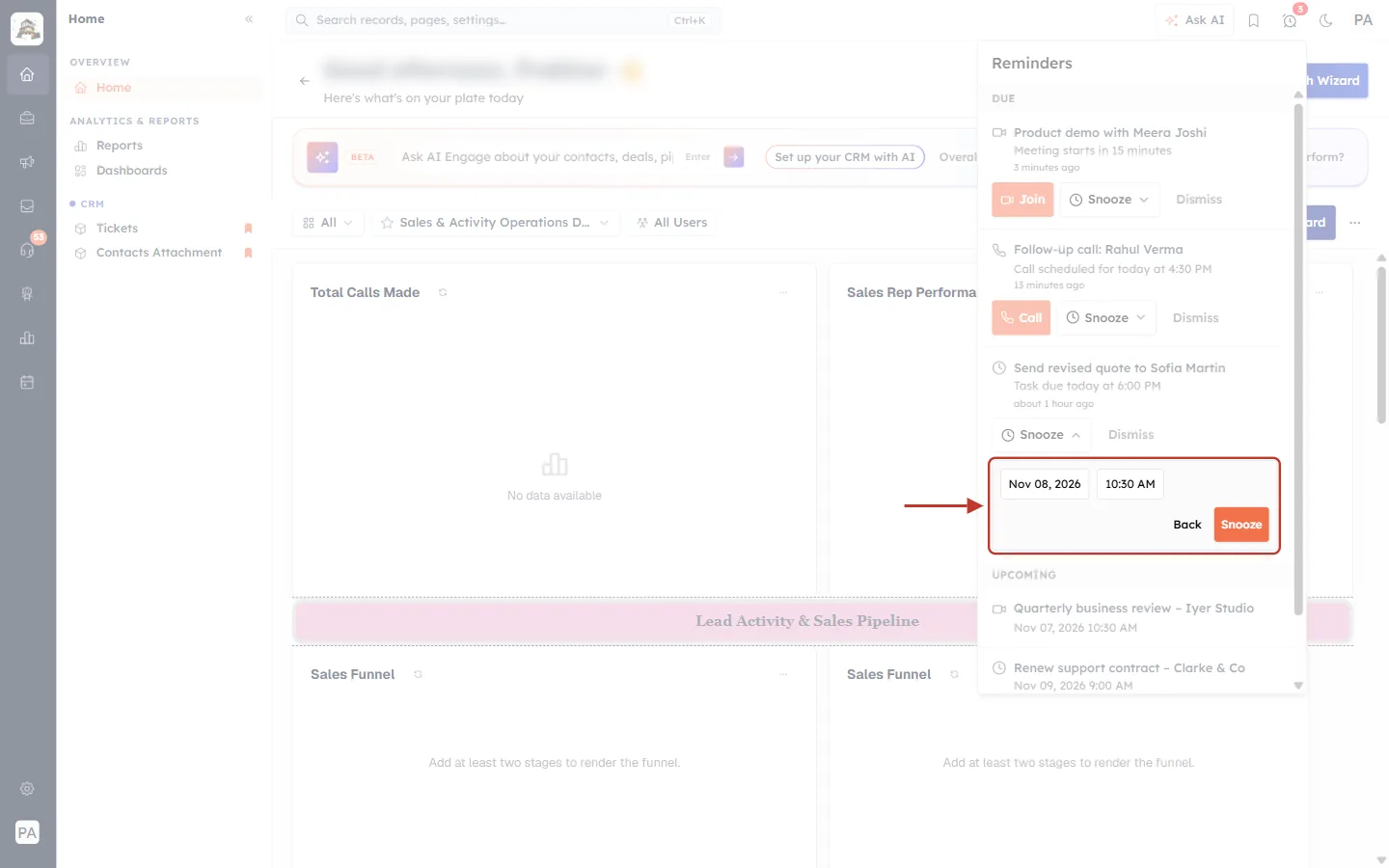
What this screenshot shows. The ringed box shows a complete custom choice: Nov 08, 2026 at 10:30 AM.
Check the date and time, then click the orange Snooze to save.
Click Back to return to the quick options instead.
If the time is in the past#
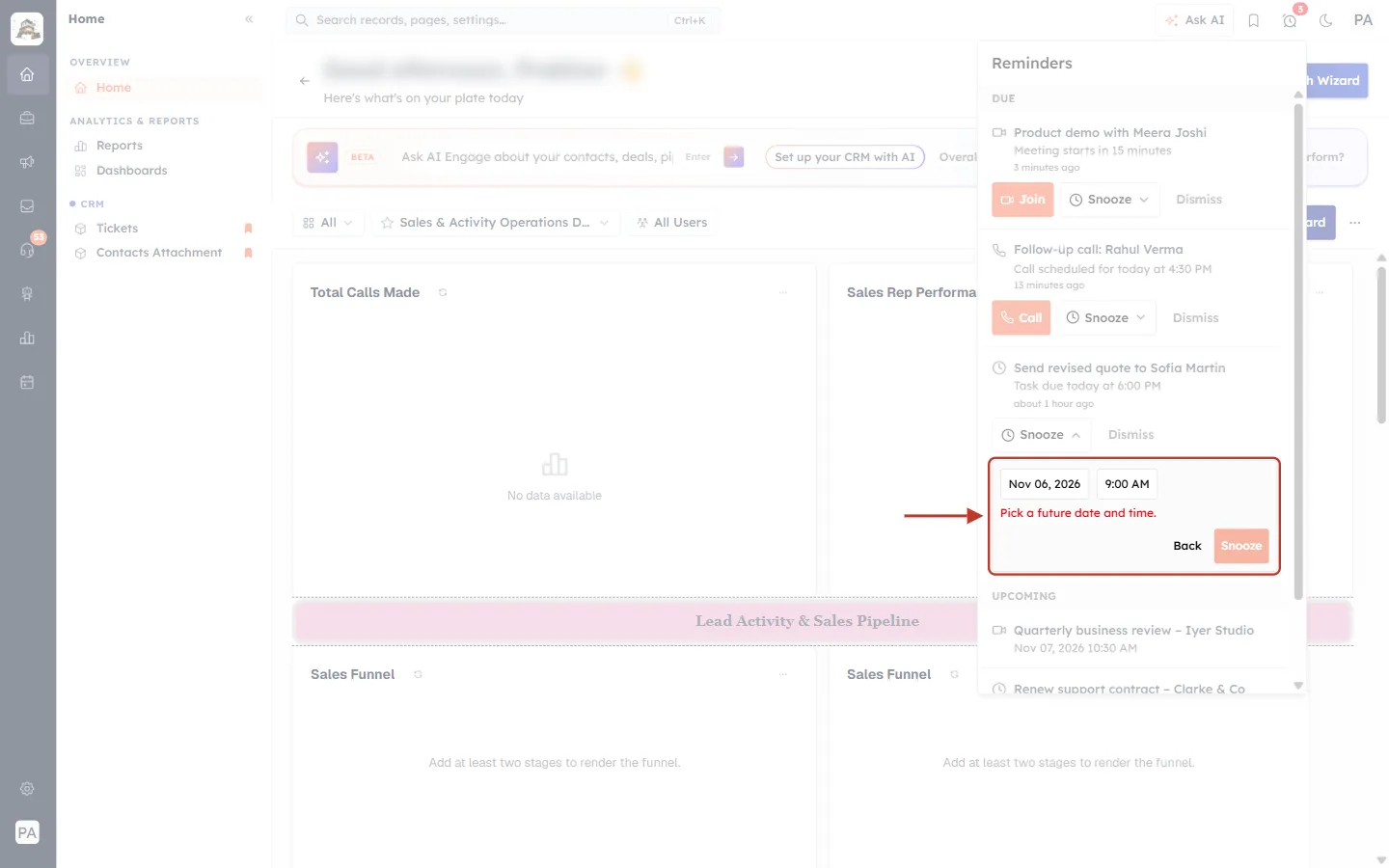
What this screenshot shows. Here today’s date (Nov 06, 2026) was picked with 9:00 AM, which has already passed.
A red message reads Pick a future date and time.
The Snooze button is pale and can’t be clicked until you choose a later time or another day.
Step 8: See the result#
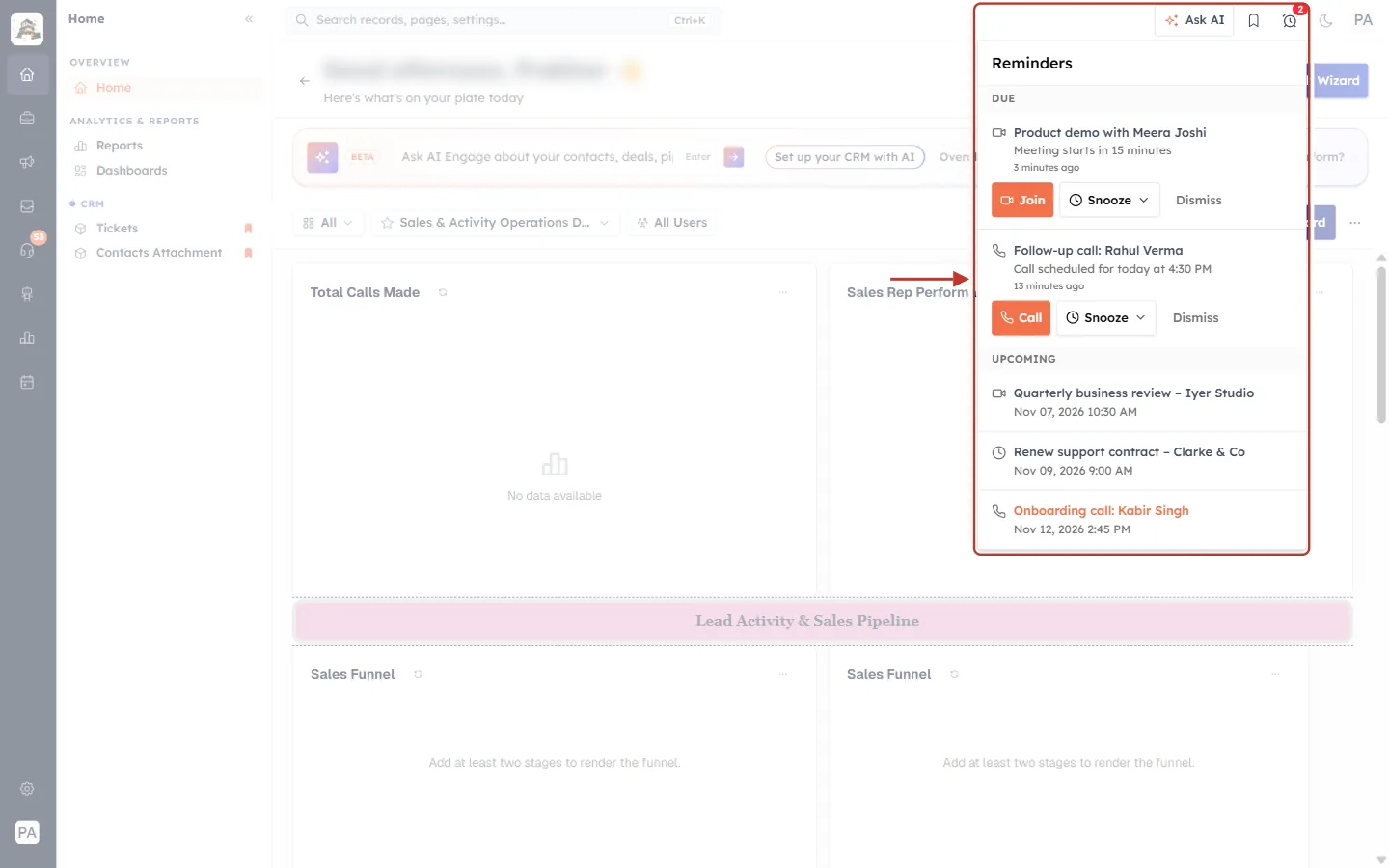
What this screenshot shows. The ringed area covers the alarm clock and the panel after the task was snoozed.
The task Send revised quote to Sofia Martin has left the Due list. Only the meeting and the call remain.
The badge on the alarm clock has gone down from 3 to 2.
At the time you chose, the reminder goes off again and comes back under Due.
⚠️
If snoozing fails, a message at the bottom right reads Could not snooze the reminder. Try a later time. The reminder stays in the Due list. Pick a later time, or try again in a moment.
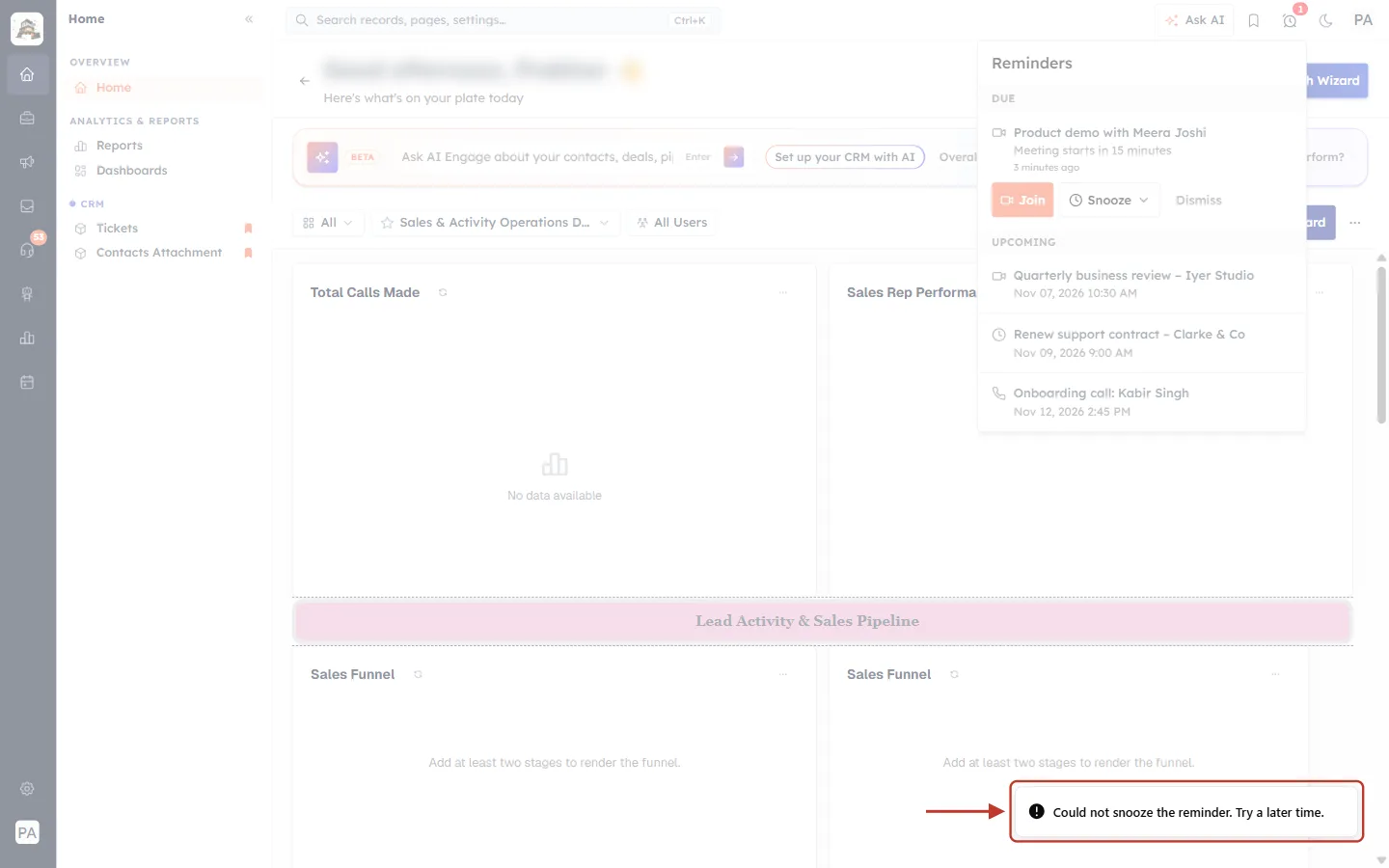
What this screenshot shows. The ringed message appeared at the bottom right of the screen after a snooze could not be saved.
It reads Could not snooze the reminder. Try a later time.
The panel reloads, so the reminder is still listed under Due and nothing is lost.
Part 4: Dismiss a Reminder#
When you have dealt with a reminder, or don’t need it any more, click Dismiss to clear it from the Due list.
Step 9: Click Dismiss#
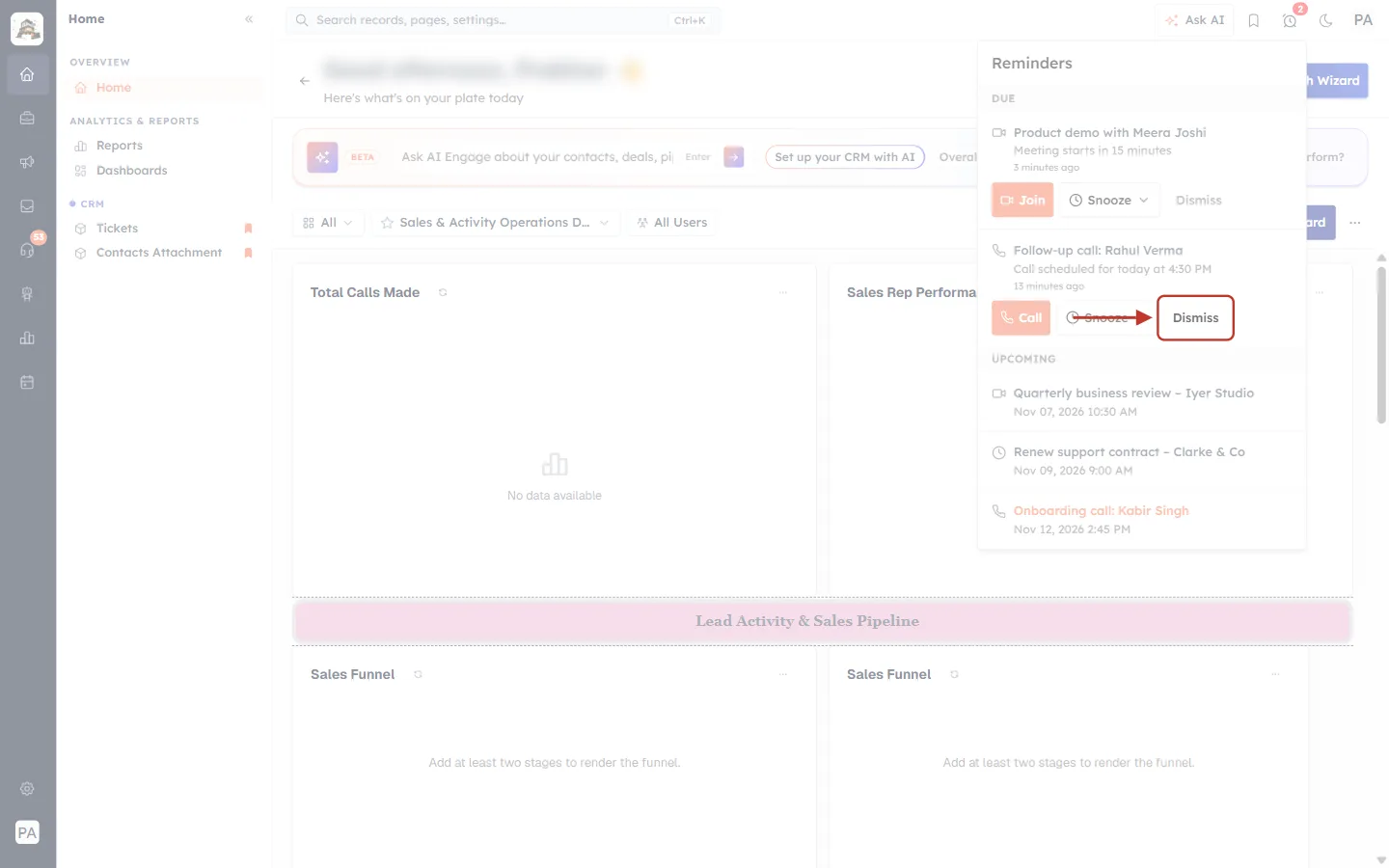
What this screenshot shows. The ringed Dismiss button is on the call reminder Follow-up call: Rahul Verma.
Dismiss is the plain grey text button at the end of each Due reminder, after Snooze.
There is no confirmation. One click clears the reminder.
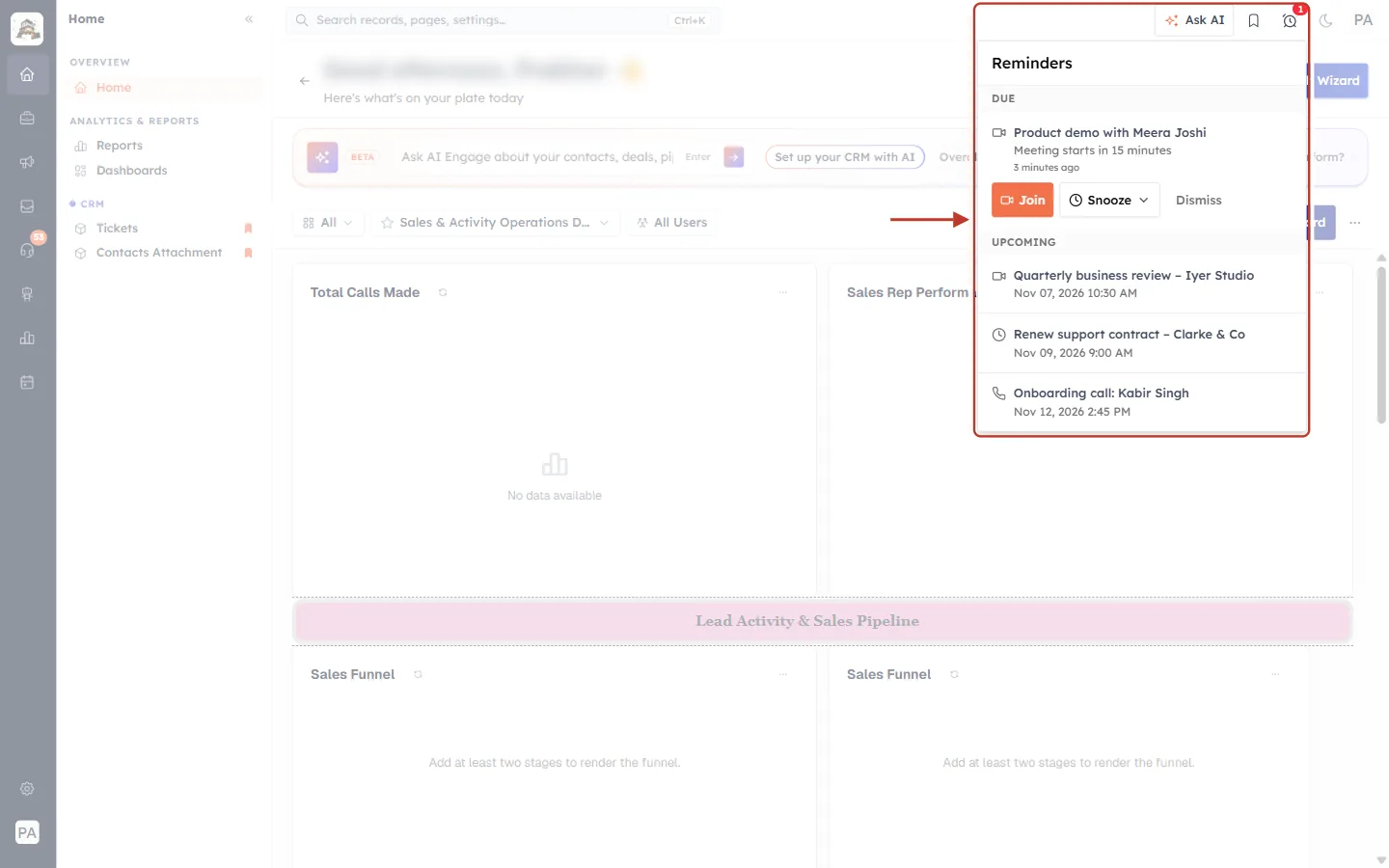
What this screenshot shows. The ringed area shows the alarm clock and the panel after the call reminder was dismissed.
Only the meeting reminder (Product demo with Meera Joshi) is left under DUE.
The badge now shows 1.
The UPCOMING list is unchanged: Quarterly business review (Nov 07, 2026 10:30 AM), Renew support contract (Nov 09, 2026 9:00 AM) and Onboarding call (Nov 12, 2026 2:45 PM).
ℹ️
Dismiss doesn’t complete or delete anything. The task, meeting or call itself stays exactly as it was. Dismiss only clears the reminder from your Due list. To finish a task, open it and mark it complete.
Part 5: Plan Ahead with Upcoming#
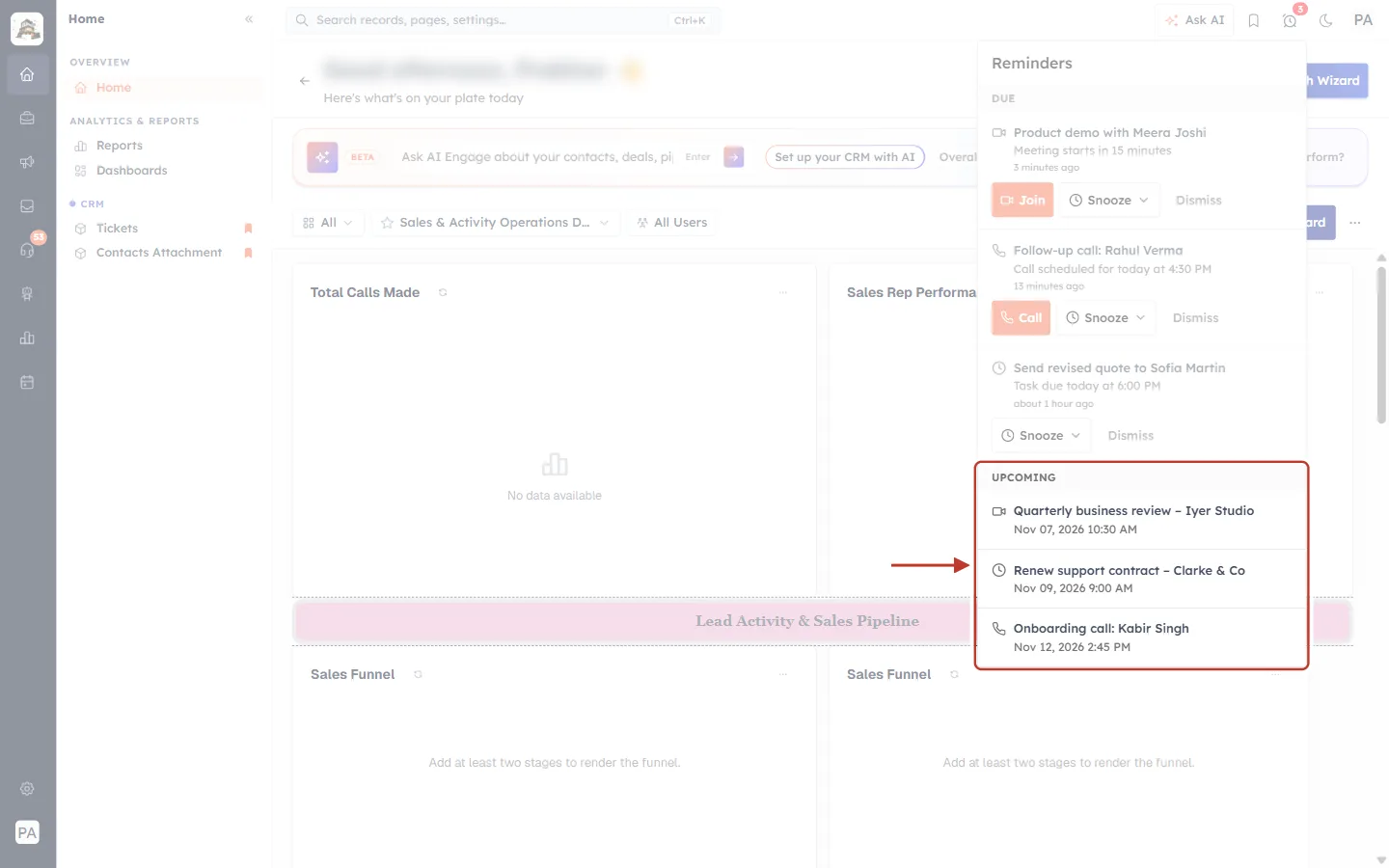
What this screenshot shows. The ringed section is the UPCOMING list at the bottom of the panel.
It shows reminders that will go off in the next 30 days, soonest first.
Each row has the type icon, the record title and the date and time the reminder will go off. For example, Quarterly business review – Iyer Studio reminds you on Nov 07, 2026 10:30 AM.
That is the reminder time, not necessarily the time of the meeting or task itself.
Upcoming reminders have no buttons. Click a title to open the record, for example to change its reminder or reschedule it.
When its time comes, an Upcoming reminder moves up to Due and the badge goes up.
Part 6: When You’re All Caught Up#
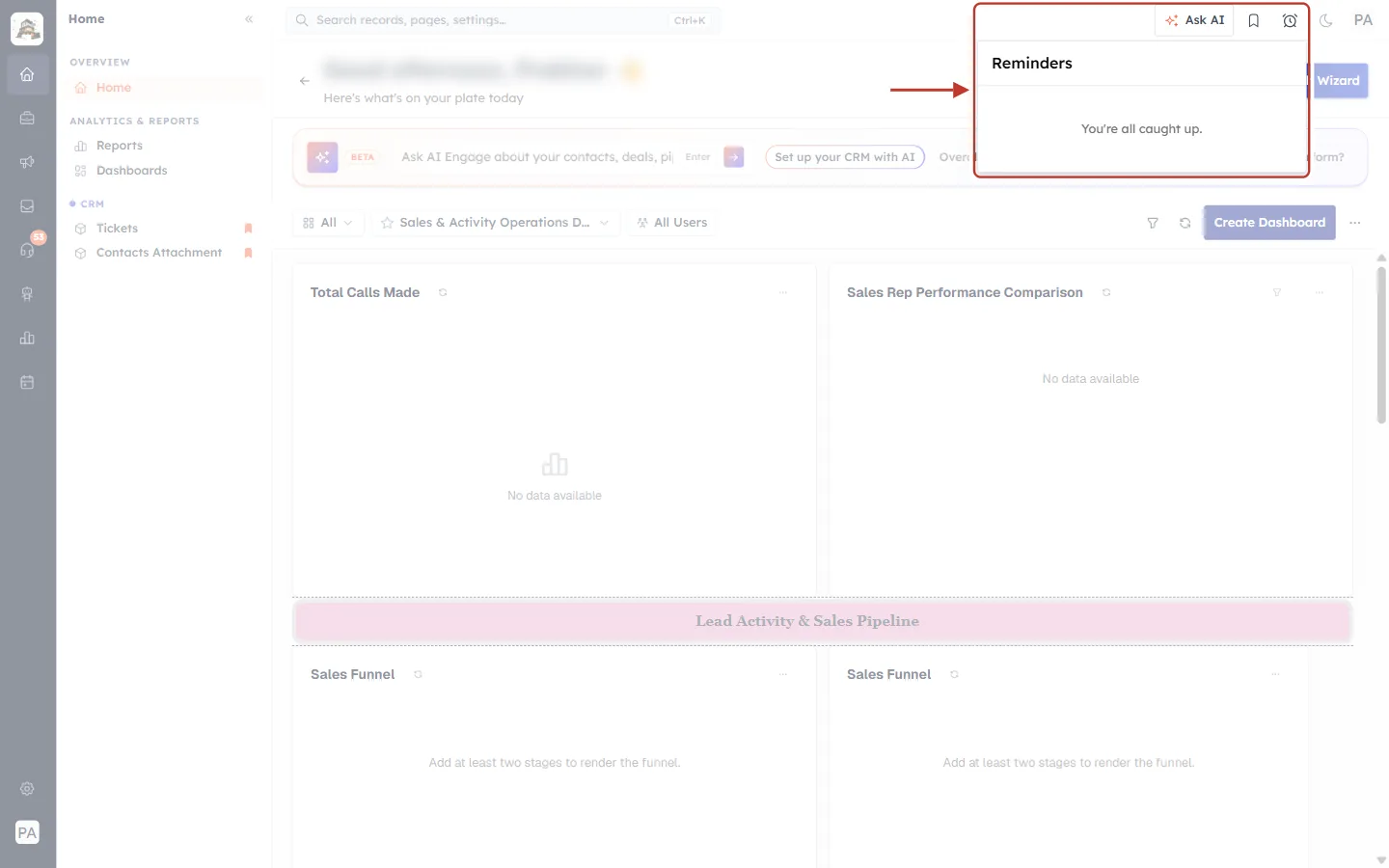
What this screenshot shows. The ringed area shows the alarm clock and the panel with nothing in it.
The panel reads You’re all caught up. There is nothing due and nothing coming up in the next 30 days.
The alarm clock has no red badge.
To get reminders here, switch on Reminder on a task, meeting or call. See Set a Reminder on a Task, Meeting or Call.
Quick Reference#
I want to… | Do this |
|---|---|
See how many reminders are due | Look at the red number on the ⏰ |
Open the list | Click ⏰ |
Open the record | Click its title |
Join the meeting now | Join |
Call the contact now | Call |
Be reminded later | Snooze ▾ → quick option, or Custom… → date + time → Snooze |
Clear it | Dismiss |
See what’s coming | The Upcoming list (next 30 days) |
Best Practices#
Keep the badge at zero. Check the alarm clock a few times a day and either act on, snooze or dismiss each Due reminder.
Snooze to a real time. Choose when you will actually be free, such as Tomorrow (9 AM), rather than snoozing 10 minutes again and again.
Use Join and Call. They save you opening the record to find the link or the number.
Review Upcoming each morning to see what is coming this week, alongside Your Home Dashboard: Daily Activity Overview.
Dismiss only when done. Dismiss doesn’t complete the task, so mark tasks complete as well.
Troubleshooting#
A reminder I set isn’t in the panel#
Open the task, meeting or call and check that the Reminder switch is on and its date is in the future. Reminders more than 30 days away aren’t listed under Upcoming yet. The panel shows only reminders for records you own.
There is no Join or Call button#
Join appears only for meetings that have an online meeting link. Call appears only for calls that have a phone number. Open the record and add the missing link or number.
Snooze is greyed out#
In Custom…, pick a date first. If the message Pick a future date and time shows, choose a later time or another day.
“Could not snooze the reminder. Try a later time.”#
The snooze couldn’t be saved. The reminder stays under Due. Choose a later time and try again.
The badge number looks out of date#
Click the alarm clock. The panel reloads every time it opens.
Frequently Asked Questions#
Does dismissing a reminder delete the task or meeting?
No. The record is unchanged. Only the reminder is cleared from Due.
Can I undo a Dismiss?
Not from the panel. Open the record and set a new reminder if you still need one.
Can I snooze an Upcoming reminder?
No. Snooze and Dismiss are only for Due reminders. To move an upcoming one, open the record and change its reminder.
How far ahead does Upcoming look?
30 days.
Do I see my teammates’ reminders?
No. Each person sees the reminders for the records they own.
Which records can have reminders?
Tasks, meetings and calls. See Set a Reminder on a Task, Meeting or Call. For meeting-specific options such as email, popup and mobile alerts, see Meeting Reminders and Repeat: Email, Popup and Mobile Alerts, Snooze and Recurring Meetings.
Previous and Next#
Related Articles#
Was this article helpful?
Ready to implement this?
OpenAI Engage and apply what you just learned to your own workspace.
Open AI Engage CRM