Loading…


KnowledgeBase
Ask Seemo: Get Instant Help Inside AiEngage CRM from Your AI Help Assistant
What is Ask Seemo?#
Seemo is AiEngage's AI help assistant. It lives behind the round orange chat button in the bottom-right corner of every page in the CRM. Whenever you are unsure how to do something, open it, type your question in plain English, and Seemo replies in a few seconds with clear, numbered steps.
You do not have to leave the page you are working on, search the help centre or wait for an email. The chat opens as a small panel on top of the CRM, so you can read the steps and follow them at the same time.
Seemo is good at questions like these:
“How do I create a segment of contacts who opened my last email campaign?”
“How do I set up WhatsApp, Email, and Voice?”
“How can I customize my CRM?”
“How do I import contacts from a spreadsheet?”
“What is the difference between a dynamic and a static segment?”
ℹ️
Nothing to set up. Ask Seemo is already switched on for every user. There is no setting to turn on, no permission to request and no extra app to install. If you can sign in to AiEngage CRM, you can use Seemo.
Ask Seemo or Ask AI Engage — which one do I use?#
AiEngage CRM has two AI assistants, and they answer different kinds of questions:
| Ask Seemo | Ask AI Engage | |
|---|---|---|
| Where to find it | The round orange chat button, bottom-right corner of every page | The Ask AI button in the top bar, and the Ask AI Engage box on the Home page |
| What it is for | How to use the product — features, settings, step-by-step instructions | Your own CRM data — records, totals, reports, owners |
| Example question | “How do I create a segment?” | “Show me the deals closing this month.” |
A simple rule: if the question starts with “How do I…?”, ask Seemo. If it asks about your contacts, deals or numbers, use Ask AI Engage.
This article walks you through Seemo screen by screen: opening it, asking a question, reading and rating the answer, finding the conversation again, and reaching a person when you need one.
Step 1: Open Ask Seemo#
Look at the bottom-right corner of any page in AiEngage CRM — the Home page, a contact record, the Workflows list, Settings — and click the round orange button.
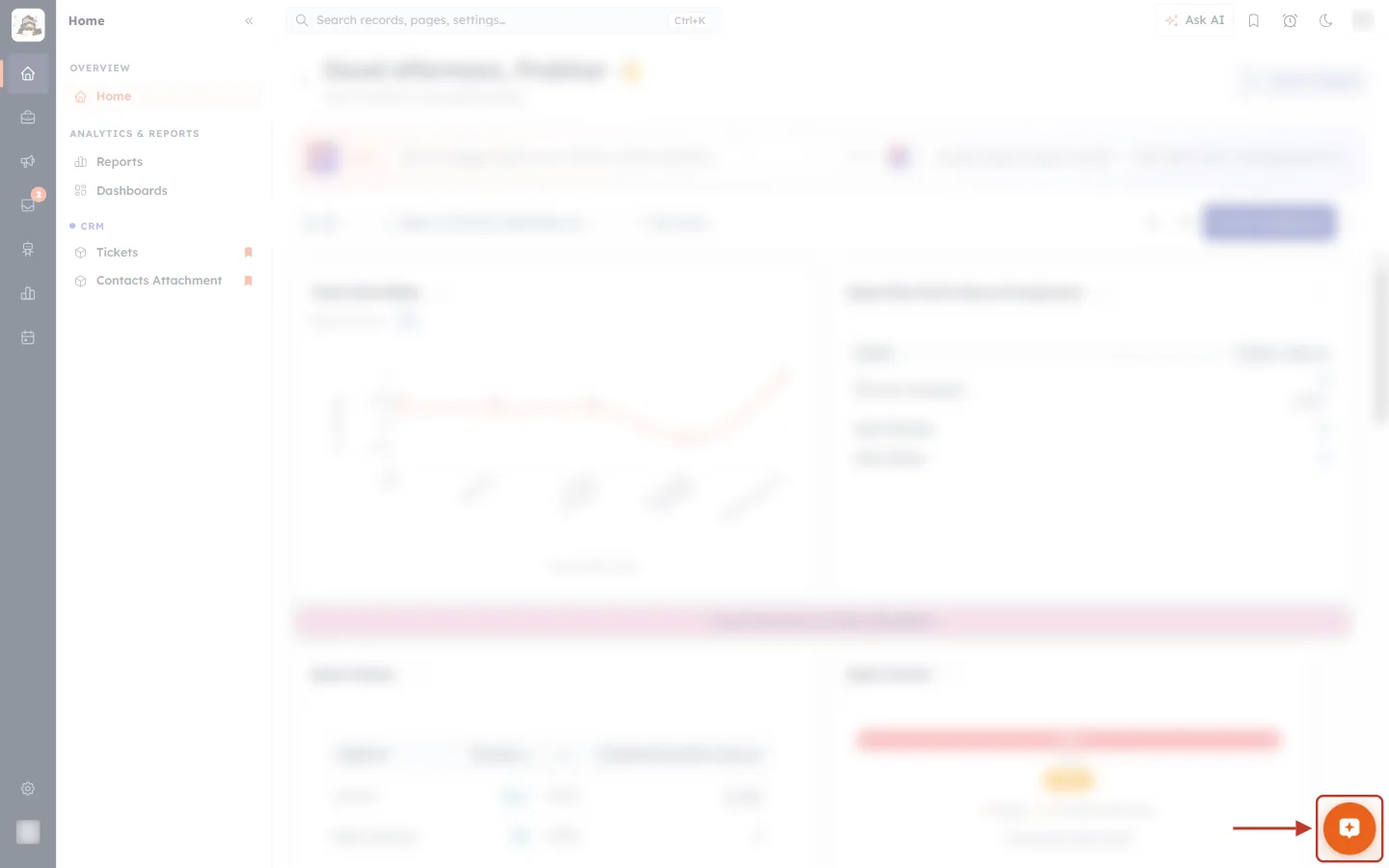
What this screenshot shows. The Home page of AiEngage CRM with the rest of the screen faded, so the Ask Seemo button stands out. The red box and arrow point at the round orange button with the chat icon in the bottom-right corner.
The orange chat button (in the red box) — this is Ask Seemo. It sits in the same place on every page, floating above whatever you are working on. Click it once to open the chat.
The left sidebar and top bar (faded) — your normal CRM navigation. Seemo does not replace or move any of it.
The page in the middle (faded and blurred here for privacy) — the page you were already on. It stays exactly as it was; Seemo opens on top of it.
Ask AI in the top bar — the other AI assistant, for questions about your data. See the comparison table above.
✅
Button in the way? On a computer screen you can move it. Hover over the orange button until you see Drag to move, then click and drag it to another spot on the screen.
Step 2: Get to know the Home screen#
Seemo opens as a panel on the right of the screen. The first thing you see is its Home screen.
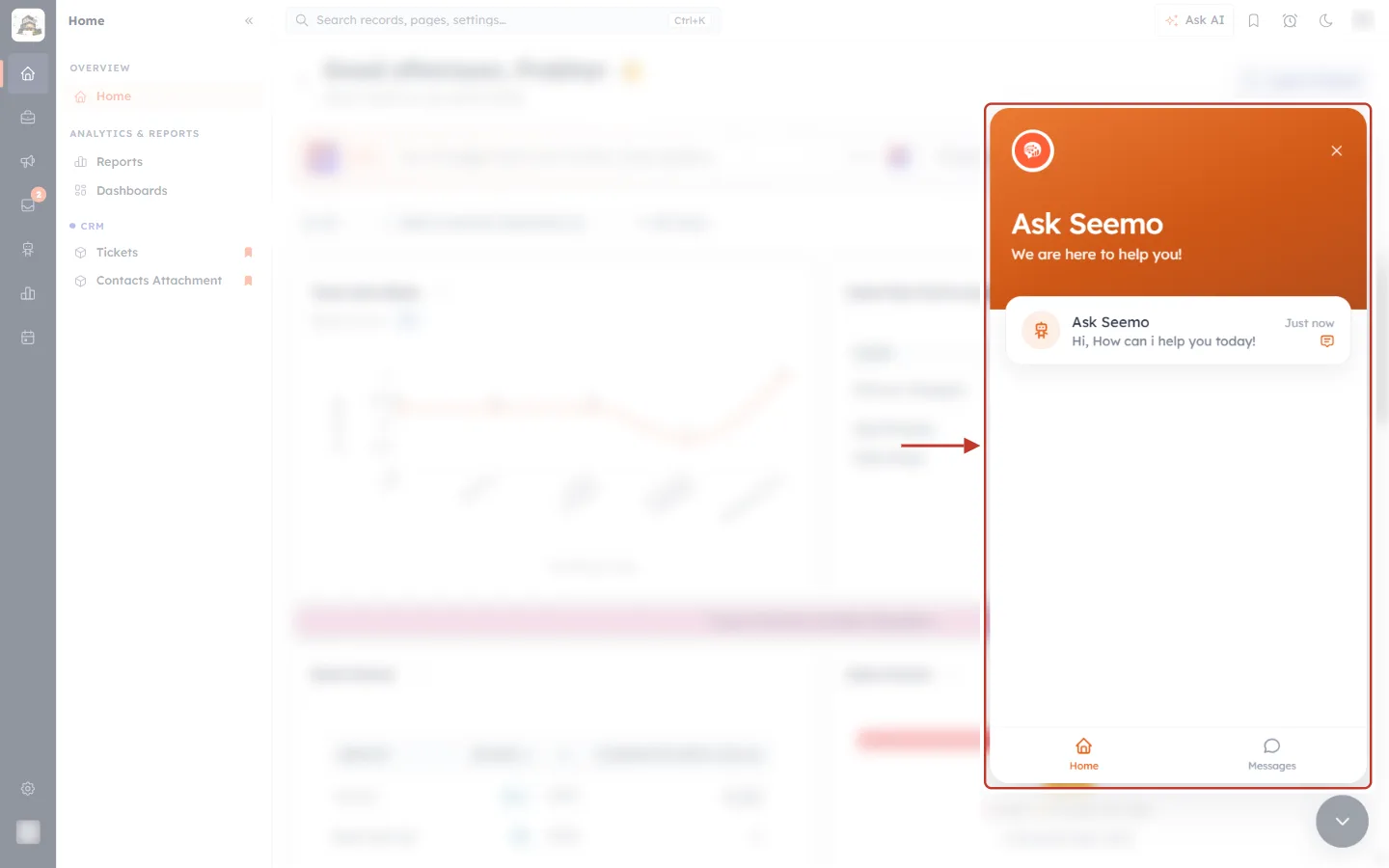
What this screenshot shows. The whole Ask Seemo panel, outlined in red, open on top of the CRM. It has three parts: an orange header, a conversation card, and two tabs at the bottom.
The orange header — Seemo’s logo, the title Ask Seemo and the line We are here to help you! This tells you that you are talking to AiEngage’s help assistant.
The ✕ in the top-right corner of the header — closes the panel (more in Step 10).
The conversation card — the white card under the header. It shows your conversation with Seemo and the last message in it. Click it to open the chat.
Home and Messages — two tabs at the very bottom of the panel. Home is this screen; Messages lists your conversations (Step 9).
The dark round button below the panel — the orange launcher changes to a dark button with a down arrow while the panel is open. Click it to tuck the panel away.
Now look closer at the conversation card:
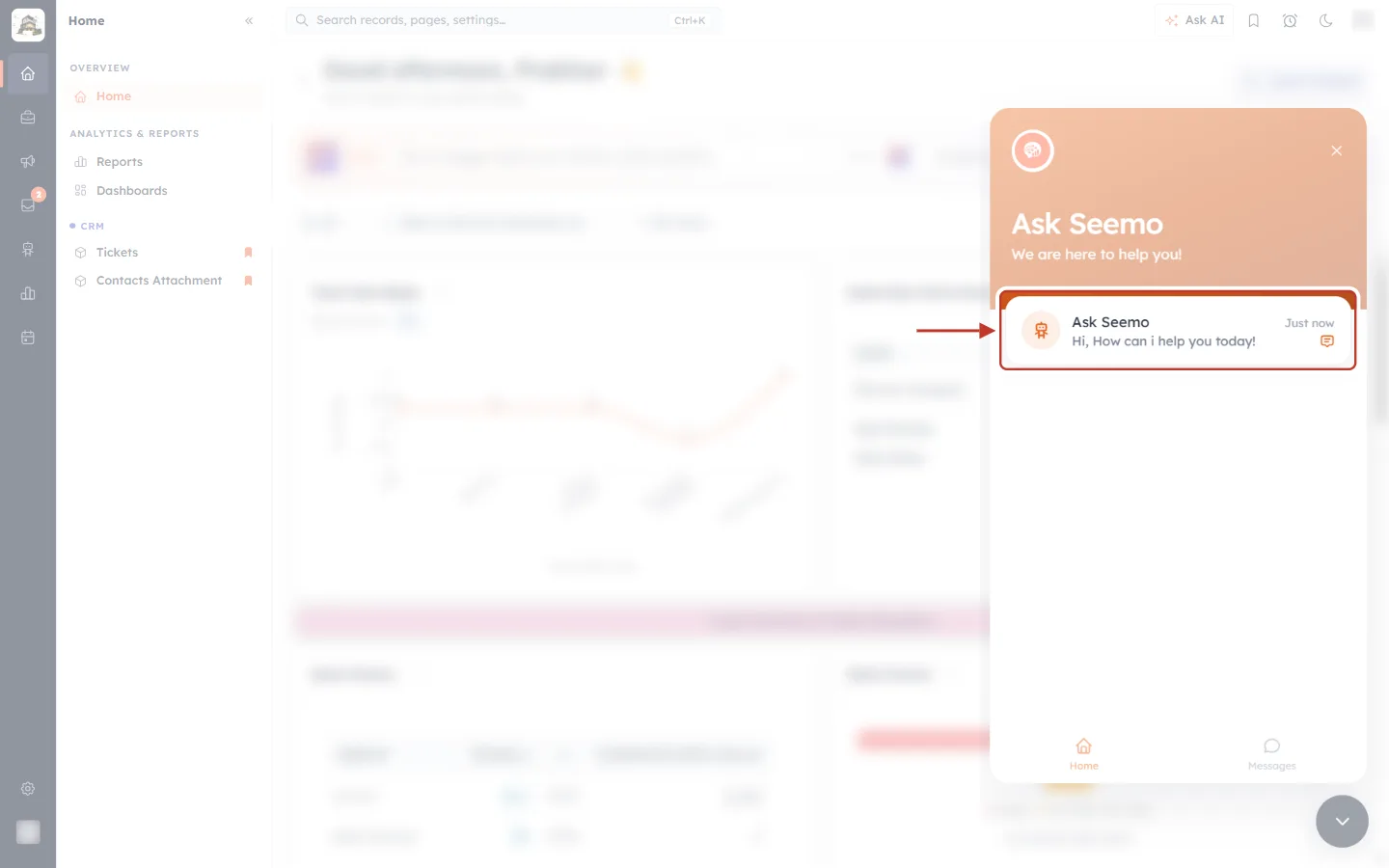
What this screenshot shows. The Home screen with the conversation card outlined in red. This is where every chat with Seemo starts.
Seemo’s icon — on the left of the card.
Ask Seemo — the name of who you are chatting with.
Hi, How can i help you today! — a preview of the latest message. Before you ask anything, it is Seemo’s greeting. After you have chatted, it shows the last reply, so you can see at a glance where you left off.
Just now — when that last message arrived.
The small chat icon on the right — a reminder that clicking the card opens the conversation.
At the bottom of the panel are the two tabs you use to move around Seemo:
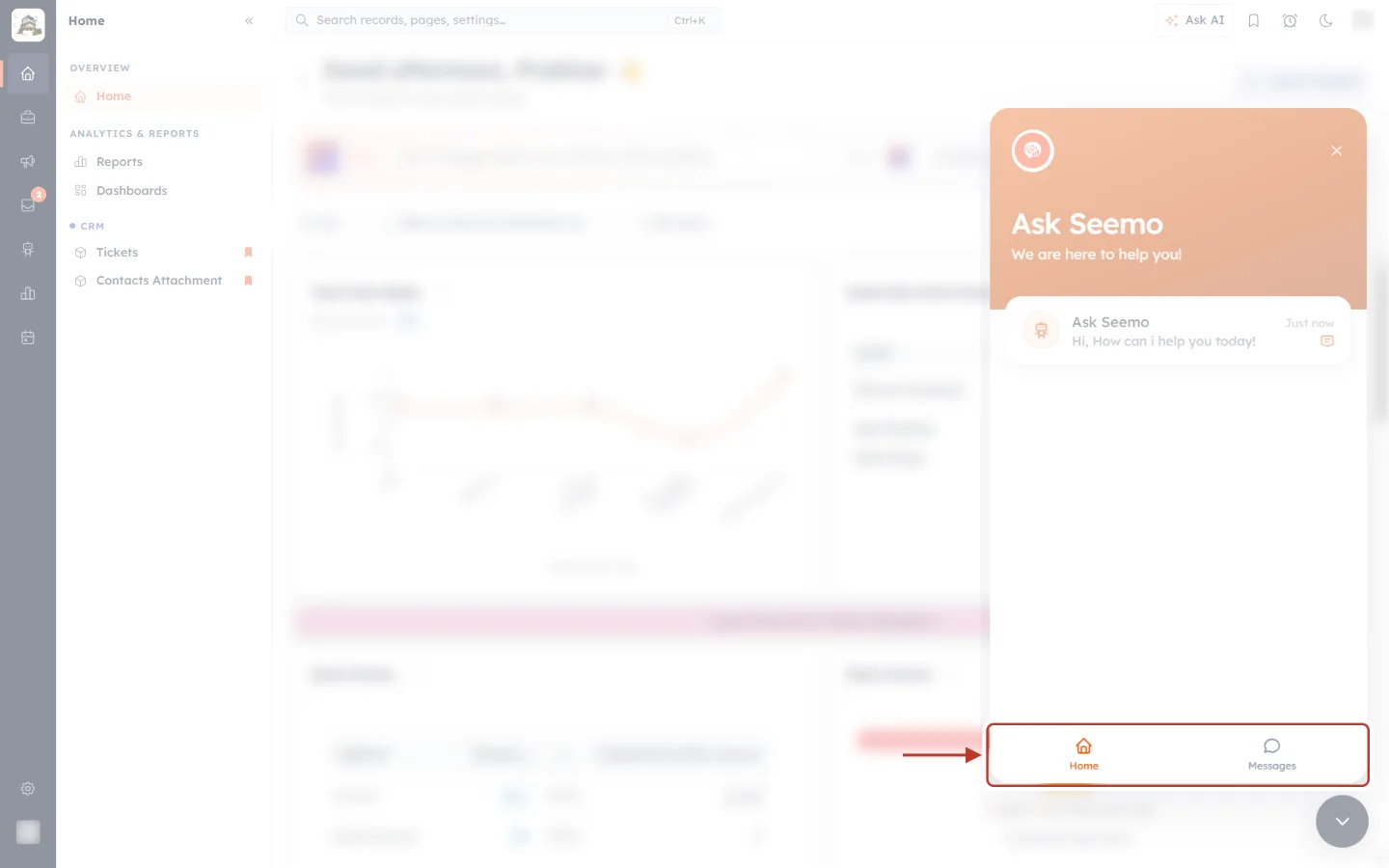
What this screenshot shows. The bottom edge of the Seemo panel, with the tab bar outlined in red.
Home (house icon) — the welcome screen with your conversation card. It is shown in orange when it is the tab you are on.
Messages (speech-bubble icon) — the list of your conversations with Seemo. Use it to come back to an earlier answer.
Tickets — some accounts also see a third tab here for support tickets. If you do not see it, it has not been switched on for your organisation, and you do not need it to use Seemo.
Step 3: Open the chat#
Click the conversation card. The panel switches to the chat screen.
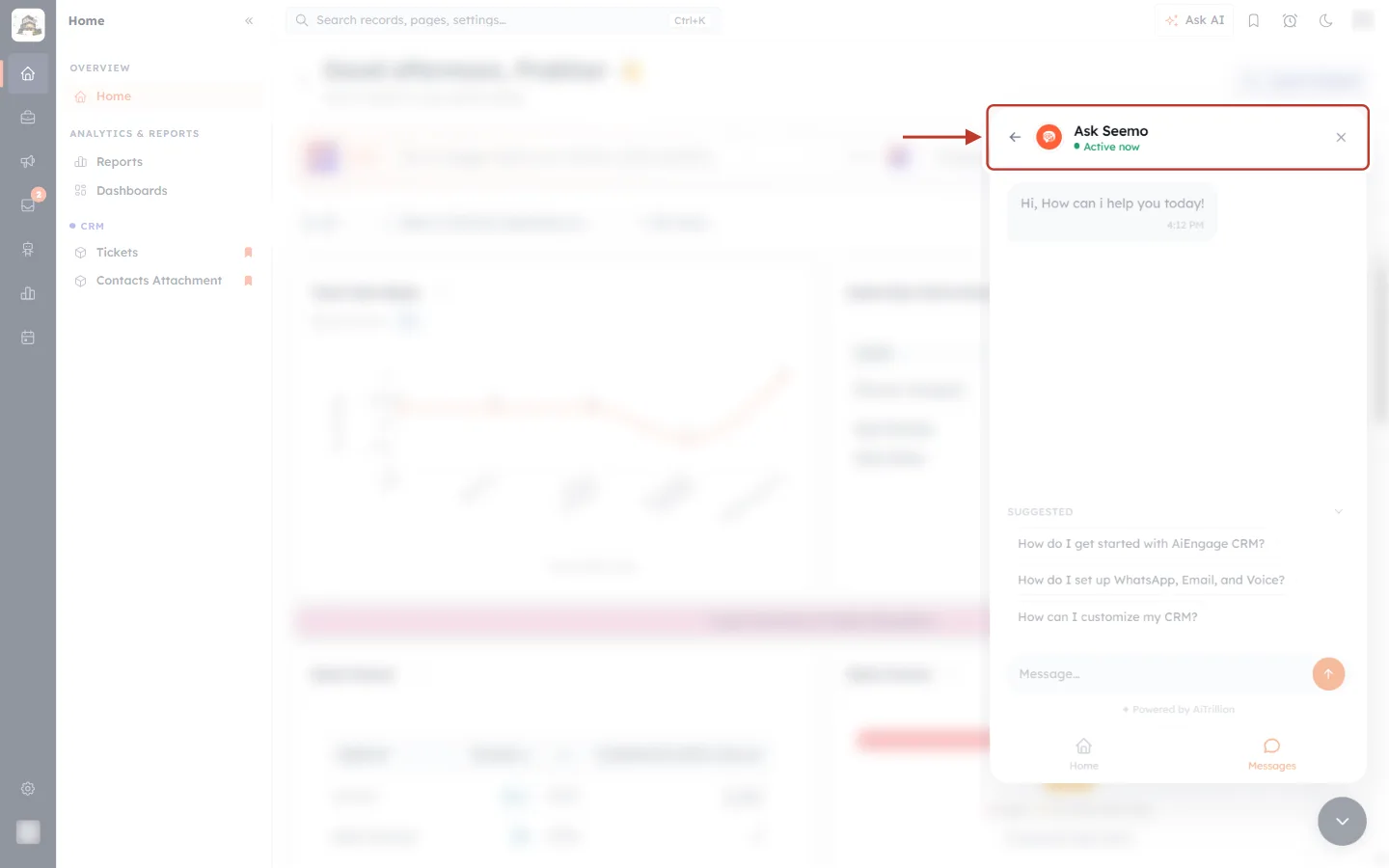
What this screenshot shows. The chat screen, with its header outlined in red. The header tells you who you are talking to and whether they are available.
← (back arrow) — on the far left. Takes you back to the screen you came from (Home or Messages). Your conversation is kept.
Seemo’s icon and the name Ask Seemo — who is answering.
● Active now — the green dot and status mean Seemo is available and will answer straight away.
✕ — on the far right. Closes the panel.
Below the header (faded) — the conversation itself, the suggested questions and the message box, covered in the next steps.
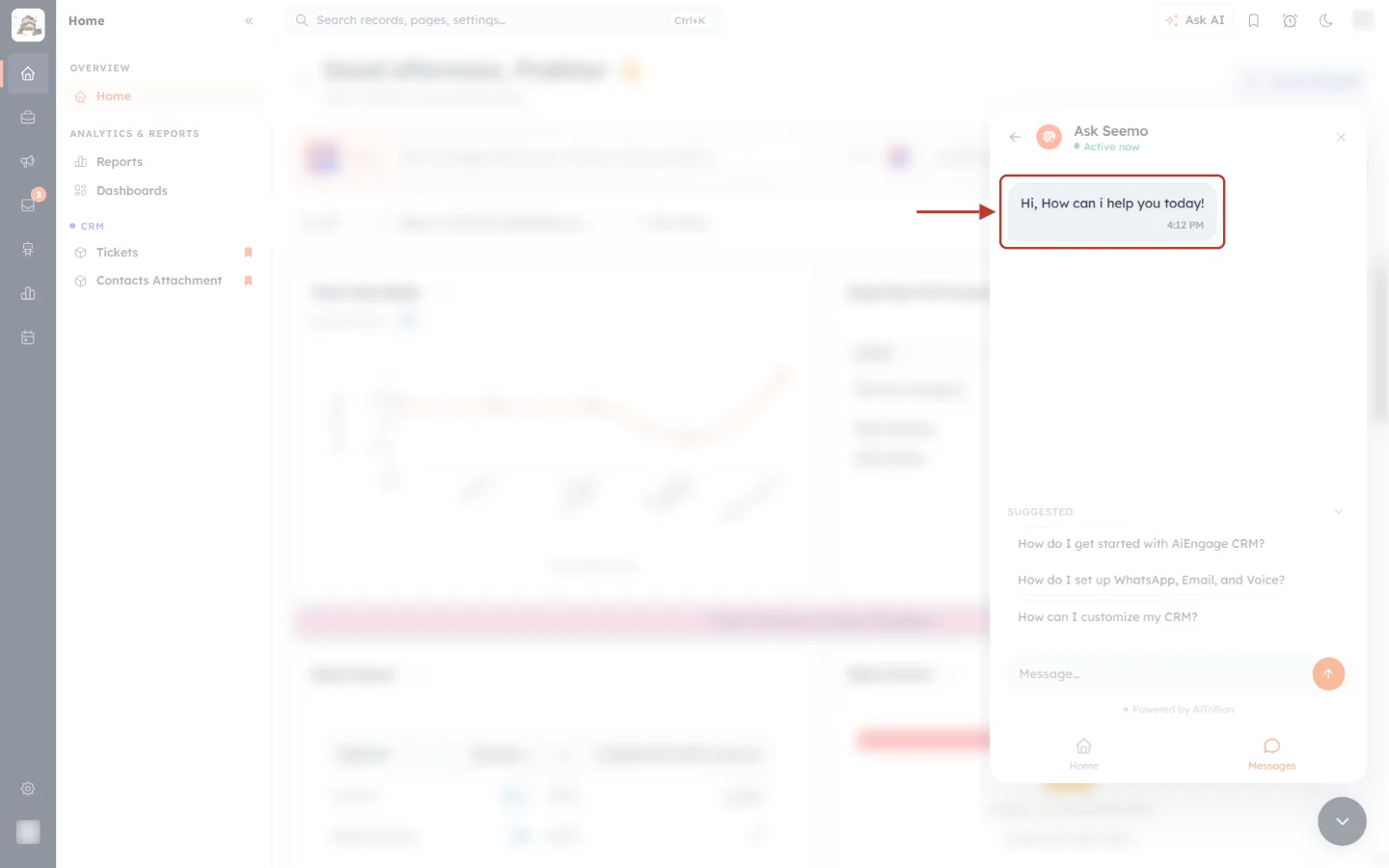
What this screenshot shows. The start of a new chat. Seemo has already said hello; the greeting bubble is outlined in red.
Hi, How can i help you today! — Seemo’s greeting, in a grey bubble on the left. Seemo’s messages always appear on the left in grey.
The time under it (for example 4:12 PM) — when the message was sent.
Your own messages will appear on the right in orange once you start typing — you will see this in Step 5.
Step 4: Start with a suggested question (optional)#
Not sure what to ask? Seemo offers a few ready-made questions to get you started. Click one and it is sent for you, exactly as if you had typed it.
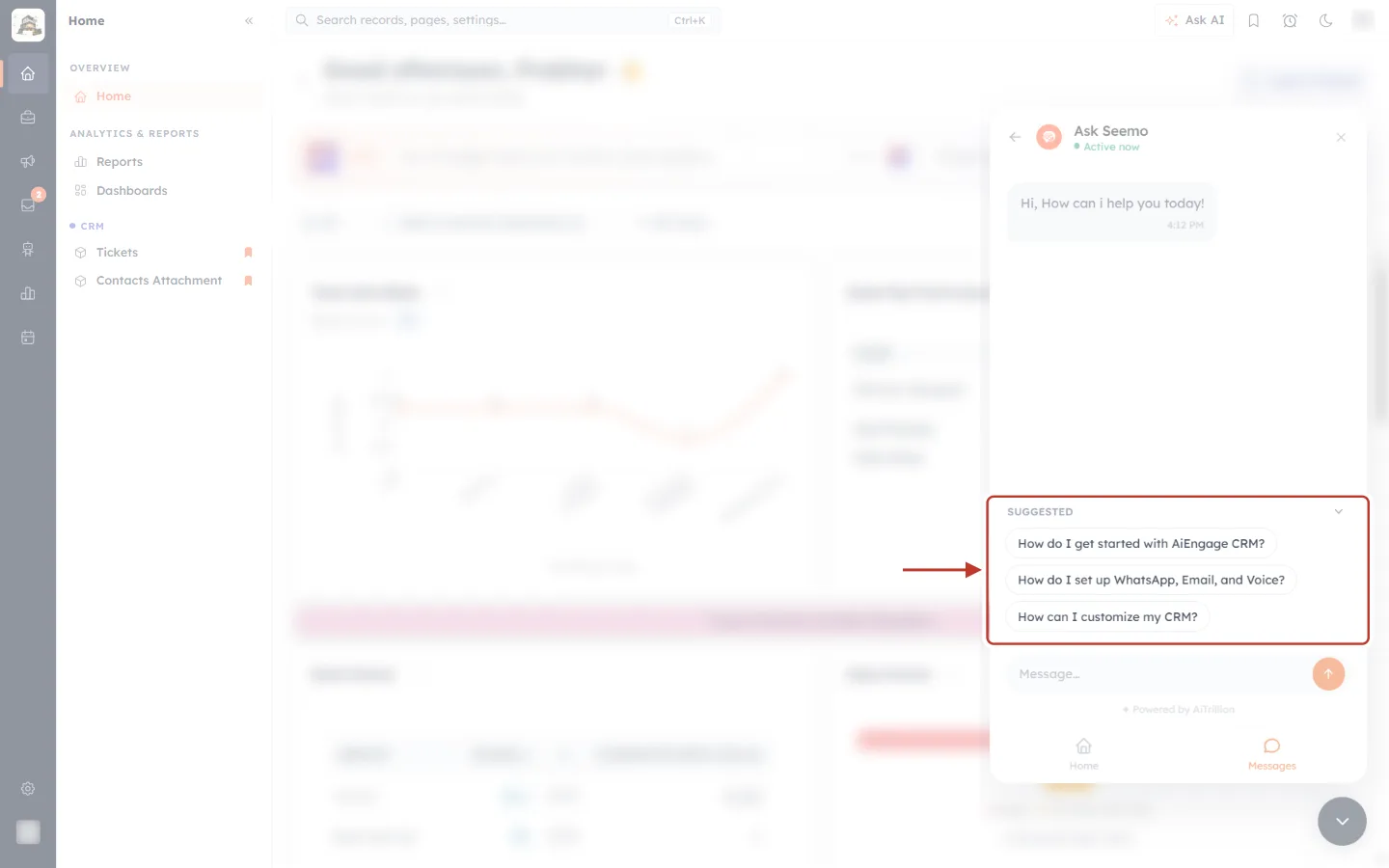
What this screenshot shows. The lower half of the chat, with the Suggested area outlined in red.
SUGGESTED — the heading of the list.
How do I get started with AiEngage CRM? — a good first question if you are new.
How do I set up WhatsApp, Email, and Voice? — for connecting your messaging channels.
How can I customize my CRM? — for fields, modules and layouts.
The small arrow on the right of the heading — collapses the list to give the conversation more room. Click it again to expand the list.
The message box below (faded) — where you type your own question instead.
ℹ️
The suggestions change as you chat. After each answer, Seemo offers new questions that follow on from what you just asked (Step 8).
Step 5: Type your question and send it#
Click in the Message… box at the bottom of the chat, type your question, then click the round orange send button or press Enter. To start a new line without sending, press Shift + Enter.
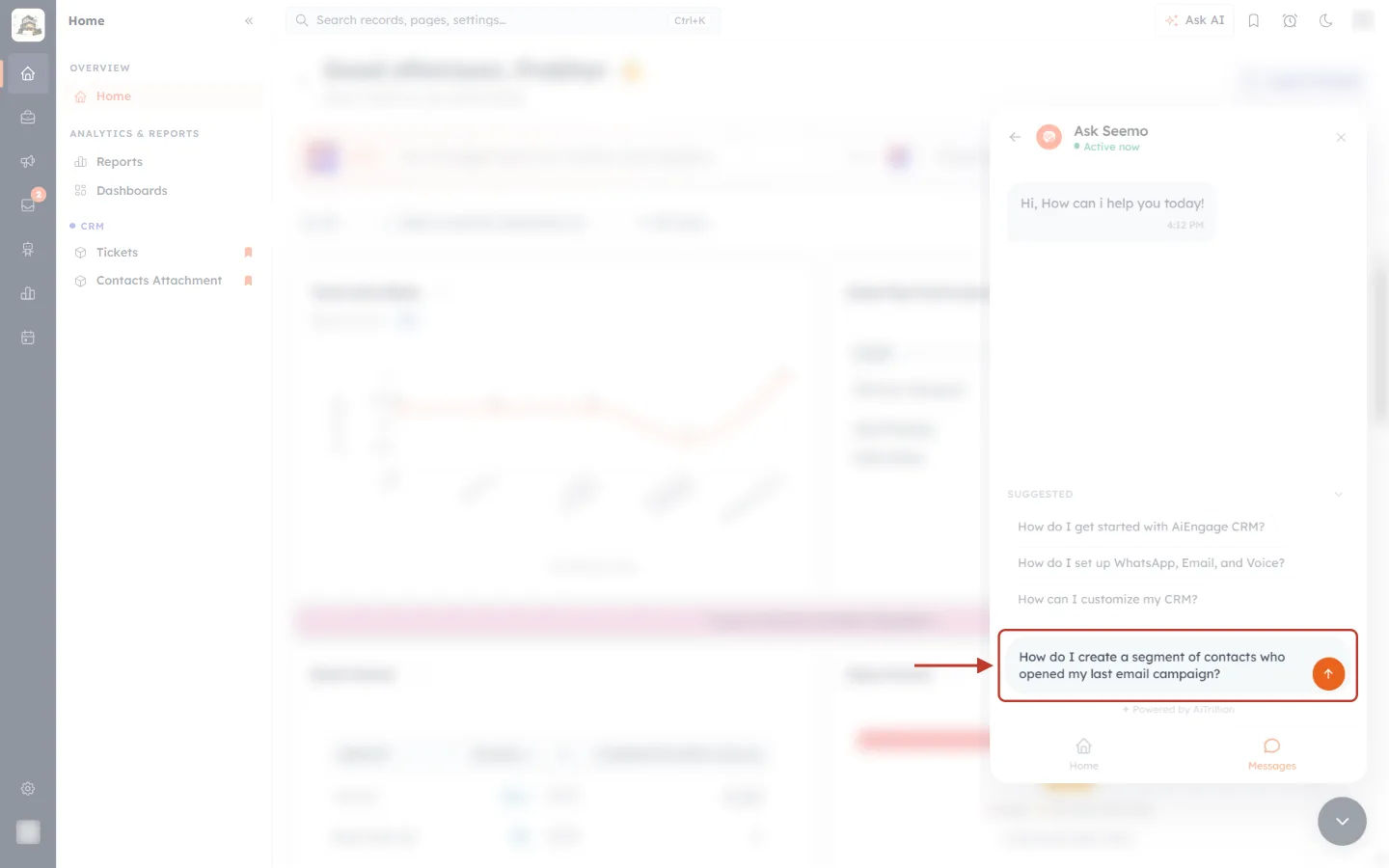
What this screenshot shows. The message box, outlined in red, with a question typed in: “How do I create a segment of contacts who opened my last email campaign?”
The message box — type your question here in everyday language. There is no special format; write it the way you would ask a colleague.
The orange ↑ button — sends the question, the same as pressing Enter.
✦ Powered by AiTrillion — the small line under the box. Seemo is built on AiTrillion’s AI agent platform, the same technology behind the AI agents you can create for your own customers.
✅
How to get the best answer. Ask one thing at a time and name the part of the CRM you mean. “How do I create a segment of contacts who opened my last email campaign?” gets a sharper answer than “segments help”. Mention the menu or screen if you know it — for example “in Workflow Automation” or “on a contact record”.
Step 6: Wait a few seconds while Seemo works#
As soon as you send, your question appears on the right, and Seemo starts working on the answer.
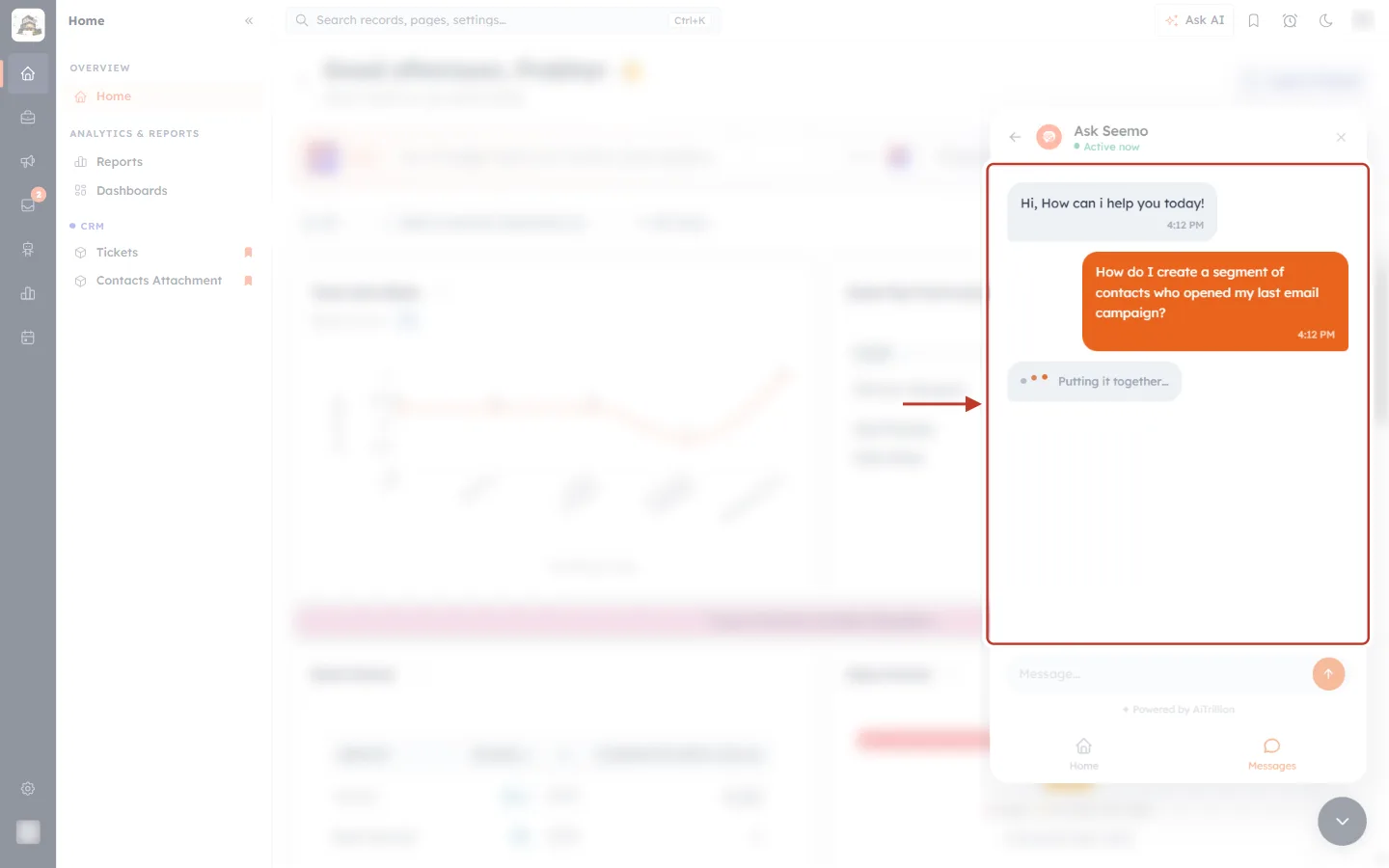
What this screenshot shows. The conversation area, outlined in red, a moment after the question was sent.
Your question — on the right in an orange bubble, with the time you sent it.
The three moving dots and a short status — here Putting it together…. This means Seemo is preparing your answer. You may also see Thinking…, Searching…, Looking that up…, Finding the answer… or Writing a reply… — they all mean the same thing: the answer is on its way.
The message box (faded, below) — you can start typing your next question while you wait.
Most answers arrive within a few seconds, and they appear word by word as Seemo writes them.
Step 7: Read the answer#
Seemo’s reply appears on the left in a grey bubble. For “how do I” questions it usually gives numbered steps, with the names of buttons and menus in bold so you can spot them on screen.
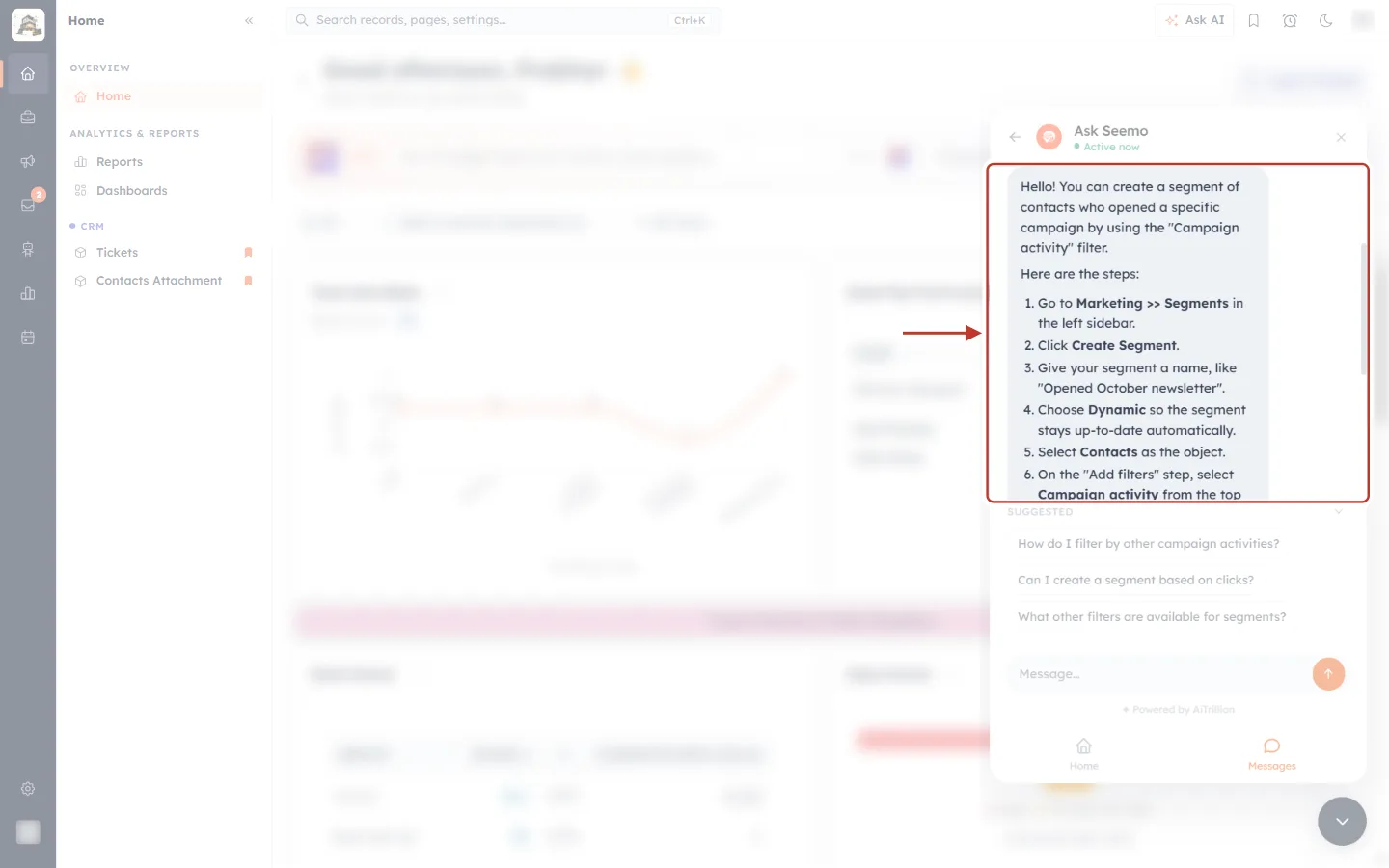
What this screenshot shows. The conversation area, outlined in red, showing Seemo’s answer to our question about segments.
The opening line — a one-sentence summary: “You can create a segment of contacts who opened a specific campaign by using the ‘Campaign activity’ filter.”
Here are the steps — a numbered list you can follow in order: go to Marketing >> Segments, click Create Segment, give it a name, choose Dynamic, select Contacts, choose Campaign activity on the Add filters step, and set the rule.
Bold words — the exact labels of buttons, menus and options you will see in the CRM.
The scroll bar on the right of the conversation — long answers scroll. Scroll down to read the rest; in this example Seemo ends with a quicker shortcut from the Campaign Analytics page.
ℹ️
Seemo’s answers are based on AiEngage’s help content, so they follow the same steps as the articles in this Knowledge Base. If you want the full article with screenshots, ask Seemo for it, or search this Knowledge Base for the feature name.
Seemo can explain the steps, but it does not click anything or change anything in your CRM for you. Follow the steps yourself, keeping the panel open beside your work if that helps.
Step 8: Rate the answer and keep going#
Under every answer are two small buttons. Please use them — your rating tells the AiEngage team which answers are working and which need improving.
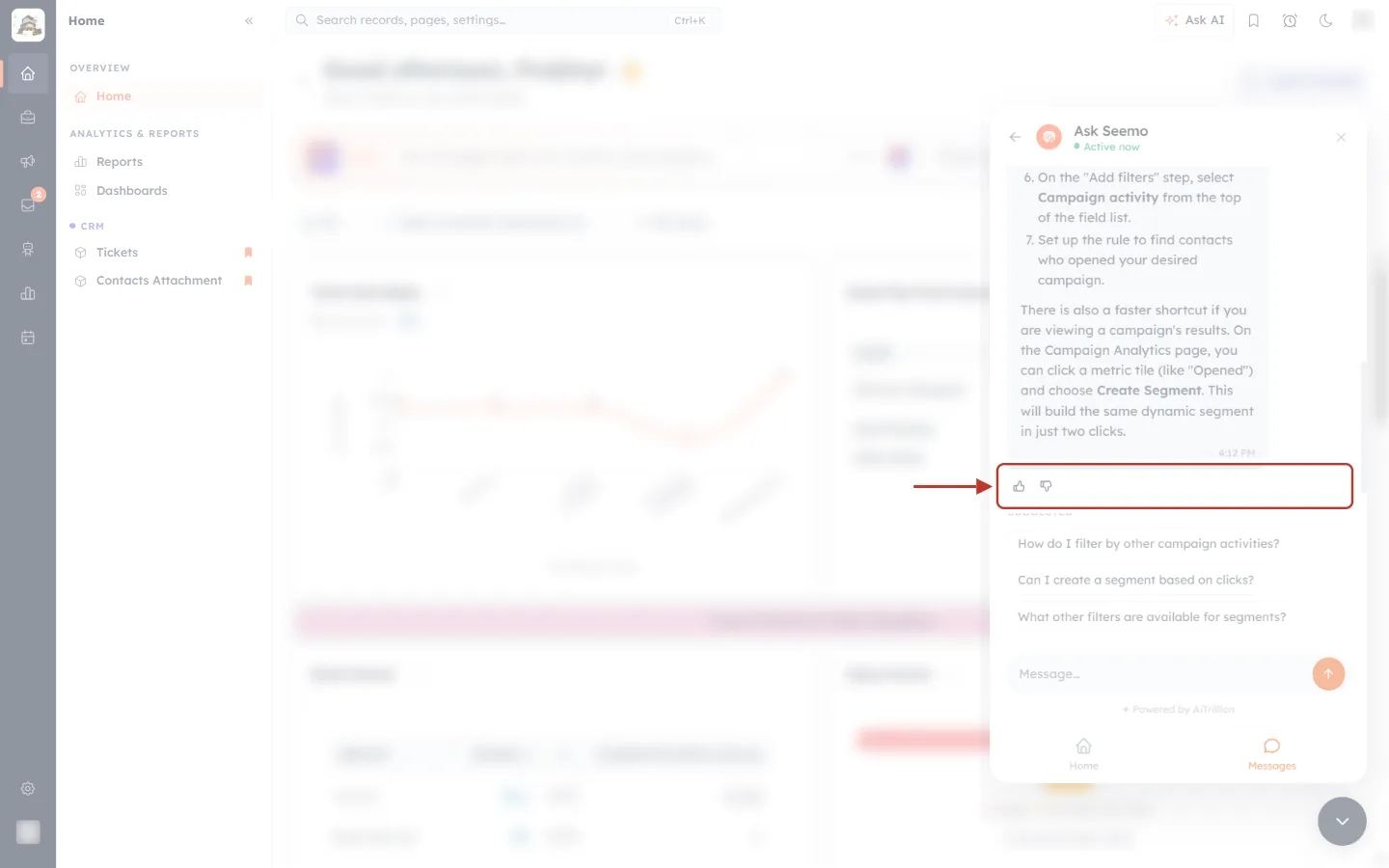
What this screenshot shows. The end of Seemo’s answer, with the two rating buttons underneath outlined in red.
👍 Good response — click if the answer helped.
👎 Needs improvement — click if the answer was wrong, unclear or not what you asked. Then try rephrasing your question with more detail.
The chosen button stays highlighted, so you can see which rating you gave. Click the other one to change your rating, or click the same one again to clear it.
The end of the answer (above, faded) — here, the shortcut: on Campaign Analytics, click a metric tile such as Opened and choose Create Segment.
After each answer, the Suggested list is refreshed with follow-up questions that build on what you just asked:
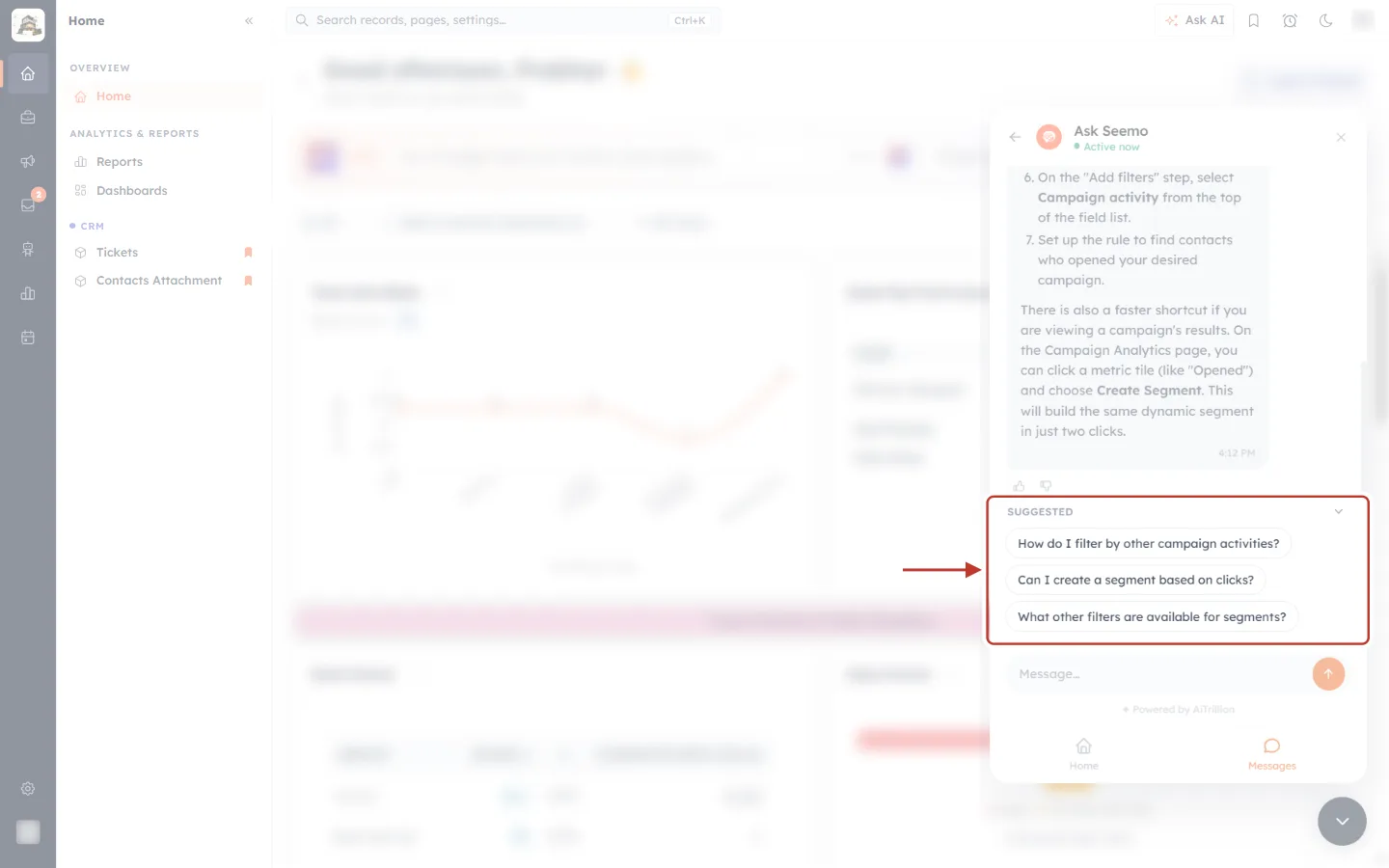
What this screenshot shows. The Suggested area, outlined in red, now showing follow-up questions about segments instead of the starter questions.
How do I filter by other campaign activities?
Can I create a segment based on clicks?
What other filters are available for segments?
Click any of them to ask it straight away, or ignore them and type your own question in the Message… box below. Follow-ups stay in the same conversation, so you can build on the answer you just read.
Step 9: Find your conversation again in Messages#
Your chat is saved. Close the panel, move to another page, even reload the browser — when you open Seemo again, the conversation is still there. To see it, click the Messages tab at the bottom of the panel.
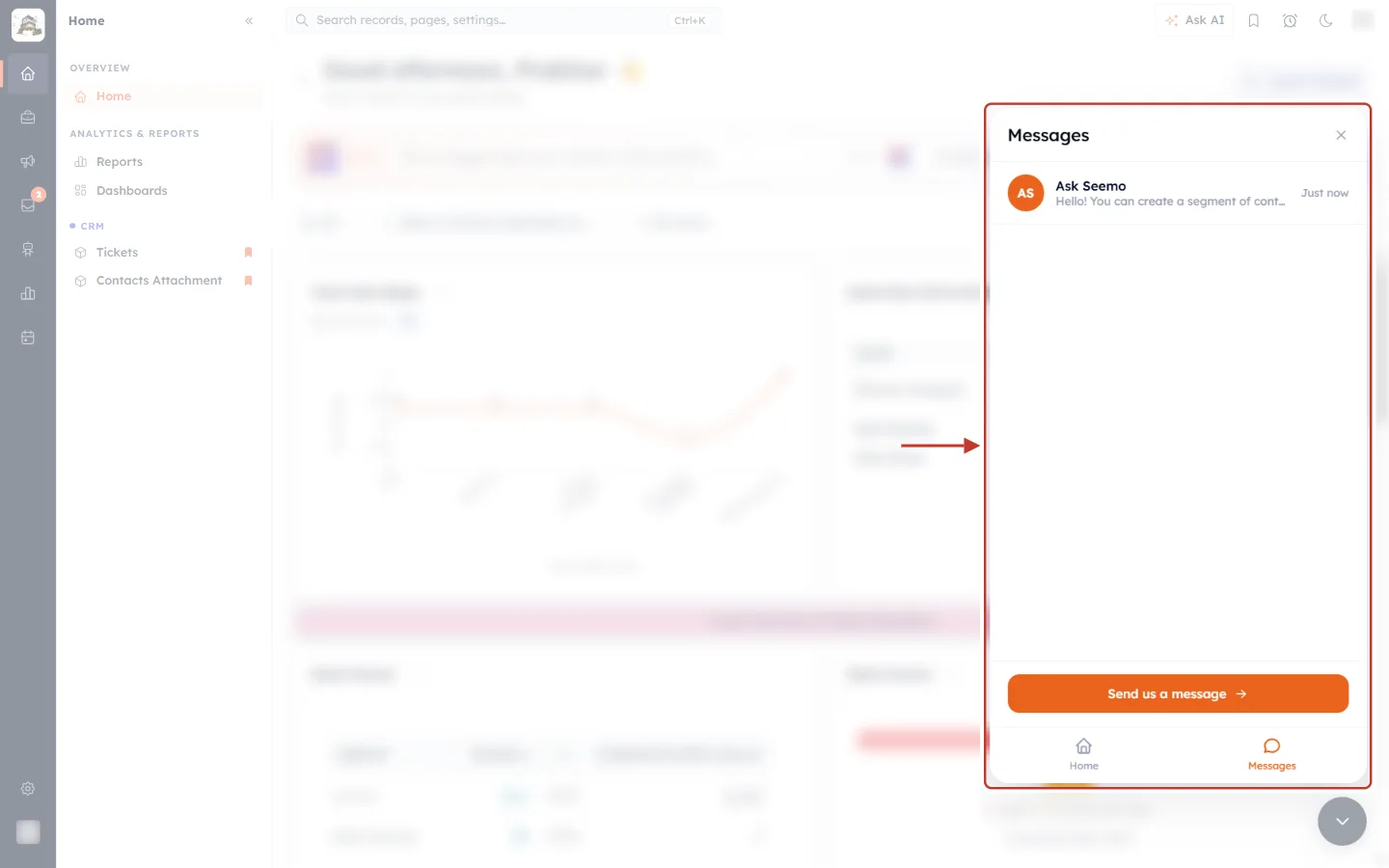
What this screenshot shows. The Seemo panel, outlined in red, on the Messages tab.
Messages — the title at the top, with ✕ to close the panel.
The conversation row — Seemo’s icon, the name Ask Seemo, the start of the last reply and when it arrived. Click the row to reopen the full conversation exactly where you left it.
The orange button near the bottom — starts or continues a conversation (see below).
Home and Messages — the tab bar; Messages is highlighted in orange because it is the tab you are on.
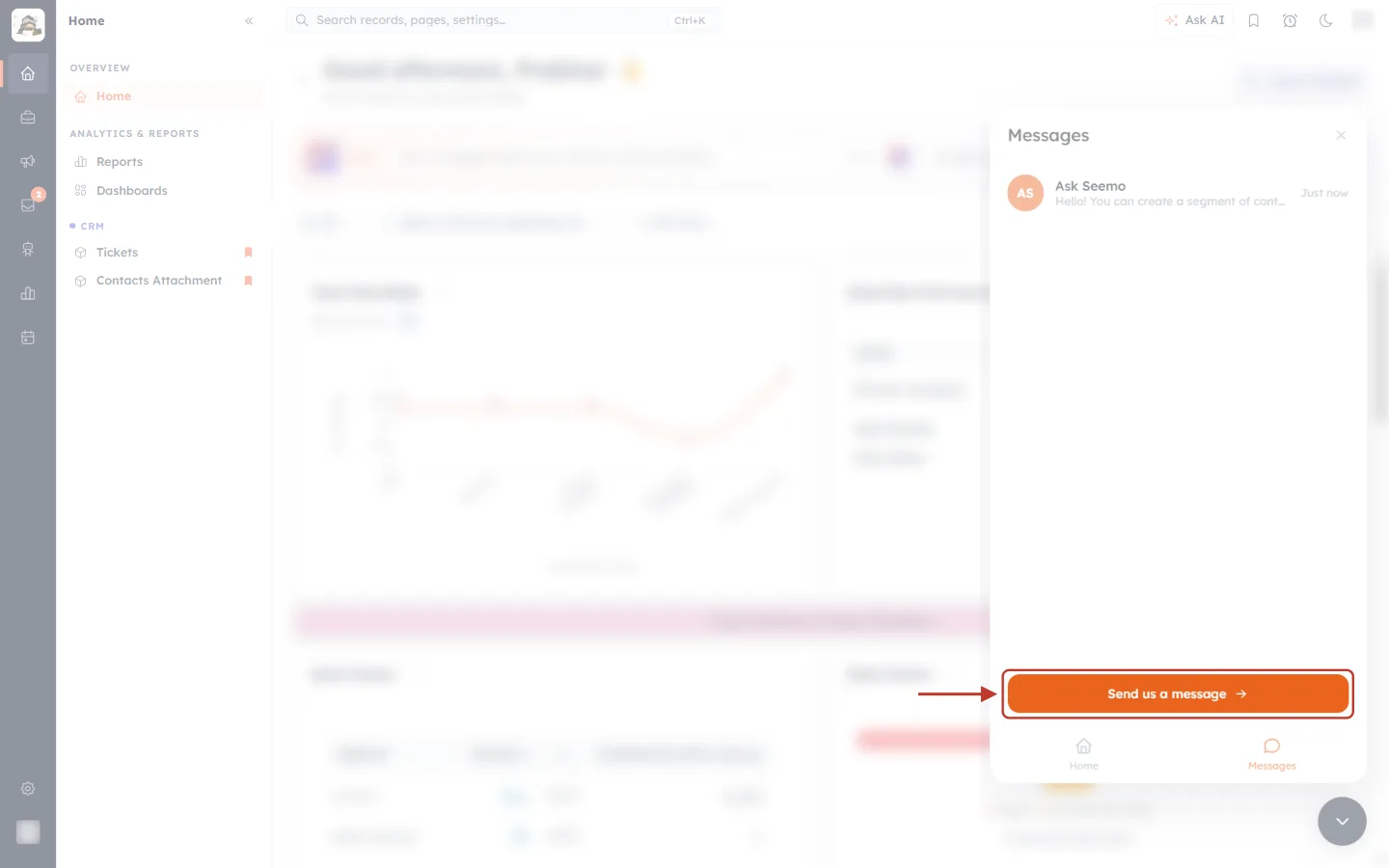
What this screenshot shows. The Messages tab, with the orange button at the bottom outlined in red.
Send us a message → — opens the chat so you can ask something else. If you only have one conversation, this simply continues it.
New conversation + — when your earlier conversations can be listed, the same button reads New conversation and starts a fresh chat, while the old one stays in the list above.
✅
Starting a new conversation for a new topic gives better answers, because Seemo is not trying to connect your new question to the old one.
Step 10: Close or tuck away the panel#
When you are done, you can put Seemo away in two ways. Neither of them deletes your conversation.
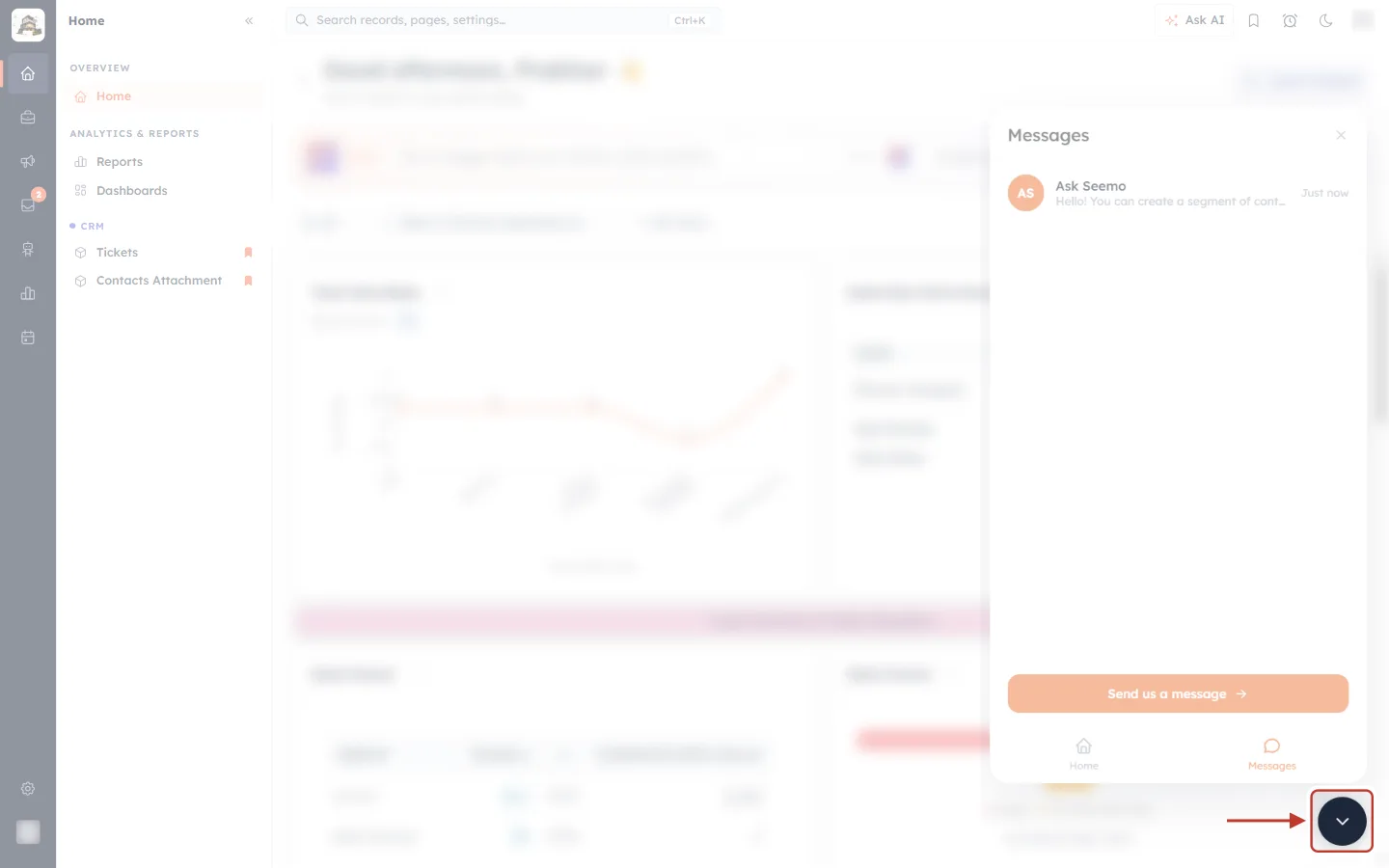
What this screenshot shows. The Seemo panel open on the Messages tab, with the dark round button below the panel outlined in red.
The dark round button with a down arrow — while the panel is open, the orange launcher turns into this button. Click it to tuck the panel away; it turns orange again.
The ✕ at the top of the panel — does the same thing from inside the panel.
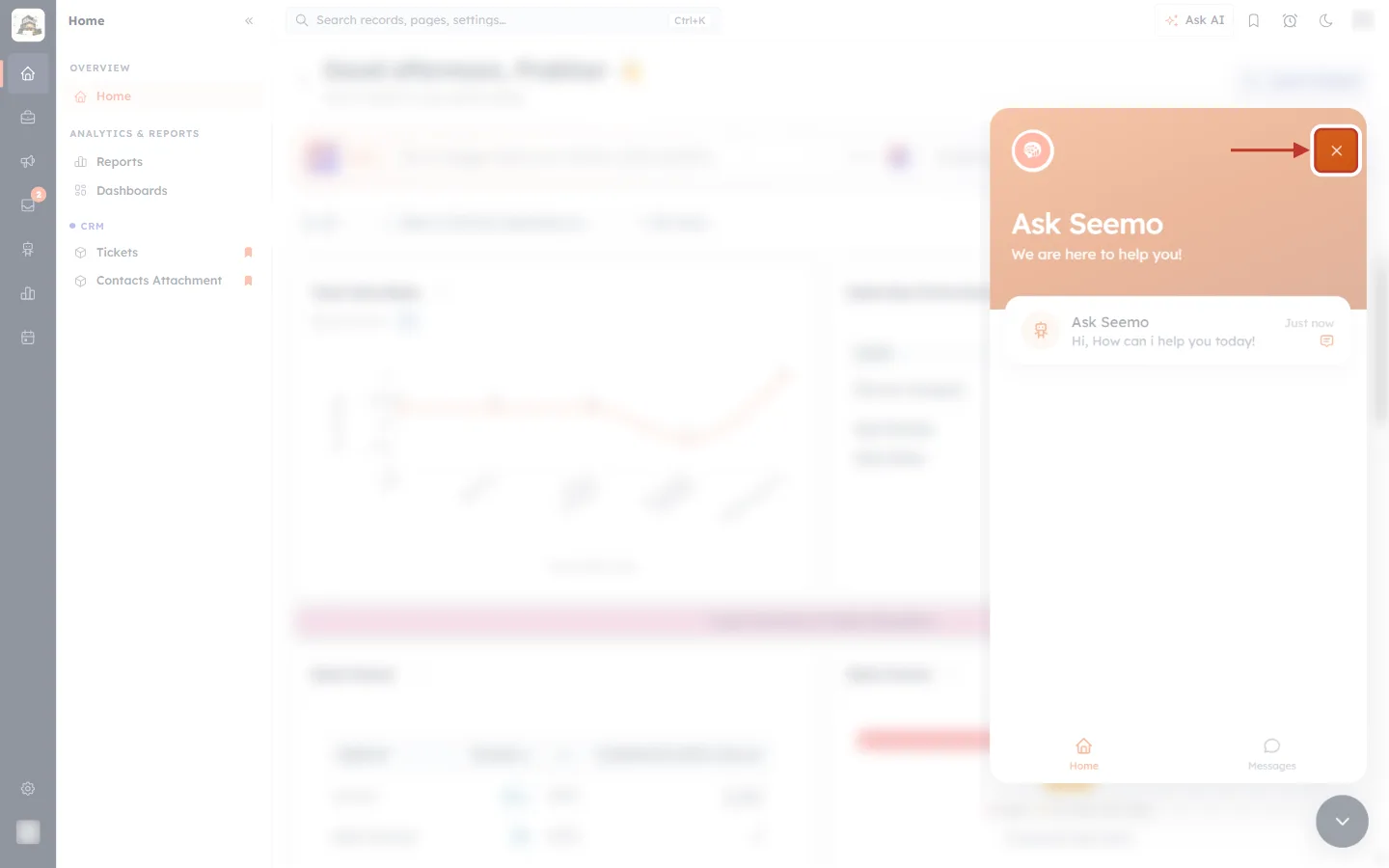
What this screenshot shows. The Home screen, with the ✕ in the top-right corner of the orange header outlined in red.
✕ — closes the panel from the Home screen. Every screen of Seemo (Home, chat and Messages) has one in the same corner.
The rest of the panel (faded) — the header, your conversation card and the tabs, exactly as you left them. They will look the same the next time you open Seemo.
When you need a person: live agent and tickets#
Seemo answers most questions on its own. Depending on how support is set up for your account, you may also have ways to reach the AiEngage support team from the same panel.
Connect with live agent#
If live support is available to you, a Connect with live agent bar (with a headset icon) appears just above the message box once Seemo has answered at least one question. If you do not see it, live chat is not offered on your account, and Seemo is the way to get help in the panel.
Click Connect with live agent.
If asked, fill in How can an agent reach you? — your name, and an email address or phone number — so the team can reply even after you close the panel.
You will see Request sent — an agent will join this chat shortly. Keep working; the chat stays open for you.
When someone picks it up, the chat shows An agent has joined the chat. and the message box reads Message the agent… — you are now talking to a person, in the same conversation.
If nobody is free, you will see Sorry — no one is available right now. We have your message and will reply by email. Your message has been received, and the reply will come to the email address you gave.
When the agent resolves your question, the chat shows Marked as solved. Reply to reopen, or start a new conversation. — type a reply if you still need help.
Tickets#
Some organisations also see a Tickets tab next to Home and Messages. Use Raise a new ticket to send the support team a request with a Subject, an optional Category and a Description, and follow its progress on the same tab. If the tab is not there, tickets are not switched on for your organisation.
Good questions to ask Seemo#
| If you want to… | Ask Seemo something like… |
|---|---|
| Get started | “How do I get started with AiEngage CRM?” |
| Connect your channels | “How do I connect my WhatsApp number?” · “How do I set up my email sender?” |
| Shape the CRM | “How do I add a custom field to Contacts?” · “How do I create a new module?” |
| Bring data in | “How do I import contacts from a CSV file?” |
| Reach the right people | “How do I create a segment of contacts who clicked my campaign?” |
| Automate follow-ups | “How do I send a WhatsApp message when a new lead is created?” |
| Control access | “How do I let managers see their team’s contacts?” |
| Understand a feature | “What is the difference between a dynamic and a static segment?” |
And the kinds of questions that belong in Ask AI Engage instead, because they are about your own data: “How many leads came in this week?”, “Who owns the Acme deal?”, “Which deals are closing this month?”
Troubleshooting#
I can’t see the orange button. Scroll to check it is not hidden behind something at the bottom of the page, and make sure the browser window is not zoomed in so far that the corner is off-screen. If you dragged the button earlier, look along the other edges of the screen. Reloading the page brings it back if it failed to load.
“Sorry, I ran into a problem answering that just now. Please try again in a moment.” A temporary hiccup. Wait a few seconds and send the question again.
“Our assistant isn’t available right now.” Seemo is briefly unavailable. Try again a little later, or use Connect with live agent if you have it.
“That message did not send. Please try again.” or “Could not reach the server.” Check your internet connection, then send the message again.
The answer does not match what I see on screen. Click 👎 Needs improvement, then ask again with more detail — name the page or menu you are on. You can also search this Knowledge Base for the feature; the articles include screenshots of every step.
Seemo answered a question about my data with general instructions. That is expected — Seemo explains how the product works. For figures and records from your own account, use Ask AI Engage.
⚠️
Do not share passwords or sensitive personal data in the chat. Seemo never needs your password, API keys, or customers’ private details to answer a how-to question. Describe the situation instead — for example, “a contact with two email addresses”.
Previous and next#
Related#
Was this article helpful?
Ready to implement this?
OpenAI Engage and apply what you just learned to your own workspace.
Open AI Engage CRM