Loading…


KnowledgeBase
Daily Briefing on Your Dashboard: Hear an AI Summary of Yesterday, Customise It and Choose Who Gets It (Step-by-Step)
Introduction#
Every morning you probably ask the same questions: How did yesterday go? Which deals moved? What did we miss? The Daily Briefing answers them for you. The first time you open your dashboard each day, AiEngage CRM greets you and offers a short AI summary of yesterday, read aloud in a natural voice, with the words lighting up on screen as they are spoken.
The briefing is tailored to your role. An owner or admin hears about the whole organisation, a manager hears about their team, and everyone else hears about their own work. On Mondays it covers the weekend instead of yesterday. You can tell it what to focus on with your own prompt, and admins decide who gets it.
What you want to do | Where to click |
|---|---|
Hear today’s briefing | Yes, brief me in the greeting, or Play / Brief me in the briefing bar |
Read it instead of listening | Read in the briefing bar |
Skip it for today | Not today |
Ask a follow-up question | Ask more in the briefing |
Change what your briefing covers | Setup → AI Centre Hub → Daily Briefing → Customize your briefing |
Choose who gets it (admins) | Daily Briefing → Organization settings |
ℹ️
Before you start. The Daily Briefing appears on your Home dashboard. It is one of the AI features, so the settings page needs a plan that includes AI Agents. The briefing only uses data you are allowed to see. Admins can choose which profiles get it, and a natural AI voice uses a small amount of AI credits (shown in the settings as about ₹1 per briefing).
ℹ️
The screenshots in this article use sample data: a sample user, Riya Kapoor, and a sample briefing for a furniture company. Your greeting, numbers and names will be your own.
Part 1: Find the Daily Briefing Settings#
You don’t have to set anything up to get your first briefing. It simply appears on your dashboard. But it helps to know where its settings live.
Click the gear (Setup) icon at the bottom of the left-hand bar.
In the AI Centre Hub section, click Daily Briefing.
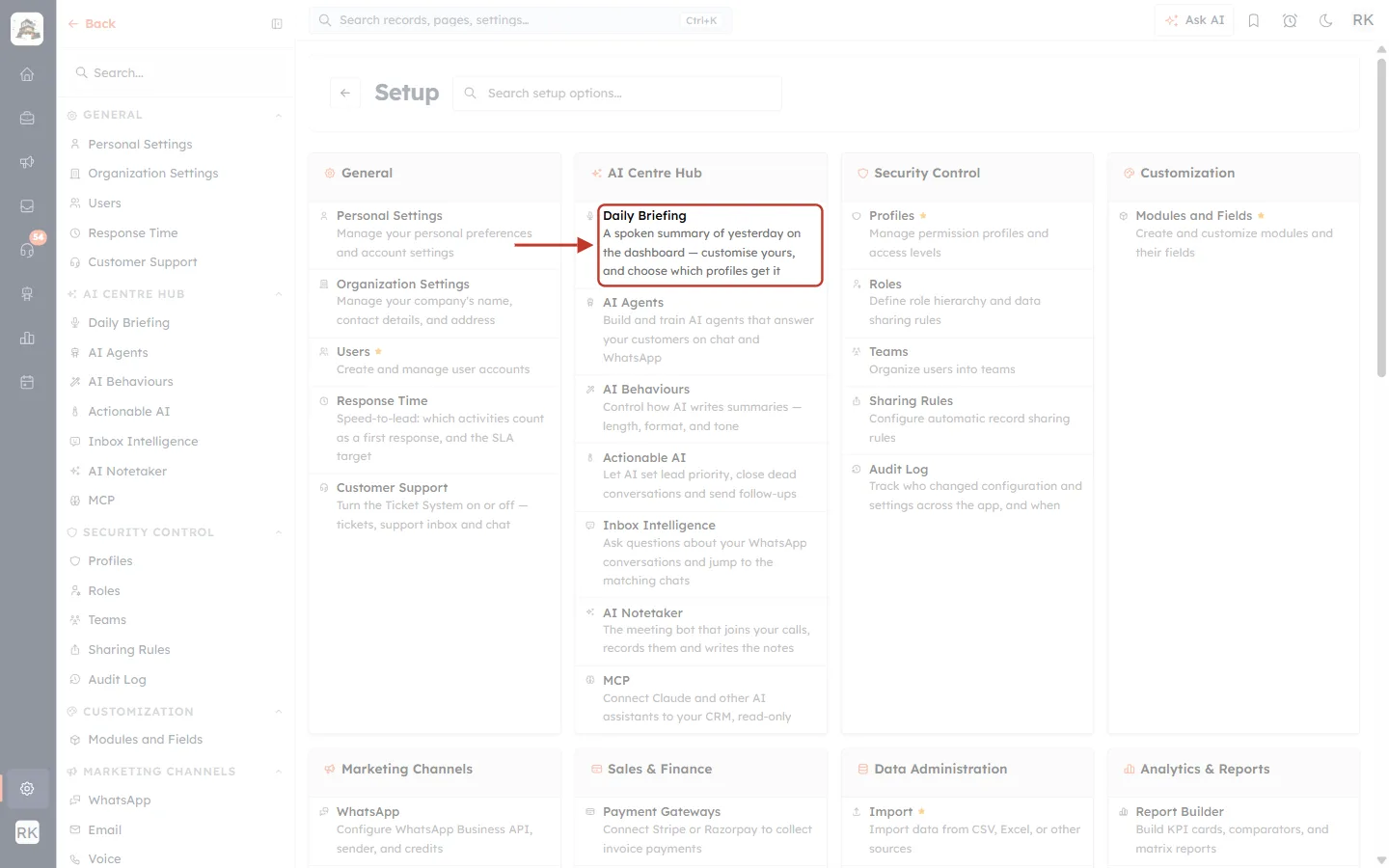
What this screenshot shows. The Setup page, which lists every settings area of AiEngage CRM in groups. The Daily Briefing item at the top of the AI Centre Hub group is highlighted.
Daily Briefing (highlighted): “A spoken summary of yesterday on the dashboard — customise yours, and choose which profiles get it”. Click it to open the briefing settings (Parts 5 and 6).
AI Centre Hub: the group that holds all the AI features, such as AI Agents, AI Behaviours, Actionable AI, Inbox Intelligence and AI Notetaker.
Left menu: the same list as links. Daily Briefing also appears there under AI CENTRE HUB.
You can also open the settings straight from a briefing with its gear icon (see Step 2 below).
Part 2: Get Your Briefing When You Open the Dashboard#
Step 1: Open your dashboard and read the greeting#
Open Home. The first time you do this each day, a greeting appears in the middle of the screen.
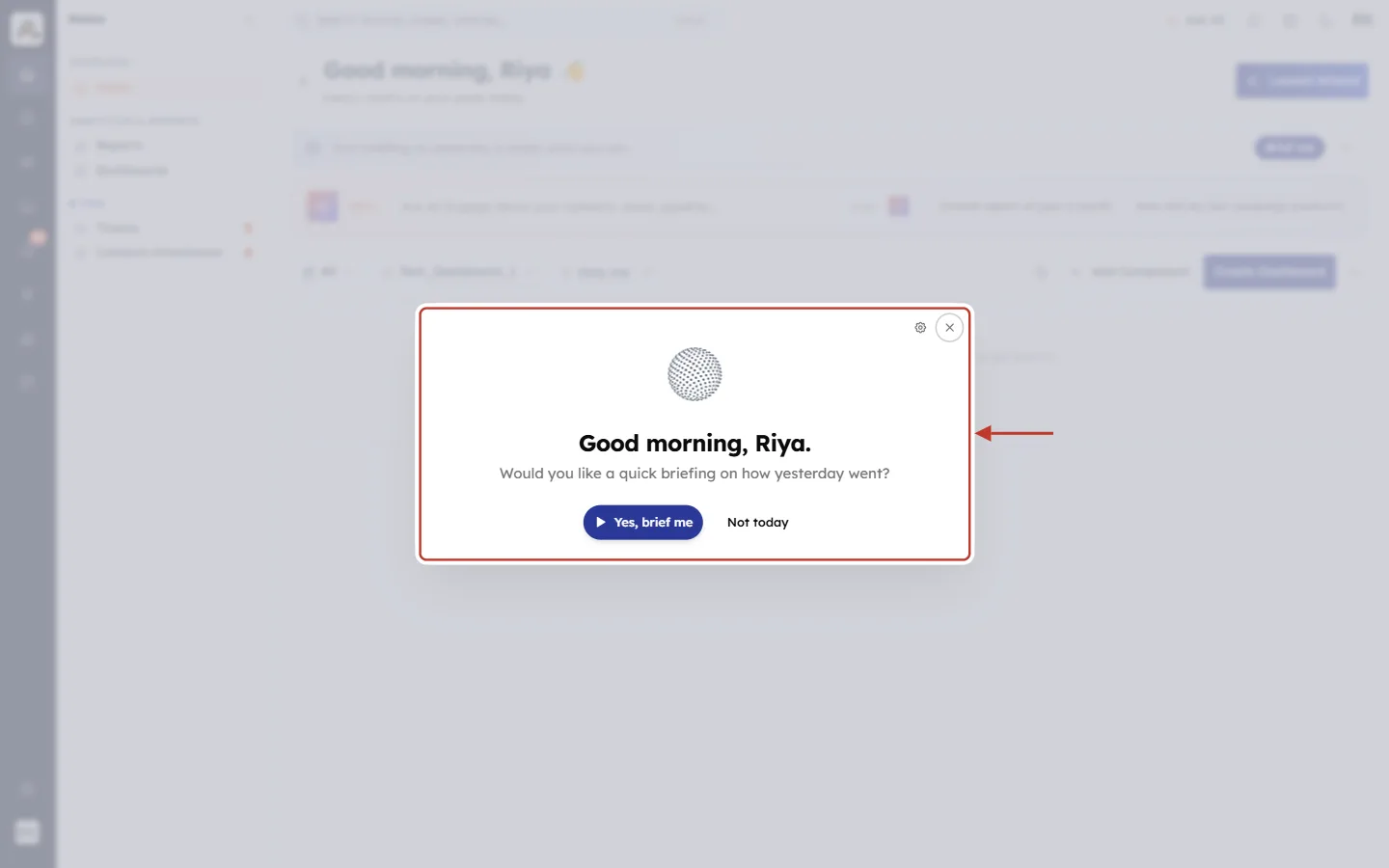
What this screenshot shows. The greeting that opens over your dashboard. The rest of the dashboard is dimmed and blurred behind it until you choose.
The animated globe: the briefing’s “voice”. It moves while the briefing thinks and speaks.
Good morning, Riya.: your first name, with morning, afternoon or evening based on your time zone.
Would you like a quick briefing on how yesterday went?: on a Monday this says the weekend instead of yesterday.
Yes, brief me and Not today: your two choices (Step 2).
✅
The briefing starts being prepared as soon as your dashboard opens, so by the time you click Yes, brief me it is often already ready.
Step 2: Choose Yes, brief me or Not today#
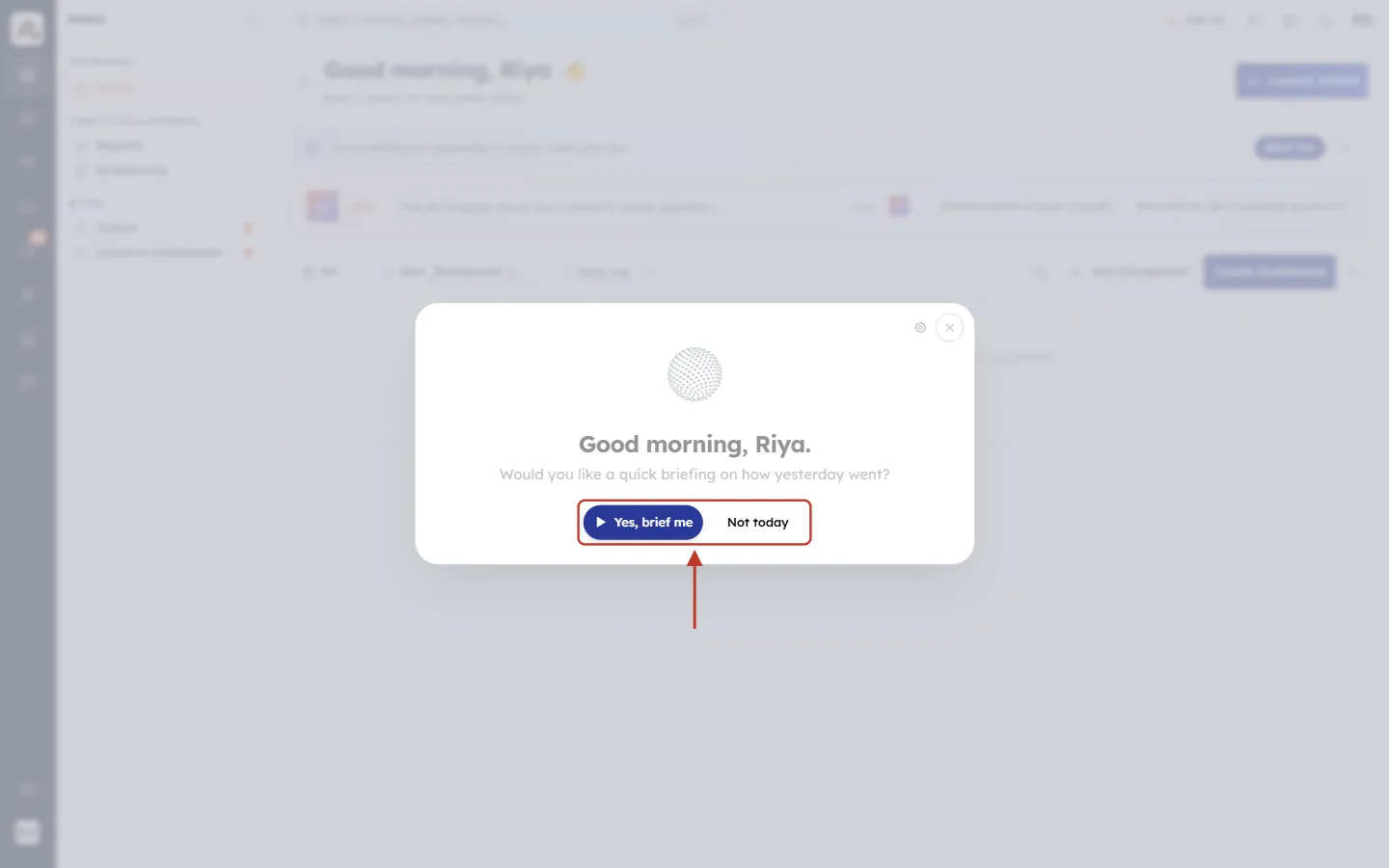
What this screenshot shows. The two buttons at the bottom of the greeting.
Yes, brief me (blue, with a play icon): prepares the briefing and starts reading it aloud. Use this when you have a minute and your sound is on.
Not today: closes the greeting without a briefing. Nothing is lost: the briefing waits in a slim bar at the top of the dashboard, and you can open it later with Brief me (see Part 4).
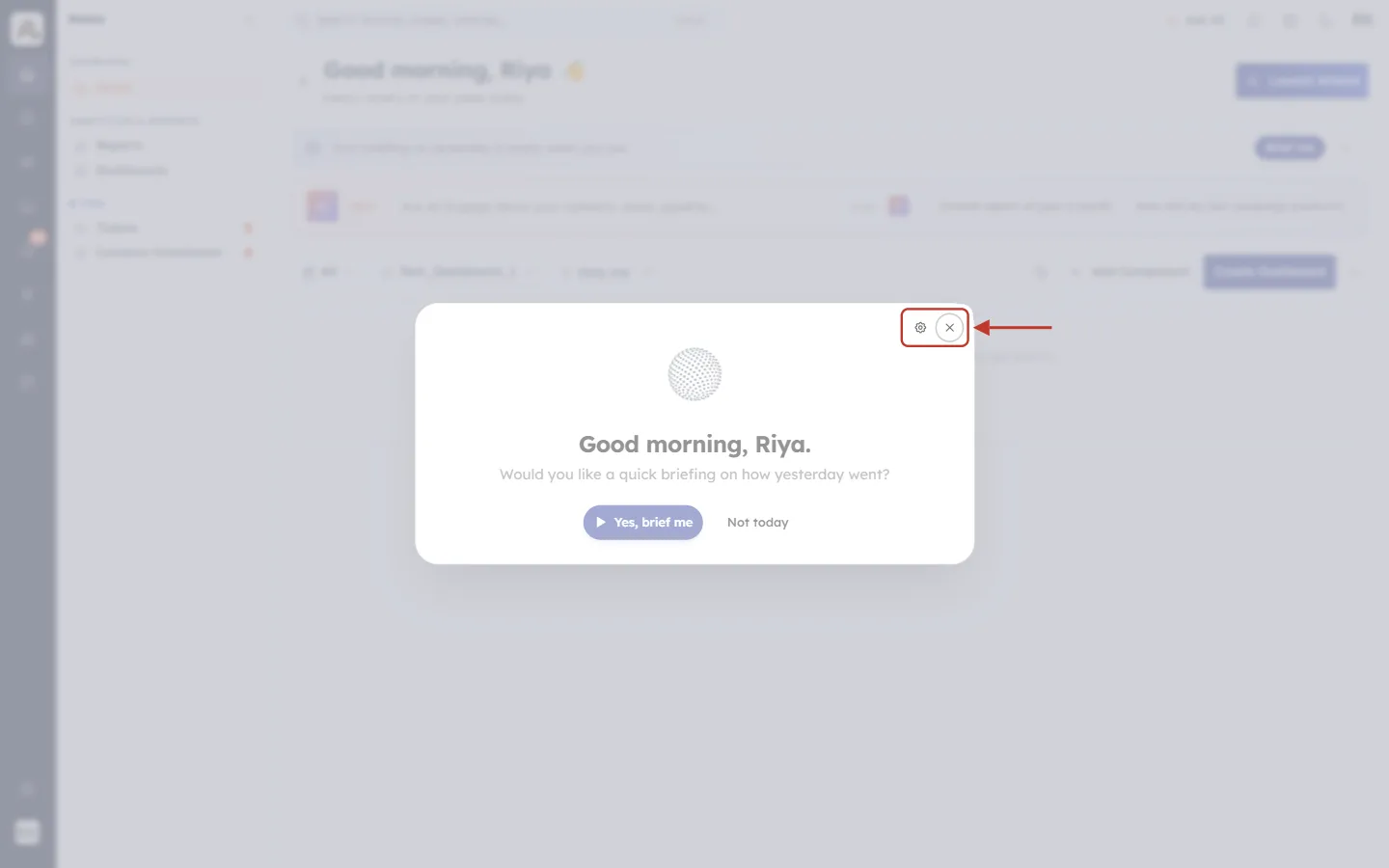
What this screenshot shows. The two small icons in the top-right corner of every briefing window.
Gear (Daily briefing settings): stops the briefing and opens the Daily Briefing settings page, where you can change how it works for you.
× (Close): closes the window. On the greeting it counts as Not today. While a briefing is playing it stops it, like Done.
Step 3: Wait a moment while it is prepared#
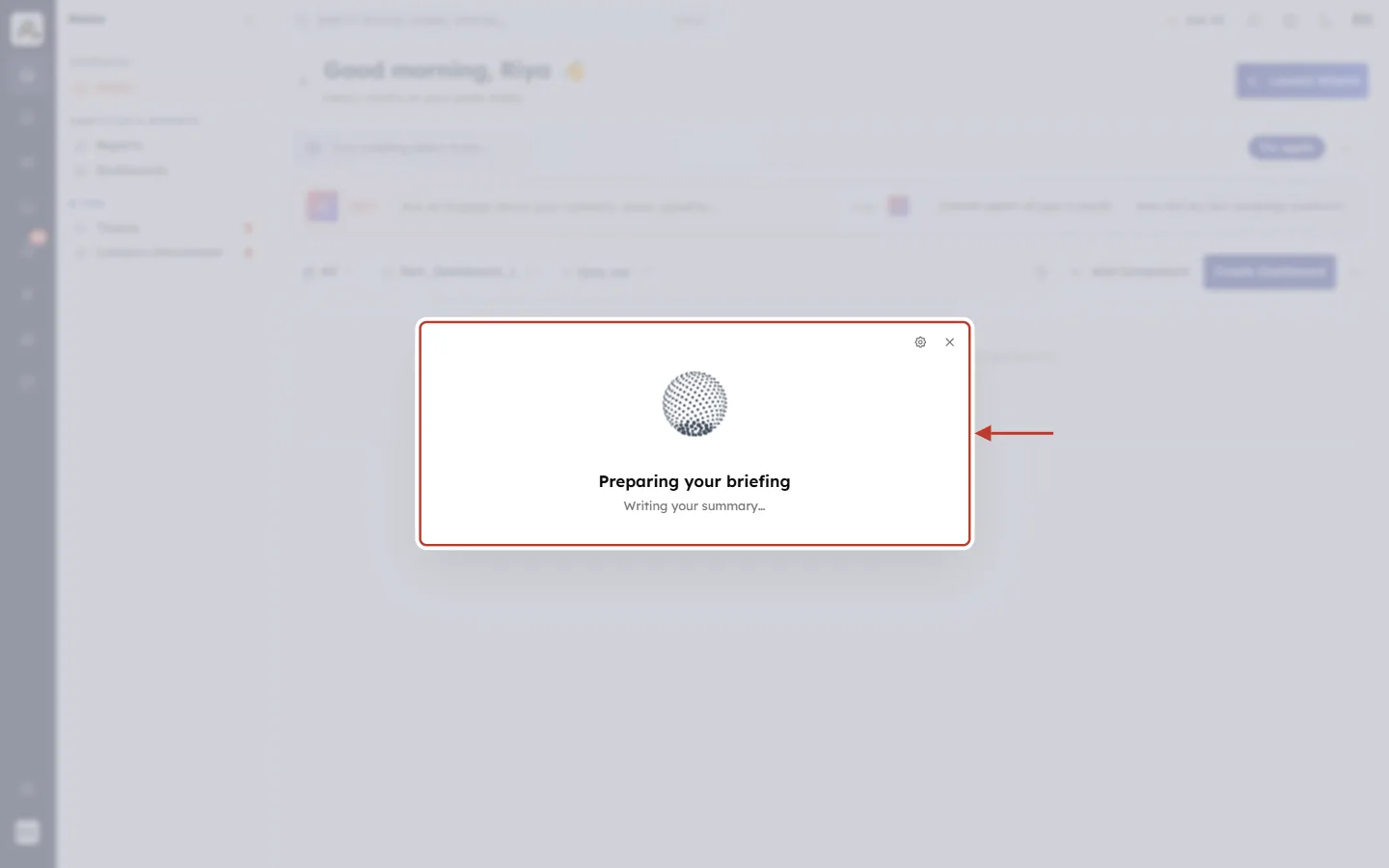
What this screenshot shows. The window after you click Yes, brief me, while the AI reads yesterday’s activity and writes your summary.
The globe grows and spins faster while it is working.
Preparing your briefing: the title while it works.
The status line (here Checking Calls…) changes every second or two to show what it is doing, for example Reading yesterday’s Deals…, Checking Contacts…, Writing your summary… and, last, Warming up the voice….
This usually takes a few seconds. If it takes too long you see “Your briefing is taking too long. Try again in a moment.” (see Part 7).
Step 4: Listen and follow along#
When it is ready, the briefing starts speaking and the full text appears.
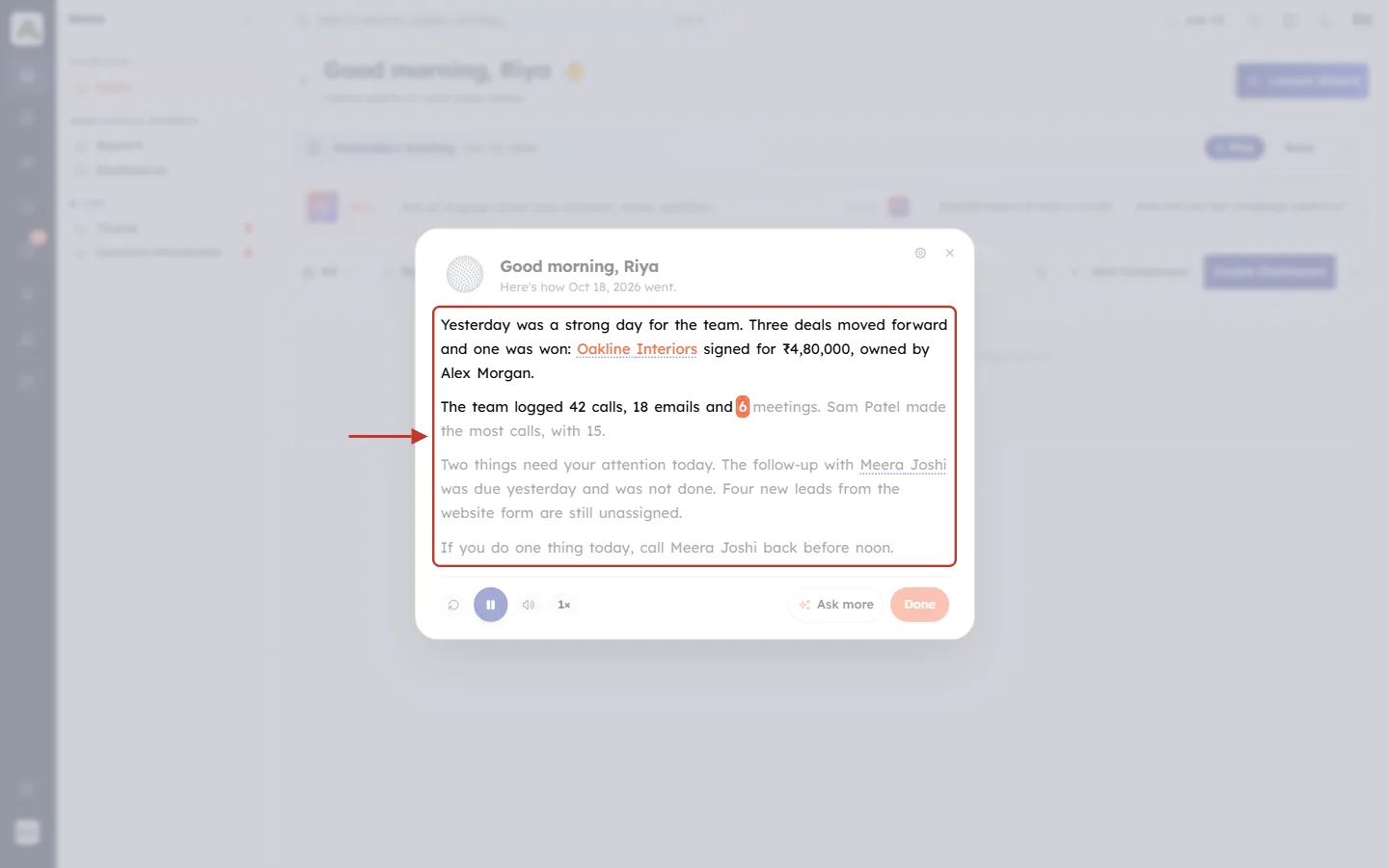
What this screenshot shows. The briefing while it is being read aloud. The highlighted area is the briefing text.
Good morning, Riya / Here’s how Oct 18, 2026 went.: the header shows the day the briefing covers.
The text: a few short paragraphs. Typically: how the day went overall, wins and deals that moved, activity (calls, emails, meetings), and what needs your attention today.
The orange word (here “calls,”) is the word being spoken right now. Words already read are dark and words still to come are grey, so you can follow along.
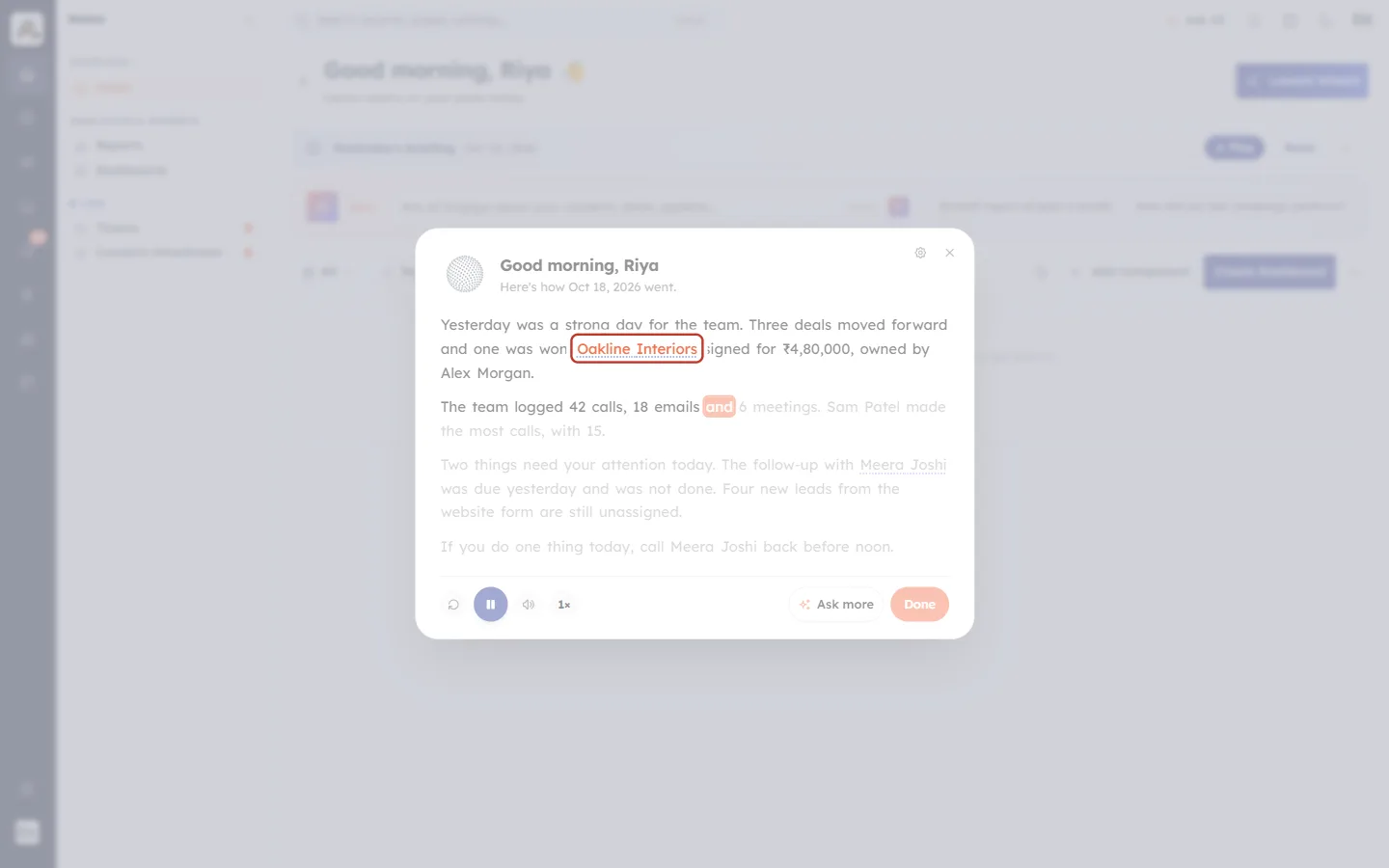
What this screenshot shows. A record name inside the briefing. Names of records the briefing talks about, such as a deal or a contact, are underlined (here Oakline Interiors).
Click an underlined name to open that record straight away. The briefing closes so you can work on the record.
Here, Oakline Interiors opens the won deal and Meera Joshi (further down) opens the contact whose follow-up was missed.
Step 5: Use the player controls#
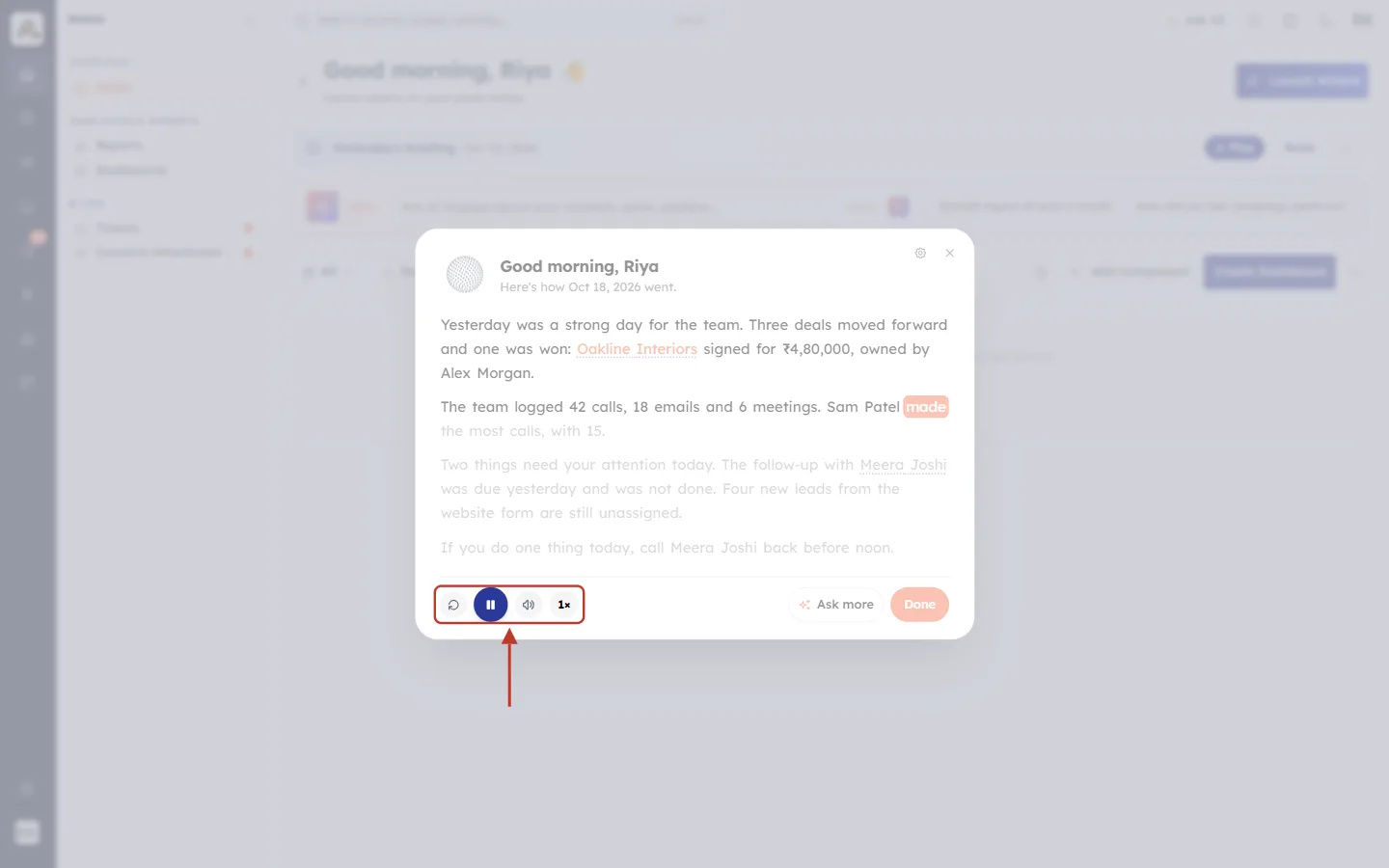
What this screenshot shows. The player controls at the bottom left of the briefing.
Replay (circular arrow): starts the briefing again from the beginning.
Pause (big blue button): pauses the voice. It turns into a play button (Resume) to continue. When the briefing finishes it becomes Play again.
Mute (speaker): silences the voice while the words keep lighting up, handy in a meeting. Click again to unmute.
1×: the reading speed. Click to switch to 1.25×, then 1.5×, then back to 1×.
Step 6: Ask more, or click Done#
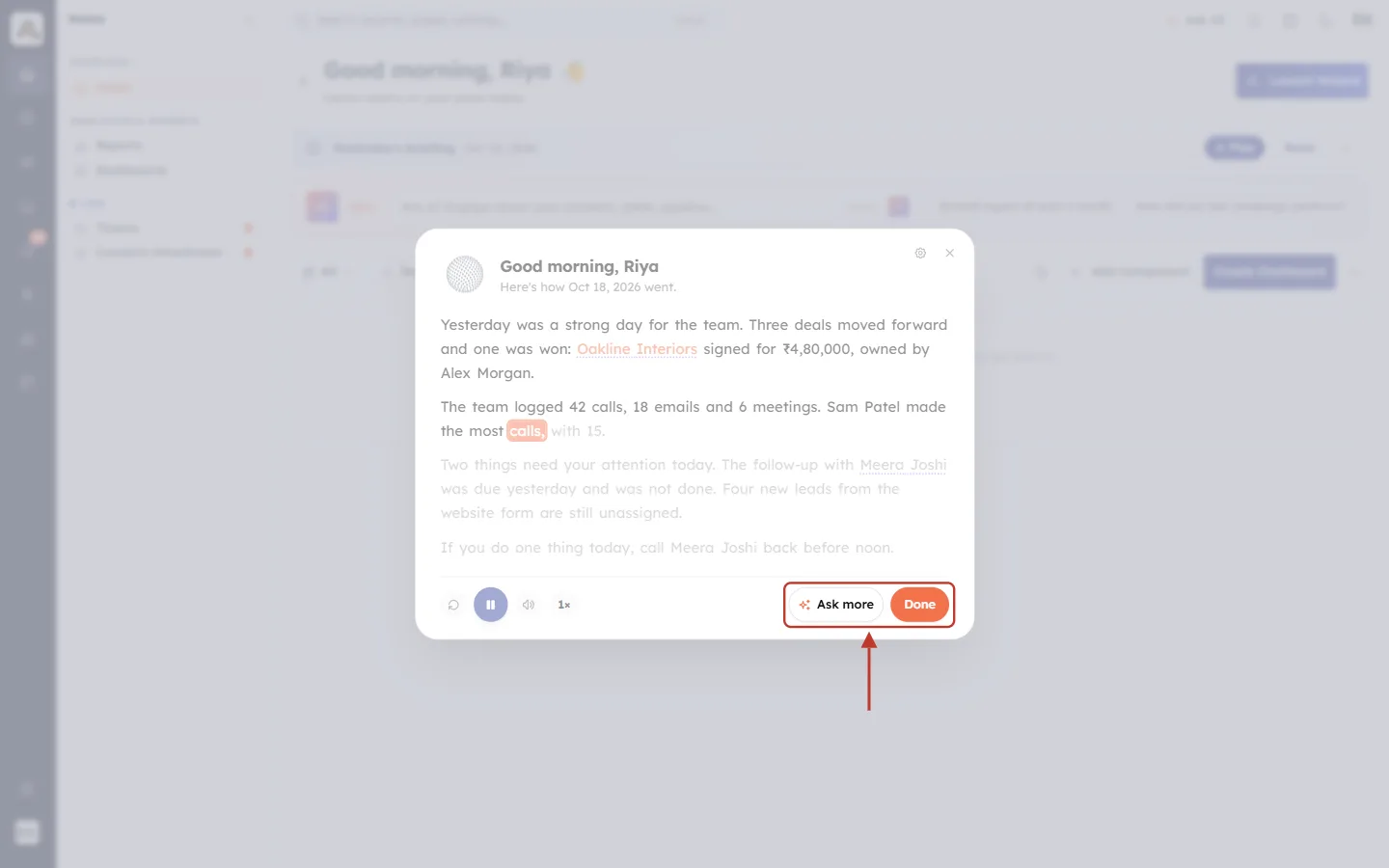
What this screenshot shows. The two buttons at the bottom right of the briefing.
Ask more (sparkle icon): stops the briefing and opens Ask AI with the question “Tell me more about my daily briefing… go deeper on what matters most and what I should do next”, together with the briefing text, and sends it for you. Use it to dig into the details or ask follow-up questions. You see this button if your profile has access to AI Agents.
Done: stops and closes the briefing. You can open it again from the briefing bar at any time today (Part 3).
Part 3: Come Back to Your Briefing Later#
After you have had (or skipped) your briefing, a slim briefing bar stays at the top of your dashboard for the rest of the day.
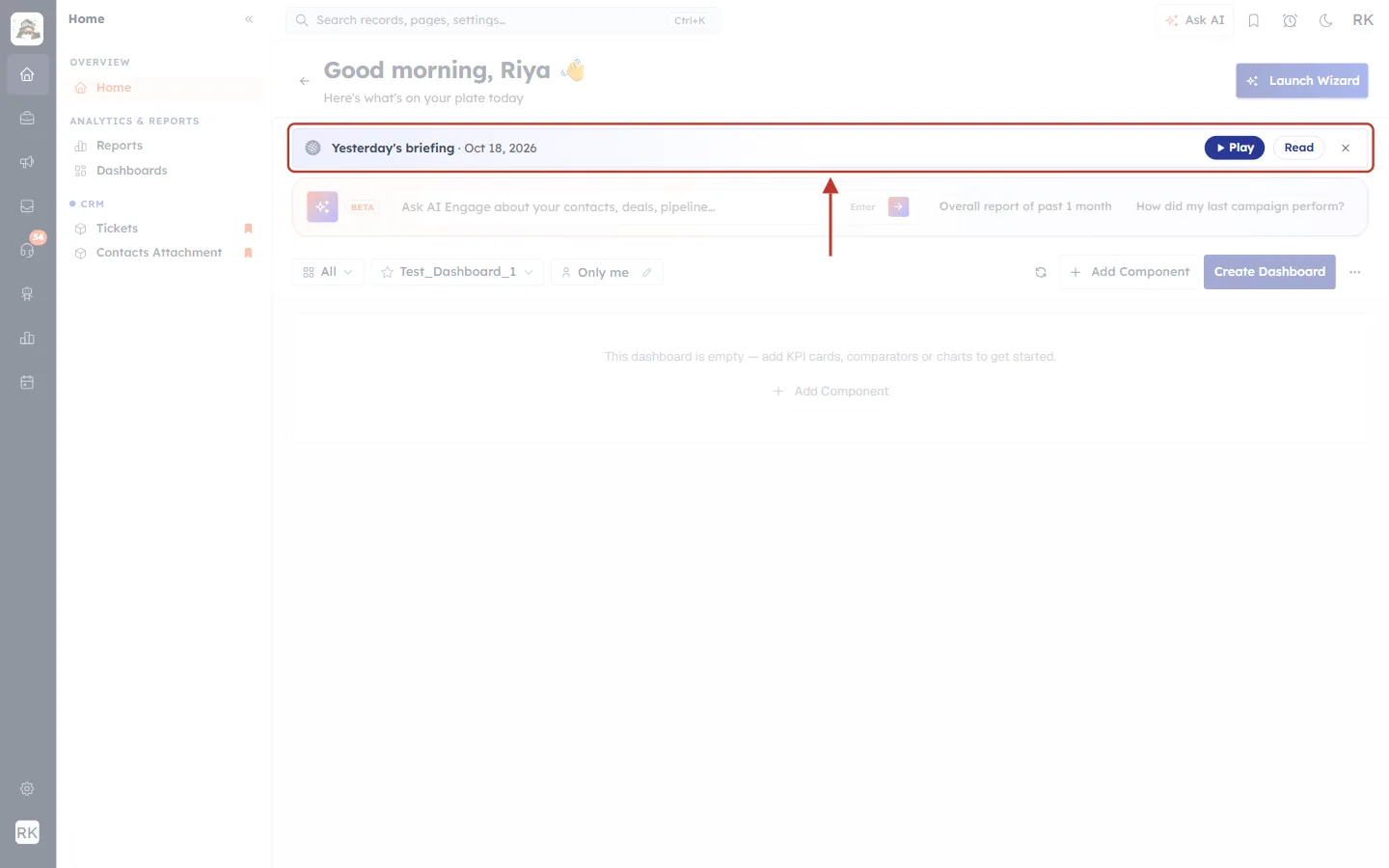
What this screenshot shows. The briefing bar above the Ask AI Engage box on your dashboard, once today’s briefing is ready.
Yesterday’s briefing · Oct 18, 2026: which day it covers. On Mondays it says Your weekend briefing · Sat – Sun.
Play: opens the briefing and reads it aloud again.
Read: opens the briefing as text, without starting the voice. Good for a quiet office.
× (Minimise): shrinks the bar (see below).
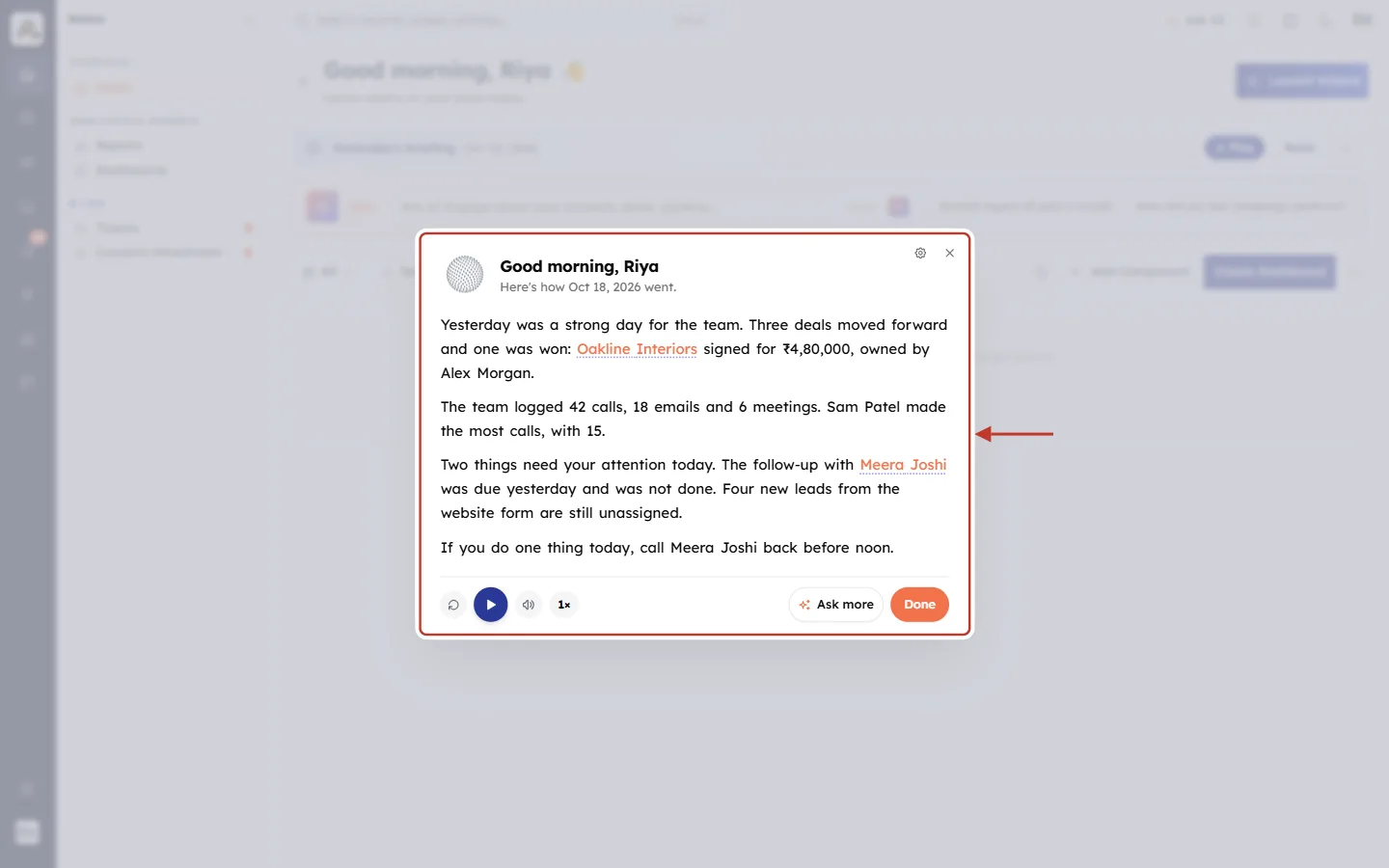
What this screenshot shows. The briefing after clicking Read. The whole text is shown at once in dark type and nothing is spoken.
Read it at your own pace. Underlined record names still open the records.
The big blue button shows play (Play again) if you decide to listen after all.
Ask more and Done work as in Step 6.
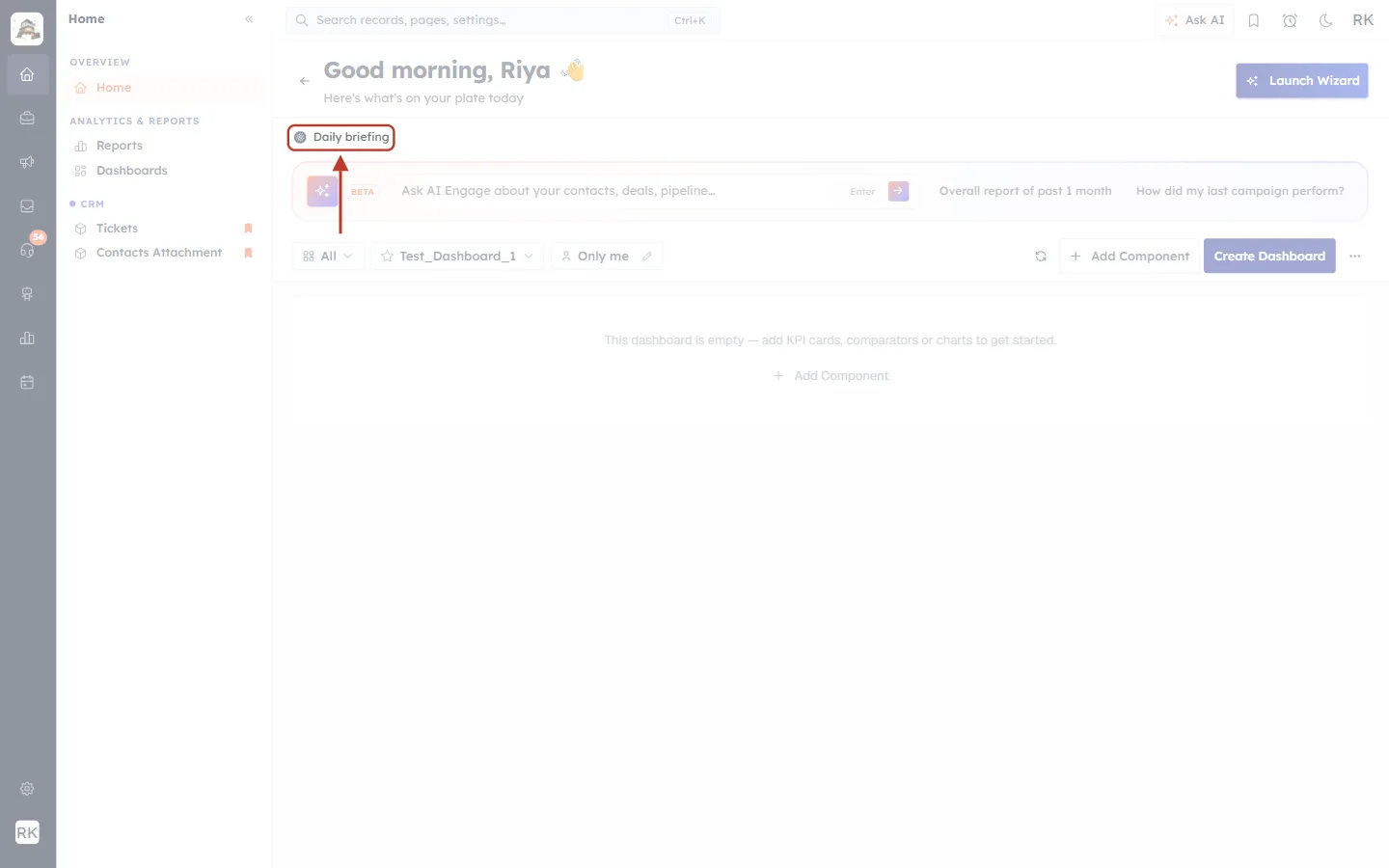
What this screenshot shows. The briefing bar after clicking ×. It shrinks to a small Daily briefing link so your dashboard has more room.
Click Daily briefing to bring the full bar back.
The bar stays small in this browser until the next briefing (tomorrow, or Monday after a weekend). Then it appears in full again.
Part 4: Other Messages in the Briefing Bar#
The bar changes its message depending on what has happened today. Here is what each one means.
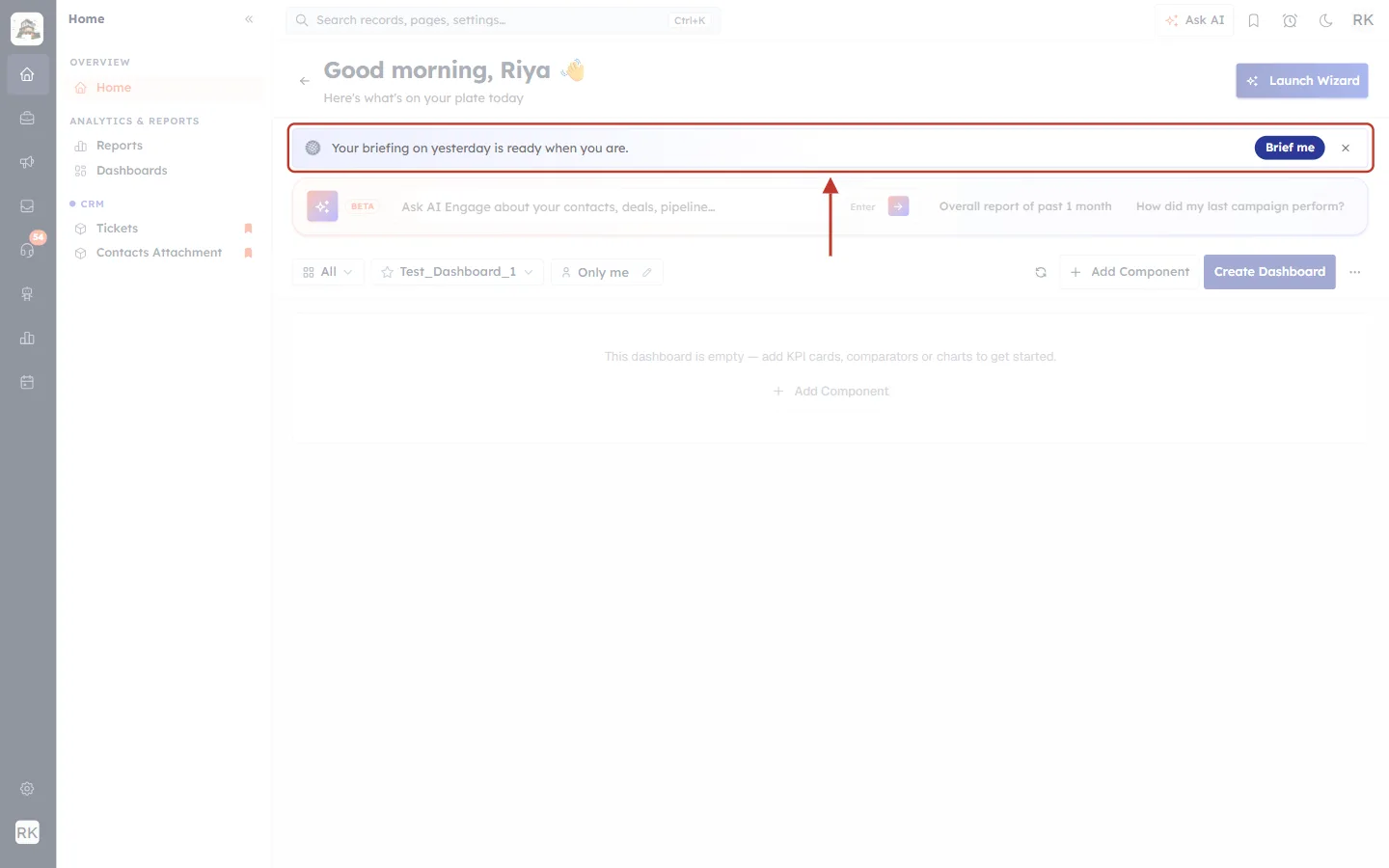
What this screenshot shows. The bar after you clicked Not today, or when the greeting is turned off in your settings.
Your briefing on yesterday is ready when you are.: nothing has been played yet today.
Brief me: prepares the briefing and reads it, exactly like Yes, brief me in Part 2.
If you said yes but the briefing stopped before it finished (for example you closed the tab), the bar says Your briefing didn’t finish. with a Try again button instead.
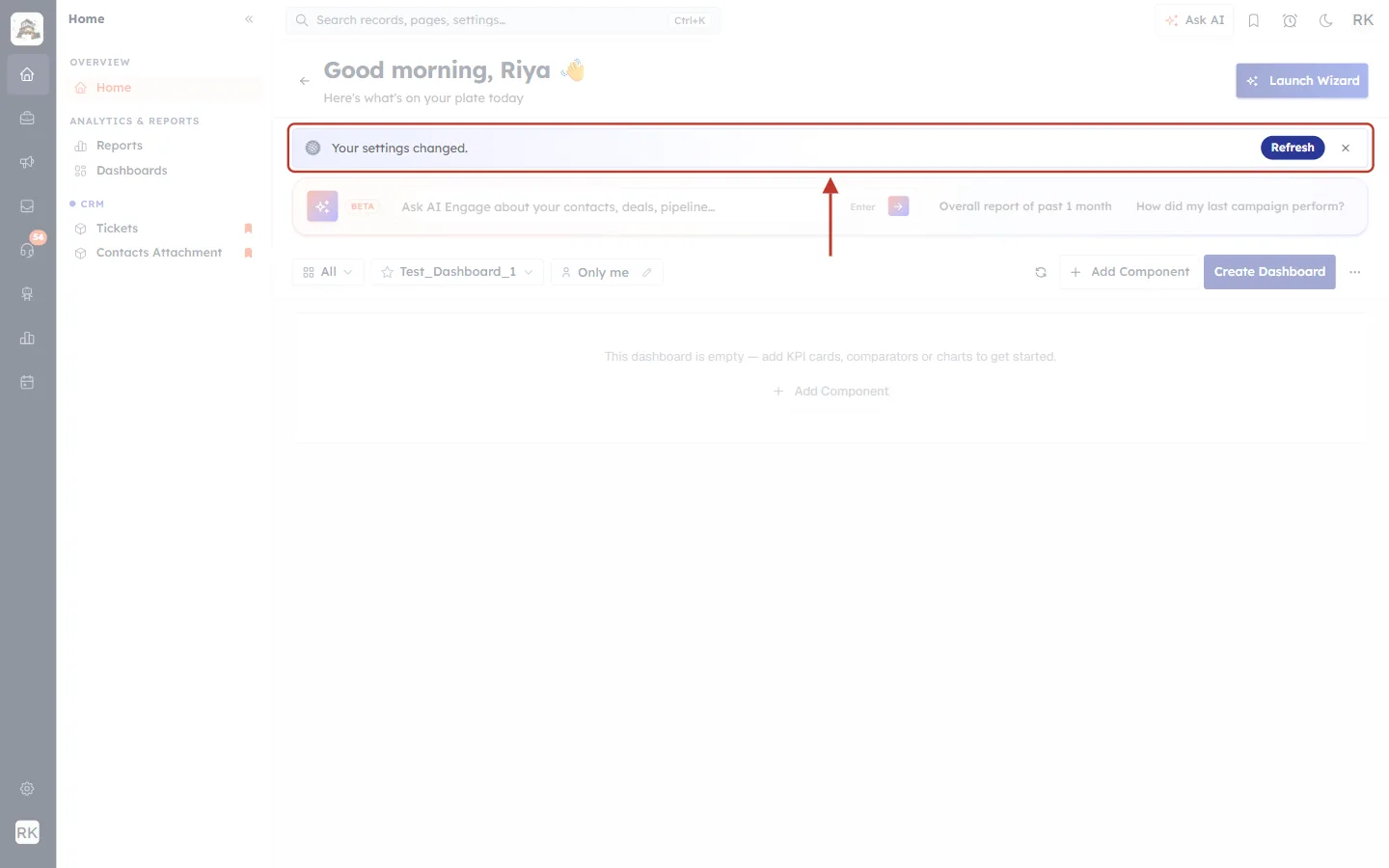
What this screenshot shows. The bar after you or an admin changed the briefing settings (for example a new prompt) since today’s briefing was made.
Your settings changed.: today’s briefing was written with your old settings.
Refresh: makes a new briefing that follows your new settings and reads it to you.
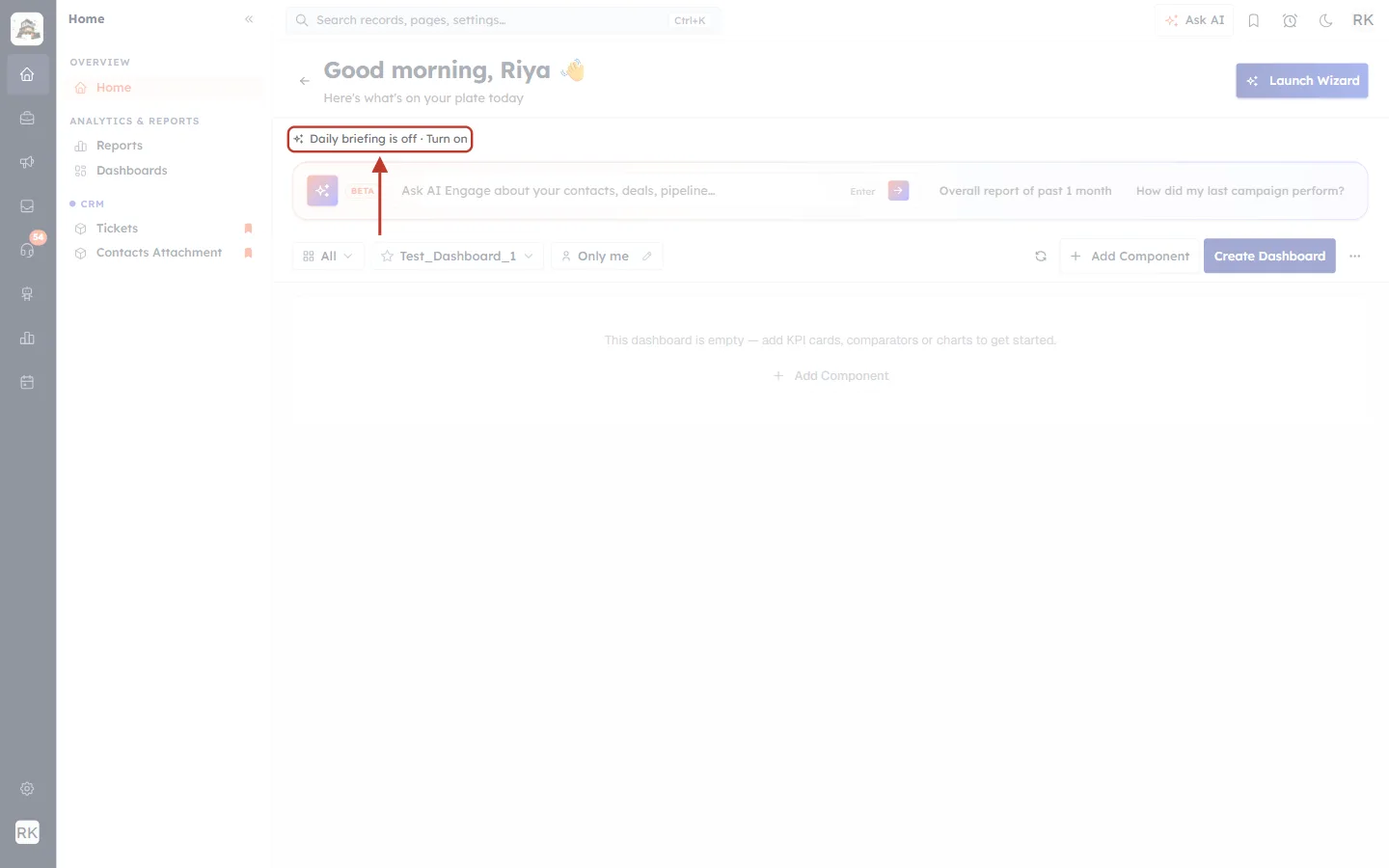
What this screenshot shows. What you see when you have turned your own briefing off but your organisation still offers it.
Daily briefing is off · Turn on: click it to open your briefing settings and switch Show my daily briefing back on (Part 5).
If an admin has turned the briefing off for the whole organisation, or for your profile, nothing appears on the dashboard at all.
Part 5: Customise Your Own Briefing#
Open Setup → AI Centre Hub → Daily Briefing (or the gear in any briefing). The first tab, Customize your briefing, is for your own briefing only. Everyone who gets the briefing can use it.
Step 1: Choose when and how you get it#
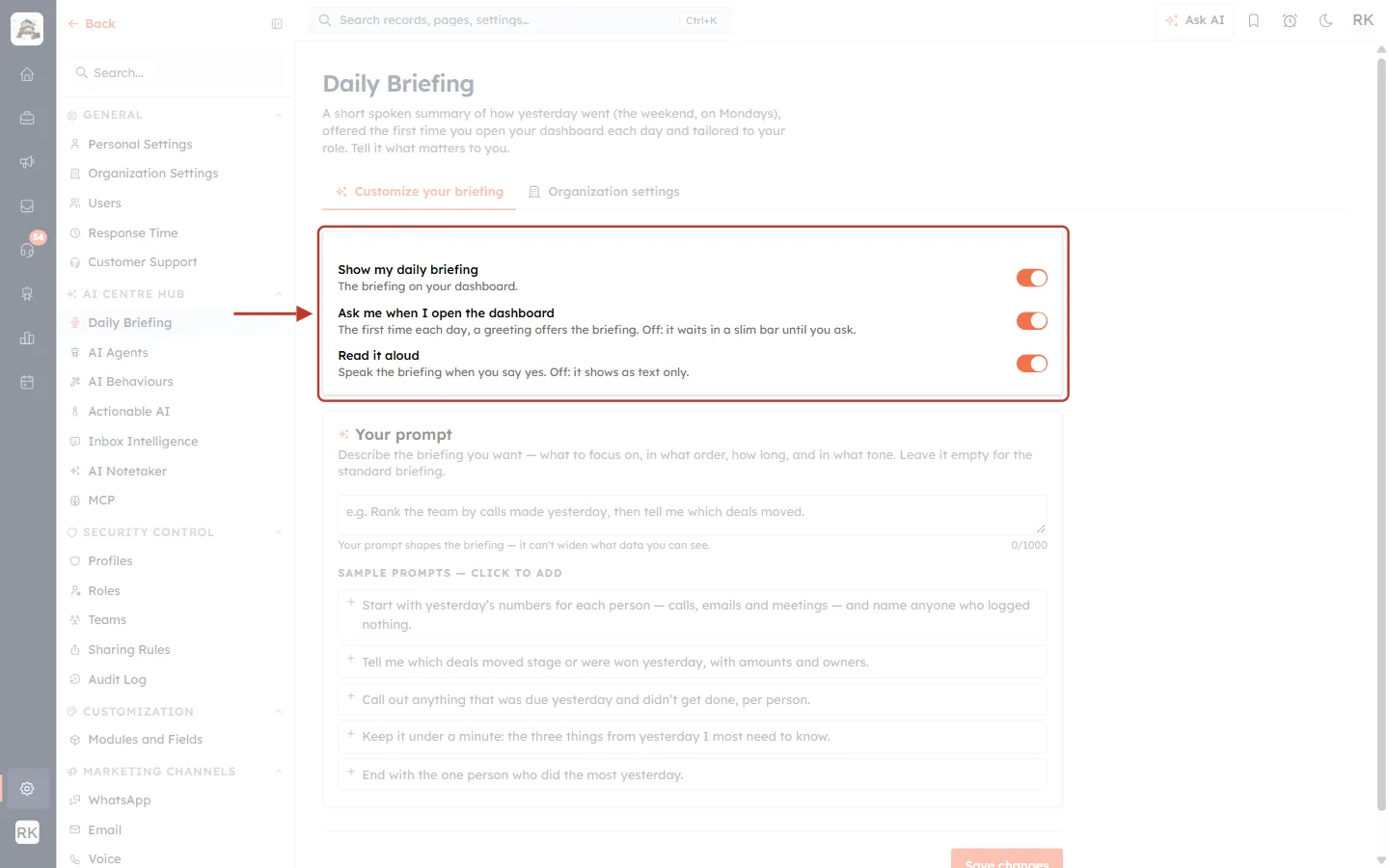
What this screenshot shows. The three switches at the top of the Customize your briefing tab.
Show my daily briefing: “The briefing on your dashboard.” Turn it off to stop getting a briefing altogether. The other two switches are then greyed out.
Ask me when I open the dashboard: when on, the greeting from Part 2 appears the first time each day. When off, there is no pop-up: the briefing waits quietly in the slim bar until you click Brief me.
Read it aloud: when on, the briefing is spoken when you say yes. When off, it opens as text only, like the Read button.
Step 2: Write your own prompt (optional)#
The Your prompt box lets you describe the briefing you want, in your own words: what to focus on, in what order, how long, and in what tone. Leave it empty for the standard briefing.
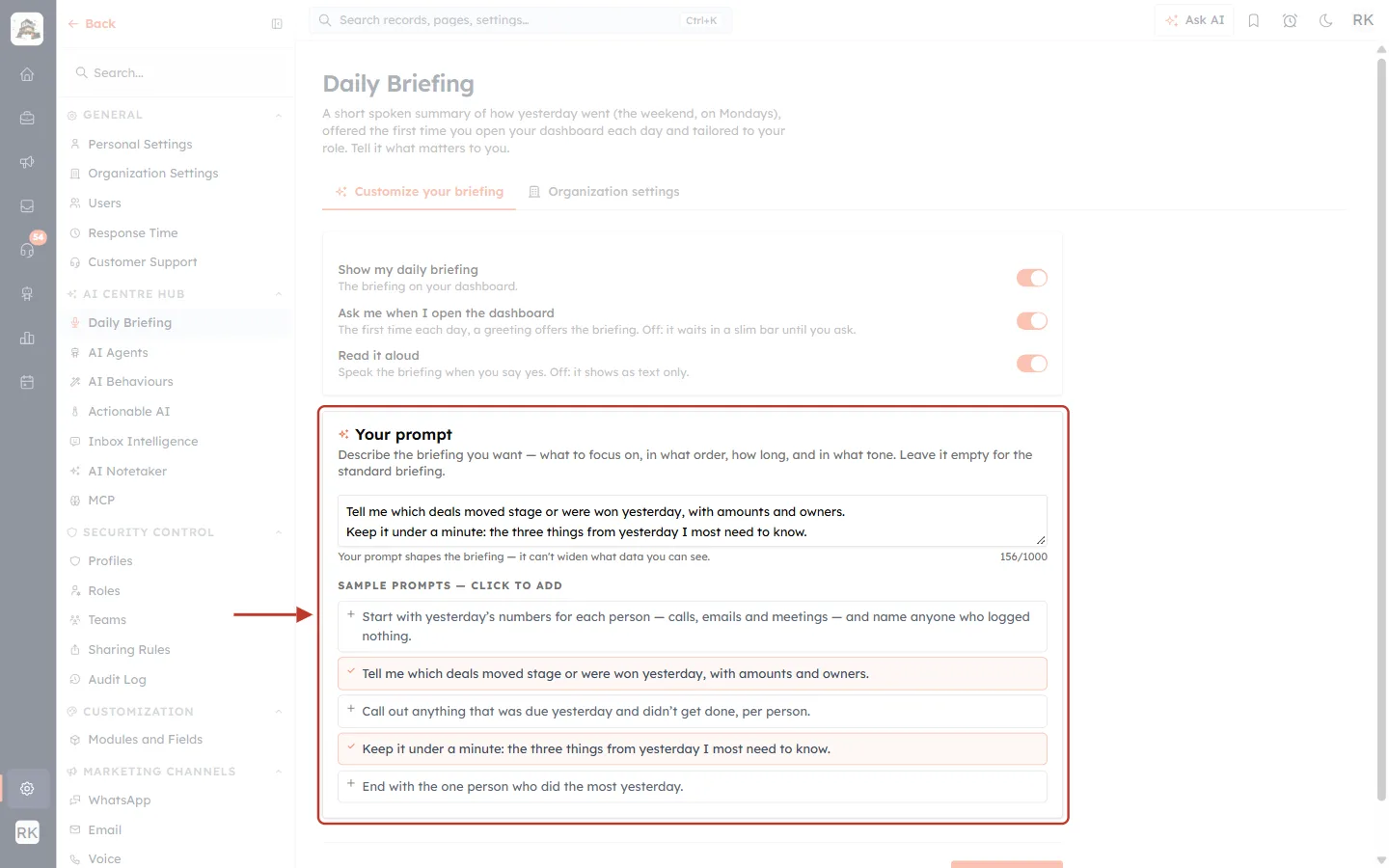
What this screenshot shows. The Your prompt card after two sample prompts have been added with a click.
The prompt box: type anything you like, up to 1,000 characters (the counter on the right shows 156/1000 here). Each line is one instruction.
“Your prompt shapes the briefing — it can’t widen what data you can see.”: the briefing still only uses records you have access to.
SAMPLE PROMPTS — CLICK TO ADD: ready-made instructions. Click one to add it to the end of your prompt. Added ones turn orange with a ✓ (here “Tell me which deals moved stage…” and “Keep it under a minute…”). Admins see team-wide samples like “Start with yesterday’s numbers for each person”. Other users see personal ones like “Start with what I closed or completed yesterday”.
If a sample doesn’t fit in the 1,000 characters, its border turns dashed and you are asked to shorten your prompt first.
✅
Good prompts are short and specific, for example: “Start with what I missed yesterday, then my wins. Keep it under 30 seconds.” or “Rank the team by calls made yesterday, then tell me which deals moved.”
Step 3: Save your changes#
Click Save changes at the bottom of the tab.
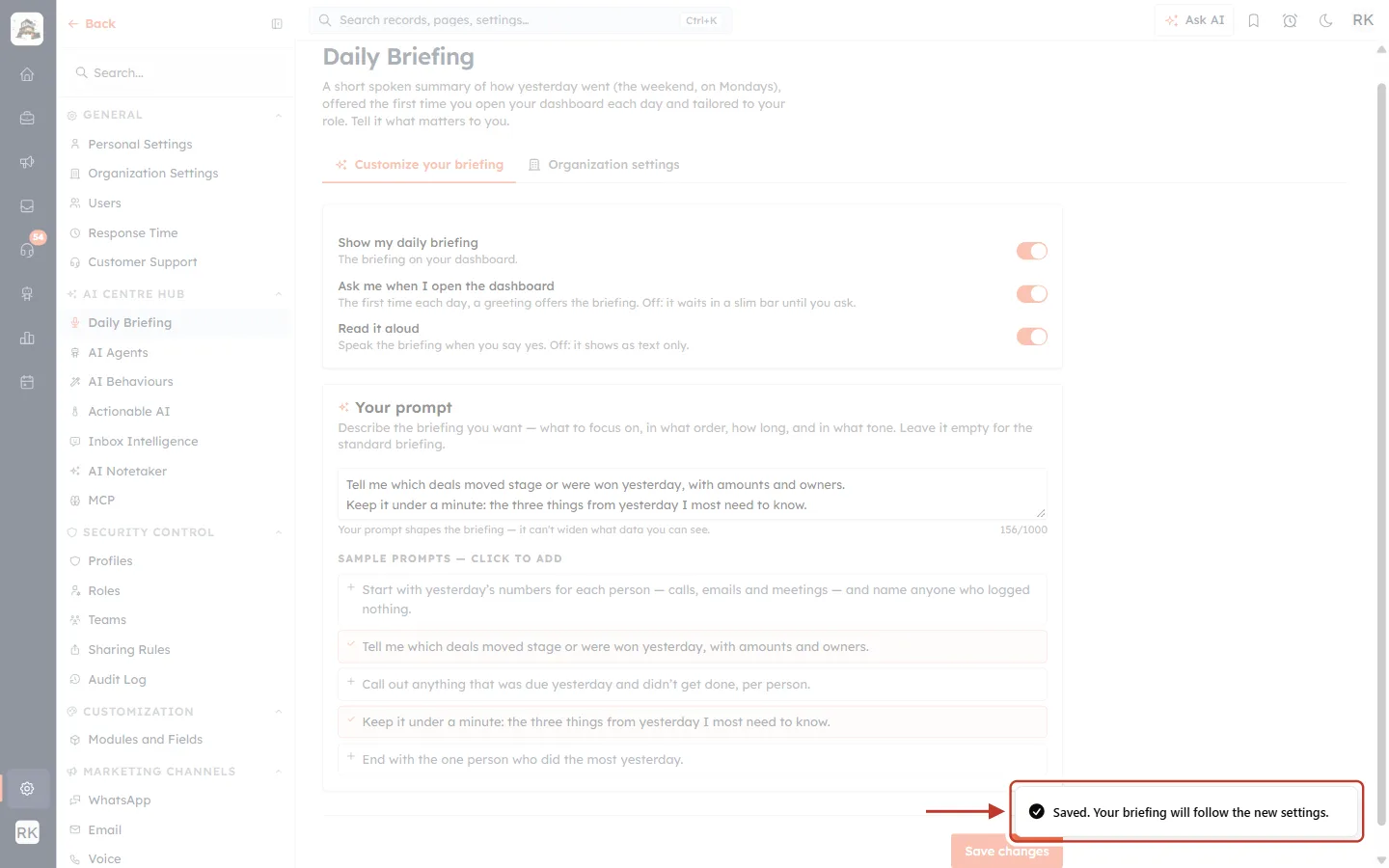
What this screenshot shows. The confirmation that appears in the bottom-right corner after you click Save changes.
Saved. Your briefing will follow the new settings.: your switches and prompt are stored.
If today’s briefing was already made, the dashboard bar shows Your settings changed. with Refresh (Part 4). Click it to hear the briefing with your new prompt.
ℹ️
If your profile doesn’t get the briefing, this tab says “Your profile, name, doesn’t include the daily briefing. Ask an admin if you’d like it turned on.” If the organisation has turned it off, it says “Your organization has turned the daily briefing off. Ask your admin to enable it.”, and the switches are locked.
Part 6: Organization Settings (Admins)#
If you can manage organisation settings, you also see a second tab, Organization settings. Changes here apply to everyone.
Step 1: Turn the briefing on or off for everyone and set the defaults#
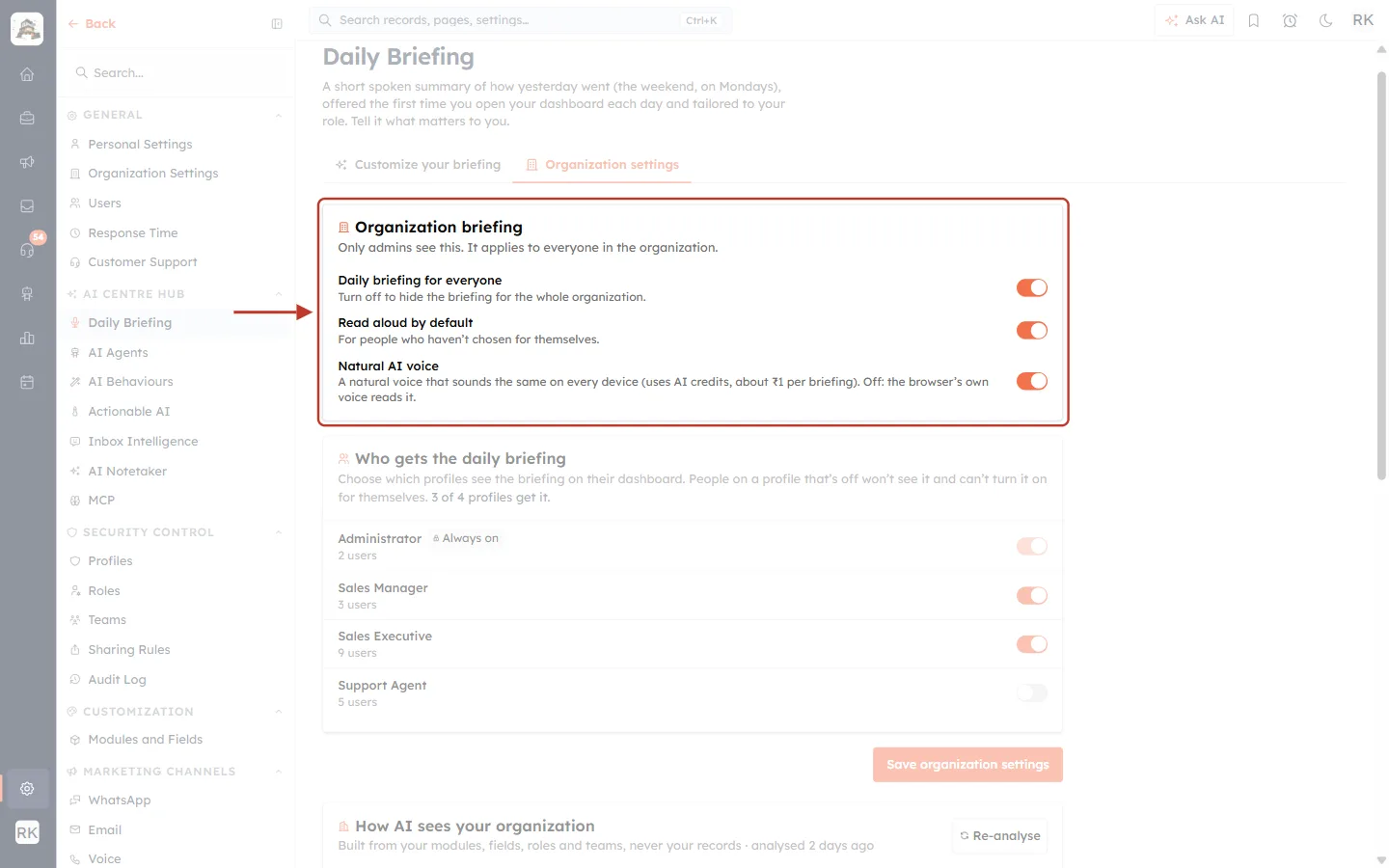
What this screenshot shows. The Organization briefing card. “Only admins see this. It applies to everyone in the organization.”
Daily briefing for everyone: the main switch. Turn it off to hide the briefing for the whole organisation. The other two switches are then greyed out.
Read aloud by default: whether the briefing is spoken for people who haven’t chosen for themselves with Read it aloud (Part 5).
Natural AI voice: a natural voice that sounds the same on every device. It uses AI credits, about ₹1 per briefing. When off, the computer’s own browser voice reads it instead, which is free but sounds different on each device.
Step 2: Choose which profiles get the briefing#
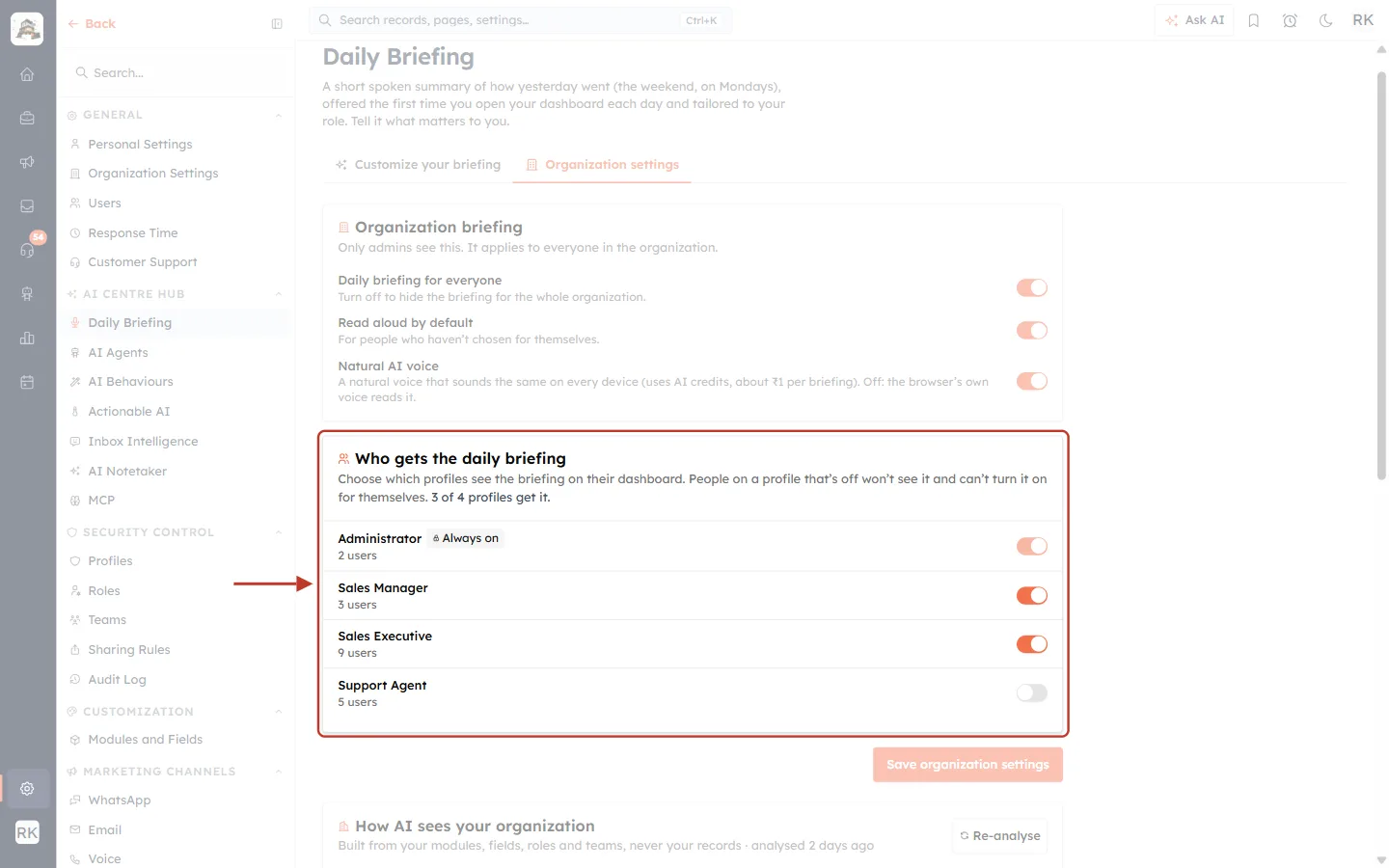
What this screenshot shows. The Who gets the daily briefing card, with one row and switch for each permission profile.
The summary line (here “3 of 4 profiles get it.”) counts how many profiles are switched on.
Each row shows the profile name and how many users have it, for example Sales Executive · 9 users.
Administrator · Always on (lock badge): admins always get the briefing and this switch can’t be changed. Each admin can still turn their own off in Part 5.
Support Agent (switch off): people on this profile won’t see the briefing and can’t turn it on for themselves.
Click Save organization settings under the card to apply. You see “Saved. Everyone’s briefing will follow the new settings.”
Step 3: Check how the AI sees your organisation#
To write useful briefings, the AI first builds a short profile of your business. It builds it from your modules, fields, roles and teams, never from your records. You can check this profile and correct it.
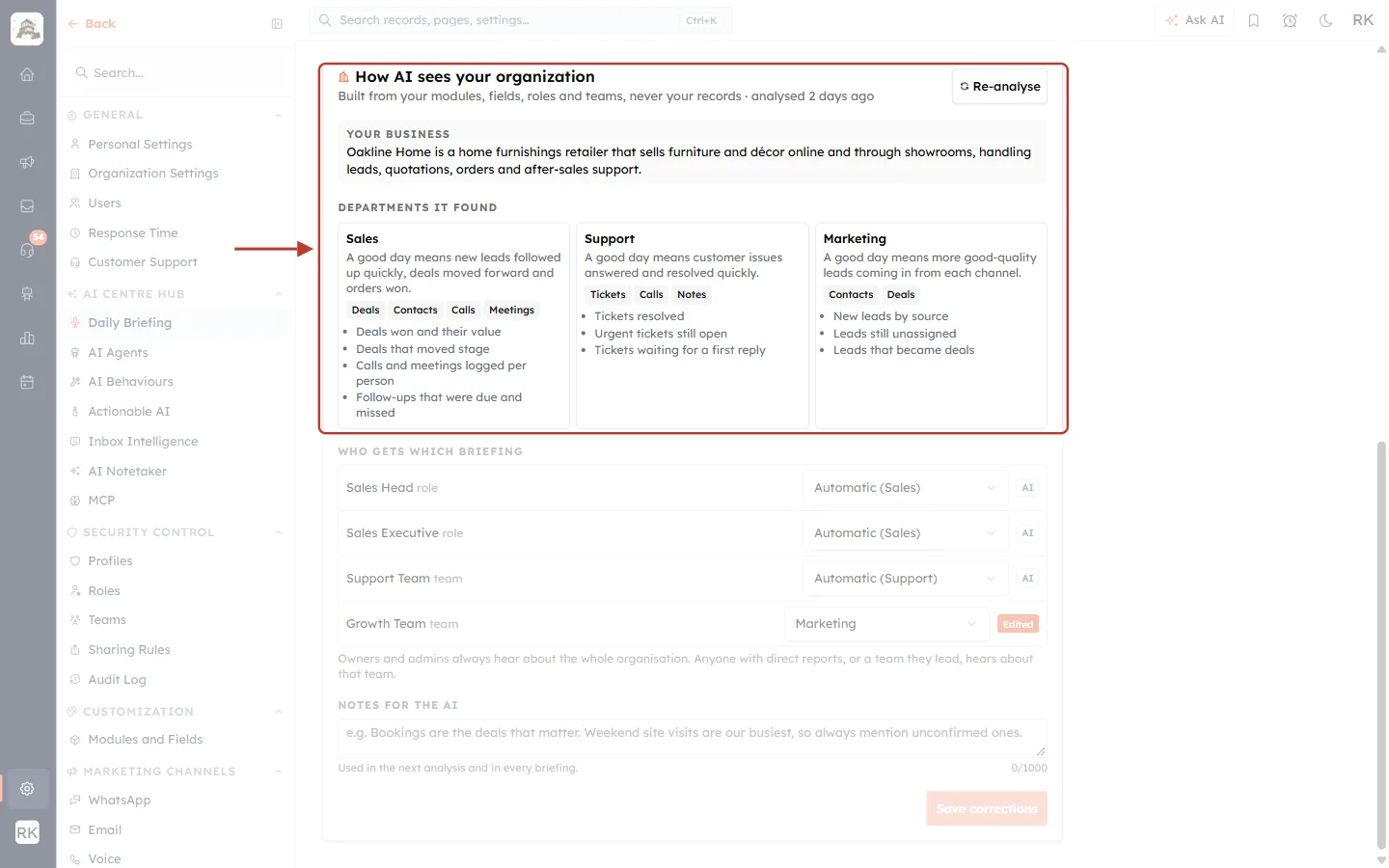
What this screenshot shows. The top of the How AI sees your organization card.
Analysed 2 days ago: when the profile was last built. If it hasn’t been built yet, briefings use a general profile until it is.
Re-analyse: rebuilds the profile, for example after you added new modules or teams. You see “Analysed. Briefings will use the new profile.”
YOUR BUSINESS: a one-paragraph description of what your company does.
DEPARTMENTS IT FOUND: one box per department (here Sales, Support and Marketing). Each box shows what a good day means for that department, the modules it works in (grey tags) and the signals the briefing looks at (bullets), such as “Deals won and their value” or “Tickets resolved”.
Step 4: Correct who gets which briefing and add notes#
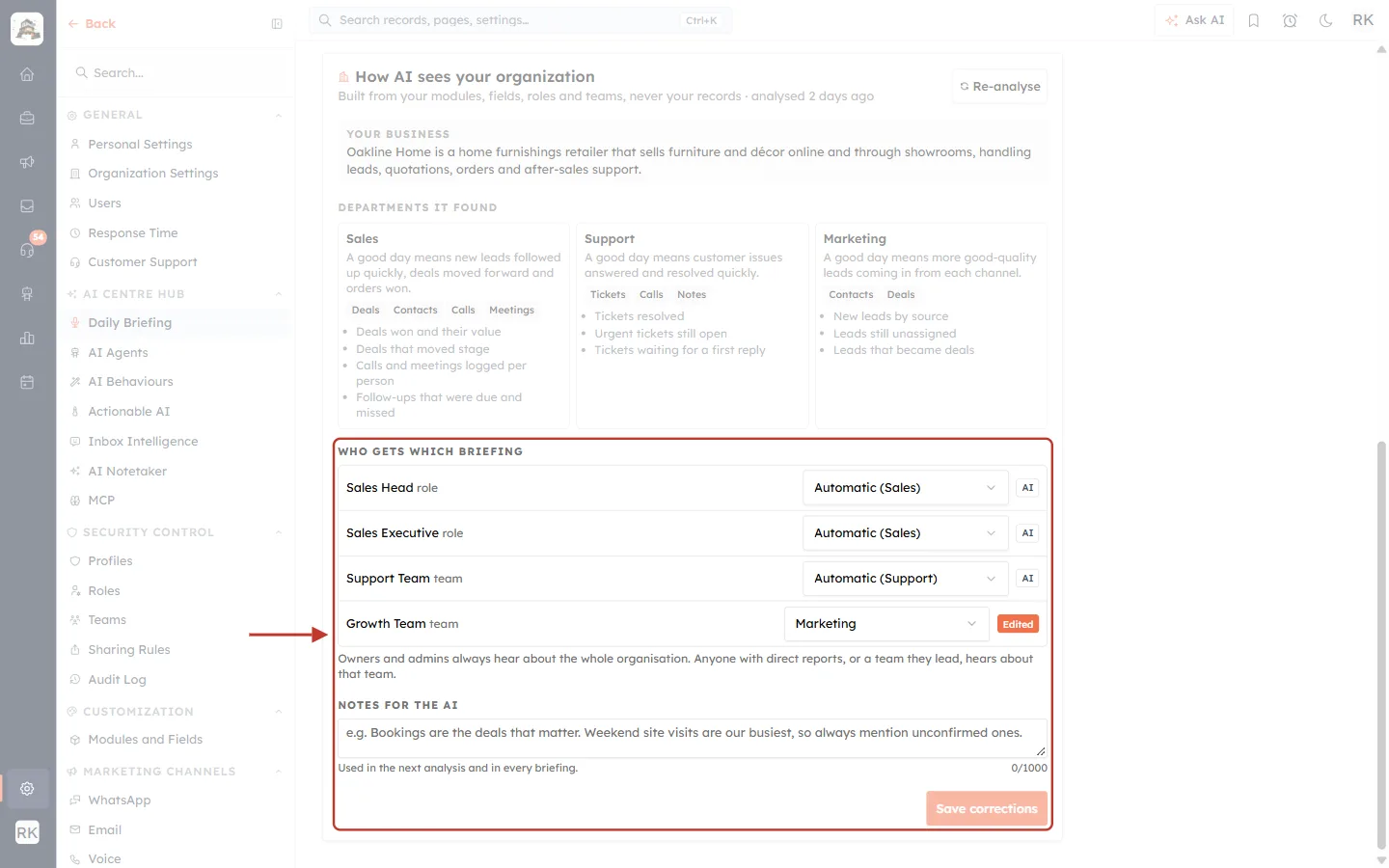
What this screenshot shows. The lower part of the card, where you can correct the AI.
WHO GETS WHICH BRIEFING: one row per role and team. The dropdown sets which department’s briefing they get: Automatic (the AI’s choice, shown in brackets), a specific department, or No department, go by their work.
The badge on the right: AI or Automatic when the AI chose, Edited when someone changed it (here the Growth Team was moved to Marketing).
The note under the list: “Owners and admins always hear about the whole organisation. Anyone with direct reports, or a team they lead, hears about that team.”
NOTES FOR THE AI: up to 1,000 characters of context, for example “Bookings are the deals that matter. Weekend site visits are our busiest, so always mention unconfirmed ones.” They are used in the next analysis and in every briefing.
Save corrections: becomes active once you change something. You see “Saved. Briefings will follow your changes.”
Part 7: When the Briefing Can’t Be Prepared#
Occasionally the briefing can’t be made. Instead of the text you see Your briefing isn’t ready with the reason.
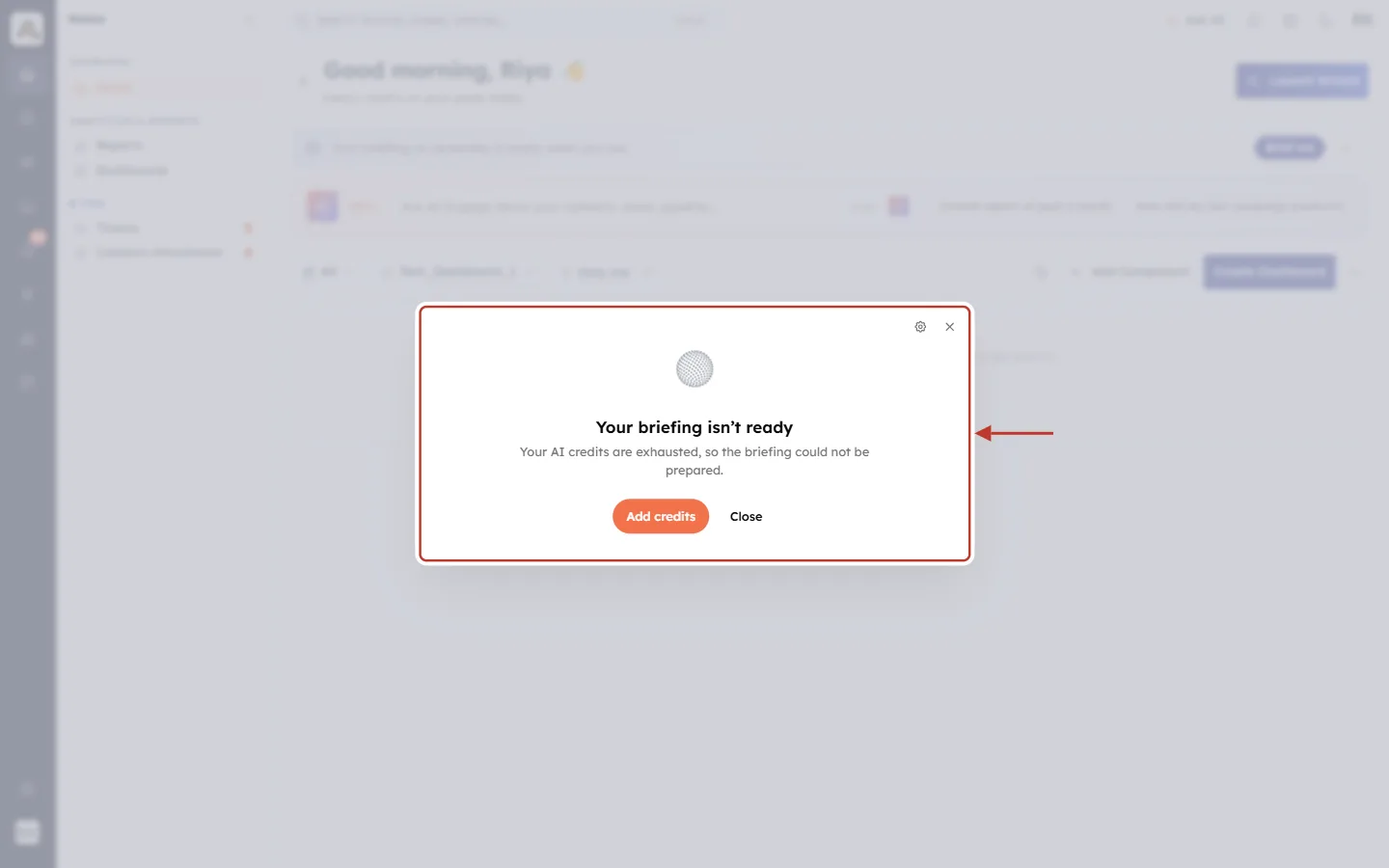
What this screenshot shows. The message shown when the organisation has run out of AI credits.
Your briefing isn’t ready: the briefing could not be prepared this time.
Your AI credits are exhausted, so the briefing could not be prepared.: the reason.
Add credits: shown to people who manage billing. It opens the billing page. Other users see “Ask your admin to add AI credits.” instead.
Close: closes the window.
Message | What it means and what to do |
|---|---|
Your AI credits are exhausted, so the briefing could not be prepared. | Add AI credits (or ask your admin). See AI Credits & Pricing: How AI Usage Is Billed. |
You don’t have access to any CRM data yet, so there’s nothing to brief you on. | Your profile can’t see any records. Ask an admin to check your profile’s permissions. |
That was a few tries in a row. Give it a minute, then try again. | Too many attempts in a short time. Wait a minute and click Try again. |
You’ve refreshed today’s briefing the maximum number of times. It will be ready again tomorrow. | There is a daily limit on making a fresh briefing. Try again tomorrow. |
Your briefing is taking too long. Try again in a moment. | Preparing took longer than expected. Click Try again. |
Quick Reference#
Task | How |
|---|---|
Hear today’s briefing | Home → Yes, brief me, or Play / Brief me in the bar |
Read without sound | Read in the bar, or Mute while it plays |
Speed it up | Click 1× → 1.25× → 1.5× |
Open a record it mentions | Click the underlined name |
Ask a follow-up question | Ask more |
Hide the bar | × in the bar (click Daily briefing to bring it back) |
Stop the morning pop-up | Turn off Ask me when I open the dashboard |
Get text only | Turn off Read it aloud |
Focus the briefing | Write Your prompt → Save changes → Refresh in the bar |
Choose who gets it (admins) | Organization settings → profile switches → Save organization settings |
Best Practices#
Make it part of your morning. Open Home first thing, listen while you get your coffee, then click Ask more or a record name to act on what you heard.
Keep your prompt short. Three or four clear instructions work better than a long paragraph.
Use the sample prompts as a starting point and adjust the wording to your business.
Admins: check “How AI sees your organization” once after setup, and add notes about what matters most. Every briefing in the company gets better.
Re-analyse after big changes such as new modules, new teams or a reorganisation.
Decide on the voice. Leave Natural AI voice on for the best experience, or turn it off to save AI credits.
Troubleshooting#
I don’t see the briefing on my dashboard#
Check, in this order: that Show my daily briefing is on in Part 5; that your profile is switched on under Who gets the daily briefing (ask an admin); and that Daily briefing for everyone is on. If you see a small Daily briefing link instead of the bar, you minimised it. Click the link.
The greeting doesn’t pop up any more#
It only appears the first time you open the dashboard each day, and not at all if Ask me when I open the dashboard is off. You can always start the briefing from the bar.
I can see the words but hear nothing#
Check that Mute isn’t on and that your computer’s sound is up. If Read it aloud is off, the briefing is text only. Some browsers block sound until you have clicked on the page, so click Replay.
The voice sounds different on another computer#
Natural AI voice is off for your organisation (or couldn’t be loaded), so the computer’s own voice is used. Admins can turn it on in Organization settings.
My new prompt isn’t used#
Make sure you clicked Save changes, then click Refresh in the dashboard bar to make a new briefing with it.
Frequently Asked Questions#
What period does the briefing cover?
Yesterday. On Mondays it covers the weekend (Saturday and Sunday).
Can the briefing show me records I can’t normally see?
No. It only uses data your profile can access, and your prompt can’t change that.
Does everyone get the same briefing?
No. Owners and admins hear about the whole organisation, people who lead a team or have direct reports hear about that team, and everyone else hears about their own work. Each person can also add their own prompt.
Does it cost anything?
The briefing is written by AI, so your organisation needs AI credits (if they run out you see the message in Part 7). The natural AI voice also uses credits, shown in the settings as about ₹1 per briefing. See AI Credits & Pricing: How AI Usage Is Billed.
Can I turn it off just for me?
Yes. Turn off Show my daily briefing in Customize your briefing. Admins can’t be removed by profile, but each admin can turn their own off this way.
Previous and Next#
Related Articles#
Was this article helpful?
Ready to implement this?
OpenAI Engage and apply what you just learned to your own workspace.
Open AI Engage CRM